

You can create a VM instance in Google Cloud using the Google Cloud console. This topic shows how to set up an AI Gateway instance on the Google Cloud Platform (GCP).
Follow the below steps to set up AI Gateway on GCP:
-
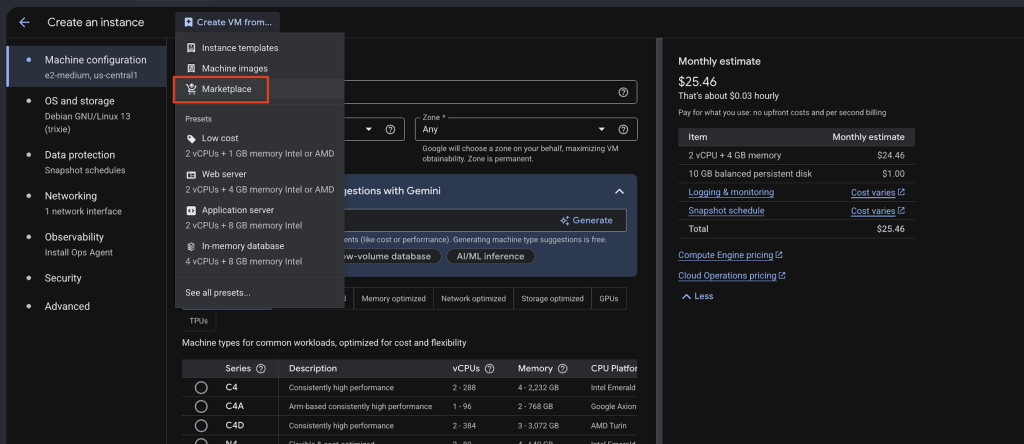
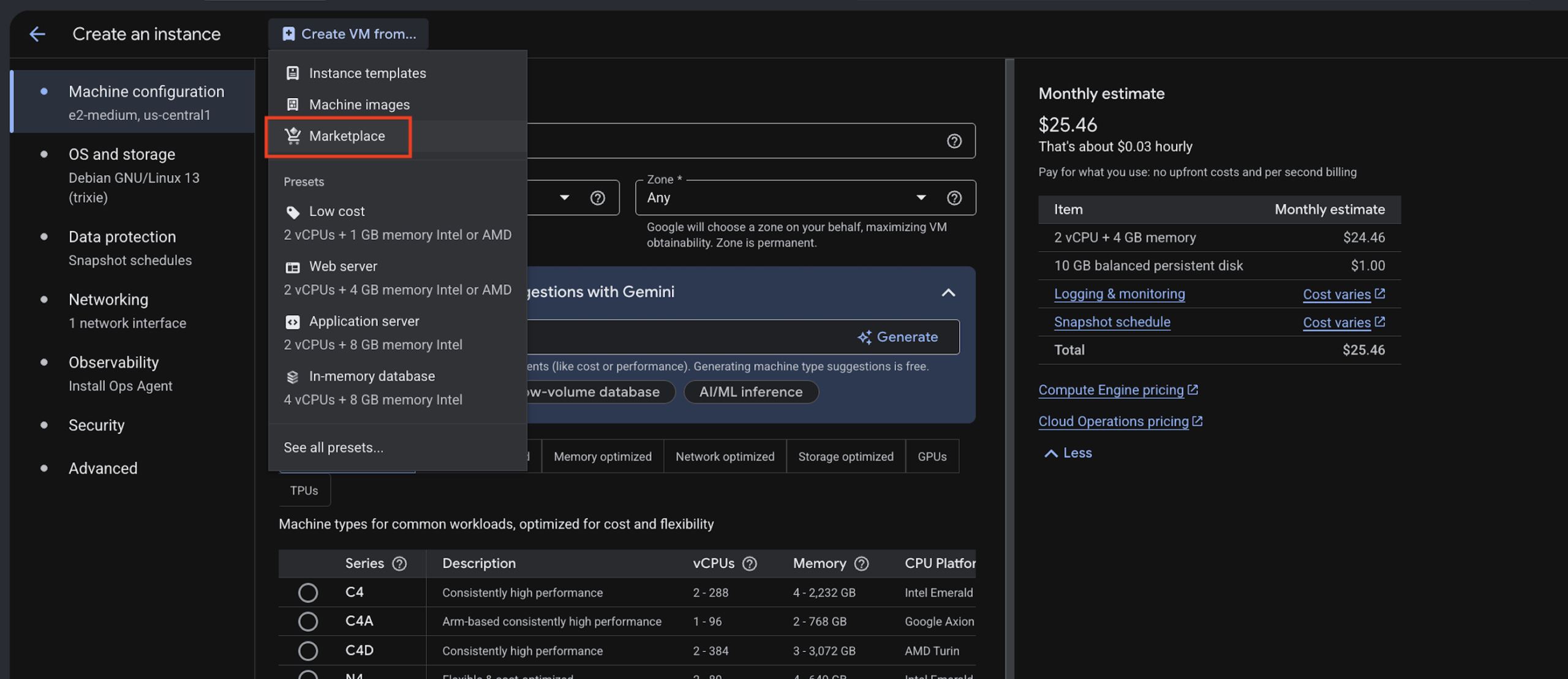
In Compute Engine, go to the VM Instances, click Create Instance > Create VM from Marketplace.
-
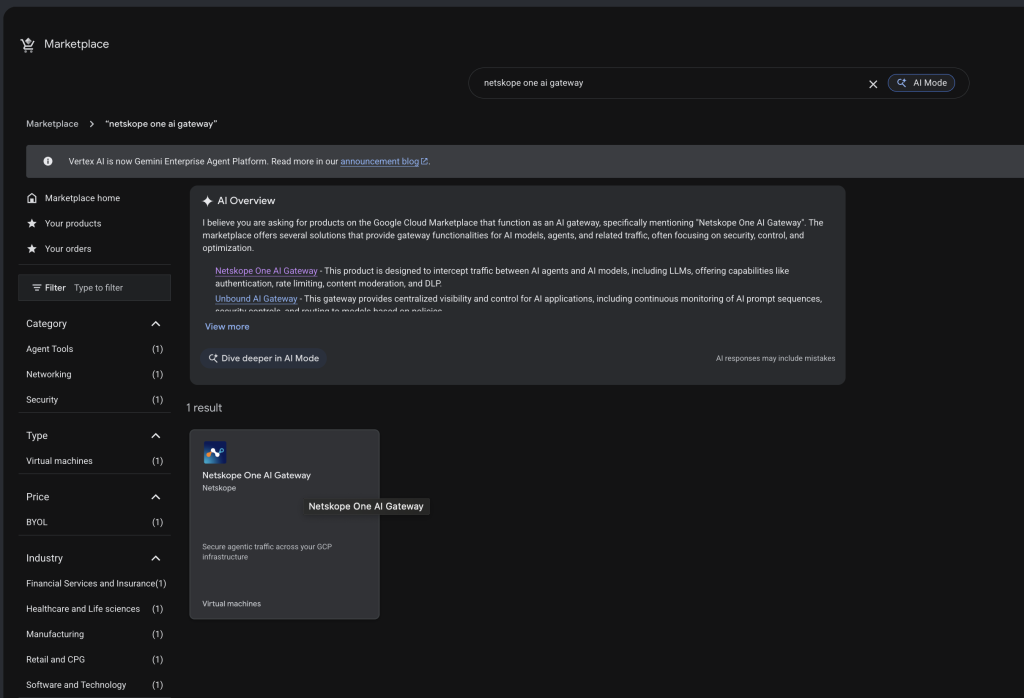
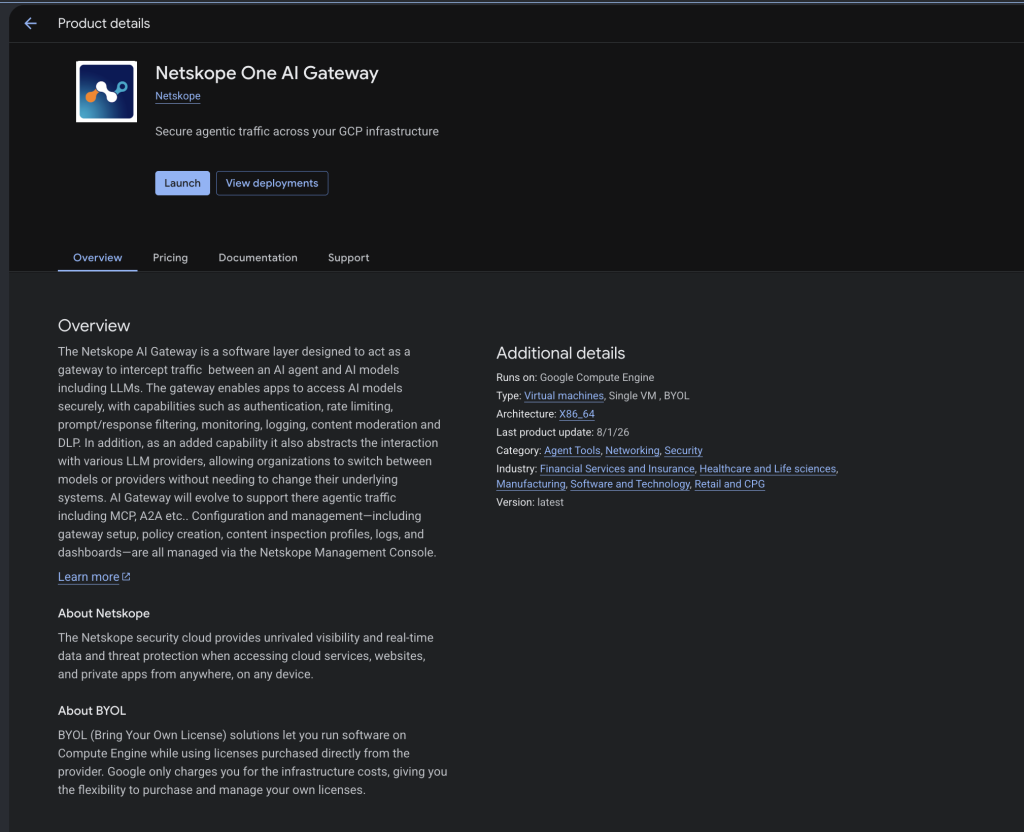
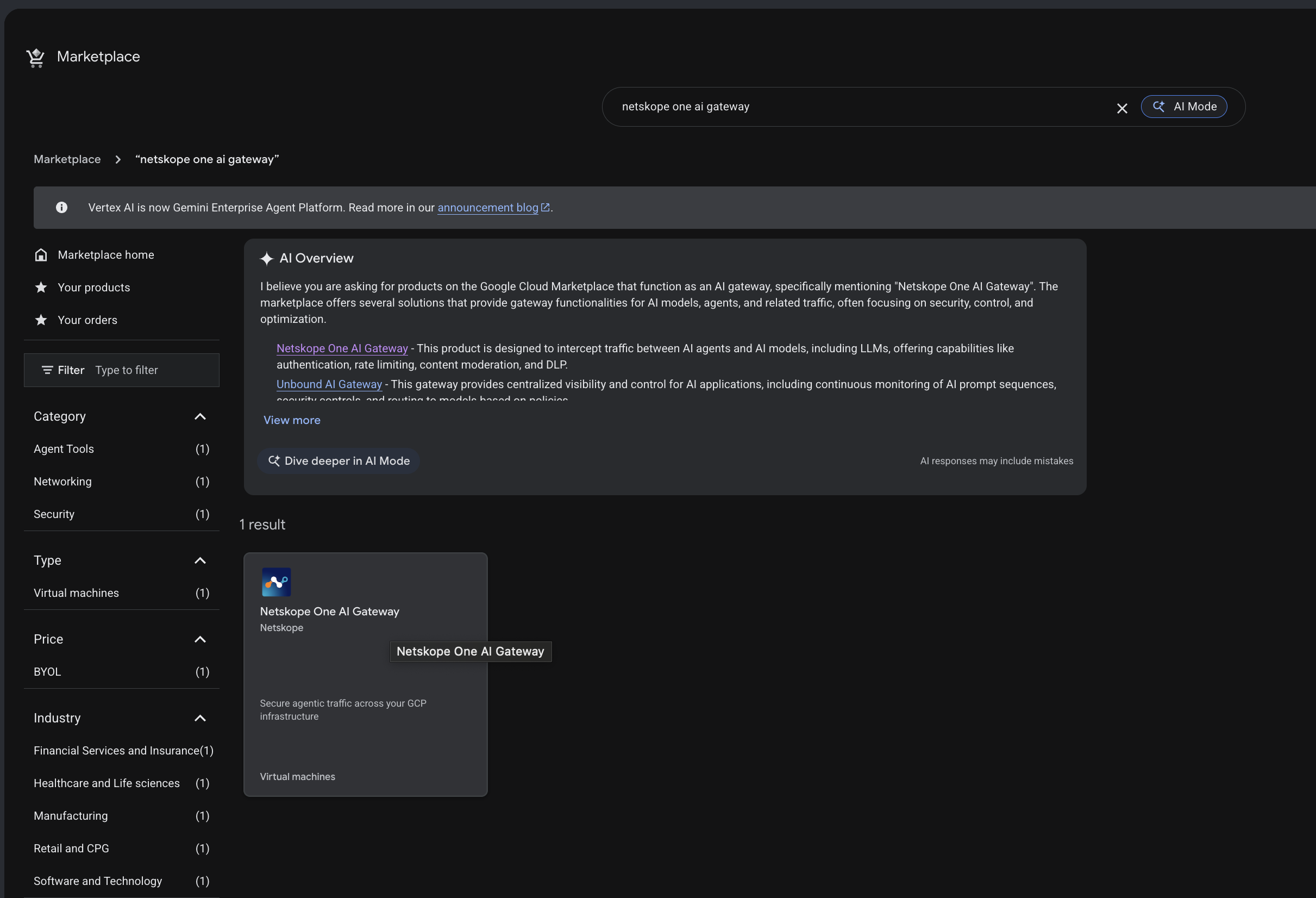
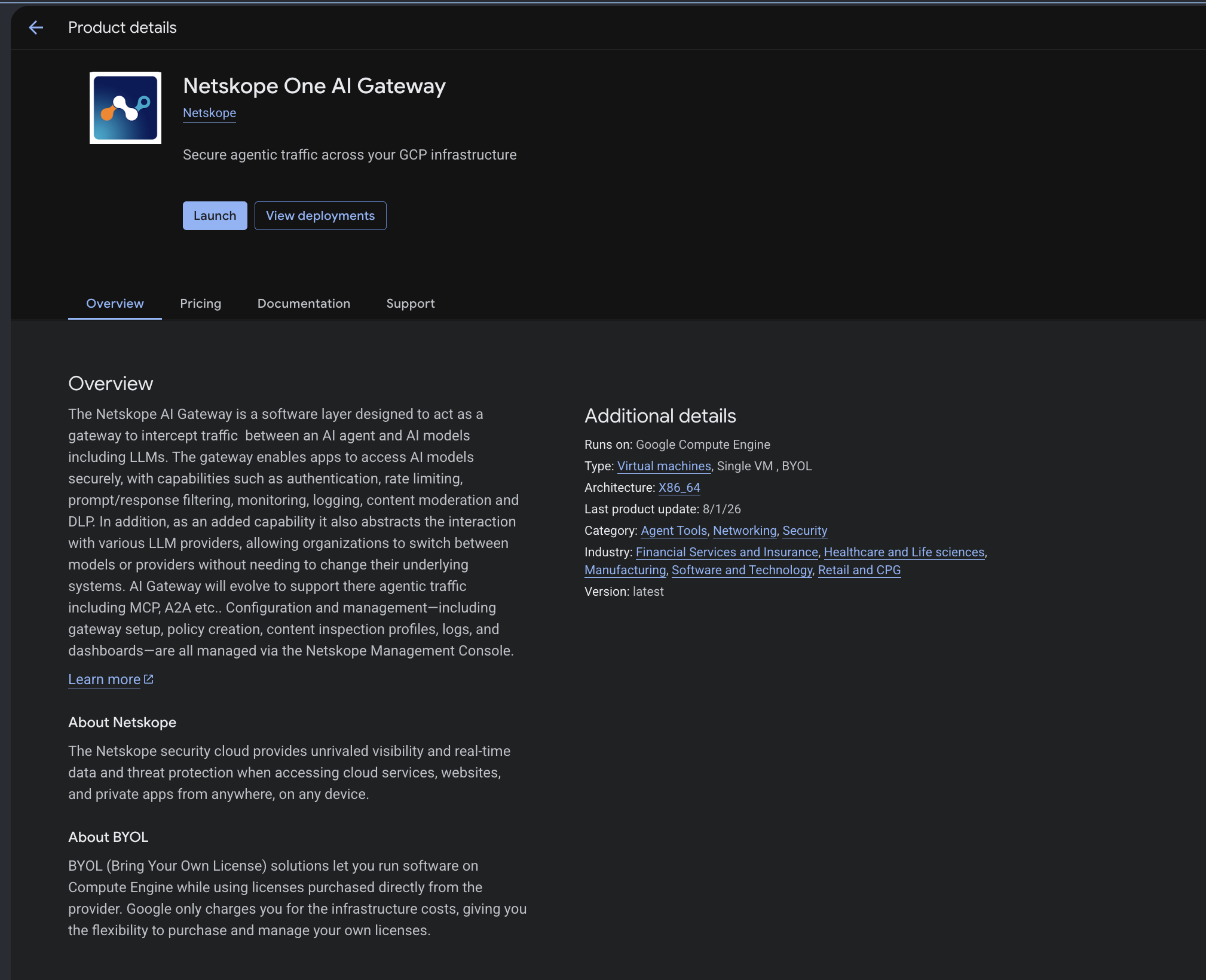
Or search “Netskope One AI Gateway” on GCP Marketplace, or launch AI Gateway via GCP Marketplace.
-
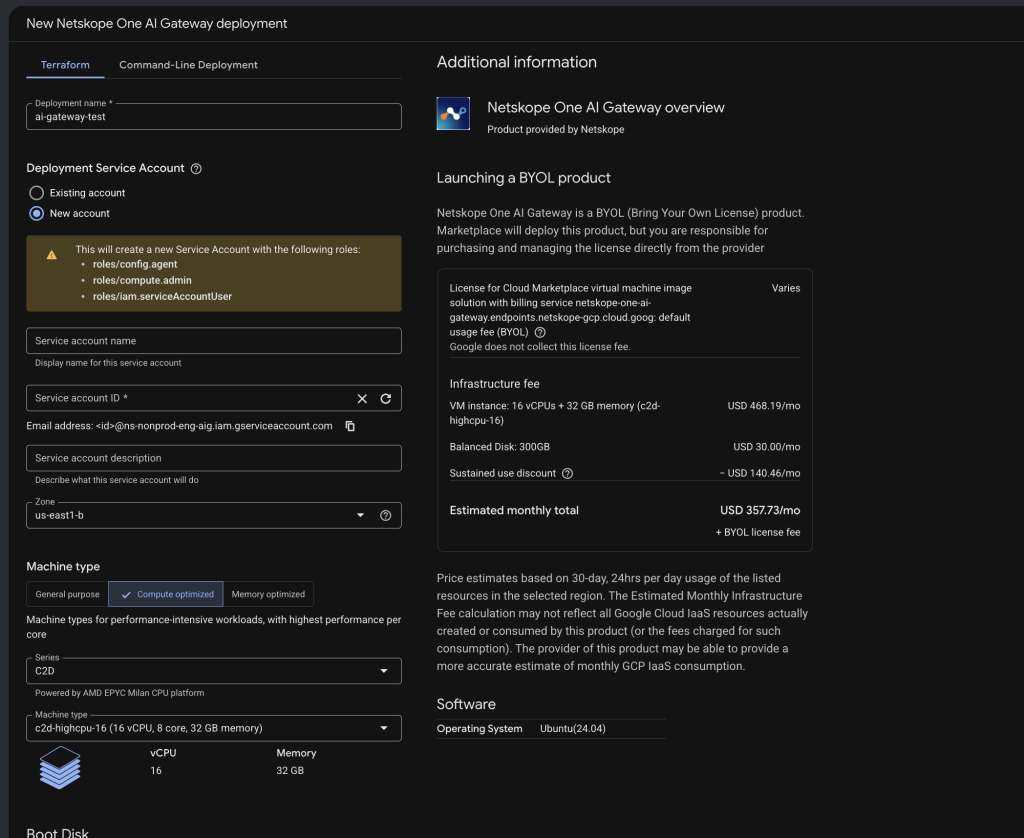
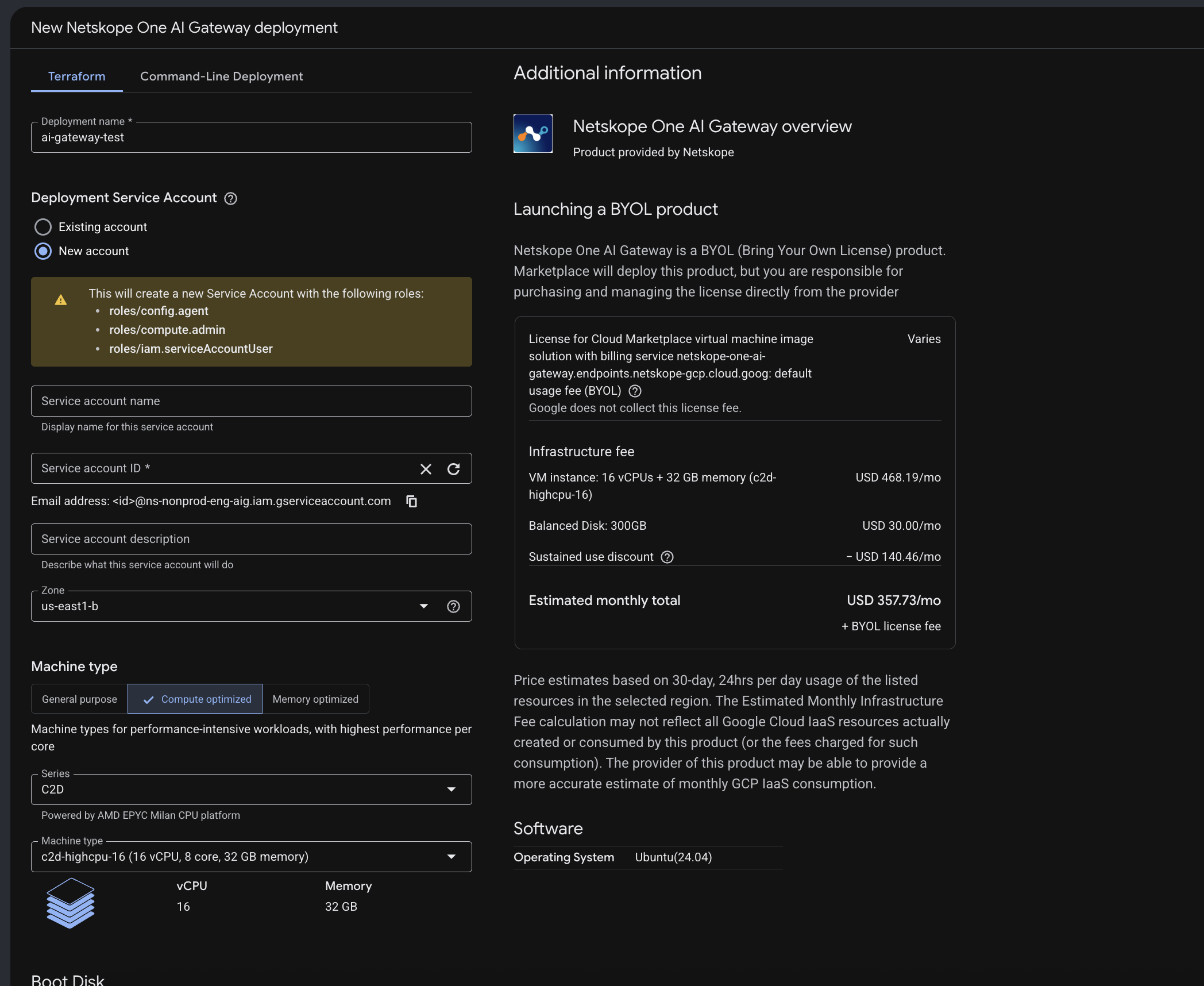
Specify the instance Name, Service account, Machine type, Boot disk, and Networking.
Add or change SSH key after the VM creation
This topic describes how to add or change the SSH keys to virtual machine (VM) instances. AI Gateway uses cloud-init to inject metadata-based SSH public keys into the nsadmin, and nsdebug accounts during VM instance creation.
To add or update SSH public keys after creating the VM instance, configure the metadata-based SSH keys for these two accounts:
- nsadmin for using AIG-CLI
- nsdebug for collecting debug bundle
Follow the below steps to add or change SSH key after the VM creation:
- Sign in to your Google Cloud account using https://console.cloud.google.com/.
- Select your Google Cloud project.
- Select VM instances from the left pane.
- Select the target VM instance and click Edit.

Note: You can apply these changes while the VM instance is either Running or Stopped. New SSH keys take effect immediately without requiring a reboot or a fresh boot. - Scroll down until you see Security and access.
Ensure Block project-wide SSH keys remain selected if you do not use project-wide keys. - Click Add item twice to create entry fields for both the nsadmin and nsdebug accounts. Use a single space to separate fields in the SSH key string.
Format <Key Protocol> <Key Body> <Account>
For example, ssh-rsa AAAAB3NzaC1y… nsadmin ssh-rsa AAAAB3NzaC1y…
Note: If you want to update existing keys, remember to remove it by clicking the Delete item next to the key field.
- Scroll down again until you see Metadata. Ensure to have a metadata key.
- Enter the metadata key as enable-oslogin and set the value as false.
- Click Add item.
- Click Save.
