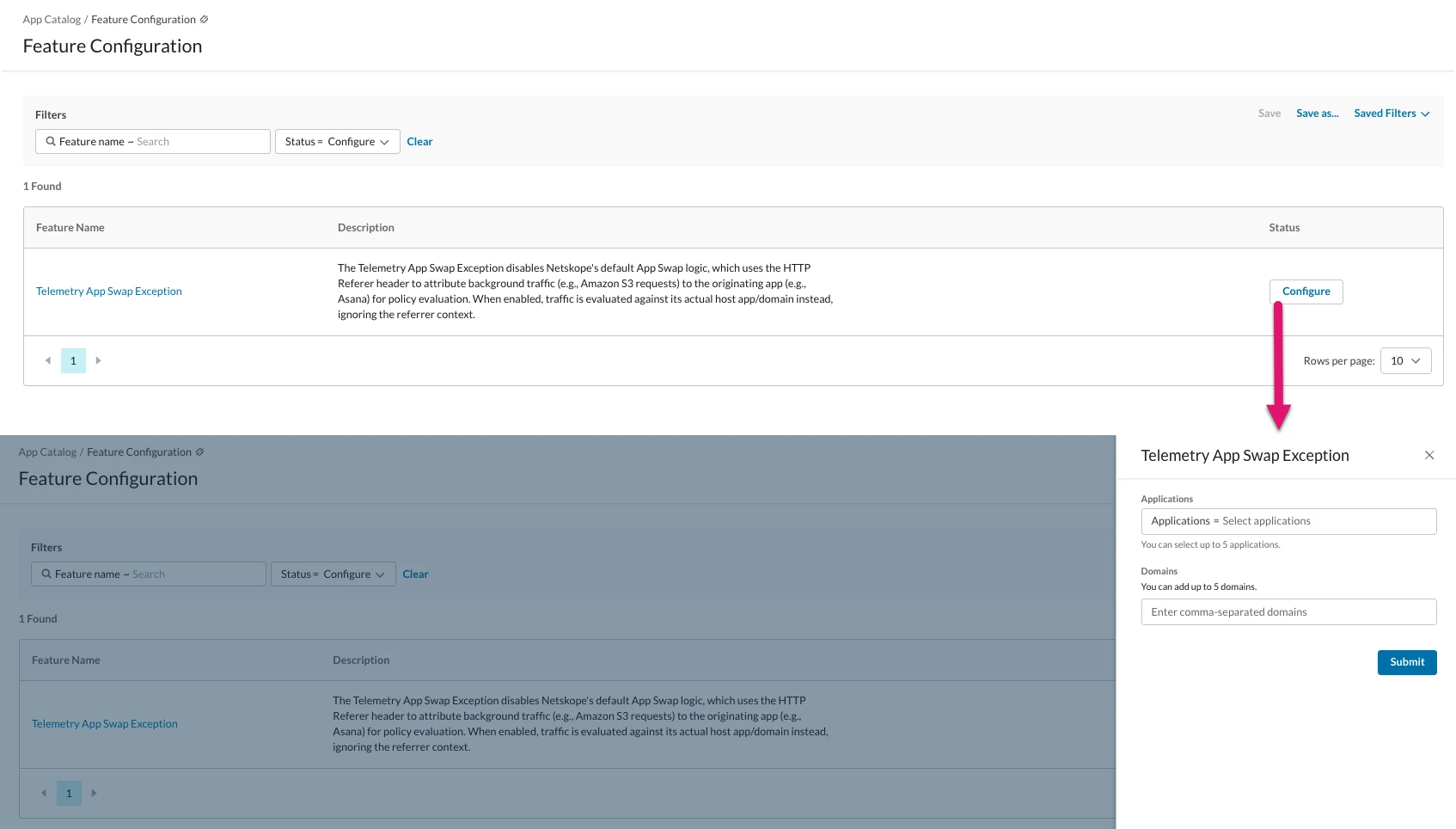
The Advanced Features Configuration is a self-service page for managing non-license feature flags.
This page lets you:
- View all available advanced features and their purposes.
- Check each feature’s status (enabled/disabled).
- Manage feature flags directly: enable or disable them and configure settings as needed.
How to Use The Advanced Features Configuration
Step 1: View advanced features status
Go to App Catalog > Cloud Apps. The Features Configs panel displays the total number of available advanced features you can manage as self-service.
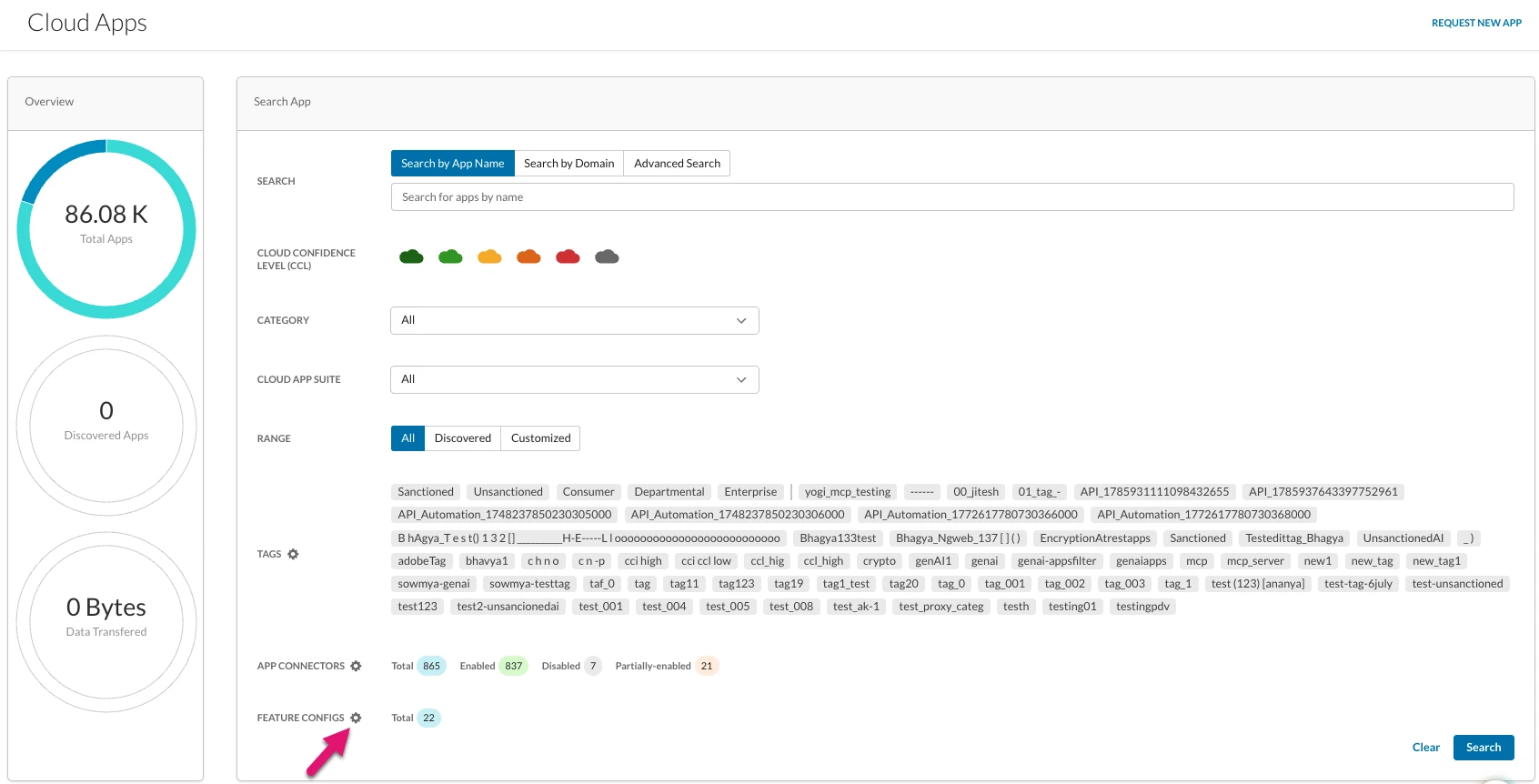
Step 2: Open the Advanced Features Configuration Overview
Click the gear icon next to Feature Configs to open the management overview page. This page lists every feature, along with its purpose (description), and current status. Use the filters to either easily search for a specific feature name or quickly find enabled, disabled or features that can be configured.
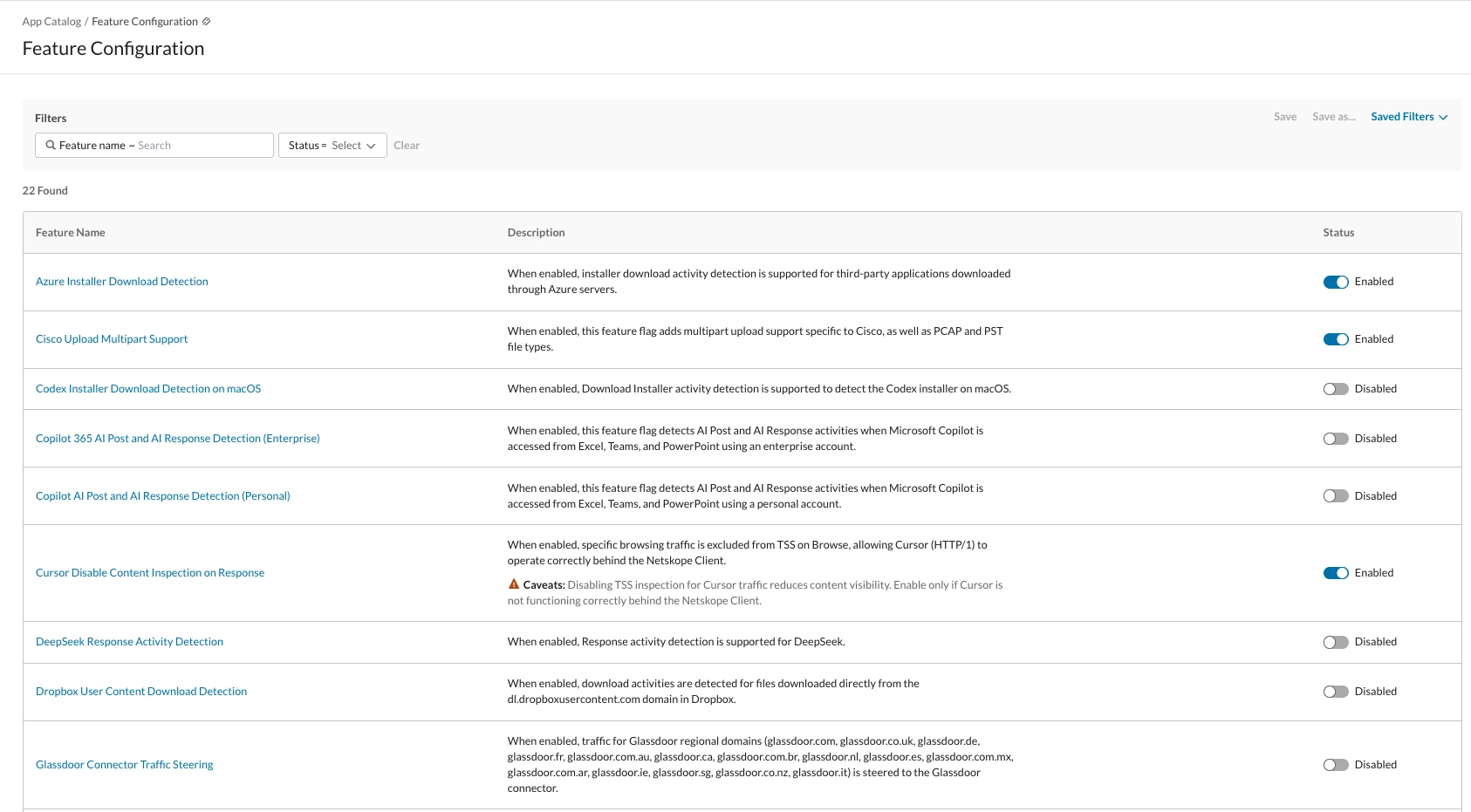
Step 3: Configure an Advanced Feature
Toggle features on or off from the Status column. Change the status switch to enable or disable a feature, then confirm your choice.
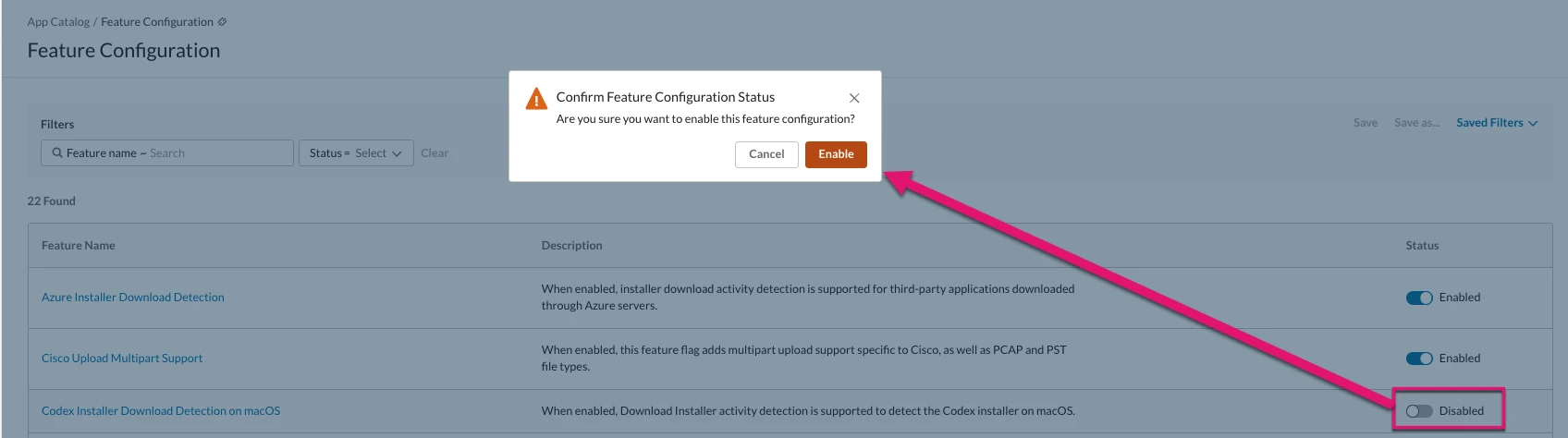
Features that require configuration are marked “Configure” (under Status column). Clicking this status opens a configuration panel where you can make changes.
Click Submit to confirm.