

You can enable Advanced Content Scanning, also known as Large File Support (LFS), for files exceeding the default size when analyzed by DLP, Threat Protection, File Profile, AI Guardrails, or Agent Action Control. This will allow you to modify file size limitations and timeout values.
By enabling Advanced Content Scanning, you are allowing Netskope to temporarily store large files as specified in the Netskope Master Service Agreement (MSA).

Data Trickling: Sends small amounts of data to the client or server while the file is being processed. This will prevent a connection reset due to a request timeout from client or server, while the file is being processed.
For downloads, Advanced Data Trickling streams data continuously and retains only a small portion of each response. It extends trickling to large downloads and continuous streams such as live feeds or chat traffic. See Advanced Data Trickling.
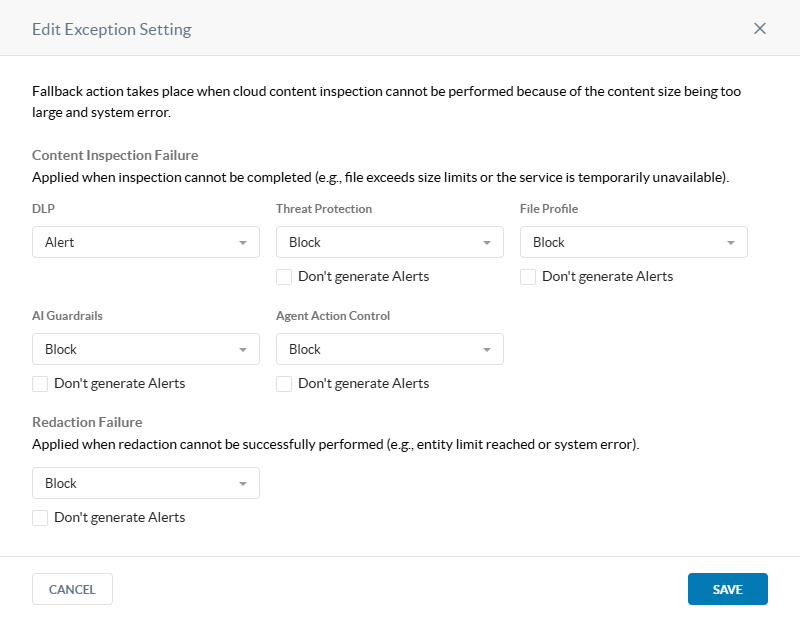
The fallback actions refer to the following actions:
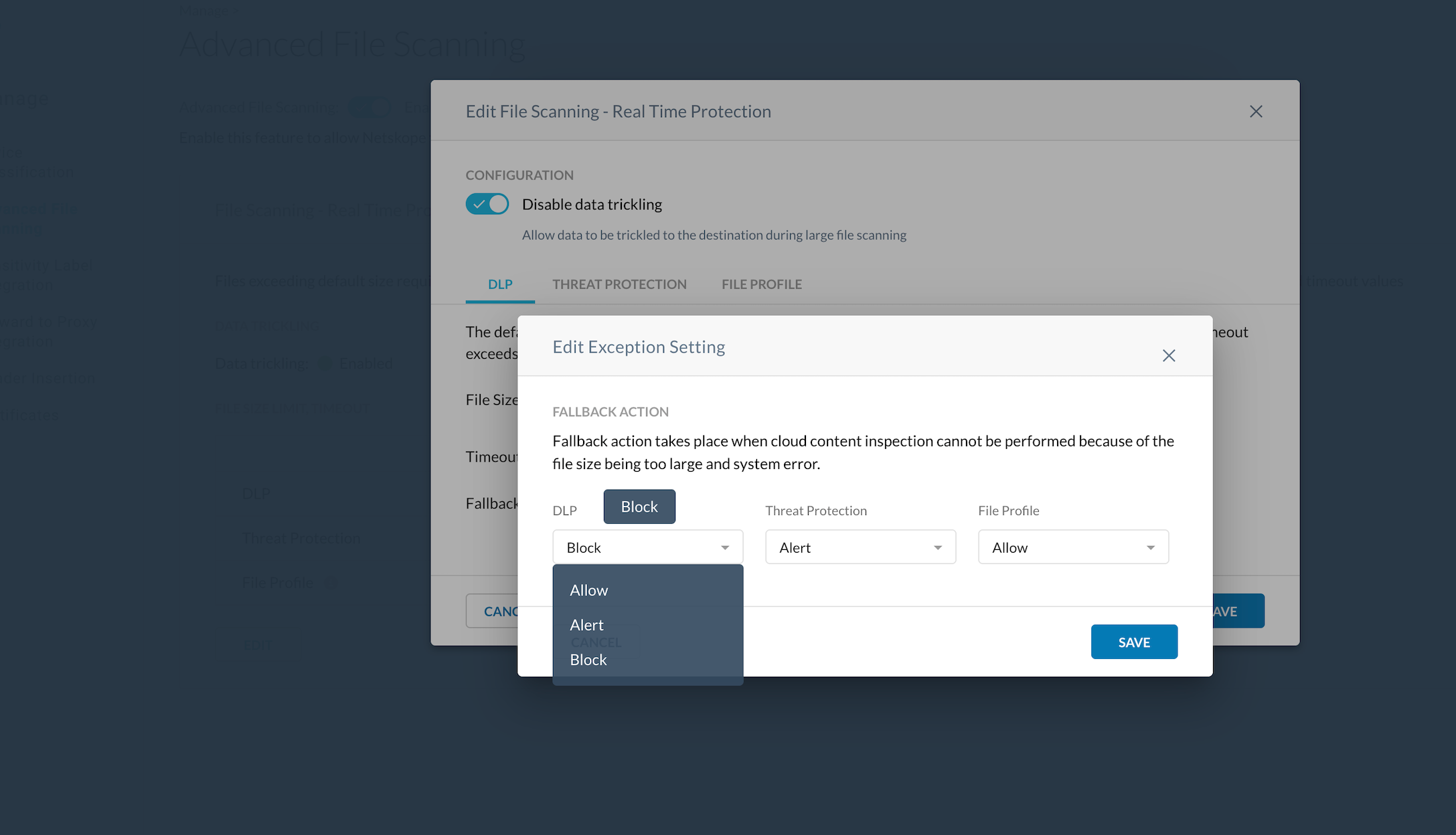
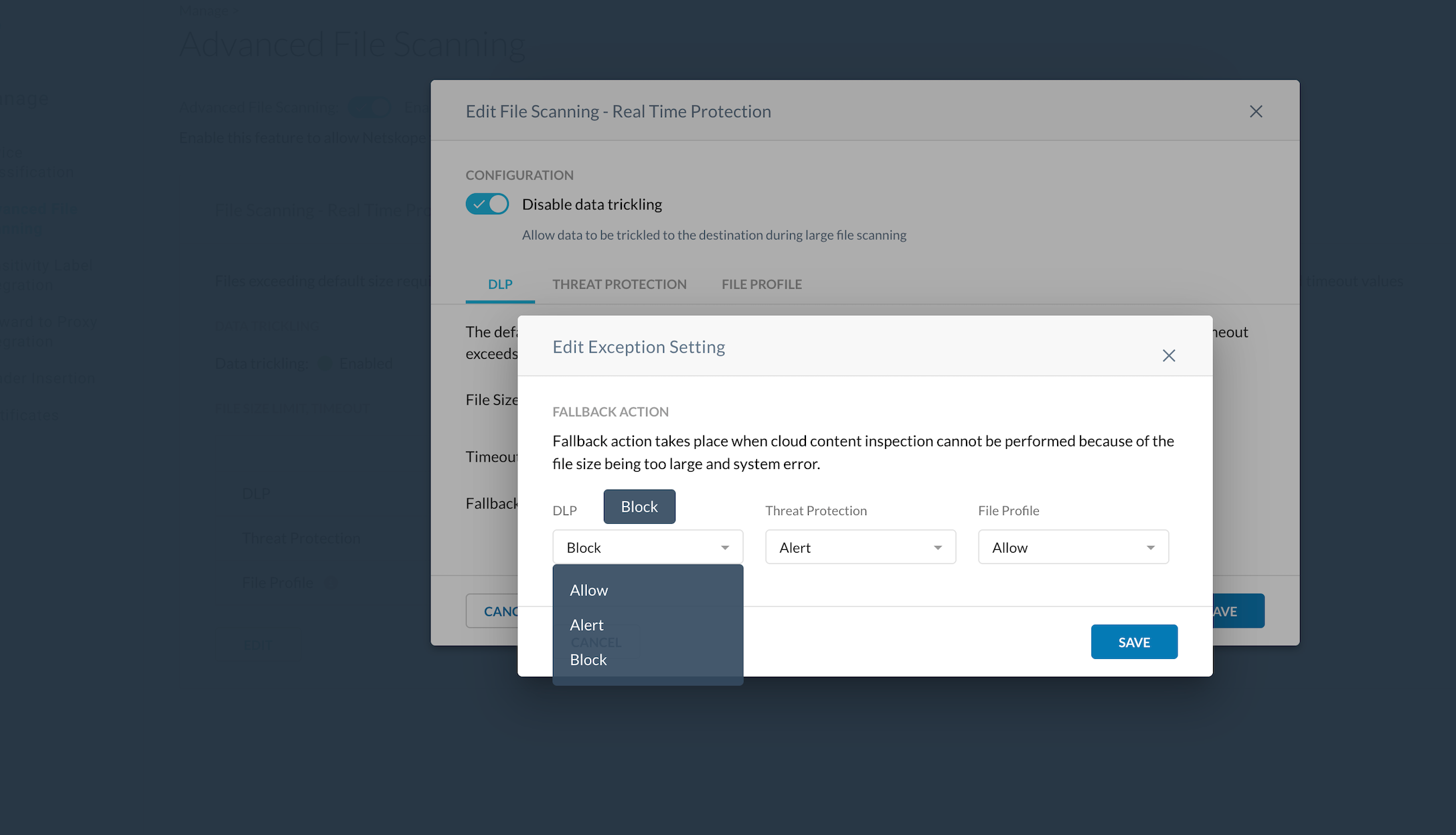
- Allow – Do nothing at the time of failure and continue processing the policy list.
- Alert – Raise an out-of-band alert and continue processing the policy list.
- Block – Raise an alert and block the traffic immediately without further evaluating the policy list. When the Fallback Action is set to Block, you can also check Don’t generate Alerts to not have any alerts.
Enable Advanced Content Scanning
To enable Advanced Content Scanning, go to Settings > Manage > Advanced Content Scanning, and click the enable checkbox.
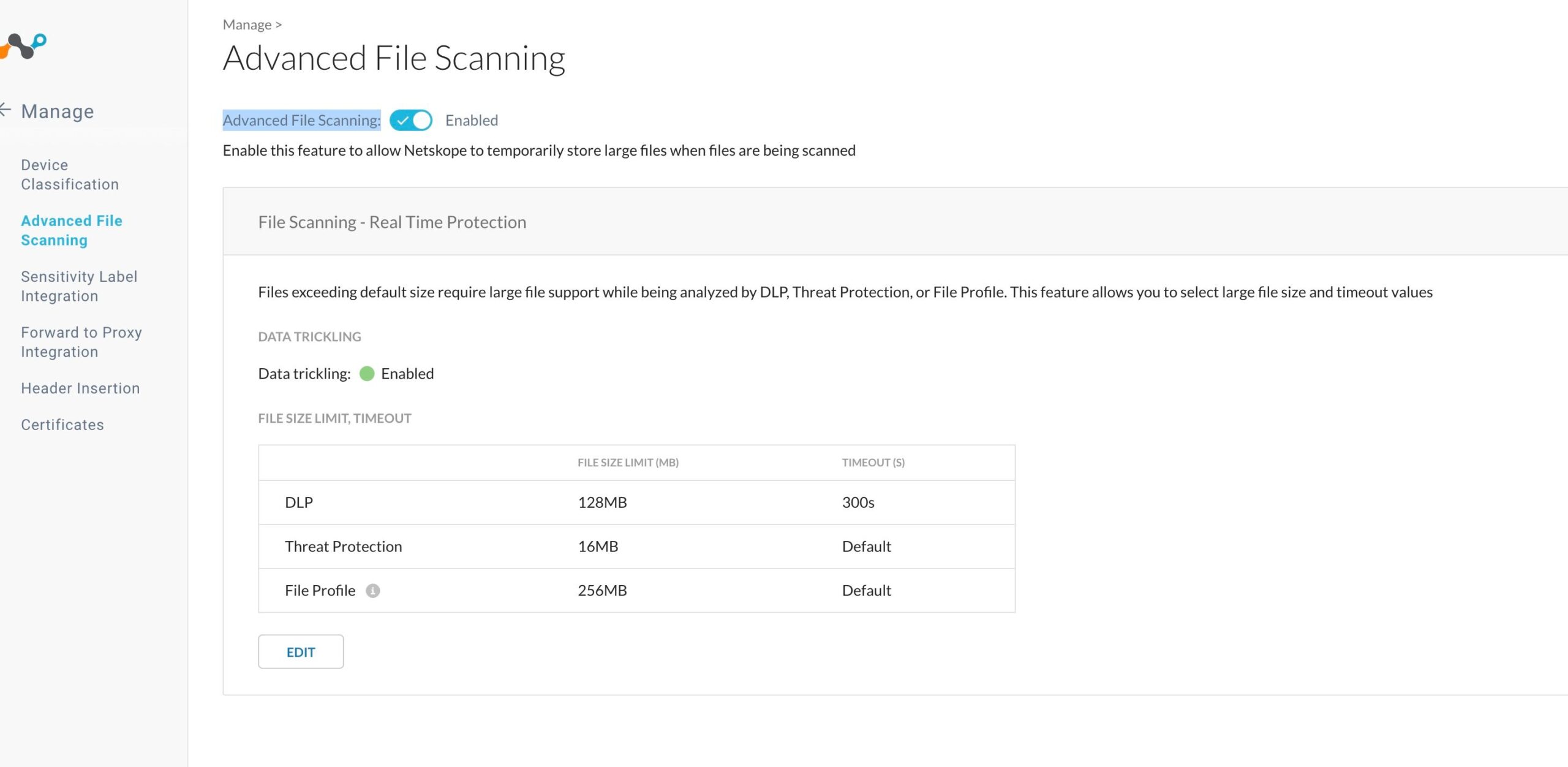
Configuring Advanced Content Scanning
-
Click Edit.
-
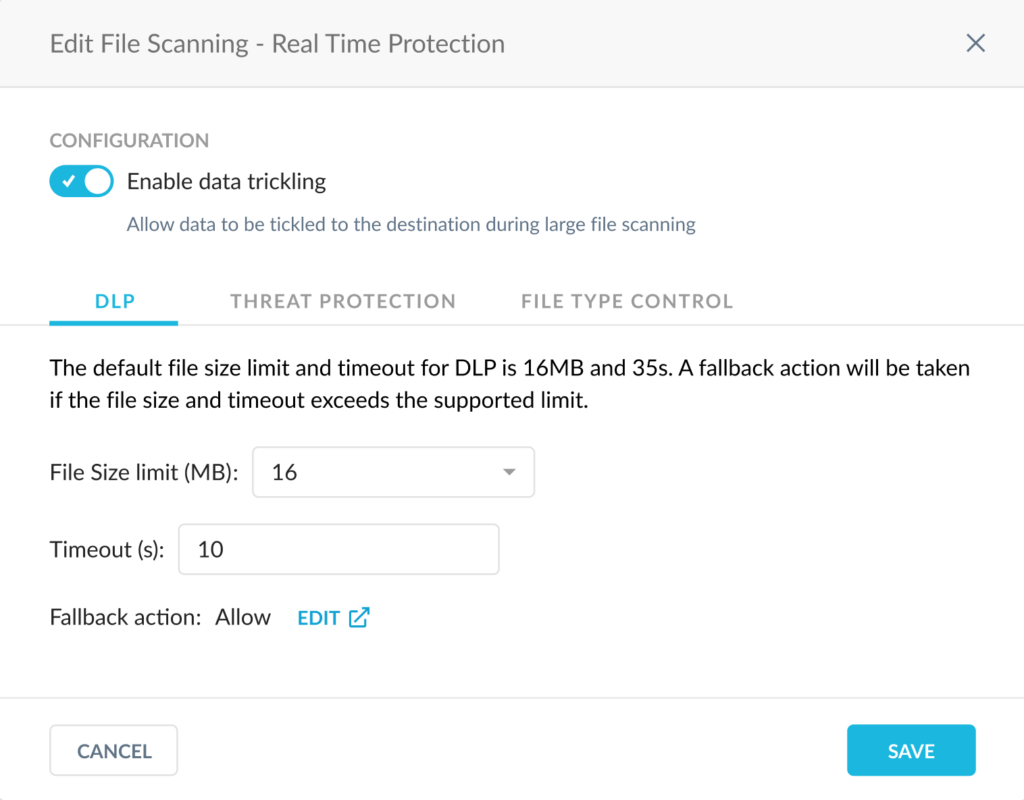
Select the DLP tab.
-
Select between the 16, 32, 64, and 128 options for your File Size limit (MB).
-
Enter a value for timeout in seconds. There is a maximum of 300 seconds.
-
Select your Fallback action by clicking EDIT. Choose between Allow, Alert or Block.

-
Click Edit.
-
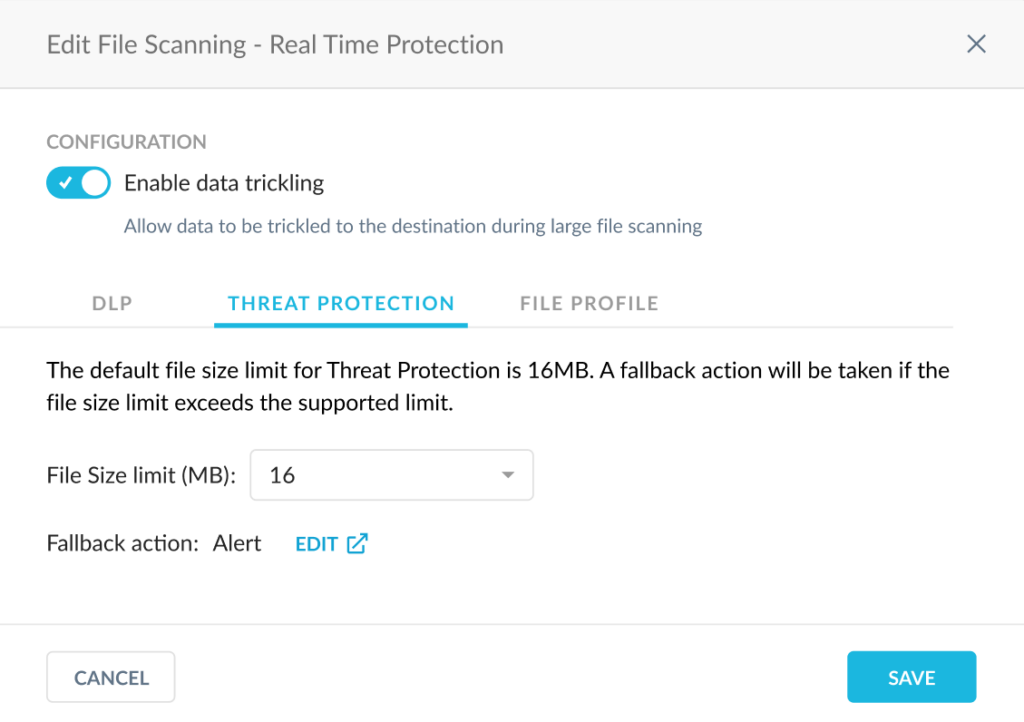
Select the Threat Protection tab.
-
Select between the 16 and 400 options for your File Size limit (MB).
-
Select your Fallback action by clicking EDIT. Choose between Alert or Block.

-
Click Edit.
-
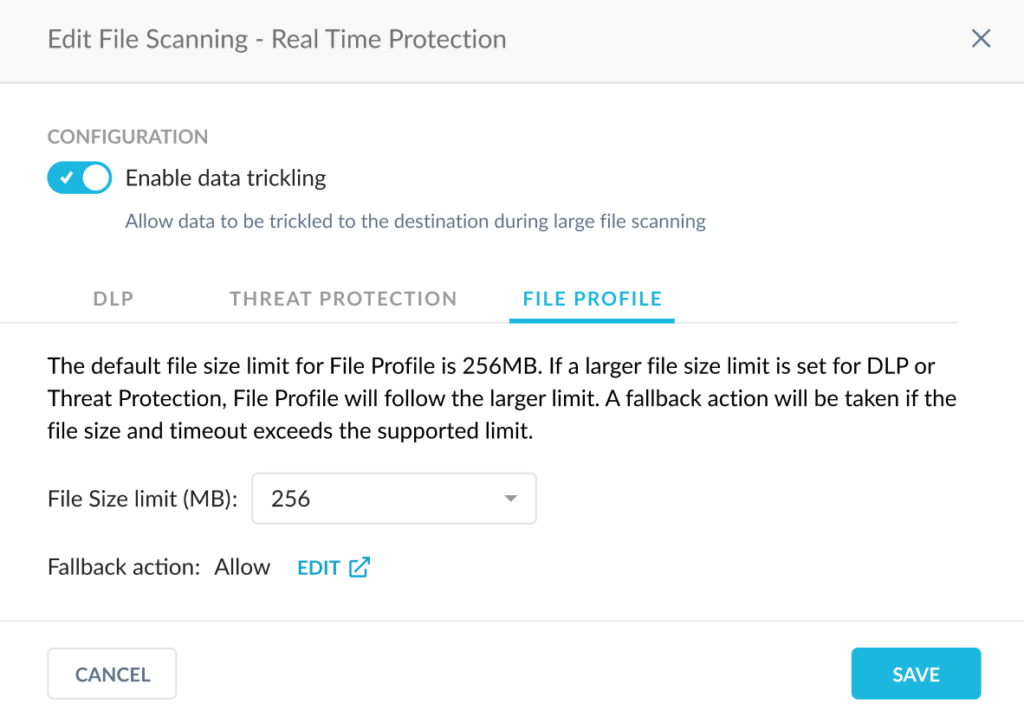
Select the File Profile tab.
-
Select between the 256 and 400 options for your File Size limit (MB).
-
Select your Fallback action by clicking EDIT. Choose between Allow, Alert or Block.

-
Click Edit.
-
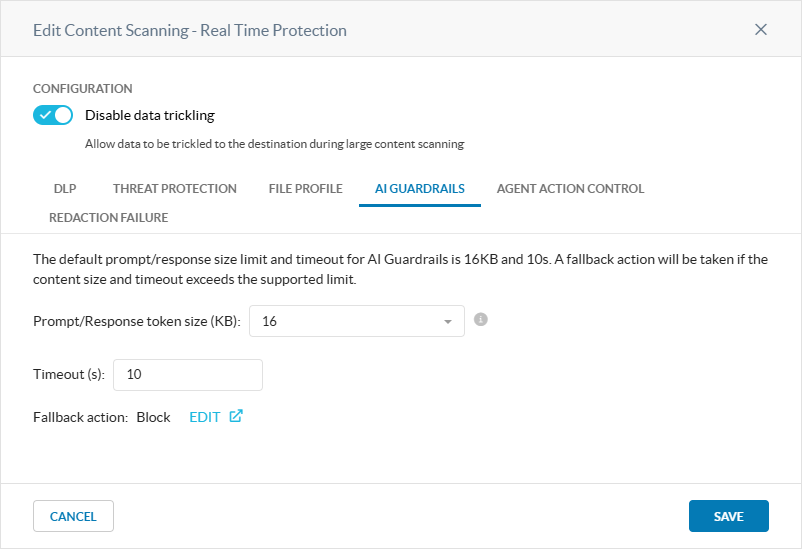
Select the AI Guardrails tab.
-
Select either 16 or 24 for your Prompt/Response token size (KB). The default is 16 KB. 5 KB is equal to 1000 tokens.
-
Enter a value for Timeout (s) in seconds. The default is 10 seconds, and the maximum is 300.
-
Select your Fallback action by clicking EDIT. Choose between Allow, Alert, or Block.
-
Click Edit.
-
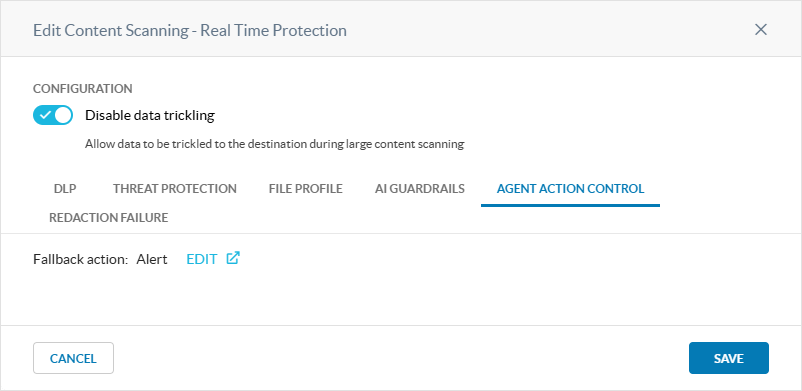
Select the Agent Action Control tab.
-
Select your Fallback action by clicking EDIT. Choose between Allow, Alert, or Block.
Disabling Advanced Content Scanning
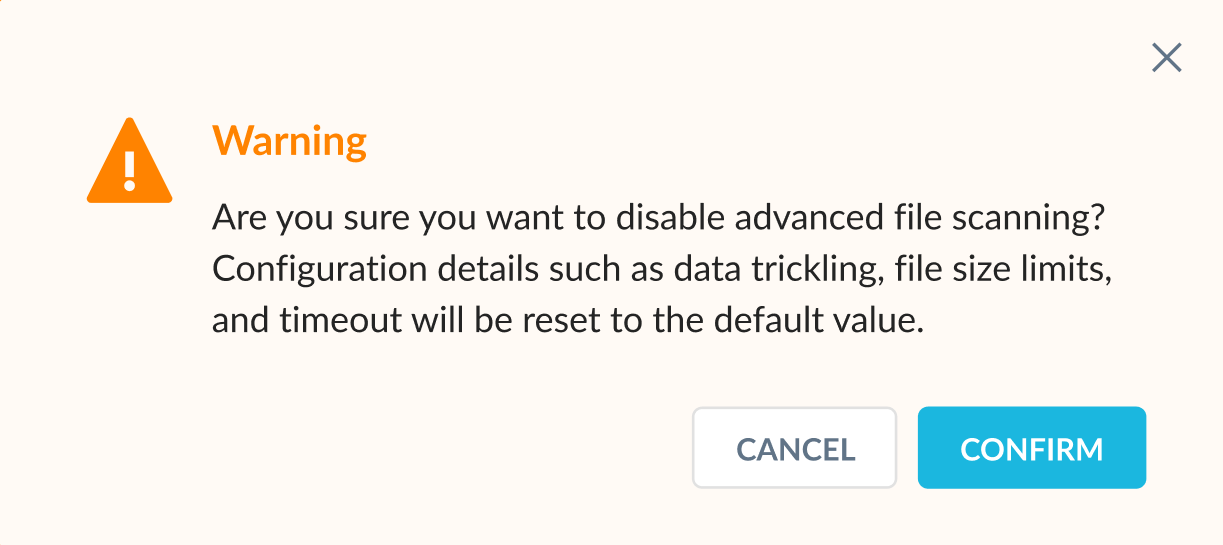
You can disable Advanced Content Scanning by unchecking the enable checkbox at the top of the page.
When a file is scanned, the user will see the following prompt indicating the analysis has begun:

- To use a data loss prevention (DLP) profile, select DLP and click Select Profile. Search for a DLP profile or choose one from the list, which includes both predefined and custom profiles. After selecting a DLP profile, click Save.
- When finished, click Next.
Advanced Content Scanning Support for Non-Web Proxy
Non-Web proxy supports DLP scanning for files size up to 128 MB. Non-Web proxy also supports Data trickling for FTP Download activities for file size greater than 16MB, up to 128MB. Data trickling is enabled by default and can be enabled by going to Settings > Manage > Advanced Content Scanning > Enable Advance File scanning > Data trickling.
To enable Large File Size (LFS) support, follow these steps to enable the advanced content scanning option.
Go to Settings > Manage > Advanced Content Scanning > Advanced Content Scanning and enable the slider.
DLP Timeout and the fallback actions, “Allow, Alert & Block” are supported.
Known Issues and Limitations
- In no DLP profile matches then configured “Add Traffic action” may not work and traffic will hit default non-web policy rule
- For each new large file the first DLP scan may take more time for processing.
- Filezilla FTP client will continuously retry to upload a file if the Policy action is Blocked.
- Data trickling is not supported for FTP upload activity.
- When data trickling is enabled and FTP upload of a large file is blocked by Policy then the FTP control connection gets disconnected.