

AI Provider API Keys, or virtual keys, store AI provider credentials in AI Gateway instead of sharing them with individual applications or developers. You register a provider’s real API key once; AI Gateway maps it to a token group. Applications continue authenticating with their Netskope-issued tokens while AI Gateway substitutes the appropriate provider key behind the scenes.
This keeps OpenAI, Anthropic, Gemini, and custom provider keys out of application code, config files, and developer hands while giving each app the access it needs.
Why use virtual keys
- Reduce key sprawl: Store each provider credential once in AI Gateway instead of distributing it to every application, script, or developer machine.
- Support compliance and security requirements: Application owners and developers never see or handle the underlying provider key.
- Simplify key rotation: Rotate or revoke a provider key in one place without redeploying application code.
- Control access by group: Administrators assign token groups (and their applications) to specific upstream provider credentials.
- Keep existing workflows: Applications keep authenticating with their current Netskope token — no client-side changes needed.
How it works
When AI Gateway receives a request, it checks whether the token or token group presenting the request has a provider key mapped to it:
- AI Gateway checks for a key mapped to the request’s token group.
- If none exists, AI Gateway falls back to any key mapped at the user-group level, where configured.
- If it finds a mapped key, AI Gateway substitutes that credential in the outbound request to the provider — your application’s token is never forwarded upstream.
- If no mapping applies, AI Gateway forwards the request using the authentication the application supplied, so requests remain unblocked while you roll out the feature.
This substitution is transparent to your application for both streaming and non-streaming requests.
Before you begin
- You added the AI provider (predefined, cloud-predefined, or custom) under AI Provider List.
- You created at least one token group under Authentication Token and Group.
Add a provider API key
-
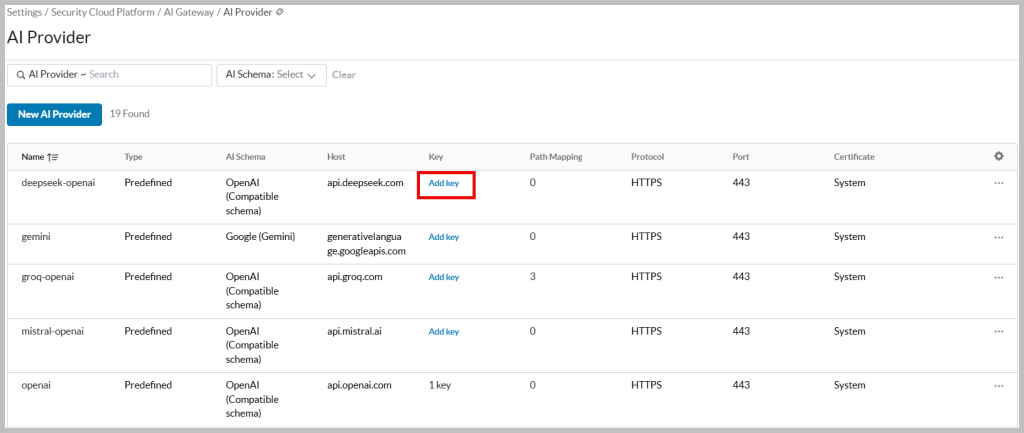
Go to Settings > Security Cloud Platform > AI Gateway > Provider and select the AI provider to add a key for.
-
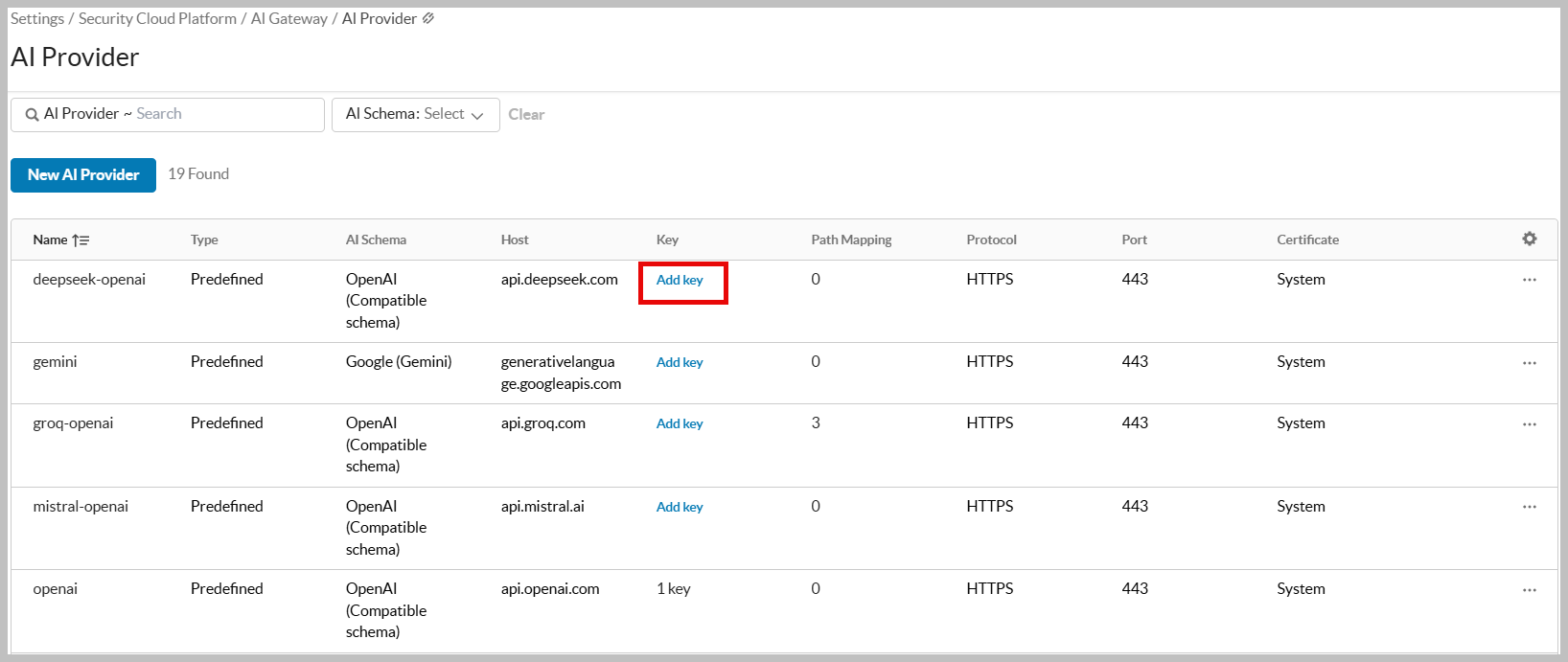
Select Add Key.
-
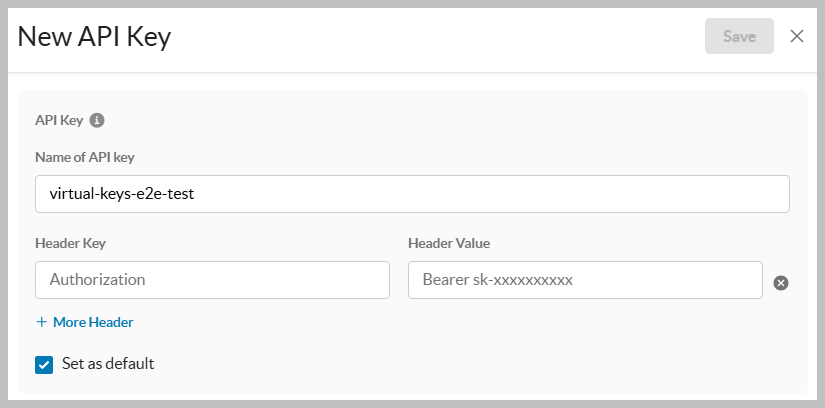
Enter a unique Name of API key (unique within that provider) and paste the provider’s API key.
-
Optionally mark the key as the default for that provider. Setting a new default clears the default flag on any other key for that provider.
-
Save the key. AI Gateway validates it with the provider before storing.
You can add multiple keys per provider — for example, separate keys for teams or cost centers — up to your tenant’s limit.
Map a key to a token group
-
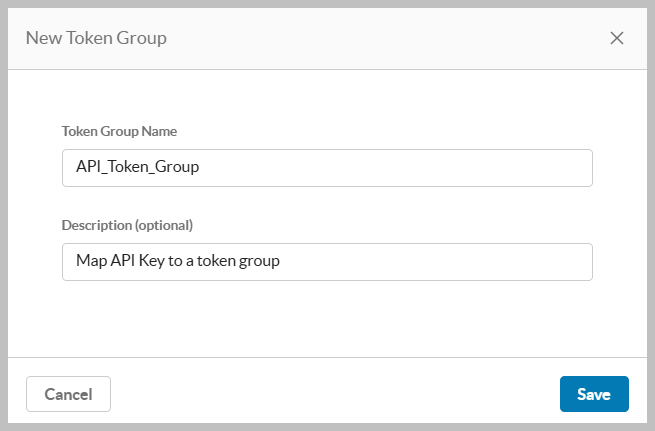
Go to Settings > Security Cloud Platform > AI Gateway > Token Group.
-
Open the token group to configure.
-
Under AI provider keys, select the provider and choose the stored key that token group should use.
-
Repeat for each provider the token group’s applications call.
-
Save your changes.
Any application authenticating with a token in that group now uses the mapped key automatically, with no changes to the application.
Rotate or remove a key
To rotate a key, add the new value and update your token group mappings to point to it. To revoke access immediately, delete the key. Rollouts to active traffic take effect shortly after you save—allow a brief window for the change to propagate before retiring the old key everywhere it’s used.
Good to know
- Netskope stores your provider key securely and does not display it after you save it; it’s never written to logs or error messages.
- Each tenant’s and token group’s keys are isolated — a request can only resolve to a key that belongs to its tenant and token group.
- If a provider key is invalid or expired, AI Gateway passes the provider’s error back to the calling application.