

The AI guardrails profile allows you to regulate and control the use of generative AI apps across your organization so users are using them securely and responsibly. You can configure profiles and then use them in Real-time Protection policies to moderate content by allowing or blocking prompts and/or responses based on predefined categories, keywords, and semantic matches to predefined prompts and responses.
To create an AI guardrails profile:
-
Go to Policies > AI Guardrails.
-
Click the Profiles tab.
-
Click New.
-
In Name & Description:
-
Name: Enter a name for the profile.
-
Description: (Optional) Enter comments or notes for the profile.

-
-
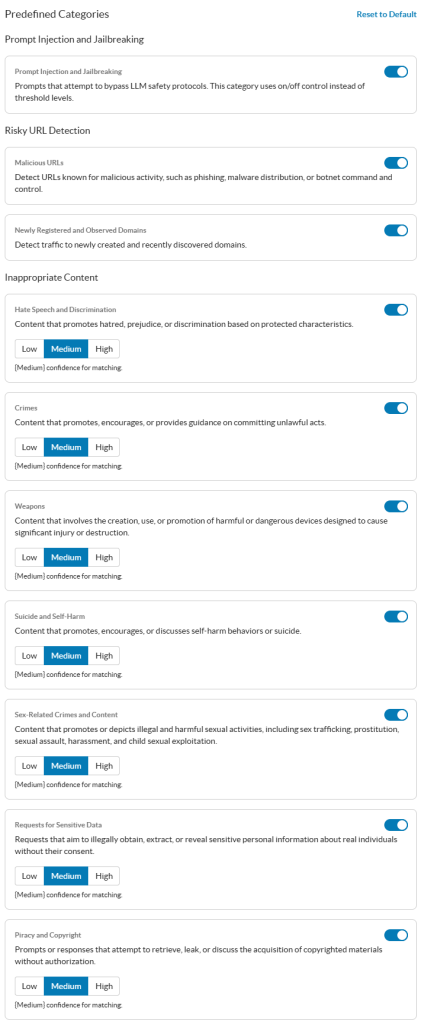
In Predefined Categories: Depending on the policies in your organization, you can choose to detect and moderate content based on the following categories.
-
Prompt Injection and Jailbreaking: Enable or disable protection against prompts that attempt to bypass LLM safety protocols. This category uses enable/disable controls instead of confidence matching threshold levels and only detects for prompts sent to the Gen AI apps.
-
Malicious URLs: Enable to detect URLs within prompts and responses known for malicious activity or categorized as a security risk, such as phishing, fraud, malware distribution, botnet command-and-control servers, compromised/malicious sites, or malware call-home. To learn more: About Predefined Categories.
-
Newly Registered and Observed Domains: Enable to detect traffic to newly created and recently discovered domains within prompts and responses. To learn more: About Predefined Categories.
-
Hate Speech and Discrimination: Content that promotes hatred, prejudice, or discrimination based on protected characteristics.
-
Crimes: Content that promotes, encourages, or provides guidance on committing unlawful acts.
-
Weapons: Content that involves the creation, use, or promotion of harmful or dangerous devices designed to cause significant injury or destruction.
-
Suicide and Self-Harm: Content that promotes, encourages, or discusses self-harm behaviors or suicide.
-
Sex-Related Crimes and Content: Content that promotes or depicts illegal and harmful sexual activities, including sex trafficking, prostitution, sexual assault, harassment, and child sexual exploitation.
-
Requests for Sensitive Data: Requests that aim to illegally obtain, extract, or reveal sensitive personal information about real individuals without their consent.
-
Piracy and Copyright: Prompts or responses that attempt to retrieve, leak, or discuss the acquisition of copyrighted materials without authorization.
Choose which type of confidence matching you want Netskope to perform when detecting a category from the content in the prompt or response:
-
Low: Netskope triggers a detection when the confidence matching is low. Choose if your organization has a very low risk tolerance.
-
Medium: Netskope triggers a detection when the confidence matching is moderate. Choose if your organization has a balanced risk tolerance.
-
High: Netskope triggers a detection when the confidence matching is high and the violation is undeniable. Choose if your organization has a high risk tolerance.
You can click Reset to Default anytime to reset them to the Netskope default settings.
-
-
In Custom Topics: Select any custom topics you created to detect in prompts and responses.
 This feature is in Beta. Contact Netskope Support or your Sales Representative to enable this feature for your tenant.
 -
In Matched Keywords: Enter a list of keywords separated by a comma that you want to detect in prompts and responses. You can detect up to 256 keywords with a total input length of 2,048 characters, using a case-insensitive match. Netskope also supports multiple keywords (e.g., form 16, opening ceremony, world cup, etc.)

-
In Matched Prompts / Responses: Enter specific phrases that you would like to detect within prompts and responses. To mitigate false positives or allow/block sanctioned/restricted prompts and responses, Netskope performs semantic matching to detect prompts and responses that are similar to phrases defined in the configuration. Choose Low, Medium, or High confidence matching so you can control the confidence when a prompt or response is matched semantically to a defined phrase. You can click + to add the content and create a list. You can include up to 10 items per profile. Each item is limited to 500 words, with a total character count not to exceed 4,096.

-
Click Create.
After creating an AI guardrails profile, you must add it to a new Real-time Protection policy to apply it to your users. To learn more: Creating an AI Guardrails Policy for Real-time Protection.
Detection Settings for AI Guardrails
With AI Guardrails, you can:
-
enable GPU-based detection by connecting to the Netskope public cloud LLM for higher efficacy AI security detection.
-
store matched prompt and response content in Netskope
To enable these detection settings, see Security Cloud Platform Configuration.