

AgentSkope Marketplace is built on a unified agent catalog, with one shared pool of capacity credits spread across the agents teams use. Increase an agent’s credit share at any time and move capacity from a quiet agent to a busy one as work changes. New agents draw from the same pool, so scaling never restarts the whole process.
This is helpful for example, your organization runs two AI agents across its security and network operations teams: one handles alert triage for the SOC, and the other supports network diagnostics for the NOC. The alert-triage agent is seeing heavy demand, the diagnostics agent remains well below expected usage, and a threat intelligence team needs additional agent capacity to support a surge in investigations.
When capacity is locked to a single agent, unspent commitment on a quiet agent cannot fund demand on a busy one. Capacity sits idle in one place while demand goes unmet in another, and every new agent restarts the same rigid process. It’s time-consuming to monitor usage, and wasteful for budget owners.
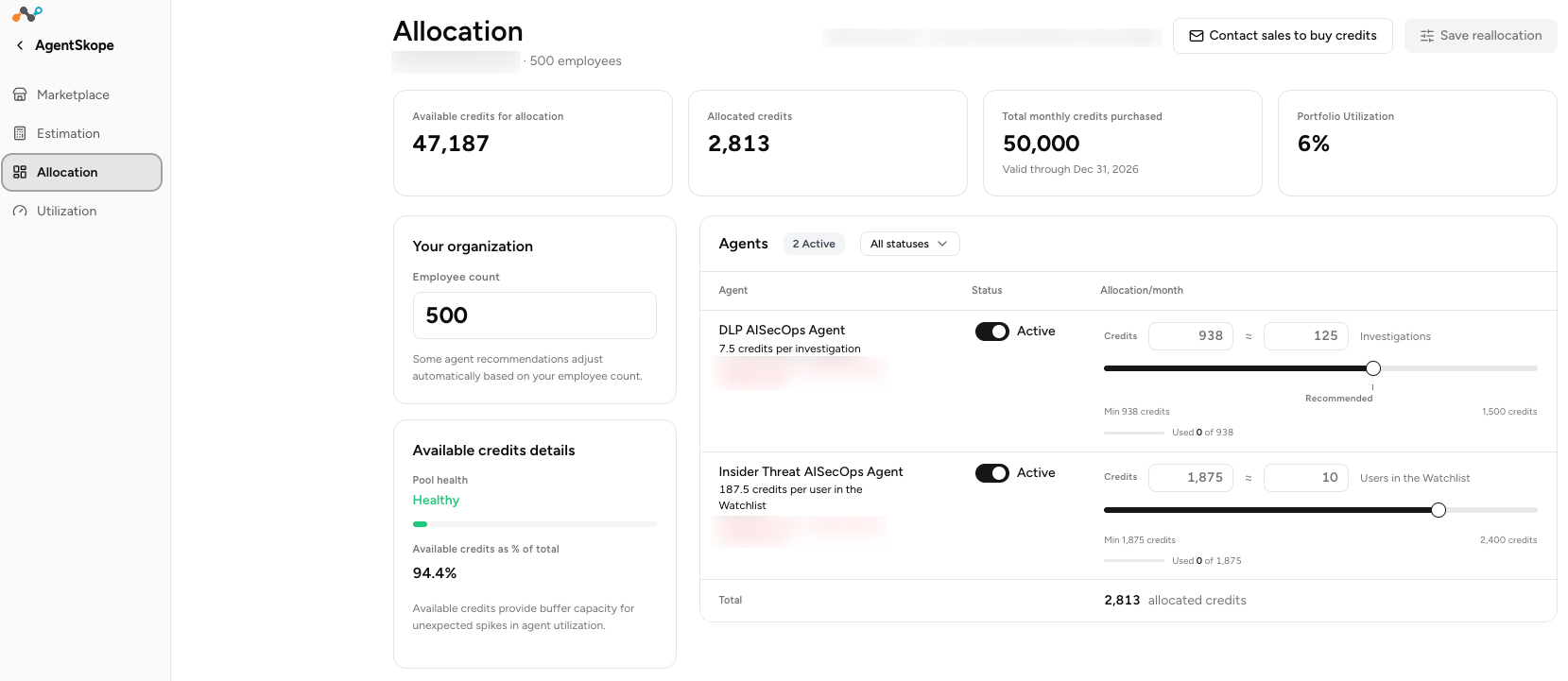
Any allocation changes you make must be saved. Click Save reallocation once anything is changed on the page, as shown below. Click Cancel to return to your default settings.

Summary
What you see. Four totals across the top: capacity available to allocate, capacity already allocated, your total monthly purchased capacity, and portfolio utilization — the share of your pool that is currently assigned to agents. A panel on the left tracks the health of your unallocated capacity, which is the buffer that can be allocated to cover spikes.
What you can do. Each agent has a row. Turn an agent on or off, then set its capacity by entering either credits or units of the agent’s own meter — enter one and the other updates, so you can allocate in your preferred unit of measure. The slider covers the same range. Allocation totals are shown on the page.
Changes take effect when you save the reallocation.
Where you go next. Utilization, to see how the allocation performs.
To learn more: For current agent details, credit specifics for your tenant, and anything not covered here, see the Netskope support knowledge base or contact Netskope Support. For questions about capacity you hold or want to add, contact your Netskope account team.