Overview
This article explains how to view and analyze the risk posture of your SaaS applications (like Microsoft 365, Google Drive, etc.) within the Netskope DSPM console.
This guide focuses on understanding the advanced analysis, risk scores, and classification results generated by the DSPM integration.
Prerequisites:
Before you can view these results, you must first enable the DSPM integration for your SaaS applications.
- To learn how, see Enable DSPM for SaaS Applications.
Understanding Sensitive Exposure & Access Analysis
Once DSPM is enabled and a scan is complete, it performs two new types of advanced analysis on your SaaS data stores:
- Sensitive Exposure Analysis: This analysis provides a detailed breakdown of your sensitive files based on their exposure type32. DSPM uses this to calculate and display a Data Exposure Risk score for the data store33.
- Sensitive Access Analysis: This analysis counts the number of external users (both direct and indirect) who have access to your sensitive files34. It specifically identifies external users with personal domains (e.g.,
gmail.com,yahoo.com)35. DSPM uses this to calculate and display an External Access Risk score36.
Here is a glossary of the new risk and exposure types:
| Advanced Analysis | Analysis Name | Description |
|---|---|---|
| Exposure Type | Externally Exposed | Sensitive files that are shared with users outside your organization. |
| Over Exposed | Sensitive files that are accessible to a broad internal audience (e.g., "Anyone in company"). | |
| Anonymously Accessible | Sensitive files that can be accessed by anyone with the link, without authentication. | |
| Internally Shared | Sensitive files shared with specific users or groups within your organization. | |
| Private | Sensitive files that are only accessible by the file owner. | |
| Risk Type | Data Exposure Risk | A calculated score reflecting the risk level based on how sensitive files are exposed. |
| External Access Risk | A calculated score reflecting the risk level based on the number and type of external users (including personal domains) who can access sensitive files. | |
| Data Store Risk Rating | A unified risk score that combines Data Exposure Risk and External Access Risk for each data store. |
View Scanning Results and Risk Analysis
Once you enable the integration and scanning begins, you can view the connected data sources and their new risk ratings within the DSPM UI.
-
In the DSPM console, go to Data Stores > Data Store Inventory.
-
Select the corresponding category tab (e.g., AWS or Azure).
- You will see a list of all connected data stores (e.g., individual user drives or SharePoint sites).
-
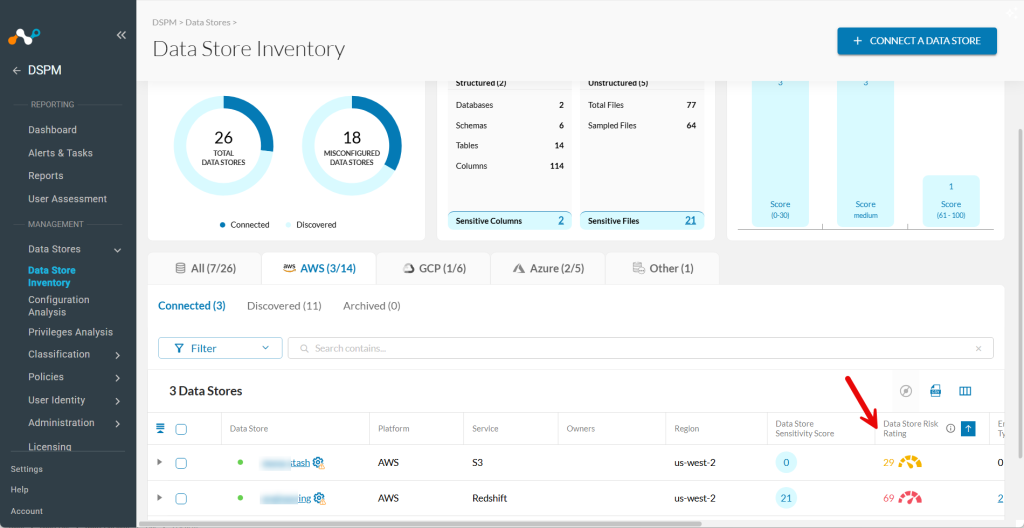
The inventory list now displays a Data Store Risk Rating (Critical, High, Medium, or Low) for each data store. This unified score combines the Data Exposure Risk and External Access Risk.
-
(Optional) Sort the data stores by their risk rating to quickly identify the most sensitive and exposed ones. This allows you to address the most critical issues first, helping you to improve your organization’s overall data security posture more efficiently.
-
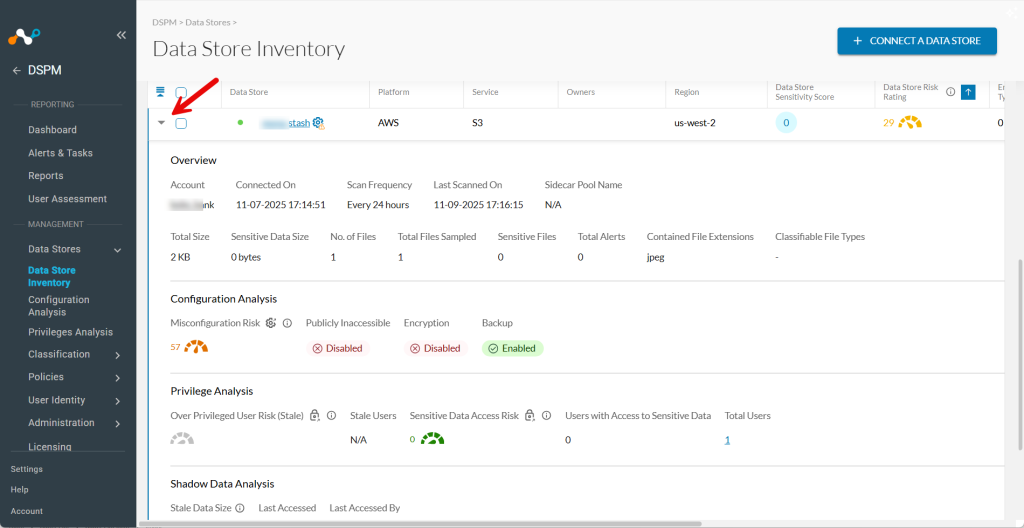
Click the left arrow (
>) to expand any data store. You can now see detailed breakdowns, including:- The Data Exposure Risk and External Access Risk scores.
- A list of sensitive files broken down by their exposure type.
- A list of all users and groups (internal and external) with access to sensitive data in that data store.


Review Sensitive Data Classification
From the Data Store Inventory, you can drill down into file-level classification details.
- Click on a specific data source name to open the Classification Management page.
- Click the Files tab to see all unstructured data files (e.g., files in drives) that were scanned.
- DSPM classifies the sensitive data found within these files according to the DLP profiles you selected during enablement.
Export Reports
You can export all new metrics and risk analysis data to a CSV file. This report includes all new values, such as risk scores, exposure types, and lists of external users with access to sensitive data.
Exporting the Data Store Inventory
To export a CSV file of the main Data Store Inventory, follow these instructions:
-
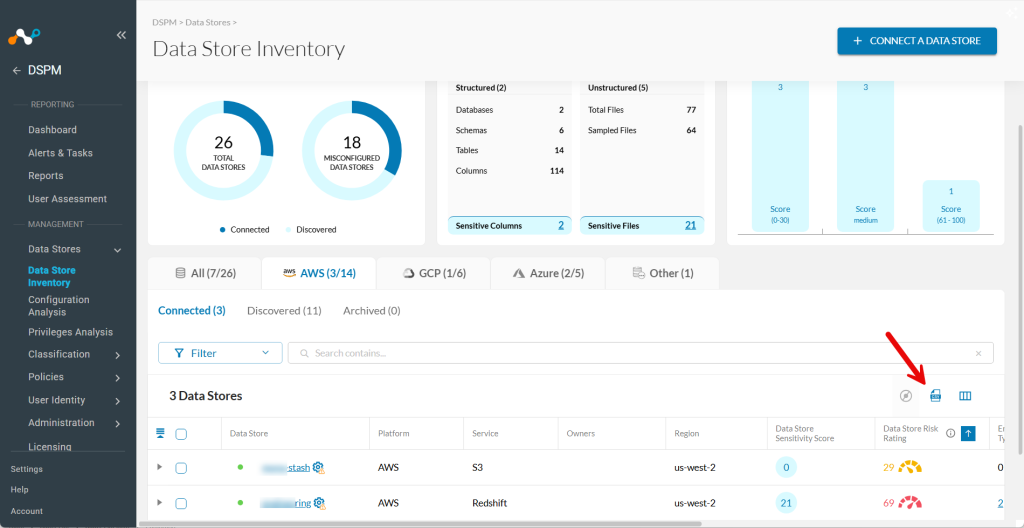
In the DSPM console, go to Data Stores > Data Store Inventory.
-
Select the corresponding category tab (e.g., AWS or Azure).
-
Click on the CSV icon

Exporting Classification Details
To export a CSV file with file-specific classification metrics, follow these instructions:
-
In the DSPM console, go to Data Stores > Data Store Inventory.
-
Select the corresponding category tab (e.g., AWS or Azure).
-
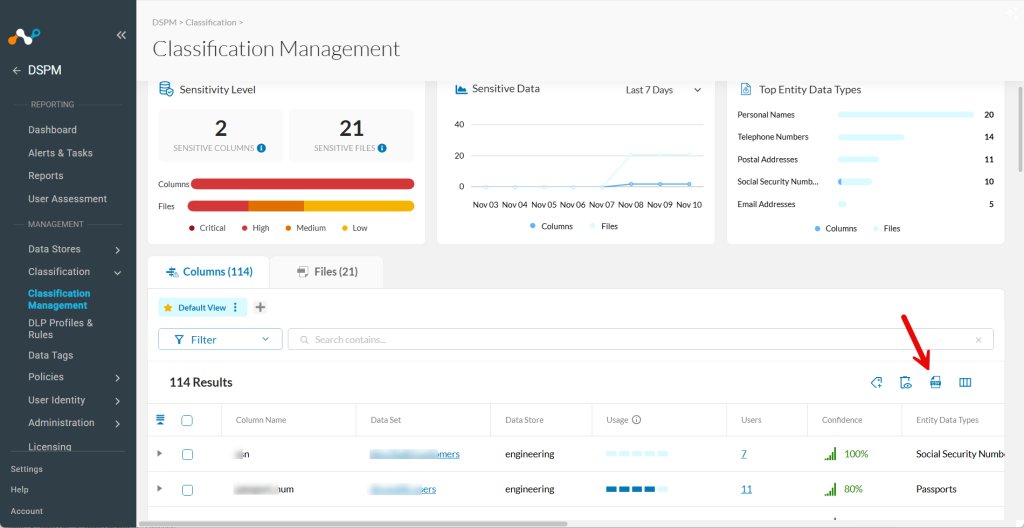
Click on a specific data source name to open the Classification Management page.
-
Choose the Column or Files tab, depend on what you want.
-
Click on the CSV icon