

Release Notes
1.0.0
Added
- Initial release.
- Supported Models: Claude Opus 5, Opus 4.8, and Sonnet 5.
This document explains how to configure the LLM Provider Anthropic v1.0.0 plugin in the Cloud Exchange platform. Configure an Anthropic LLM provider for AI-powered analysis workflows in Cloud Exchange.
LLM Providers can be managed at Settings > LLM Provider.
Prerequisites
To complete this configuration, you need:
- Connectivity to an Anthropic account with permission to generate API Keys.
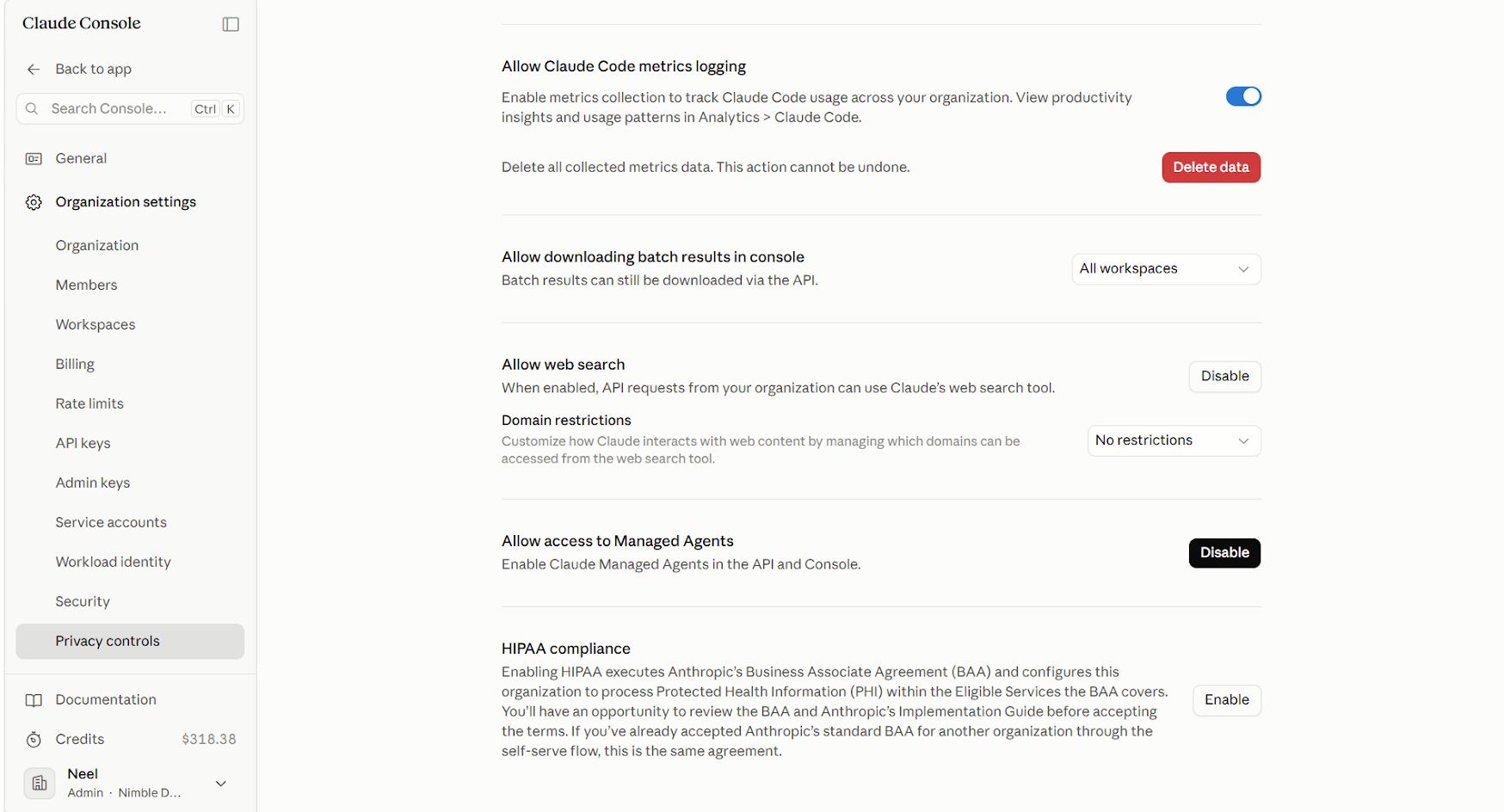
- Enabled Web Search in Anthropic account (under Organization settings > Privacy Controls)
Anthropic LLM Provider Plugin Support
Configure an Anthropic LLM provider for AI-powered analysis workflows in Cloud Exchange.
Permissions
Request your Anthropic Support to generate an API Key with Web Search enabled.
API Details
List of APIs used
| API Endpoint | Method | Use Case |
|---|---|---|
| /v1/models/{model} | GET | Validate API key and model (used only during plugin configuration/validation) |
Validate API key and model
API Endpoint: https://api.anthropic.com/v1/models/{model}
Method : GET
Headers
| Key | Value |
|---|---|
| User-Agent | netskope-ce-7.0.0-llm-provider-anthropic-v1.0.0 |
| x-api-key | <api key> |
| anthropic-version | 2023-06-01 |
| content-type | application/json |
Sample Response
{
    "type": "model",
    "id": "claude-sonnet-5",
    "display_name": "Claude Sonnet 5",
    "created_at": "2026-06-29T00:00:00Z",
    "max_input_tokens": 1000000,
    "max_tokens": 128000,
    "capabilities": {
        "batch": {
            "supported": true
        },
        "citations": {
            "supported": true
        },
        "code_execution": {
            "supported": true
        },
        "context_management": {
            "supported": true,
            "clear_tool_uses_20250919": {
                "supported": true
            },
            "clear_thinking_20251015": {
                "supported": true
            },
            "compact_20260112": {
                "supported": true
            }
        },
        "effort": {
            "supported": true,
            "low": {
                "supported": true
            },
            "medium": {
                "supported": true
            },
            "high": {
                "supported": true
            },
            "xhigh": {
                "supported": true
            },
            "max": {
                "supported": true
            }
        },
        "image_input": {
            "supported": true
        },
        "pdf_input": {
            "supported": true
        },
        "structured_outputs": {
            "supported": true
        },
        "thinking": {
            "supported": true,
            "types": {
                "enabled": {
                    "supported": false
                },
                "adaptive": {
                    "supported": true
                }
            }
        }
    }
}
User Agent
netskope-ce-7.0.0-llm-provider-anthropic-v1.0.0
Workflow
- Generate a Key for your Anthropic LLM Provider
- Configure the Anthropic plugin
- Validate the plugin
Configure the Anthropic Plugin
-
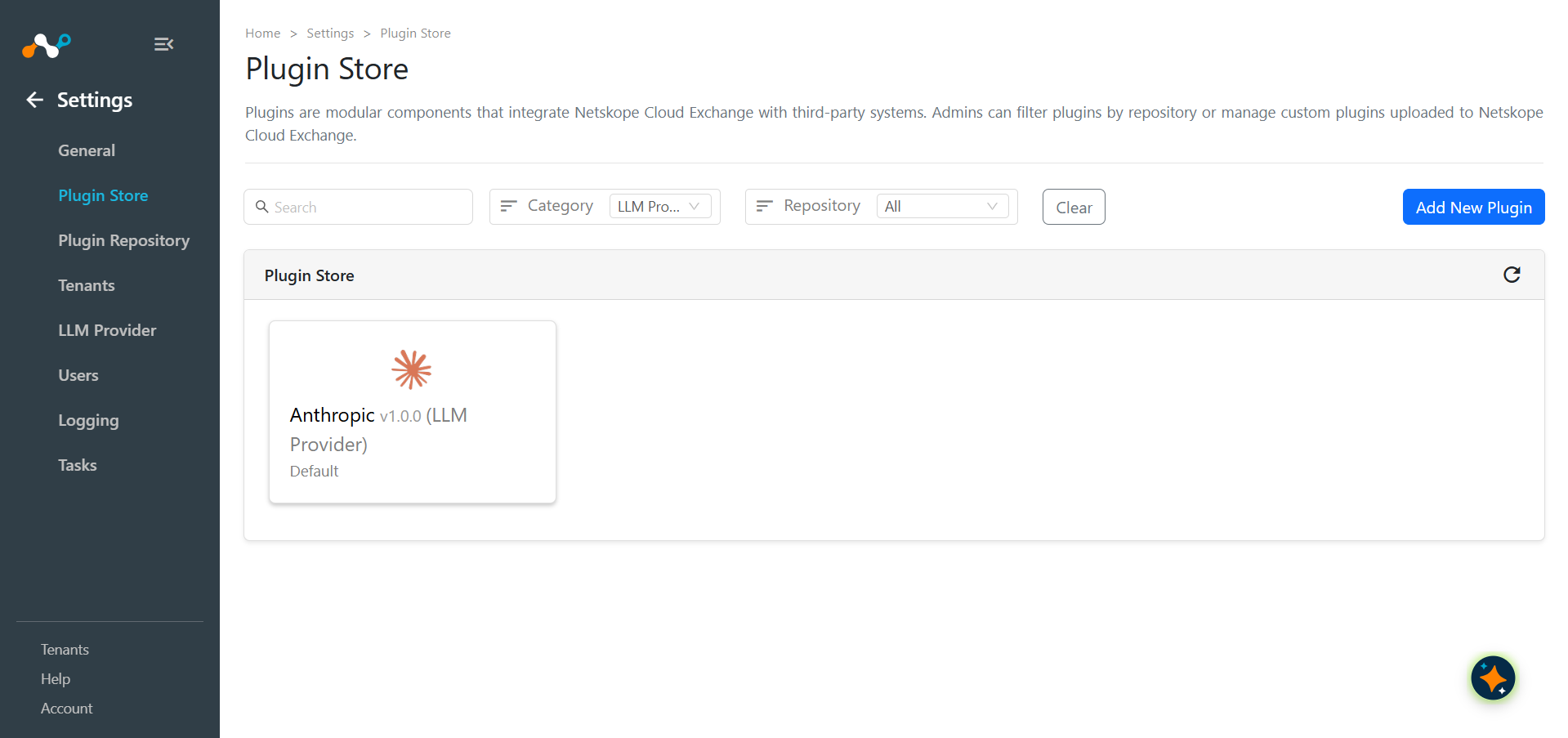
In Cloud Exchange, go to Settings > Plugin Store.
-
Search for and select the Anthropic v1.0.0 (LLM Provider) plugin.
-
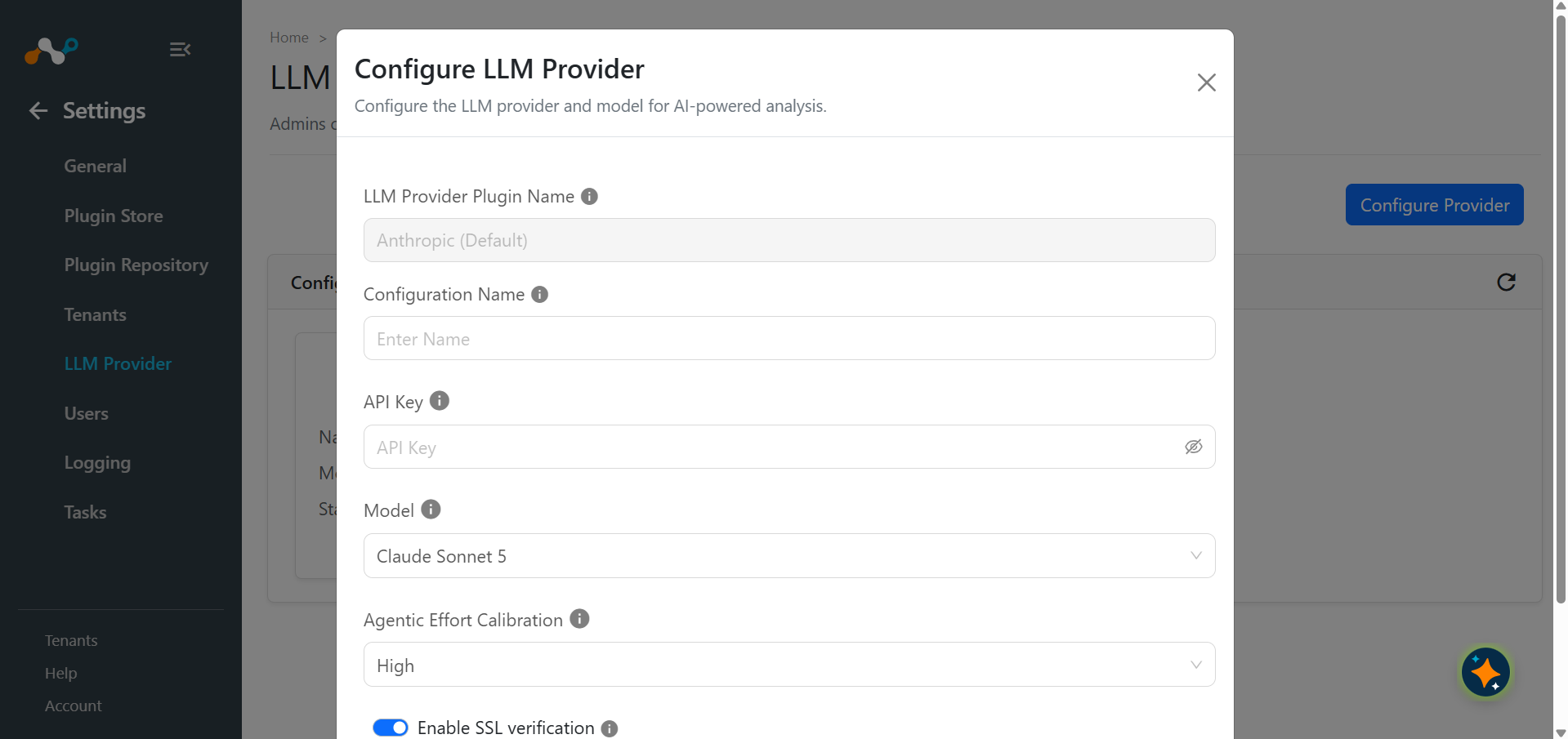
Enter the Configuration Parameters:
- Configuration Name: Provide a plugin configuration name.
- API Key: Anthropic API key used for authentication. Go to https://console.anthropic.com/settings/keys to generate or retrieve your API key.
- Model: Default model to use for AI-powered analysis. Built-in web search (which enriches analysis with results from docs.netskope.com and the open web) is available if enabled for your organization’s Claude Console.
- Agentic Effort Calibration: Effort to apply for the Cloud Exchange Agentic workflows like multi-audit logs analysis. The available levels depend on the selected model.
- Enable SSL verification: Verify SSL certificates for all outbound API requests to the LLM provider.
-
Click Save.
-
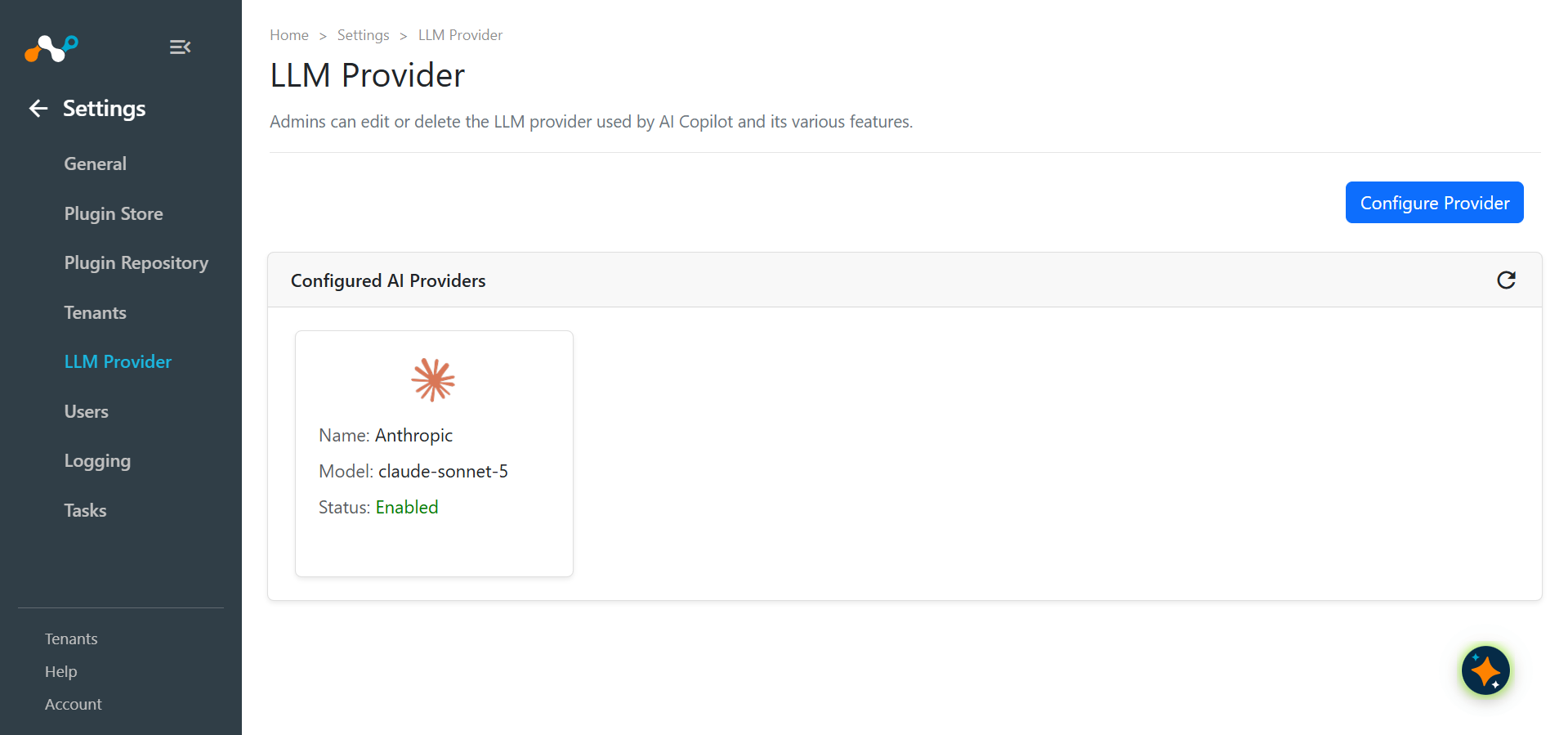
Configured LLM Provider can be seen at Settings > LLM Provider.
Troubleshooting the LLM Provider Plugin
Receiving Error While Configuring the Plugin
If you’re getting an error while configuring the plugin:
- Verify that you have a valid API Key.
- Verify that you have Web Search enabled in your Anthropic account under Organization settings > Privacy Controls