

For the standard flow that configures the appliance manually over the CLI, see Deploy AI Gateway on Netskope Portal — Enrolling AI Gateway.
Complete the following steps before you launch your AI Gateway instance to enable automated enrollment at boot time.
Step 1: Create the Bootstrap Secret in AWS Secrets Manager
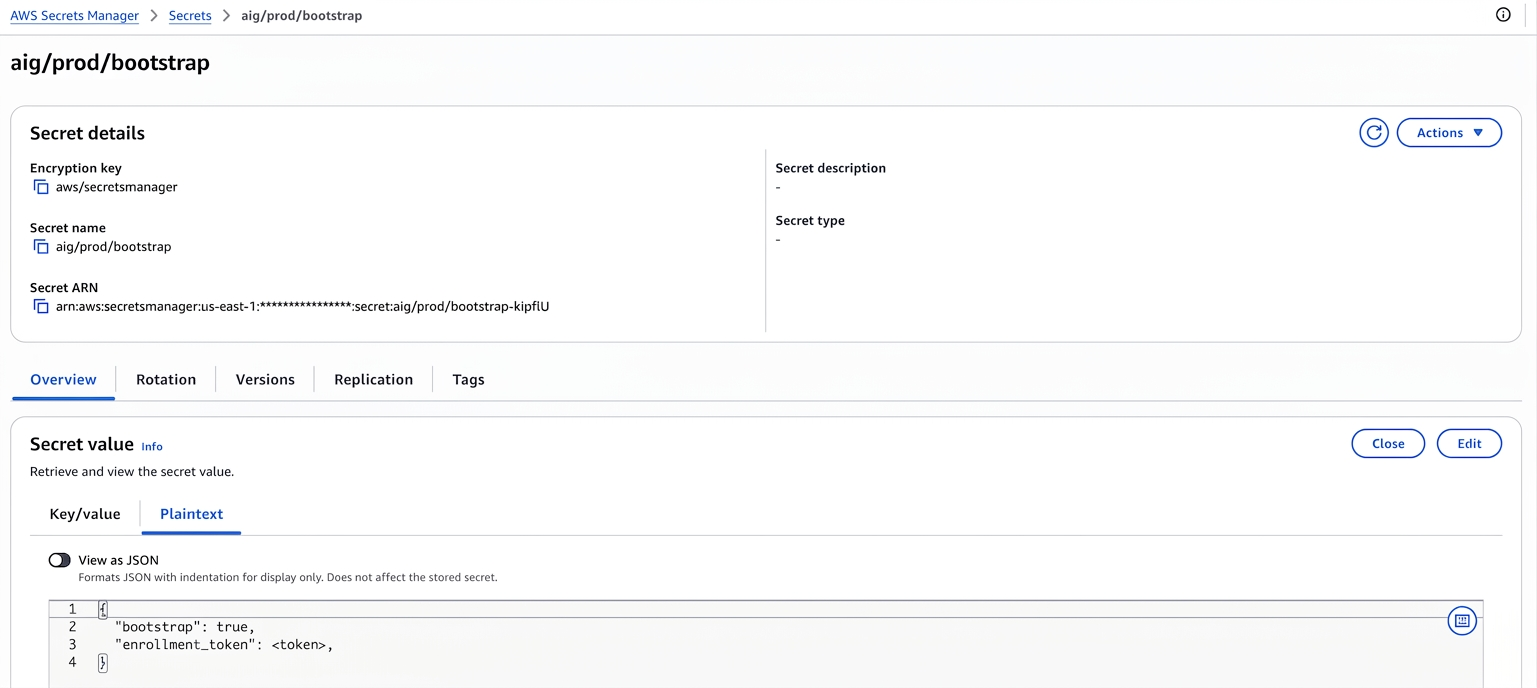
- In the AWS Console, go to Secrets Manager and click Store a new secret.
- Select Other type of secret.
- Under Key/value pairs, open the Plaintext tab and enter the following JSON:
{
 "bootstrap": true,
 "enrollment_token": "<token>"
}
Enrollment token is generated in the Netskope UI when you add a new AI Gateway instance. The token has a 24-hour TTL; re-issue it from the UI if it expires before the instance is launched. - Click Next, name the secret (for example,
aig/prod/bootstrap), and complete the wizard.
Step 2: Attach an IAM Instance Profile
Give your AI Gateway instance an IAM role with permission to read the secret. You don’t need static credentials.
- In the AWS Console, go to IAM > Policies and click Create policy.
- Switch to the JSON editor and enter:
{
"Version": "2012-10-17",
"Statement": [
{
"Sid": "ReadAIGBootstrapSecret",
"Effect": "Allow",
"Action": "secretsmanager:GetSecretValue",
"Resource": "arn:aws:secretsmanager:<region>:<account-id>:secret:aig/prod/bootstrap-*"
}
]
}
Note: Scope theResourceto the specific secret ARN rather than a wildcard. - Save the policy.
- Go to IAM > Roles and attach it to the IAM role used by your AI Gateway instance profile.
Step 3: Launch the EC2 Instance
When you launch the EC2 instance, configure both the IAM instance profile and the User data field.
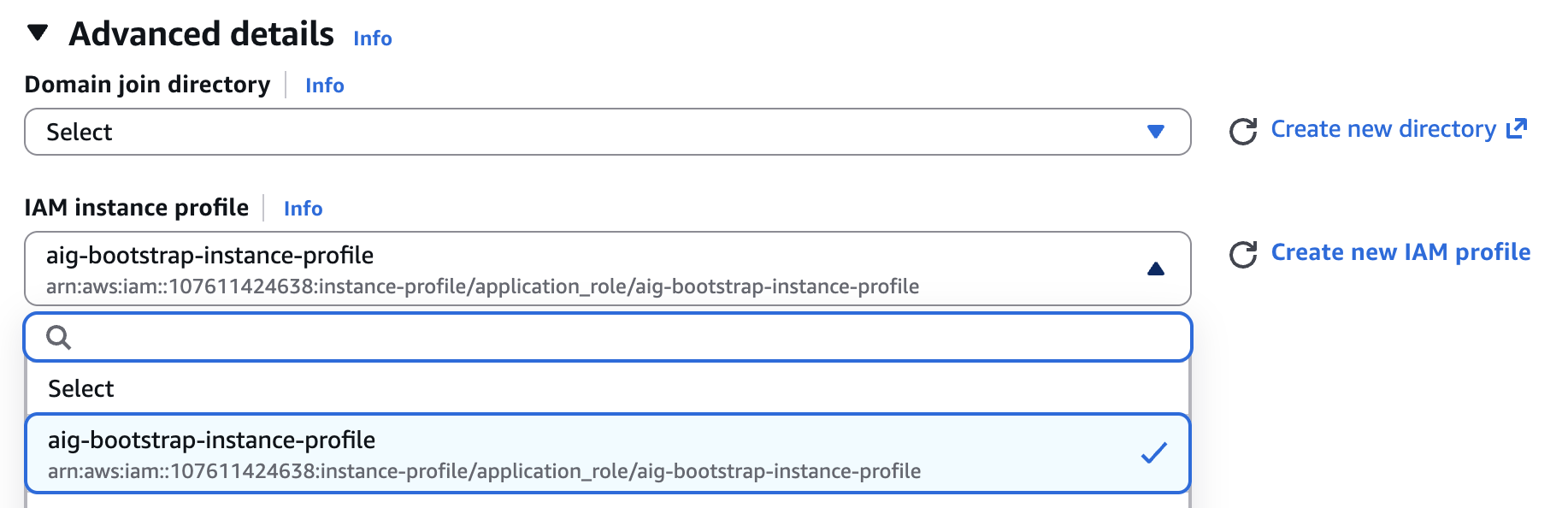
IAM instance profile
- Under Advanced details > IAM instance profile, select the instance profile associated with the IAM role from Step 2. This profile grants the instance permission to read the bootstrap secret at boot. Without it the appliance cannot retrieve the secret and enrollment fails.
User Data
- Set the User data field to the following JSON, replacing the value with your secret name or ARN.
{"bootstrap_secret": "aig/prod/bootstrap"}
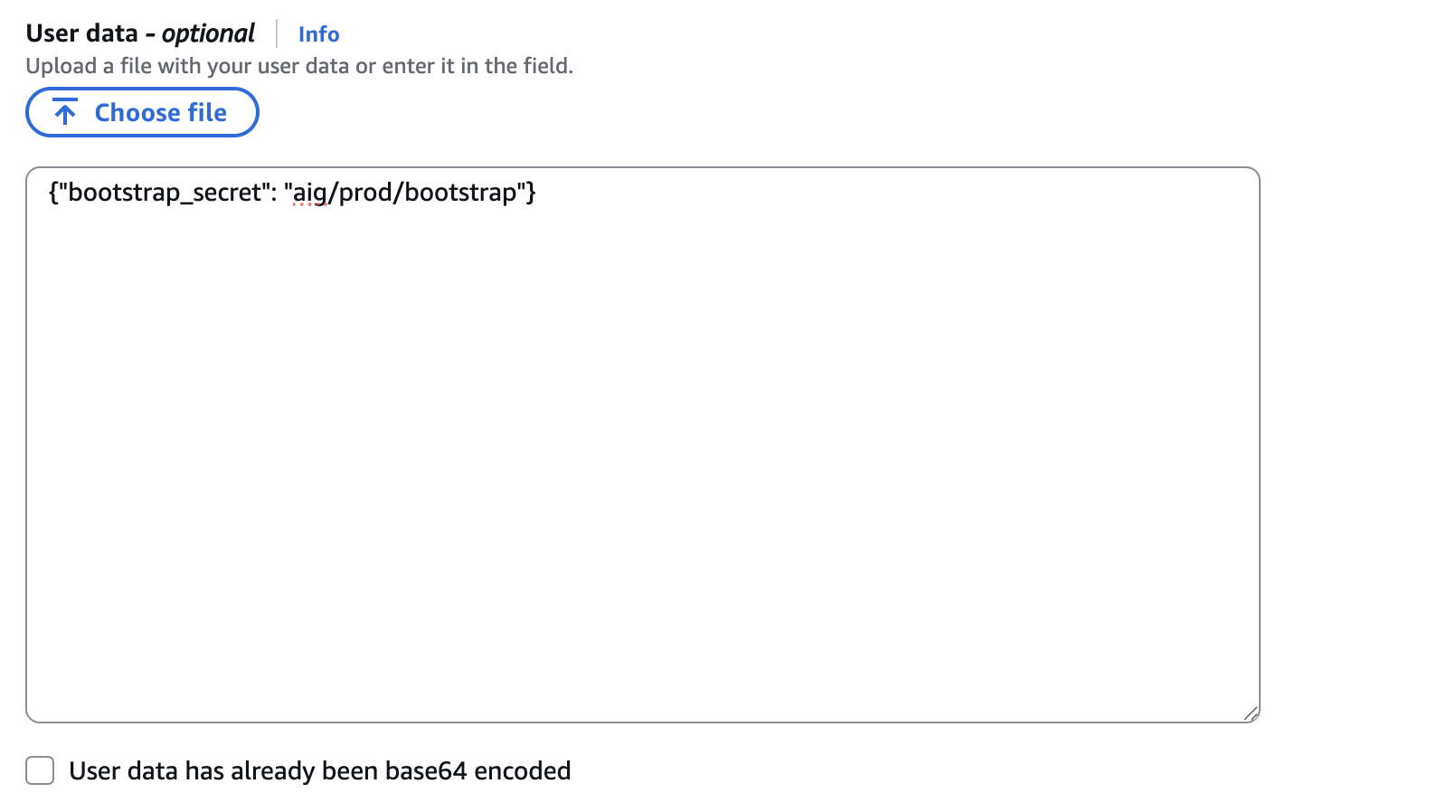
At first boot, the AIG appliance reads the User data, uses the IAM instance profile to retrieve the secret from Secrets Manager, and completes enrollment automatically. No SSH or manual CLI steps needed.
Verify Enrollment Completed
The appliance performs pre-enrollment and enrollment automatically. Confirm completion using either option below.
Option 1: Netskope UI
After successful registration, go to Netskope tenant UI and go to Settings > Security Cloud Platform > VM Onboarding. You’ll see a green icon next to your registered VM in the VM-Name column.
Option 2 — Get System Log in AWS
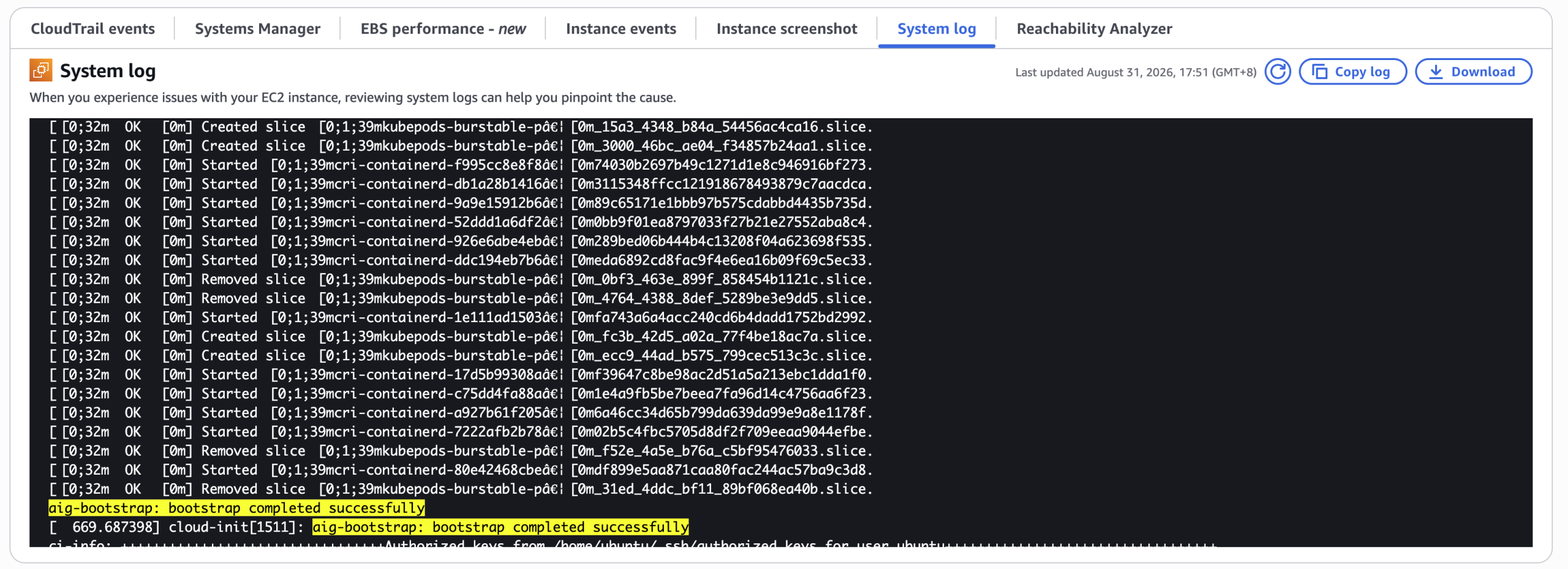
In the EC2 console, select the appliance instance and choose Actions > Monitor and troubleshoot > Get system log. Search the log for the following line.
aig-bootstrap: bootstrap completed successfully
This means the automated bootstrap finished successfully. Filtering the log for aig-bootstrap: shows every message the bootstrap step emitted, which is also useful when it did not complete.
Option 3: Public API
Call GET /api/v2/aig/appliances (use your Netskope API v2 token and include the x-netskope-tenantid header — see REST API v2 Overview) and check the appliance status field.
| Status | Meaning |
|---|---|
| connected | Enrolled and healthy (heartbeat received within the last 30 minutes) — enrollment succeeded |
| not-registered | Enrollment has not completed |
| disconnected | Enrolled, but no heartbeat in the last 30 minutes |
Example response:
{
  "elements": [
    {
      "id": "00000000-0000-7000-0000-000000000001",
      "name": "Taipei Lab",
      "status": "connected"
    }
  ],
  "total_count": 1
}
A status of connected confirms the appliance is enrolled and reporting.
If the appliance has not reached connected (or shown a green icon in the UI) within one hour of launch, see the Troubleshooting section below.
Optional: Configure DLP On-Demand and AI Guardrails at Bootstrap
To configure DLP on-demand or AI Guardrails during bootstrap, add the corresponding blocks to your Secrets Manager secret. If present, the appliance applies the configuration immediately after enrollment.
DLP on-demand:
{
  "bootstrap": true,
  "enrollment_token": "<token>",
  "dlp": {
    "certificate": "-----BEGIN CERTIFICATE-----\n...",
    "host": "https://dlp.company.internal"
  }
}
Both certificate and host are required when including the dlp block.
AI Guardrails:
{
  "bootstrap": true,
  "enrollment_token": "<token>",
  "ai_guardrails": {
    "host": "https://<llm-endpoint>/invocations",
    "certificate": "-----BEGIN CERTIFICATE-----\n...",
    "jwt_url": "https://<auth-provider>/oauth2/token",
    "client_id": "<client-id>",
    "client_secret": "<client-secret>",
    "scope": "<scope>"
  }
}
You need only host. Add the other fields only if your LLM backend requires TLS certificate configuration or token-based authentication.
Troubleshooting
The bootstrap flow is automated, so you normally do not need SSH or CLI interaction. Use the steps below only if the appliance has not reached connected (or shown a green icon in the UI) within one hour of launch.
Step 1: Check the system log in AWS
In the EC2 console, select the appliance instance and choose Actions > Monitor and troubleshoot > Get system log, then search the log for aig-bootstrap. The table below lists every message the bootstrap step can emit.
| Message in the system log | Meaning | What to do |
|---|---|---|
aig-bootstrap: starting | The instance found bootstrap_secret in its user data and started the automated bootstrap. | Look for one of the messages below to see how it ended. |
aig-bootstrap: bootstrap completed successfully | Enrollment finished successfully. | Nothing — the appliance is enrolled. |
(no aig-bootstrap message at all) | The instance metadata service or the user data could not be read, so the bootstrap step stopped before it could report anything. Most often the instance was launched with no user data. | Relaunch the instance with the user data described above. |
aig-bootstrap: no bootstrap_secret in user-data, skipping | User data was present but contained no bootstrap_secret key. | Relaunch the instance with the correct user data. |
aig-bootstrap: failed to get region from IMDS, skipping | The instance region could not be read from the instance metadata service. | Confirm the instance metadata service is reachable, then relaunch. |
aws: [ERROR]: An error occurred (AccessDeniedException) when calling the GetSecretValue operation | The IAM instance profile attached to the instance is not allowed to read the secret. The rest of the line names the role and the missing secretsmanager:GetSecretValue permission. It appears immediately after aig-bootstrap: starting and is produced by the AWS CLI, so it does not carry the aig-bootstrap prefix. | Grant secretsmanager:GetSecretValue on the secret to the instance profile’s role, then relaunch. |
aig-bootstrap: bootstrap not enabled in secret, skipping | Either bootstrap is not set to true in the secret, or the secret is not valid JSON. Check for a jq: parse error line immediately above this one — if it is there, the secret itself is malformed (a trailing comma or an unquoted value, for example). | Correct the secret so that it is valid JSON and contains "bootstrap": true, then relaunch. |
aig-bootstrap: payload rejected | The appliance rejected the configuration taken from the secret. The full line also carries the HTTP status it returned and the body of its response. | Check the fields in the secret against the examples above, then relaunch. |
aig-bootstrap: bootstrap failed, see /opt/ns/log/aig-va-mgmt.log for details | Bootstrap ran but enrollment itself failed — for example, the enrollment token in the secret was rejected. | Go to Step 2. |
If the log shows aig-bootstrap: bootstrap failed, or it does not show any of the messages above that explains why bootstrap stopped, continue with Step 2.
Step 2: Collect a debug bundle and contact Netskope Support
SSH into the appliance with the nsadmin account and launch the AIG CLI (see Signing in to Your Appliance).
From the main menu, select Debug Bundle and follow the prompts (enter a password to start generation). For details, see Manage Logs (from step 4 onward). When it completes, the CLI shows:
The bundle can be downloaded from the SCP/SFTP with nsdebug account
Retrieve the bundle via SCP/SFTP using the nsdebug account, then upload the ns-debug.zip bundle and its corresponding decryption password to the Netskope support portal to facilitate log analysis by the engineering team.