

Automated incident remediation tracking closes DLP incidents automatically once the file behind them stops matching any policy. Instead of manually checking whether someone removed sensitive content or revoked external sharing, you can rely on Next Generation API Data Protection to flag remediated incidents for you.
Prerequistes
Before you configure Automated incident remediation tracking, ensure you have:
-
A cloud storage app in scope (for example, Google Drive, OneDrive, SharePoint, Box, or Dropbox). This feature applies to file-based DLP incidents only.
-
The feature currently works only with non-forensics or public cloud (AWS, Azure, GCP) forensics storage configurations, not with a SaaS forensics store.
-
No existing custom incident status named Auto Resolved. If one exists, rename it before you enable the feature. Next Generation API Data Protection reserves that name for its own automated status.
Configure Automated Incident Remediation Tracking
This is a single, global switch scoped to storage app policies, turning it on applies automatic incident remediation to all your storage app policies (for example, Google Drive, OneDrive, SharePoint, Box, and Dropbox) at once. You do not configure it per policy, and you cannot enable it for only some storage app policies and not others. It does not affect non-storage-app policies.
To configure automated incident remediation tracking:
-
Log in to the Netskope tenant UI.
-
Navigate to Policies > API Data Protection. Under SaaS, click the Next Gen tab.
-
On the policy list page, click Automated IR Tracking.
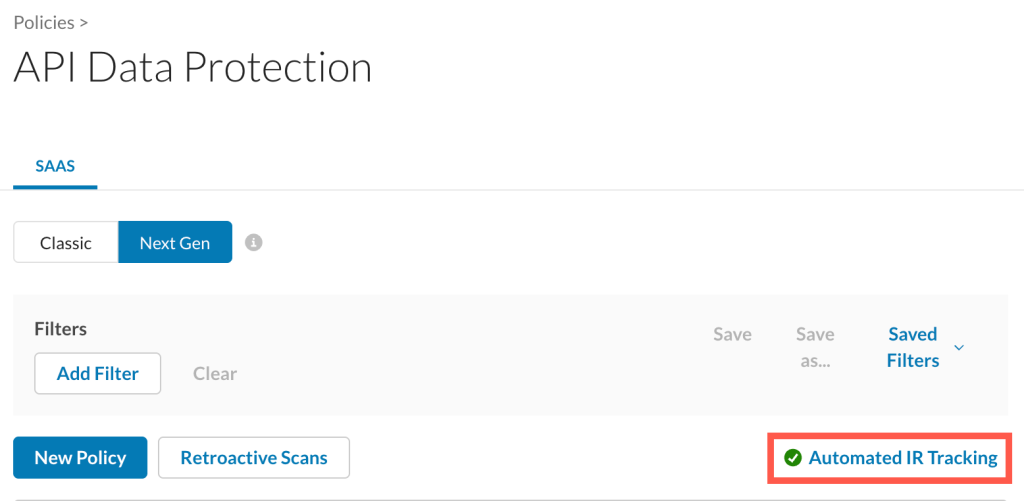
The Automated IR Tracking side panel opens.
-
Enable the toggle and click Save.
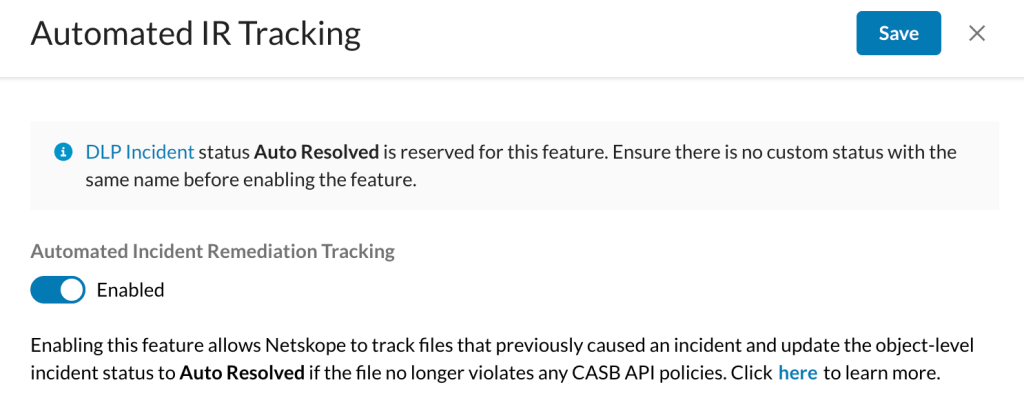
Every storage app policy under Next Generation API Data Protection now automatically marks a DLP incident’s object status as Auto Resolved when a later scan finds no remaining policy matches on that file.
View Incidents Marked Auto Resolved
After you enable automated incident remediation tracking, use the Incidents page to see which DLP incidents it has automatically closed.
To view incidents marked Auto Resolved:
-
Navigate to Incidents > DLP.
-
Use the Status filter and select Auto Resolved.
-
Review the filtered list. Every incident here was closed automatically because a later scan found that the file no longer matched any policy.
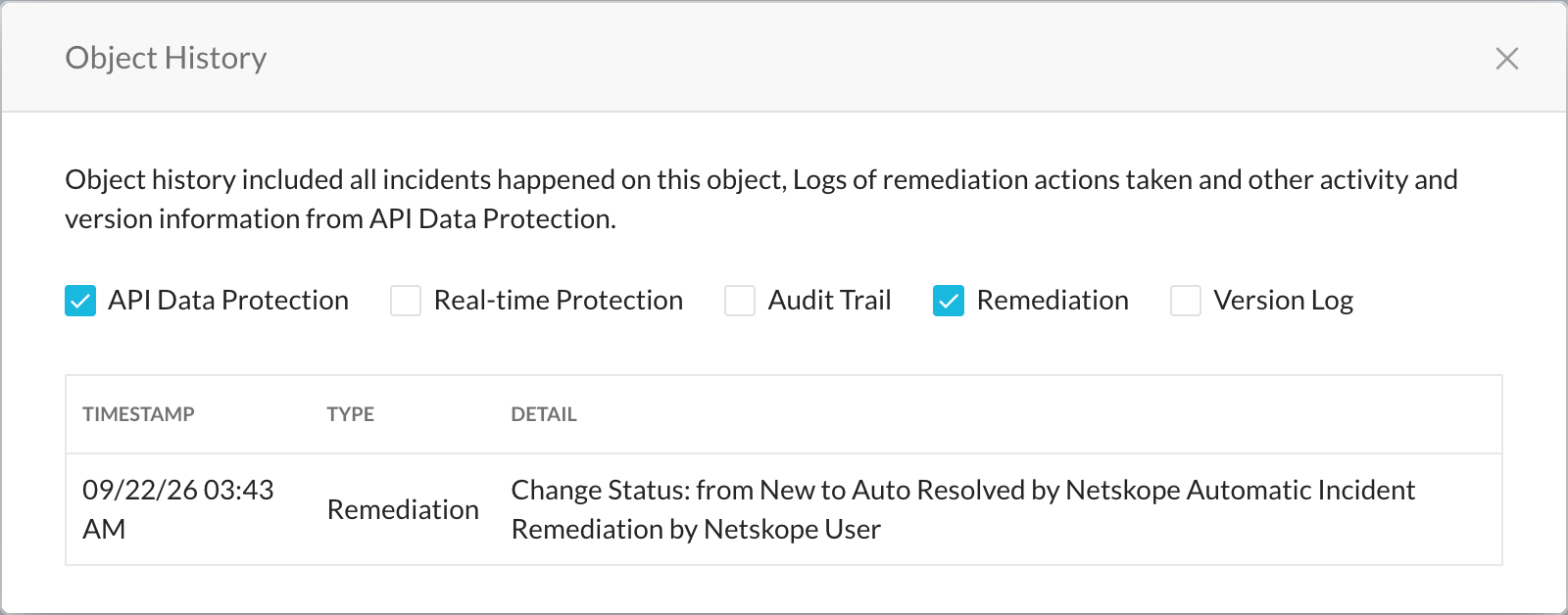
To confirm that a specific incident was closed automatically rather than by an administrator, open the incident and check its audit history for the entry as described in the following section.
Understand Automated Status Changes
Automated incident remediation tracking only changes an incident’s object status from New to Auto Resolved. It never overrides a status that you or another admin set manually, so a manual investigation already in progress is not interrupted.
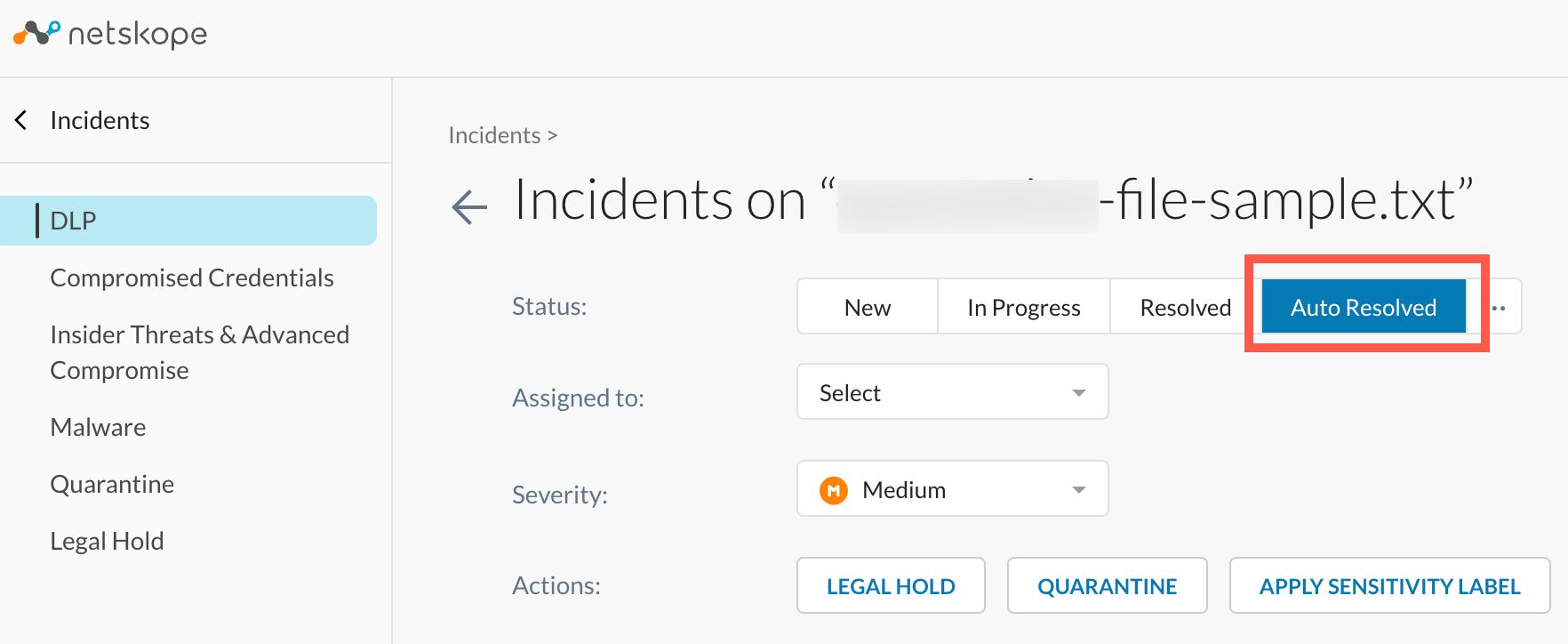
When Next Generation API Data Protection resolves an incident automatically, it adds this entry to the incident’s audit history: Change Status: from New to Auto Resolved by Netskope Automatic Incident Remediation.
Use the Status filter on the Incidents > DLP page to find every incident marked Auto Resolved.