

Release Notes
1.0.0 (Requires minimum Cloud Exchange version 6.1.0)
Added
- Initial release.
- Log Types: Alerts, Events, WebTx, Logs
- Format Type: CEF, JSON
This document explains how to configure the AWS CloudWatch v1.0.0 plugin with the Log Shipper module of the Netskope Cloud Exchange platform. This plugin supports ingestion of:
- Alerts (DLP, Malware, Policy, Compromised Credential, Malsite, Quarantine, Remediation, Security Assessment, Watchlist, UBA, CTEP, Device, Content, Anomaly, Legal Hold)
- Events (Page, Application, Audit, Infrastructure, Network, Incident, Endpoint, Client Status)
- BWAN Events (Authentication, Audit, Client, Gateway, System)
- WebTx and Logs (Debug, Information, Error, Warning).
This plugin supports ingestion in CEF and JSON formats.
Prerequisites
To complete this configuration, you need:
- A Netskope tenant (or multiple, for example, production and development/test instances).
- A Netskope Cloud Exchange tenant with the Tenant plugin and Log Shipper plugin already configured.
- A Netskope Cloud Exchange tenant with the BWAN plugin already configured.
- The AWS Log Streaming plugin and Azure Log Streaming plugin already configured, for ingesting alerts, events and WebTx from the Netskope Log Streaming plugin.
- Amazon CloudWatch logs permissions to the IAM user.
- DescribeLogGroups
- DescribeLogStreams
- CreateLogGroup
- CreateLogStream
- PutLogEvents
- Connectivity to AWS CloudWatch service.
- For Secret Manager configuration, refer to this documentation and to set up Azure Key Vault Secrets Manager refer to this documentation.
AWS CloudWatch Plugin Support
This plugin supports ingestion in CEF and JSON formats.
| Data Type | Support |
|---|---|
| Events | Yes (Page, Application, Audit, Infrastructure, Network, Incident, Endpoint, Client Status) |
| Alerts | Yes (DLP, Malware, Policy, Compromised Credential, Malsite, Quarantine, Remediation, Security Assessment, Watchlist, UBA, CTEP, Device, Content) |
| Cloud Exchange Logs | Yes (Info, Error, Warning, Debug) |
| BWAN Events | Yes (Authentication, Audit, Client, Gateway, System) |
| WebTx | Yes (via Netskope LogStreaming) |
API Details
List of APIs Used
This plugin uses Python libraries to create log groups, log streams, and log events in AWS CloudWatch Logs.
Library: The AWS SDK for Python (Boto3)
Usage: The AWS SDK for Python (Boto3) is used to create, configure, and manage AWS services, such as Amazon CloudWatch Logs. The SDK provides an object-oriented API as well as low-level access to AWS services. This plugin uses the low-level logs client only, which maps one-to-one with the Amazon CloudWatch Logs API.
Refer to the official documentation for more information on the Boto3 CloudWatch Logs client. https://boto3.amazonaws.com/v1/documentation/api/latest/reference/services/logs.html
Create a Client
The client is created with the credentials resolved from the selected Authentication Method, the region derived from AWS CloudWatch Region Name or AWS CloudWatch Custom Region, the configured proxy and SSL verification settings, and the Netskope APN user agent. During configuration validation the retry count is set to 0 so that the error is surfaced to the user immediately; on the push path it is 3 with the standard retry mode.
cloudwatch_client = boto3.client(
    "logs",
    aws_access_key_id=self.aws_public_key,
    aws_secret_access_key=self.aws_private_key,
    aws_session_token=self.aws_session_token,
    region_name=get_effective_region(self.configuration),
    verify=self._get_verify(),
    config=Config(
        proxies=self.proxy,
        user_agent=self.useragent,
        connect_timeout=CONNECT_TIMEOUT,
        read_timeout=READ_TIMEOUT,
        retries={"max_attempts": MAX_RETRIES, "mode": "standard"},
    ),
)
Check the AWS Credentials (DescribeLogGroups)
A single DescribeLogGroups call made during configuration validation to confirm that the credentials are valid and that the role can read CloudWatch Logs. No log event is written.
cloudwatch_client.describe_log_groups(
    logGroupNamePrefix=log_group_name, limit=1
)
Check Log Group Existence (DescribeLogGroups)
Paginated lookup used during configuration validation to find out whether the configured Log Group Name already exists, so that the plugin creates it only when it is missing. Up to 20 pages of 50 log groups are scanned.
response = cloudwatch_client.describe_log_groups(
    logGroupNamePrefix=log_group_name,
    limit=DESCRIBE_PAGE_LIMIT,
    nextToken=next_token,
)
Check Log Stream Existence (DescribeLogStreams)
Paginated lookup used during configuration validation to find out whether the configured Log Stream Name already exists inside the log group.
response = cloudwatch_client.describe_log_streams(
    logGroupName=log_group_name,
    logStreamNamePrefix=log_stream_name,
    limit=DESCRIBE_PAGE_LIMIT,
    nextToken=next_token,
)
Create a Log Group
Creates the log group configured in Log Group Name when it does not already exist.
cloudwatch_client.create_log_group(logGroupName=log_group_name)
Create a Log Stream
Creates the log stream configured in Log Stream Name inside the log group when it does not already exist.
cloudwatch_client.create_log_stream(
    logGroupName=log_group_name,
    logStreamName=log_stream_name,
)
Push the Logs to the Log Stream (PutLogEvents)
Uploads one batch of log events to the configured log group and log stream. This is the call that performs the actual ingestion.
log_events = [
    {"timestamp": timestamp_ms, "message": message}
    for message in batch
]

cloudwatch_client.put_log_events(
    logGroupName=log_group_name,
    logStreamName=log_stream_name,
    logEvents=log_events,
)
Batches are built within the AWS limits below, and the events are sorted by timestamp before the call, as the API requires.
| Limit | Value |
|---|---|
| Maximum log events per request | 10,000 |
| Maximum request size | 1,048,576 bytes |
| Maximum size of a single log event | 1,048,576 bytes |
| Overhead AWS adds per log event | 26 bytes |
The response is inspected for rejectedLogEventsInfo so that events AWS rejects as too old, too new, or expired are counted and reported rather than retried.
Library: Requests
Usage: The requests library is an HTTP client for Python. The plugin uses it to call the AWS IAM Roles Anywhere CreateSession API, which is not exposed by the Boto3 CloudWatch Logs client. This call is made only when the Authentication Method is set to AWS IAM Roles Anywhere.
Refer to the official documentation for more information on the requests library. https://requests.readthedocs.io/en/latest/
Generate Temporary Credentials (CreateSession)
The configured X.509 certificate and private key are exchanged for short-lived AWS credentials, which are then used to create the Boto3 CloudWatch Logs client. The request is signed with the AWS4-X509-RSA-SHA256 algorithm.
# endpoint = "https://rolesanywhere.{region}.amazonaws.com"
#            ("amazonaws.com.cn" for the China partition)
# canonical_uri = "/sessions"

request_parameters = json.dumps(
    {
        "durationSeconds": 900,
        "profileArn": profile_arn,
        "roleArn": role_arn,
        "sessionName": "Session",
        "trustAnchorArn": trust_anchor_arn,
    }
)

headers = {
    "Content-Type": "application/json",
    "X-Amz-Date": amz_date,
    "X-Amz-X509": amz_x509,
    "Authorization": authorization_header,
    "User-Agent": self.user_agent,
}

response = requests.post(
    endpoint + canonical_uri,
    data=request_parameters,
    headers=headers,
    proxies=self.proxy,
    timeout=ROLES_ANYWHERE_TIMEOUT,
    verify=self.verify,
)
The response carries credentialSet[0].credentials containing accessKeyId, secretAccessKey, sessionToken, and expiration. The credentials are valid for 900 seconds and are refreshed automatically by the plugin 3 minutes before expiry. The call uses a 10 second connect timeout and a 60 second read timeout.
Refer to the official documentation for more information on AWS IAM Roles Anywhere. https://docs.aws.amazon.com/rolesanywhere/latest/APIReference/API_CreateSession.html
Library: Cryptography
Usage: The cryptography library provides cryptographic primitives and X.509 certificate handling for Python. The plugin uses it only for the AWS IAM Roles Anywhere authentication method, to build the signature of the CreateSession request.
Refer to the official documentation for more information on the cryptography library. https://cryptography.io/en/latest/
Load the Private Key
The configured Private Key is loaded without a passphrase first, and with the Password Phrase when the key is encrypted.
private_key = serialization.load_pem_private_key(
    private_key_file.encode("utf-8"), None
)

# Encrypted key
private_key = serialization.load_pem_private_key(
    private_key_file.encode("utf-8"),
    password=str.encode(pass_phrase),
)
Load the Certificate and Build the X.509 Header
The configured Certificate Body is loaded to derive the DER encoding sent in the X-Amz-X509 header and the serial number used in the Authorization header credential field.
cert = x509.load_pem_x509_certificate(
    public_certificate_file.encode()
)

amz_x509 = str(
    base64.b64encode(
        cert.public_bytes(encoding=serialization.Encoding.DER)
    ),
    "utf-8",
)

serial_number_dec = cert.serial_number
Sign the Request
The canonical string is signed with PKCS#1 v1.5 padding and SHA-256, and the hex signature is placed in the Authorization header.
signature = private_key.sign(
    data=string_to_sign.encode("utf-8"),
    padding=padding.PKCS1v15(),
    algorithm=hashes.SHA256(),
)
signature_hex = signature.hex()
Performance Matrix
This performance reading is conducted on a Large Stack CE with these VM specifications.
| Description | Specification |
|---|---|
| Stack details | Size: Large RAM: 32 GB CPU: 16 Cores |
| Alerts/Events ingested to SIEM | ~200k EPM |
| WebTx (via Netskope LogStreaming) ingested to SIEM | ~165k EPM |
User Agent
APN/1.1 (ahq9d89xj9gspapczzdb59goq)
Workflow
- Create a AWS CloudWatch Log Group, Log Stream and Policy.
- Generate Private Key, Certificate Body, Password Phrase, Profile ARN, Role ARN, Trust Anchor ARN if using AWS IAM Role Anywhere.
- Configure the AWS CloudWatch Plugin.
- Configure a Log Shipper Business Rule for AWS CloudWatch.
- Configure Log Shipper Log Delivery for AWS CloudWatch.
- Validate the AWS CloudWatch plugin.
Watch a Video
Click play to watch a video.
Create a CloudWatch Log Group
- Log in to the AWS Console.
- From All Services, select CloudWatch, or search for CloudWatch in the search bar.
- Check the region selector at the top right. The Log Group is created in that region, and you will select the same region in the plugin’s AWS CloudWatch Region Name parameter.
- In the left panel, click Logs > Log groups.
- Click Create log group.
- Enter the Log group name, like netskope-ce-log-group.
- Select a Retention setting, *Never expire*, or a period your organization needs.
- Select Standard for Log class.
- KMS key ARN and Tags are optional.
- Click Create.
Create a CloudWatch Log Stream
- In CloudWatch go to Logs > Log groups.
- Search for the Log Group you created above and click its name to open it.
- Open the Log streams tab.
- Click Create log stream.
- Enter the Log stream name, like netskope-ce-log-stream.
- Click Create.
Create CloudWatch Logs Policy
-
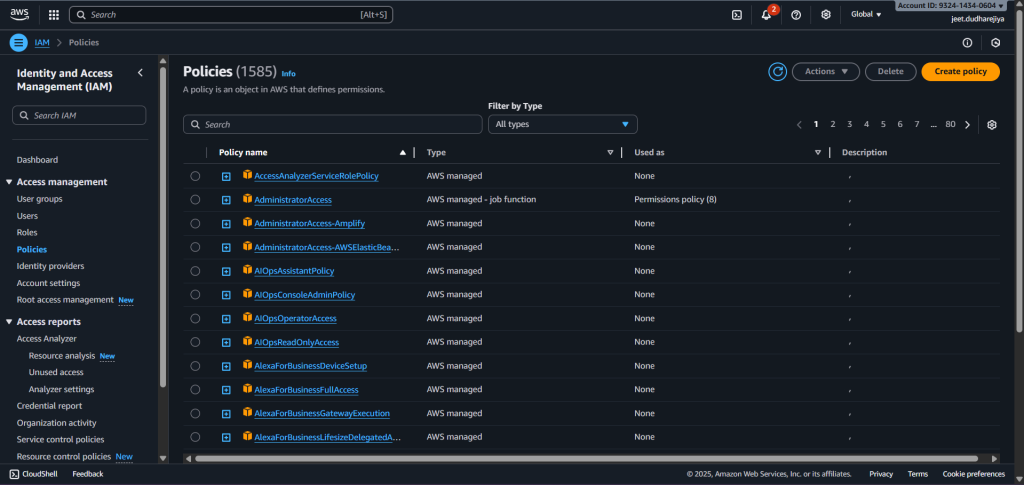
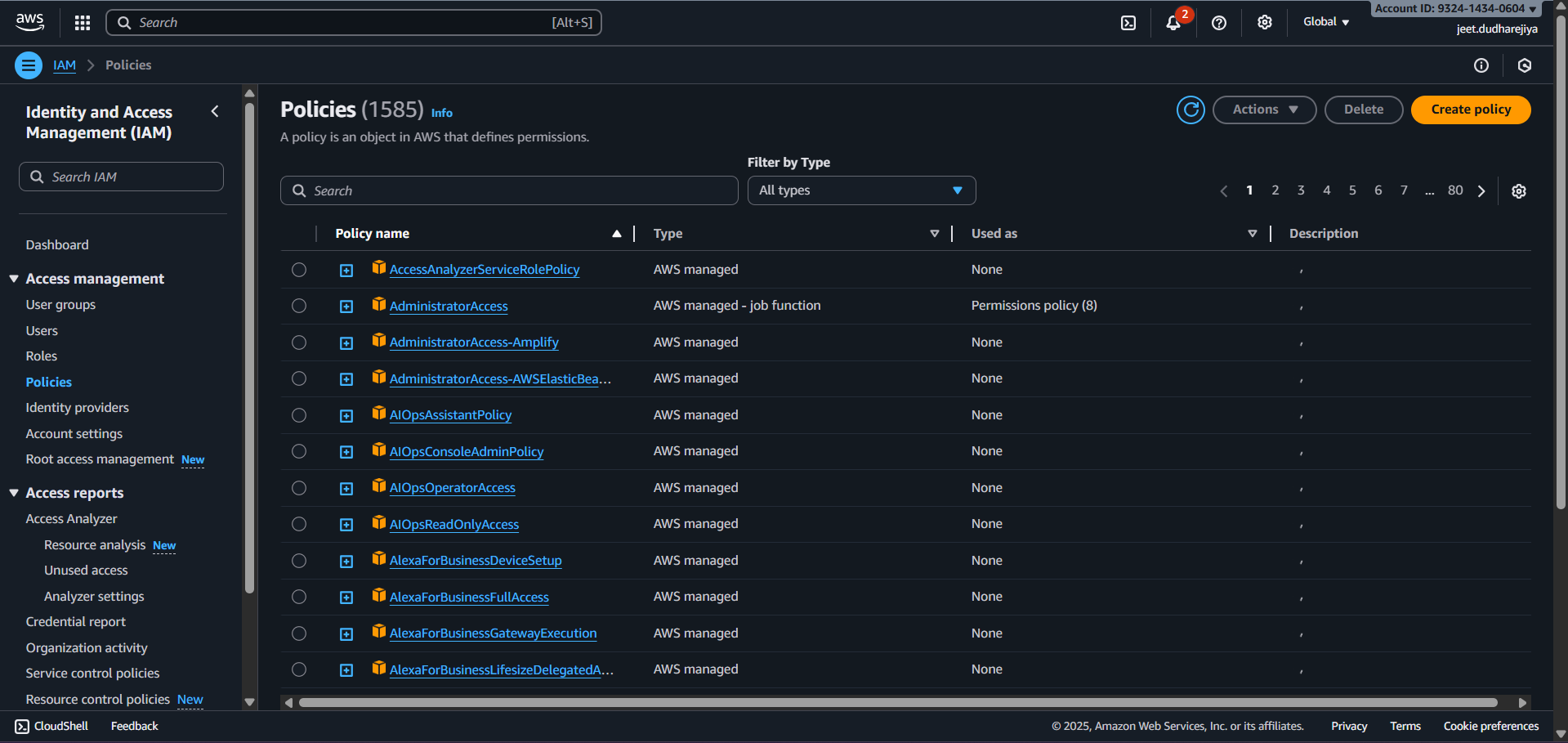
Search for IAM in the search box, and from the left panel, click Policies.
-
Click Create Policy.
-
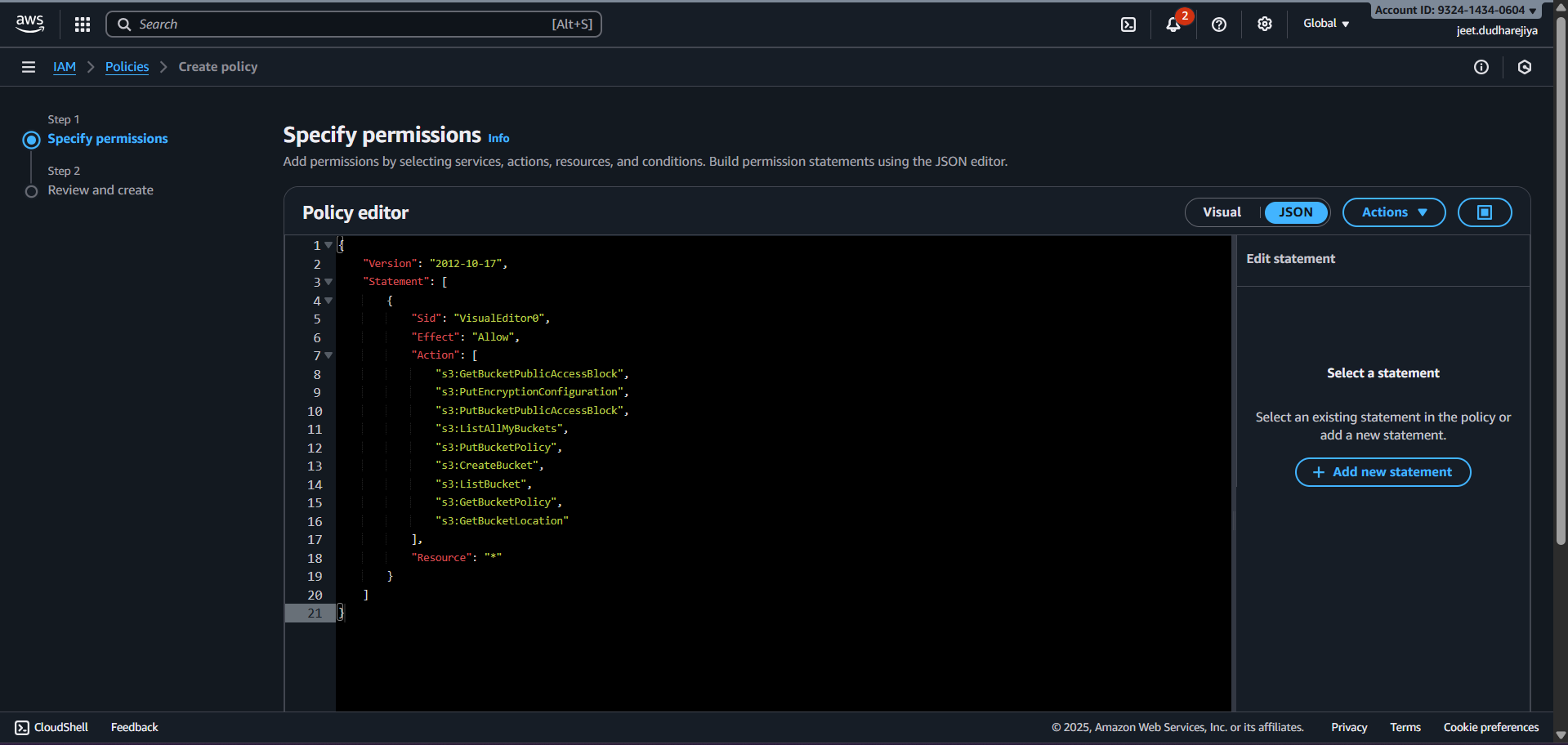
Click on the JSON tab, and enter the below-mentioned policy. Click on Next: Tags, Click on Next: Review
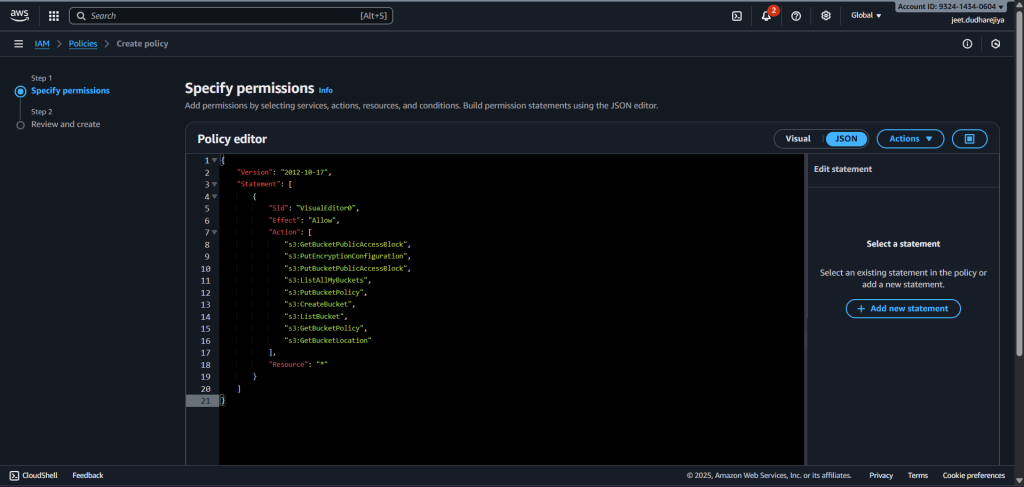
{ "Version": "2012-10-17", "Statement": [ { "Sid": "NetskopeCECloudWatchLogs", "Effect": "Allow", "Action": [ "logs:DescribeLogGroups", "logs:DescribeLogStreams", "logs:CreateLogGroup", "logs:CreateLogStream", "logs:PutLogEvents" ], "Resource": "*" } ] } -
Attach this policy to the user:
-
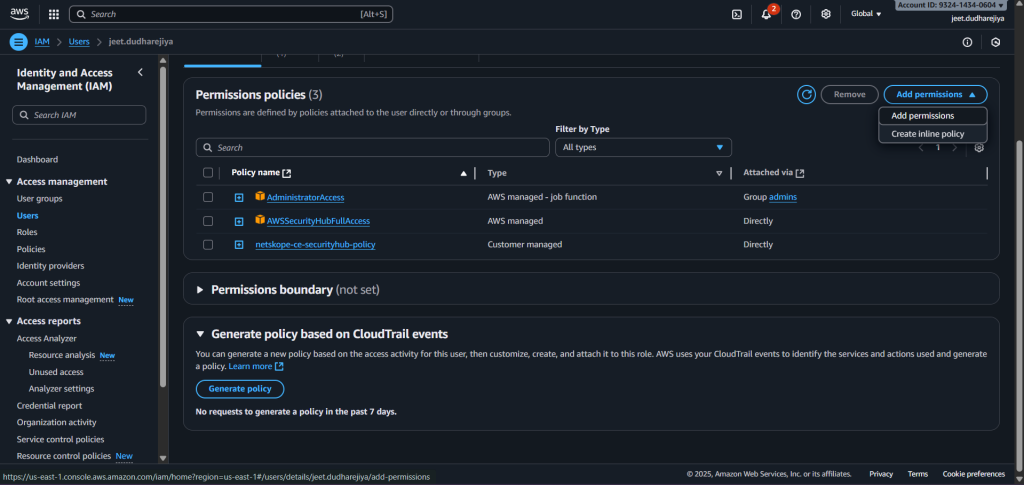
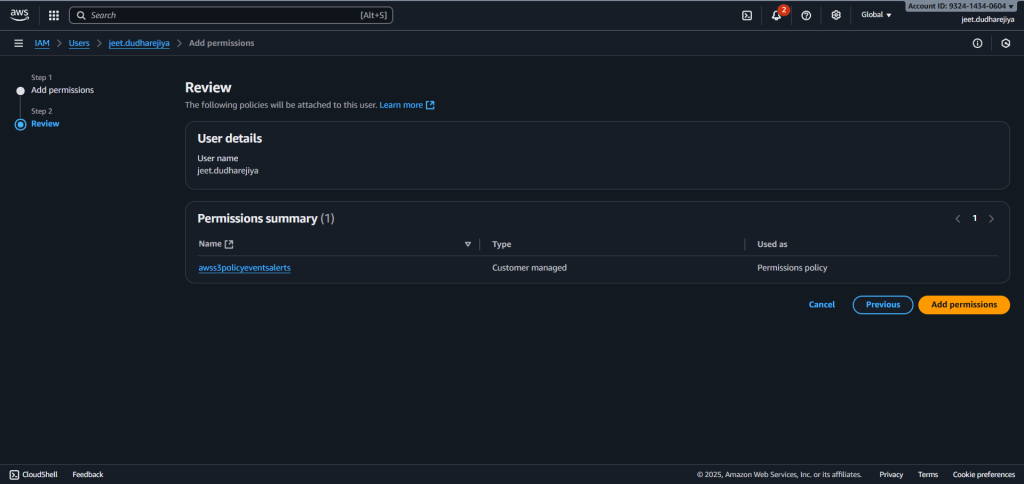
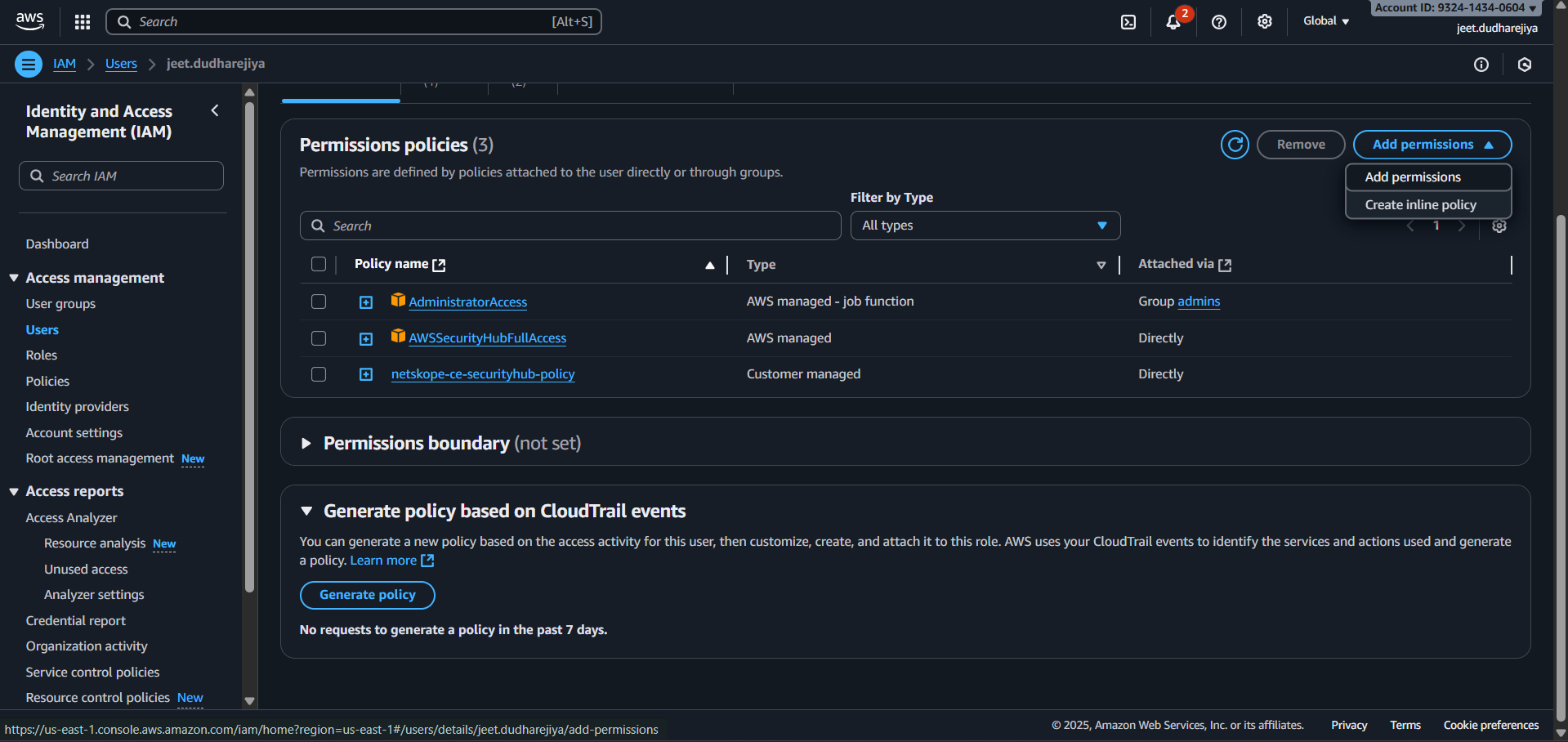
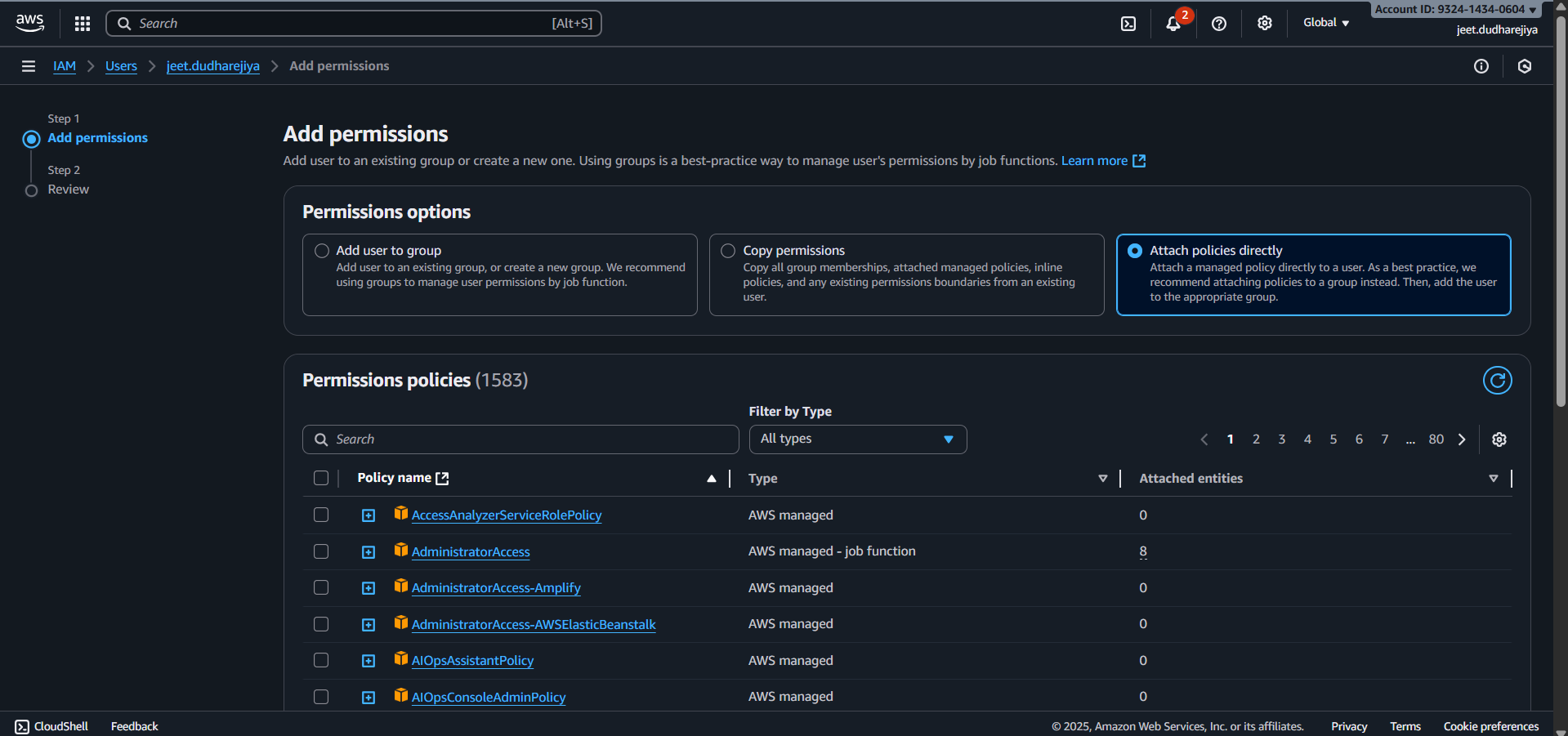
Go to IAM > Users and select the user for which you want to attach a policy. Click Add permissions and then click Add permissions options.
-
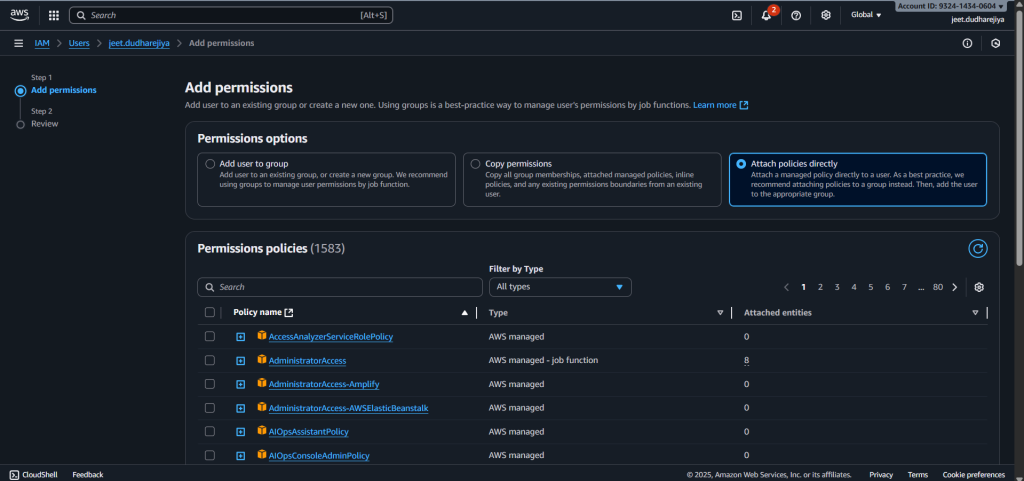
Select the Attach policies directly option under the Permissions options. Search for and select the policy created in the previous step.
-
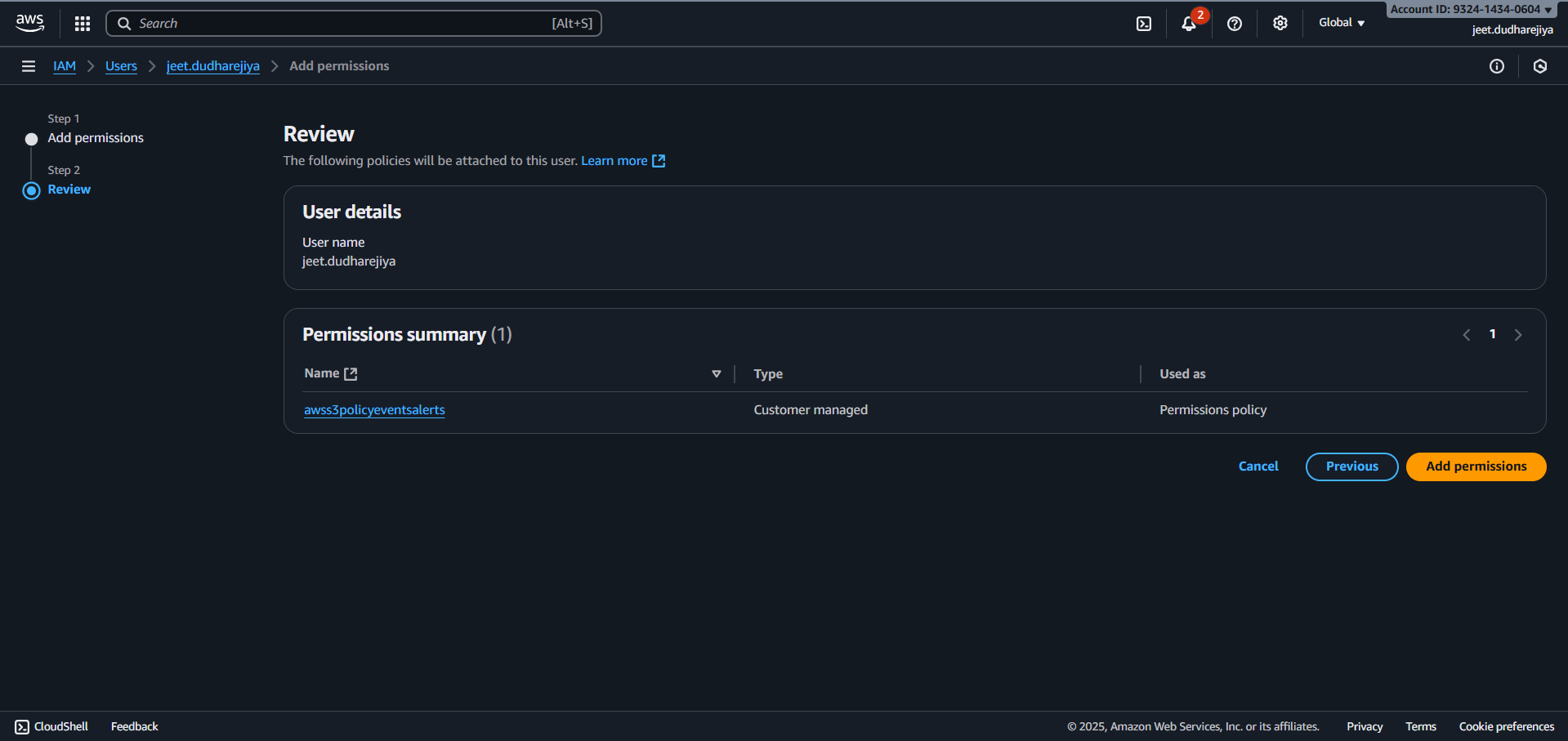
Click Next and then click Add permissions. The Policy will be attached to the user.
-
Plugin Authentication Methods
IAM Role Anywhere Configuration
Prerequisites
The AWS Certificate Manager service is required to be enabled to authenticate the plugin using the AWS IAM Roles Anywhere Authentication Method.
Make sure you create the Private Certificate Authority, Trust Anchor, and Profile in the same region in which your AWS S3 Source Bucket resides.
Create a Policy
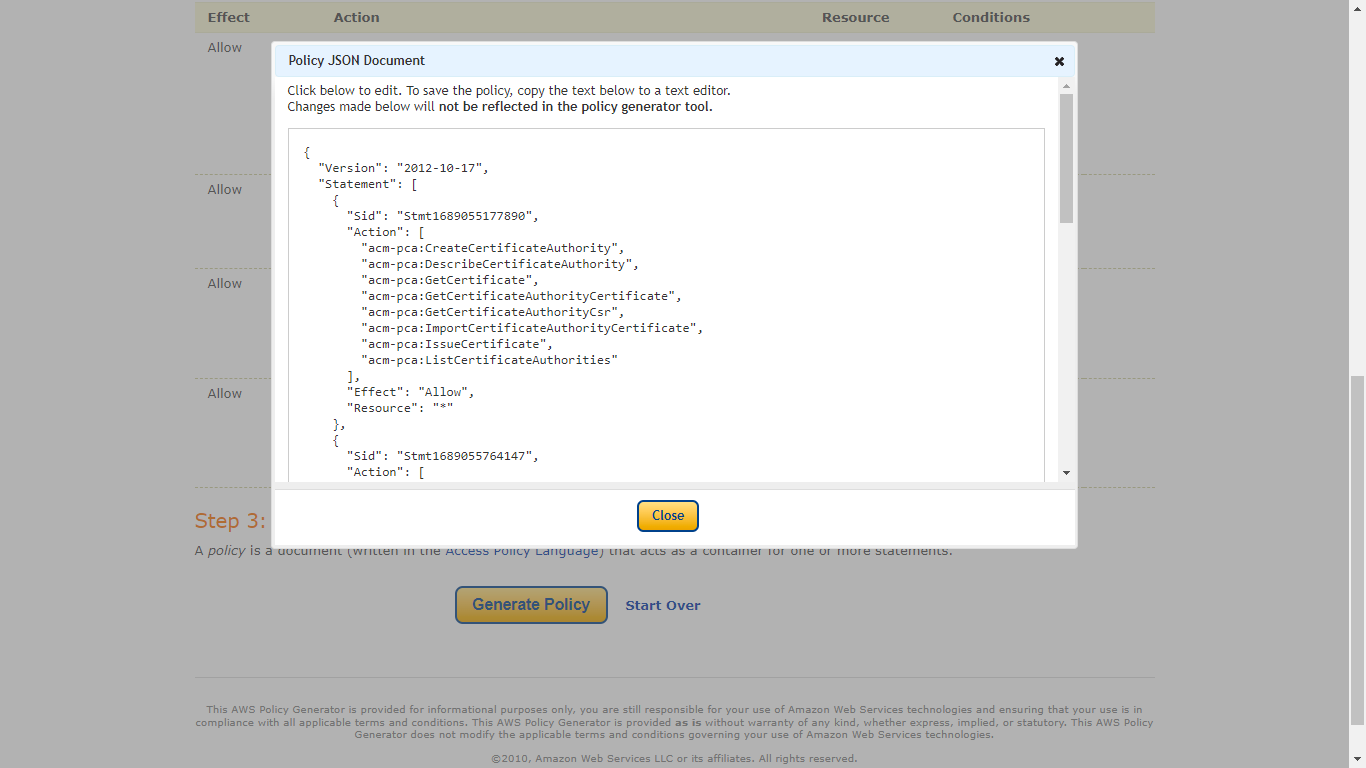
This Policy contains the required permissions for creating a Private CA Certificate(including Permissions for creating Trust Anchor and Profile) and using the IAM Roles Anywhere.
-
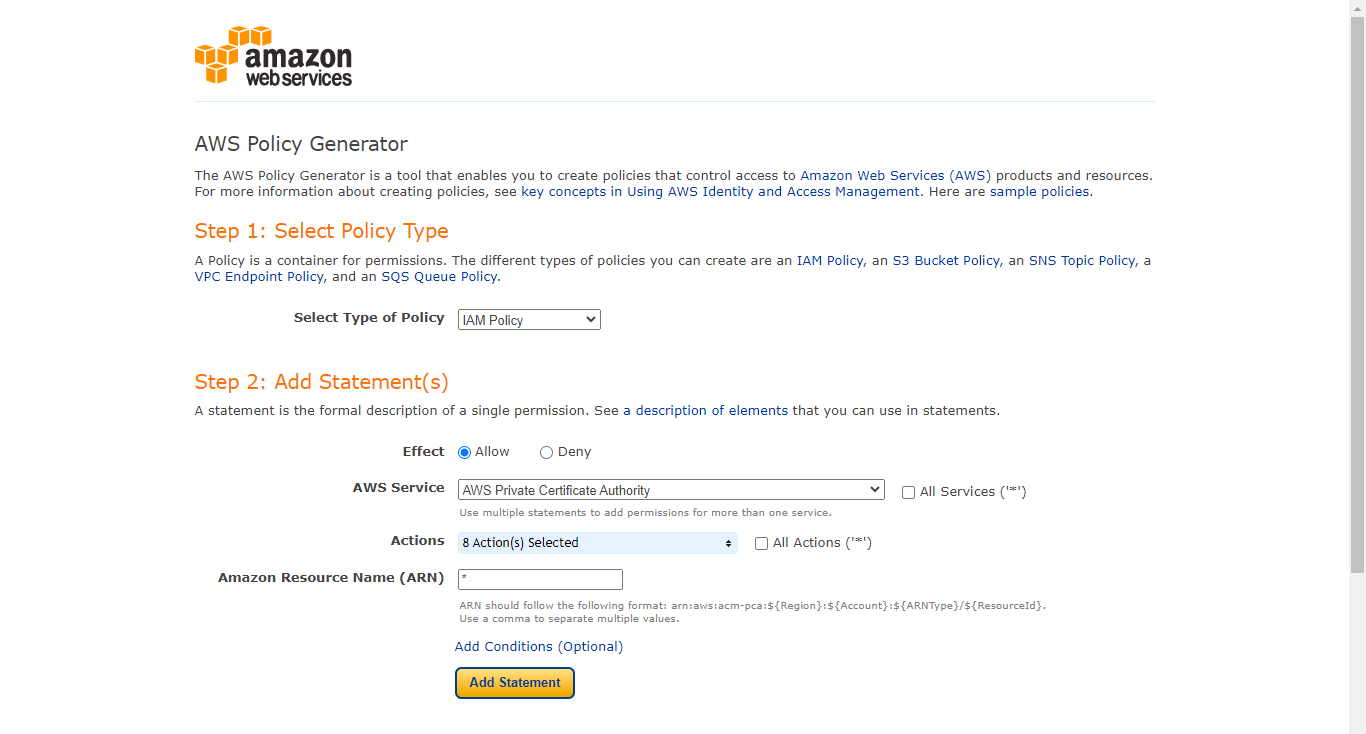
Go to Policy Generator and select IAM Policy as the policy type and generate a policy.
- Select Type of Policy: IAM Policy
- Effect: Allow
- AWS Service: AWS Private Certificate Authority
- Actions:
- CreateCertificateAuthority
- DescribeCertificateAuthority
- GetCertificate
- GetCertificateAuthorityCertificate
- GetCertificateAuthorityCsr
- ImportCertificateAuthorityCertificate
- IssueCertificate
- ListCertificateAuthorities
- ARN: *
- Click Add Statement.
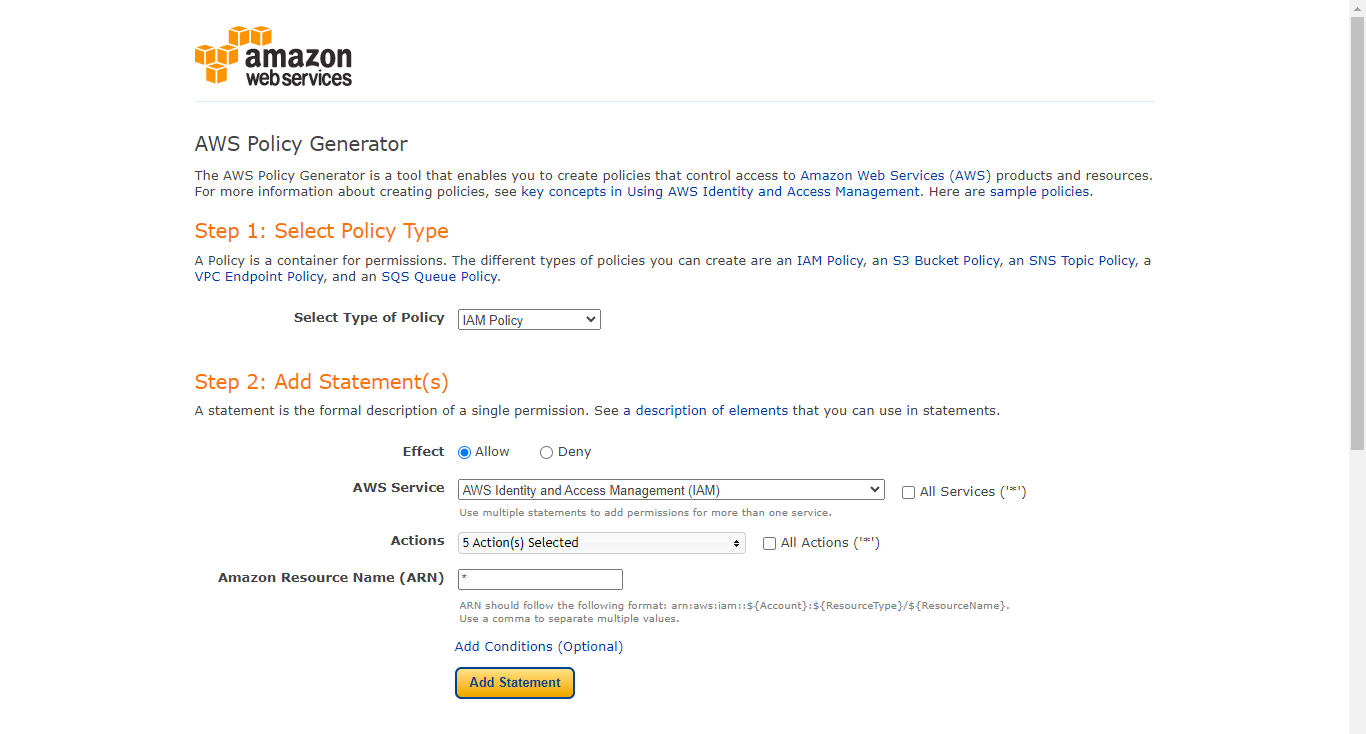
- Select Type of Policy: IAM Policy
- Effect: Allow
- AWS Service: AWS Identity and Access Management (IAM)
- Actions:
- AttachRolePolicy
- CreateAccessKey
- CreateRole
- DeleteRole
- PassRole
- ARN: *
- Click Add Statement.
- Select Type of Policy: IAM Policy
- Effect: Allow
- AWS Service: AWS Certificate Manager
- Actions:
- DescribeCertificate
- ExportCertificate
- GetCertificate
- ListCertificates
- ListTagsForCertificate
- RequestCertificate
- ARN: *
- Click Add Statement.
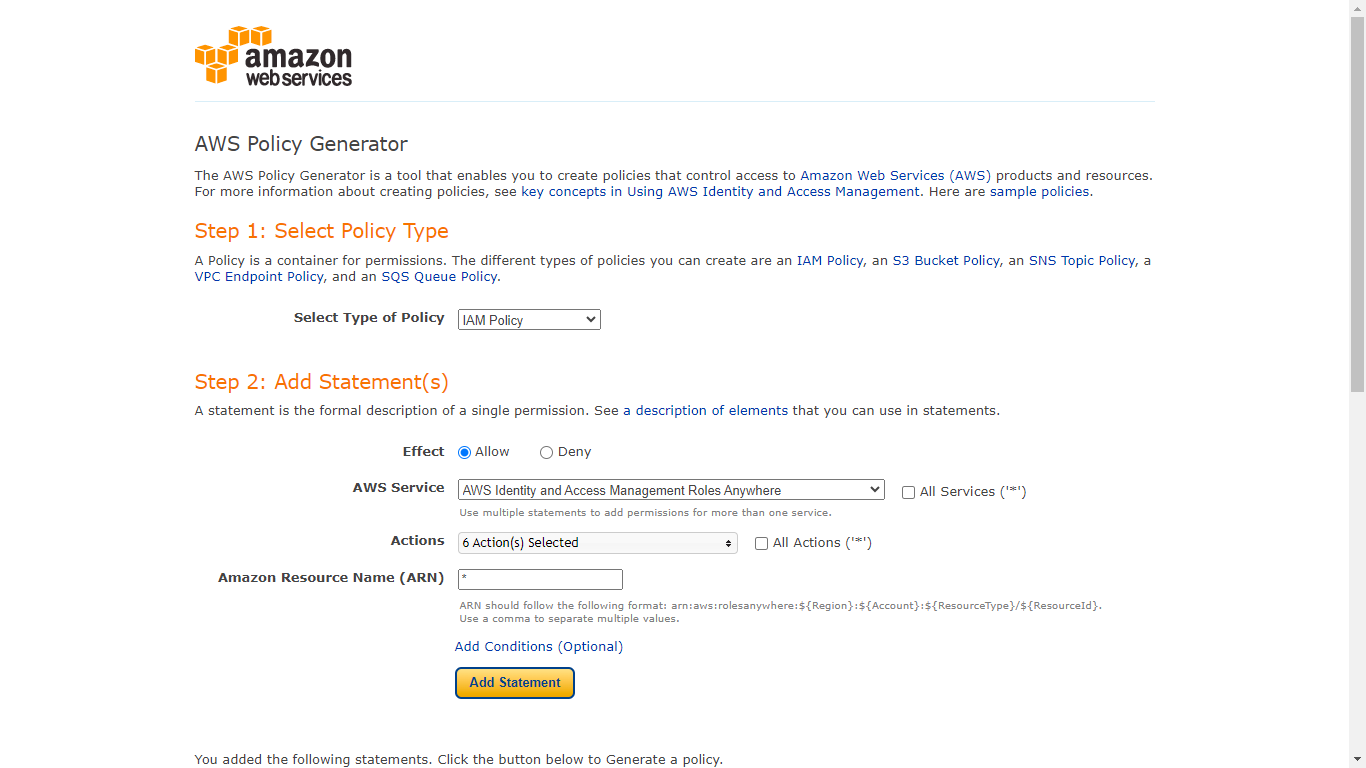
- Select Type of Policy: IAM Policy
- Effect: Allow
- AWS Service: AWS Identity and Access Management Roles Anywhere
- Actions:
- CreateProfile
- CreateTrustAnchor
- GetProfile
- GetTrustAnchor
- ListProfiles
- ListTrustAnchors
- ARN: *
- Click Add Statement.
- Click Generate Policy.
- Copy the Policy as it will be used in the next step for creating the policy required for creating the Private CA certificates.
-
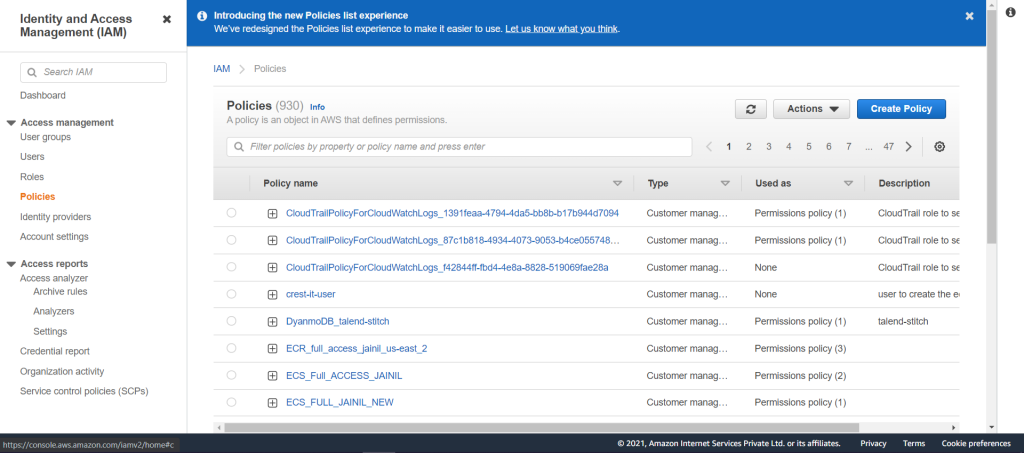
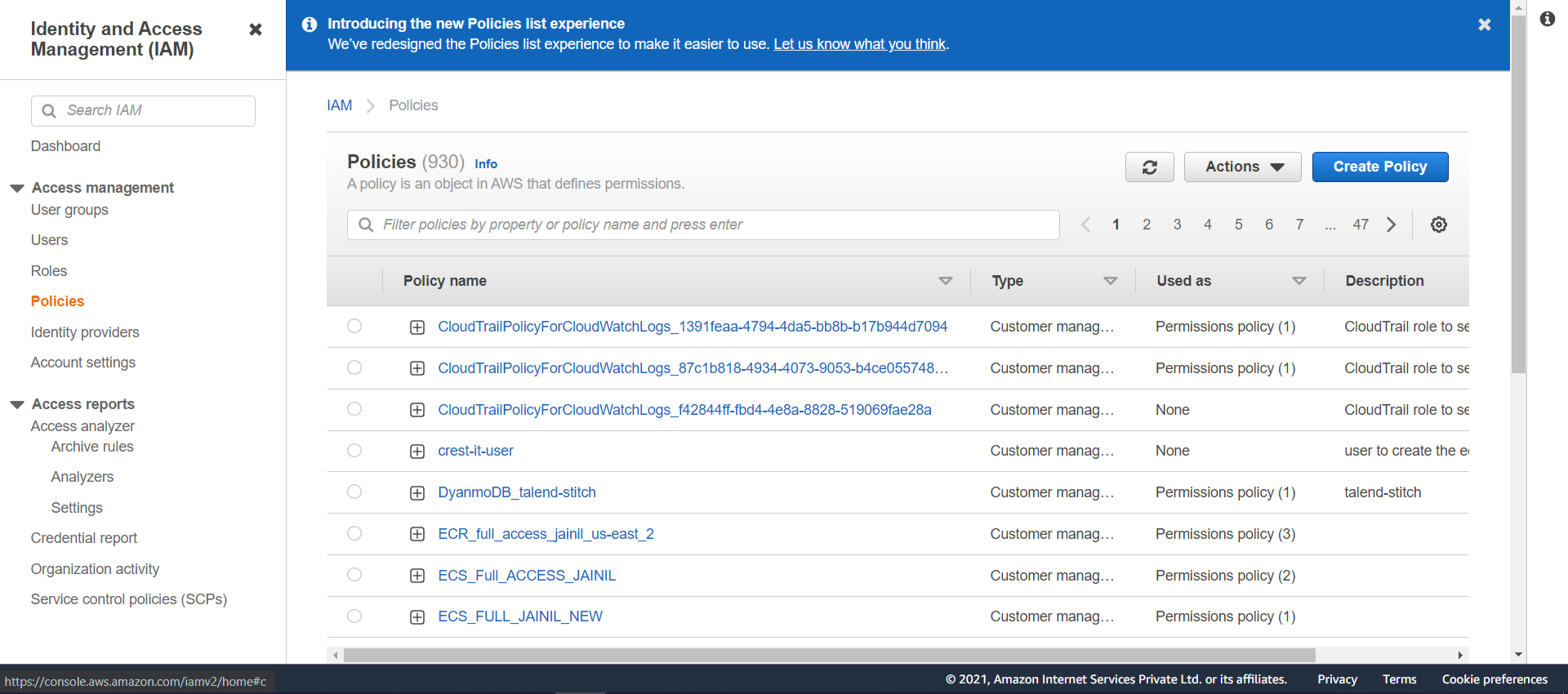
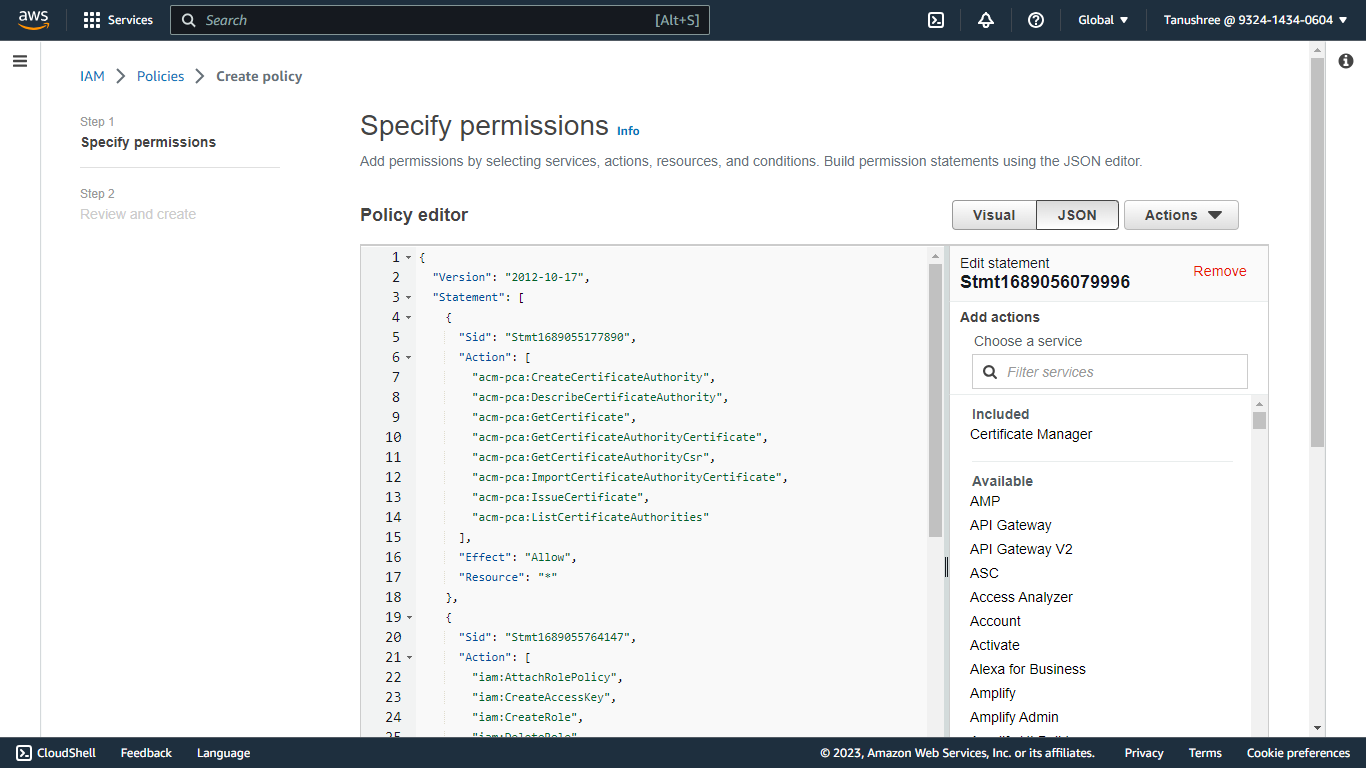
Go to the AWS Console and select IAM from All Services. Click Policies in the left panel and then click Create Policy.
-
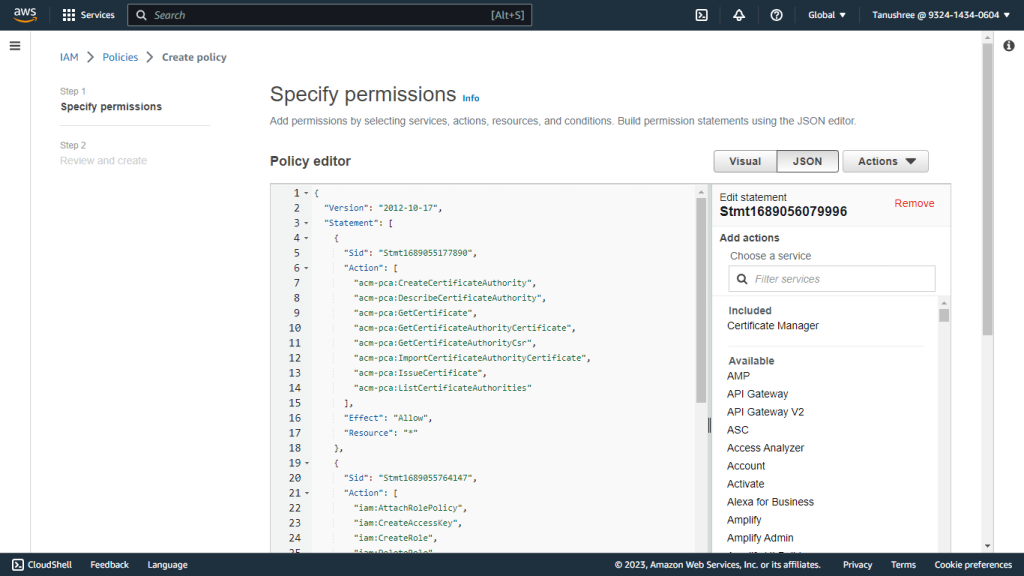
Copy the policy to the JSON tab. Click on Next: Tags and then click on Next: Review.
-
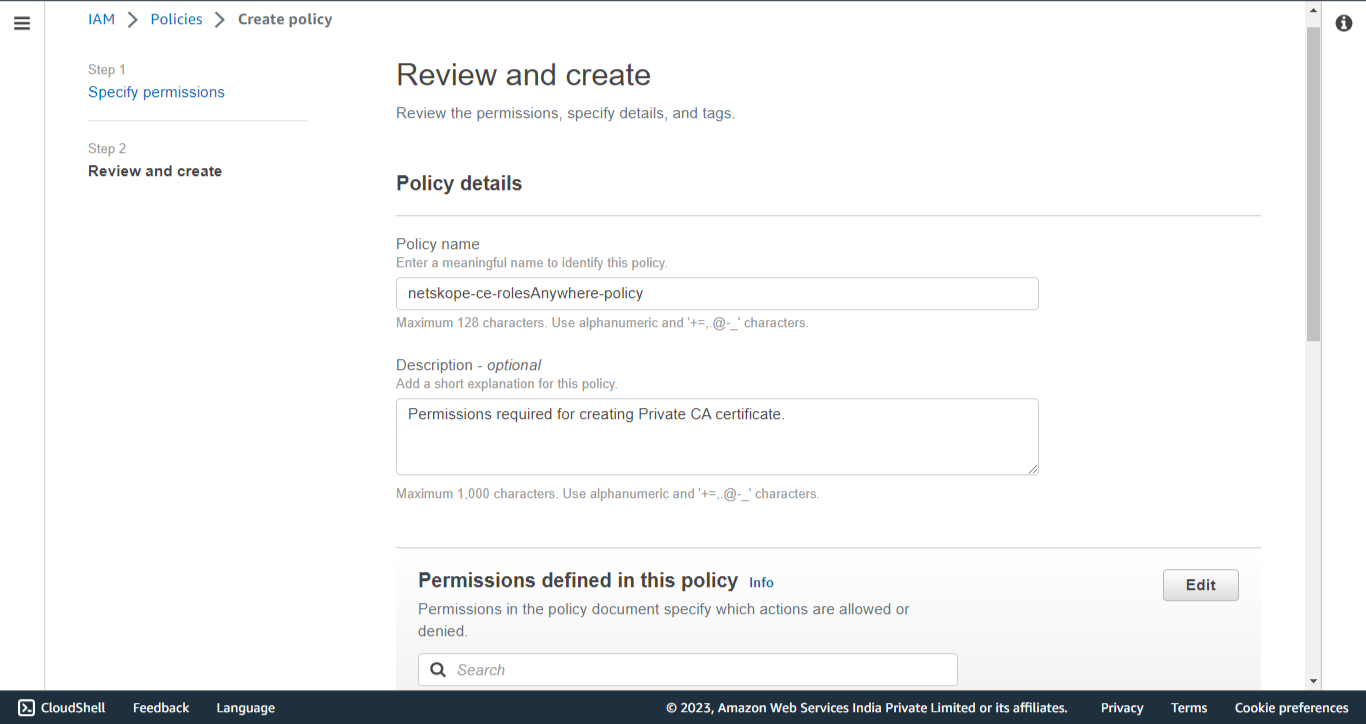
Enter the Name (like netskope-ce-rolesAnywhere-policy), and click Save Changes.
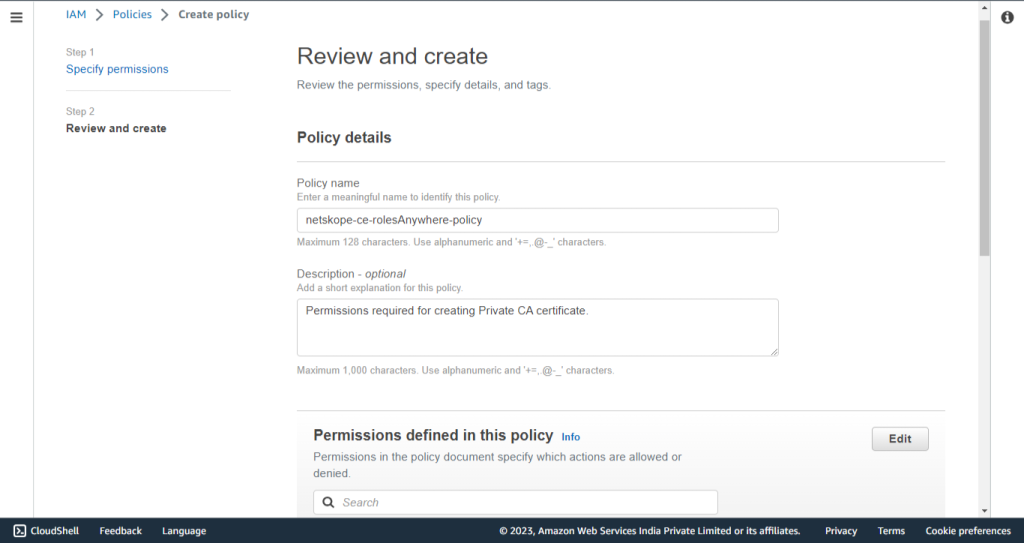
Create Private Certificate Authority
-
Log in to the AWS Console.
-
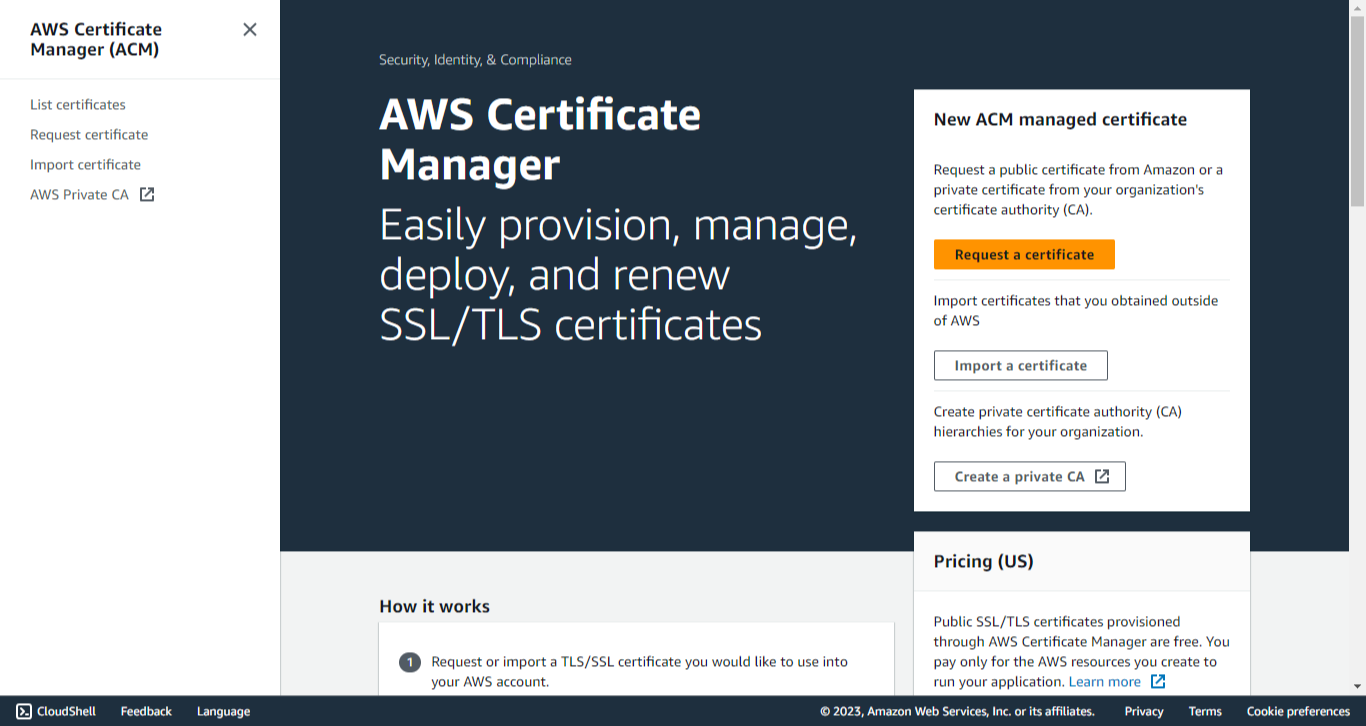
Search for Certificate Manager.
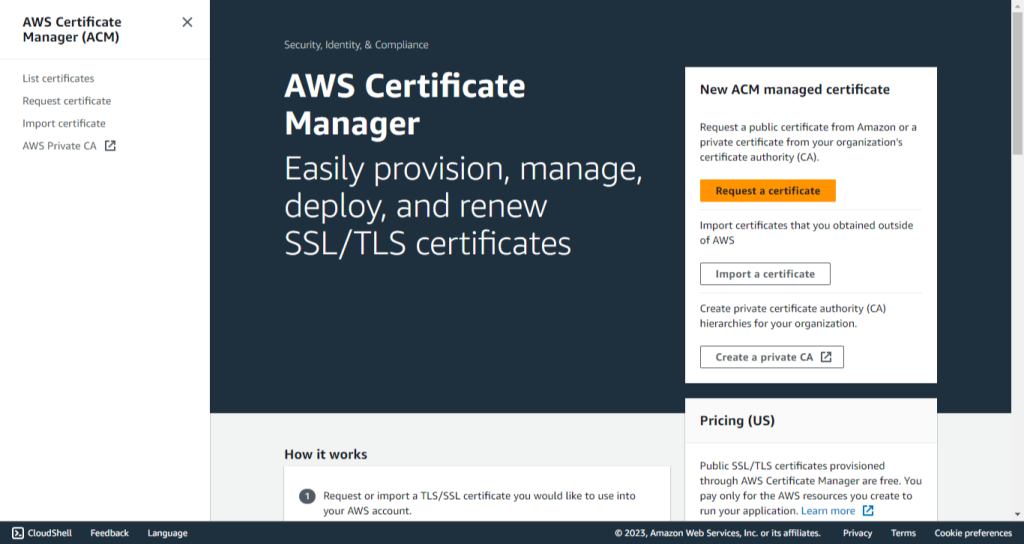
-
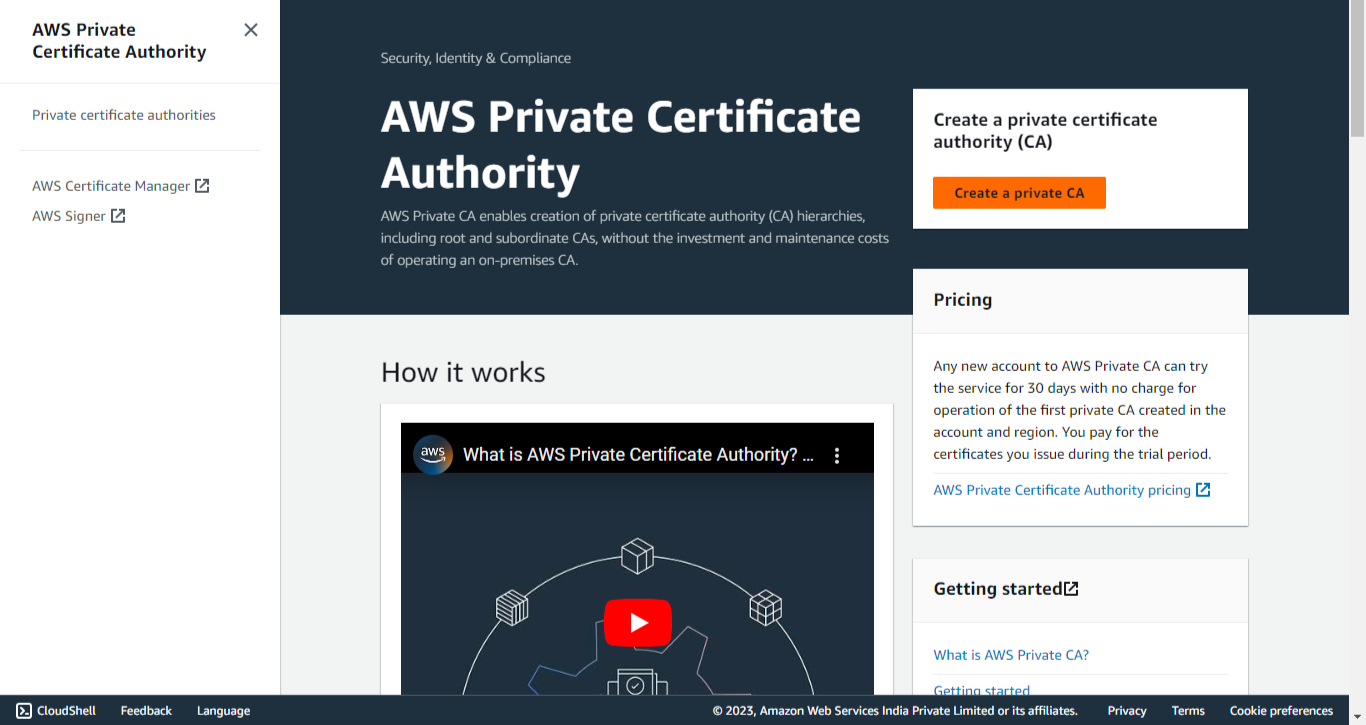
Click AWS Private CA.
-
Click Create a private CA.
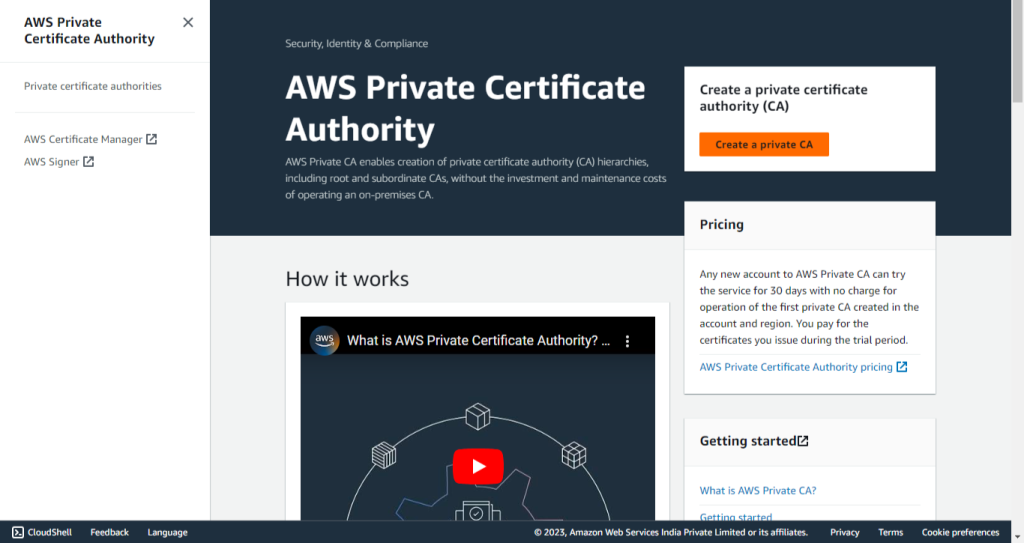
-
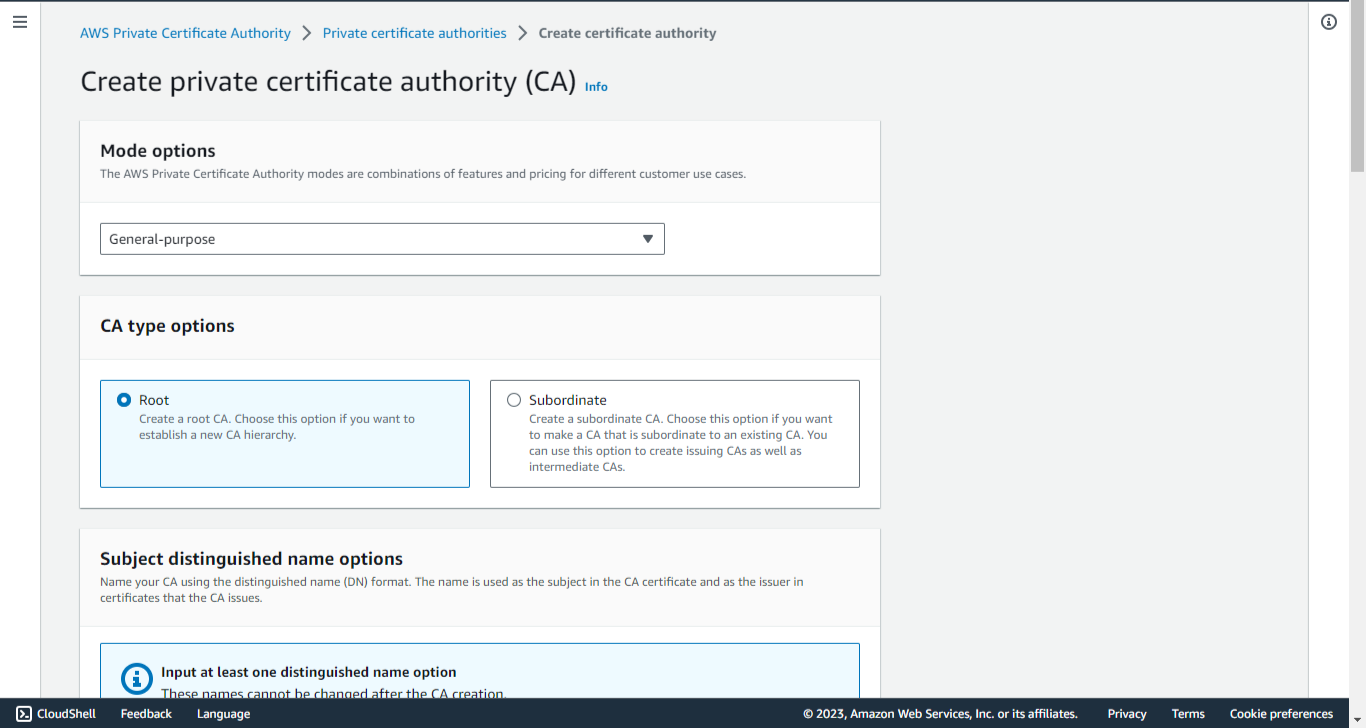
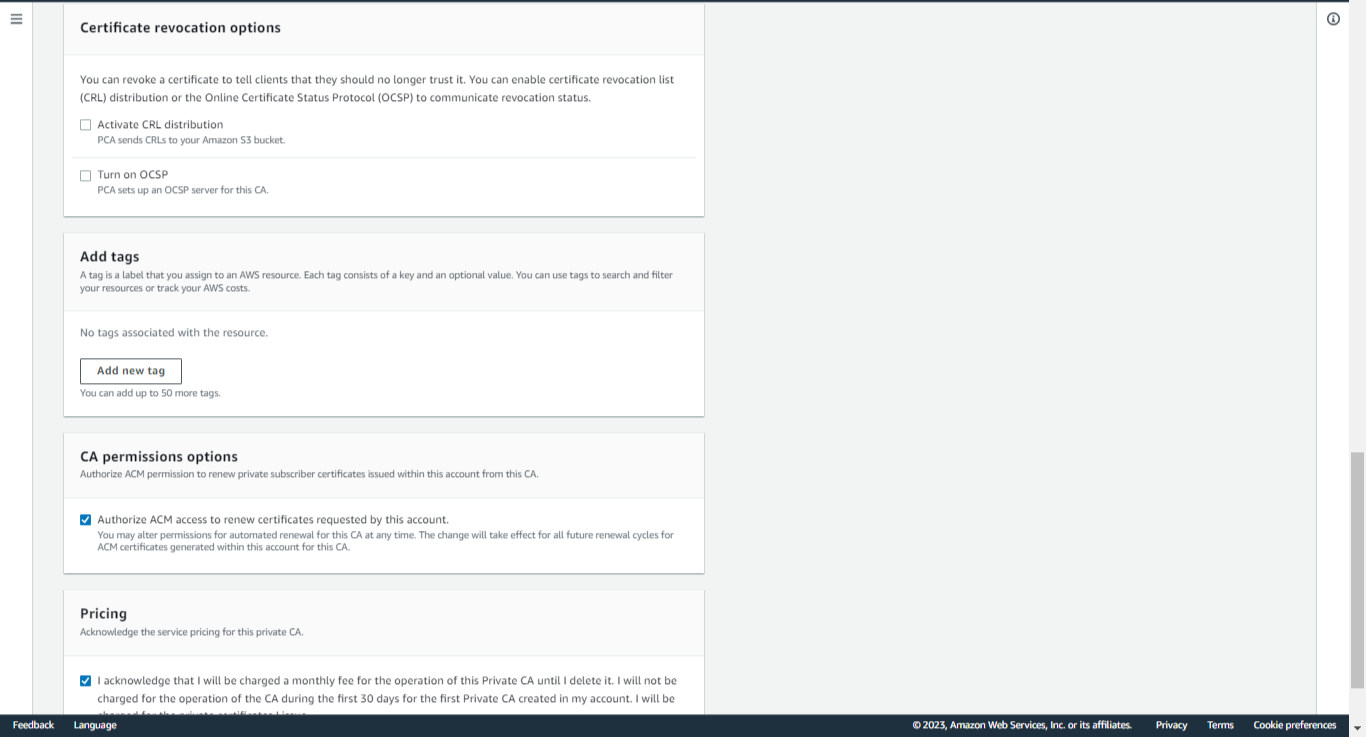
For Mode Options, select General-purpose.
-
For CA type options, select Root.
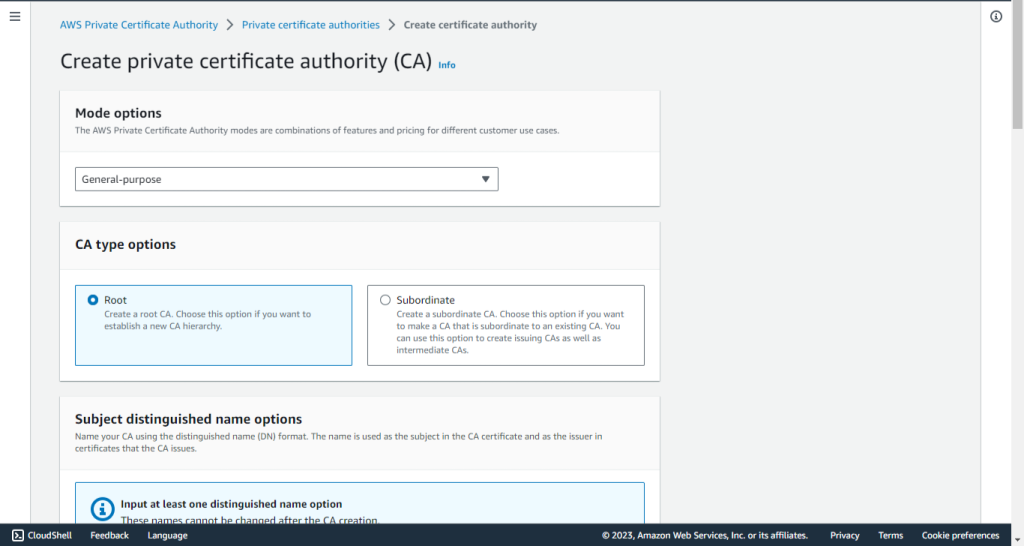
-
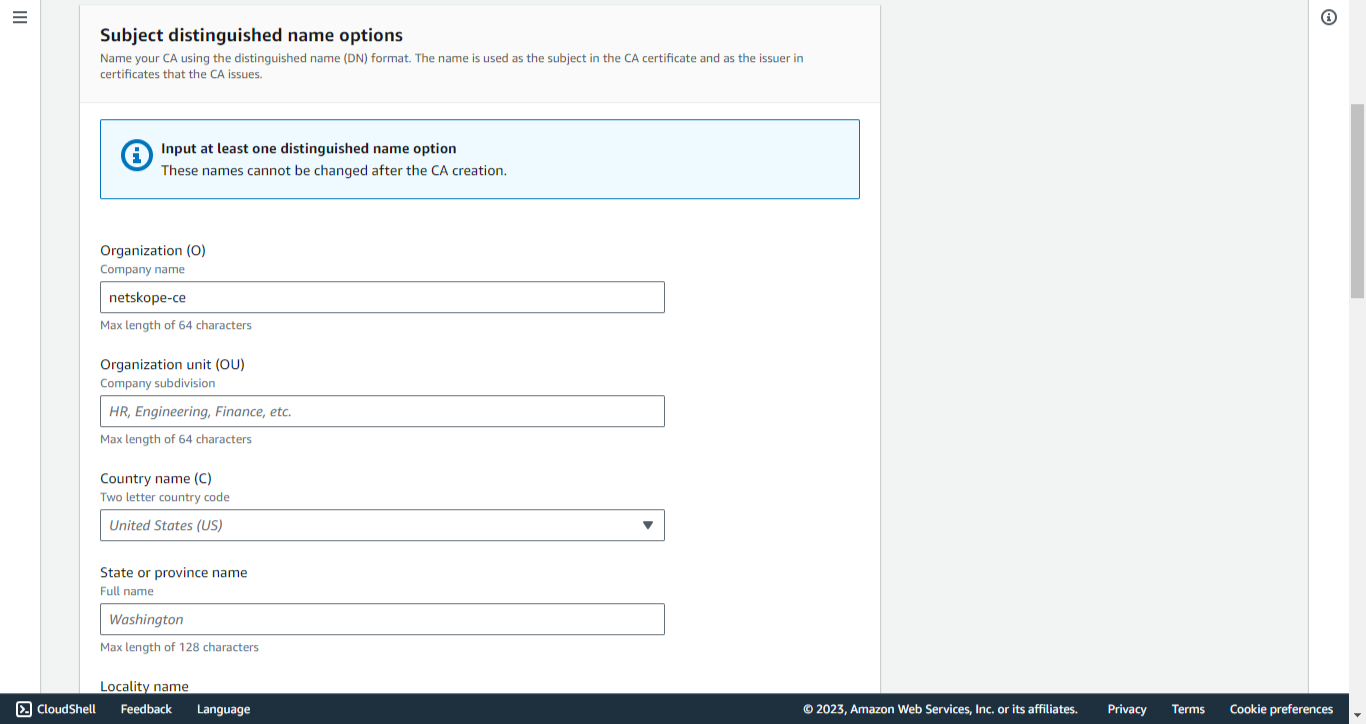
Enter an Organization (O).
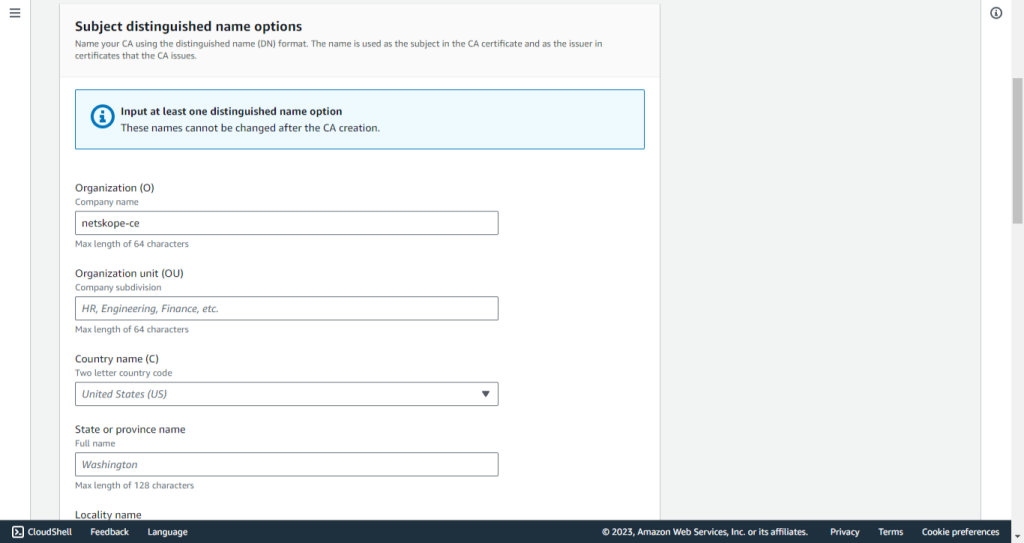
-
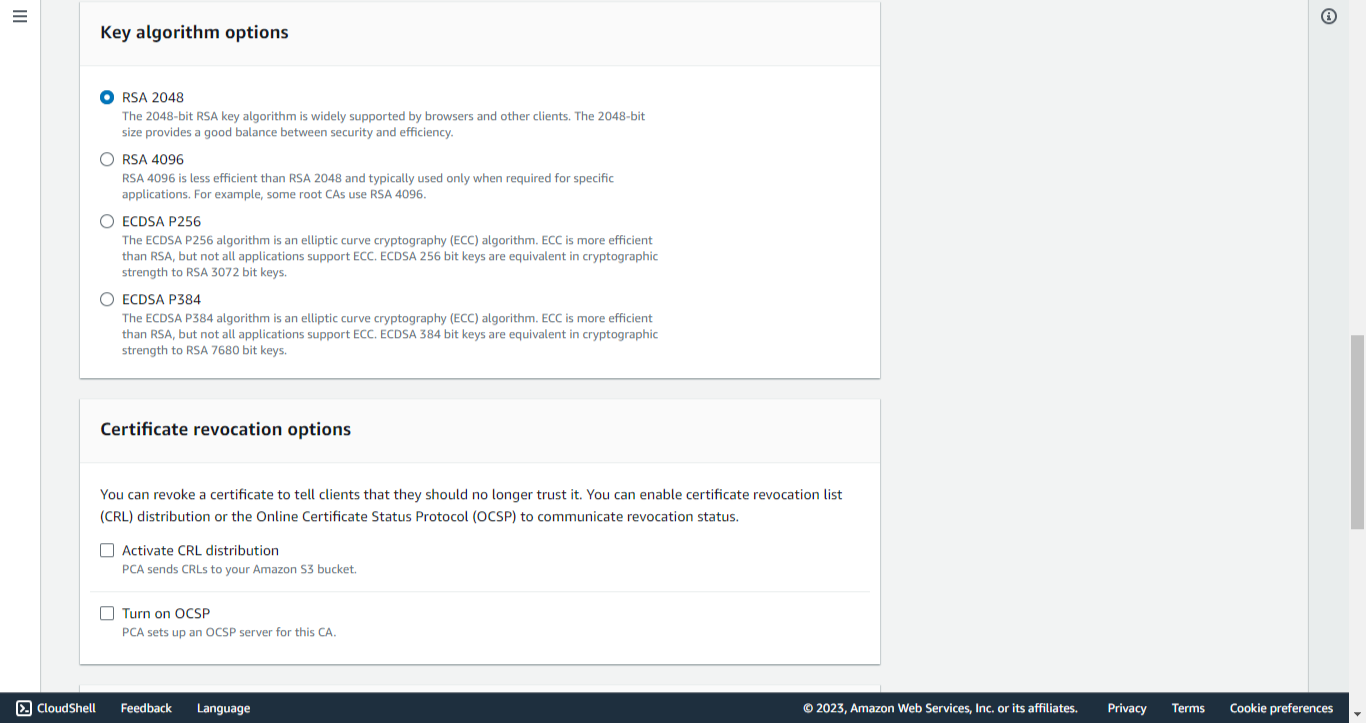
For Key algorithm options, select RSA 2048.
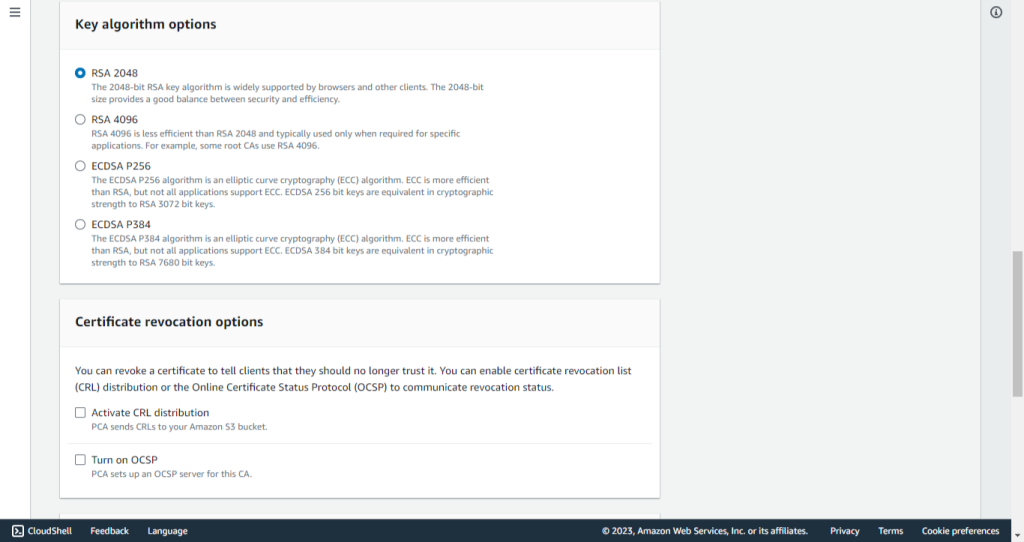
-
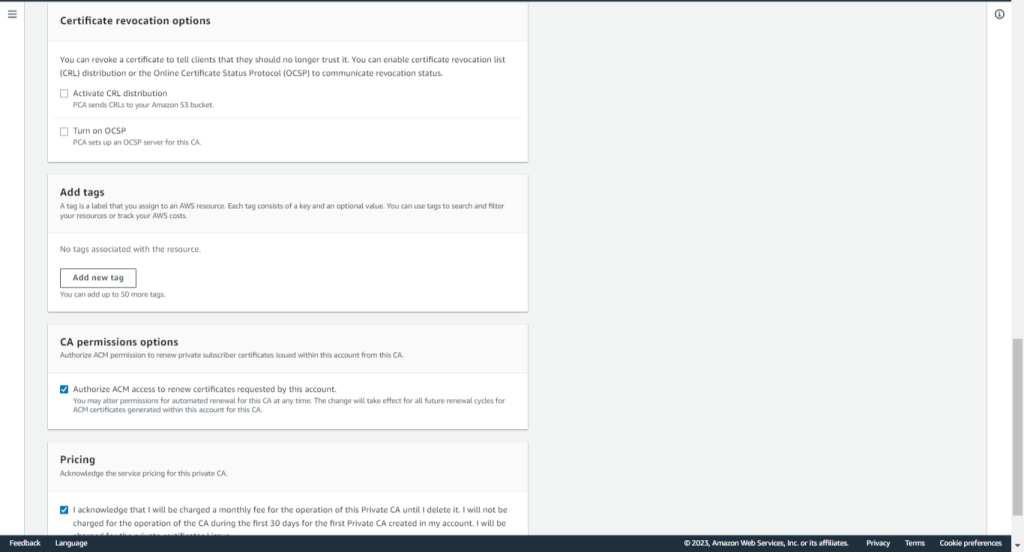
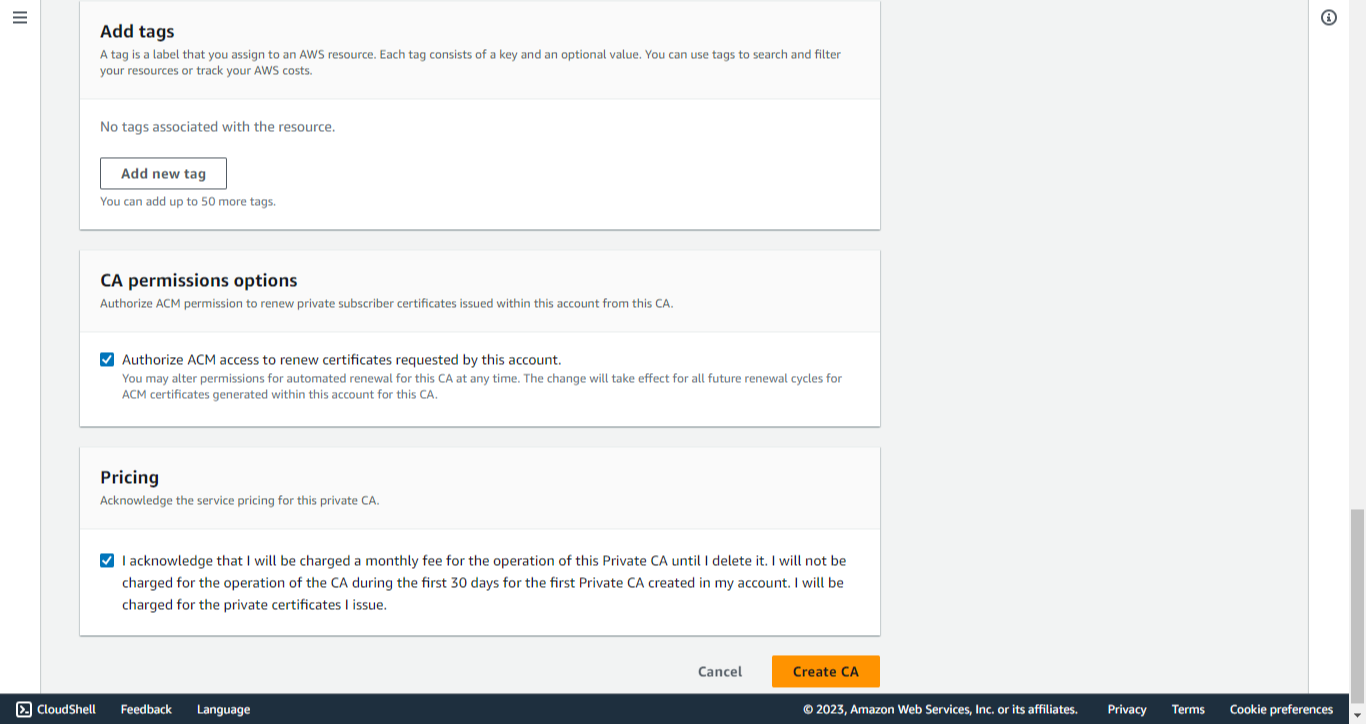
Add tags if any (optional).
-
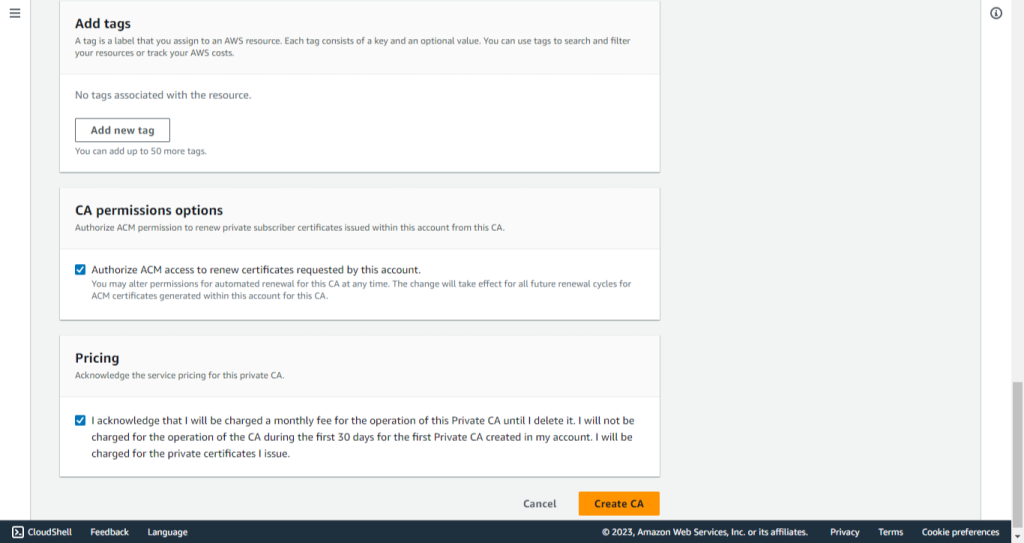
Enable the checkbox in the CA Permissions Options section.
-
Enable the checkbox in the Pricing section.
-
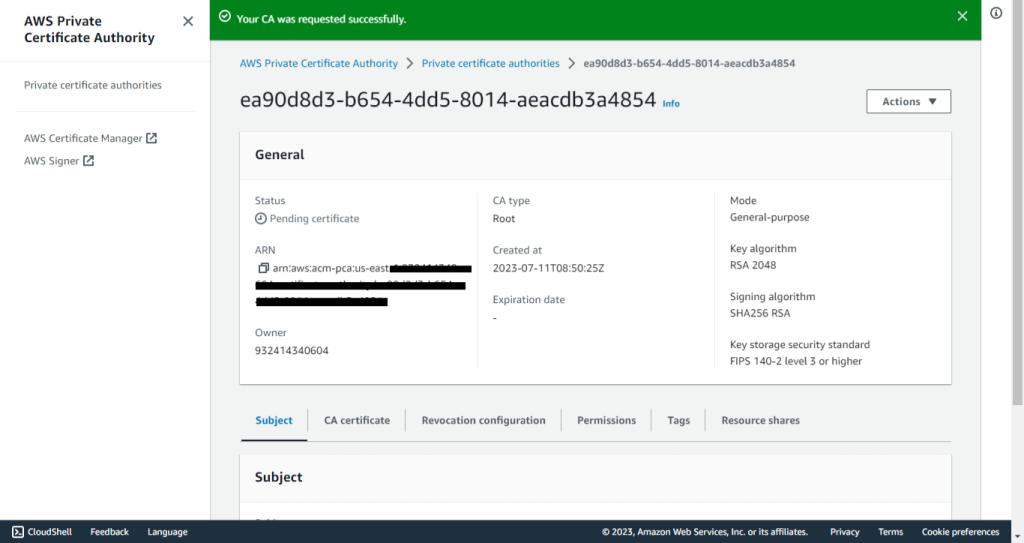
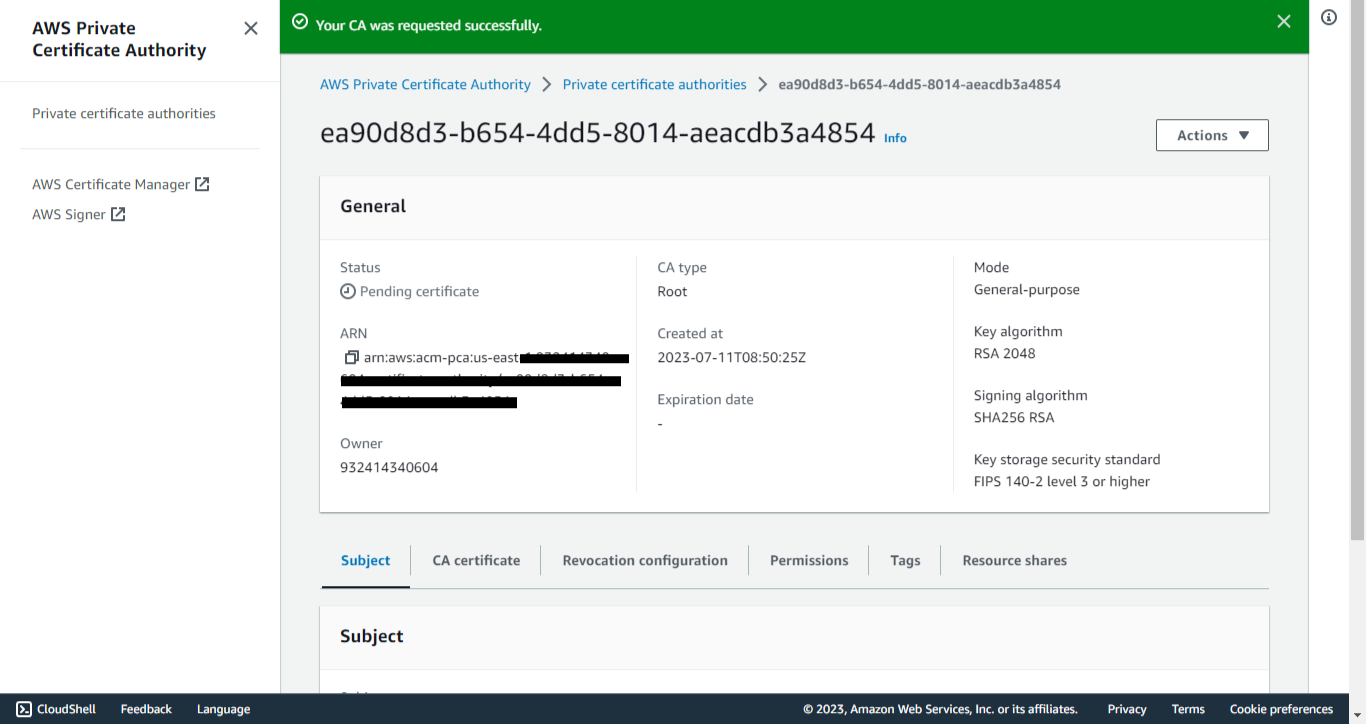
Click Create to create the CA certificate.
-
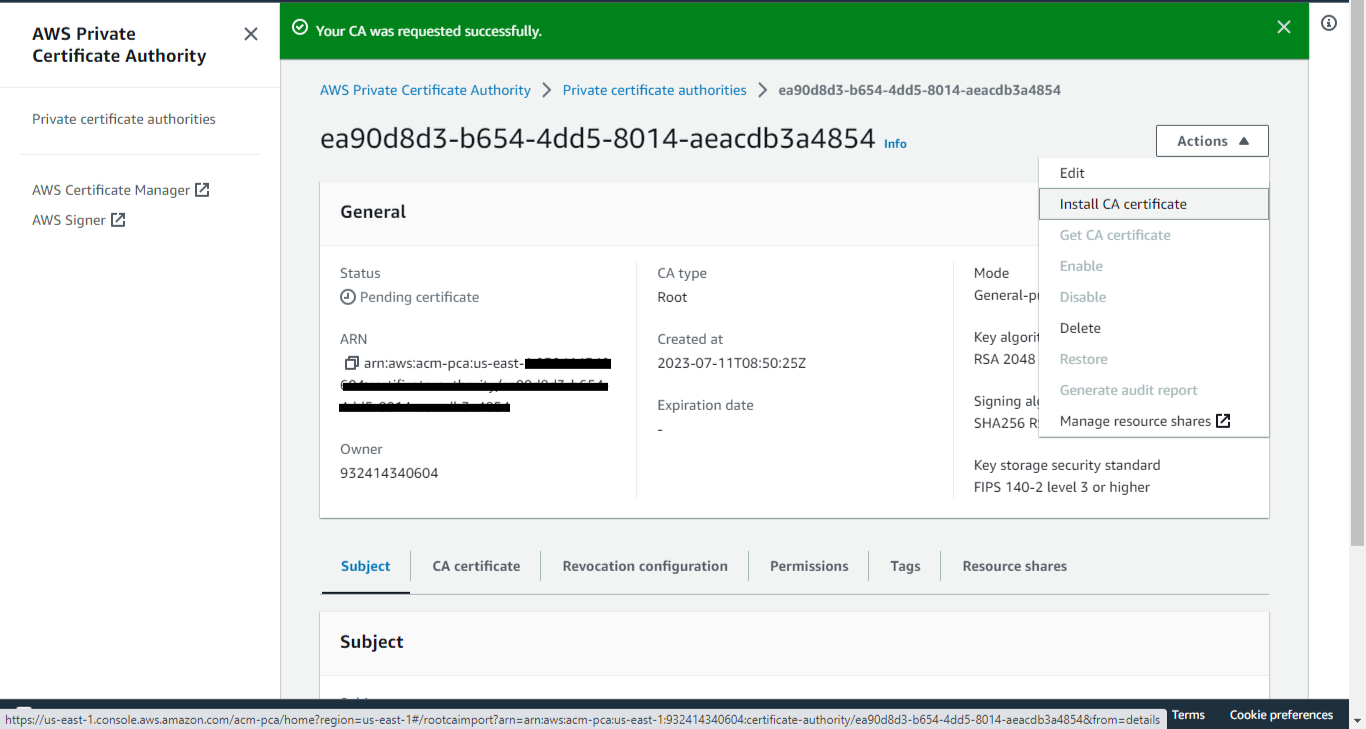
From Actions select Install.
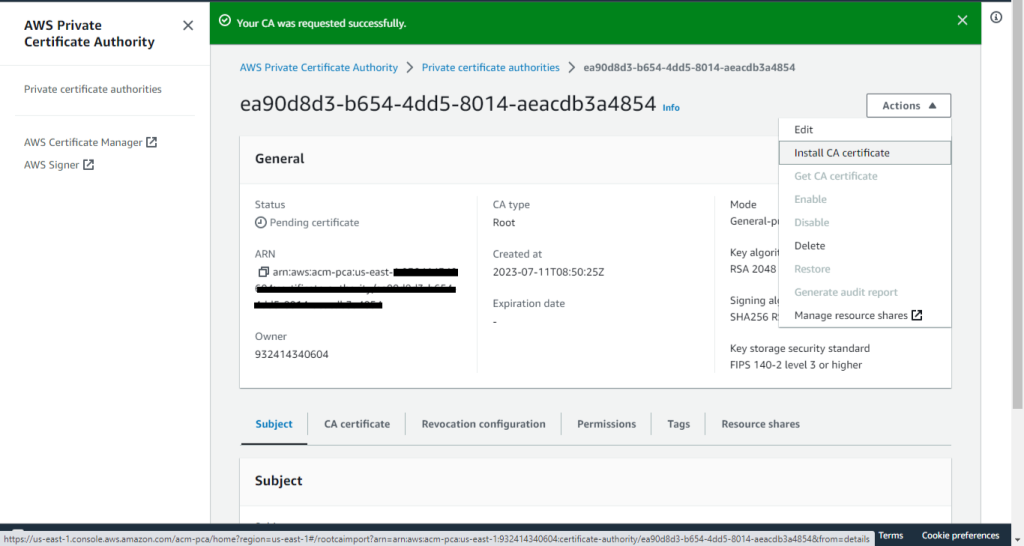
-
Click Confirm and Install.
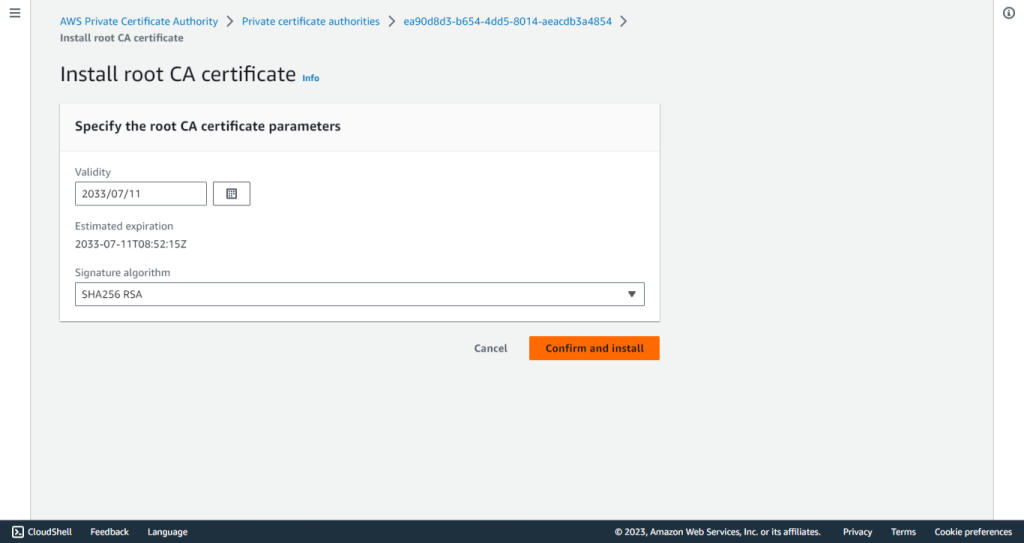
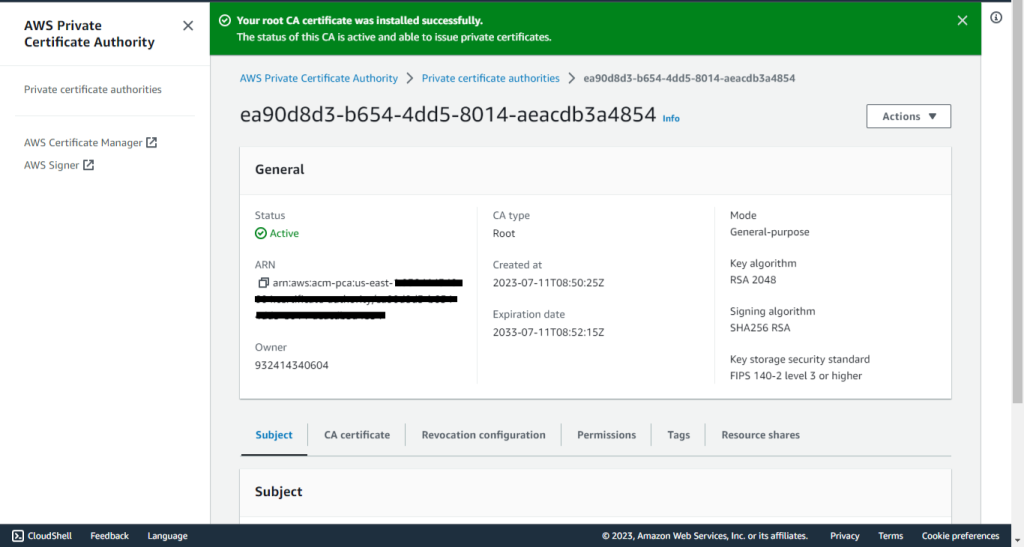
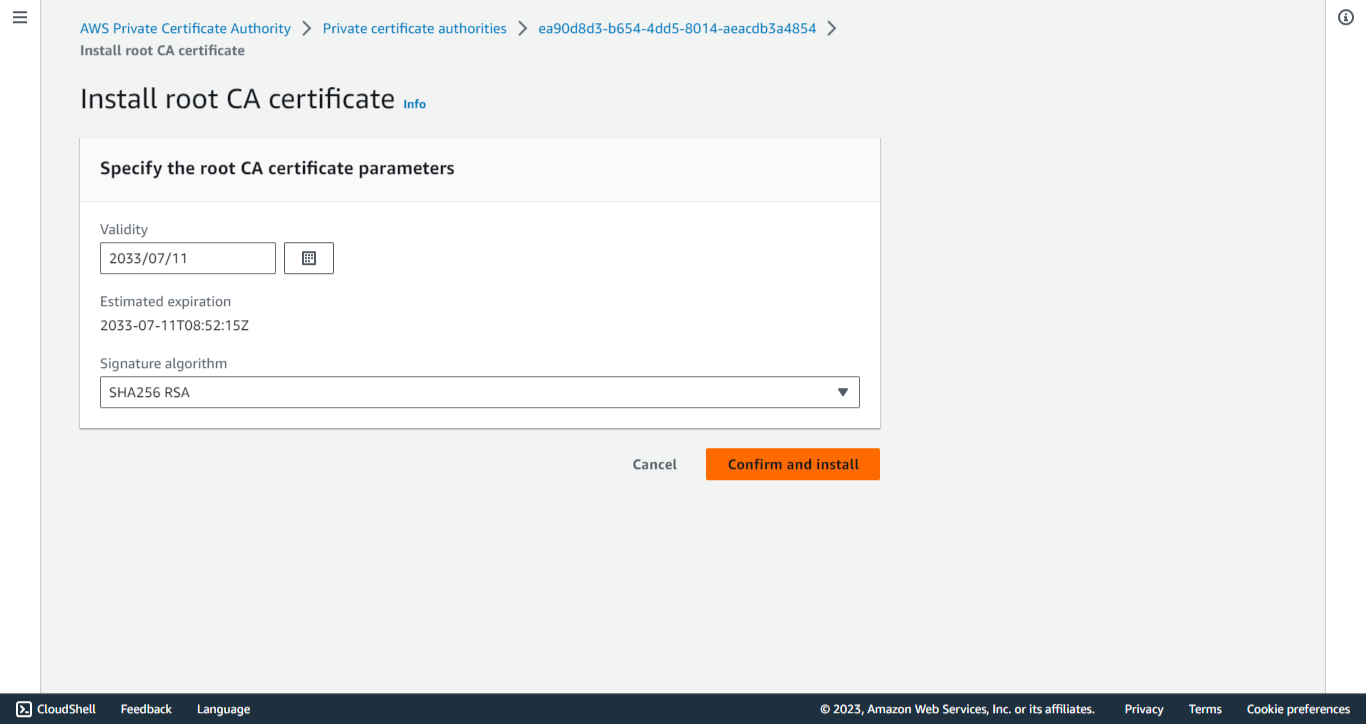
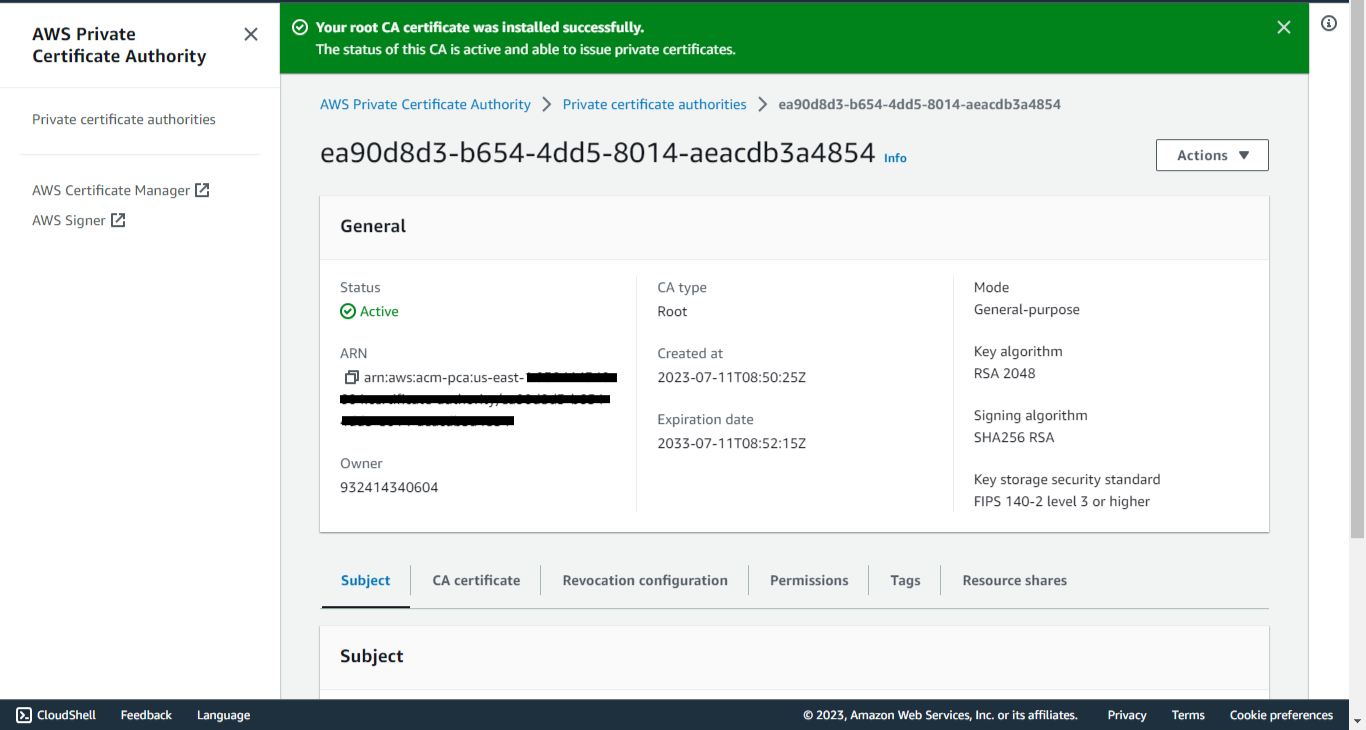
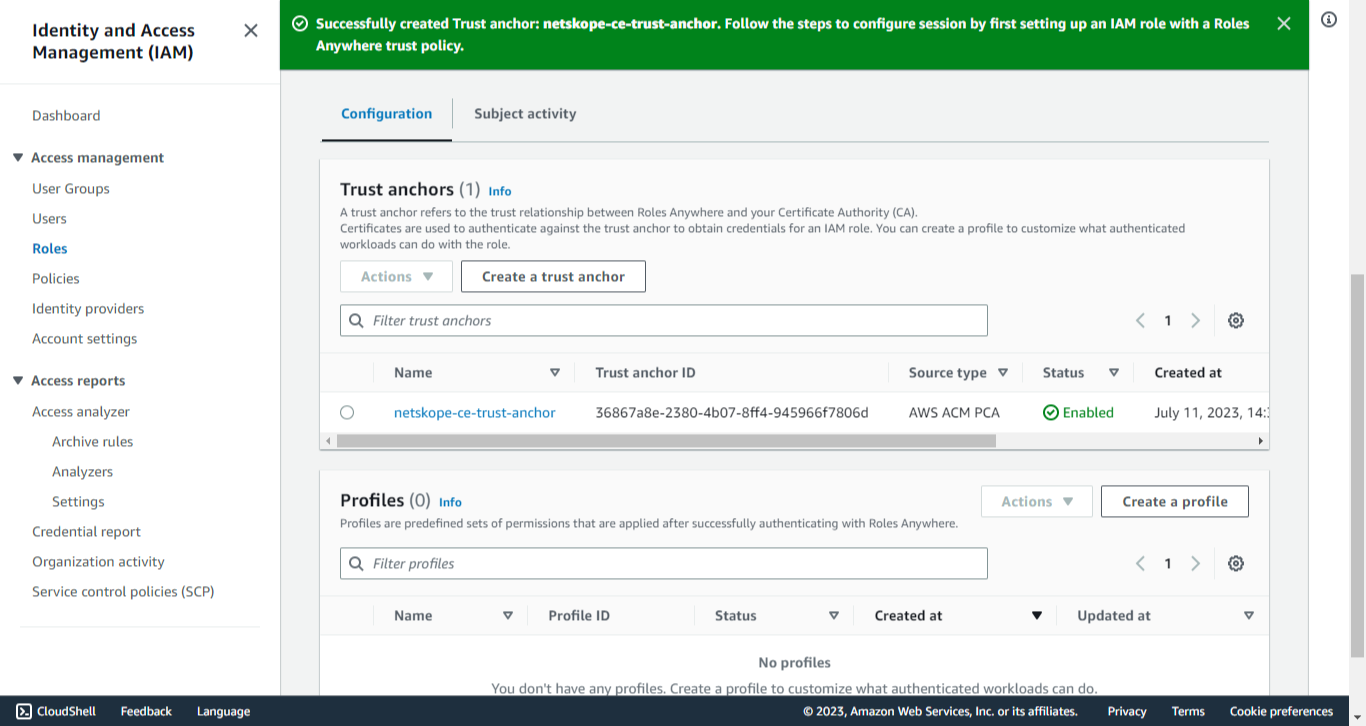
Create Trust Anchor
-
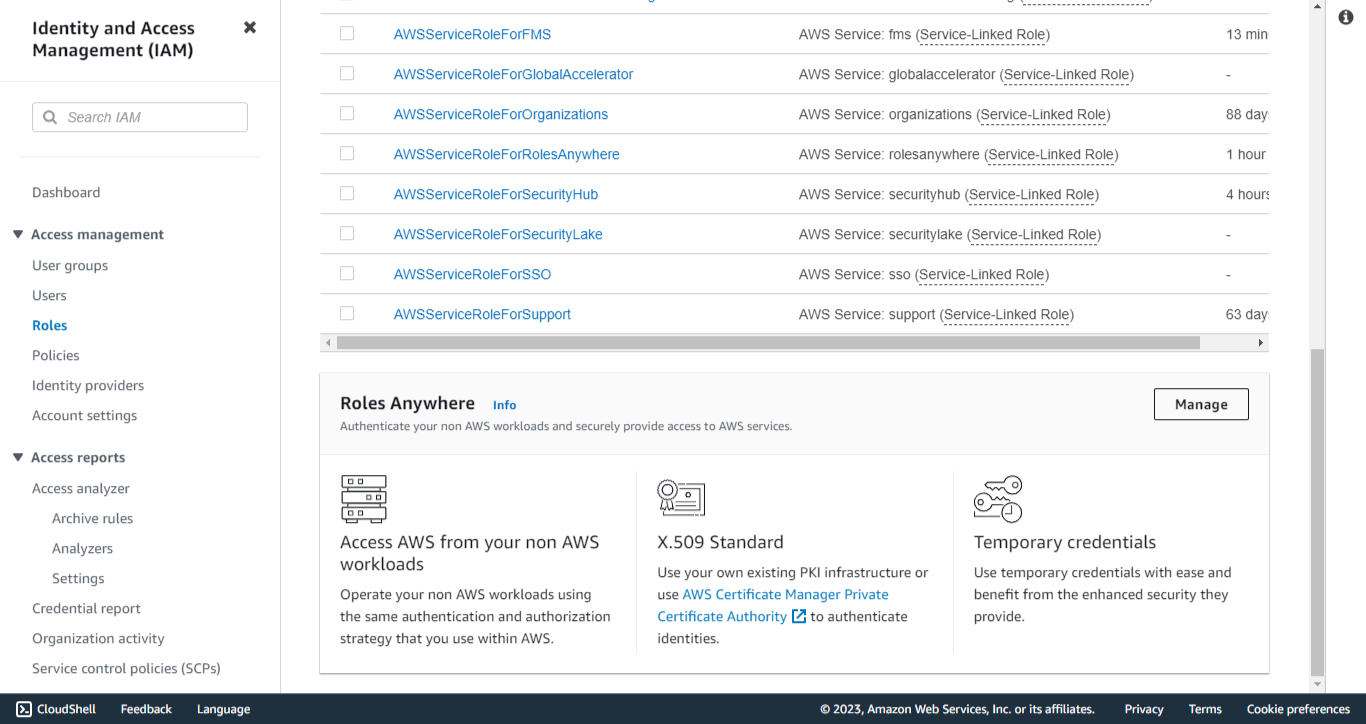
Search for IAM Service and go to Roles under Access management. Scroll down to Roles Anywhere and select Manage.
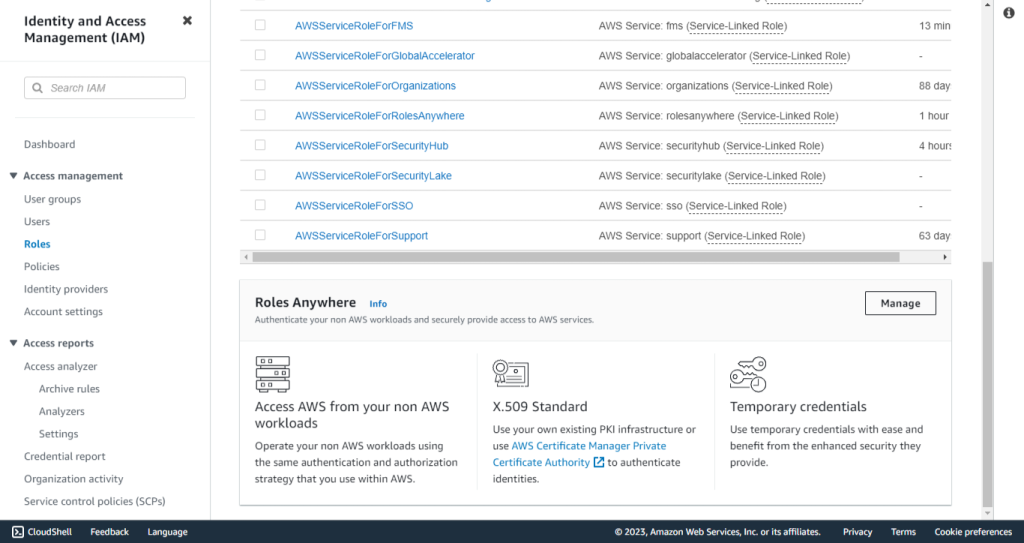
-
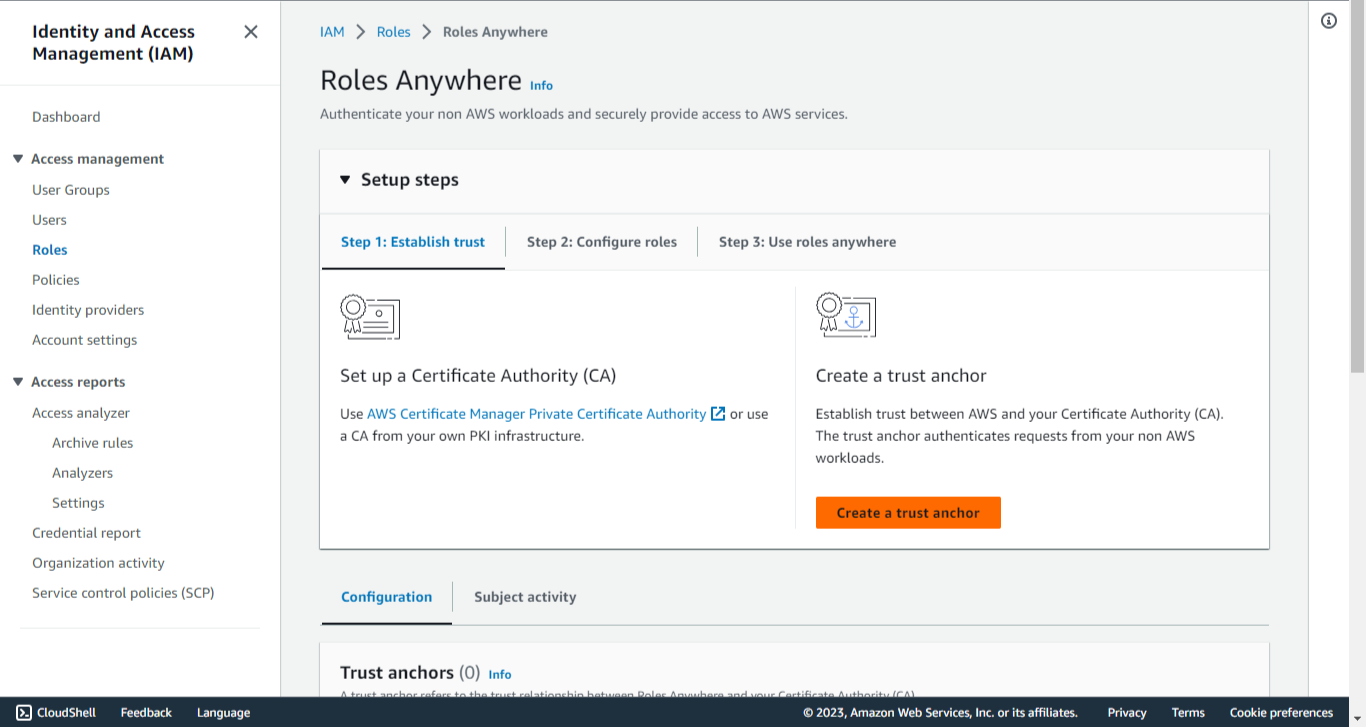
Click Create a Trust anchor.
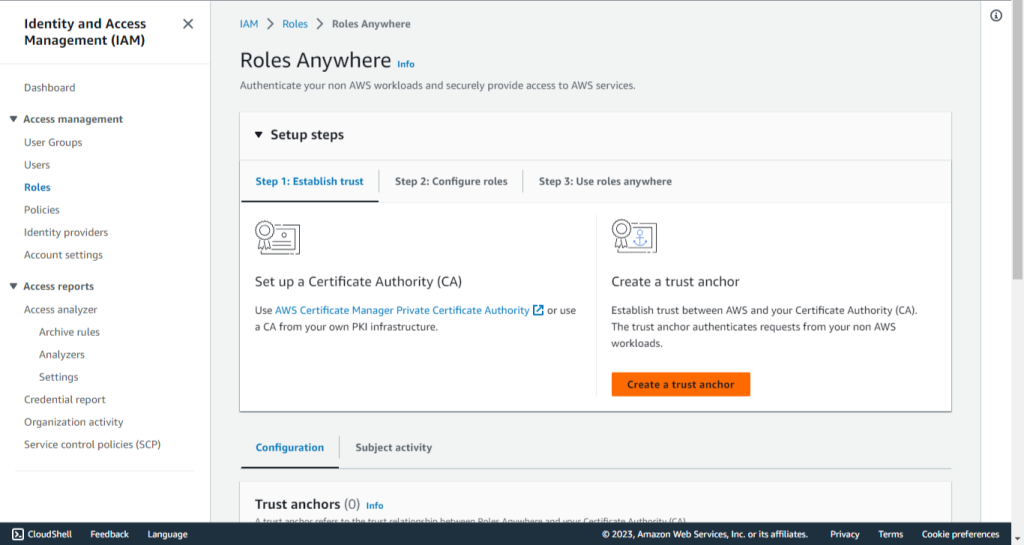
-
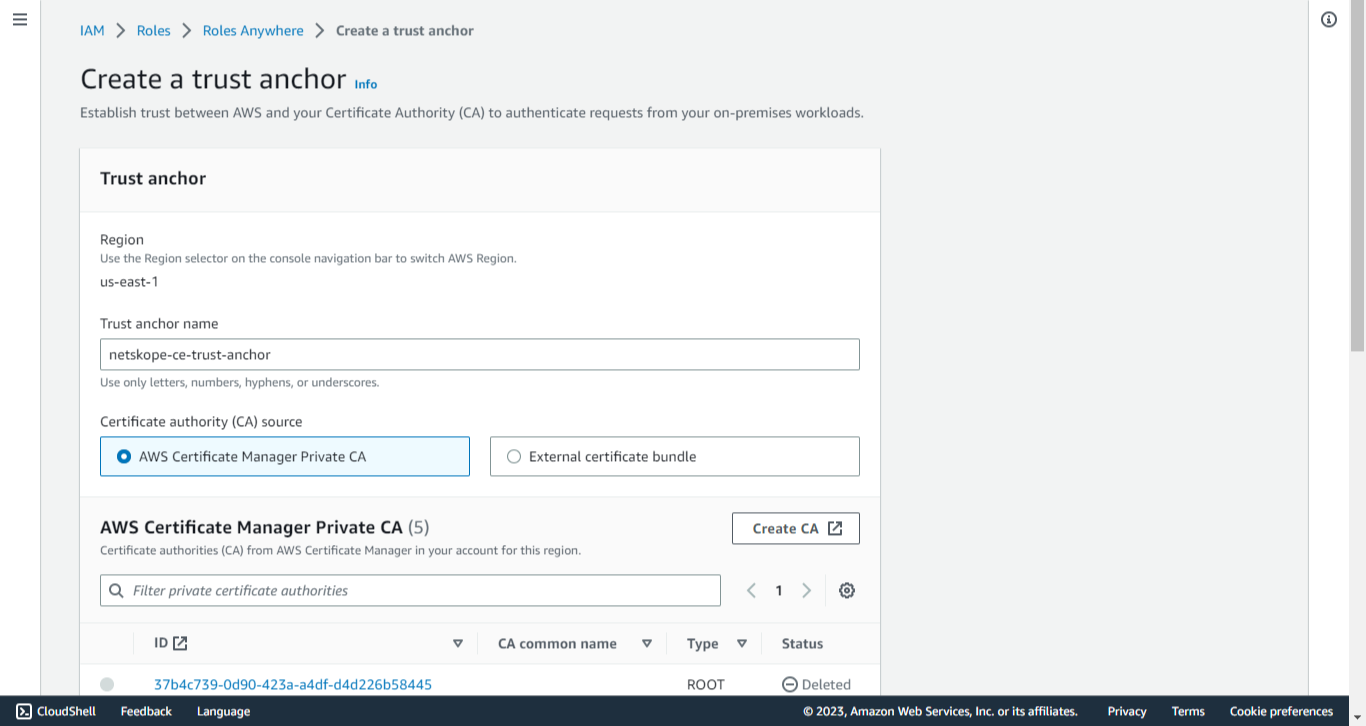
Enter a Trust anchor name, like netskope-ce-trust-anchor.
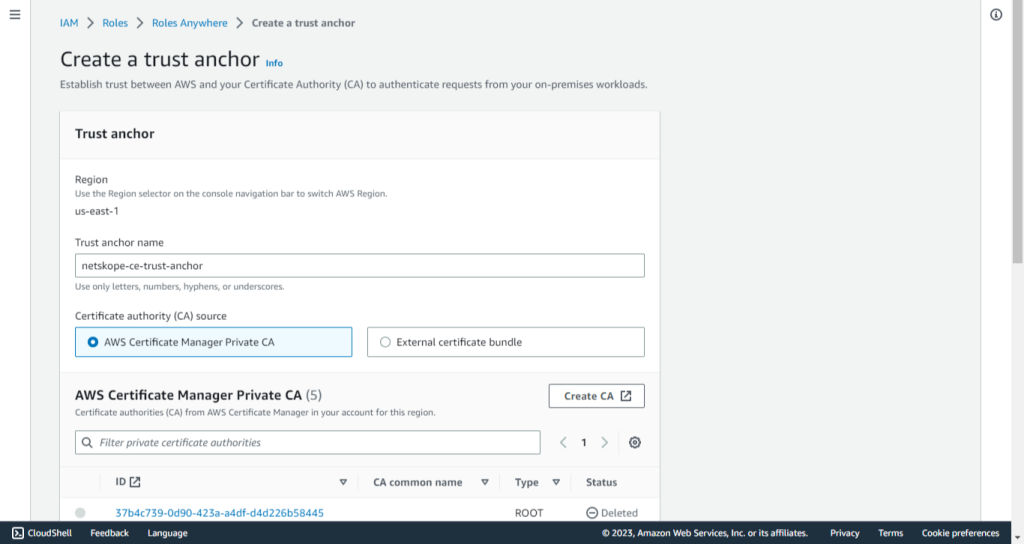
-
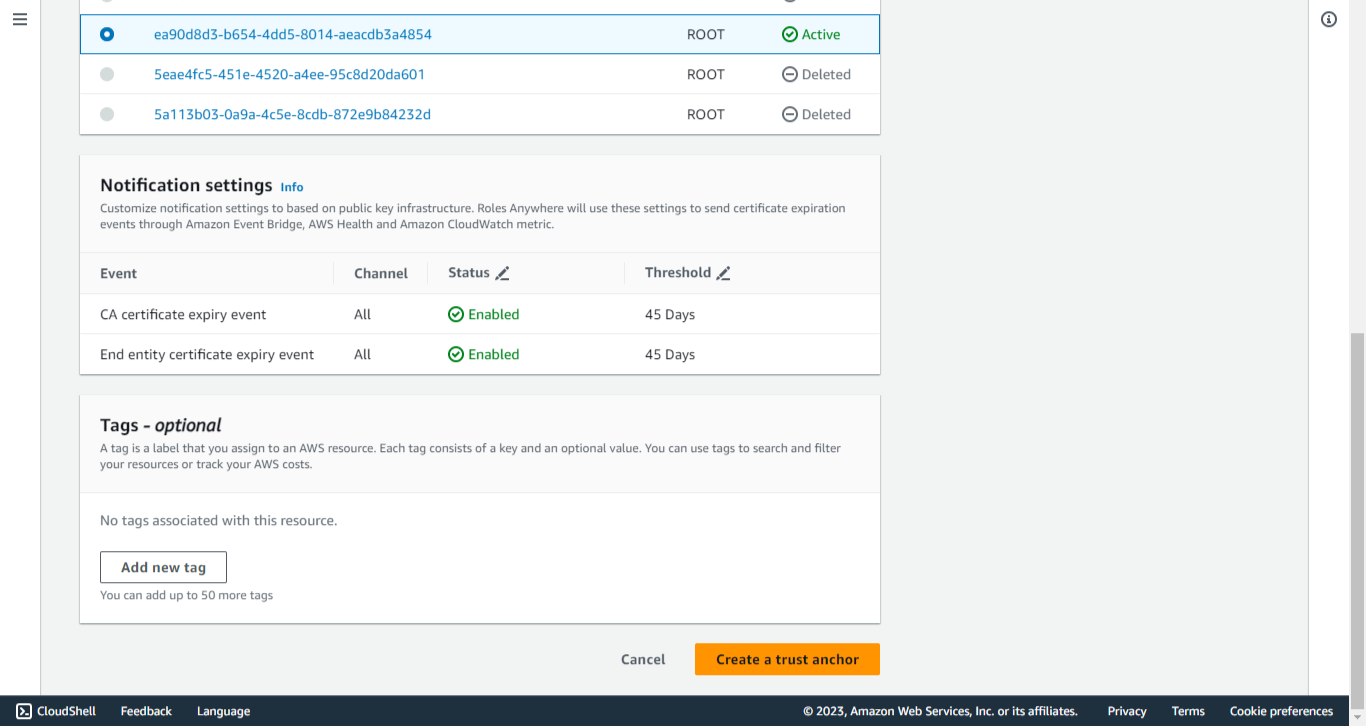
Select AWS Certificate Manager Private CA (created in the previous steps) as the Certificate authority (CA) source.
-
Add tags if required.
-
Click Create a trust anchor.
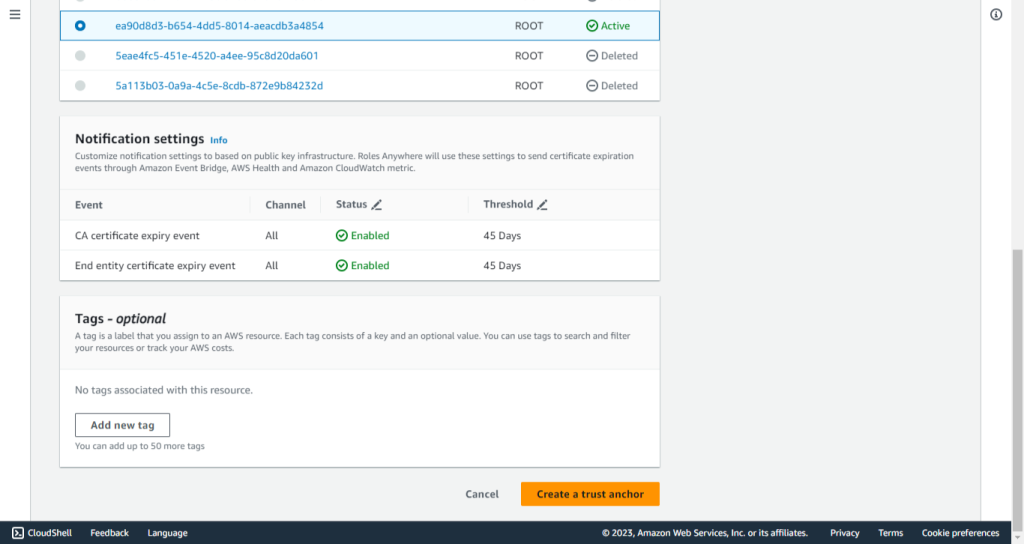
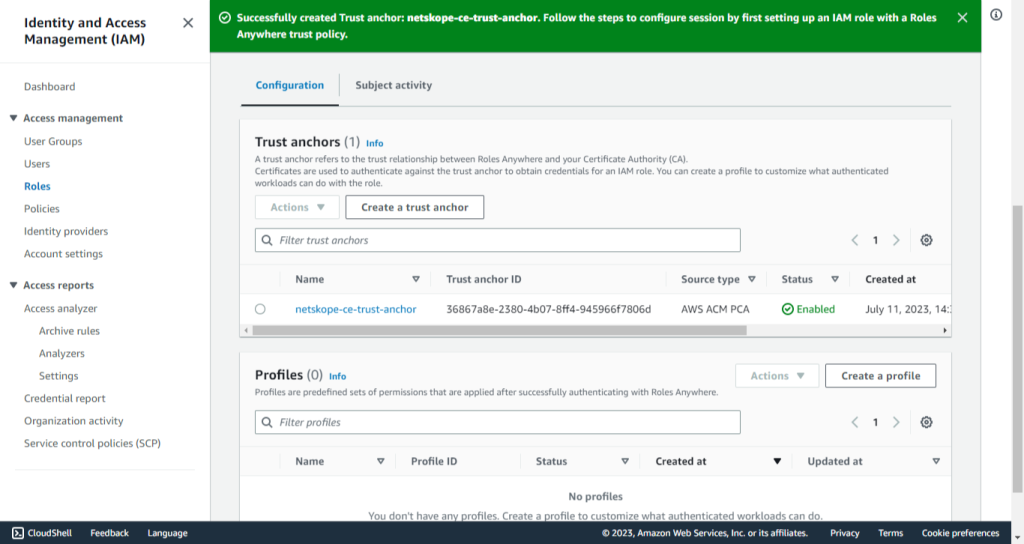
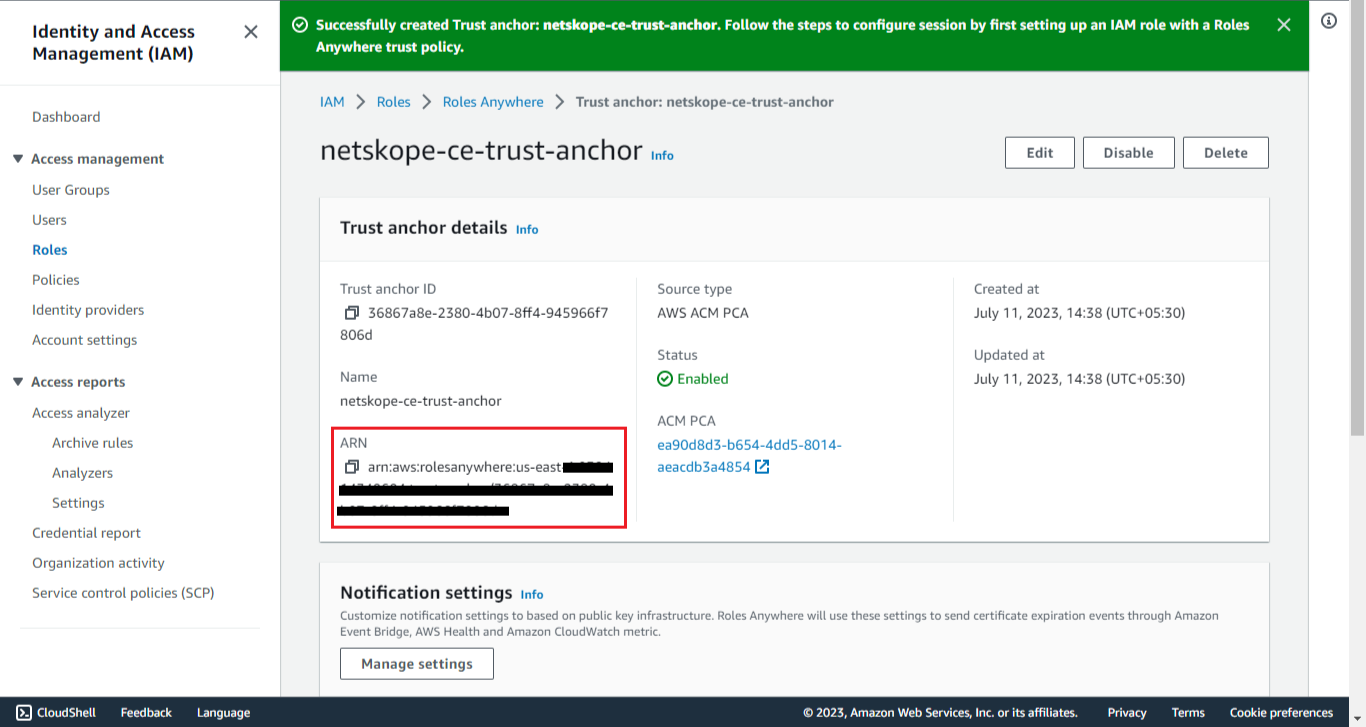
-
Click on the created Trust Anchor and copy the Trust Anchor ARN
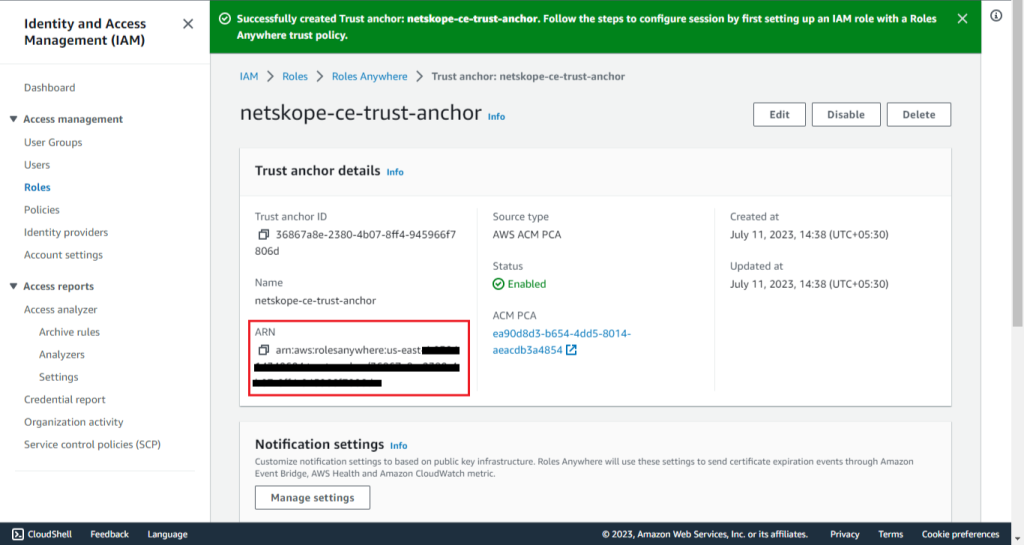
Create IAM Role
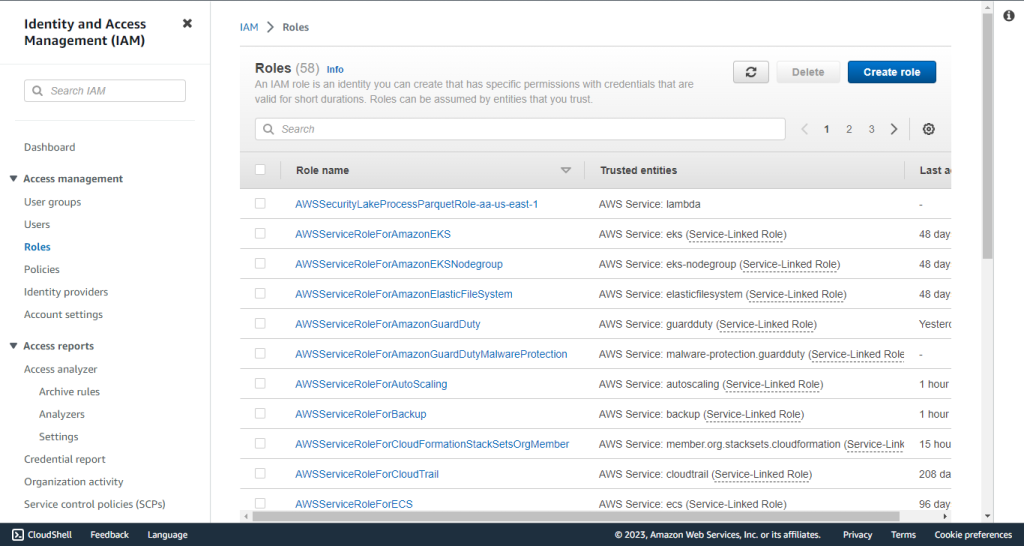
-
Go to IAM services in the AWS Console.
-
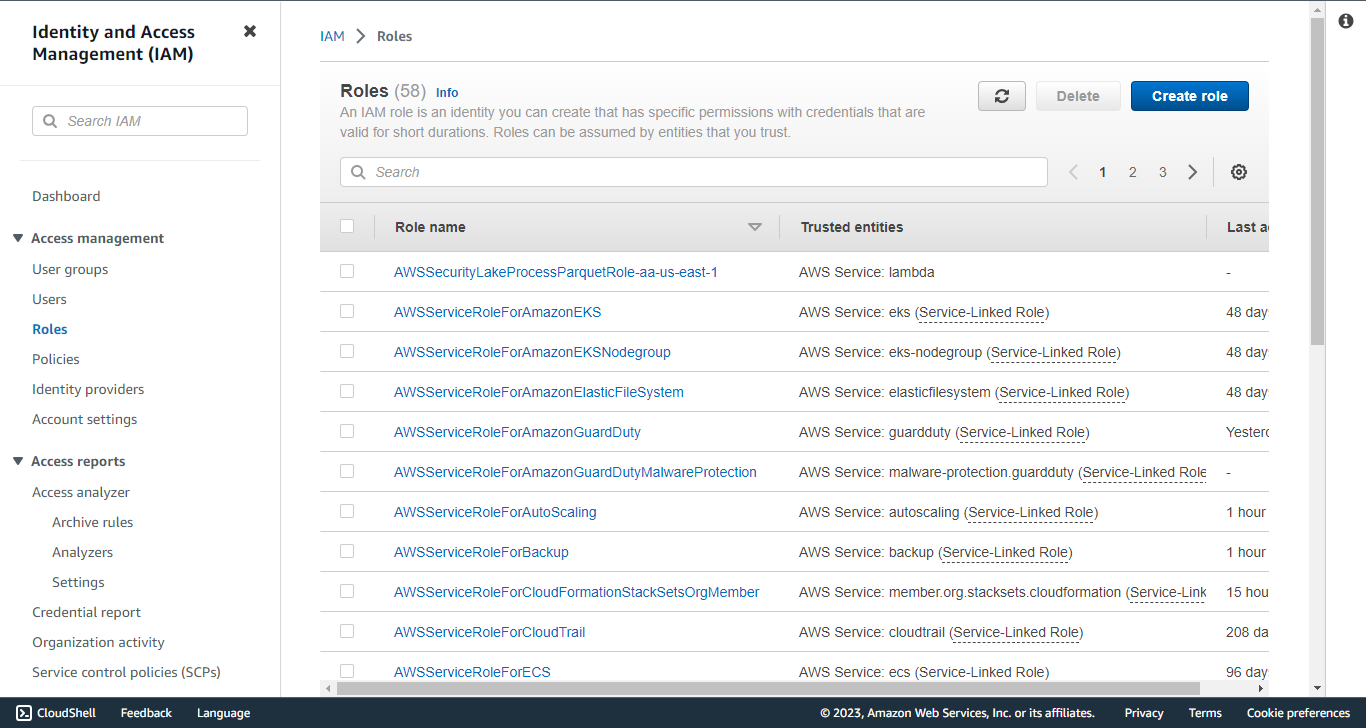
Click Role in the Access management submenu.
-
Click Create Role.
-
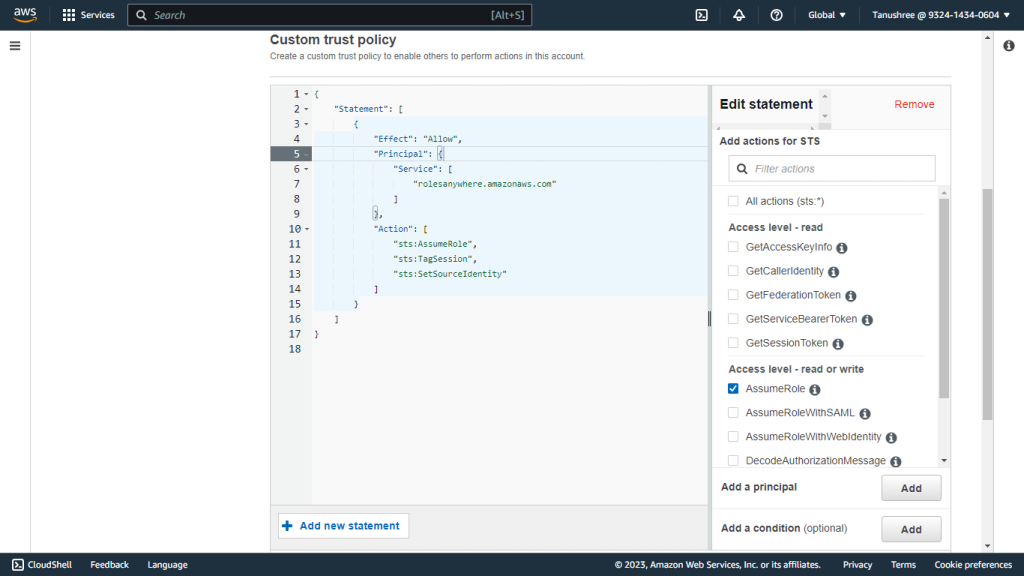
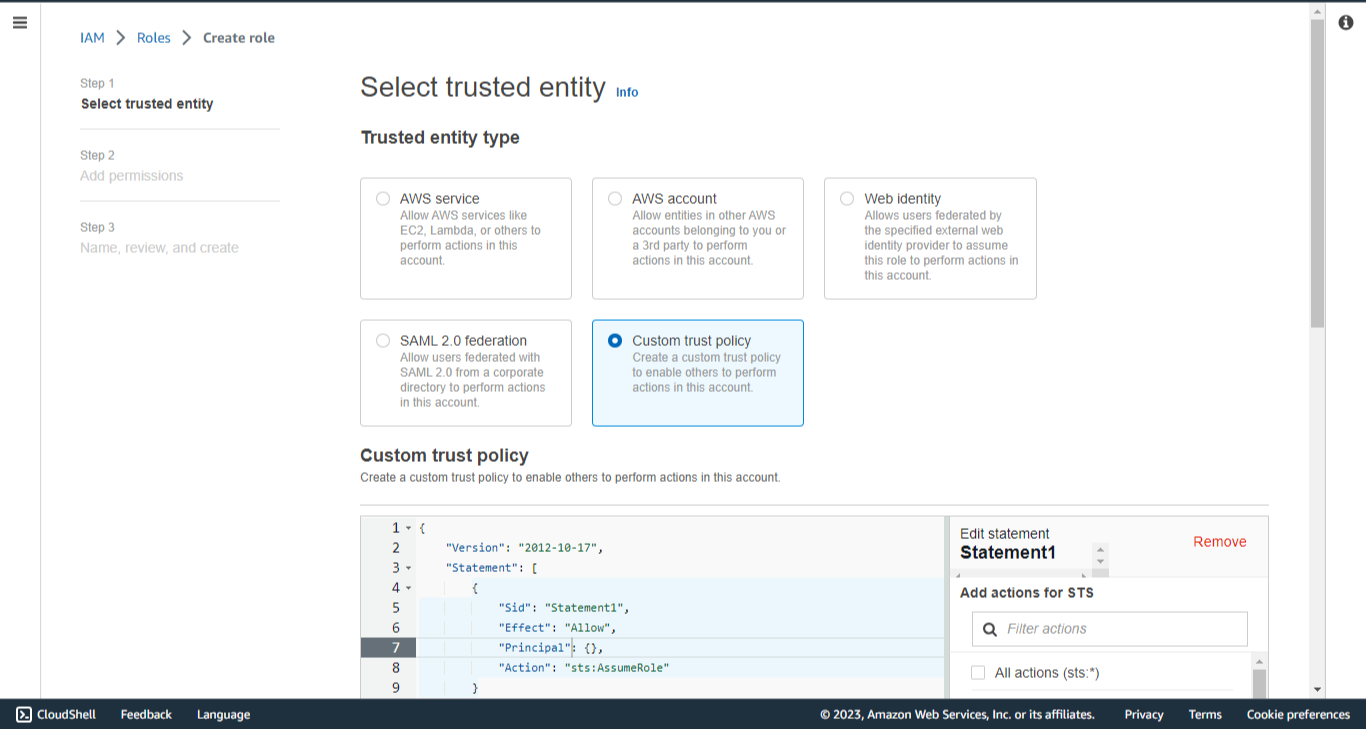
In the Trusted entity type, select Custom Trust Policy.
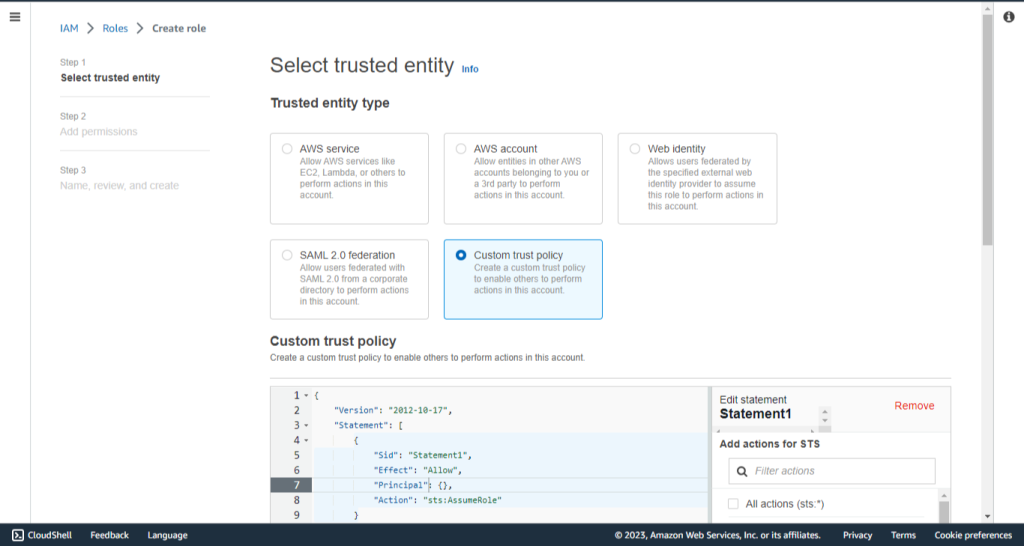
-
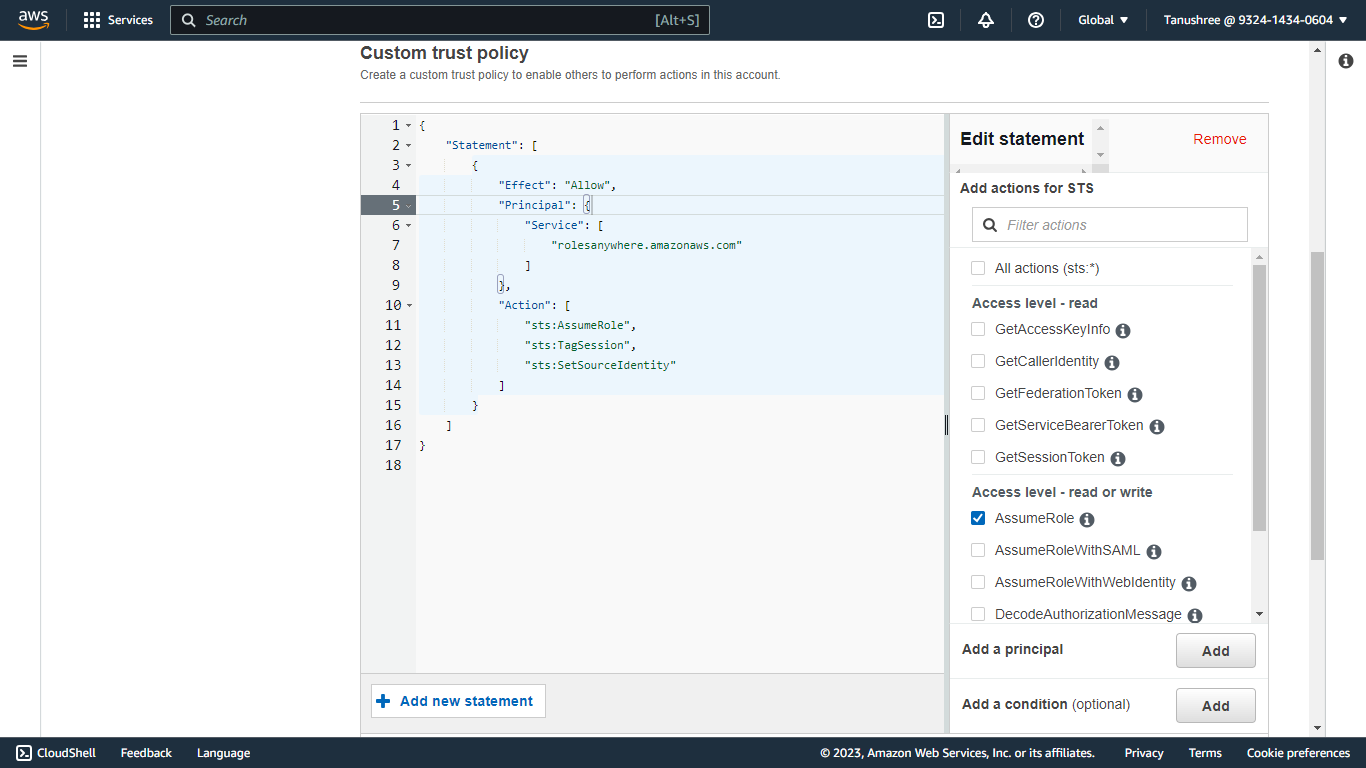
Replace the Custom trust Policy with the below given Trust Policy. This policy contains the permissions for using the Roles Anywhere service:
{
    "Version": "2012-10-17",
    "Statement": [
        {
            "Effect": "Allow",
            "Principal": {
                "Service": [
                    "rolesanywhere.amazonaws.com"
                ]
            },
            "Action": [
                "sts:AssumeRole",
                "sts:TagSession",
                "sts:SetSourceIdentity"
            ]
        }
    ]
}
-
Click Next.
-
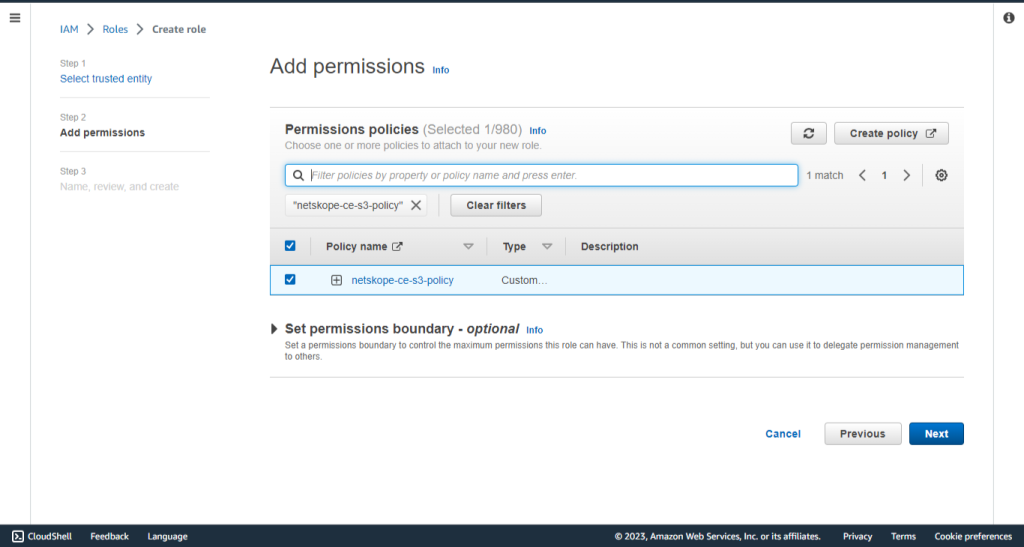
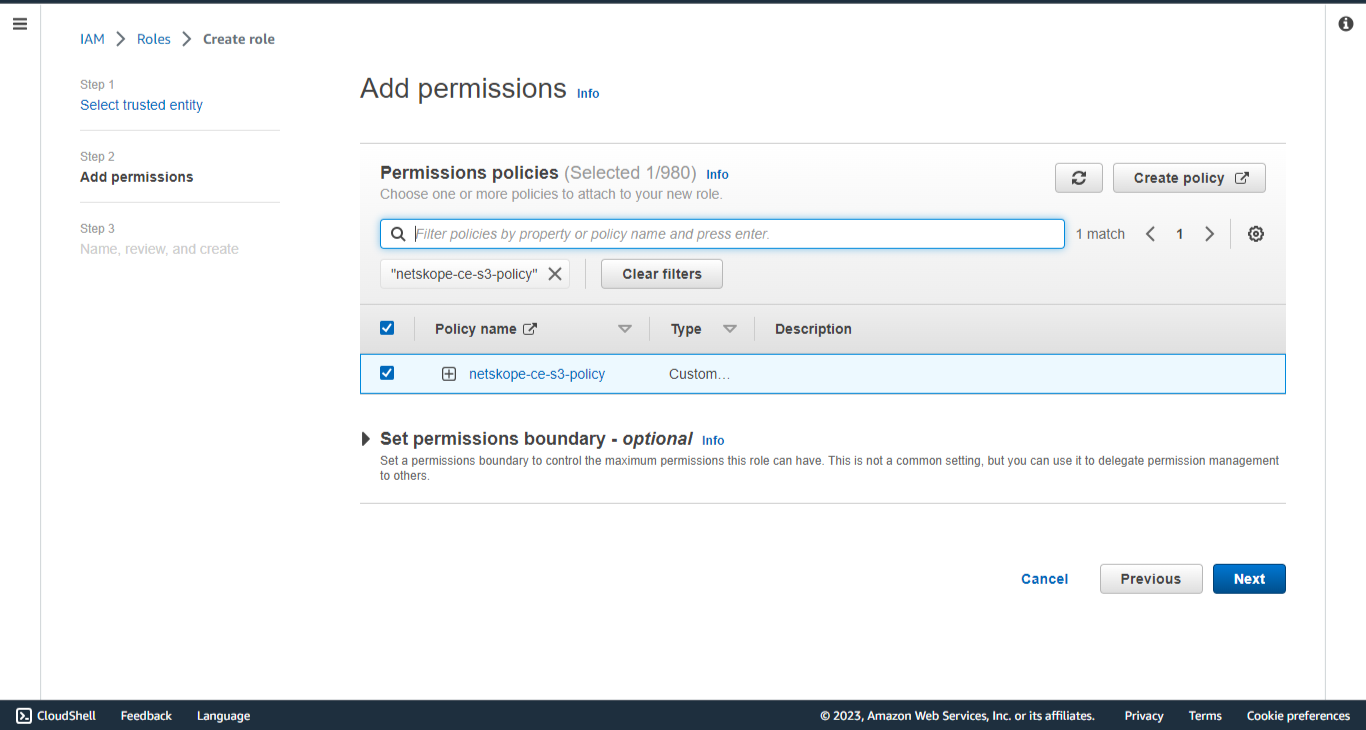
In the Permissions policies, select the policy created previously.
-
Click Next.
-
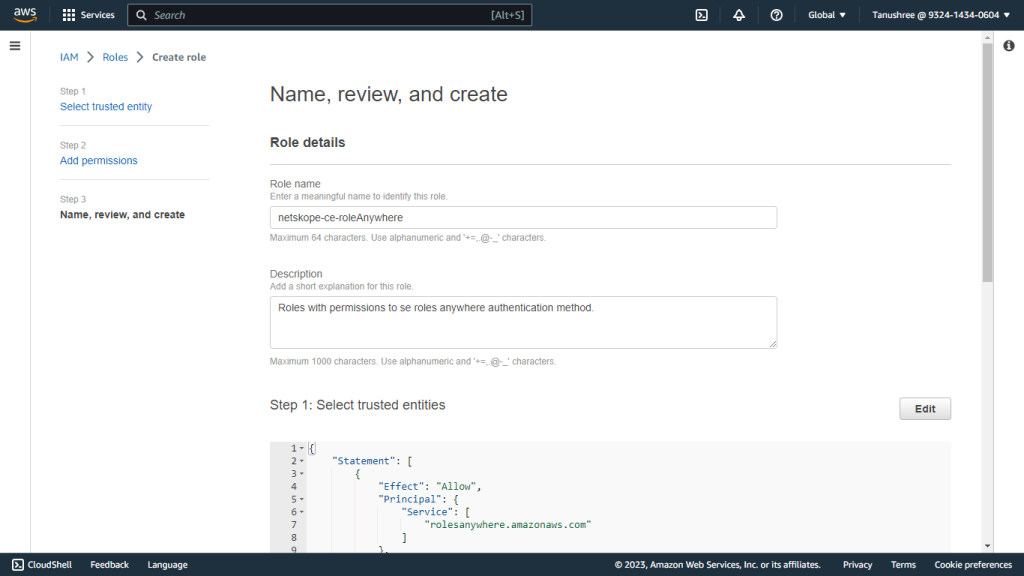
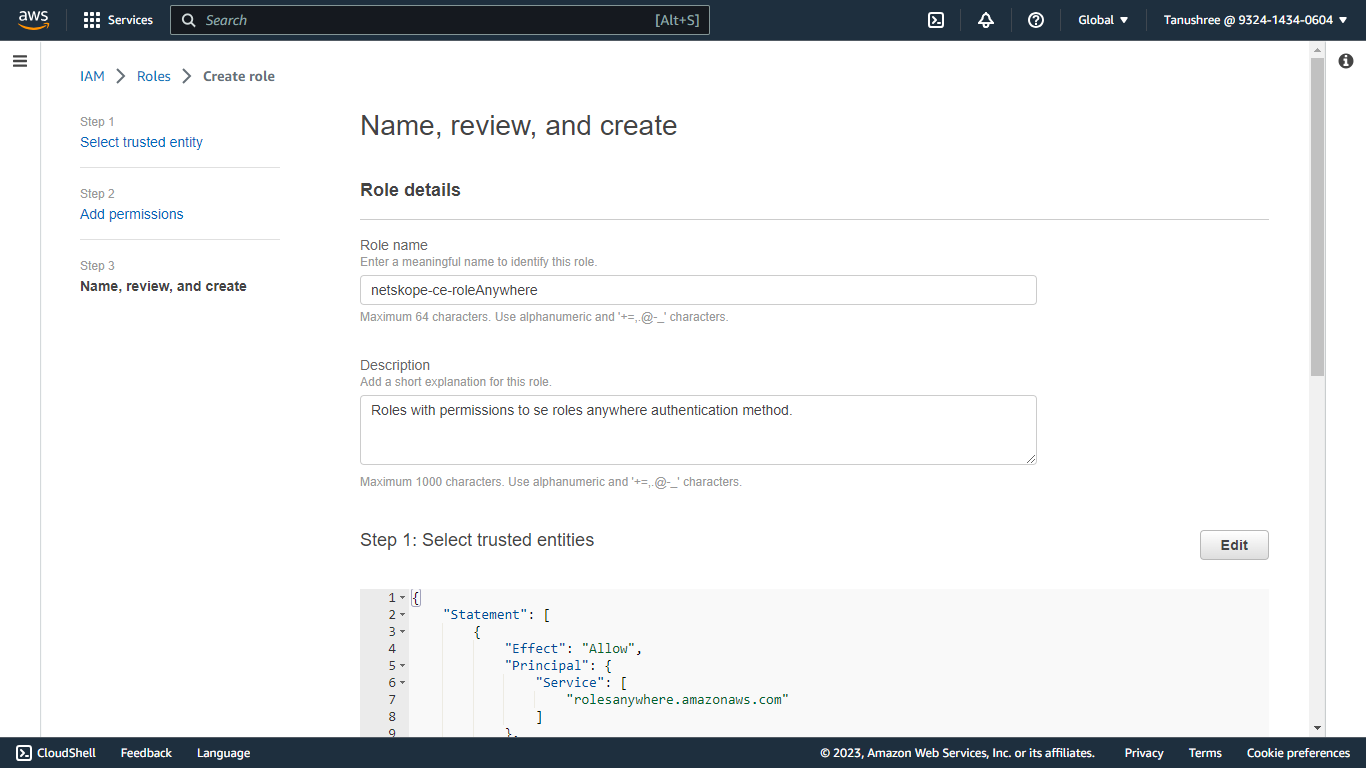
Enter a Role name and Description for the role, like netskope-ce-roleAnywhere.
-
Click Create role.
-
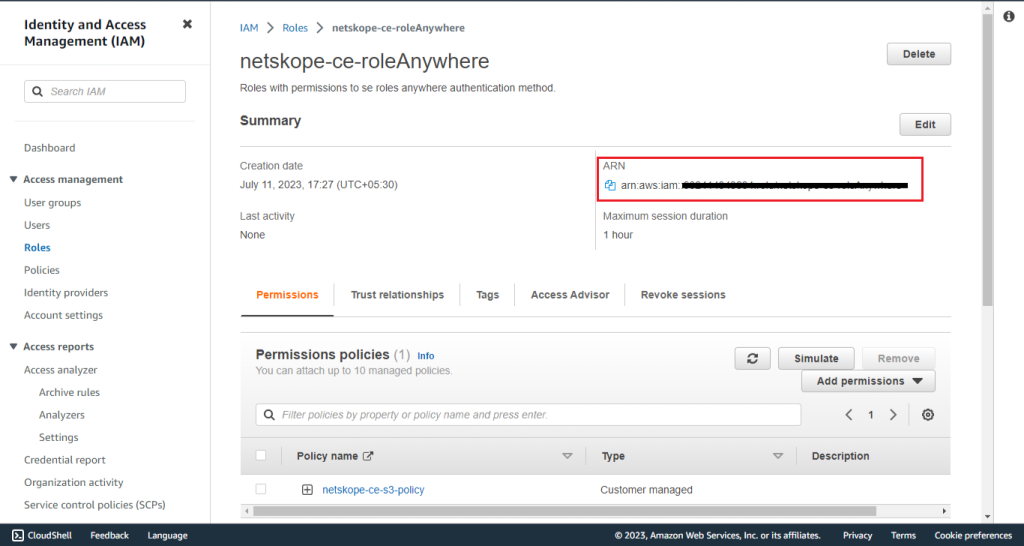
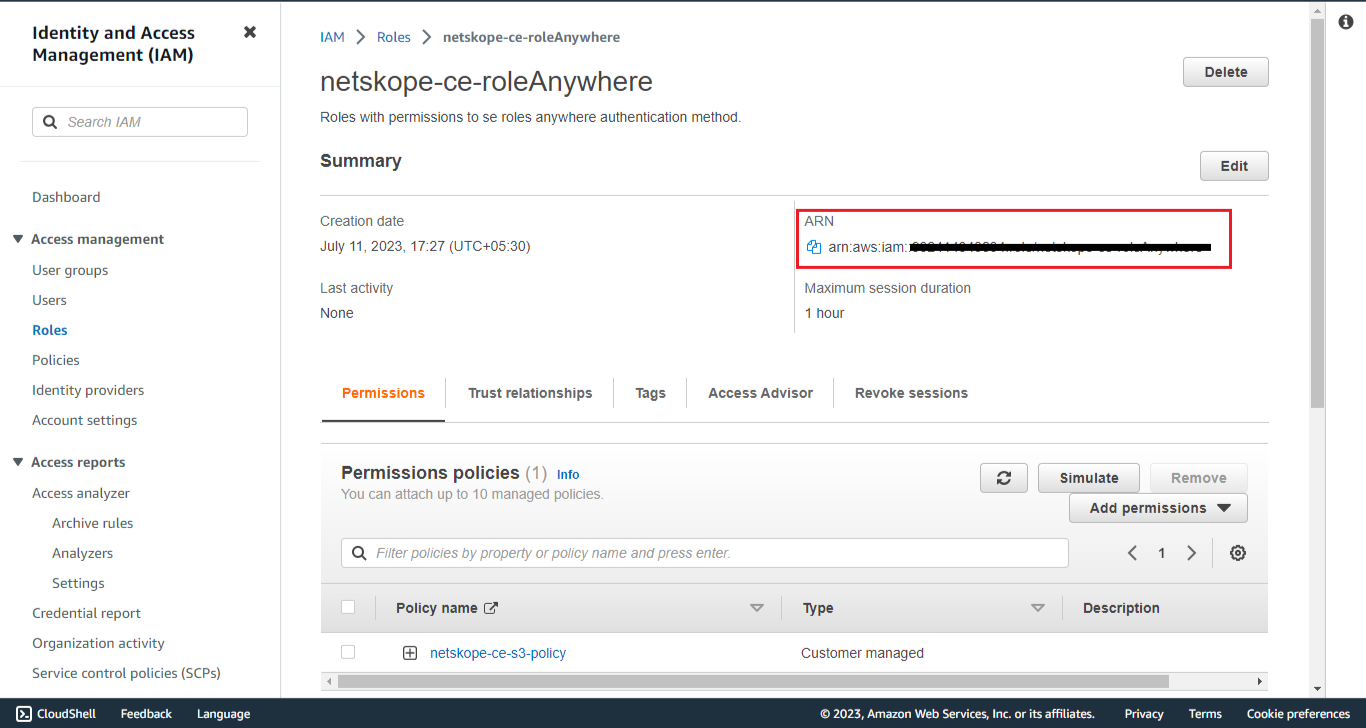
Make a note of the Role ARN as this will be required in the Plugin configuration parameter Role ARN for the AWS IAM Roles Anywhere authentication method.
Create a Profile
-
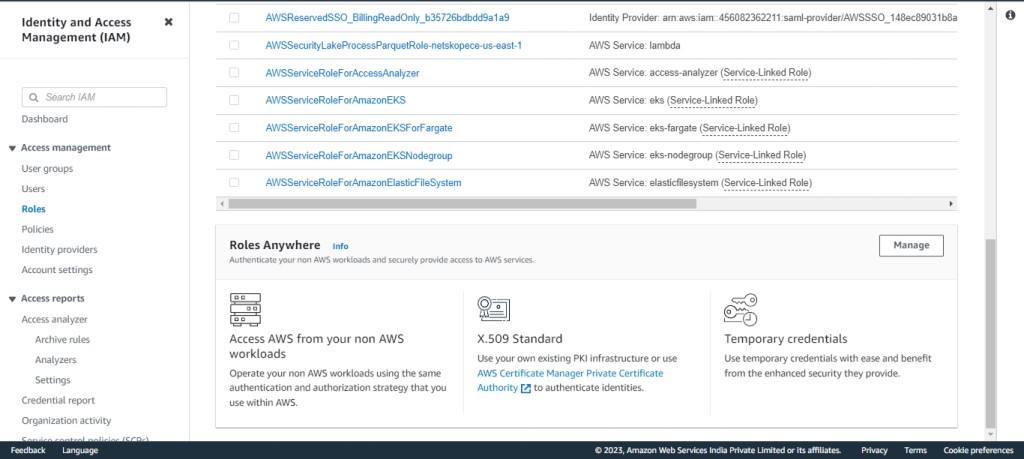
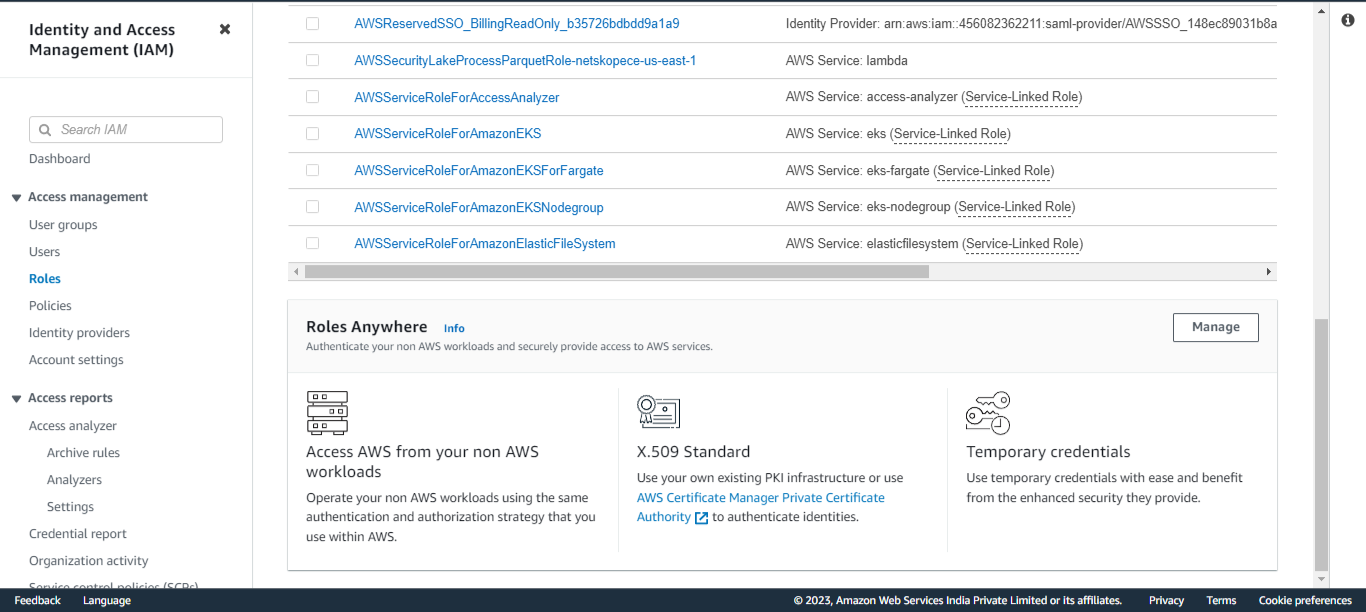
Select Roles present under Access management.
-
Scroll down to Roles Anywhere and click Manage.
-
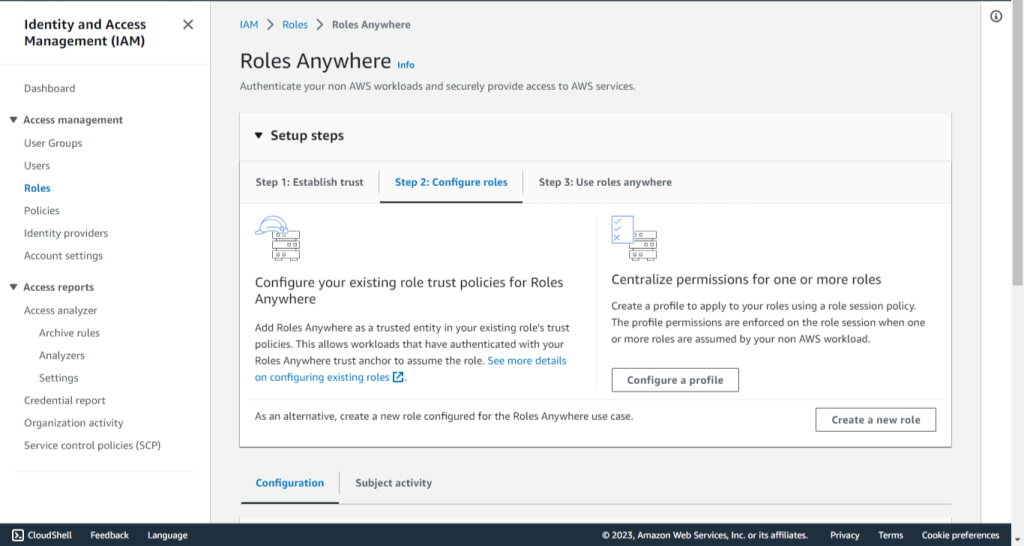
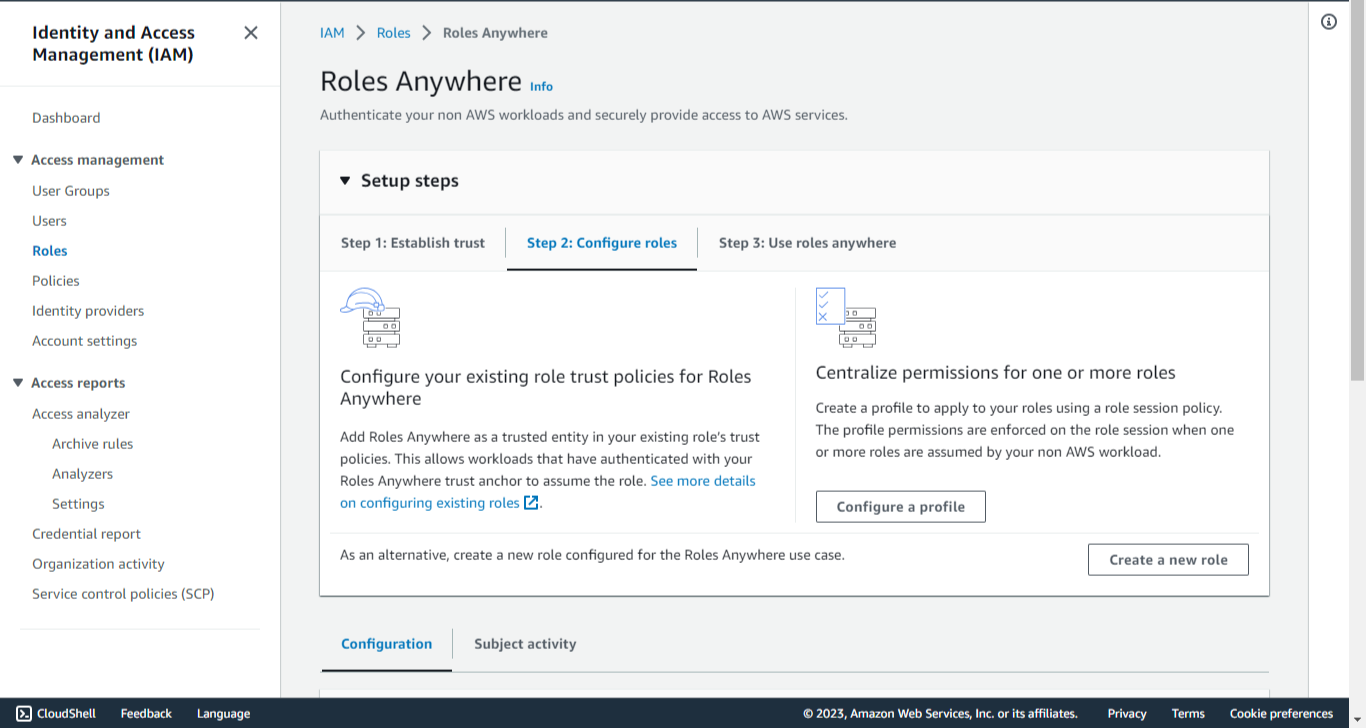
Expand the Setup steps.
-
Click Step 2: Configure roles.
-
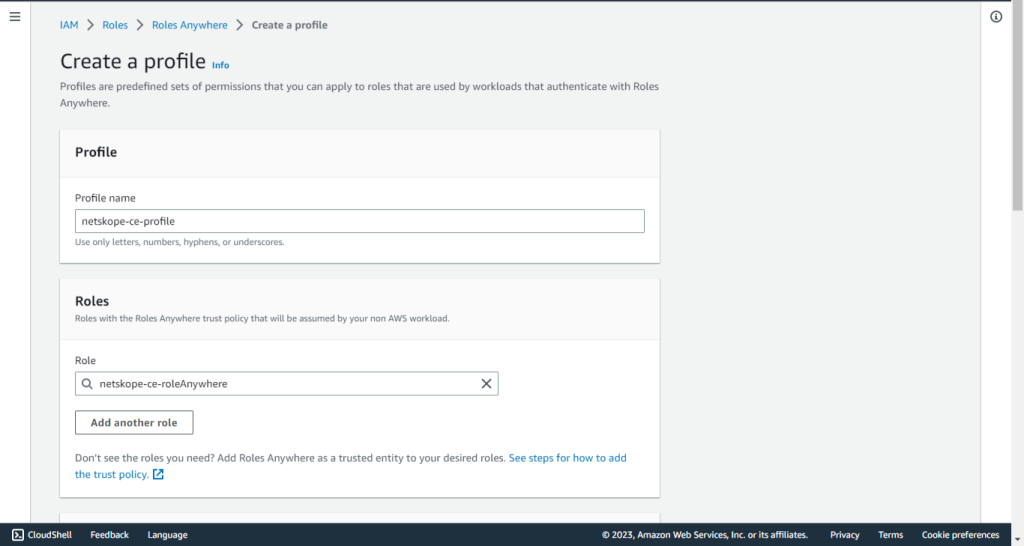
Click Configure a profile.
-
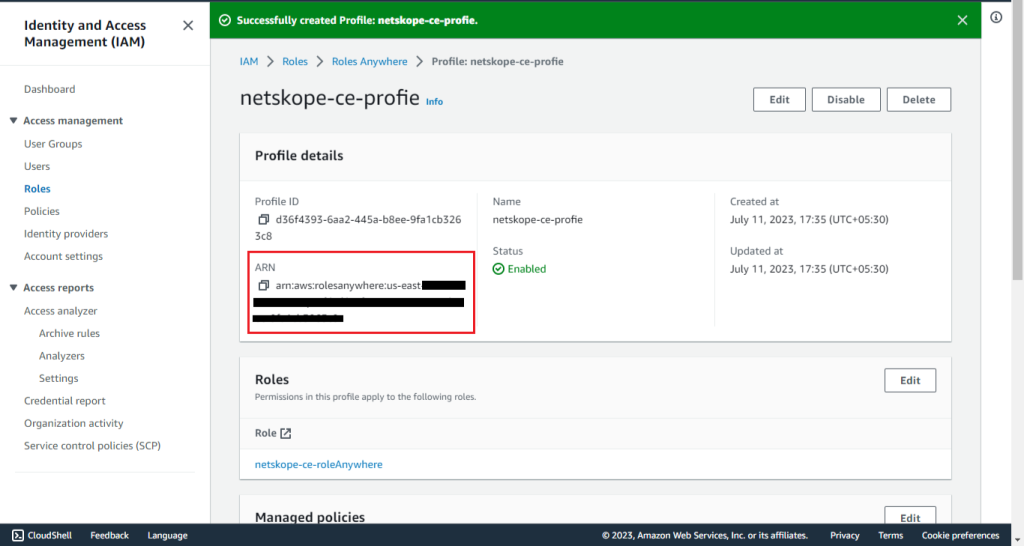
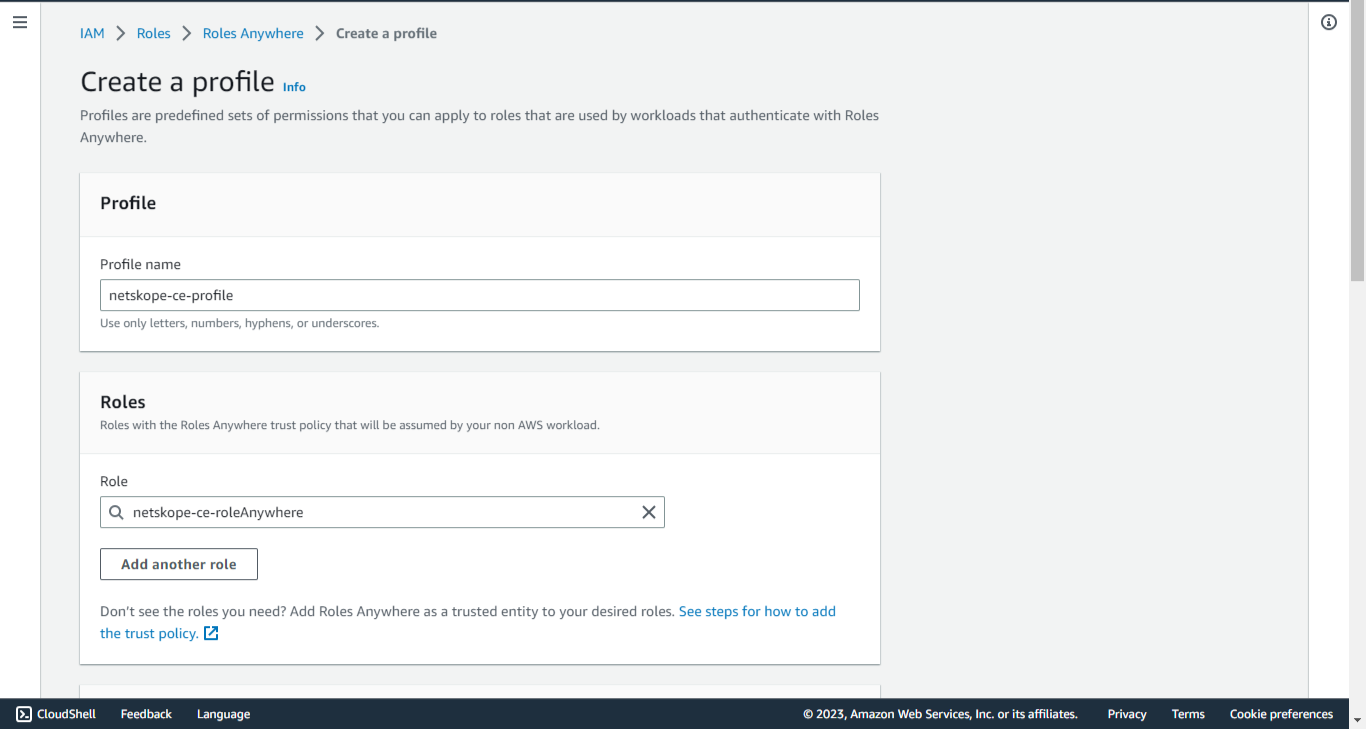
Enter a Profile name, like netskope-ce-profile.
-
Select the role created previously (netskope-ce-roleAnywhere)
-
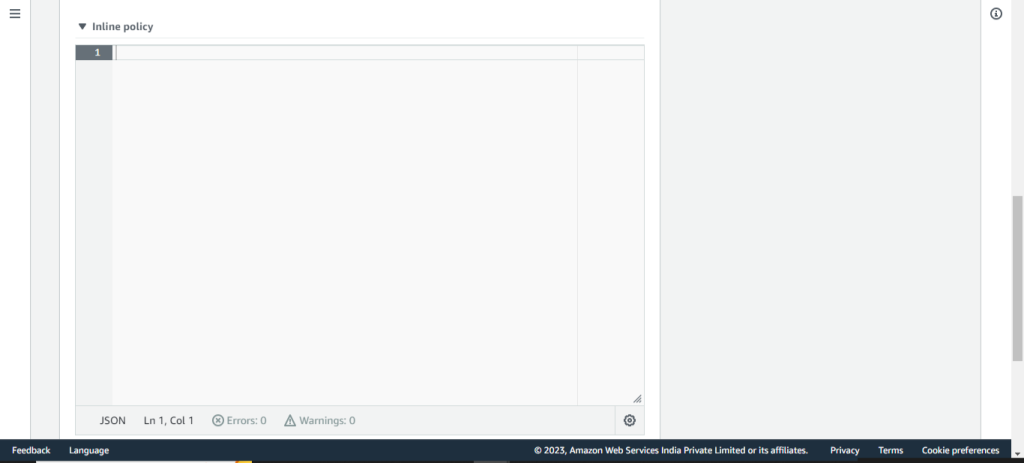
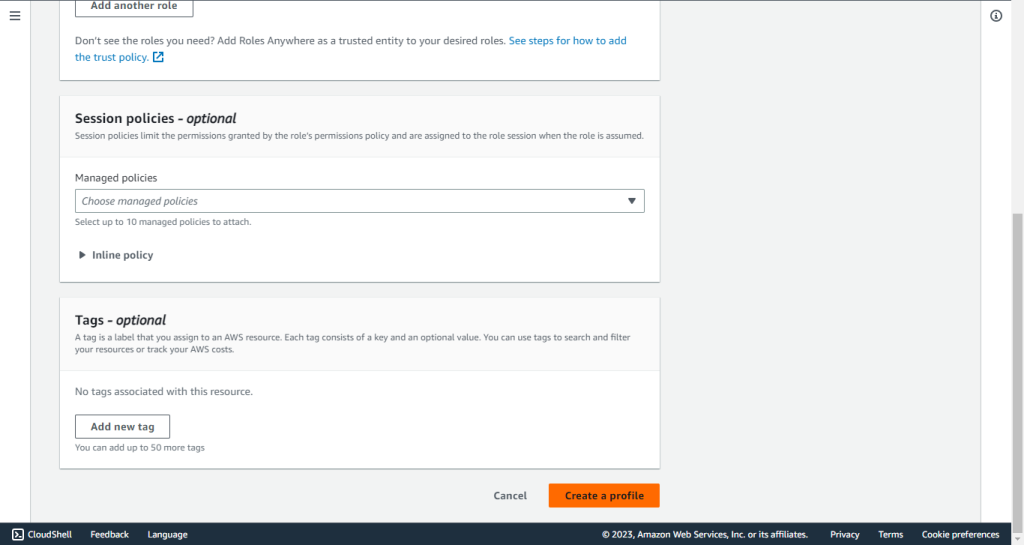
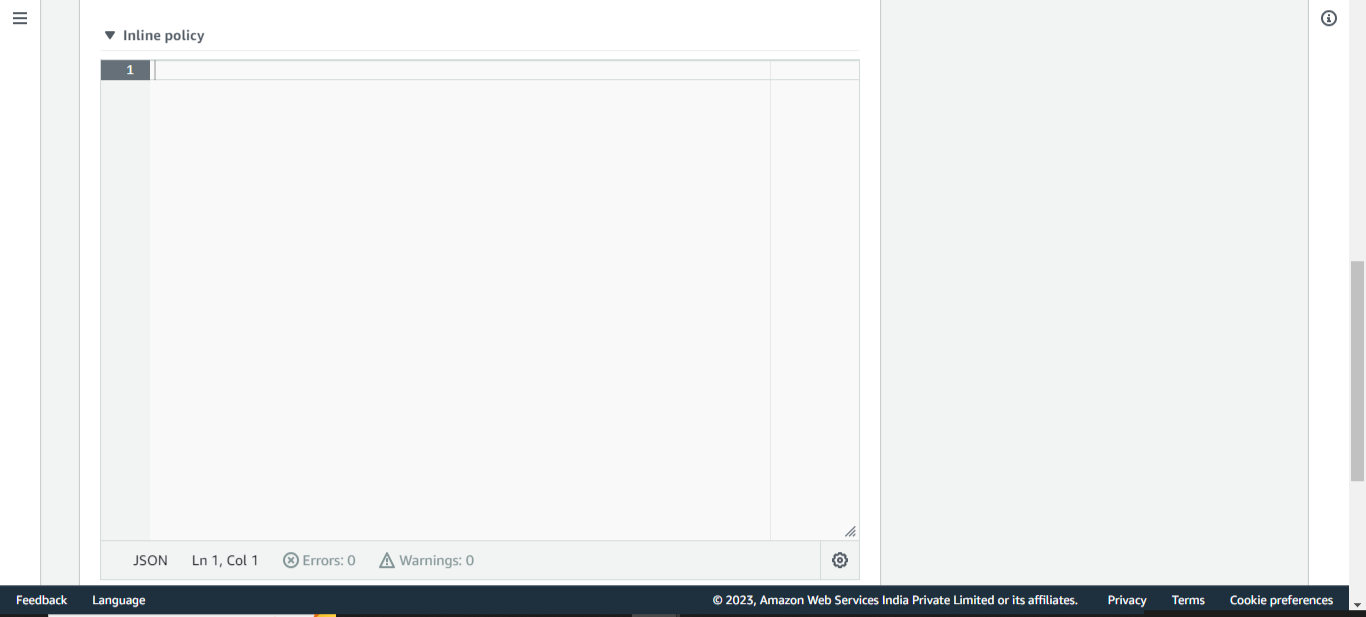
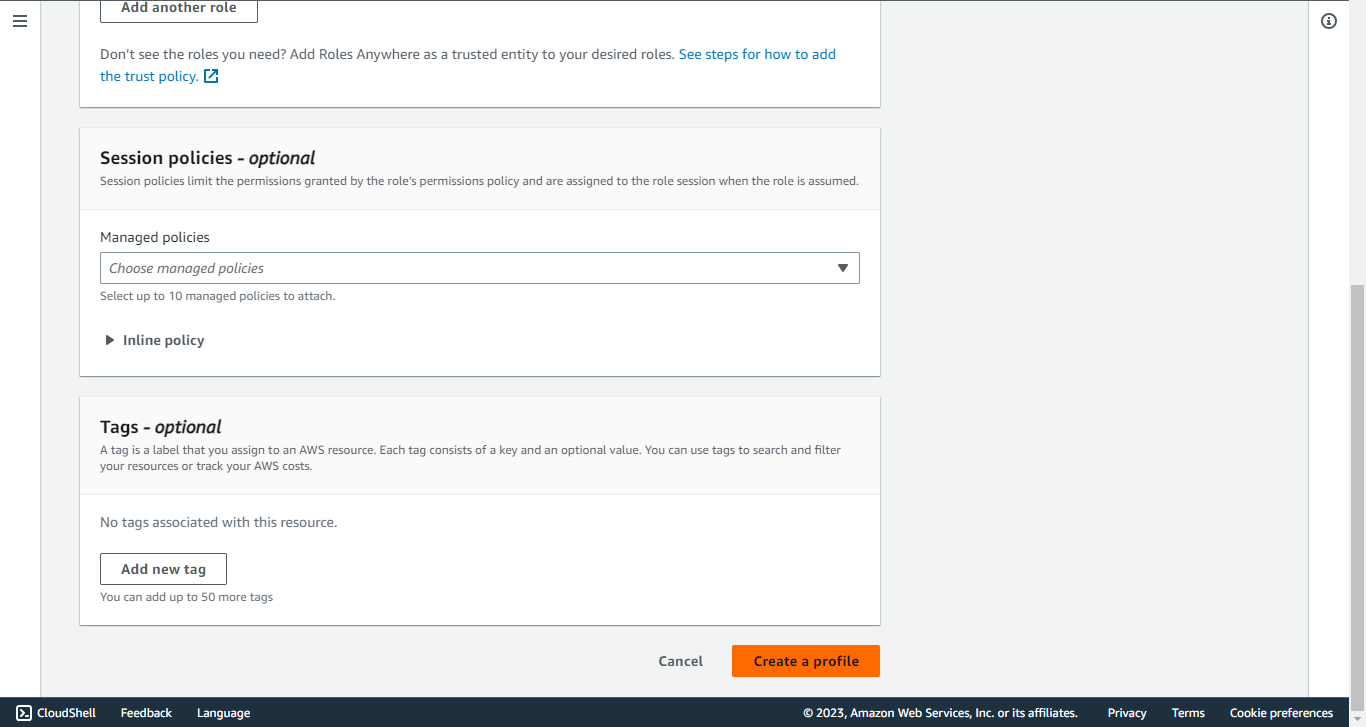
Remove the Inline Policy.
-
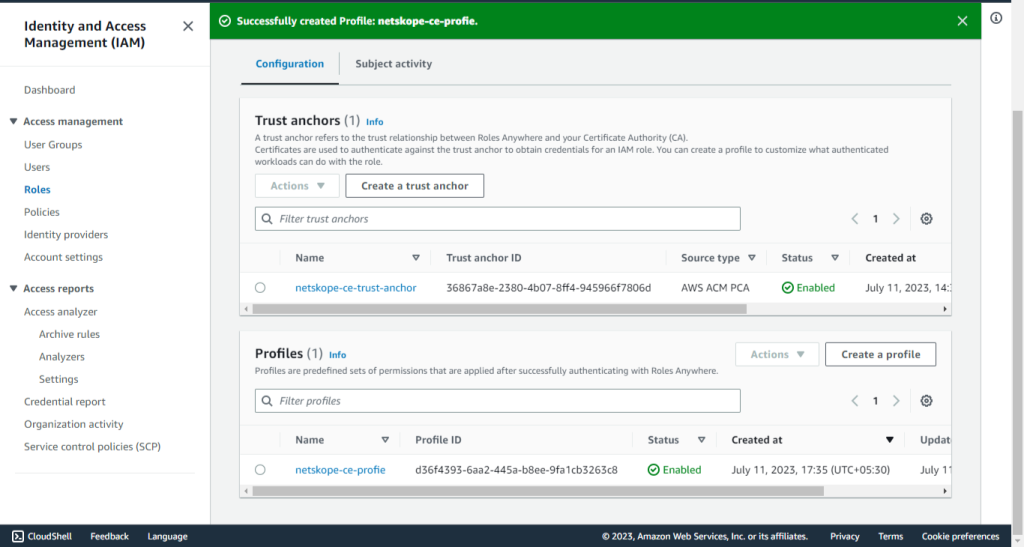
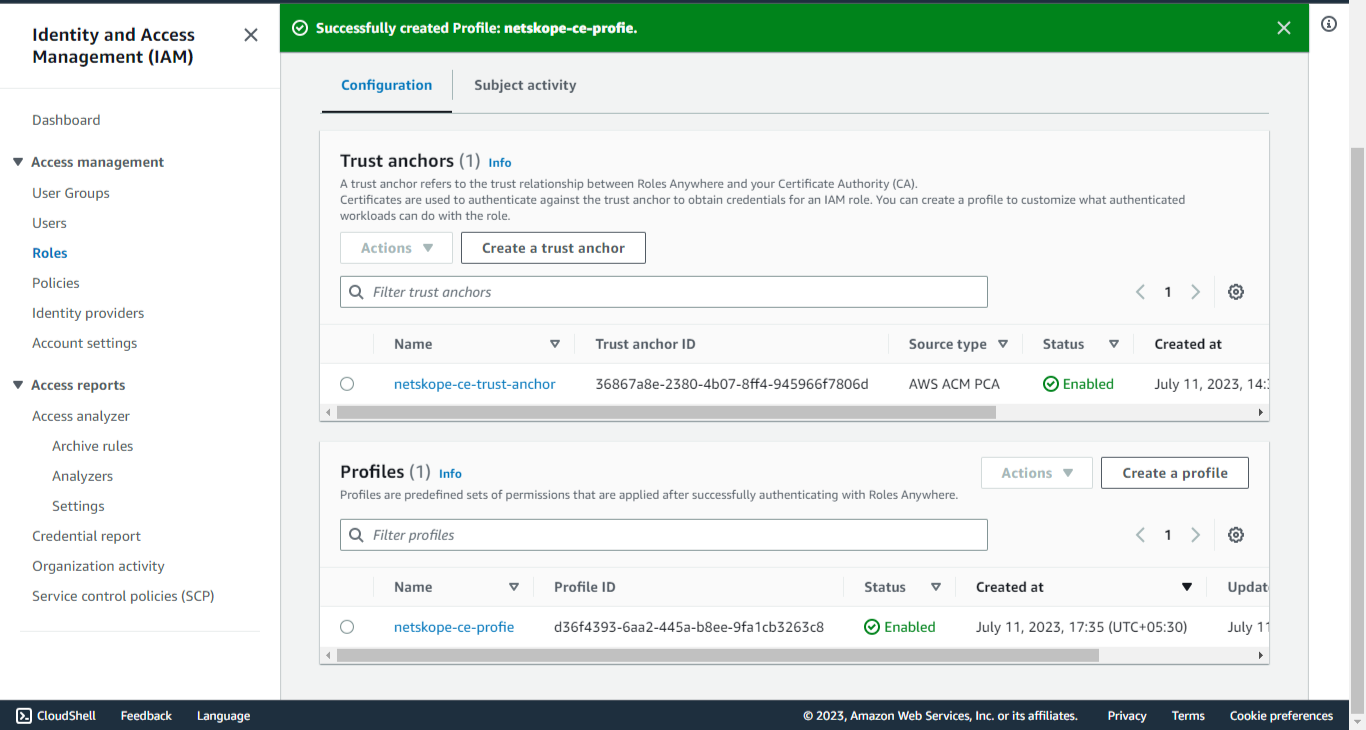
Click Create profile.
-
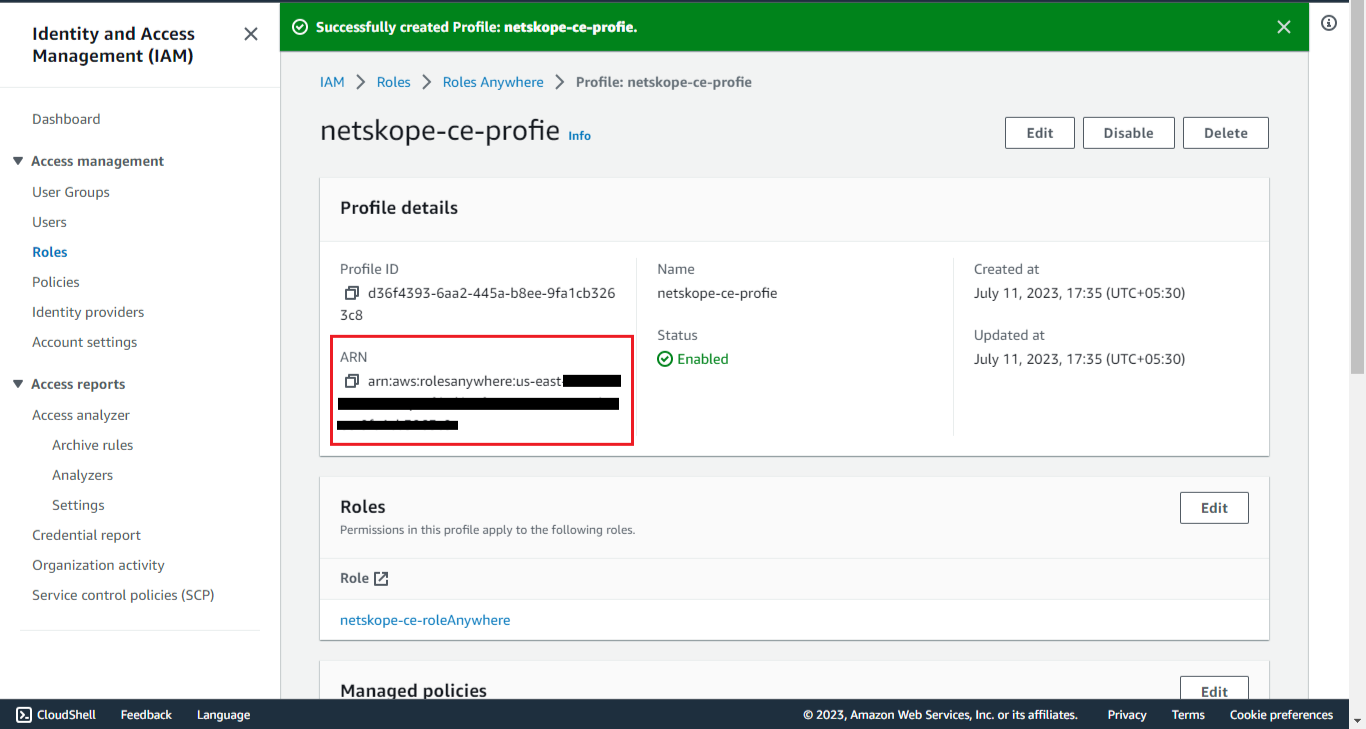
Click on the created Profile and copy the Profile ARN.
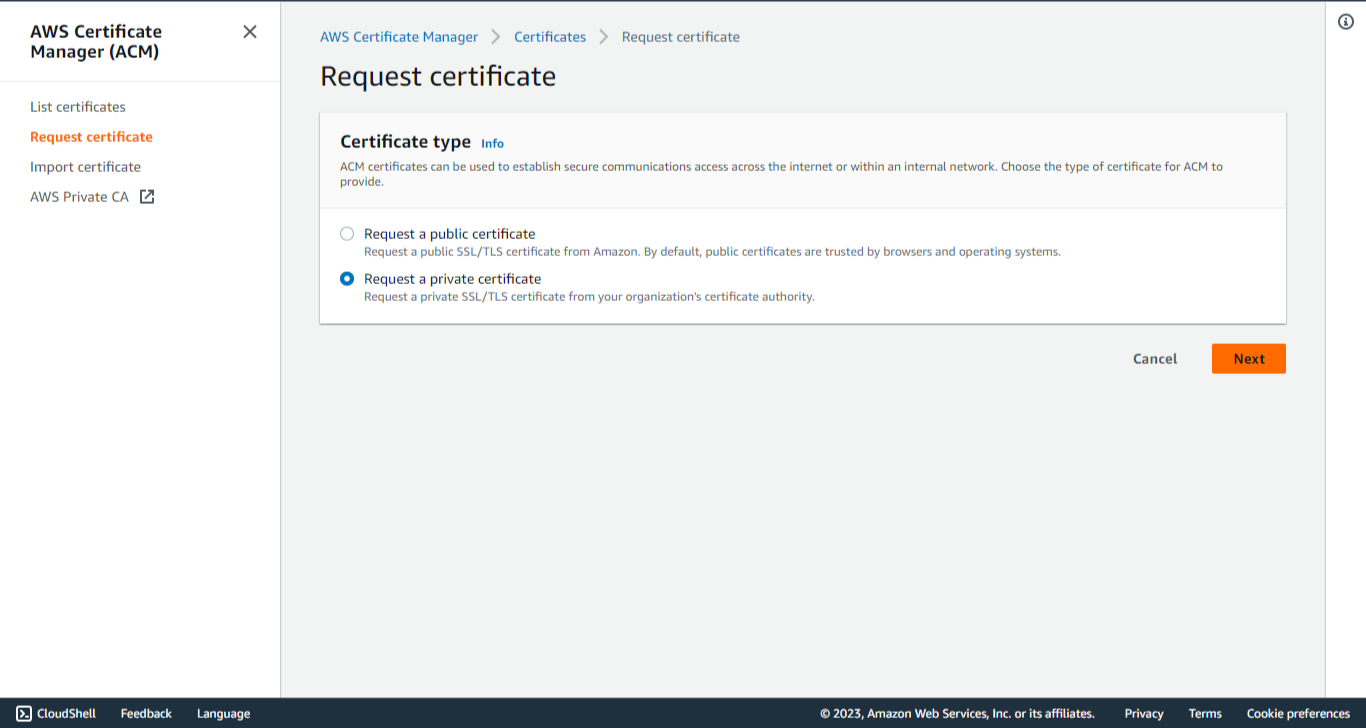
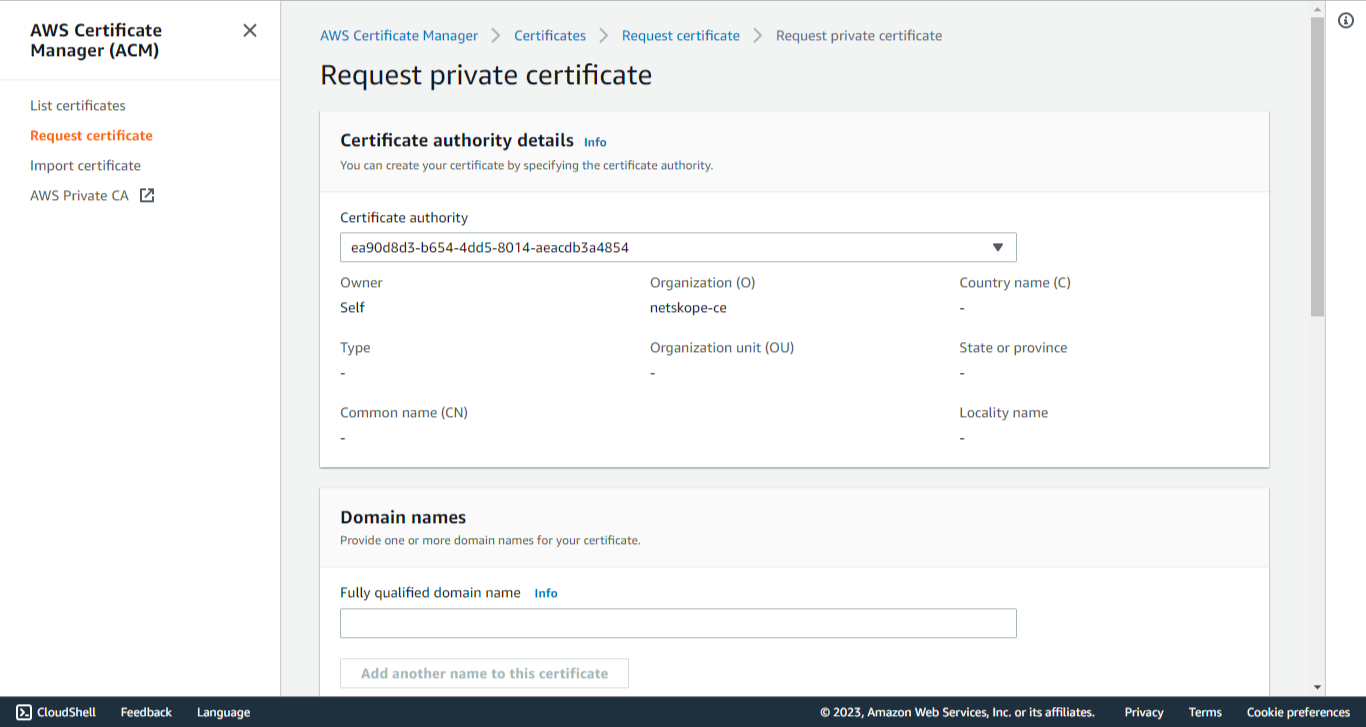
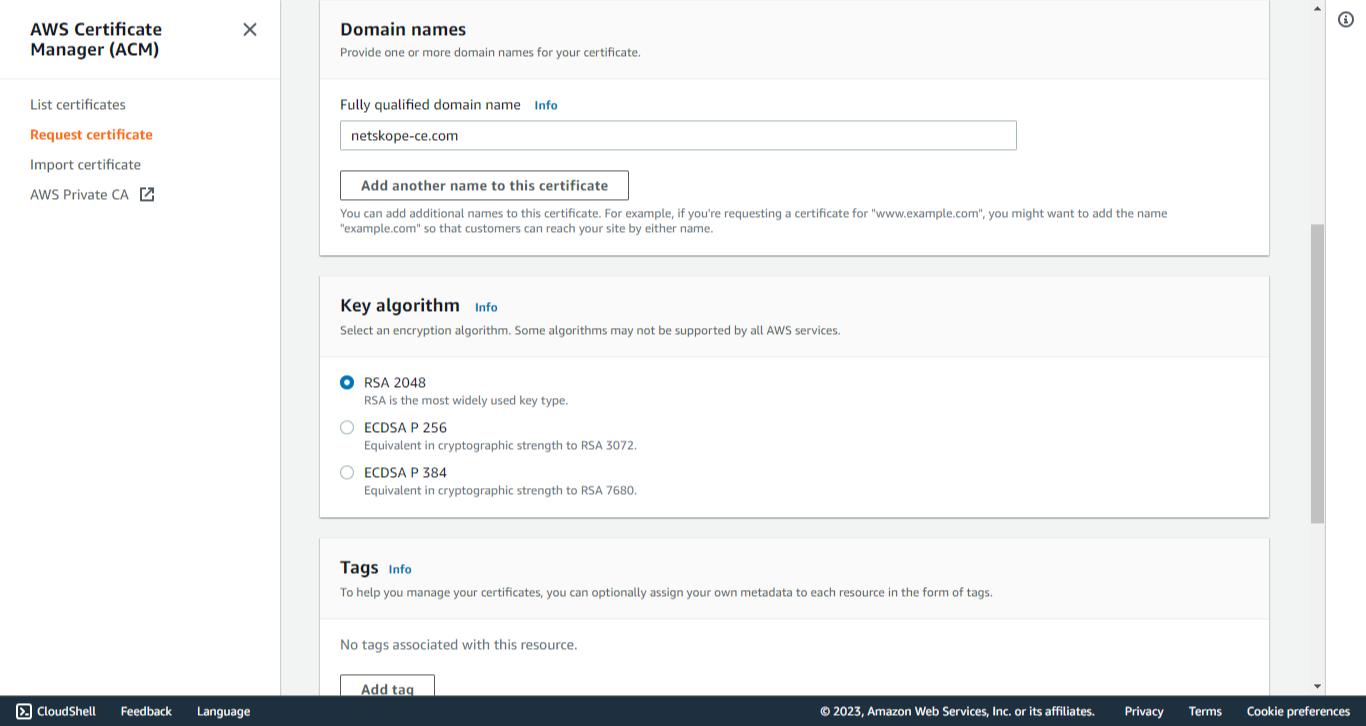
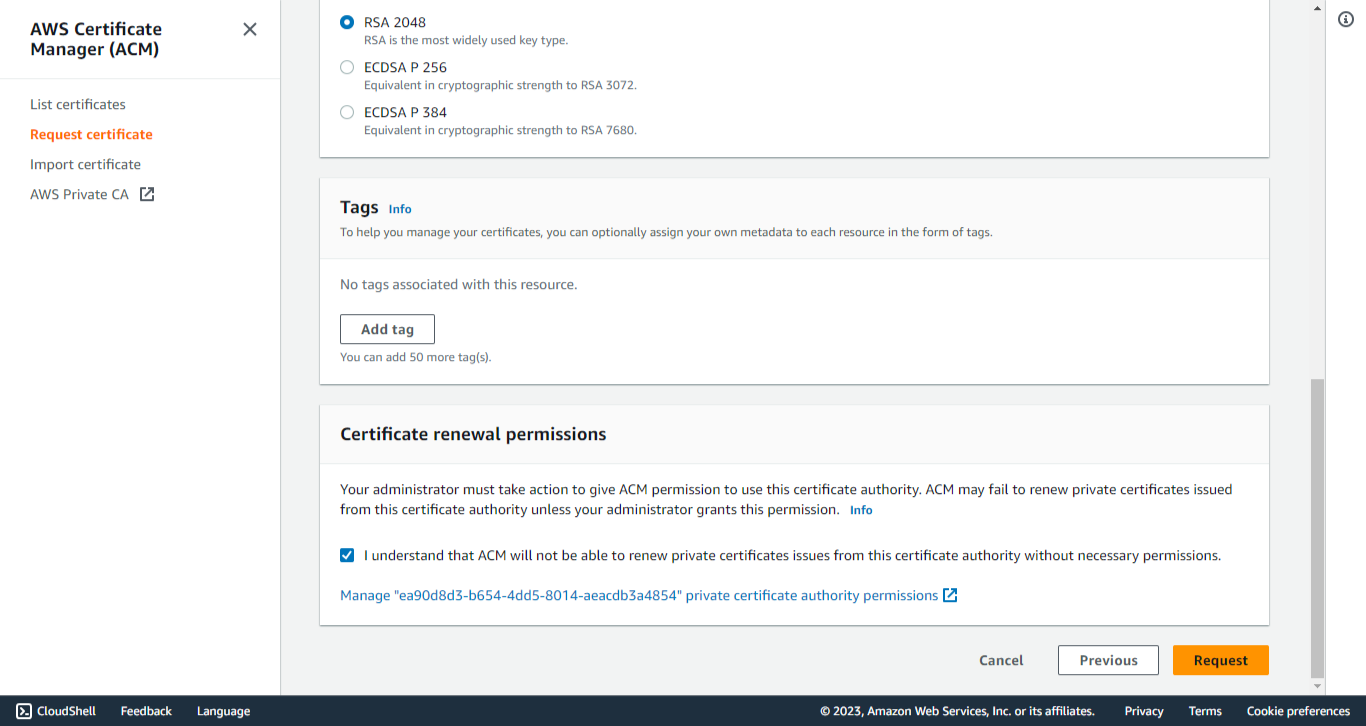
Request Private Certificate
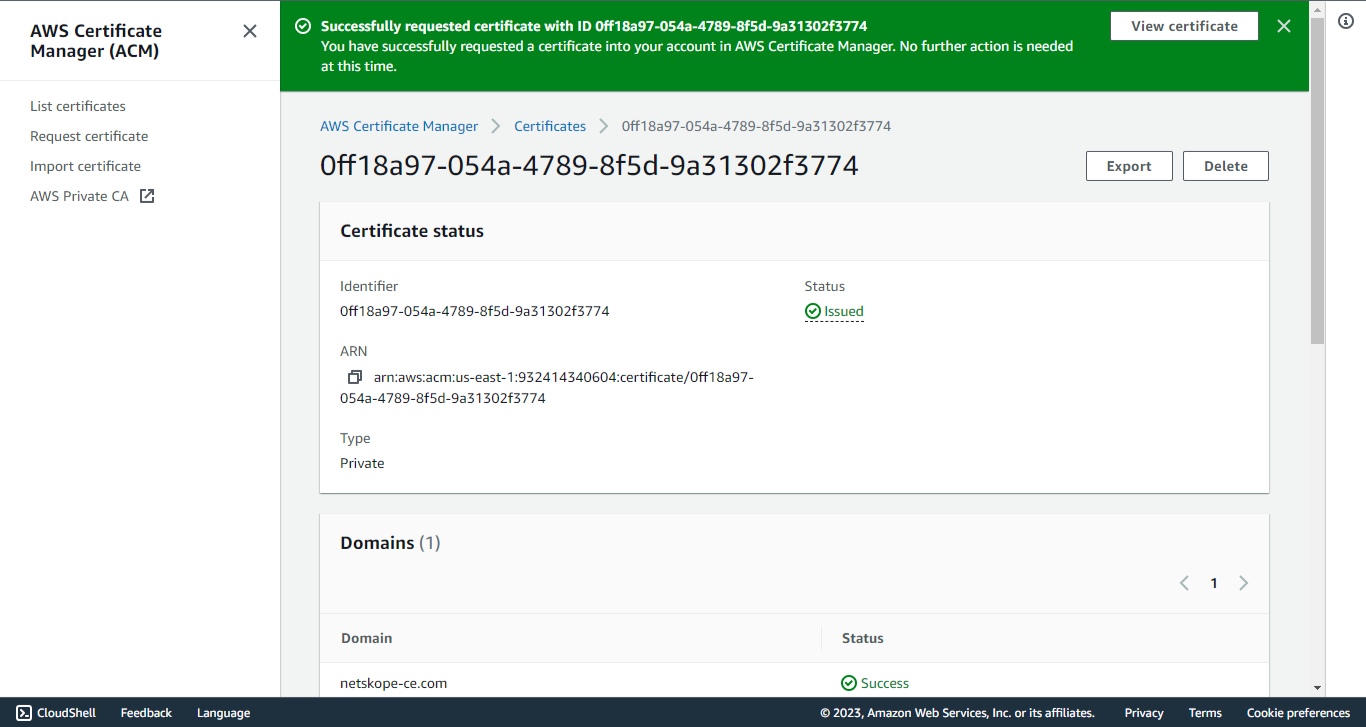
-
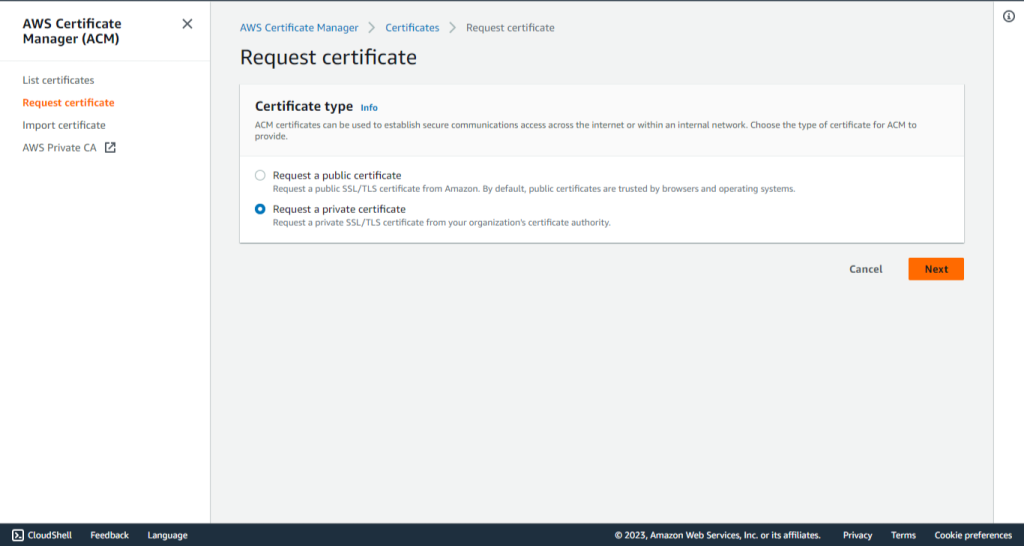
Go to AWS Certificate Manager > Request certificate.
-
Select Request a private certificate.
-
Click Next.
-
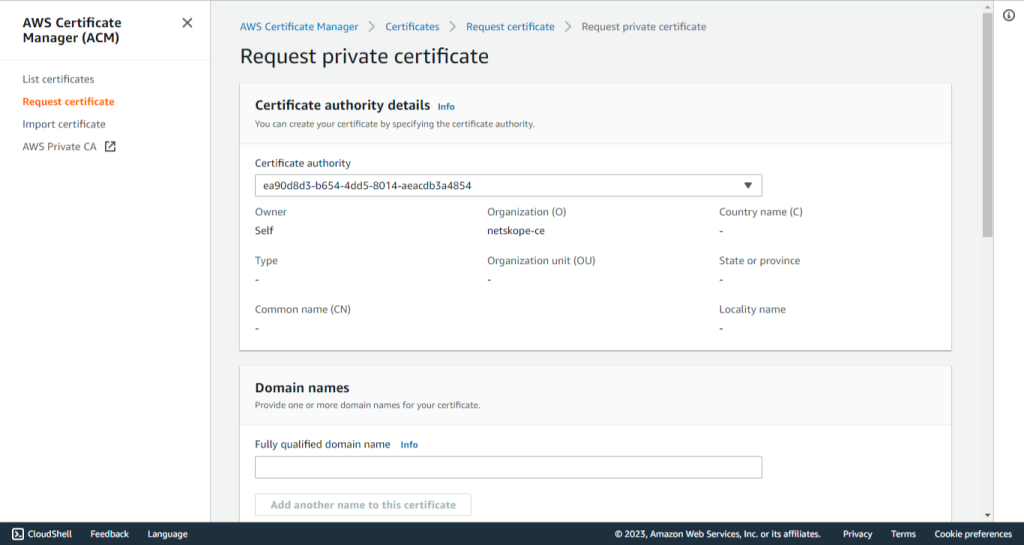
Select the Certificate authority created previously.
-
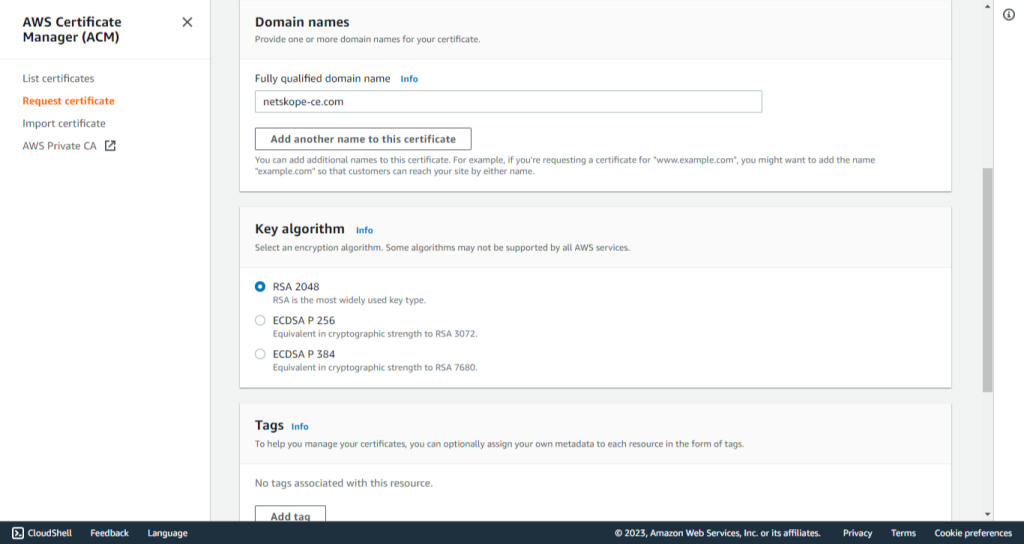
Enter a domain name in the Fully qualified domain name field, like netskope-ce.com.
-
Select RSA 2048 for the Key algorithm.
-
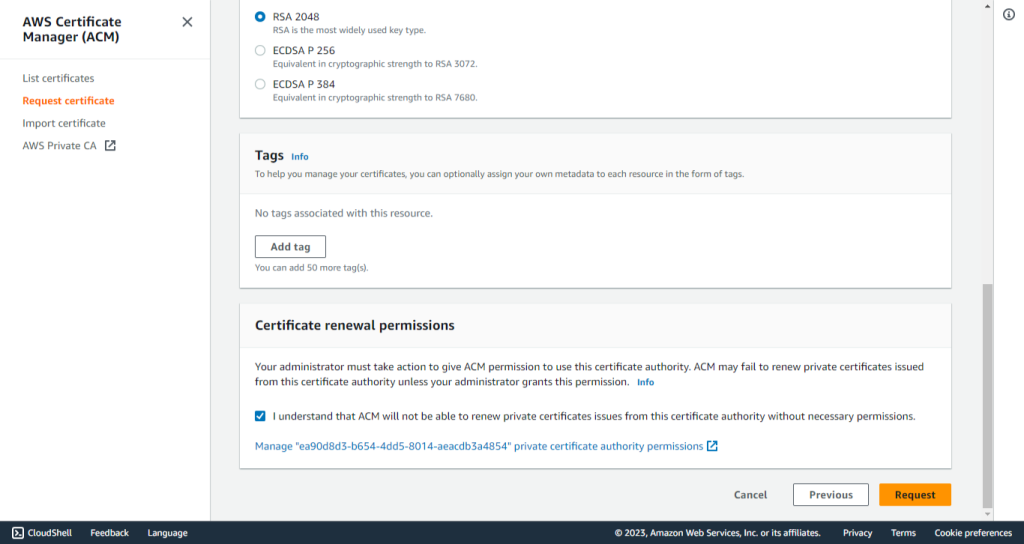
Add tags if required.
-
Acknowledge the Certificate renewal permissions.
-
Click Request.
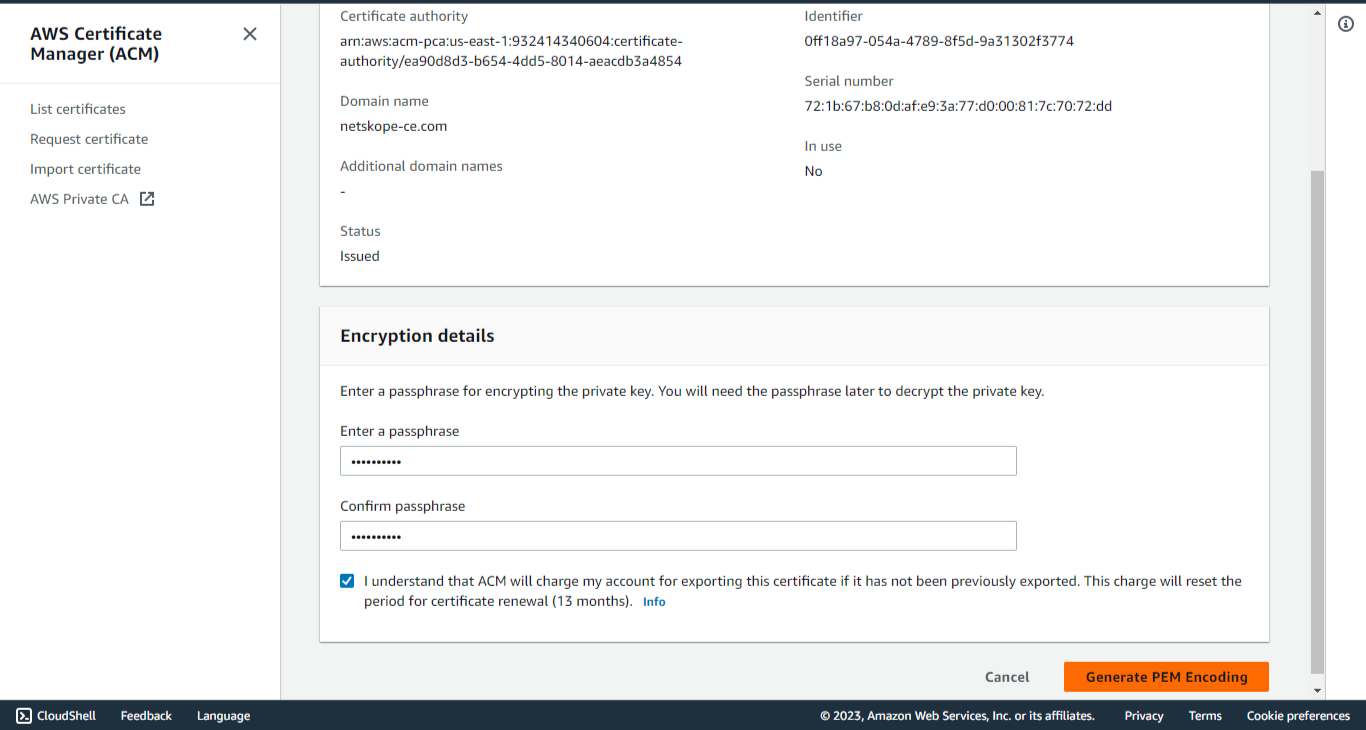
-
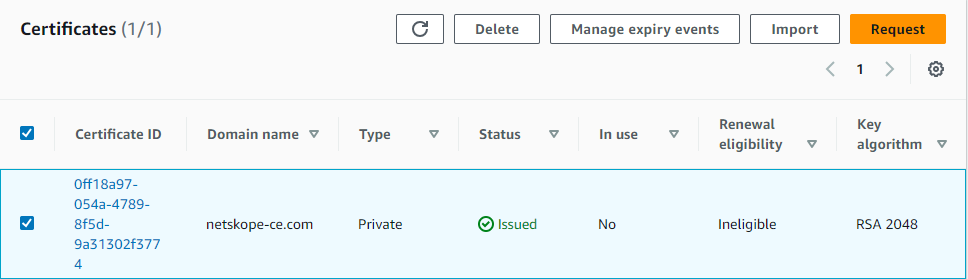
Go to List certificates from the navigation pane of AWS Certificate Manager.
-
Select the certificate created previously.
-
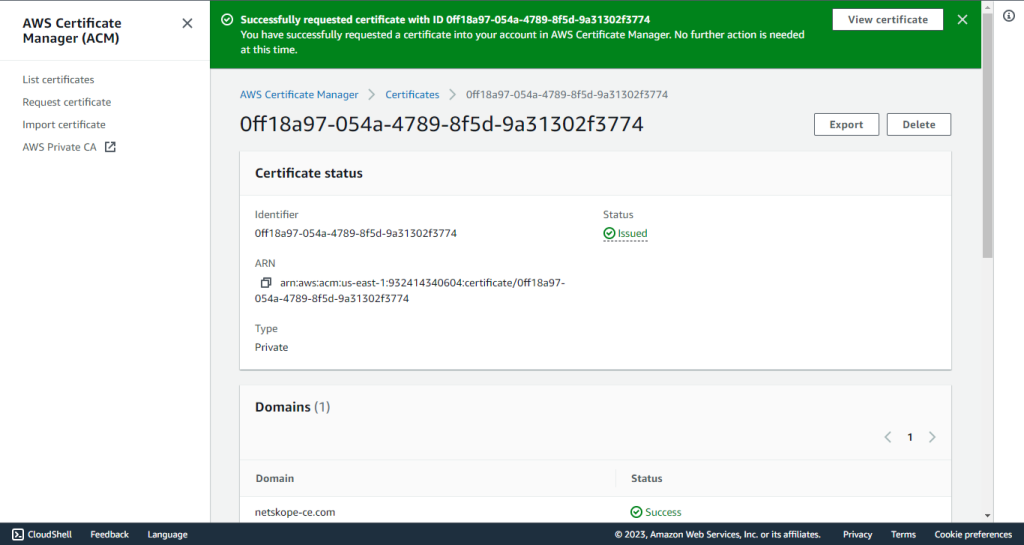
Click Export.
-
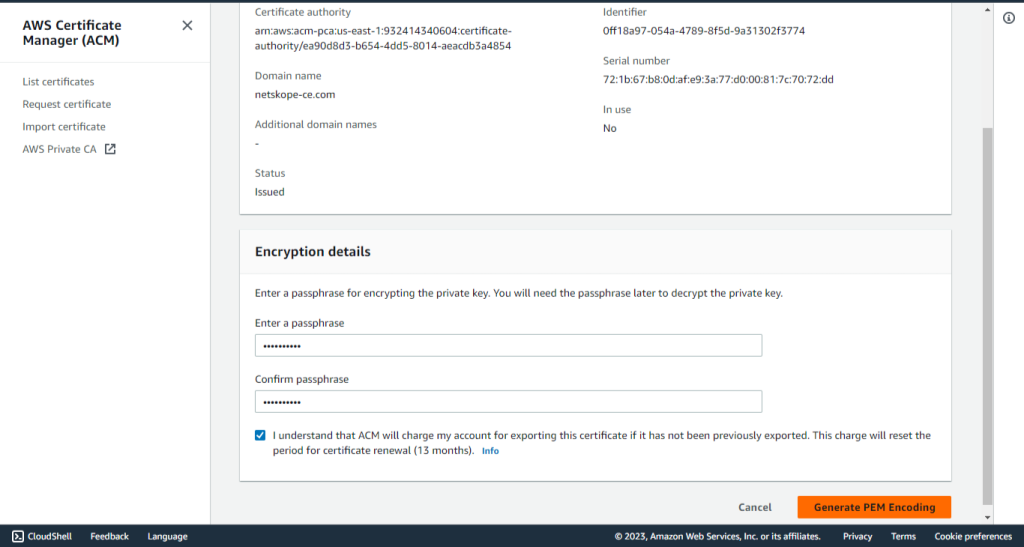
Enter the passphrase. Make a note of the passphrase as it will be required for the Configuration of the AWS S3 Plugin using the AWS IAM Roles Anywhere Authentication method.
-
Click Generate PEM Encoding.
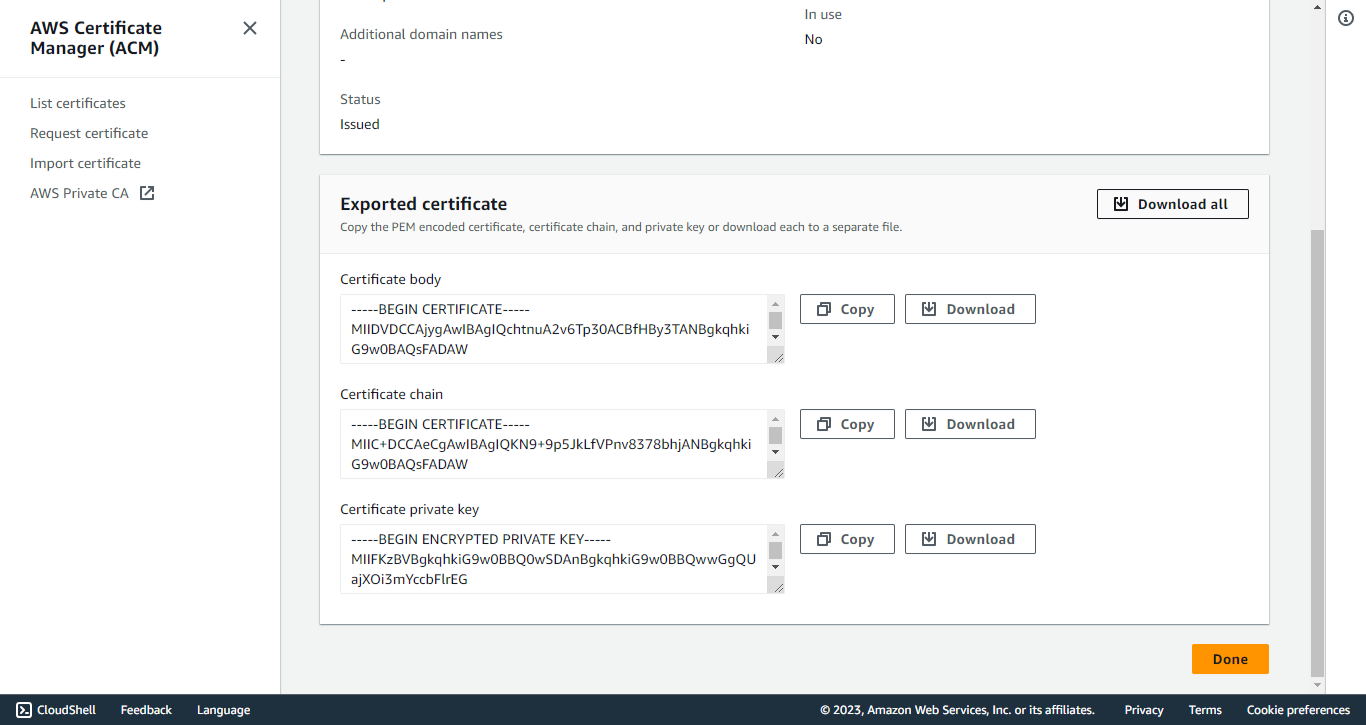
-
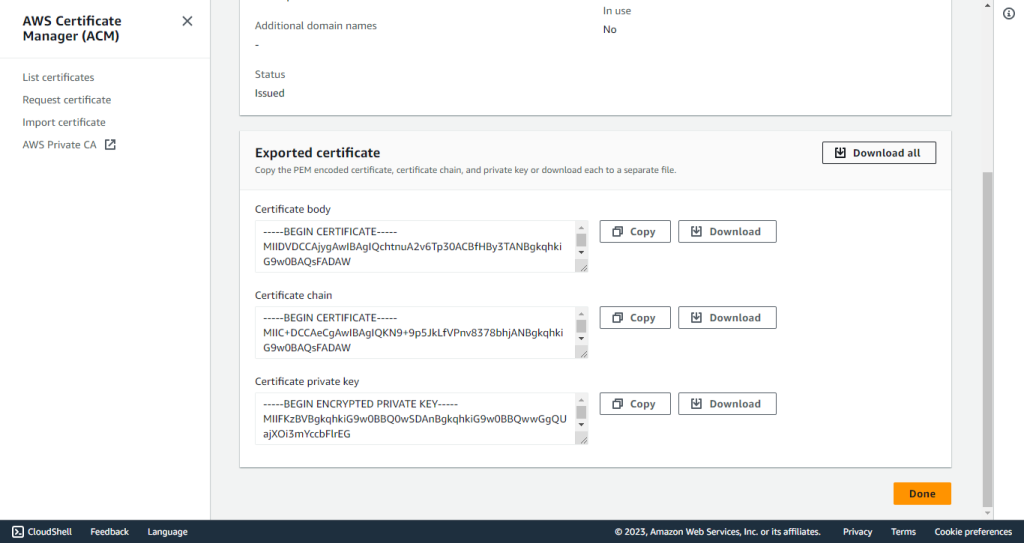
Download all the Certificates as they won’t be visible again. For new certificates, you will need to Export it again.
For More Info visit AWS IAM Role Anywhere
Deployed on AWS Configuration
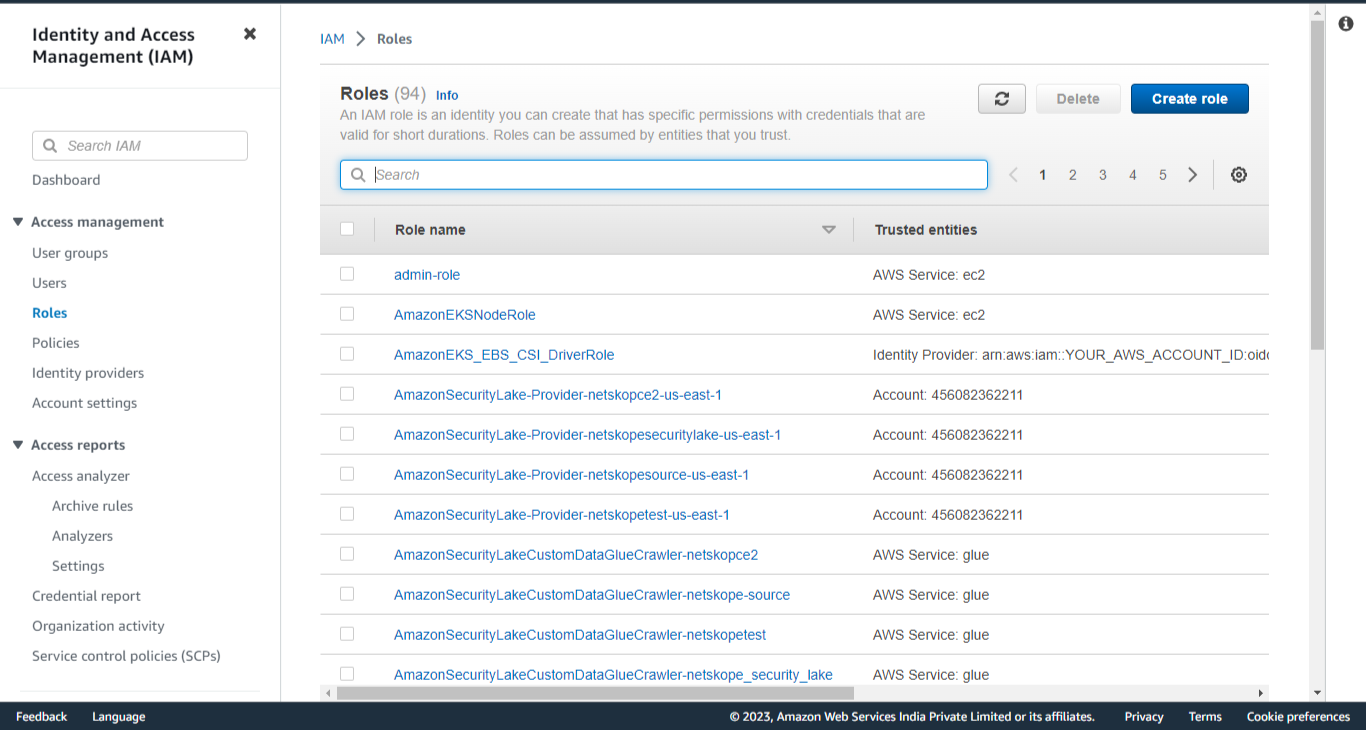
Create a role
-
Go to IAM services in the AWS Console.
-
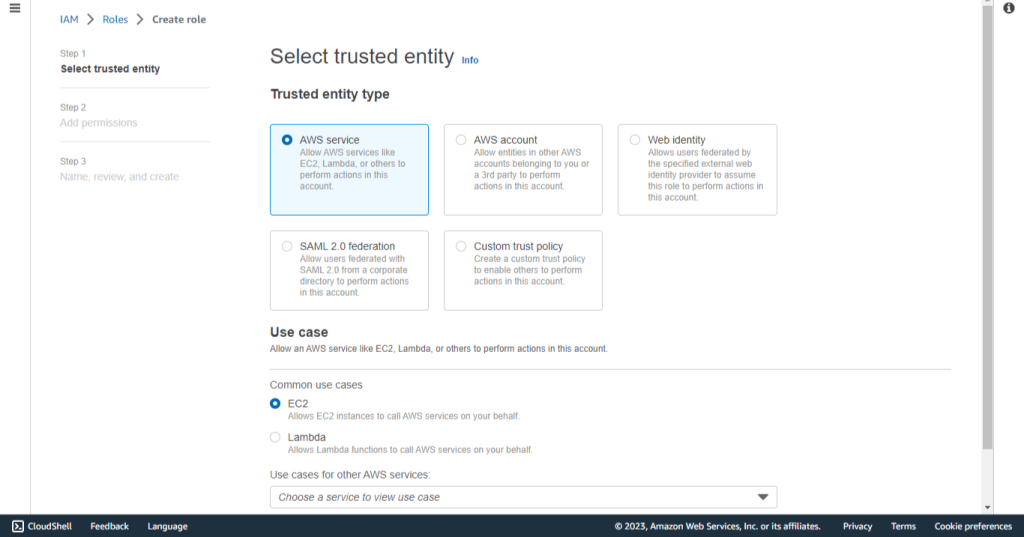
Click Create role.
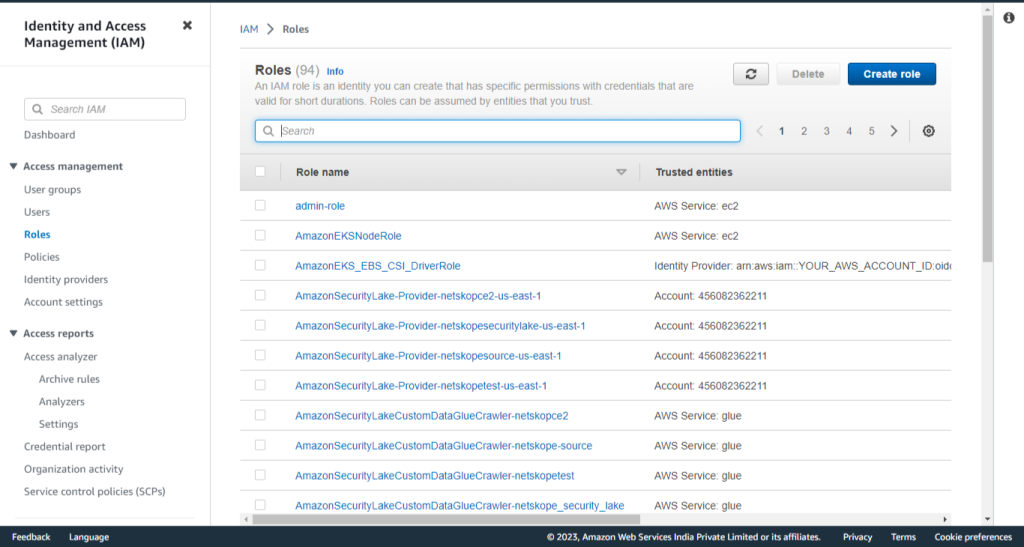
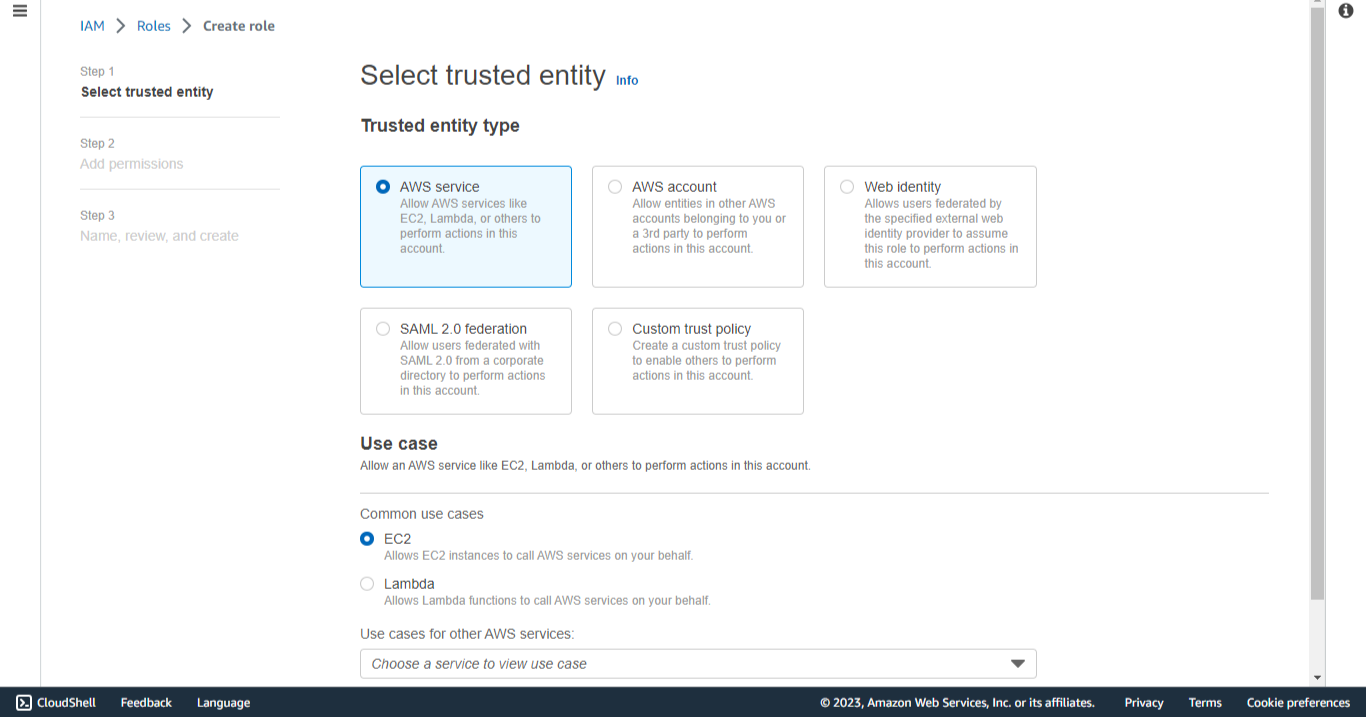
-
Select the AWS Service.
-
Under Use case, select EC2.
-
Click Next.
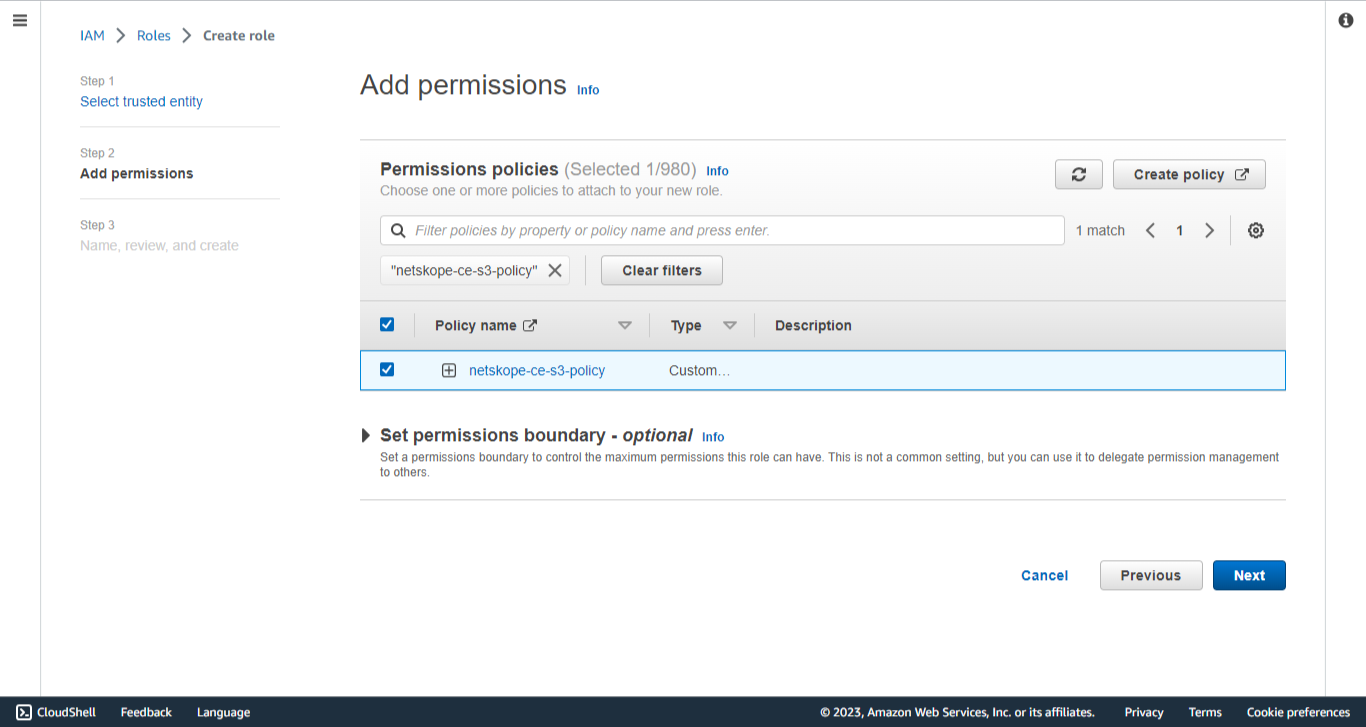
-
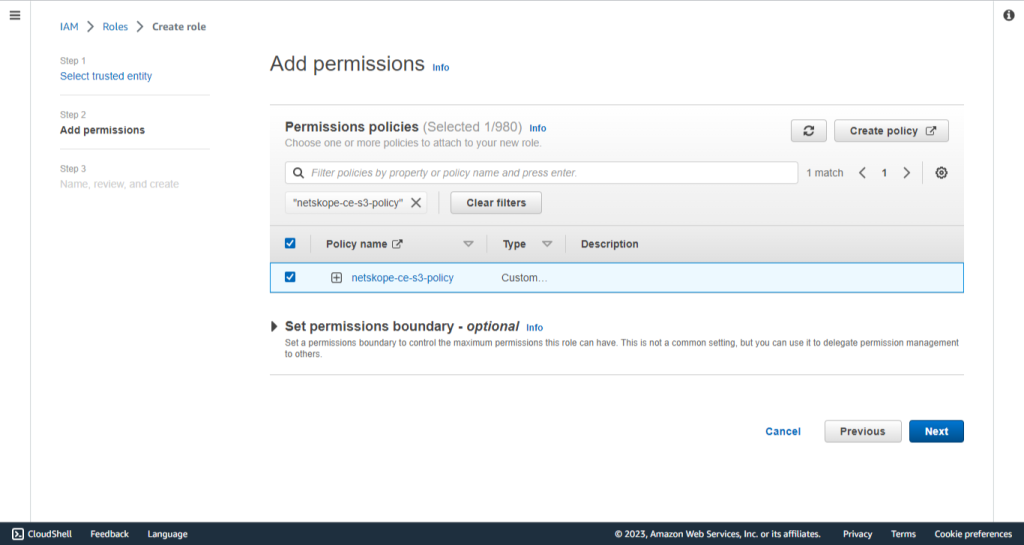
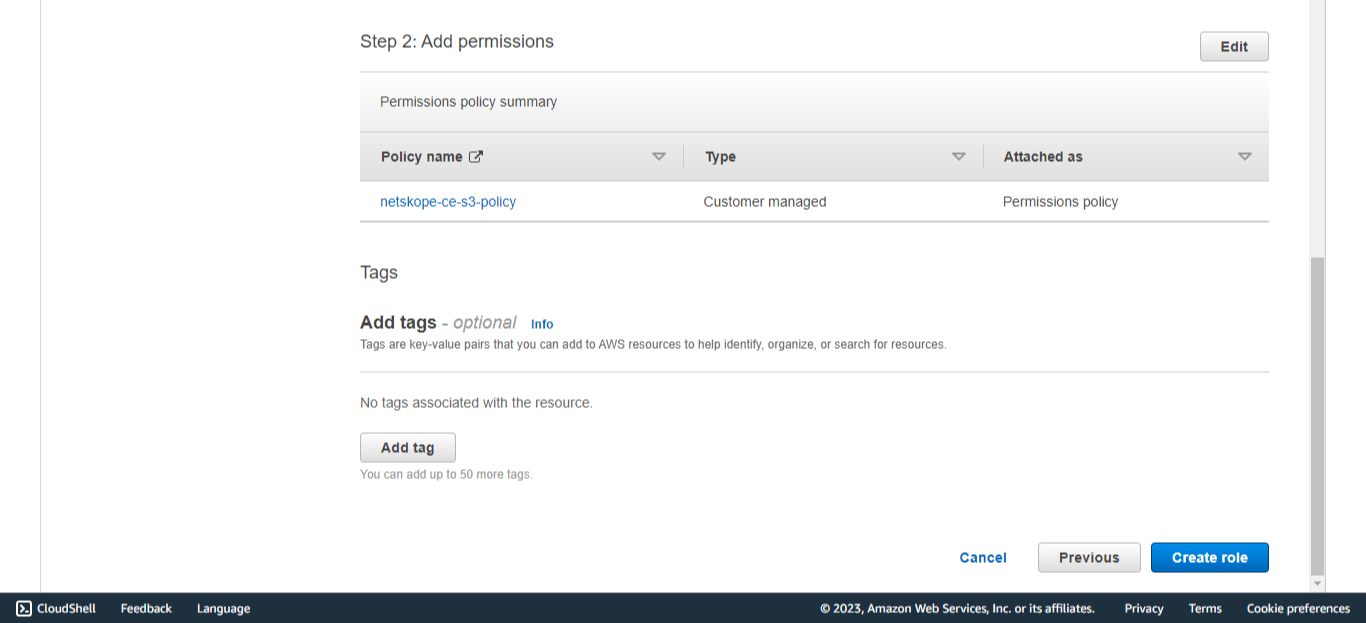
Select the permission policy created in Create Policy.
-
Click Next.
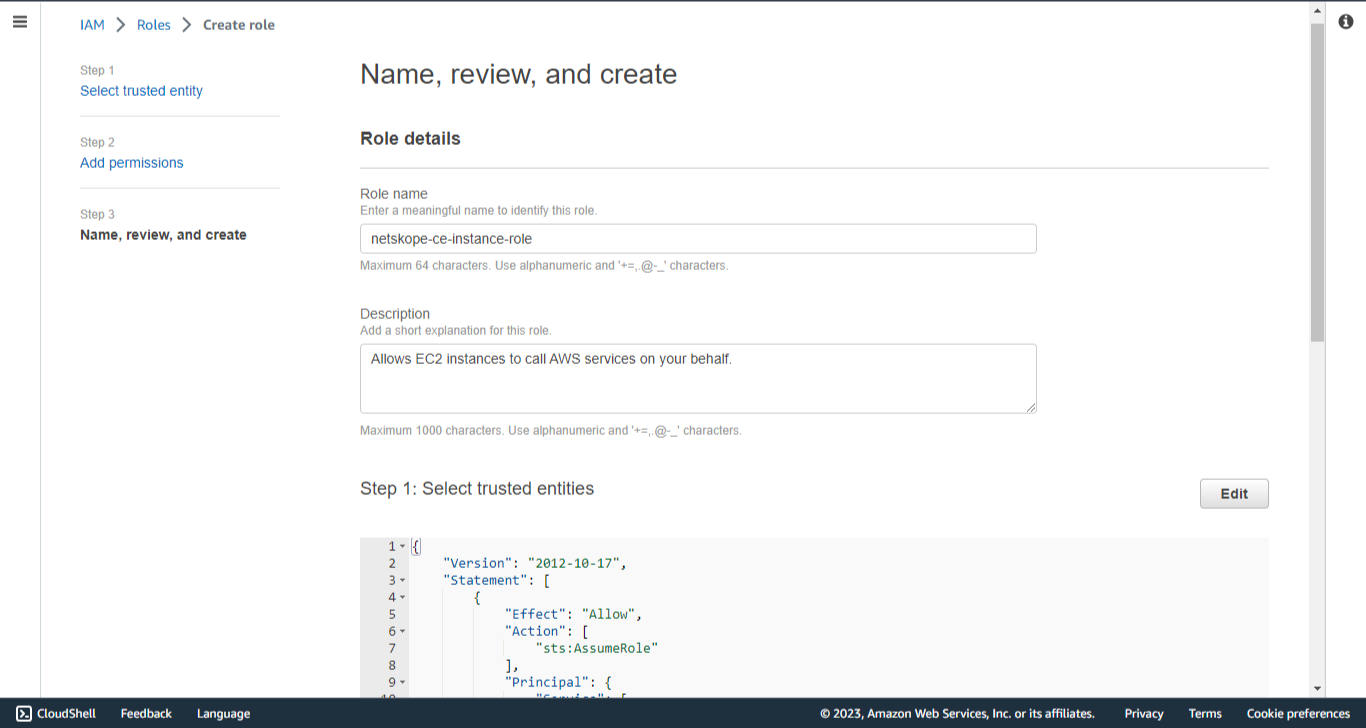
-
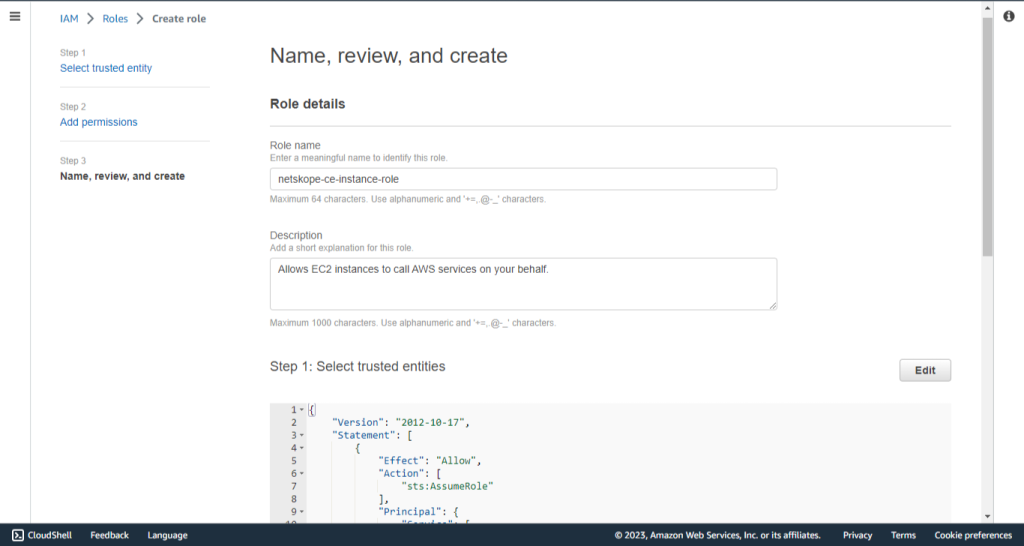
Enter a Role Name, like netskope-ce-instance-role, and a Description.
-
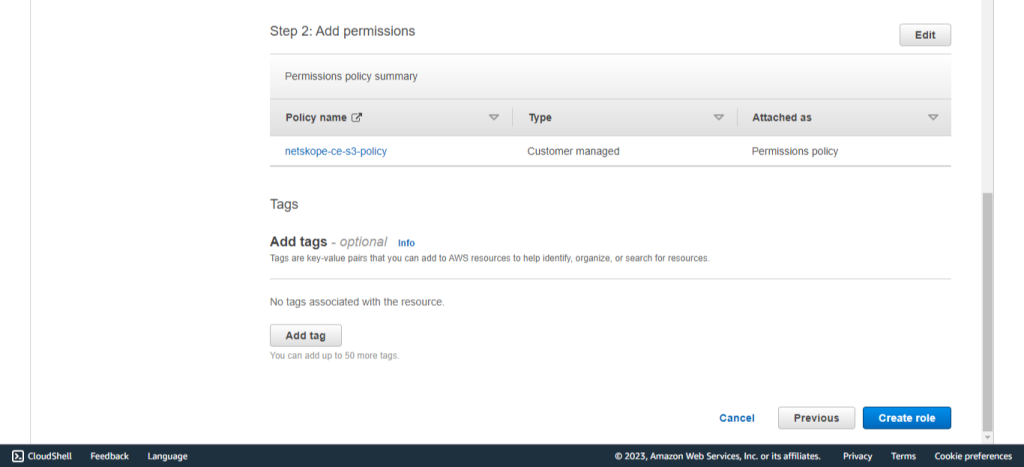
Click Create Role.
Assign role to EC2 Instance
-
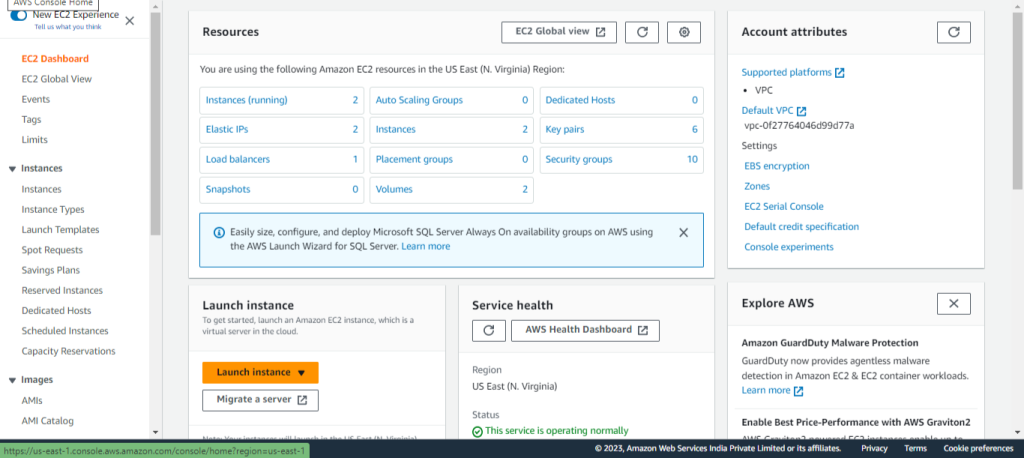
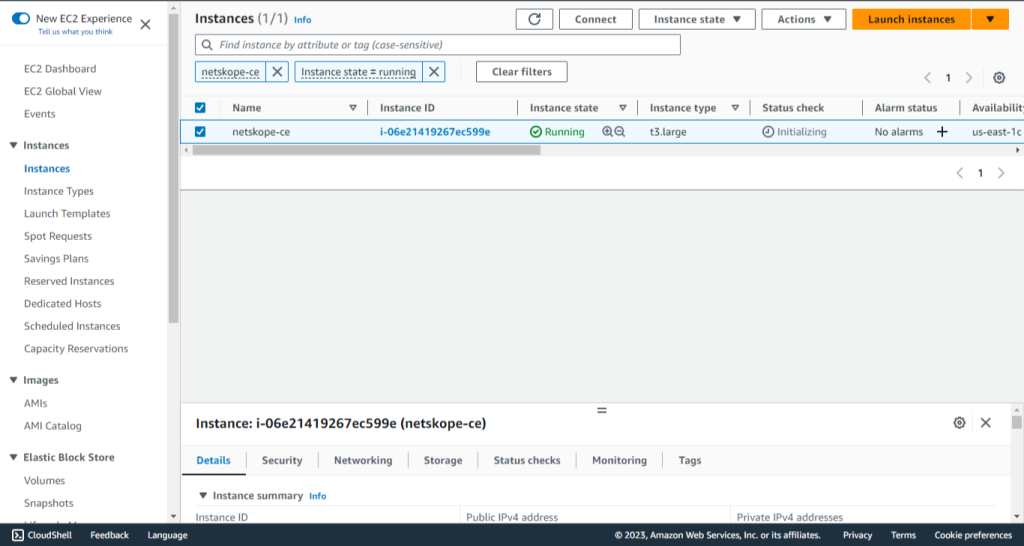
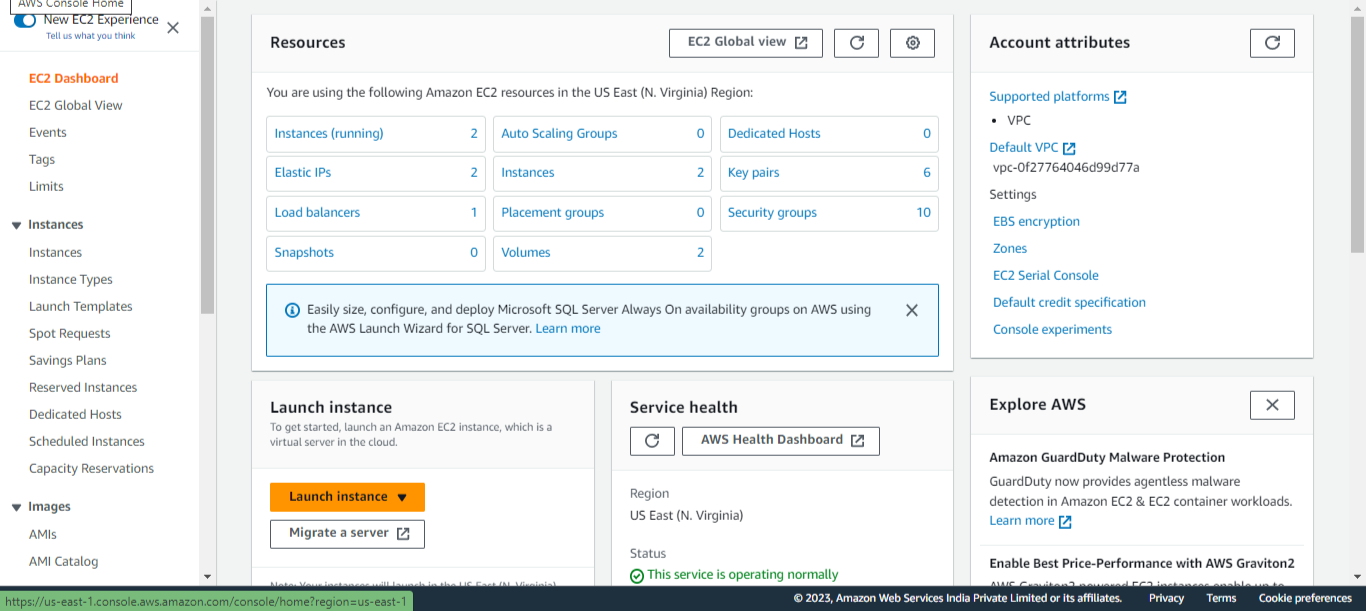
Open your EC2 instance console.
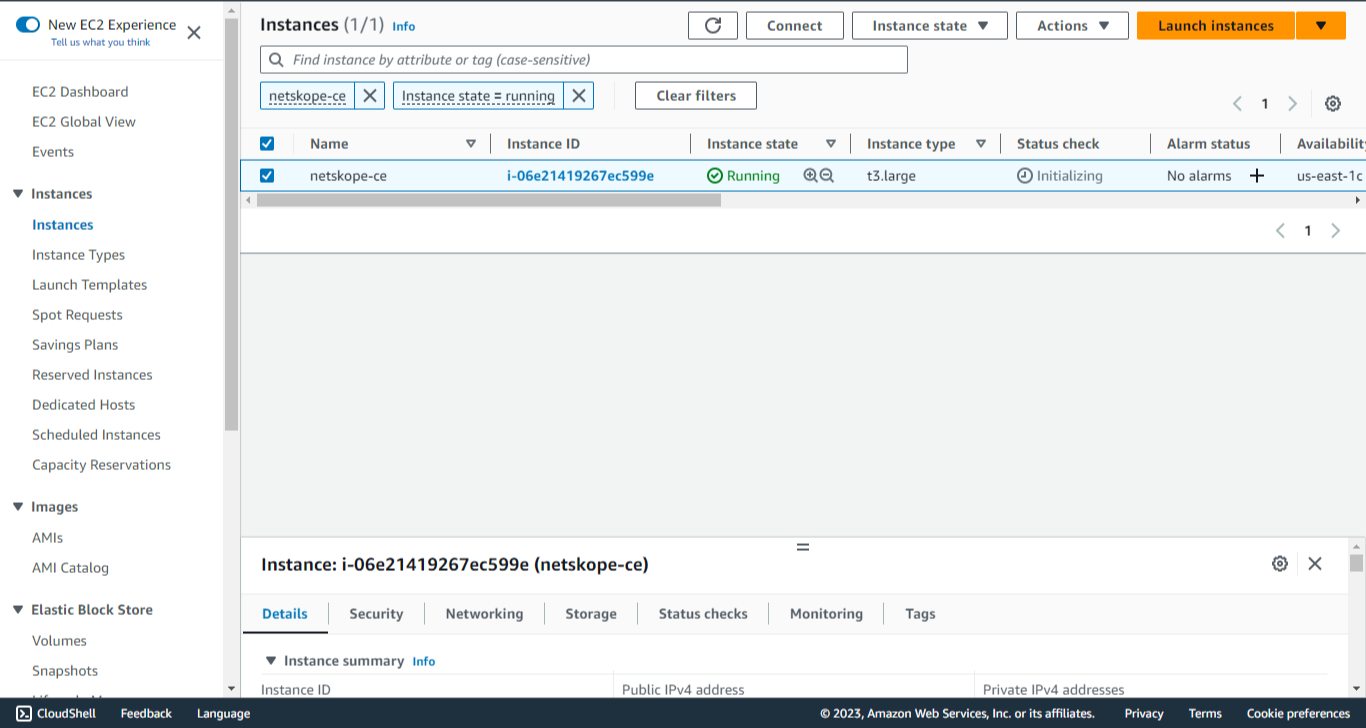
-
Click on Instances under Instances
-
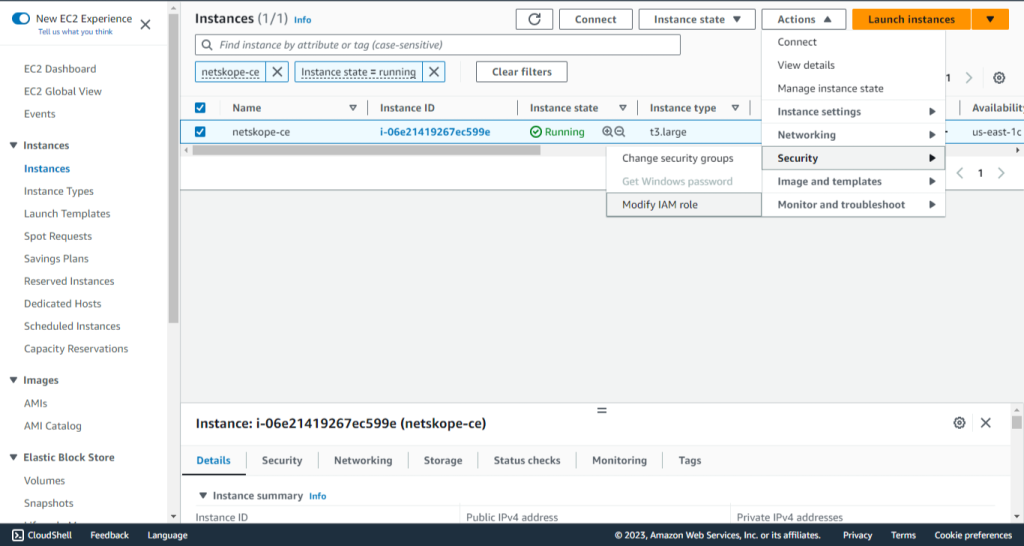
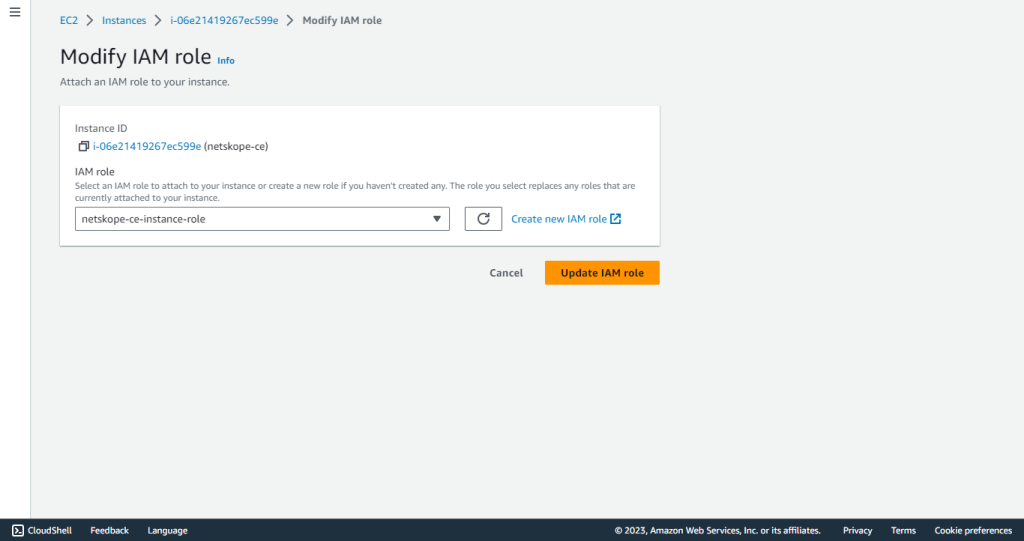
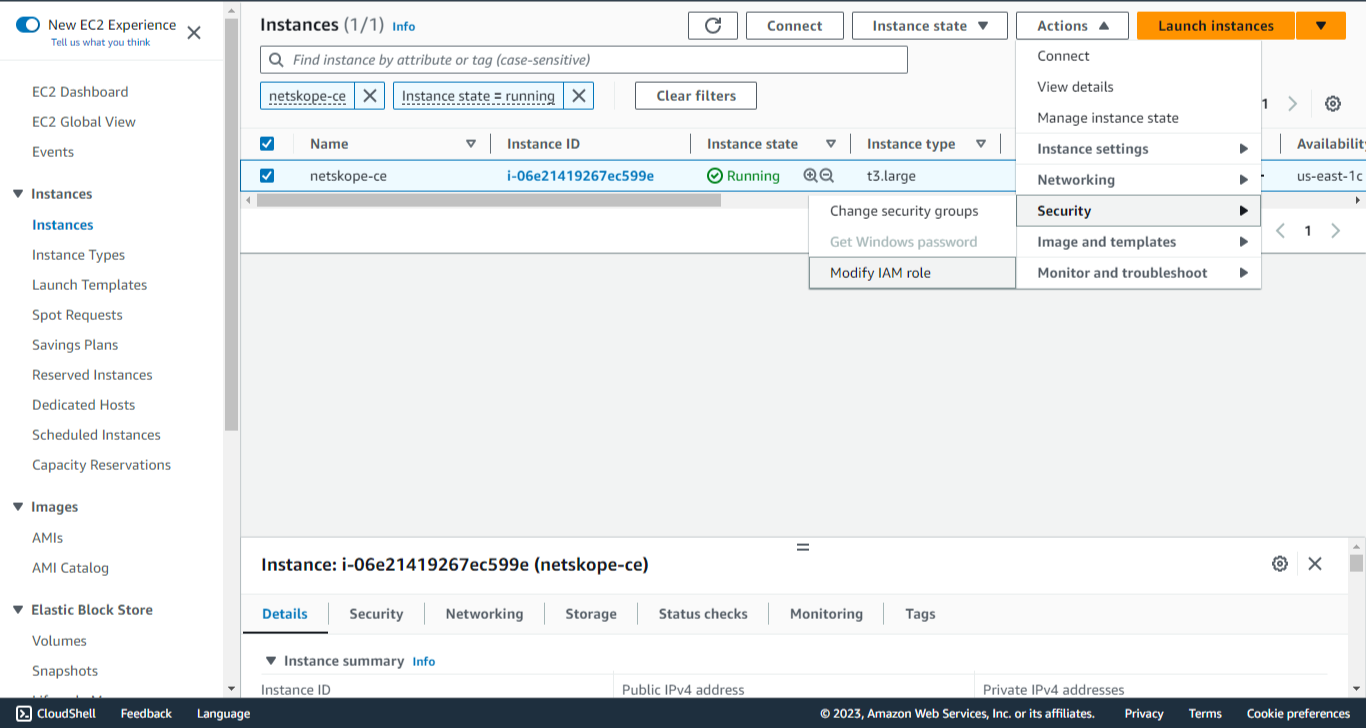
Go to Action > Security > Modify IAM Role.
-
Select the Role that you created above in Create a role (netskope-ce-instance-role).
-
Click Add IAM role/Modify IAM Role. Note that both EC2 instance and Bucket should be on the same region.
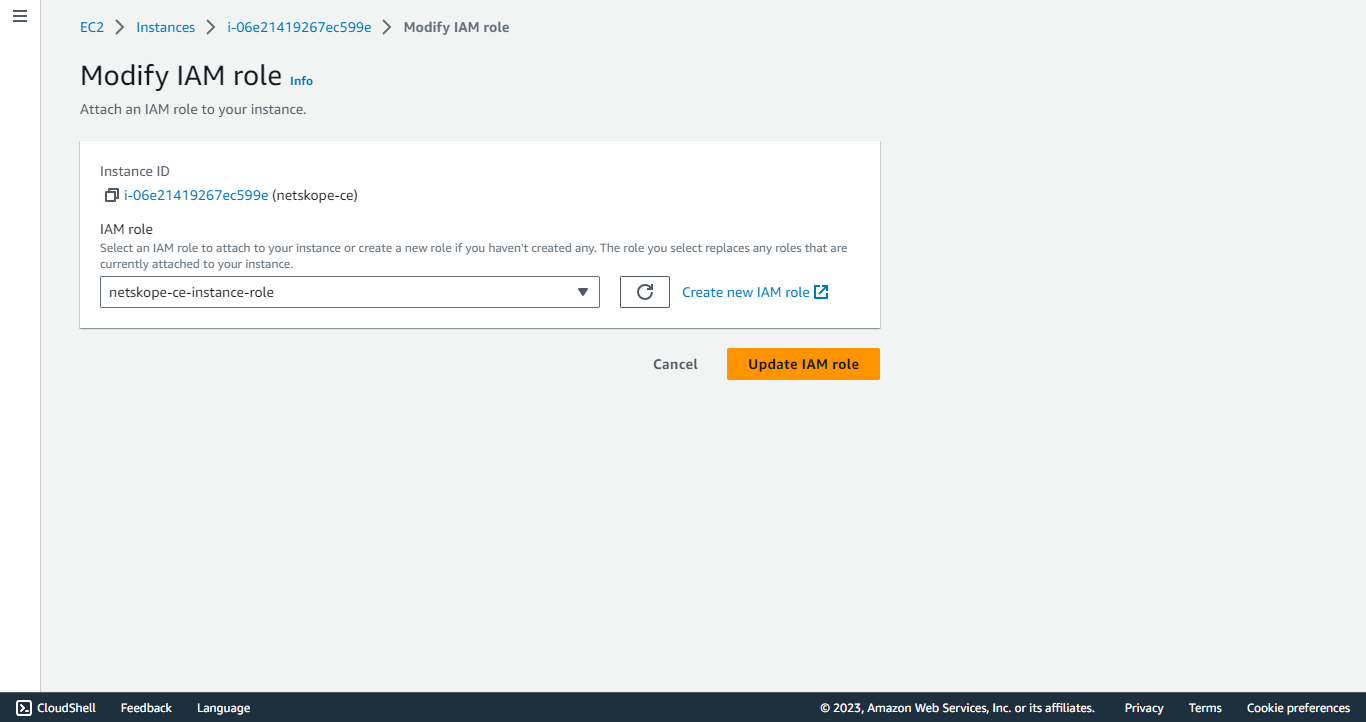
Assign role to Fargate Instance
-
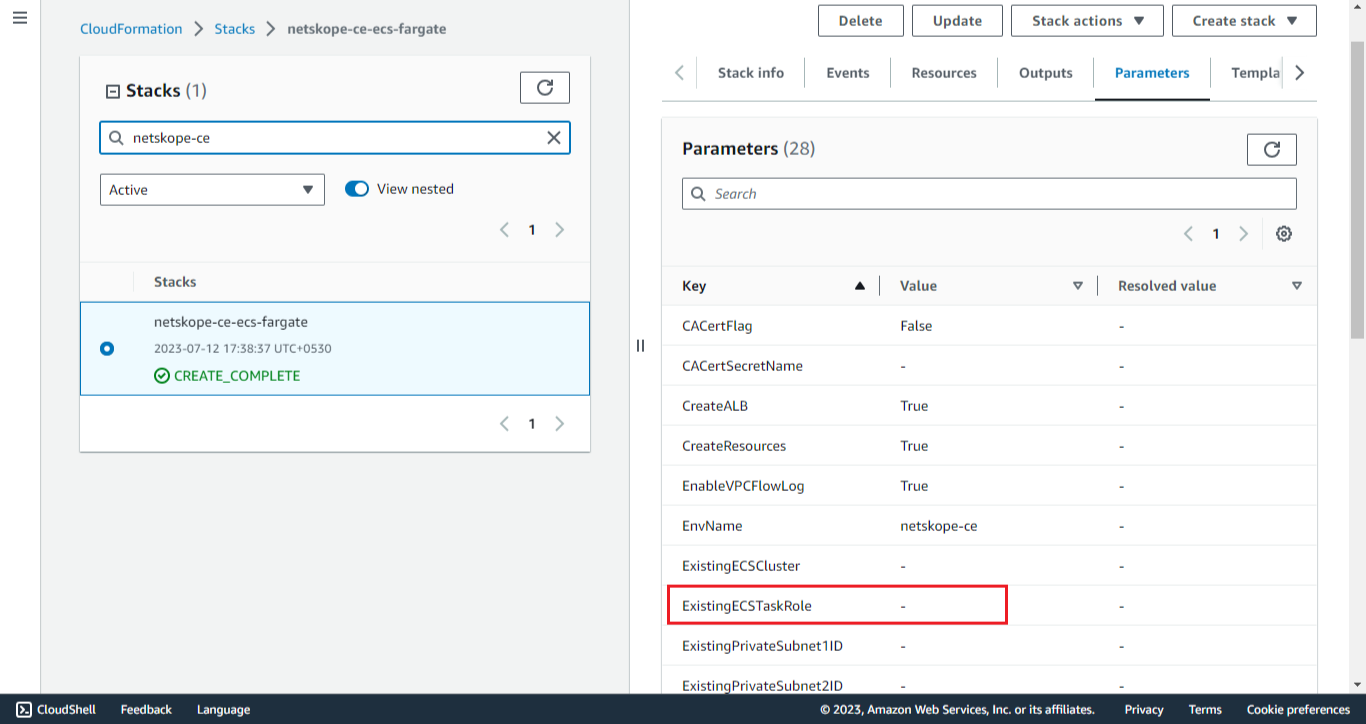
Open your CFN script.
-
Get the ExistingECSTaskRole parameter value if present.
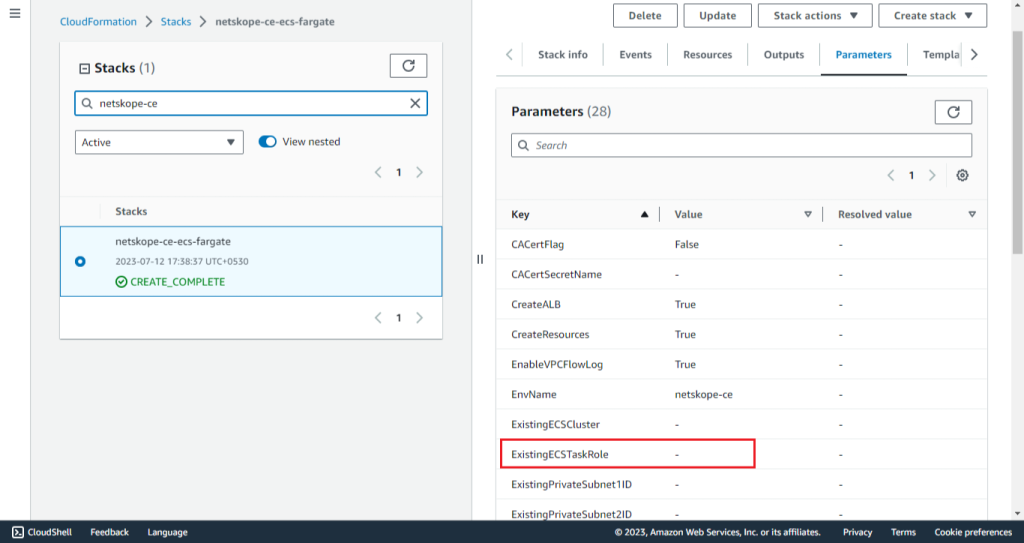
-
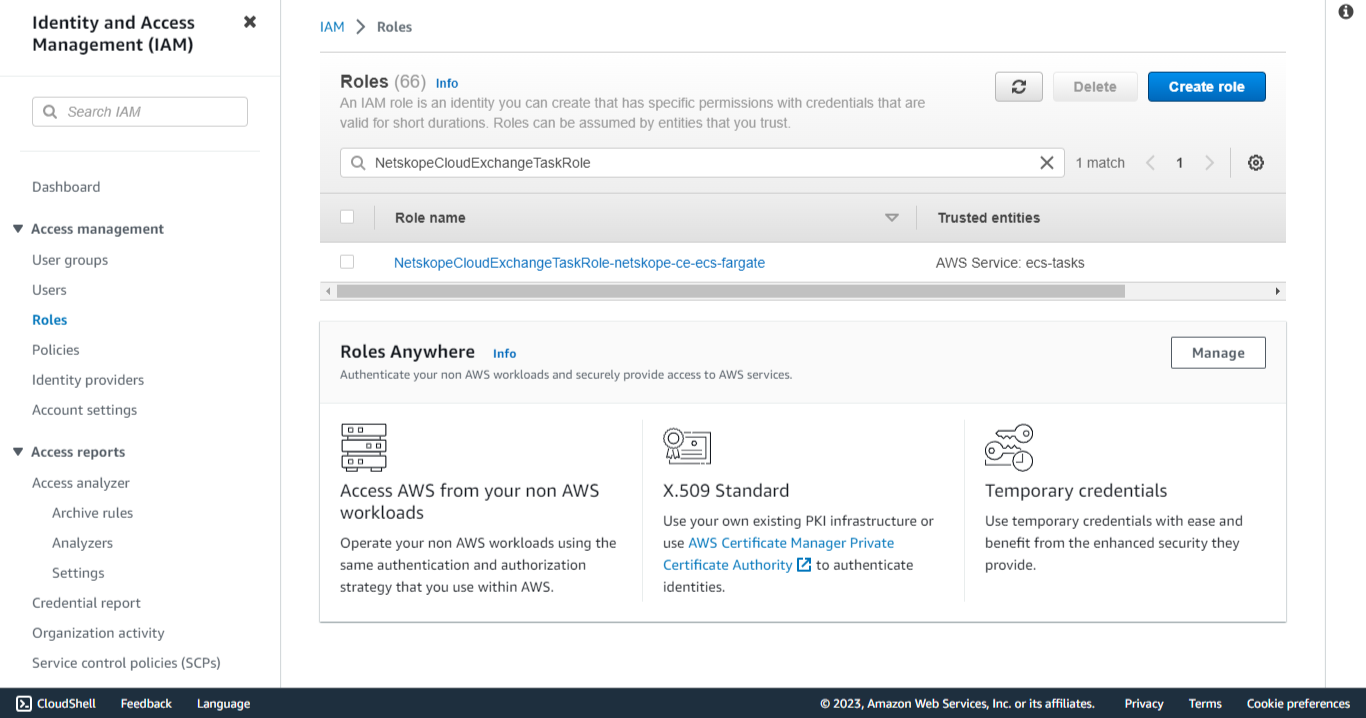
Go to IAM > Roles.
-
Search for the ExistingECSTaskRole parameter value, or else search for NetskopeCloudExchangeTaskRole-<CFN name> and select the role.
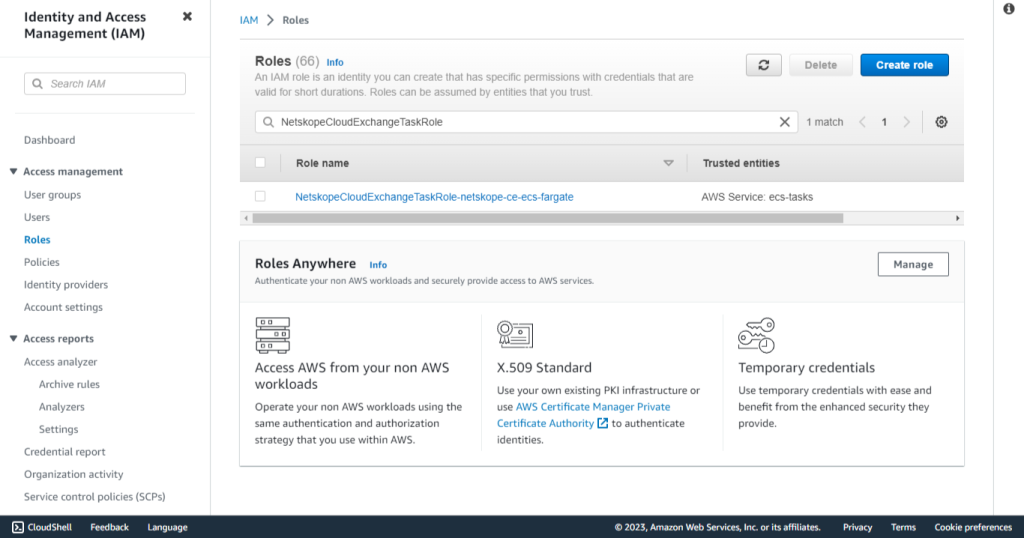
-
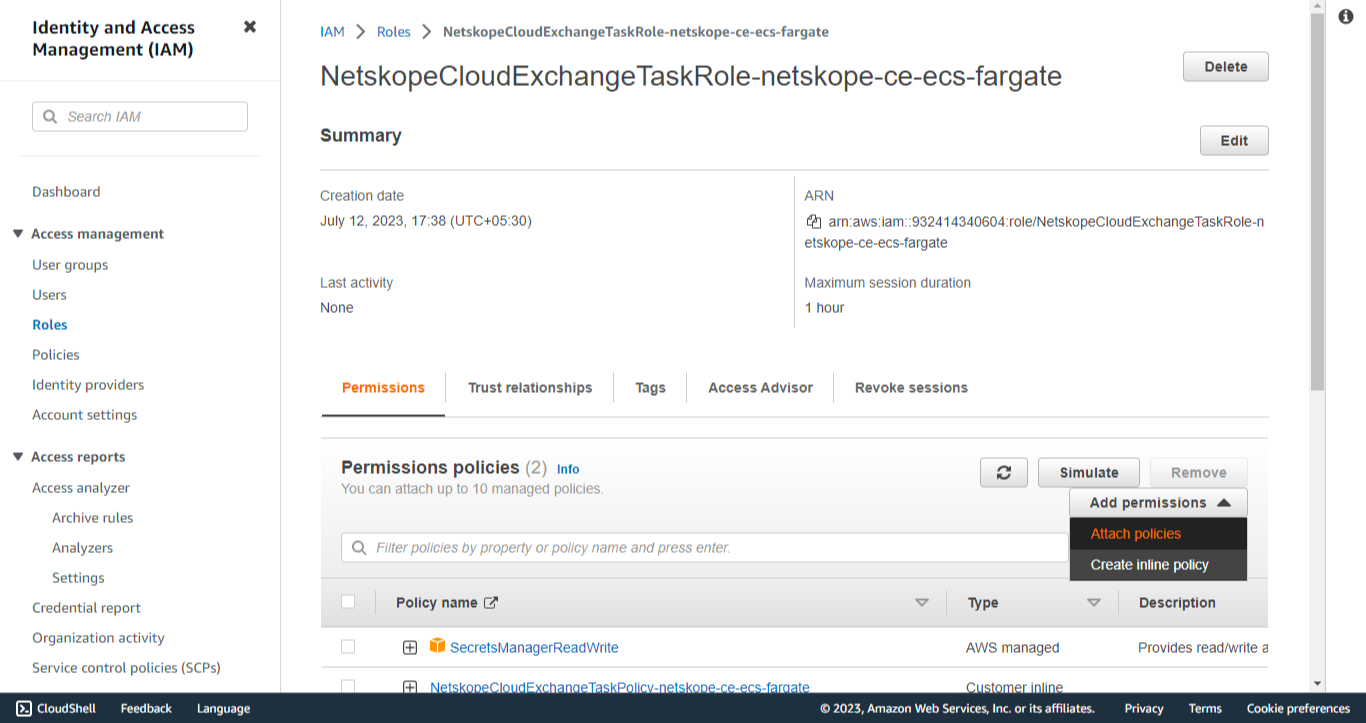
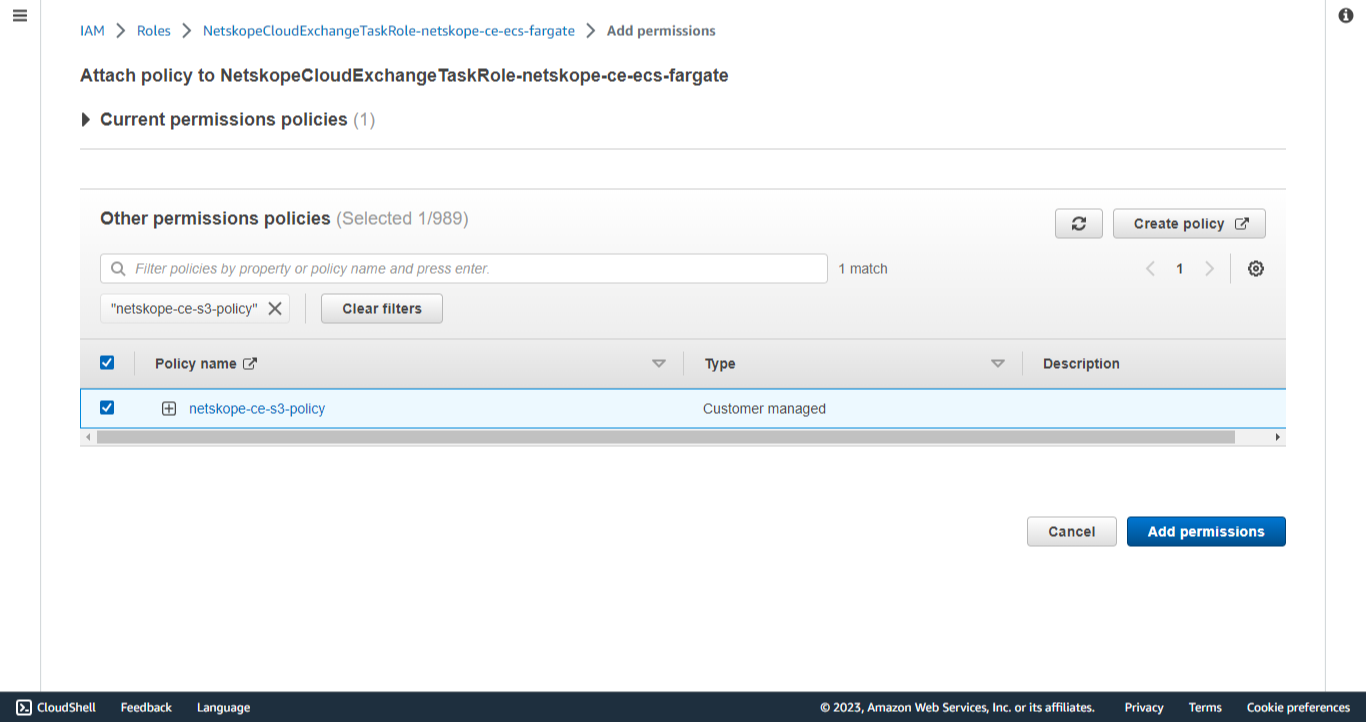
Attach the Policy created previously to this role:
-
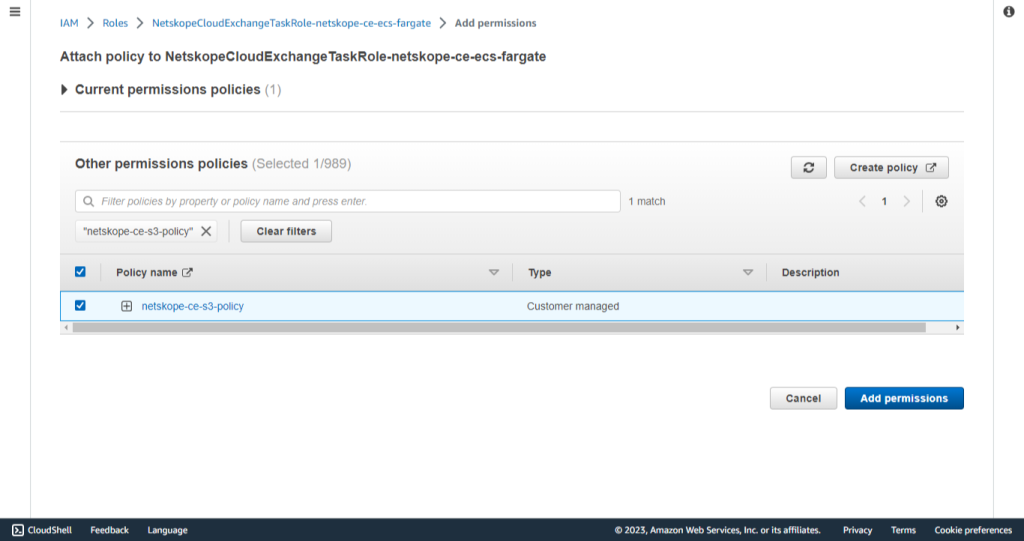
Click Add permission and attach policies.
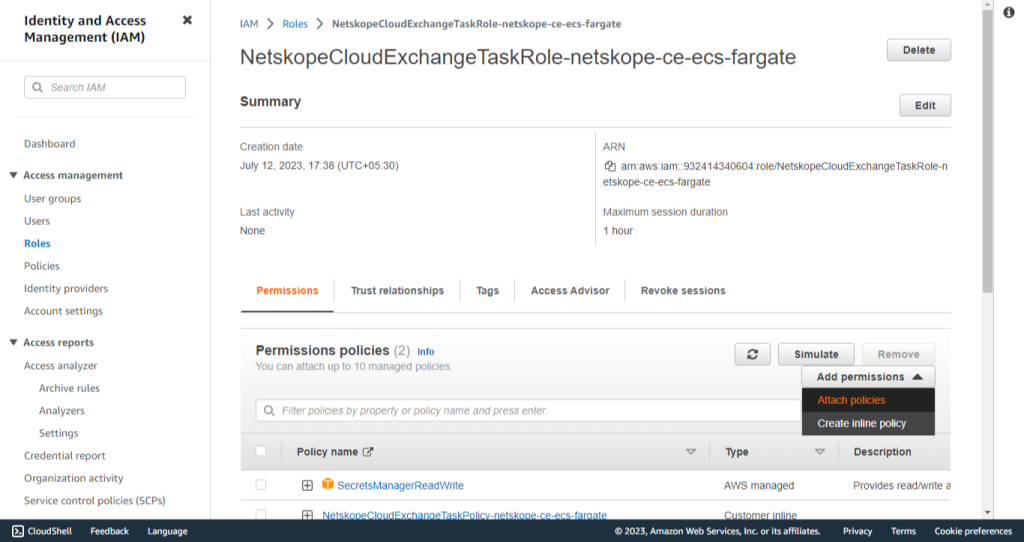
-
Search and select the policy created previously (netskope-ce-s3-policy).
-
Click Add permissions.
-
Assign role to K8s Instance
- Open your Role created for ServiceAccount while creating K8s instance.
- Attach Policy created in Create Policy
Configure the AWS CloudWatch Plugin
-
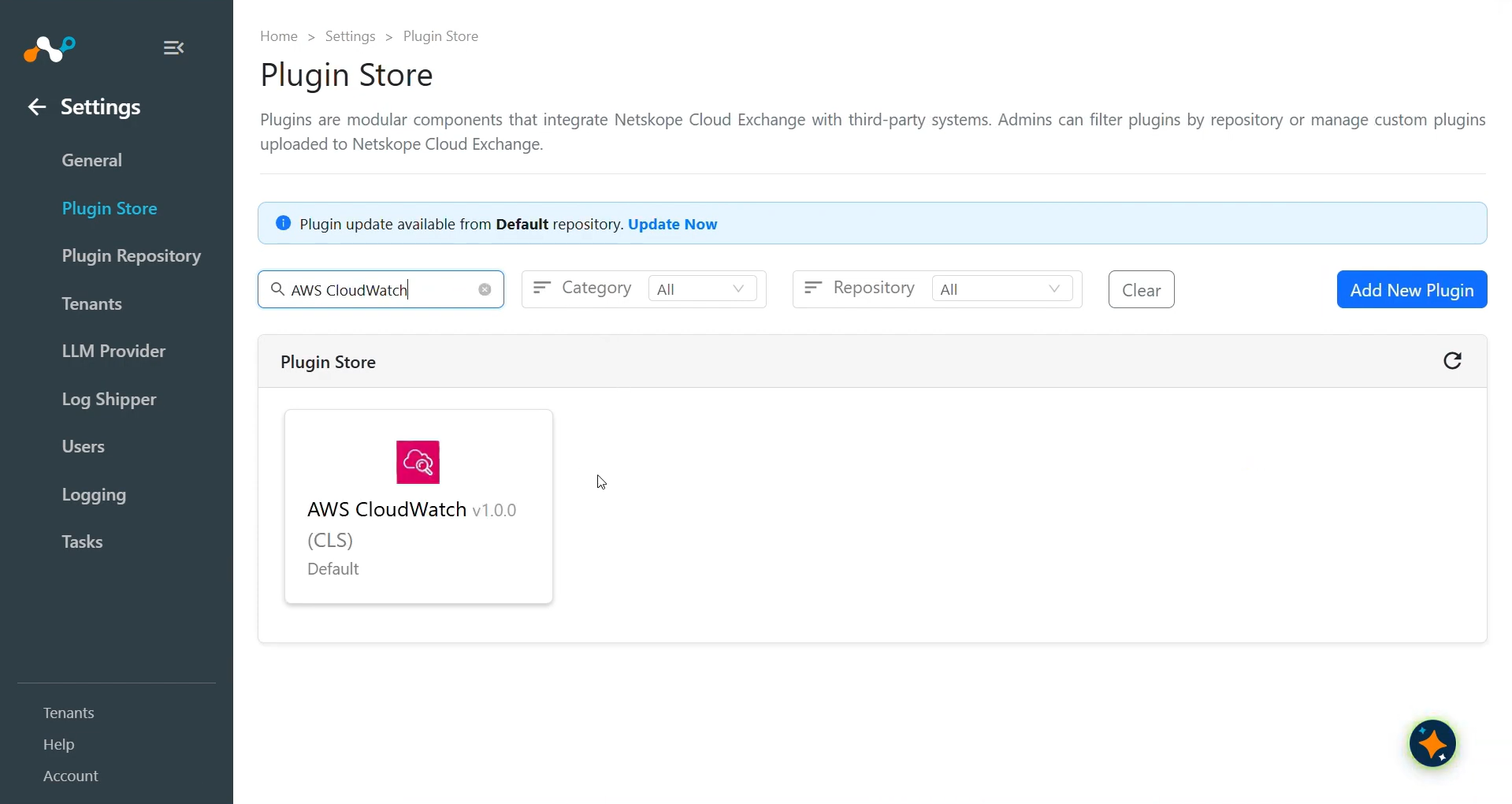
Go to Settings > Plugin Store. Search for and select the AWS CloudWatch v1.0.0 (CLS) plugin.
-
Enter a plugin configuration name and make sure you have the AWS CloudWatch Default Mapping file selected if you want to use CEF format.
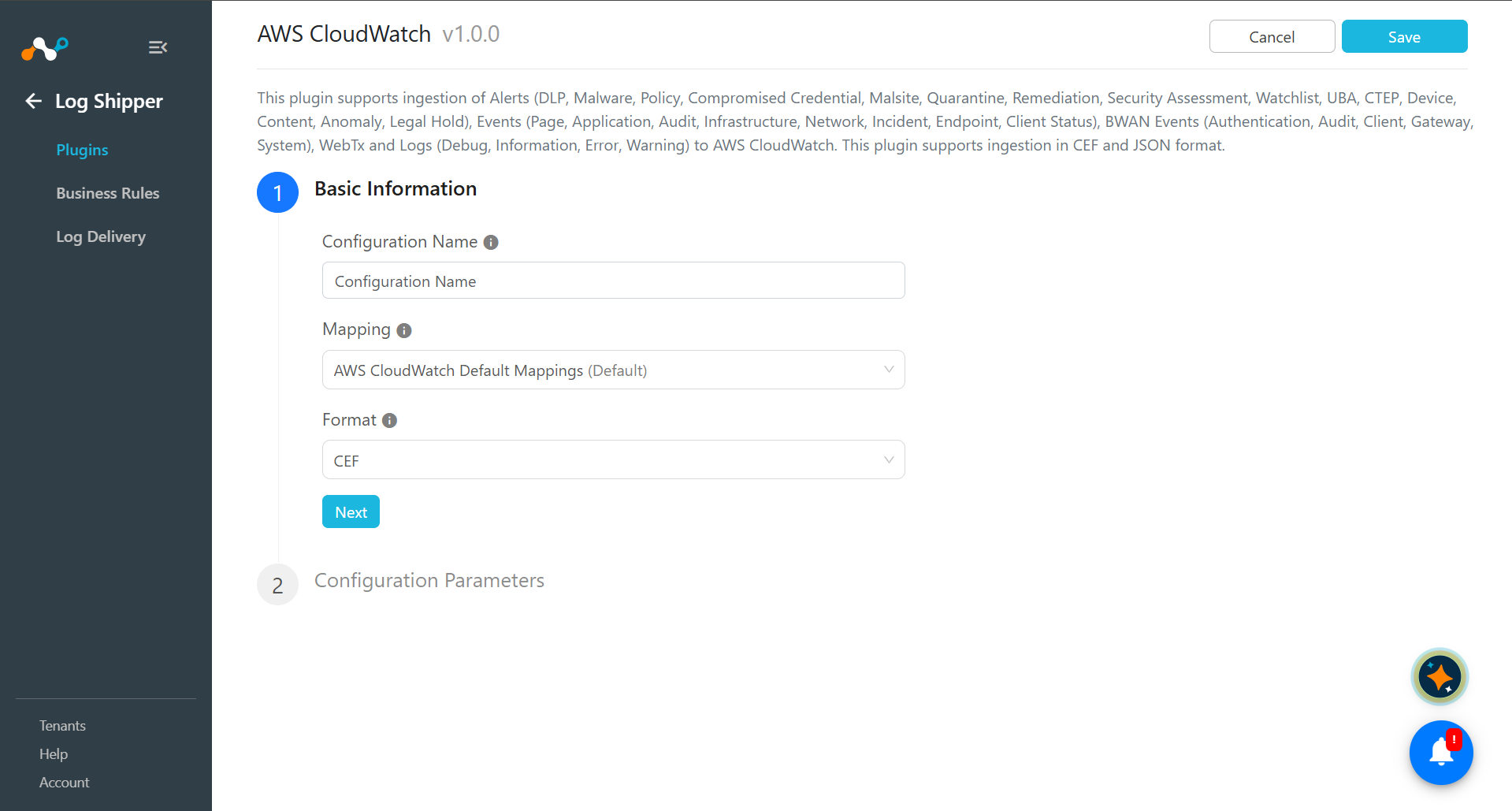 To ingest data in JSON format, select format as ‘JSON’ under Basic Information.
 -
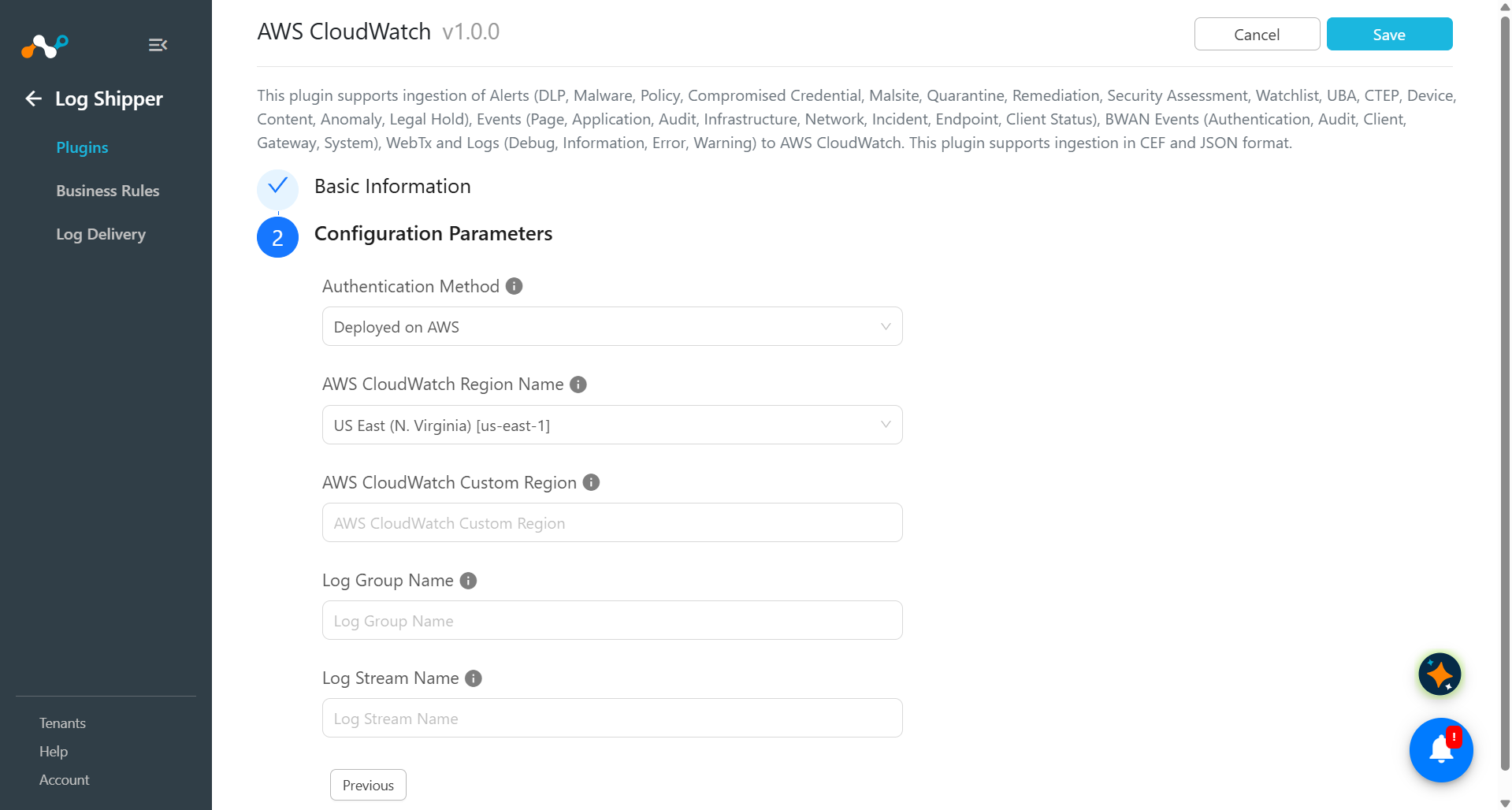
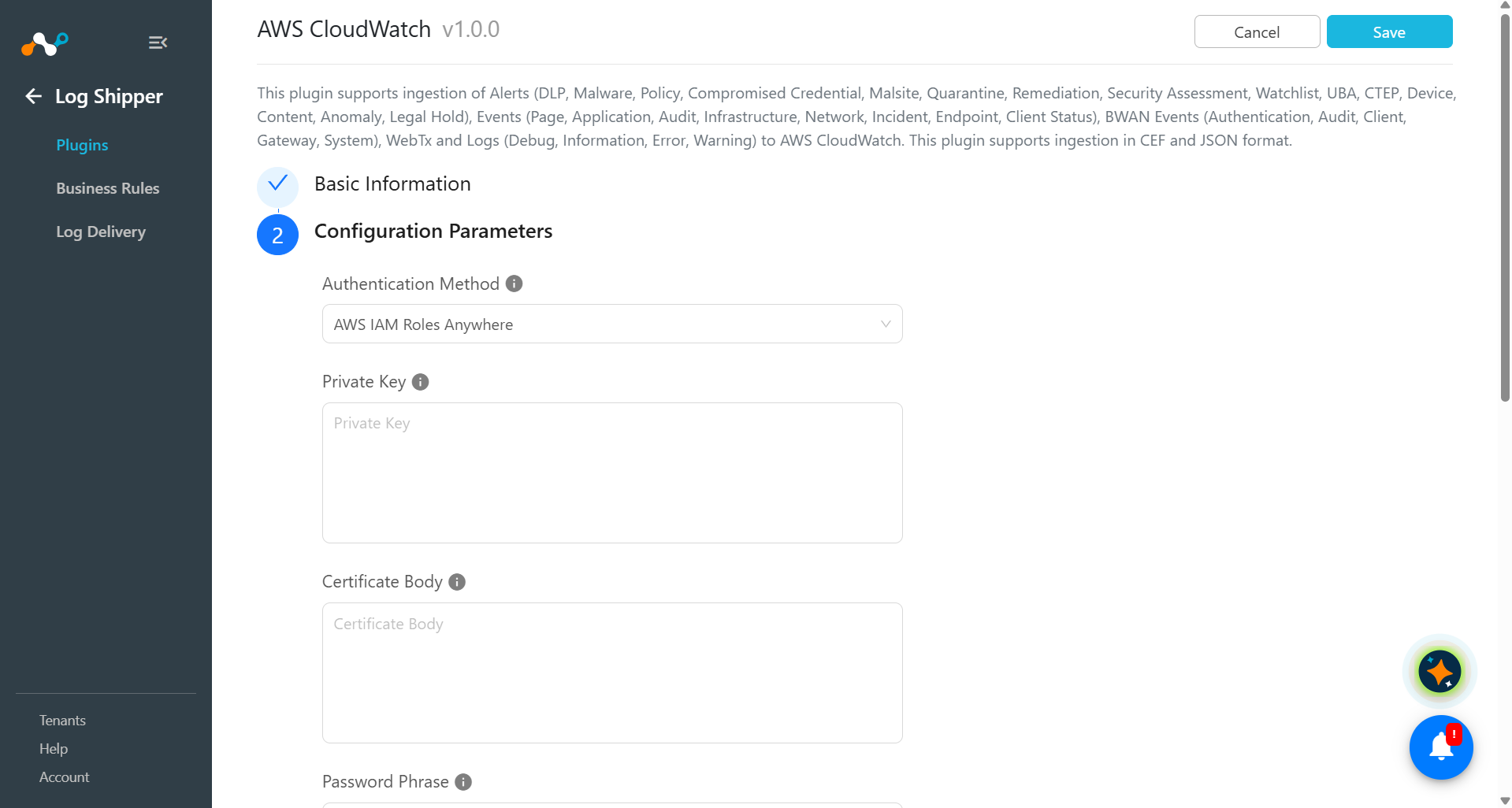
Click Next and enter the Configuration Parameters:
- Authentication Method: Select the method to be used for AWS client authentication.
Deployed on AWS uses the IAM role attached to the AWS environment where Cloud Exchange runs.
AWS IAM Roles Anywhere uses an X.509 certificate and private key to get temporary AWS credentials, and is meant for Cloud Exchange running outside AWS. - Private Key: PEM-encoded private key that matches the Certificate Body. It signs the IAM Roles Anywhere CreateSession request. Required for AWS IAM Roles Anywhere authentication.
- Certificate Body: PEM-encoded X.509 end-entity certificate issued by the CA configured in the Trust Anchor. Required for AWS IAM Roles Anywhere authentication.
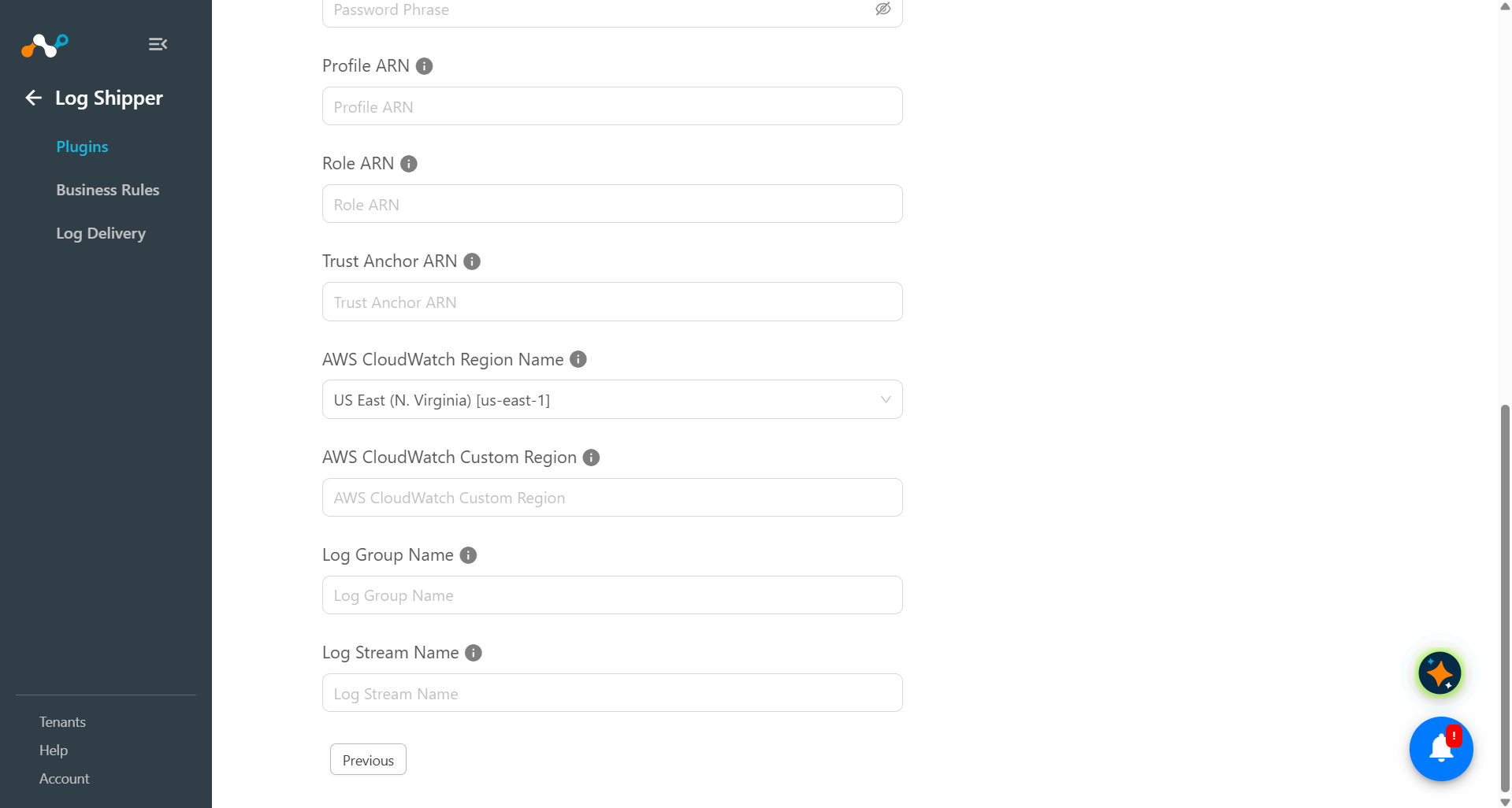
- Password Phrase: Passphrase of the Private Key, if the key is encrypted. Required for AWS IAM Roles Anywhere authentication.
- Profile ARN: ARN of the IAM Roles Anywhere profile. Format:
arn:aws:rolesanywhere:{region}:{account-id}:profile/{profile-id}. Required for AWS IAM Roles Anywhere authentication. - Role ARN: ARN of the IAM role to be assumed. Format:
arn:aws:iam::{account-id}:role/{role-name}. The role needs logs:PutLogEvents on the target log stream, and logs:CreateLogGroup and logs:CreateLogStream if the plugin should create them. Required for AWS IAM Roles Anywhere authentication. - Trust Anchor ARN: ARN of the IAM Roles Anywhere trust anchor. Format: arn:aws:rolesanywhere:{region}:{account-id}:trust-anchor/{anchor-id}. Required for AWS IAM Roles Anywhere authentication.
- AWS CloudWatch Region Name: AWS region that holds the target CloudWatch log group. When AWS IAM Roles Anywhere is used, this region must match the region in the Profile ARN and the Trust Anchor ARN. Select Custom Region to enter a region that is not in the list.
- AWS CloudWatch Custom Region: Only used when AWS CloudWatch Region Name is set to Custom Region; leave it empty otherwise. Any valid AWS region code of the log group, for a region that is not in the list, for example us-west-1. AWS IAM Roles Anywhere supports the aws, aws-cn and aws-us-gov partitions only, not the ISO or eusc- regions.
- Log Group Name: Name of the CloudWatch log group the data is written to. The plugin creates the log group if it does not exist. It can be 1 to 512 characters long and can contain letters, digits and the characters . – _ / #.
- Log Stream Name: Name of the log stream inside the log group. The plugin creates the log stream if it does not exist. It can be 1 to 512 characters long and must not contain : or *.
- Authentication Method: Select the method to be used for AWS client authentication.
-
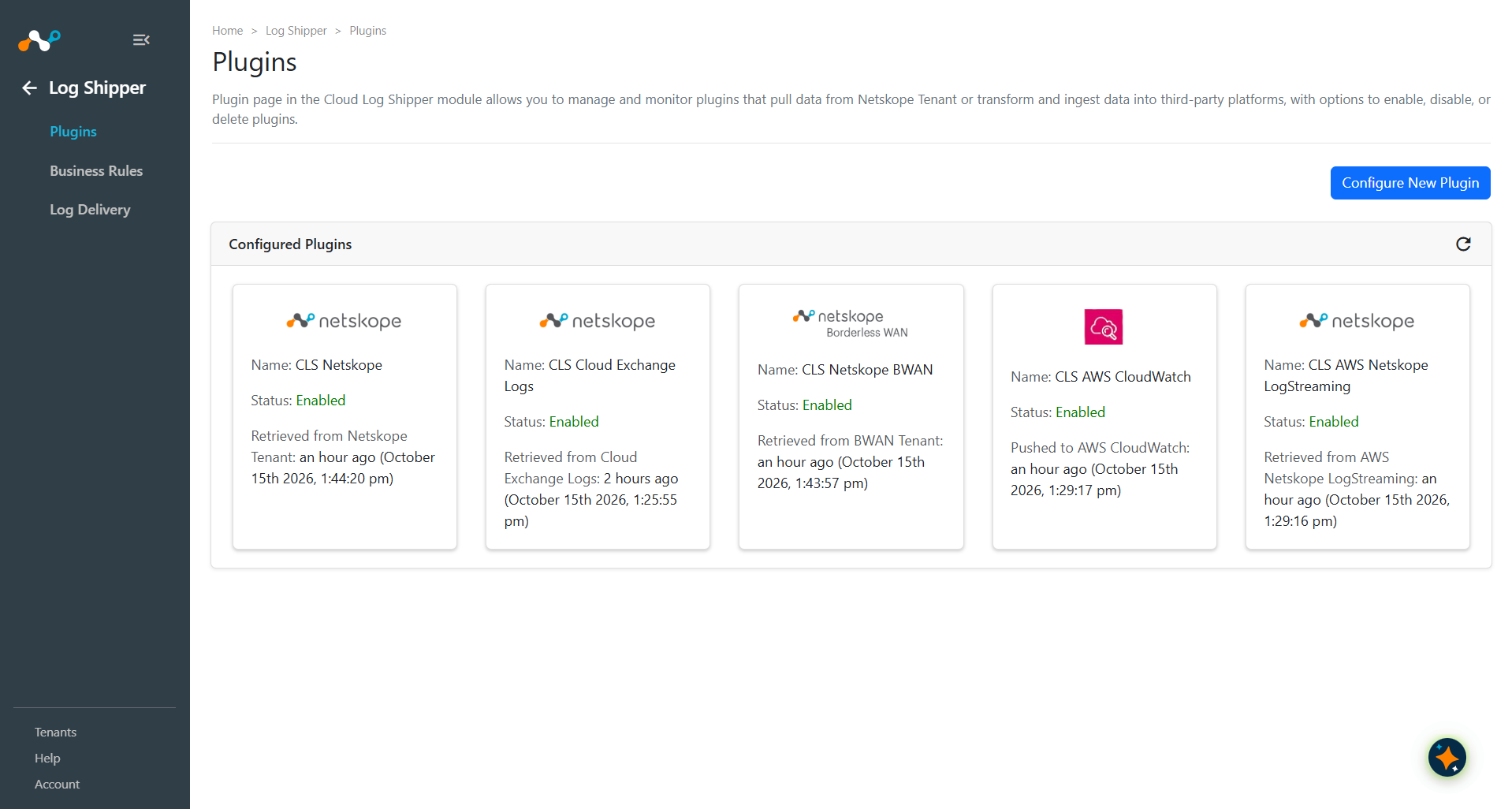
Click Save. Your plugin configuration will be available on the Log Shipper > Plugins page.
Configure a Log Shipper Business Rule for the AWS CloudWatch
-
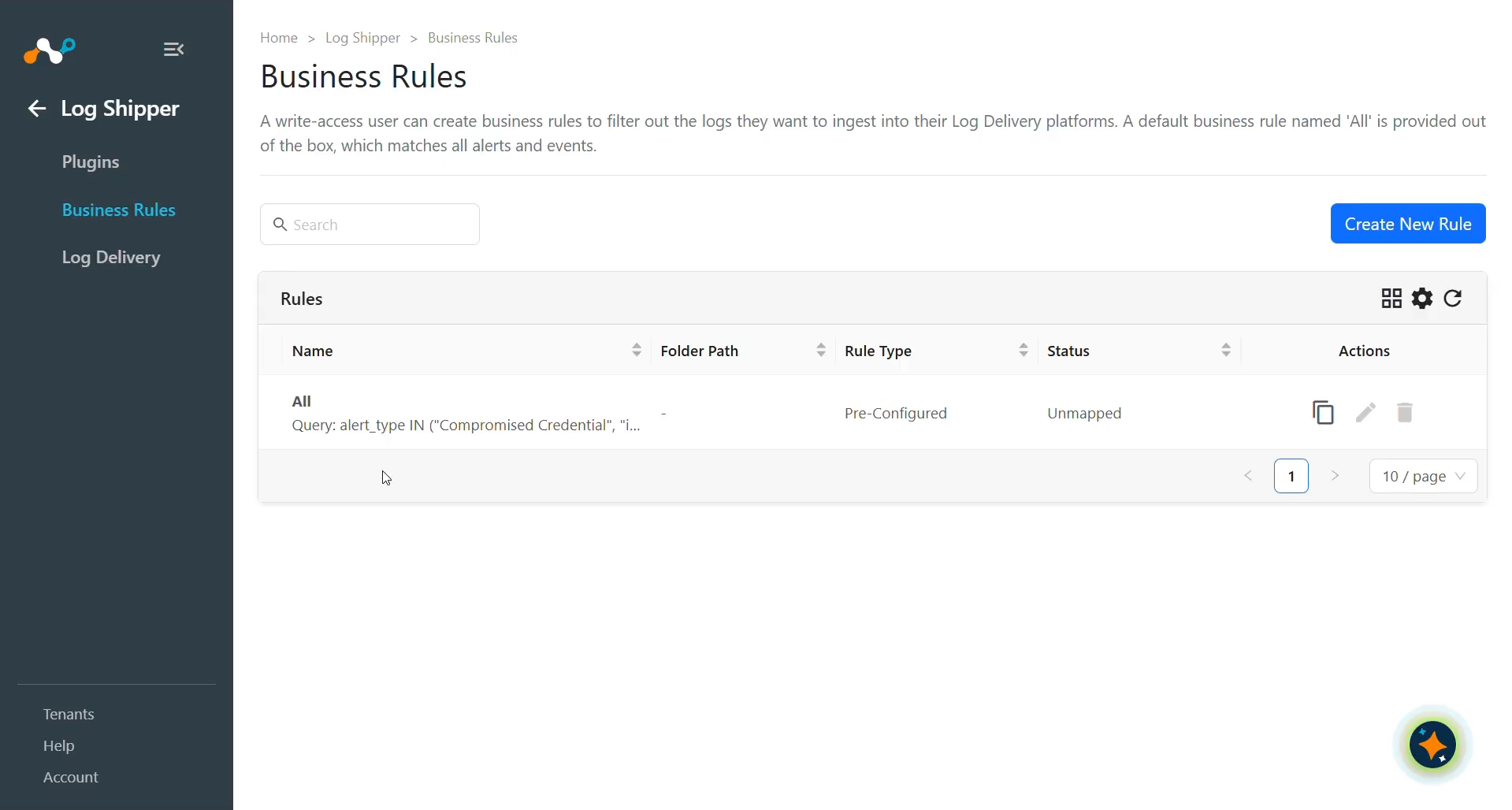
Go to the Business Rule page.
-
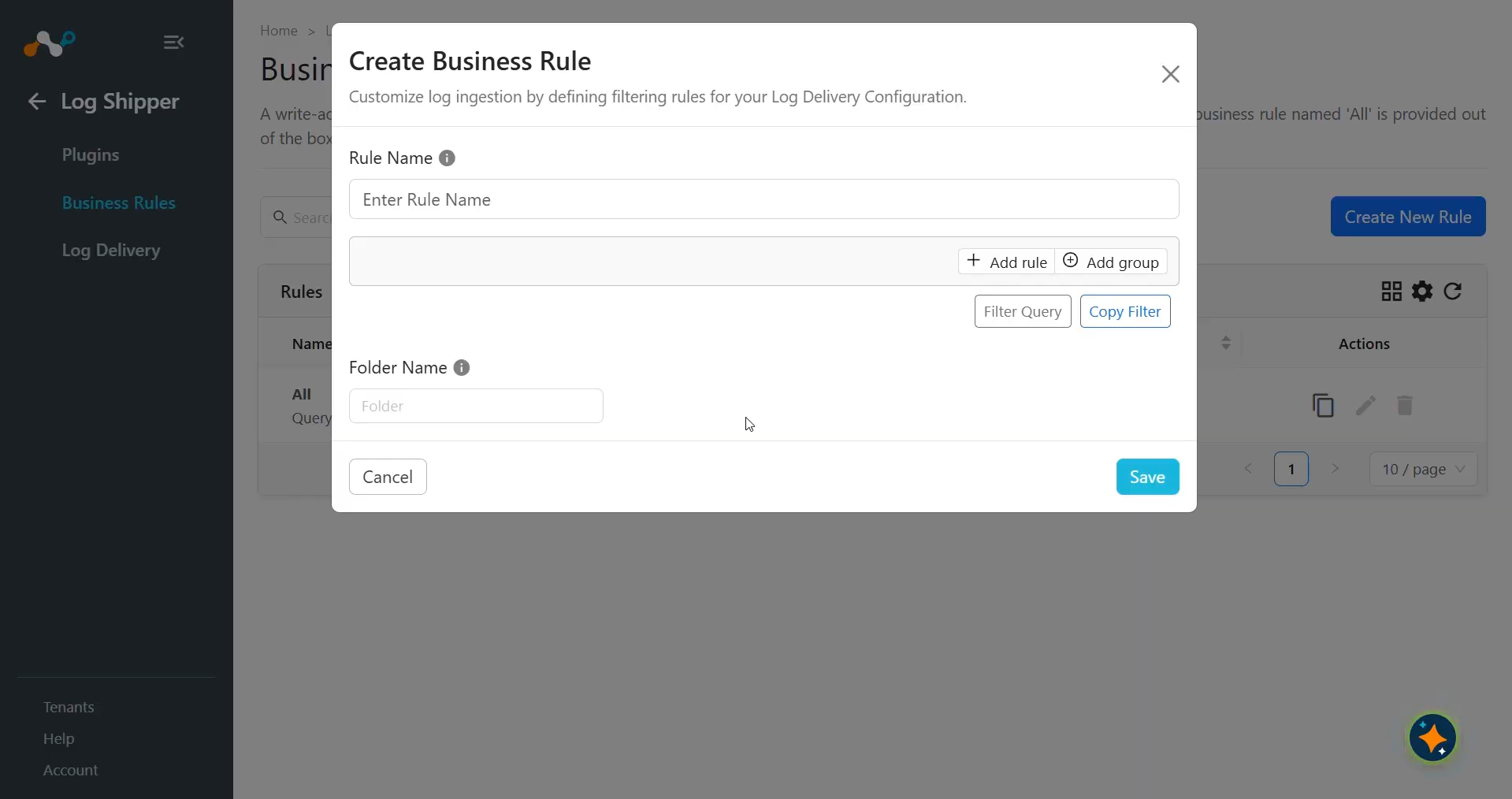
By default, there is a business rule that filters all alerts and events. If you want to filter out any specific type of alert or event, click Create New Rule and configure a new business rule by adding the rule name and filter(s).
-
Click Save.
Configure Log Shipper Log Delivery for AWS CloudWatch
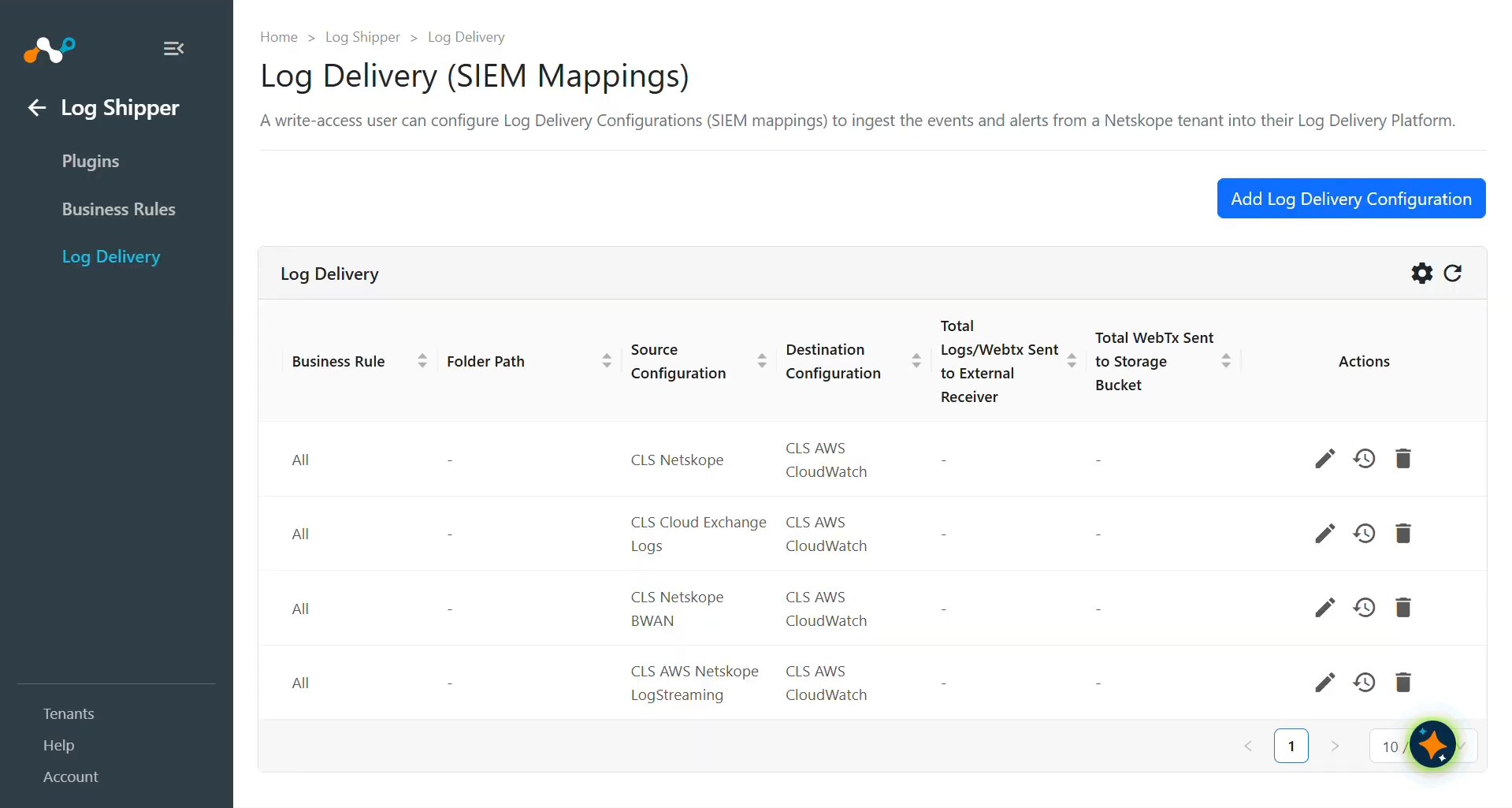
- in Log Shipper, go to Log Delivery and click Add Log Delivery Configuration.
- Select the Source plugin (CLS Netskope or any other source plugin), Destination plugin (CLS AWS CloudWatch), and business rule and click on save.
- For WebTx select Source plugin(CLS AWS Netskope LogStreaming), and Destination plugin(CLS AWS CloudWatch).
- For Logs sharing, select the Source plugin (CLS Cloud Exchange Logs), and Destination plugin (CLS AWS CloudWatch).
- For BWAN events sharing, select the Source plugin (CLS Netskope BWAN), and Destination plugin (CLS AWS CloudWatch).
- After the Log Delivery is added, the data will start to be pulled from the Netskope tenant or source platform, then transformed, and ingested into the AWS CloudWatch platform.
Validate the AWS CloudWatch Plugin
Validate the Pull
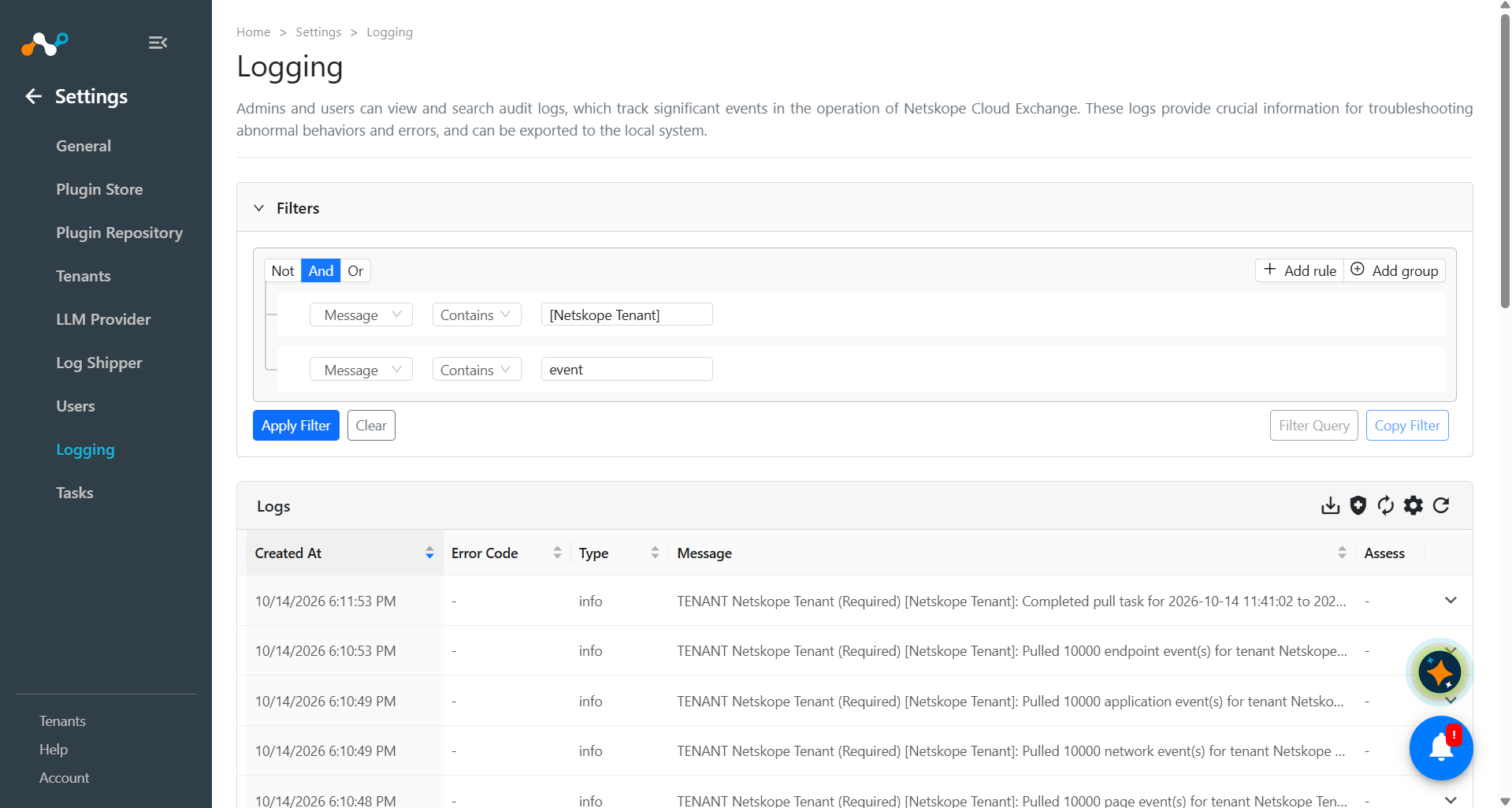
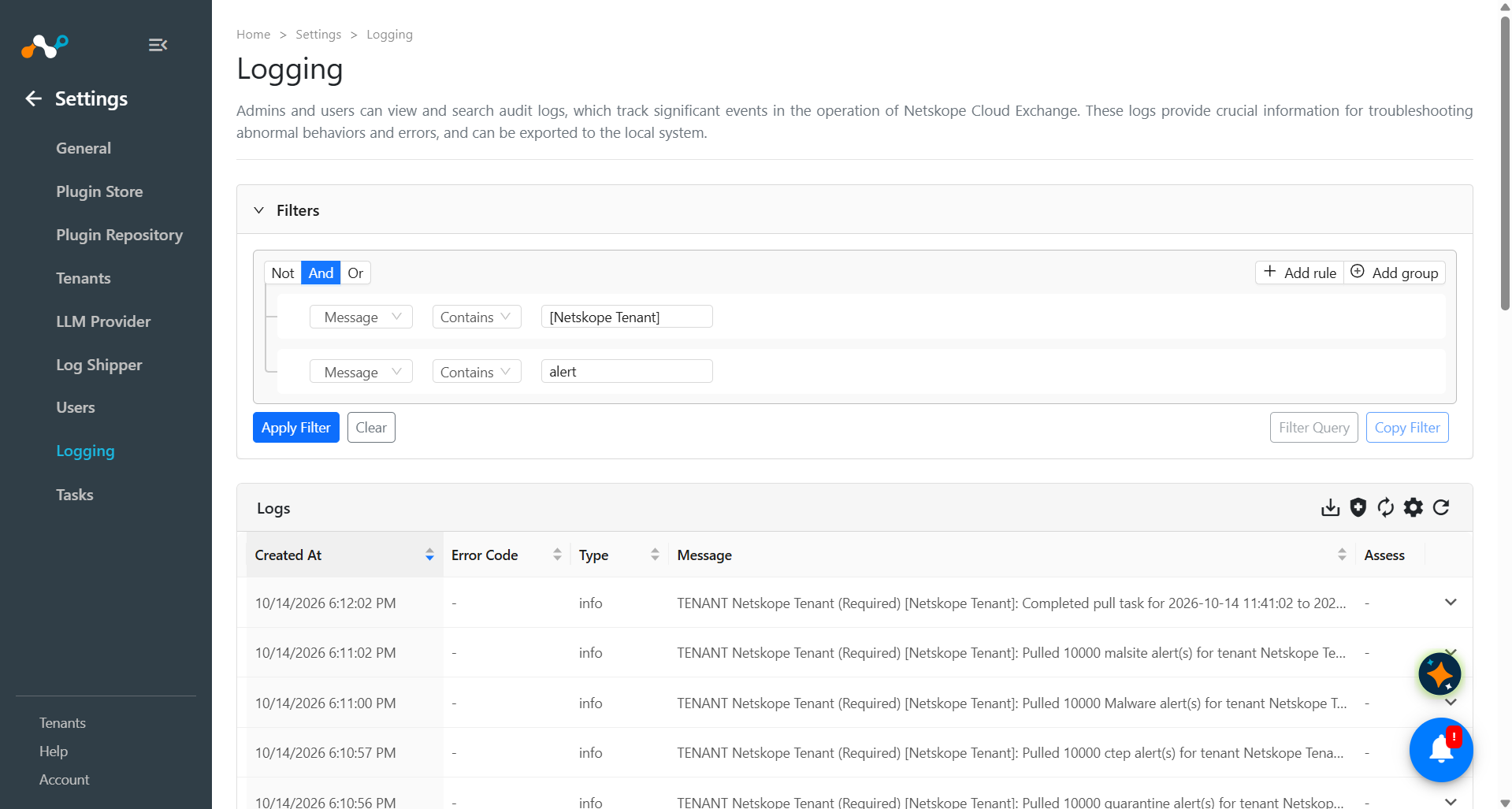
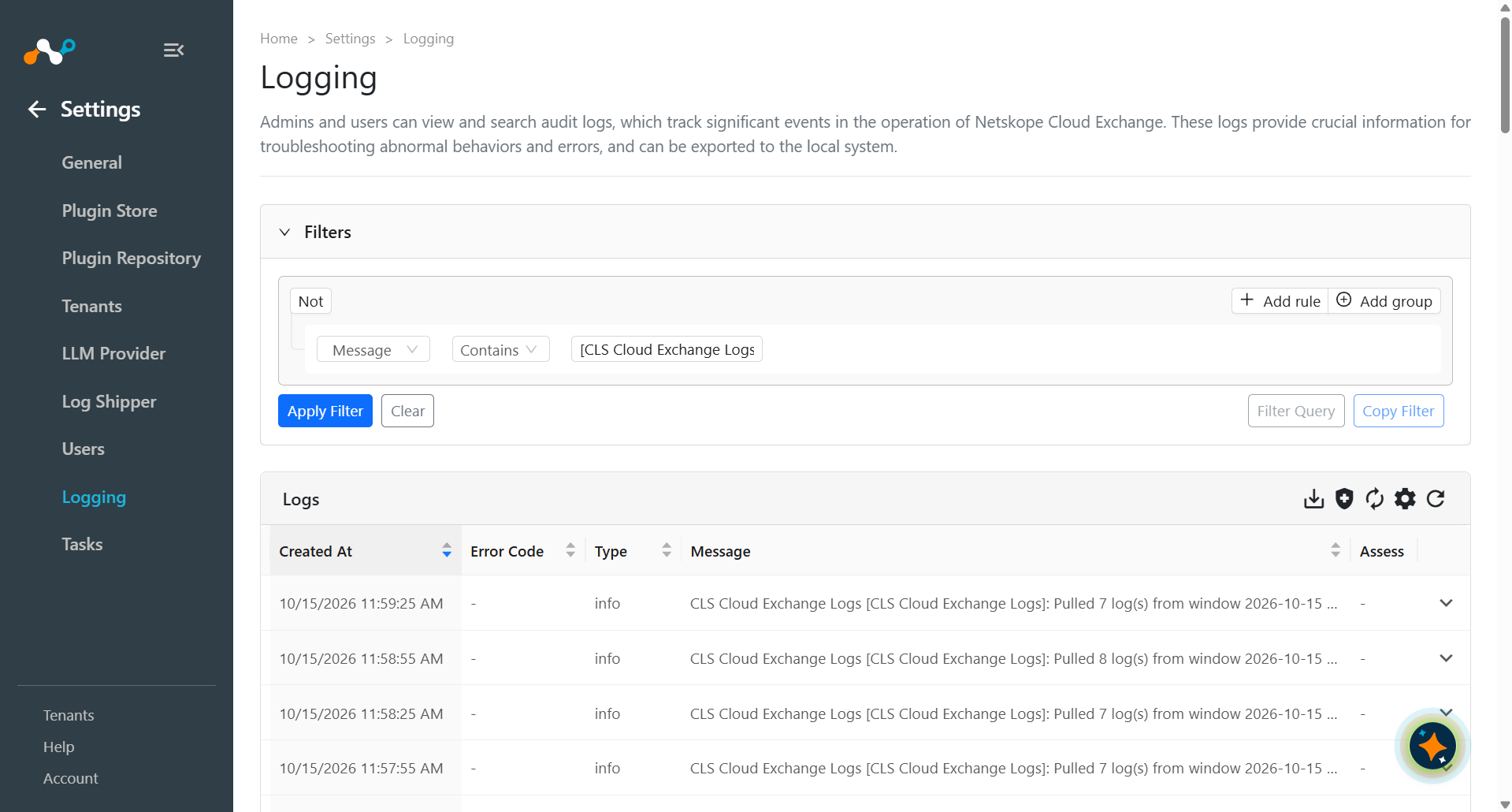
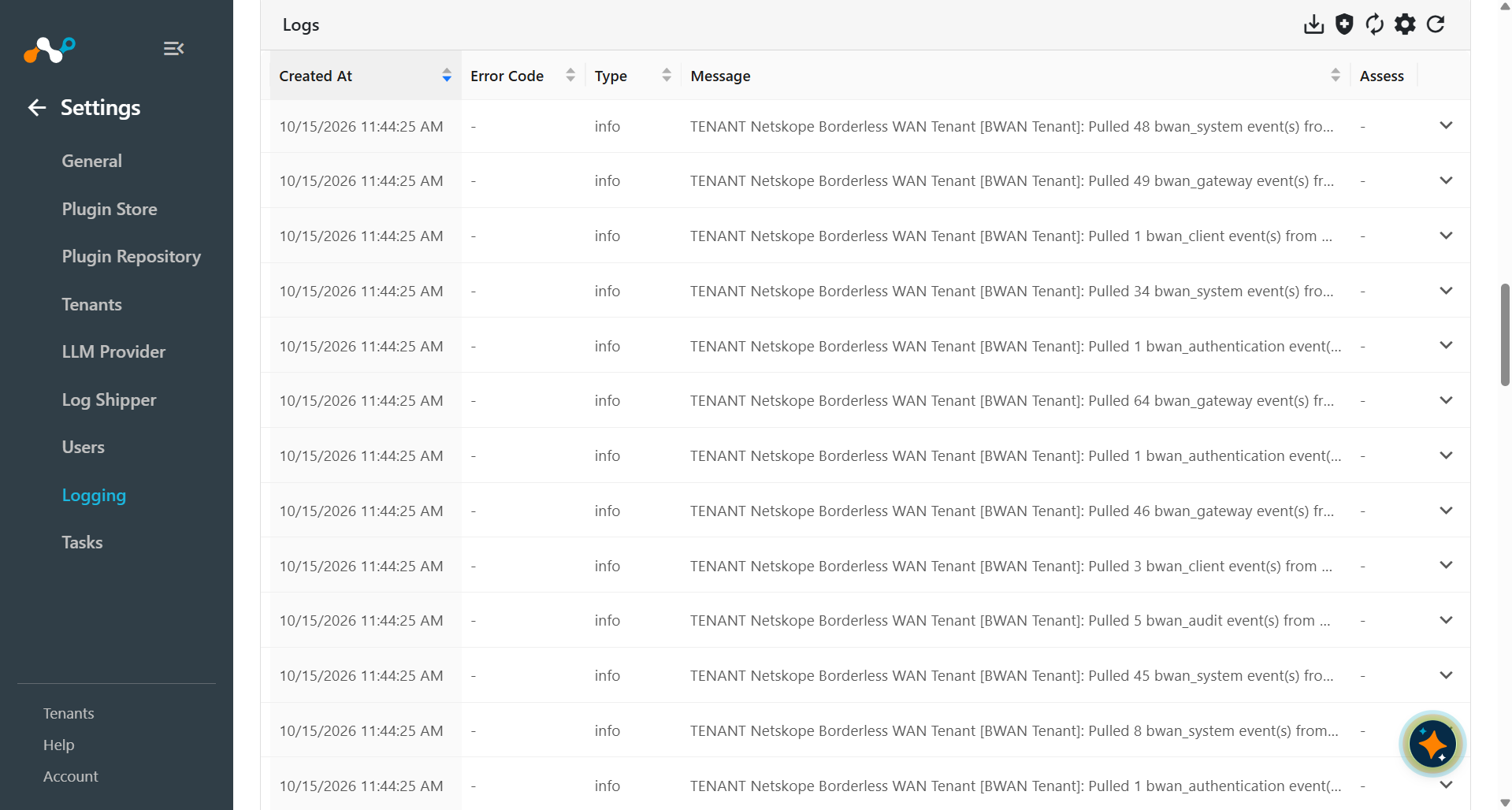
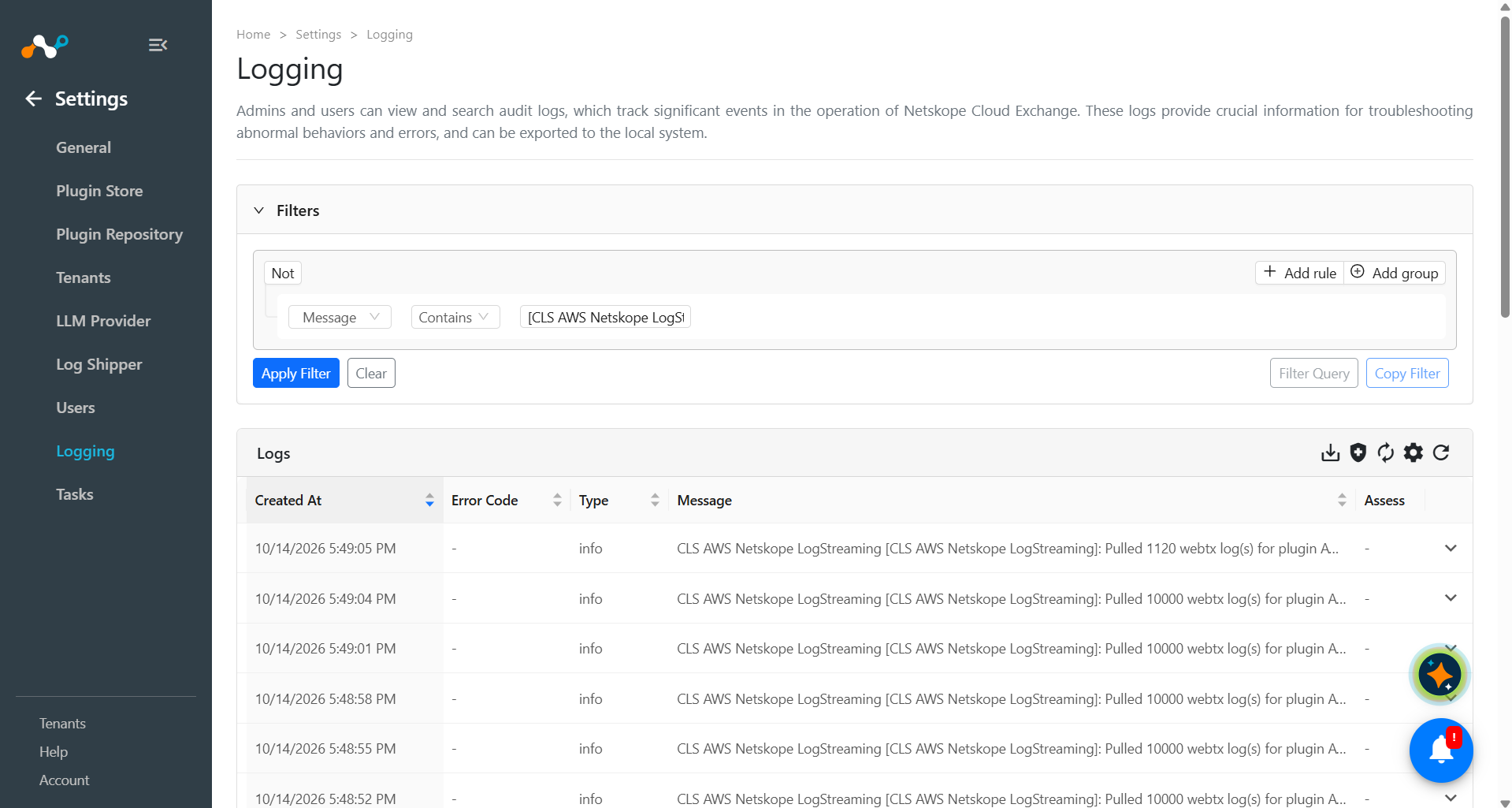
To validate the pulling of Events, Alerts, logs, BWAN events and WebTx from the Netskope tenant.
In Cloud Exchange, go to Settings > Logging. Search for the pulled logs.
Validate the Push
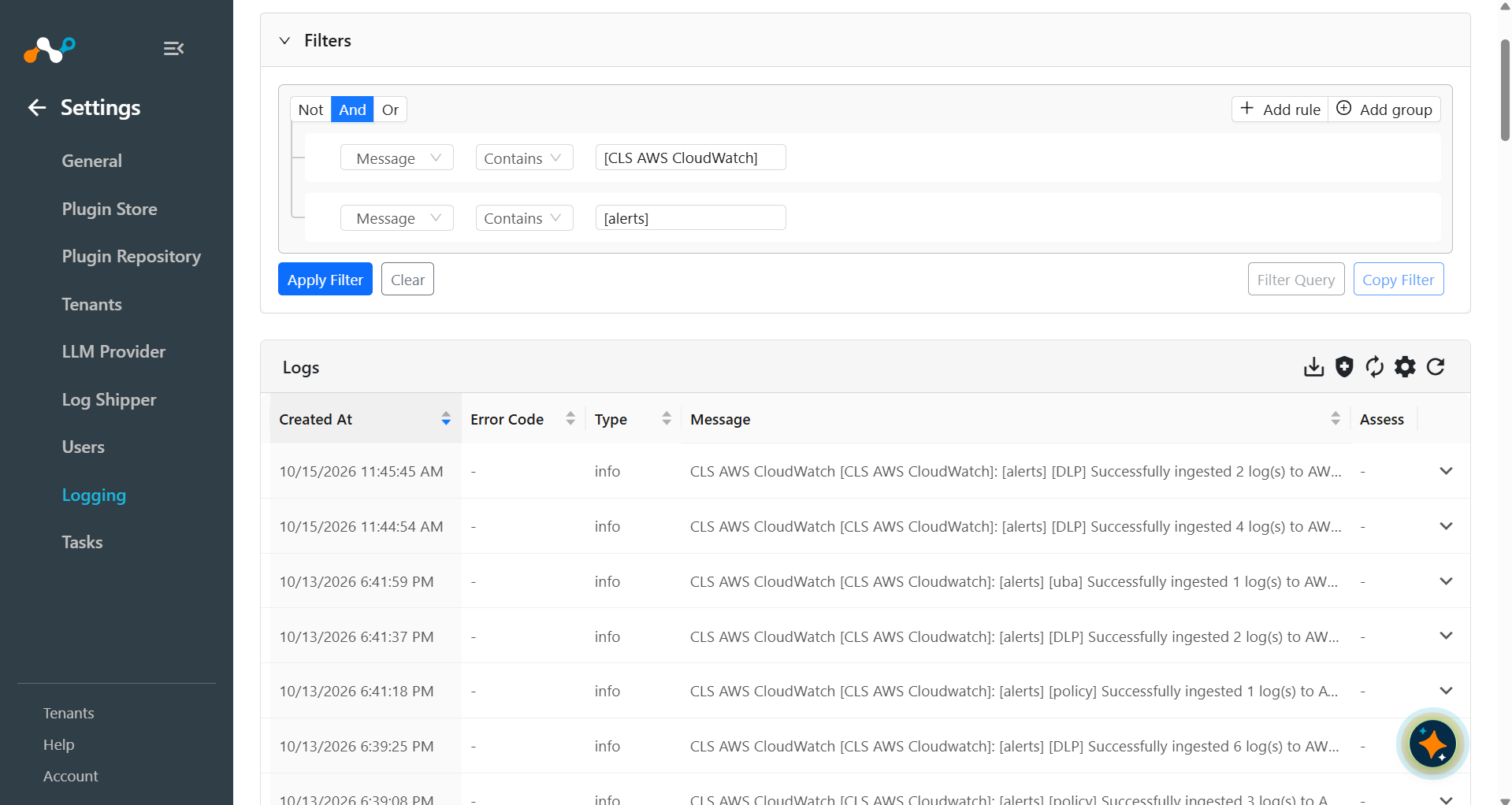
To validate the plugin workflow in Cloud Exchange:
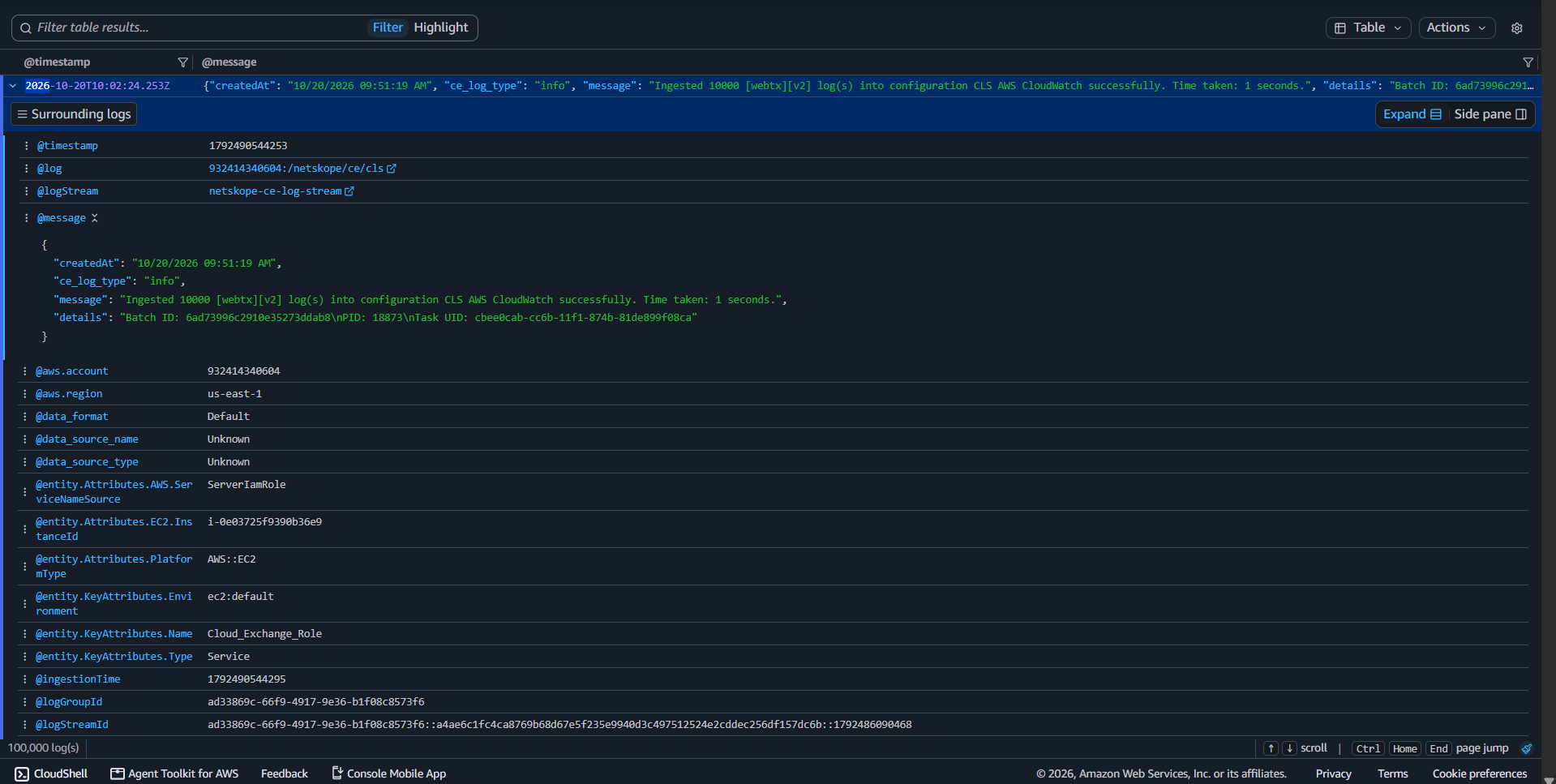
Go to Logging and Search for ingested Events, Alerts, WebTx & Logs with the filter “message contains ingested”. The ingested logs will be filtered.
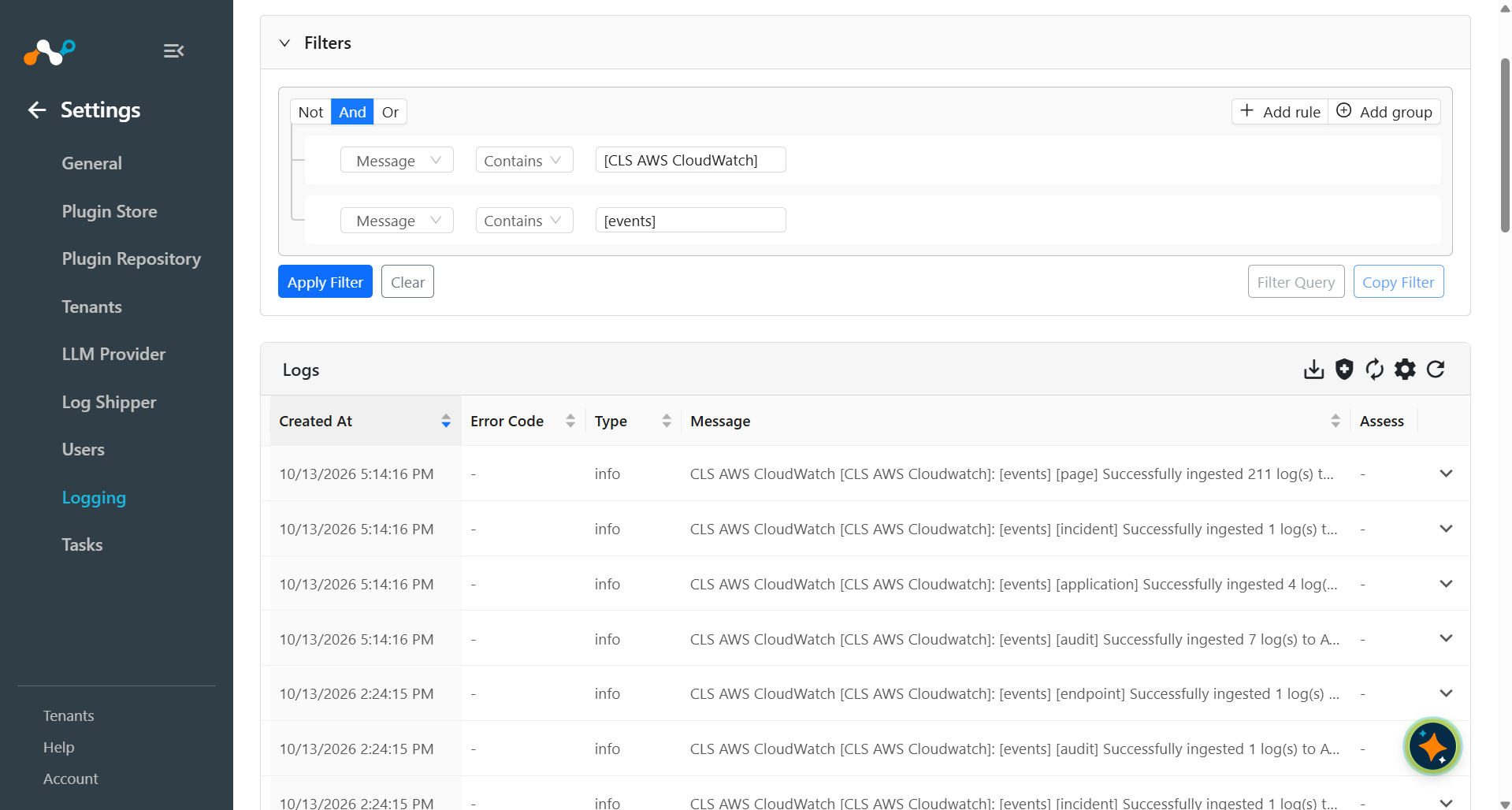
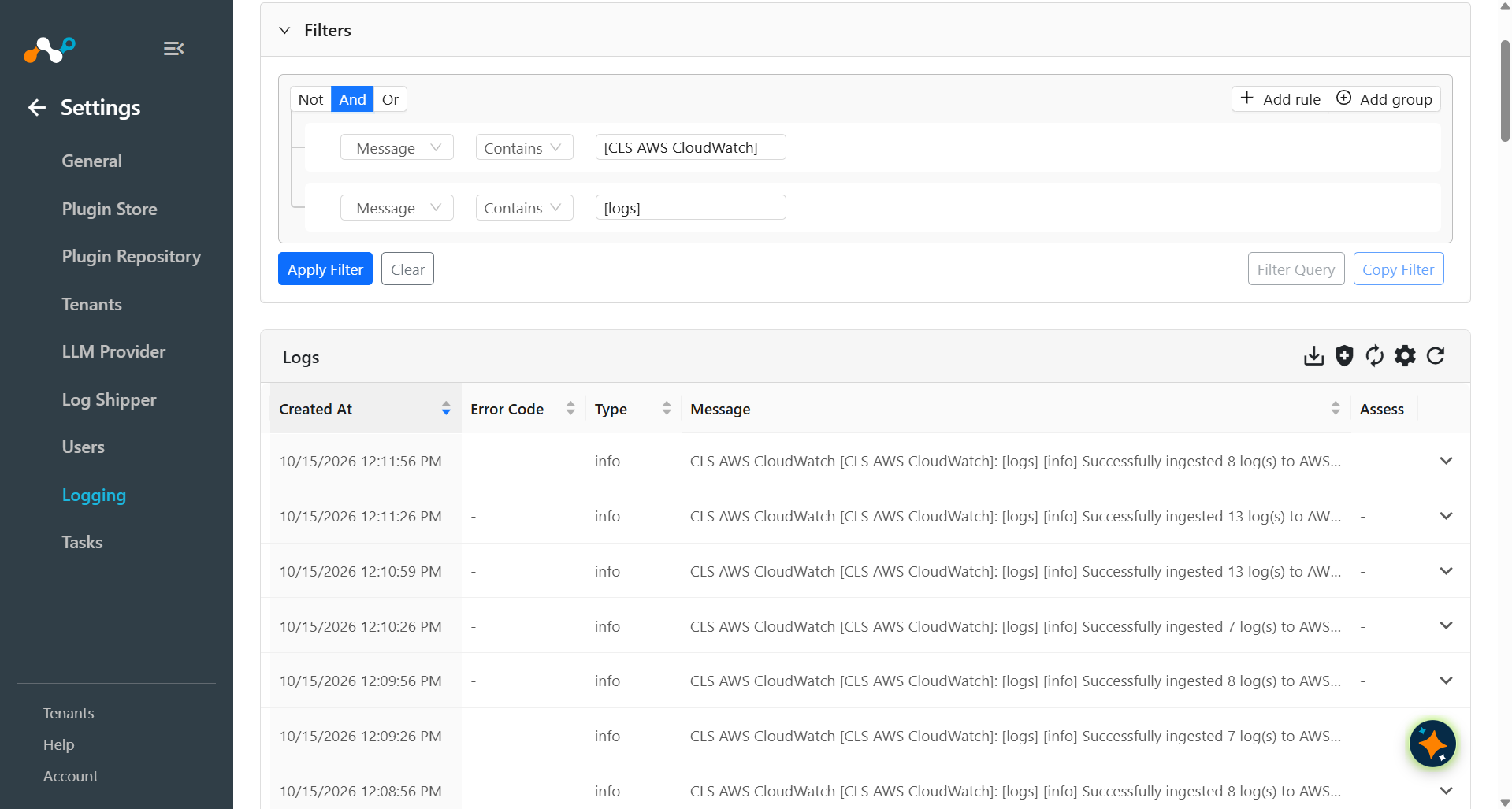
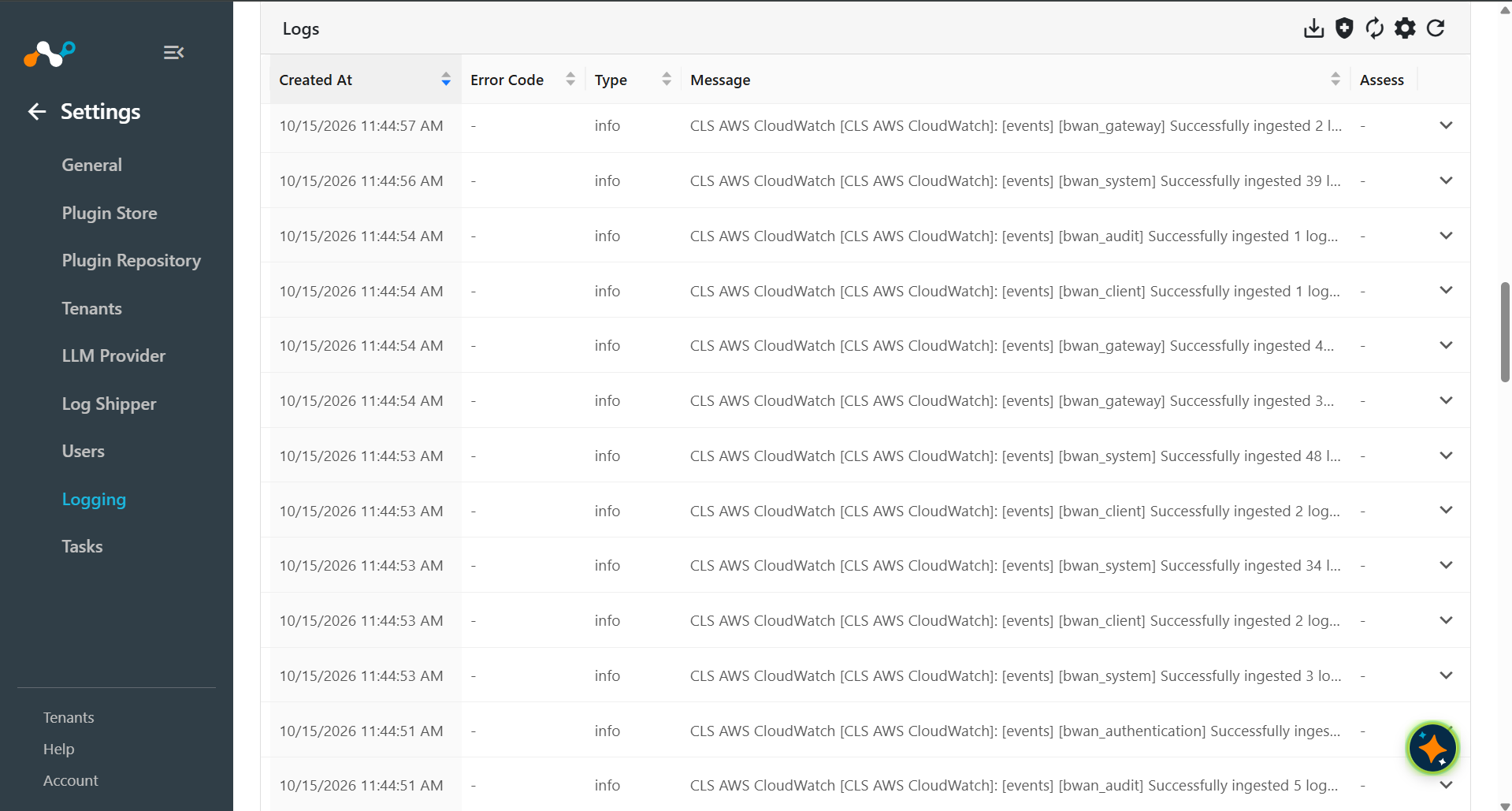
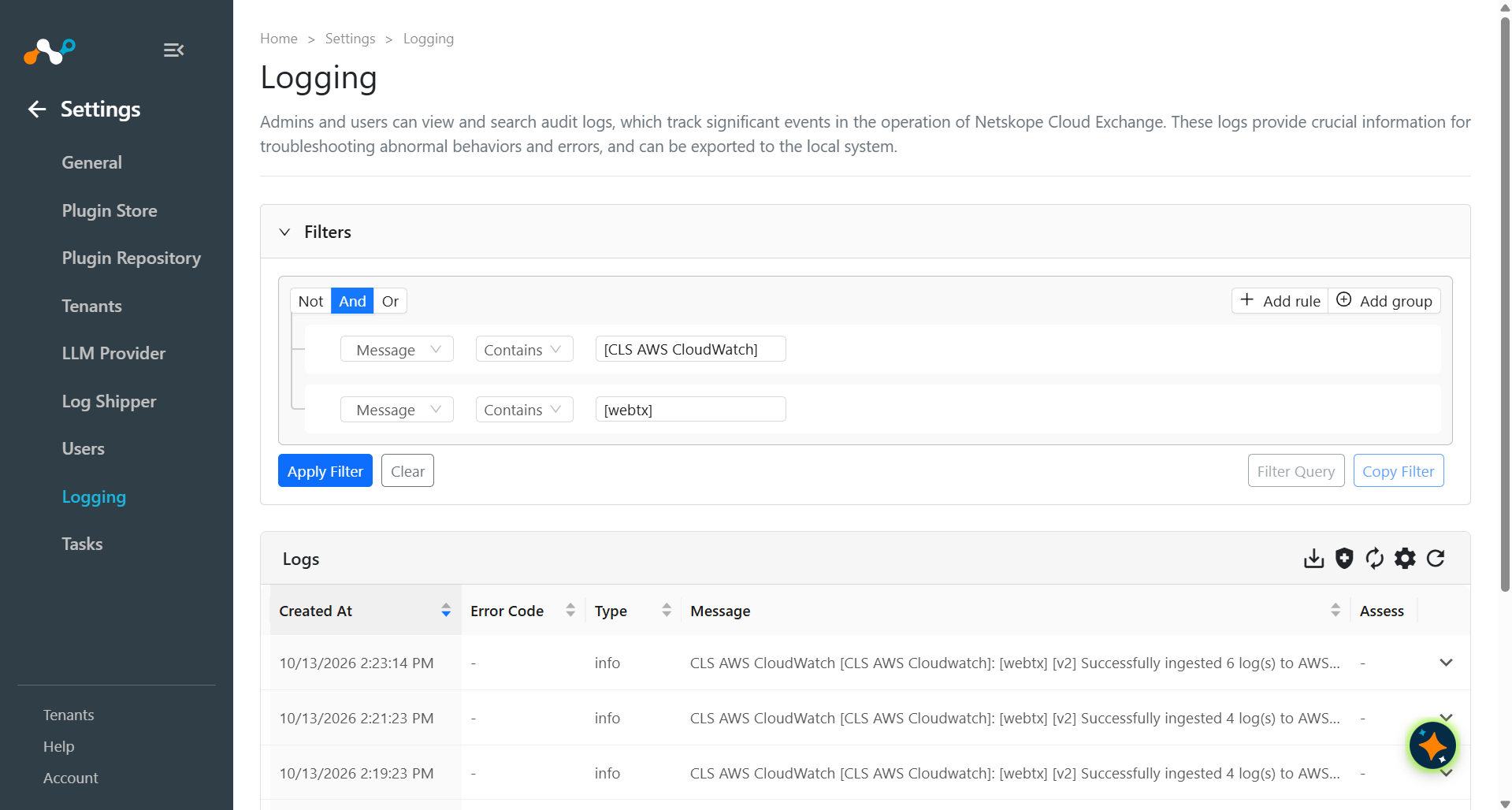
To validate the push in AWS CloudWatch:
Log in to the AWS Platform.
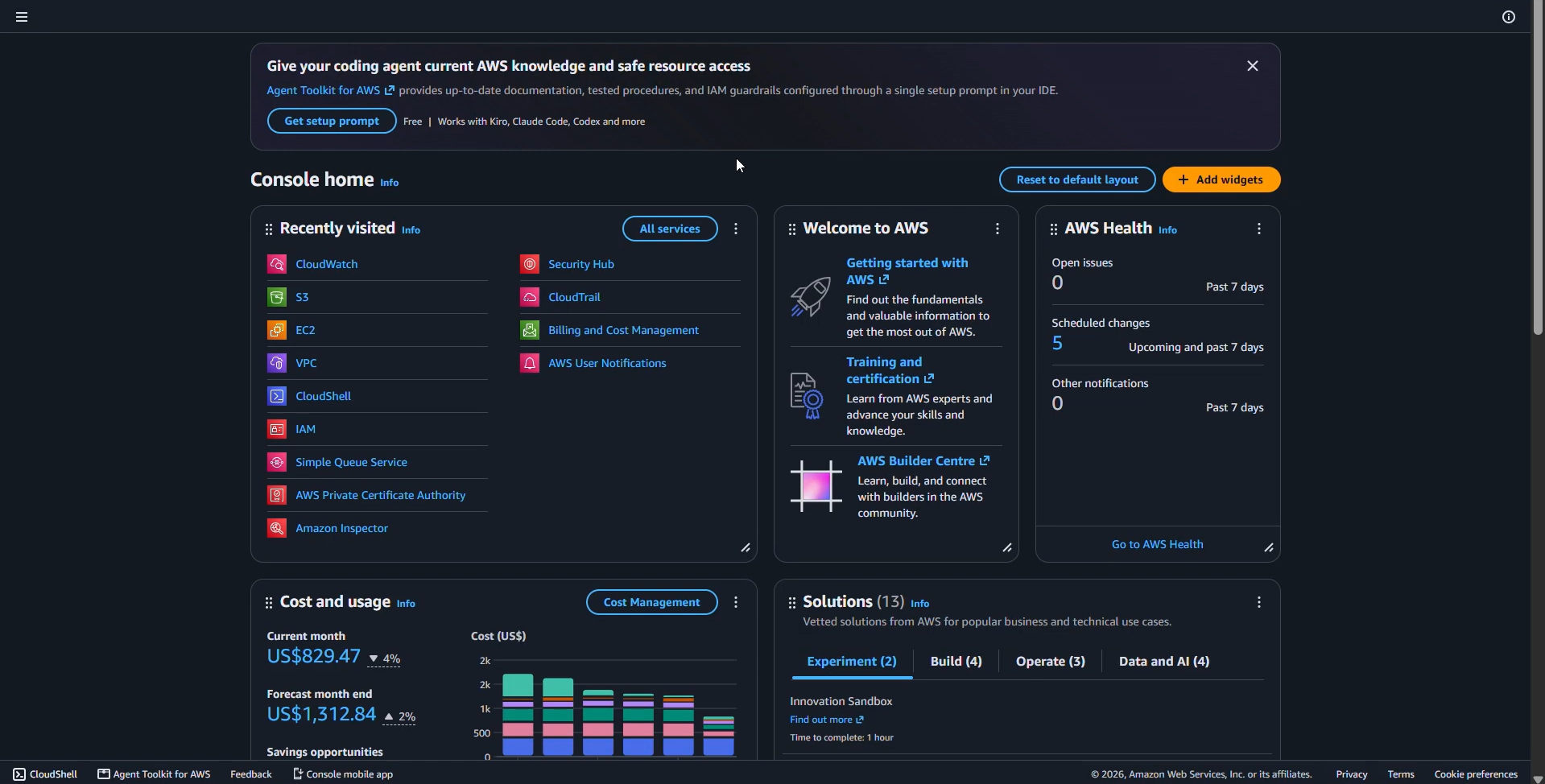
Search for CloudWatch and click on it.
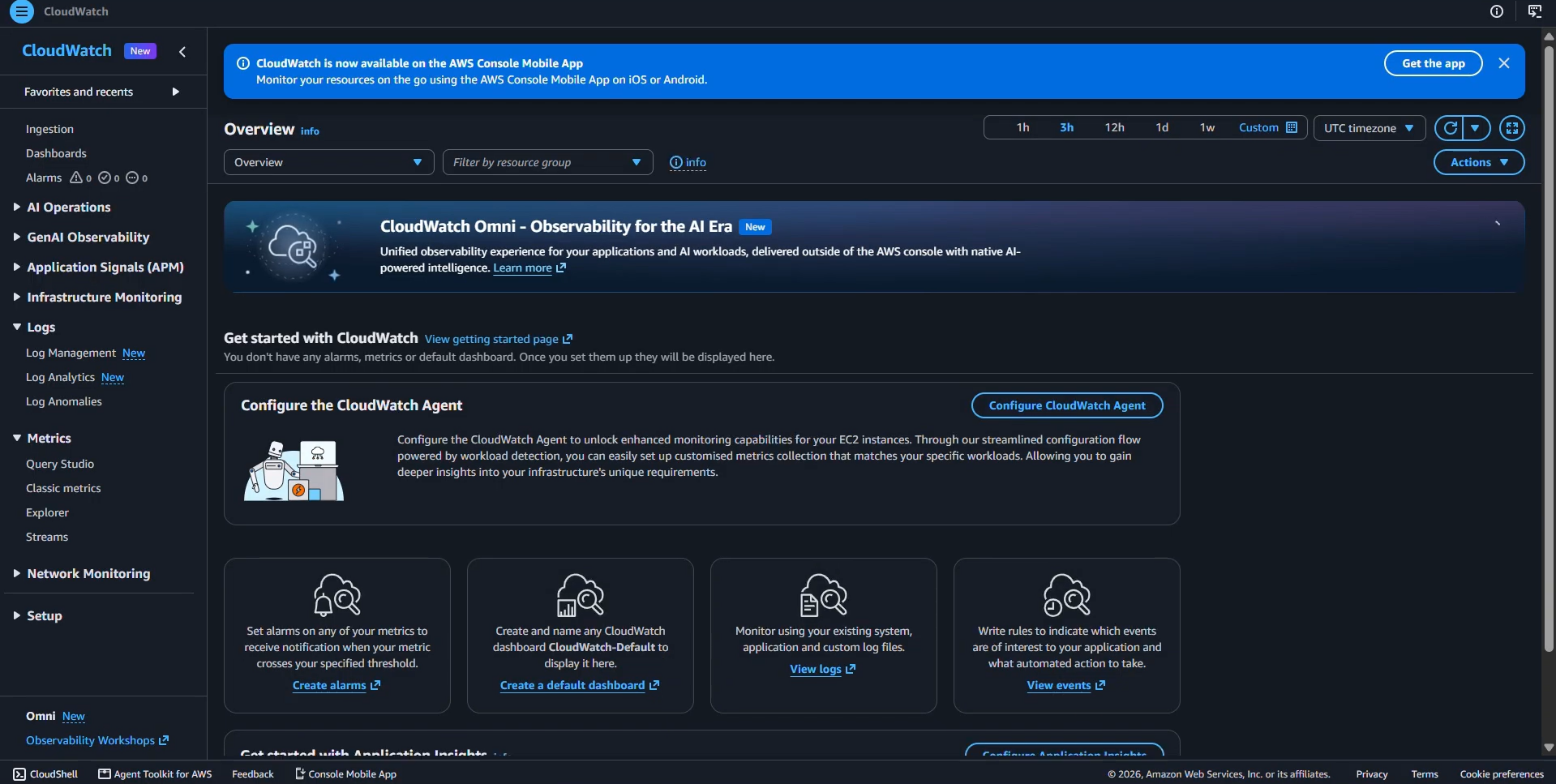
Go to Logs > Log Analytics and enter a query like this:
SOURCE "arn:aws:logs:us-east-1:***********:log-group:<log_group_name>" START=-5m END=0s
| fields @timestamp, @message
| sort @timestamp desc
| limit 10000
| filter @logStream like "<log_stream_name>"
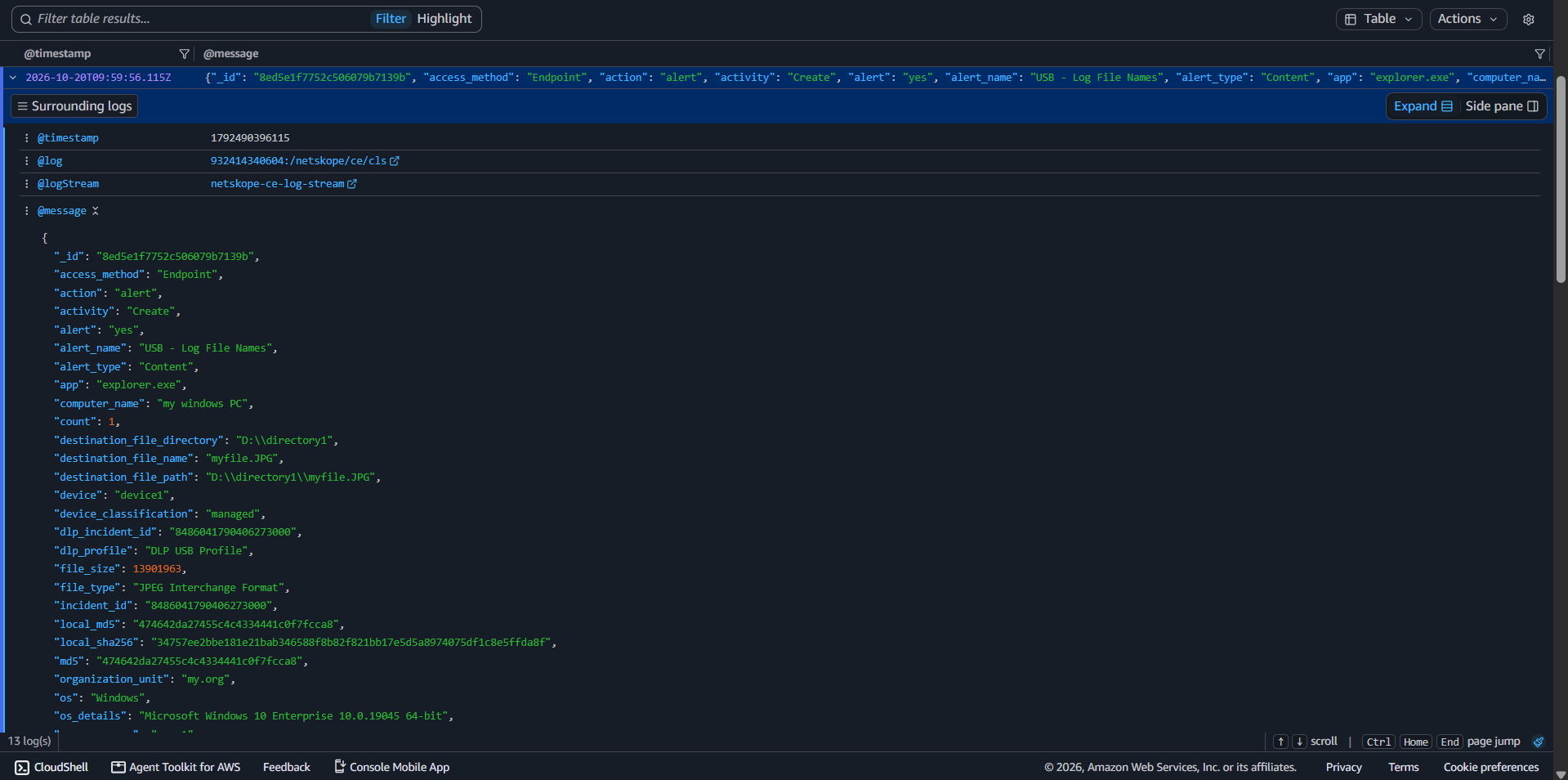
Here are examples of ingested Alerts:
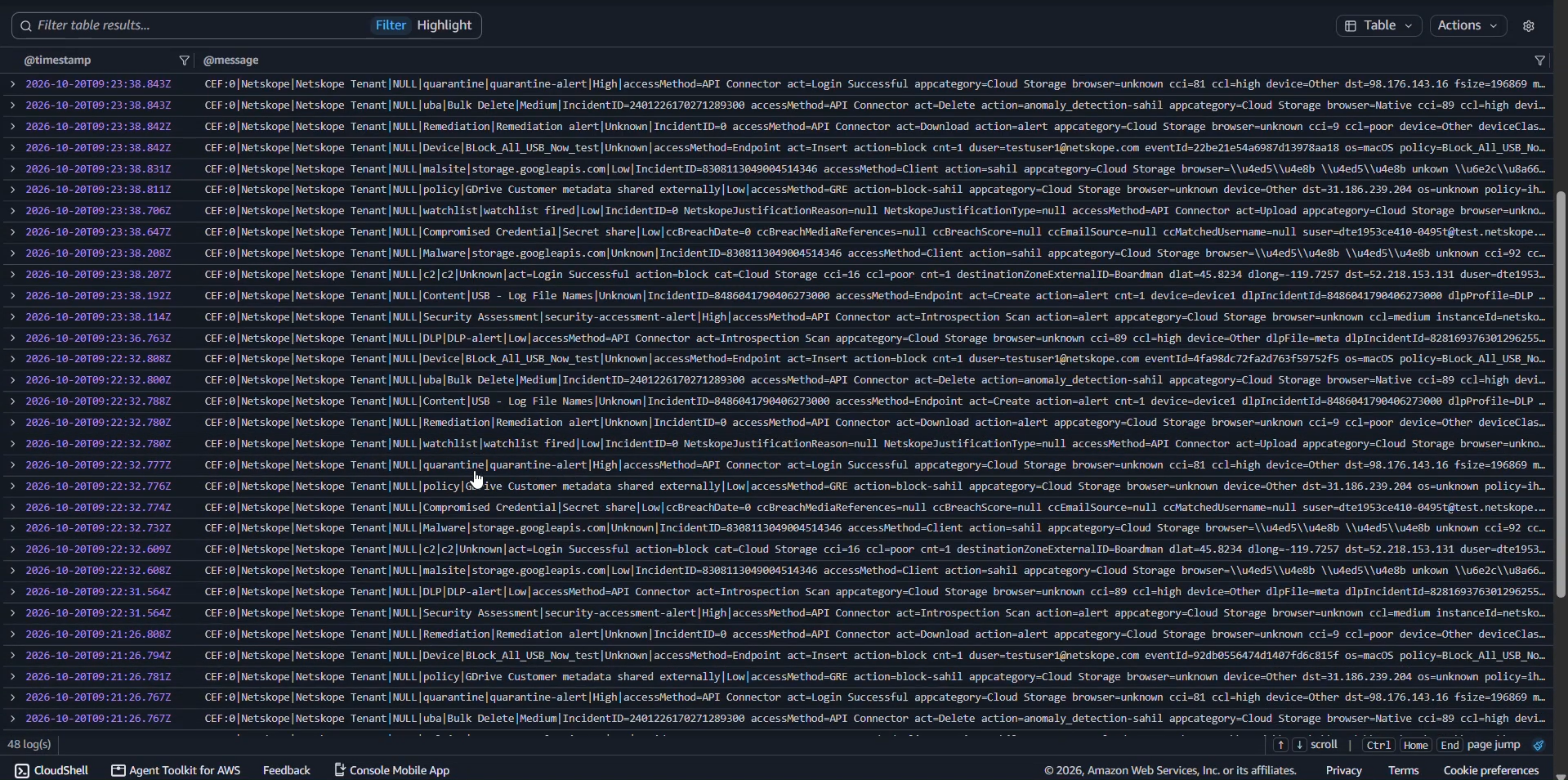
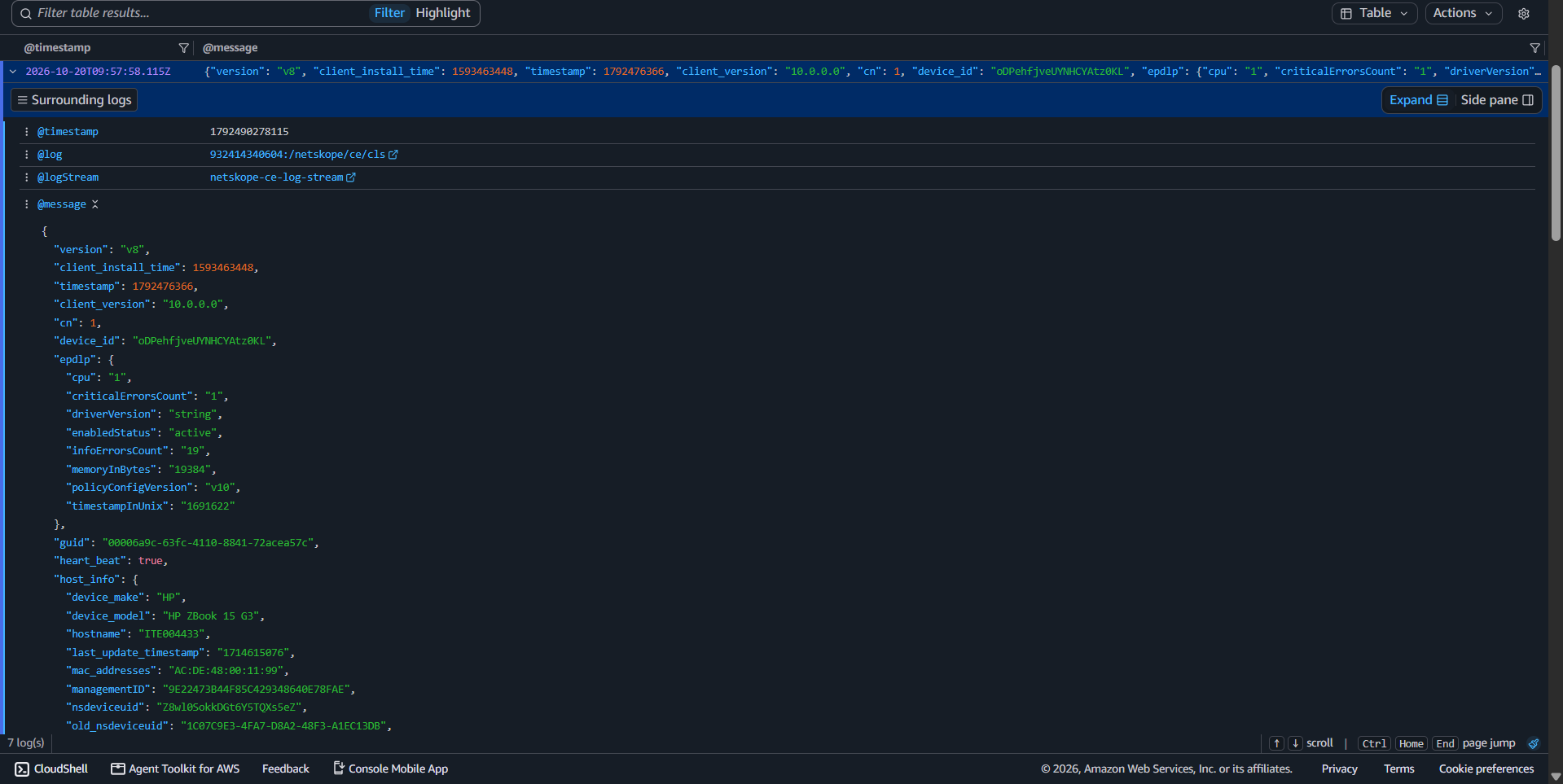
Here are examples of ingested Events:
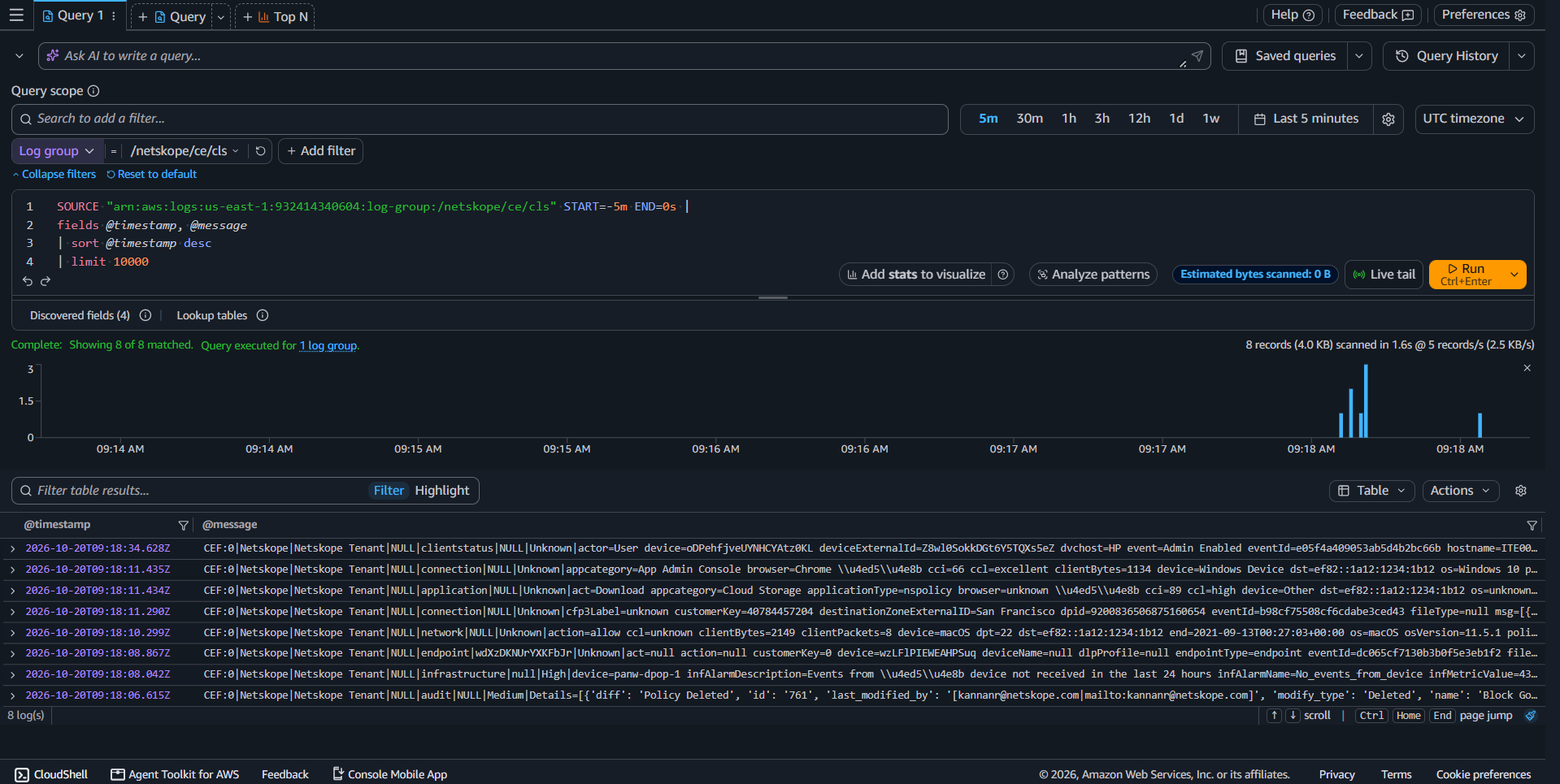
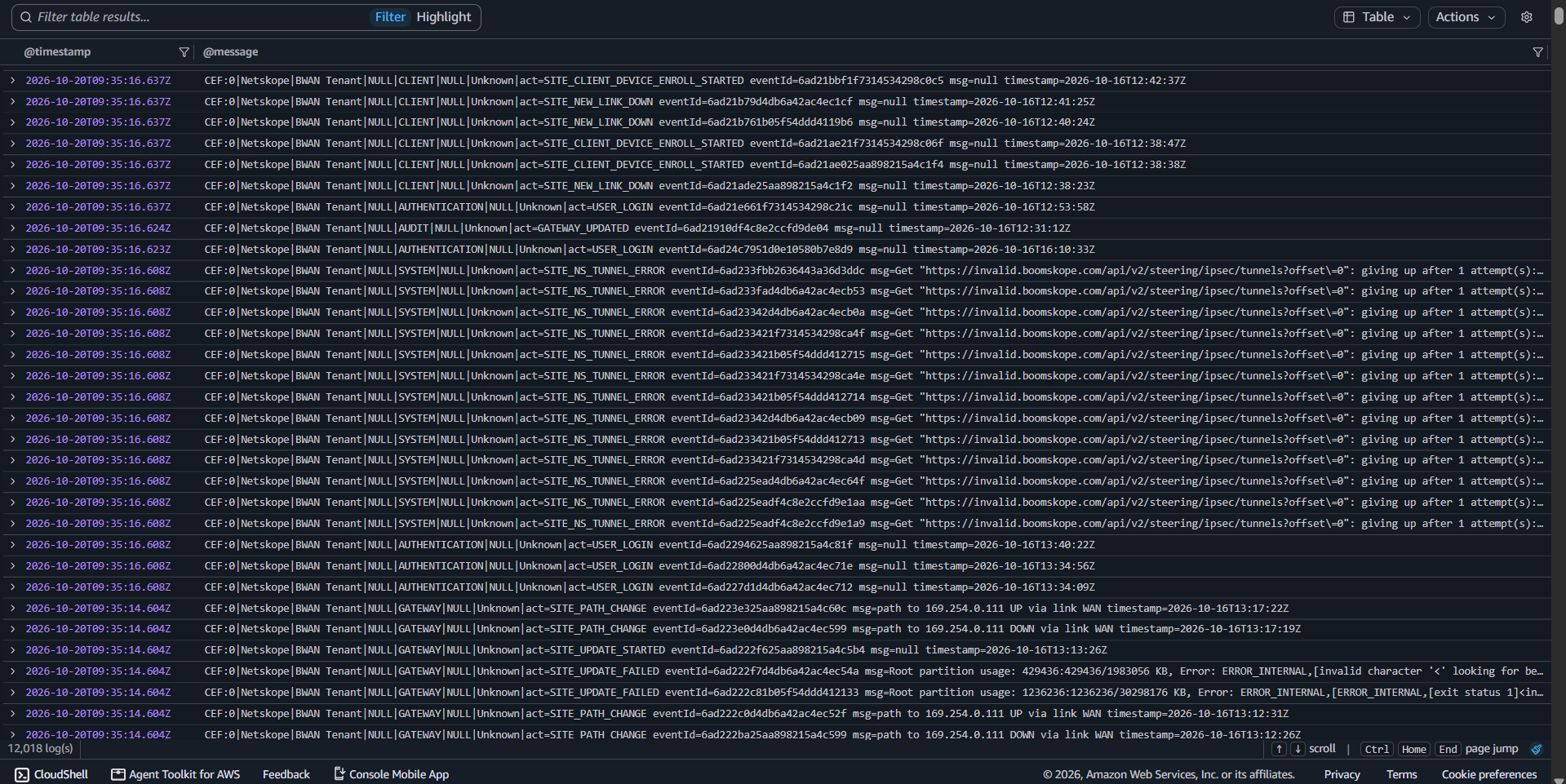
This is how BWAN Events look like from the plugin to AWS CloudWatch:
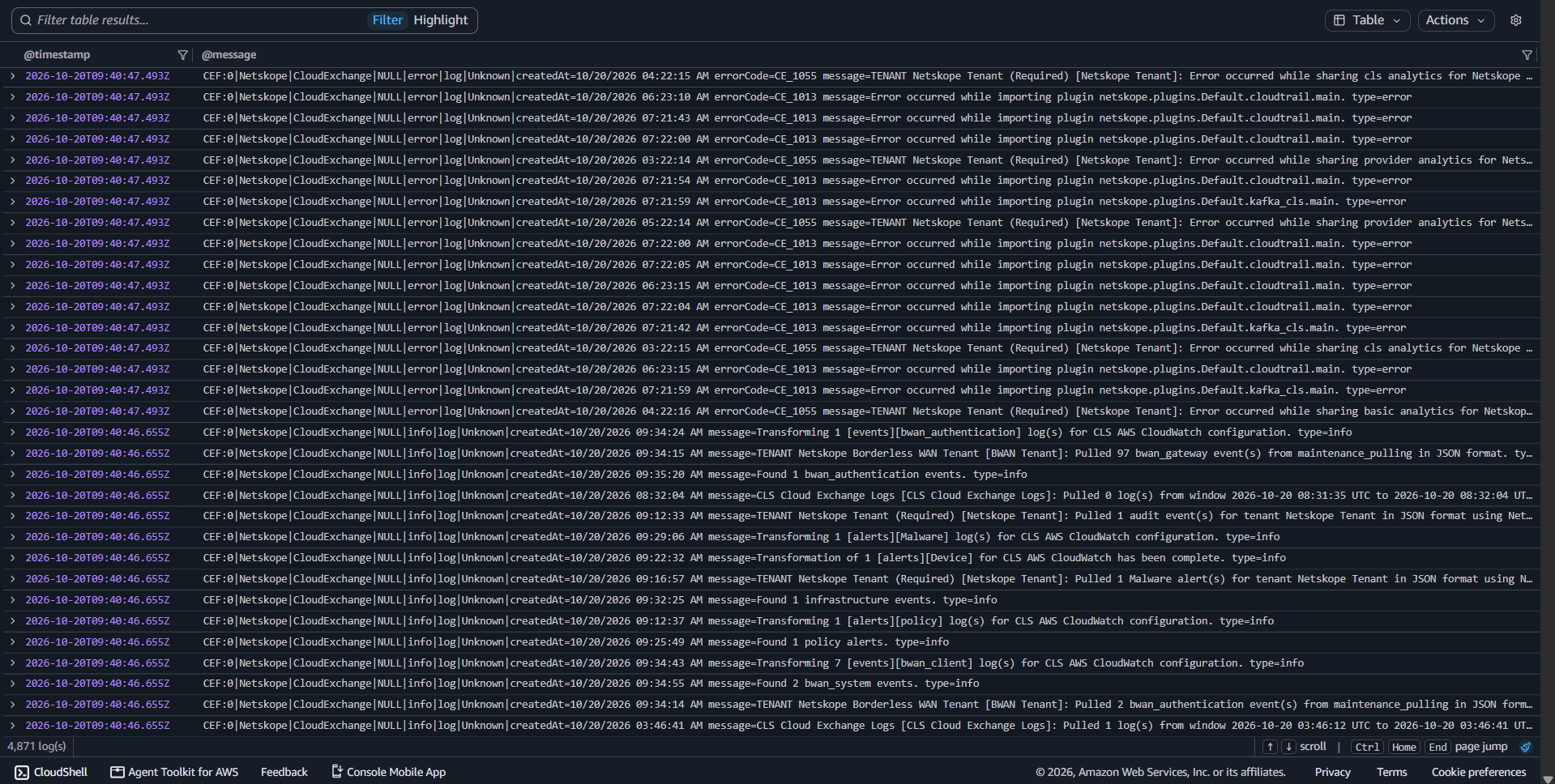
This is how AWS CloudWatch for CE Logs look like from plugin to AWS CloudWatch:
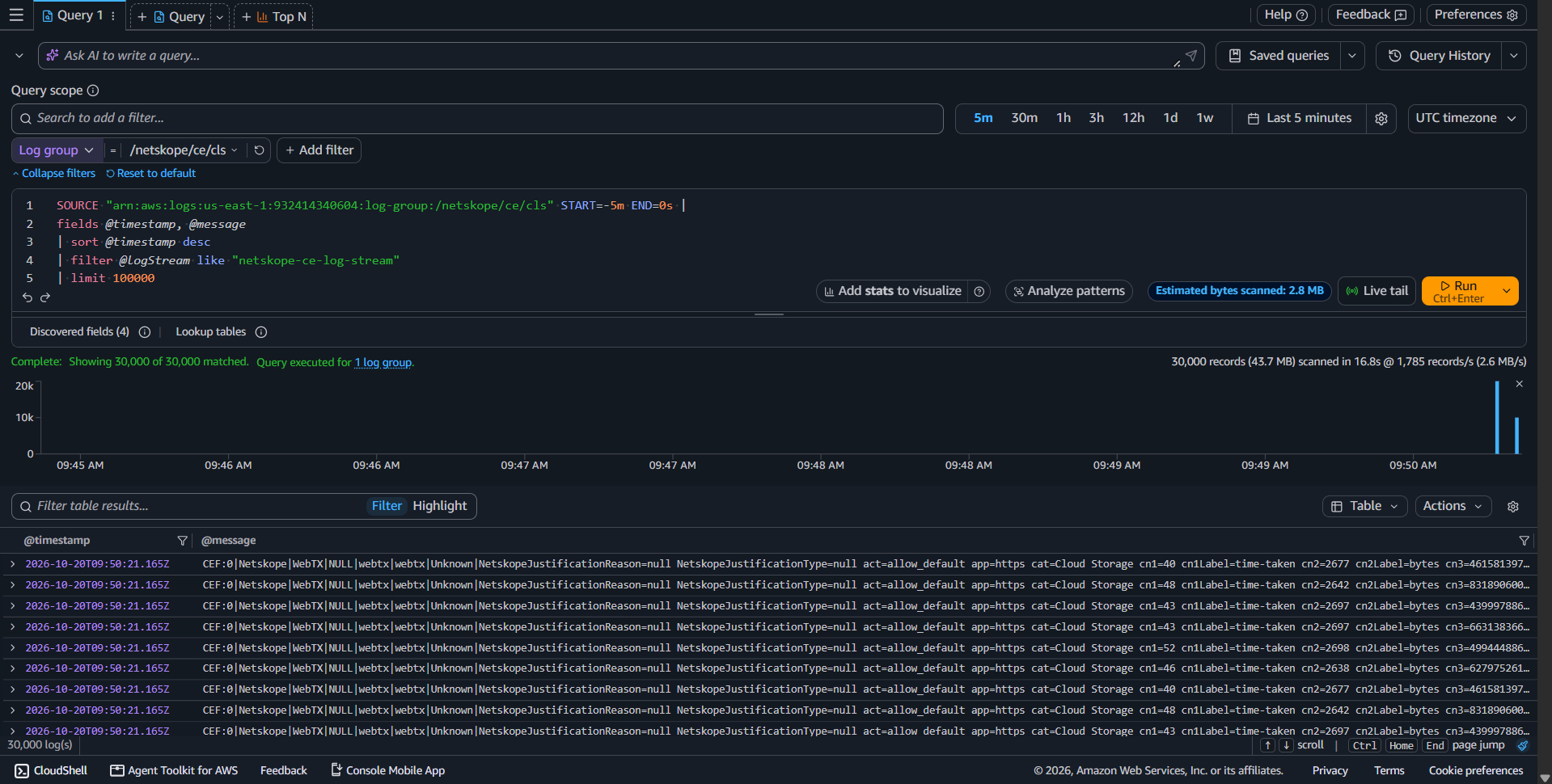
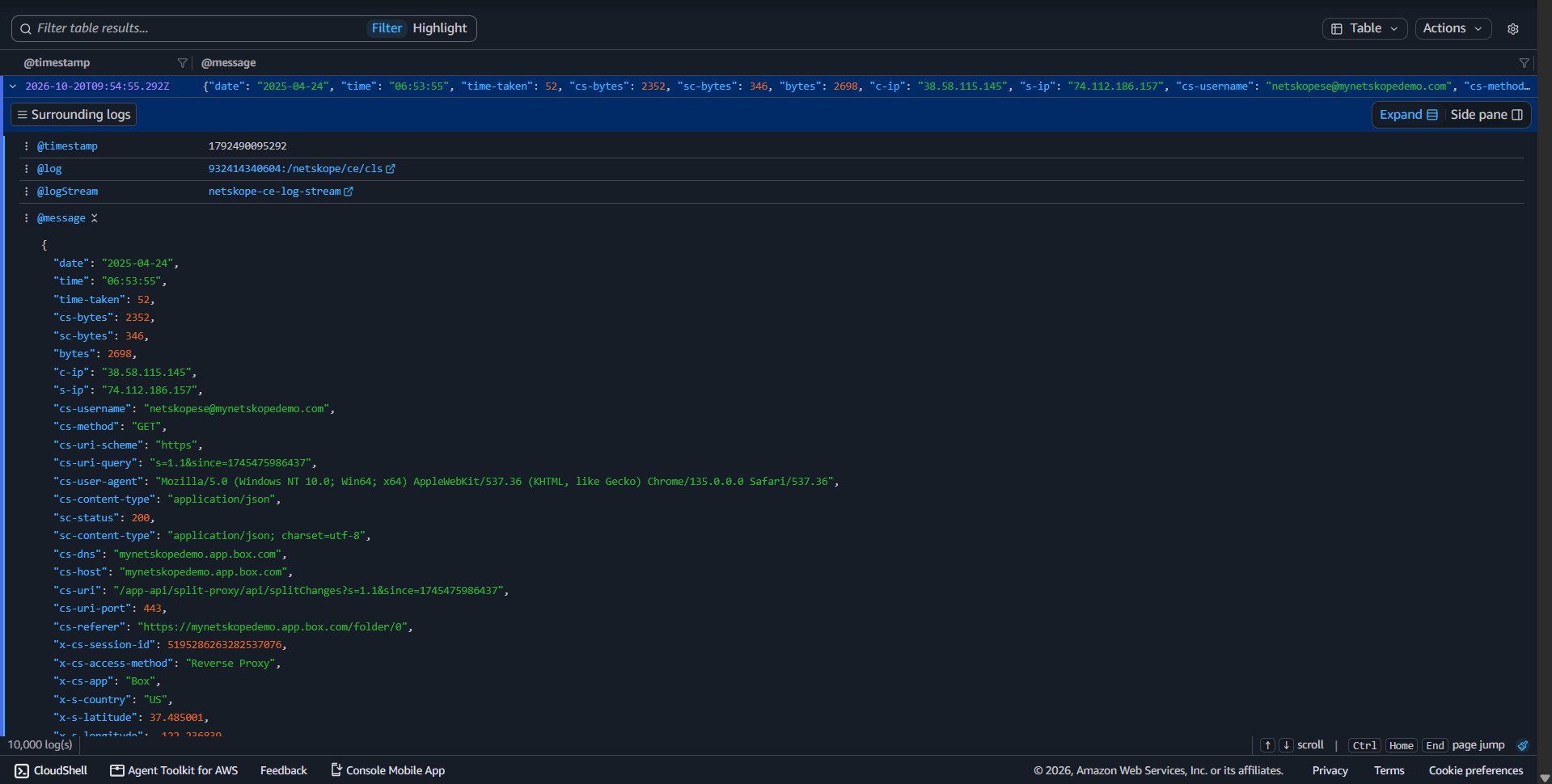
This is how WebTx data looks like from plugin to AWS CloudWatch:
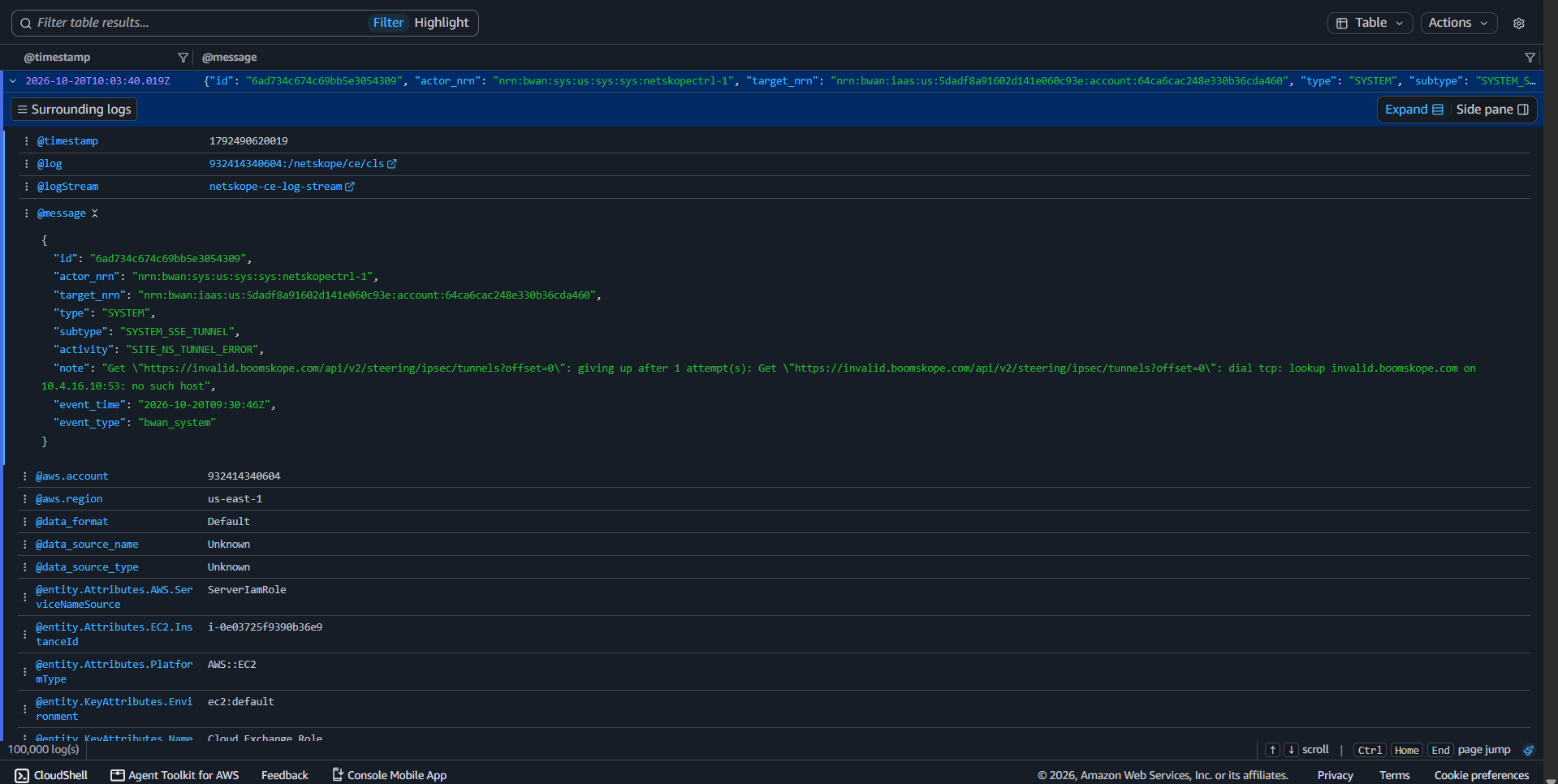
This is how Data looks like when shared in JSON from plugin to AWS CloudWatch (unparsed format):
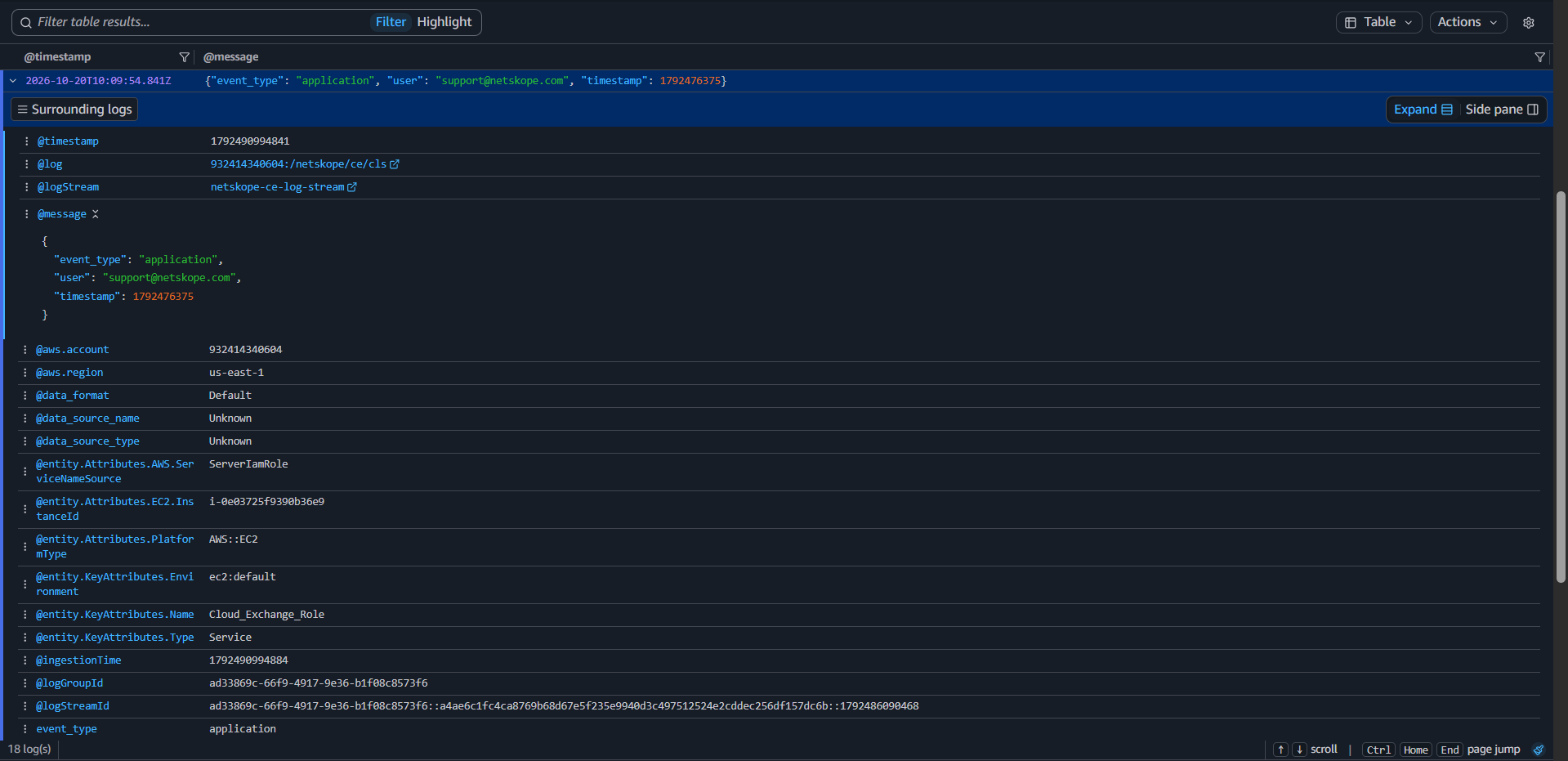
Here is an example of ingested data in JSON format with custom mapping having only selected fields:
Troubleshooting the AWS CloudWatch Plugin
No AWS Credentials Found in the Environment
Error message:
No AWS Credentials were found in the environment. Deploy the plugin into an AWS environment or use AWS IAM Roles Anywhere authentication
Possible causes:
- The Deployed on AWS authentication method is selected, but no instance profile or IAM role is attached to the CE host.
- AWS IAM Roles Anywhere is misconfigured and the ambient credential chain is being used unintentionally.
What to do:
- Verify that the CE host has an IAM instance profile with the required CloudWatch permissions attached (logs:PutLogEvents, logs:CreateLogGroup, logs:CreateLogStream, logs:DescribeLogGroups, logs:DescribeLogStreams), or switch the Authentication Method to AWS IAM Roles Anywhere.
- If using IAM Roles Anywhere, confirm that the Private Key, Certificate Body, Profile ARN, Role ARN, and Trust Anchor ARN are correctly configured.
Access Denied for AWS IAM Roles Anywhere
Error message:
Access Denied. Verify the Profile ARN, Role ARN and Trust Anchor ARN provided in configuration parameters and the policies attached to the role
Possible causes:
- The ARNs provided in the configuration are mismatched or incorrect.
- The IAM role’s trust policy does not permit the Roles Anywhere service principal.
- The IAM role lacks the required CloudWatch Logs permissions.
What to do:
- Verify that the Profile ARN, Role ARN, and Trust Anchor ARN are correct and reference existing resources in your AWS account.
- Confirm that the IAM role’s trust policy grants the required permissions to the AWS IAM Roles Anywhere service.
- Ensure the IAM role has the necessary CloudWatch Logs permissions: logs:PutLogEvents, logs:CreateLogGroup, logs:CreateLogStream, logs:DescribeLogGroups, and logs:DescribeLogStreams.
Resource Not Found for AWS IAM Roles Anywhere
Error message:
Resource not found. Verify the Profile ARN, Role ARN and Trust Anchor ARN provided in configuration parameters
Possible causes:
- One or more of the configured ARNs reference a non-existent profile, role, or trust anchor.
- The ARN format is incorrect.
- The ARNs belong to a different region than the one selected in AWS CloudWatch Region Name.
What to do:
- Log in to the AWS console and verify that the profile, role, and trust anchor referenced by the configured ARNs exist and are active.
- Ensure the ARN format is correct: arn:aws:rolesanywhere:{region}:{account-id}:profile/{profile-id}.
- Confirm that the region in the Profile ARN and the Trust Anchor ARN matches the AWS CloudWatch Region Name configured in the plugin.
Invalid Private Key or Certificate Body
Error messages:
- Invalid Private Key provided. Private Key should be in a valid PEM format
- Invalid Certificate Body provided. Certificate Body must be in valid PEM format
Possible causes:
- The Private Key field does not contain a valid PEM-encoded private key.
- The Certificate Body field does not contain a valid PEM-encoded X.509 certificate.
- The Password Phrase is incorrect for an encrypted private key.
What to do:
- Verify that the Private Key begins with —–BEGIN RSA PRIVATE KEY—– or —–BEGIN PRIVATE KEY—– and is complete.
- Verify that the Certificate Body begins with —–BEGIN CERTIFICATE—– and is complete.
- Confirm that the Password Phrase matches the passphrase used when the private key was generated, or leave it empty if the key is not encrypted.
CloudWatch Log Group Not Accessible
Error messages:
- AWS CloudWatch Log Group ‘{log_group}’ does not exist or is not accessible
- ResourceNotFoundException: The specified log group does not exist
Possible causes:
- The log group name configured in the plugin does not exist in the specified AWS region.
- The IAM credentials lack the required logs:DescribeLogGroups or logs:CreateLogGroup permissions.
- The log group exists in a different region than what is configured.
What to do:
- Log in to the CloudWatch Logs console and verify that the log group exists in the configured region.
- Ensure the IAM role or instance profile has logs:DescribeLogGroups and logs:CreateLogGroup permissions.
- If the log group is in a different region, update the AWS Region field in the plugin configuration to match the actual region of the log group.
CloudWatch Log Group Region Mismatch
Error message:
AWS CloudWatch Log Group ‘{log_group}’ exists but is in region ‘{actual}’, not the configured region ‘{configured}’
Possible causes:
- The AWS Region configured in the plugin does not match the actual region where the log group resides.
- CloudWatch log groups are region-specific resources.
What to do:
- Log in to the CloudWatch Logs console and confirm the actual region of the log group.
- Update the AWS Region field in the plugin configuration to match the actual log group region.
Access Denied When Writing to CloudWatch Logs
Error message:
AccessDeniedException: User is not authorized to perform: logs:PutLogEvents on resource: {log_group}
Possible causes:
- The IAM role or instance profile is missing one or more required CloudWatch Logs permissions.
- A resource-based policy or Service Control Policy (SCP) is blocking the action.
- The log group uses AWS KMS encryption and the IAM role lacks the corresponding KMS key permissions.
What to do:
Verify that the IAM role has the following permissions on the target log group:
{
  "Effect": "Allow",
  "Action": [
    "logs:CreateLogGroup",
    "logs:CreateLogStream",
    "logs:PutLogEvents",
    "logs:DescribeLogStreams",
    "logs:DescribeLogGroups"
  ],
  "Resource": "*"
}
- Check for any SCPs or permission boundaries in your AWS Organization that may be restricting CloudWatch Logs access.
- If the log group is encrypted with a customer-managed AWS KMS key, ensure the IAM role also has kms:GenerateDataKey and kms:Decrypt permissions on that key.
CloudWatch Logs Throttling
Error message:
ThrottlingException: Rate exceeded for logs:PutLogEvents
Possible causes:
- The plugin is sending log events at a rate that exceeds the CloudWatch Logs service quota for PutLogEvents.
- Multiple CE instances are writing to the same log stream simultaneously.
What to do:
- Review the CloudWatch Logs service quotas for your account and request an increase if needed.
- Ensure that multiple CE instances are not writing to the same log stream at the same time; use unique log stream names per instance.
Could Not Reach AWS CloudWatch
If the user encounters the message “Could not reach AWS CloudWatch while {action}. Check the network connection, the proxy settings and the AWS CloudWatch Region Name” or “Error occurred while connecting to AWS CloudWatch”, it could be due to one of the following reasons:
- The CE host cannot reach the CloudWatch Logs endpoint for the configured region.
- The proxy configured in Cloud Exchange is incorrect or is blocking the request.
- The configured region does not exist, so the endpoint hostname does not resolve.
What to do:
- Verify that the CE host can reach logs.{region}.amazonaws.com on port 443.
- Review the proxy configuration in Cloud Exchange and confirm that the CloudWatch Logs endpoint is allowed through the firewall.
- Confirm that the AWS CloudWatch Region Name (or AWS CloudWatch Custom Region) is the region where the log group resides.
Push Stopped After a Failed Batch
If the user encounters the message: Batch {n} of {total} failed, so the push stopped. {n} log(s) already reached AWS CloudWatch and were removed from the retry. {n} log(s) will be sent again by Cloud Exchange, it could be due to one of these reasons:
- A credential, permission, or network error occurred partway through a push.
- AWS throttled the PutLogEvents calls for the target log stream.
What to do:
- Check the AWS credentials, the IAM permissions on the log group, and the network connection, using the specific error logged immediately before this message.
- No action is needed for the logs themselves. Cloud Exchange automatically resends only the unsent remainder, so no log is lost or duplicated.
- If the message recurs with a throttling error, request a PutLogEvents quota increase for the account, or spread the ingestion across additional log streams.
Known Behavior
-
You may encounter escape characters in the ingested data due to several factors, such as accented characters (in English), characters of languages other than English, non-breaking spaces, newline characters, and other special formatting symbols.
Example:
<14>Apr 07 09:32:56 alltypes CEF:0|Netskope|Mock Netskope Tenant|NULL|application|NULL|Unknown|act=Download appcategory=Cloud Storage applicationType=nspolicy browser=unknown \\u4ed5\\u4e8b cci=89 ccl=high device=Other dst=ef82::1a12:1234:1b12 os=unknown requestClientApplication=Box sourceServiceName=Box src=ef82::1a12:1234:1b12 suser=support@netskope.com timestamp=1743736484
Here, we had 2 Japanese characters that were ingested, which looked like “\\u4ed5\\u4e8b” in the above log.
- Ingested content may have missing fields/data if you set “Pull DLP Incident Forensics” field as “Yes” or the content of any of the fields is very large
- We have observed that some of the fields are very large and they have length beyond the maximum length supported by the Netskope Cloud Exchange. Due to this, you may encounter the warning and you may observe that the ingested event is incomplete as rest of the values will be skipped.