

Release Notes
1.0.1 (Minimum required CE version 5.1.2)
Changed
- Updated handling for field filtering.
1.0.0
Added
- Initial release.
This document explains how to configure the Azure Netskope LogStreaming v1.0.1 plugin with the Log Shipper module of the Netskope Cloud Exchange platform. This plugin is used to pull the Netskope Alerts (DLP, Malware, Policy, Compromised Credential, Malsite, Quarantine, Remediation, Security Assessment, Watchlist, UBA, CTEP, Device, Content), Events (Page, Application, Audit, Infrastructure, Network, Incident, Endpoint, Client Status) and WebTx data from the Azure Containers using Storage Queue of Microsoft Azure Storage Account.
Prerequisites
To complete this configuration, you need:
- A Netskope tenant (or multiple, for example, production and development/test instances).
- A Netskope Cloud Exchange instance with the Tenant plugin and Log Shipper plugin already configured.
- Azure Netskope LogStreaming service enabled in Netskope Tenant.
- A 3rd-party plugin (like Syslog) already configured.
- Standard tier subscription which has Storage accounts service.
- Connectivity to the following hosts: https://portal.azure.com/
- For more information about Storage account refer to this documentation.
Azure LogStreaming Plugin Support
This plugin is used to pull the Netskope Alerts (DLP, Malware, Policy, Compromised Credential, Malsite, Quarantine, Remediation, Security Assessment, Watchlist, UBA, CTEP, Device, Content), Events (Page, Application, Audit, Infrastructure, Network, Incident, Endpoint, Client Status) and WebTx data from the Azure Containers using Storage Queue of Microsoft Azure Storage Account.
| Data Type | Support |
|---|---|
| Events | Yes (Page, Application, Audit, Infrastructure, Network, Incident and Client Status) |
| Alerts | Yes (DLP, Malware, Policy, Compromised Credential, Malsite, Quarantine, Remediation, Security Assessment, Watchlist, UBA, CTEP, Device, and Content) |
| WebTx | Yes |
| CE Logs | No |
Mappings
The current Syslog plugin does not have a mapping file for Azure Netskope LogStreaming alerts, events and WebTx, users need to add a custom mapping file to transform these alerts, events and WebTx data. Using this mapping file the one can ingest the data in JSON format.
Sample Mapping file:
{
  "delimiter": "|",
  "syslog_map_version": "3.2.0",
  "cef_version": "0",
  "validator": "valid_extensions.csv",
  "taxonomy": {
    "json": {
      "alerts": {
        "dlp": [],
        "malware": [],
        "policy": [],
        "Compromised Credential": [],
        "Malsite": [],
        "Quarantine": [],
        "Remediation": [],
        "Security Assessment": [],
        "Watchlist": [],
        "uba": [],
        "ctep": [],
        "content": [],
        "device": []
      },
      "events": {
        "application": [],
        "audit": [],
        "infrastructure": [],
        "page": [],
        "network": [],
        "incident": [],
        "clientstatus": []
      },
      "webtx": {
        "v2": []
      }
    }
  }
}
Permissions
Here are the permissions needed for your azure account, if you are creating your own azure blob storage, make sure you have permissions to create and manage storage accounts and resource groups.
- Storage Account Contributor: To create, delete, and manage the storage account itself, including networking and access keys.
- Storage Blob Data Contributor: To perform data operations on Blobs (upload, download, delete).
- Storage Queue Data Contributor: To manage the queue messages (add, read, delete).
- EventGrid Contributor: Necessary to create the System Topic (on the storage account) and the Event Subscription.
API Details
This plugin uses Python libraries for fetching Netskope Alerts, Events and Webtx logs from the containers configured in the Microsoft Azure Storage Account.
Usage: The azure-storage-queue and azure-storage-blob libraries are part of the Azure SDK for Python, enabling interaction with Azure Storage services. azure-storage-queue is used to send, receive, and manage messages in queues, supporting decoupled and event-driven architectures. azure-storage-blob allows uploading, downloading, and managing files in Azure Blob Storage. Together, they are commonly used in workflows where blob uploads trigger processing events via queue messages.
Initialize Blob Service Client
Creates a client to interact with the Azure Blob Storage account using the connection string.
blob_service_client = BlobServiceClient.from_connection_string(
       conn_str=connection_string, user_agent=self._get_user_agent()
)
Initialize Queue Client
Creates a client to connect to the specified Azure Storage Queue using the provided connection string.
queue_client = QueueClient.from_connection_string(
    conn_str=connection_string,
    queue_name=queue_name,
    user_agent=self._get_user_agent(),
)
Initialize Queue Service Client
Creates a client to interact with the Azure Storage Queue service, allowing operations like listing queues within the storage account.
queue_service = QueueServiceClient.from_connection_string(
    conn_str=connection_string, user_agent=self._get_user_agent()
)
Receive Messages from a Queue
Retrieves a batch of messages from the Azure Storage Queue that are currently visible and available for processing.
messages = queue_client.receive_messages(
    messages_per_page=20, visibility_timeout=3000
)
Delete Messages from a Queue
Permanently removes a specific message from the Azure Storage Queue using its message ID and pop receipt.
queue_client.delete_message(
    message=msg.id,
    pop_receipt=msg.pop_receipt,
)
Performance Matrix
This performance reading is for a Cloud Exchange Large Stack tested on these VM specifications. These readings are added with the following data considerations:
| Description | Specification |
|---|---|
| Stack details | Size: Large RAM: 32 GB CPU: 16 Cores |
| Alerts-Events pull | ~200 EPM |
| Alerts-Events pull and ingested to a Log Shipper 3rd-party plugin | ~180K EPM |
| WebTx pull | ~200K EPM |
| WebTx pull and ingested to a Log Shipper 3rd-party plugin | ~165K EPM |
User Agent
netskope-ce-6.1.0-cls-azure-netskope-logstreaming-v1.0.1
Workflow
- Generate credentials for Azure Netskope Log Streaming plugin.
- Configure the Azure Netskope Log Streaming Plugin.
- Configure a Business Rule.
- Configure Log Delivery.
- Validate the plugin.
Watch a Video
Click play to watch a video:
Generate Azure Netskope Log Streaming Credentials
To configure the Azure Netskope LogStreaming Plugin, you need to configure a queue in a Storage Account.
To configure a Storage Account:
-
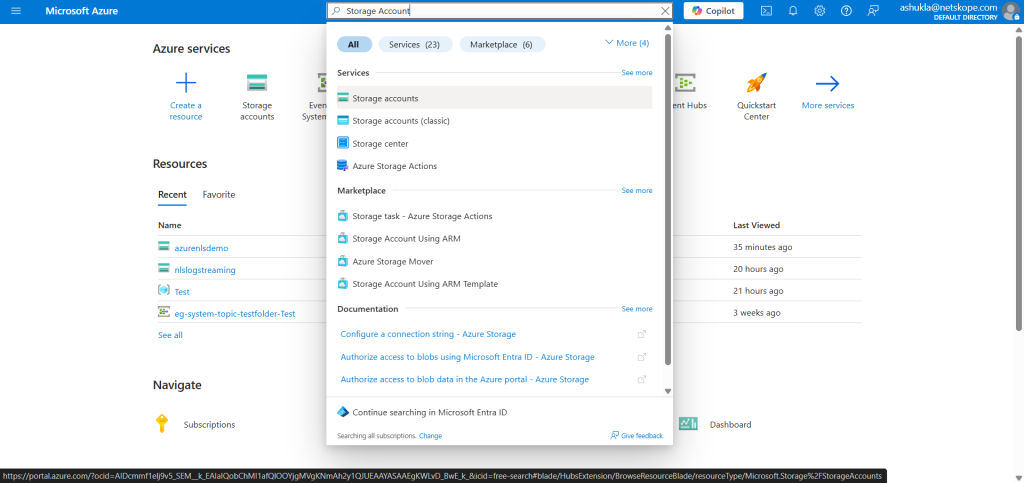
Log in to your Microsoft Azure instance, and search for the Storage Account service.
-
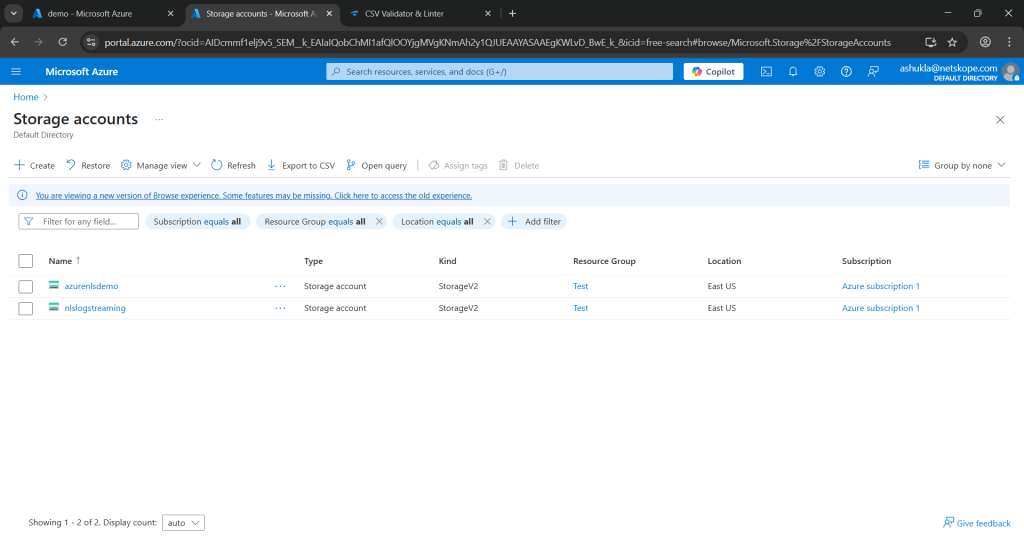
Click on it, and if you have already configured any storage account, it will list on that page.
-
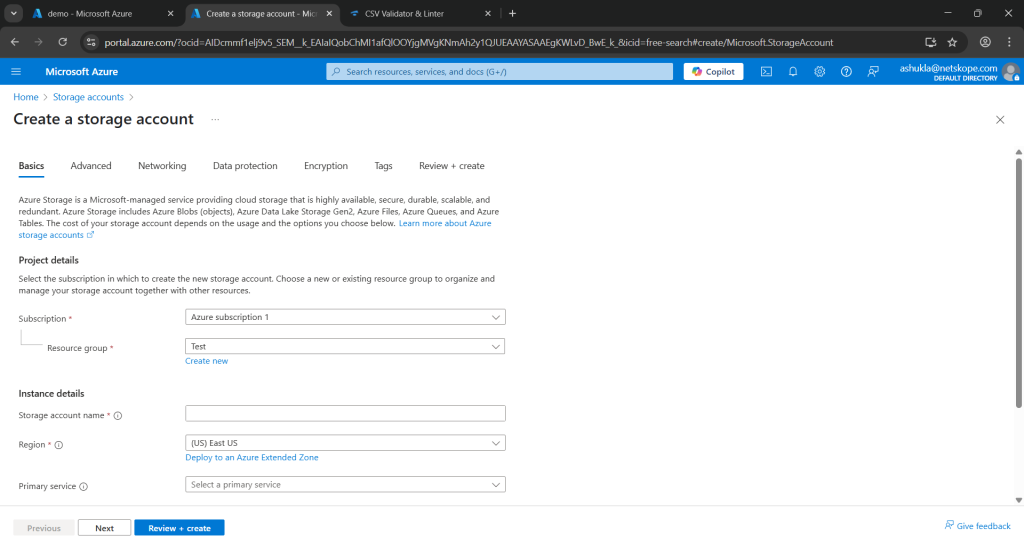
To configure a new Storage Account, click Create.
-
Provide all the required information and click on Review + create.
-
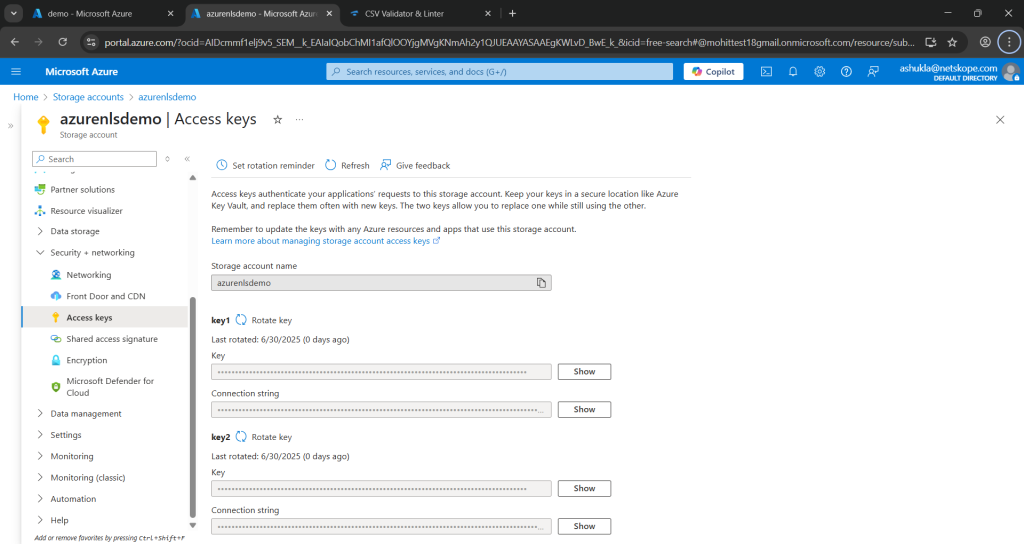
After successfully creating the storage account, go to {storage_account} > Security + networking > Access keys, and copy the connection string and use it in the plugin.
-
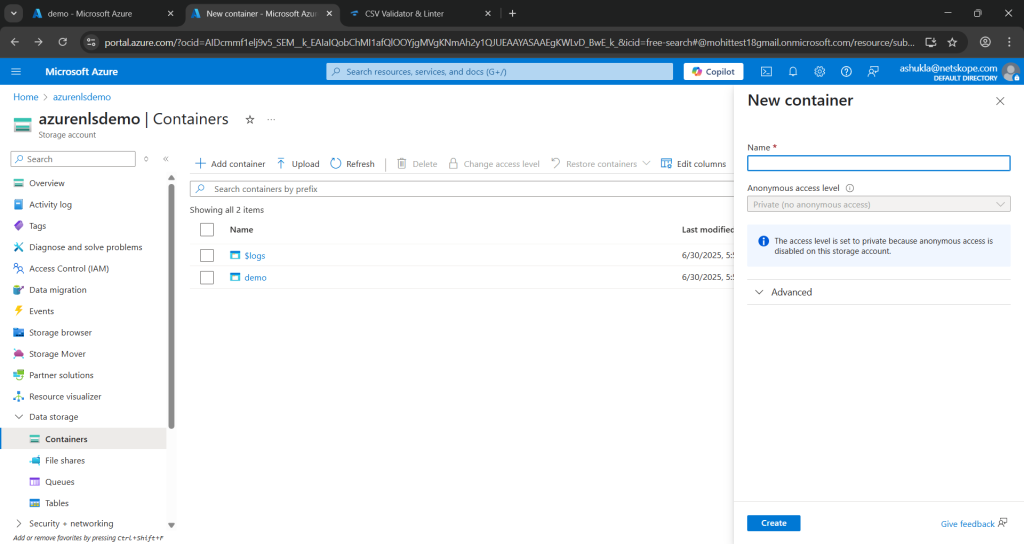
Now create a container and a queue. Go to Data storage > Containers and click Add container.
-
Provide a name for the container, and click Create. Your container will be listed on that page.
-
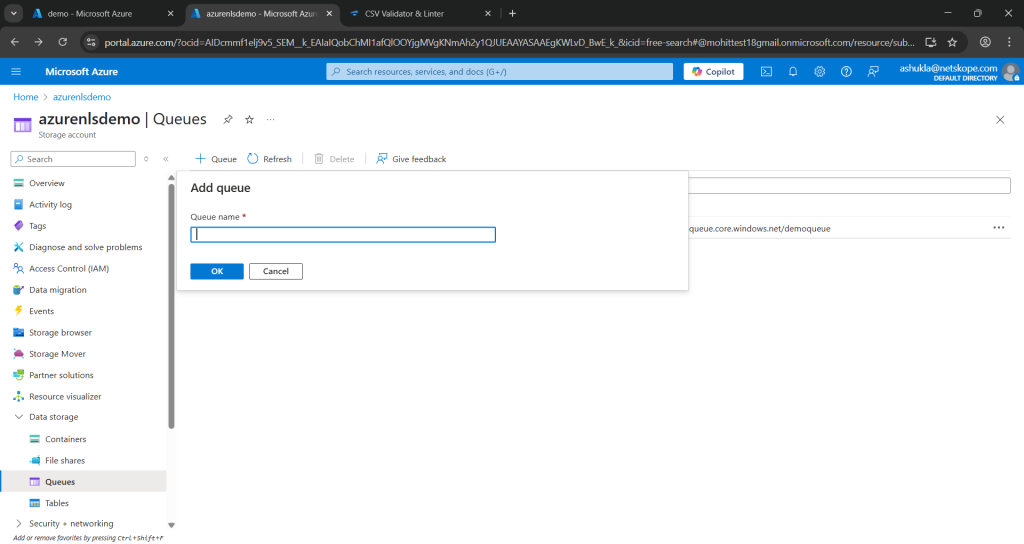
To configure the queue, go to Data storage > Queues, click +Queue, provide a name for the queue, and then click OK.
-
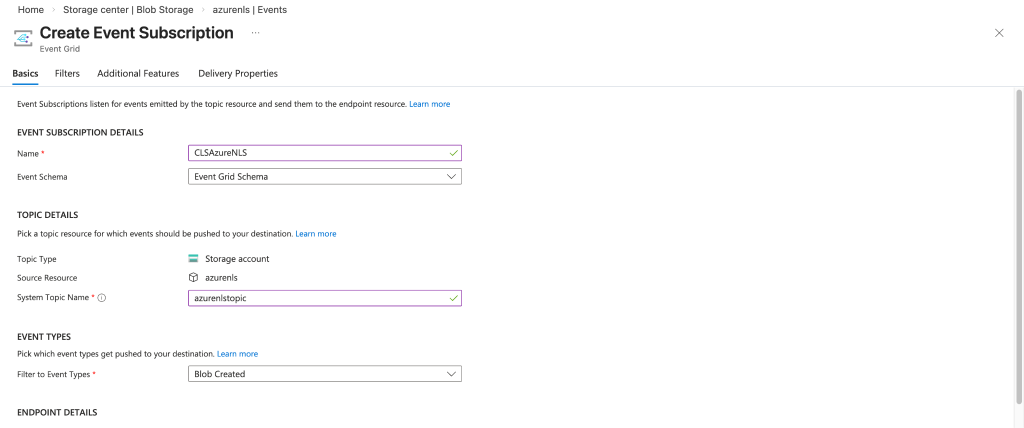
After configuring these, you need to create an Event Subscription for the queue. Go to {storage_account} > Events.
-
Click +Event subscription, provide all the details, and click Create. Provide a Name and System topic Name, set Event Schema as Event Grid Schema, and Filter to Event Types as Blob Created.
-
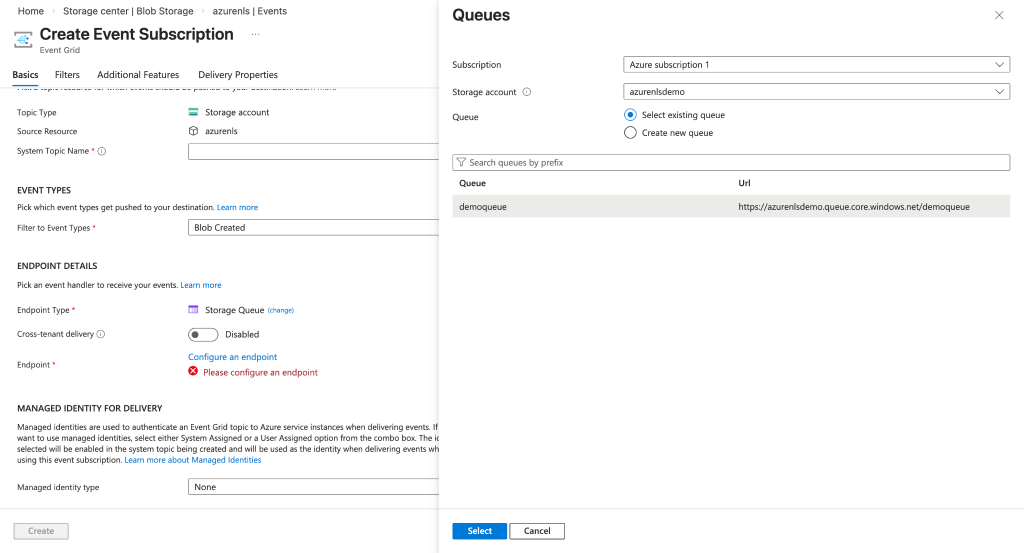
Configure the Endpoint with the storage account and queue that you just created.
-
Click Create.
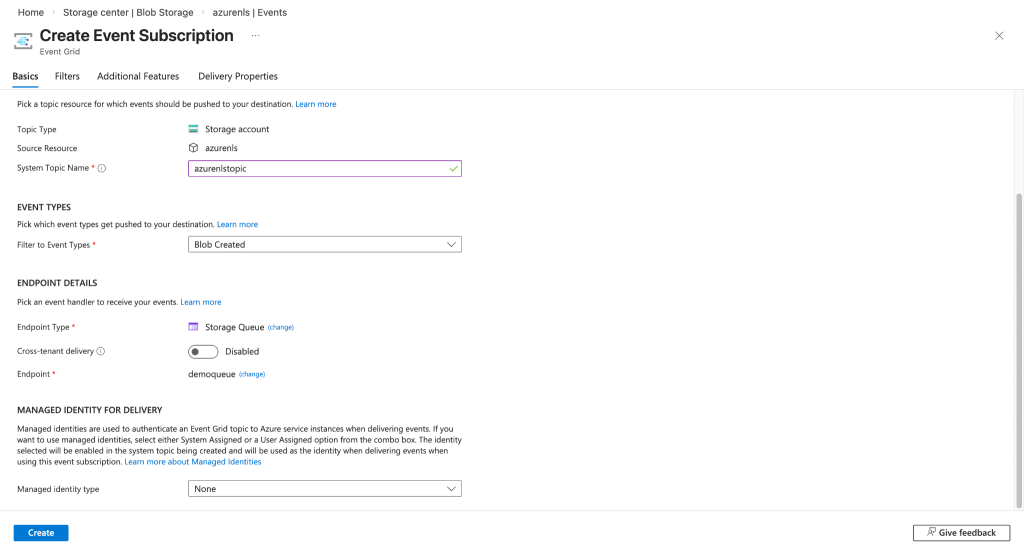


The configuration is completed. When you have some valid files available in the container, the plugin will fetch the data from that file and ingest it to a Log Shipper 3rd-party plugin platform.
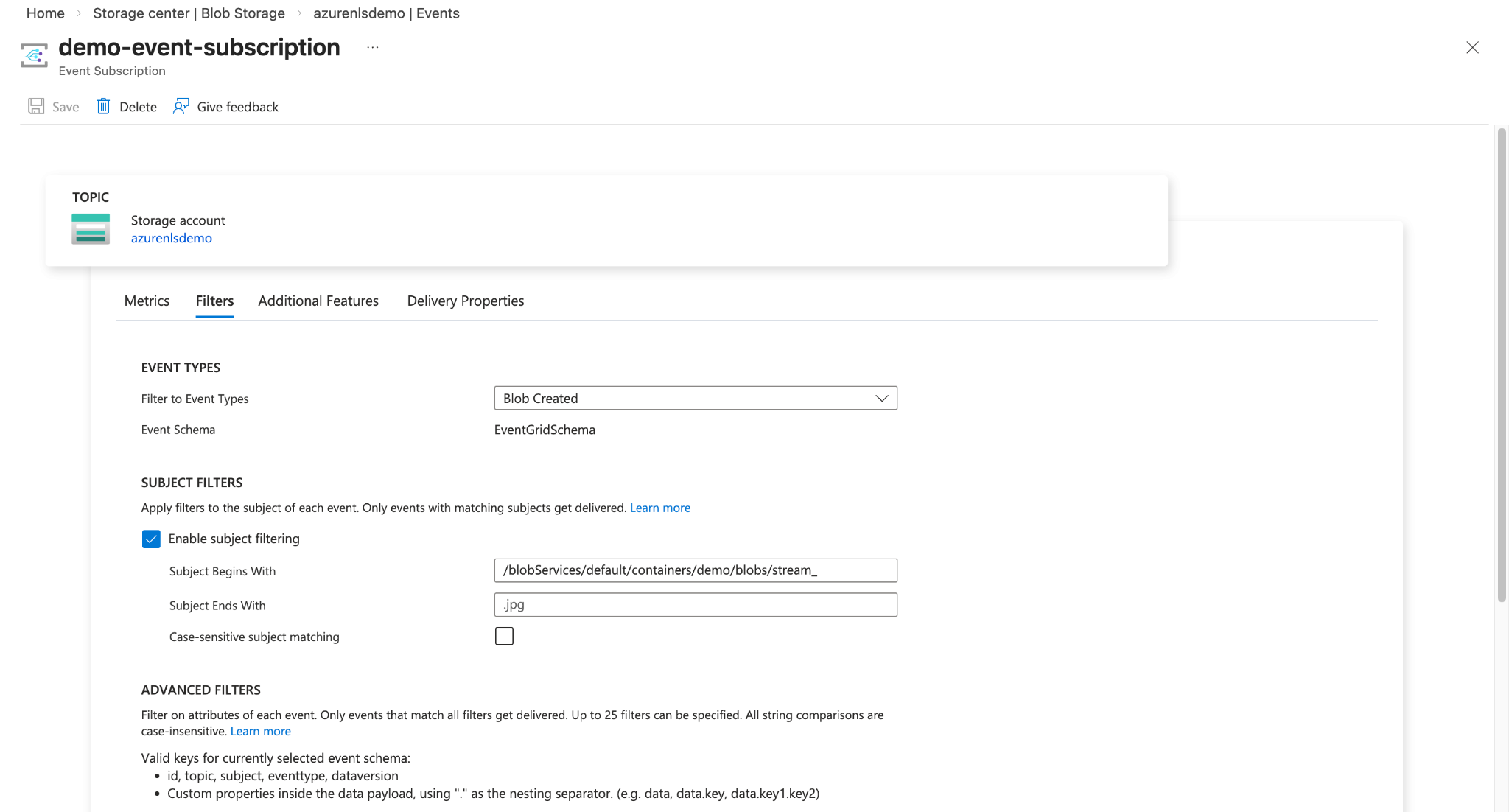
Note This will trigger an event anytime a blob is created in any directory. To trigger an event when a blob is created in a specific directory, you need to enable Enable subject filtering and add that specific directory path in the filter option. Example:
Configure Log Streaming on Netskope Tenant
-
Log in to Netskope Tenant, and click Settings.
-
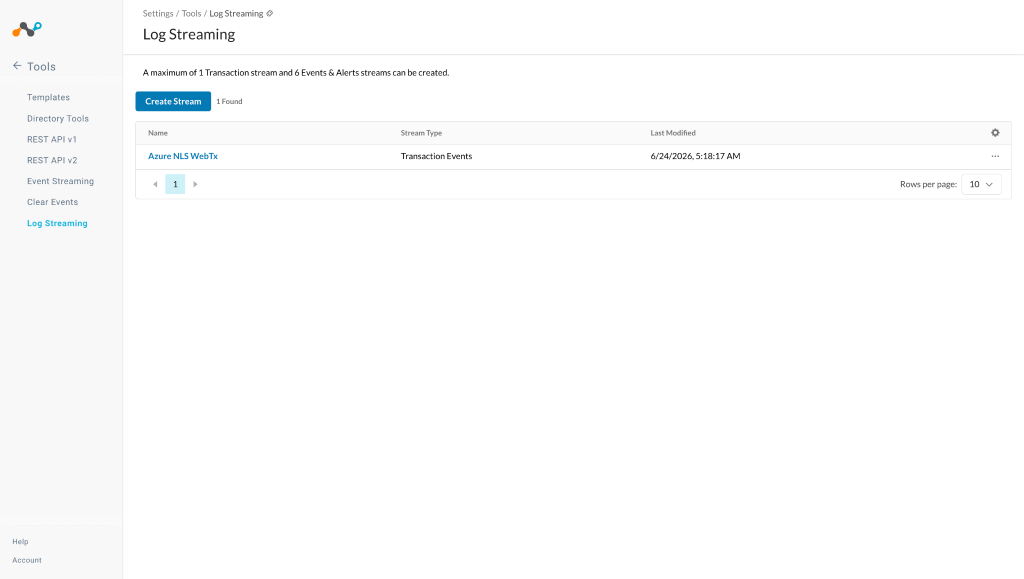
In Settings, go to Tools > Log Streaming.
-
Click Create Stream.
-
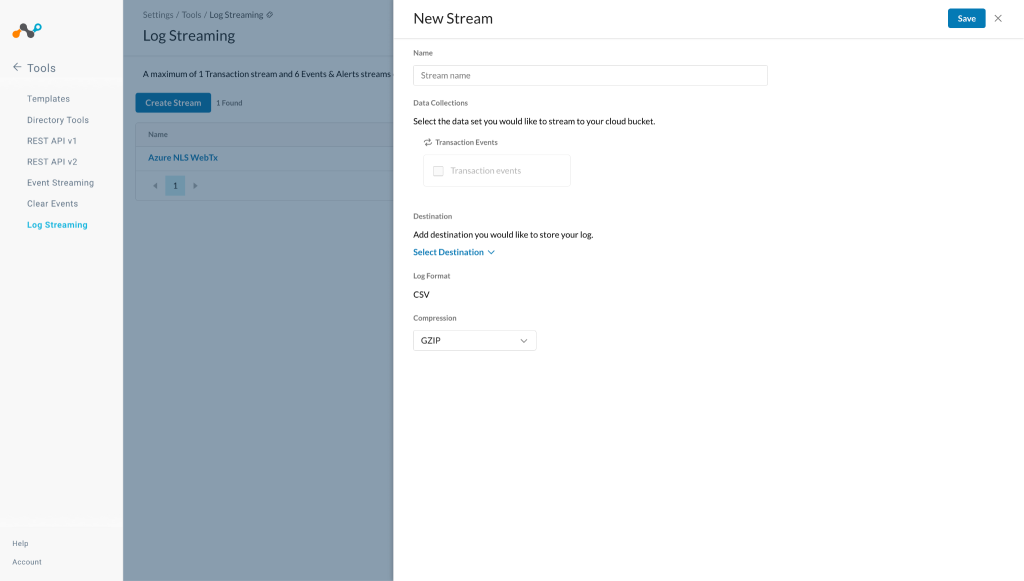
Provide these parameters:
-
Name: Enter the name for the stream.
-
Data Collections: If you want to stream Transaction logs to your cloud bucket, select the Transaction events checkbox. Otherwise, It will only stream Alerts and Events to your cloud bucket.
Note
- Make sure to select Parser order 2, if you will be using it with Syslog v4.1.2 plugin, because the default mapping for Syslog v4.1.2 is compatible with Parser order 2.
- Make sure the x-cs-timestamp field is enabled as Cloud Exchange uses this field for identifying the WebTx data.
-
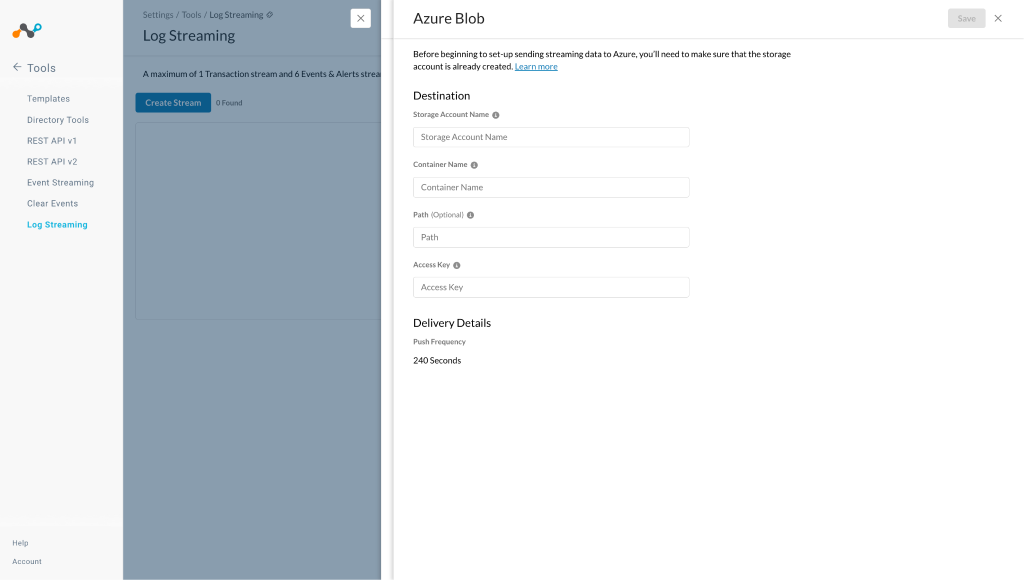
Destination: Select the destination for streaming and provide the information about the destination. Enter the Storage Account Name, Container Name, Path, and Access Key for your Azure container.
-
Compression: Select the compression type you want.
-
-
Click Save.


Configure the Azure Netskope LogStreaming Plugin
-
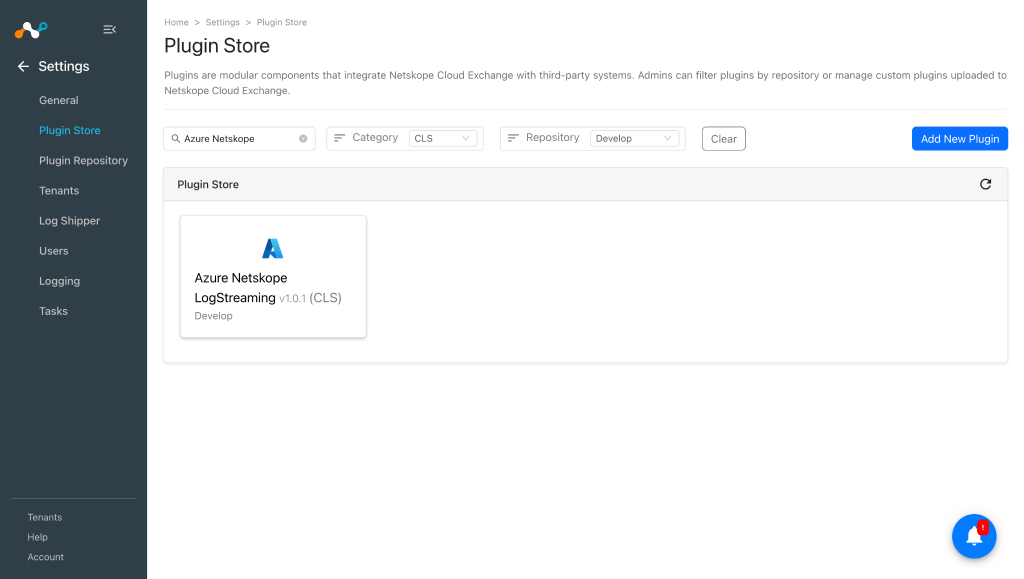
In Cloud Exchange, go to Settings > Plugin Store.
-
Search for and select the Azure Netskope LogStreaming v1.0.1 (CLS) plugin.
-
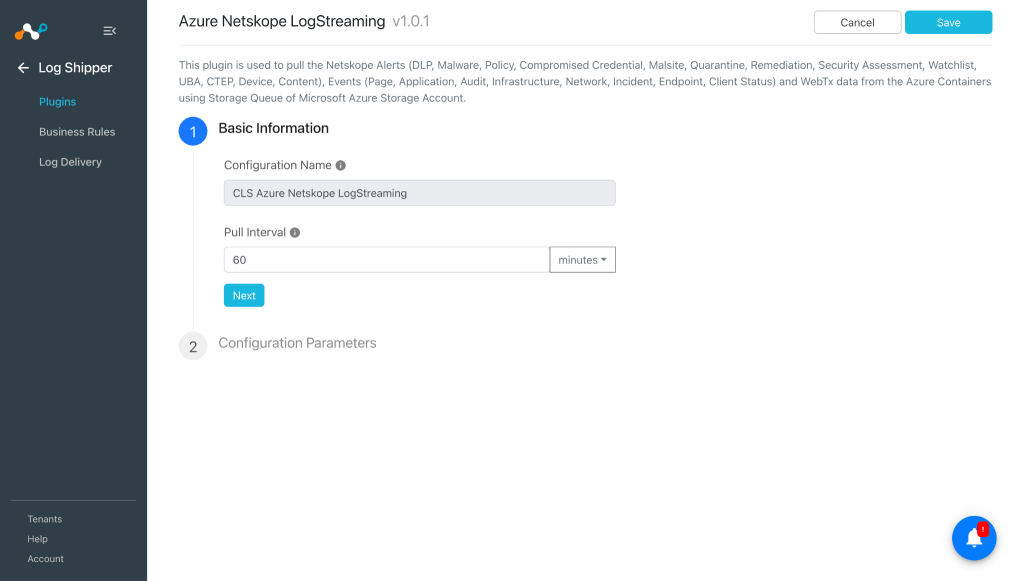
Enter the Configuration Name and Pull Interval for the plugin.
-
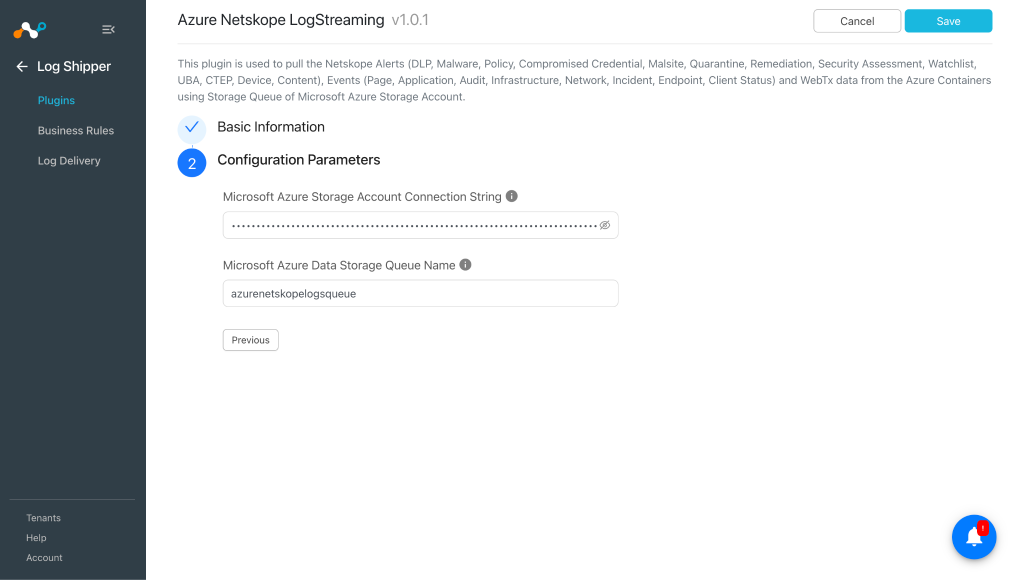
Click Next and enter the Configuration Parameters:
- Microsoft Azure Storage Account Connection String: The Microsoft Azure Storage Account Access Key Connection String created previously.
- Microsoft Azure Data Storage Queue Name: The Microsoft Azure Data Storage Queue Name for the Event Subscription created previously. Make sure that the provided queue is preconfigured in your Microsoft Azure Storage Account. A new queue will not be created if the provided queue does not exist.
-
Click Save. Plugin configuration will be available on the Log Shipper > Plugins page.
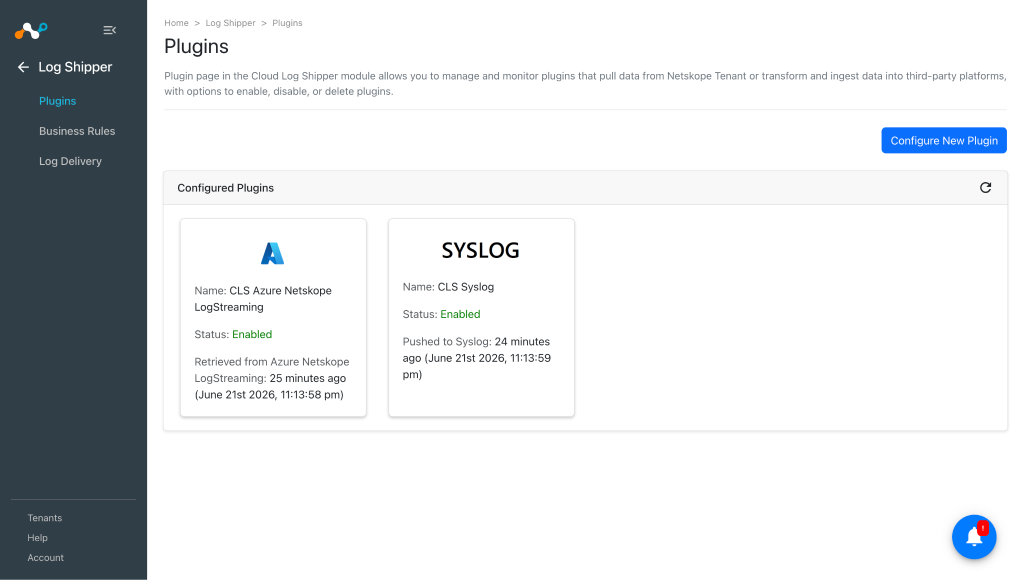 You need to have 3rd-party Log Shipper plugin, like Syslog with Splunk plugin, already configured to ingest the pulled data from the Azure Netskope LogStreaming plugin.


Configure a Log Shipper Business Rule for Azure Log Streaming
-
In Log Shipper, go to Business Rules.
-
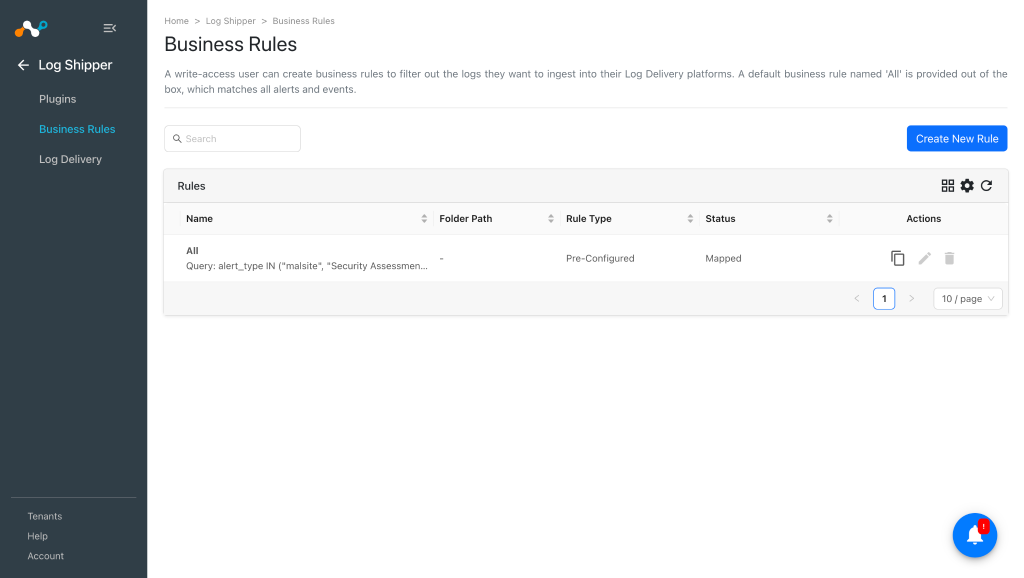
By default, there is a business rule that filters all alerts and events. If you want to filter out any specific types of alerts or events, click Create New Rule and configure a new business rule by adding the rule name and filter.
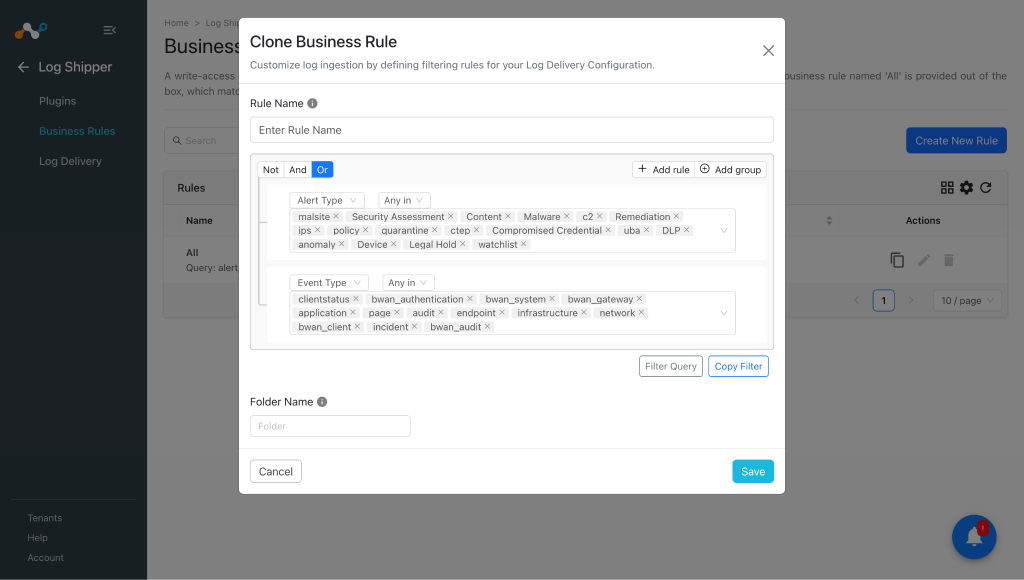
-
Click Save.


Configure Log Shipper Log Delivery for Azure LogStreaming
-
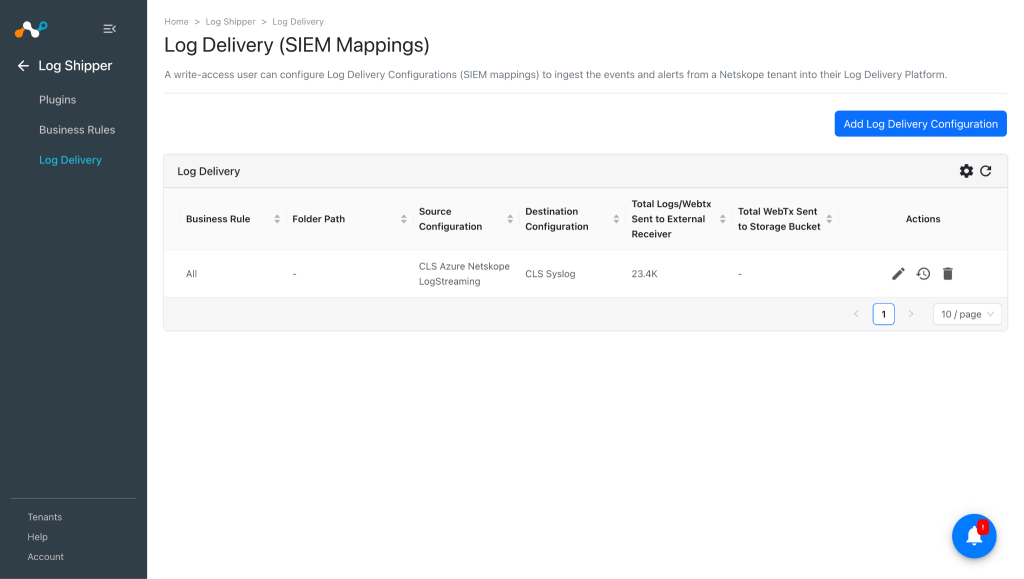
In Log Shipper, go to Log Delivery and click Add Log Delivery Configuration.
-
Select the Source plugin (CLS Azure Netskope LogStreaming), Destination plugin (like Syslog), select and business rule, and then click Save.
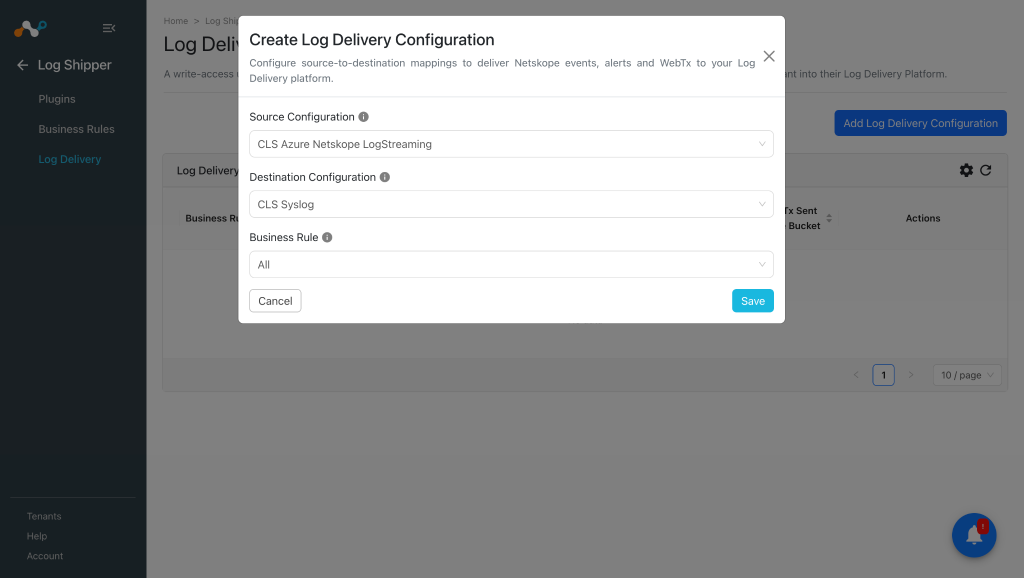
-
After Log Delivery is configured, the data will start to be pulled from the Azure Netskope LogStreaming tenant, transformed, and ingested into the 3rd-party plugin platform.


Validate the Azure LogStreaming Plugin
Validate the Pull
To validate the pulling of indicators from the Netskope tenant:
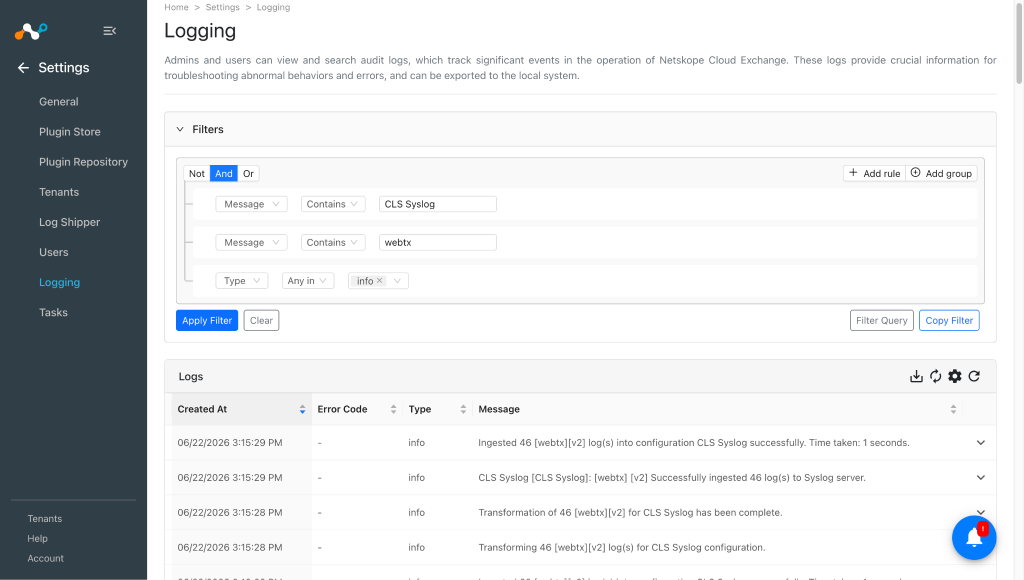
In Cloud Exchange, go to Logging and search for the pulled logs with the filter “message contains pulled”.


Validate the Push
To validate the push in Cloud Exchange:
-
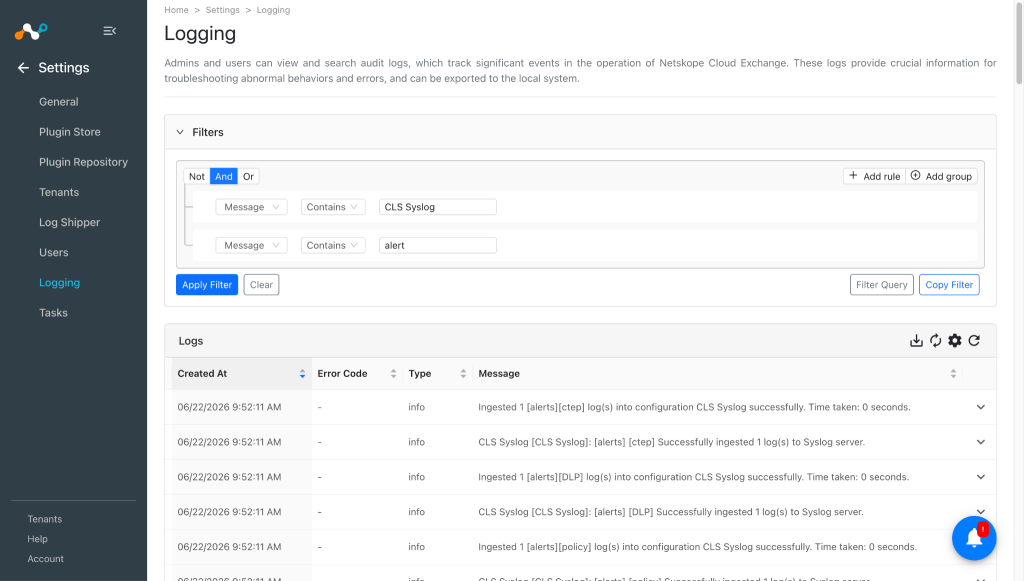
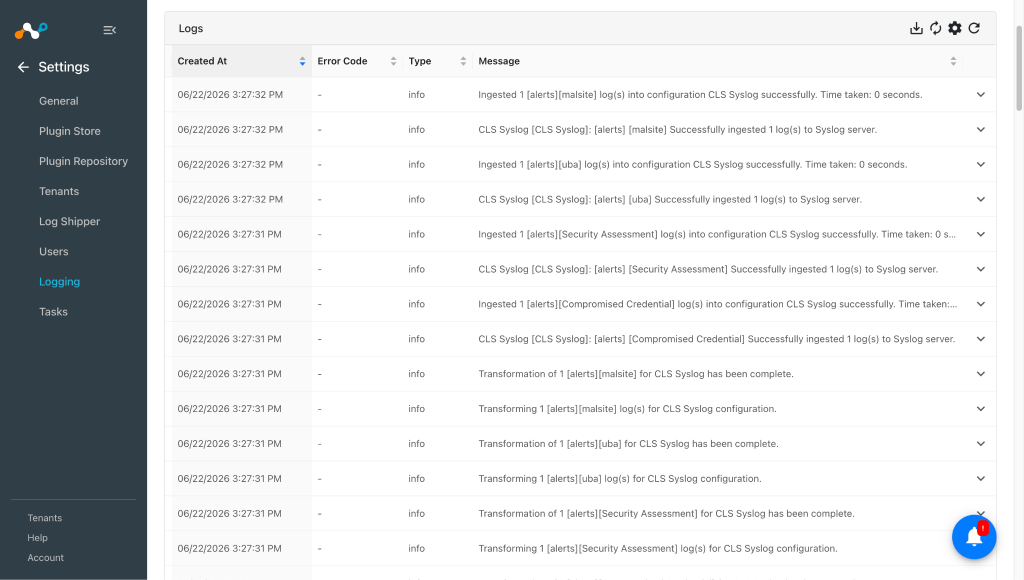
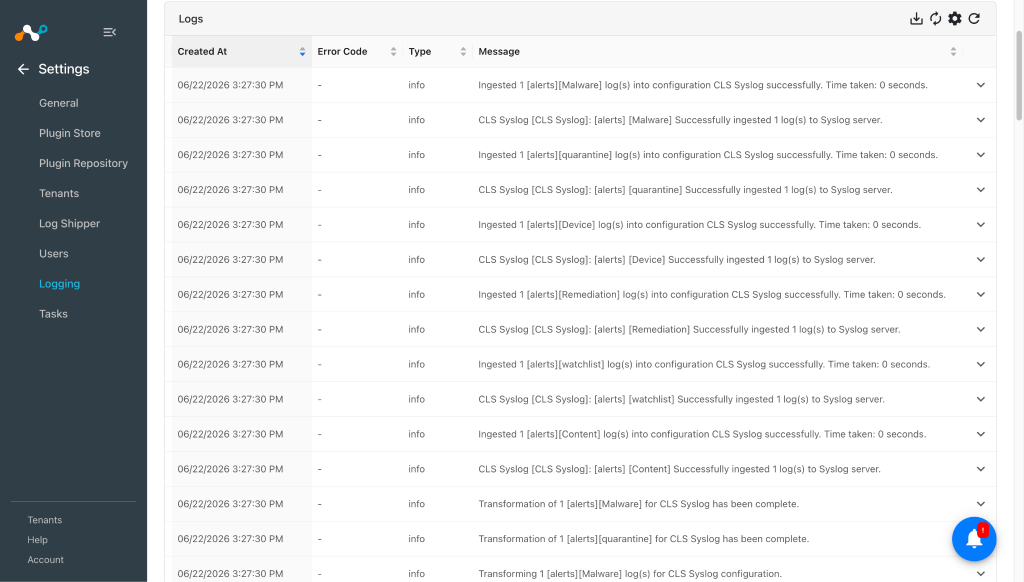
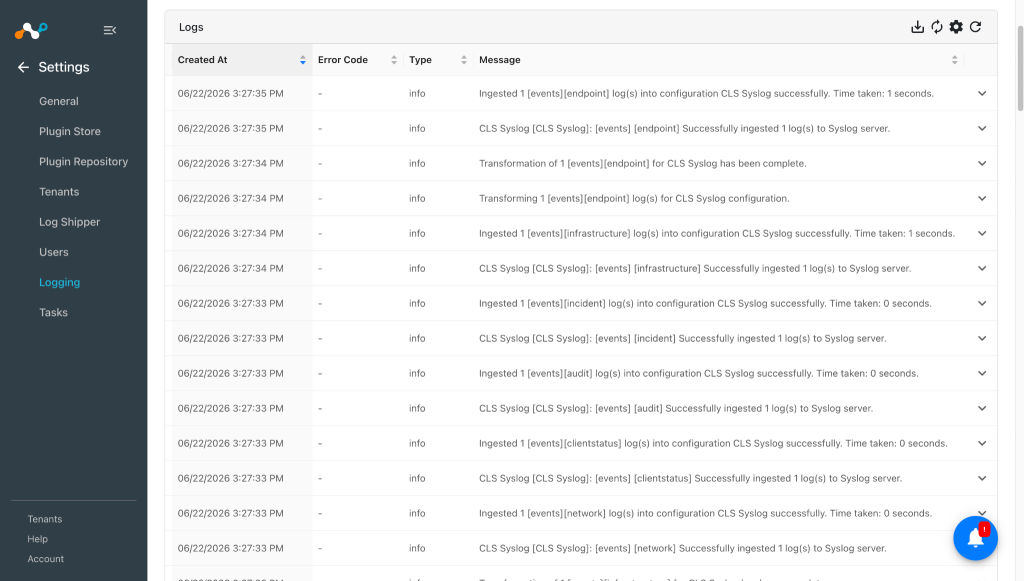
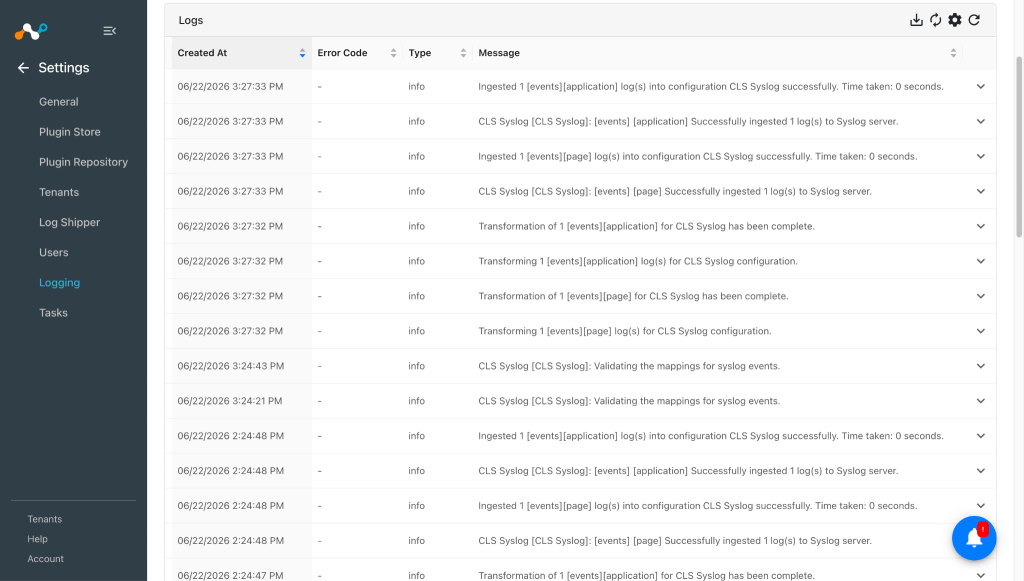
Go to Logging and Search for ingested events with the filter “message contains ingested”.
-
The ingested logs will be filtered.
-
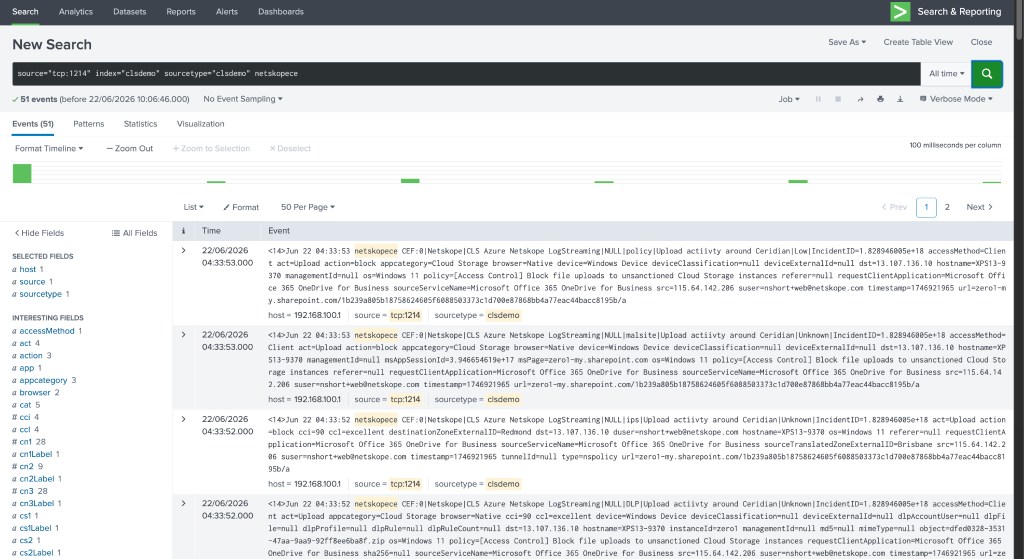
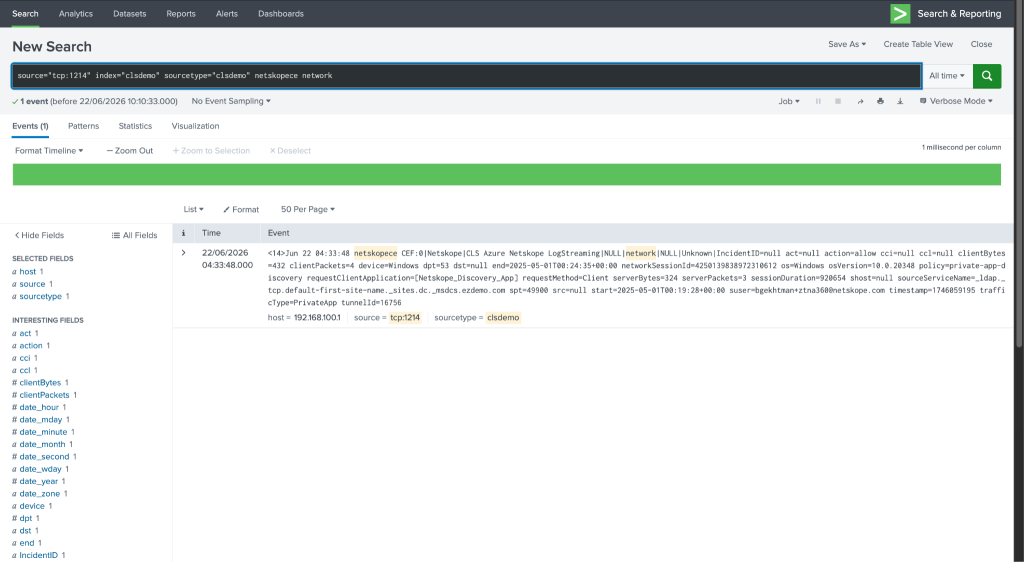
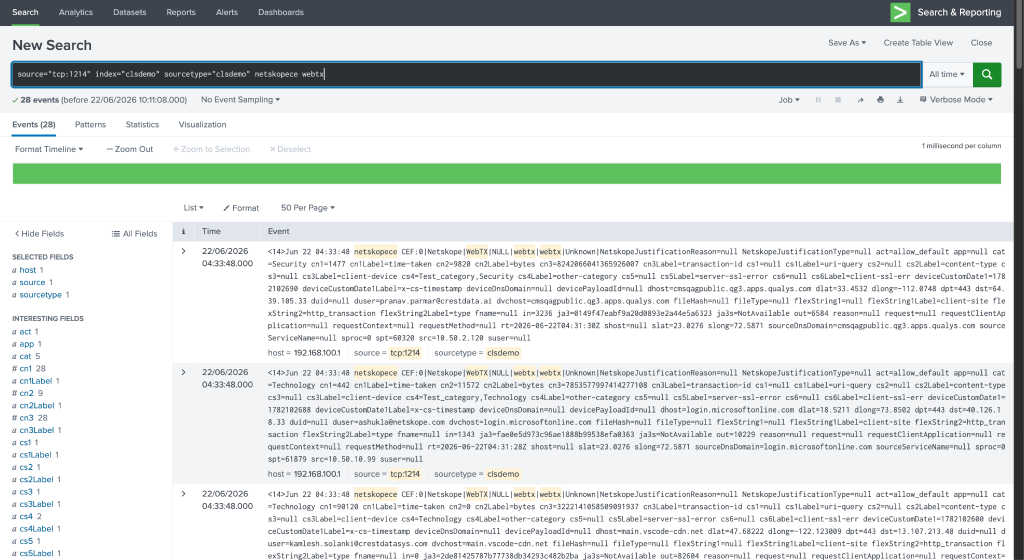
To view ingested data on Splunk (for example), search for ingested data using the TCP port and Log source identifier used while configuring the Log Shipper Syslog plugin.


Troubleshooting the Azure Netskope LogStreaming Plugin
Facing issues while configuring the new plugin
If you’re creating a new plugin and get this error, it may indicate that the queue name specified in the configuration does not exist in the Microsoft Azure Storage Account associated with the provided connection string

What to do:
Provide a valid Queue name for Storage Account associated with the provided connection string.
Facing issues while fetching Alerts/Events or WebTx data from the configured Queue
If you have configured Azure Netskope LogStreaming plugin and a 3rd-party plugin platform successfully, and you still get no messages after configuring Log Delivery for the plugin, it may be due to all the alerts/events/webtx data is being consumed and there is nothing available to pull from the queue.

What to do:
Verify that you have data to consume from the queue. Go to {Storage_account} > Data Storage > Queues >{Queue}.

Facing issues while transforming pulled events
After successfully pulling events from Azure Netskope LogStreaming plugin, while transforming the events, you are not able to transform the events. The root cause for this could be that the event type for which the error is received is not added into the mapping file.
What to do:
Make sure you have use the mapping file provided above for ingesting events, alerts and WebTx data in JSON format.
Facing issues while using plugin with proxy
If you are using the proxy server, and configuring the plugin with proxy, you might face this error:

This may be due to the proxy server being deployed on the local instance, and you are using the plugin on a cloud instance.
What to do:
Deploy your proxy server on a cloud instance instead of using a local instance.
Known Behavior
If you have RBACv3 enabled in your Netskope tenant, you will not be able to use the Netskope LogStreaming services.
Limitation
This plugin is only supported on Cloud Exchange deployed on a Cloud instance.