

This document explains how to configure the BMC Helix v2.1.0 plugin with the Ticket Orchestrator module of the Netskope Cloud Exchange platform. This plugin is used to create incidents on the BMC Helix ITSM platform. It also supports syncing BMC Helix incident status and impact as severity.
Prerequisites
To complete this configuration, you need:
- A Netskope tenant (or multiple, for example, production and development/test instances).
- A Netskope Cloud Exchange tenant with the the Tenant plugin and Ticket Orchestrator plugin already configured.
- Connectivity to BWAN platform with License Type Fixed.
- Connectivity to the following host: https://<instance>.onbmc.com.
BMC Helix Plugin Support
This plugin is used to create incidents on the BMC Helix ITSM platform. It also supports syncing BMC Helix incident status and impact as severity.
| Data Type | Support |
|---|---|
| Supported Alert types for Incident | Compromised Credentials, Policy, Malsite, Malware, DLP, Security Assessment, Watchlist, Quarantine, Remediation, UBA, CTEP, Device, Content |
| Supported Event types for Incident | Endpoint, Incident |
| Supported Alerts types from Cloud Exchange plugin | Information, Warning, Error |
Mappings
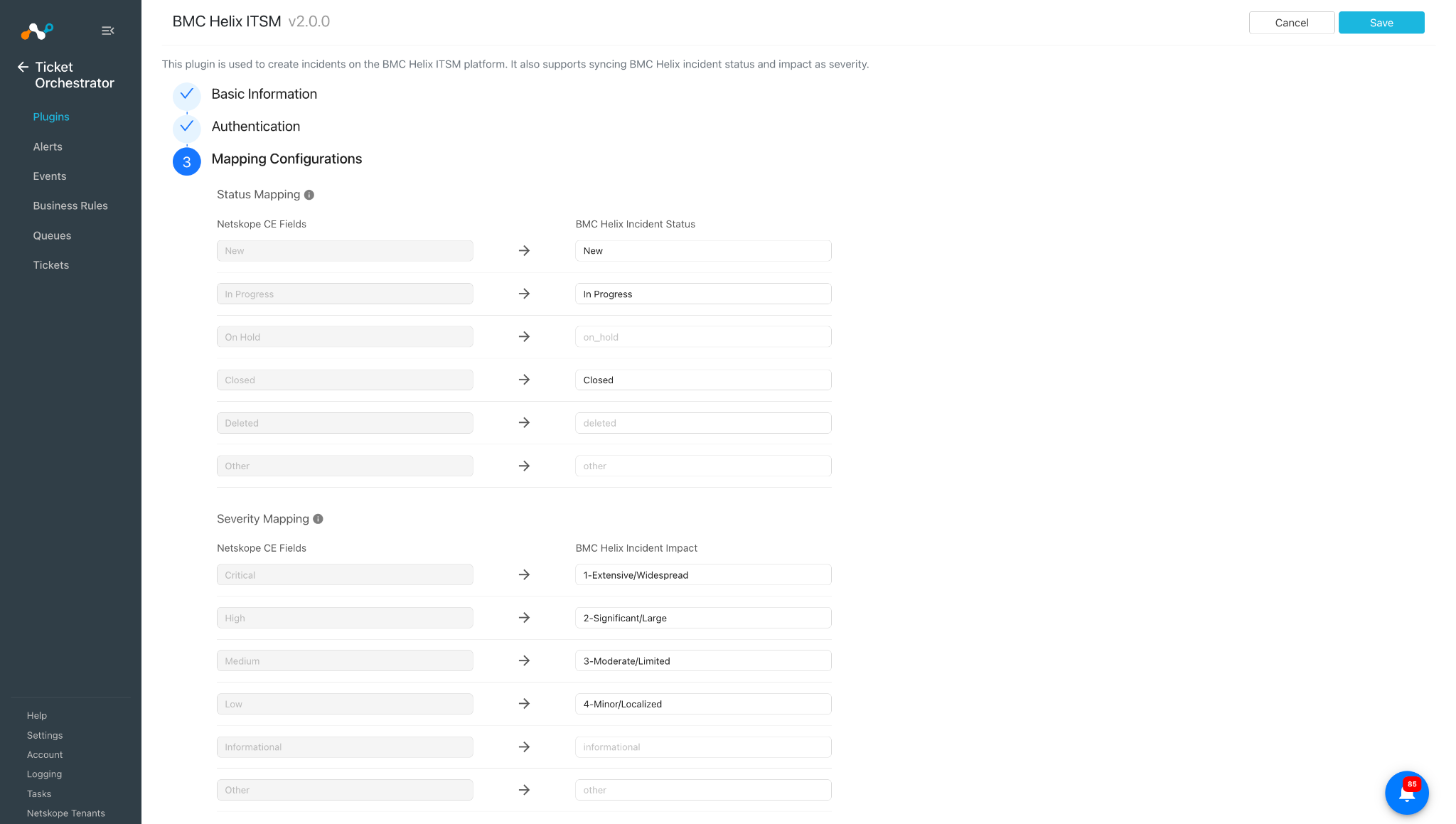
Here are the default mappings added in the plugin configuration. You can adjust the mappings in Cloud Exchange based on the mappings available on the BMC platform.
Status Mappings
| Cloud Exchange Fields | BMC Helix Incident Status |
|---|---|
| New | New |
| In Progress | In Progress |
| Closed | Closed |
Severity Mappings
| Cloud Exchange Fields | BMC Helix Incident Status |
|---|---|
| Critical | 1-Extensive/Widespread |
| High | 2-Significant/Large |
| Medium | 3-Moderate/Limited |
| Low | 4-Minor/Localized |
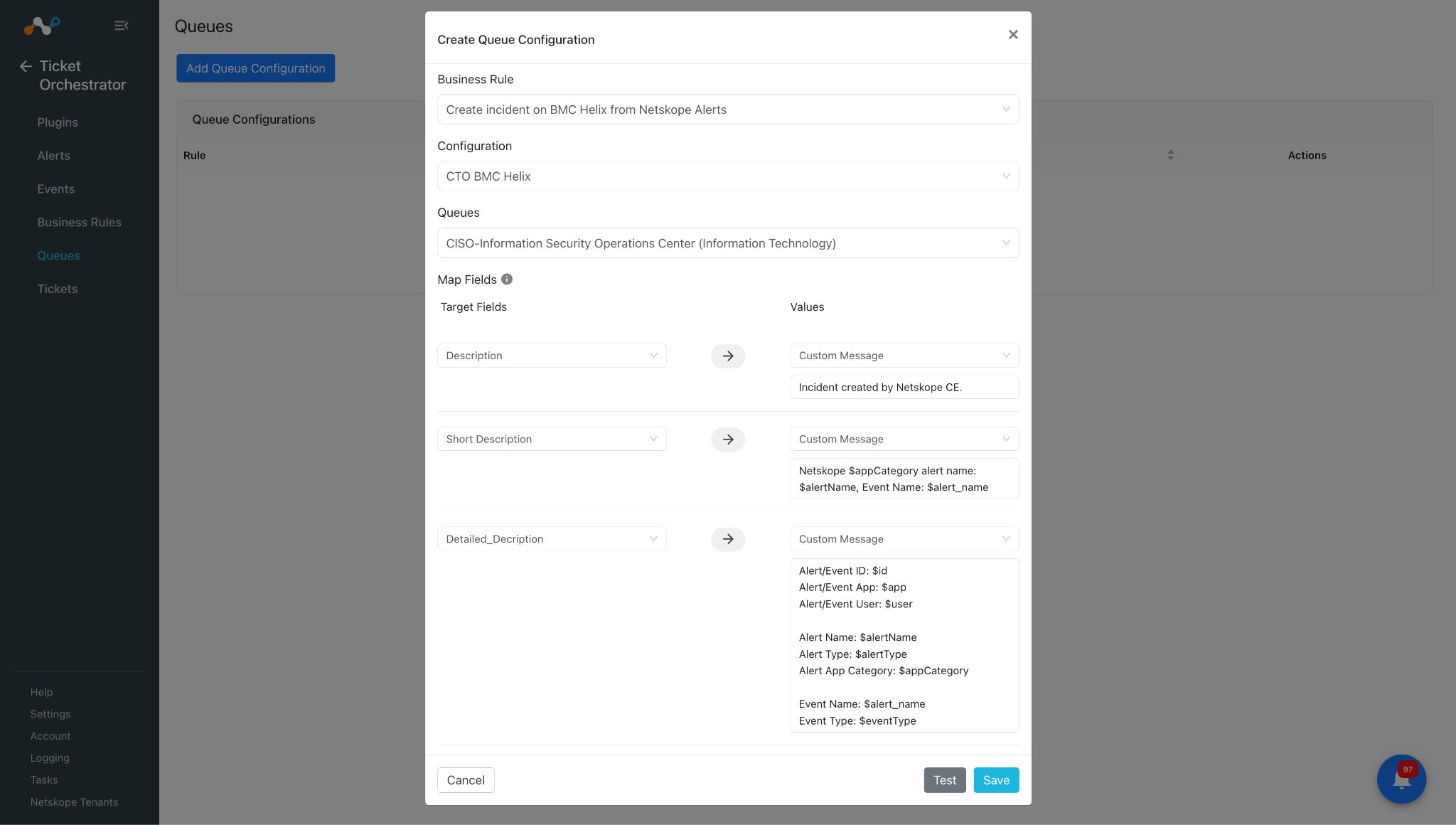
Here are the default mappings available for the Queue configuration.
Note
The default mapping fields are mandatory and are expected to be mapped correctly in order to create the incident.
| Target Fields | Values |
|---|---|
| Description | Custom Message: Incident created by Netskope CE. |
| Short Description | Custom Message: Netskope $appCategory alert name: $alertName, Event Name: $alert_name |
| Detailed_Description | Custom Message: Alert/Event ID: $id Alert/Event App: $app Alert/Event User: $user Alert Name: $alertName Alert Type: $alertType Alert App Category: $appCategory Event Name: $alert_name Event Type: $eventType |
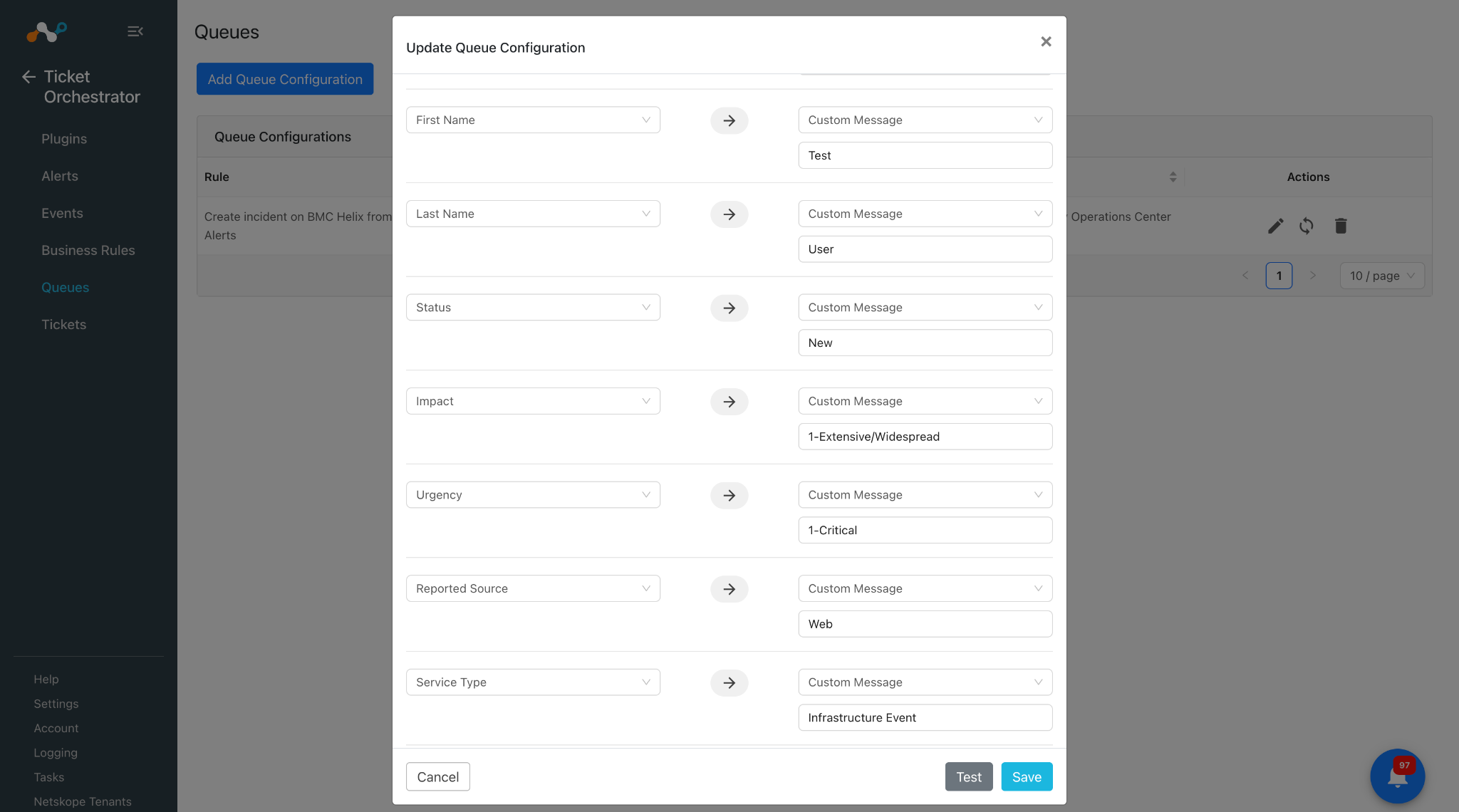
| First_Name | Custom Message: <add value> or select a field from the dropdown to map the value |
| Last_Name | Custom Message: <add value> or select a field from the dropdown to map the value |
| Status | Custom Message: <add value> or select a field from the dropdown to map the value |
| Impact | Custom Message: <add value> or select a field from the dropdown to map the value |
| Urgency | Custom Message: <add value> or select a field from the dropdown to map the value |
| Reported Source | Custom Message: <add value> or select a field from the dropdown to map the value |
| Service_Type | Custom Message: <add value> or select a field from the dropdown to map the value |
Permissions
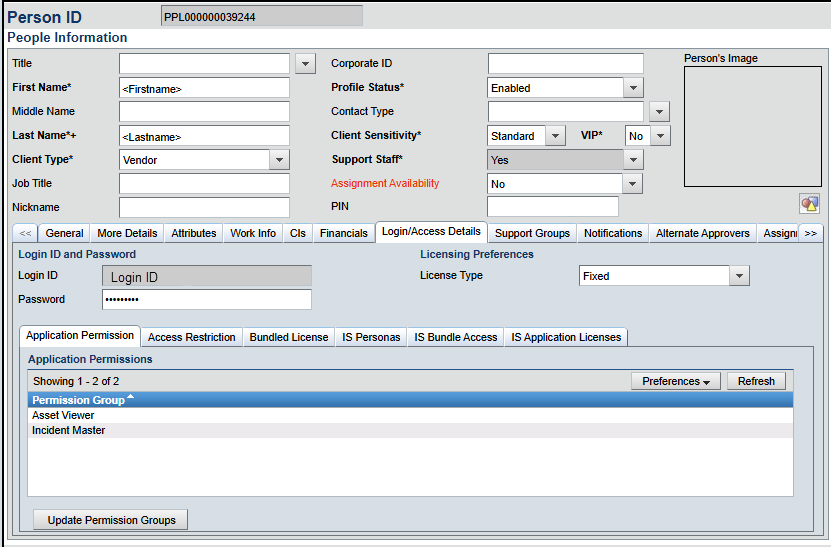
Required Application Permissions:
- Asset Viewer
- Incident Master
API Details
List of APIs Used
| API Endpoint | Method | Use Case |
|---|---|---|
| /api/jwt/login | POST | Generate Auth Token |
| /api/arsys/v1/entry/HPD:IncidentInterface_Create | POST | Create an incident |
| /api/arsys/v1/entry/HPD:IncidentInterface_Create | GET | Get incident details |
| /api/arsys/v1.0/fields/HPD:IncidentInterface_Create | GET | Get available fields for incident |
| /api/arsys/v1/entry/CTM:Support Group | GET | Get available groups as queue |
Generate an Auth Token
Endpoint: <API Base URL>/api/jwt/login
Method: POST
Headers
| Key | Value |
|---|---|
| User-Agent | netskope-ce-6.0.0-cto-bmc-helix-itsm-v2.1.0 |
| Content-Type | application/x-www-form-urlencoded |
Request Body
{ "username": , "password": , }
Sample Response
eyJ0eXAiOiJKV1QiLA0KICJhbGciOiJIUzI1.*********************UiLA0KICJleHAiOjEzMDA4MTkzODAsDQogImh0dHA6Ly9leGFtcGxlLmNvbS9pc19yb290Ijp0cnVlfQ.dBjftJeZ4CVP-mB9
Create an Incident
Endpoint: <API Base URL>/api/arsys/v1/entry/HPD:IncidentInterface_Create
Method: POST
Headers
| Key | Value |
|---|---|
| User-Agent | netskope-ce-6.0.0-cto-bmc-helix-itsm-v2.1.0 |
| Authorization | AR-JWT <Access_Token> |
| Content-Type | application/json |
Parameters
| Key | Value |
|---|---|
| fields | values (Request ID, Incident Number, Status, Impact, Urgency, Service_Type, Reported Source, Assigned Group, Assignee) |
Request Body
{ "values": { "z1D_Action": "CREATE", "Description": "Incident created by Netskope CE.", "Short Description": "Netskope $appCategory alert name: $alertName, Event Name: $alert_name", "Detailed_Decription": "Alert/Event ID: $id
Alert/Event App: $app
Alert/Event User: $user

Alert Name: $alertName
Alert Type: $alertType
Alert App Category: $appCategory

Event Name: $alert_name
Event Type: $eventType", "First_Name": "Test", "Last_Name": "User", "Status": "New", "Impact": "4-Minor/Localized", "Urgency": "4-Low", "Reported Source": "Web", "Service_Type": "Infrastructure Event", "Assigned Group": "", "Assigned Support Company": "", "Assigned Support Organization": "" } }
Get Incident Details
Endpoint: <API Base URL>/api/arsys/v1/entry/HPD:IncidentInterface_Create
Method: GET
Headers
| Key | Value |
|---|---|
| User-Agent | netskope-ce-6.0.0-cto-bmc-helix-itsm-v2.1.0 |
| Authorization | AR-JWT <Access_Token> |
| Content-Type | application/json |
Get Available Fields for an Incident
Endpoint: <API Base URL>/api/arsys/v1.0/fields/HPD:IncidentInterface_Create
Method: GET
Headers
| Key | Value |
|---|---|
| User-Agent | netskope-ce-6.0.0-cto-bmc-helix-itsm-v2.1.0 |
| Authorization | AR-JWT <Access_Token> |
| Content-Type | application/x-www-form-urlencoded |
Get Available Groups as a Queue
Endpoint: <API Base URL>/api/arsys/v1/entry/CTM:Support Group
Method: GET
Headers
| Key | Value |
|---|---|
| User-Agent | netskope-ce-6.0.0-cto-bmc-helix-itsm-v2.1.0 |
| Authorization | AR-JWT <Access_Token> |
| Content-Type | application/x-www-form-urlencoded |
User Agent
netskope-ce-6.0.0-cto-bmc-helix-itsm-v2.1.0
Workflow
- Give permissions to a BMC Helix user.
- Configure the BMC Helix plugin.
- Add a Business Rule.
- Add a Queue.
- Validate the plugin.
Give Permissions to a BMC Helix User
- In BMC Helix, go to the user’s profile.
- Click Login/Access Details, and then click Application Permission.
- Add the required permissions:
- Asset Viewer
- Incident Master
- Click Update Permission Groups.
Configure the BMC Helix Plugin
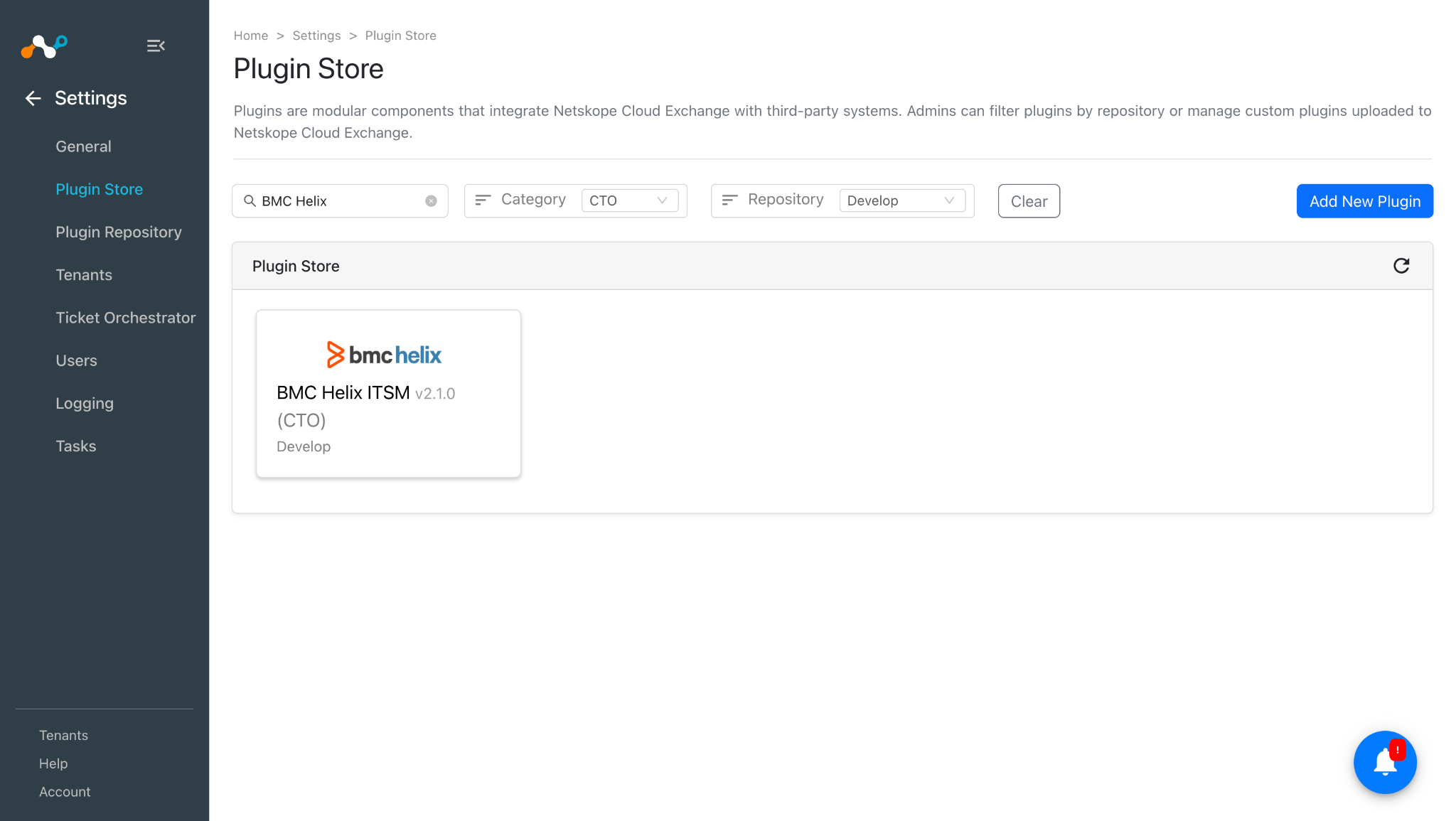
- In Cloud Exchange, go to Settings > Plugins. Search for and select the BMC Helix ITSM v2.1.0 (CTO) plugin box.
- Enter the Basic Information:
- Configuration Name: Unique name for the configuration.Sync Interval: Leave the default.Use System Proxy: Enable if the proxy is required for communication.

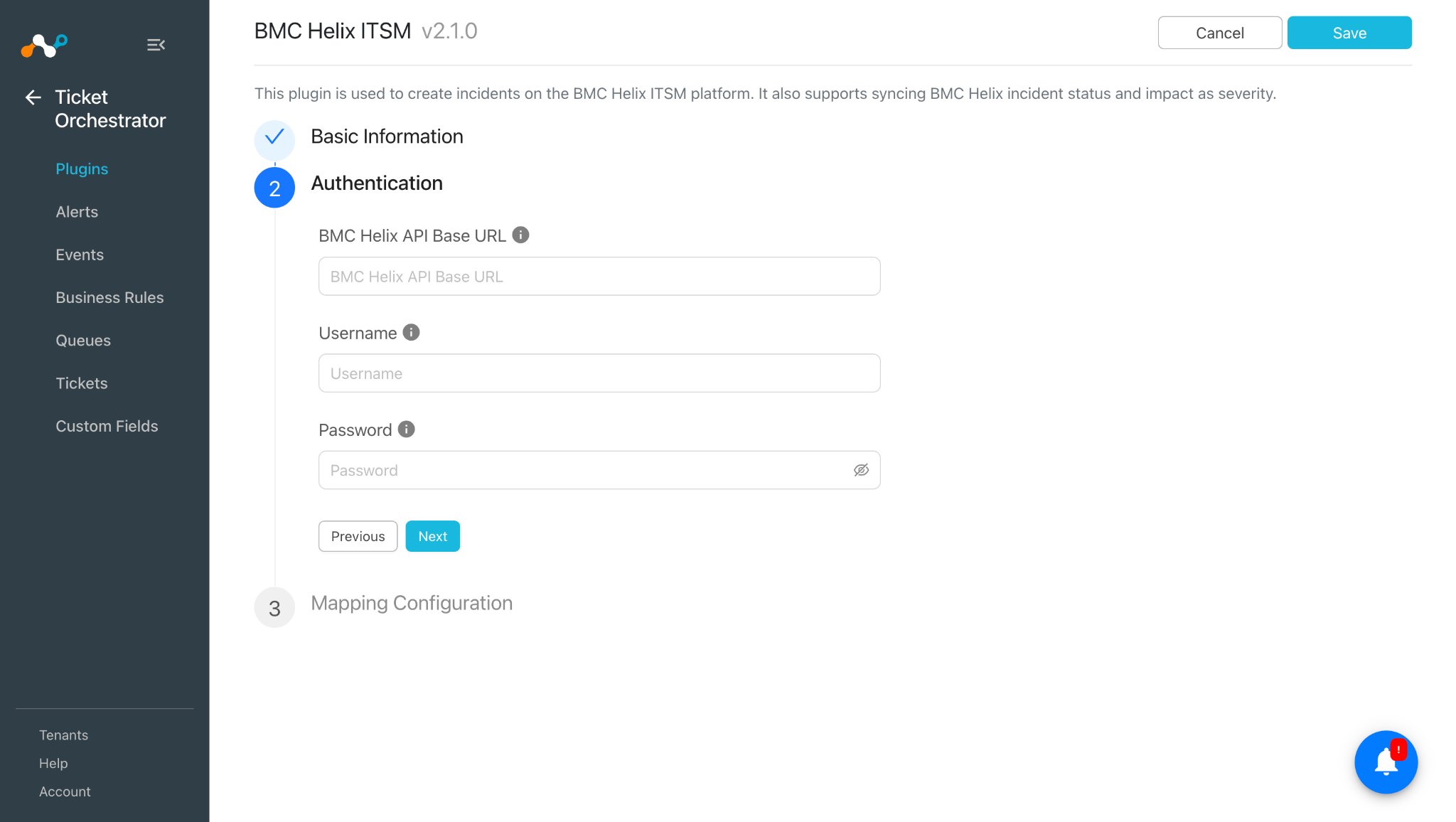
- Click Next and enter the Authentication Parameters:
- BMC Helix API Base URL: Your BMC Helix API URL based on cloud or On-Premises setup.
Example: http(s)://<instance-name>.comUsername: The Username associated with your BMC Helix account.Password: The Password associated with your BMC Helix account.
- BMC Helix API Base URL: Your BMC Helix API URL based on cloud or On-Premises setup.
- Click Next and provide the Status and Severity mappings. By default, a mapping will be added, but it can be modified with the BMC mappings per your requirements.
- Click Save.
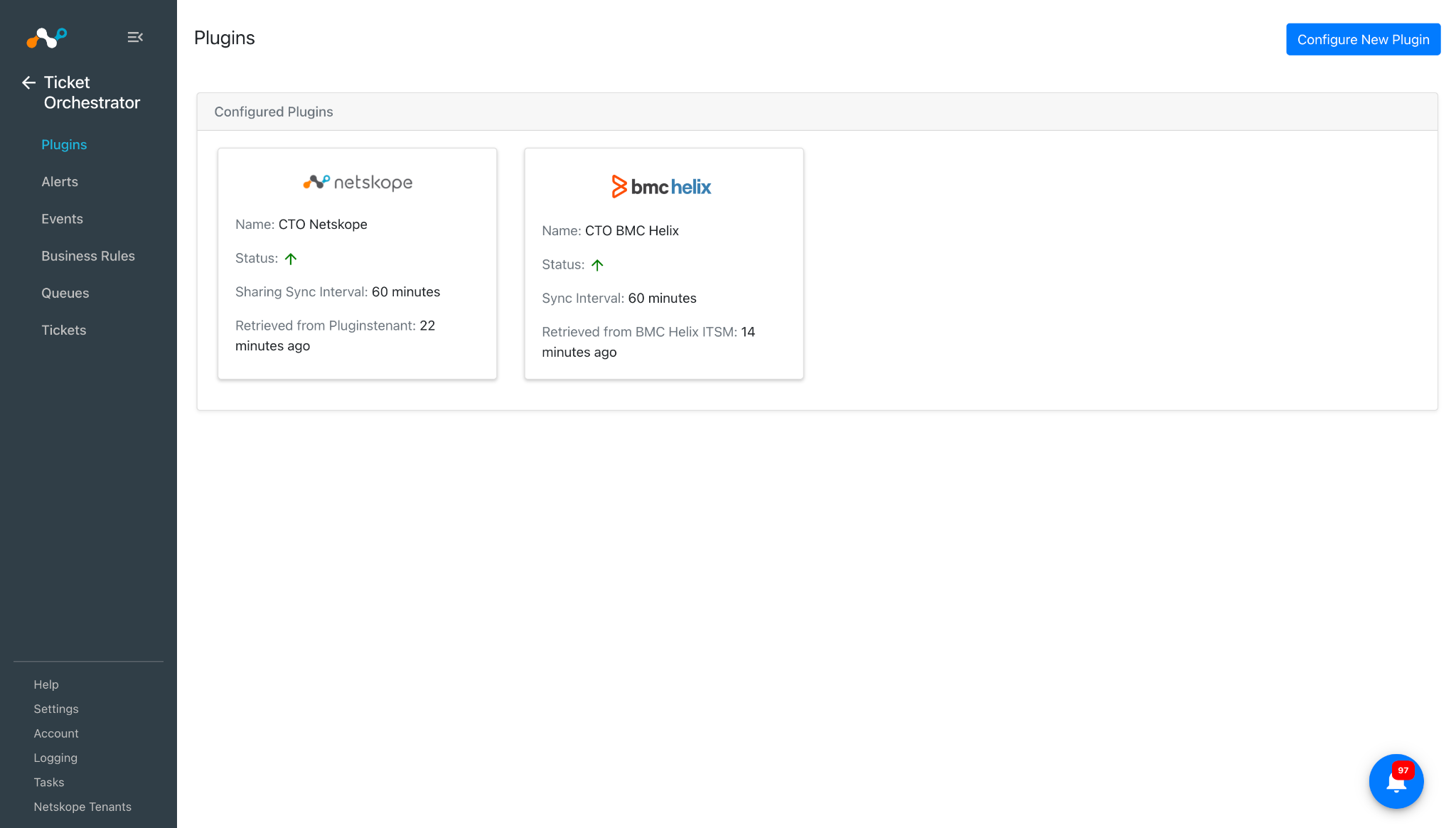
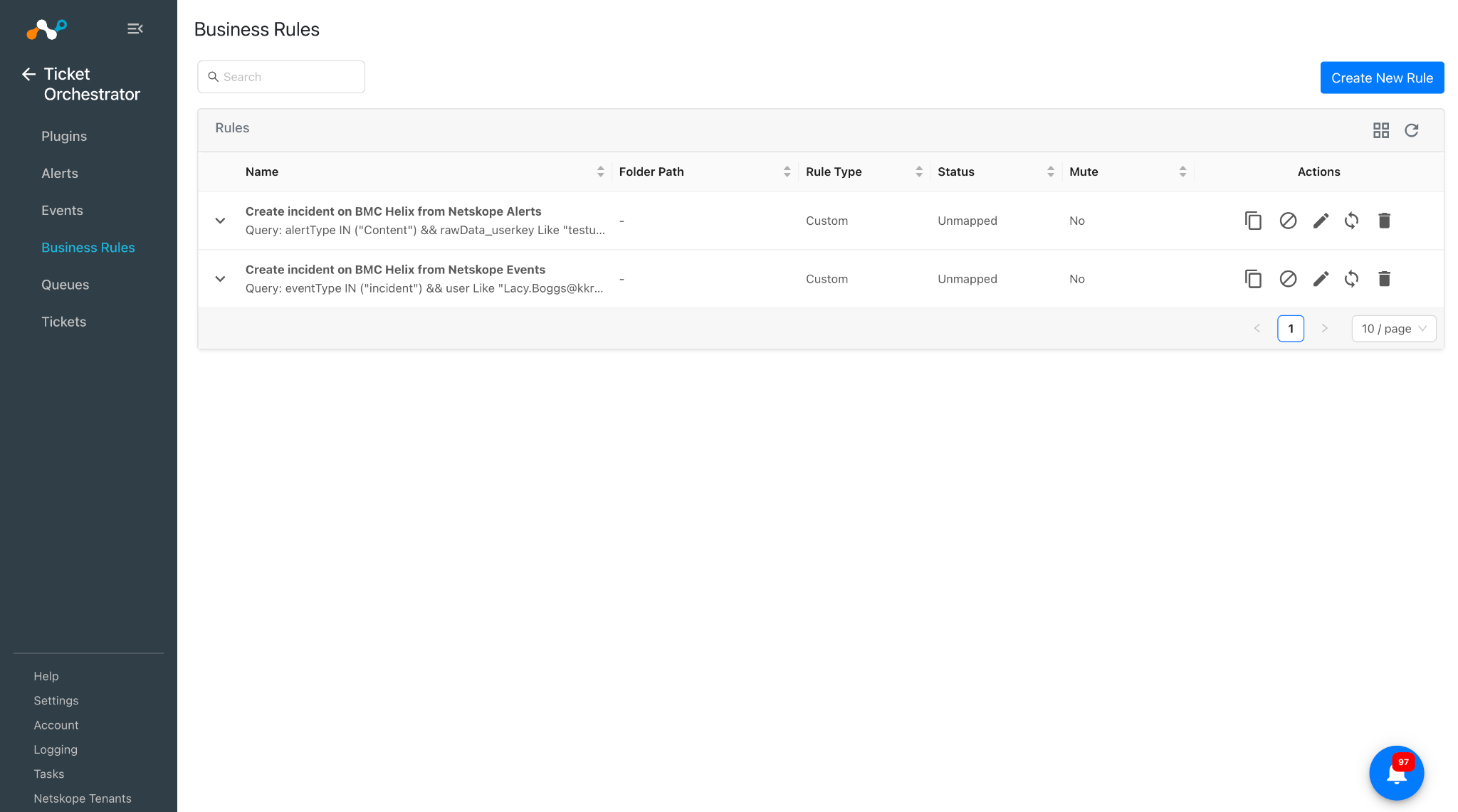
Add a Ticket Orchestrator Business Rule for BMC Helix
To generate tickets on the BMC Helix platform, you need a business rule to filter the alerts/events you want to use to generate the tickets.
- In Ticket Orchestrator, go to Business Rules and click Create New Rule.
- Add the filter(s) according to your requirement in the rule.
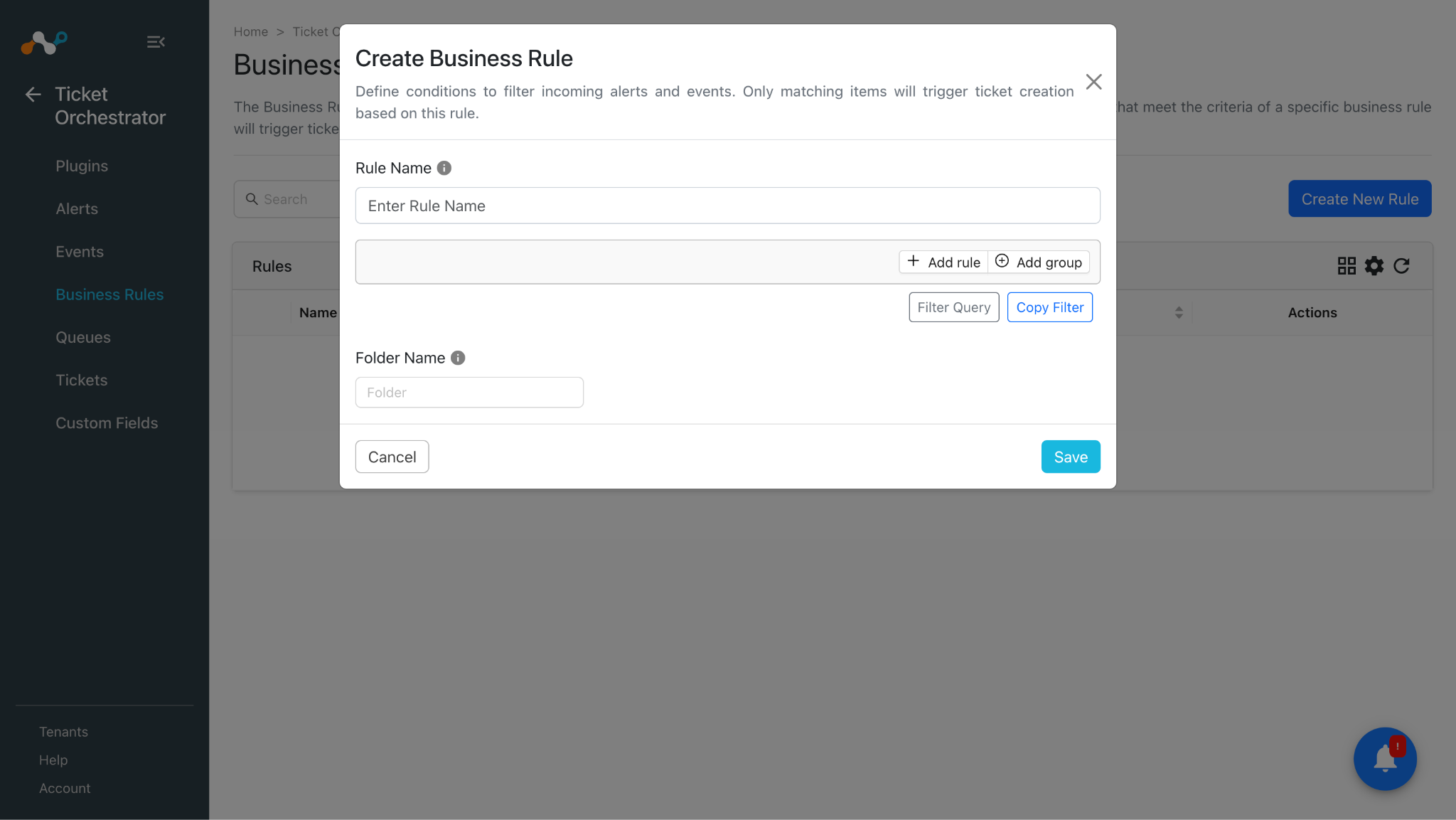
- Click Save.
Add a Ticket Orchestrator Queue for BMC Helix
To generate the ticket, you need to add a Queue configuration.
- In Ticket Orchestrator, go to Queues and click Add Queue Configuration.
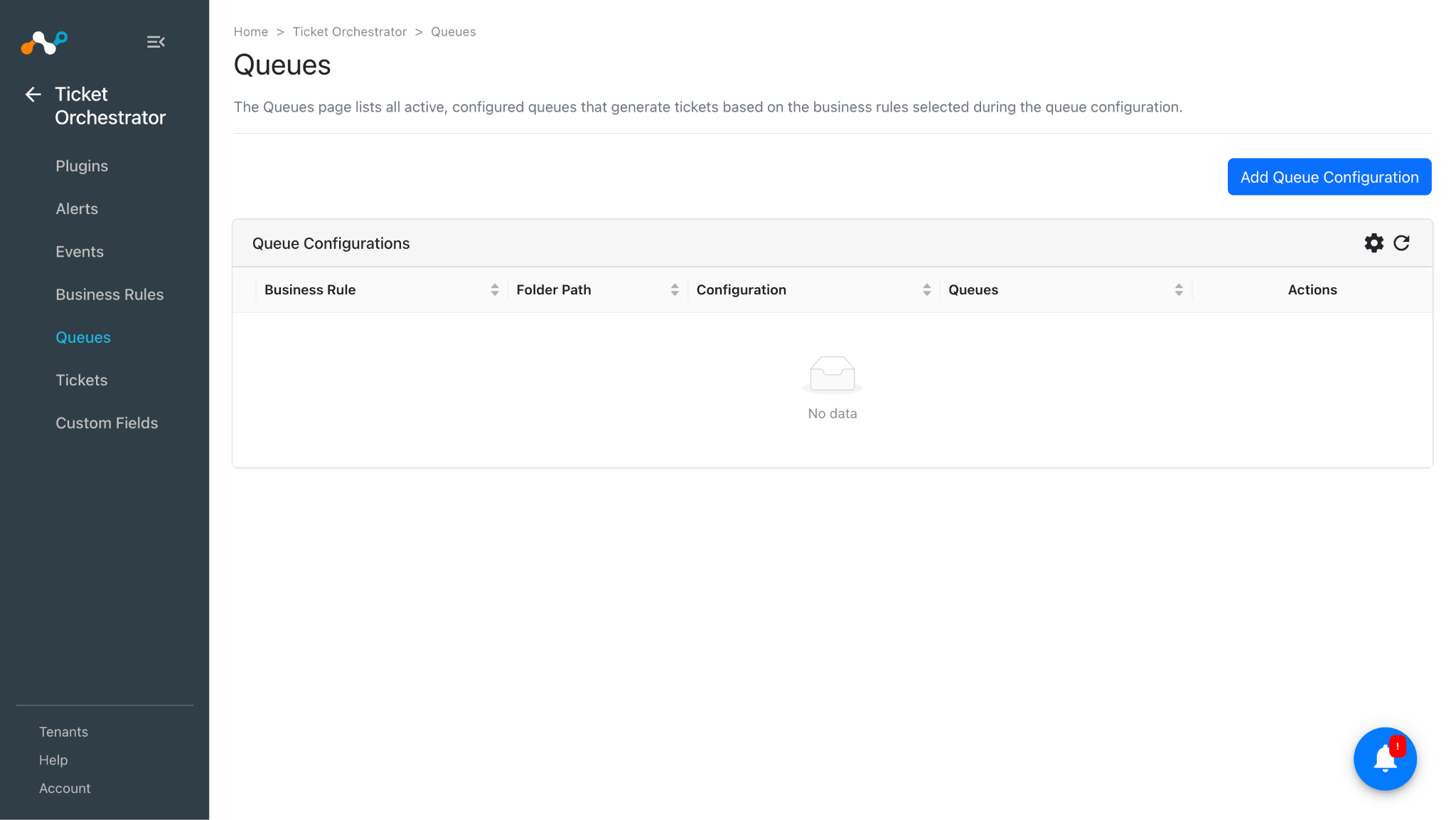
- Select your Business Rule, your plugin Configuration (on which you want to create/generate tickets), Queues, and Targets. When finished, click Save.
Notes
- Keep the require approval toggle enabled if you want to manually approve the execution of each action manually.
- All the fields added in the Queue as Target Fields are mandatory for the incident to be created on BMC Helix. Any other mapped values/ format are not supported and will trigger an error while creating the incident.
Here is the list of fields used to verify the incident creation on BMC Helix. This could vary if there are any other fields added to the platform.
|
Fields |
Allowed Values |
|---|---|
|
Status |
New Assigned In Progress Pending Closed Cancelled |
|
Impact |
1-Extensive/Widespread 2-Significant/Large 3-Moderate/Limited 4-Minor/Localized |
|
Urgency |
1-Critical 2-High 3-Medium 4-Low |
|
Service_Type |
User Service Restoration User Service Request Infrastructure Restoration Infrastructure Event (Customer Suggested) Security Incident |
|
Reported Source |
Chat Web (Customer Suggested) BMC Impact Manager Event External Escalation Walk In Phone Direct Input Other Systems Management Self Service Fax Voice Mail |
Validate the BMC Helix Plugin
Validate on Cloud Exchange
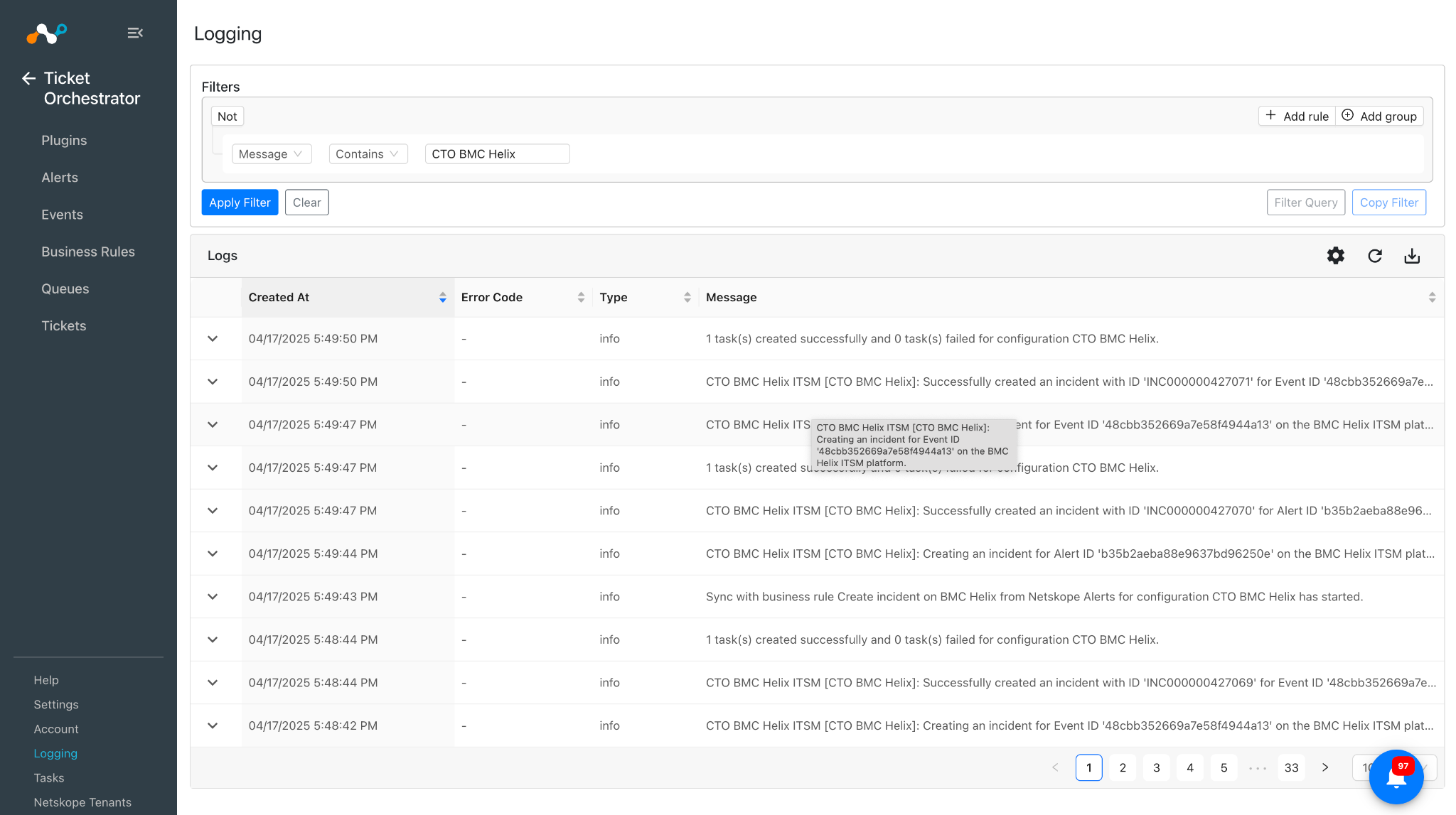
To confirm the incidents created from on BMC, check the logs from the plugins by going to Logging and searching the logs based on the plugin name.
Example: message Like “CTO BMC Helix”
To check the created incident, go to Tickets and check the created incident.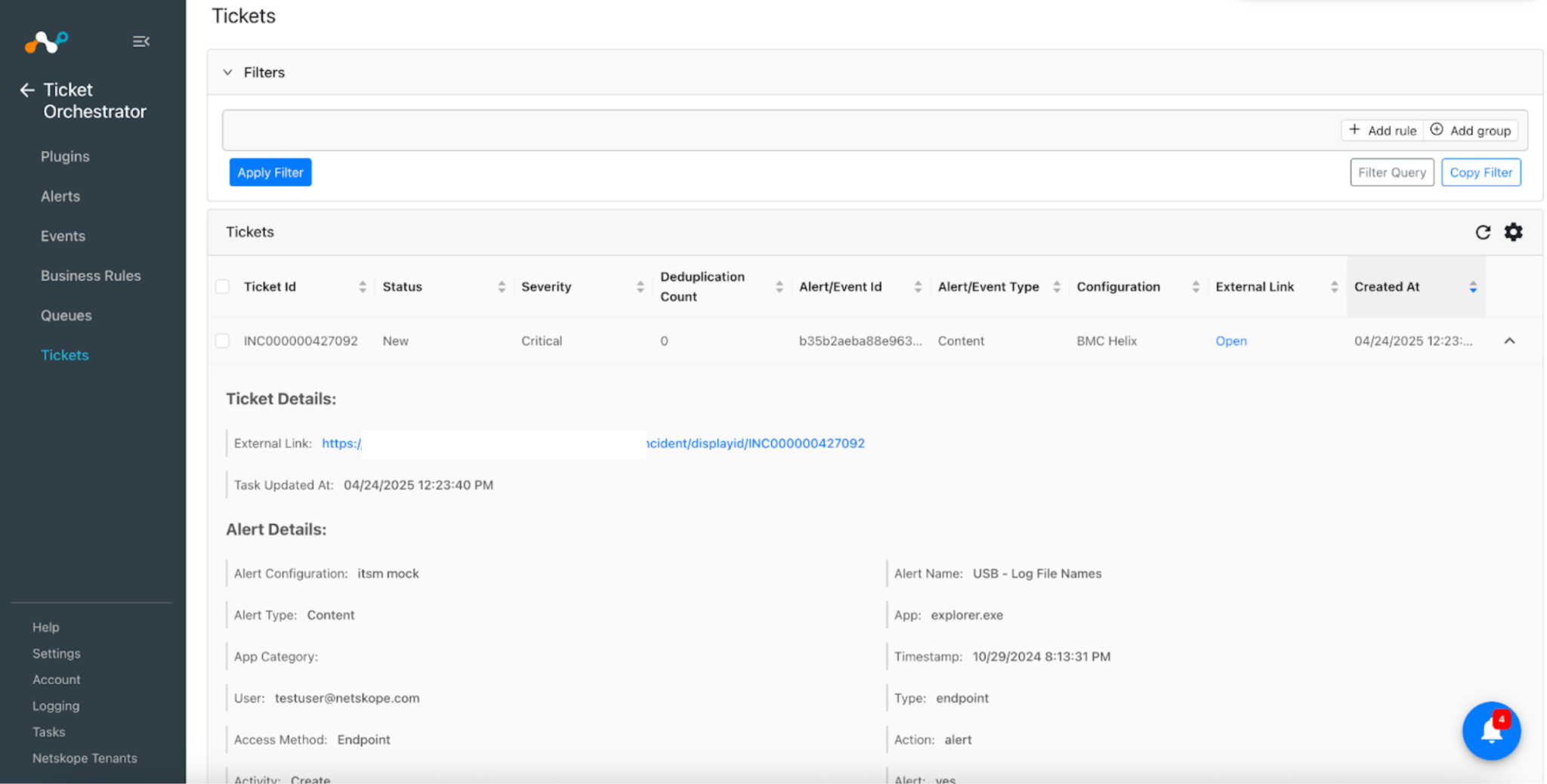
Validate on BMC Helix
To validate the incident creation, go to Tickets and click the External Link of a Ticket.
Make sure you are logged in to the BMC Helix platform. This will take you to the BMC Helix platform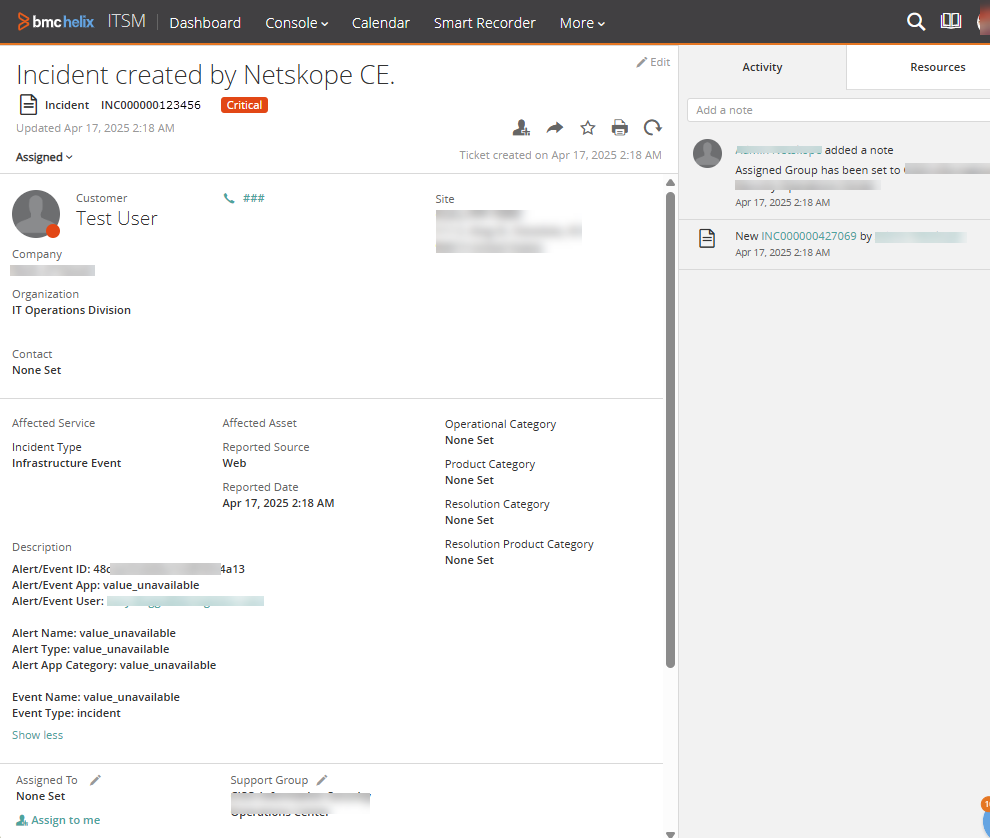
Troubleshooting the BMC Helix Plugin
Receiving error while creating incidents
If you are receiving an error while creating the incidents on BMC, it might be due to one of these reasons:
- The mapping added in the queue is invalid or empty.
- The Service Type value is mapped as Security Incident, but the Queue has No Group selected.
What to do:
- If the mapping is added differently from what the BMC expects its value to be, the plugin will throw a server error or invalid value error. BMC expects the mapping to be in a specific format, and the values for the fields need to be present on the platform. Check the mappings added for the Queue with the ones available on the BMC platform. All the fields present in the queue configuration need to be mapped, as those are mandatory on BMC.
- BMC Helix expects a group when the Service Type is Security Incident, so if the Queue has the No Group option added, and the Service Type is Security Incident, the incident will not be created and errors will be shown in the logs.
Known Behavior
We noticed that you are not allowed to create the incidents when the Status is mapped as Resolved, and received this error while doing so.
[{"messageType":"ERROR","messageText":null,"messageAppendedText":"The Status Reason field requires a value when the status is either pending or resolved. Select the status reason from the menu.","messageNumber":1291220}]
We also tried adding the Status_Reason field in the queue, but are still facing the error.
[{"messageType":"ERROR","messageText":null,"messageAppendedText":"You must associate a configuration item to this incident.","messageNumber":45534}]
or
[{"messageType":"ERROR","messageText":null,"messageAppendedText":"Status is not associated with the status reason. Please provide valid combination of Status and Status Reason values.","messageNumber":51310}]