

Enabling Browser Isolation for Private Apps provides unmanaged devices, contractors, and BYOD users clientless, browser-based access to internal web apps, with browser-level data controls enforced on every session.
No client or install: Works in any standard browser: nothing to deploy on the endpoint.
Content never touches the endpoint: The app renders in a Netskope-hosted cloud browser; only a pixel stream reaches the user’s device.
Configurable controls: Allow or block clipboard, print, file upload/download, popup, watermark and read-only mode, per app.
Overview
Browser Isolation for Private Apps extends Netskope’s Remote Browser Isolation (RBI) to internal web applications reached through NPA Browser Access. It’s built for the exact situation where you can’t put a client or Enterprise Browser on the device: contractors, third-party vendors, and BYOD users who still need clean, controlled access to an internal app.
Isolation sits on top of the access policy you already have. It doesn’t decide whether someone can reach an app; your existing Real-time Protection policy still does that. Isolation decides what happens once they’re in: the app renders in a cloud browser, and the browser controls you configure (clipboard, print, upload/download, read-only) are enforced for the whole session.
Want to try this in your tenant?
This capability is in Early Access (Beta). Contact your Netskope account team to get it enabled.
Key Concepts
Isolation introduces a few new ideas on top of the NPA policies and app definitions you already use.
- Isolate action: A new action on a Real-time Protection (Access Control) policy, alongside Allow and Block. When a request matches an Isolate policy, the app opens inside a remote browser instead of the user’s local one.
- RBI Template: Defines what the end user can do inside the isolated session: clipboard copy/paste, printing, file upload/download, and read-only mode. The same templates used for other Netskope isolation use cases apply here, so if you already isolate web traffic, you’re reusing what you have.
- Private App Segment: The internal app definition you already use with NPA Browser Access. No changes to how the app is onboarded or connected; isolation layers on top of it.
- Browser Access (Any Browser): The fully clientless NPA access method this capability isolates. Client-based NPA and Enterprise Browser sessions are not affected.
How It Works
The Real-time Protection policy decides whether the app is reachable at all, and, if it’s isolated, which RBI Template governs the session. The template isn’t a second decision gate; it’s the control set the remote browser applies once isolation is already underway.
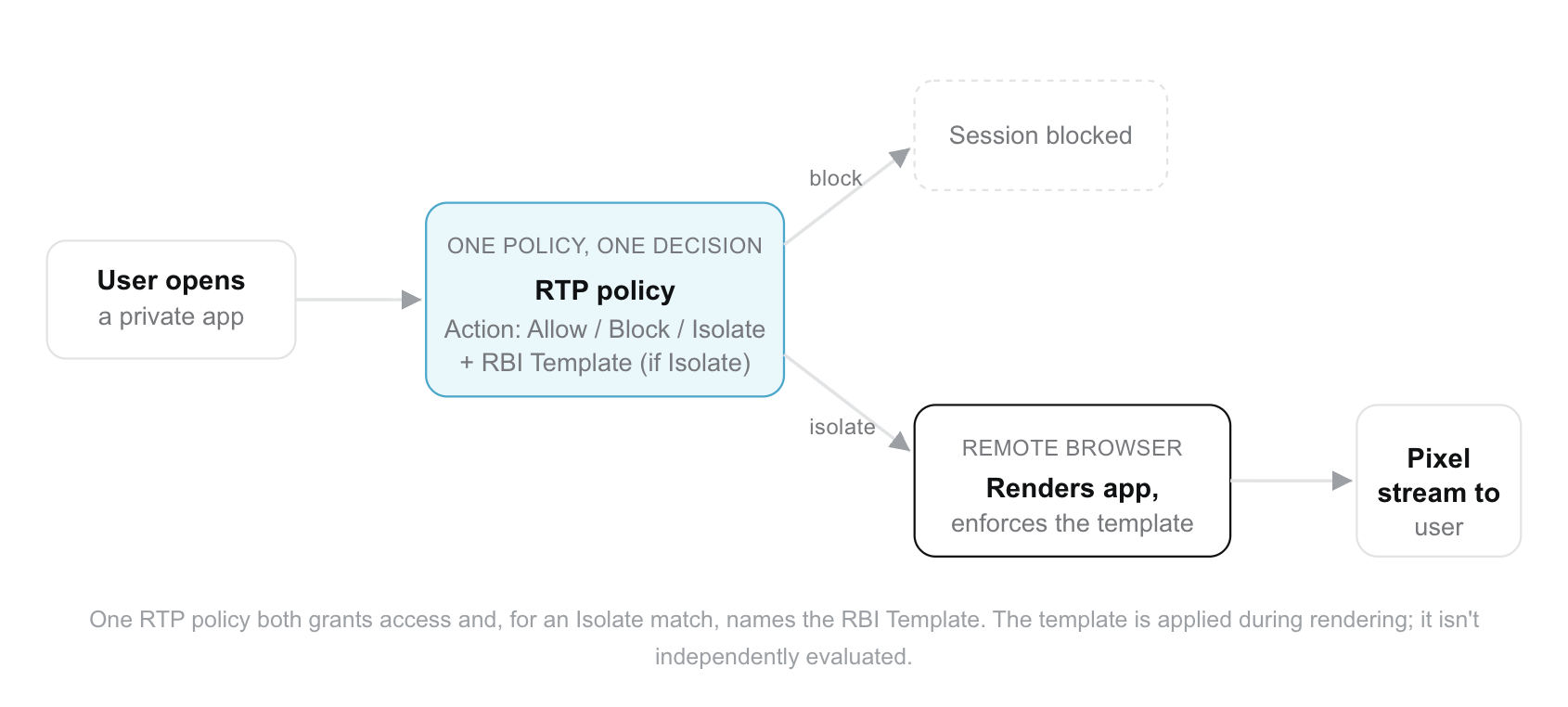
Because rendering happens remotely, the app’s content, files, and credentials never reach the local device. The user sees a visible, non-dismissible frame around the session for as long as it’s active, so it’s always clear when they’re in an isolated app.
Prerequisites
Confirm these before you start. Isolation builds on top of an existing NPA Browser Access deployment.
- The target app is already reachable via NPA Browser Access (Any Browser).
- Remote Browser Isolation is enabled for your tenant.
- A modern browser (Chrome, Edge, Firefox, or Safari) on the end-user device. No install required.
Confirm your Private App Segment
Isolation applies to an app you’ve already defined for Browser Access. Nothing about how the app connects changes.
- Open an App Definition: Go to Settings > Security Cloud Platform > Traffic Steering > App Definition > Private App Segments.
- Locate or create the Private App Segment: Confirm the Access Method is set to Browser (also labeled Browser Access), and that the Destination and Protocol/Port are correct.
- Note the Public Host: This is the Netskope-hosted URL your users will reach the app through. Optionally set a Custom Hostname if you want a branded URL.
Create or Choose an RBI Template
The RBI Template controls what the end-user sees and can do inside the isolated session. If you already use RBI Templates elsewhere, you can reuse it here.
- Open the RBI Templates page: Go to Policies > Templates > RBI and click New Template (or select an existing one).
- Set the Isolation Indicator: Choose how the user is shown when they’re in an isolated session: a colored frame, a pop-up notice, or a page-title marker. The Colored Frame shows a persistent border for the entire session. The Pop-up Notice shows a one-time message is shown when the session starts.

- Set browser controls: Under Action Control, allow or block clipboard copy/paste, file upload/download, and printing, independently. Under Navigation Control, optionally set the session to read-only.
- Save the template: Enter a Name and click Save.

Create the Isolation Policy
This is where you tell Netskope which users and which app should be isolated.
- Create a new Real-time Protection policy: Go to Policies > Real-time Protection > New Policy and choose the private-app policy type.
- Set Source and Destination: For Criteria Source, select Users or groups, with Browser Access as the Access Method. For Source Destination, select the Private App Segment you confirmed previously.

- Set the action: Under Profile & Action, set Action to Isolate, and select the RBI Template you created previously. A template selection is required to save the policy.
- Save the policy: Enter a Name, assign it to a policy group, set the Status to Enabled, and click Save.

Tip
Activities, DLP Profiles, and Threat Profiles aren’t available on an Isolate policy. Configure DLP for an isolated app through a separate Real-time Protection policy.
Verify and Monitor
Take a quick look after setup to confirm everything is working together correctly.
- Launch a test session: Have a test user open the app from the NPA User Portal, a bookmark, or a direct link. Isolation applies no matter how the user get there.
- Check what the user sees: The isolation indicator you configured (frame or pop-up) should appear. Any control you disabled (copy, print, download) should be blocked with an on-screen notice when attempted. The address bar shows your Netskope-hosted URL, or your custom hostname, but never the app’s internal address as the visible domain.
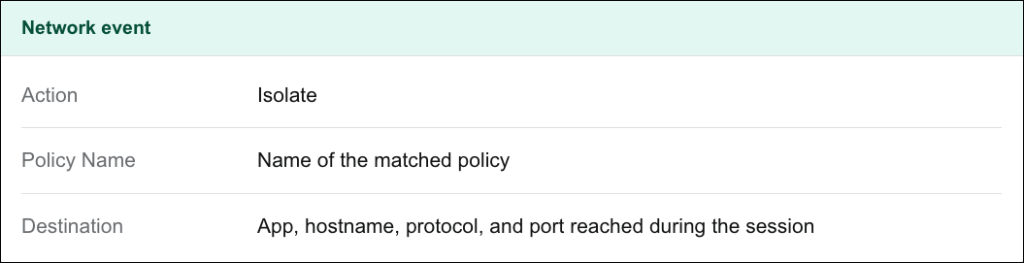
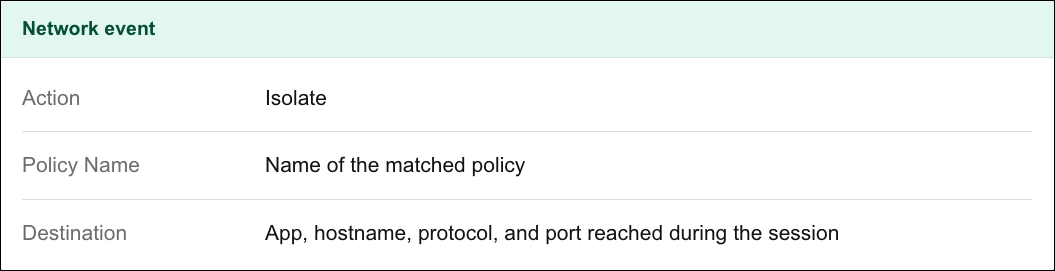
- Review the event: Go to Skope IT > Events & Alerts > Network Events and filter by Action = Isolate to review isolated-session activity.
Good to Know
A short list of things worth knowing as you evaluate this capability.
Feature covers HTTP and HTTPS apps
Isolation supports web-based private apps on standard and non-standard ports.
Note – Support for apps with multiple internal domains and redirects is planned for a future release.
SSH and RDP aren’t part of this capability
This is for web-based private apps. See Netskope’s Privileged Remote Access (PRA) offering for RDP and SSH.
Sharing an isolated session
Letting another authorized user open the same isolated URL, with their own independent session, is planned for a future release.
Built on the same RBI Templates you already use
Any control available in an RBI Template today extends to private apps as well, so new template capabilities become available here too as they’re added.
FAQs
Does an Isolate policy replace my existing access policy?
No. Real-time Protection policies still make the allow/deny decision. Isolate is one of the actions that a policy can make; it adds session-level browser controls on top of access that’s already permitted.
Do end-users need to install anything?
No. This works in any standard browser, which is the point; it’s designed for devices where you can’t install the Netskope Client or Enterprise Browser.
Can I combine isolation with DLP for the same app?
DLP for an isolated app is designed to be configured through a separate, independent Real-time Protection policy on the same app. Check with your Netskope account team for current Beta support before combining the two on the same app.
What happens if I don’t set up isolation for an app at all?
Nothing changes for that app. It behaves exactly as it does today under standard NPA Browser Access.
How do I get this enabled for my tenant?
Reach out to your Netskope account team. This capability is in Early Access (Beta), so availability and scope may change before general release.