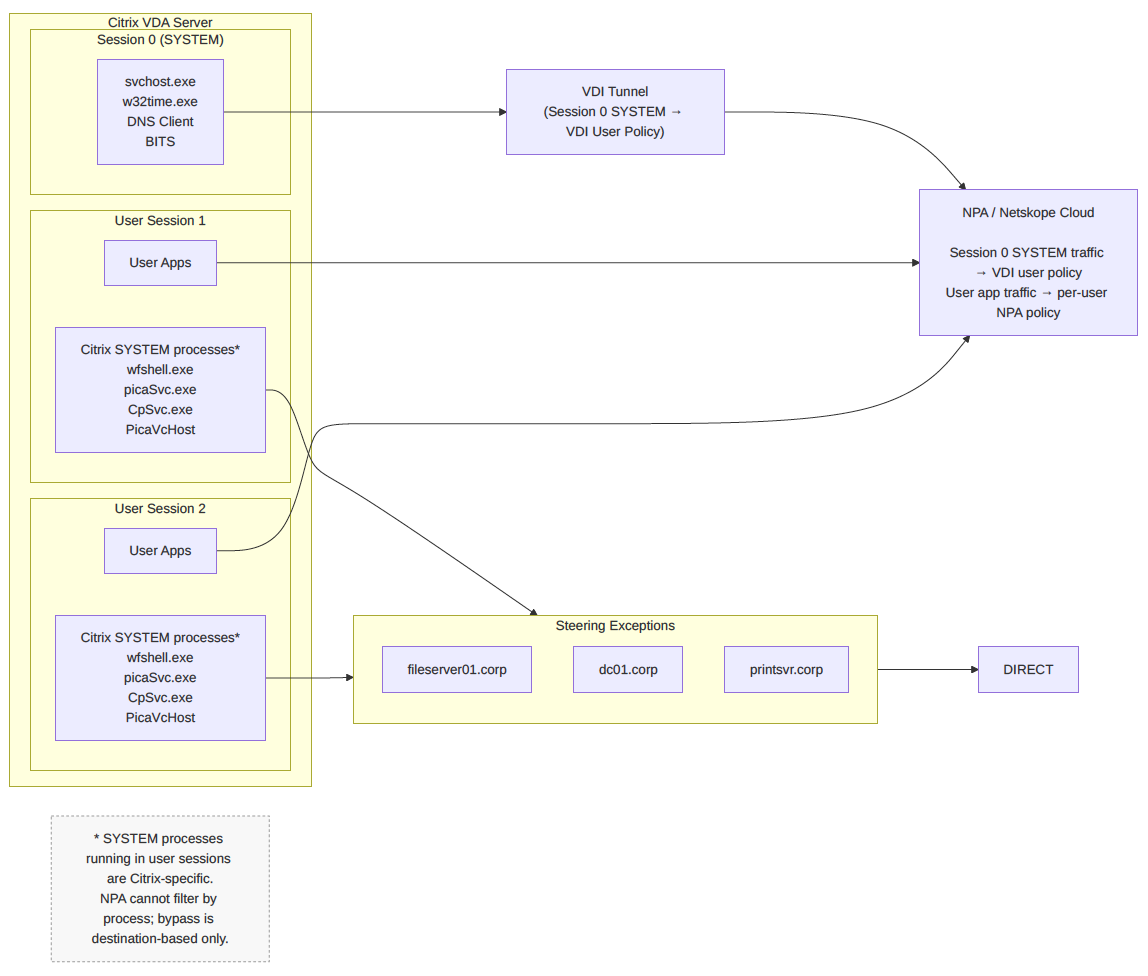
This document supplements the existing NPA VDI documentation with Citrix-specific guidance for multi-user (multi-session) environments such as Citrix Virtual Apps and Desktops on Windows Server 2019/2022. It does not apply to single-user VDI desktops where SYSTEM process separation between users is not a concern.
Background: The Session ID 0 Assumption
The current NPA VDI architecture routes traffic from processes running under the SYSTEM account in Windows Session ID 0 through a dedicated VDI tunnel user. This design is based on the standard Windows behavior where:
- Session 0 is reserved for system services and non-interactive processes running as
NT AUTHORITY\SYSTEM. - User sessions (Session 1, 2, 3, etc.) contain interactive user applications.
- Network traffic originating from Session 0 cannot be attributed to any specific logged-in user and is therefore handled by the dedicated VDI tunnel.
This model works well for platforms like Azure Virtual Desktop and Amazon AppStream, where SYSTEM-level services generally conform to the standard Windows Session 0 isolation model.
The Citrix Exception: SYSTEM Processes in User Sessions
Citrix Virtual Apps and Desktops (VDA) deviates from this model. The Citrix VDA architecture spawns several processes that run under the SYSTEM account (NT AUTHORITY\SYSTEM), but operate inside user sessions (Session 1, 2, etc.) rather than Session 0. This is by design. Citrix’s ICA/HDX protocol requires session-aware service processes to manage virtual channels, printing, audio redirection, and session lifecycle within each user’s context.
Why Citrix Does This
Citrix’s virtual channel architecture uses a shell process and various service hosts that must run within the user’s terminal services session to properly manage per-session resources. As described in Citrix’s ICA virtual channel documentation:
- The Shell (
WfShell.exeon server OS,PicaShell.exeon workstation OS) loads virtual channels within the user session. - Some virtual channels are hosted as Windows services that provide one-to-many semantics for multiple applications in a session and multiple sessions on the server.
- Session management processes need to run in the user’s session context to manage drive mappings, printers, clipboard, audio, and other HDX features.
Impact on the NPA VDI Tunnel
Because these Citrix SYSTEM processes run in user sessions (not Session 0), the NPA client’s session-based traffic attribution encounters the following issues:
- Traffic not captured by VDI tunnel: SYSTEM traffic originating from non-Session-0 is not routed through the dedicated VDI tunnel user, since the VDI tunnel only handles Session 0 traffic.
- Potential misattribution: The NPA Client may attempt to attribute this SYSTEM traffic to the user session it resides in, but because the process runs as SYSTEM (not as the logged-in user), policy matching may fail or produce unexpected results.
- Traffic drops or connectivity failures: If the SYSTEM-originated traffic from a user session doesn’t match either the VDI tunnel user policy or the interactive user’s policy, it may be dropped, causing failures in SMB file access, printing, DNS resolution, or other Citrix-dependent services.
Known Citrix SYSTEM Processes in User Sessions
The following Citrix VDA processes are known to run as NT AUTHORITY\SYSTEM inside user sessions (non-Session-0). This list is based on Citrix Virtual Apps and Desktops 7 2203 LTSR and 2402 LTSR, but applies broadly to modern VDA versions.
Confirmed: SYSTEM Processes in User Sessions
The following process is confirmed to run as NT AUTHORITY\SYSTEM inside user sessions (spawned as a child of winlogon.exe within the user’s session):
| Process | Path | Function | Network Traffic |
|---|---|---|---|
PicaSessionAgent.exe |
C:\Program Files\Citrix\HDX\bin\ | PortICA/HDX Session Agent: Manages per-session HDX settings, session lock/unlock, disconnect handling. | Minimal direct network traffic, but coordinates session lifecycle |
Likely: SYSTEM Processes Operating in User Session Context
The following processes are part of Citrix’s ICA/HDX session architecture and are known to operate within user session context. They should be verified in your specific environment using the procedures in Identifying SYSTEM Processes in User Sessions, as their exact session ID behavior may vary by VDA version and configuration.
| Process | Path | Function | Network Traffic |
|---|---|---|---|
wfshell.exe |
C:\Program Files\Citrix\System32\ | WinFrame Shell / Seamless Engine: Manages user session environment: drive mappings, virtual channels, printers, published app windows. | SMB (TCP/445), potentially DNS |
picaSvc.exe / picaSvc2.exe |
C:\Program Files\Citrix\ICAService\ | Citrix ICA Service: Core session connectivity and virtual channel hosting. | ICA protocol traffic, internal communication |
CpSvc.exe |
C:\Program Files\Citrix\System32\ | Citrix Print Manager Service: Creates/manages network printer connections during ICA session logon/logoff. | Print spooler traffic (TCP/9100, SMB/445 to print servers) |
PicaVcHost.exe |
C:\Program Files\Citrix\ICAService\ | Virtual Channel host: hosts virtual channels within user sessions. | Varies by virtual channel (clipboard, USB, multimedia) |
HDX Supplementary Processes
| Process | Function | Network Traffic |
|---|---|---|
ctxaudio.exe / audio service | HDX audio redirection | Audio streaming traffic |
CDViewer.exe (indirect) | Session window management | Minimal network traffic |
Additional Third-Party Processes
In Citrix environments, additional third-party agents may also run as SYSTEM in user sessions (not Session 0):
- FSLogix Profile Agent (
frxsvc.exe): Profile container management, generates SMB traffic to file shares - Citrix Profile Management (
UserProfileManager.exe): Profile sync, generates SMB traffic - App-V client processes (
AppVStreamingUX.exe,AppVShNotify.exe): Application virtualization, started by VDA in user session context
Note that this list is not exhaustive. The specific processes present depend on the VDA version, installed features, and third-party software. See Section 5 for instructions on identifying processes in your environment.
Configuration Guidance
Since Netskope NPA’s VDI mode currently attributes SYSTEM traffic only from Session 0 to the VDI tunnel user, Citrix environments require additional configuration to handle SYSTEM traffic originating from user sessions.
Approach A: Destination-Based Steering Exceptions (Recommended)
Since NPA cannot filter by process, the workaround is to identify the destination hosts/IPs that Citrix SYSTEM processes in user sessions need to reach and create steering exceptions for those destinations. This allows the traffic to flow directly without being intercepted by NPA.
Step 1: Identify Citrix Infrastructure Destinations
Use the process identification methods in Identifying SYSTEM Processes in User Sessions combined with network monitoring (e.g., Wireshark, netstat, or Netskope client logs) to determine which destinations the Citrix SYSTEM processes in user sessions are connecting to. Common destinations include:
| Traffic Type | Typical Destinations | Protocol / Port |
|---|---|---|
| SMB (file shares, home drives, profiles) | File servers, DFS namespace servers | TCP/445 |
| Printing | Print servers | TCP/445, TCP/9100, TCP/631 |
| DNS resolution | Internal DNS servers | UDP/53, TCP/53 |
| Active Directory | Domain controllers | TCP/88, TCP/389, TCP/636, TCP/445 |
| Citrix Delivery Controller communication | DDC servers | TCP/80, TCP/443 |
| Profile management (FSLogix / Citrix PM) | Profile share servers | TCP/445 |
| SCCM / WSUS | Management servers | TCP/80, TCP/443 |
Step 2: Create Steering Exceptions by Hostname
For each identified destination, create the required Destination profiles to add to a Service & Destination Profile Steering Exception.
Example hostname exceptions for a typical Citrix environment:
fileserver01.corp.example.com    # SMB file shares / home drives
fileserver02.corp.example.com    # SMB file shares / home drives
profilestore.corp.example.com    # FSLogix / Citrix Profile Management
dc01.corp.example.com            # Domain controller
dc02.corp.example.com            # Domain controller
printserver01.corp.example.com   # Print server
sccm.corp.example.com            # SCCM distribution point
Step 3 (alternative): Create Steering Exceptions by IP + Port
If you prefer more granular control, use IP + Port exceptions instead of hostname:
10.1.1.10:445      # fileserver01 - SMB
10.1.1.11:445      # fileserver02 - SMB
10.1.1.20:445      # profilestore - SMB
10.1.2.1:88        # dc01 - Kerberos
10.1.2.1:389       # dc01 - LDAP
10.1.2.1:445       # dc01 - SMB
10.2.2:88          # dc02 - Kerberos
10.1.2.2:389       # dc02 - LDAP
10.1.2.2:445       # dc02 - SMB
10.1.3.5:9100      # printserver01 - direct printing
10.1.3.5:445       # printserver01 - SMB printing
Tradeoff: IP + Port gives tighter control but requires more maintenance (IP changes break it). Hostname is easier to maintain but bypasses all ports to that host, IP + Port is only supported when Use Publisher DNS is used.
Approach B: Expanded NPA Policy for VDI Tunnel User
For standard Windows SYSTEM services that correctly run in Session 0, maintain ZTNA policy enforcement via the VDI tunnel user:
- Go to Policies > Real-Time Protection and edit your VDI tunnel user policy.
- In the Destination field, add all private applications that Session 0 services need to access:
- Domain controllers (Kerberos/LDAP/SMB)
- DNS servers
- NTP servers
- WSUS / SCCM servers
- Certificate / OCSP servers
- Set the Action to Allow.
Limitation: This approach only covers SYSTEM traffic in Session 0. For Citrix SYSTEM processes running in user sessions, this policy will not match because those processes are not in Session 0. Therefore, Approach A (destination-based steering exceptions) is still required for the non-Session-0 Citrix processes.
Approach C: Combined (Recommended for Production)
For production Citrix multi-user deployments, combine both approaches:
- Destination-based steering exceptions (Approach A) for destinations that Citrix SYSTEM processes in user sessions need to reach. This handles the non-Session-0 traffic by bypassing it from NPA entirely.
- VDI tunnel user policy (Approach B) for standard Windows SYSTEM services that correctly run in Session 0. This maintains ZTNA policy enforcement for standard system traffic.
This gives you the best balance of security and compatibility:
- Standard Windows SYSTEM services in Session 0 are still governed by ZTNA policy via the VDI tunnel.
- Destinations required by Citrix session infrastructure are bypassed to prevent connectivity issues caused by non-Session-0 SYSTEM traffic.
- User-initiated application traffic remains fully governed by per-user NPA policies.
Security Impact of Destination-Based Bypass
Because NPA only bypasses based on destination, the steering exceptions created in Approach A apply to all traffic to those destinations, not just SYSTEM process traffic. This means:
- User-initiated SMB traffic to the same file servers will also bypass NPA steering.
- User-initiated print traffic to the same print servers will also bypass NPA steering.
- Any traffic from any session to the excepted destinations goes direct.
Mitigations:
- Limit exception scope: Only add the specific hostnames/IPs that Citrix SYSTEM processes require. Do not use wildcards or broad subnet exceptions.
- Network segmentation: Rely on network-level controls (firewalls, VLANs, microsegmentation) to restrict access to excepted destinations.
- Monitoring: Log and monitor traffic to excepted destinations for anomalous patterns.
Identifying SYSTEM Processes in User Sessions
To identify which processes in your specific Citrix environment run as SYSTEM in non-Session-0 user sessions, follow this procedure:
Using a Process Explorer (Sysinternals)
- Download and run Process Explorer (from Microsoft Sysinternals) on the Citrix VDA server with administrative privileges.
- From the menu, select View > Select Columns.
- In the Process Image tab, enable:
- User Name: Shows the account context (like
NT AUTHORITY\SYSTEM,DOMAIN\user). - Session ID: Shows which Windows session the process runs in.
- User Name: Shows the account context (like
- Have one or more users log into Citrix sessions.
- Sort by User Name and look for processes where:
- User Name =
NT AUTHORITY\SYSTEM(orSYSTEM) - Session ID ≠ 0 (i.e., Session 1, 2, 3, etc.)
- User Name =
- Document these processes. They are the ones affected by the Session 0 limitation.
Using a PowerShell
Run the following PowerShell command on the Citrix VDA server while users are logged in:
Get-Process | Where-Object {
    $owner = (Get-WmiObject Win32_Process -Filter "ProcessId=$($_.Id)").GetOwner()    $sessionId = $_.SessionId
    ($owner.User -eq "SYSTEM") -and ($sessionId -ne 0)} | Select-Object ProcessName, Id, SessionId | Sort-Object SessionId, ProcessName | Format-Table -AutoSize
Alternatively, using tasklist from an elevated command prompt:
tasklist /V /FI "USERNAME eq NT AUTHORITY\SYSTEM" /FO TABLE | findstr /V "Session:0"
Tip: Run these commands during peak usage when multiple users are active to capture the full set of SYSTEM processes that Citrix spawns in user sessions.
Using Netskope Client Logs
Review the npadebug.log file on the VDA server to identify traffic that is being dropped or not matching expected policies. Look for:
- Traffic from SYSTEM processes that is not being attributed to the VDI tunnel user.
- Connection failures for services that should be accessible (SMB, printing, DNS).
- Policy mismatch warnings for traffic originating from user session IDs.
Known Issues and Considerations
Steering Configuration in Multi-User Environments
Steering configuration in multi-user VDI has the following behavior:
- When the first user logs in, their steering configuration is applied.
- Subsequent users from different steering groups will receive the first user’s steering configuration.
- To maintain consistent behavior, all users on a multi-user VDI host should share the same steering configuration.
This is particularly important for Citrix environments because the destination-based steering exceptions for Citrix infrastructure servers must be present in whichever steering configuration is active on the host.
Considerations
- VDI mode requires fresh install: Upgrading an existing Netskope Client will not enable VDI mode. A clean uninstall and reinstall with
npavdimode=onis required. - SRPv2 not supported: Service Routing Protocol v2 is not supported in VDI mode (support planned).
- Single VDI user per host group: Multiple different VDI tunnel users on the same machine are not supported and can cause tunnel instability.
- Steering config is shared: All users on a multi-session host share the same steering configuration (first-login wins), so destination-based steering exceptions must be consistently defined across all configurations.
Recommended Architecture for Citrix Multi-User VDI
Deployment Checklist
- Install Netskope Client with
npavdimode=onon all Citrix VDA servers. - Create a dedicated VDI user (
<username>@vdi.netskope.com) in the Netskope tenant. - Configure the VDI user in the Client Configuration with VDI Support enabled.
- Create NPA policies for the VDI tunnel user covering standard Session 0 services (DNS, AD, NTP, Windows Update).
- Identify Citrix SYSTEM processes in user sessions using Process Explorer / PowerShell (see Identifying SYSTEM Processes in User Sessions).
- Map the network destinations those SYSTEM processes connect to (file servers, print servers, DCs, etc.).
- Add destination-based steering exceptions (hostname or IP+Port) for those destinations (see Destination-Based Steering Exceptions).
- Ensure all user groups on the same VDA server share the same steering configuration
- Group users by access profile on separate VDA server pools where possible.
- Test and validate end-to-end: SMB access, printing, AD auth, profile loading.
- Review security impact of destination bypasses (see Security Impact of Destination-Based Bypass) and apply network-level mitigations.
- Monitor npadebug.log for policy mismatches or dropped connections.
Traffic Flow Diagram