

This document explains how to configure the Cloud Exchange Logs v2.1.0 plugin with the Log Shipper module of the Netskope Cloud Exchange platform. This plugin is used to pull logs of type Debug, Information, Warning and Error from Cloud Exchange Logs. This plugin can be used as a source plugin that can be used to ingest data to the 3rd-party platforms.
Prerequisites
To complete this configuration, you need:
- A Netskope tenant (or multiple, for example, production and development/test instances) with the AWS Netskope Log Streaming service enabled.
- A Cloud Exchange tenant with the Tenant plugin and Log Shipper plugin already configured.
- A Cloud Exchange tenant with a 3rd-party plugin (like Syslog) already configured.
Cloud Exchange Logs Plugin Support
This plugin is used to pull Cloud Exchange Logs and share it with 3rd party plugins.
| Data Type | Support |
|---|---|
| CE Logs | Yes (Error, Warning, Info, Debug) |
Workflow
- Configure the Cloud Exchange Logs plugin.
- Configure a Business Rule.
- Configure Log Delivery (SIEM Mapping) with the Cloud Exchange Logs plugin as the Source and a 3rd-Party plugin as the Destination.
- Validation the plugin.
Click play to watch a video.
Configure the Cloud Exchange Logs Plugin
- In Cloud Exchange, go to Settings > General and enable the Log Shipper module.
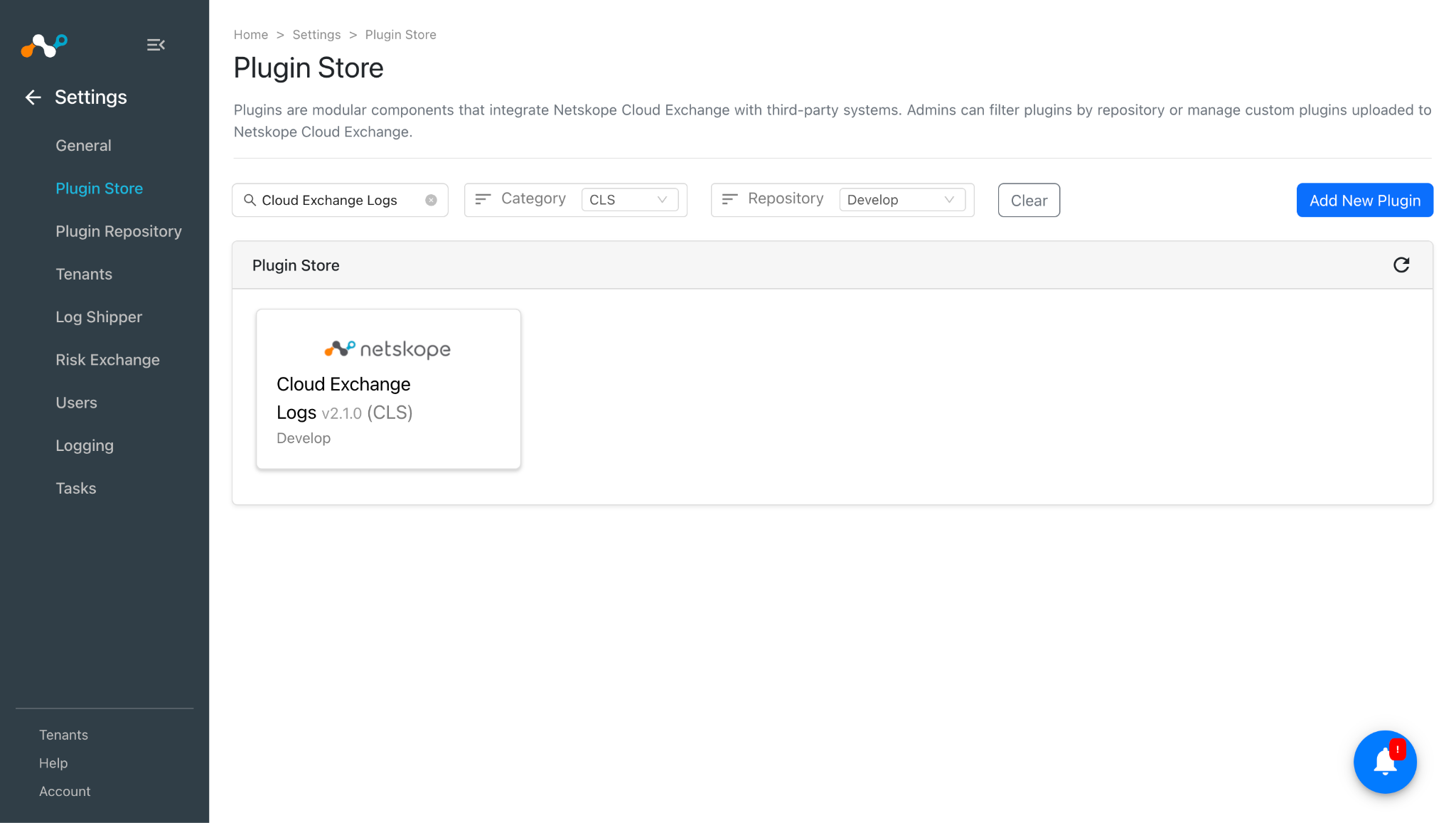
- In Settings, go to Plugin Store. Search for and select the Cloud Exchange Logs plugin box.
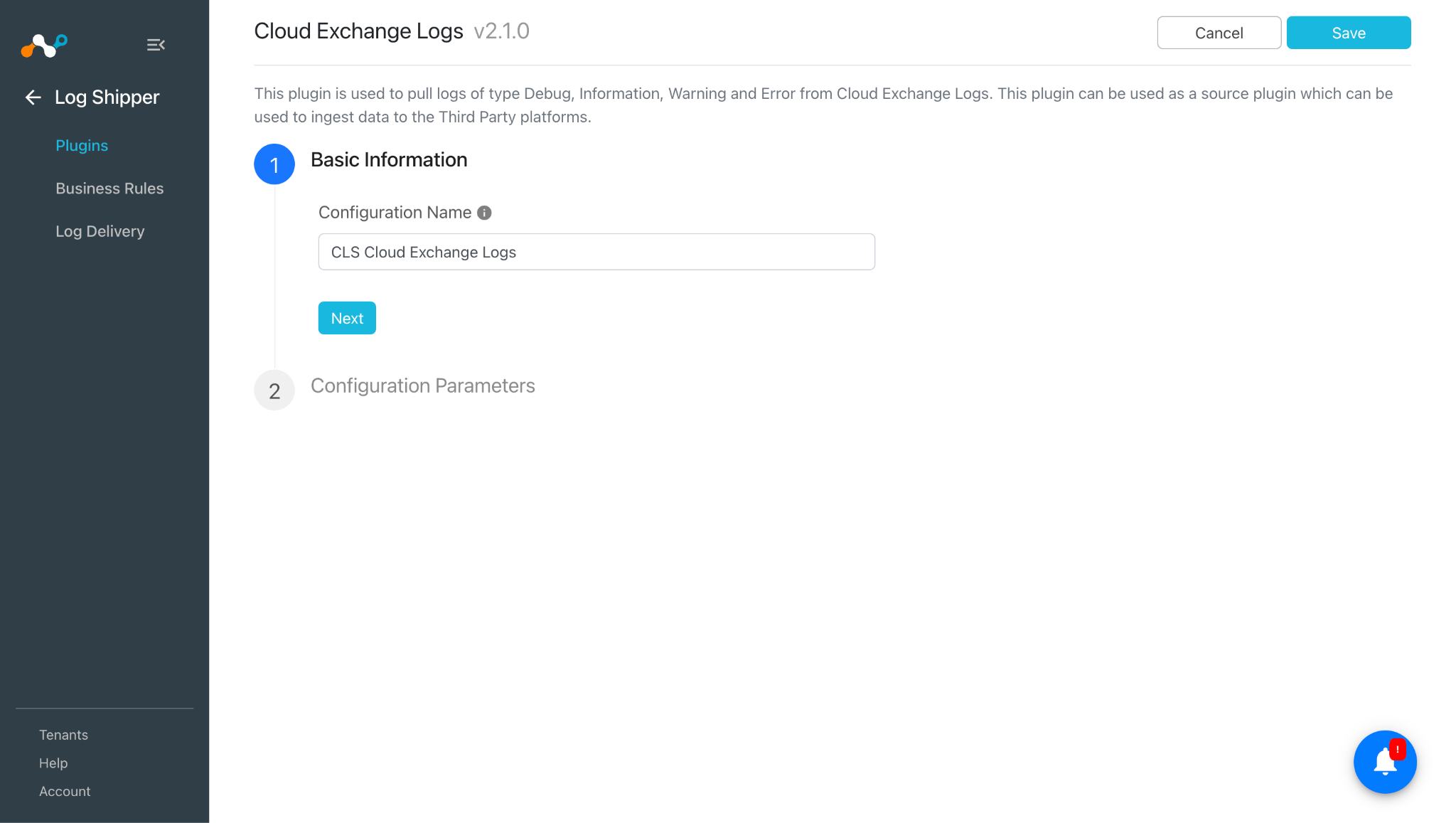
- Enter a configuration name.
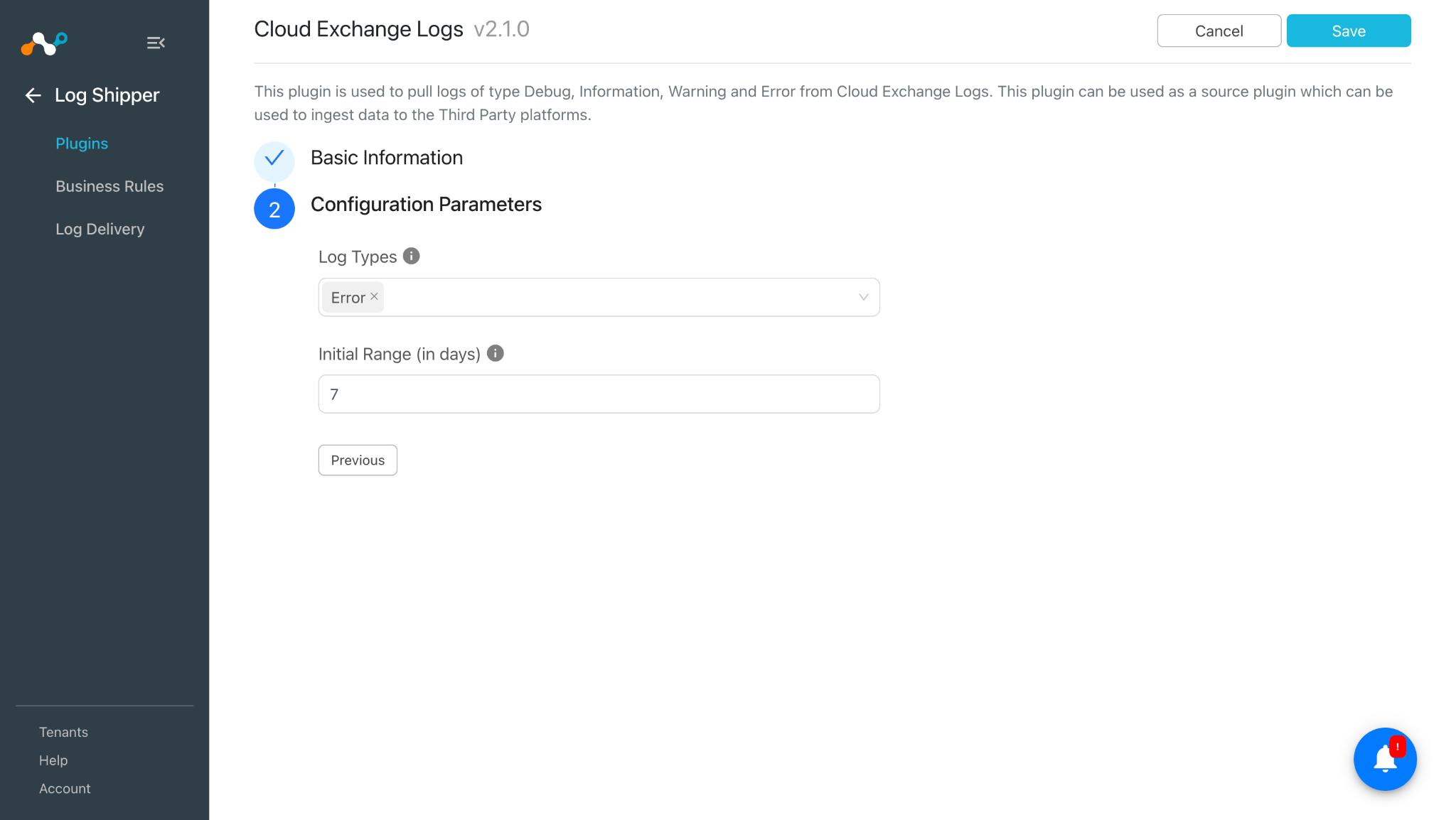
- Click Next and enter the Configuration Parameters:
- Log Types: Types of logs to fetch.
- Initial Range (in days): Number of days to pull the log data for the initial run.
- Click Save.

Configure a Log Shipper Business Rule for the Cloud Exchange Logs Plugin
- In Log Shipper, go to Business Rules.
- By default, there is a business rule that filters all alerts and events. If you want to filter out any specific type of alert or event, click Create New Rule and configure a new business rule by adding the rule name and filter.

- Click Save.
Configure a Log Delivery (SIEM Mapping) for Cloud Exchange Logs Plugin
In order to Configure Log Delivery (SIEM Mappings), a third-party Log Shipper destination plugin, like Syslog, has to be configured before proceeding. You need both a source and destination plugin (configurations) to create the SIEM mappings.
- Go to the Log Delivery (SIEM Mapping) and click Add Log Delivery Configuration.

- Select the Source plugin (CLS Cloud Exchange Logs), Destination plugin (CLS Syslog), and business rule, and then click Save.


Note
After the Log Delivery (SIEM mapping) is configured, the data will start getting pulled from the Netskope CE Logs, transformed, and ingested into the destination platform.
Validate the Cloud Exchange Logs Plugin
Validate the Pull
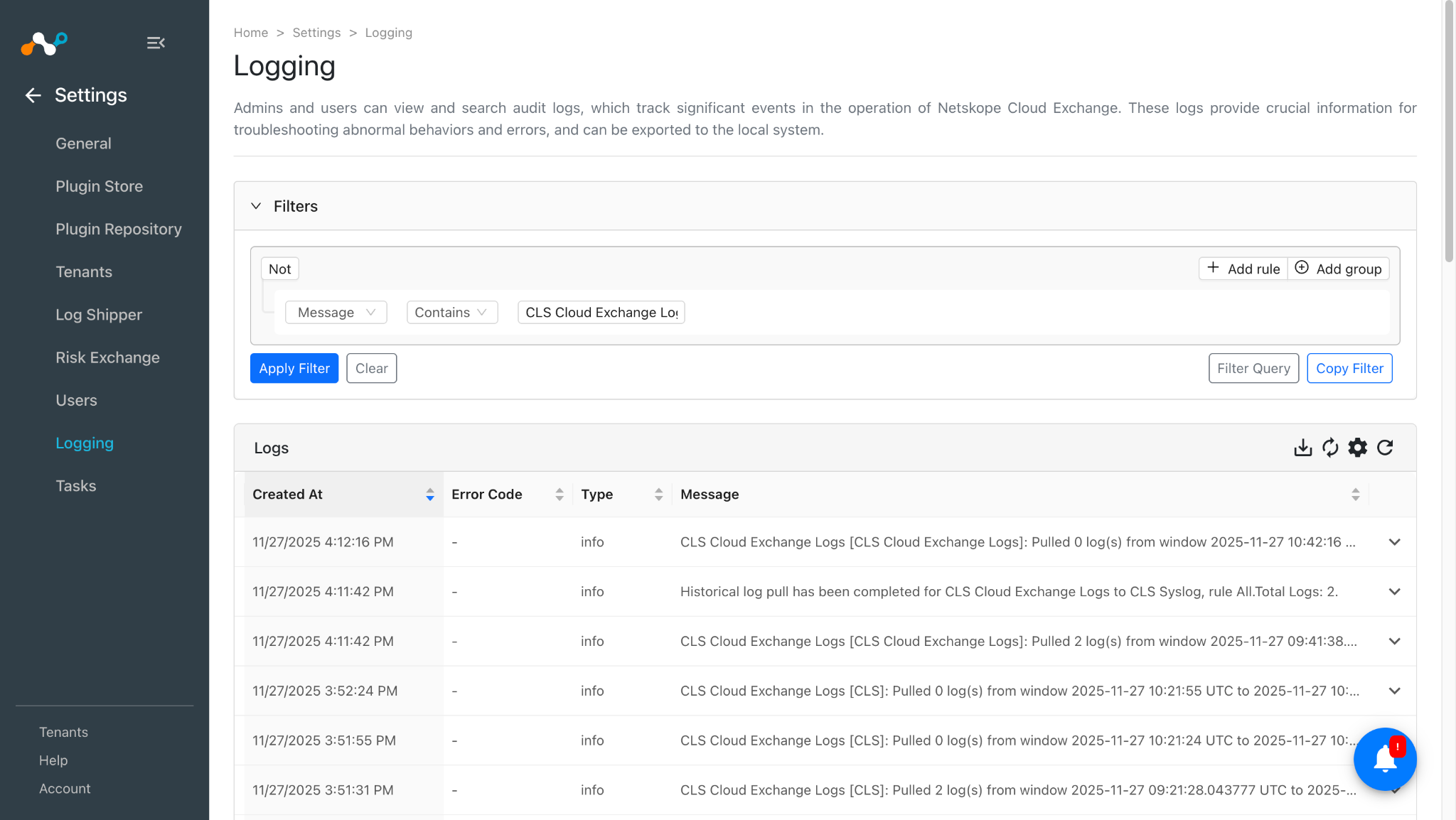
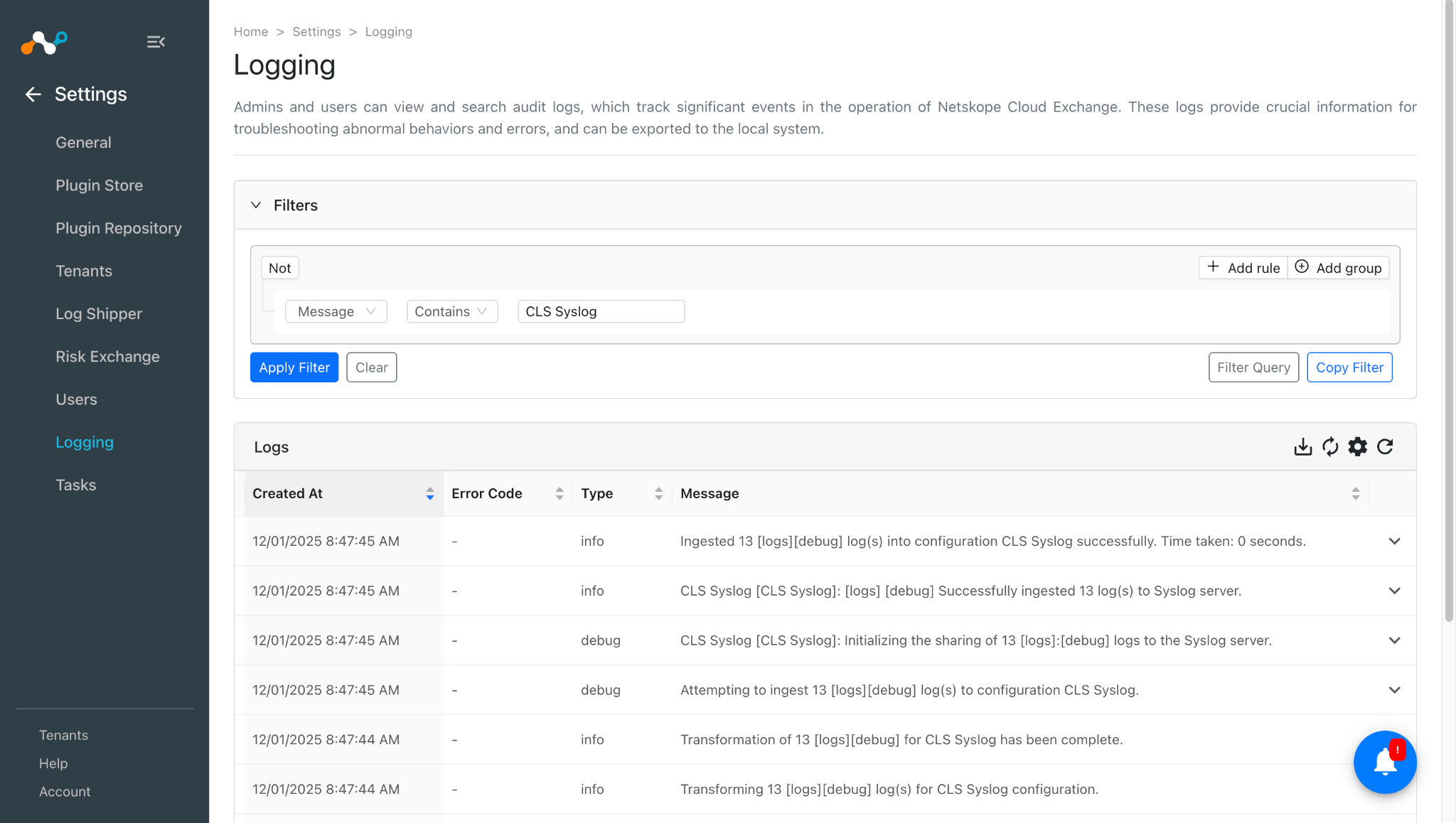
You must be able to fetch the logs from the Cloud Exchange platform. You can verify this the Logging page. Go to Settings > Logging. Apply a filter with the plugin configuration name.
Validate the Push
To validate the plugin workflow in Netskope Cloud Exchange:
- Similarly, you can verify the logs for ingestion of data to the third-party platforms using the destination plugin configuration name.


Note
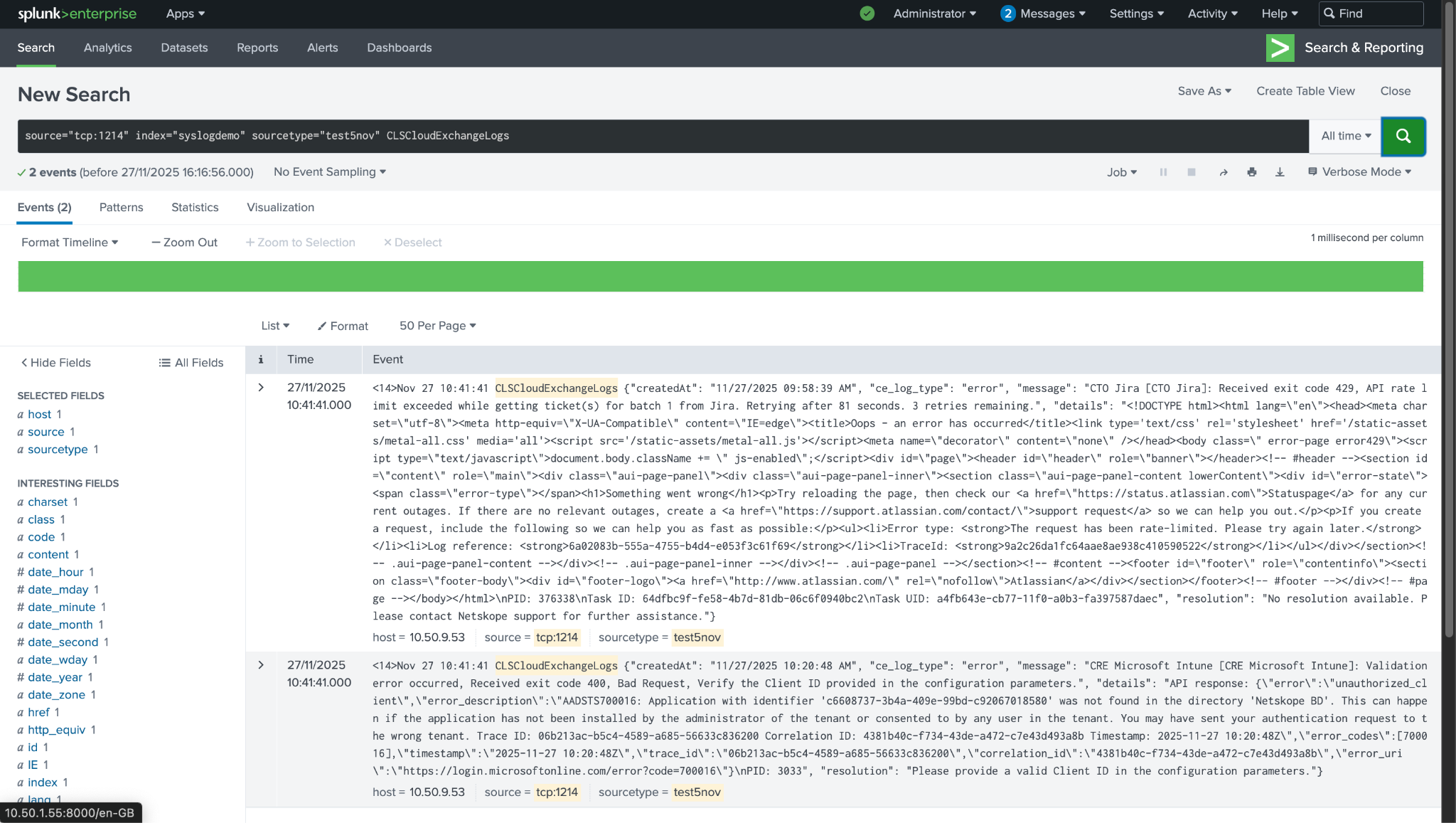
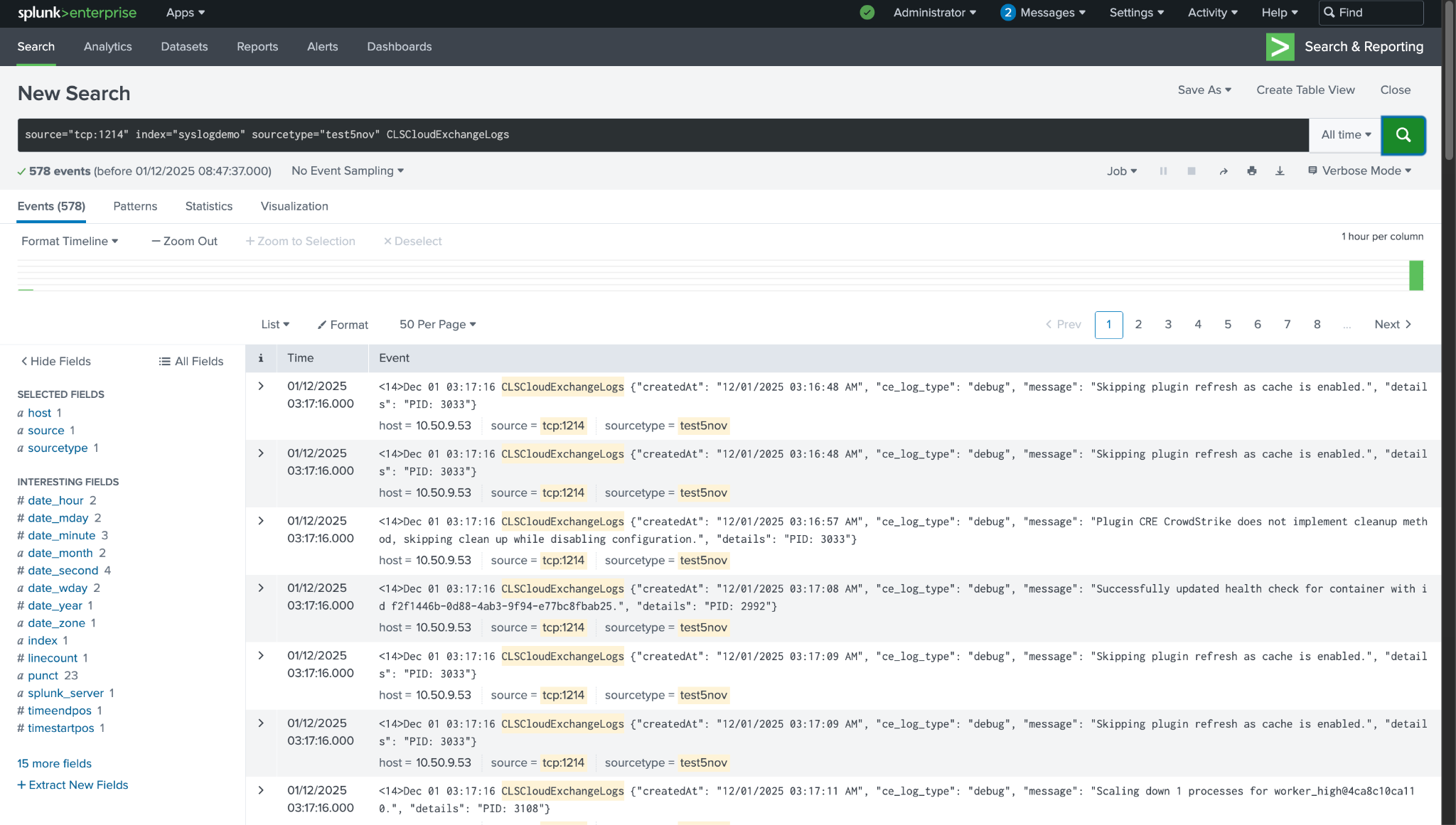
We have configured the Syslog plugin with the Splunk TCP Data input for illustration.
To validate the plugin workflow on Splunk:
You can search the ingested data with the log source identifier used while configuring the Syslog plugin. For more details related to the Syslog plugin, refer to the plugin guide.

Note
Resolution is supported in Cloud Exchange v6.0.0 and above.