

Integrating an Azure Log Analytics workspace with Netskope enables Microsoft Graph activity logs to flow from your SharePoint environment, including commercial, GCC, and GCC High tenants into Netskope for security monitoring and threat investigation. These logs expand the data available to Netskope Behavior Analytics, which analyzes user activity patterns to detect insider threats, compromised accounts, and data exfiltration. Configuring this integration now ensures your environment is ready as new behavior analytics detections for Microsoft Graph activity become available.
For additional use cases enabled by Microsoft Graph activity logs, refer to Common use cases for Microsoft Graph activity logs in Microsoft documentation.
Prerequisites
Before you configure the Azure Log Analytics workspace integration, ensure the following:
-
You have configured the SharePoint instance in Netskope and granted Netskope access to your Azure AD tenant. Granting access creates a service principal for the Netskope application — this is the identity that requires the Reader RBAC role in Step 3. If you previously granted access for this instance or for other applications, the service principal may already exist. In that case, you can provide the Workspace ID during onboarding directly.
-
You have an Azure account with an active subscription.
-
The following resource providers are registered under your subscription (navigate to Subscription > Click an active subscription > Settings > Resource Providers in the Azure portal):
-
microsoft.aadiam — Required for Entra ID (Azure AD) diagnostic logs.
-
microsoft.insights — Required for any diagnostic setting (core monitoring infrastructure).
-
-
You have reviewed Cost planning estimates and Cost reduction for Log Analytics in Microsoft documentation to understand potential costs associated with log ingestion.
Configure the Integration
To configure the Azure Log Analytics workspace integration follow the steps below.
Step 1: Create a Log Analytics Workspace
To create a Log Analytics workspace in Azure:
-
Follow Create a Log Analytics workspace in Microsoft documentation to create a new workspace.
-
Verify the workspace Access control mode is set to Use resource or workspace permissions.
If the access control mode is not set correctly, follow Configure access control mode for a workspace in Microsoft documentation to update it.
Step 2: Configure Diagnostic Settings
To route Microsoft Graph activity logs to the workspace:
-
Follow Send logs to Azure Monitor in Microsoft documentation to configure diagnostic settings.
Configure the diagnostic setting under Microsoft Entra ID, not under the Log Analytics workspace itself. -
Route MicrosoftGraphActivityLogs to the workspace you created in Step 1.

Step 3: Assign Azure RBAC to the Netskope Application
To assign the reader role to the Netskope application:
-
In the Azure portal, navigate to your Log Analytics workspace.
-
In the left panel, select Access control (IAM).
-
Select the Role assignments tab, then click Add role assignment.
-
On the Role tab, search for and select Reader, then click Next.
-
On the Members tab, click + Select members.
-
In the search bar, search for Netskope CASB API for SharePoint and select the application.
The Netskope CASB API for SharePoint application only appears after you have granted Netskope access to your Azure AD tenant. If you can’t find it, complete the instance setup and grant access first, then return to this step. -
Click Review + assign to complete the role assignment.
Step 4: Provide the Workspace ID in Netskope
To complete the configuration in the Netskope tenant:
-
Navigate to Settings > Configure App Access > Next Gen > CASB API and edit the Setup Instance page for Microsoft 365 SharePoint.
-
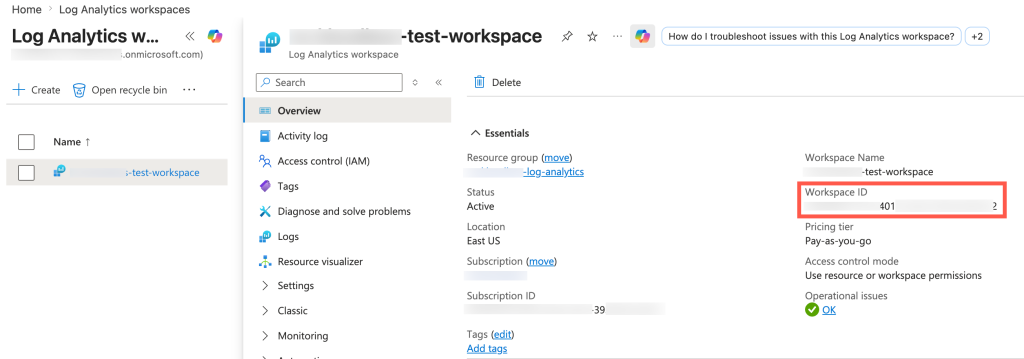
Under Azure Log Analytics Workspace ID, enter the workspace ID of the Log Analytics workspace you created. You can find the workspace ID in the Azure portal under your Log Analytics workspace > Overview > Workspace ID.
-
Click Save.
Editing the Workspace ID triggers a regrant for re-authentication. Netskope validates the Workspace ID after the grant is completed. The regrant does not trigger a re-scan of your SharePoint account; your existing Inventory is preserved.

Once saved, Netskope begins ingesting Microsoft Graph activity logs from your Azure Log Analytics workspace. These logs are used by Netskope Behavior Analytics to power threat detection for your SharePoint environment. Detections that leverage these logs will be available in a future release.