

URL rewrite for Browser Access (BA) automatically rewrites server-side HTTP 30x redirect responses returned in the Location: header. This rewrites the Location: header to use the Custom Hostname (if configured) or the default Netskope public host FQDN, even when backend applications redirect to internal IPs or hostnames that are unreachable from the user’s network.
Note
URL rewrite activates automatically once Browser Access is enabled. There is no separate toggle or setting.
How URL Rewrite Works
When the Browser Access gateway receives an HTTP response with a 30x status code and a Location: header pointing to an internal address, it rewrites that Location value to use the Custom Hostname (if configured), or the default Netskope public host FQDN, before forwarding the response to the user’s browser. The original path and query parameters are preserved.
| Stage | URL Example |
|---|---|
| User accesses BA application | https://192-168-1-100-443-tenant.npaproxy.goskope.com/ |
| Backend issues redirect to internal IP | Location: https://192.168.1.100/dashboard |
| BA gateway rewrites the Location header | Location: https://192-168-1-100-443-tenant.npaproxy.goskope.com/dashboard |
| User’s browser follows rewritten URL | Session continues — path preserved, no internal address exposed |
URL rewrite is applied automatically for all Browser Access traffic. Follow these steps to set up a Browser Access application:
- In the Netskope tenant, go to go to Settings > Security Cloud Platform > App Definition and click Private App Segments.
- Create a new App Definition for a Browser Access application, or edit an existing one.
- Configure the internal application host and port (for example, set the internal host to the application’s IP address or hostname, port 80).
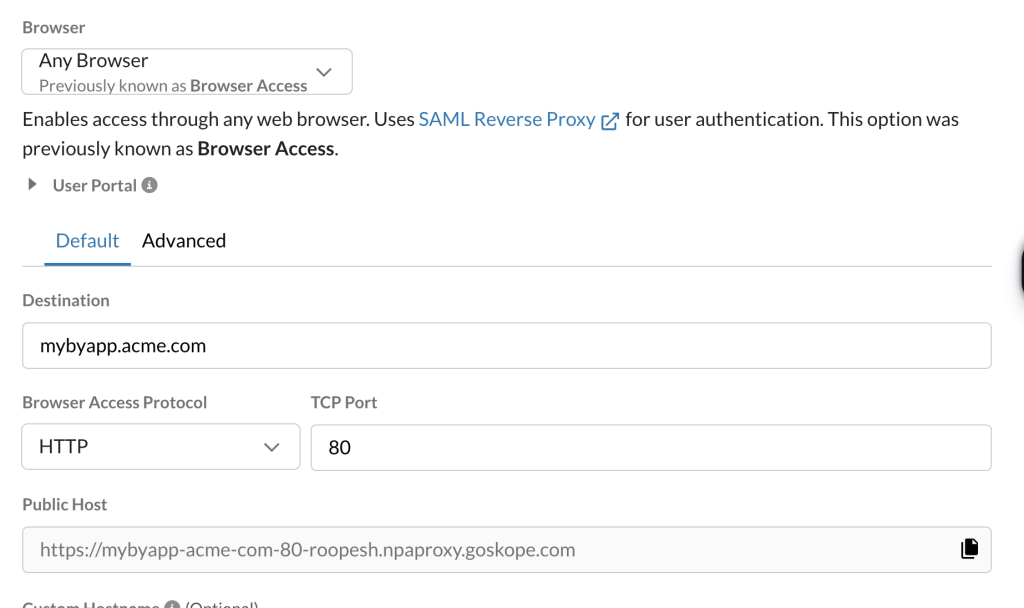
- Save the configuration and allow the changes to propagate to Browser Access gateways.

Considerations
- URL rewrite applies only to server-side HTTP 30x redirects (excluding 300 Multiple Choices) in
Location:response headers. - URL rewrite applies only to redirects whose target host and port match the destination host and port configured in the Browser Access app segment. Cross-domain or cross-port redirects are not rewritten.
- URL rewrite does not rewrite href attributes or URLs embedded in the HTML response body.
- JavaScript-based redirects are not intercepted by URL rewrite.
URL Rewrite Verification
- Access the Browser Access application from an end-user browser.
- Complete authentication. If the backend application issues a server-side redirect, observe the browser address bar.
- Confirm that the URL shows the Custom Hostname (if configured) or the default Netskope public host FQDN, with the correct application path preserved.
- Navigate through the application to confirm subsequent redirects also preserve the expected hostname and path.
Troubleshooting
| Symptom | Resolution |
|---|---|
| Browser redirects to an internal IP instead of the Browser Access hostname | Confirm Browser Access is enabled and the application configuration has propagated to gateways. Test with a direct Browser Access URL to verify baseline connectivity. |
| Path or query parameters are missing after redirect | Confirm the redirect is a server-side HTTP 30x redirect via the Location: header. JavaScript-based redirects are not supported by URL rewrite. |
| Redirect to a different domain still breaks the session | Cross-domain redirects are outside the scope of URL rewrite. The redirect target host and port must match the destination host and port configured in the Browser Access app segment. |