

The following sections explain how to configure various types of inputs.
Alerts
- Go to the Inputs tab and click Create New Input in the upper-right, and then click Add Alerts (Iterator).
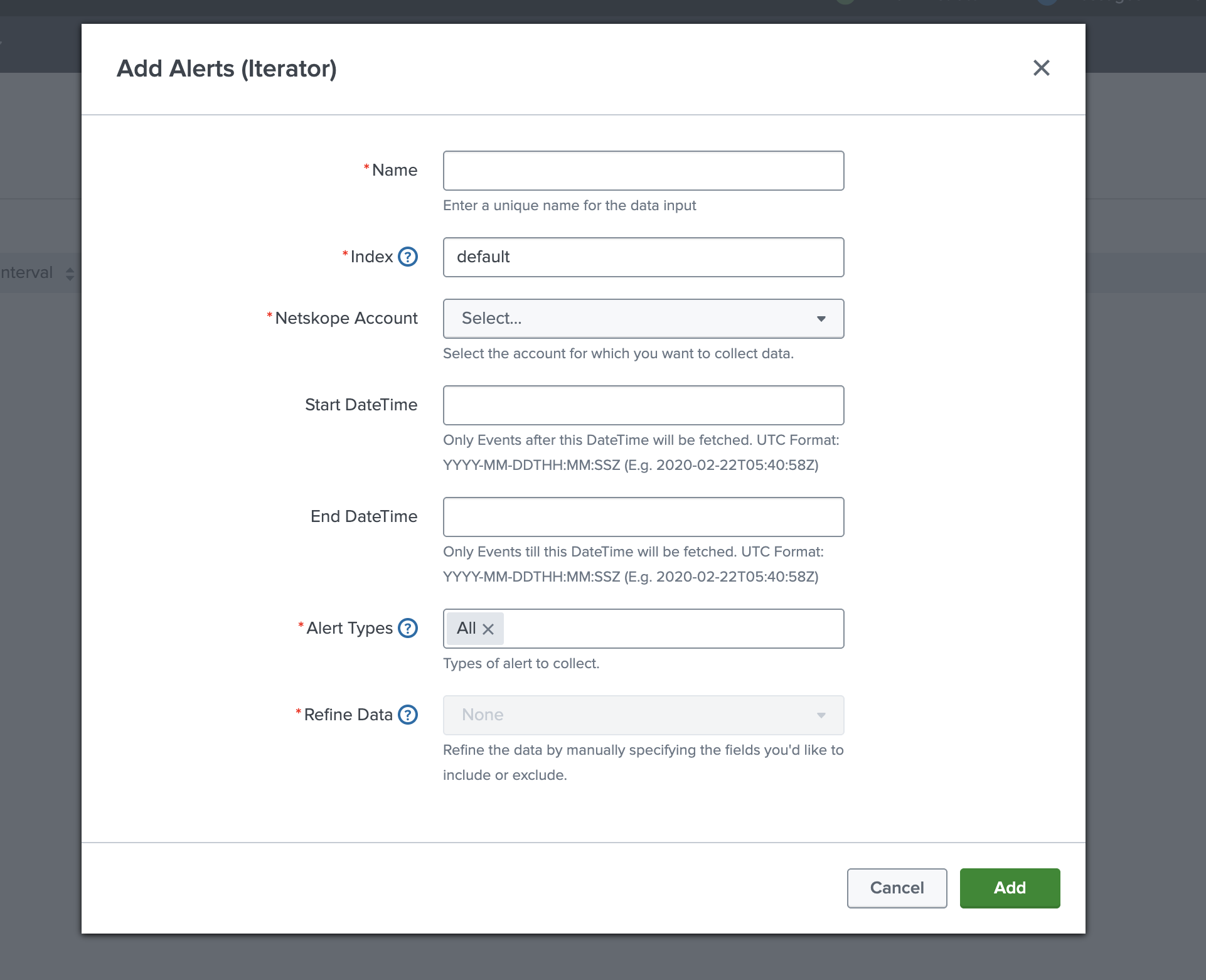
- In the Add Alerts (Iterator) window, enter this information:
- Name can be any unique name, but using <tenant-name>_alerts helps differentiate the input from _events and _clients, which will be created later.
- Index can be left as default, unless you have custom indexes configured in Splunk.
- Netskope Account should be the tenant account created previously.
- The Start Date/Time and End Date/Time fields can be left blank. If configured, only events occurring after the specified Start Time and/or before the specified End Time will be fetched from Netskope. By default, if no End Time is provided, the Start Time is considered as the time when the input is configured, and events are collected from that point forward.
- Alert Types can be left as All or individual alert types can be selected by clicking into the field.
Note
The All is a summarizing rolled-up endpoint for all alerts, hence it may not include all the alert fields. To get detailed alert information, please explicitly select individual alert-types.
- Refine Data can only be configured if a single alert type is selected. An Alerts (Iterator) input would need to be created for each alert type that needs fields filtered. Enter comma separated fields to Include/Exclude.
- Click Add and wait for the window to close. If there are any missing API token permissions, you will see an error with additional details, and the input will not be added. Fix the API token permissions, return to this page, and click Add again.
Events
- Go to the Inputs tab, click Create New Input in the upper-right, and then click Add Events (Iterator).
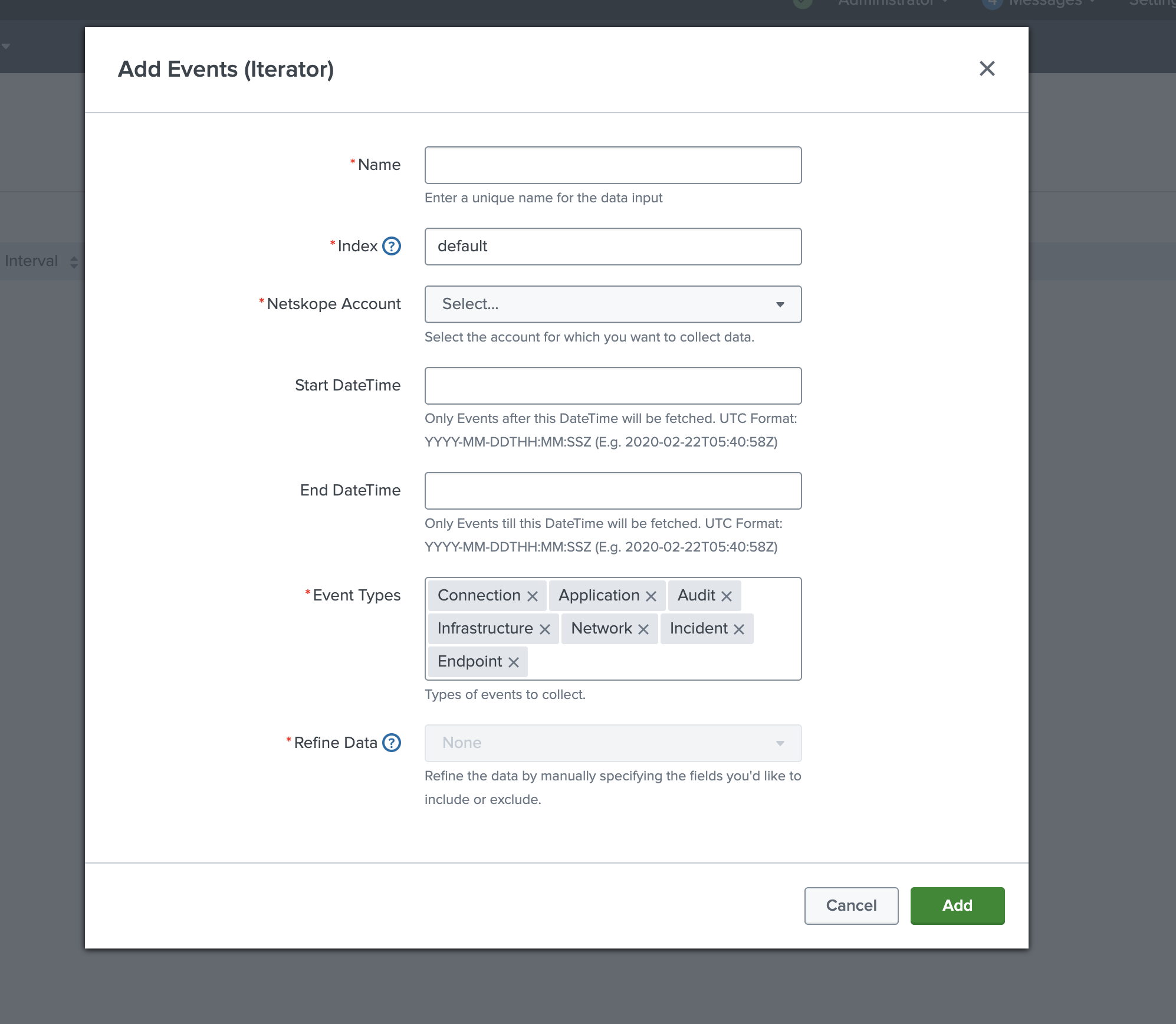
- In the Add Events (Iterator) window, enter this information:
- Name can be any unique name, but using <tenant-name>_events helps differentiate the input from _alerts and _clients.
- Index can be left as default, unless you have custom indexes configured in Splunk.
- Netskope Account should be the tenant account created previously.
- The Start Date/Time and End Date/Time fields can be left blank. If configured, only events occurring after the specified Start Time and/or before the specified End Time will be fetched from Netskope. By default, if no End Time is provided, the Start Time is considered as the time when the input is configured, and events are collected from that point forward.
- Event Types can be left with all the event types selected. Click the x next to any event types that should not be fetched.
- Refine Data can only be configured if a single event type is selected. An Events (Iterator) input would need to be created for each event type that needs fields filtered. Enter comma separated fields to Include/Exclude.
- Click Add and wait for the window to close. If there are any missing API token permissions, you will see an error with additional details, and the input will not be added. Fix the API token permissions, return to this page, and click Add again.
Clients
- Go to the Inputs tab, click Create New Input in the upper-right, and then click Add Clients (Iterator).
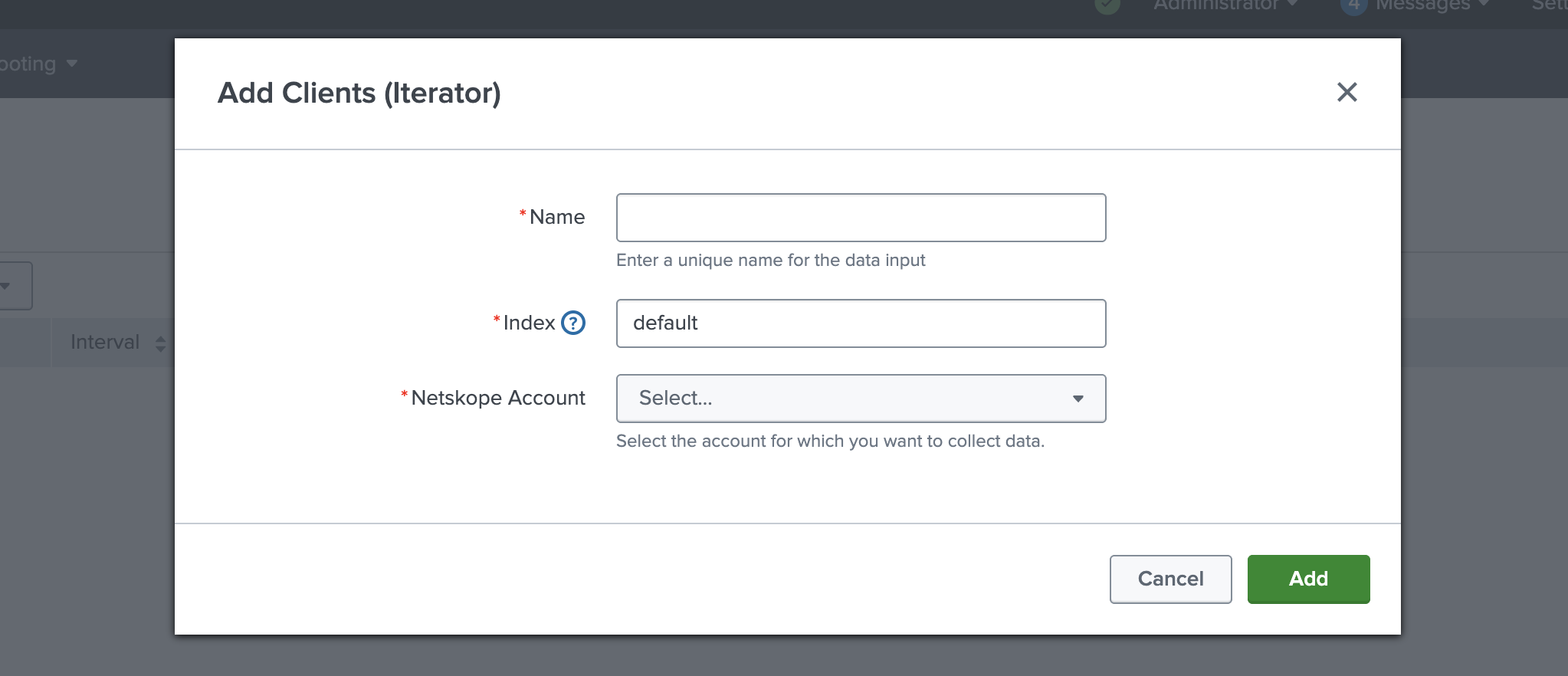
- In the Add Clients (Iterator) window, enter this information:
- Name can be any unique name, but using <tenant-name>_clients helps differentiate the input from _alerts and _events.
- Index can be left as default, unless you have custom indexes configured in Splunk.
- Click Add.
Events (Multi Iterator)
- Go to the Inputs tab, click Create New Input in the upper-right, and then select Events (Multi Iterator).
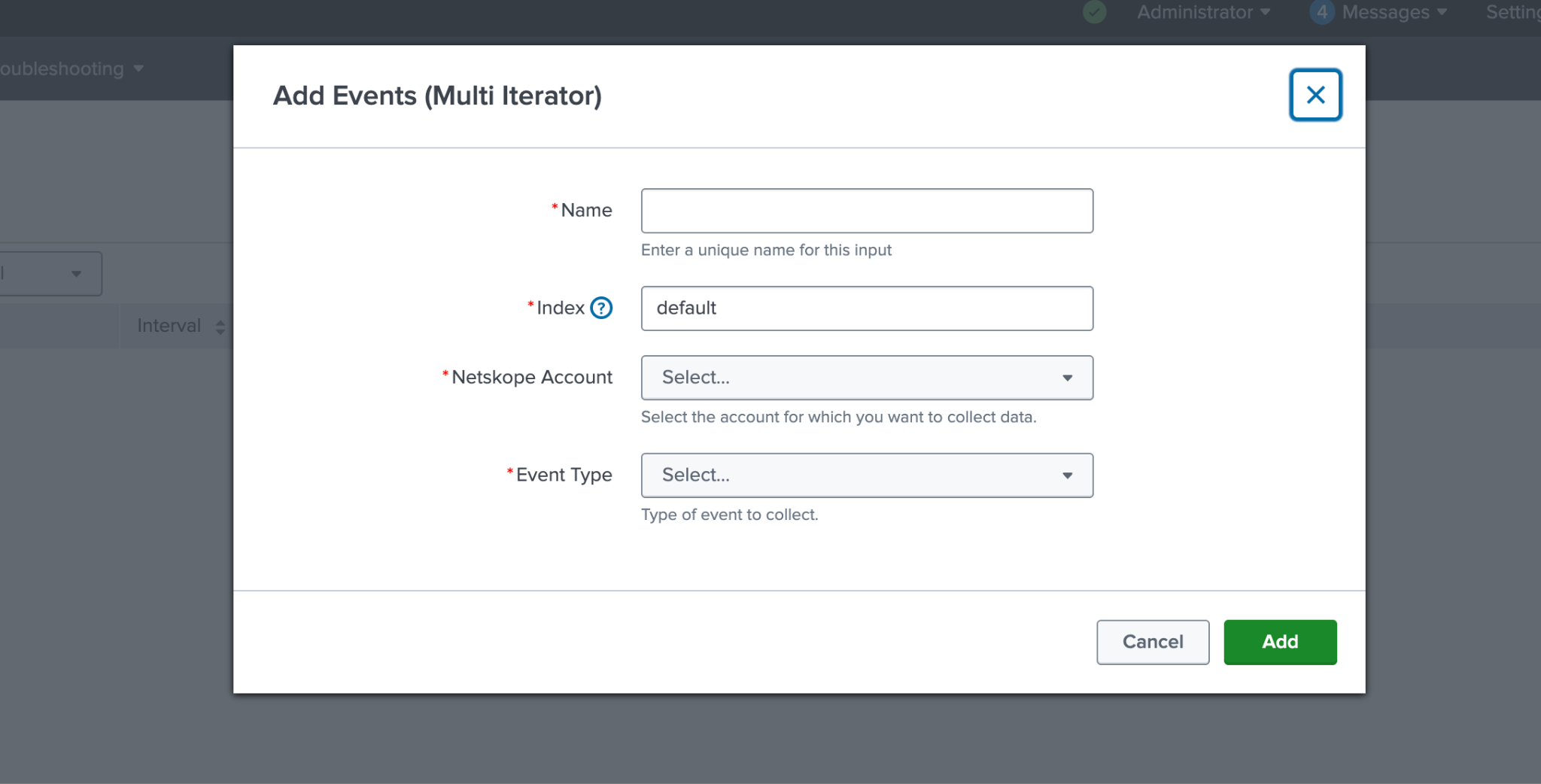
- In the Add Events (Multi Iterator) window, enter this information:
- Name can be any unique name, but using <tenant-name>_<event-type> helps differentiate the input (like test_application or test_network).
- Index can be left as default, unless you have custom indexes configured in Splunk.
- Netskope Account should be the tenant account created previously.
- Event Type must be selected from the available options:
- Connection: Collects connection event data.
- Application: Collects application event data.
- Network: Collects network event data.
Important
Only one Events (Multi Iterator) input can be created per event type per Netskope Account. For example, you can only have one Application event iterator for a given tenant. If you attempt to create a second iterator for the same event type and tenant, you will receive an error and the input will not be created.
- Click Add and wait for the window to close. If there are any missing API token permissions, you will see an error with additional details, and the input will not be added. Fix the API token permissions, return to this page, and click Add again.
Alerts (Multi Iterator)
- Go to the Inputs tab, click Create New Input in the upper-right, and then select Alerts (Multi Iterator).
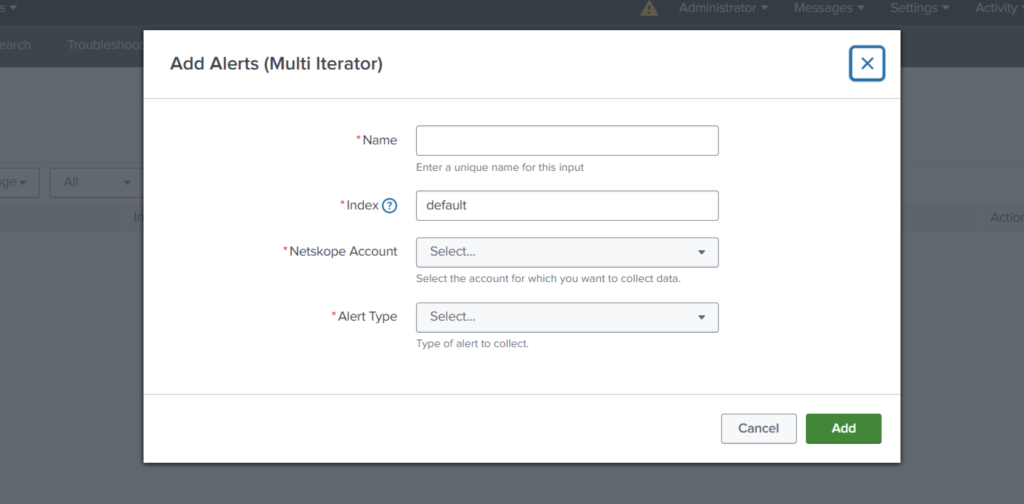
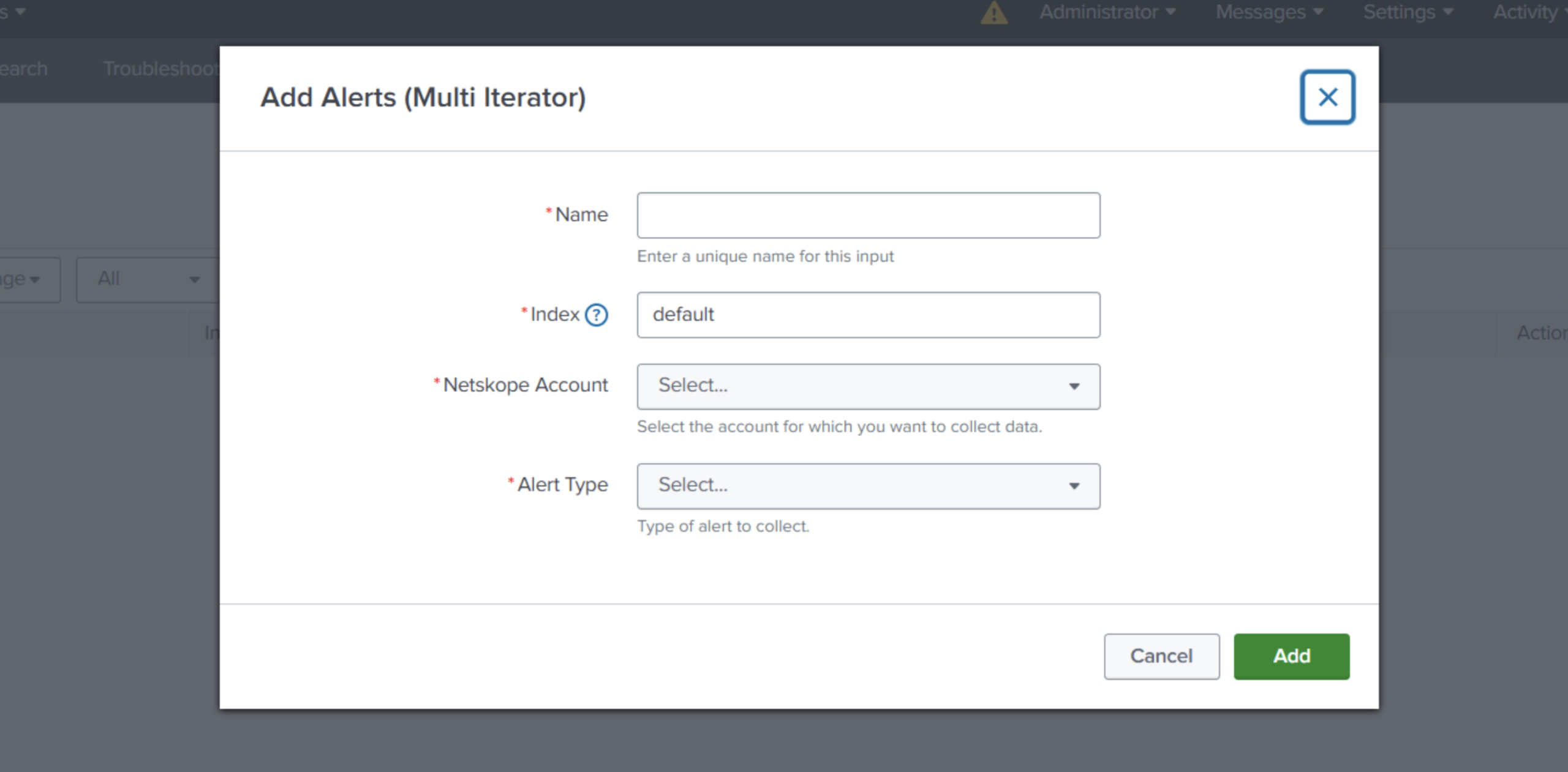
- In the Add Alerts (Multi Iterator) window, enter this information:
- Name can be any unique name, but using <tenant-name>_<alert-type> helps differentiate the input (like test_dlp or test_policy).
- Index can be left as default, unless you have custom indexes configured in Splunk.
- Netskope Account should be the tenant account created previously.
- Alert Type must be selected from the available options:
- compromisedcredential, ctep, dlp, malsite, malware, policy, quarantine, remediation, securityassessment, uba, watchlist, device, content
- compromisedcredential, ctep, dlp, malsite, malware, policy, quarantine, remediation, securityassessment, uba, watchlist, device, content
Important
Only one Alerts (Multi Iterator) input can be created per alert type per Netskope Account. For example, you can only have one Policy alert iterator for a given tenant. If you attempt to create a second iterator for the same event type and tenant, you will receive an error and the input will not be created.
3. Click Add and wait for the window to close. If there are any missing API token permissions, you will see an error with additional details, and the input will not be added. Fix the API token permissions, return to this page, and click Add again.
Notes
- The Alerts (Iterator) input may cause resource usage to increase if separate alert types are selected since the threading mechanism will collect all types of alerts simultaneously.
- Clients (Iterator), Events (Multi Iterator) and Alerts (Multi Iterator) Input supports real-time data collection only. Historical data collection is not supported.
- Using Refine Data feature, may utilize high resource consumption and lead to delay in ingestion of data due to post processing of data.
- Events (Multi Iterator) and Alerts (Multi Iterator) Inputs are designed for customers with a very high volume of data generation. It currently supports data collection for Page, Application, Network and all individual types of alerts.
- Unlike the Events (Iterator) and Alerts (Iterator) inputs, Events (Multi Iterator) and Alerts (Multi Iterator) collect only one type per input configuration. To collect multiple types, create a separate Events (Multi Iterator) or Alerts (Multi Iterator) input for each type you need.
- The Events (Multi Iterator) and Alerts (Multi Iterator) inputs are used to collect real-time data from a Netskope tenant using the iterator API, ingesting the data as CSV into Splunk. It is designed for continuous, low-latency event collection where each input handles a single type per tenant.