

The Internet Security tab of the Global Attributes allows you to configure Netskope Client exception handling, traffic handling, performance and optimization, security, and authentication settings tenant-wide, directly from the UI. Changes here apply to all users and devices on the tenant.
Prerequisite:
Administrator must have access to edit and save the Global Attributes for Internet Security. To know more see, Configure RBAC-Based Access Control for Global Attributes Configuration.
Steps to configure Internet Security under Global Attributes:
-
Log into the Netskope tenant.
-
Navigate to Settings > Security Cloud Platform > Client Configuration.
-
Click Global Attributes in the top-right.
-
On Internet Security tab select or unselect the checkbox next to each setting.
-
Click Save to apply changes.
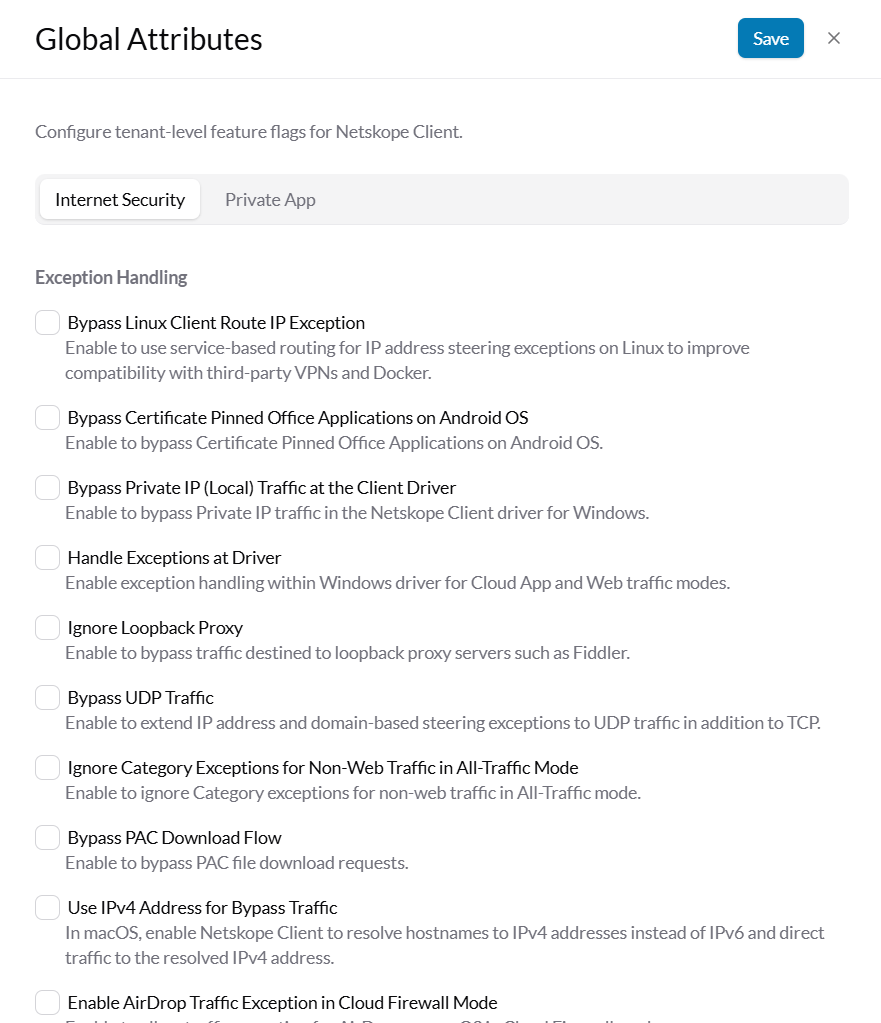
The following list provides general guidance on the options available under Internet Security and their usage:
Exception Handling
All settings under Exception Handling control how the Netskope Client processes traffic, applications, and scenarios exempt from standard Netskope steering and security inspection.
Bypass Linux Client Route IP Exception
Overview
This setting controls how the Netskope Linux Client manages network routing table entries for IP steering exceptions, particularly when coexisting with third-party VPN solutions.
Behavior
When the Bypass Linux Client Route IP Exception is:
- Enabled: The Client avoids inserting static host/subnet routes into Linux routing table 9. All traffic is forwarded to the local Netskope Clientservice (stAgentSvc), which acts as an intelligent local proxy to direct traffic out the appropriate interface (physical interface, third-party VPN interface, or Netskope tunnel).
- Disabled: The Client creates explicit routing entries for exempted IPs in the kernel routing table, which forces traffic directly out the physical interface.
When to Use
Enable on Linux devices where third-party VPN clients (or multi-interface networking) coexist with the Netskope Client and exempted traffic must traverse the third-party VPN tunnel rather than the physical adapter.
Bypass Certificate Pinned Office Applications on Android OS
Overview
This setting automatically identifies and bypasses Microsoft Office mobile applications on Android that employ hardcoded SSL certificate pinning.
Behavior
When Bypass Certificate Pinned Office Applications on Android OS is:
- Enabled: Microsoft Office app connections on Android are detected and bypassed locally at the OS layer, preventing SSL inspection breakages.
- Disabled: Traffic from Microsoft Office applications follows standard steering rules. If SSL decryption is enabled for the traffic, certificate pinning validation will fail and block connectivity.
When to Use
Enable for Android deployments when end users report connection or authentication errors in native Microsoft 365 / Office apps due to certificate pinning.
Bypass Private IP (Local) Traffic at the Client Driver
Overview
This setting evaluates and bypasses RFC 1918 private/local IP traffic directly at the kernel network driver level (WFP on Windows).
Behavior
When Bypass Private IP (Local) Traffic at the Client Driver is:
- Enabled: Connections destined for local/private subnets (e.g., 10.0.0.0/8, 172.16.0.0/12, 192.168.0.0/16) are immediately released by the kernel driver, bypassing user-space agent processing.
- Disabled: Private IP traffic is passed up to the user-space agent service (stAgentSvc) to evaluate steering exception rules before being bypassed.
When to Use
Enable to reduce endpoint CPU/memory utilization and minimize latency for internal, non-steered local network traffic (printers, local servers, LAN communications).
Handle Exceptions at Driver
Overview
This setting pushes configured steering exception rules (IPs, domains, ports) directly into the kernel network driver layer for early packet processing. This setting applies to Windows endpoints only, within the Windows Filtering Platform (WFP) kernel driver.
Behavior
When Handle Exceptions at Driver is:
- Enabled: The kernel driver evaluates steering exceptions directly. Matching traffic is immediately bypassed on the physical interface without transitioning through the user-mode agent service.
- Disabled: All intercepted flows are passed to the user-space service (stAgentSvc) for steering evaluation and exception matching.
When to Use
Enable to optimize Clientnet work throughput and improve performance on high-bandwidth endpoints.
Ignore Loopback Proxy
Overview
This setting prevents the Netskope Client from intercepting traffic routed through local loopback proxies (127.0.0.1 / localhost).
Behavior
When Ignore Loopback Proxy is:
- Enabled: Traffic bound to or originating from local loopback proxy listeners is ignored and bypassed by the Netskope driver.
- Disabled: Loopback proxy flows are captured by the driver and evaluated against steering rules, which can create routing loops or conflict with local developer tools.
When to Use
Enable when endpoints run local proxies, security agents, or developer environments listening on localhost to prevent proxy looping or connection stalls.
Bypass UDP Traffic
Overview
Enabling this setting extends IP address and domain-based steering exceptions to UDP traffic in addition to TCP. By default, the Netskope Client only applies steering exceptions to TCP flows—UDP traffic is either dropped (such as QUIC/HTTP/3 fallback behavior) or continues to be steered to Netskope. This setting ensures configured steering exceptions apply consistently across both TCP and UDP protocols regardless of whether the Client is in Web-Only or Cloud Firewall (All-Traffic) steering mode. When enabled, UDP traffic matching configured steering exceptions is bypassed locally at the endpoint using the same exception policies applied to TCP traffic.
Behavior
When Bypass UDP Traffic is:
- Enabled: The Netskope Client evaluates steering exception policies (IP, subnet, and domain/FQDN) against both TCP and UDP network flows. UDP traffic matching an exception is immediately bypassed locally on the physical interface without entering the Netskope tunnel or being dropped.
- Disabled: Steering exceptions only evaluate and match TCP traffic. UDP packets destined for excepted IP addresses or domains either continue to be tunneled to the Netskope Gateway (in Cloud Firewall mode) or are intercepted/dropped (for example QUIC blocking in Web mode) rather than honoring the bypass exception.
When to Use
Enable this feature if UDP-based applications continue to be steered or intercepted despite matching configured steering exceptions, or to resolve interoperability issues involving applications and network software that communicate over UDP. Common examples include:
- Voice over IP (VoIP) and SIP telephony software
- Video conferencing and collaboration tools (Zoom, Microsoft Teams, Webex media streams)
- Real-time streaming protocols, gaming, or proprietary UDP services
- Scenarios where HTTP/3 / QUIC traffic to specific excepted domains needs to be bypassed directly to the internet rather than blocked/steered
Ignore Category Exceptions for Non-Web Traffic in All-Traffic Mode
Overview
This setting scopes URL/Domain Category steering exceptions strictly to HTTP/HTTPS web traffic in Cloud Firewall (All-Traffic) deployments. URL and domain categories are derived from the HTTP Host header and TLS SNI metadata. In All-Traffic (Cloud Firewall) mode, non-web protocols (such as SSH, RDP, or custom TCP/UDP services) can share IP space with categorized web destinations, so if this setting is disabled, those non-web protocols could unintentionally inherit web category bypasses.
Behavior
When Ignore Category Exceptions for Non-Web Traffic in All-Traffic Mode is:
- Enabled: Category-based exceptions apply only to web protocols. Raw non-web TCP/UDP flows ignore category exception rules and continue through Cloud Firewall inspection.
- Disabled: Non-web flows may attempt category matching or accidentally inherit web category bypasses, leading to inconsistent steering.
When to Use
Enable in Cloud Firewall environments to prevent broad web category exceptions from unintentionally bypassing non-web enterprise protocols.
Bypass PAC Download Flow
Overview
This setting automatically exempts Proxy Auto-Configuration (PAC) file download requests from being tunneled through Netskope.
Behavior
When Bypass PAC Download Flow is:
- Enabled: HTTP/HTTPS requests to retrieve PAC files (via WPAD or explicit PAC URLs) are bypassed to the physical network adapter, allowing endpoints to fetch proxy configurations independently of the Netskope tunnel.
- Disabled: PAC download requests can be intercepted and sent through the tunnel, which can cause circular dependencies or bootstrap failures if the tunnel requires resolution provided by the PAC file.
When to Use
Enable in hybrid or chained proxy architectures where devices rely on PAC files for upstream network routing.
Use IPv4 Address for Bypass Traffic
Overview
This setting controls how the Netskope Client for macOS handles dual-stack (IPv4/IPv6) connections for locally bypassed traffic when IPv6 connectivity on the local network path is broken, blocked, or unrouted. On macOS (Big Sur and later), the Netskope Client’s Network Extension transparently proxies both tunneled and bypassed connections. When this setting is enabled, if an initial IPv6 connection attempt fails or stalls on a locally bypassed destination, the Netskope Client actively falls back to establish the connection over IPv4. This ensures uninterrupted application and web access regardless of the steering mode in use (Cloud Apps, Web-Only, or All-Traffic/Cloud Firewall).
Behavior
When Use IPv4 Address for Bypass Traffic is:
- Enabled: When a bypassed connection is initiated to a destination with both IPv4 and IPv6 addresses, the Netskope Client follows RFC 6555 dual-stack fallback behavior. If the IPv6 path fails or fails to connect, the Network Extension automatically falls back to the IPv4 address, preventing connection drops or application timeouts.
Disabled: The Netskope Client’s Network Extension does not initiate an automatic IPv4 fallback when an outbound IPv6 bypass connection fails. If IPv6 is enabled on the macOS endpoint but blocked or dropped along the upstream network path, the connection will fail or hang indefinitely.
When to Use
- Who is Affected: macOS devices running macOS 11 (Big Sur) and later with IPv6 enabled on network adapters, operating in environments where upstream network devices, firewalls, or ISPs block or misconfigure IPv6 routing.
- Scope of Impact: Partial or complete loss of connectivity to locally bypassed web pages, SaaS applications, or internal VPN resources—particularly noticeable in modern browsers such as Google Chrome (v104+) and Chromium apps that aggressively prioritize IPv6 connections.
- Affected Steering Modes: All steering configurations (Cloud Apps, Web-Only, and Cloud Firewall / All-Traffic).
- Resolution: Enable the Use IPv4 Address for Bypass Traffic to ensure automatic IPv4 fallback for all locally bypassed traffic without requiring users to disable IPv6 globally on their Mac endpoints.
Enable AirDrop Traffic Exception in Cloud Firewall Mode
Overview
This setting adds native steering bypasses for Apple AirDrop protocols and Bonjour/mDNS discovery when operating in Cloud Firewall (All-Traffic) mode on macOS.
Behavior
When Enable AirDrop Traffic Exception in Cloud Firewall Mode is:
- Enabled: AirDrop peer-to-peer Wi-Fi/Bluetooth connections and discovery broadcasts are automatically bypassed at the system level.
- Disabled: Cloud Firewall intercepts or blocks peer-to-peer AirDrop connections, preventing local file sharing between Apple devices.
When to Use
Enable on macOS fleets using Cloud Firewall mode where users require seamless Apple AirDrop functionality.
Traffic Handling
All settings under Traffic Handling govern how the Netskope Client manages traffic interception, steering, and tunneling from the endpoint to the Netskope cloud.
Override Access Method Detection
Overview
This setting controls whether the Netskope Client automatically disables its traffic steering tunnel when it detects that network traffic is already being steered to Netskope through an alternate inline method (such as an on-premises IPsec/GRE tunnel, SD-WAN tunnel, or Dataplane On-Premises appliance).
By default, the Netskope Client performs an access-method discovery probe upon connecting to a network. If it finds that edge network equipment or an on-premises appliance is already steering and inspecting web/cloud traffic toward Netskope, the Client automatically disables its own local steering tunnel to prevent double-tunnel encapsulation, network performance degradation, or routing loops. Enabling Override Access Method Detection instructs the Client to ignore these inline access-method findings and force the Client to build and maintain its own direct tunnel to the Netskope Cloud.
Behavior
When Override Access Method Detection is:
- Enabled: The Netskope Client overrides and ignores any positive alternate access-method signals returned by network probes. The Client will always establish and maintain its own SSL/DTLS tunnel directly to Netskope, even when the endpoint is situated on a corporate network behind an active IPsec, GRE, or DPOP tunnel.
- Disabled: The Client actively checks for alternate inline steering paths during network initialization or network interface changes. If an inline steering method (IPsec, GRE, DPOP, Secure Forwarder, Express Connect, AWS Access Gateway) is detected, the Client auto-disables its own steering tunnel for web/cloud traffic and reflects this state in the system tray/menu.
When to Use
- Endpoint-Level Steering Priority: Organizations that require strict endpoint-level steering, device classification, or Cloud Firewall (CFW) inspection from the Client even when devices are connected inside an office with an IPsec/GRE site-to-site tunnel.
- Mixed-Policy / Dedicated Egress Environments: When corporate office traffic routes across an IPsec/GRE tunnel for general branch connectivity, but specific managed endpoints running the Netskope Client must maintain individual device-level tunnels for granular user/group policy enforcement or troubleshooting.
- Lab & Testing Scenarios: When testing and validating client-side capabilities, posture checks, or bug fixes on a corporate or lab network where an active IPsec, GRE, or DPOP appliance is present.
Block DNS over TCP
Overview
This setting blocks standard DNS queries transmitted over TCP port 53 directly at the endpoint.
Behavior
When Block DNS over TCP is:
- Enabled: DNS traffic sent over TCP port 53 is blocked at the Clientdriver level, forcing DNS resolvers to use UDP or designated secure DNS channels.
- Disabled: DNS queries over TCP port 53 are steered or forwarded according to standard steering configurations.
When to Use
Enable this setting to prevent DNS tunneling over TCP and enforce strict UDP or encrypted DNS compliance across endpoints.
Block IPv6 Non-web Traffic
Overview
This setting blocks non-web (non-HTTP/HTTPS) IPv6 traffic at the endpoint to eliminate security blind spots on dual-stack networks.
Behavior
When Block IPv6 Non-web Traffic is:
- Enabled: Non-web IPv6 traffic is blocked by the Clientdriver, prompting applications to fall back to IPv4 (which is steered and inspected) or stopping uninspected IPv6 data egress.
- Disabled: Non-web IPv6 traffic is bypassed or left uninspected if IPv6 Cloud Firewall steering is not configured.
When to Use
Enable in environments where IPv6 Cloud Firewall inspection is not configured, ensuring all non-web traffic routes over inspected IPv4 paths.
Block Private IP Traffic in Fail-Close
Overview
This setting enforces strict isolation by blocking RFC 1918 private/local IP traffic when the Netskope Client is in a Fail-Close state.
Behavior
When Block Private IP Traffic in Fail-Close is:
- Enabled: If the Netskope tunnel cannot connect and Fail-Close is active, all outbound traffic including local/private subnets is blocked.
- Disabled: In Fail-Close mode, public internet access is blocked, but local private IP subnets remain accessible for local network management and diagnostics.
When to Use
Enable in high-security Zero Trust environments where endpoints must never communicate on any network without an active Netskope security tunnel.
Optimization
All settings under Optimization serve to optimize Netskope Client performance and end-user experience through managed connection, resource, and network handling.
Battery Save For Sleep Mode (Android Only)
Overview
This setting reduces power consumption on Android devices by putting Clientkeepalive heartbeats into a low-frequency state when the device enters deep sleep.
Behavior
When Battery Save For Sleep Mode (Android Only) is:
- Enabled: Background tunnel polling and keepalives are throttled when the screen is turned off or in Android Doze mode, preserving battery life.
- Disabled: The Client maintains standard high-frequency keepalives continuously in the background.
When to Use
Enable for Android fleets where users report high battery consumption during idle or overnight hours.
Maintain Connection for Short Sleep for Windows 10 & 11
Overview
This setting controls how the Netskope Client manages its traffic steering tunnel during Windows Modern Standby (also known as Always On, Always Connected or Connected Standby).
In modern Windows 10 and 11 hardware, devices enter a low-power Connected Standby state where the operating system periodically wakes background tasks (such as email sync, push notifications, and OS telemetry) while the screen is off.
When Maintain Connection for Short Sleep for Windows 10 & 11 is enabled, the Netskope Client ignores power state transitions in and out of standby and instead aligns its tunnel lifecycle strictly to network interface availability. Whenever the network adapter is active during Modern Standby, the Client maintains or builds its tunnel to steer and inspect background traffic. When disabled, the Client explicitly disconnects its tunnel upon entering standby and reconnects only when the system fully wakes up, leaving background traffic uninspected during sleep.
Behavior
When Maintain Connection for Short Sleep for Windows 10 & 11 is:
Enabled:
- The Netskope Client ignores system power transitions into/out of Connected Standby states.
- The tunnel lifecycle is decoupled from sleep notifications and tied directly to the network adapter’s operational state on the endpoint.
- When Windows periodically activates the network adapter during Modern Standby to perform background data syncing, the Netskope Client automatically initiates or maintains the tunnel, ensuring all configured traffic generated while the screen is off is secured and steered through Netskope.
- If Windows puts the network adapter to sleep or brings it down, the tunnel disconnects gracefully and re-establishes as soon as network reachability is restored.
Disabled:
- The Client actively listens for OS power notifications entering Modern Standby / Connected Standby.
- Upon entering Connected Standby, the Netskope Client explicitly tears down its tunnel.
- The tunnel remains down for the entire duration of the system’s Modern Standby cycle.
- Impact: Any background traffic generated by the OS or background applications during Modern Standby bypasses Netskope steering (traveling directly out the physical interface or failing if strict network boundaries are enforced). The Client initiates a full tunnel rebuild only after the user wakes the machine.
When to Use
- Zero Trust & Compliance for Modern Workstations: Organizations that require 100% continuous traffic inspection, data protection, and firewall enforcement—even when laptops are in sleep/standby mode with active background tasks.
- Fast Resumption / Low Wake Latency: Recommended for all modern Windows 10 & 11 laptops (Intel EVO, modern AMD, Microsoft Surface devices) to eliminate user-perceived connection delays when opening laptop lids or waking screens.
- When to Disable (Troubleshooting): In rare environments where endpoints experience aggressive network cycling / flapping during Modern Standby that causes excessive battery drain or unstable adapter drivers while sleeping.
Maintain Connection for Short Sleep for macOS
Overview
This setting controls how the Netskope Client for macOS manages its traffic steering tunnel during system sleep, lid closures, and macOS Power Nap cycles.
On modern Mac hardware (both Apple Silicon and Intel), macOS can perform periodic background maintenance tasks (such as Mail fetches, iCloud syncing, Find My updates, and Time Machine backups) while the display is sleeping.
When Maintain Connection for Short Sleep for macOS is enabled, the Netskope Client ignores macOS system power state transitions into and out of sleep and instead binds its tunnel connection and disconnection lifecycle strictly to the availability of the network interface on the endpoint. Whenever the macOS network adapter is active during sleep or Power Nap maintenance windows, the Netskope Client maintains or builds its tunnel to ensure all background traffic is steered and inspected. When disabled, the Client explicitly tears down its tunnel upon entering sleep and reconnects only after the Mac is fully woken by the user.
Behavior
When Maintain Connection for Short Sleep for macOS is:
Enabled:
- The Netskope Client ignores OS sleep and lid-close power event notifications.
- The tunnel lifecycle is decoupled from system power states and managed purely by network interface reachability.
- If macOS keeps the Wi-Fi/Ethernet adapter active or periodically brings it up during sleep/Power Nap to sync background tasks, the Netskope Client detects the active network and immediately establishes or maintains its tunnel.
- If macOS turns off or sleeps the network adapter, the Client disconnects its tunnel accordingly. As soon as the network interface is brought back up by the OS, the Client reacts immediately and rebuilds the tunnel.
- Result: Background traffic generated while the screen is asleep is securely steered and inspected through Netskope whenever network connectivity exists, and users experience near-instant connection resumption upon waking their device.
Disabled:
- The Client actively listens for macOS sleep notifications (e.g., lid close, system sleep transitions).
- Upon receiving a sleep event, the Netskope Client explicitly disconnects and tears down its tunnel.
- The tunnel remains offline for the entire duration of the sleep state.
- Impact: Any background activity or network sync initiated by macOS or background apps during sleep/Power Nap bypasses Netskope steering (either falling back to unsteered direct routing or failing if strict egress controls are enforced). The Client initiates a full tunnel rebuild only after the user wakes the Mac.
When to Use
- Continuous Compliance & Data Protection for Mac Fleets: Organizations requiring 100% inspection, Cloud Firewall enforcement, and DLP coverage for background sync traffic generated during macOS sleep or Power Nap cycles.
- Eliminating Wake Latency on MacBooks: Recommended across macOS fleets (especially MacBook Air / MacBook Pro laptops on macOS 11 Big Sur through macOS 15 Sequoia) to eliminate the 3–8 second tunnel reconnection delay and prevent captive portal re-triggers when opening the laptop lid.
- When to Disable (Troubleshooting): In rare customer environments where macOS devices experience aggressive Wi-Fi power-cycling while asleep that leads to unexpected battery drain or network interface panics.
Support Multi-Segment SNI on Windows
Overview
This setting enables the Netskope Client network driver on Windows to buffer and reassemble incoming initial TCP stream segments during the TLS handshake. This ensures the Client can fully reconstruct and extract the complete SNI before determining whether to steer, bypass, or process the traffic, preventing unclassified traffic leaks, connection drops, or incorrect policy application for applications using fragmented TLS handshakes.
Behavior
When Support Multi-Segment SNI on Windows is:
Enabled:
- The Windows Client network driver inspects and buffers initial TCP stream segments to reassemble the complete TLS ClientHello record.
- The Client successfully extracts the SNI domain even when the extension header spans across two or more TCP packets.
- The extracted domain is evaluated against the tenant’s steering and exception rules, ensuring 100% accurate steering decisions in shared-IP and CDN environments.
Disabled:
- The driver only inspects the first TCP packet of a connection. If the TLS ClientHello is segmented and the SNI extension falls into the second or subsequent segment, the driver fails to parse the domain name.
- The Client falls back to IP/DNS-based steering decisions. In environments with shared IP addresses (e.g., Google, Cloudflare, Akamai, Fastly), this fallback can lead to misclassified flows, such as bypassing traffic that should have been steered, or steering unmanaged traffic that should have been bypassed.
When to Use
- Shared IP / Multi-Tenant SaaS Environments: Recommended whenever “Perform SNI check” is active to differentiate services sharing common IP infrastructures (e.g., allowing enterprise Google Drive inspection while bypassing or isolating unmanaged YouTube traffic).
- CDN and Cloudfront/Cloudflare Interoperability: When accessing web applications hosted behind CDNs, reverse proxies, or modern TLS stacks that segment ClientHello packets.
- Large TLS Handshake Extensions: Environments where clients negotiate TLS handshakes with extensive extension lists, ALPN tokens, or post-quantum hybrid key exchanges that exceed standard single-packet MTU sizes.
Auto Start Netskope Client CASB/Internet Security Service with Reboot/Re-login
Overview
This setting automatically re-enables the Netskope Client service upon user logout, login, or system restart, overriding prior temporary user disablement.
Behavior
When AutoStart Netskope ClientCASB/Internet Security Service with Reboot/Relogin is:
- Enabled: If an authorized user temporarily disables the Client(via admin-provided password or tray menu), the Client automatically re-enables upon the next login or reboot.
- Disabled: The Client remains disabled until the disabled timer expires or the user manually re-enables protection.
When to Use
Enable to maintain continuous endpoint security and prevent users from leaving security controls permanently disabled across sessions.
Enable Captive Portal Dialog
Overview
This setting launches an embedded, secure browser dialog when a Wi-Fi captive portal is detected, guiding the user to complete network authentication.
Behavior
When Enable Captive Portal Dialog is:
- Enabled: Upon captive portal detection, the Client opens a pop-up window displaying the portal login page and holds tunnel initialization until internet connectivity is established.
- Disabled: The Client relies entirely on the OS captive portal assistant or user-initiated browser navigation, which can lead to connection timeouts.
When to Use
Enable for mobile and traveling workforces connecting to hotel, airport, and guest Wi-Fi networks that require browser splash-page logins.
WebView2 Support
Overview
This setting uses the modern Microsoft Edge WebView2 (Chromium) engine for all Netskope Client user interface prompts, SAML authentication, and alert notifications on Windows.
This setting requires the Microsoft Edge WebView2 Runtime to be installed on the endpoint. If this setting is enabled but the WebView2 Runtime is not present, the Client falls back to the legacy web browser (MSHTML/IE) component in the same way as when this setting is disabled.
Behavior
When WebView2 Support (Default Enabled) is:
- Enabled (Default): Client authentication dialogs and notifications render via modern Chromium-based WebView2, supporting modern web standards, conditional access, and FIDO2/WebAuthn.
- Disabled: The Client falls back to legacy WebBrowser (MSHTML/IE) components, which may fail to render modern IDP login pages.
When to Use
Keep enabled (default) across modern Windows environments; disable only for troubleshooting legacy IDP login issues.
Security
All settings under Security serve to strengthen protection through rigorous security controls and safeguards applied to Client traffic and behavior.
Device Classification Client Certificate Check Flow
Overview
This setting configures Device Classification certificate validation to evaluate only end-entity (user/device) certificates rather than intermediate or root CA certificates in the local certificate store.
Behavior
When Device Classification Client Certificate Check Flow is:
- Enabled (Default): Only explicit end-entity Client/device certificates are validated for managed device classification. Intermediate and CA certificates are ignored.
- Disabled: Any certificate in the trust chain (including root/intermediate CAs) can satisfy the rule, potentially causing unmanaged machines with imported CAs to be classified as managed.
When to Use
Keep enabled (default) to ensure strict, zero-trust posture checks where only valid device/user certificates grant managed device status.
Disable Firefox Popup
Overview
This setting suppresses automated pop-up notifications and prompts in Mozilla Firefox related to Netskope certificate injection or extension validation.
Behavior
When Disable Firefox Popup is:
- Enabled: Firefox-specific certificate and configuration pop-ups are suppressed during Clientstartup and certificate installation.
- Disabled: Firefox may display prompts or warnings during certificate injection or validation workflows.
When to Use
Enable in managed enterprise environments where root certificates are deployed via MDM/GPO and end-user notifications during browser startup are not needed.
Disable READ Prevention when Self-Protection is ON
Overview
This setting permits authorized third-party security software (EDR, antivirus, vulnerability scanners) to inspect and read memory of Netskope Clientprocesses while ClientSelf-Protection is active. This setting applies to Windows only, where it modifies the process memory access mask (PROCESS_VM_READ) the OS grants to other processes for the Netskope Client.
Behavior
When Disable READ Prevention when Self-Protection is ON is:
- Enabled: Read-only access to Netskope processes and memory is allowed for external applications, enabling EDR tools (e.g., CrowdStrike, Defender, SentinelOne) to inspect binaries without triggering anti-tamper blocks. Write/terminate prevention remains fully active.
- Disabled: Strict self-protection blocks all non-Netskope processes from reading or writing to Netskope memory, which may cause EDR tools to log false-positive tampering events.
When to Use
This setting enable in environments where third-party EDR/antivirus agents monitor running processes to avoid false-positive tamper alerts while maintaining Client security. Security trade-off: Enabling this setting also allows any local privileged or administrative process, not just approved EDR tools, to read Netskope Clientprocess memory, relaxing tamper protection tenant-wide. Use it only as a targeted workaround, not as a default setting.
Authentication
All settings under Authentication govern how the Netskope Client verifies user and device identities during connection to Netskope services.
Netskope Client Performs Only IDP-Based Enrollment on Multi-User Environment
Overview
This Setting controls the enrollment behavior of the Netskope Client in multi-user and shared desktop environments (such as Citrix Virtual Apps/Desktops, VMware Horizon RDS/VDA, Microsoft Remote Desktop Services, and shared physical workstations) when Identity Provider (IDP) enrollment is configured.
In a multi-user environment, each active user logging into the host requires an individual identity profile and branding configuration so their web and cloud traffic is accurately attributed in SkopeIT.
When this setting is enabled, the Client strictly enforces interactive SAML/IDP authentication for every user session on the machine. If disabled, the Client will allow a fallback to UPN (User Principal Name)-based enrollment, silently querying the operating system / Active Directory domain token for the logged-in user’s identity without requiring an interactive IDP prompt.
Behavior
When Netskope ClientPerforms Only IDP-Based Enrollment on Multi-User Environment is:
Enabled:
- Strict IDP-Only Enforcement: The Netskope Client will only enroll users via the configured Identity Provider (e.g., Okta, Entra ID / Azure AD, PingIdentity).
- Every user logging into a multi-user workstation is presented with an interactive IDP authentication window (nsapp.exe WebView) to establish their session identity.
- No Silent Fallback: If IDP authentication fails or is cancelled, the Client will not attempt to silently enroll the user via UPN.
Disabled (Default):
- UPN Fallback Permitted: If IDP authentication cannot be completed, is not reachable, or encounters an initial challenge on a multi-user system, the Client falls back to UPN-based enrollment.
- The Client queries the local Windows/AD session token, extracts the user’s User Principal Name (for example, user@corp.domain.com / sAMAccountName), and automatically contacts the Netskope Provisioner API to download the user’s branding configuration file without requiring interactive browser authentication.
When to Use
- Strict Multi-Factor / Conditional Access Policies: Organizations requiring mandatory MFA, FIDO2/WebAuthn, or strict IdP Conditional Access verification on every virtual desktop or terminal server session before Netskope steering begins.
- Non-AD / Non-Hybrid Joined VDI Fleets: Shared multi-user environments where local OS UPNs do not match cloud identity email addresses, preventing invalid or mismatched UPN enrollments.
- When to Keep Disabled (Allow UPN Fallback): Environments with robust Active Directory domain synchronization (Azure AD Connect / SCIM) where administrators want a seamless, prompt-free silent enrollment for users on shared RDS/Citrix sessions based on their existing Windows login session.