

Use this action in a private app access policy. For other access decisions, see Access Actions.
Configure Per-App Periodic Authentication Policies
Periodic Per-App Authentication introduces an additional layer of security by requiring users to periodically authenticate when accessing specific Private App Segments. This feature is available for desktop devices only (Windows and macOS).
Prerequisites
- SAML Forward Proxy must be configured and deployed to enable client enrollment and user identification.
- Users must use the same identity (Email) as during client enrollment in order for authentication to succeed.
- Source OS criteria needs to be set to Windows and/or MacOS in order to select the new Periodic Authentication action.
- Netskope Client needs to be at version R133 or higher.
Configure a Periodic Authentication Real-Time Policy
To enforce periodic authentication:
- Go to Policies > Real-Time Protection Policies.
- Click New Policy > Private App Access.
- For Source Criteria, include Operating System = Windows and/or macOS.
- Select Client for the Access Method.
- Select the Private App Segment(s) for the Destination.
- Select Periodic Authentication for the Action, and define the authentication interval (like every 30 minutes).
- Select a User Notification template.
- When finished, click Save.
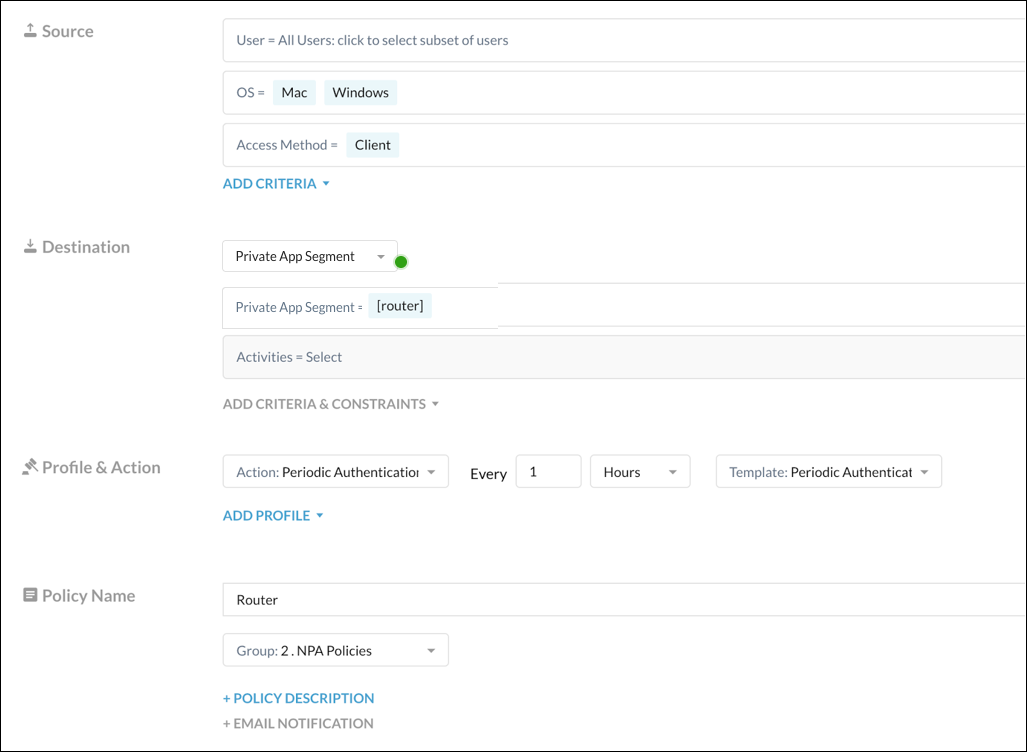
After a user’s authentication expires, existing sessions remain valid. However, new sessions will require authentication after the interval expires.
Note
Periodic Authentication is only available on Windows and MacOS.
How the Authentication Timer Works
The system’s timer logic is simple yet powerful. It relies on a single timestamp that marks the user’s most recent successful authentication for any private application.
Think of it as a universal hall pass that gets a new timestamp every time you’re asked to re-authenticate. When you try to access an app, the system simply checks if the time elapsed since you got your last timestamp is greater than the specific authentication interval required for that app.
Use Case Example
Note
Periodic Per-App Authentication works very different from the NPA periodic re-authentication mechanism that existed already. Periodic Reauthentication brings the entire NPA tunnel down after a set timer if authentication does not happen; per-app authentication works before a user accesses an application and does not interact with the NPA tunnel.
Here’s a real-world scenario to show how this works in practice.
Imagine we have two policies configured for a user, Alice:
- App A (GitLab): Requires authentication every 90 minutes.
- App B (Jira): Requires authentication every 60 minutes.
Here is a timeline of Alice’s activity:
- 9:00 AM: Alice accesses GitLab (App A) for the first time.
- Action: She is prompted to authenticate. Upon success, access is granted.
- Result: The system’s Last Authentication Time for Alice is now set to 9:00 AM. ⏰
- 9:50 AM: Alice opens Jira (App B).
- Check: The system calculates the time since her last authentication:
9:50 AM - 9:00 AM = 50 minutes. - Action: Since 50 minutes is less than Jira’s 60-minute interval, no new authentication is needed. Access is granted seamlessly.
- Result: The Last Authentication Time remains 9:00 AM.
- Check: The system calculates the time since her last authentication:
- 10:10 AM: Alice tries to access Jira (App B) again.
- Check: The system calculates the time elapsed:
10:10 AM - 9:00 AM = 70 minutes. - Action: Since 70 minutes is greater than Jira’s 60-minute interval, Alice is prompted to re-authenticate.
- Result: Upon success, the Last Authentication Time is updated to 10:10 AM. 🔄
- Check: The system calculates the time elapsed:
- 10:30 AM: Alice navigates back to GitLab (App A).
- Check: The system uses the newest timestamp:
10:30 AM - 10:10 AM = 20 minutes. - Action: Since 20 minutes is less than GitLab’s 90-minute interval, no authentication is required.
- Result: The Last Authentication Time remains 10:10 AM.
- Check: The system uses the newest timestamp:
This single, rolling timestamp ensures that authentication happens based on the policy of the app being accessed, relative to the user’s last system-wide authentication event.
Save and Activate the Policy
Enter a descriptive policy name and select its group. Verify that the policy is enabled, save it, review its position relative to other applicable access policies, and click Apply Changes. Confirm that the private app segments, Publisher, and traffic steering required for the application are already configured.
Notification Template
Follow User Notification Configuration for the authentication-specific template. The notification page also contains all branding, localization, and action-button fields.
Note
Starting in R142, per-app periodic authentication can be combined with DLP or Threat Protection inspection for the same application. Configure the authentication access policy and a separate inspection policy.
Validate the Policy
- Confirm that the test user is using an included Windows or macOS device and the expected Client identity.
- Start a new session to the protected application and complete authentication when prompted.
- Start another session before the interval expires and verify the expected access.
- After the interval expires, start a new session and verify that authentication is required.
- If the user accesses applications with different intervals, verify that successful authentication to one is reflected in subsequent checks for the others.
If the Periodic Authentication action is unavailable, confirm that the policy uses Client access and includes Windows and/or macOS in its OS criteria. If authentication fails, verify the Client enrollment identity, identity-provider configuration, and notification template.