Publisher Auto-Update Best Practices
In enterprise environments, Netskope recommends the following:
- Schedule Publisher updates during maintenance windows or non-peak hours for their location. You can have multiple Publisher Auto-Update profiles scoped to Publishers in different regions.
-
- Enable Auto-update alerts for successful and failed Publisher Auto-Updates including the following:
You can optionally also enable alerts for upgrades that start, and a 24-hour alert about when Auto-Updates will start.
- Version update succeeded
- Version update failed
- Version update started but reconnection failed.
- Enable Auto-update alerts for successful and failed Publisher Auto-Updates including the following:
-
- Ensure that all Publishers check for N-2 releases at least monthly to ensure you stay within the Publisher Support Policy.
-
- Ensure that at least one Publisher is available during the upgrade of other Publishers to provide administrative access should an upgrade fail. You can consider deploying dedicated Publishers for administrative functions to provide SSH access or via your virtualization solution’s interface.
Note
During auto-update of this Publisher, Netskope will update the Publisher and make an attempt to update the Ubuntu system. Kernel updates should be carried out by the admin.
Auto-update also applies pending kernel updates upon reboot. For more information on kernel update, go to Publisher Kernel Updates.
Configure Auto-Update Profiles
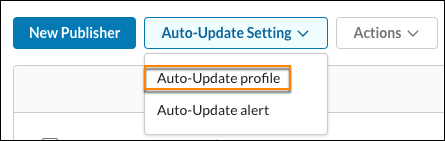
You can create, edit, or delete Auto-Update profiles, including the Default profile.- Go to Settings > Security Cloud Platform > Publishers and select Auto-Update Profile on the Auto-Update Settings dropdown.
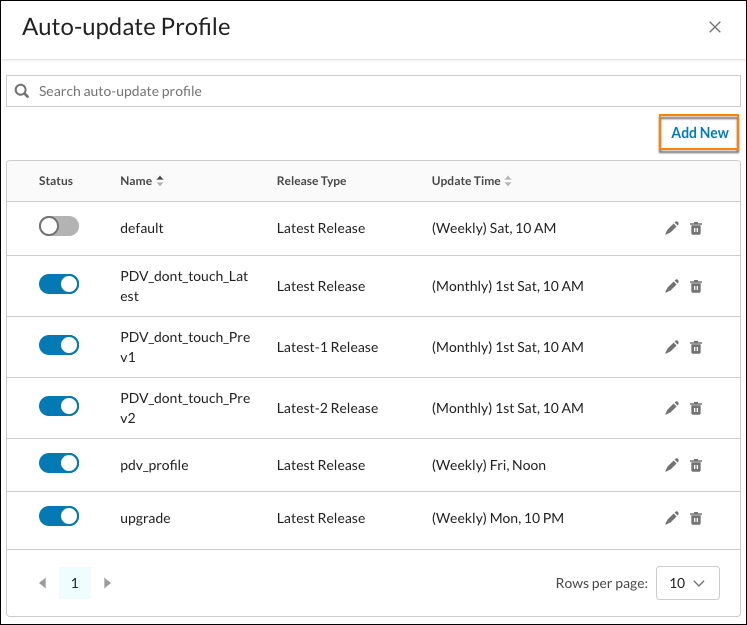
- You can search for and sort existing profiles in the Auto-Updates Profiles dialog box, plus edit and delete profiles using the pencil and trash can icons. To create a new Auto-Update profile, click Add New.
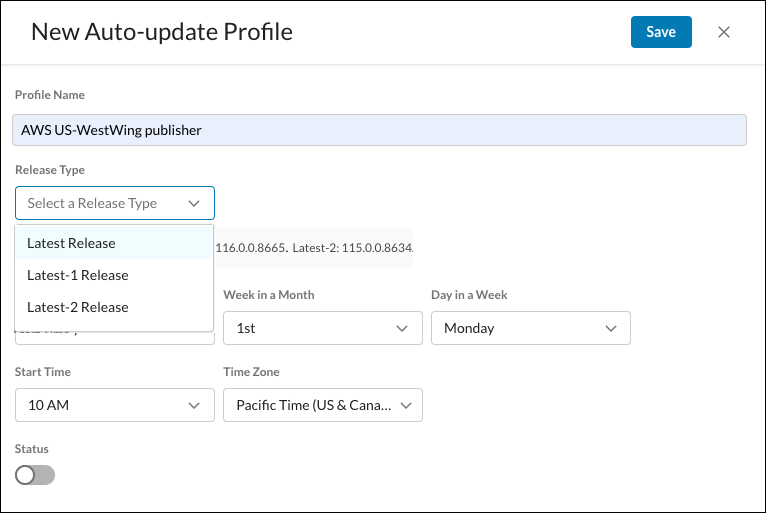
- From the dropdown list, select Latest Release, or one of the previous versions of the latest release.
Tip
If you want to downgrade to a previous version, select the Latest-1 or Latest-2 version. The version numbers for each option are shown. - Specify a release frequency. For a Weekly update, specify the day of the week. For a Monthly update, specify the week and the day.
- Select a time and a time zone to start the update. Publisher updates take around two hours to complete from the start time specified in the Update Profile.
- When finished, click Save.
Manage Auto-Update Profiles
After Auto-Update profiles have been created, you can search for a profile, and also sort the profiles in the table in the Auto-Update Profile dialog box.
Auto-Update profiles can be applied to a single Publisher or multiple Publishers.
There are a couple of methods to modify an existing Auto-Update Profile, depending on whether you’re modifying a single Publisher or multiple Publishers.
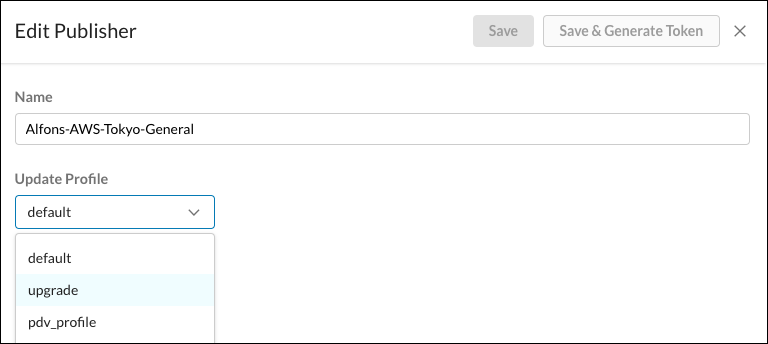
 In the Edit Publisher dialog box, you can change the Update Profile for a Publisher by searching for and selecting a profile from the dropdown list. When finished, click Save.
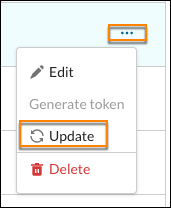
 You can also delete and update a Publisher using the options on Publisher dropdown list. Click Update to immediately upgrade the Publisher to the Publisher version specified in the Update Profile.
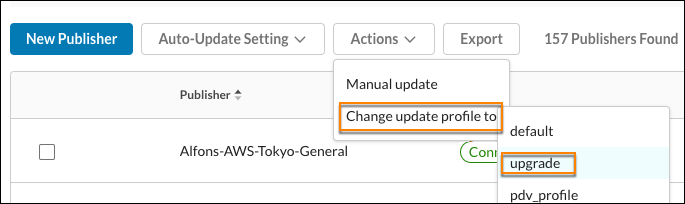
 To change Auto-Update Profiles for multiple Publishers, click Change Update Profile To and select an Update profile from the Actions dropdown, and then select an Update profile from the dropdown list. When finished, click Save.
Single Publisher
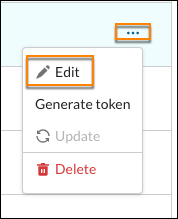
For a single Publisher, select Edit from the Publisher side menu.
In the Edit Publisher dialog box, you can change the Update Profile for a Publisher by searching for and selecting a profile from the dropdown list. When finished, click Save.
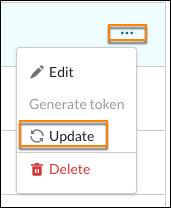
You can also delete and update a Publisher using the options on Publisher dropdown list. Click Update to immediately upgrade the Publisher to the Publisher version specified in the Update Profile.
Multiple Publishers
For multiple Publishers, select the Publishers (in the left column), and then click Update to immediately upgrade all the Publishers to the Publisher version specified in the Update Profile.
To change Auto-Update Profiles for multiple Publishers, click Change Update Profile To and select an Update profile from the Actions dropdown, and then select an Update profile from the dropdown list. When finished, click Save.
Configure Auto-Update Alerts
To receive notifications of when updates occur, for specific users, and the type of event that occurs, you can configure Auto-Update Alerts.
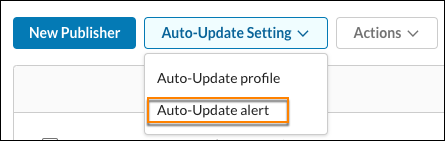
- Select Auto-update Alerts on the Auto-Update Settings dropdown.
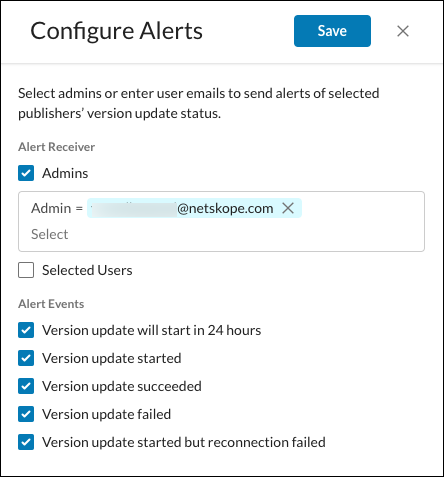
 Specify who you want to receive notifications, and then the events that you want to know about.
 - Select the admins in the dropdown list; only users with Admin privileges for your tenant are shown in this list. To add Users, enter the user’s email address, separated by commas if there is more than one.
- Select the Alert types you want Admins and Users to receive via email:
- Version updates will start in 24 hours: Profile-based. Publishers associated with a Profile are batched.
- Version update started: Stitcher-based. Publishers associated with a stitcher are batched.
- Version update succeeded: Batch-wise, they will be divided in to 3 batches (for example, if there are three versions specified). Publisher 1 in batch 1, Publishers 2 and 3 in batch 2, and Publishers 4 and 5 in batch 3. There will be three emails.
- Version updated failed: Stitcher-based. For example, if there are seven Publishers, and batch 2 has three Publishers, out of the three Publishers in batch 2, two publishers are connected to Stitcher 1, and the remaining Publisher is connected to Stitcher 2. Upgrade failure notifications will result in two emails.
- Version update started but reconnection failed: Profile-based. Failures are due to a timeout.
- Click Next to save this configuration.
Error Codes for Publisher Auto-Update
| Error Code | Reason | Suggestion for admin |
|---|---|---|
| 0x0000 (0) | Publisher is up-to-date. | No action required. |
| 0x0100 (256) | Publisher auto-update failed. | Contact Netskope Support. |
| 0x0101 (257) | Publisher auto-update failed while attempting to open the upgrade trigger file. | Check logs/publisher_wizard.log for more detail. |
| 0x0102 (258) | Publisher auto-update failed due to timeout. | Contact Netskope Support. |
| 0x0103 (259) | Publisher reconnection failed due to timeout. | Contact Netskope Support. |
| 0x0200 (512) | Publisher Host OS update failed. | Contact Netskope Support. |
| 0x0201 (513) | Publisher auto-update failed while upgrading Docker engine. | Check logs/publisher_wizard.log and the logs in /var/log/apt for more details. |
| 0x0202 (514) | Publisher Host OS update failed. | Check logs/publisher_wizard.log and the logs in /var/log/apt for more details. |
| 0x0203 (515) | Publisher Host OS update failed. | Check logs/publisher_wizard.log and the logs in /var/log/apt for more details. |
| 0x0204 (516) | Publisher Host OS update failed. | Check logs/publisher_wizard.log and the logs in /var/log/apt for more details. |
| 0x0205 (517) | Publisher Host OS update failed. | Check logs/publisher_wizard.log and the logs in /var/log/apt for more details. |
| 0x0206 (518) | Publisher Host OS update failed. | Check logs/publisher_wizard.log for more details. |
| 0x0207 (519) | Publisher Host OS update was stopped. Not enough disk space for the publisher Host OS update. | Check logs/publisher_wizard.log for more details and free up the disk space for the Host OS update. |
| 0x0300 (768) | Publisher auto-update failed. | Contact Netskope Support. |
| 0x0301 (769) | Publisher auto-update failed while downloading docker image. | Check network connectivity between publisher and hub.docker.com. Also check logs/publisher_wizard.log and the Docker log with journalctl -u docker.service command for more details. |
| 0x0302 (770) | Publisher software update was skipped. The new version and the existing version are the same. | Double-check the desired upgrade version. |
| 0x0303 (771) | Publisher auto-update failed while attempting to stop the existing Publisher container. | Check logs/publisher_wizard.log and the Docker log with journalctl -u docker.service command for more details. |
| 0x0305 (773) | Publisher auto-update failed while attempting to install the Publisher UI package | Check logs/publisher_wizard.log and the Docker log with journalctl -u docker.service command for more details. |
| 0x0306 (774) | Publisher auto-update failed. | Check logs/publisher_wizard.log and the Docker log with journalctl -u docker.service command for more details. |
| 0x0307 (775) | Publisher auto-update failed. | Check logs/publisher_wizard.log and the Docker log with journalctl -u docker.service command for more details. |
| 0x0308 (776) | Publisher auto-update failed. | Check logs/publisher_wizard.log and the Docker log with journalctl -u docker.service command for more details. |
| 0x0309 (777) | Publisher auto-update failed. | Check logs/publisher_wizard.log and the Docker log with journalctl -u docker.service command for more details. |
| 0x030A (778) | Publisher auto-update failed. | Check logs/publisher_wizard.log and the Docker log with journalctl -u docker.service command for more details. |
| 0x030B (779) | Publisher auto-update failed while launching the publisher UI | Collect the log bundle and contact Netskope Support. |
| 0x030C (780) | Publisher auto-update failed. | Check logs/publisher_wizard.log for more details. |
| 0x030D (781) | Publisher software update was stopped. Not enough disk space for the publisher software update. | Check logs/publisher_wizard.log for more details and free up the disk space for the publisher software update. |
| 0x030E (782) | Publisher failed to verify the docker image signature (China DC Only). | Check logs/publisher_wizard.log for more details. |
| 0x0400 (1024) | Failed to upgrade Browser Access AnyApp. | Check logs/publisher_wizard.log for more details. |
| 0x0401 (1025) | Failed to upgrade Browser Access AnyApp images due to insufficient disk space. | Check logs/publisher_wizard.log for more details and free up the disk space for the Browser access AnyApp update. |
| 0x0402 (1026) | Failed to upgrade Browser Access AnyApp. | Check logs/publisher_wizard.log and the Docker log with journalctl -u docker.service command for more details. |
| 0x0403 (1027) | Failed to upgrade Browser Access AnyApp. | Check logs/publisher_wizard.log for more details and free up the disk space for the publisher software update. |
| 0x0404 (1028) | Failed to upgrade Browser Access AnyApp. | Check logs/publisher_wizard.log and the Docker log with journalctl -u docker.service command for more details. |
Publisher Auto-Update Error Guidance
If an error occurs during an auto-update, refer to these troubleshooting recommendations.
| Error | Recommendation |
|---|---|
| Publisher auto-update failed while attempting to open the upgrade trigger file. | Check logs/publisher_wizard.log for more detail. |
| Publisher auto-update failed due to timeout. | Contact Netskope Support. |
| Publisher reconnection failed due to timeout. | Contact Netskope Support. |
| Publisher auto-update failed while upgrading Docker engine. | Check logs/publisher_wizard.log and the logs in /var/log/apt for more details. |
| Publisher Host OS update failed. | Check logs/publisher_wizard.log and the logs in /var/log/apt for more details. |
| Publisher Host OS update was stopped. Not enough disk space for the publisher Host OS update. | Check logs/publisher_wizard.log for more details and free up the disk space for the Host OS update. |
| Publisher auto-update failed while downloading docker image. | Check network connectivity between the Publisher and hub.docker.com. Also check logs/publisher_wizard.log and the Docker log with the journalctl -u docker.service command for more details. |
| Publisher software update was skipped. The new version and the existing version are the same. | Check the desired upgrade version. |
| Publisher auto-update failed while attempting to stop the existing Publisher container. | Check logs/publisher_wizard.log and the Docker log with the journalctl -u docker.service command for more details. |
| Publisher auto-update failed while attempting to install the Publisher UI package. | Please check logs/publisher_wizard.log and the Docker log with the journalctl -u docker.service command for more details. |
| Publisher auto-update failed. | Check logs/publisher_wizard.log and the Docker log with the journalctl -u docker.service command for more details. |
| Publisher auto-update failed while launching the Publisher U.I | Collect the log bundle and contact Netskope Support. |
| Publisher software update was stopped. Not enough disk space for the publisher software update. | Check logs/publisher_wizard.log for more details and free up the disk space for the Publisher software update. |
Prevent Package Failure during a Publisher Update
What symptom will occur?
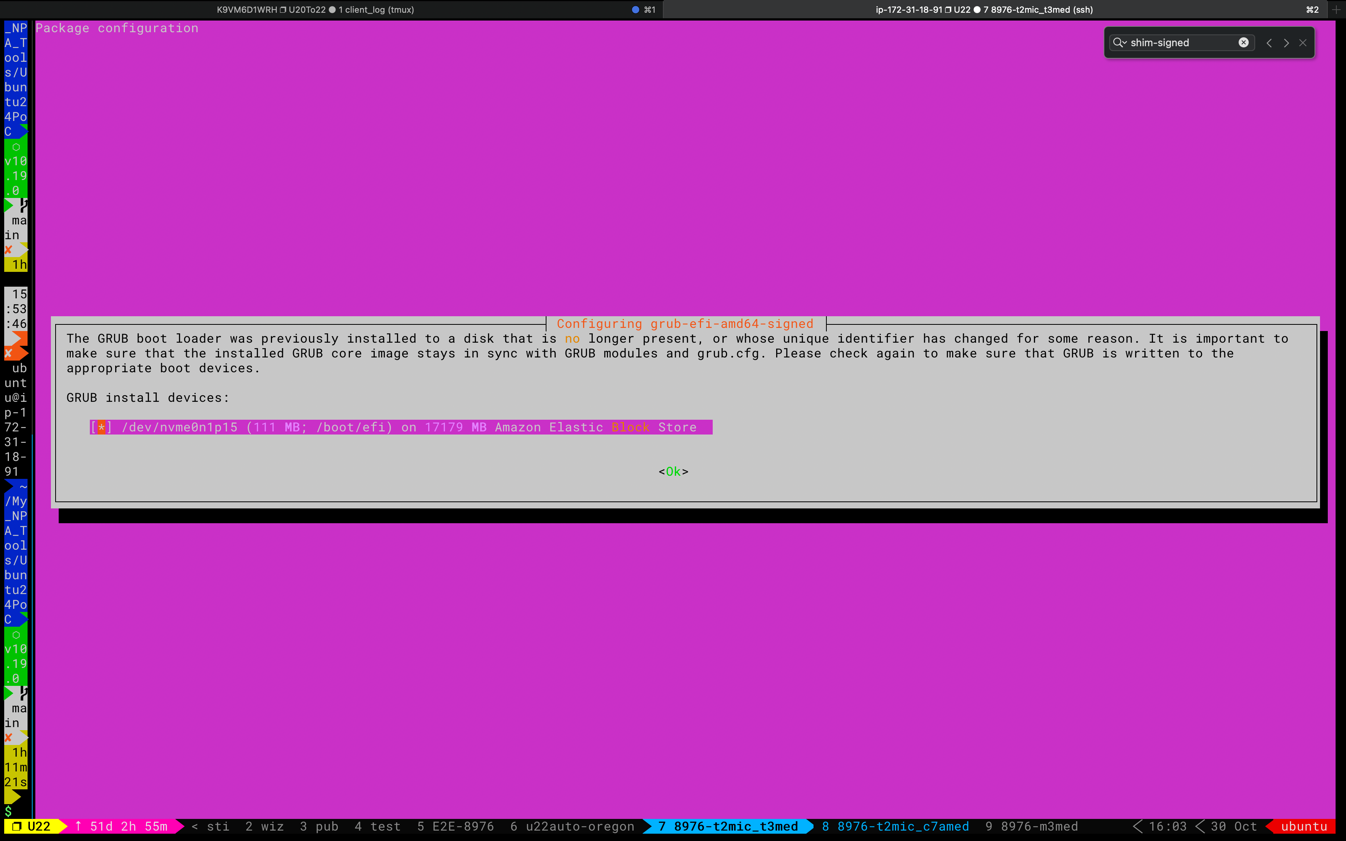
During a system upgrade (either automatic or manual), the computer encounters an error code 100. Think of this like the system saying “I can’t complete the update because something is configured incorrectly”.2024/10/15 04:31:20 UTC - 1149212 CmdWait failed: exit status 100 (E: Sub-process /usr/bin/dpkg returned an error code (1)) 2024/10/15 04:31:20 UTC - 1149212 Failed to apt-get upgrade, exit status 100 (E: Sub-process /usr/bin/dpkg returned an error code (1)) 2024/10/15 04:31:21 UTC - 1149212 Auto upgrade failed, perform the post auto upgrade failed action
Why it happens
This is related to how the computer recognizes its hard drive. Think of it like having an old map (the config file) that points to a street name that’s been changed:- The old configuration is looking for a traditional hard drive labeled as
xvda. - But newer Amazon Web Services (AWS) computers use faster SSD drives labeled as
nvme. - When the system tries to find
/dev/xvda15(the old path), it fails because that path doesn’t exist anymore.
sudo apt-get update
sudo apt-get upgrade
During the apt-get update a pink console will pop out to re-config the grub package settings, and consequently fix the update.