

To create a SaaS security posture rule:
-
Log in to your Netskope tenant UI.
-
Navigate to Policies > SaaS Security Posture Management.
-
Navigate to Rules tab.
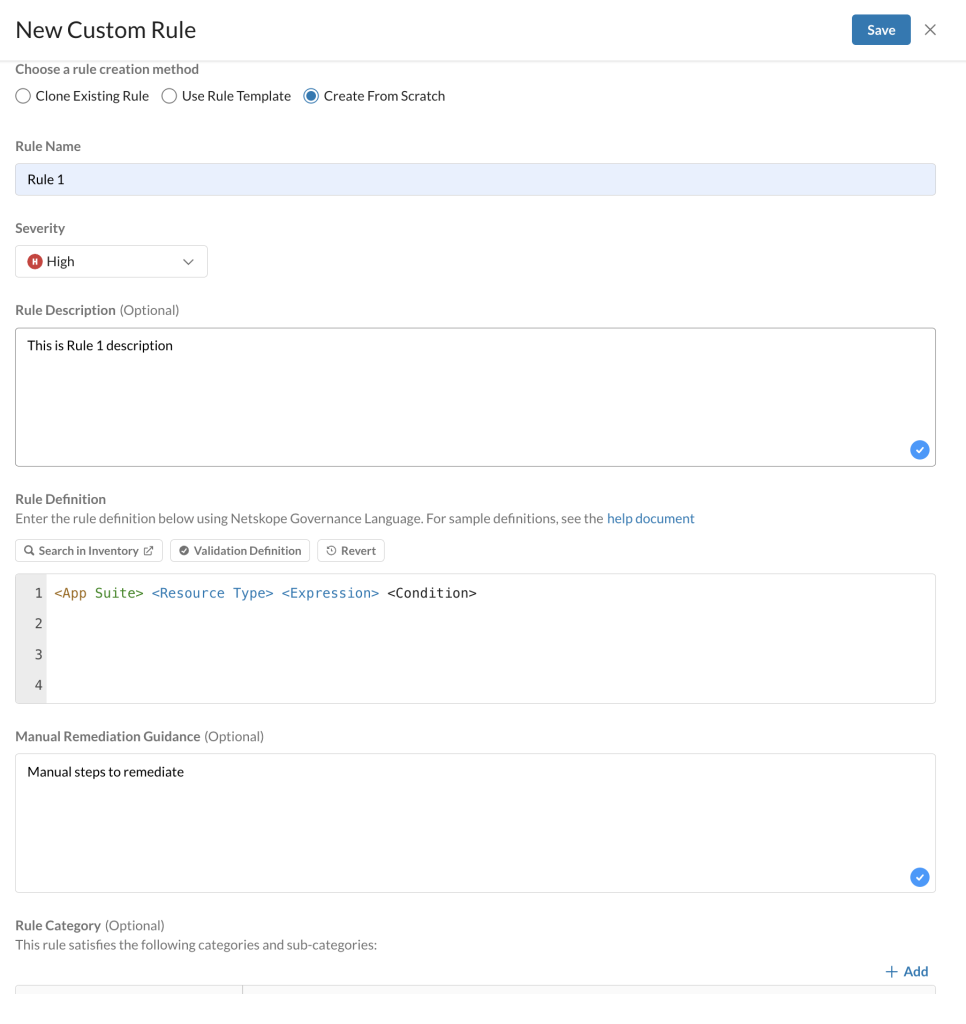
-
Click New Rule. The New Custom Rule page opens.
-
Choose a rule creation method: Select Create From Scratch.
-
Rule Name: Enter a rule name.
-
Severity: Select the level of severity you want to assign to this rule from Critical, High, Medium, and Low.
-
(Optional) Rule Description : Add a short description about the custom rule.
-
Rule Definition: Enter a rule definition using Netskope Governance Language (NGL).
When you click on the Search In Inventory in Rule Definition tab, Netskope searches this custom rule in the Inventory page and lists the inventory impacted by this custom rule.
Click Validate Definition in the Rule Definition tab to validate the rule and fix any syntax errors.
When you type a text inside the Rule Definition edit box, Netskope gives the NGL syntax along with auto suggestions for your reference. -
(Optional) Manual Remediation Guidance: Enter the manual remediation steps which can be followed to recover the finding failure.
-
(Optional) Rule Category: Specify the category and sub-category of the rule. Click + Add to add a new category.
If you select the compliance standard category, specify:
– Sub-Category: The name of the compliance standard, like CIS Benchmark v3.0.1, NIST-CSF, etc.
– Section: The section of the document that describes the compliance standard.
– Control: The section control of the document that describes the compliance standard.
-
-
Click Save and the rule is displayed in the Rules tab.
-
View and Apply pending changes.
