

Release Notes
1.1.1 (The minimum required CE version for this is 7.0.0)
Added
- Added support for selecting multiple source fields for the ‘Tag(s)’ parameter in the Add/Remove Tag(s) action.
1.1.0
Added
- Added support for fetching host details from the Host management page.
- Added support for Add/Remove Tag(s) action on hosts.
- Added support for partial action failure starting from CE v6.0.0.
- Added resolution for error logs starting from CE v6.0.0.
1.0.0
Added
- Initial Release.
This document explains how to configure the CrowdStrike v1.1.1 plugin with the Risk Exchange module of the Netskope Cloud Exchange platform. This plugin fetches hosts from the Host Setup and Management > Host Management page and the respective Overall Assessment Score for these hosts from the Host Setup and Management > Zero trust assessment page on the CrowdStrike tenant. It also supports Add/Remove Tag(s) for device tagging and the Put RTR Script action on hosts.
Netskope normalization score calculation => CrowdStrike host assessment overall score * 10.
Prerequisites
To complete this integration, you need:
- A Netskope tenant (or multiple, for example, production and development/test instances).
- A Netskope Cloud Exchange tenant with the Tenant plugin and Risk Exchange plugin already configured.
- CrowdStrike instance credentials (Client ID, Client Secret) for the API Token.
- CrowdStrike Real-Time Response Administrator role for Put RTR Script action.
- For each platform (Windows, Mac), there should be a response policy with Real-Time Response (High-Risk Commands) enabled.
- Connectivity to the following host: https://falcon.crowdstrike.com.
CrowdStrike Plugin Support
This plugin fetches hosts from the Host Setup and Management > Host Management page and the respective Overall Assessment Score for these hosts from the Host Setup and Management > Zero trust assessment page on the CrowdStrike tenant. It also supports Add/Remove Tag(s) for device tagging and the Put RTR Script action on hosts.
Note
Scores are pulled from Host Setup and Management > Zero trust assessment page and rest of the host details are pulled from Host Setup and Management > Host Management page on the CrowdStrike.
| Type of Data Pulled | Actions Supported |
|---|---|
| Hosts/Devices | Put RTR Script Add/Remove Tag(s) No Action |
Mappings
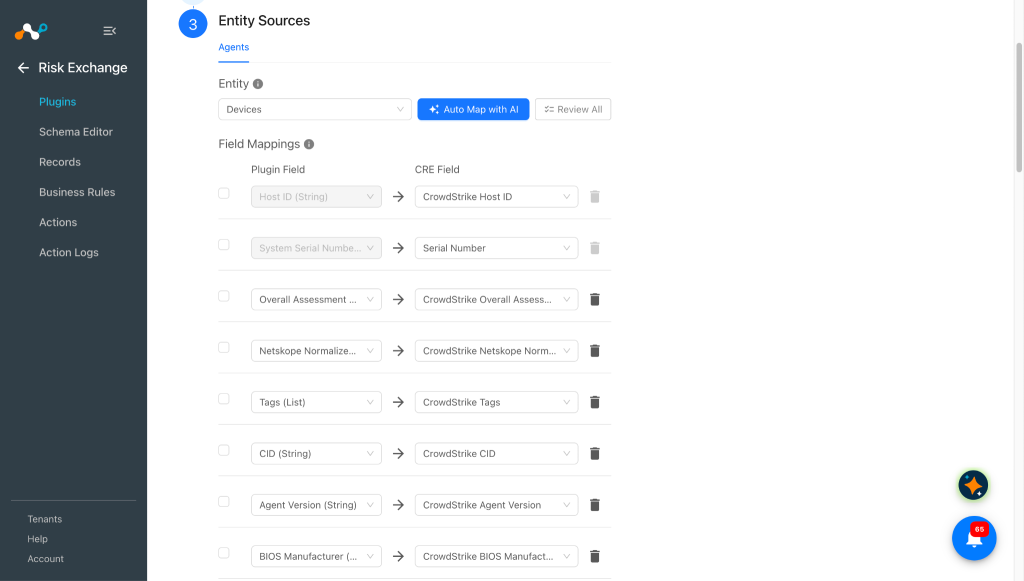
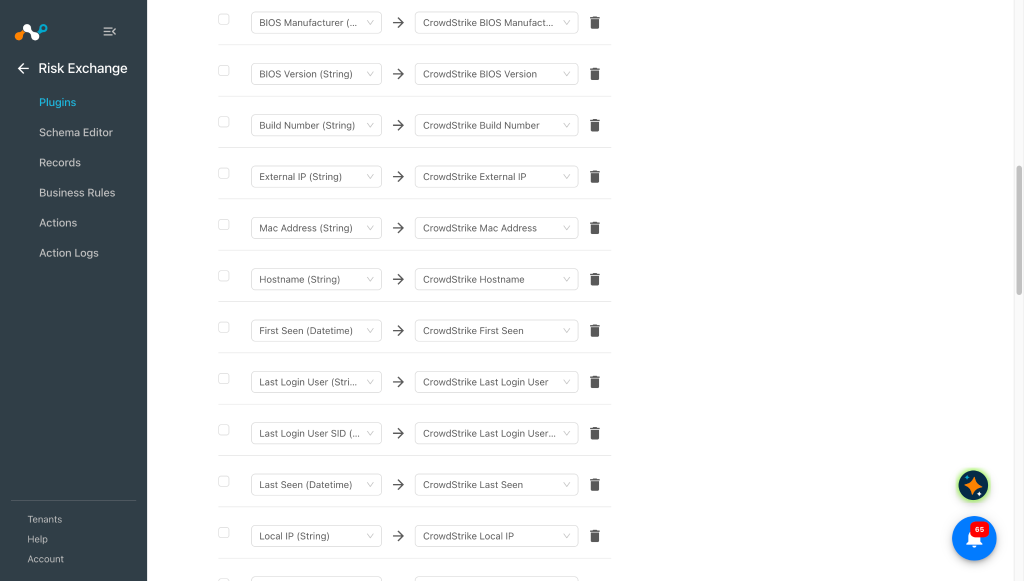
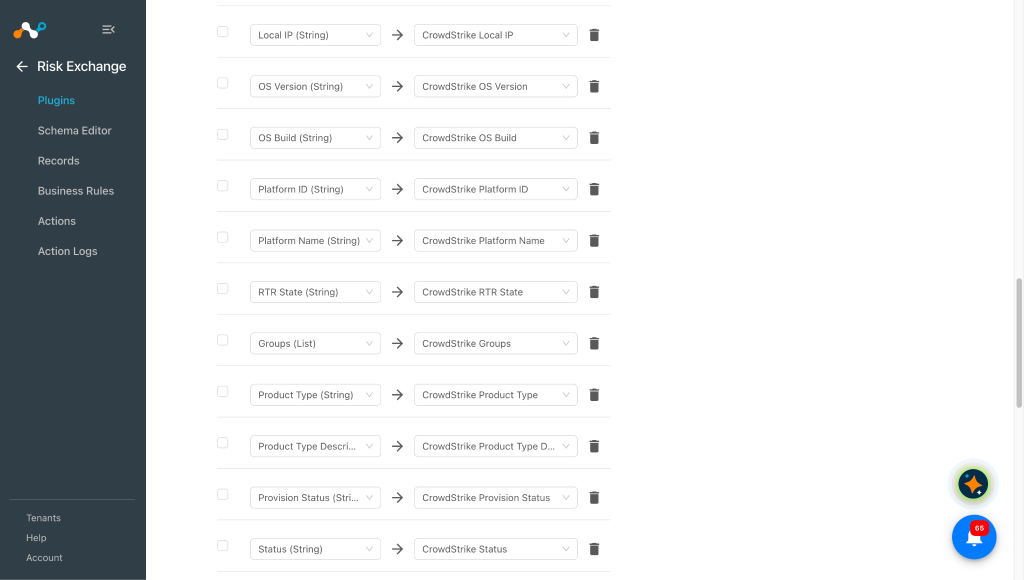
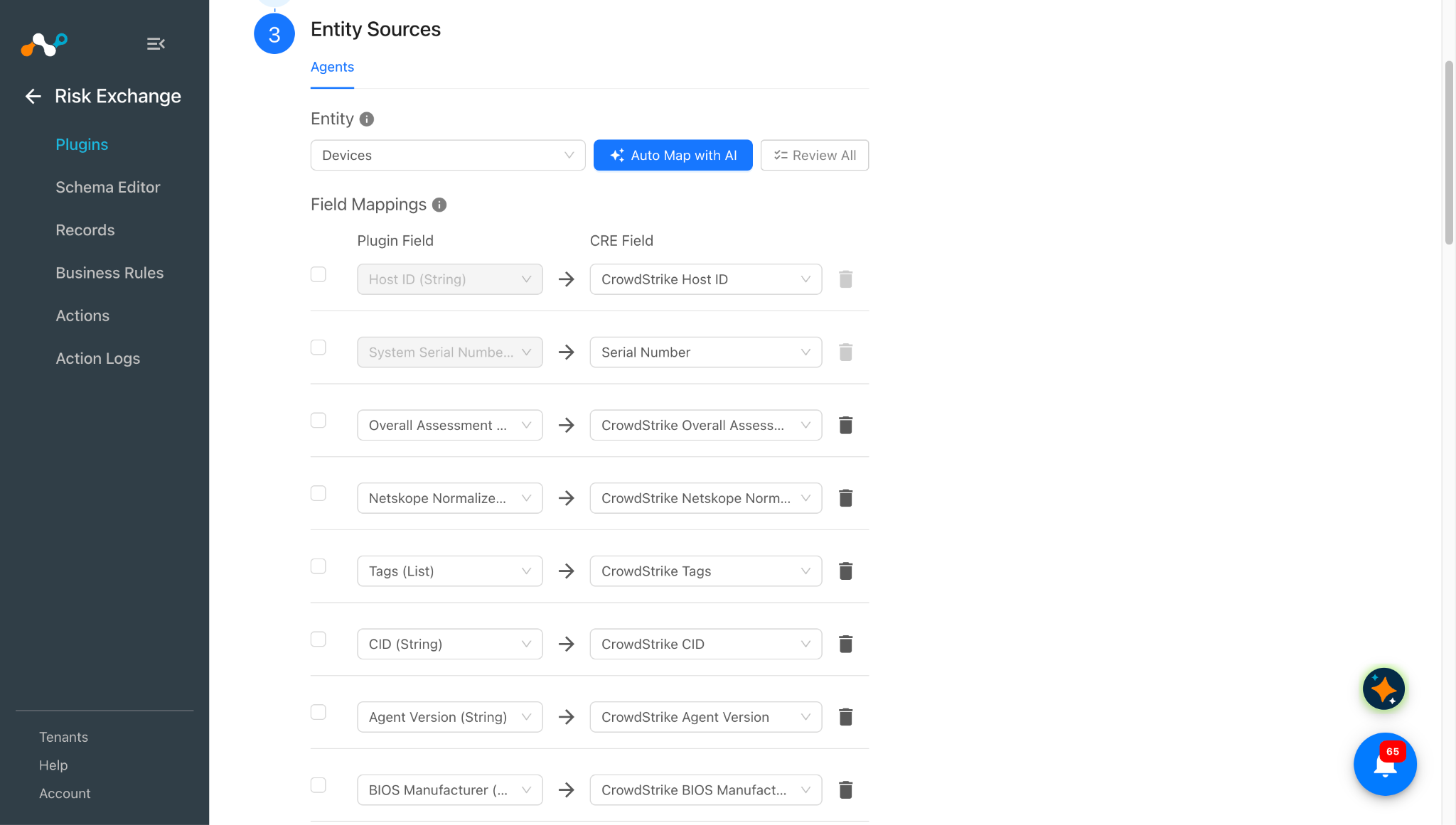
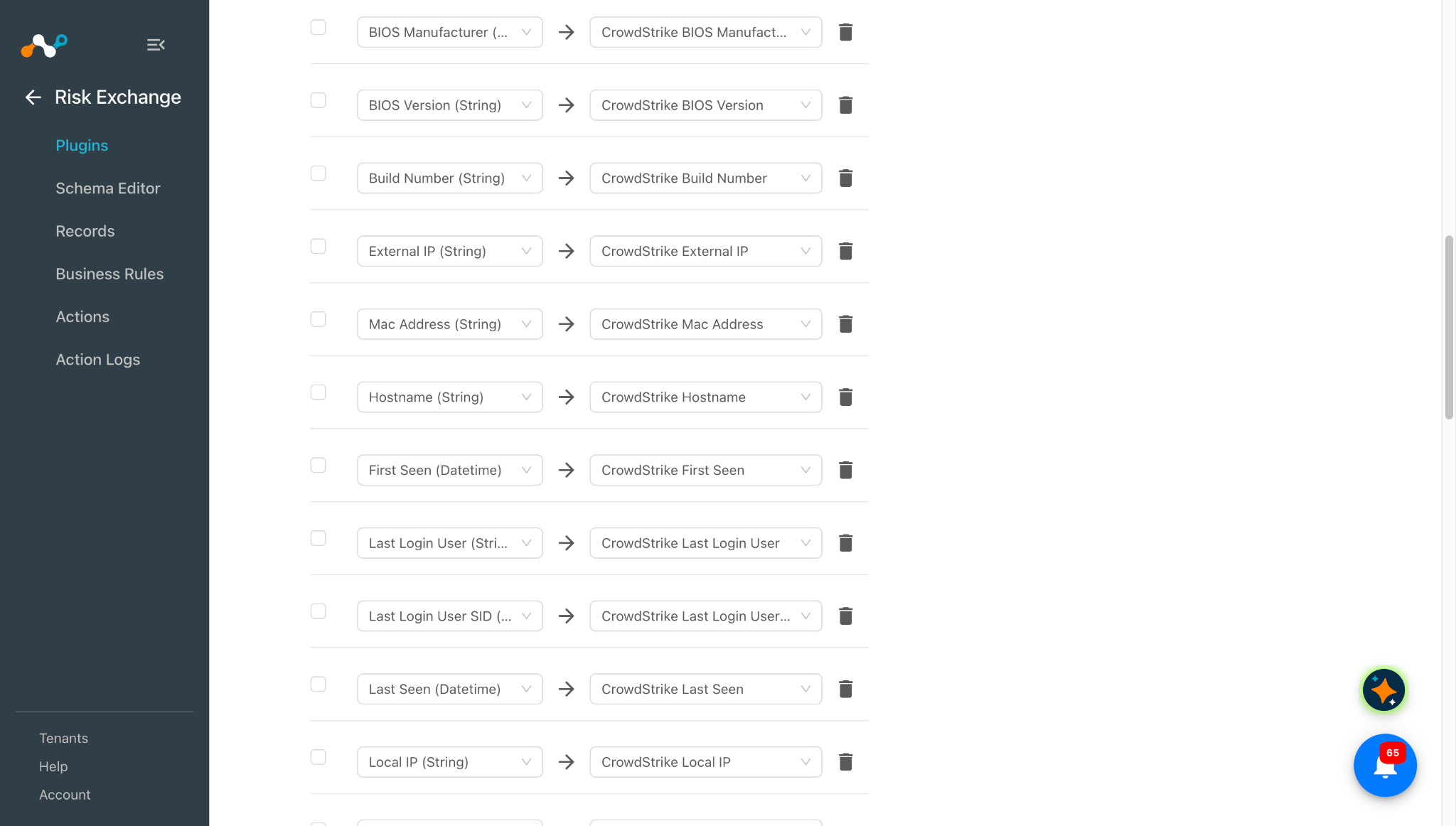
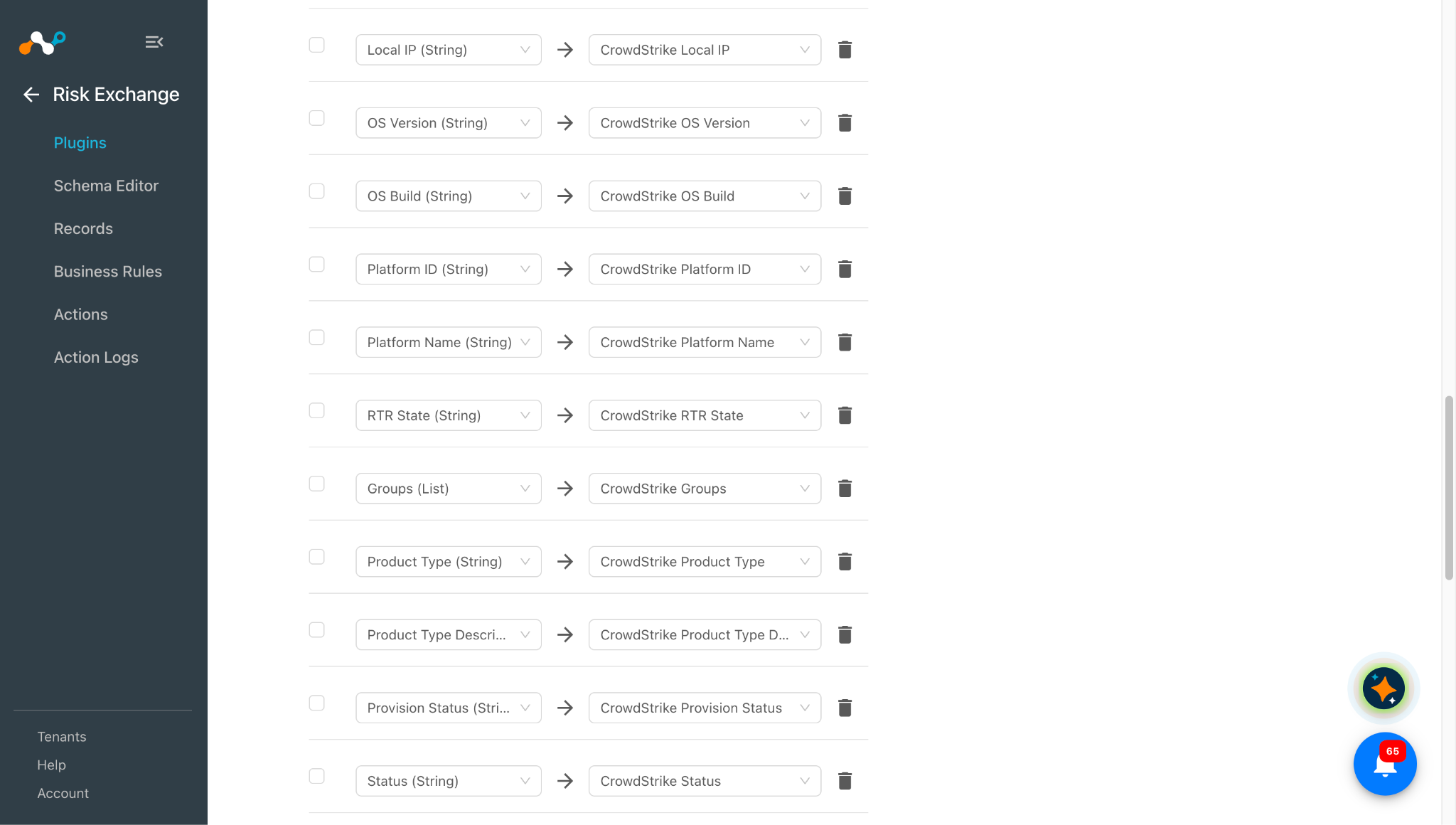
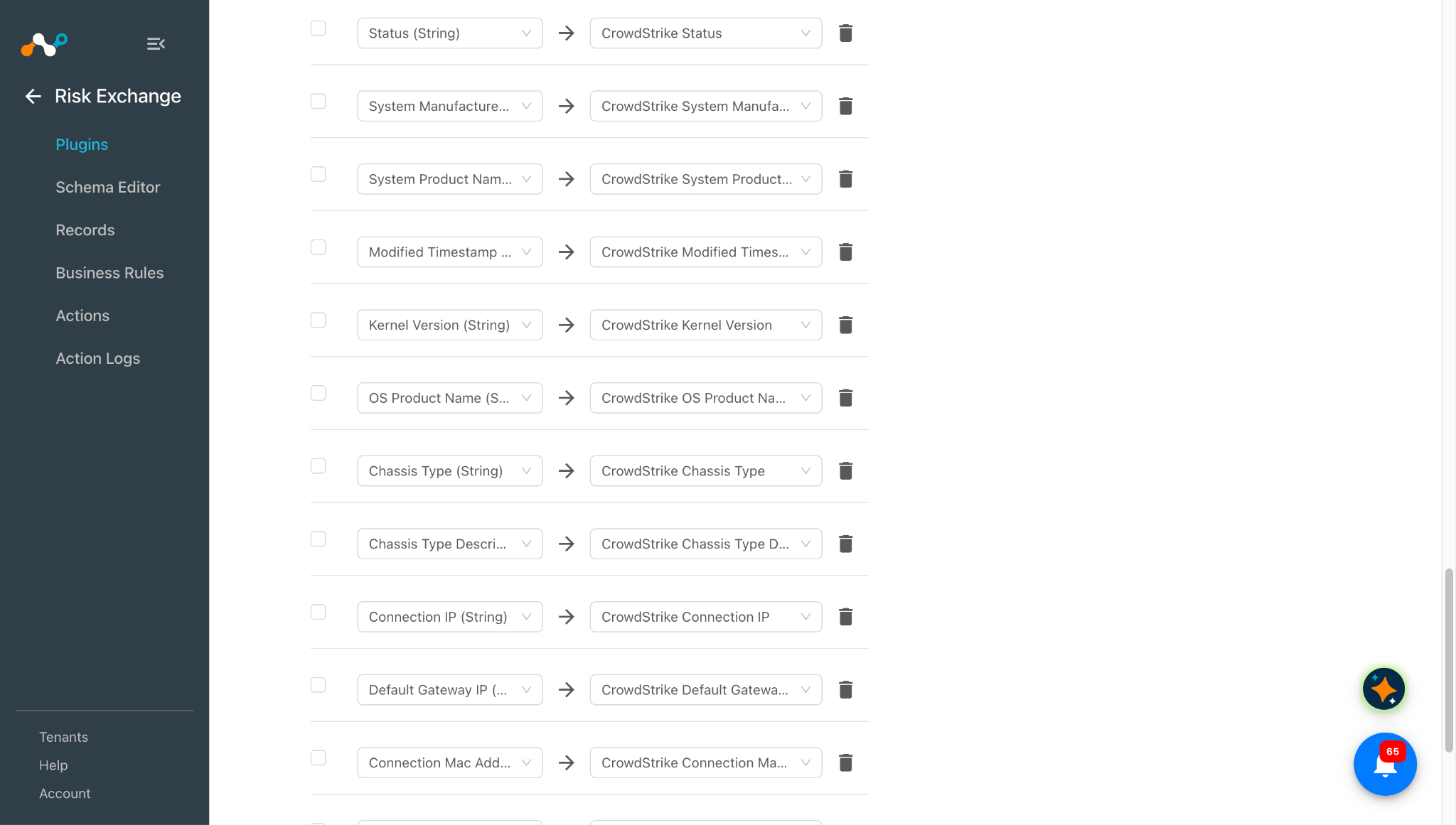
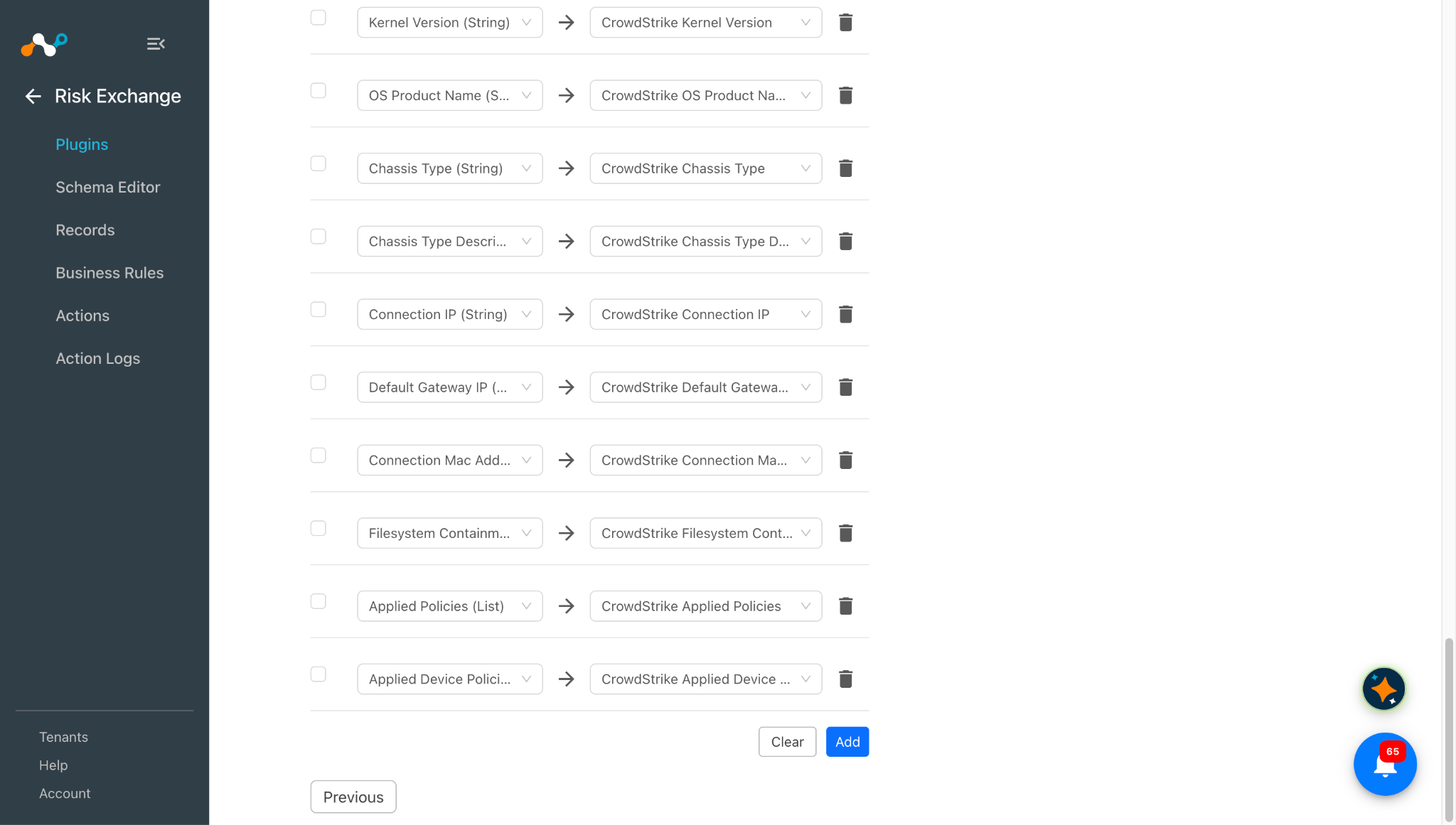
Mapping will be used to view the pulled Hosts and their respective details. Mapped fields during plugin configuration will be visible on the Records page once the data is pulled. Below is the suggested mapping that can be used while configuring the plugin.
Pull Mapping for Hosts
| Plugin Field Label | Expected Data Type | Suggested Field Label | Aggregate Strategy | Example |
|---|---|---|---|---|
| Host ID | String | CrowdStrike_host_id | Unique (Keep this Overwrite to merge records with Netskope Tenant) | 5a1b2c3d4e5f6a7b8c9d0e1f2a3b4c5d |
| System Serial Number | String | Serial Number | Overwrite (Keep this unique to merge records with Netskope Tenant) | SN-00000042-1234 |
| Overall Assessment Score | Number | CrowdStrike_overall_assessment_score | Overwrite | 42 |
| Netskope Normalized Score | Number | CrowdStrike_netskope_normalized_score | Overwrite | 420 |
| Tags | List | CrowdStrike_tags | Overwrite | [“FalconGroupingTags/PerfTest”, “FalconGroupingTags/Batch-42”] |
| CID | String | CrowdStrike_cid | Overwrite | aaaaaaaaaaaaaaaaaaaaaaaaaaaaaaaa |
| Agent Version | String | CrowdStrike_agent_version | Overwrite | 7.18.18509.0 |
| BIOS Manufacturer | String | CrowdStrike_bios_manufacturer | Overwrite | Dell Inc. |
| BIOS Version | String | CrowdStrike_bios_version | Overwrite | 2.14.7 |
| Build Number | String | CrowdStrike_build_number | Overwrite | 19045 |
| External IP | String | CrowdStrike_external_ip | Overwrite | 203.45.12.87 |
| Mac Address | String | CrowdStrike_mac_address | Overwrite | 1a-2b-3c-4d-5e-6f |
| Hostname | String | CrowdStrike_hostname | Overwrite | HOST-0000042 |
| First Seen | Datetime | CrowdStrike_first_seen | Overwrite | 2025-08-15T10:23:00Z |
| Last Login User | String | CrowdStrike_last_login_user | Overwrite | user00042 |
| Last Login User SID | String | CrowdStrike_last_login_user_sid | Overwrite | S-1-5-21-1234567890-1234567891-1234567892-1042 |
| Last Seen | Datetime | CrowdStrike_last_seen | Overwrite | 2026-01-01T09:15:00Z |
| Local IP | String | CrowdStrike_local_ip | Overwrite | 10.23.45.67 |
| OS Version | String | CrowdStrike_os_version | Overwrite | Windows 11 |
| OS Build | String | CrowdStrike_os_build | Overwrite | 22631.3007 |
| Platform ID | String | CrowdStrike_platform_id | Overwrite | 0 |
| Platform Name | String | CrowdStrike_platform_name | Overwrite | Windows |
| RTR State | String | CrowdStrike_rtr_state | Overwrite | enabled |
| Groups | List | CrowdStrike_groups | Overwrite | [“Finance-Endpoints”, “Sales-Laptops”] |
| Product Type | String | CrowdStrike_product_type | Overwrite | 1 |
| Product Type Description | String | CrowdStrike_product_type_description | Overwrite | Workstation |
| Provision Status | String | CrowdStrike_provision_status | Overwrite | Provisioned |
| Status | String | CrowdStrike_status | Overwrite | normal |
| System Manufacturer | String | CrowdStrike_system_manufacturer | Overwrite | Dell Inc. |
| System Product Name | String | CrowdStrike_system_product_name | Overwrite | Model-4821 |
| Modified Timestamp | Datetime | CrowdStrike_modified_timestamp | Overwrite | 2026-01-01T09:20:00Z |
| Kernel Version | String | CrowdStrike_kernel_version | Overwrite | 5.15.90 |
| OS Product Name | String | CrowdStrike_os_product_name | Overwrite | Windows 11 |
| Chassis Type | String | CrowdStrike_chassis_type | Overwrite | 9 |
| Chassis Type Description | String | CrowdStrike_chassis_type_description | Overwrite | Laptop |
| Connection IP | String | CrowdStrike_connection_ip | Overwrite | 10.12.34.56 |
| Default Gateway IP | String | CrowdStrike_default_gateway_ip | Overwrite | 10.0.0.1 |
| Connection Mac Address | String | CrowdStrike_connection_mac_address | Overwrite | aa-bb-cc-dd-ee-ff |
| Filesystem Containment Status | String | CrowdStrike_filesystem_containment_status | Overwrite | normal |
| Applied Policies | List | CrowdStrike_applied_policies | Overwrite | [“prevention”, “sensor-update”] |
| Applied Device Policies | List | CrowdStrike_applied_device_policies | Overwrite | [“prevention”, “sensor_update”] |
Note
- To merge records from multiple plugins you need to choose some unique and common fields between all the plugins.
- For Example: To merge records from Risk Exchange, the Risk Exchange Omnissa Workspace One UEM and the Risk Exchange CrowdStrike plugins under a single entity, you can make Device Serial Number as a unique field so it is common in all of the three plugins.
Score to file mapping (for action put RTR Script)
The below mentioned mapping will be considered when the action Put RTR Script is performed on the Hosts. A file will be created on the Host machine on the behalf of the performed action. The name of the file depends on the configuration user has done on the Action Configuration, if any static value of score is provided, file name will be dependent on that, and if business rule is used then file name will be dependent on the score pulled for the Hosts.
| Score | File Name |
|---|---|
| Less than 26 | crwd_zta_1_25.txt |
| 26 to 51 | crwd_zta_26_50.txt |
| 51 to 76 | crwd_zta_51_75.txt |
| 76 to 100 | crwd_zta_76_100.txt |
Permissions
API Scope Permissions
Refer to the Get Client ID and Client Secret section for obtaining and providing API scopes permissions.
| Scope | Read | Write |
|---|---|---|
| Hosts | Yes | Yes |
| Real time response (admin) | – | Yes |
| Real time response | Yes | Yes |
| Zero Trust Assessment | Yes | – |
Response Policy Permissions
Refer to the Add Permission for Response Policy (RTR script Permission) section for obtaining and providing Response Policy permissions.
| Category | Type | Permission | Status |
|---|---|---|---|
| Real Time Response | Custom Scripts | Falcon Scripts | Enable |
| Real Time Response | High risk commands | put | Enable |
Note
Response policy permissions are only needed when you want to use the Put RTR Script action.
API Details
List of APIs Used
| API Detail | Method | Endpoint | API Scope |
|---|---|---|---|
| Get auth token | POST | /oauth2/token | None |
| Fetch Records | GET | /devices/queries/devices-scroll/v1 | Hosts (Read) |
| Fetch Scores | GET | /zero-trust-assessment/entities/assessments/v1 | Zero Trust Assessment (Read) |
| Put file on RTR cloud | POST | /real-time-response/entities/put-files/v1 | Real time response admin (Write) |
| Get platform name | POST | /devices/entities/devices/v2 | Hosts (Read) |
| Check Script Existence | GET | /real-time-response/queries/scripts/v1 | Real time response (Read) |
| Create Score Files Removal Script on RTR Cloud | POST | /real-time-response/entities/scripts/v1 | Real time response admin (Write) |
| Get session ID | POST | /real-time-response/entities/sessions/v1 | Real time response (Read) |
| Change directory | POST | /real-time-response/entities/admin-command/v1 | Real time response admin (Write) |
| Remove file from device | POST | /real-time-response/entities/admin-command/v1 | Real time response admin (Write) |
| Get status of command | GET | /real-time-response/entities/admin-command/v1 | Real time response admin (Write) |
| Put the file on device | POST | /real-time-response/entities/admin-command/v1 | Real time response admin (Write) |
| Delete the session | DELETE | /real-time-response/entities/sessions/v1 | Real time response (Read) |
| Get Host details | POST | /devices/entities/devices/v2 | Hosts (Read + Write) |
| Add/Remove Tags | PATCH | /devices/entities/devices/tags/v1 | Hosts (Read + Write) |
Get Auth Token
API Endpoint: /oauth2/token
Method: POST
Parameter
| Key | Value |
|---|---|
| grant_type | client_credentials |
| client_id | <Client ID> |
| client_secret | <Client Secret> |
Sample API Response
{
 "access_token": "eyJhbGciOiJSUzI1NiIsImtpZCI6InB1YmxpYzphNDdiNTc2MS0zYzk3LTQwMmItOTgzNi0wNmNhODI0NTViOTMiLCJ0eXAiOiJKV1QifQ.eyJhdWQiOltdLCJjbGllbnRfaWQiOiJlZTA5YTc3MjAwNzc0MzYwOTlhYTM5N2M2MTJlYTQzYiIsImV4cCI6MTcwMzI0MDQzOSwiZXh0Ijp7InN1Yl90eXBlIjoiY2xpZW50In0sImlhdCI6MTcwMzIzODYzOSwiaXNzIjoiaHR0cHM6Ly9hcGkuY3Jvd2RzdHJpa2UuY29tLyIsImp0aSI6ImQ5ZTlmZWI4LTM0ODAtNDM2NC1hYzI2LTBhZjgzNDdlOWY2OSIsIm5iZiI6MTcwMzIzODYzOSwic2NwIjpbXSwic3ViIjoiZWUwOWE3NzIwMDc3NDM2MDk5YWEzOTdjNjEyZWE0M2IiLq_wgw5-EAB-hHiRB-coF2Yy_PeP-8IvjWQVIjlDJrRmRQ-s-NmAkm8XaG9GojFZvaT-sufiBxKEDmpdntABNkEG1fcbVvd7tVW-vi36PFPoc3p1t4sbaMhf9_Kts8iAHsv6BudVyFsPhPAreGc2OXUFT39ZvuDTN5BxOFiPT_9_gadXt-7N*************************************************************************************",
 "expires_in": 1799,
 "token_type": "bearer"
}
Fetch Records
API endpoint: /devices/queries/devices-scroll/v1
Method: GET
Parameters
| Key | Value |
|---|---|
| limit | 5000 |
| offset | “” |
Headers
| Key | Value |
|---|---|
| Authorization | Bearer <Bearer Token> |
| User-Agent | netskope-ce-7.0.0-cre-crowdstrike/1.1.1 |
Sample API Response
{
    "meta": {
        "query_time": 0.025422559,
        "pagination": {
            "offset": 1,
            "limit": 1,
            "total": 21
        },
        "powered_by": "device-api",
        "trace_id": "5f1a1eeb-9d8b-4412-8523-0fc933a0bf6f"
    },
    "resources": [
        "89b9743fcb6b4ccaa09600ac5204bac4"
    ],
    "errors": []
}
Fetch Scores
API Endpoint: /zero-trust-assessment/entities/assessments/v1
Method: GET
Parameters
| Key | Value |
|---|---|
| ids | [<Host Ids>] |
Headers
| Key | Value |
|---|---|
| Authorization | Bearer <Bearer Token> |
| User-Agent | netskope-ce-7.0.0-cre-crowdstrike/1.1.1 |
Sample API Response
{
    "meta": {
        "query_time": 0.003210238,
        "trace_id": "ba076fd9-7340-49f3-a9a2-41b6f2eb94d9"
    },
    "errors": [],
    "resources": [
        {
            "aid": "e039334e8b0e4747bdfc7a29406ec8e1",
            "cid": "c17f3a80ded0418eb107db3d26a27983",
            "system_serial_number": "FVHX2HEDJ1WK",
            "event_platform": "Mac",
            "product_type_desc": "Workstation",
            "modified_time": "2024-05-01T08:42:07Z",
            "sensor_file_status": "confirmed",
            "assessment": {
                "sensor_config": 66,
                "os": 72,
                "overall": 68,
                "version": "3.8.1"
            },
            "assessment_items": {
                "os_signals": [
                    {
                        "signal_id": "mac_os_version",
                        "signal_name": "macOS Version",
                        "group_name": "macOS",
                        "criteria": "macOS version is ≥11.0",
                        "meets_criteria": "yes"
                    }
                ],
                "sensor_signals": [
                    {
                        "signal_id": "ml_cloud_antimalware_detection_mac",
                        "signal_name": "Cloud ML - Cloud Anti-malware - Detection for macOS",
                        "group_name": "Prevention",
                        "criteria": "Cloud ML - Cloud Anti-malware Detection: set to Aggressive or higher",
                        "meets_criteria": "yes"
                    },
                                   ]
            }
        }
    ]
}
Put a File on the RTR Cloud
API Endpoint: /real-time-response/entities/put-files/v1
Method: POST
Headers
| Key | Value |
|---|---|
| Authorization | Bearer <Bearer Token> |
| User-Agent | netskope-ce-7.0.0-cre-crowdstrike/1.1.1 |
Data
{
  "description": "file representing a ZTA score of 1_25",
  "name": "crwd_zta_1_25.txt",
  "comments_for_audit_log": "uploade file representing a ZTA score of 1_25 for Netskope ZTA-RTR integration"
}
Sample API Response
{
  "meta": {
    "query_time": 0.536670425,
    "writes": {
      "resources_affected": 1
    },
    "powered_by": "empower-api",
    "trace_id": "d4bddc66-83fd-4875-9016-a17899fd83ba"
  }
}
Check Script Existence
API Endpoint: /real-time-response/queries/scripts/v1
Method: GET
Headers
| Key | Value |
|---|---|
| Authorization | Bearer <Bearer Token> |
| User-Agent | netskope-ce-7.0.0-cre-crowdstrike/1.1.1 |
Parameters
| Key | Value |
|---|---|
| filter | name: ‘<Script name>’ |
API Response
{
    "meta": {
        "query_time": 0.025087906,
        "pagination": {
            "offset": 0,
            "limit": 100,
            "total": 1
        },
        "powered_by": "empower-api",
        "trace_id": "0e9ccedb-58c9-44a9-842c-620977f096b1"
    },
    "resources": [
        "bab3f0ff134311efb74642cd23408b64_ee09a7720077436099aa397c612ea43b"
    ]
}
Create Score Files Removal Script on the RTR Cloud
API Endpoint: /real-time-response/entities/scripts/v1
Method: POST
Headers
| Key | Value |
|---|---|
| Authorization | Bearer <Bearer Token> |
| User-Agent | netskope-ce-7.0.0-cre-crowdstrike/1.1.1 |
Data
| Key | Value |
|---|---|
| name | Name of script |
| permission_type | public |
| description | Description for file. |
Files
Upload the script file.
For python script add below tuple in files parameter for requests
[
                (
                    "file",
                    (
                        "",
                        file,
                        "application/octet-stream",
                    ),
                )
            ]
API Response
{
    "meta": {
        "query_time": 0.947792627,
        "writes": {
            "resources_affected": 1
        },
        "powered_by": "empower-api",
        "trace_id": "eed1850a-0c07-488a-b36d-a70d5e904d71"
    }
}
Get a Platform Name
API Endpoint: /devices/entities/devices/v2
Method: GET
Headers
| Key | Value |
|---|---|
| Authorization | Bearer <Bearer Token> |
| User-Agent | netskope-ce-7.0.0-cre-crowdstrike/1.1.1 |
Parameters
| Key | Value |
|---|---|
| Ids | [<Host ID>] |
API Response
{
    "meta": {
        "query_time": 0.001626152,
        "powered_by": "device-api",
        "trace_id": "8adcbd8a-40cd-4086-8e5d-5d3962fb1073"
    },
    "resources": [
        {
            "device_id": "d2abab7b4c6a4d9998b298b19bbda31f",
            "cid": "c17f3a80ded0418eb107db3d26a27983",
            "agent_load_flags": "0",
            "agent_local_time": "2023-12-22T11:19:53.929Z",
            "agent_version": "7.05.17603.0",
            "bios_manufacturer": "Apple Inc.",
            "bios_version": "515.0.0.0.0",
            "config_id_base": "65994753",
            "config_id_build": "17603",
            "config_id_platform": "4",
            "cpu_signature": "526057",
            "external_ip": "117.217.127.213",
            "mac_address": "dc-a9-04-99-43-aa",
            "hostname": "ITs-MacBook-Pro.local",
            "first_seen": "2023-12-18T08:46:57Z",
            "last_login_timestamp": "2023-12-21T08:00:38Z",
            "last_login_user": "it",
            "last_login_uid": "501",
            "last_login_user_sid": "S-1-5-21-1276927669-3124867281-3856135234-2002",
            "last_seen": "2023-12-22T11:46:27Z",
            "local_ip": "172.20.10.87",
            "major_version": "22",
            "minor_version": "6",
            "os_version": "Ventura (13)",
            "os_build": "22G120",
            "platform_id": "1",
            "platform_name": "Mac",
            "policies": [
                {
                    "policy_type": "prevention",
                    "policy_id": "e17fdf411592409794d748e907da9967",
                    "applied": true,
                    "settings_hash": "528b286b",
                    "assigned_date": "2023-12-18T08:48:02.464865254Z",
                    "applied_date": "2023-12-18T08:48:08.608666735Z",
                    "rule_groups": []
                }
            ],
            "reduced_functionality_mode": "yes",
            "device_policies": {
                "prevention": {
                    "policy_type": "prevention",
                    "policy_id": "e17fdf411592409794d748e907da9967",
                    "applied": true,
                    "settings_hash": "528b286b",
                    "assigned_date": "2023-12-18T08:48:02.464865254Z",
                    "applied_date": "2023-12-18T08:48:08.608666735Z",
                    "rule_groups": []
                },
                "sensor_update": {
                    "policy_type": "sensor-update",
                    "policy_id": "766825ba2e2847f8a9134f7f48f44214",
                    "applied": true,
                    "settings_hash": "tagged|3;101",
                    "assigned_date": "2023-12-18T09:00:47.465877148Z",
                    "applied_date": "2023-12-18T09:03:49.721523878Z",
                    "uninstall_protection": "ENABLED"
                },
                "device_control": {
                    "policy_type": "device-control",
                    "policy_id": "6e4a89125c4343f3ab42cbf2fa482702",
                    "applied": true,
                    "assigned_date": "2023-12-18T08:48:02.464932037Z",
                    "applied_date": "2023-12-18T08:49:48.770860727Z"
                },
                "global_config": {
                    "policy_type": "globalconfig",
                    "policy_id": "e2289d74264744f38e62d1146b13189d",
                    "applied": true,
                    "settings_hash": "1fda691c",
                    "assigned_date": "2023-12-22T11:20:01.358167731Z",
                    "applied_date": "2023-12-22T11:21:05.552056147Z"
                },
                "remote_response": {
                    "policy_type": "remote-response",
                    "policy_id": "70d43a45f67149e8b54c8d80ac00df10",
                    "applied": true,
                    "settings_hash": "797eb425",
                    "assigned_date": "2023-12-18T08:48:02.464926863Z",
                    "applied_date": "2023-12-18T08:48:08.689092082Z"
                },
                "firewall": {
                    "policy_type": "firewall",
                    "policy_id": "b1a5ff10a3c44f66a47c7f08f2e372e5",
                    "applied": true,
                    "assigned_date": "2023-12-18T08:48:02.464940776Z",
                    "applied_date": "2023-12-18T08:48:08.752377285Z",
                    "rule_set_id": "b1a5ff10a3c44f66a47c7f08f2e372e5"
                }
            },
            "groups": [],
            "group_hash": "e3b0c44298fc1c149afbf4c8996fb92427ae41e4649b934ca495991b7852b855",
            "product_type_desc": "Workstation",
            "provision_status": "Provisioned",
            "serial_number": "C02V10FEHV2T",
            "status": "normal",
            "system_manufacturer": "Apple Inc.",
            "system_product_name": "MacBookPro14,2",
            "tags": [],
            "modified_timestamp": "2023-12-22T11:46:35Z",
            "meta": {
                "version": "110",
                "version_string": "6:10864108136"
            },
            "kernel_version": "22.6.0",
            "chassis_type": "9",
            "chassis_type_desc": "Laptop"
        }
    ],
    "errors": null
}
Get a Session ID
API Endpoint: real-time-response/entities/sessions/v1
Method: POST
Headers
| Key | Value |
|---|---|
| Authorization | Bearer <Bearer Token> |
| User-Agent | netskope-ce-7.0.0-cre-crowdstrike/1.1.1 |
| Content-Type | application/json |
Data
| Key | Value |
|---|---|
| device_id | <Device ID> |
| origin | Netskope |
| queue_offline | True |
Sample API Response
{
    "meta": {
        "query_time": 0.315515137,
        "powered_by": "empower-api",
        "trace_id": "0483a37f-896b-4bb3-bf1e-8f8b3618a2e2"
    },
    "resources": [
        {
            "session_id": "a26ad68e-1272-482b-95b5-78ee27344d80",
            "scripts": [
                {
                    "command": "cat",
                    "description": "Read a file from disk and display as ASCII",
                    "examples": "cat foo.txt\r\ncat -n foo.txt\r\ncat -t foo.txt\r\ncat -t -n foo.txt",
                    "internal_only": false,
                    "runnable": true,
                    "sub_commands": [],
                    "args": [
                        {
                            "id": 582,
                            "created_at": "2019-07-03T18:52:15Z",
                            "updated_at": "2019-07-03T18:52:15Z",
                            "script_id": 527,
                            "arg_type": "arg",
                            "data_type": "string",
                            "requires_value": false,
                            "arg_name": "Path",
                            "description": "path to cat",
                            "default_value": "",
                            "required": true,
                            "sequence": 1,
                            "options": null,
                            "encoding": "",
                            "command_level": "non-destructive"
                        },
                        {
                    "command": "getsid",
                    "description": "Enumerate local users and Security Identifiers (SID)",
                    "examples": "getsid\r\n    List all users and associated SIDs\r\ngetsid foo\r\n    List users and associated SIDs matching substring \"foo\"",
                    "internal_only": false,
                    "runnable": true,
                    "sub_commands": [],
                    "args": [
                        {
                            "id": 661,
                            "created_at": "2020-04-02T03:31:02Z",
                            "updated_at": "2020-04-02T03:31:02Z",
                            "script_id": 557,
                            "arg_type": "arg",
                            "data_type": "string",
                            "requires_value": false,
                            "arg_name": "UserName",
                            "description": "Partial or full username to filter results",
                            "default_value": "",
                            "required": false,
                            "sequence": 1,
                            "options": null,
                            "encoding": "",
                            "command_level": "non-destructive"
                        }
                    ]
                },
                {
                    "command": "ls",
                    "description": "Display the contents of the specified path",
                    "examples": "ls\r\nls -l\r\nls -L\r\nls -t\r\nls -l -@\r\nls -R\r\nls -l -R\r\nls -l -t -R -L",
                    "internal_only": false,
                    "runnable": true,
                    "sub_commands": [],
                    "args": [
                        {
                            "id": 576,
                            "created_at": "2019-07-03T18:51:13Z",
                            "updated_at": "2019-07-03T18:51:13Z",
                            "script_id": 526,
                            "arg_type": "arg",
                            "data_type": "string",
                            "requires_value": false,
                            "arg_name": "Path",
                            "description": "Path ",
                            "default_value": ".",
                            "required": false,
                            "sequence": 1,
                            "options": null,
                            "encoding": "",
                            "command_level": "non-destructive"
                        }                    ]
                },
                {
                    "command": "mount",
                    "description": "List or mount filesystem volumes",
                    "examples": "Executable by all RTR roles:\r\nmount\r\nExecutable by privileged RTR users only:\r\nmount -t=nfs \"host:/exports/filesystem\" \"/mnt/filesystem\"\r\n    Mount the NFS filesystem located at \"/exports/filesystem\" on \"host\" to the local destination \"/mnt/filesystem\"\r\nmount -t=smbfs \"//user:password@host/filesystem\" \"/mnt/mountpoint\"\r\n    Mount the SMB \"/filesystem\" on \"host\" as \"user\" with \"password\" to \"/mnt/mountpoint\"\r\nmount -t=smbfs -o=nobrowse \"//user:password@host/filesystem\" \"/mnt/mountpoint\"\r\n    Mount the SMB \"/filesystem\" with option \"nobrowse\" on \"host\" as \"user\" with \"password\" to \"/mnt/mountpoint\"",
                    "internal_only": false,
                    "runnable": true,
                    "sub_commands": [],
                    "args": []
                },
                {
                    "command": "netstat",
                    "description": "Display routing information or network connections",
                    "examples": "netstat\r\nnetstat -nr",
                    "internal_only": false,
                    "runnable": true,
                    "sub_commands": [],
                    "args": [
                            {
                            "id": 973,
                            "created_at": "2023-11-20T23:23:37Z",
                            "updated_at": "2023-11-20T23:23:37Z",
                            "script_id": 539,
                            "arg_type": "flag",
                            "data_type": "string",
                            "requires_value": false,
                            "arg_name": "n",
                            "description": "Flag to show network addresses as numbers",
                            "default_value": "",
                            "required": false,
                            "sequence": 2,
                            "options": null,
                            "encoding": "",
                            "command_level": "non-destructive"
                        }
                    ]
                },
                {
                    "command": "users",
                    "description": "Get details about local users",
                    "examples": "users\r\n    List details about all local users\r\nusers foo\r\n    List details about local user \"foo\"",
                    "internal_only": false,
                    "runnable": true,
                    "sub_commands": [],
                    "args": [
                        {
                            "id": 679,
                            "created_at": "2020-04-02T03:31:12Z",
                            "updated_at": "2020-04-02T03:31:12Z",
                            "script_id": 565,
                            "arg_type": "arg",
                            "data_type": "string",
                            "requires_value": false,
                            "arg_name": "UserName",
                            "description": "Username to filter results",
                            "default_value": "",
                            "required": false,
                            "sequence": 1,
                            "options": null,
                            "encoding": "",
                            "command_level": "non-destructive"
                        }
                    ]
                }
            ],
            "existing_aid_sessions": 1,
            "created_at": "2023-12-22T15:47:24.904481922Z",
            "offline_queued": true
        }
    ],
    "errors": null
}
Change a Directory
API Endpoint: /real-time-response/entities/admin-command/v1
Method: POST
Headers
| Key | Value |
|---|---|
| Authorization | Bearer <Bearer Token> |
| User-Agent | netskope-ce-7.0.0-cre-crowdstrike/1.1.1 |
Data
| Key | Value |
|---|---|
| base_command | cd |
| command_string | cd “/Library/Application Support/Netskope/STAgent” or cd “C:\Program Files (x86)\Netskope\STAgent” |
| persist | True |
| session_id | 30b171e9-26ca-4856-b00e-10d5c4be765e |
Sample API Response
{
    "meta": {
        "query_time": 0.052249291,
        "powered_by": "empower-api",
        "trace_id": "ebb0457c-1000-4607-99c5-85fd2c2aae91"
    },
    "resources": [
        {
            "session_id": "30b171e9-26ca-4856-b00e-10d5c4be765e",
            "cloud_request_id": "399d6ed9-e2c5-4e72-8618-97515f69dc72",
            "queued_command_offline": false
        }
    ],
    "errors": null
}
Put a File on a Device
API Endpoint: /real-time-response/entities/admin-command/v1
Method: POST
Headers
| Key | Value |
|---|---|
| Authorization | Bearer <Bearer Token> |
| User-Agent | netskope-ce-7.0.0-cre-crowdstrike/1.1.1 |
Data
| Key | Value |
|---|---|
| base_command | put |
| command_string | put crwd_zta_1_25.txt |
| persist | True |
| session_id | <Session ID> |
Sample API Response
{
    "meta": {
        "query_time": 0.052249291,
        "powered_by": "empower-api",
        "trace_id": "ebb0457c-1000-4607-99c5-85fd2c2aae91"
    },
    "resources": [
        {
            "session_id": "30b171e9-26ca-4856-b00e-10d5c4be765e",
            "cloud_request_id": "399d6ed9-e2c5-4e72-8618-97515f69dc72",
            "queued_command_offline": false
        }
    ],
    "errors": null
}
Remove a File from a Device
API Endpoint: /real-time-response/entities/admin-command/v1
Method: POST
Headers
| Key | Value |
|---|---|
| Authorization | Bearer <Bearer Token> |
| User-Agent | netskope-ce-7.0.0-cre-crowdstrike/1.1.1 |
Data
| Key | Value |
|---|---|
| base_command | rm |
| command_string | rm crwd_zta_1_25.txt |
| persist | True |
| session_id | 30b171e9-26ca-4856-b00e-10d5c4be765e |
Sample API Response
{
    "meta": {
        "query_time": 0.052249291,
        "powered_by": "empower-api",
        "trace_id": "ebb0457c-1000-4607-99c5-85fd2c2aae91"
    },
    "resources": [
        {
            "session_id": "30b171e9-26ca-4856-b00e-10d5c4be765e",
            "cloud_request_id": "399d6ed9-e2c5-4e72-8618-97515f69dc72",
            "queued_command_offline": false
        }
    ],
    "errors": null
}
Get a Command Status
API Endpoint: /real-time-response/entities/admin-command/v1
Method: GET
Headers
| Key | Value |
|---|---|
| Authorization | Bearer <Bearer Token> |
| User-Agent | netskope-ce-7.0.0-cre-crowdstrike/1.1.1 |
Parameters
| Key | Value |
|---|---|
| cloud_request_id | 399d6ed9-e2c5-4e72-8618-97515f69dc72 |
| sequence_id | 0 |
Sample API Response
{
    "meta": {
        "query_time": 0.30452861,
        "powered_by": "empower-api",
        "trace_id": "f2fbc47d-a6e5-4ddf-9bb0-778fd7b32017"
    },
    "resources": [
        {
            "session_id": "30b171e9-26ca-4856-b00e-10d5c4be765e",
            "task_id": "399d6ed9-e2c5-4e72-8618-97515f69dc72",
            "complete": true,
            "stdout": "",
            "stderr": "/Library/Application Support/Netskope/STAgent does not exist\n",
            "base_command": "cd"
        }
    ],
    "errors": []
}
Delete a Session
API Endpoint: /real-time-response/entities/sessions/v1
Method: DELETE
Headers
| Key | Value |
|---|---|
| Authorization | Bearer <Bearer Token> |
| User-Agent | netskope-ce-7.0.0-cre-crowdstrike/1.1.1 |
| Content-Type | application/json |
Parameter
| Key | Value |
|---|---|
| session_id | 30b171e9-26ca-4856-b00e-10d5c4be765e |
Sample API Response
Status code: 204
No Content
Fetch Host Details
API endpoint: /devices/entities/devices/v2
Method: POST
Parameters
| Key | Value |
|---|---|
| ids | [List of host ID for which details needs to be fetched] |
Headers
| Key | Value |
|---|---|
| Authorization | Bearer <Bearer Token> |
| User-Agent | netskope-ce-7.0.0-cre-crowdstrike/1.1.1 |
Sample API Response
{
    "meta": {
        "query_time": 0.117260667,
        "powered_by": "device-api",
        "trace_id": "0a85703e-2de1-49e5-b6e4-f2bd0d34089e"
    },
    "resources": [
        {
            "device_id": "ea72524ea4ad4b27972d243ecbaa1301",
            "cid": "c17f3a80ded0418eb107db3d26a27983",
            "agent_load_flags": "17",
            "agent_local_time": "2025-09-24T06:32:54.445Z",
            "agent_version": "7.26.19811.0",
            "bios_manufacturer": "Amazon EC2",
            "bios_version": "1.0",
            "build_number": "20348",
            "config_id_base": "65994767",
            "config_id_build": "19811",
            "config_id_platform": "3",
            "cpu_signature": "526072",
            "cpu_vendor": "0",
            "external_ip": "3.94.32.239",
            "mac_address": "0e-2d-ab-80-66-21",
            "instance_id": "i-029d628a3ccff68b2",
            "service_provider": "AWS_EC2_V2",
            "service_provider_account_id": "697148468905",
            "hostname": "WSAMZN-ITJAV0IR",
            "filesystem_containment_status": "normal",
            "first_seen": "2025-05-30T19:36:27Z",
            "last_login_timestamp": "2025-06-02T19:53:00Z",
            "last_login_user": "admin01",
            "last_login_user_sid": "S-1-5-21-1855757304-2032728104-4068347724-1147",
            "last_seen": "2025-09-24T06:34:07Z",
            "local_ip": "198.19.158.136",
            "machine_domain": "Test.com",
            "major_version": "10",
            "minor_version": "0",
            "os_version": "Windows Server 2022",
            "os_build": "20348",
            "ou": [
                "Computers",
                "Test"
            ],
            "platform_id": "0",
            "platform_name": "Windows",
            "policies": [
                {
                    "policy_type": "prevention",
                    "policy_id": "07edbe6317064e6bace102d489e9e19a",
                    "applied": true,
                    "settings_hash": "9ad81c1b",
                    "assigned_date": "2025-05-30T19:37:40.446318344Z",
                    "applied_date": "2025-05-30T19:37:50.956236409Z",
                    "rule_groups": [
                        "6872ddd9b48f46feb1d4abf2d3542310"
                    ]
                }
            ],
            "reduced_functionality_mode": "no",
            "rtr_state": "enabled",
            "device_policies": {
                "prevention": {
                    "policy_type": "prevention",
                    "policy_id": "07edbe6317064e6bace102d489e9e19a",
                    "applied": true,
                    "settings_hash": "9ad81c1b",
                    "assigned_date": "2025-05-30T19:37:40.446318344Z",
                    "applied_date": "2025-05-30T19:37:50.956236409Z",
                    "rule_groups": [
                        "6872ddd9b48f46feb1d4abf2d3542310"
                    ]
                },
                "sensor_update": {
                    "policy_type": "sensor-update",
                    "policy_id": "e306abdd429c43c3950543f22662bb15",
                    "applied": true,
                    "settings_hash": "tagged|2;101",
                    "assigned_date": "2025-08-27T04:11:41.092429921Z",
                    "applied_date": "2025-08-27T04:13:01.950732526Z",
                    "uninstall_protection": "ENABLED"
                },
                "device_control": {
                    "policy_type": "device-control",
                    "policy_id": "61c165fc44cd4a4d920aada842fd0e6c",
                    "applied": true,
                    "settings_hash": "e53be076",
                    "assigned_date": "2025-05-30T19:37:40.446402575Z",
                    "applied_date": "2025-05-30T19:37:51.181527598Z"
                },
                "global_config": {
                    "policy_type": "globalconfig",
                    "policy_id": "bc920818ad0046238a4f7565a97b1ffa",
                    "applied": true,
                    "settings_hash": "6f3f73f5",
                    "assigned_date": "2025-09-24T04:06:34.523107331Z",
                    "applied_date": "2025-09-24T06:39:09.987097062Z"
                },
                "remote_response": {
                    "policy_type": "remote-response",
                    "policy_id": "e18954cfc9dd4707a4b7e7209614b38f",
                    "applied": true,
                    "settings_hash": "797eb425",
                    "assigned_date": "2025-05-30T19:37:40.446118335Z",
                    "applied_date": "2025-05-30T19:37:50.946803441Z"
                },
                "firewall": {
                    "policy_type": "firewall",
                    "policy_id": "046a320f8aa5446ba46ff168dad25b21",
                    "applied": true,
                    "settings_hash": "f5bd3b38",
                    "assigned_date": "2025-05-30T19:37:40.445507286Z",
                    "applied_date": "2025-05-30T19:37:51.191633303Z",
                    "rule_set_id": "046a320f8aa5446ba46ff168dad25b21"
                },
                "system-tray": {
                    "policy_type": "system-tray",
                    "policy_id": "21166876996942fea6826e86af5d8851",
                    "applied": true,
                    "settings_hash": "64111ecabb0f2fff301bef6007dd2792f26df4fe37d52475b301883d5d05a856",
                    "assigned_date": "2025-05-30T19:37:40.44621436Z",
                    "applied_date": "2025-05-30T19:37:50.979483198Z"
                },
                "it-automation": {
                    "policy_type": "it-automation",
                    "policy_id": "e5023d7fe0f04d079aa6781ea551b7b7",
                    "applied": true,
                    "settings_hash": "8b2dd4644a0b8d81afb2b5abb021036c15740677d05e981c9ec52aeed3795d40",
                    "assigned_date": "2025-08-01T04:04:54.664467601Z",
                    "applied_date": "2025-08-01T04:06:34.647303444Z"
                },
                "host-retention": {
                    "policy_type": "host-retention",
                    "policy_id": "2bc7c08cc62542a5aecdcf7ee6ef0521",
                    "applied": true,
                    "settings_hash": "fce339fc6cbb4dae36929fe363a81368f4a7e3f2c3a3d62ff7e3ef202ee48df5",
                    "assigned_date": "2025-05-30T19:37:40.445855778Z",
                    "applied_date": "2025-05-30T19:37:51.027363767Z"
                },
                "browser-extension": {
                    "policy_type": "browser-extension",
                    "policy_id": "73a923145bde4185952e565997e98e76",
                    "applied": true,
                    "settings_hash": "703a53a9569764fe0169ebc6af5d0f4e1646ee9c933ddfae4aed2b89244ac704",
                    "assigned_date": "2025-05-30T19:40:27.187530564Z",
                    "applied_date": "2025-05-30T19:45:38.428436061Z"
                },
                "content-update": {
                    "policy_type": "content-update",
                    "policy_id": "3854f9273d2e40dd8b2cb38a6cb5723e",
                    "applied": true,
                    "settings_hash": "12843283258447456940",
                    "assigned_date": "2025-05-30T19:37:40.445946984Z",
                    "applied_date": "2025-05-30T19:37:40.445946984Z"
                }
            },
            "groups": [],
            "group_hash": "e3b0c44298fc1c149afbf4c8996fb92427ae41e4649b934ca495991b7852b855",
            "product_type": "3",
            "product_type_desc": "Server",
            "provision_status": "Provisioned",
            "serial_number": "ec2b81ea-aff2-8ace-e98e-e084a7c87951",
            "service_pack_minor": "0",
            "pointer_size": "8",
            "site_name": "Default-First-Site-Name",
            "status": "normal",
            "system_manufacturer": "Amazon EC2",
            "system_product_name": "m7i-flex.large",
            "tags": [],
            "modified_timestamp": "2025-09-24T06:39:10Z",
            "meta": {
                "version": "252",
                "version_string": "14:40353731180"
            },
            "zone_group": "us-east-1b",
            "kernel_version": "10.0.20348.4163",
            "os_product_name": "Windows Server 2022 Datacenter",
            "chassis_type": "1",
            "chassis_type_desc": "Other",
            "last_reboot": "2025-09-24T06:32:46Z",
            "pod_labels": [],
            "pod_annotations": [],
            "connection_ip": "172.30.0.131",
            "default_gateway_ip": "172.30.0.1",
            "connection_mac_address": "0e-98-05-92-b0-8b"
        }
    ],
    "errors": null
}
Add / Remove Tag(s) from Hosts
API endpoint: /devices/entities/devices/tags/v1
Method: PATCH
Parameters
| Key | Value |
|---|---|
| action | add/remove |
| device_ids | [List of host ids on which action is to be performed] |
| tags | [List of tags which is to be added / removed from hosts] |
Headers
| Key | Value |
|---|---|
| Authorization | Bearer <Bearer Token> |
| User-Agent | netskope-ce-7.0.0-cre-crowdstrike/1.1.1 |
Sample API Response
{
    "meta": {
        "query_time": 0.306923974,
        "powered_by": "device-api",
        "trace_id": "f7e2c5a0-7678-40c0-8c64-1beaa19a3aad"
    },
    "resources": [
        {
            "device_id": "6b19e5d6f58140f895d3d9e74c3effaf",
            "updated": true,
            "code": 200
        }
    ],
    "errors": null
}
Performance Matrix
Below is the performance matrix conducted on a Large CE Stack with below-mentioned specifications by pulling 500k Hosts/Devices.
| Description | Specification |
|---|---|
| Stack Size | Size: Large RAM: 32 GB Core: 16 |
| Time taken to store the pulled and updated 500k Host/Device records | ~21 mins |
Note
We have validated the plugin with Microsoft (windows), Linux, macOS, and IOS devices.
User Agent
netskope-ce-7.0.0-cre-crowdstrike/1.1.1
Workflow
- Get your Client ID and Client Secret.
- Adding permission for the RTR Script.
- Configure the CrowdStrike plugin.
- Configure a Business Rule for CrowdStrike.
- Configure Actions for CrowdStrike.
- Validate the plugin.
Watch a Video
Click play to watch a video:
Get your Client ID and Client Secret
- In CrowdStrike go to Support and resources > API clients and keys.
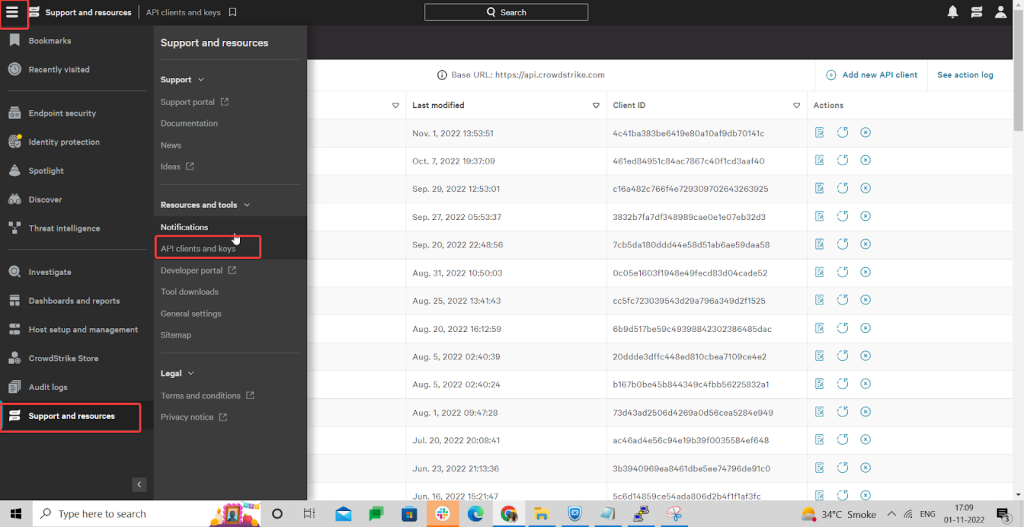
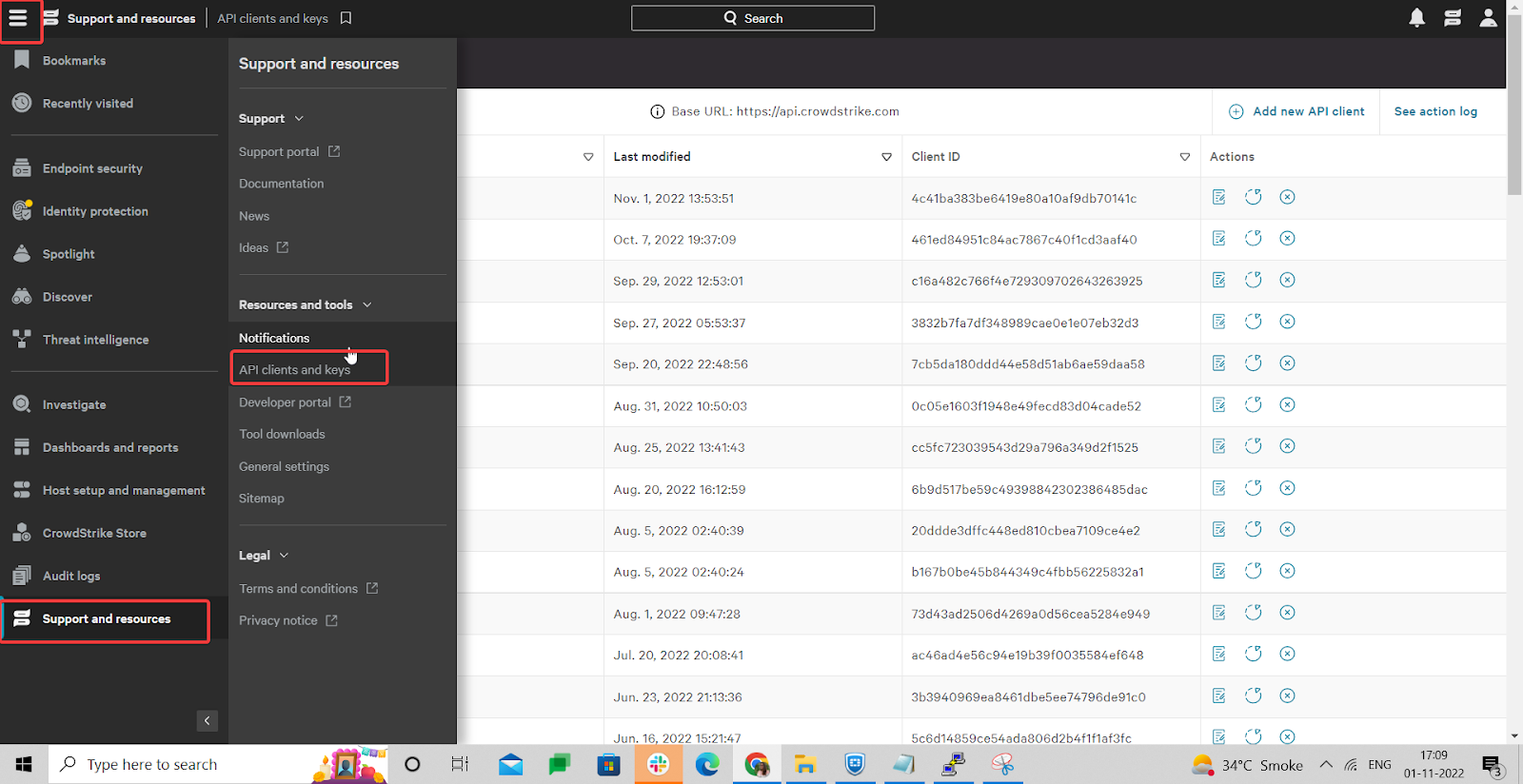
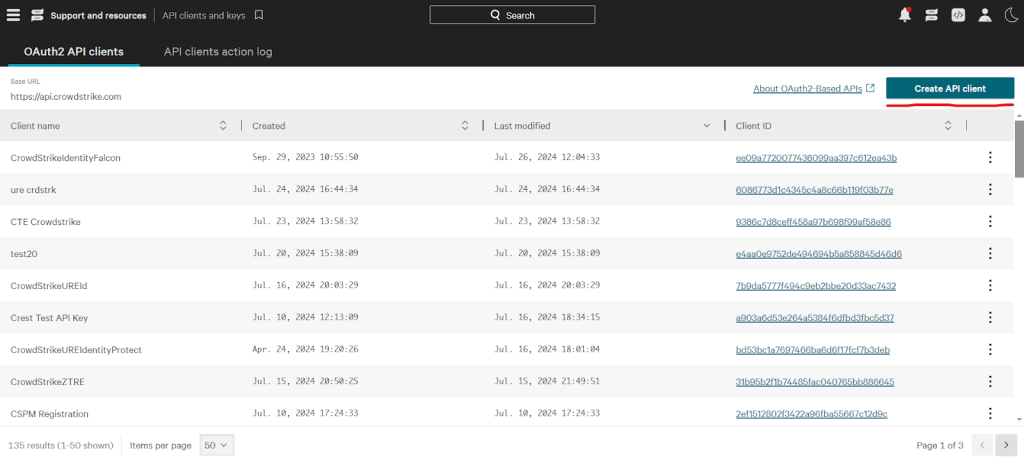
- Click Create API Client.

- Add the following scopes for the CrowdStrike plugin, and then click Save.
API Scopes Permissions
Scope Read Write Hosts Yes Yes Real time response (admin) – Yes Real time response Yes Yes Zero Trust Assessment Yes –
- Make a copy of the Client ID and Client Secret. These are needed to configure the plugin.
Add a Permission for a Response Policy (RTR script Permission)
- Log in to Falcon CrowdStrike.
- Click the menu button in the top left corner and go to Host setup and management > Response policies.
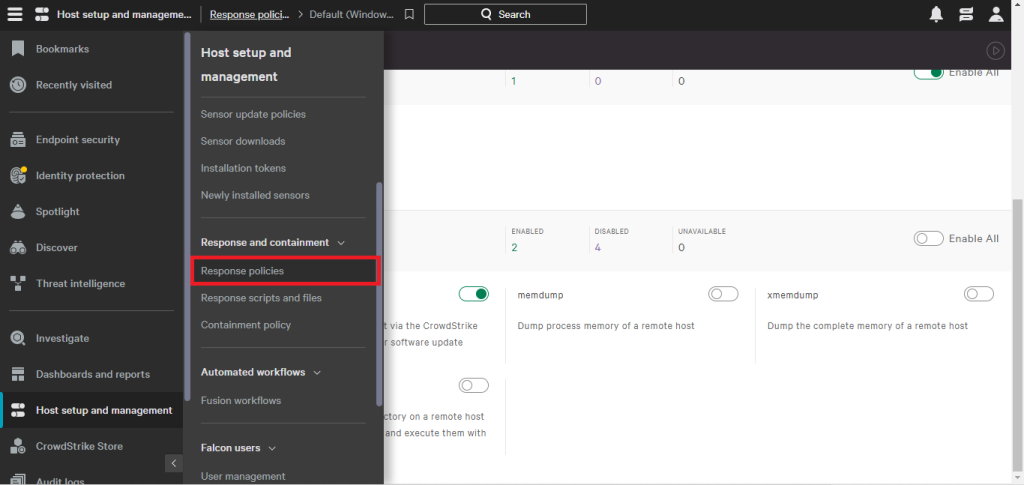
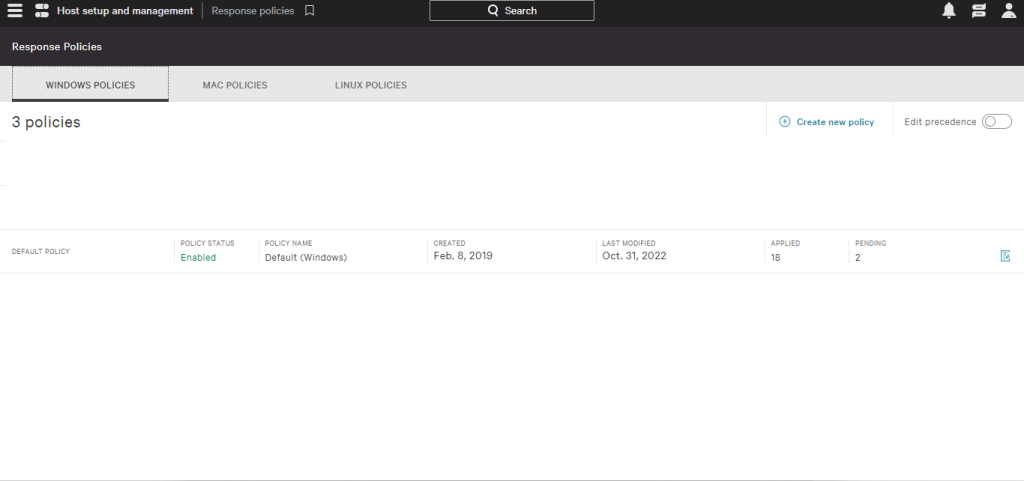
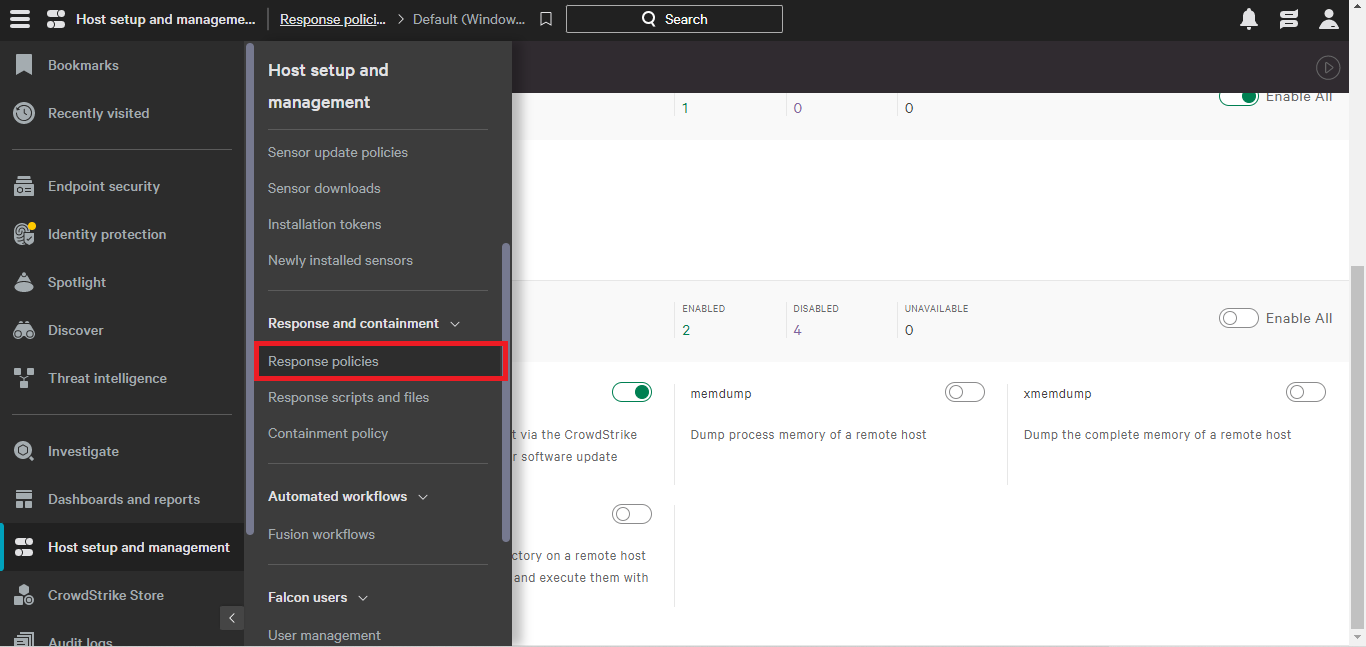
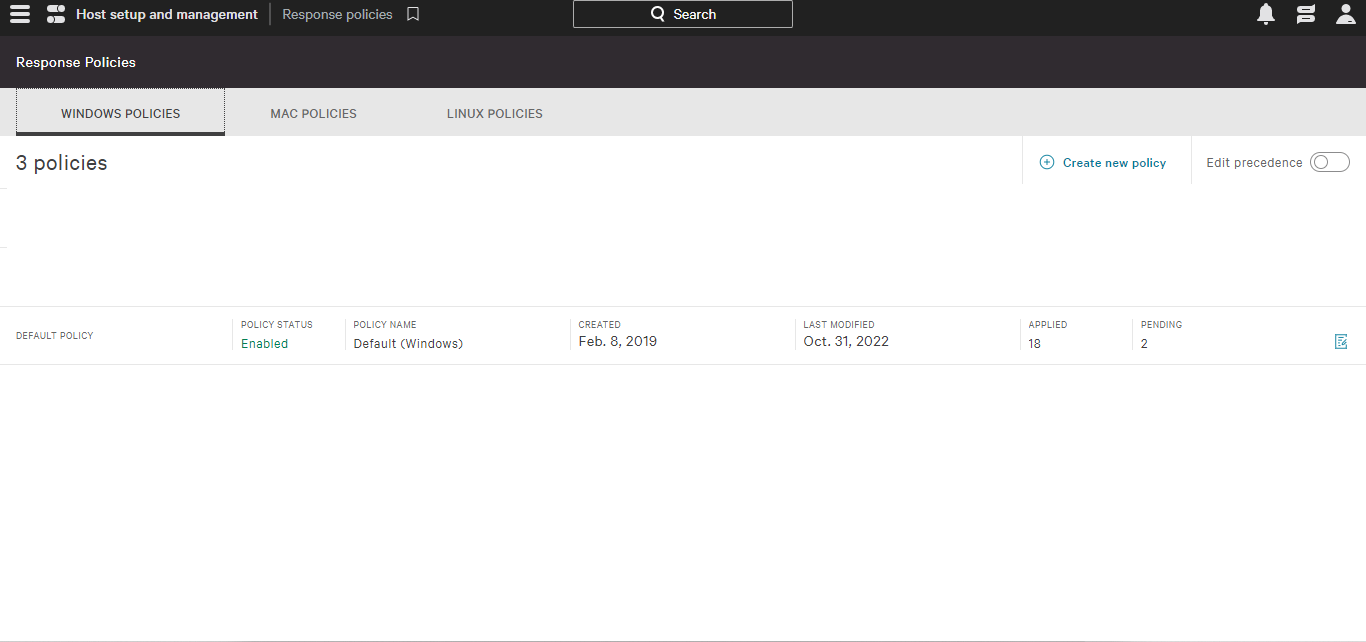
- For Windows, go to the policy that is to be used and click on the policy Name.
- Enable these permissions.
Response Policy Permissions
Category Type Permission Status Real Time Response Custom Scripts Falcon Scripts Enable Real Time Response High risk commands put Enable Also, refer to the below screenshot.
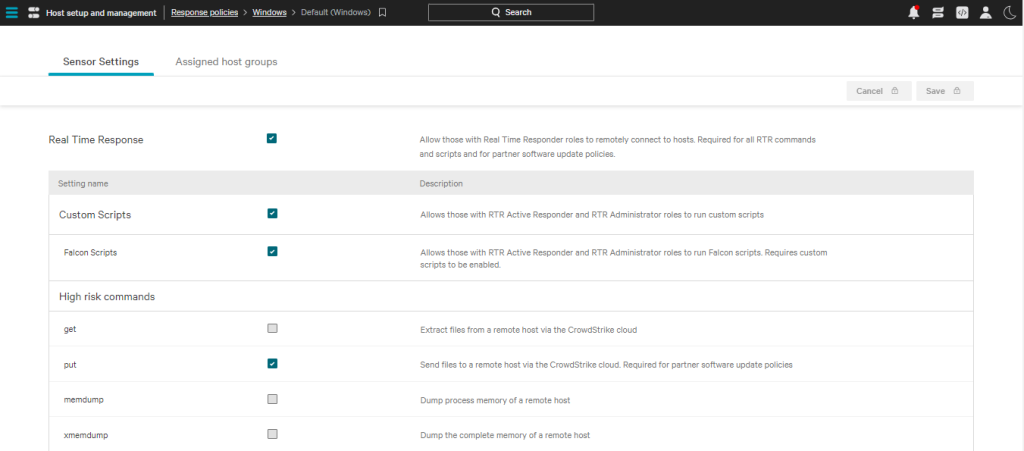
Also, you can directly go to your Host from Host setup and management > Host management. Click on your hostname and scroll down to the Response Policy info, and then click on the policy name from the left pop-up menu.

Configure the CrowdStrike Plugin
-
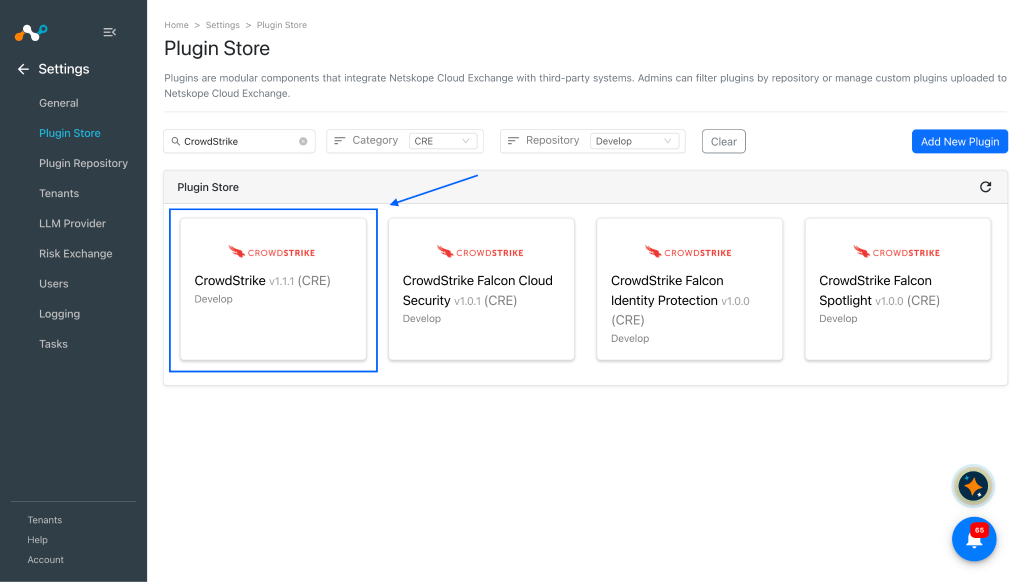
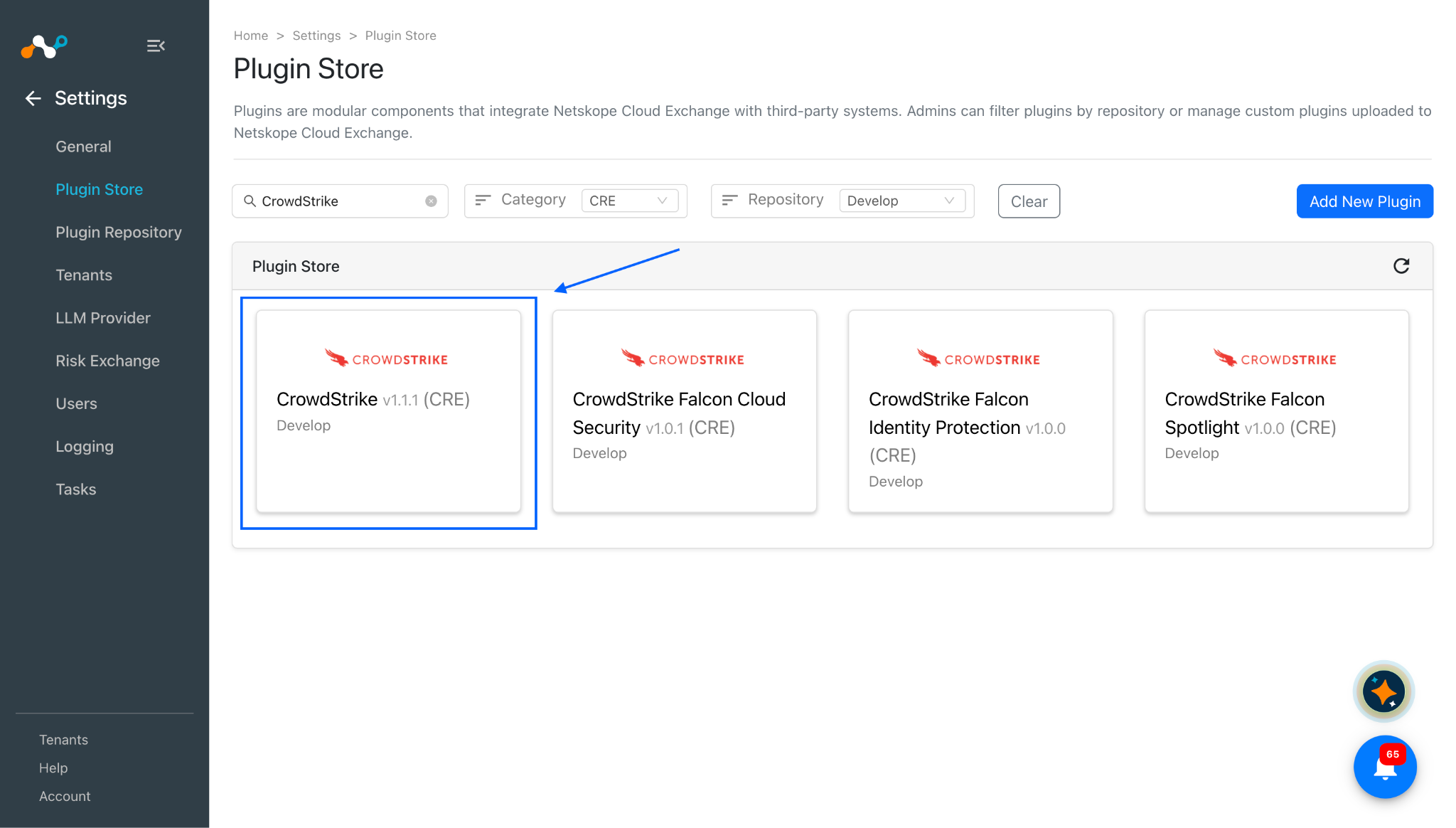
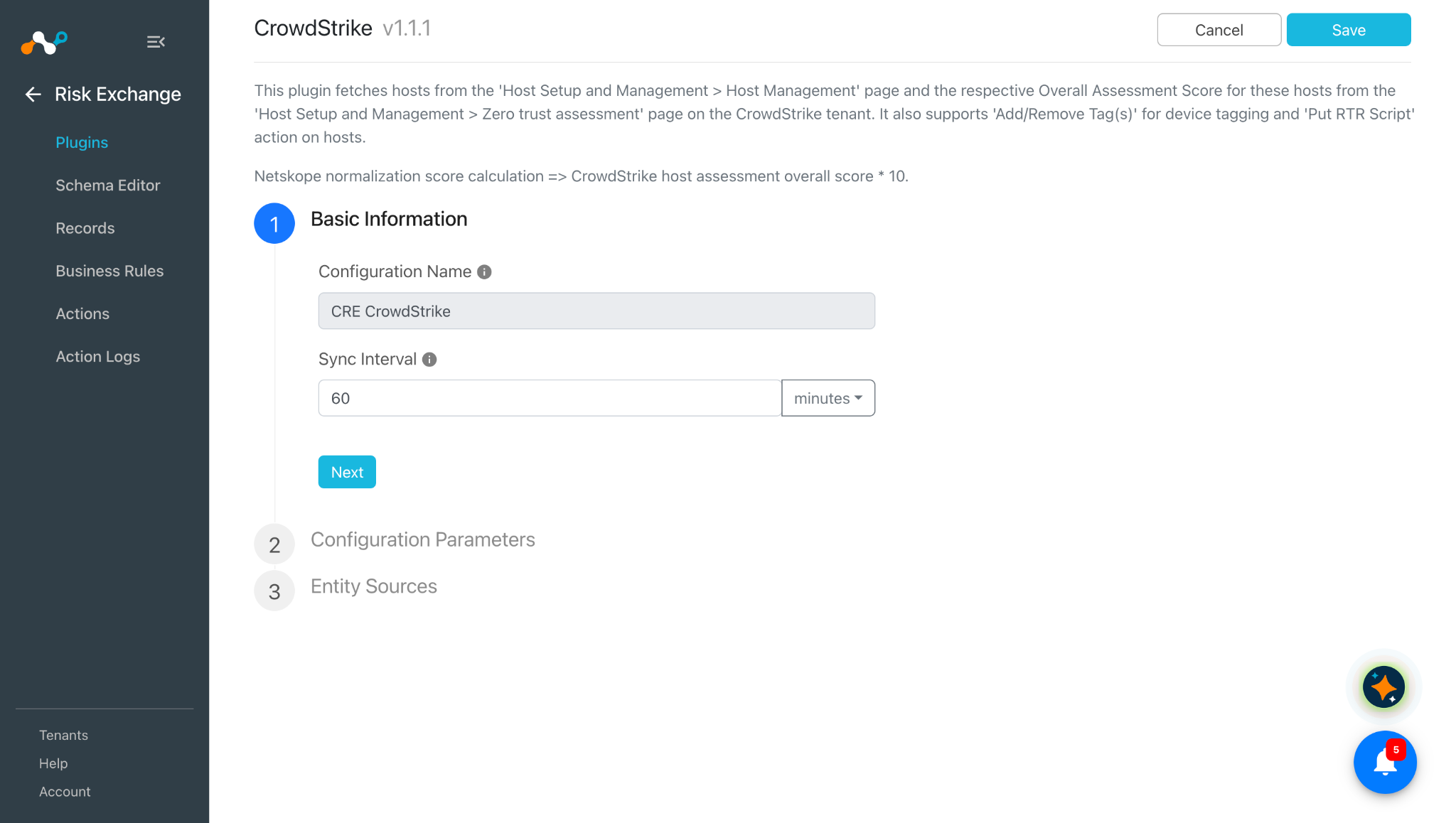
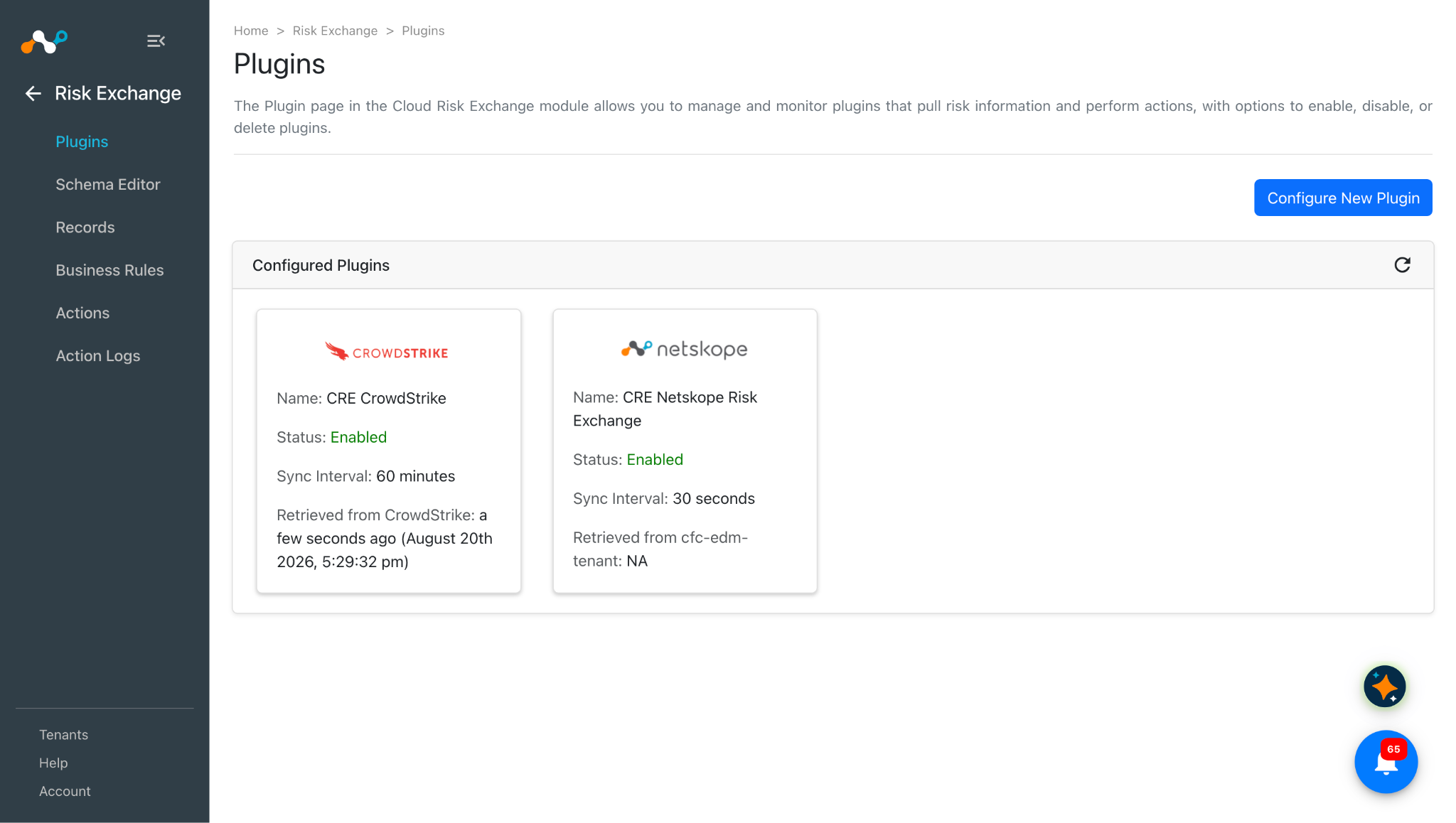
In Cloud Exchange, go to Settings > Plugin Store. Search for and select the CrowdStrike v1.1.1 (CRE) plugin.
-
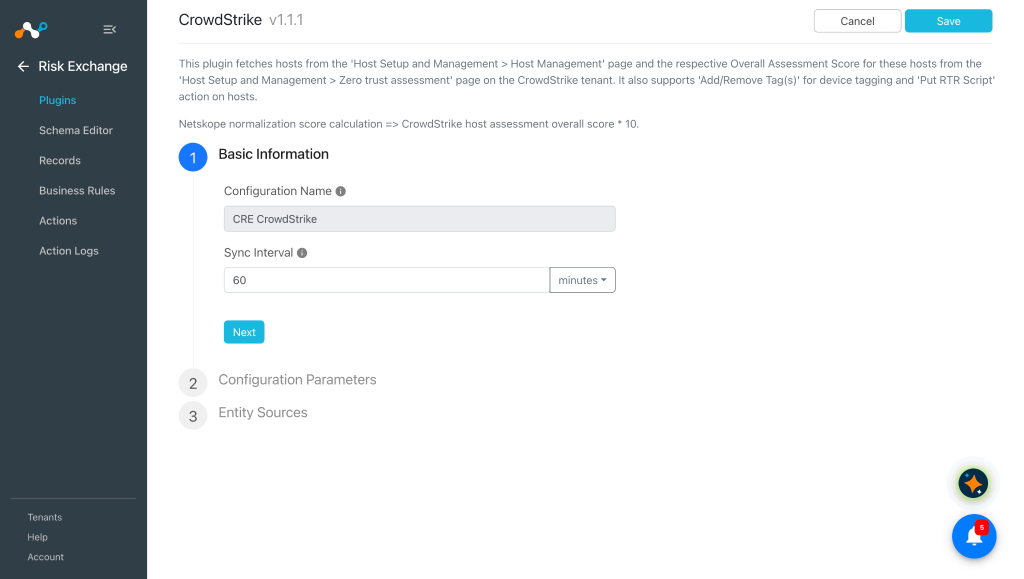
Enter a plugin configuration name and change the sync interval if needed.
-
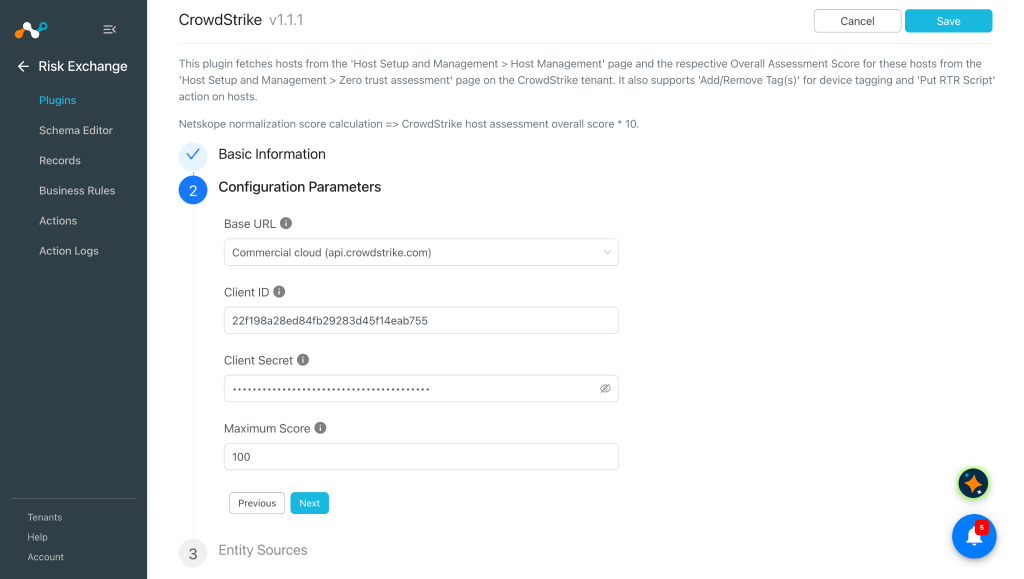
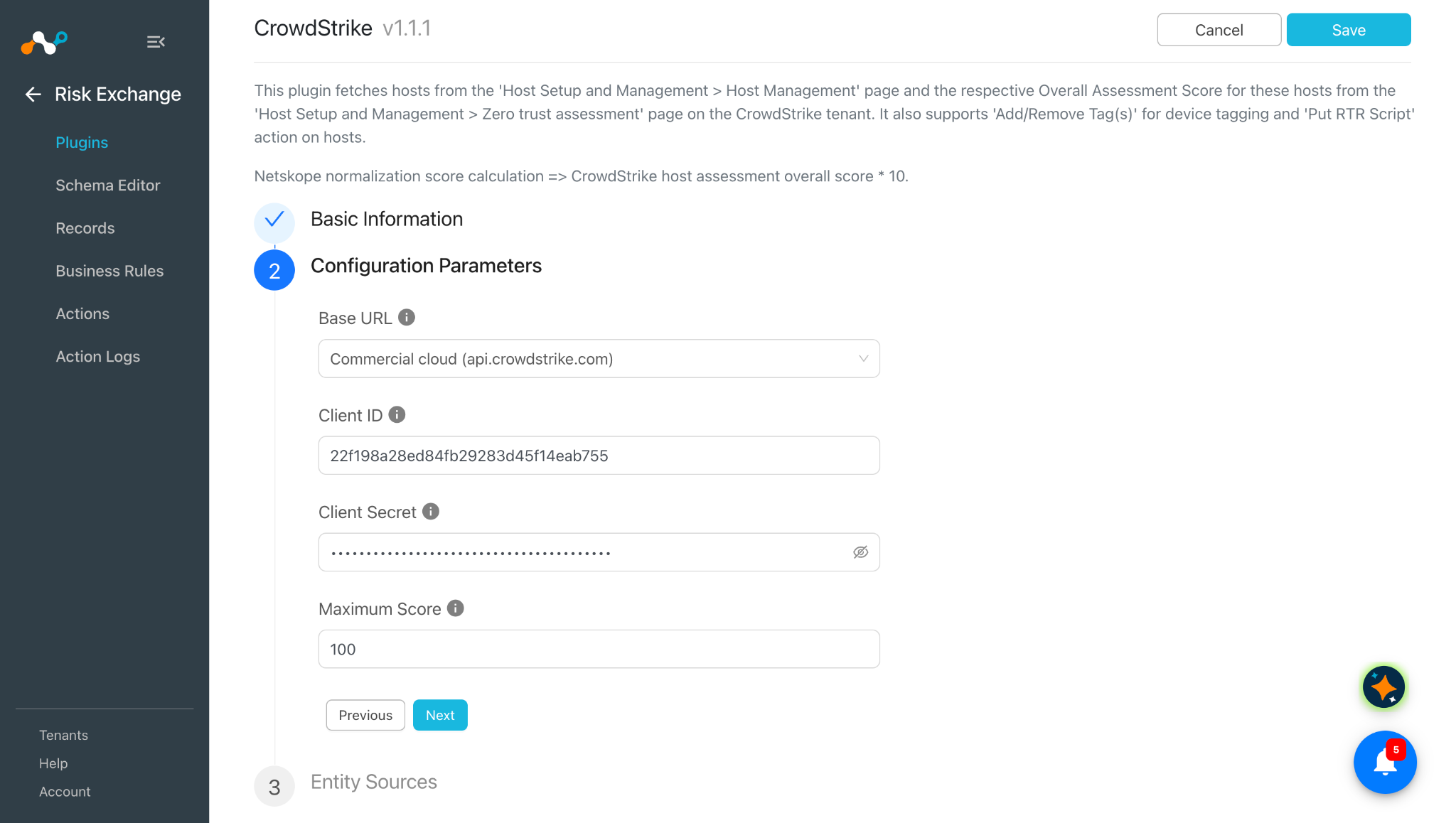
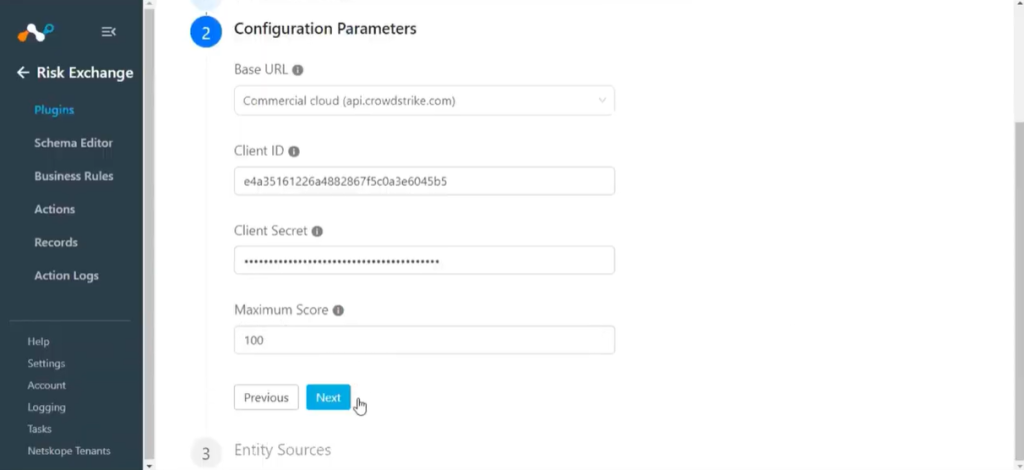
Click Next and add the Base URL, Client ID, Client Secret, and Maximum Score (Maximum Score is the configuration parameter through which the plugin fetches scores of Hosts less than or equal to a given value).
-
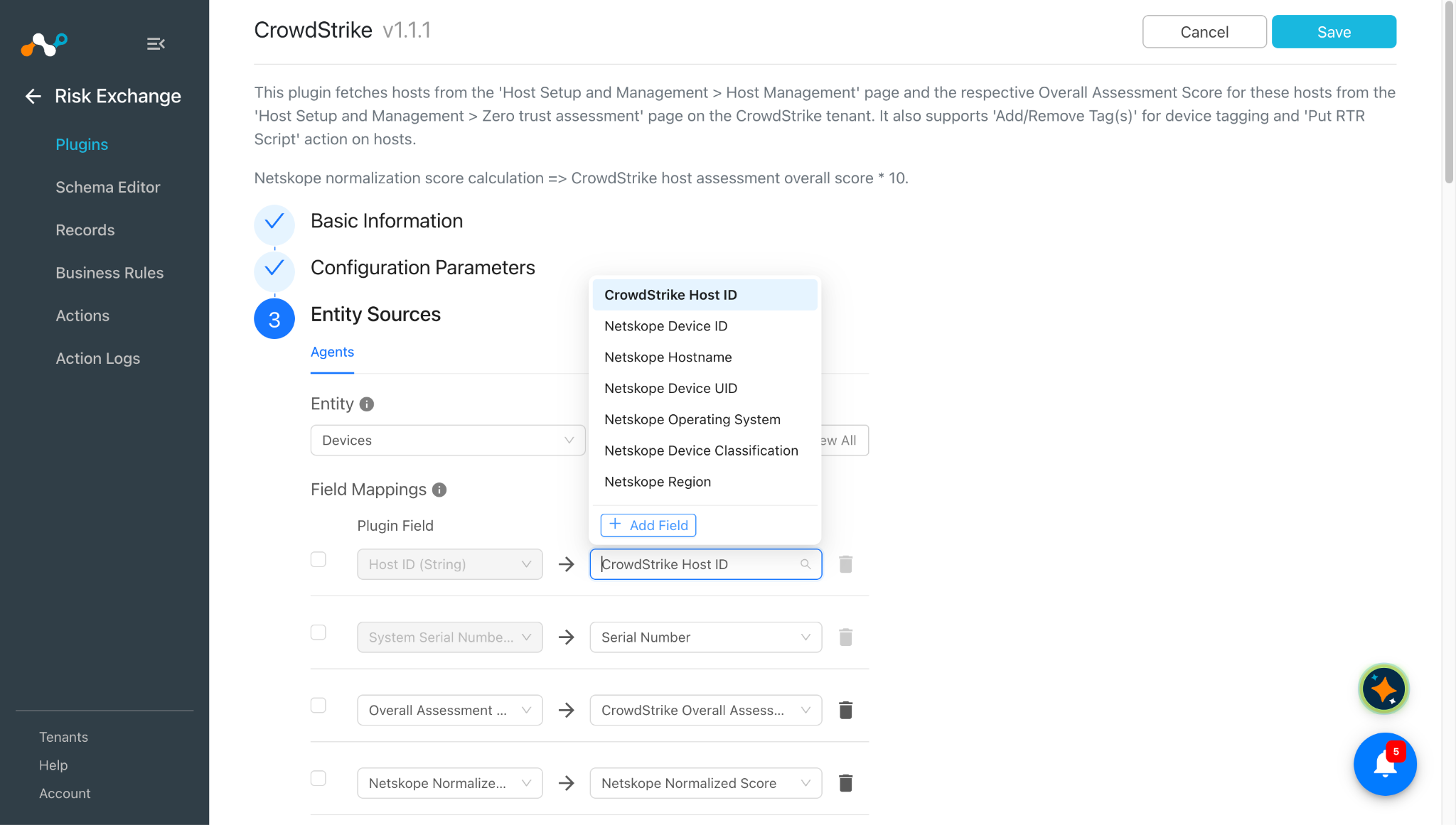
Click Next and select the Entity from the Entity dropdown, and provide the field mappings per your needs.
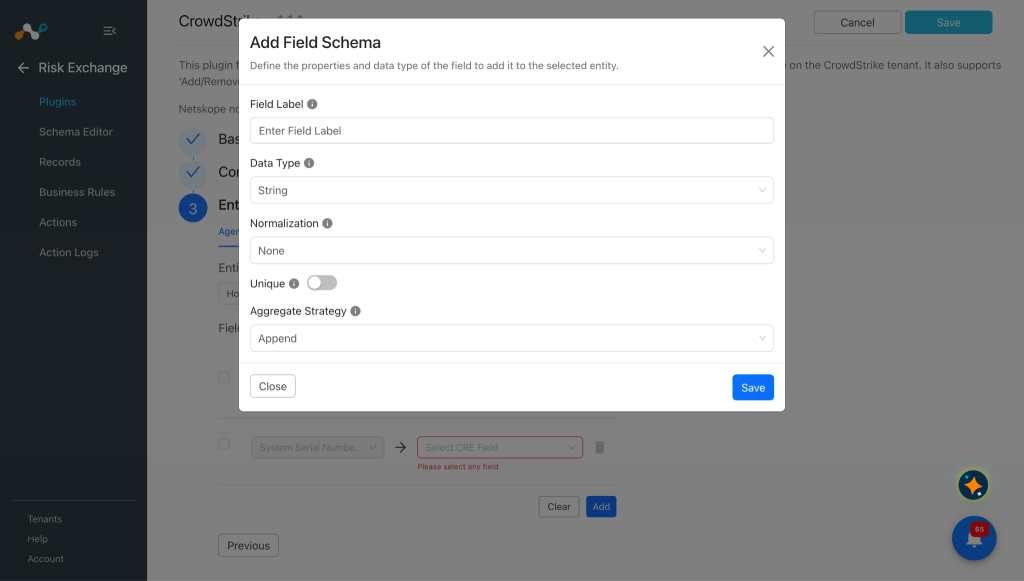
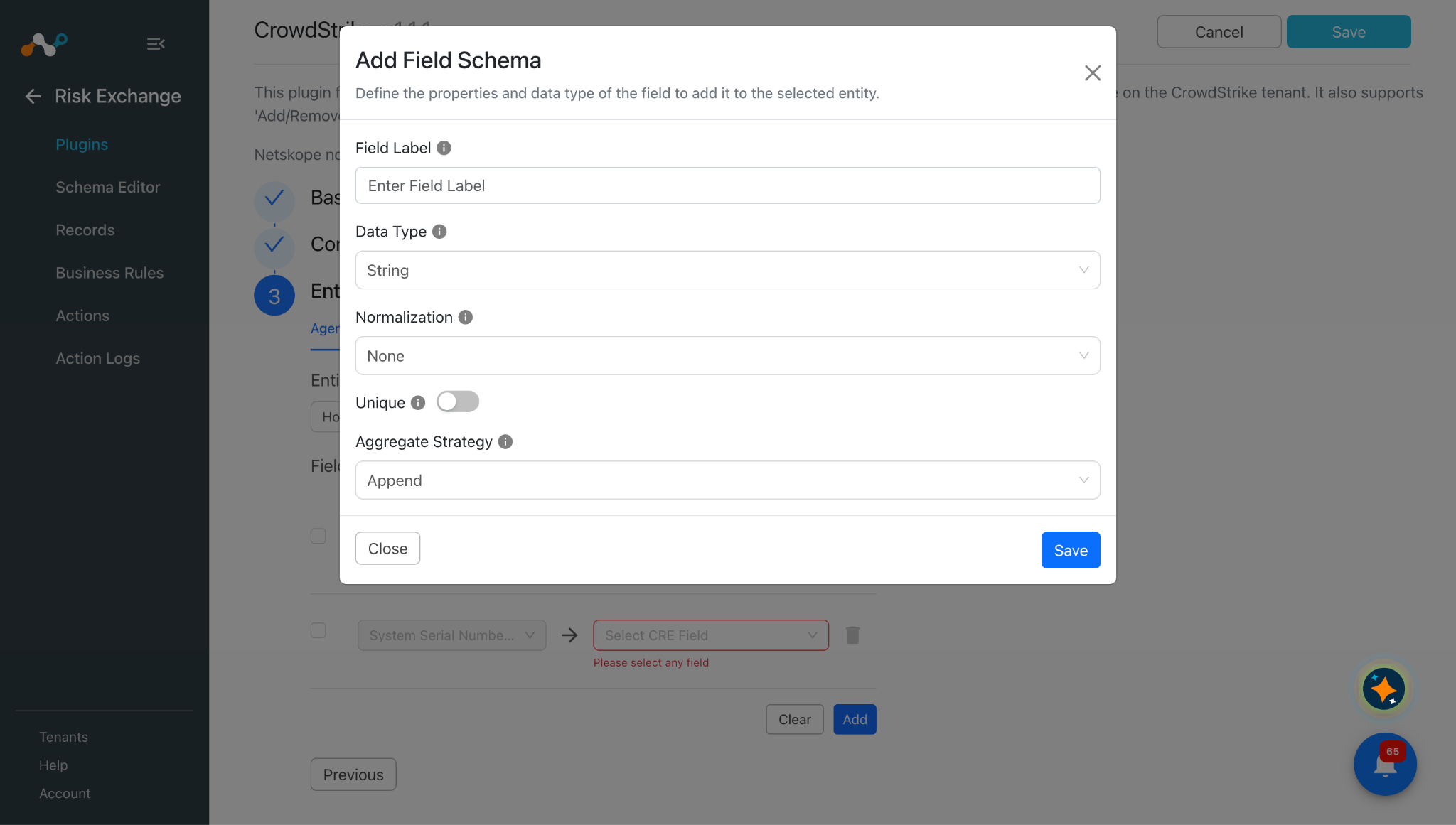
Host ID field will be required to pull the hosts and to perform action on the Hosts.To create a new field under any entity, click Add Field.
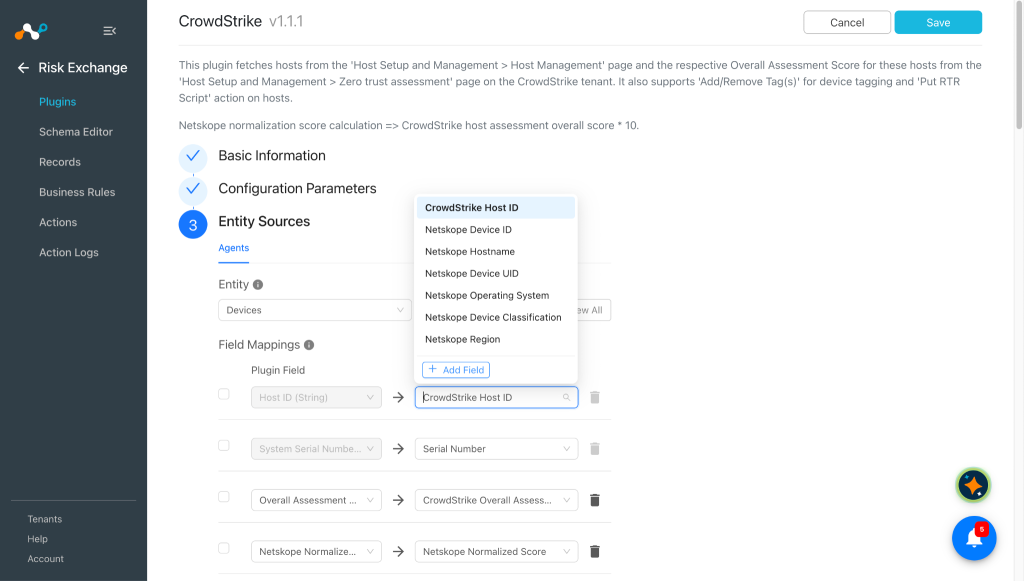
Enter the Field Label, Data type, set unique or not, and select the aggregate strategy.
Here are the suggested mappings:
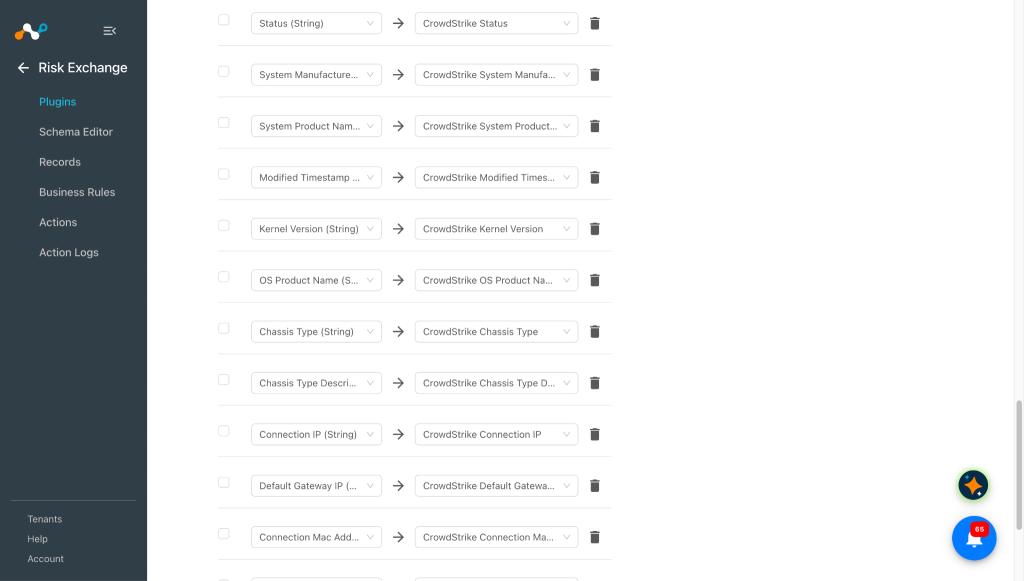
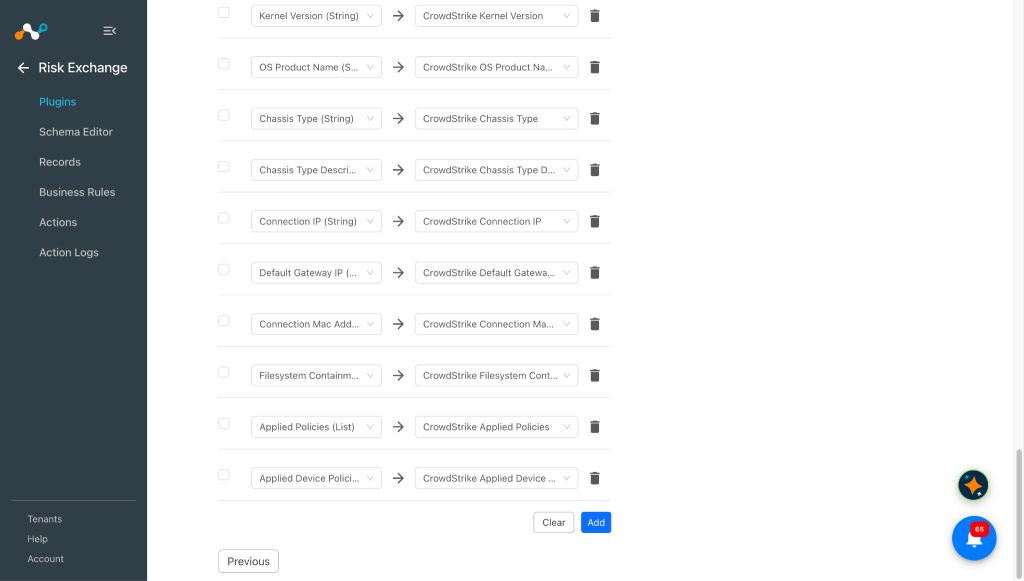
-
Click Save.
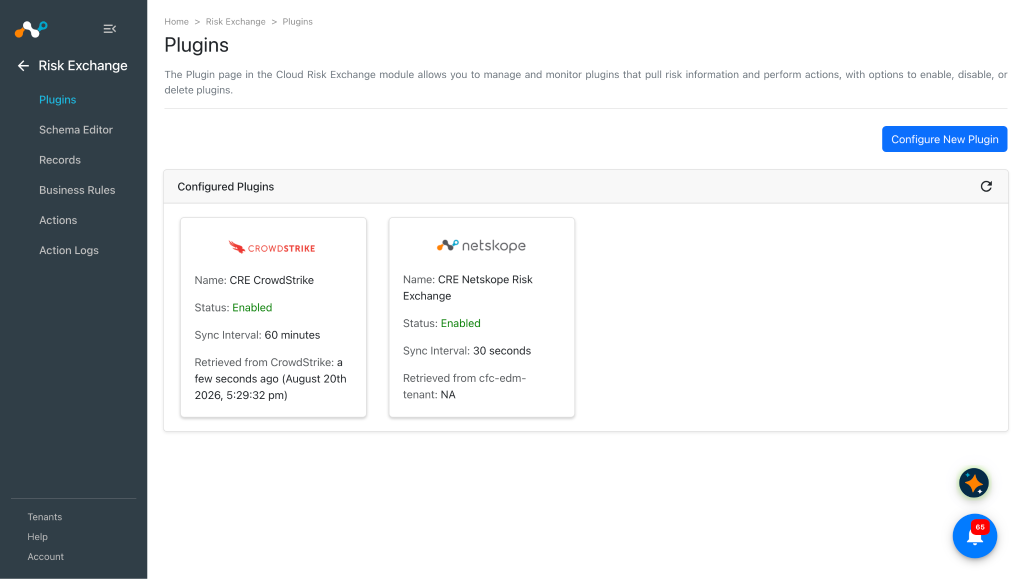
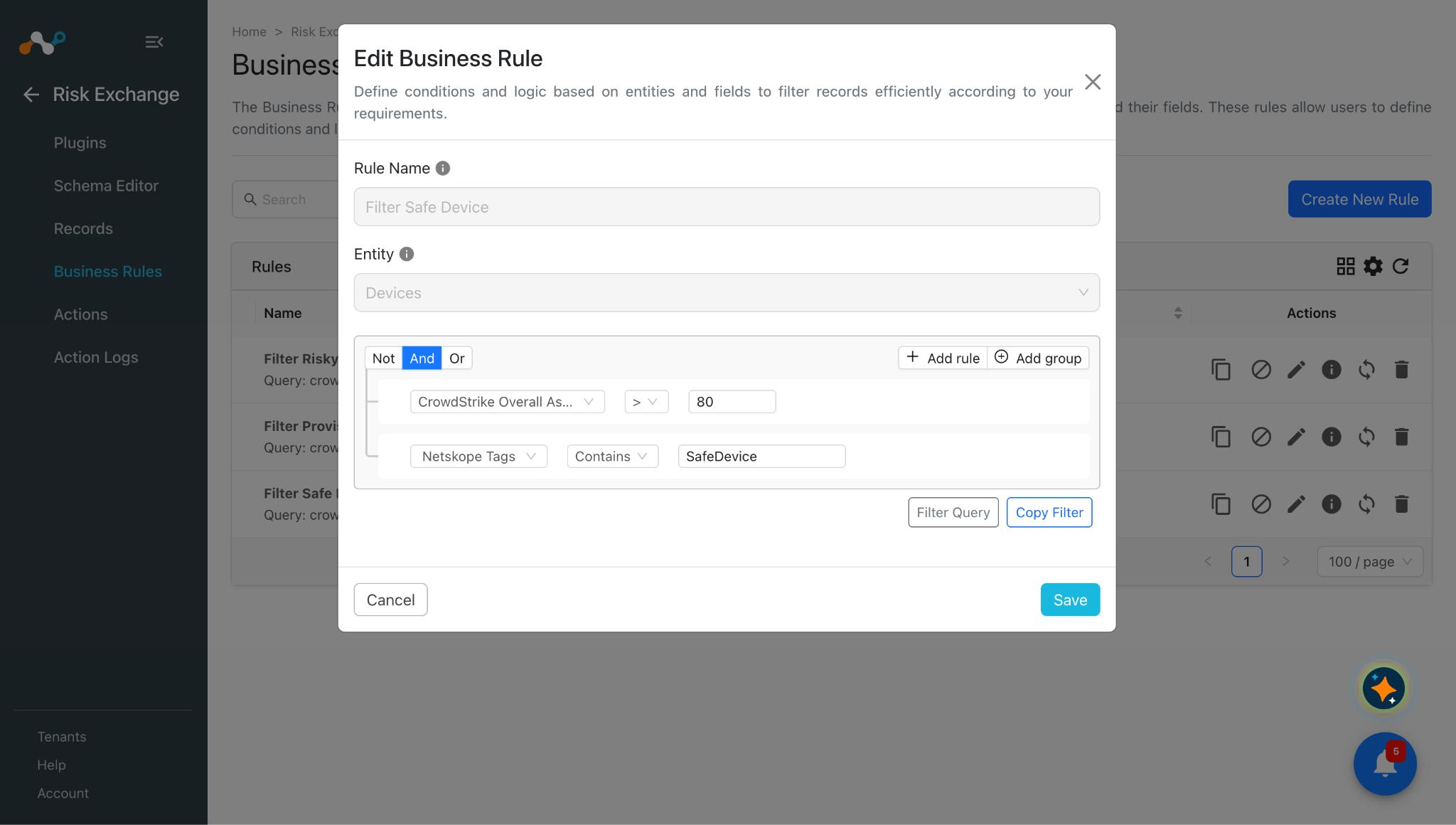
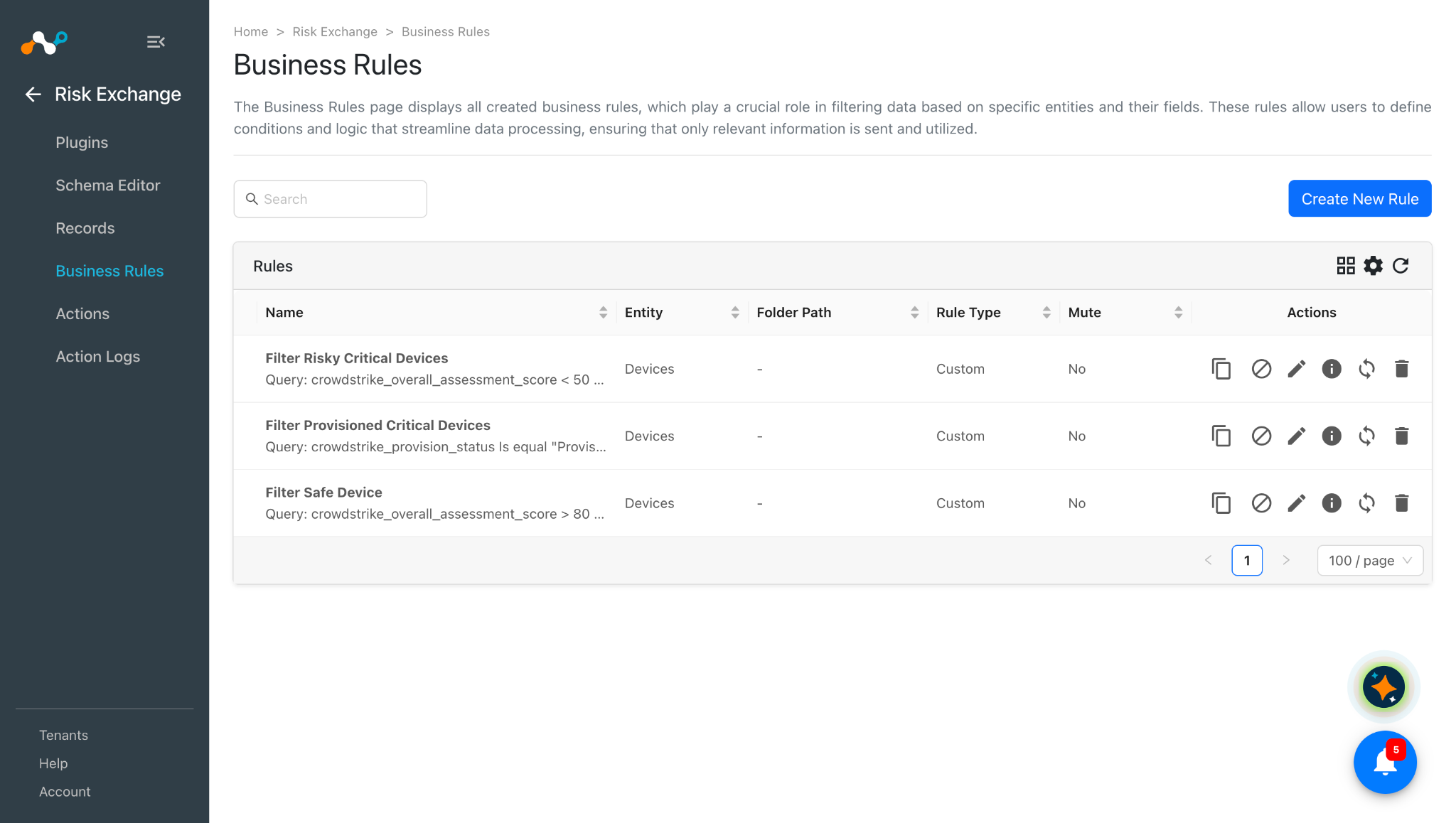
Configure a Risk Exchange Business Rule for CrowdStrike
-
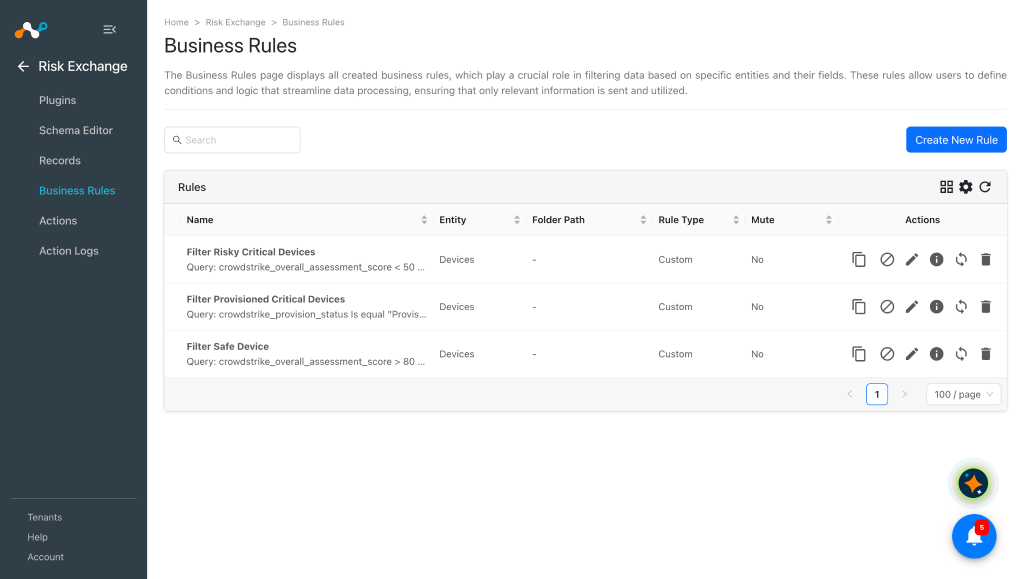
In Risk Exchange, go to Business Rules and click Create New Rule.
-
Enter a Rule Name and select the Entity for the Fields you configured for the CrowdStrike plugin, and configure the query based on your requirements. This example filters the Host with hostname as
Devfetched from the CrowdStrike plugin.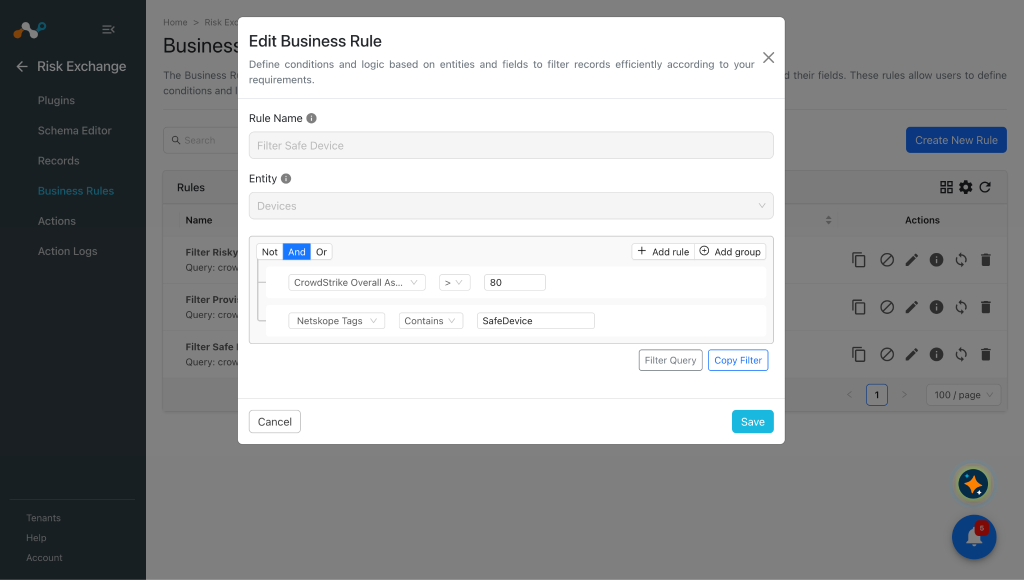
-
Click Save.
Configure Risk Exchange Actions for CrowdStrike
The CrowdStrike plugin supports these action types:
- Add/Remove Tag(s): Users can add or remove tags from the host using this action.
- Put RTR Script: Put RTR Script action will put a file on the host depending on their respective score.
- No Action: No action will be performed for this action. Users can generate UBA alerts in CTO by using this action and enabling the generate alerts toggle button.
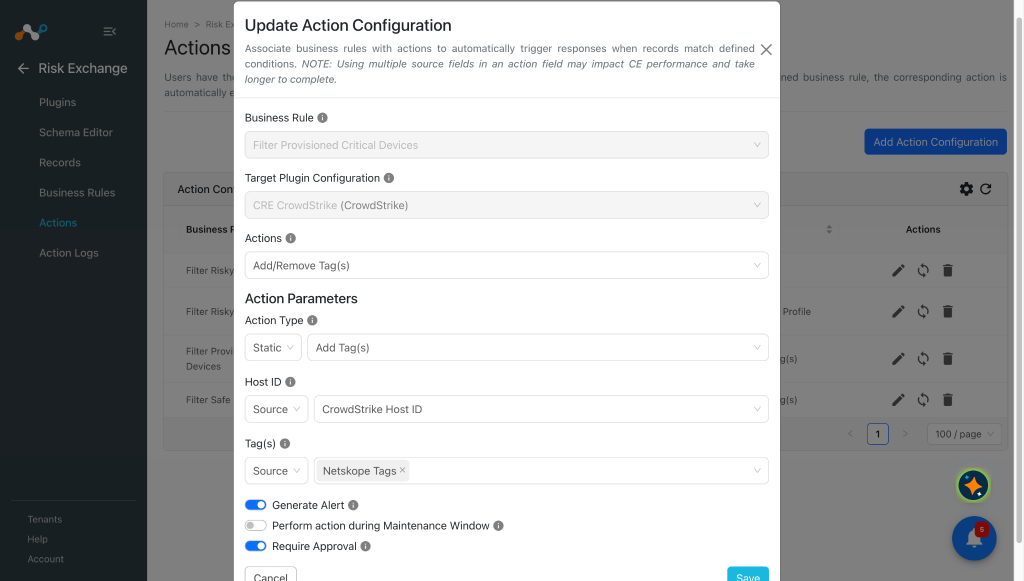
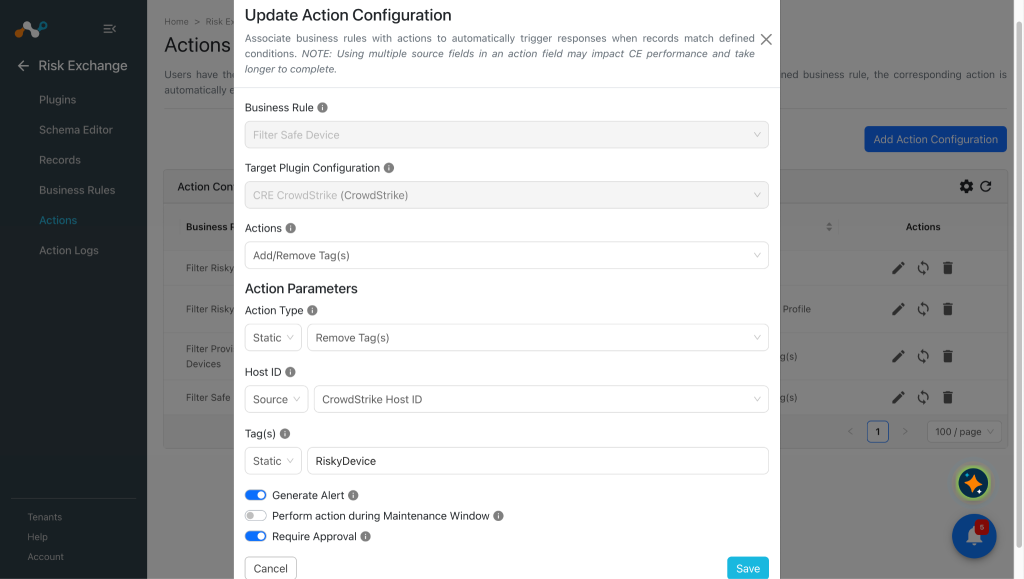
Add/Remove Tags
-
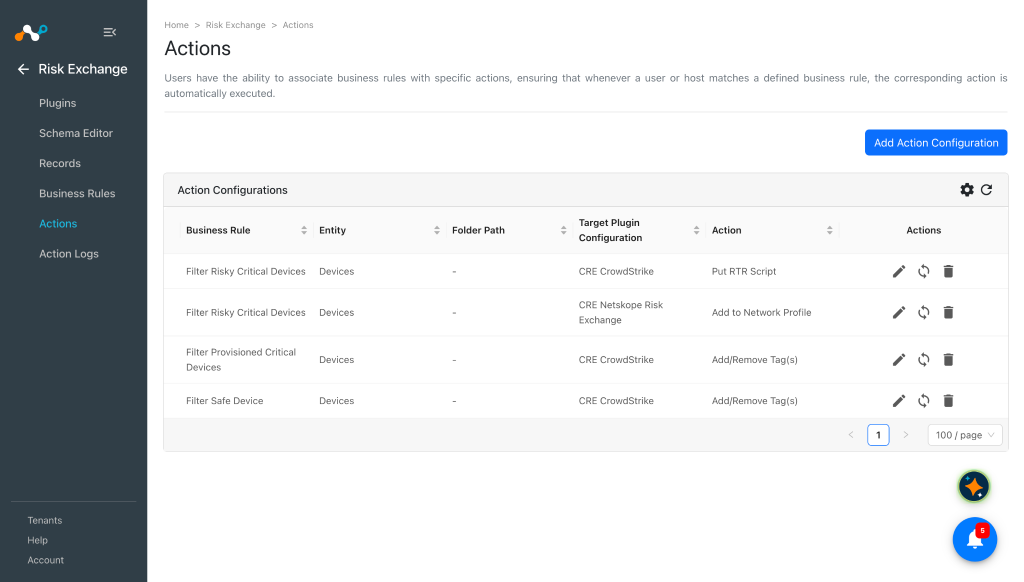
Go to Risk Exchange, go to Actions and click Add Action Configuration.
-
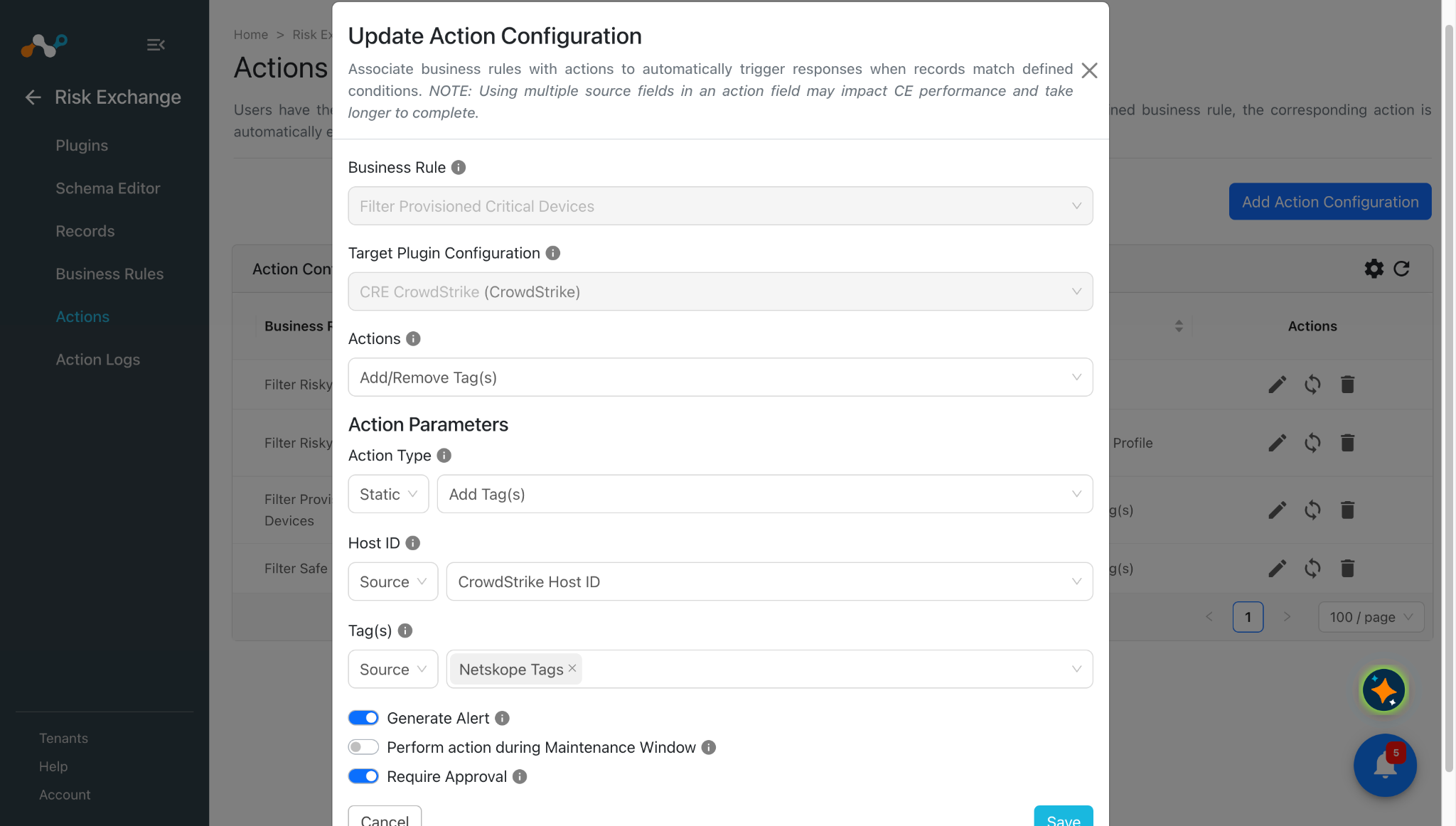
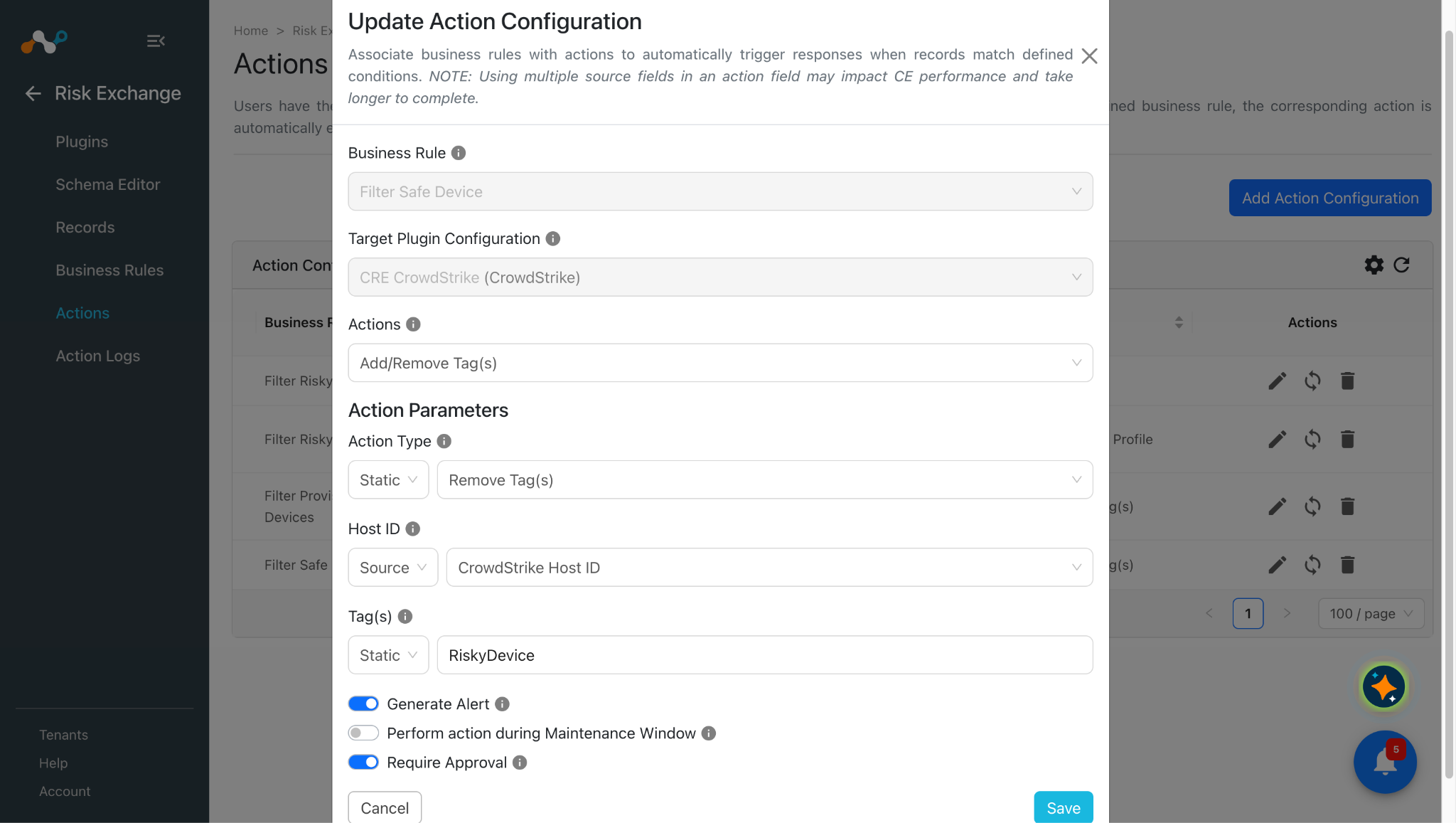
Select the required Business Rule, Configuration, and the Add/Remove Tag(s) Action from their respective dropdowns, and then enter these parameters.
- Action Type: This field must be Static. Users can select Add Tag(s) or Remove Tag(s) as per their requirements.
- Host ID: This field can be mapped to the Source field, or can be static where users can provide Host ID as a string.
- Tag(s): You can provide comma-separated values for tags, or map multiple source fields per your requirements.
Format for static input: Tag1,Tag2,Tag3
-
Enable the Require Approval toggle if Approval is needed before performing action on the Hosts.
-
Click Save.
Put RTR Script Action
-
In Risk Exchange, go to Actions and click Add Action Configuration.
-
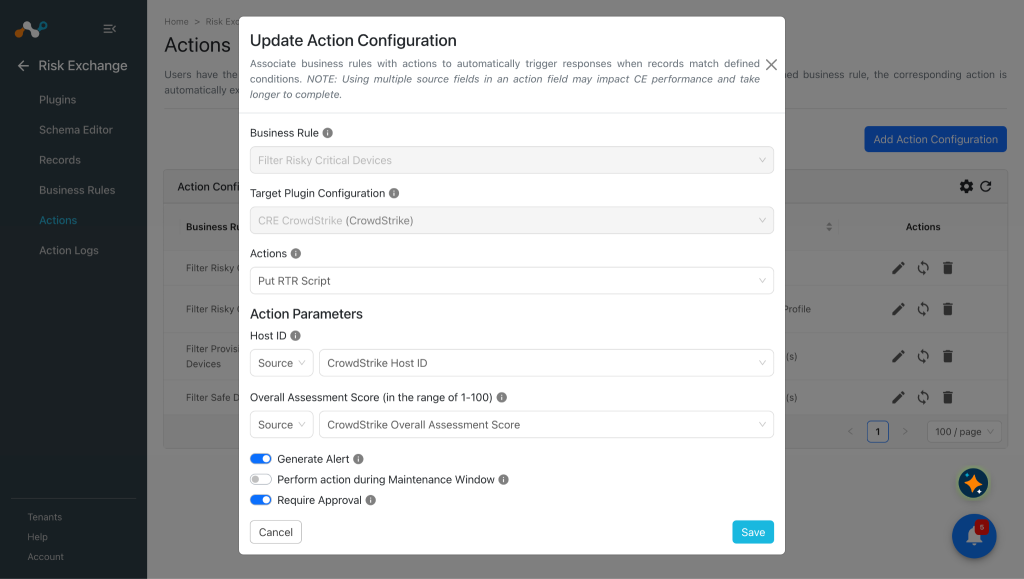
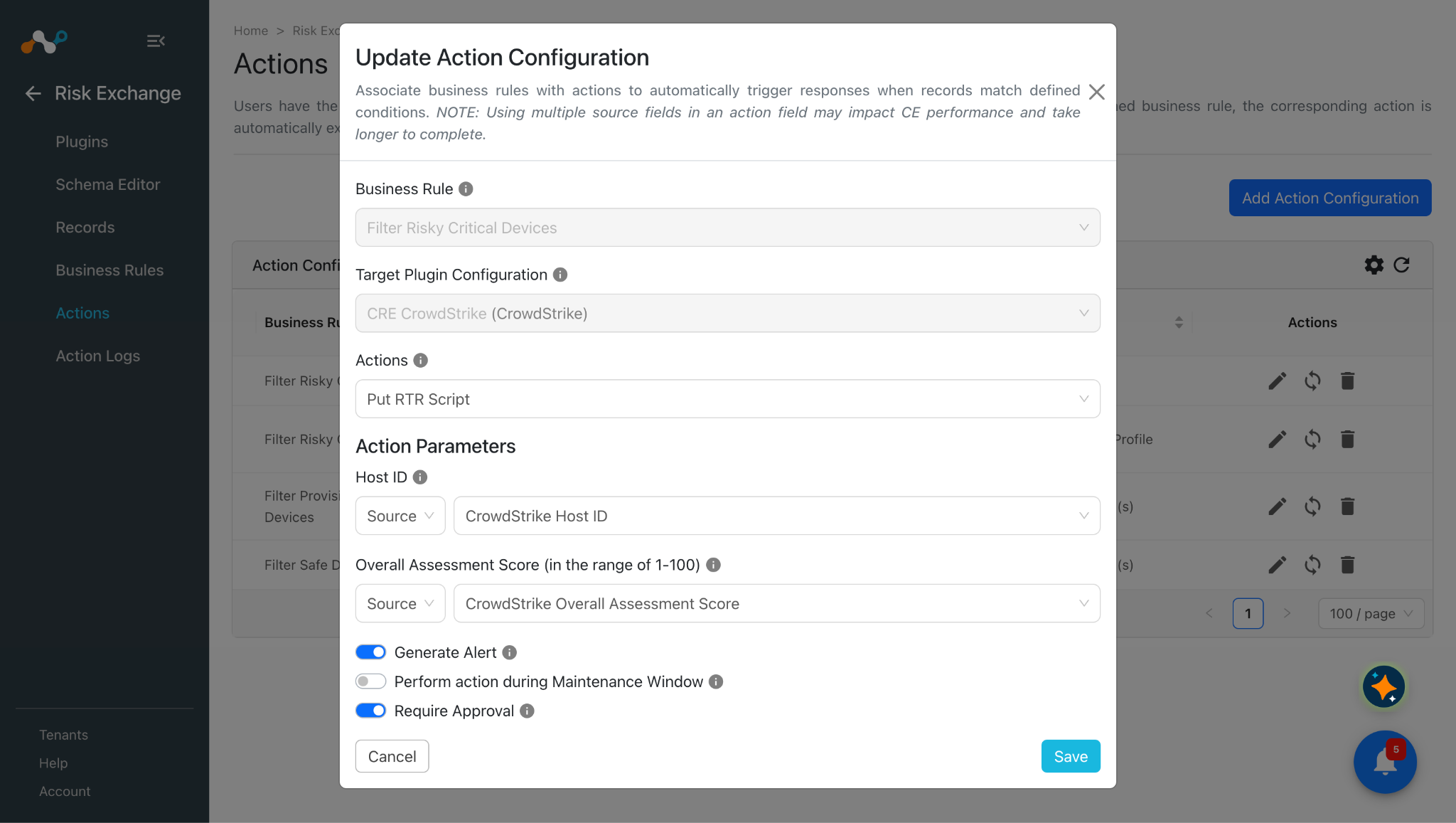
Select the required Business Rule, Configuration, and the Put RTR Script Action from their respective dropdowns, and then enter these parameters:
- Host ID: Map Agent ID/Host ID of the host to perform the action on.
- Overall Assessment Score: Map Overall Assessment Score to consider while performing the action.
-
Enable the Require Approval toggle if Approval is needed before performing action on the Hosts.
Note
- If Static is selected in the Score dropdown and a value is provided, then the provided value will be considered as the score while performing the Put RTR Script action.
- Fields mapped with the Host ID while configuring the plugin will be required to perform action on the Hosts.
-
Click Save.
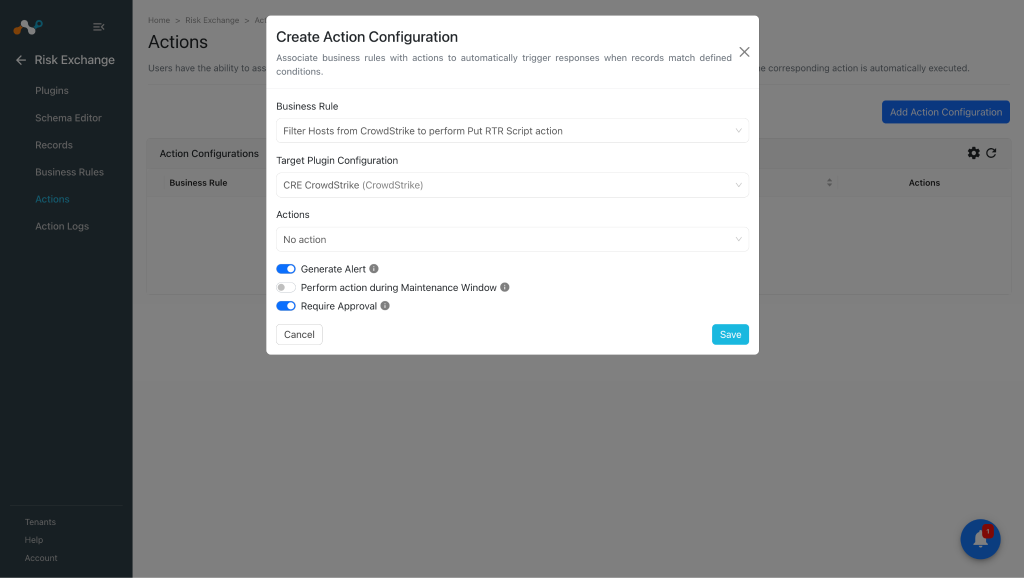
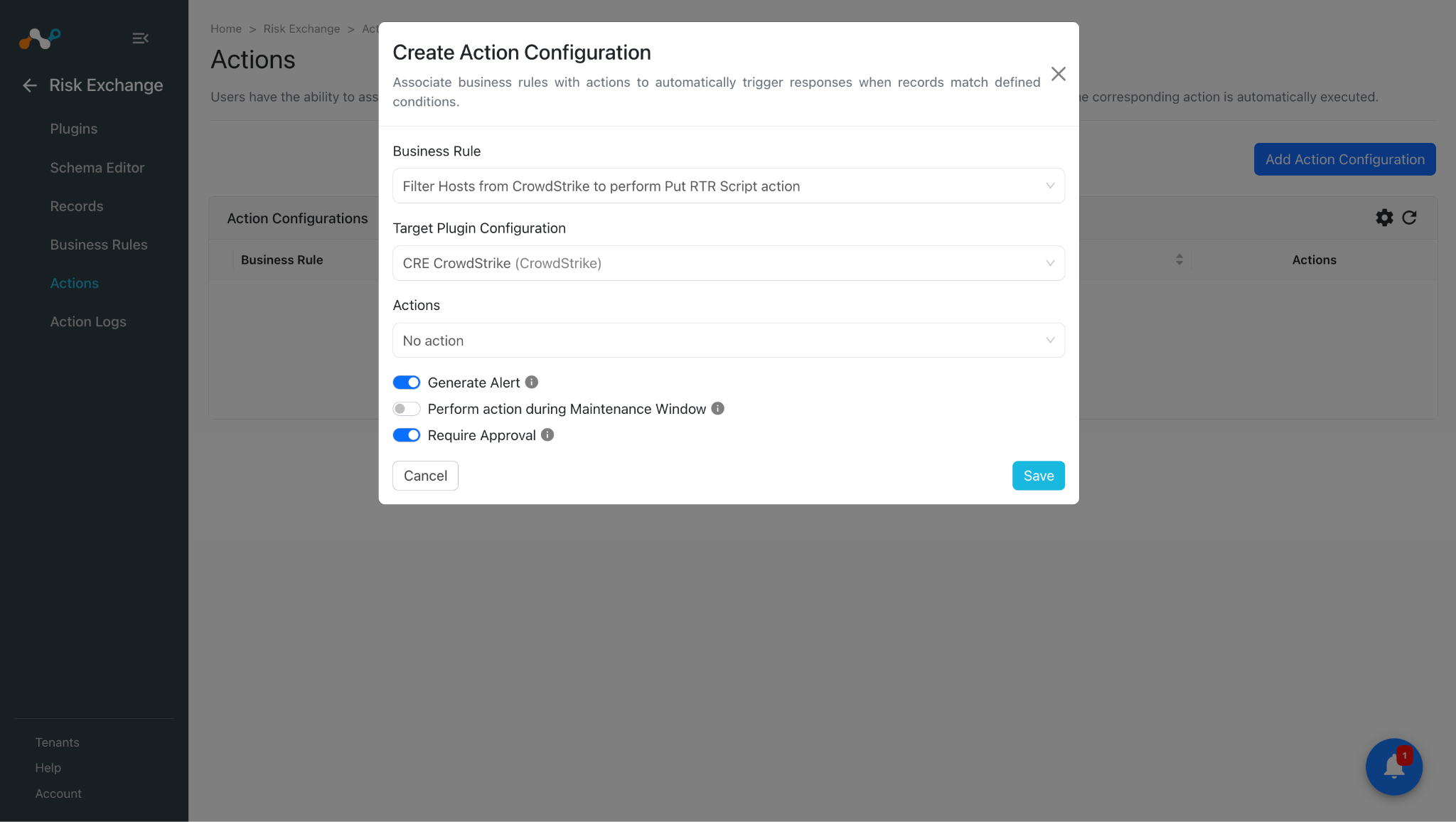
No Action
-
In Risk Exchange, go to Actions and click Add Action Configuration.
-
Select a Business rule, Configuration, and the No Action Action from their respective dropdowns.
-
Enable the Generate Alert toggle to generate alerts in Ticket Orchestrator.
-
Enable the Require Approval toggle if Approval is needed before performing action on the Users.
-
Click Save.
Validate the CrowdStrike Plugin
Validate in Cloud Exchange
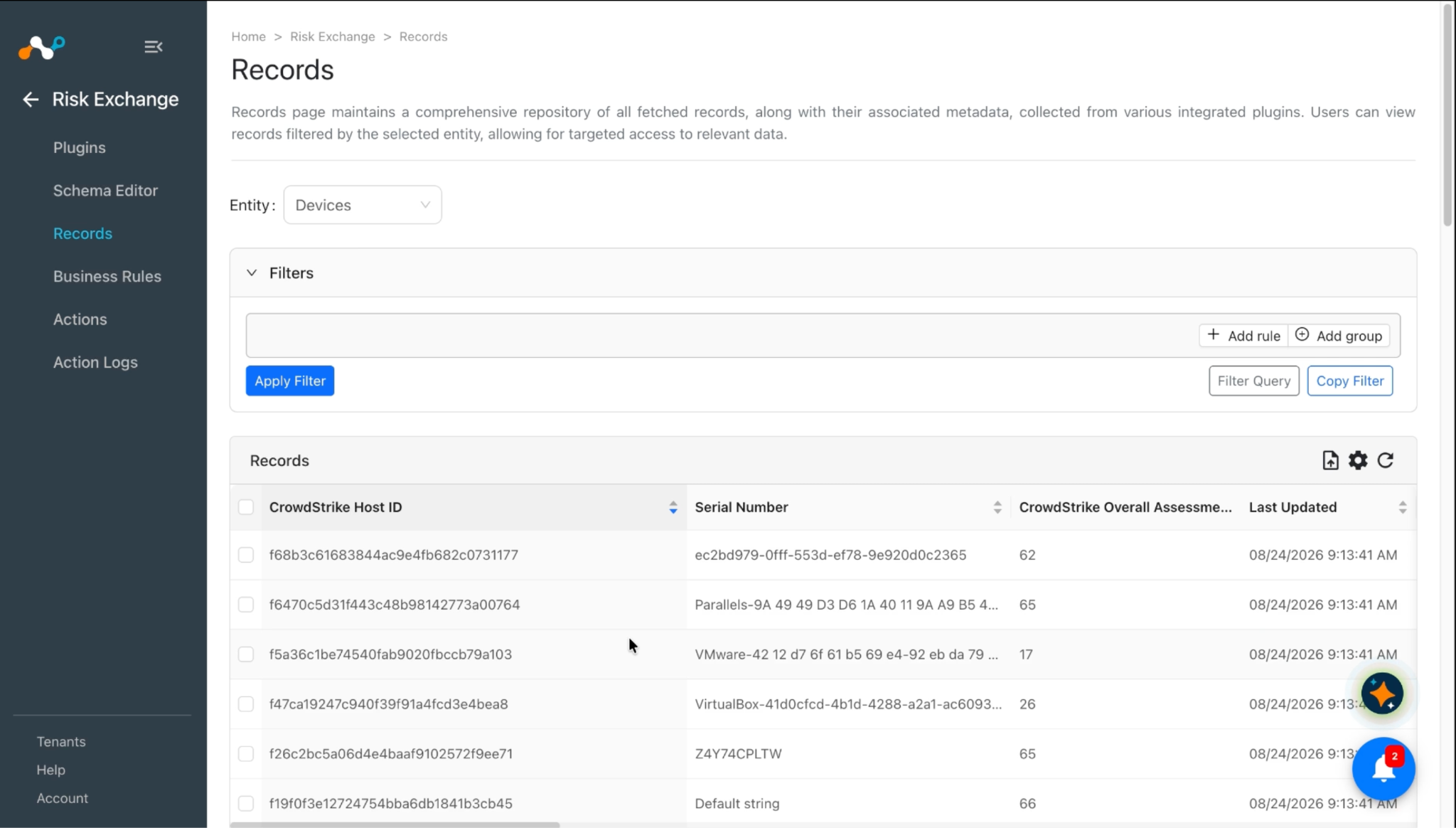
To validate the pulling:
Go to Risk Exchange and click Records. Select the Entity that is selected while configuring the field mapping for Agents/Hosts to view the pulled Agents/Hosts.
Go to Logging and search for the logs of the plugin.
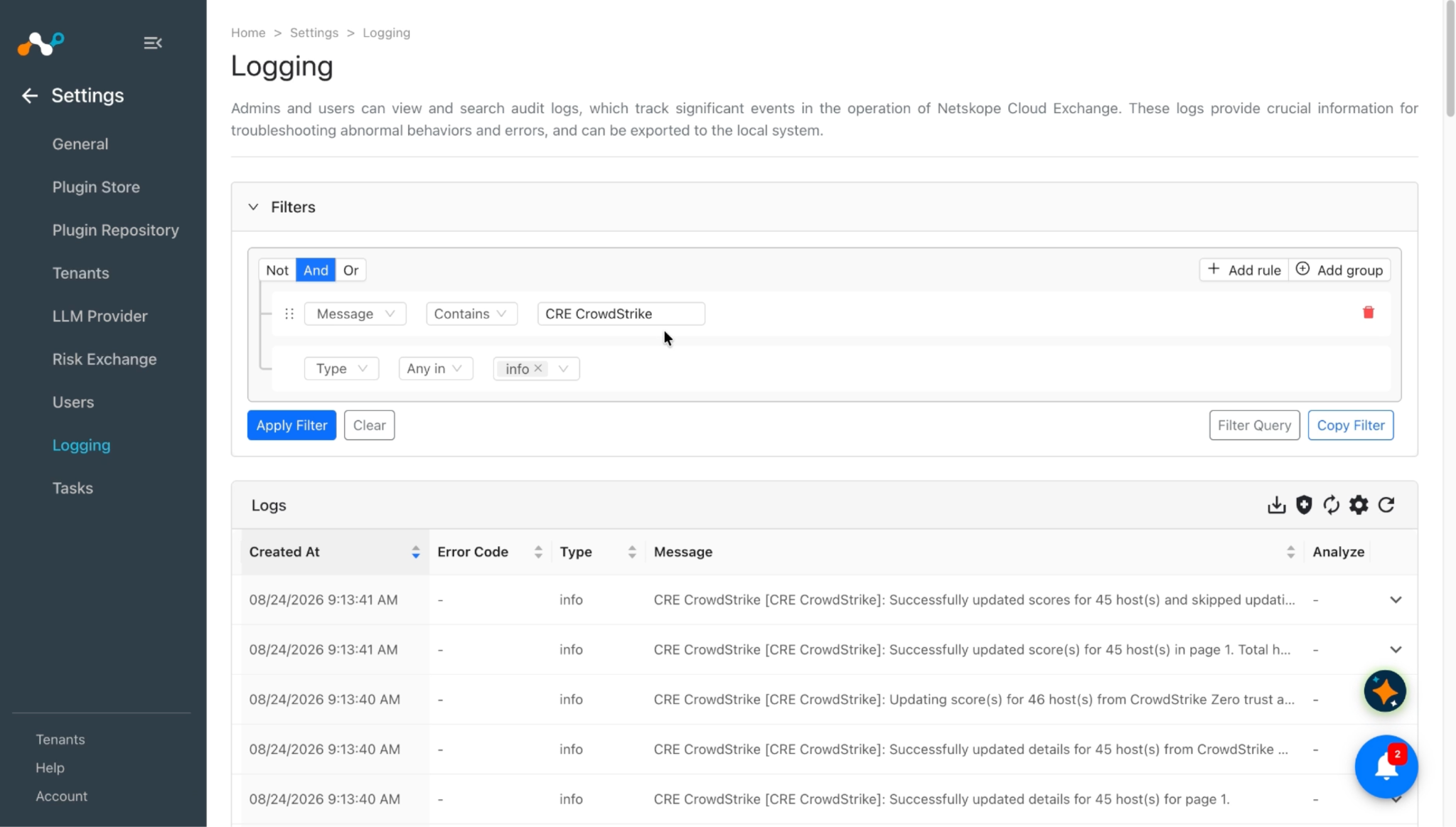
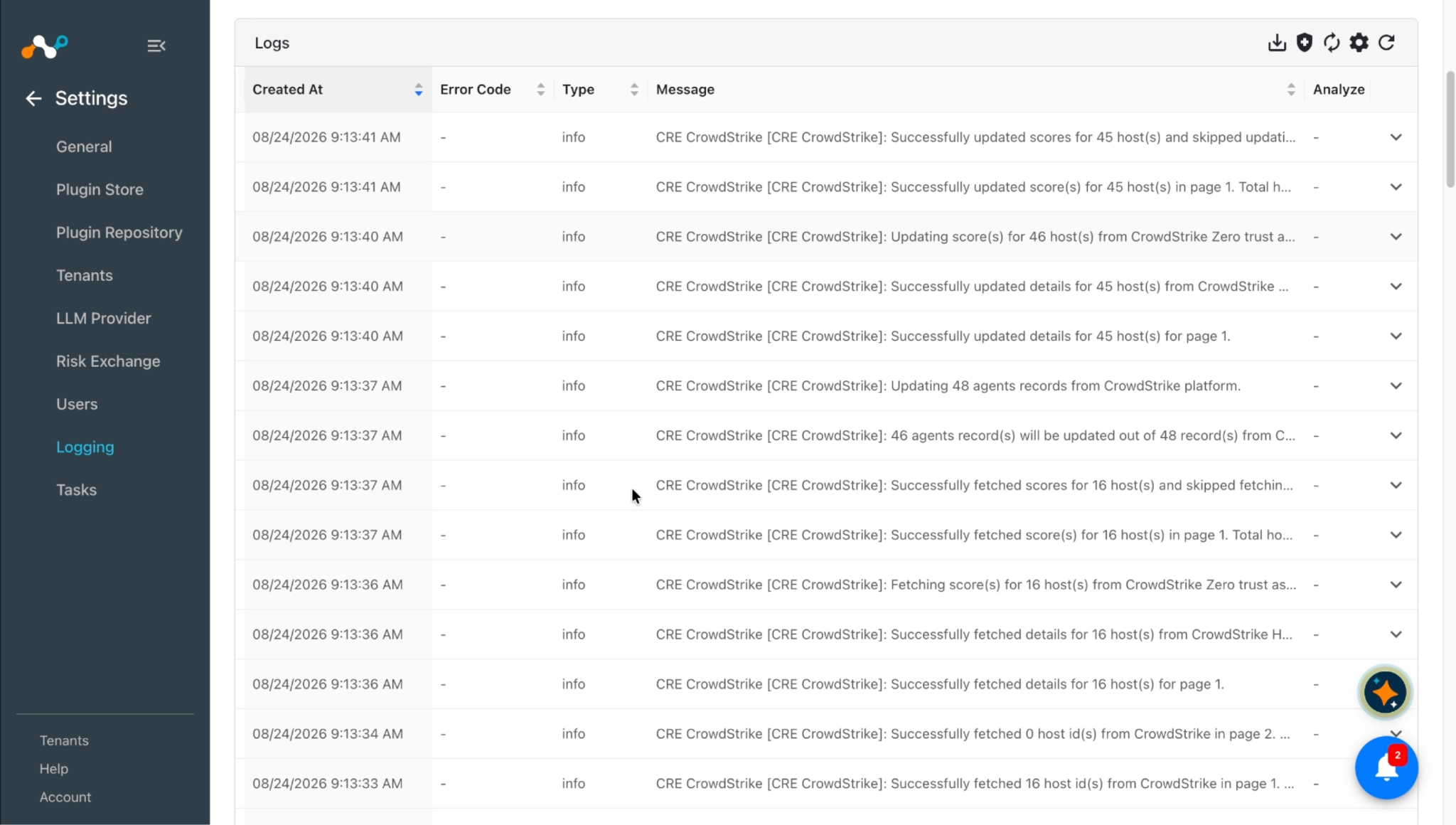
Go to Logging to verify the action performed for a host. You can apply the filter with the plugin name or plugin configuration name.
For the Add/Remove Tag action
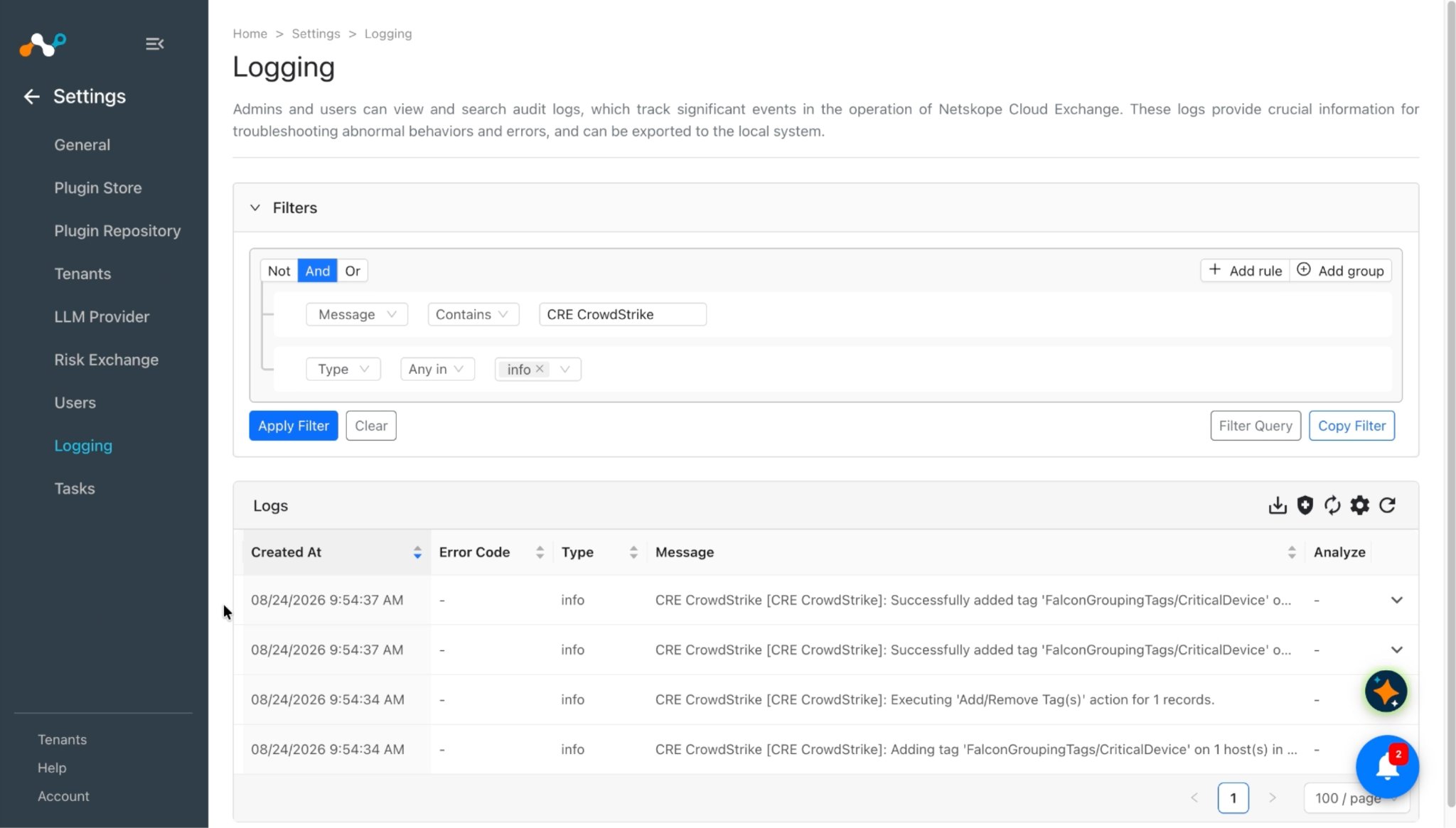
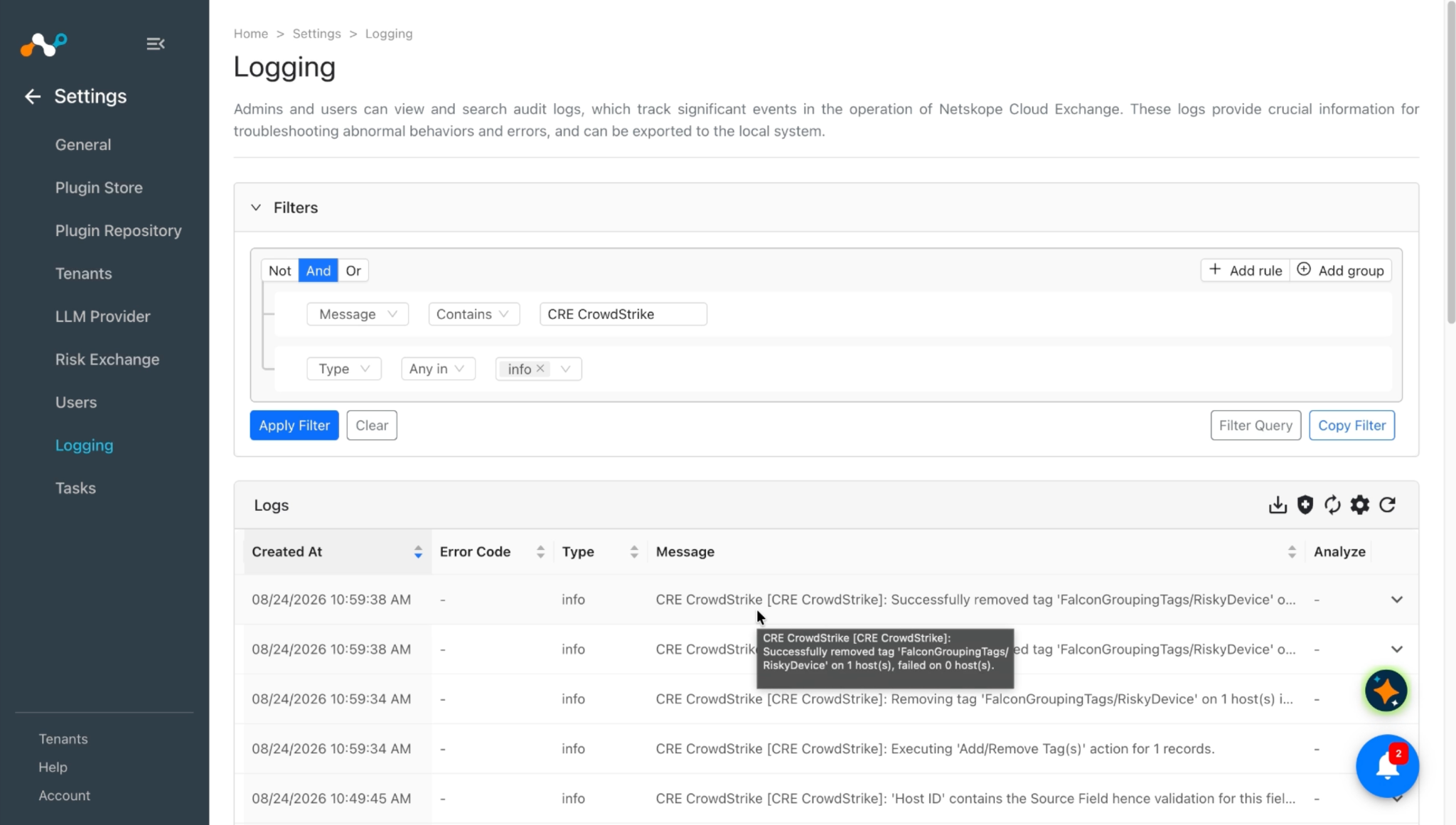
For the Put RTR Script action
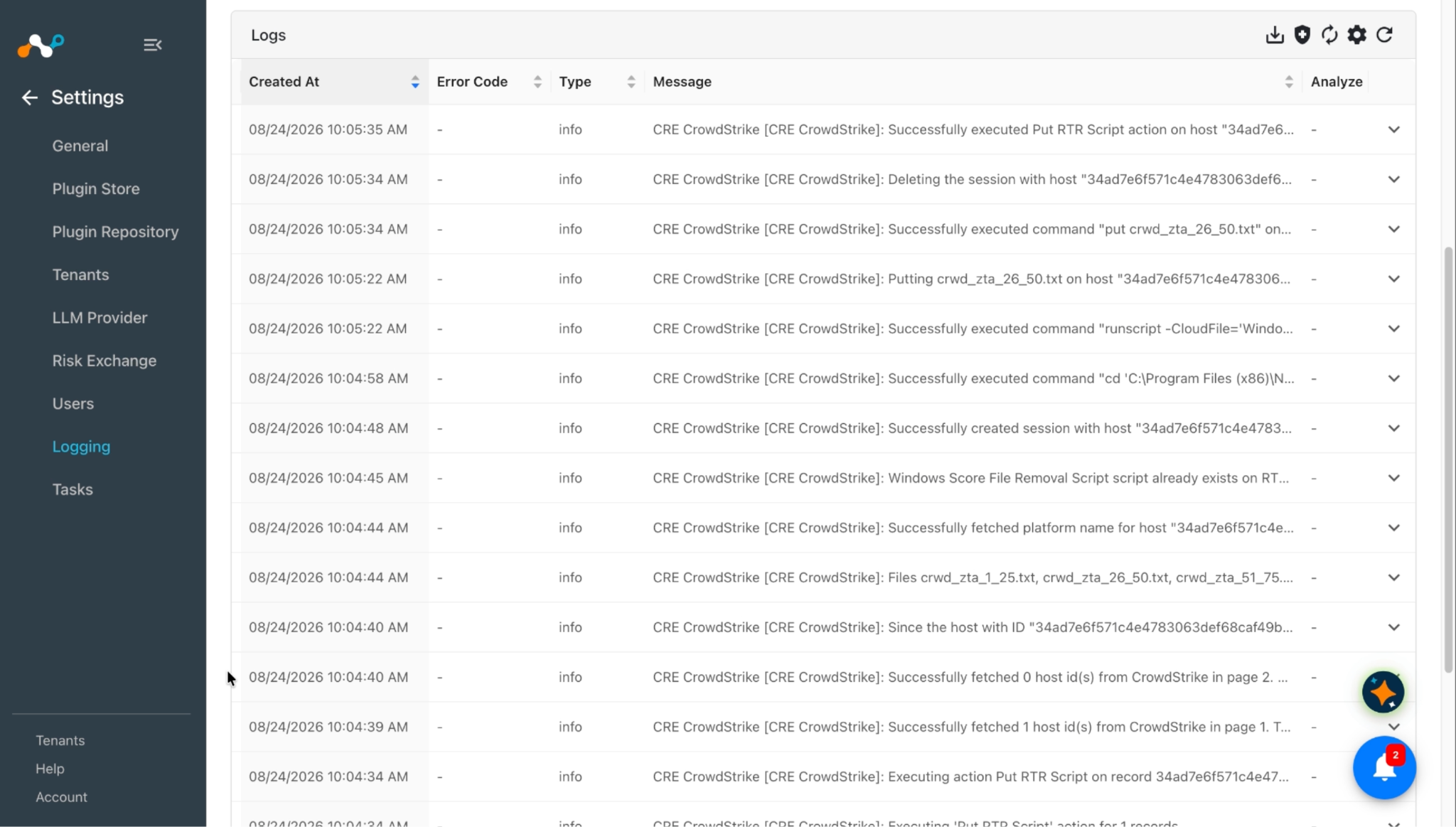
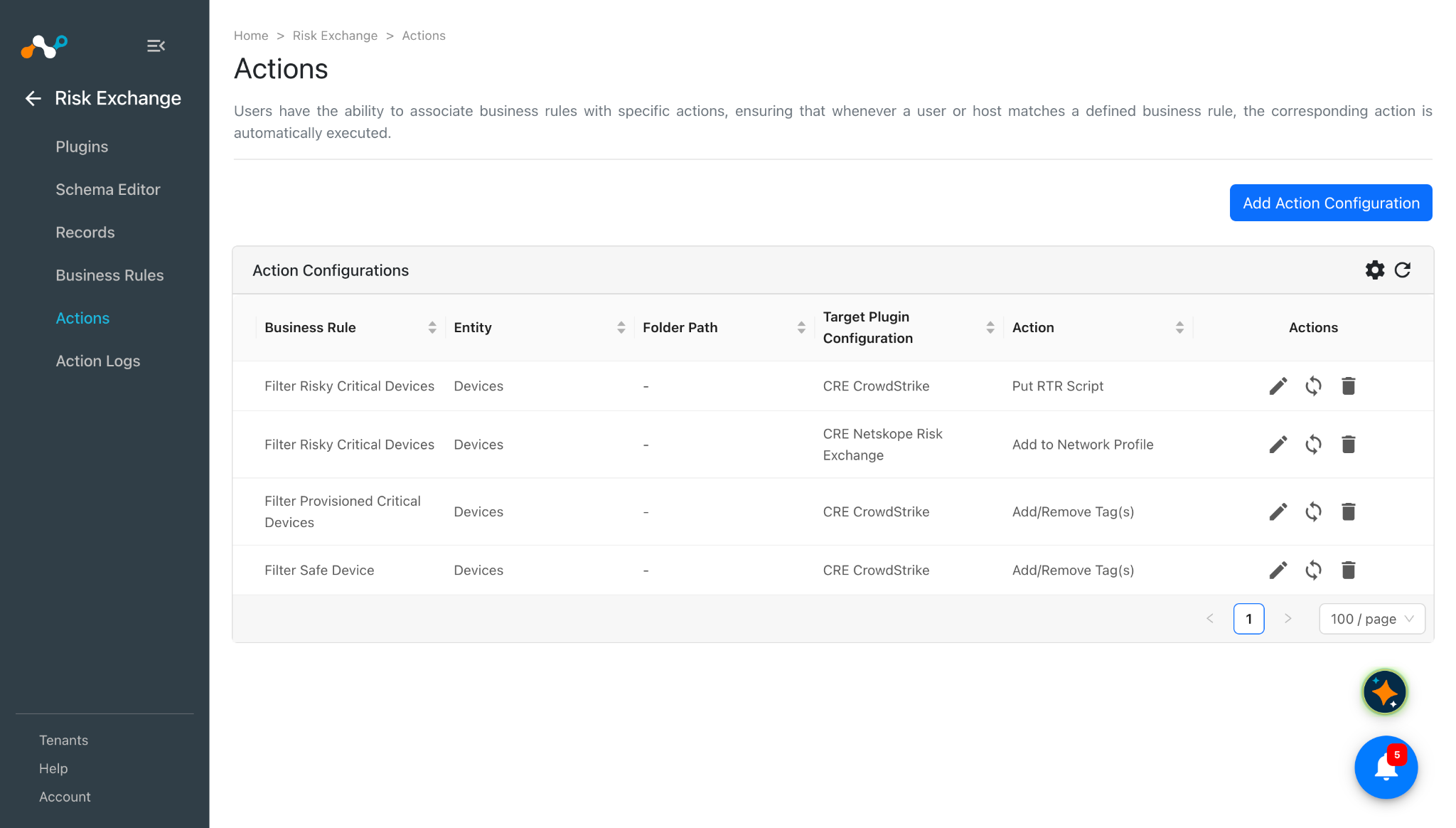
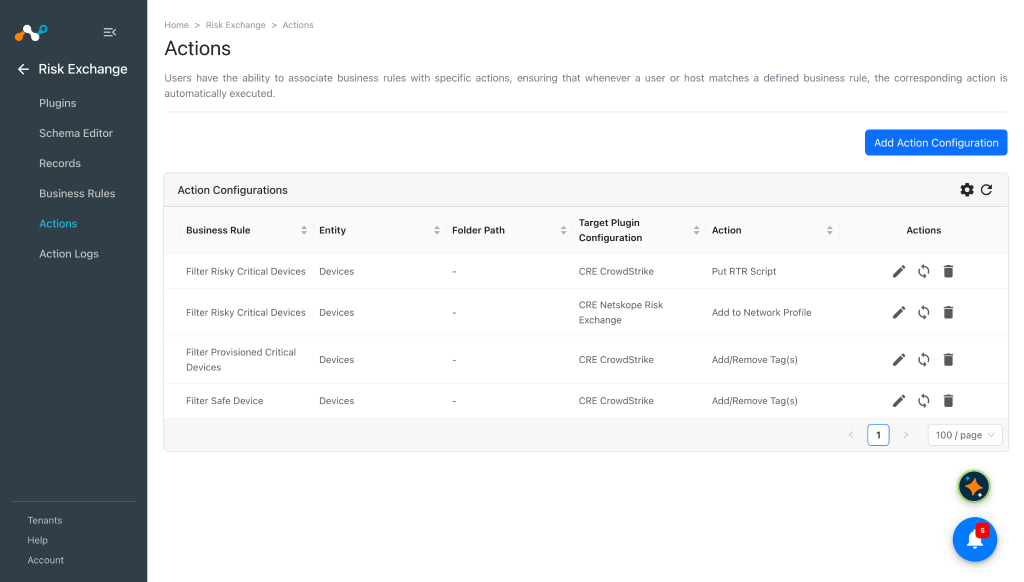
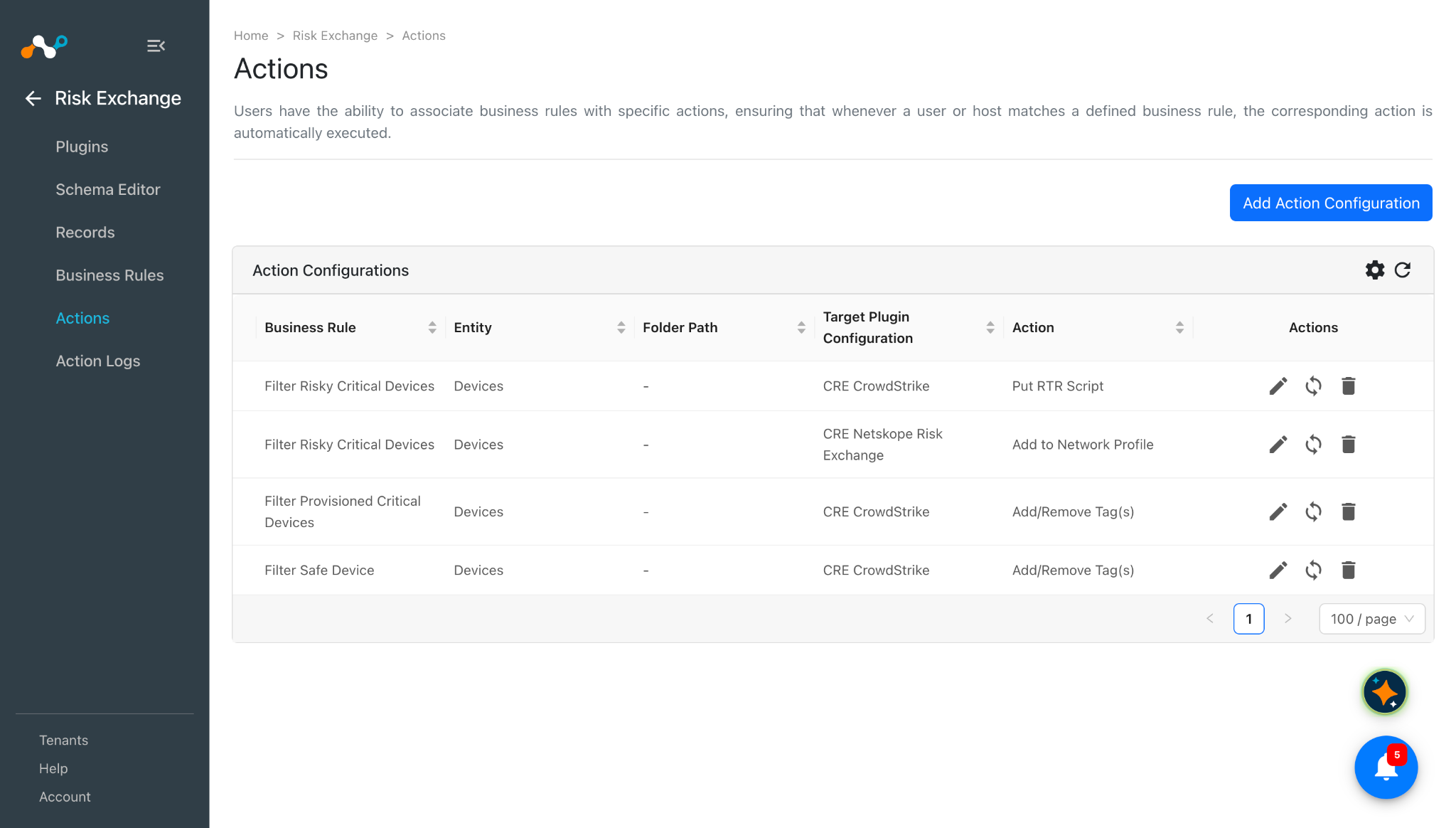
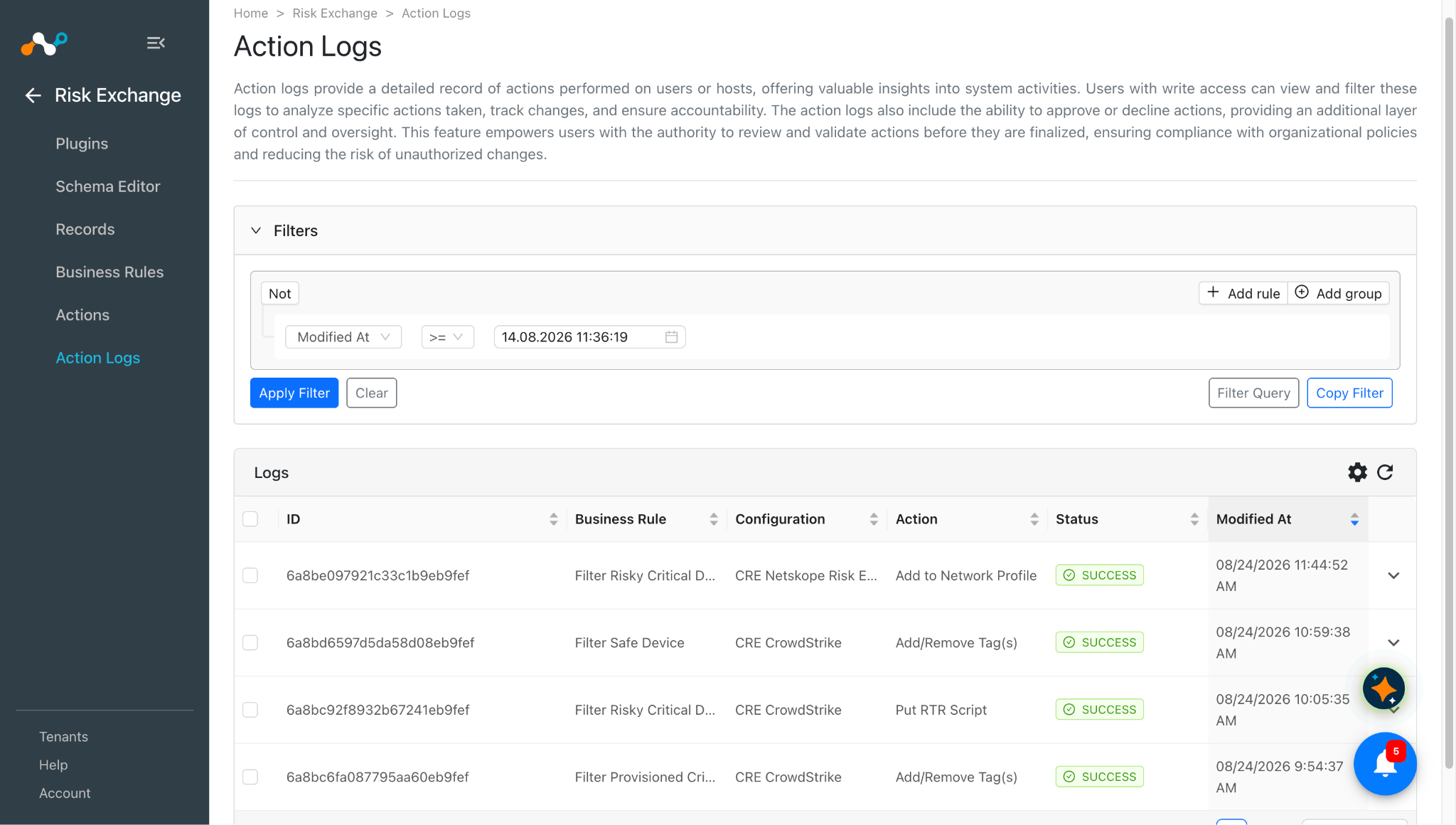
When a user matches one of the configured business rules, the configured action will be performed on the user. This can be seen at Risk Exchange > Action Logs.
Validate in CrowdStrike
Risk-related information (Scores) of the Hosts are pulled from Host Setup and Management > Zero trust assessment in CrowdStrike.

Tags and other details associated with Hosts are pulled from Host Setup and Management > Host management in CrowdStrike.


For the Add/Remove Tag action
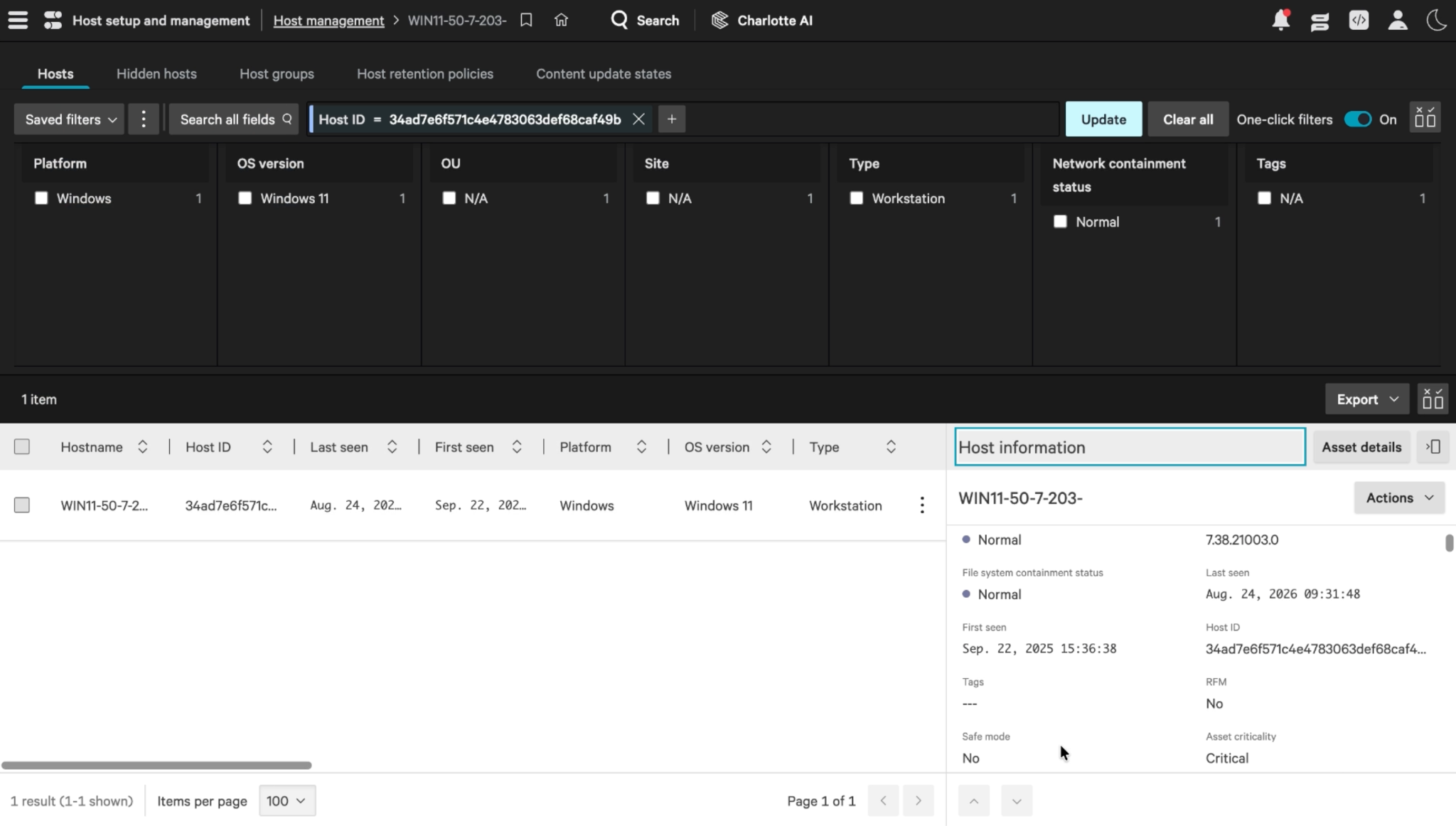
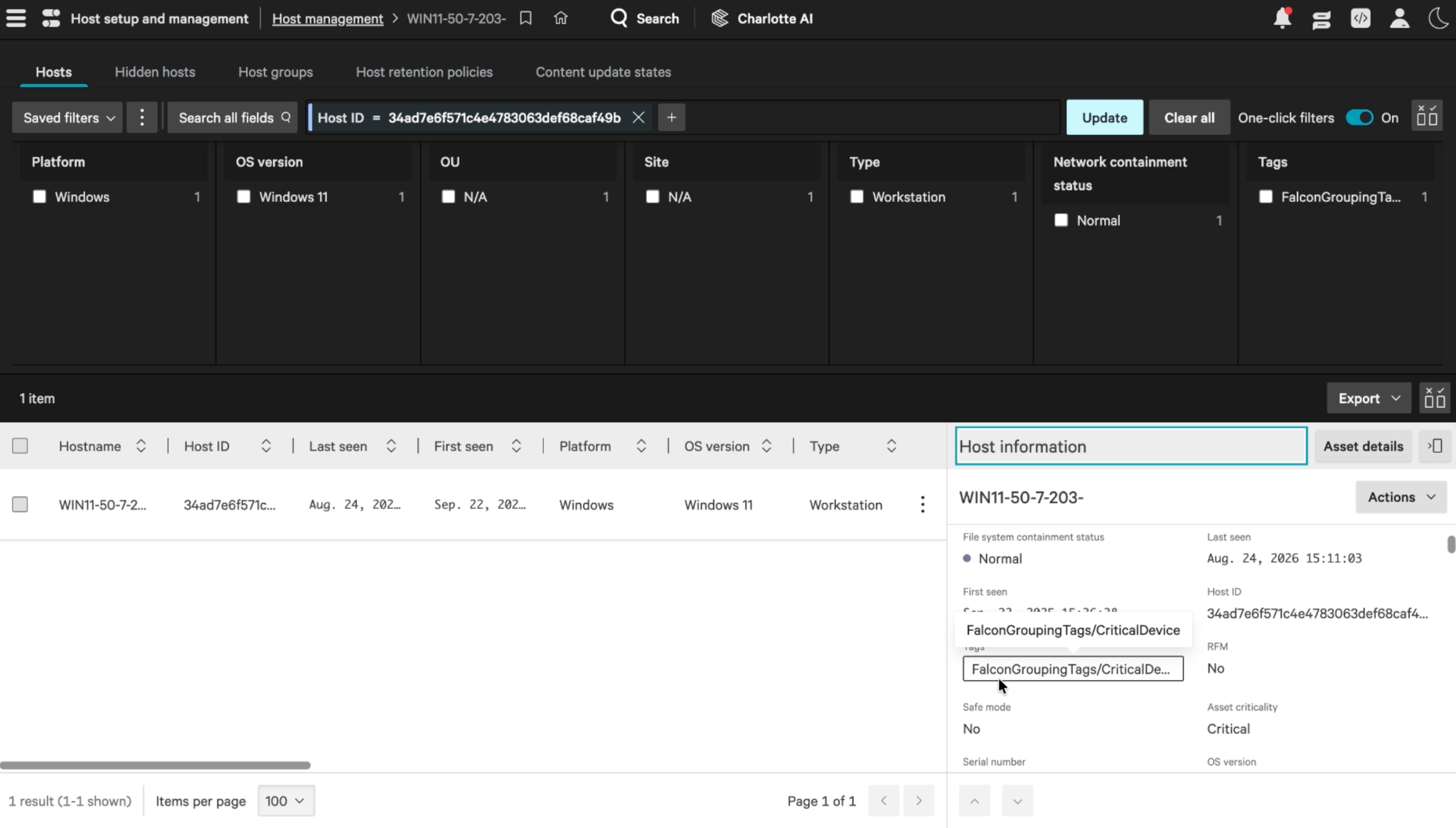
You can filter the host using the host name or host id, then verify the added/removed tags under the Tags field for that particular host.
For the Put RTR Script action
If you want to validate the Put RTR Script action and check the file added on the Host machine, here is the workflow for Put RTR Script action along with its steps for validation.
Workflow
Step 1: Check Host Existence – When the action is triggered, the plugin first checks whether the Host with the given Host ID exists on the CrowdStrike platform.
Step 2: Evaluate a Host Presence
- If the Host does not exist, the plugin does not perform any further action and raises a warning.
- If the Host exists, the plugin proceeds with the following operations.
Step 3: Create Score Files on the RTR Cloud – The plugin creates a file for each risk score range on the RTR cloud. For example, if the score is between 1-25, the file is named crwd_zta_1_25.txt.
Step 4: Establish a Host Session – After the necessary files are created, the plugin initiates a session with the Host using the Host ID.
Step 5: Retrieve Host OS – The plugin fetches the operating system (OS) information for the respective Host.
Step 6: Change Directory Based on OS
- Depending on the Host’s OS, the plugin sends an API call to change the directory to the appropriate location.
- For Mac:
cd “/Library/Application Support/Netskope/STAgent” - For Windows:
cd “/Program Files (x86)/Netskope/STAgent”
- For Mac:
- The plugin waits up to 5 minutes for the command to execute. If it takes longer, a timeout error is raised. This timeout applies to commands in Steps 6, 7, and 8.
Step 7: Check if the script for removal of file for OS is present on RTR Cloud
- In order to remove the existing files from the host machine, the plugin needs to check if the removal of script already exists on RTR Cloud or not.
- As Put RTR Script action supports Windows and macOS, the files Windows Score File Removal Script and Mac Score File Removal Script should be present on the RTR Cloud.
Step 8: Create script if it does not exist on RTR cloud – If the Script for the respective OS does not exist on RTR Cloud, create one.
Step 9: Remove existing files from host machine – Execute the script for the respective OS for the host machine to remove the existing files.
Step 10: Upload New Score File
- After removing old score files, the plugin performs a
putcommand to upload the new score file. - If the existing score was 12 (requiring crwd_zta_1_25.txt), and the score changes to 48, the new file (crwd_zta_26_50.txt) is uploaded.
Step 11: Delete Host Session – After completing all the steps, the plugin deletes the session created with the Host to free resources and ensure proper cleanup
Steps to Validate an Action on CrowdStrike
- On CrowdStrike, go to Host setup and management > Host management.
- Search for your Host using your Host Name or Host ID. Click on the Hostname.
- From the left popup menu, click Settings icon > Connect to Host.

To check the file added on the Host, go to the below path after connecting to the Host and check the respective score file created.
- For Windows:
C:\\Program Files (x86)\\Netskope\\STAgent

- For Mac:
/Library/Application Support/Netskope/STAgent

Troubleshooting the CrowdStrike Plugin
Unable to configure the CrowdStrike plugin
If you are unable to configure the CrowdStrike plugin, it could be due to one of these reasons:
- Provided Incorrect Client ID, Client Secret.
- Provided Credentials don’t have sufficient permissions.
What to do:
- To get the Client ID, Client Secret, follow the steps in Get your Client ID and Client Secret.
- To provide proper permissions to the configuration parameter, follow the steps in Add a Permissions for a Response Policy.
Unable to pull Hosts
If you are unable to pull Hosts from the CrowdStrike plugin, it could be due to one of these reasons:
- No Hosts are present on the CrowdStrike platform.
- An error is received while pulling Hosts from the platform.
- Mapping is not added while configuring the plugin in the entity source page.
What to do:
- Check on the CrowdStrike platform if Hosts exists or not.
- Receiving 500 error: The server might be down. Wait for a while and check later.
- Receiving 403 error: The plugin configuration parameter does not have sufficient permissions or the credentials no longer exist. Verify the permissions for the Client ID and Secret.
- If there is no error in the logs, it might be the case that the hosts are not available on the Platform to pull. Check the Host available on CrowdStrike and confirm the same.
- Make sure that the mapping is added and the Host ID field is mapped while configuring the plugin.
Unable to fetch the scores of pulled Host
If you are not able to pull scores for all or some Hosts from the Platform, it could be due to one of these reasons:
- Maximum Score value provided in the plugin configuration.
- The score field is not mapped while configuring the plugin.
What to do:
- Check the plugin configuration parameter page. Increase the value of Maximum Score in the plugin configuration. Since the plugin pulls Host scores whose value will be less than or equal to the value in the Maximum Score field.
- Make sure to map the overallAssessmentScore field to get scores pulled.

Unable to View Hosts details on the Record
If you are unable to view Hosts details on the record table, it could be due to one of these reasons:
- Mapping for all the CrowdStrike fields is not provided while configuring the CrowdStrike plugin.
- Pulled Hosts are displayed in a row with comma separated values.
What to do:
- Make sure to provide the needed mapping while configuring the plugin.
- Make sure that the fields created in an entity are according to the mappings.
Unable to perform action on the Hosts
If you are unable to perform action on the Host, it could be due to one of these reasons:
- Insufficient permission was provided for the action.
- Receiving error while performing an action.
- Host is not present on the CrowdStrike Platform.
- The Require Approval toggle is enabled while configuring the Action, and the request is not approved.
What to do:
- Insufficient permission was provided for the action. Verify if the RTR Script permission is provided.
- If the host machine is down or does not exist, the plugin won’t be able to successfully perform the Put RTR Script action. Verify that the host is accessible.
- If the host is Linux, the action won’t be performed, since Linux is NOT a supported OS.
- If too many actions are performed on a host, you might run into a 425 error, which will add the action to the queue. You should wait for a while before retrying to perform the action.
- Go to the CrowdStrike Platform, verify if the host on which action needs to be performed is present or not.
- Go to Action Logs, select the logs that you want to approve the requests for and click on the approve icon, or disable the Require Approval toggle from the configured action, and then perform the action again.
Known Behavior
After upgrading CRE CrowdStrike to version v1.1.0 as older versions of this plugin were using different permissions, the users will face the below error, it recover from the same. You will have to either update the permissions for the existing credentials, or they need to create new credentials with the required permissions.
CRE CrowdStrike [CS Upgrade 2]: Received exit code 403, Forbidden access while Adding tag 'FalconGroupingTags/testupgrade' on batch 1/1 (1 host(s)).