

This document explains how to configure the Netskope Custom File Classification v1.1.0 plugin with the Custom File Classification (CFC) module of the Netskope Cloud Exchange platform. This plugin is used to push hashes of images to the Netskope Tenant.
Prerequisites
To complete the configuration, you need:
- A Netskope tenant (or multiple, for example, production and development/test instances).
- A Custom File Classifier on your Netskope tenant.
- A Netskope Cloud Exchange tenant with the Tenant plugin and Custom File Classification module enabled.
- A supported 3rd-party CFC plugin (like Microsoft File Share or Linux File Share) configured and available for integration.
Custom File Classification Plugin Support
This plugin is used to push hashes of images to the Netskope Tenant.
| Feature | Support |
|---|---|
| Pull | No |
| Push | Yes (.bmp, .dib, .jpeg, .jpg, .jpe, .jp2, .png, .webp, .avif, .pbm, .pgm, .ppm, .pxm, .pnm, .pfm, .sr, .ras, .tiff, .tif, .exr, .hdr, .pic, .zip, .tgz) |
Permissions
Ensure that a V2 Token with the permissions listed below is used when configuring the Netskope Tenant, as it is required for proper functioning of the Netskope CFC Plugin.
| API Endpoint | Method | Permissions | Usage |
|---|---|---|---|
| /api/v2/events/dataexport/events/alert | GET | Read | Validate the v2 token |
| /api/v2/services/dlp/classifiers/custom | GET | POST | Read + Write | To get list of custom file classifiers, validate classifiers, and upload CFC hashes to the tenant |
API Details
List of APIs used
| API endpoint | Method | Use Cases |
|---|---|---|
| api/v2/services/dlp/classifiers/custom | GET | Fetch all the custom classifiers from the netskope tenant. |
| api/v2/services/dlp/classifiers/custom/{classifier_id} | GET | Fetch specific custom classifier details from the netskope tenant. |
| api/v2/services/dlp/classifiers/custom/{classifier_id}/hashes | POST | Upload hashes to the custom classifier on the netskope tenant. |
Get All Custom Classifiers
API Endpoint: https://<tenant-url>/api/v2/services/dlp/classifiers/custom
Method: GET
Request Headers
| Key | Value |
|---|---|
| Netskope-API-Token | <netskope_api_rbac3_token> |
| Accept | application/json |
| User-Agent | netskope-ce-6.1.0 |
Example API response
{
    "customClassifiers": [
        {
            "id": "7298383102162351187",
            "name": "Demo Classifier",
            "status": "ready",
            "type": "image",
            "description": "",
            "version": 479,
            "region": null,
            "modifyBy": "test.user@gmail.com",
            "isPredefined": false,
            "threshold": 0.6000000238418579,
            "negThreshold": 0.8999999761581421,
            "created": 1760364562718,
            "updated": 1776771825973,
            "lastTrained": 1776822980661,
            "overallStatus": {
                "invalid": 14408,
                "valid": 6387,
                "negative": 0,
                "errMsg": null
            },
            "modelEval": {
                "id": "7298383105162351187",
                "evaluationQuota": 0,
                "lastEvaluated": 1776768376145,
                "precision": 1,
                "recall": 1,
                "f1Score": 1,
                "f1Delta": 0,
                "precDelta": 0,
                "recallDelta": 0,
                "isEvalCurrent": false,
                "msg": "MAX_QUOTA_REACHED: Evaluation quota 10 is met",
                "status": "success",
                "warningKey": "OK"
            }
        }
    ],
    "llmClassifiers": []
}
Get Classifier by ID
API Endpoint: https://<tenant-url>/api/v2/services/dlp/classifiers/custom/{class_id}
Method: GET
Request Headers
| Key | Value |
|---|---|
| Netskope-API-Token | <netskope_api_rbac3_token> |
| Accept | application/json |
| User-Agent | netskope-ce-6.1.0 |
Example API response
{
    "id": "7298383102162351187",
    "name": "Demo Classifier",
    "status": "ready",
    "type": "image",
    "description": "",
    "version": 479,
    "region": null,
    "modifyBy": "test.user@gmail.com",
    "isPredefined": false,
    "threshold": 0.6000000238418579,
    "negThreshold": 0.8999999761581421,
    "created": 1760364561718,
    "updated": 1776771825973,
    "lastTrained": 1776822980661,
    "overallStatus": {
        "invalid": 14408,
        "valid": 6387,
        "negative": 0,
        "errMsg": null
    },
    "modelEval": {
        "id": "7298383105162351187",
        "evaluationQuota": 0,
        "lastEvaluated": 1776768376145,
        "precision": 1,
        "recall": 1,
        "f1Score": 1,
        "f1Delta": 0,
        "precDelta": 0,
        "recallDelta": 0,
        "isEvalCurrent": false,
        "msg": "MAX_QUOTA_REACHED: Evaluation quota 10 is met",
        "status": "success",
        "warningKey": "OK"
    }
}
Upload Hash to Classifier
API Endpoint: https://<tenant-url>/api/v2/services/dlp/classifiers/custom/{class_id}/hashes
Method: POST
Request Headers
| Key | Value |
|---|---|
| Netskope-API-Token | <netskope_api_rbac3_token> |
| Accept | application/json |
| User-Agent | netskope-ce-6.1.0 |
Body (form-data):
| Key | Type | Value |
|---|---|---|
| Content-Type | Text | multipart/form-data |
| upload | File | file.json |
Performance Matrix
Here is the performance reading conducted for fetching and storing 10K Files metadata ( ~5.4 MB each file size and total file size is ~52.5 GB) on a Large Cloud Exchange instance with these specifications.
| Description | Specification |
|---|---|
| Stack Size | Large RAM: 32 GB Core: 16 |
| Hash generation and files metadata pushed from Netskope Custom File Classification plugin | ~ 6000 files/hour or ~32,000 MB/hour |
Workflow
- Configure the Custom File Classification plugin.
- Configure a Business Rule for Custom File Classification.
- Configure Sharing for Custom File Classification.
- Validate the Custom File Classification plugin.
Watch a Video
Click play to watch a video:
Configure the Netskope Custom File Classification Plugin
-
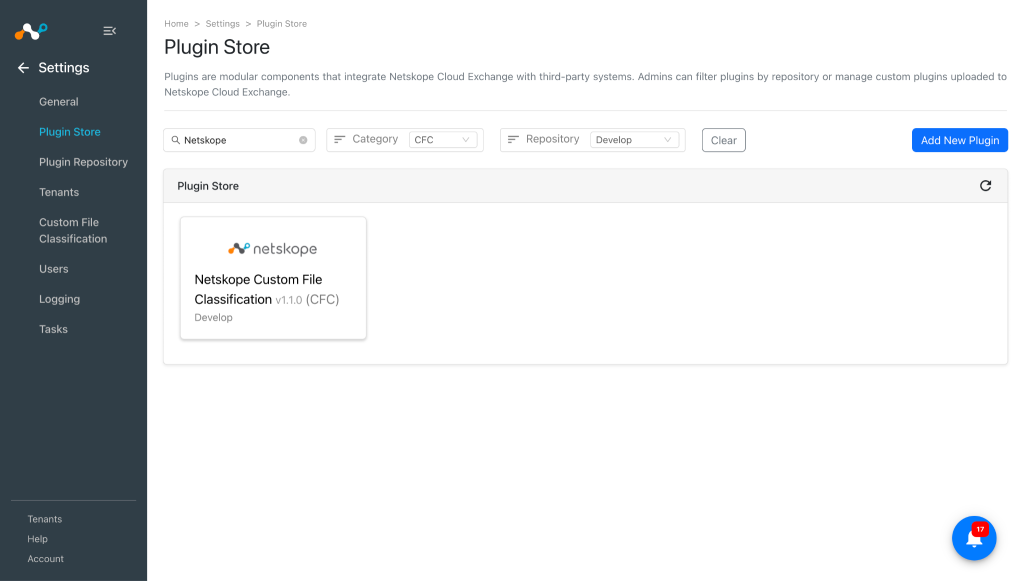
In Cloud Exchange, go to Settings > Plugin Store.
-
Search for and select the Netskope Custom File Classification v1.1.0 (CFC) plugin.
-
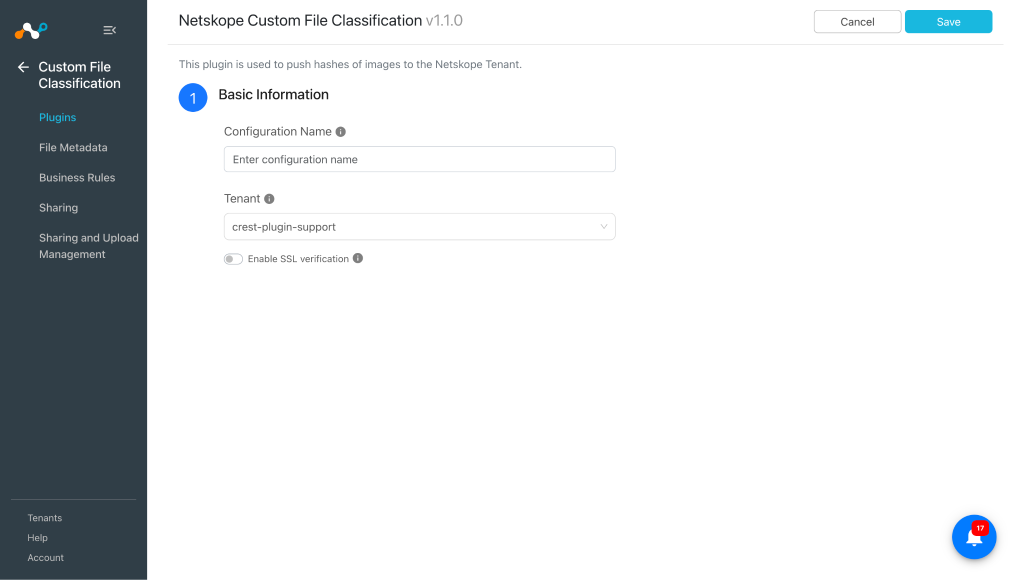
Enter the Basic Information:
- Configuration Name: Plugin Configuration Name. Only Alphanumeric and space values are allowed.
- Tenant: Tenant plugin used to train the file classifiers with the image hashes.
- Enable SSL Verification: Enable/Disable SSL certificate verification.
-
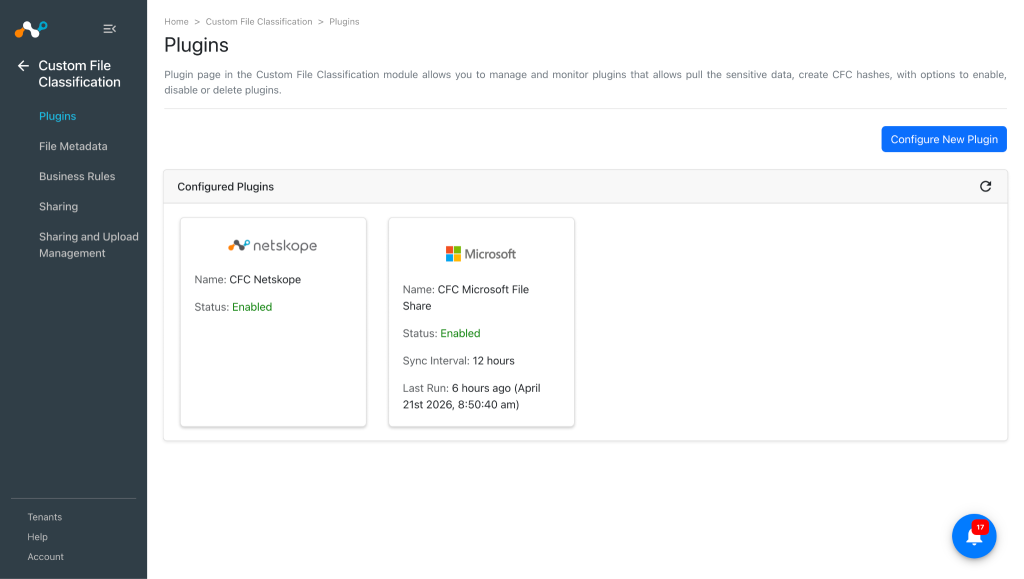
Click Save.


Configure a CFC Business Rule for Netskope Custom File Classification
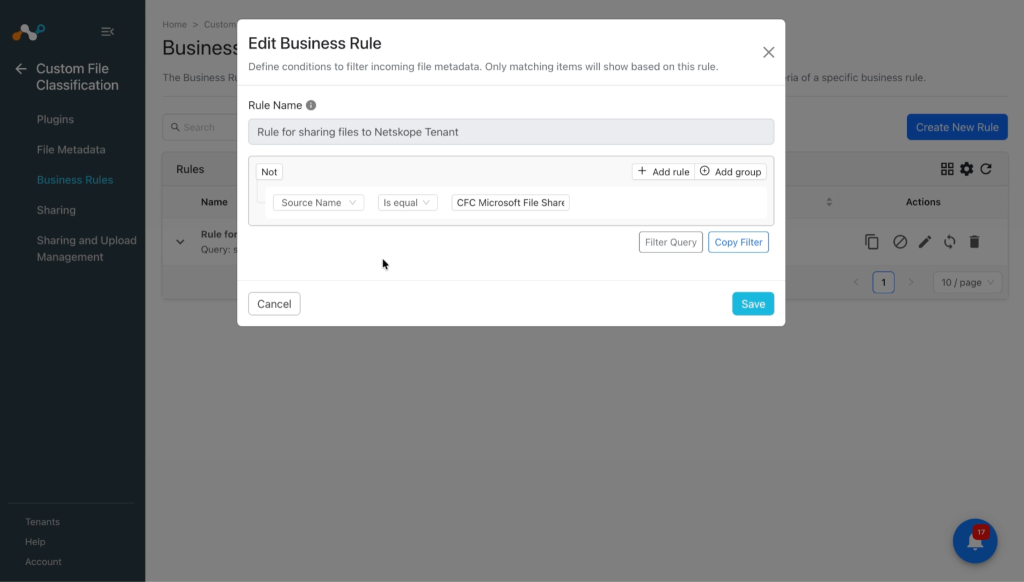
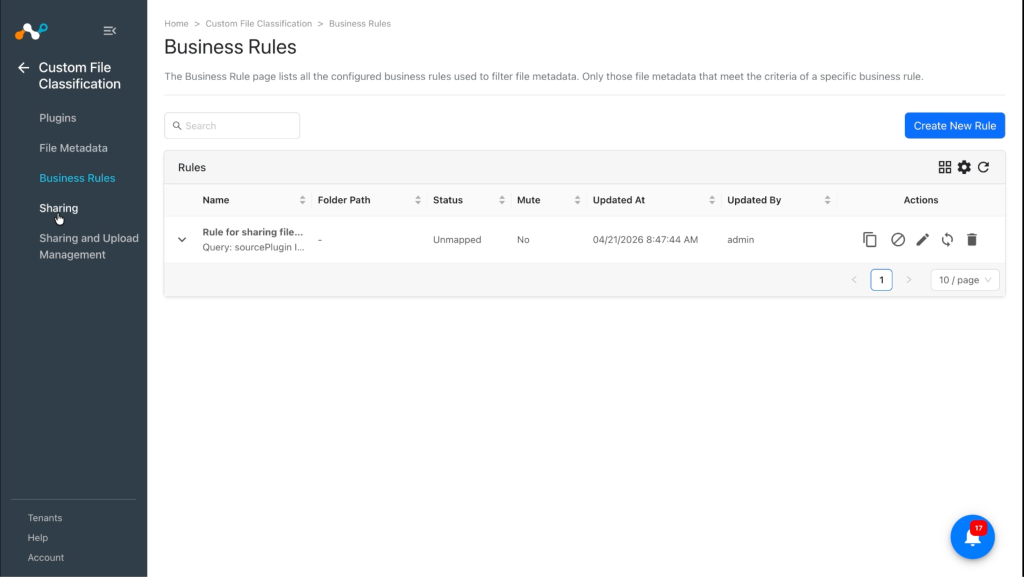
Custom File Classification module requires business rules to share file data to the Netskope Tenant. A user can add rules to filter files by name, size, extension, source, etc. Multiple rules can be grouped together for advanced filtering.
-
Go to Custom File Classification > Business Rules.
-
Click Create New Rule and enter these parameters:
- Rule Name: A unique name for the business rule.
- Rule: Set a filter based on conditions to make a group of files.
- Folder Name: Provide a folder or sub-folder name to group multiple business rules. It will help to see a structured list of business rules in the table.
-
Click Save.


Configure Risk Exchange Sharing for Netskope Custom File Classification
-
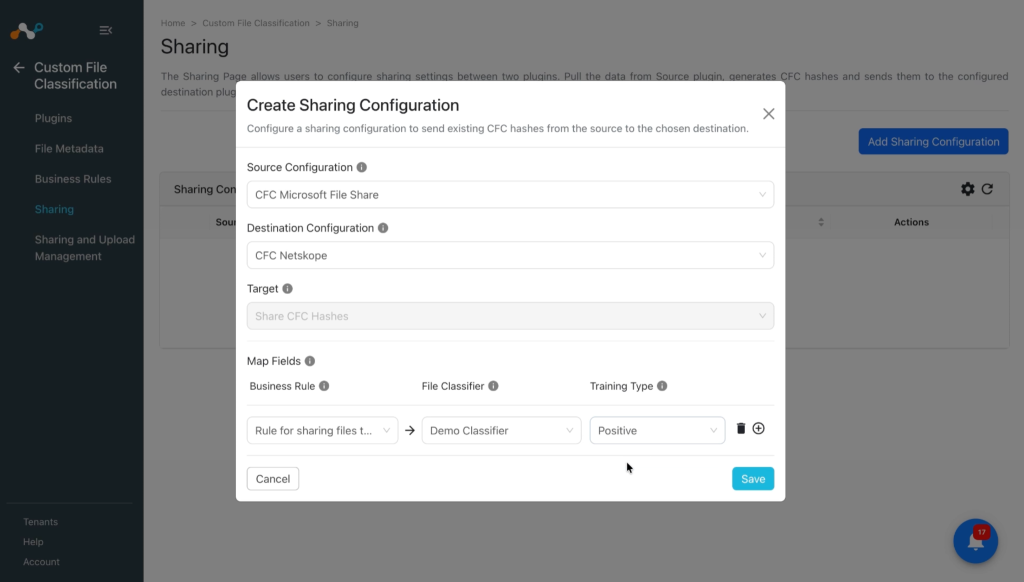
Go to Custom File Classification > Sharing.
-
Click Add Sharing Configuration and select the Microsoft File Share CFC plugin as the Source Configuration.
-
Select the Netskope CFC plugin as the Destination Configuration.
-
The Target will be selected by default, based on the Destination Configuration.
-
Select a Mapping for Business Rule, File Classifier, and Training Type. You can map multiple business rules in one sharing. The File Classifier lists only custom file classifiers created on the Netskope Tenant.
-
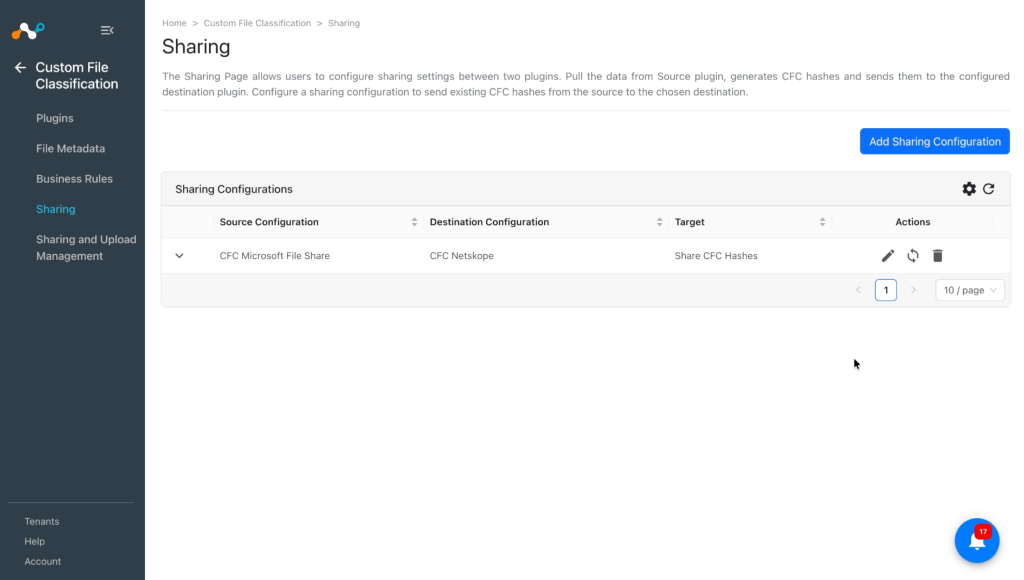
Click Save.


Sync or Delete Sharing Configurations
- Sync: This will immediately start the plugin lifecycle which will pull the files data from the source, create hashes, and share with the destination configuration irrespective of the sync interval time of the source configuration.
- Delete: Removes the sharing configuration.
Validate the Netskope Custom File Classification Plugin
Validate the Pull
After the Sharing is configured, you should wait until the next plugin lifecycle run of the configured Netskope Custom File Classification plugin gets executed successfully.
Validate the status on the Sharing and Upload Management page. Go to Custom File Classification > Sharing and Upload Management.

The status of the Sharing configuration can be:
- Scheduled: This represents that the sharing is configured, but it is still in the queue and waiting to run for the first time.
- Generating Hash: This represents that the process of generating a hash is in progress.
- Uploading Hash: This represents that the hash is generated successfully, and the process of sharing it to the configured destination is in progress.
- Completed: This indicates that the generated hash is successfully shared with the destination configuration.
- Failed: Indicates that the process failed in either pulling data, hashing data, or uploading the hash.
Clicking View Metadata will redirect you to the Files Metadata page.


Validate Sharing on the Netskope Tenant
-
Log in to your Netskope Tenant.
-
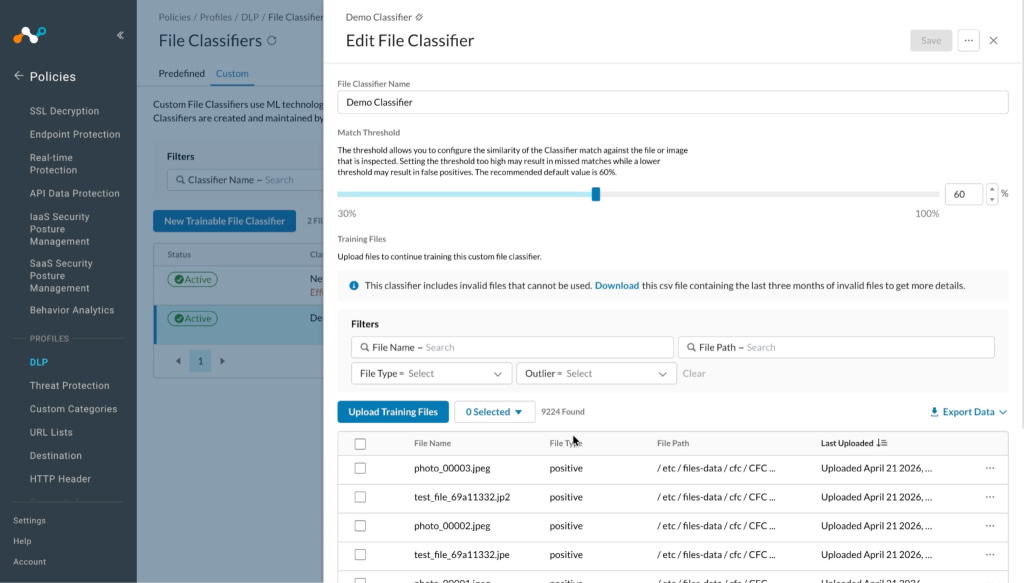
Go to Policies > DLP > File Classifiers.


-
Select the Classifier that you have selected during the sharing configuration, you will see the file hashes received here:

Troubleshooting the Netskope Custom File Classification Plugin
Unable to configure the Netskope Custom File Classification Plugin
If you are unable to configure the Netskope Custom File Classification plugin, it may be due to incorrect credentials provided while configuring the Netskope Tenant plugin.
What to do: Make sure that the tenant plugin is configured with the required permissions.
Known Behavior
- Even though the classifier has been deleted from the tenant, it still shows a success status and the Last Shared At value is updated at every scheduled interval.
- We have observed that only 10,000 files were allowed to be shared on Netskope tenant for all Classifiers in total.
- We have validated sharing following types of files: .bmp, .dib, .jpeg, .jpe, .jp2, .png, .webp, .sr, .ras, .tiff, .tif, .exr, .hdr, .pic, .zip. Note that compressed files will be uncompressed on Netskope Tenant.
- For supported image formats such as .pbm, .pgm, .ppm, .pxm, .pnm, .pfm, and .avif, files are processed successfully within CE but will not be visible on the Netskope Tenant ad they will be stored as MD5 as per the Netskope Tenant team.