

Netskope SSPM provides visibility into privileged users across your SaaS environment. This article explains how to view and customize privileged permissions for supported SaaS applications.
View Privileged Users
To view privileged users:
-
Log in to your SSPM tenant.
-
Navigate to API-enabled Protection > Security Posture SaaS > Users.
-
Do one of the following:
-
Apply the Privileged User = Yes filter, or
-
Click the Privileged Users count in the top metrics.
-
The Users page displays all privileged users across SaaS applications.

Supported applications: Microsoft 365, Salesforce, Google Workspace, and Okta.
Customize Privileged Permissions
To customize privileged permissions:
-
Log in to your SSPM tenant.
-
Navigate to API-enabled Protection > Security Posture SaaS > Users.
-
Click Settings in the top-right corner.
-
Select the application to configure.
-
Update the permissions list using any of the following methods:
-
Edit directly: Add or remove permissions in the text box.
-
Upload CSV: Upload a CSV file containing the permissions to add. This replaces the existing list with the entries in the file.
– The CSV file must follow the required format. To download a template, click CSV > Download Template.
– Download the current permissions list using the Download as CSV option.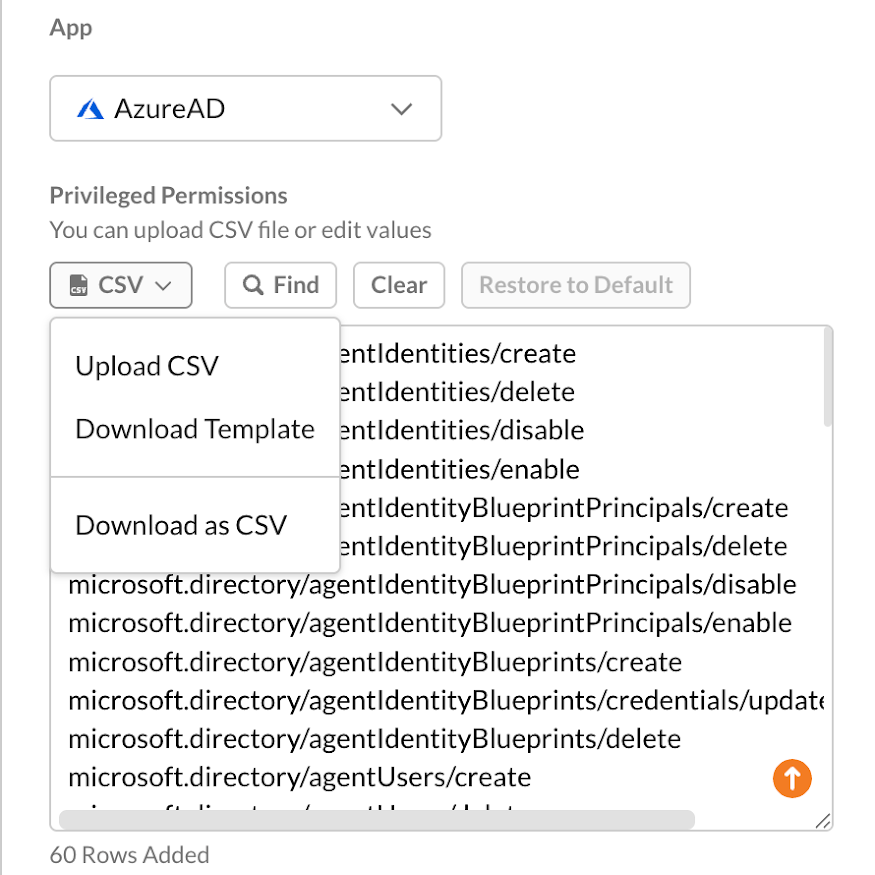
-
-
Add a note describing the change.
-
Click Save.
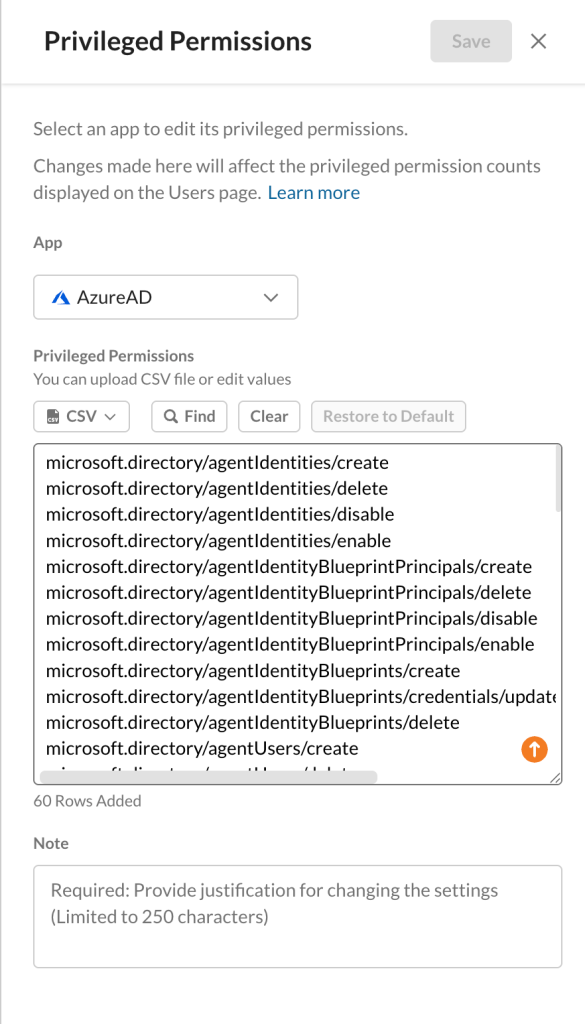 Changes to the permissions list impact the privileged user count. Updates are reflected on the Users page after a short delay.


Restore Privileged Permissions
To restore default permissions:
-
Log in to your SSPM tenant.
-
Navigate to API-enabled Protection > Security Posture SaaS > Users.
-
Click Settings in the top-right corner.
-
In the Privileged Permissions panel, click Restore to Default.
-
Review and accept the warning message.
This action replaces the current configuration with default permissions and cannot be undone after saving. -
Add a note describing the change or purpose.
-
Click Save.