

Netskope’s data center pinning refers to a method that allows administrators to choose a country and a preferred Point of Presence (POP) for Netskope Client connectivity. For example, your organization wants to run location-specific campaigns or targeted marketing for your end-users. The administrators can connect to a country POP that is specific to a location.
Key Capabilities:
-
POP Pinning: Users remain connected to the pinned POP until the set timeout period expires or they manually choose to unpin.
-
Configuration: Administrators can enable POP pinning for OUs or user groups.
-
Timeout Control: A maximum timeout duration for the pinned POP connection can be specified.
-
Status Monitoring: The current POP pinning status can be viewed in the Devices webUI.
Supported OS: Windows, MacOS, Linux.
– It works only for Internet Security Services. Data Center Pinning does not apply to the Private Access tunnel.
When the localization zone is enabled for a tenant, the egress IP for outgoing traffic at the POP can be the user’s country IP, rather than the POP’s actual country IP. This can interfere with localized content validation, as the egress IP no longer represents the POP’s geographic location.
Enable Data Center Pinning
To activate data center/ POP pinning, navigate to Settings > Security Cloud Platform > Netskope Client > Client Configuration > Tunnel Settings and enable Allow users to select data center.

The administrator can set the timeout period for the automatic unpinning and reversion to the optimal Point of Presence (POP). The minimum setting is 30 minutes (default time), and the maximum allowed duration is 24 hours.
– For users upgrading to Netskope Client version 134.0.0 or above, it is mandatory to enable “Allow users to select data center” in the relevant Client Configuration profile to ensure the Data Center Pinning feature works as intended. The time duration to which users are pinned to a selected POP depends on the time scheduled in Revert to optimal POP after.
– If this setting is not enabled for users on Netskope Client version 134.0.0 or later, they can encounter an error when attempting to run the data center pinning command.
Pin Netskope Client To a Preferred POP
After enabling the Allow users to select data center option in the Client Configuration, use the nsdiag command nsdiag --pin to manually pin to a desired POP for connectivity. The introduction of nsdiag capability provides an interactive mode that helps administrators to pin to a POP. Use this option in one of the following ways:
-
Choose the country and then select the preferred POP name.

-
Specifying the country name and POP name directly in the command.

– In a VDI environment, if one user changes the POP pinned to Netskope Client, it automatically affects the other logged-in and new users on the VDI. The POP gets updated for all users.
Display Pin Status
Use – -pin status to display the current pin status and the remaining time for which the user will remain pinned to the manually selected POP. The pin status also provides the Tunnel Status details that helps administrators understand the exact tunnel establishment status.

Options To Unpin And Revert Netskope Client To The Optimal POP
There are two options to manually unpin the Netskope Client and revert to automatic POP selection whereby the Netskope Cloud selects the most optimal POP for the user:
-
Option 1: Use
nsdiag --unpinto unpin the Netskope Client and revert to automatic POP selection.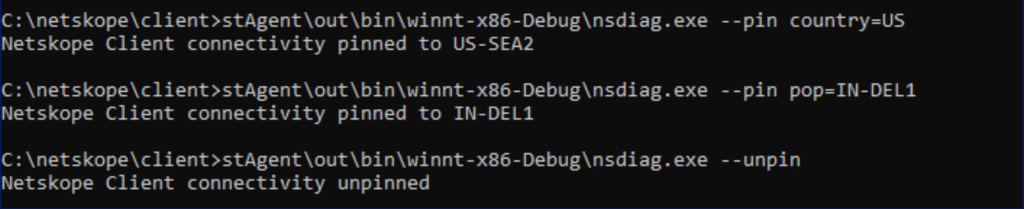
-
Option 2: Reboot machine or process restart.

In multi-user deployment setup, pinning is a global operation and not user-specific. When a user pins to a POP, it affects all users on the system. The pin remains effective until you explicitly remove it using the --unpin command or the system clears it automatically on a restart.
nsdiag command to pin and unpin Netskope Client to a POP in Windows, macOS, and Linux. For nsdiag command location in Windows, macOS, and Linux refer to Netskope Client Command Reference.– Netskope Client will automatically unpin according to the timer set in the Revert to optimal POP after option in Client Configuration.
Data Center Pinning Behavior in Restricted Regions
For tenants with the China geo-fence feature enabled, running the nsdiag –pin command displays only the Points of Presence (POPs) specific to China.
