

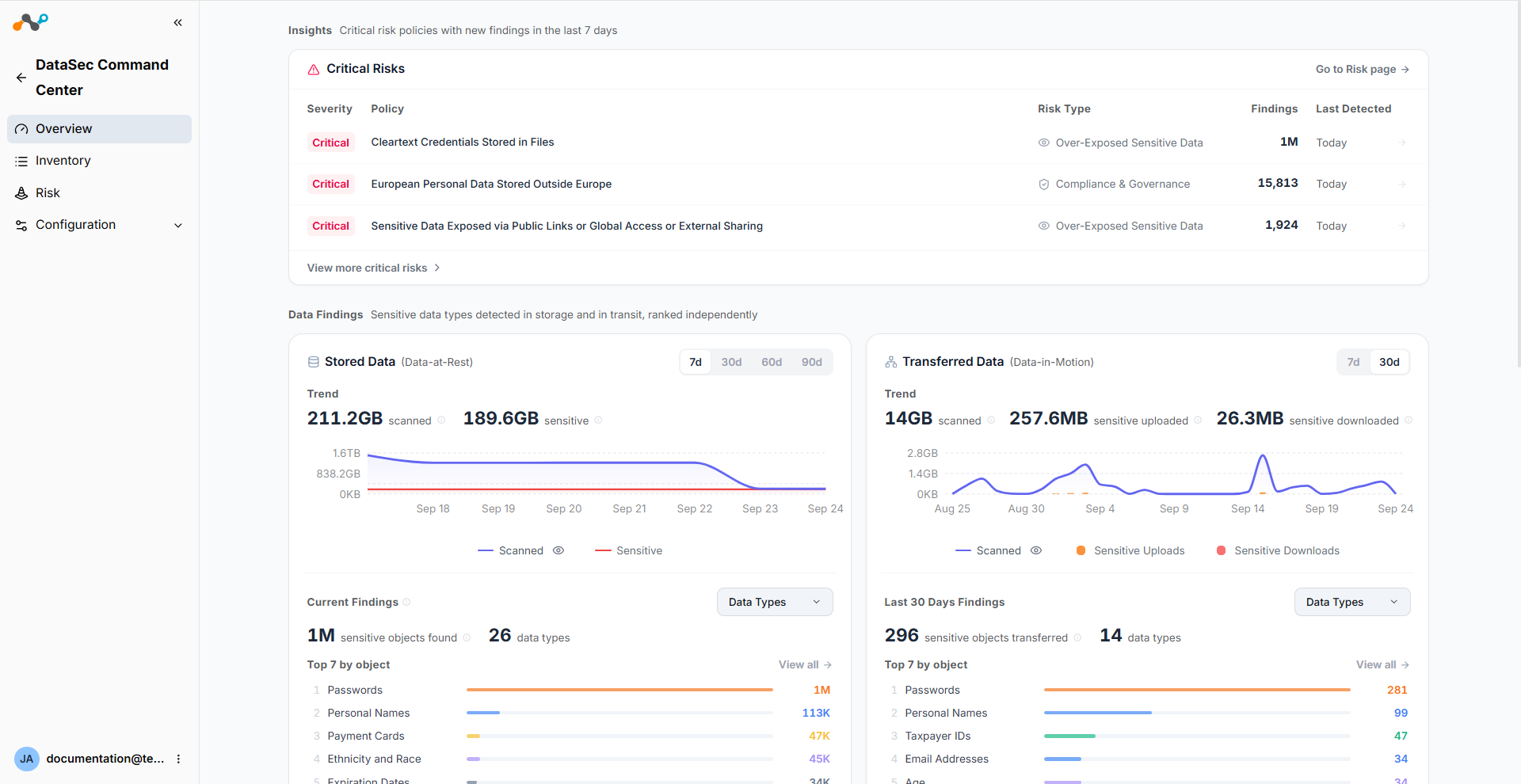
The Overview page is the first view you see when accessing DataSec Command Center (DCC). It provides a centralized, high-level summary of your organization’s data security posture. Use this page to monitor critical data risks, track sensitive data trends, assess identity coverage, and evaluate data store protection across your environment.
The page contains four main sections:
- Insights
- Data Findings
- Identities
- Data Coverage
Reviewing Insights
The Insights section displays critical risk policies with new findings in the last 7 days. Each row shows the Severity, Policy name, Risk Type, Findings count, and Last Detected date.
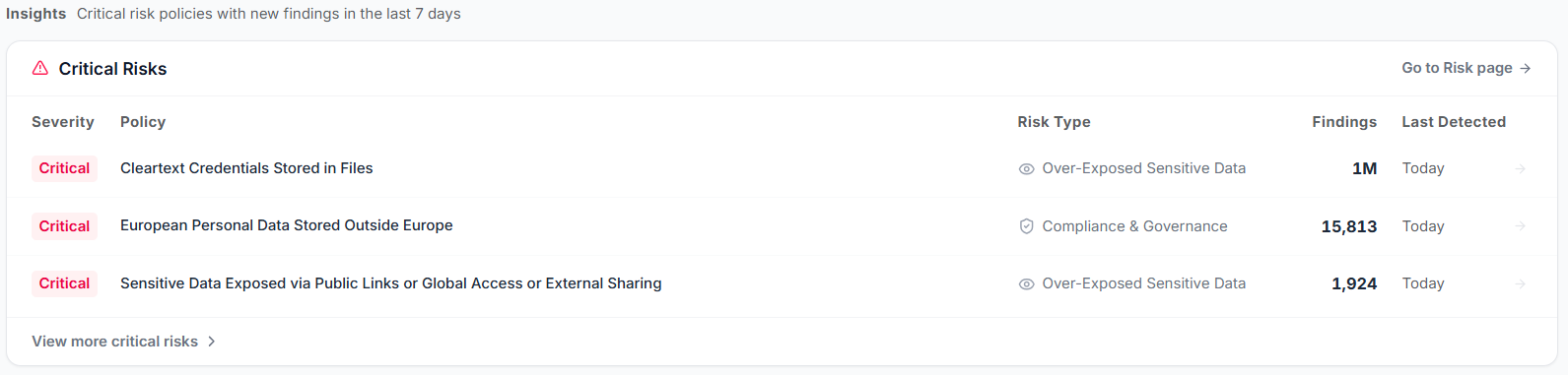
If no critical risk findings exist, the section displays a No critical risk message.

Click Show more policies to expand the list or click Go to Risk page to open the Risk page for a full view of all risk types and their relationships.
Analyzing Data Findings
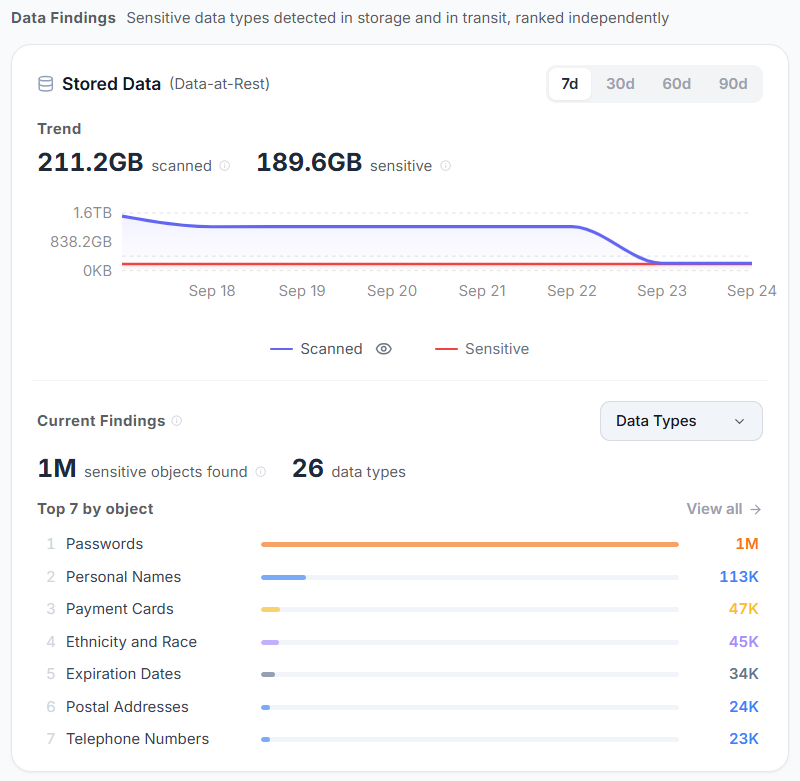
The Data Findings section provides visibility into sensitive data detected across your environment, with sensitive data types detected in storage and in transit ranked independently. It divides the information into two areas: Stored Data (Data-at-Rest) on the left and Transferred Data (Data-in-Motion) on the right.
Stored Data
The Stored Data area covers data at rest in your connected data stores. Use the 7d, 30d, 60d, or 90d time range selector to adjust the view. It includes the following components:
- Trend graph: A chart displays scanned volume and sensitive data trends over time. Use the legend to toggle the visibility of the Scanned and Sensitive lines.
- Current Findings: Displays the total count of sensitive objects found, the total number of data types, a Data Types filter, and a Top 7 by object ranking. Hover over a data type to see detailed counts or click View all to open the full breakdown.
Click View all to open the full data type breakdown.
Transferred Data
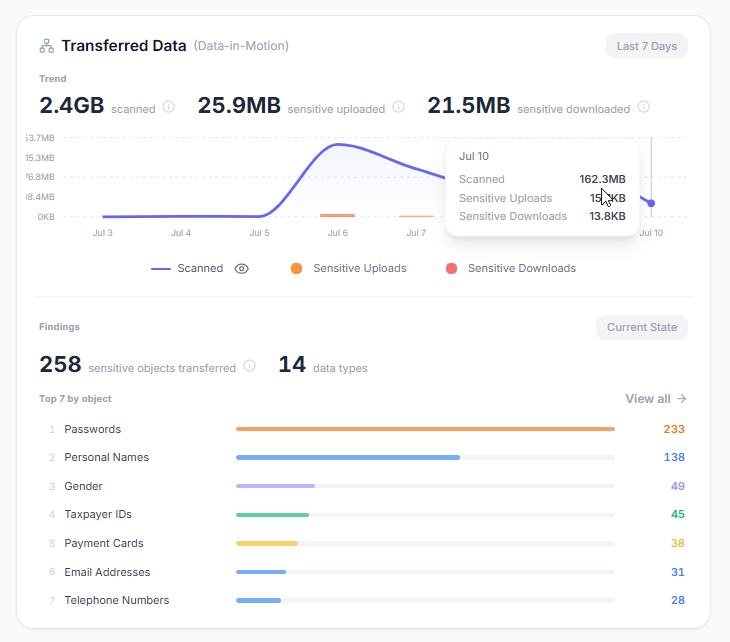
The Transferred Data area covers data in motion detected through real-time protection. It includes the following components:
- Trend graph: A chart displays scanned volume, sensitive uploads, and sensitive downloads over the last seven o thirty days.
- Last 30 Days Findings: A ranked list displays the top seven data types by sensitive object count, split by uploaded objects and downloaded objects.
Click View all to open the full data type breakdown.
Monitoring Identities
The Identities section provides an overview of identities with access to sensitive data across your data stores. It displays a summary card with the total count and percentage of identities with sensitive data access, broken down into three categories:
- Internal User: Human identities with email addresses matching your organization’s internal domain.
- External User: Human identities with email addresses not matching your internal domain, such as vendors or external collaborators.
- Unlinked: Identities that cannot be classified as internal or external.
Each widget displays the count of users with sensitive data access and the percentage of total users for that identity type. Click a widget to open the Identities page, filtered by the selected identity type.

Evaluating Data Coverage
The Data Coverage section shows the scope of data store and destination visibility in your environment, divided into Managed Data Stores (left) and Unmanaged Destinations (right).
Managed Data Stores
This area displays data stores connected to Netskope through the CASB API and DSPM. It features two primary counters:
- Connected: The total count of data stores currently connected and scanned. Click the count to open the Inventory page with the results.
- Unconnected: The total count of data stores discovered but not yet connected. Click the count to open a side panel listing all unconnected data stores. Click Connect next to any entry to open the DSPM connection flow in a new tab.
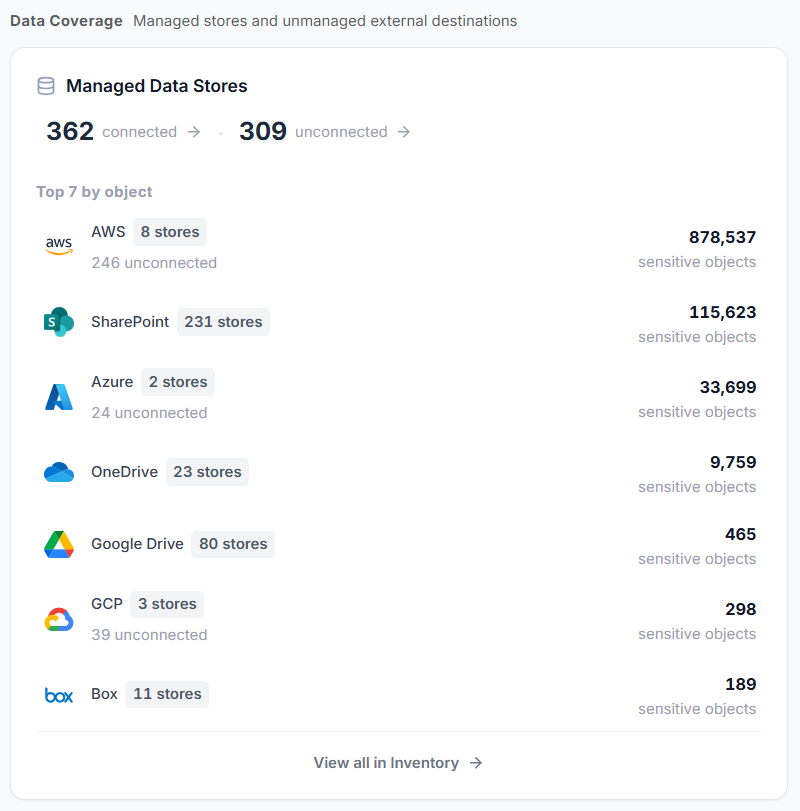
Below the counters, a ranking lists data stores by sensitive object count. Click a data store to open its detail page. Click View all in Inventory to open the full Inventory page.
Unmanaged Destinations
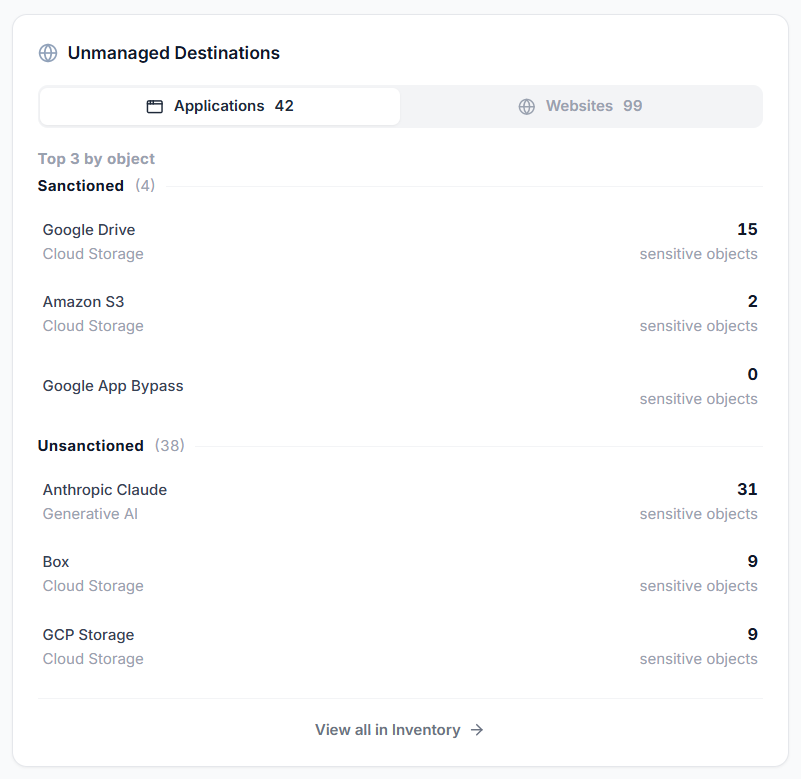
This area displays destinations detected only through real-time protection, without a configured API connection.
- Applications: Tabs for Sanctioned and Unsanctioned applications, each showing the count and ranked by sensitive object count.
- Websites: A tab showing the total website count, ranked by sensitive object count.
Click any application or website to open its detail page or click View all in Inventory to open the full Inventory page.
Exploring Next Steps
From the Overview page, you can navigate to the following sections to continue your data security assessment: