

The Risk page in DataSec Command Center (DCC) provides a centralized view of data security risk policy violations across your environment. Use this page to visualize risk relationships, review findings, assess risk severity, and trigger remediation workflows.
Risk Graph
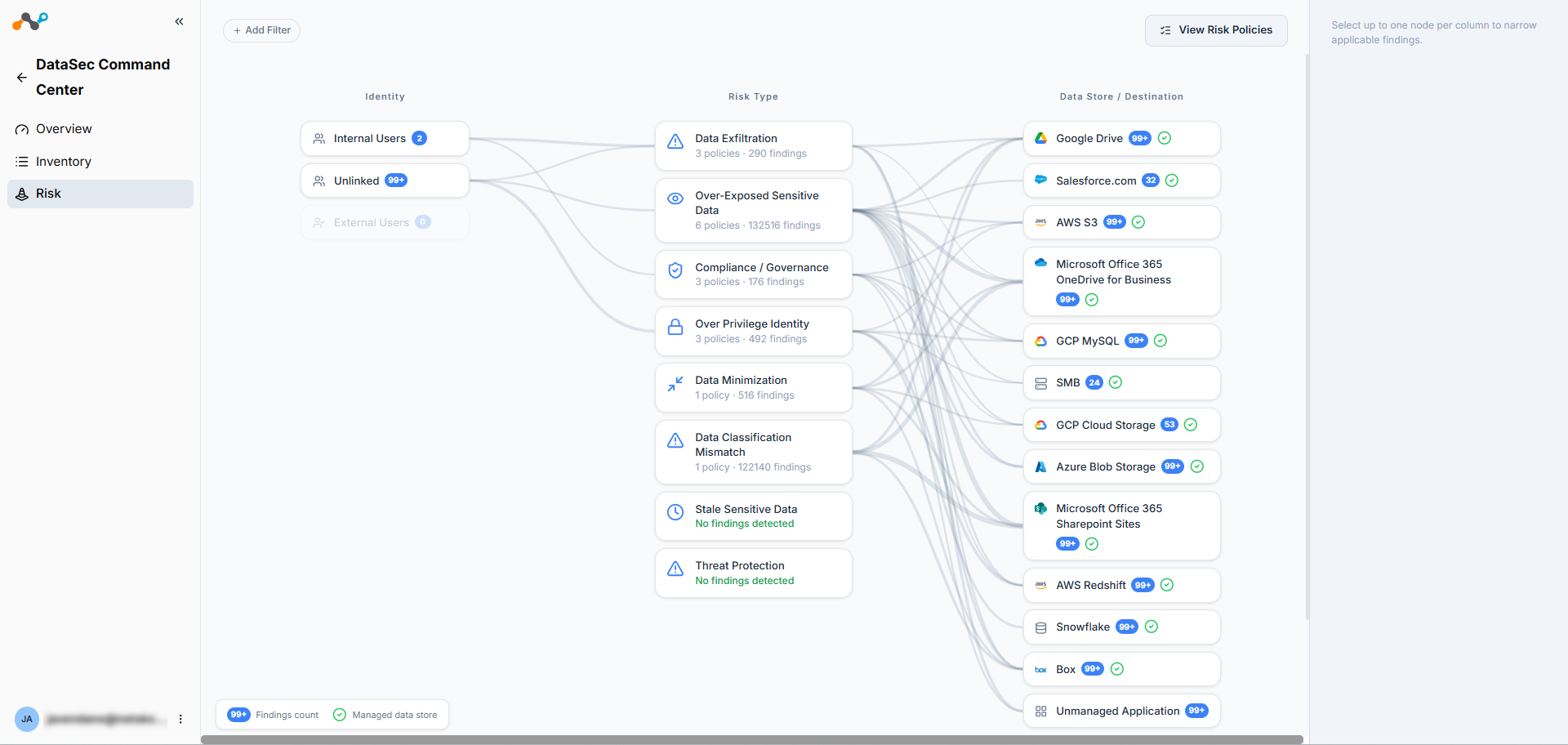
The Risk Graph is a three-column visual map that shows the blast radius of threats by mapping relationships between identities, risk types, and data stores. Each column displays interactive nodes with the category name and associated finding count.
| Column | Displays |
|---|---|
| Identity | Aggregated nodes for identity categories triggering risks: Internal Users, External Users, and Unlinked. These categories match the identities visible in Inventory. |
| Risk Type | Aggregated nodes for the types of risks triggered. Each risk policy maps to one risk type. |
| Data Store / Destination | Granular nodes for individual data services (e.g., AWS S3, Google Drive). These align with the data stores visible in Inventory. |
Graph Interactions
- Click any node (Identity, Risk Type, or Data Store/Destination) to filter the view. The graph isolates the risk policies violated by that node and highlights the connecting paths.
- Click + Add Filter to apply filters by Identity Type, Risk Type, or Data Store/Destination.
- Click Clear all to remove all active filters and return to the full graph view.
- Select up to one node per column to narrow applicable findings.
When you select a node, the right panel displays the associated risk policies with their finding count and severity badge (Critical, High, or Medium). Click View findings on any policy to navigate to the findings list.
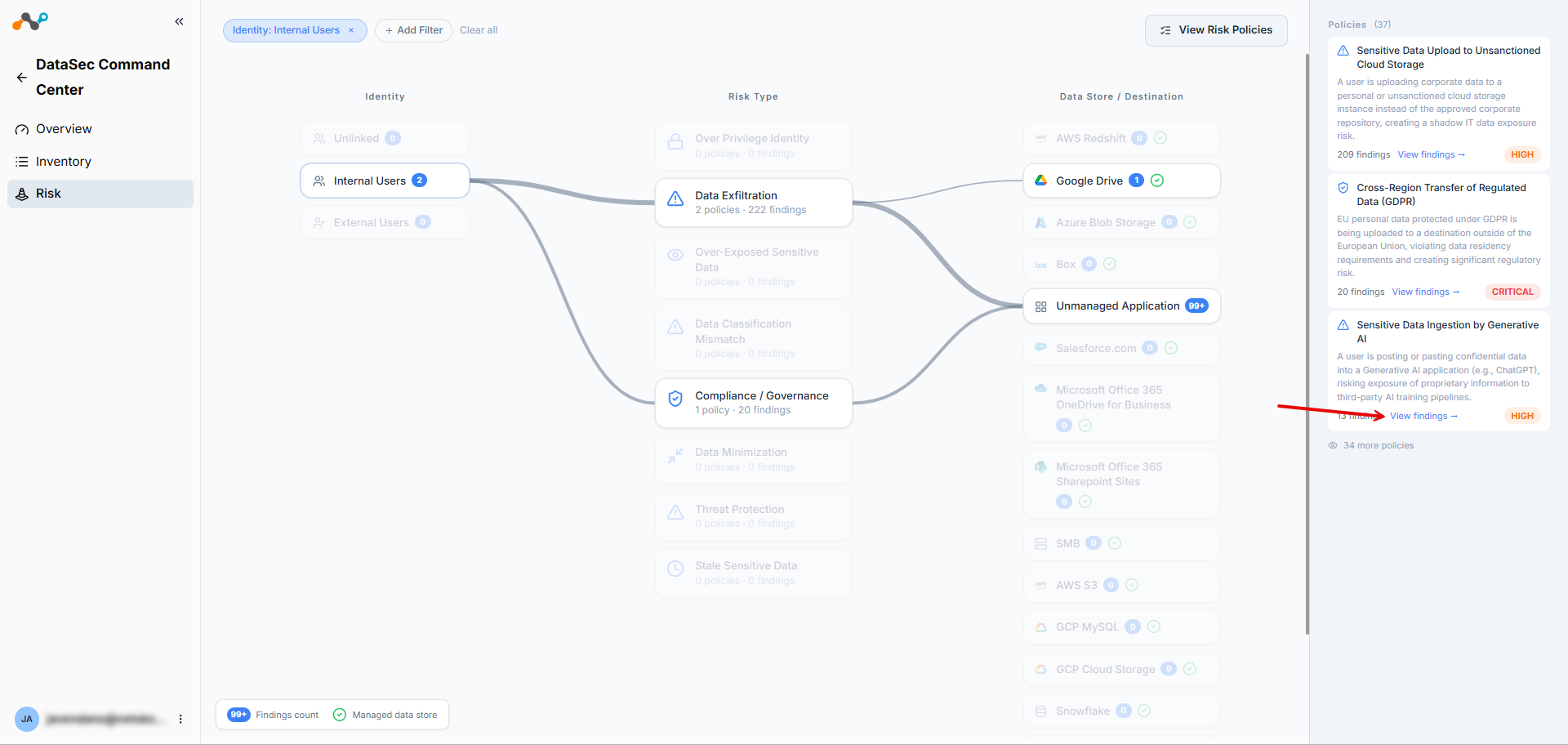
Click View Risk Policies in the top-right corner to open the full risk policies list.
Risk Policies
DCC includes predefined risk policies that automatically detect data security violations across your connected data stores and inline destinations.
For the current release, risk policies are static; you can’t create new policies or edit existing ones. You can enable or disable any policy using the toggle on the Risk Policies page. Disabled policies don’t run and generate no new findings.
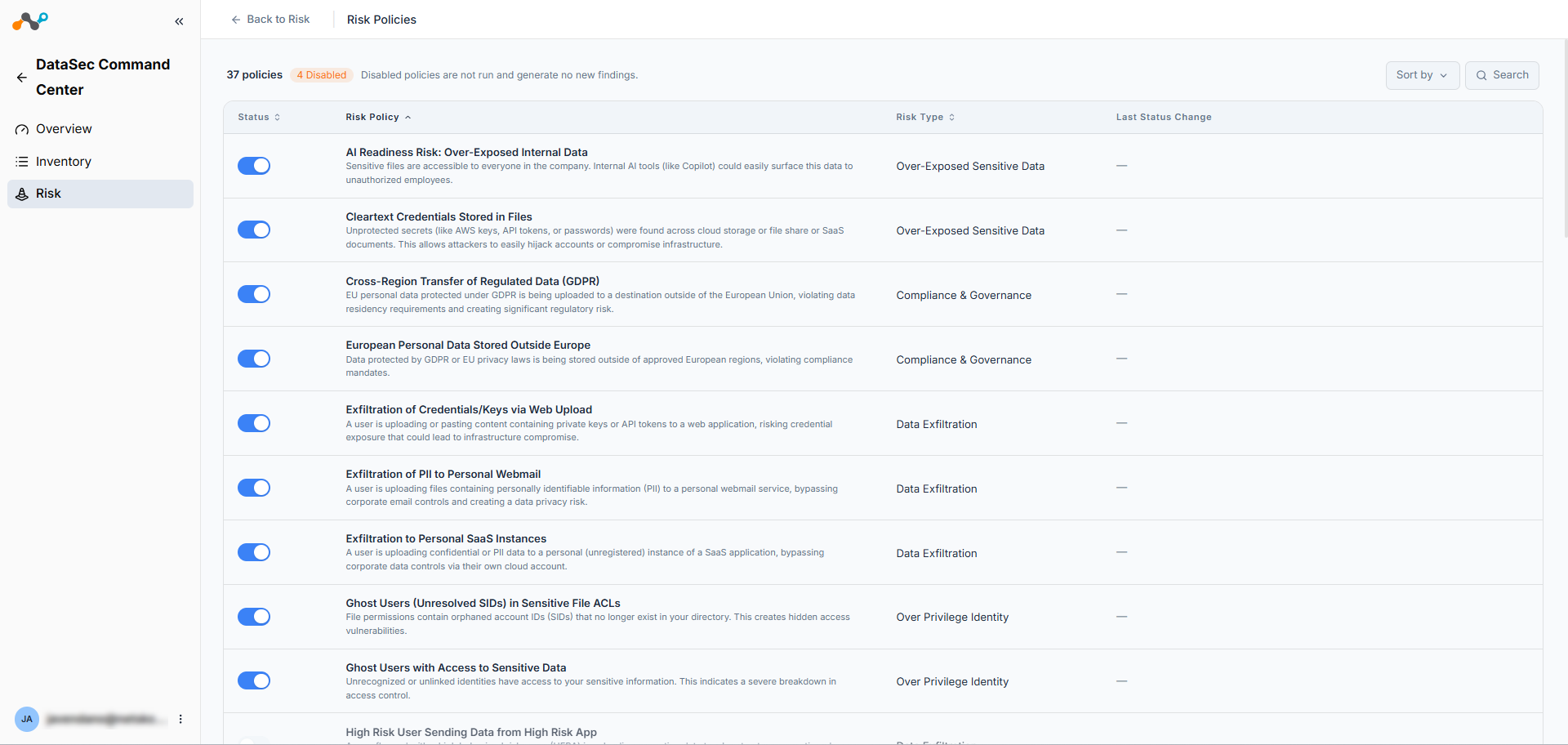
The Risk Policies page displays all policies in a table with the following columns:
| Column | Description |
|---|---|
| Status | Toggle switch to enable or disable the policy. |
| Risk Policy | The policy name and description. |
| Risk Type | The risk type category the policy belongs to. |
| Last Status Change | The date the policy was last enabled or disabled. |
You can sort and also search policies by name.
Risk Types
Risk policies are organized into the following risk types:
- Over-Exposed Sensitive Data
- Over Privilege Identity
- Data Exfiltration
- Data Minimization
- Data Classification Mismatch
- Compliance / Governance
- Stale Sensitive Data
- Threat Protection
Policy Engines
Each risk policy operates through one of four engines, depending on the data source:
| Engine | Scope |
|---|---|
| Combined | Policies with findings across SaaS and IaaS/PaaS/on-premises/data platform stores. |
| IaaS/PaaS/On-prem | Policies exclusive to the DSPM scope (IaaS, PaaS, on-premises, and data platform environments). |
| SaaS | Policies exclusive to the CASB API scope. |
| Inline | Policies based on transaction event data from Real-Time Protection. |
Risk Findings
Findings are violations of risk policies. When a file no longer satisfies the policy conditions (for example, after a remediation action changes the file’s exposure), the finding disappears automatically.
Findings List
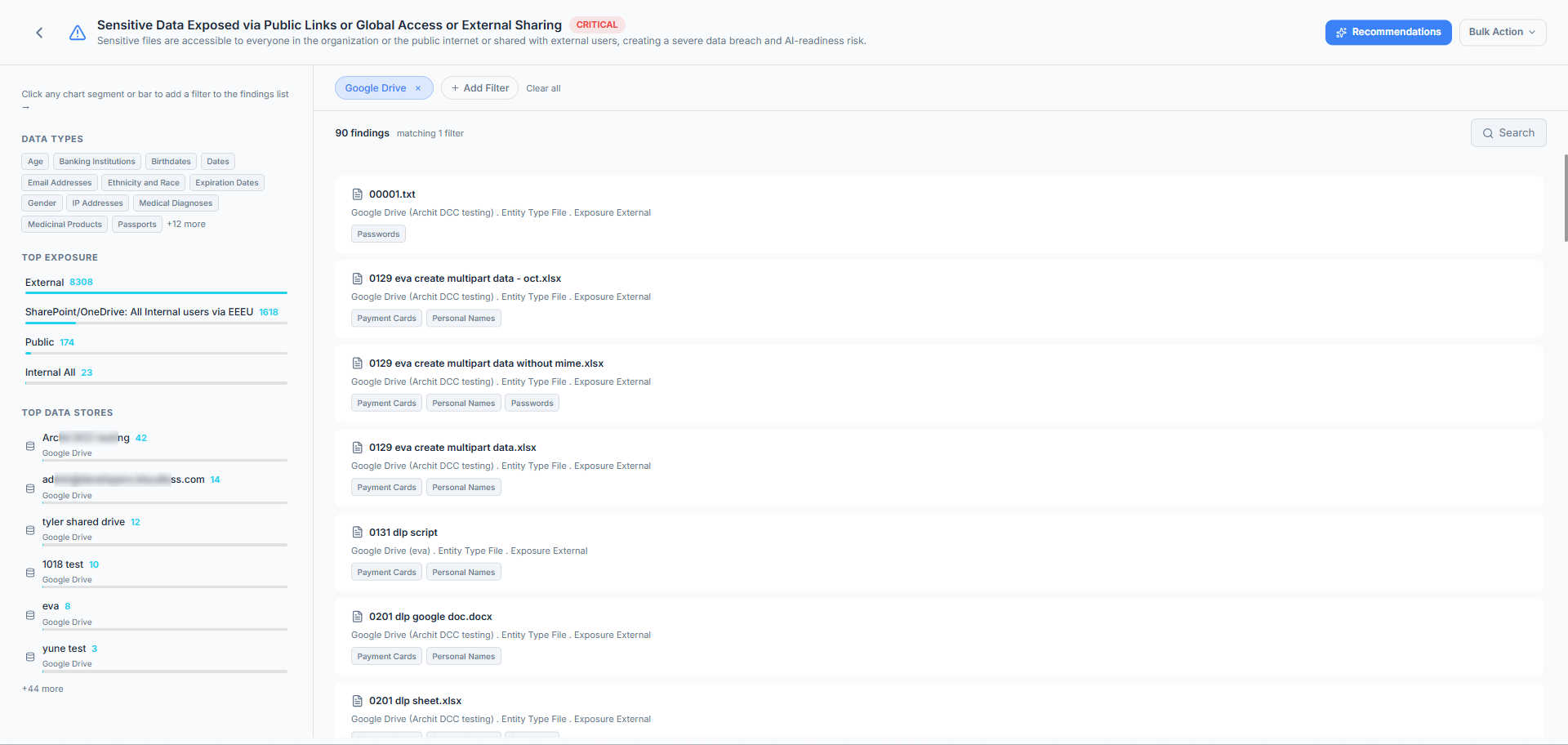
The right panel displays the findings for the selected risk policy. The findings list uses lazy loading to display results as you scroll. You can filter findings by risk type, identity, and data store.
Each finding displays:
- File name
- Exposure type
- Sensitive data categories
- Associated data store
Finding Details
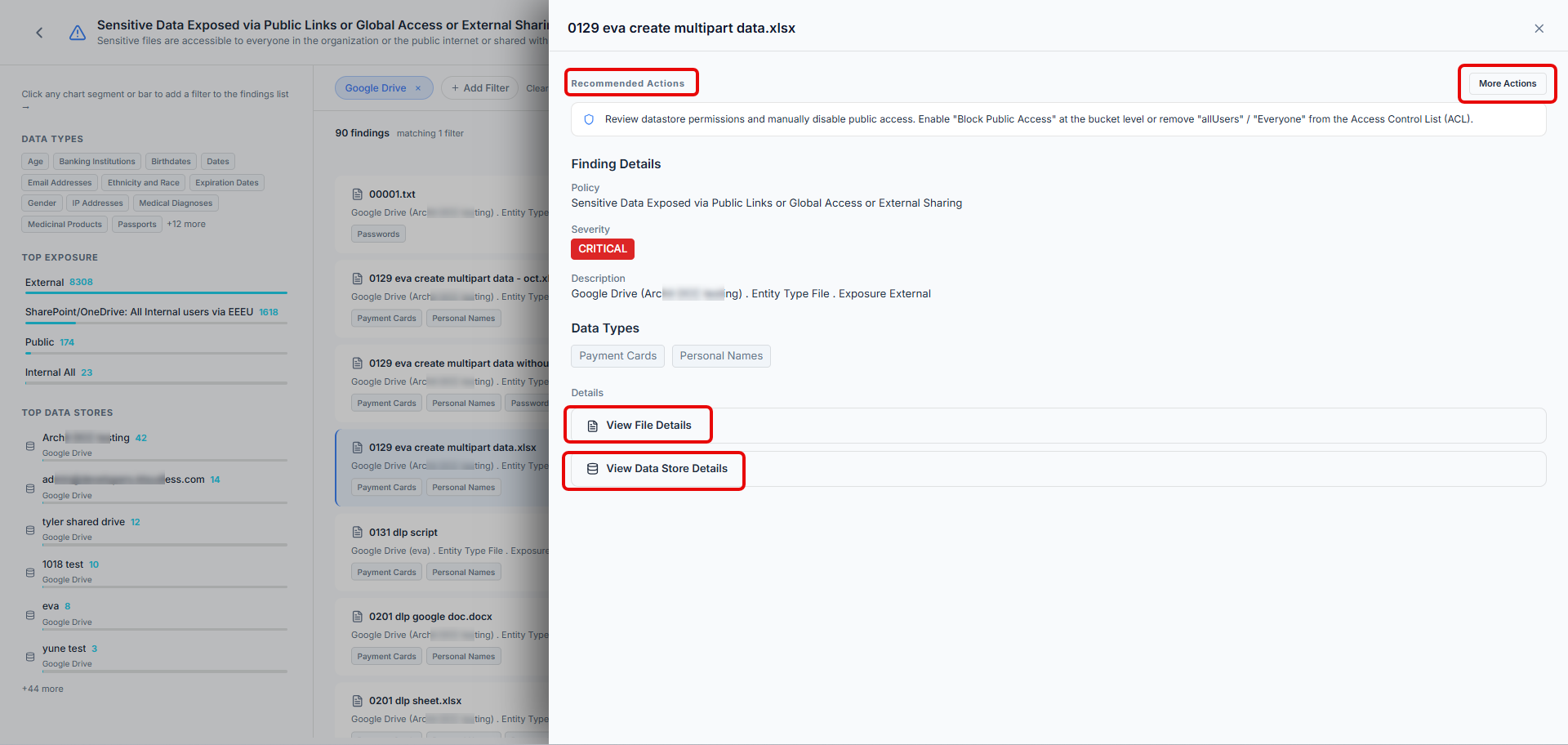
Click a finding to open a details side panel. The panel includes:
- View File details: The specific file information, including data types matched and sharing settings.
- View Data store Details: The associated data store information.
- Recommended Actions: Suggested remediation actions for the file.
- More Actions: Additional available actions.
Available actions are service-specific; actions available for files in Google Drive differ from actions available for files in Box. To learn more: Next Generation API Data Protection Feature Matrix per Cloud App
Actions such as restricting access or revoking sharing apply to SaaS files via CASB API. After you trigger a remediation action, a banner confirms the action has been submitted. The system processes the action asynchronously.
Bulk Actions
Use Bulk Actions to remediate multiple findings at once. This feature applies to SaaS data stores only.
- Click Bulk Actions in the top-right corner of the findings list.
- Select the checkboxes next to the findings you want to remediate.
- Choose the desired action from the dropdown.
The system processes bulk actions asynchronously.
Remediation Workflows
DCC provides multiple remediation paths depending on the data source and policy type. Click Recommendations on a risk policy’s findings page to view available remediation options.
All remediation buttons act as redirects, opening the corresponding configuration page in a new tab.
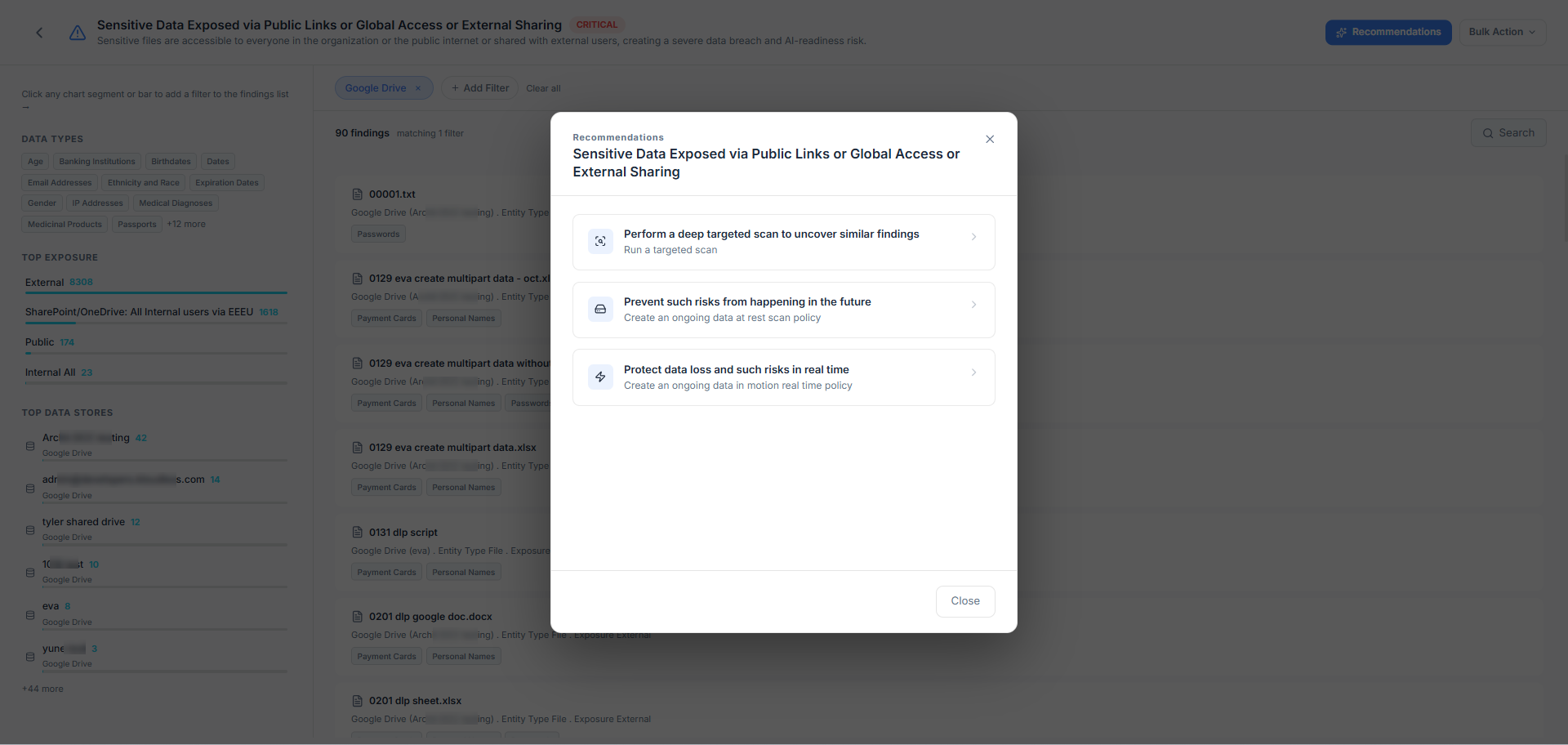
| Remediation Type | Description | Workflow |
|---|---|---|
| Retroactive Scan (Fix Existing) | A one-time targeted scan that finds and remediates existing violations on SaaS apps. | The recommendations panel lists all affected app instances. Click Set up Retroscan next to any instance to open the retroactive scan page in a new tab with the scan pre-created. Click Start Scan to begin. |
| Ongoing Policy (Auto-Fix New) | An event-based policy that automatically corrects violations from the point of creation forward on SaaS apps. | Click Confirm Creation to open the API Data Protection page in a new tab with pre-populated information (app instance, exposure type, remediation action). Available actions vary by application. |
| Real-Time Protection (Prevent) | Block rules for inline traffic. | Click the redirect to open the Real-Time Protection Policy page in a new tab to configure blocking rules. |
| DSPM Workflows | Remediation for IaaS, PaaS, on-premises, and data platform stores. | DCC redirects you to the DSPM Policies page where you can set up remediation workflows. Note: Native DCC actions for these environments aren’t supported in beta. |
Licensing Scenarios
The features available on the Risk page depend on which Netskope products you license:
| Scenario | Available Features |
|---|---|
| Inline only | Risk policies based on transaction event data only. Limited dashboard view. |
| CASB API only | SaaS data store risk policies and remediation (retroactive scan, ongoing policy). |
| DSPM only | IaaS, PaaS, on-premises, and data platform risk policies. Redirects to DSPM for remediation. |
| Full combination | All risk policies and remediation options available. |