

The following sections explain how to upload and enroll certificates and how to configure an iOS profile for Ivanti Neurons (formerly known as MobileIron Cloud) for on-demand or per-app VPN. For information about iOS VPN fail-open, refer to iOS VPN Fail Open.
Create Certificates in Ivanti Neurons
To configure Ivanti Neurons, you need to create a local standalone CA, or use a third-party CA, and also Identity certificates in Ivanti Neurons.
Create a Standalone CA Certificate
To create a standalone CA certificate:
- In the Mobile Iron Cloud admin console, go to Admin > Certificate Authority.
- Click Add.
- Click Continue under Create a Standalone Certificate Authority.
- Click Actions, and then select Download Certificate. Note where you saved the certificate.
- On macOS, open Terminal and use openssl to convert the certificate from .cer format to .pem format. Use the following command to convert the certificate from .cer to .pem format:
sudo openssl x509 -inform der -in cert.cer -out cert.pem - Verify the .pem file using this command:
cat cert.pem - Upload the certificate to Netskope using the following instruction:
- Go to Settings > Security Cloud Platform > Netskope Client > MDM Distribution.
- Scroll to the Upload Certificate to Netskope section under Deployment Resources for iOS.
- Click Upload/Replace Certificate.
- Click Select File to locate and select your certificate file.
- Click Upload/Replace Certificate, and then click Select Certificate to locate and select your certificate file.
Create an Identity Certificate
To create an identity certificate:
- In the Mobile Iron Cloud admin console, select Configurations and click Add.
- Select Identity Certificate. Select Identity Certificate.

- Enter the following parameters:
- Name: Enter a unique name for the certificate.
- In the Configuration Setup section: Select Dynamically Generated from the Certificate Distribution dropdown list.
- Source: Select the standalone certificate you created.
- Signature Algorithm: Select SHA256 with RSA.
- Subject:
- emailAddress: ${userEmailAddress}
- CN: ${userEmailAddress}
- OU: <Tenant OU from the Netskope UI>
- O: <Organization Name from the Netskope UI>
- L: <Your city>
- ST: <Your state> (in two letter format)
- C: <Your country> (in two letter format)
- Subject Alternate Name Type: (Optional)
- Key Size: 2048
- Save the configuration and distribute the certificate to the relevant devices.
Here’s an example of an identify certificate configuration:

Netskope Client Distribution
Administrators can manage and distribute public, in-house, and AppConnect-enabled iOS applications.
To add an application:
-
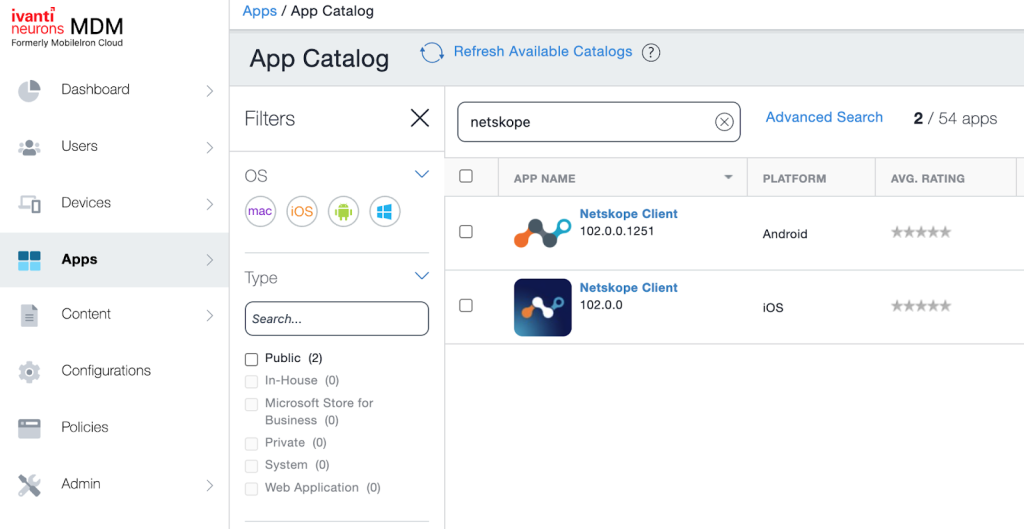
Navigate to Apps > App Catalog and search for “Netskope”.
-
Click Netskope Client for iOS.
This opens the Netskope Client application details.
-
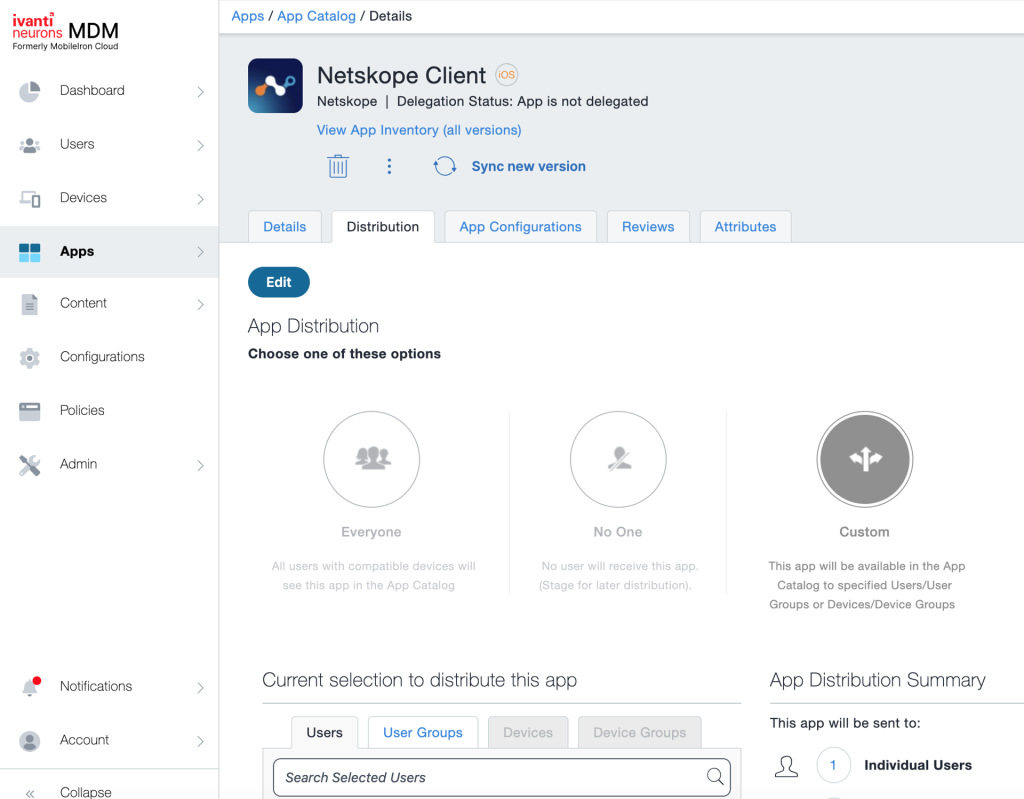
Click the Distribution tab.
-
In App Distribution, assign the app to the appropriate Users and Device Groups.
-
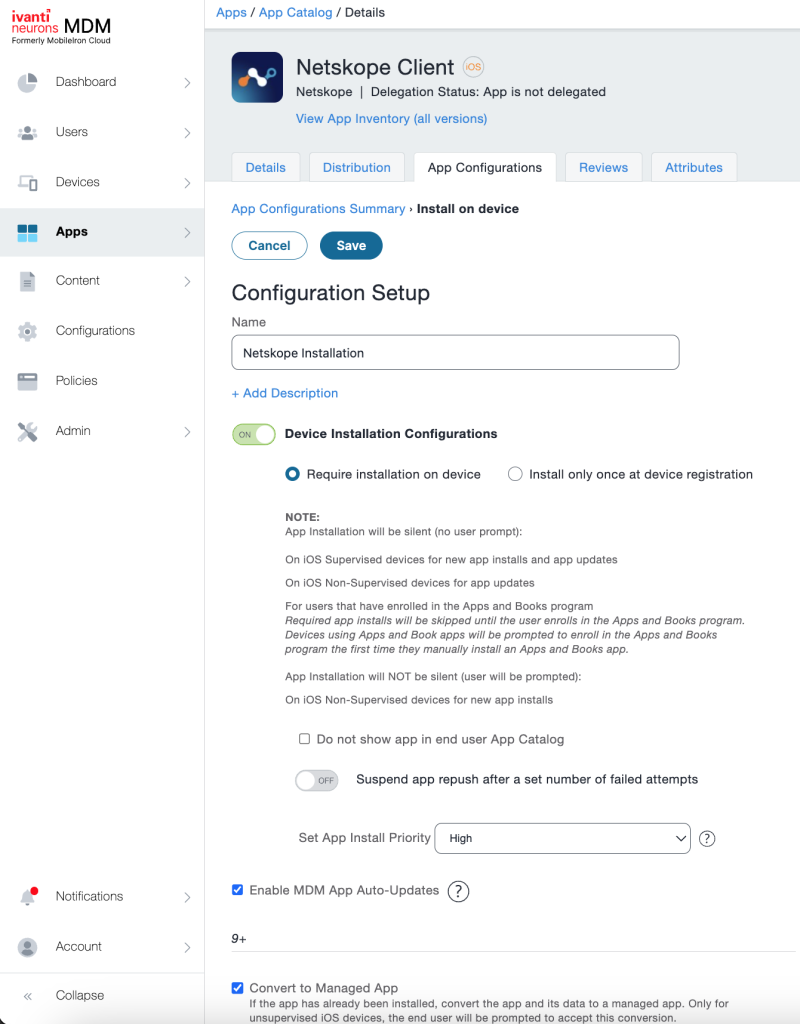
Click the App Configurations tab .
-
Click + for Install on device.
-
In Configuration Setup, enter a configuration name in the Name field.
-
Toggle ON to select the Device Installation Configurations option.
-
Click the radio-button to select Require installation on device.
-
Select the checkbox for Enable MDM App Auto-Updates.
-
Assign the app to the appropriate User and/or Device Group.
-
Click Save.


Provision Netskope Certificates to Devices
To provision Netskope certificates to devices:
- Locate the Netskope Root certificate you downloaded from the Netskope UI (Settings > Security Cloud Platform > Netskope Client > MDM Distribution).
- In the MobileIron Cloud admin console, select Configurations, and click Add.
- Select Certificate, enter a name, and upload the Netskope Root certificate.
- Distribute the certificate configuration to the relevant devices.
Create VPN Profile
Administrators must select the preferred VPN profile type according to their requirement. There are options to use either On-Demand VPN or Per App VPN. Netskope Client does not allow coexistence of multiple VPN profiles on the same device. You can create multiple VPN profiles in the Workspace One console and assign them to various smart groups to accommodate corporate and BYOD use cases.
Configure On-Demand VPN
To configure an On-Demand VPN:
-
In the MobileIron Cloud admin console, select Configurations, and click Add.
-
Select VPN On-Demand.

-
Enter the following parameters:
-
Name: Enter a unique name.
-
Connection Type: Custom SSL
-
Identifier: com.netskope.Netskope
-
Server: gateway-[tenant].goskope.com.
-
Account: Leave blank.
-
Custom Data:
-
OrgKey: Use the tenant organizational key
-
AddonHost: Use the addon URL for the tenant: addon-<tenant-URL>.
-
UserEmail: Use the variable that contains the user identity for the enrolment: ${userEmailAddress}.
-
enrollauthtoken: Use Secure Enrollment Authentication token.
-
enrollencryptiontoken: Use Secure Enrollment Encryption token.
Use enrollauthtoken and enrollencryptiontoken only if you have enabled secure enrollment in your tenant.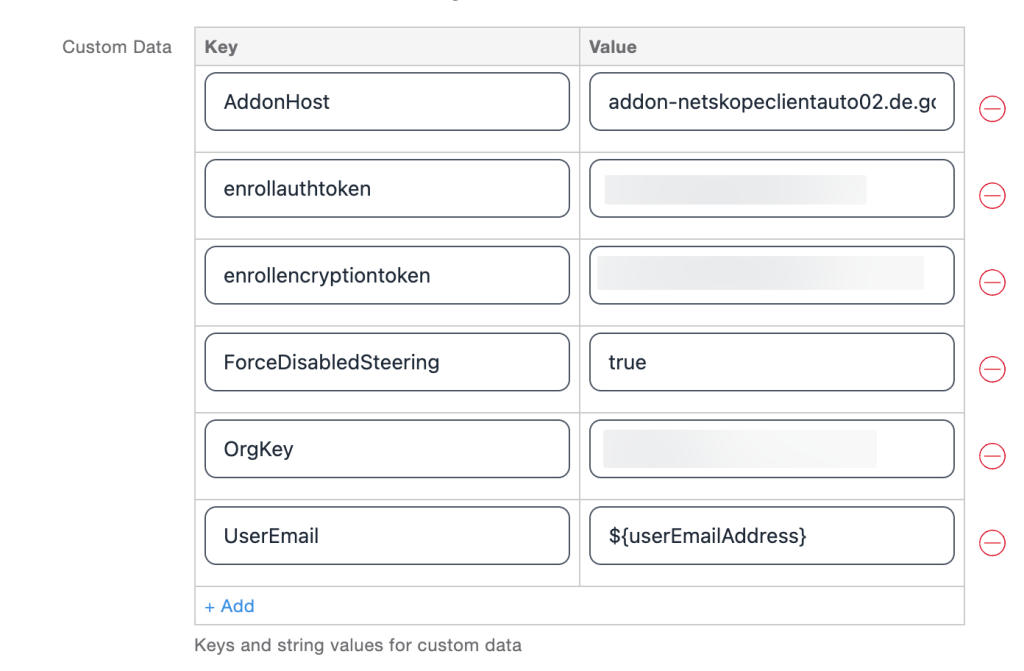
-
-
User Authentication: Certificate.
-
Credential: Select the identity certificate you created.
-
Proxy Setup: None
-
Enable VPN On Demand: On
-
Enable iOS Rules: Selected
-
-
Choose whether to apply this configuration to All Devices, No Devices, or Custom to specify target devices.
-
When finished, click Done.

Configure Per-App VPN
By default all Netskope tenants are set to On-Demand iOS VPN. If you want to use the Per-App iOS VPN profile, contact your sales rep, professional services rep, customer success manager, or Support to have Per-App VPN enabled.
To configure a Per-App VPN:
-
In the MobileIron Cloud admin console, select Configurations, and click Add.
-
Select Per-App VPN.

-
Enter the following parameters:
-
Connection Type: Custom SSL
-
Identifier: com.netskope.Netskope
-
Server: gateway-[tenant].goskope.com (for example, gateway-nsclientauto02.goskope.com)
-
Account: Leave blank.
-
Custom Data:
-
OrgKey: Use the tenant organizational key
-
AddonHost: Use the addon URL for the tenant: addon-<tenant-URL>.
-
UserEmail: Use the variable that contains the user identity for the enrolment: ${EmailAddress}
-
enrollauthtoken: Use the Secure Enrollment Authentication token.
-
enrollencryptiontoken: Use the Secure Enrollment Encryption token.
Use enrollauthtoken and enrollencryptiontoken only if you have enabled secure enrollment in your tenant.
-
-
User Authentication: Select Certificate.
-
Credential: Select the identity certificate you created.
-
Proxy Setup: None
-
Enable VPN On Demand: On
-
Enable iOS Rules: On
-
On Demand Match App Enabled: On
-
Provider Type: packet-tunnel
-
-
When finished, click Save.
Select Apps for the Per-App VPN
To select apps for the Per-App VPN:
-
In the MobileIron Cloud admin console, select Apps, and click Add.
-
Select App Catalog to open the wizard and choose the apps to distribute to devices

-
Select App Configurations, and then select Per-App VPN.
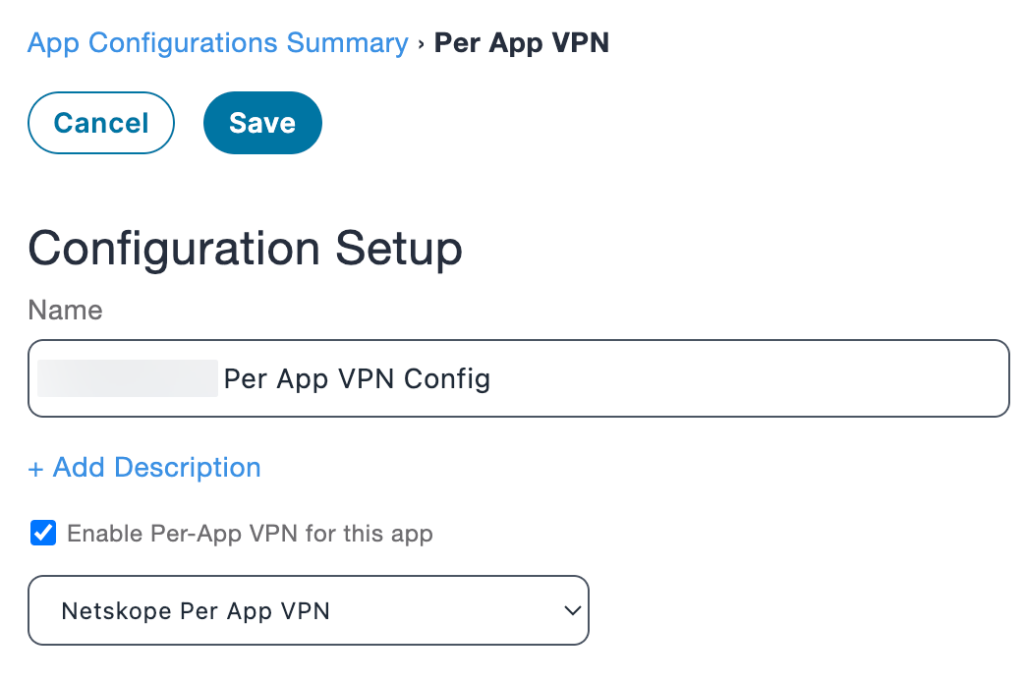
-
Enter the following parameters:
-
Name: Enter a name.
-
Enable Per-App VPN for this App: Select On
-
Dropdown list: Select the Per-App VPN configuration you created.
-
-
When finished, click Save.


Distribute to Devices
To validate that the device has the necessary configurations:
-
In the MobileIron Cloud admin console, select Devices.
-
Force a device check-in.
-
Select Configurations to view the device details.
iOS VPN Fail Open
The Fail Open feature allows iOS devices using VPN to temporarily bypass Netskope and connect directly to an app or service.
When Fail Open is enabled, iOS devices will not steer traffic through Netskope until the service resumes or the feature is manually disabled.
This function is useful during service interruptions or planned maintenance.
To enable fail open for iOS VPN:
-
In the Netskope UI, go to Settings > Security Cloud Platform > MDM Distribution.
-
In the Create VPN Configuration section, confirm that your iOS VPN is operational. If it is, click the
 (settings) icon to open the Advanced Configuration dialog box.
-
Enable the toggle and then click Save.