

Deploy AI Guardrails LLM on Microsoft Azure to run GPU-based LLM security detection in your Azure environment. This guide uses Azure Container Registry, an Azure Machine Learning managed online endpoint, Microsoft Entra ID, and Azure API Management to build a secure, authenticated inference path that AI Guardrails can call.
Deployment paths
All AI Guardrails GPU deployments use the same GPU base image — only the hosting service differs:
- Option A — AWS SageMaker (AWS only): fully managed AWS deployment. See Installing GPU-Based Guardrails.
- Option B — Self-hosted VM (any cloud or on-premises): run the GPU container yourself on an AWS EC2 instance, an Azure VM, a Google Compute Engine instance, or an on-premises/ESXi host. See Installing GPU-Based Guardrails.
- Option C — Azure Machine Learning managed online endpoint (Azure only, this guide): the Azure-native equivalent to SageMaker.
Prerequisites
- An Azure subscription and resource group, with at least Contributor access.
- The Azure CLI installed and signed in (
az login). - Docker installed locally, with the AI Guardrails LLM image available as a tarball or in an accessible registry.
- GPU quota in your target region for an Azure Machine Learning managed online endpoint — see recommended sizes below.
- Owner, User Access Administrator, or Role Based Access Control Administrator access on the subscription — Contributor alone can’t grant role assignments.
- The Application Developer directory role (or higher) in Microsoft Entra ID, to register applications.
Downloading the GPU/TPU base image
The AI Guardrails LLM image (aisecurityllm-${IMAGE_TAG}.tgz) comes from your Netskope tenant, not from Azure:
- Complete VM Onboarding for the AI VM in your tenant, if you haven’t already.
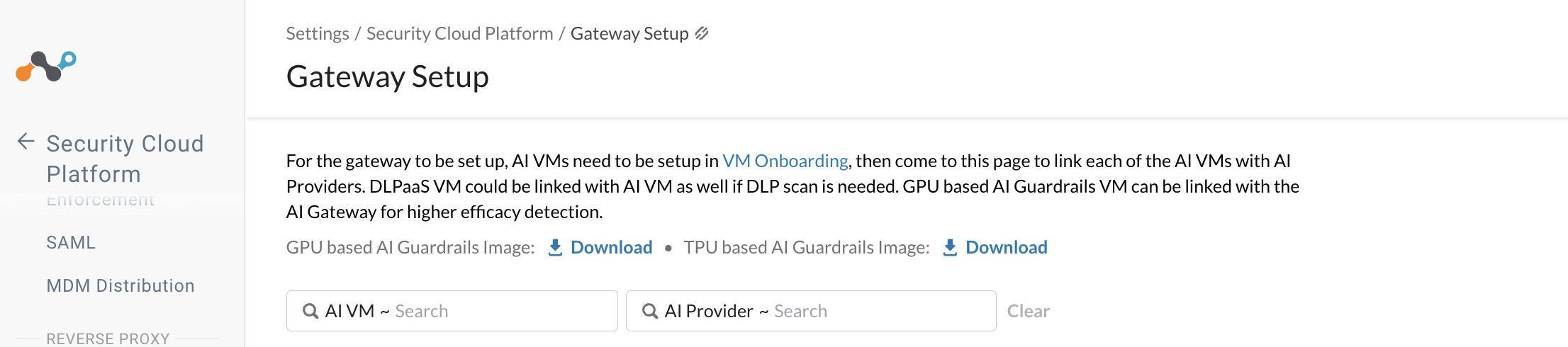
- Go to Settings > Security Cloud Platform > Gateway Setup, and link the AI VM to the appropriate AI Provider. Link a DLPaaS VM to the same AI VM if you also need DLP scanning.
- Download the GPU based AI Guardrails Image — the same image used for AWS SageMaker and self-hosted VM deployments. Use the TPU based AI Guardrails Image instead for the Google Cloud TPU path.
Recommended GPU instance sizes
Azure has no exact SKU-for-SKU match for AWS SageMaker GPU instances. The A10 family uses fractional GPU partitioning, and Azure has no native equivalent to the newer L4 GPU — the closest option is the previous-generation NVIDIA T4.
| If you’re sizing from | Use this Azure SKU | vCPU | Memory | GPU | Quota family to request |
|---|---|---|---|---|---|
A small SageMaker GPU instance (ml.g5.xlarge) | Standard_NV6ads_A10_v5 | 6 | 55 GiB | 1/6 A10 (partitioned, 4 GB) | StandardNVADSA10v5Family |
A mid-size SageMaker GPU instance (ml.g5.2xlarge) | Standard_NV12ads_A10_v5 | 12 | 110 GiB | 1/3 A10 (partitioned, 8 GB) | StandardNVADSA10v5Family |
| A full, unpartitioned GPU | Standard_NV36ads_A10_v5 | 36 | 440 GiB | 1 full A10 (24 GB) | StandardNVADSA10v5Family |
A newer-generation SageMaker instance (ml.g6.xlarge) | Standard_NC4as_T4_v3 (T4, not L4) | 4 | 28 GiB | 1 × T4 (16 GB) | Standard NCASv3_T4 Family |
GPU SKUs require regional availability and quota approval — initial quota is often 0. Confirm availability and the quota family for your subscription and region before committing to a size:
az vm list-skus --location ${REGION} --size <SKU_NAME> --all --output table
az vm list-skus --location ${REGION} --size <SKU_NAME> --query "[0].family" --output tsv
Avoid Standard_NC6s_v3 (V100) — it’s retired in most regions as of September 2025.
Service mapping: AWS → Azure
| AWS component | Azure component | Notes |
|---|---|---|
| Elastic Container Registry (ECR) | Azure Container Registry (ACR) | Same docker login/tag/push workflow |
| SageMaker (Model / Endpoint Config / Endpoint) | Azure Machine Learning managed online endpoint (Environment / Deployment / Endpoint) | Azure ML supports blue/green and canary traffic splitting natively |
| Cognito User Pool + M2M app client | Microsoft Entra ID app registrations (client-credentials flow) | Entra ID issues the token; scopes map to an App Role checked in the roles claim |
| API Gateway + Cognito authorizer | Azure API Management (APIM) + validate-jwt policy | APIM validates the Entra ID JWT and forwards the call |
| IAM execution/invoke roles | Azure RBAC role assignments + managed identity | Online endpoints support key-based or Entra ID token-based scoring authentication |
Option C — Deploy on Azure (Managed Online Endpoint)
Use this path if you want Azure to manage the hosting infrastructure. To self-host on an Azure VM instead, use Option B.
Step 1 — Push the LLM image to Azure Container Registry
az login
az account set --subscription "<SUBSCRIPTION_NAME>"
TENANT_ID=$(az account show --query tenantId --output tsv)
SUBSCRIPTION_ID=$(az account show --query id --output tsv)
RESOURCE_GROUP=<RESOURCE_GROUP>
REGION=<REGION>
ACR_NAME=<ACR_NAME>
az group create --name ${RESOURCE_GROUP} --location ${REGION}
az provider register --namespace Microsoft.ContainerRegistry
az acr create --resource-group ${RESOURCE_GROUP} --name ${ACR_NAME} --sku Standard --location ${REGION}
az acr login --name ${ACR_NAME}
ACR_REPOSITORY_URI=${ACR_NAME}.azurecr.io
IMAGE_TAG=<IMAGE_TAG>
REPOSITORY_NAME=<REPOSITORY_NAME>
docker load -i aisecurityllm-${IMAGE_TAG}.tgz
docker tag <source-image>:${IMAGE_TAG} ${ACR_REPOSITORY_URI}/${REPOSITORY_NAME}:${IMAGE_TAG}
docker push ${ACR_REPOSITORY_URI}/${REPOSITORY_NAME}:${IMAGE_TAG}
Pin the image by digest (repository:tag@sha256:digest) rather than a mutable tag such as latest. Check the manifest type before continuing — a multi-architecture image index needs the extra digest-resolution step in Step 2 below, or deployment fails with “unable to download container image”:
az acr manifest list-metadata --registry ${ACR_NAME} --name ${REPOSITORY_NAME} \
  --query "[?tags && contains(tags, '${IMAGE_TAG}')].{digest:digest, mediaType:mediaType}" \
  --output table
Step 2 — Deploy the model to an Azure Machine Learning managed online endpoint
- Create the workspace and a managed identity.
WORKSPACE_NAME=<WORKSPACE_NAME>
IDENTITY_NAME=<IDENTITY_NAME>
az ml workspace create --name ${WORKSPACE_NAME} --resource-group ${RESOURCE_GROUP} --location ${REGION}
az identity create --name ${IDENTITY_NAME} --resource-group ${RESOURCE_GROUP}
- Resolve the image digest, then create the environment. If the tag resolves to a multi-architecture index, pin the
linux/amd64child digest — pinning the index itself causes the “unable to download container image” error.
ENV_NAME=<ENV_NAME>
ARCH=amd64
ENV_VERSION=${IMAGE_TAG}-${ARCH}
TAG_DIGEST=$(az acr manifest list-metadata --registry ${ACR_NAME} --name ${REPOSITORY_NAME} \
  --query "[?tags && contains(tags, '${IMAGE_TAG}')].digest | [0]" --output tsv)
MEDIA_TYPE=$(az acr manifest list-metadata --registry ${ACR_NAME} --name ${REPOSITORY_NAME} \
  --query "[?tags && contains(tags, '${IMAGE_TAG}')].mediaType | [0]" --output tsv)
IMAGE_DIGEST=${TAG_DIGEST}
if [[ ${MEDIA_TYPE} == *index* || ${MEDIA_TYPE} == *manifest.list* ]]; then
  IMAGE_DIGEST=$(az acr manifest show --registry ${ACR_NAME} --name "${REPOSITORY_NAME}@${TAG_DIGEST}" --output json \
    | jq -r --arg a "${ARCH}" '.manifests[] | select(.platform.os=="linux" and .platform.architecture==$a) | .digest' | head -1)
fi
cat <<EOF > environment.yaml
\$schema: https://azuremlschemas.azureedge.net/latest/environment.schema.json
name: ${ENV_NAME}
version: ${ENV_VERSION}
image: ${ACR_REPOSITORY_URI}/${REPOSITORY_NAME}@${IMAGE_DIGEST}
inference_config:
  liveness_route: {path: /ping, port: 8080}
  readiness_route: {path: /ping, port: 8080}
  scoring_route: {path: /invocations, port: 8080}
EOF
az ml environment create --file environment.yaml --resource-group ${RESOURCE_GROUP} --workspace-name ${WORKSPACE_NAME}
Environments are immutable — create a new version whenever you change the image. Calls to the container should always target /invocations, not the endpoint’s advertised /score URI.
- Create the online endpoint.
ENDPOINT=<ENDPOINT_NAME>
IDENTITY_RESOURCE_ID=$(az identity show --name ${IDENTITY_NAME} --resource-group ${RESOURCE_GROUP} --query id --output tsv)
cat <<EOF > endpoint.yaml
\$schema: https://azuremlschemas.azureedge.net/latest/managedOnlineEndpoint.schema.json
name: ${ENDPOINT}
auth_mode: key
identity:
  type: user_assigned
  user_assigned_identities:
    - resource_id: ${IDENTITY_RESOURCE_ID}
EOF
az ml online-endpoint create --file endpoint.yaml --resource-group ${RESOURCE_GROUP} --workspace-name ${WORKSPACE_NAME}
- Grant the endpoint identity pull access to ACR.
ENDPOINT_IDENTITY_ID=$(az ml online-endpoint show --name ${ENDPOINT} --resource-group ${RESOURCE_GROUP} \
  --workspace-name ${WORKSPACE_NAME} --query identity.user_assigned_identities[0].principal_id --output tsv)
ACR_ID=$(az acr show --name ${ACR_NAME} --query id --output tsv)
az role assignment create --assignee-object-id ${ENDPOINT_IDENTITY_ID} --assignee-principal-type ServicePrincipal \
  --role AcrPull --scope ${ACR_ID}
This step requires Owner, User Access Administrator, or Role Based Access Control Administrator — Contributor alone returns AuthorizationFailed, by design.
- Check GPU quota, then create the deployment. Azure Machine Learning quota and Azure Compute (VM) quota are separate pools — check both.
az ml compute list-usage --resource-group ${RESOURCE_GROUP} --workspace-name ${WORKSPACE_NAME} --output table | grep -i "NV\|NC"
INSTANCE_TYPE=<INSTANCE_TYPE>   # see "Recommended GPU instance sizes" above, e.g. Standard_NV12ads_A10_v5
cat <<EOF > deployment-blue.yaml
\$schema: https://azuremlschemas.azureedge.net/latest/managedOnlineDeployment.schema.json
name: blue
endpoint_name: ${ENDPOINT}
environment: azureml:${ENV_NAME}:${ENV_VERSION}
instance_type: ${INSTANCE_TYPE}
instance_count: 1
liveness_probe:
  initial_delay: 60
  period: 30
  timeout: 30
  failure_threshold: 60
readiness_probe:
  initial_delay: 60
  period: 30
  timeout: 30
  failure_threshold: 60
EOF
az ml online-deployment create --file deployment-blue.yaml --all-traffic \
  --workspace-name ${WORKSPACE_NAME} --resource-group ${RESOURCE_GROUP}
Size the probes above your container’s actual startup time — GPU containers that load or compile a model before binding to the port often need longer than the defaults above.
Optional: blue/green and canary rollout
Create a second deployment (for example, green), shift traffic in steps, then remove the old one:
az ml online-deployment create --file deployment-green.yaml --resource-group ${RESOURCE_GROUP} --workspace-name ${WORKSPACE_NAME}
az ml online-endpoint update --name ${ENDPOINT} --resource-group ${RESOURCE_GROUP} --workspace-name ${WORKSPACE_NAME} --traffic "blue=90 green=10"
az ml online-endpoint update --name ${ENDPOINT} --resource-group ${RESOURCE_GROUP} --workspace-name ${WORKSPACE_NAME} --traffic "green=100"
az ml online-deployment delete --name blue --endpoint-name ${ENDPOINT} --resource-group ${RESOURCE_GROUP} --workspace-name ${WORKSPACE_NAME} --yes
Step 3 — Configure JWT authentication with Microsoft Entra ID
- Register the resource server app and set its Application ID URI. This requires the Application Developer directory role (or higher) in Entra ID.
RESOURCE_APP_NAME=<RESOURCE_APP_NAME>
RESOURCE_APP_ID=$(az ad app create --display-name ${RESOURCE_APP_NAME} --sign-in-audience AzureADMyOrg --query appId --output tsv)
az ad app update --id ${RESOURCE_APP_ID} --identifier-uris api://${RESOURCE_APP_ID}
- Define an app role and create the service principal.
cat <<EOF > app-roles.json
[
  {
    "allowedMemberTypes": ["Application"],
    "description": "Permission to invoke the AI Guardrails LLM inference endpoint",
    "displayName": "Inference.Invoke",
    "id": "$(python3 -c 'import uuid; print(uuid.uuid4())')",
    "isEnabled": true,
    "value": "Inference.Invoke"
  }
]
EOF
az ad app update --id ${RESOURCE_APP_ID} --app-roles @app-roles.json
az ad sp create --id ${RESOURCE_APP_ID}
ROLE_ID=$(az ad app show --id ${RESOURCE_APP_ID} --query "appRoles[?value=='Inference.Invoke'].id" --output tsv)
- Register the machine-to-machine (M2M) client app and assign it the role. Save
CLIENT_APP_IDandCLIENT_SECRET— you’ll enter these in AI Guardrails as the Client ID and Client secret.
CLIENT_APP_NAME=<CLIENT_APP_NAME>
CLIENT_APP_ID=$(az ad app create --display-name ${CLIENT_APP_NAME} --sign-in-audience AzureADMyOrg --query appId --output tsv)
az ad sp create --id ${CLIENT_APP_ID}
CLIENT_SECRET=$(az ad app credential reset --id ${CLIENT_APP_ID} --years 1 --query password --output tsv)
RESOURCE_SP_ID=$(az ad sp show --id ${RESOURCE_APP_ID} --query id --output tsv)
CLIENT_SP_ID=$(az ad sp show --id ${CLIENT_APP_ID} --query id --output tsv)
az rest --method POST \
  --uri "https://graph.microsoft.com/v1.0/servicePrincipals/${CLIENT_SP_ID}/appRoleAssignments" \
  --body "{\"principalId\":\"${CLIENT_SP_ID}\",\"resourceId\":\"${RESOURCE_SP_ID}\",\"appRoleId\":\"${ROLE_ID}\"}"
- Confirm you can request a token.
TOKEN_URL=https://login.microsoftonline.com/${TENANT_ID}/oauth2/v2.0/token
curl -s -X POST ${TOKEN_URL} \
  -H "Content-Type: application/x-www-form-urlencoded" \
  -d "grant_type=client_credentials&client_id=${CLIENT_APP_ID}&client_secret=${CLIENT_SECRET}&scope=api://${RESOURCE_APP_ID}/.default" \
  | jq -r .access_token
Step 4 — Expose the endpoint through Azure API Management (APIM)
- Create the APIM instance and store the ML endpoint key as a secret named value.
APIM_NAME=<APIM_NAME>
APIM_NAMED_VALUE=<NAMED_VALUE_NAME>
PUBLISHER_EMAIL=<PUBLISHER_EMAIL>
PUBLISHER_NAME=<PUBLISHER_NAME>
ML_ENDPOINT_KEY=$(az ml online-endpoint get-credentials --name ${ENDPOINT} --resource-group ${RESOURCE_GROUP} \
  --workspace-name ${WORKSPACE_NAME} --query primaryKey --output tsv)
az apim create --name ${APIM_NAME} --resource-group ${RESOURCE_GROUP} --location ${REGION} \
  --publisher-email ${PUBLISHER_EMAIL} --publisher-name "${PUBLISHER_NAME}" --sku-name <APIM_SKU>
az apim nv create --service-name ${APIM_NAME} --resource-group ${RESOURCE_GROUP} \
  --named-value-id ${APIM_NAMED_VALUE} --display-name ${APIM_NAMED_VALUE} --value "${ML_ENDPOINT_KEY}" --secret true
Choose <APIM_SKU> based on how this deployment will be used:
- Consumption — fastest to provision, but caps requests at 30 seconds and can’t be upgraded in place later.
- Developer — cheap and quick for a test, but non-production with no SLA.
- Standard (or higher) — the right choice for a production security control.
See Microsoft’s API Management feature comparison by tier before committing to one.
- Create the API and the
predictoperation.
SCORING_URI=$(az ml online-endpoint show --name ${ENDPOINT} --resource-group ${RESOURCE_GROUP} \
  --workspace-name ${WORKSPACE_NAME} --query scoring_uri --output tsv)
SERVICE_URL=$(echo "${SCORING_URI}" | sed -E 's#(https?://[^/]+).*#\1#')
APIM_API_ID=<APIM_API_ID>
APIM_API_PATH=<APIM_API_PATH>
az apim api create --resource-group ${RESOURCE_GROUP} --service-name ${APIM_NAME} \
  --api-id ${APIM_API_ID} --path ${APIM_API_PATH} --display-name "AI Guardrails LLM Inference API" \
  --service-url ${SERVICE_URL} --protocols https
az apim api operation create --resource-group ${RESOURCE_GROUP} --service-name ${APIM_NAME} \
  --api-id ${APIM_API_ID} --operation-id predict --display-name predict --method POST --url-template /predict
- Attach a policy that validates the JWT, injects the endpoint key, and rewrites the path to
/invocations. Theaz apimCLI has no command for setting an operation policy, so apply it via the APIM REST API directly:
<policies>
  <inbound>
    <base />
    <validate-jwt header-name="Authorization" failed-validation-httpcode="401" failed-validation-error-message="Unauthorized">
      <openid-config url="https://login.microsoftonline.com/${TENANT_ID}/v2.0/.well-known/openid-configuration" />
      <audiences>
        <audience>api://${RESOURCE_APP_ID}</audience>
      </audiences>
      <issuers>
        <issuer>https://sts.windows.net/${TENANT_ID}/</issuer>
        <issuer>https://login.microsoftonline.com/${TENANT_ID}/v2.0</issuer>
      </issuers>
      <required-claims>
        <claim name="roles" match="any">
          <value>Inference.Invoke</value>
        </claim>
      </required-claims>
    </validate-jwt>
    <set-header name="Authorization" exists-action="override">
      <value>@("Bearer " + "{{${APIM_NAMED_VALUE}}}")</value>
    </set-header>
    <rewrite-uri template="/invocations" />
  </inbound>
  <backend><base /></backend>
  <outbound><base /></outbound>
  <on-error><base /></on-error>
</policies>
python3 -c "
import json
xml = open('policy.xml').read()
json.dump({'properties': {'format': 'rawxml', 'value': xml}}, open('policy-body.json', 'w'))
"
az rest --method PUT \
  --uri "https://management.azure.com/subscriptions/${SUBSCRIPTION_ID}/resourceGroups/${RESOURCE_GROUP}/providers/Microsoft.ApiManagement/service/${APIM_NAME}/apis/${APIM_API_ID}/operations/predict/policies/policy?api-version=2022-08-01" \
Final invoke URL: https://${APIM_NAME}.azure-api.net/${APIM_API_PATH}/predict
If an APIM product on your instance requires a subscription key, callers must also send an Ocp-Apim-Subscription-Key header — use an open product, or disable that requirement, for token-only authentication.
Step 5 — Validate the end-to-end flow
TOKEN_URL=https://login.microsoftonline.com/${TENANT_ID}/oauth2/v2.0/token
ACCESS_TOKEN=$(curl -s -X POST ${TOKEN_URL} \
  -H "Content-Type: application/x-www-form-urlencoded" \
  -d "grant_type=client_credentials&client_id=${CLIENT_APP_ID}&client_secret=${CLIENT_SECRET}&scope=api://${RESOURCE_APP_ID}/.default" \
  | jq -r '.access_token')
INVOKE_URL=https://${APIM_NAME}.azure-api.net/${APIM_API_PATH}/predict
curl -s -X POST ${INVOKE_URL} \
  -H "Content-Type: application/json" \
  -H "Authorization: Bearer ${ACCESS_TOKEN}" \
  -d '{
    "input_data": "the capital of France",
    "signature": "<base64_signature_for_input_data>",
    "verbose": true
  }' | jq .
The signature is valid only for the exact input_data used to generate it.
Configuration in Netskope (AIG-CLI)
Enter these values in the Configure AI Guardrails LLM Host screen, using OAuth 2.0 as the authentication method:
| Field | Value |
|---|---|
| Host URL | https://<APIM_NAME>.azure-api.net/<APIM_API_PATH>/predict |
| JWT URL | https://login.microsoftonline.com/<TENANT_ID>/oauth2/v2.0/token |
| Client ID | The M2M client app ID you created in Step 3 |
| Client secret | The M2M client secret you created in Step 3 |
| Scope | api://<RESOURCE_APP_ID>/.default |
See Configure AI Guardrails LLM Host for the full configuration walkthrough.
Troubleshooting
| Issue | What to check/fix |
|---|---|
AuthorizationFailed on az role assignment create | Needs Owner, User Access Administrator, or Role Based Access Control Administrator — Contributor alone excludes it. |
“Insufficient privileges to complete the operation” on az ad app create | Needs the Application Developer directory role (or higher) in Entra ID. |
| “Unable to download container image” or manifest error at deployment | Resolve the linux/amd64 child digest as shown in Step 2, and reference that (or re-push a single-architecture image). |
OutOfQuota when creating the deployment | Check az ml compute list-usage in addition to az vm list-usage — the two quota pools are separate. |
QuotaNotAvailableForResource from az quota update | Request the increase from the Azure Portal: Quotas > My quotas → Machine Learning provider → your region → Request adjustment. |
| Deployment stuck as failed and won’t recreate | Delete the failed deployment record, then re-create it from the same YAML file. |
| 404 after deployment, or endpoint not responding as expected | Confirm calls target /invocations, not /score. |
| “Invalid signature” | Ensure the signature matches input_data exactly. |
| 401 Unauthorized through APIM | Check the token’s audience and roles claim, and confirm the client app was assigned the Inference.Invoke role. |