You can create a VM instance in Microsoft Azure using the Azure portal. Follow these steps to set up an AI Gateway instance on Azure:
-
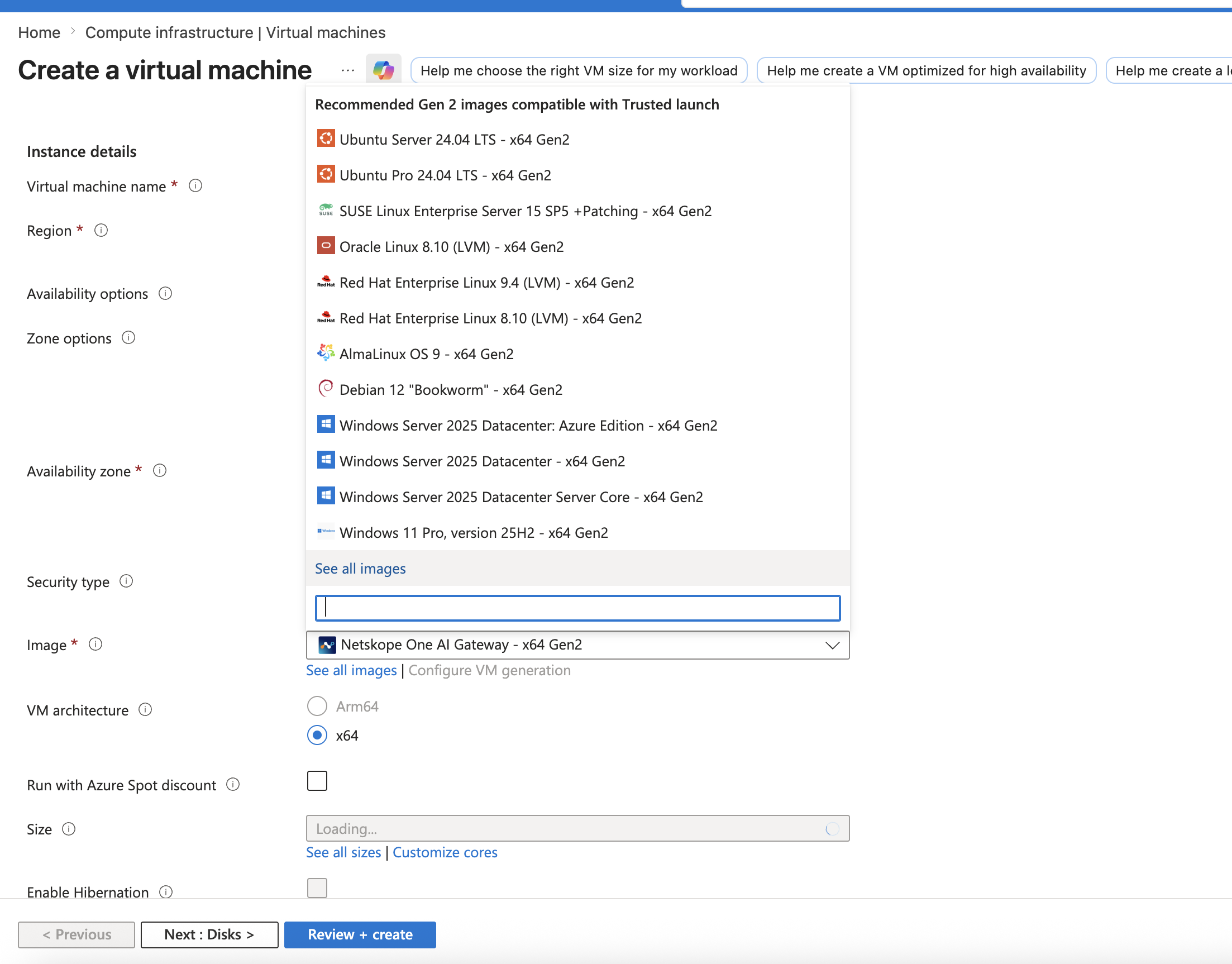
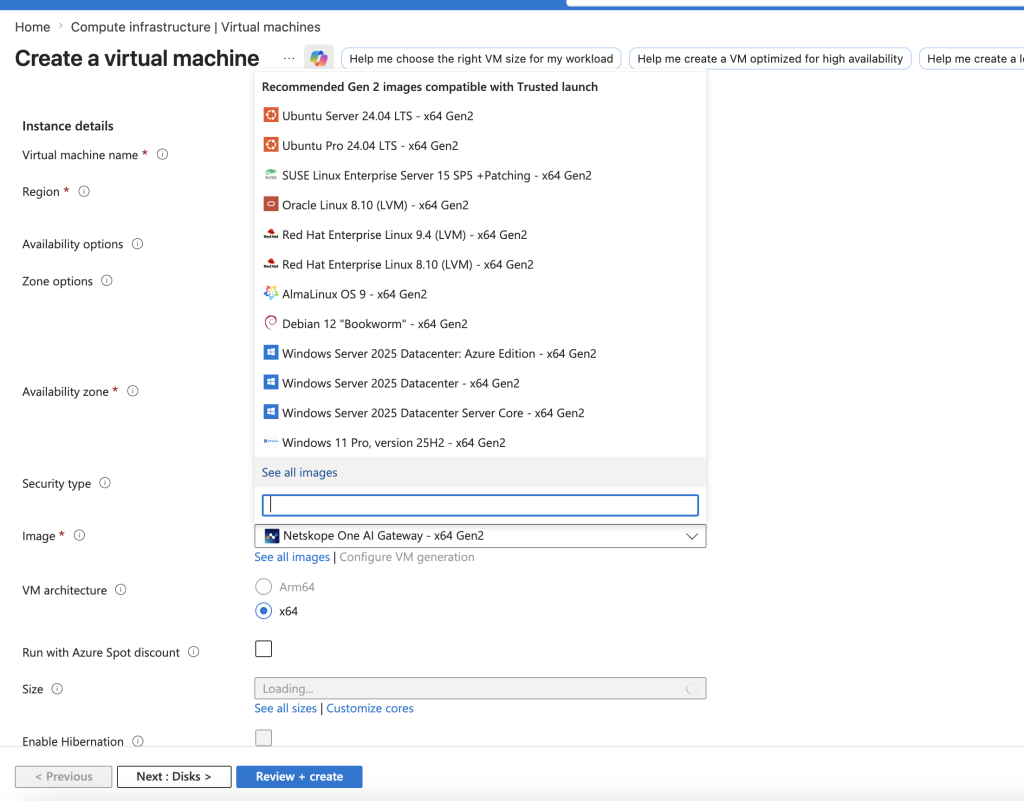
In the Azure portal, go to Compute infrastructure > Virtual machines. Click the Images dropdown, and select All images.
-
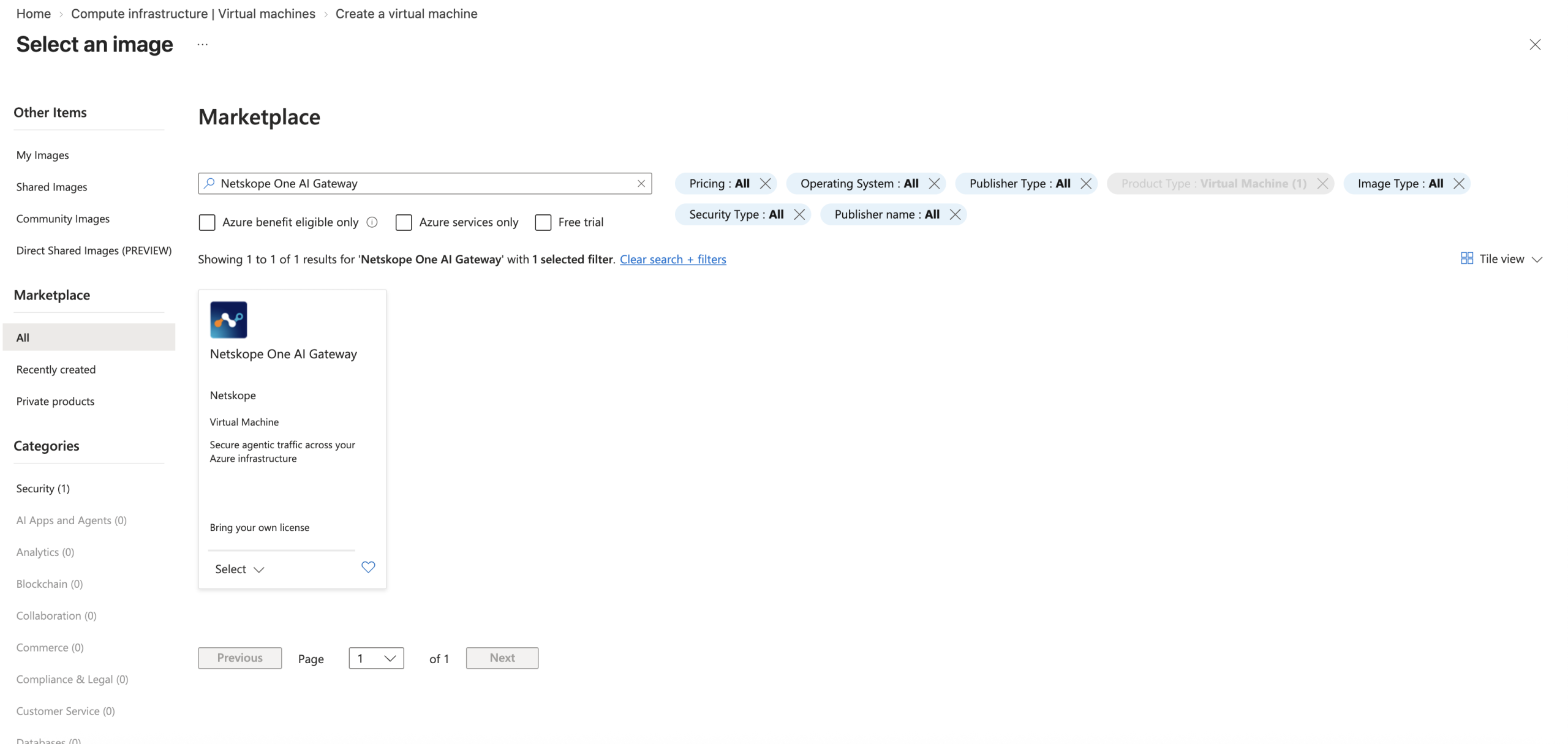
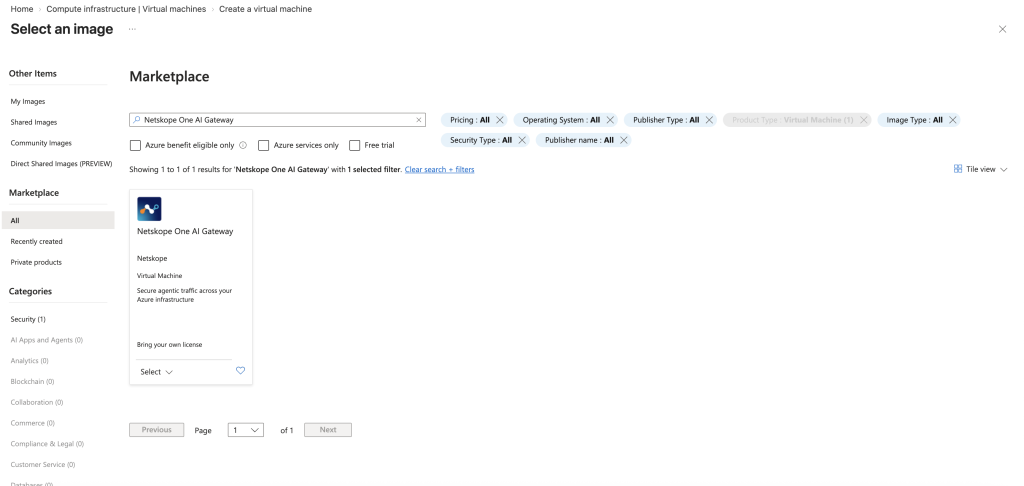
Go to Marketplace and search Netskope One AI Gateway.
-
Choose an image size. For minimum machine requirements by size, see AI Gateway Sizing Guidelines. The AI Gateway image supports Generation 2 (Gen2) virtual machines with Trusted Launch security (Secure Boot and virtual TPM enabled).
-
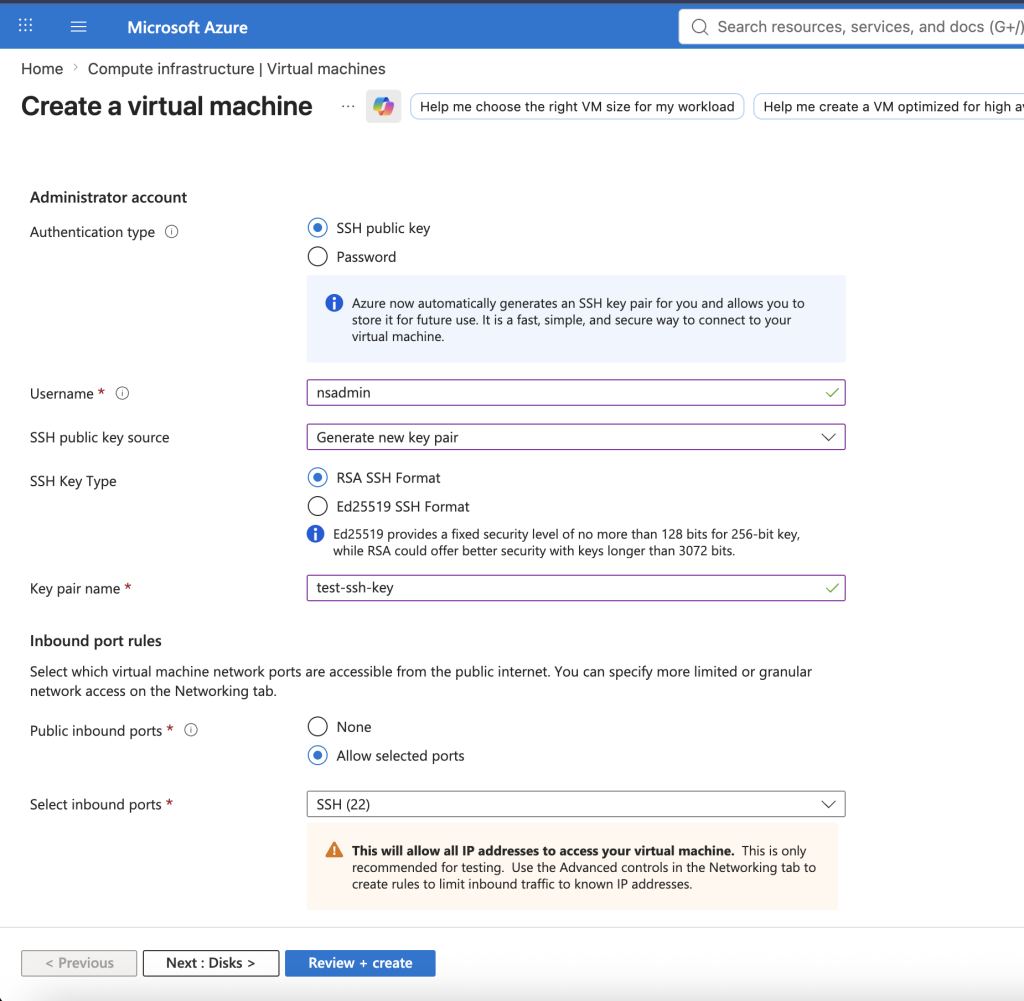
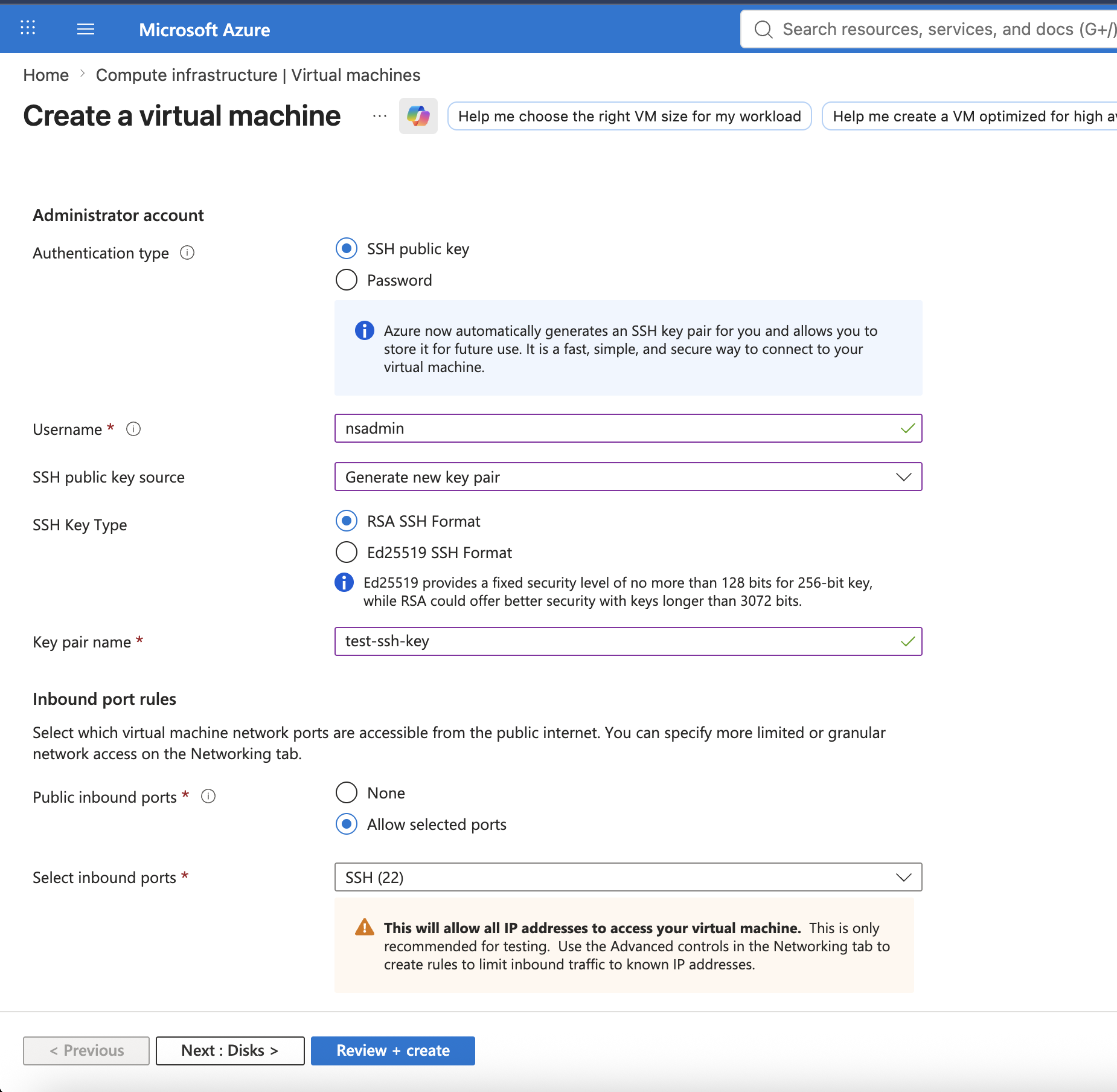
Set up an administrator account. AI Gateway supports both SSH public key and Password authentication on Azure. Configure both authentication types. The username is fixed as nsadmin. Allow inbound SSH (port 22). If you use password authentication, your password must be 12–72 characters long and include at least three of the following: a lowercase letter, an uppercase letter, a number, and a special character.