

Note
This is currently a Beta feature. Contact your Sales Representative or Netskope Support to enable this feature for your tenant.
You can classify Linux devices based on these criteria:
- Criteria match: Checks for All or Any of the criteria selected.
- Encryption: Checks for the entire disk encryption.
- OPSWAT: Checks if the OPSwat MetaAccess client is installed and running.
- File: Checks for specified files. For example, /usr/lib/slack/slack.
- AD Domain check: Checks for AD domains.
- OS check(Beta): Checks the OS edition and build number compliance.
Create Device Classification Rule for Versions From 127.0.0 Or Later
Earlier, the Device Classification Rules webUI provided only the Match Any or Match All operators to choose between criteria in a Device Classification rule. With the release of version 127.0.0, Netskope extends the support for the usage of logical operators AND/OR between criteria in a Device Classification rule.
The logical operators work at three levels in a Device Classification Rule:
- Apply logical operators globally across all Criteria Groups within a device classification rule.
- Apply logical operators within a Criteria Group.
- Apply logical operators within certain criteria such as:
- File and Process
- File OR Process
To create a device classification rule for Linux:
-
Go to Settings > Manage > Device Classification.
-
Select Linux on the New Device Classification dropdown list.
-
Follow these steps to classify your iOS device. Select options and enter the requested parameters:
-
Rule Name: Enter a name for the classification rule.
-
Device Classification: From the options displayed in the dropdown menu, choose the desired label you want to assign to this rule. You cannot assign more than one label to a rule.
-
Classification Criteria: In Add Criteria Group, select one of the following options:
You can create up to 16 criteria groups within a device classification rule. -
Encryption: Select to check for disk encryption.
-
OPSWAT: Select to check if the OPSwat MetaAccess client is installed and running.
-
Process: To classify a managed device based on the presence of any one or more processes. To enter the executable file name(s), click +Process and add the process names in the format text1.exe. You can add up to 16 process names.
-
File: To classify a device based on the presence of one or more files. To enter the file name, click +File and add the file name in the format Sample.txt. You can add up to 16 file names.
-
AD Domains: To classify a device associated with any one or more domains, enter the domain name. To enter the AD Domain name, click +AD Domains and enter the domain name. You can add up to 16 domain names.
-
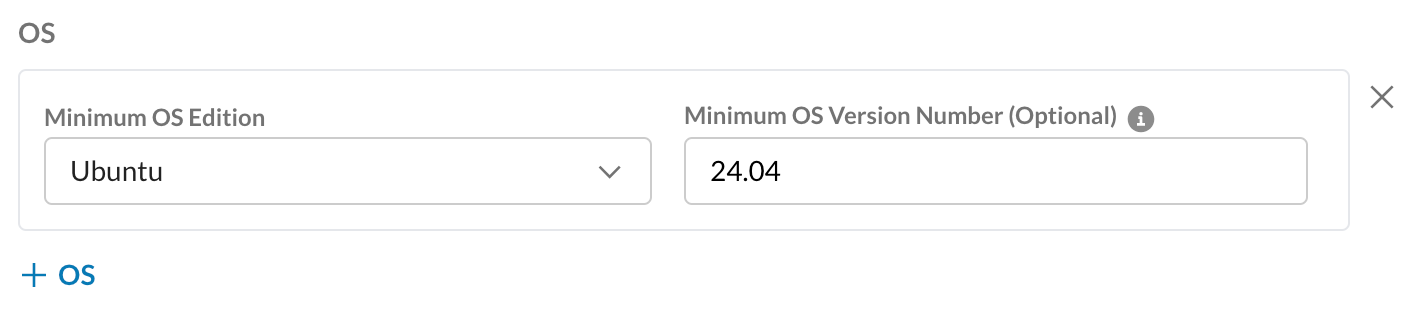
OS: To check and classify device compliance for the detected OS version that matches or is above the version information configured by the administrator. The OS check rule for Linux consists of two parts:
-
Minimum OS distribution
-
Minimum OS version number

The administrator can select one of the following predefined Linux OS editions and then enter the minimum version number in the Minimum OS Version Number (Optional) field:
-
Ubuntu
-
Mint
-
Red Hat Enterprise
If you do not enter the Version Number, the Client automatically assigns it as zero. You can add multiple OS distributions and their respective version numbers on the user interface.
After the admin selects the OS distributions and version number, Netskope Client checks the OS product distribution and verifies that the Linux version number is not less than the number mentioned in the rule.
-
-
-
Click Add Criterion to add more than one device classification option. You cannot add the same option twice in a single Criteria Group. The selected options remain greyed-out in a Criteria Group.
-
After you complete adding all the required criteria in the first group, select the logical operator Match All (AND) or Match Any (OR) to compare the criteria in the Device Classification Rule.
-
Choose and add the required criteria in the second group along with the logical operator for that Criteria Group.
-
Choose the logical operator to match the various criteria added in each group.
-
When finished, click Save.
Create Device Classification Rule for Versions Prior to 127.0.0
-
Go to Settings > Manage > Device Classification and select Linux on the New Device Classification Rule dropdown list.
-
On the New Device Classification Rule: Linux screen, select and enter the following options steps to classify your Linux device:
-
Rule Name: Enter a name for the classification rule.
-
Device Classification: From the options displayed in the dropdown menu, choose the desired label you want to assign to this rule. You cannot assign more than one label to a rule.
-
Classification Criteria: Select an All or Any criteria match.
-
Encryption: Select to check for disk encryption.
-
OPSWAT: Select to check if the OPSwat MetaAccess client is installed and running.
-
Process: To classify a managed device based on the presence of any one or more processes, enter the executable file name.
-
File: To classify a device based on the presence of any one or more files, enter the file name along with the path.
-
AD Domain: To classify a device associated with any one or more domains, enter the domain name.
-
OS: To check and classify device compliance for the detected OS version that matches or is above the version information configured by the administrator. The OS check rule for Linux consists of two parts:
-
Minimum OS distribution
-
Minimum OS version number

The administrator can select one of the following predefined Linux OS editions and then enter the minimum version number in the Minimum OS Version Number (Optional) field:
-
Ubuntu
-
Mint
-
Red Hat Enterprise
If you do not enter the Version Number, the Client automatically assigns it as zero. You can add multiple OS distributions and their respective version numbers on the user interface.
After the admin selects the OS distributions and version number, Netskope Client checks the OS product distribution and verifies that the Linux version number is not less than the number mentioned in the rule.
-
-
-
Click Save.

Configure a Real-time Protection Policy
After creating a device classification rule, you can use it in a Real-time Protection policy.
-
To use this Device Classification in a Real-time Protection policy, click Policies > Real-time Protection on the Netskope UI. Select an existing policy or click New Policy and choose a policy type.
-
Proceed through the Users, Cloud Apps + Web, DLP/Threat Protection, and Select Activities sections.
-
For Additional Attributes, click Access Method and select either Client, Mobile Profile, or Reverse Proxy, and then click Save. Click Device Classification, and then select label from Custom Device Management, Managed or Unmanaged from Device Classification based on the devices you just classified.
-
Managed means the device is managed; the device posture information sent by the Client matches at least one of the device classification checks configured for that Client’s OS.
-
Unmanaged means the device is unmanaged; the device posture information sent by the Client matches none of the device classification checks configured for that Client’s OS.
-
-
Combine device classification with other policy elements, like using the Block Action for specific applications for activities like uploading files from managed or unmanaged devices. Finish creating or updating this policy to establish this device classification. Click Apply Changes for this policy.
-
After the policy has been created, perform the process for which the policy was created. Next, go to Skope IT > Application Events and click the magnifying icon for an event to open the Application Event Details panel. In the User section you will see a Device Classification field that shows one of these device classifications.