Password policy for the Publisher are enabled for versions 101 or lower. The Publisher host user password may expire if not changed regularly. This article explains how to disable the password expiry. Versions 102 and above will have the password policy disabled, and you are now required to apply your corporate password policy to your Publishers.
AWS AMI Publisher
If your AWS publisher was deployed from the Netskope prebuilt images (from AWS marketplace), the following instructions can help you to remove the password expiry. This approach is applicable for version 94+ Ubuntu Publishers.
Note
Publisher images on Amazon marketplace (AMI) now use 16GB HDD space by default.
The Ubuntu publisher built in with the AWS System Manager (SSM) agent. You can use SSM to log in to the Publisher EC2 instance and remove the password expiry.
- Create an IAM role with the SSM permissions.
- Create an IAM role.
- Add permission policy AmazonSSMManagedInstanceCore into the IAM role.
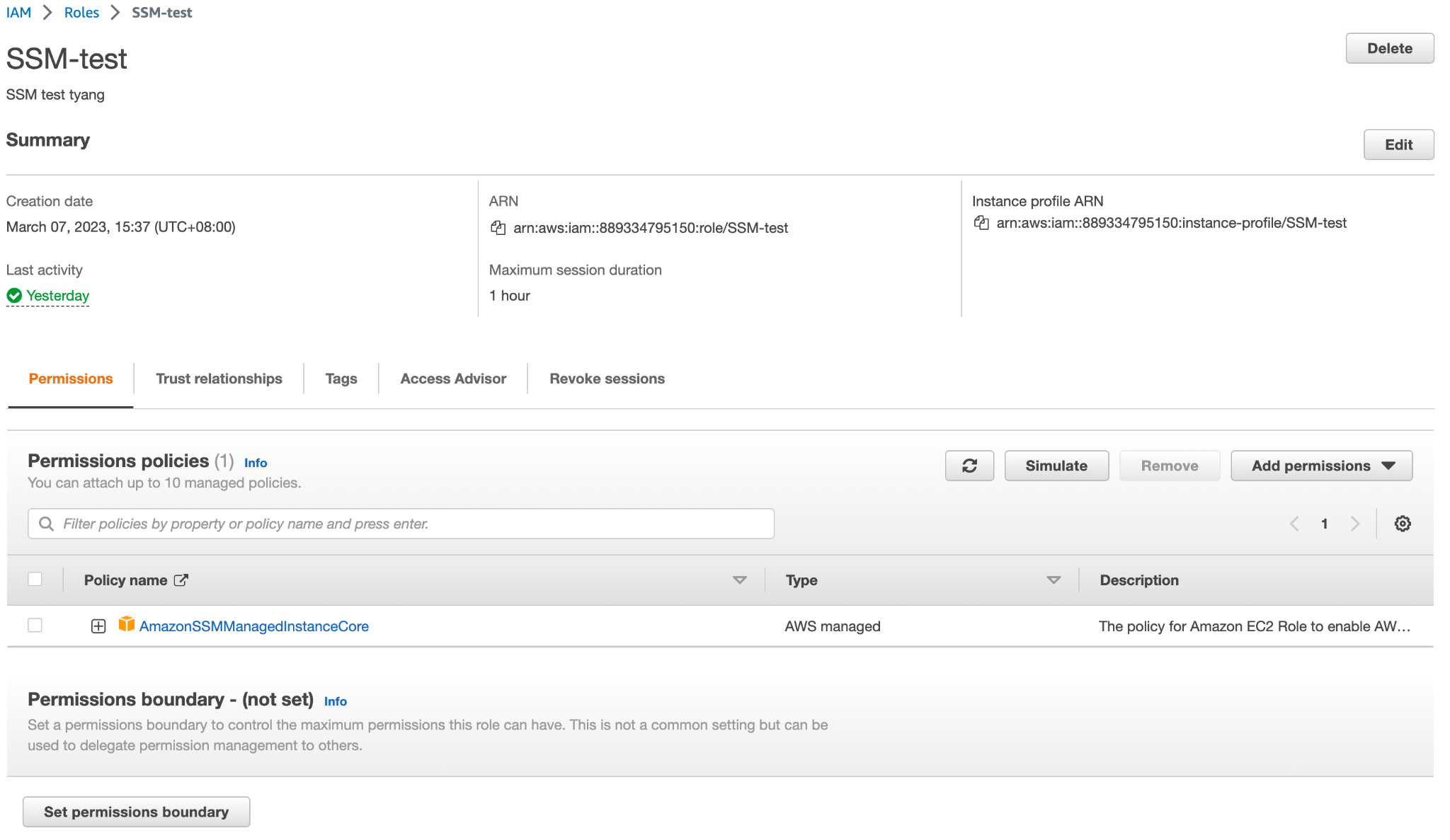
- Attach the IAM role to the Publisher EC2 instance.
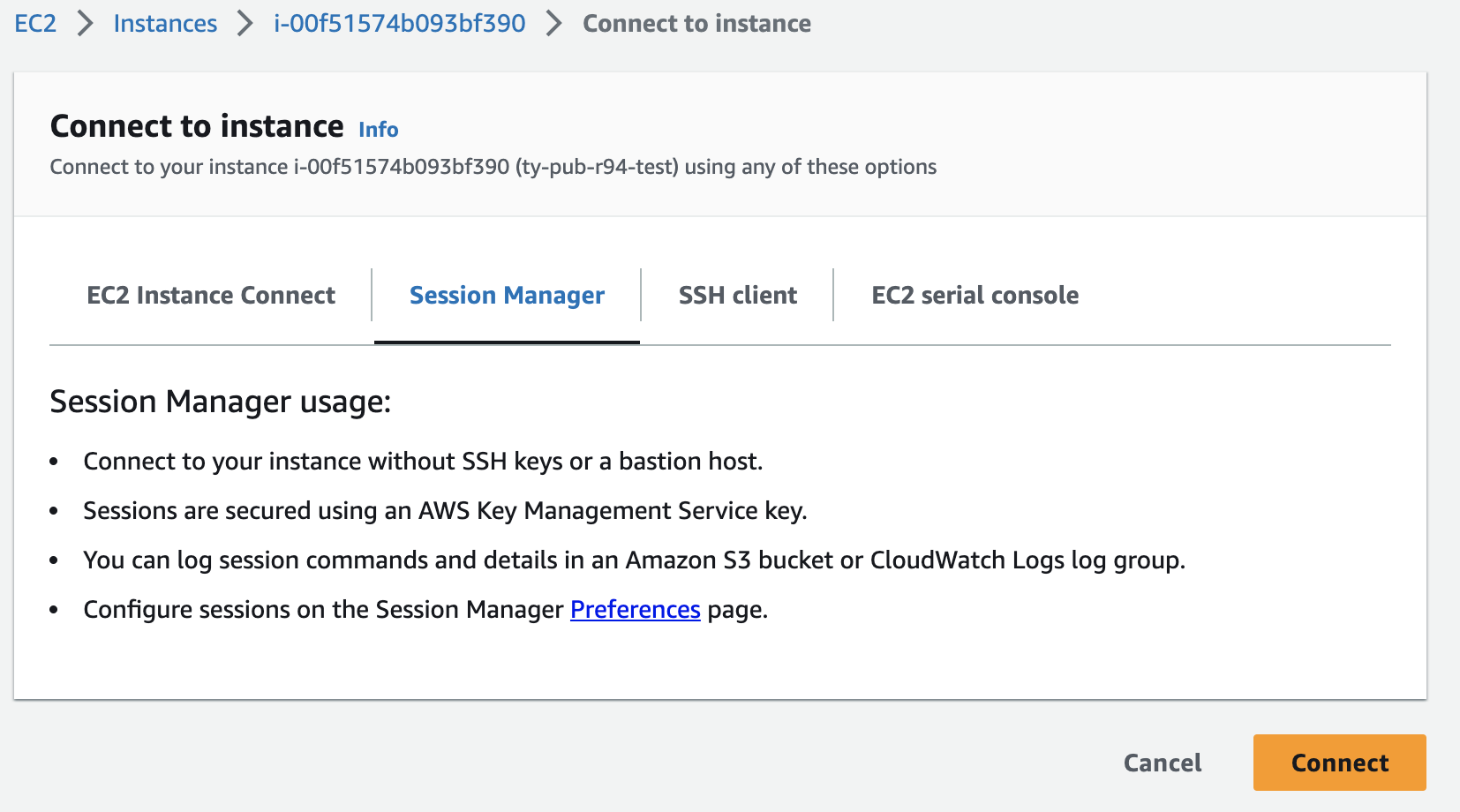
- Connect with the Publisher EC2 instance via SSM.

- After you log in into the Publisher, use this following command to disable the password expiry.
sudo chage -m 0 -M 99999 ubuntu
- Use this command to confirm the password expiry was disabled or not.
sudo chage -l ubuntu

- You should able to log in to the Publisher via SSH after disabling the password expiry.
Azure VHD Publisher
If your Azure publisher was deployed from the Netskope prebuilt images (from Azure marketplace), the following instructions can help you to remove the password expiry. This approach is applicable for version 96+ Ubuntu Publishers.
- You can use the built-in Reset password function in the Azure portal.
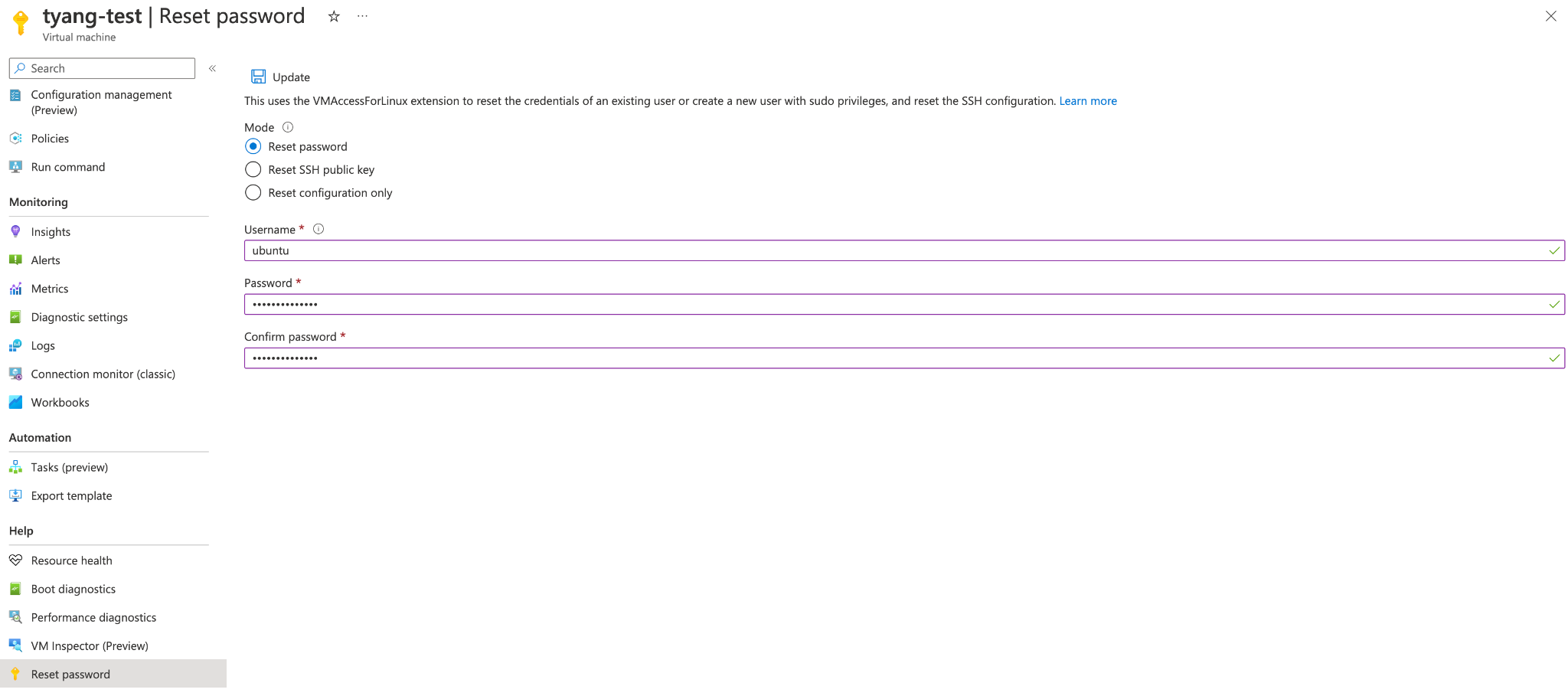
- For Mode, select Reset Password, your username, and new password (twice) to reset your ubuntu password.
- After resetting the password, you should be able to log in to the Publisher via SSH.
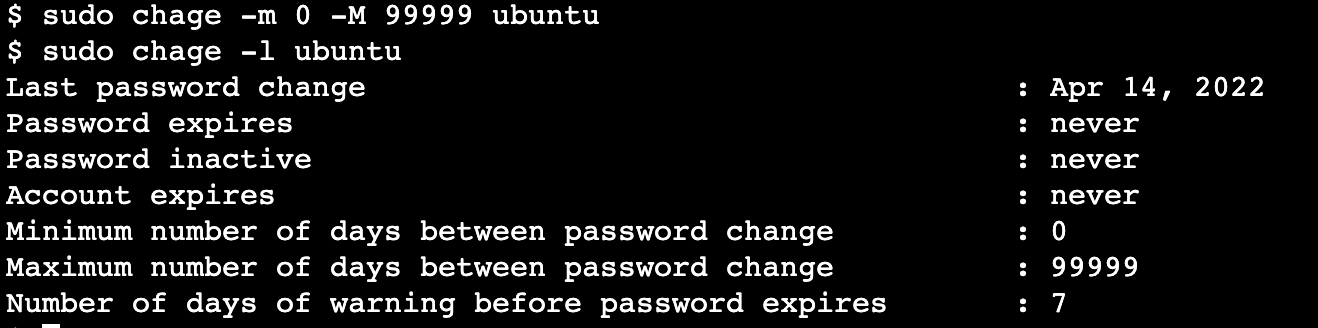
- Disable the password expiry using this command.
sudo chage -m 0 -M 99999 ubuntu
- Use this command to confirm if the password was disabled successfully or not.
sudo change -l ubuntu
OVA/VHDX Publisher
If your Azure publisher was deployed from the Netskope prebuilt OVA/VHDX images, use these steps to remove the password expiry. You should be able to boot into Single User Mode from Linux GRUB to remove the password expiry.
- Reboot the VM.
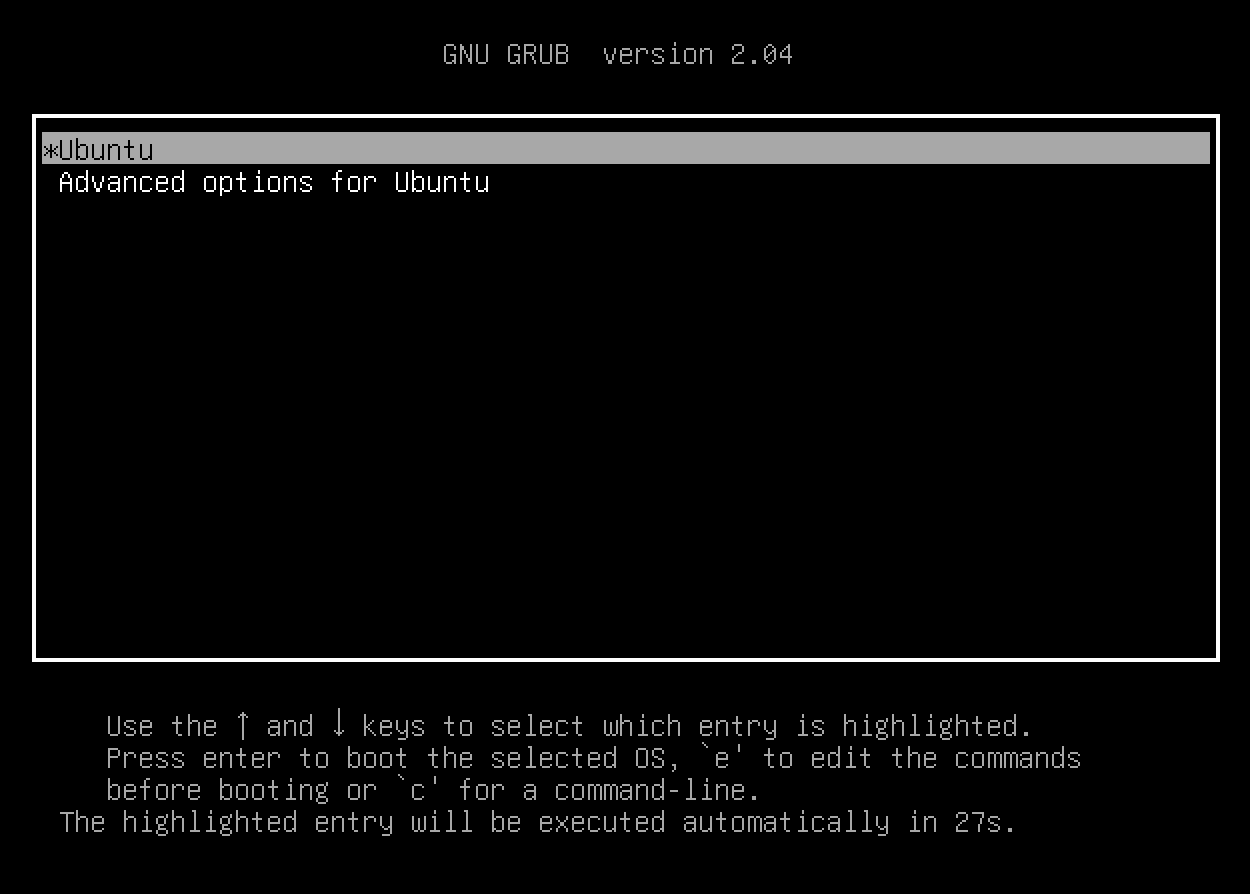
- Enter the GRUB menu by keeping pressing the shift key. If you are using Windows, you may need to disable the sticky key.
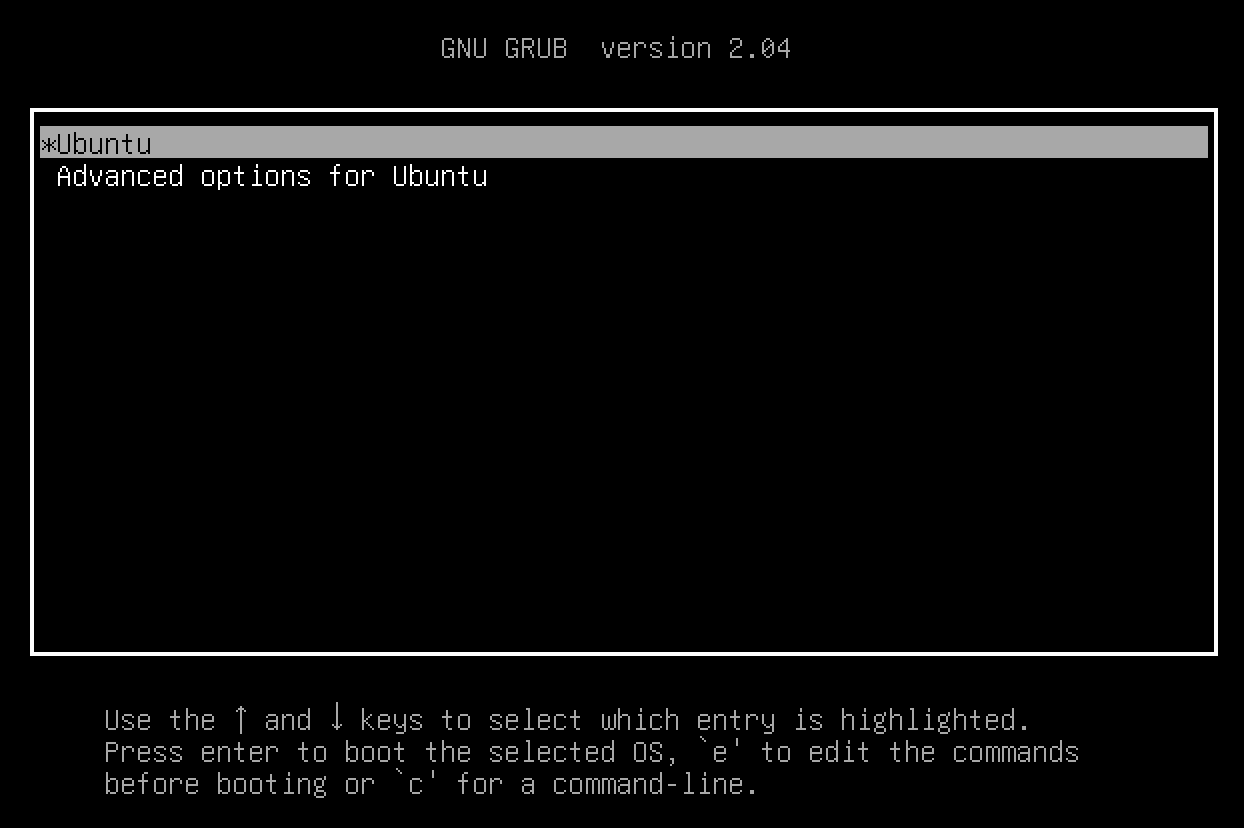
- From the GRUB boot prompt, press the E button to edit the first boot option.
- In the GRUB menu, find the kernel line starting with
linux /vmlinuzand addinit=/bin/bashat the end of the line.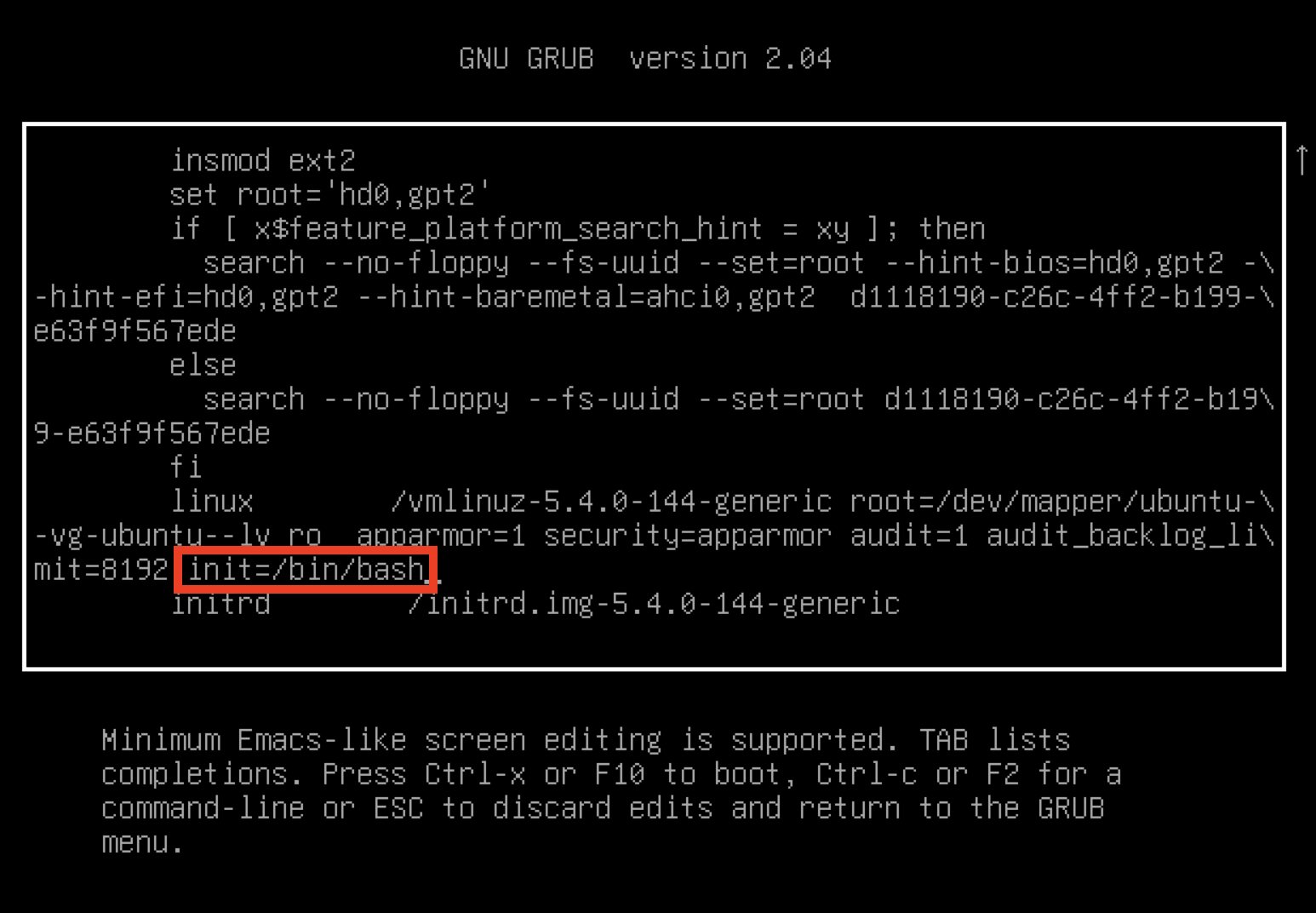
- Press CTRL+X to save the changes and boot the server into single-user mode. Once booted. the server will boot into the root prompt.
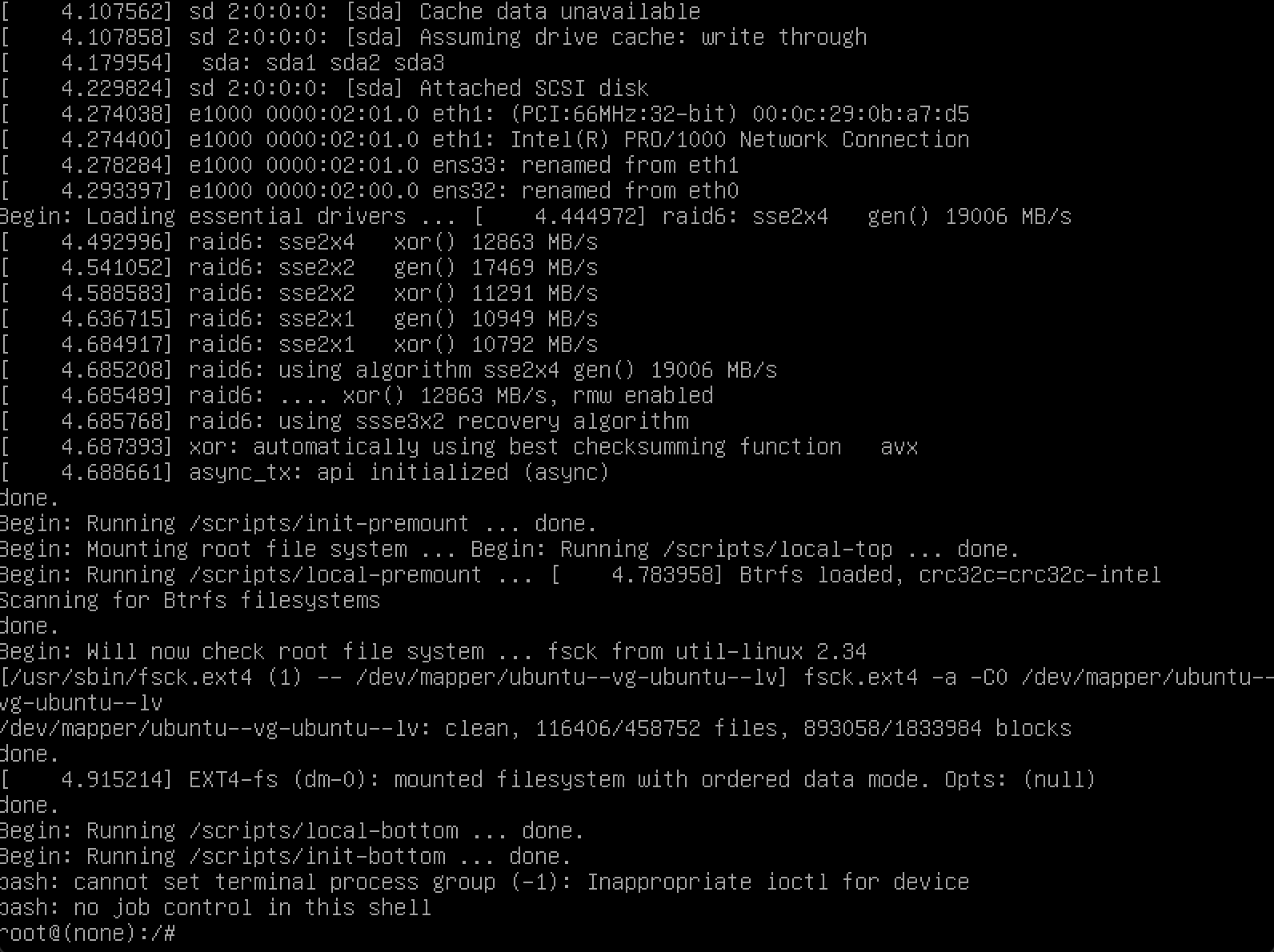
- Type in the command
mount -o remount,rw /to mount the file system.
- Use
chage -m 0 -M 99999 ubuntuto disable the password expiry, and usechage -l ubuntuto confirm if the password was disabled successfully or not.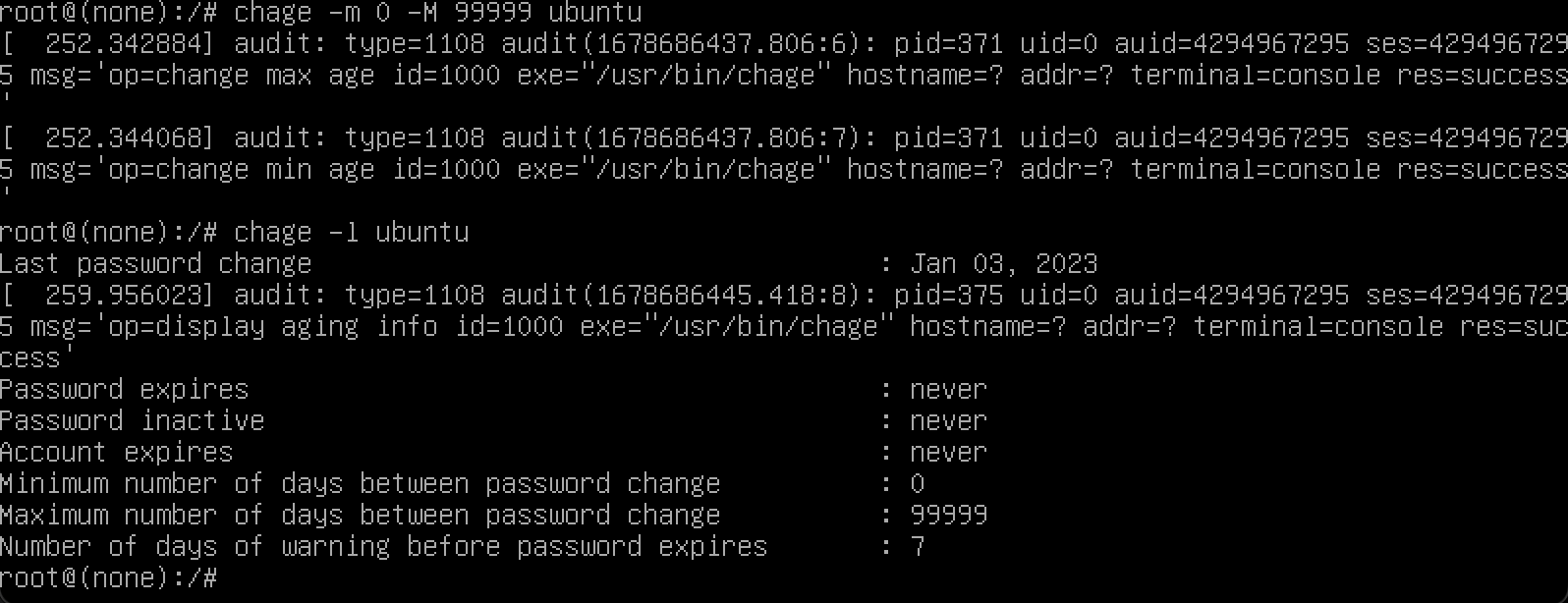
- Reboot the system. Use
reboot -fto reboot the VM. - You will see the GRUB menu again. Press enter on the first item or wait 30 seconds, the boot process will continue. And you should be able to log in into your VM again with your password.