Configure DNSaaS these ways:
- Direct Queries from the Internet.
- Resolve DNS queries through Netskope Client steering.
- Configure the Netskope DNS Resolver as a custom DNS server.
Go to the appropriate section below for instructions.
Direct Queries from the Internet
To start utilizing the Netskope DNS Revolver for internet directly:
-
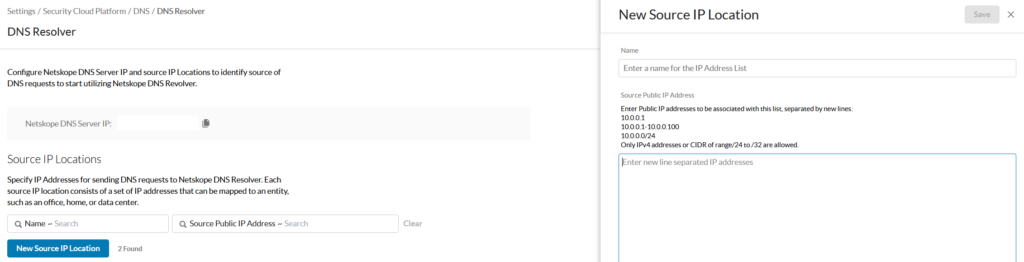
Go to Settings > Security Cloud Platform DNS > DNS > DNS Resolver.
-
Add or edit Source IP Locations specifying the egress public IPs used by clients and DNS servers that will use DNSaaS Resolvers over the Internet. DNS requests from the Internet will be handled only if the source IP of the connection is part of this configuration.
-
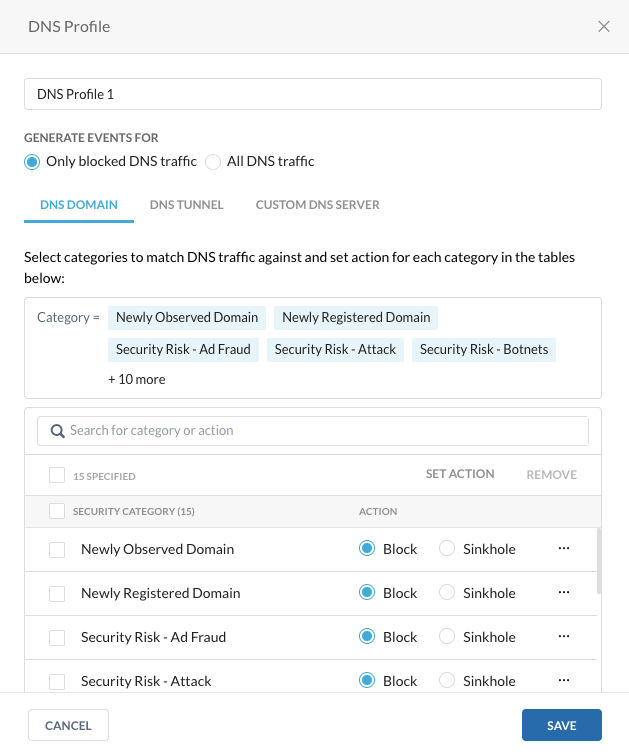
Go to Policies > DNS and and click New DNS Profile.
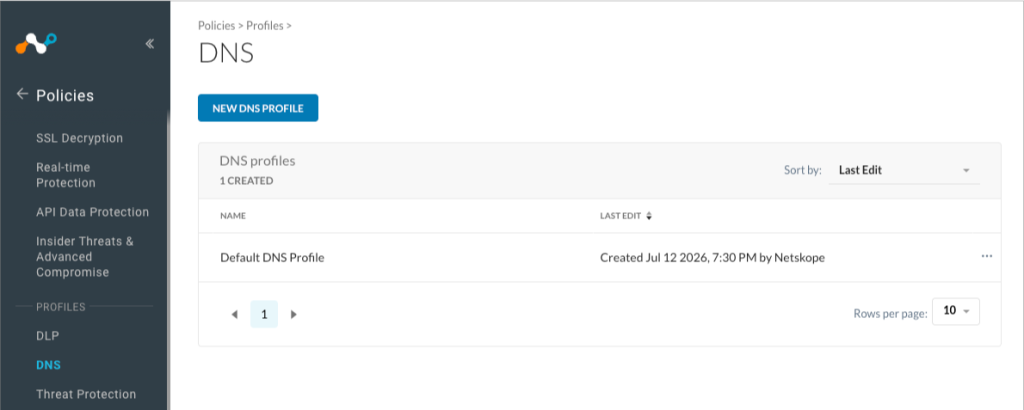
On the DNS Domain tab, enter the needed parameters. For example:

On the DNS Tunnel tab, enter the needed parameters. For example:

On the Custom DNS Server tab, enter the needed parameters. For example:

-
Go to Policies > Real-time Protection > New Policy > DNS and associate the DNS profile with the DNS policy. When finished, click Save.

Resolve DNS Queries through Netskope Client Steering
To configure DNS security by resolving DNS queries through Netskope Client:


-
Go to Policies > DNS and and click New DNS Profile.
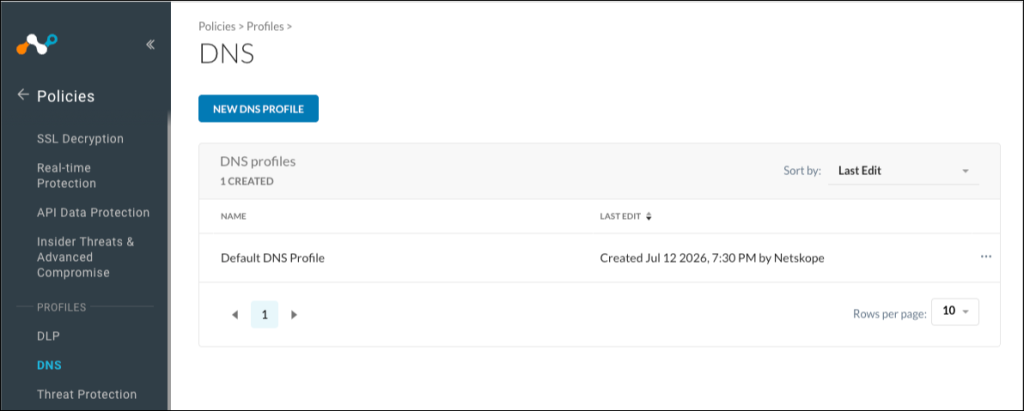
On the DNS Domain tab, enter the needed parameters. For example:

On the DNS Tunnel tab, enter the needed parameters. For example:

On the Custom DNS Server tab, enter the needed parameters. For example:

-
Go to Policies > Real-time Protection > New Policy > DNS and associate the DNS profile with DNS policy. When finished, click Save.

To learn more: DNSaaS Steering Configurations Cases.
Configure the Netskope DNS Resolver as a Custom DNS Server
Update a DNS profile to use the Netskope DNS resolver as custom DNS server so that all queries will use the Netskope Resolver by default irrespective of the destination server used in the Client configuration. Netskope recommends adding one Anycast IP address, either 162.10.1.1 or 162.10.2.2.

Content Filtering with the Domains as part of Business Categories
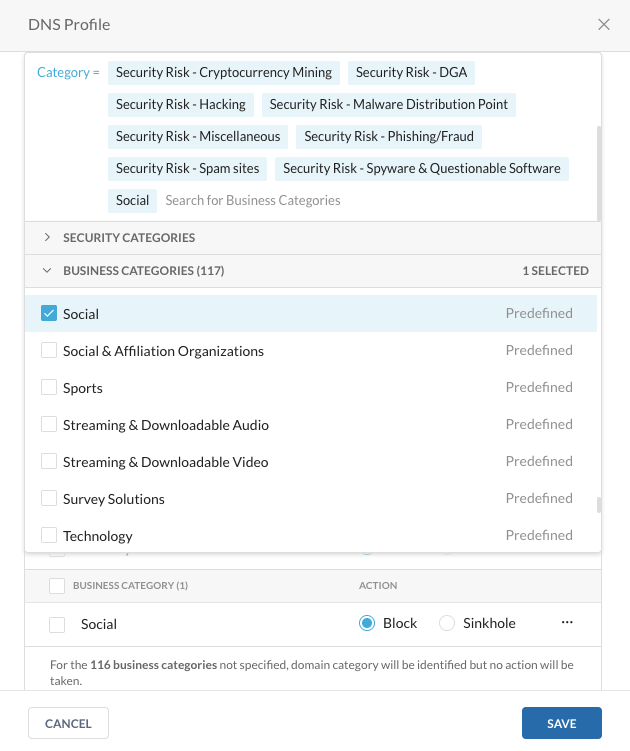
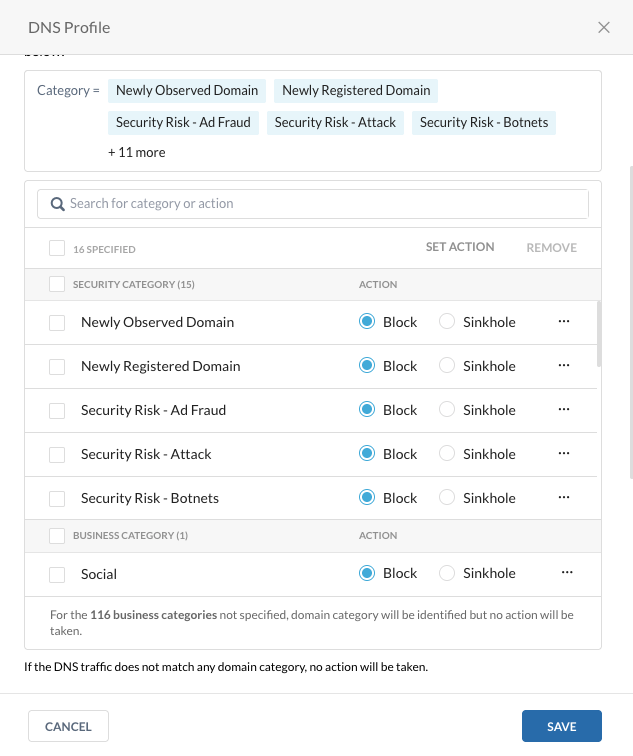
Update the DNS profile to select the Social category and set the Action to Block. You can keep all other categories unselected if you want to allow them: