

Mandatory user enrollment is a crucial security enhancement that guarantees all end-user traffic is subject to your organization’s security policies, thereby ensuring policy enforcement. This immediately enforces security compliance following Netskope Client installation, particularly within a managed environment.
Supported OS: Windows, macOS
By mandating enrollment, you prevent users from bypassing security controls by ignoring to enroll to the Netskope Client . This action eliminates the significant risk of un-enrolled end-users accessing the internet without any security enforcement. It closes a common loophole where users could bypass organizational policies and expose the network to threats.
Ultimately, mandatory enrollment guarantees policy enforcement, helping your organization maintain compliance and reduce risk by ensuring no unmanaged traffic escapes essential security controls. It supports configurable install parameters, exception handling, customizable notification frequency, and works across multiple OS platforms.
Supported Client Enrollment Modes
Refer to the following table to understand the supported enrollment mode in a single and multi-user environment.
| Enrollment Mode | Single User | Multi-User |
|---|---|---|
| IDP | Yes | Yes |
Enforce Enrollment Configuration
Administrators can deploy Netskope Client in the end-user devices using the IDP mode, requiring end-users to enroll with their login credentials. Previously, the end-users could indefinitely bypass Client enrollment, creating significant security risks and vulnerabilities. Use the following steps to mitigate the security threats and vulnerabilities:
Step 1: Setup Enforce Enrollment Under Steering Configuration Profile
The administrators can now mandate Netskope Client enrollment using the Enforce Enrollment option in the Steering Configuration web UI. This feature also allows administrators to specify certain destinations that end-users can access even without Client enrollment. To learn more, view Steering Configuration (Go to Steps 7).
Step 2: Installation Parameters
After setting up the steering configuration, the administrator can copy the Steering Profile ID and include the ID in the MSIEXEC command or MDM scripts used to install Netskope Client in Windows and macOS. For example:
-
In Windows, the administrator must modify the MSIEXEC command to install Netskope Client and include the following parameters:
enforceenrollsteeringprofileidandenforceenrollfrequencyto enforce enrollment for users. To learn more, view Netskope Client for Windows.Deployment Option Command Single -user mode installation msiexec /I NSClient.msi tenant=<tenant-name> domain=[region.]<tenant-domain> installmode=idp host=addon-<tenant-name>.[region.]<tenant-domain> token=<Organization ID>[enrollauthtoken=<Authentication Token>] [enrollencryptiontoken=<Encryption Token>] [enforceenrollsteeringprofileid=<steering profile ID>] [enforceenrollfrequency=<time in minutes>] [/l*v %PUBLIC%nscinstall.log]
Example:msiexec /I NSClient.msi tenant=corp domain=goskope.com installmode=idp host=addon-corp.goskope.com token=XXX enrollencryptiontoken=XXX enforceenrollsteeringprofileid=XXX enforceenrollfrequency=1Multi-user mode installation msiexec /I NSClient.msi tenant=<tenant-name> domain=[region.]<tenant-domain> installmode=idp mode=peruserconfig host=addon-<tenant-name>.[region.]<tenant-domain> token=<Organization ID>[enrollauthtoken=<Authentication Token>] [enrollencryptiontoken=<Encryption Token>] [enforceenrollsteeringprofileid=<steering profile ID>] [enforceenrollfrequency=
Example:msiexec /I NSClient.msi tenant=corp domain=goskope.com installmode=idp enrollencryptiontoken=XXX mode=peruserconfig enforceenrollsteeringprofileid=XXX enforceenrollfrequency=1 host=addon-corp.goskope.com token=XXX [/qn] -
In macOS, for MDM-specific instructions on deploying Netskope Client, view Netskope Client Deployment Options (The administrator must modify the scripts available to deploy Netskope Client using any MDM for macOS (IDP mode) to enable enforce enrollment for any user).
sudo ./nsclientconfig.sh 0 0 0 idp <domain> <tenant-name> <email address request> enrollencryptiontoken=<Encryption Token> host=addon-<tenant-name>.<domain> token=<Organization ID> enforceenrollfrequency=<minutes> enforceenrollsteeringprofileid=<steering profile id>
Example:
sudo ./nsclientconfig.sh 0 0 0 idp goskope.com corp 1 enrollencryptiontoken=XXX host=addon-corp.goskope.com token=XXX enforceenrollfrequency=1 enforceenrollsteeringprofileid=XXX
Netskope Client Enrollment Enforcement Using IDP
After the Netskope Client installation, the Netskope Client prompts the end-user to enroll to Netskope Client by providing their IDP login credentials using the Enroll Netskope Client pop-up.
If the end-user chooses to defer the enrollment, the Enforce Enrollment feature ensures that they will continue to receive reminders to complete the enrollment. The time interval set by the administrator in the command determines the frequency of these reminders. The user can click on the Enroll button in the notification to complete the enrollment.

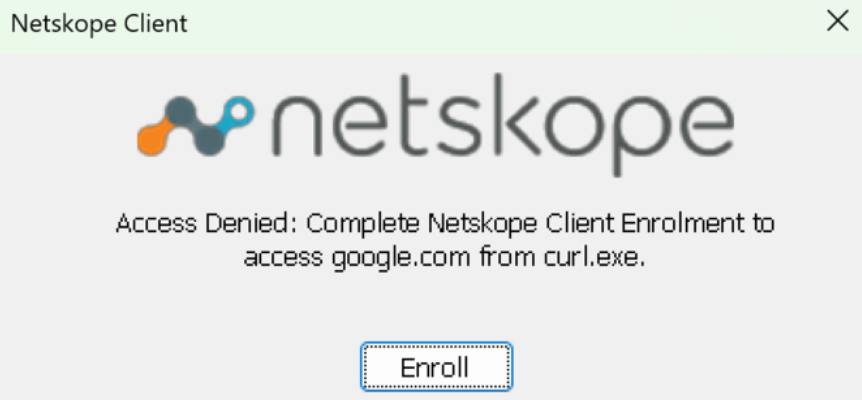
Until the end-user completes enrollment, the Netskope Client blocks all web traffic i.e. TCP ports 80 and 443. During this time, end-users receive a persistent “Access Denied” pop-up notification for blocked traffic.
Behavior After Disabling or Unenrolling Internet Security Tunnel
An end-user can disable or unenroll Netskope Client using one of the the following options:
-
Administrator can allow the user to disable Internet Security tunnel using Allow disabling of all Client Services together or Allow disabling of Internet Security. If the Internet Security tunnel is disabled using these options, then traffic is allowed to go direct to the destination.
-
Administrator can Allow users to unenroll from Netskope Client: In this scenario traffic is allowed to go direct to the destination until the device is rebooted or the client service stAgentSvc is restarted. The following table refers to the the different types of traffic steering directly after the user un-enrolls from Netskope Client:
All Traffic Web Traffic Cloud Apps Only Behavior after device restart or Client service (stAgentsvc) restart Blocks all traffic until the user enrolls to Netskope Client. Blocks web traffic until the user enrolls to Netskope Client. Blocks cloud apps traffic until the user enrolls to Netskope Client.