

Main flows
(User) Onboarding on the Enterprise Browser
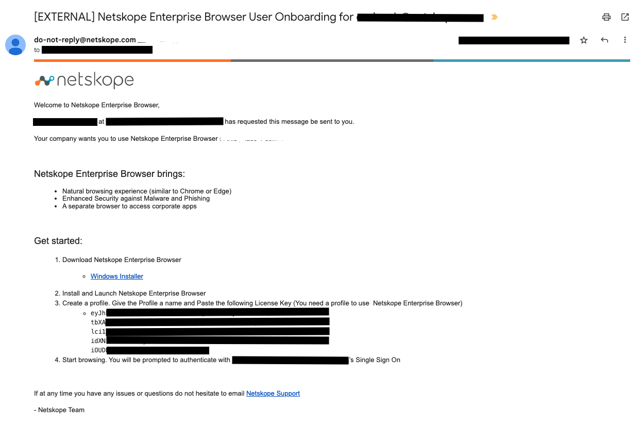
1 – (Jump to next step if EB has been pushed out with MDM) Once the admin has provisioned users for the Netskope Enterprise Browser, they will receive an email with instructions to download and install EB, including the license key. Once downloaded, the user installs the Enterprise Browser, which will be launched automatically.
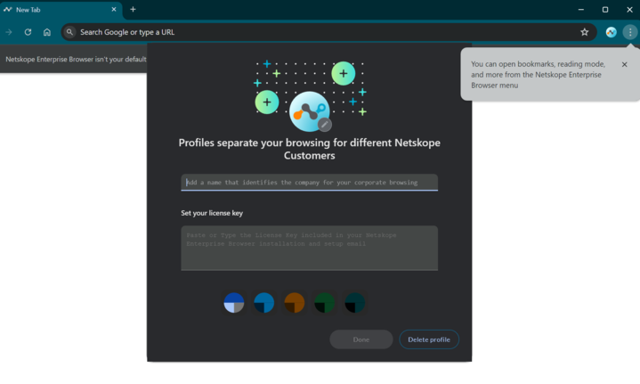
2 – Once the Enterprise Browser is installed, it will be launched. The user will need to create an Enterprise Browser profile, using the license key included in the email.
Each profile is tied to a specific Netskope tenant. Multiple profiles allow for use cases where a user needs to use Enterprise Browser to interact with different Netskope Tenants: e.g. contractors working for different companies.
Notes:
- Users cannot browse without a browser profile – failure to create a profile will prevent the user to browse with Enterprise Browser
- Users can leverage the same license in different devices: (e.g. contractor personal and work laptop)
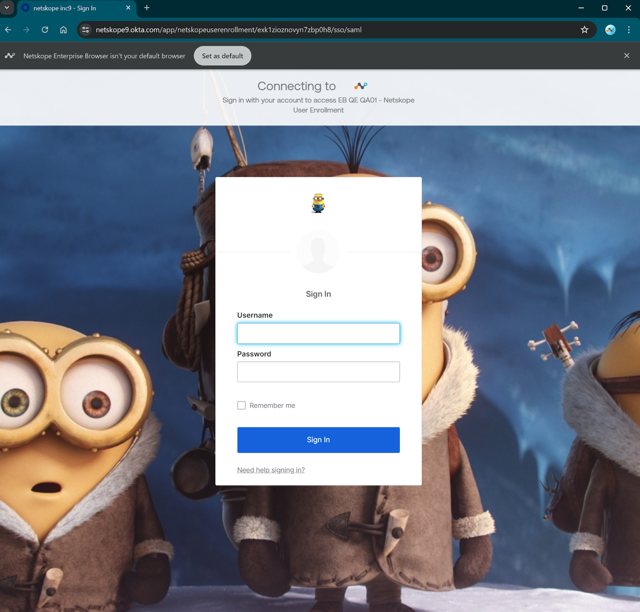
3- Once the profile is created and the user starts browsing, they will automatically be redirected to your tenant’s SSO page, configured in the previous step.
Netskope relies on the customer’s SSO to authenticate the EB user and allow them to send EB generated traffic through Netskope.
(User) Browsing with the Enterprise Browser
At this point, Netskope Enterprise Browser is up and running. Users can browse to any web page or cloud app. Your Real Time Protection Policies configured previously for “Enterprise Browser” access method will apply:
- E.g. if a policy is created to block “News and Media” and browse to a web site in the “News and Media” category, e.g.https://www.cnn.com/ . You will be notified that the traffic is blocked according to the policy.
- E.g. if you created a DLP policy to prevent upload of docs with sensitive information to google cloud, e.g. credit card information. The Enterprise Browser will block the upload and you will be notified that the upload is blocked.
- E.g. A Google Cloud presentation trying to copy / print. You will be notified that copying / printing is blocked according to the policy.
(User) Loading the Enterprise Browser Homepage
When user clicks on “Home” button or opens new tab, modified version of netskope://newtab is displayed. This version will display most visited URLs by the user or URLs added by him. It would also display specific URLs set by the company for that specific user. .
The homepage is the HTML page that will be shown when a user opens the browser, clicks on the ‘Home’ button or opens new tab.
image-1 shows homepage example:
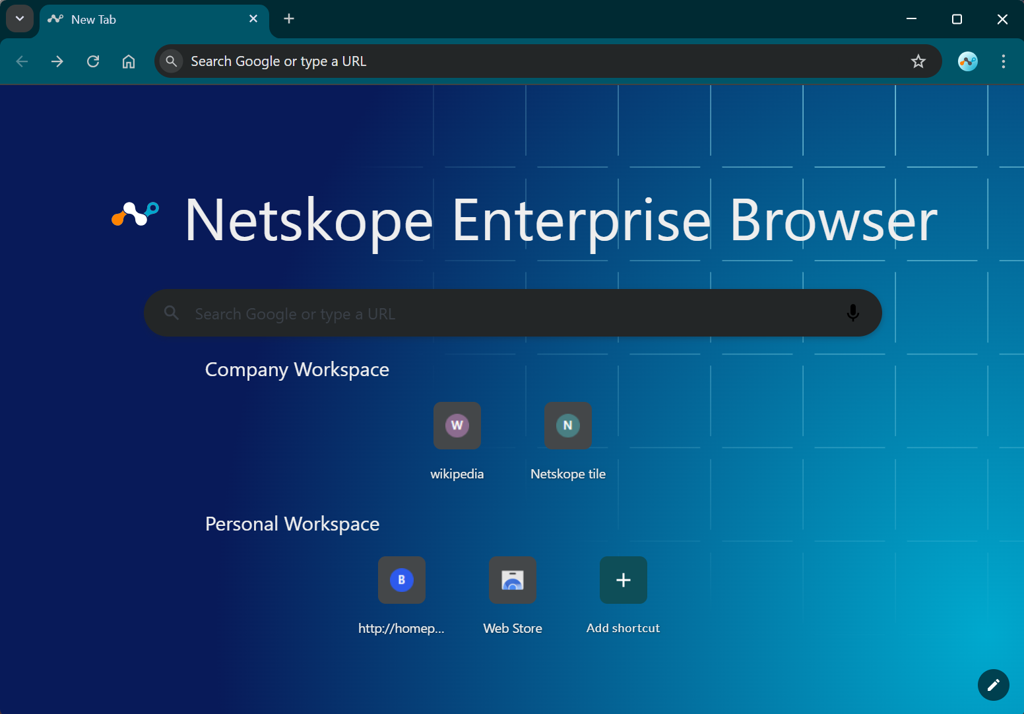 image-1
Using Mobile
Using Enterprise Browser on iOS and iPadOS
Netskope Enterprise Browser is a managed browser for your iPhone and iPad that your organization provides to give you secure access to work applications and websites. It looks and works like a standard iOS browser, with your organization’s security policies applied automatically in the background.
Getting Started
Your organization will send you an email invitation or deploy the app to your device through your MDM system.
If you received an email invitation:
- Open the invitation email on your iPhone or iPad.
- Tap the link to download the configuration profile and follow the on-screen instructions to install it.
- Go to Settings → Profile Downloaded and tap Install to trust the profile.
- Open the App Store link in the email and install Netskope Enterprise Browser.
- Open the browser, create a profile by entering the license key from your invitation email, and start browsing.
If your organization deployed the app via MDM, the browser is installed automatically on your device. Open it and your profile is created automatically — no license key is needed.
Browsing
Netskope Enterprise Browser works like any other browser on iOS. You can:
- Open multiple tabs
- Use bookmarks and browsing history
- Search the web from the address bar
- Access private apps your organization has made available (if configured)
What Your Organization May Have Enabled
Your IT team may have configured security features that affect your browsing experience on certain sites:
- Watermark — a faint text overlay with your name and organization may appear on some pages.
- Screenshot protection — on some pages, screenshots will capture a blank image or a “content protected” message instead of the page content.
- Clipboard restrictions — on some sites, copying text out of the browser or pasting content into it may be restricted.
- Policy indicator — a Policy button may appear in the address bar on some sites, showing which controls are active.
Frequently Asked Questions
Can I use other browsers alongside Enterprise Browser?
Yes. Enterprise Browser is separate from Safari and other browsers. It is used specifically for work applications your organization has directed through it.
Will Enterprise Browser track my personal browsing?
Enterprise Browser is managed by your organization and applies your organization’s security policies to your browsing within the app. Your organization cannot see your activity in other browsers on your device.
What should I do if the browser is not connecting?
Ensure your device has internet connectivity. If you are using the Netskope Client (NSClient) alongside Enterprise Browser, make sure it is running and configured correctly. Contact your IT department if the problem persists.
What to Do
If you have questions or encounter issues with Enterprise Browser, contact your IT department.
To learn more: iOS and iPadOS Deployment | Browser Protection Policies — Overview
Using Enterprise Browser on Android and ChromeOS
Netskope Enterprise Browser is a managed browser for your Android phone or Chromebook that your organization provides to give you secure access to work applications and websites. It looks and works like a standard Android browser, with your organization’s security policies applied automatically in the background.
Getting Started
Your organization deploys Netskope Enterprise Browser to your device through your MDM system (for example, Microsoft Intune, VMware Workspace ONE, or Google Workspace).
If your organization deployed the app via MDM, the browser is installed on your device automatically. When you open it for the first time, your profile is created automatically based on your organization’s managed configuration — no license key or manual setup is needed.
If the browser is not auto-configured, open the browser and create a profile by entering your organization’s tenant name and the profile license key provided by your IT team.
Browsing
Netskope Enterprise Browser works like any other browser on Android. You can:
- Open multiple tabs
- Use bookmarks and browsing history
- Search the web from the address bar
On ChromeOS, the browser runs as an Android app and integrates with the ChromeOS window manager. You can resize the browser window like any other ChromeOS app.
What Your Organization May Have Enabled
Your IT team may have configured security features that affect your browsing experience on certain sites:
- Watermark — a faint text overlay with your name and organization may appear on some pages.
- Screenshot protection — on some pages, taking a screenshot will produce a blank image instead of the page content.
- Clipboard restrictions — on some sites, copying or pasting content may be restricted.
- Policy indicator — a Policy button may appear in the address bar on some sites, showing which controls are active.
Frequently Asked Questions
Can I use other browsers alongside Enterprise Browser?
Yes. Enterprise Browser is separate from Chrome and other browsers on your device. It is used specifically for work applications your organization has directed through it.
Will Enterprise Browser track my personal browsing?
Enterprise Browser is managed by your organization and applies security policies to your browsing within the app. Your organization cannot see your activity in other browsers on your device.
What should I do if the browser shows a connection error?
Ensure your device has internet connectivity. Contact your IT department if the problem persists.
The app updated but my profile was reset. What happened?
If your organization’s MDM configuration changed, the browser may have automatically reprovisioned your profile. This is expected behavior. Your browsing history from before the reprovision may not be available.
What to Do
If you have questions or encounter issues with Enterprise Browser, contact your IT department.
To learn more: Android and ChromeOS Deployment | Browser Protection Policies — Overview
Enterprise Browser Updates
Enterprise Browser updates automatically to keep you protected with the latest security fixes and features. Updates download in the background while you work and apply the next time you close and reopen the browser.
What You May See
After an update downloads, you may notice the following:
- a colored dot appears on the three-dot menu icon (⋮) in the top-right corner of the browser, indicating an update is ready
- a notification banner appears at the top of the browser window recommending that you relaunch to apply the update
- if your organization requires updates within a specific timeframe, a countdown message appears indicating when the browser will restart automatically
After relaunching, the browser opens a new tab page. Your bookmarks, saved passwords, and browser settings are preserved, but your previously open tabs are not restored. Save any work in progress before relaunching.
What to Do
When you see an update notification:
- Save any work in progress (forms, drafts, unsaved documents in open tabs).
- Click Relaunch in the notification banner, or close and reopen the browser.
- The browser restarts with the updated version and opens the new tab page.
If your organization has enabled required updates, the browser restarts automatically after the allowed time expires. A countdown indicates when this will happen, giving you time to save your work.
You do not need to download or install anything manually. Updates are fully automatic.
If you have questions about update timing or encounter issues after an update, contact your IT department.
Understanding Policy Notifications in Enterprise Browser
Enterprise Browser displays inline user notifications when Real-time Protection (RTP) policies are triggered. These notifications — block pages, coaching pages, and justification prompts — use the same notification framework as the Netskope Client and Chrome Extension. This page explains how these notifications behave specifically in Enterprise Browser and what is different from other access methods.
How Notifications Work in Enterprise Browser
Enterprise Browser integrates the revamped Netskope Chrome Extension to ensure all inline policy user notifications display correctly. The notification templates, justification options, and mute intervals you configure under Policies > Templates > User Notification apply to Enterprise Browser traffic the same way they apply to Client-steered traffic.
For browse-activity policies, notifications are always delivered inline within the browser — the page content is replaced with the notification template. This happens regardless of the global notification delivery method setting (Client vs Browser).
Enterprise Browser Specific Behavior
The following behaviors are specific to Enterprise Browser and differ from or extend the standard notification behavior documented in the Netskope notification guides:
- Inline delivery for all browse activity – block and coaching notifications for browse activity always render inside the browser tab. The global “Client vs Browser” delivery method setting does not change this behavior in EB.
- Non-browse activities (upload, download, share, post) – a pop-up notification appears within the browser tab without navigating away from the current page.
- Timeout behavior – if the user does not interact with the notification within the configured display duration (default: 60 seconds), the action is automatically canceled (treated as a block/stop).
- Private App Segment block notifications – the notification appears only once per policy per session, not on every subsequent request.
- EB Protection policy banners – the in-browser banners for copy, paste, print, screenshot, and watermark controls are separate from RTP notification templates. These are not configurable via the notification template system.
Applying RTP Notifications to Enterprise Browser Traffic
When creating RTP policies that apply to Enterprise Browser:
- Set the Access Method to Browser (for EB-only) or leave empty (for all access methods including EB).
- Set Action to Block or User Alert.
- Select your notification template from the Template drop-down.
- Click Save and then Apply Changes.
Users browsing through Enterprise Browser will see the configured notification whenever they trigger the policy.
Viewing Enterprise Browser Notification Events
Path: SkopeIT → Alerts
To review how Enterprise Browser users are responding to notifications:
- Set the filter Action to User Alert or Block.
- Set the filter Access Method to Enterprise Browser.
- Review the Justification Reason column for coaching policy responses.
Considerations
Considerations include:
- do not use the User Alert action for threat protection or malsite-filtering policies — use Block to prevent access to dangerous content
- avoid using User Alert with the Browse activity on frequently visited sites, as it generates repeated coaching prompts on every visit
- the mute interval configured in notification global settings applies to Enterprise Browser traffic
- redirect URLs (configured in templates) only work for browse-activity policies in Enterprise Browser
- Enterprise Browser does not support the Netskope Client pop-up notification method; all notifications render inline in the browser
To learn more: Policy Notification Templates, Best Practices for User Alert Policies, Setting Up Your First RTP Policy for Enterprise Browser
Understanding Security Notifications in Enterprise Browser
Your organization uses Enterprise Browser to protect company data and keep your browsing secure. Occasionally, you may see notification pages when you visit certain websites or attempt specific actions. These pages are part of your organization’s security measures and are designed to inform you, not to indicate that something is wrong with your browser.
What You May See
There are three types of notification pages you may encounter:
- Block page – appears when a website or action is not allowed by your organization. You can only acknowledge and go back. You cannot proceed to the blocked site.
- Coaching page – appears when your organization wants to inform you that a site or action may not comply with company guidelines, but still allows you to continue. You can choose Proceed or Stop.
- Justification prompt – some coaching pages ask you to select a reason (from a drop-down) before you can proceed. Your response is recorded.
After a block notification, Enterprise Browser returns you to the previous page or shows a blank tab. After a coaching notification, clicking Proceed takes you to the site and clicking Stop returns you to the previous page.
What to Do
When you see a block page:
- Read the message to understand why access is restricted.
- Click OK or Acknowledge to dismiss.
- If you believe the site should be accessible for your work, contact your IT department with the website URL.
When you see a coaching page:
- Read the message carefully.
- If you need access for legitimate work purposes, select a justification reason (if required) and click Proceed.
- If you do not need the site, click Stop.
If the notification disappears before you interact with it, the action is automatically canceled. Simply try again and respond to the notification when it appears.
If you have questions about why a specific site is blocked or flagged, contact your IT department with the URL and the message shown on the notification page.
To learn more: (User) Browsing with the Enterprise Browser