

This page details the standard, authoritative method for performing vulnerability scans on our Netskope Publisher virtual appliance, which is based on Ubuntu 22.04 LTS (Jammy Jellyfish). The goal is to ensure accurate assessment of vulnerabilities and provide our Field Engineers with the correct tools and knowledge to address customer CVE reports effectively. Adhering to this process helps differentiate actual risks from false positives often generated by generic scanning tools.
Why Ubuntu OVAL + OpenSCAP is the Authoritative Method
When assessing vulnerabilities on Ubuntu, it’s crucial to use the methodology and data provided by Canonical (the publisher of Ubuntu). Using generic CVE scanners or relying solely on CVE databases often leads to inaccurate results and false positives.
Here’s why the Ubuntu OVAL definitions combined with the OpenSCAP scanner is the correct approach:
- Official Canonical Source: Ubuntu OVAL definitions are created and maintained by the Ubuntu Security Team. They represent the official assessment of vulnerabilities for Ubuntu releases. See: Ubuntu Oval | Security | Ubuntu
- Context-Aware: OVAL definitions understand Ubuntu’s specific packaging and patching practices. Crucially, this includes backporting, where security fixes are applied to existing package versions rather than just upgrading to the latest upstream version. Generic scanners often miss this, flagging older versions as vulnerable even when they contain backported fixes.
- Accurate Applicability: OVAL checks verify if a vulnerability truly applies to the specific package version and configuration present in Ubuntu 22.04, reducing noise from CVEs that might affect upstream code but not the specific Ubuntu implementation.
- Machine Readable Standard: OVAL (Open Vulnerability and Assessment Language) is an industry standard specifically designed for this purpose, and OpenSCAP is the NIST-certified scanner that interprets these definitions.
- Avoids False Positives: By using the official OVAL definitions, we avoid false positives generated by tools that simply check version numbers against a generic CVE database without understanding Ubuntu’s backporting and security support model.
Using any other method (e.g., unauthenticated network scans, scanners using only generic CVE checks without Ubuntu OVAL context) will likely produce inaccurate results for our Ubuntu-based appliance.
Performing the Standard Scan
Follow these steps on an instance of the Netskope Publisher appliance to perform an official vulnerability scan:
- 1. Install Prerequisites & Tools: Ensure the necessary tools are installed.
sudo apt update sudo apt install -y libopenscap8 xsltproc wget bzip2 - 2. Download OVAL Definitions: Fetch the official OVAL definitions file directly from Canonical for your Ubuntu release.
wget "https://security-metadata.canonical.com/oval/com.ubuntu.$(lsb_release -cs).usn.oval.xml.bz2" - 3. Uncompress OVAL Definitions:
bunzip2 "com.ubuntu.$(lsb_release -cs).usn.oval.xml.bz2"
(This will create a file namedcom.ubuntu.jammy.usn.oval.xmlor similar) - 4. Run the OpenSCAP Scan: Execute the
oscapcommand to evaluate the downloaded definitions against the local system. This generates both an XML results file (results.xml) and a user-friendly HTML report (report.html).oscap oval eval --results results.xml --report report.html "com.ubuntu.$(lsb_release -cs).usn.oval.xml"
The scan may take a few minutes. Upon completion, you will haveresults.xmlandreport.htmlin your current directory. - Note: Canonical also provides a CVE-based feed (
com.ubuntu.jammy.cve.oval.xml.bz2), but the USN feed used here is generally recommended for patch verification.
Interpreting the Standard OpenSCAP HTML Report (report.html)
The report.html file provides a human-readable summary of the scan. Open it in a web browser.
- Header/Summary: The top of the report shows general information like the OVAL file used, the time of the scan, and a summary count of definitions evaluated, including how many evaluated to
true,false,error, etc.
OpenSCAP HTML Report Header showing scan summary. - Results Table: The main part of the report is a table listing each OVAL definition evaluated. Key columns are:
- Definition: The unique ID of the OVAL check (e.g.,
oval:com.ubuntu.jammy:def:12341000000). - Result: The outcome of the check. This is the MOST important column for vulnerability assessment.
true: The conditions for the vulnerability were met. The system IS VULNERABLE according to this definition.false: The conditions were NOT met. The system IS NOT VULNERABLE according to this definition. This often corresponds to a “False Positive” from a generic scanner.error/unknown/not evaluated: The check could not be completed successfully. Status is undetermined.not applicable: The check doesn’t apply to this system (e.g., required software not installed). The system is Not Vulnerable via this check.- Class: The type of definition (e.g.,
vulnerability,patch). Focus onvulnerability. - References: Links to associated CVEs and USNs (Ubuntu Security Notices).
- Title: A human-readable description of the check, often including the USN or CVE number.
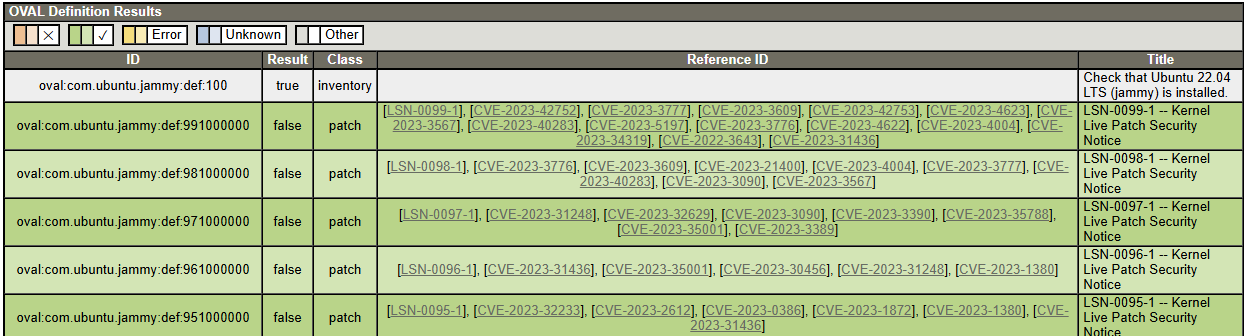
Example rows from the OpenSCAP HTML report table. Note the ‘Result’ column. - Focus: When reviewing the report for vulnerabilities, filter or focus on rows where the Class is
vulnerabilityand the Result istrue. These represent vulnerabilities confirmed by the official Ubuntu OVAL definitions.
Handling Third Party Scanner CVE Lists (Cross-Referencing)
Often, enterprises use run third-party vulnerability scanners (Nessus, Qualys, etc.) which may not use Ubuntu-specific OVAL checks. This frequently results in reports listing CVEs that are not actually applicable due to backported fixes or other Ubuntu-specific factors.
To address these reports accurately, you must cross-reference the customer’s CVE list against the results of our standard OVAL scan (results.xml).
Conclusion
Using OpenSCAP with the official Ubuntu OVAL definitions is the standard, most accurate method for assessing vulnerabilities on the Netskope Publisher appliance. It aligns with Canonical’s security practices and avoids the common pitfalls of generic CVE scanners.