

This document explains how to configure the Netskope EDM Plugin v1.0.0 in the Cloud Exchange platform. This plugin is used to push EDM File Hashes generated through a configured EDM plugin to a Netskope Tenant.
This plugin operates in push mode only and is intended solely for use as a destination in data-sharing configurations.
Prerequisites
To complete this configuration, you need:
- A Netskope tenant (or multiple, for example, production and development/test instances) that is already configured in Cloud Exchange with permission to generate V2 (RBACv3) tokens.
- A Netskope Cloud Exchange tenant with the Tenant plugin configured and the Exact Data Match module enabled.
- A supported third-party EDM plugin (like Microsoft File Share) configured and available for integration.
Exact Data Match Plugin Scope
This plugin is used to push EDM File Hashes to the Netskope Tenant.
Permissions
Ensure that a V2 (RBACv3) token with the appropriate Role is used when configuring the Netskope Tenant, as it is required for the proper functioning of the Netskope EDM Plugin.
| API Endpoint | Method | Permission |
|---|---|---|
| /api/v2/events/dataexport/events/alert | GET | Read |
| /api/v2/services/dlp/edm/file/apply | POST | Read + Write |
| /api/v2/services/dlp/edm/file/staging | POST | Read + Write |
API Details
List of APIs Used
| API Endpoint | Method | Permission |
|---|---|---|
| /api/v2/events/dataexport/events/alert | GET | Read |
| /api/v2/services/dlp/edm/file/apply | POST | Read + Write |
| /api/v2/services/dlp/edm/file/staging | POST | Read + Write |
Validate the V2 Token
API Endpoint: https://<tenant-url>/api/v2/events/dataexport/events/alert
Method: GET
Application Headers
| Key | Value |
|---|---|
| Netskope-API-Token | <netskope_api_v2_token> |
| User-Agent | netskope-ce-6.0.0 |
Example API response
{
  "result": [
    {
      "CononicalName": "string",
      "_id": "string",
      "access_method": "string",
      "account_id": "string",
      "account_name": "string",
      "acked": "string",
      "action": "string",
      "activity": "string",
      "alert": "string",
      "alert_id": "string",
      "alert_name": "string",
      "alert_type": "string",
      "app": "string",
      "app_activity": "string",
      "app_session_id": 0,
      "appcategory": "string",
      "appsuite": "string",
      "asset_id": "string",
      "asset_object_id": "string",
      "breach_date": 0,
      "breach_description": "string",
      "breach_id": "string",
      "breach_media_references": "string",
      "breach_score": "string",
      "breach_target_references": "string",
      "browser": "string",
      "browser_session_id": 0,
      "browser_version": "string",
      "bypass_traffic": "string",
      "category": "string",
      "cci": 0,
      "ccl": "string",
      "client_bytes": 0,
      "compliance_standards": [
        "string"
      ],
      "conn_duration": 0,
      "conn_endtime": 0,
      "conn_starttime": 0,
      "connection_id": 0,
      "count": 0,
      "data_type": "string",
      "device": "string",
      "device_classification": "string",
      "dlp_file": "string",
      "dlp_incident_id": 0,
      "dlp_is_unique_count": "string",
      "dlp_mail_parent_id": "string",
      "dlp_parent_id": 0,
      "dlp_profile": "string",
      "dlp_rule": "string",
      "dlp_rule_count": 0,
      "dlp_rule_severity": "string",
      "dlp_unique_count": 0,
      "domain": "string",
      "dst_country": "string",
      "dst_geoip_src": 0,
      "dst_latitude": 0,
      "dst_location": "string",
      "dst_longitude": 0,
      "dst_region": "string",
      "dst_timezone": "string",
      "dst_zipcode": "string",
      "dsthost": "string",
      "dstip": "string",
      "dstport": 0,
      "email_source": "string",
      "event_type": "string",
      "evt_src_chnl": "string",
      "exposure": "string",
      "external_collaborator_count": 0,
      "external_email": 0,
      "file_cls_encrypted": true,
      "file_lang": "string",
      "file_path": "string",
      "file_size": 0,
      "file_type": "string",
      "from_user": "string",
      "fromlogs": "string",
      "hostname": "string",
      "http_transaction_count": 0,
      "iaas_asset_tags": [
        "string"
      ],
      "iaas_remediated": "string",
      "instance": "string",
      "instance_id": "string",
      "internal_collaborator_count": 0,
      "justification_reason": "string",
      "justification_type": "string",
      "last_app": "string",
      "last_country": "string",
      "last_device": "string",
      "last_location": "string",
      "last_region": "string",
      "last_timestamp": 0,
      "log_file_name": "string",
      "malicious": "string",
      "malsite_category": [
        "string"
      ],
      "malsite_country": "string",
      "malsite_id": "string",
      "malsite_ip_host": "string",
      "malsite_latitude": 0,
      "malsite_longitude": 0,
      "malsite_region": "string",
      "managed_app": "string",
      "managementID": "string",
      "matched_username": "string",
      "md5": "string",
      "mime_type": "string",
      "modified": 0,
      "netskope_activity": "string",
      "netskope_pop": "string",
      "notify_template": "string",
      "nsdeviceuid": "string",
      "numbytes": 0,
      "object": "string",
      "object_id": "string",
      "object_type": "string",
      "org": "string",
      "organization_unit": "string",
      "orig_ty": "string",
      "orignal_file_path": "string",
      "os": "string",
      "os_version": "string",
      "other_categories": [
        "string"
      ],
      "outer_doc_type": 0,
      "owner": "string",
      "page": "string",
      "page_site": "string",
      "parent_id": "string",
      "password_type": "string",
      "policy": "string",
      "policy_actions": [
        "string"
      ],
      "policy_id": "string",
      "profile_id": "string",
      "protocol": "string",
      "referer": "string",
      "region_id": "string",
      "region_name": "string",
      "req_cnt": 0,
      "request_id": 0,
      "resource_category": "string",
      "resource_group": "string",
      "resp_cnt": 0,
      "sAMAccountName": "string",
      "sa_profile_id": 0,
      "sa_profile_name": "string",
      "sa_rule_id": "string",
      "sa_rule_name": "string",
      "sa_rule_severity": "string",
      "sanctioned_instance": "string",
      "scan_type": "string",
      "serial": "string",
      "server_bytes": 0,
      "sessionid": "string",
      "severity": "string",
      "severity_level": "string",
      "severity_level_id": 0,
      "sfwder": "string",
      "sha256": "string",
      "shared_domains": "string",
      "shared_with": "string",
      "site": "string",
      "src_country": "string",
      "src_geoip_src": 0,
      "src_latitude": 0,
      "src_location": "string",
      "src_longitude": 0,
      "src_region": "string",
      "src_time": "string",
      "src_timezone": "string",
      "src_zipcode": "string",
      "srcip": "string",
      "suppression_end_time": 0,
      "suppression_key": "string",
      "suppression_start_time": 0,
      "telemetry_app": "string",
      "threat_match_field": "string",
      "threat_match_value": "string",
      "threat_source_id": 0,
      "threshold": 0,
      "threshold_time": 0,
      "timestamp": 0,
      "title": "string",
      "to_object": "string",
      "total_collaborator_count": 0,
      "traffic_type": "string",
      "transaction_id": 0,
      "true_obj_category": "string",
      "true_obj_type": "string",
      "tss_mode": "string",
      "two_factor_auth": "string",
      "type": "string",
      "universal_connector": "string",
      "ur_normalized": "string",
      "url": "string",
      "user": "string",
      "userPrincipalName": "string",
      "user_generated": "string",
      "user_id": "string",
      "useragent": "string",
      "userip": "string",
      "userkey": "string",
      "web_universal_connector": "string"
    }
  ]
}
Upload EDM Hash File to Staging
API Endpoint: https://<tenant-url>/api/v2/services/dlp/edm/file/staging
Method: POST
Application Headers
| Key | Value |
|---|---|
| Netskope-API-Token | <netskope_api_v2_token> |
| User-Agent | netskope-ce-6.0.0 |
| Content-Type | application/json |
Request Body
{
  "edm_filename": "customers.csv",
  "tgz_filename": "customers.tgz",
  "sha1": "d6727f9b11c80631773a993c9823e60634b138b4",
  "size": 15000,
  "keep_staging": true,
  "description": "This is the staging file for customers.tgz file on 2024-06-24"
}
Example API response
{
  "fileid": "4841a51417666e38760860b2c4e5b5b48627d2c4",
  "uploadid": "MzBlZWE4Y2YtMzZmYy00MGI5LThhNDktNWU2MTk5OWI1NjAzLjBmM2Q4YmI1LTM4OTctNDY2Yy05ZjQ5LTk1N2FmZWNjYjk5NQ",
  "part_max_size": 16000000,
  "msg": "Optional message"
}
Apply Staged EDM Hash File
API Endpoint: https://<tenant-url>/api/v2/services/dlp/edm/file/apply
Method: POST
Application Headers
| Key | Value |
|---|---|
| Netskope-API-Token | <netskope_api_v2_token> |
| User-Agent | netskope-ce-6.0.0 |
| Content-Type | application/json |
Request Body
{
  "fileid": fileid
}
Example API response
status code: 201
Response None
Netskope EDM Plugin Support
| Feature | Support |
|---|---|
| Pull | No |
| Push | Yes |
Performance Matrix
Here is the performance reading conducted for pushing hashes for ~1M rows (25 columns, Per column ~30 Characters Long String, 0.3M unique values per Column) data on a Large Cloud Exchange instance with these specifications.
| Description | Specifications |
|---|---|
| Stack details | Size: Large RAM: 32 GB CPU: 16 Cores |
| Hashes Pushed From Source To Netskope Tenant Without Dict | ~10 minutes |
| Hashes Pushed From Source To Netskope Tenant With Dict (2-3 columns) | ~14 minutes |
User Agent
The user-agent added in this plugin is in the following format:
netskope-ce-<ce_version>
For example: netskope-ce-6.0.0
Workflow
- Generate a v2 token for your Netskope tenant.
- Create Netskope Tenant Using V2 Auth Token.
- Configure Netskope EDM plugin.
- Configure Sharing between the EDM Third Party Plugin and the Netskope EDM Plugin.
- Check the status of the configured sharing.
Watch a Video
Click play to watch a video.
Generate a V2 (RBACv3) Token
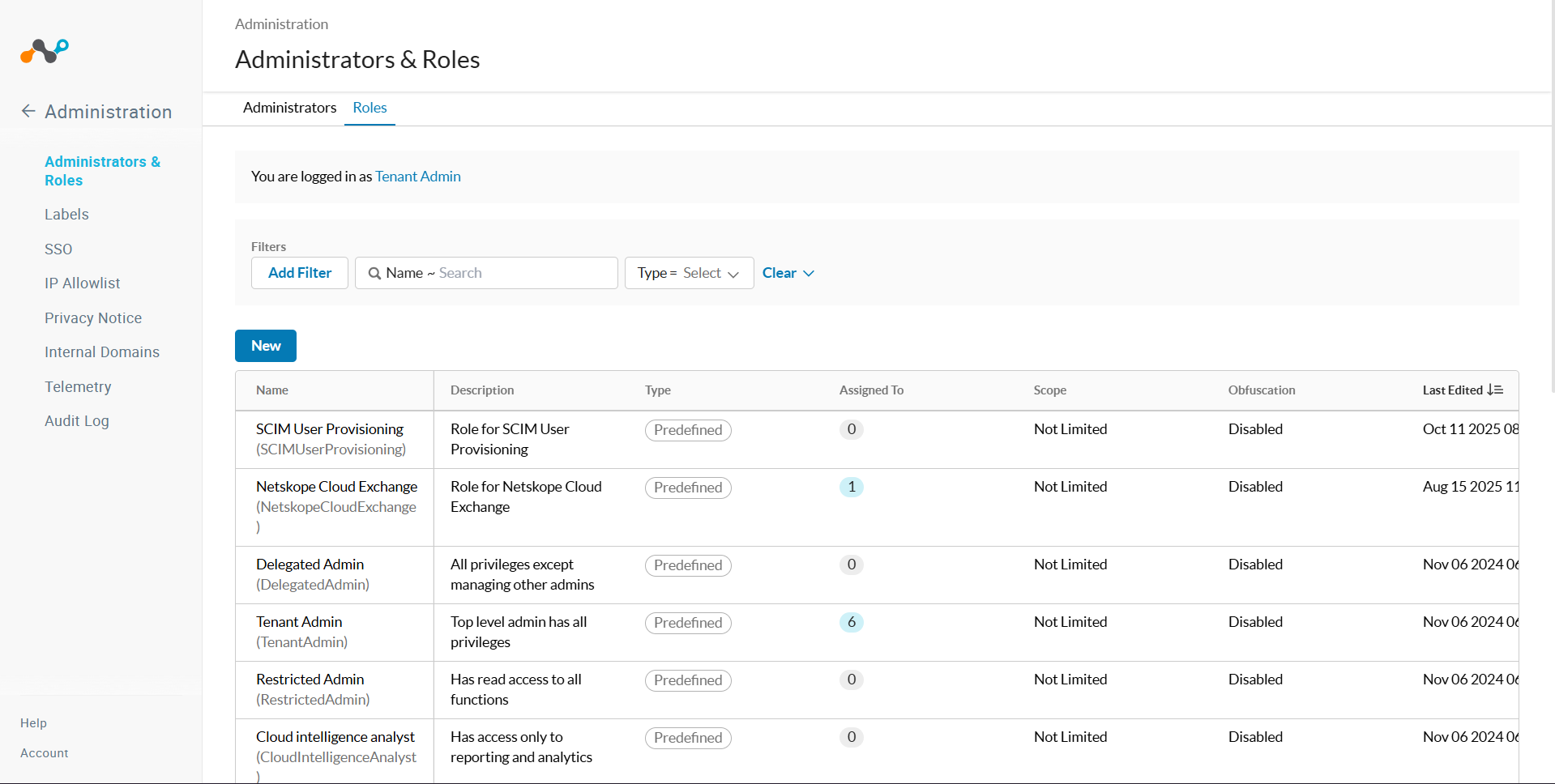
- In your Netskope tenant, go to Settings > Administration > Administrators & Roles > Roles.
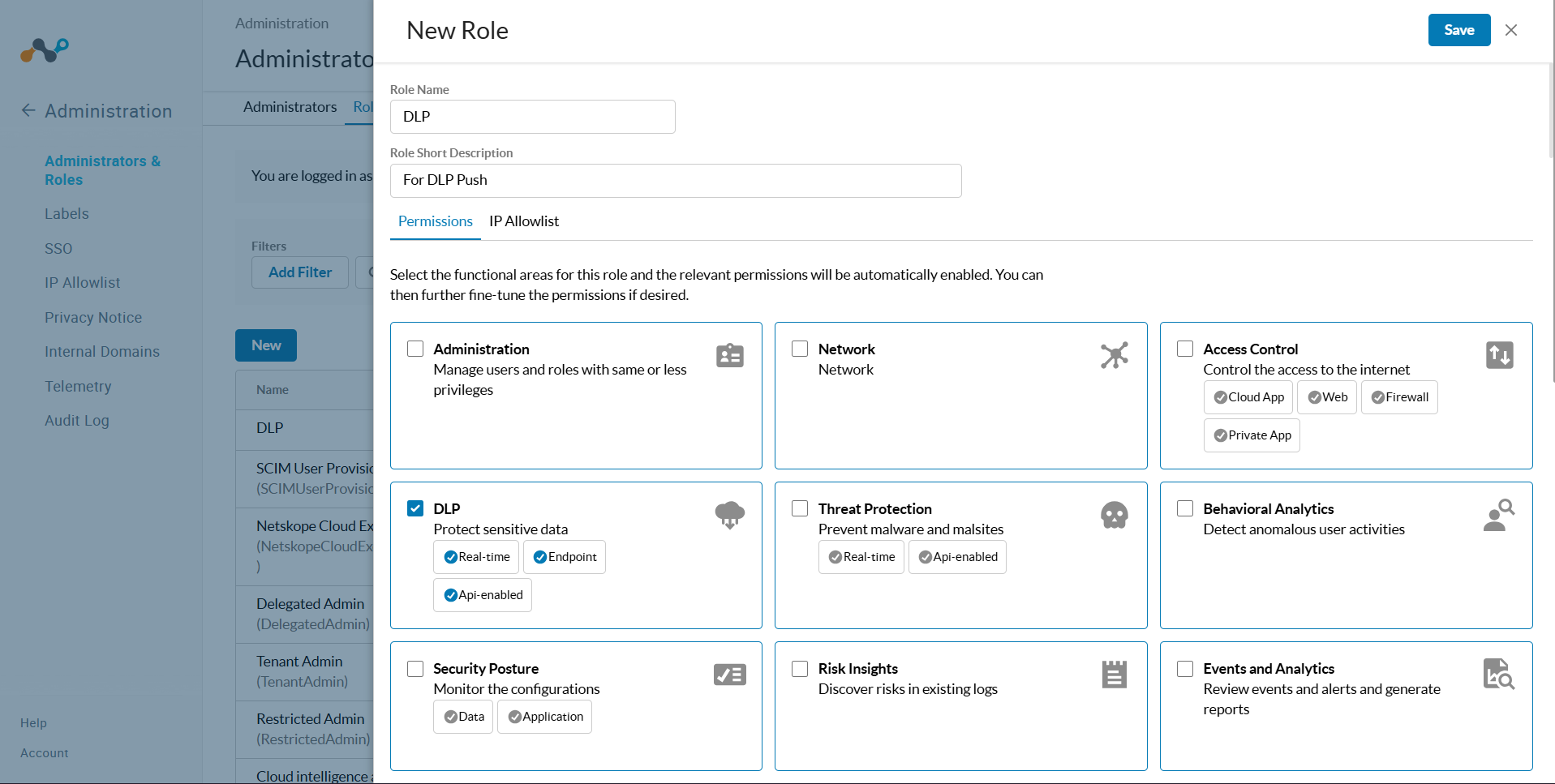
- Click New to create a new role. Enter a Role Name and a Short Role Description. Make sure DLP is selected in the permissions section.
- Select the Manage And Apply permission for the DLP > DLP Profile.
In Scope IT > Alerts > Manage Permission is Selected.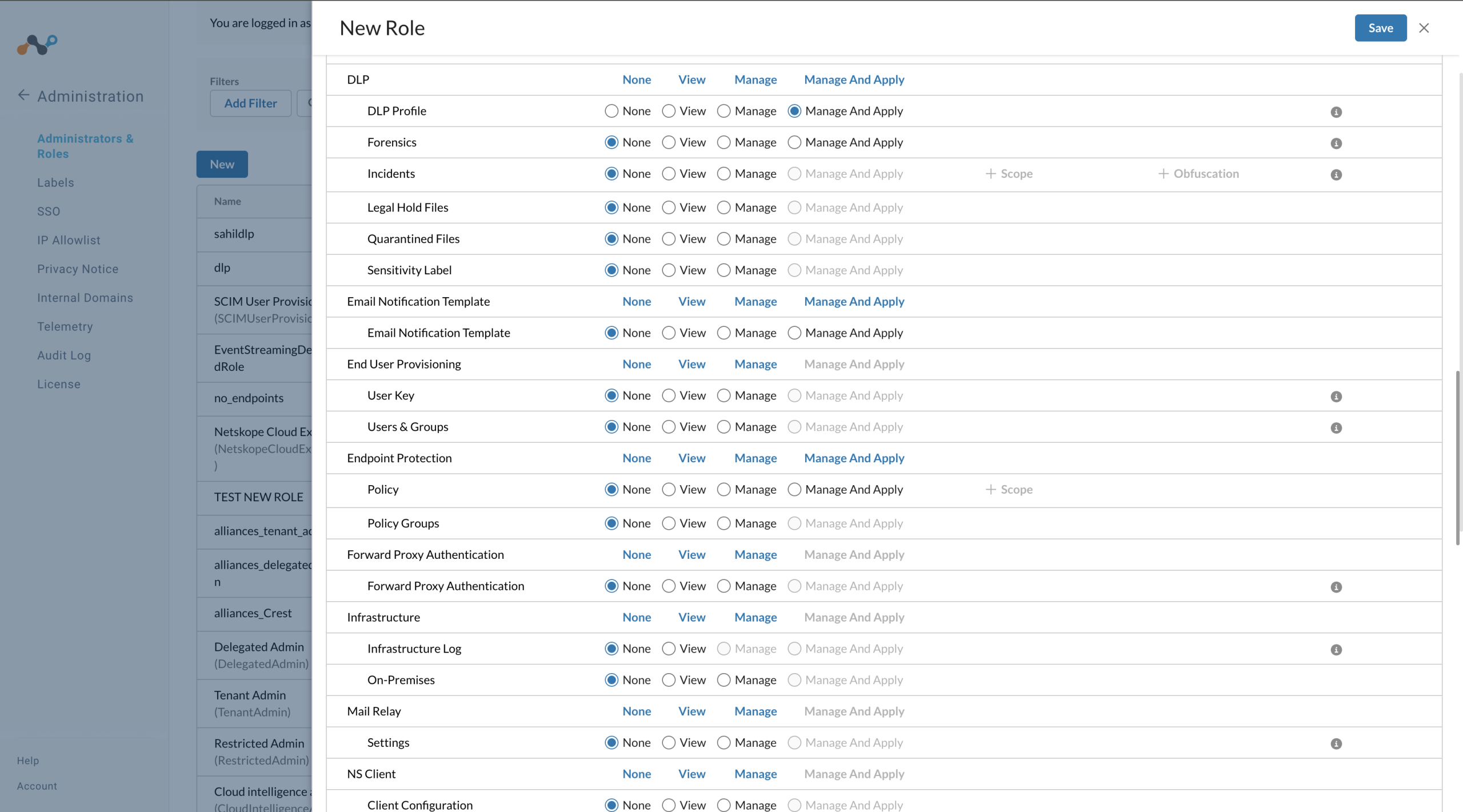
Under Skope IT, select the Manage permission for Skope IT > Alerts.
- Click Service Account.
- Enter a Service Account Name.
- Select the created role for the Service Account.
- Enter an Expire time. Select from Day(s), Hour(s), Week(s), Year(s).
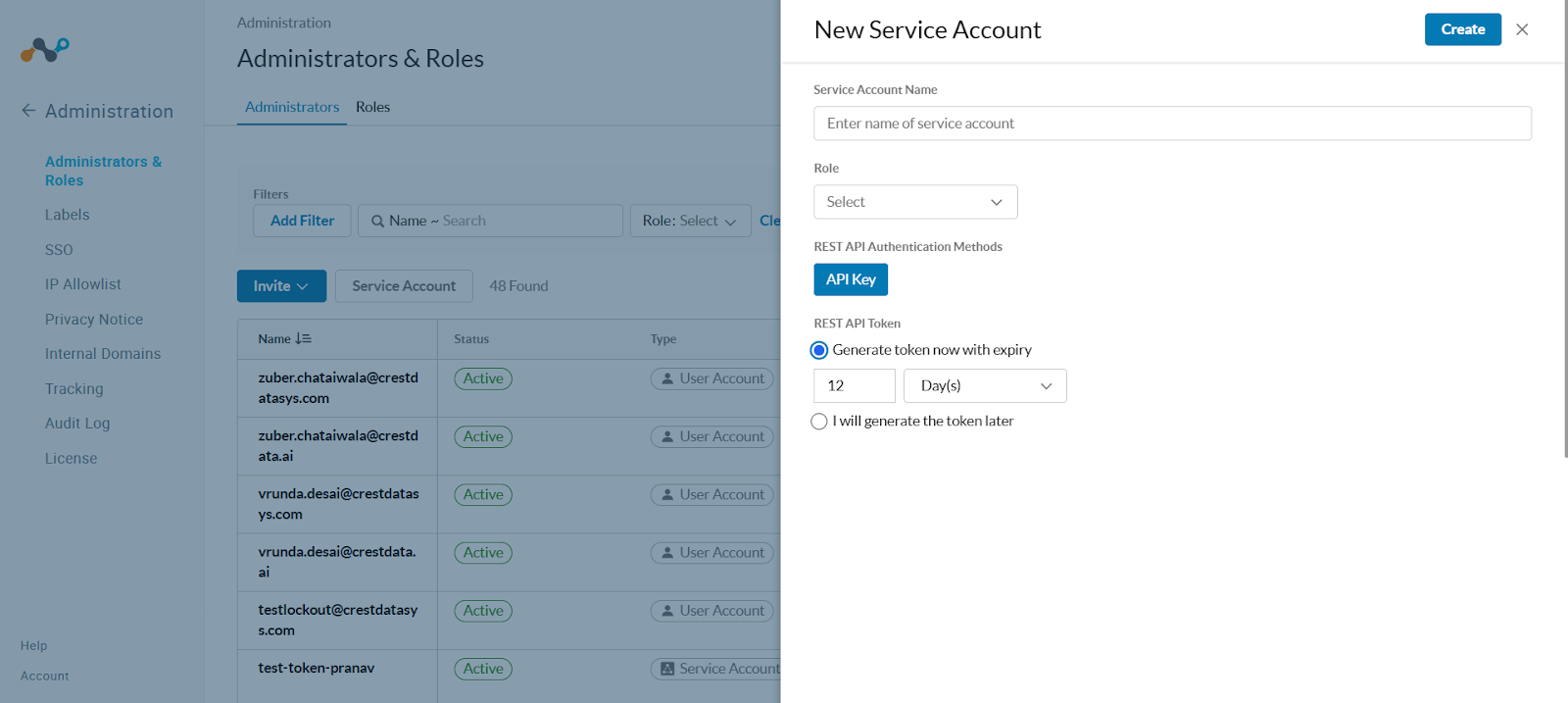
- Click Save and copy the token. Use this to configure the Netskope Tenant Plugin in Cloud Exchange.
Configure Netskope EDM Plugin
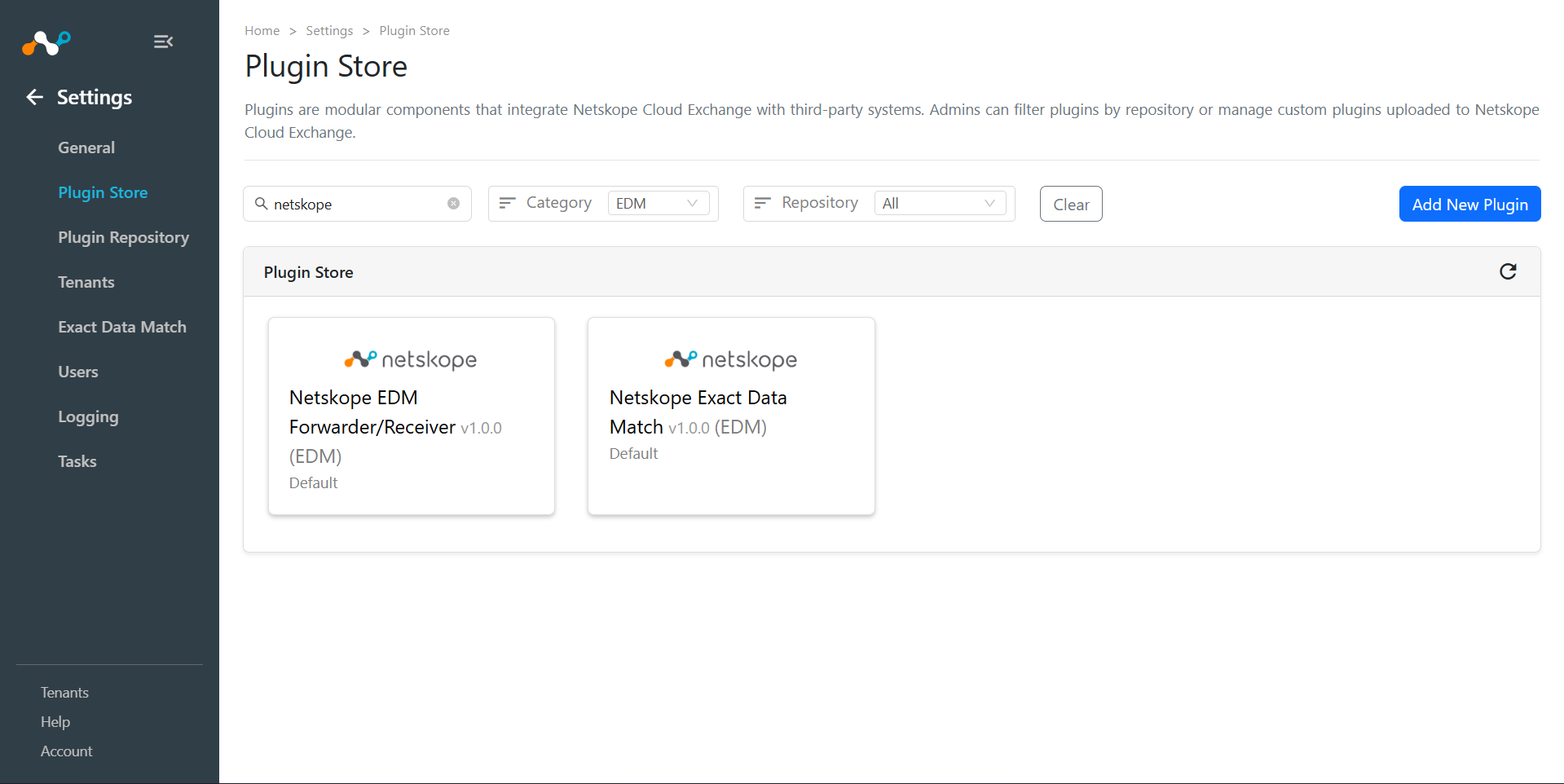
- In Cloud Exchange, go to Settings > Plugin Store.
- Search for and select the Netskope Exact Data Match (EDM) plugin box.
- Enter the Basic Information:
- Configuration Name: Provide a name appropriate for the integration.
- Tenant Name: Select tenant name from the dropdown.
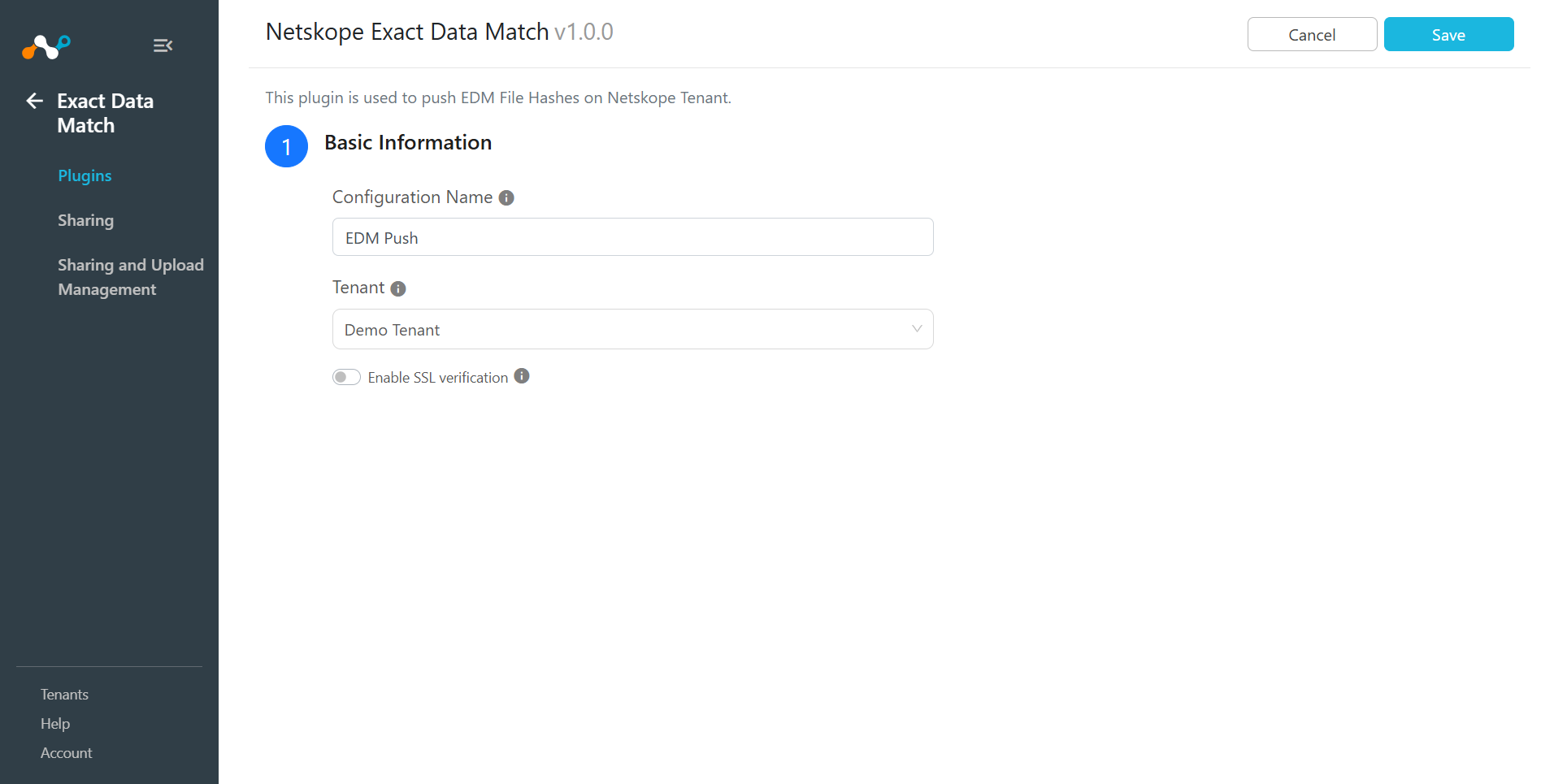
- Change optional details if needed:
Enable SSL verification: Enable the toggle to communicate via SSL. (Default=disabled) - Click Save.
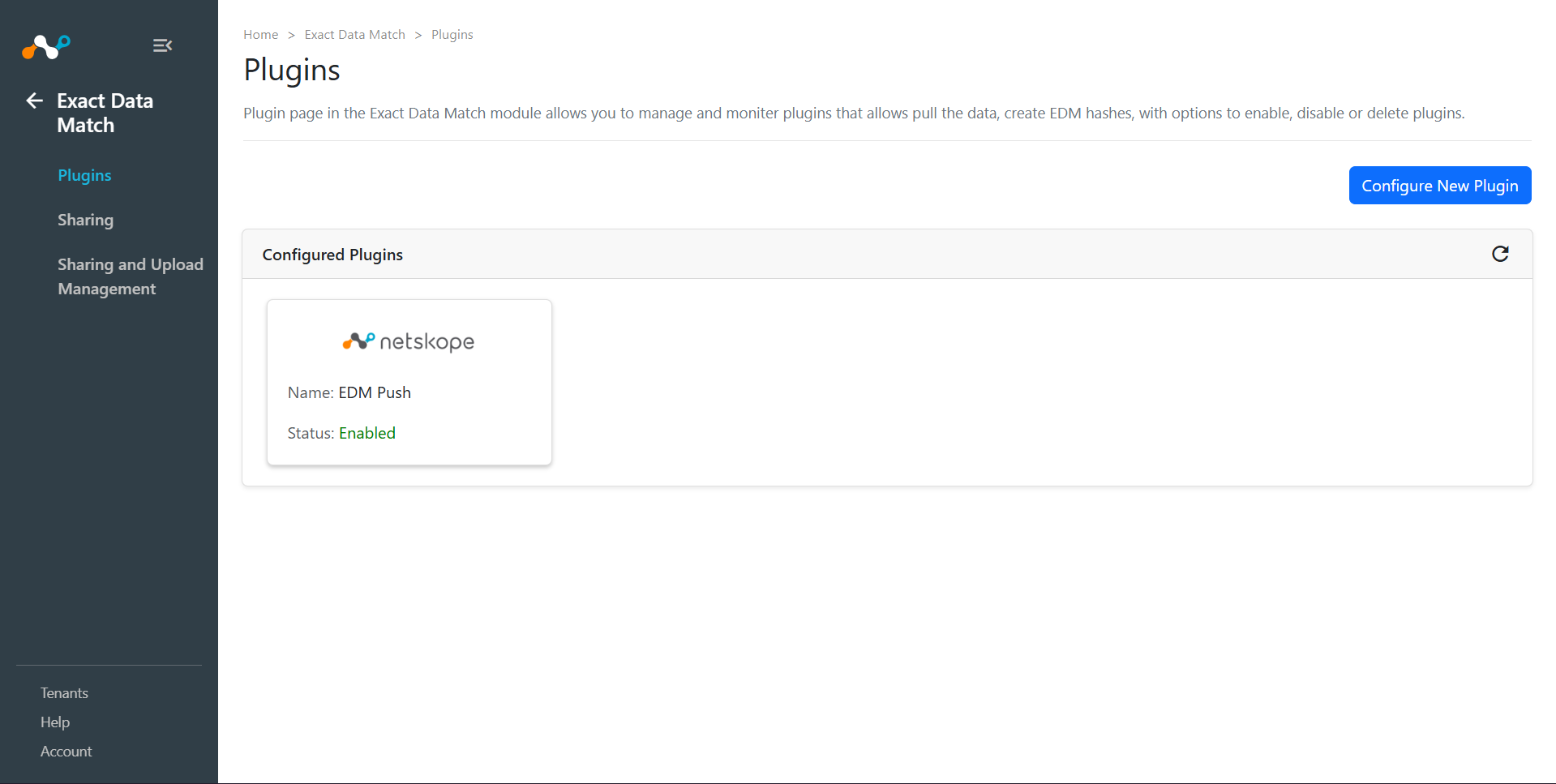
- You will be redirected to Exact Data Match > Plugins page, where you can see the configured plugin.
Configure Sharing between a 3rd-party EDM Plugin and the EDM Plugin
- Go to the Exact Data Match > Sharing.
- Click Add Sharing Configuration.
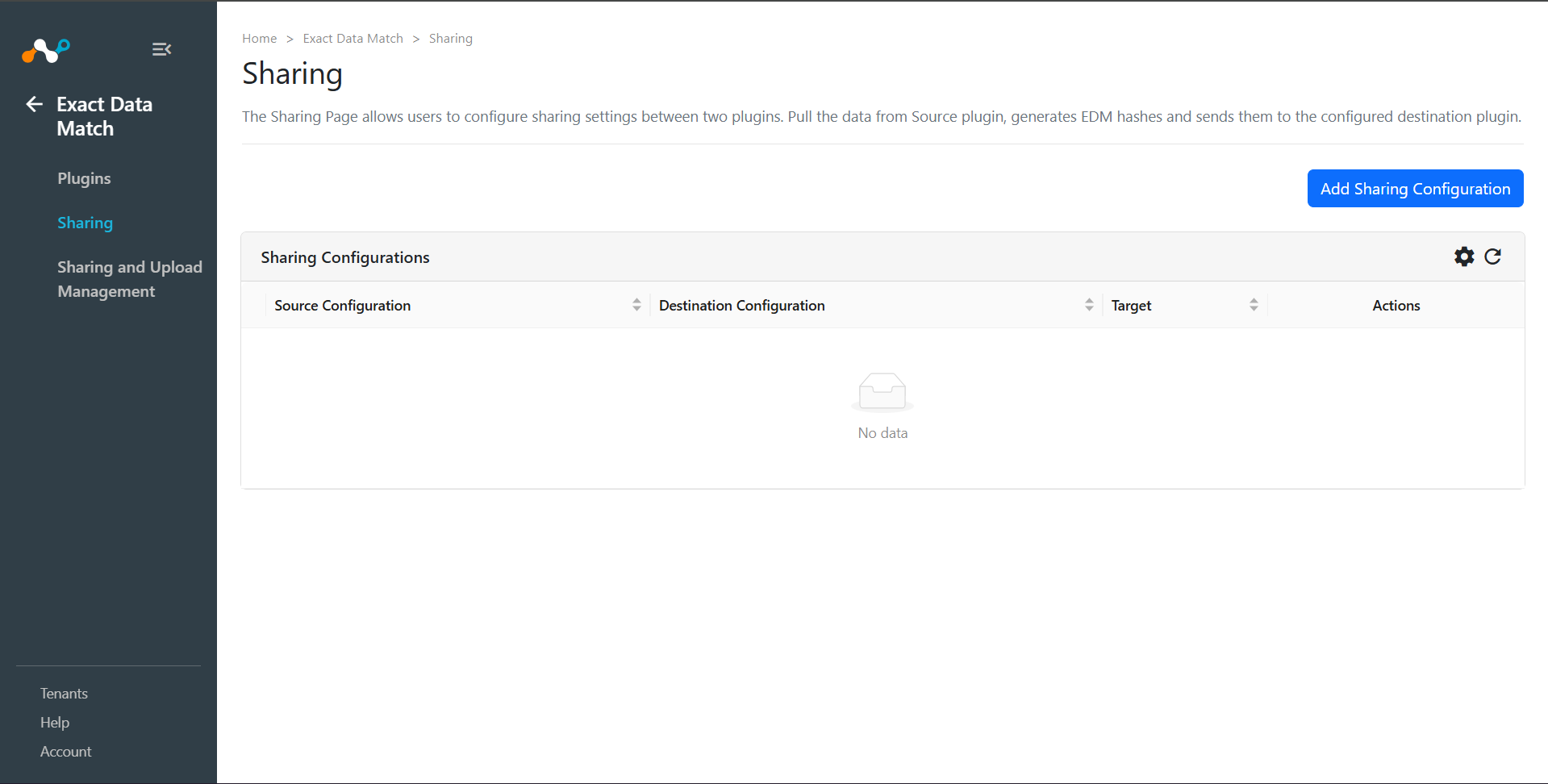
- Source Configuration: Select a configured 3rd-party plugin.
- Destination Configuration: Select the Netskope EDM Plugin as destination configuration.
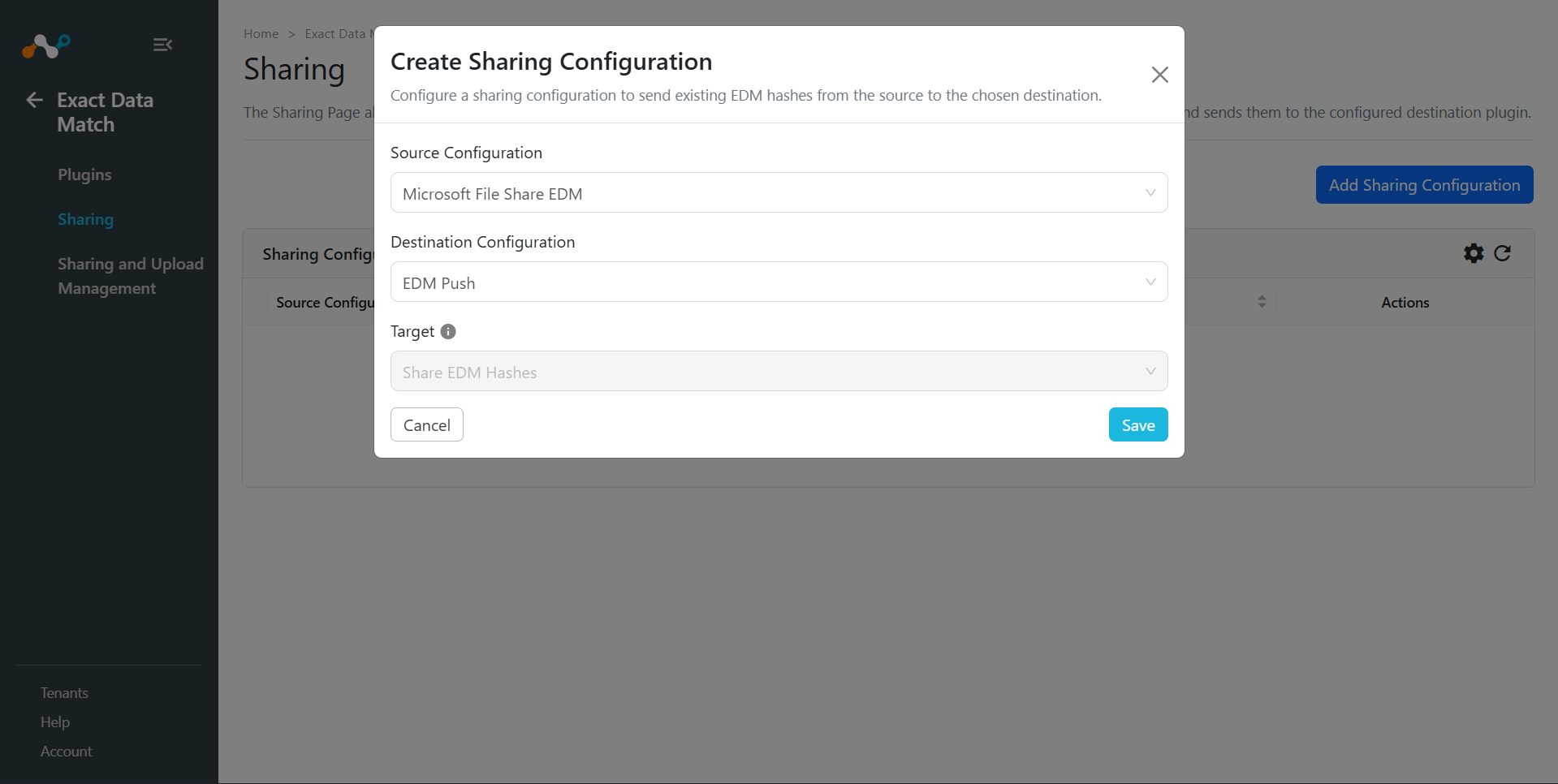
- Target: The value is automatically set according to the selected Destination Configuration.
- Click Save.
Validate the Netskope EDM Plugin
Monitor Status of Configured Sharing
Go to Exact Data Match > Sharing and Upload Management. Here you’ll see a list of status for all the configured sharing.
The status values are as follows:
- Scheduled: Indicates that the sharing has been configured and the pull and push operation are still waiting in the queue for processing.
- Generating Hash: Indicates that the generating hash process has been started. At this stage, in the background fetching > validating > sanitization (if opted for) > generating hash stages will be included.
- Uploading Hash: Indicates that uploading hash to the destination configuration has been started.
- Upload Completed: Indicates that hashes are uploaded to the destination configuration.
- Checking Apply Status: At this stage, checks hashing apply status to the destination configuration.
- Apply In Progress: This represents that the hash process is started and in progress state on the destination.
- Completed: Indicates that hash file has been pushed successfully to destination configuration.
- Failed: Indicates that the action final result failed to execute. The actions are Generating Hash/Uploading Hash/Checking Apply Status.

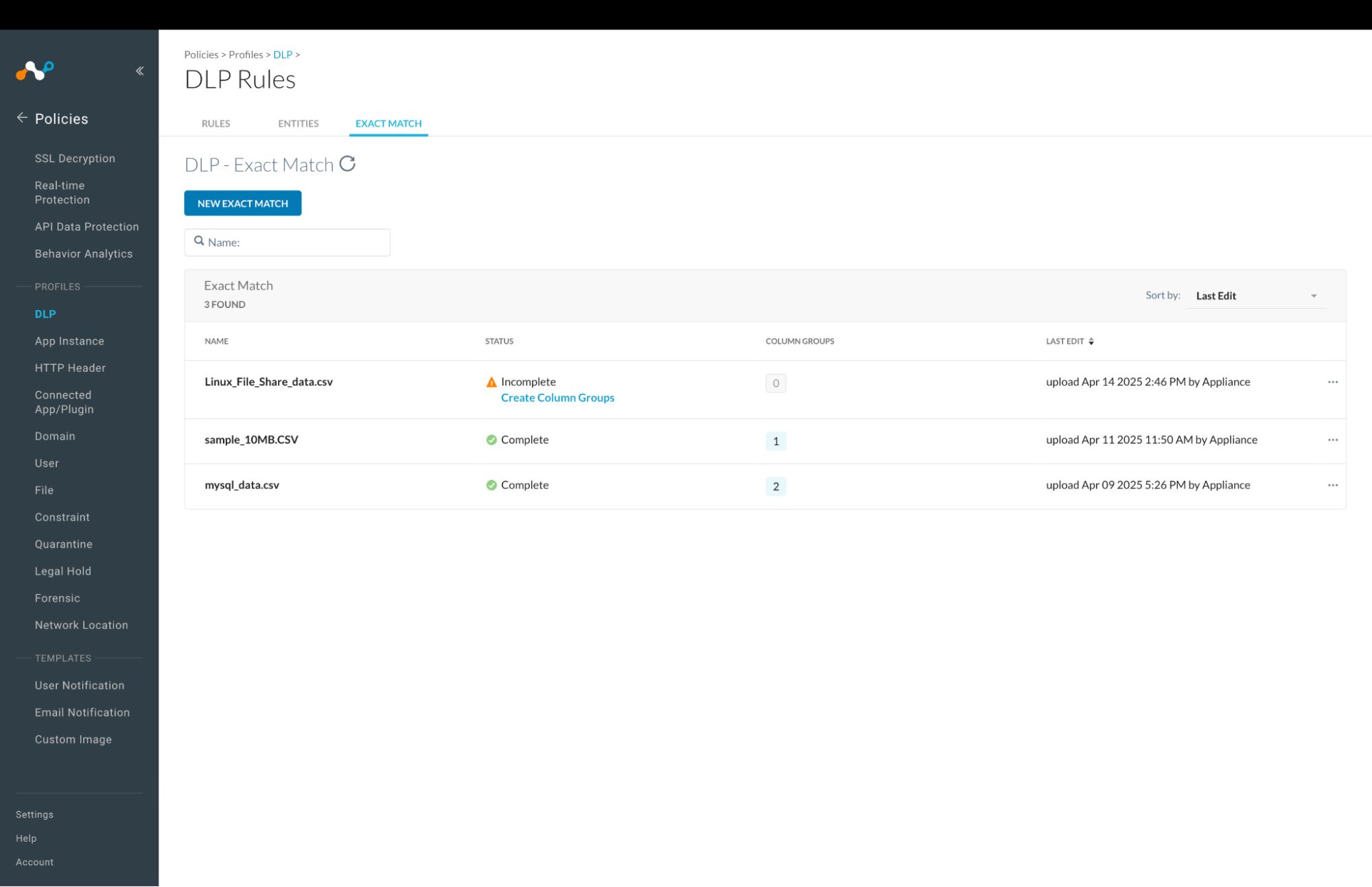
Validate the Push on Netskope Tenant
To ensure the push of EDM hashes on the Netskope Tenant from Cloud Exchange:
- Log in to your Netskope Tenant.
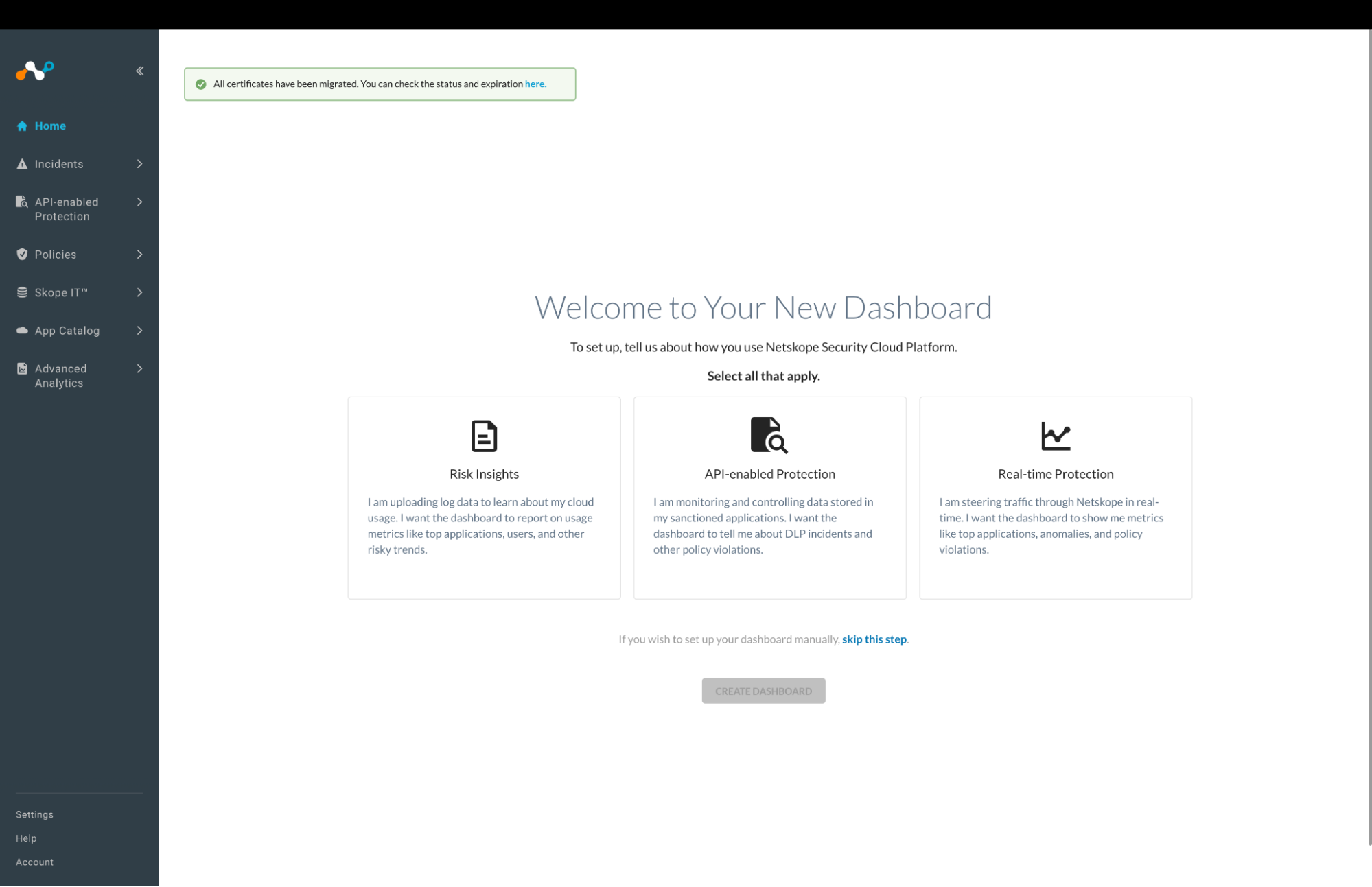
- Go to Policies > DLP.
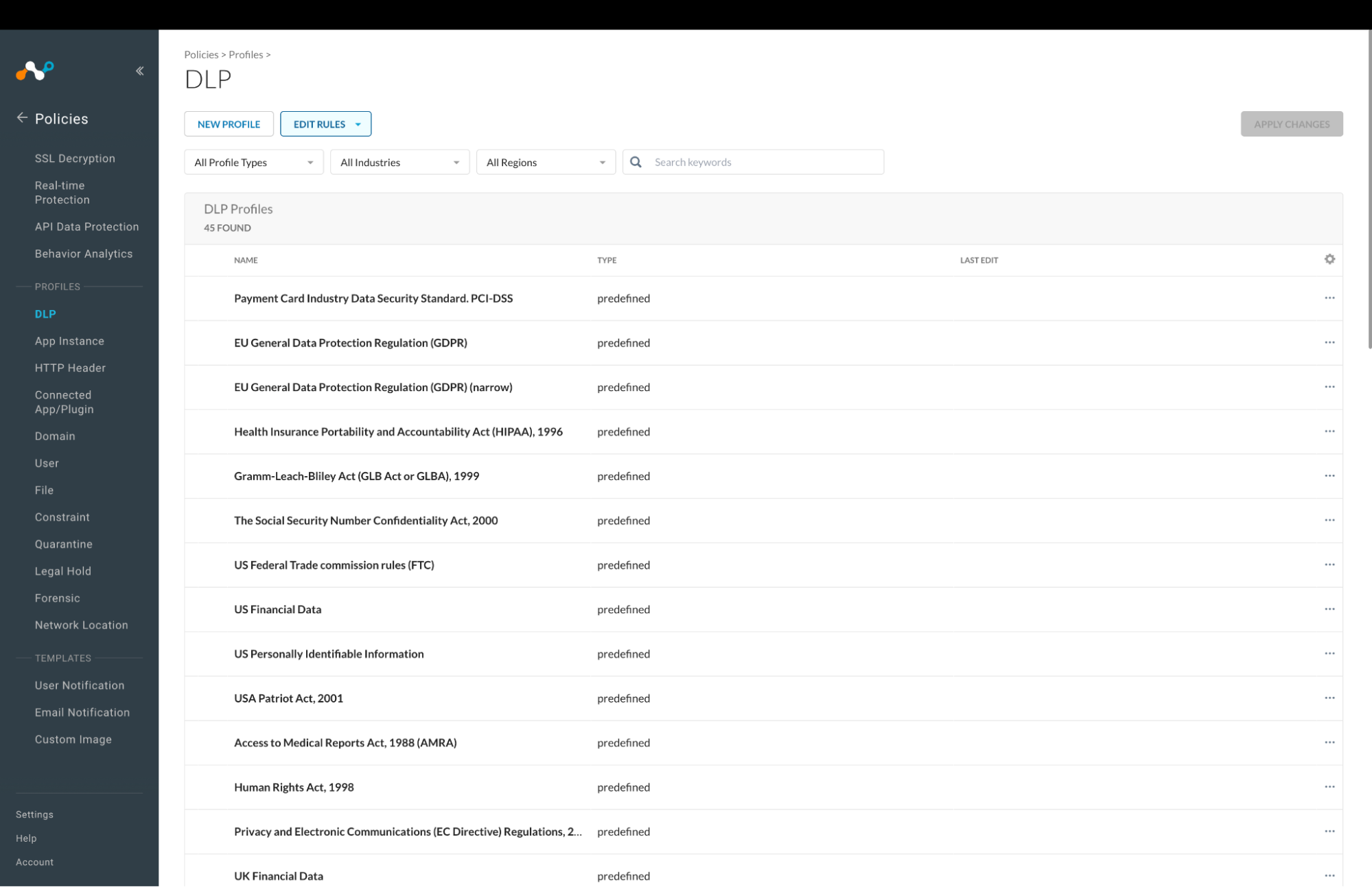
- Click Edit Rules and select DLP Rules.
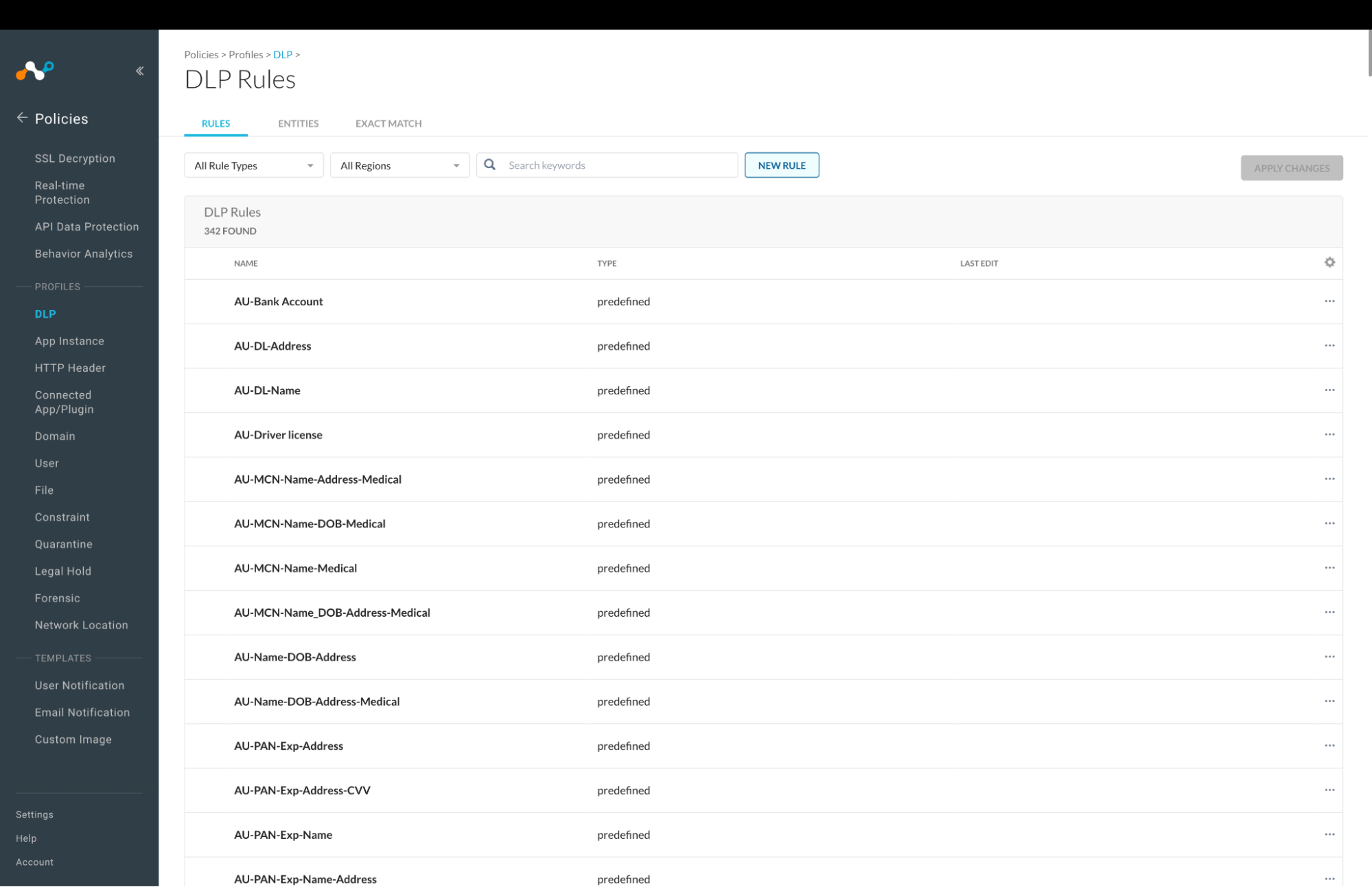
- On the Exact Match tab, a list of files are shown.
Troubleshooting
Unable to share hashes
If you are unable to share hashes, you’ll receive an error like:
Error response: { “message”:“You cannot consume this service” }
What to do: To solve the above mentioned issue, add the following endpoints to the V2 token on the Netskope tenant.
| API Endpoint | Permission |
|---|---|
| /api/v2/events/dataexport/events/alert | Read |
| /api/v2/services/dlp/edm/file/staging/list | Read |
| /api/v2/services/dlp/edm/file/apply | Read + Write |
| /api/v2/services/dlp/edm/file/staging | Read + Write |
Limitations
- The maximum size of data that a Netskope EDM hash file can hold is 8 MB. Keep this in mind while configuring the Business Rule.
- Column names in the source data should not contain special characters or spaces. Use underscores instead.
- The EDM hash file name on Netskope tenant will be the same as the configuration name provided in Cloud Exchange.
Known Behavior
- If sharing fails at any stage (Generating Hash/Uploading Hash/Checking Apply Status), the status will be marked as Failed and detailed error logs will be available in the Logging section.
- The plugin checks the apply status of hashes on the Netskope tenant periodically. This process may take some time depending on the size of the data.
- After hashes are successfully applied on the Netskope tenant, they cannot be deleted directly from Cloud Exchange. You need to delete them from the Netskope Tenant UI.
- If we configure sharing with the Netskope EDM plugin and the file is uploaded and processed by the tenant, everything works fine. If we later change the CSV column order, or add or remove columns, the tenant will raise the error below when applying hashes to the Netskope tenant. To fix this issue, the customer must delete the previously uploaded EDM hash file from the Netskope tenant.
