

Fast Path is a Netskope Cloud Firewall feature designed to optimize latency-sensitive traffic by routing it directly through the Netskope cloud from ingress to egress. To reduce latency and jitter for calls, meetings, and screen sharing, matched traffic skips the standard security inspection chain—including Access Control, IPS, DPI, DLP, Bandwidth Control, and QoS. However, essential egress functions such as NAT and DEIP-based egress continue to apply.
Admins can enable predefined policies for supported applications—such as Microsoft Teams, Zoom, Cisco Webex, GlobalMeet, Google Meet, and Slack Huddles. Fast-routing applies exclusively to traffic that matches an active policy; all unmatched traffic proceeds through the standard Cloud Firewall inspection pipeline. In Skope IT, these fast-routed flows are recorded as network events with the action Fast Route.
- Contact Netskope Support to get Fast Path features available in your tenant.
- Before you enable a Fast Path policy for an application, remove any existing Steering Configuration (bypass) exception for that same application’s traffic.
Enabling Predefined Fast Path Policy
Netskope ships a set of predefined Fast Path policies which sit under a group named VoIP, covers MS Teams, Zoom, Cisco Webex, GlobalMeet, Google Meet, and Slack Huddles. All of them are default disabled. Admin can enable the policy based on requirements.
- Predefined policies can’t be modified or deleted.
- Predefined policies apply tenant-wide.
To view and enable predefined Fast Path policy:
-
Log into Netskope Tenant.
-
Go to Policies > Fast Path.
-
Under the listed policy application , locate the policy for the application you want to fast-route, for example Microsoft Teams UDP 001.
-
Click the
 icon on the right end of the policy row.
-
Select the following:
Action Description Edit Click Edit to view the details of the policy and Enable or Disable the policy by clicking the toggle under Status. Enable or Disable Click Enable or Disable to turn on or off the policy.
Applications that are default available to enable, are:
| Serial No. | Application |
|---|---|
| 1. | Microsoft Teams |
| 2. | Zoom |
| 3. | Cisco Webex |
| 4. | GlobalMeet |
| 5. | Slack Huddles |
| 6. | Google Meet |
Configuring Custom Fast Path Policy
Create a custom Fast Path policy to fast-route traffic for apps that the predefined policies don’t cover. Match the traffic by source users or user groups, and destination profiles and service objects.
- Custom Fast Path Policy creation feature is in Beta. Contact Netskope Support to get this available in your tenant.
- To create Custom Fast Path policy, create a Policy Group first. To learn more, see Configuring Policy Group.
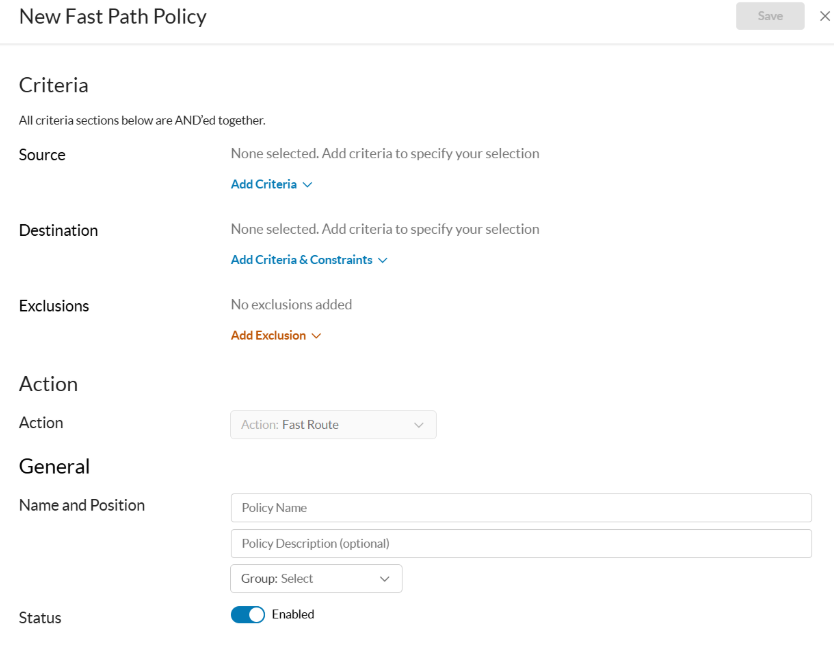
To create a custom Fast Path policy:
-
Log into Netskope tenant.
-
Go to Policies > Fast Path.
-
Click New Policy.
-
(Optional) Under Source, click Add Criteria > Users > and select the following:
-
User: Select User(s) to make the policy user Specific.
-
User Group: Select User Group(s) to make the policy user group specific.
-
Organizational Unit: Select Organizational Unit(s) to make the policy OU specific.
-
-
Under Destination, click + Add Criteria and select the following:
-
Destination Profile: Select destination IPs, CIDRs, IP ranges or domains that a Fast Path policy uses to match traffic.
-
Service: Select protocols and ports that decide which traffic a Fast Path policy applies to.
-
-
Under Exclusions, click Add Exclusion > User and select the users, user groups, or organizational units to exclude from the policy.
-
Under Name and Position perform the following:
-
Policy Name: Enter a display name for the policy.
-
Policy Description (optional): enter a description of the policy’s purpose.
-
Group: select an existing custom group or select New Policy Group to create one. To learn more, see Configuring Policy Group.
-
-
Select Status toggle to enable the policy.
-
Click Save.
Configuring Policy Group
Configure Policy Group to organize your custom Fast Path policies.
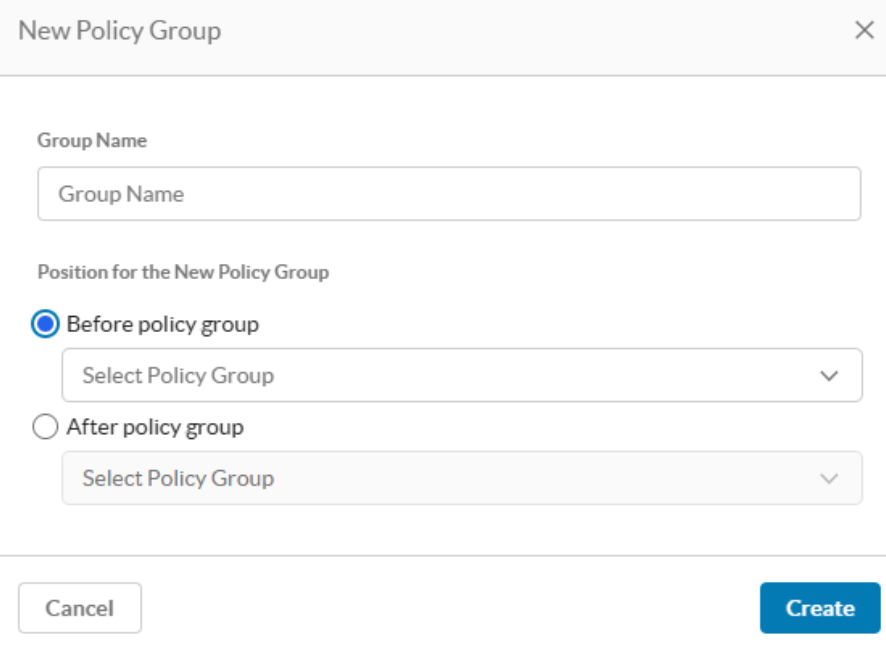
To create a Policy Group:
-
Go to Policies > Fast Path.
-
Under Policy Group panel click +New.
You can also select New Policy Group from the Group list when you create a policy. To learn more, see Configure Custom Fast Path Policy.
-
Enter a Name for the group.
-
Under Position, select Before or After, and then select the group to place it next to.
-
Click Create.
Audit Logs for Fast Path
Fast-routed flows remain fully visible in SkopeIT, each generates a Cloud Firewall Network Event with the action Fast Route and the matched policy name
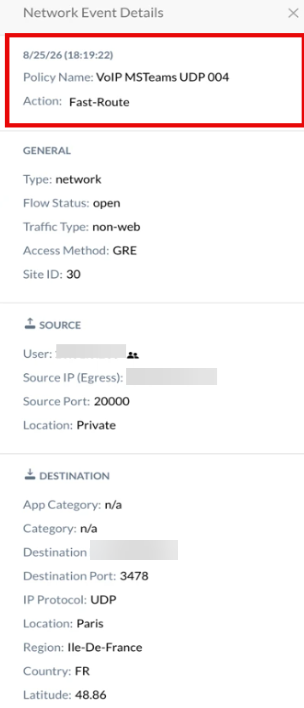
Audit Logs record every admin action that enables or disables a Fast Path policy. Navigate to Settings > Administration > Audit Logs to view Audit Logs.