

File Classifiers use machine-learning technology to match documents and images that are part of a group. There are 28 predefined file classifiers. You can also upload a group of images that will be used to train a custom ML-based image classifier. Only images can be uploaded at this time. Alerts and Incidents will be generated similar to any other classifiers. File classifiers can be referenced as part of creating or editing a Custom DLP Profile.

Create a File Classifier
Create a File Classifier

At least 20 positive training files must be added to train a file classifier.
To create a File Classifier:
- Go to Policies > Profiles > DLP > File Classifiers in the Netskope UI.
- Click New File Classifier.
- Under Upload Training Files, drag & drop files into the box or Select Files to be added to the classifier
- Click Save.
Positive training data trains the model to identify files that are similar to the ones being uploaded.
Negative training data trains the model to identify what is not considered a match to the classifier’s model. This functionality is only available after the custom classifier has been successfully setup and trained.
Percent Match specifies what percent of the file has to match the file classifier in order for it to evaluate the file.
If your model’s efficacy is below the Netskope standard, a warning will be provided with an explanation.

There are 5 scenarios which will elicit a warning:
- The model efficacy must be evaluated
- False positive rate is too high
- True positive rate is too low
- Maximum number of tests met
- The model evaluation is currently running
Python Script
Package Installation
Installing the TYOC package files is required. This page also contains the steps to perform hash generation.
Install the packages in this order:
- keyview.ns
- dlpcicontent.ns
- dlpdata.ns
- dplib.ns
- dlptools.ns
sudo dpkg -i --force-overwrite package_file.deb
Hash Generation
The Fingerprint 2.0 API supports direct uploads of a pre-generated hash.
You can generate the hash on a virtual machine and then upload the hash instead of the real artifacts (original files or images) to Netskope.
The hash generation steps for Source files and Negative Hashes are the same.
If the hash file is greater than 10MB, split the JSON using line breaks into multipart JSON files.
A Python Script for splitting the JSON files is provided on the Support Portal..
Put all the files to be fingerprinted (or hash-extracted) in a folder, say, “/myFolder” or if you have a zip file, give the zip file name in place of the folder.
/opt/ns/bin/nsdlp/dlp-fingerprint20 -c classification_1 -f /myFolder/ -o ~/temp/fp/output/ -e ~/temp/fp/extract/ -
This will create an output file: ~/temp/fp/output/fingerprint20_211_1.json
API Upload
For a list of detailed steps, see the User Guide on the Support Portal.
From the admin console, go to Settings > Tools > REST API v2.

Single File Upload
curl -X POST "https://your-tenant.goskope.com/api/v2/services/dlp/classifiers/custom/5590549391965102994/hashes" \
-H "Netskope-Api-Token: 38cxxxxxxxxxxeeef2f1" \
-H "x-netskope-user-email: user@example.com" \
-H "Content-Type: multipart/form-data" \
-F "hashfile=@/path/to/your/hashfile.json
Multi-Part Upload
-
Upload First Chunk
curl -X POST "https://your-tenant.goskope.com/api/v2/services/dlp/classifiers/custom/5590549391965102994/hashes?txid=1
-H "Netskope-Api-Token: 38c9a700980fb009f9bb8a303eeef2f1" \
-H "x-netskope-trid: 1234567890123456789" \
-H "x-netskope-user-email: user@example.com" \
-H "Content-Type: multipart/form-data" \
-F "hashfile=@/path/to/hashfile_part1.json -
Upload Second Chunk
curl -X POST "https://your-tenant.goskope.com/api/v2/services/dlp/classifiers/custom/5590549391965102994/hashes?txid=2
-H "Netskope-Api-Token: 38c9a700980fb009f9bb8a303eeef2f1" \
-H "x-netskope-trid: 1234567890123456789" \
-H "x-netskope-user-email: user@example.com" \
-H "Content-Type: multipart/form-data" \
-F "hashfile=@/path/to/hashfile_part2.json" -
Upload Final Chunk
curl -X POST "https://your-tenant.goskope.com/api/v2/services/dlp/classifiers/custom/5590549391965102994/hashes?txid=3
-H "Netskope-Api-Token: 38c9a700980fb009f9bb8a303eeef2f1" \
-H "x-netskope-trid: 1234567890123456789" \
-H "x-netskope-user-email: user@example.com" \
-H "Content-Type: multipart/form-data" \
-F "hashfile=@/path/to/hashfile_part3.json"
Setting sessionend=true on the last upload triggers processing of all uploaded files in the session.
Upload Negative Hashes
curl -X POST “https://your-tenant.goskope.com/api/v2/services/dlp/classifiers/custom/5590549391965102994/hashes?negati
-H “Netskope-Api-Token: 38c9a700980fb009f9bb8a303eeef2f1” \
-H “x-netskope-user-email: user@example.com” \
-H “Content-Type: multipart/form-data” \
-F “negative_hashes.json=@/path/to/negative_hashes.json”
File Classifier Controls
Edit a File Classifier

When a File Classifier has been successfully created, it can be edited to include Positive training data or Negative training data. The Percent Match value can also be changed. This is also known as Training Your Own Classifier (TYOC).
To edit an existing File Classifier:
- Click Edit.
- Click … on an existing File Classifier.
Delete a File Classifier
To delete an existing File Classifier:
Click … on an existing File Classifier.
Click Delete.
Edit a Predefined File Classifier
Editing a predefined file classifier allows you to modify the behavior of predefined classification matches with the goal of reducing false positives (by uploading a false positive file or by increasing the match threshold) or in some cases properly detecting false negatives (by reducing the threshold level).

- Click … on an existing File Classifier in the Predefined section.
- Click Edit.
- Select your Confidence Level.
- Select your files or drag and drop them to the False Positive Files section.
- Click Save.
Confidence Level – This setting allows you to modify the model’s sensitivity level/threshold. A lower confidence level will cause the classifier to have a higher recall. This means the classifier’s model will match on a higher number of true positives, but is also subject to having more false positives. A higher confidence level will cause the classifier to have a higher precision. This means the classifier’s model will result in fewer false positives but will also have fewer true positives.
List of Predefined Classifiers
Document Classifiers
- Bank Statement
- Loan Agreement
- Loan Application
- Stock Purchase Program
- Tax Form (US)
- Offer Letter
- *Resume
- Consulting Agreement
- Merger and Acquisitions Form (M&A)
- NDA (English)
- Partner Agreement
- Patent
- Medical Form
- Medical Power of Attorney (POA)
- *Source Code (All)
Image Classifiers
- Check
- Payment Card (Credit, Debit)
- Medical Image
- Screenshot
- Whiteboard
- Driver’s License (All)
- Driver’s License (US)
- Health ID Card
- Passport Book
- Photo ID
- Social Security Card (US)
AI File Classifiers
Creation
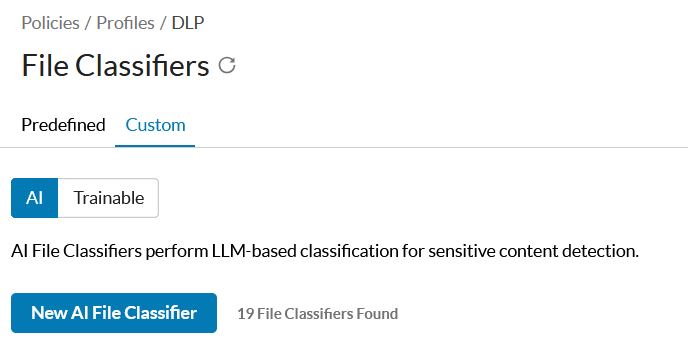
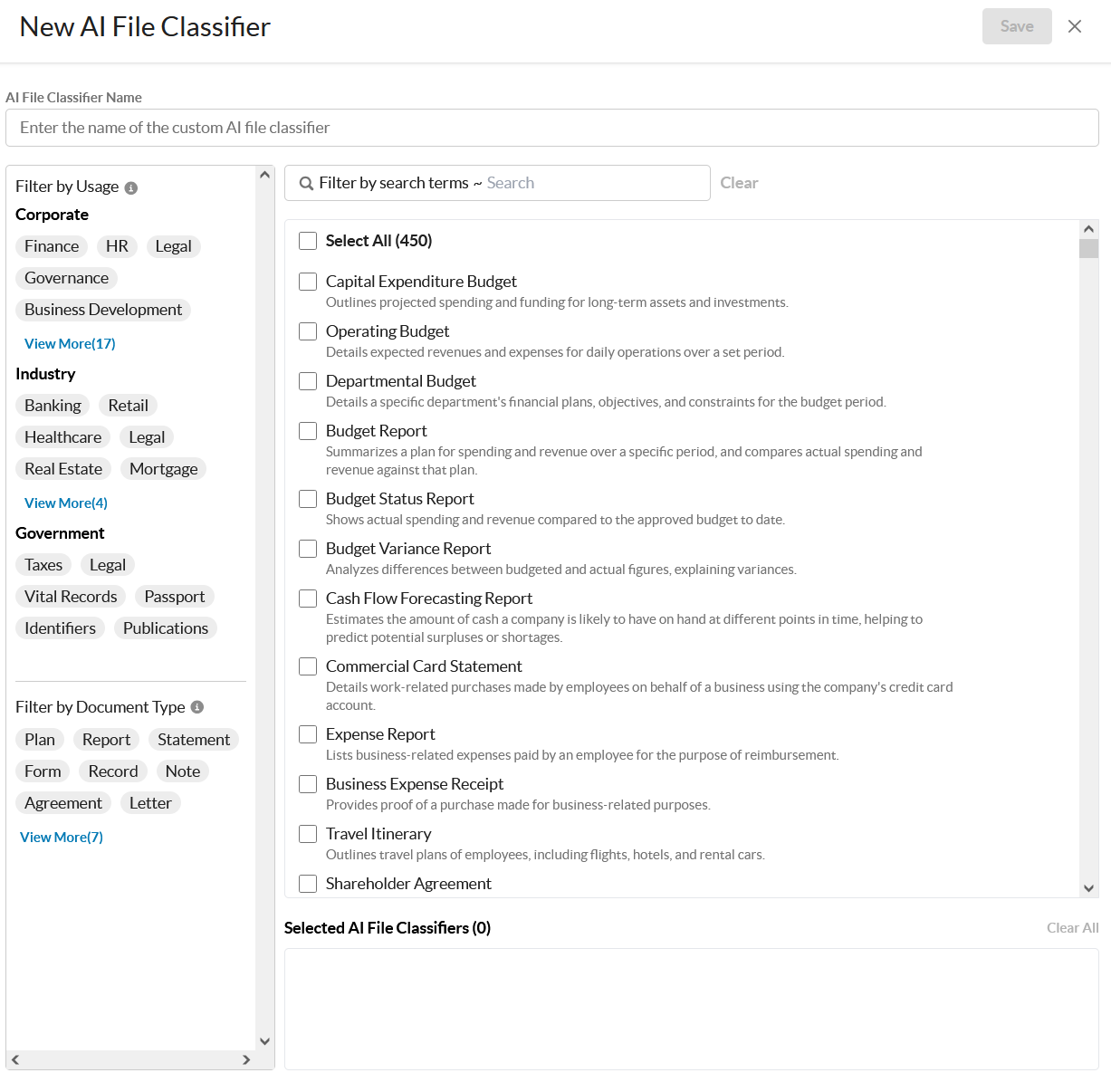
By utilizing Large Language Model (LLM) technology, DLP can now accurately classify files based on hundreds of classifiers. Admins can select from a list of predefined file classes and choose to detect specific classes that are relevant to their inspection request. When a DLP inspection request includes one or more LLM-based file classification rules, a portion of the extracted file text to the AI File Classifer service for processing. The AI File Classifier service maintains a comprehensive list of predefined file classes locally.
To create an AI File Classifier:
-
Go to Policies > DLP > File Classifiers > Custom and select AI
-
Click New AI File Classifier

-
Check the classification types you wish to add to your AI File Classifier. They will appear at the bottom in Selected AI File Classifier.
-
Enter a name and click Save.
-
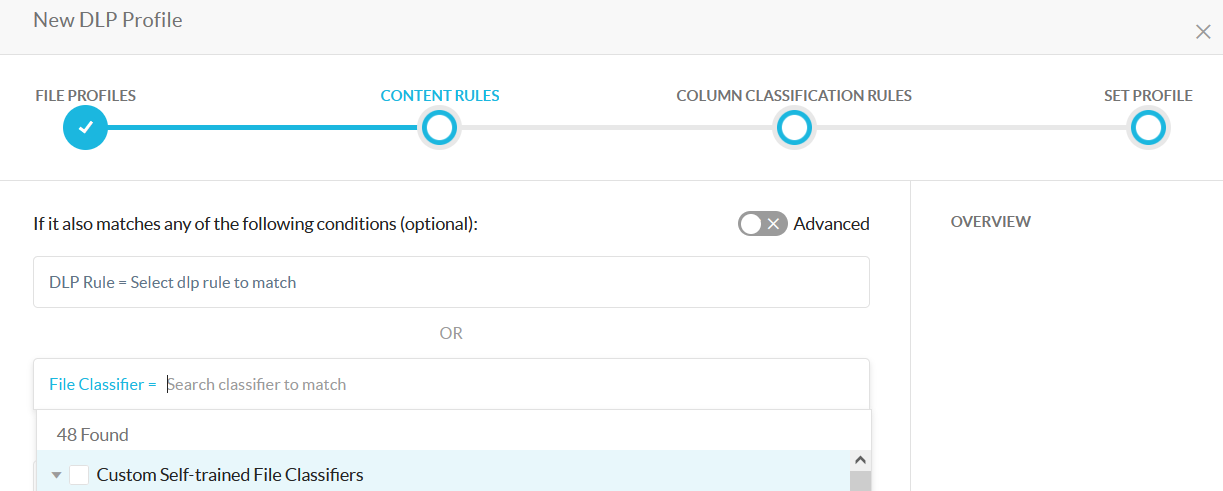
Your new AI File Classifier can now be used when creating a new DLP Profile under the Content Rules in the File Classifier section.

DLP Limitations
DLP Limitations
When a fingerprint group or custom classifier is used in a DLP profile, WebUI won’t allow the deletion of FP-group/custom-classifier to be deleted. However, user could “accidentally” delete it using API directly. When this happens, DLP profile would refer to an “undefined” FP-group/custom-classifier and during inspection time, DLP would ignore such undefined FP-group/custom-classifier as if they don’t exist at all. User can remove such undefined rules. This loophole currently has not much negative impact on DLP scan but still should be avoided for data integrity.
This issue will be fixed in the upcoming release with Referential Integrity integration.
Limitations for NEW Predefined Profiles, Rules, Entities, Columnar Classification Rules, and File Classifiers
Netskope incorporates general maintenance as part of its service, which includes the introduction of new Predefined Profiles, Rules, Entities, Columnar Classification Rules, and File Classifiers for the respective subscribed capabilities of DLP Standard (L2), DLP Advanced (L3).
We advise customers to only utilize these newly introduced
- Predefined Profiles,
- Rules,
- Entities,
- Columnar Classification Rules
- File Classifier
exclusively after the deployment has been completed across all Management Plane (MPs) and Data Plane (DPs) to mitigate the potential for detection inconsistencies. Customers leveraging appliances such the DLP On Demand Appliance, DLP Appliance with DSPM, or DLP Appliance with AI Gateway must also ensure that the DLP Appliance is updated to facilitate the functionality of the new
- Predefined Profiles,
- Rules,
- Entities,
- Columnar Classification Rules
- File Classifiers
Existing Predefined Profiles, Rules, Entities, Columnar Classification Rules, and File Classifiers and Custom Profiles, Rules, Entities, Columnar Classification Rules, and File Classifiers are not subject to this limitation.