

Release Note
1.0.0 (Requires minimum Cloud Exchange version 6.0.0)
Added
- Initial release.
- Entity: Assets
This document explains how to configure the Forescout eyeFocus v1.0.0 plugin in the Netskope Cloud Exchange platform. This plugin fetches Assets from the Assets page of the Forescout eyeFocus Cloud platform. This plugin does not support any actions on Assets.
Prerequisites
To complete this configuration, you need:
- A Netskope tenant (or multiple, for example, production and development/test instances).
- A Netskope Cloud Exchange tenant with the Tenant plugin and Risk Exchange plugin already configured.
- Connectivity to the Forescout eyeFocus instance. Example:
https://<instance>.cloud.forescout.com.
Forescout eyeFocus Plugin Support
This plugin is used to fetch Assets from the Assets page of Forescout eyeFocus Cloud platform. This plugin does not support any actions on Assets.
| Type of Data Pulled | Actions |
|---|---|
| Assets | No Action |
Mappings
Mappings are used to view the pulled Assets along with their respective details. Fields mapped during the plugin configuration will be visible on the Records page after the data is pulled. Here are the suggested mappings to use while configuring the plugin.
Pull Mapping for Assets
| Plugin Field Label | Expected Data Type | Suggested Field Label | Aggregate Strategy | Example |
|---|---|---|---|---|
| Asset ID | String | Asset ID | Unique | a1b2c3d4-e5f6-7890-abcd-ef1234567890 |
| Hostname | String | Hostname | Overwrite | web-server-01 |
| IP Addresses | List | IP Addresses | Overwrite | [“10.0.0.5”] |
| MAC Addresses | List | MAC Addresses | Overwrite | [“00:1A:2B:3C:4D:5E”] |
| Category | String | Category | Overwrite | Network Device |
| Function | String | Function | Overwrite | Switch |
| Vendor | String | Vendor | Overwrite | Cisco |
| OS | String | OS | Overwrite | IOS |
| Model | String | Model | Overwrite | Catalyst 9300 |
| Firmware | String | Firmware | Overwrite | 16.12.4 |
| Risk Score | Number | Risk Score | Overwrite | 6.5 |
| Risk Severity | String | Risk Severity | Overwrite | Medium |
| Asset Criticality | String | Asset Criticality | Overwrite | High |
| Last Seen | DateTime | Last Seen | Overwrite | 2026-05-06T11:45:11.633Z |
| Last Seen Online | DateTime | Last Seen Online | Overwrite | 2026-05-06T10:30:00.000Z |
Permissions
Contact your Forescout eyeFocus support team.
API Details
| API Endpoint | Method | Use case |
|---|---|---|
| /api/data-exchange/v3/rem-asset-search | GET | REM Asset Search endpoint to fetch Assets from the Forescout Eyefocus Assets page |
List of APIs Used
Get Assets from Forescout eyeFocus Assets page
API Endpoint: <Instance URL>/api/data-exchange/v3/rem-asset-search
Method: GET
Parameters
| Key | Value |
|---|---|
| from_date_time_iso_utc | Start time for fetching assets YYYY-MM-DDTHH:MM:SS.mmmZ |
| to_date_time_iso_utc | End time for fetching assets YYYY-MM-DDTHH:MM:SS.mmmZ |
| order_by | risk_score on the first (unbounded) pass of a window; last_seen on every banded/sub-window call |
| sort_order | ASCENDING |
| risk_score_min | stringified; integral values sent – assets score greater than or equal to this will be fetched |
| risk_score_max | stringified; integral values sent – assets score less than or equal to this will be fetched |
Headers
| Key | Value |
|---|---|
| User-Agent | netskope-ce-v6.1.0-cre-forescout-eyefocus-v1.0.0 |
| Authorization | Bearer <api_token> |
Sample API Response for Assets (Status Code: 200)
{
    "total_hits": 15451,
    "entities": [
        {
            "id": "7febb171-a8b5-493a-89ae-456c70c72ba9",
            "mac_addresses": [
                "08:00:19:b4:40:a0"
            ],
            "ip_addresses": [
                "10.22.16.140"
            ],
            "hostname": "hosp-rad-cts01",
            "last_seen": "2026-05-06T08:55:23.777Z",
            "rem_function": "CT Scanner",
            "rem_vendor": "GE Healthcare",
            "rem_os": "Linux",
            "rem_model": "Revolution EVO / Optima CT660",
            "rem_firmware": "19BW15.42",
            "rem_category": "Medical Device",
            "risk_score": 7.7,
            "risk_severity": "high",
            "risk_exposed_service_list": [
                {
                    "port_protocol": "22_tcp",
                    "service_name": "SSH",
                    "impact_level": "Control"
                },
                {
                    "port_protocol": "23_tcp",
                    "service_name": "Telnet",
                    "impact_level": "Control"
                }
            ],
            "open_ports": [
                {
                    "port": 60313,
                    "protocol": "tcp",
                    "service_name": "SSL"
                },
                {
                    "port": 23,
                    "protocol": "tcp",
                    "service_name": "Telnet"
                },
                {
                    "port": 22,
                    "protocol": "tcp"
                }
            ],
            "risk_device_criticality": "critical",
            "risk_matched_cves": [
                {
                    "cve_id": "CVE-2020-25175"
                },
                {
                    "cve_id": "CVE-2020-25179"
                }
            ],
            "medical_mds_has_document": false,
            "last_seen_online": "2026-05-06T06:05:54.000Z"
        }
}
Performance Matrix
Here is the performance matrix conducted on a Large CE Stack with these specifications by pulling 500k Assets.
| Description | Specifications |
|---|---|
| Stack details | Size: Large RAM: 32 GB CPU: 16 Cores |
| Assets fetched from Forescout eyeFocus | ~25 minutes |
Note
- The above performance readings were taken using a mock server.
- On the live instance the performance may vary based on the pagination set in the plugin configuration and the number of records present between any time interval.
User Agent
netskope-ce-v6.1.0-cre-forescout-eyefocus-v1.0.0
Workflow
- Generate a API Token.
- Configure the Forescout eyeFocus Plugin.
- Configure a Business Rule.
- Configure Risk Exchange Actions.
- Validate the plugin.
Watch a Video
Click play to watch a video:
Get your Forescout eyeFocus API Token
Refer to this documentation for API Token generation: https://docs.forescout.com/fs-cloud/eyefocus/cloud-data-exchange-plugin/generate-an-api-key-for-application-integration.htm
Configure the Forescout eyeFocus Plugin
-
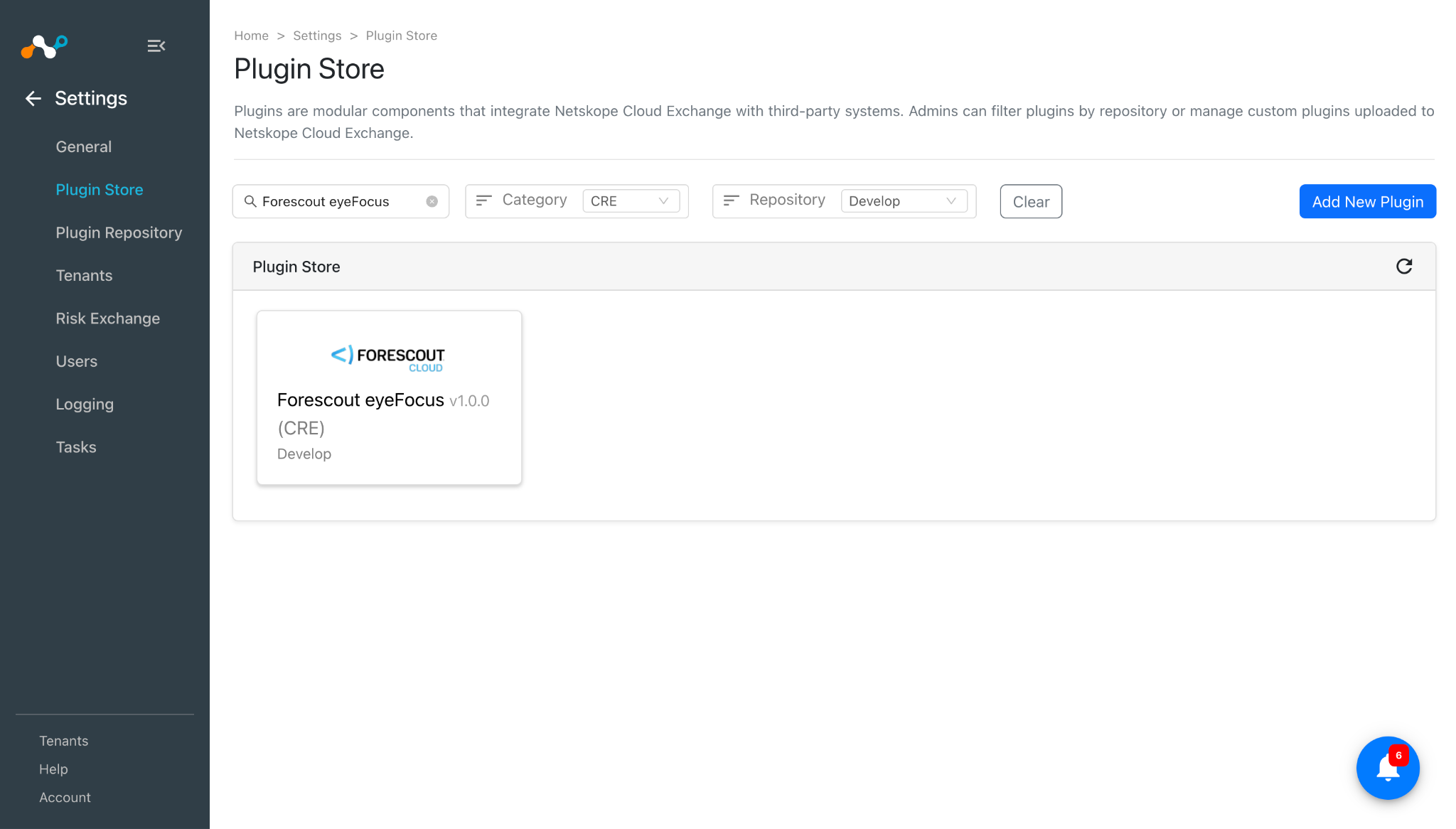
In Cloud Exchange, go to Settings > Plugin Store. Search for and select the Forescout eyeFocus v1.0.0 (CRE) plugin.
-
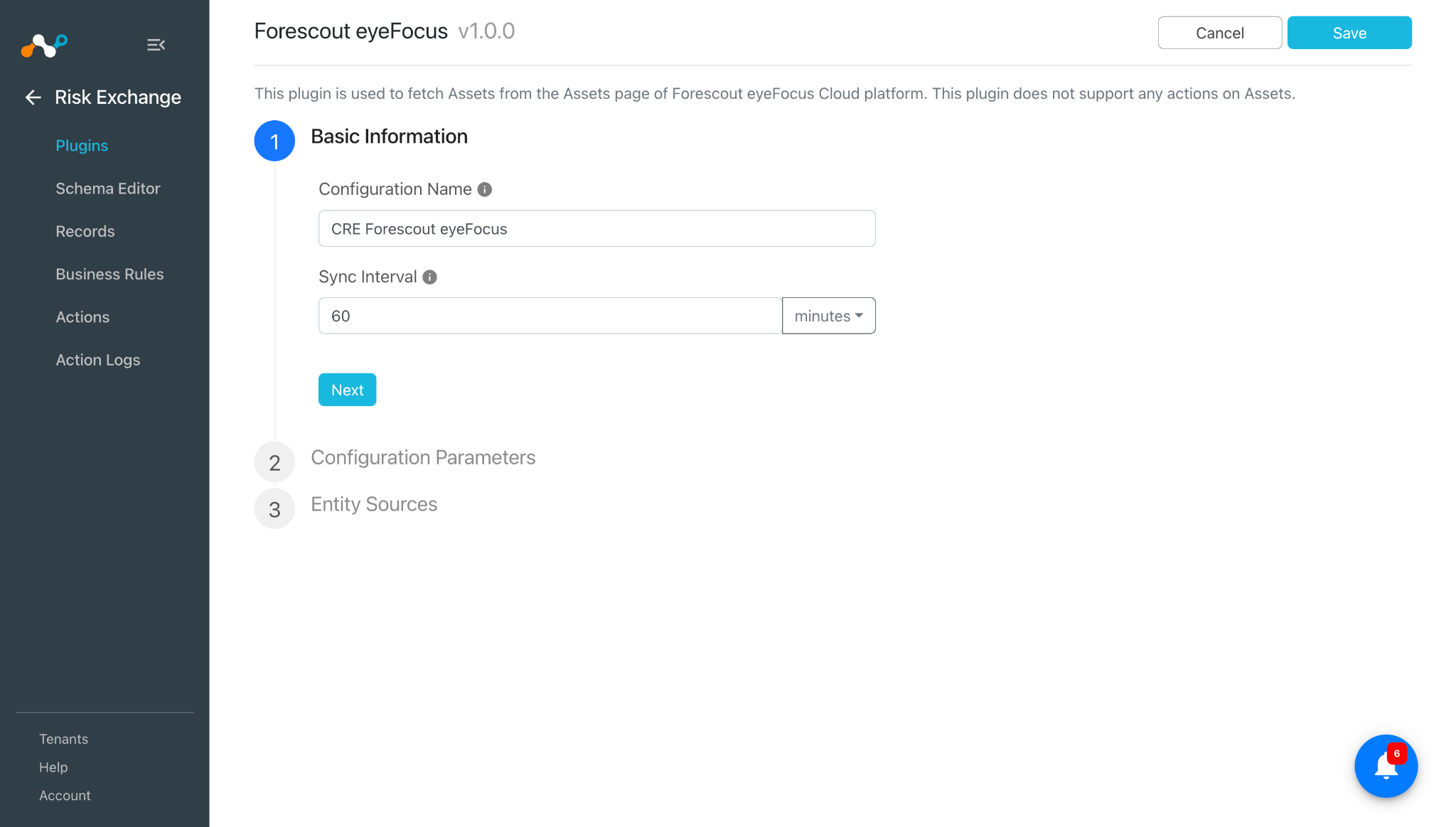
Enter a plugin configuration name and change the sync interval if needed.
-
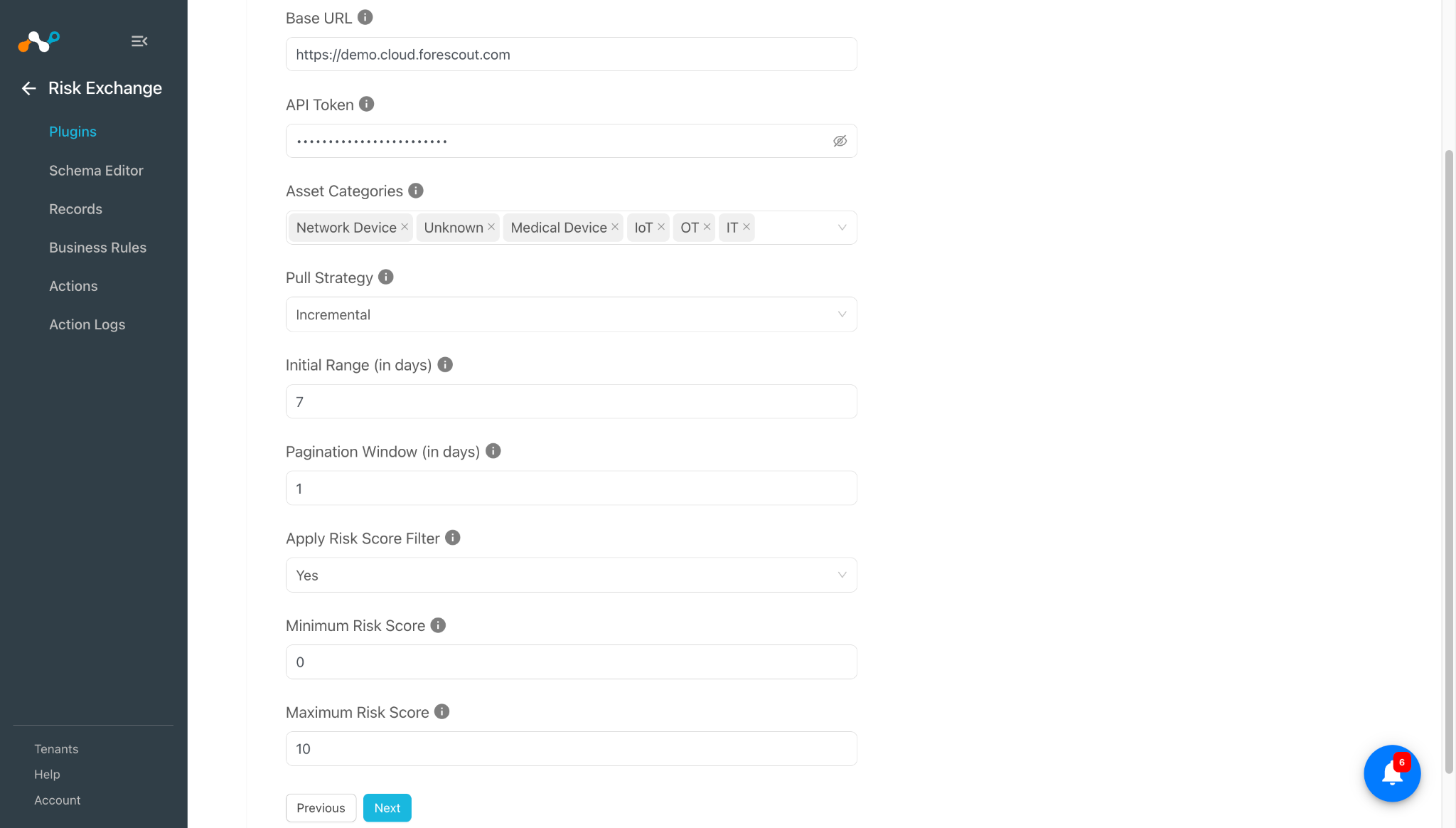
Click Next and enter the Configuration Parameters:
- Base URL: Base URL of your Forescout eyeFocus Cloud instance. e.g. https://demo.cloud.forescout.com.
- API Token: Bearer API token used to authenticate against the Forescout eyeFocus REM Asset Search API.
- Asset Categories: Asset categories to pull. Only assets whose Forescout category is selected here are pulled; the filter is applied by the plugin after each API call. All categories are selected by default. Leave empty to pull assets of every category. Deselect ‘IT’ to exclude Netskope-Client-compatible hosts (laptops / desktops / phones) and pull only non-host / headless assets.
- Pull Strategy: How each pull cycle determines its datetime range.
Incremental: the first pull uses the Initial Range and every later pull fetches only assets seen since the last successful run.
Full Window: every pull re-fetches all assets within the Initial Range, so existing assets are refreshed on each cycle. - Initial Range (in days): Number of days to look back. With the ‘Incremental’ Pull Strategy this applies to the first pull only; with the ‘Full Window’ Pull Strategy it applies to every pull. Valid range: 1 to 365.
- Pagination Window (in days): Size of each datetime window the pull is sliced into (the REM API is paginated by narrowing the time window, not by page number). A window that still exceeds the 1000-asset API cap is automatically split into smaller sub-windows. Valid range: 1 to 30.
- Apply Risk Score Filter: Select Yes to filter the assets fetched by their Forescout risk score. Additional Minimum Risk Score and Maximum Risk Score fields are then displayed and are applied server-side by the REM Asset Search API. Select No to fetch assets of every risk score.
- Minimum Risk Score: Only fetch assets whose Forescout risk score is greater than or equal to this value (0-10 scale, decimals allowed e.g. 1.2). Applied server-side by the REM Asset Search API. Leave blank for no lower bound. Note: setting any risk bound makes the API exclude assets whose risk score is exactly 0.
- Maximum Risk Score: Only fetch assets whose Forescout risk score is less than or equal to this value (0-10 scale, decimals allowed, like 3). Applied server-side by the REM Asset Search API. Leave blank for no upper limit.
-
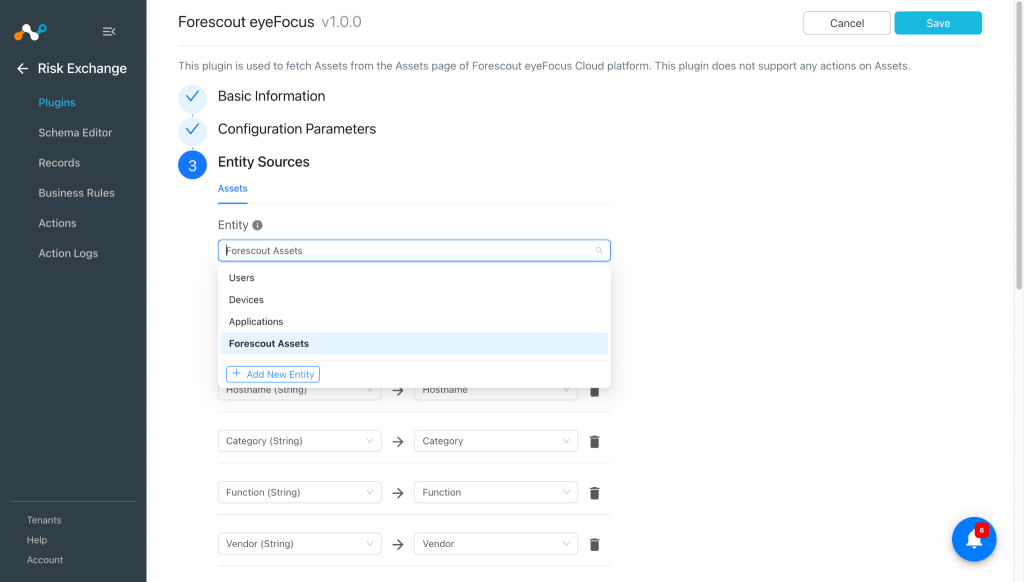
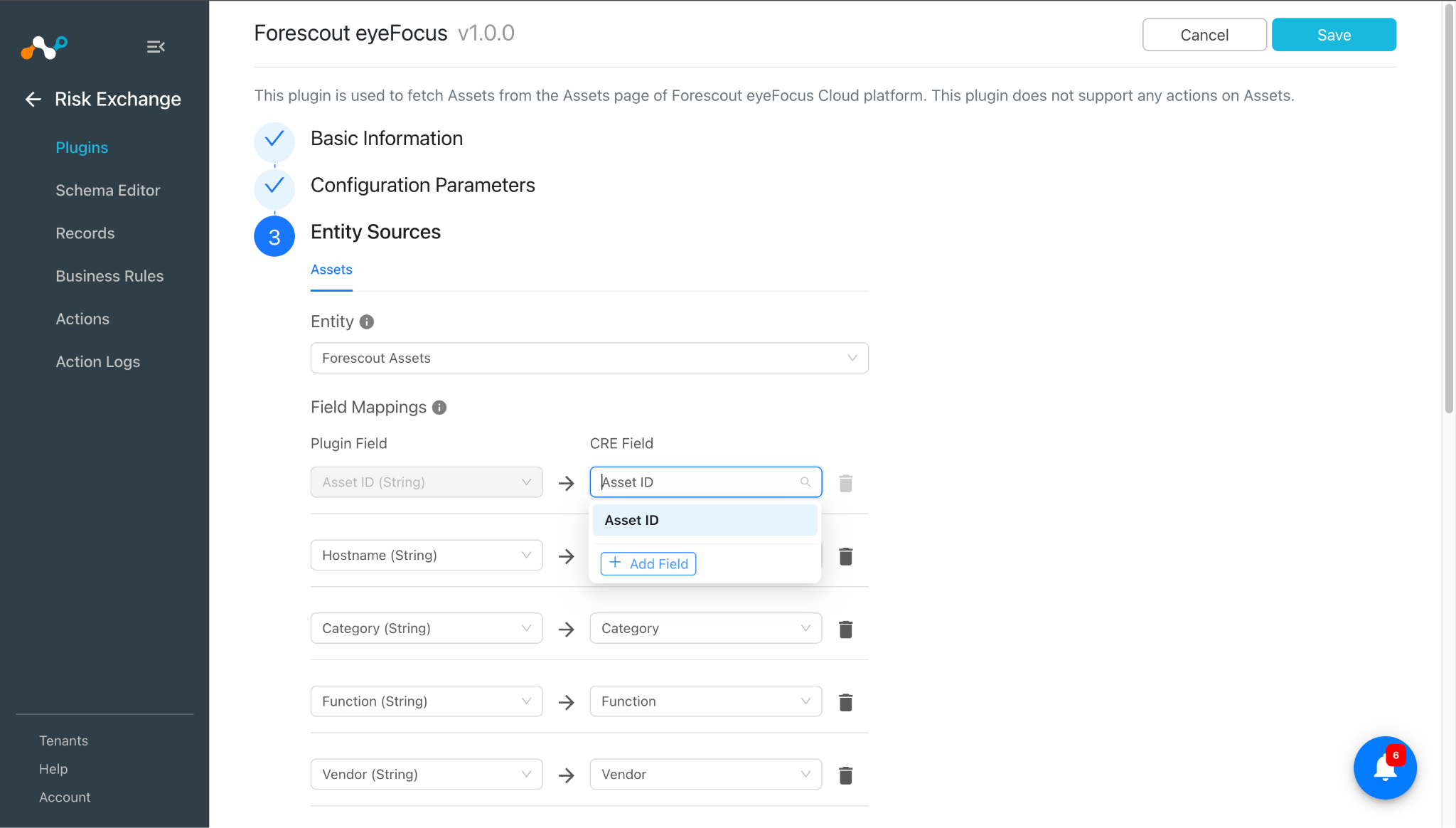
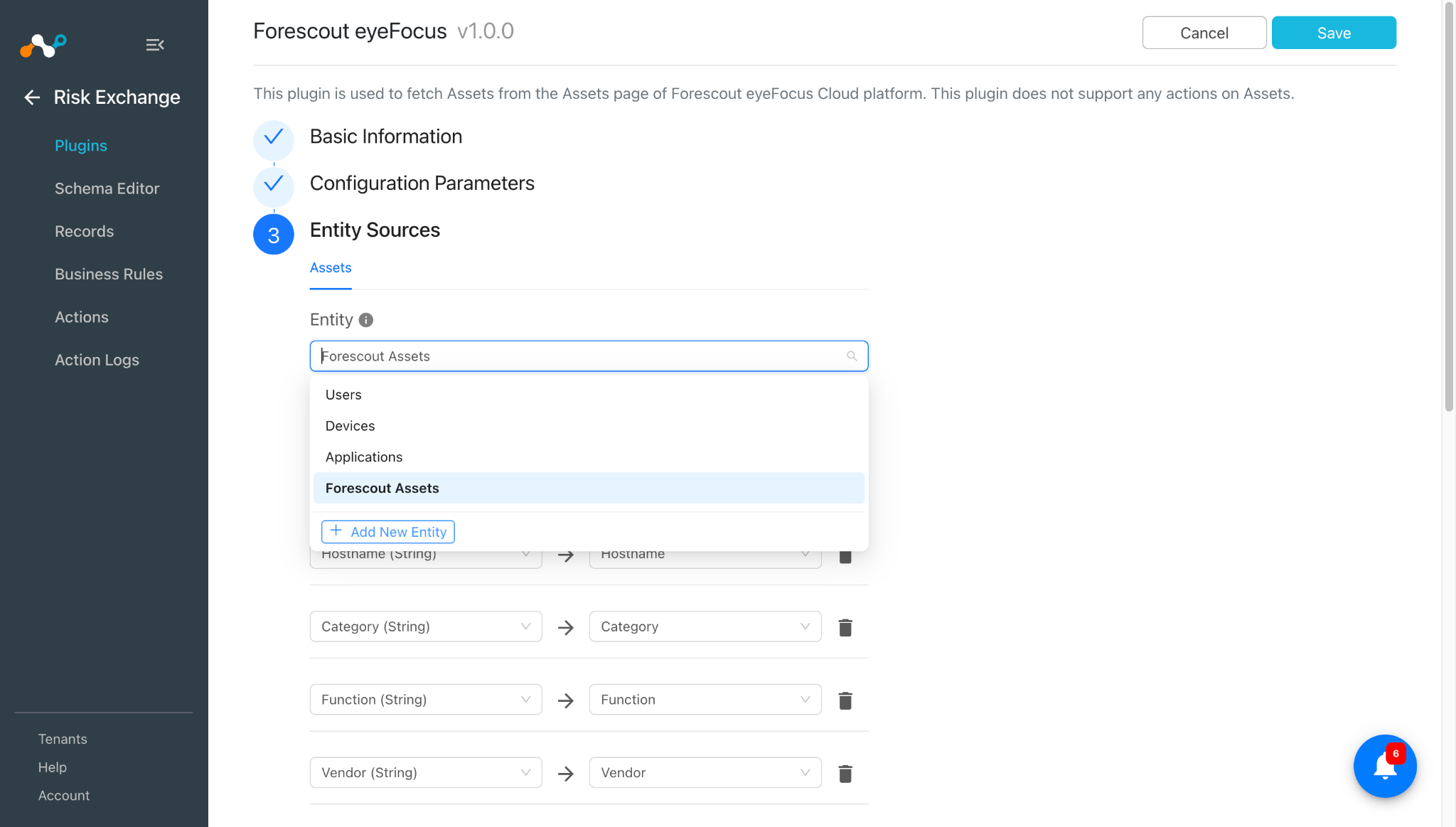
Click Next and select the required Entity from the Entity dropdown. Provide the field mapping per your needs. You can create a new one by clicking Add New Entity.
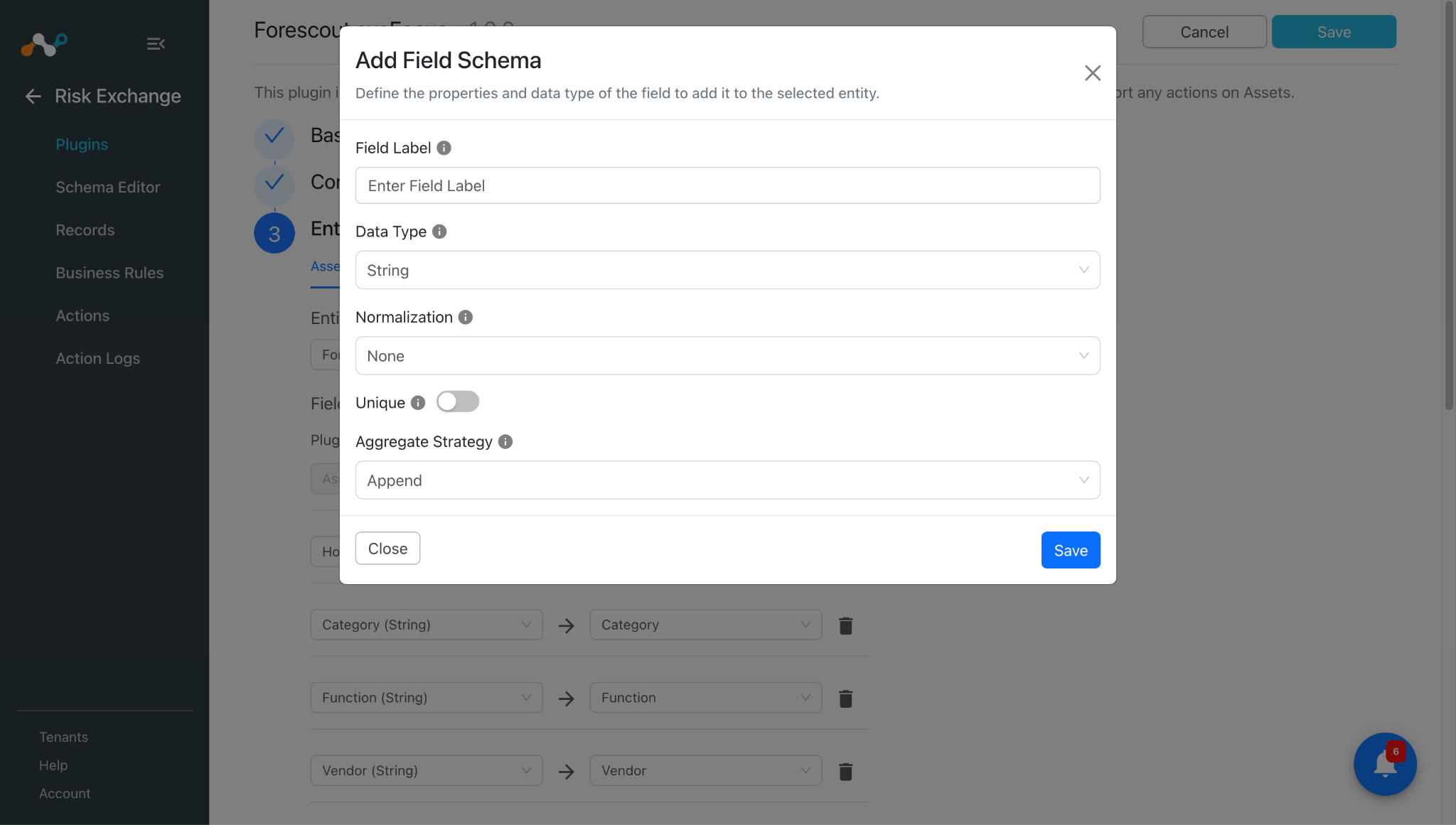
To create a new field, click Add Field.
Enter the Field Label, Data Type, Normalization, and Aggregate Strategy per your needs, and then click Save.
Map the created fields:
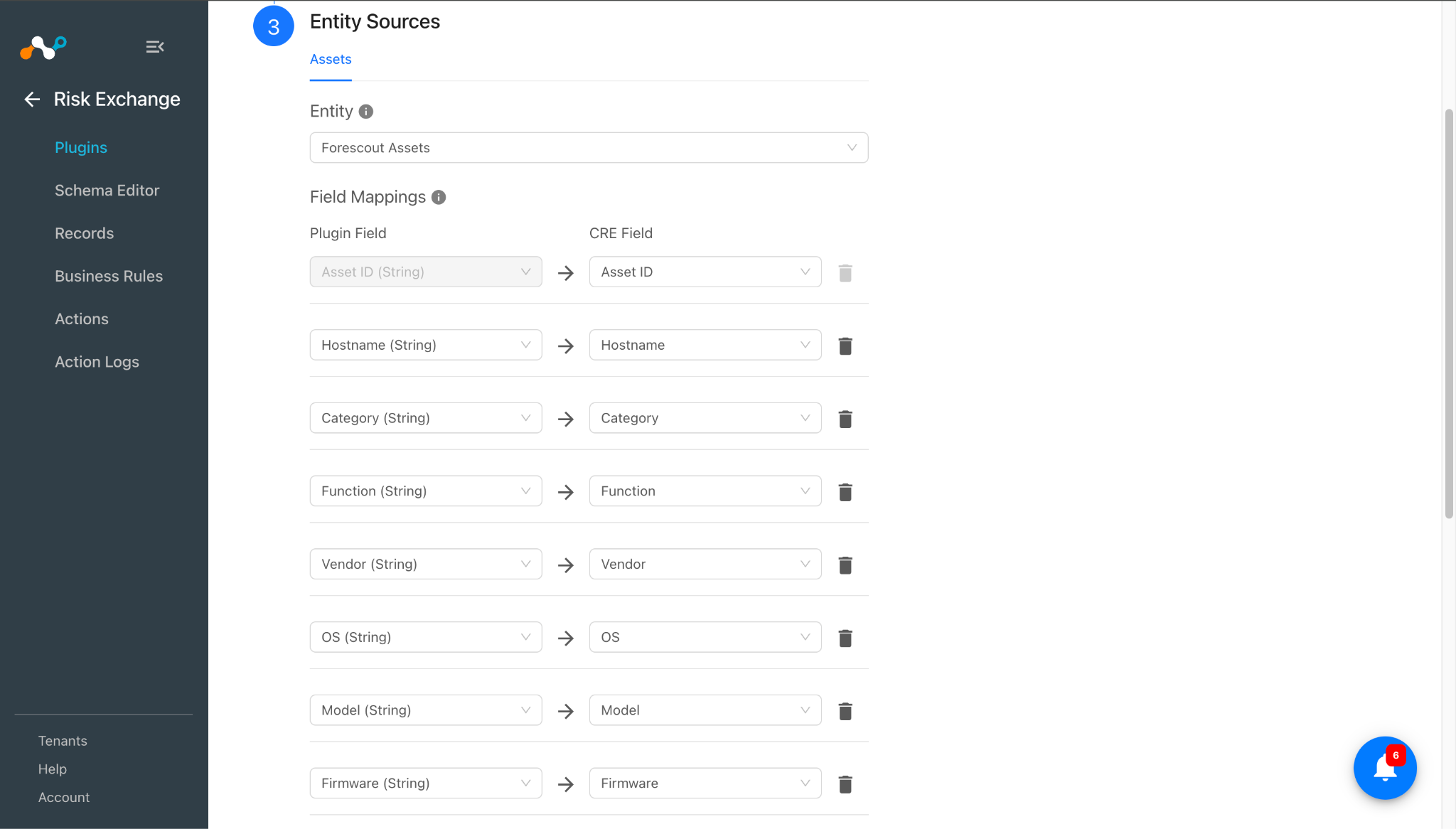
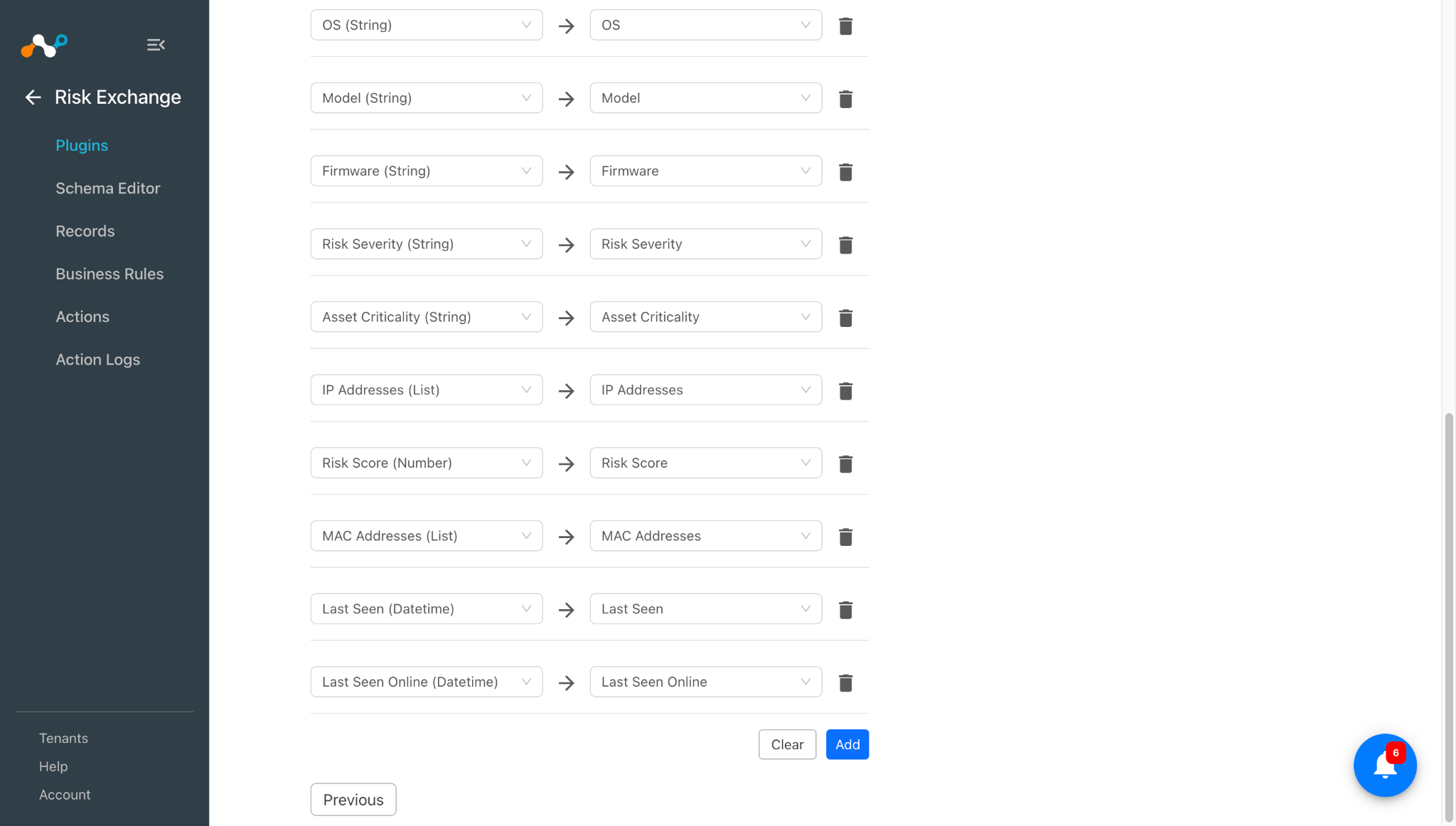 Review the Mappings section before configuring the plugin.
 -
Click Save. Your plugin appears on the Plugins page.
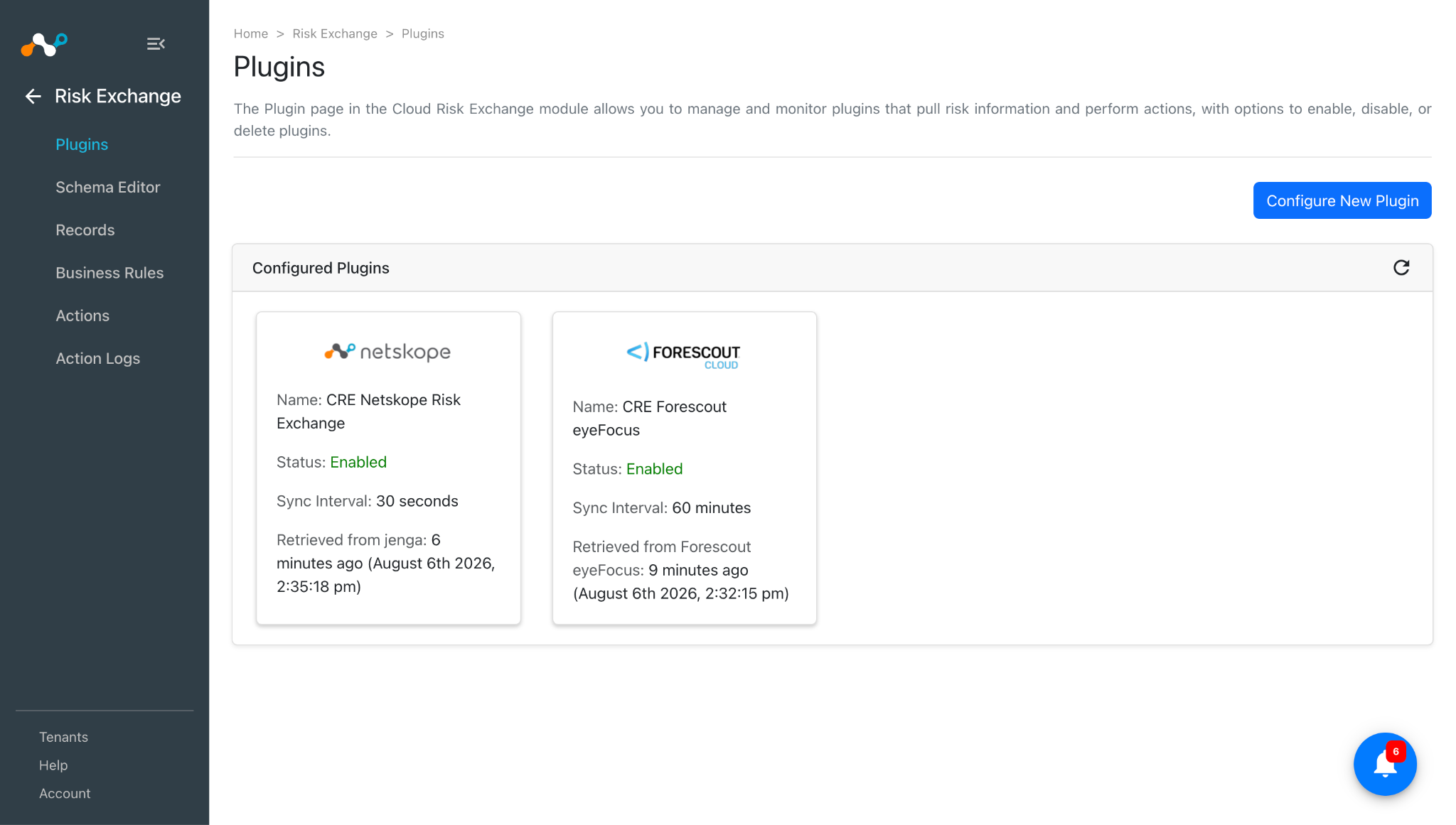
Configure a Risk Exchange Business Rule for the Forescout eyeFocus Plugin
-
In Risk Exchange, go to Business Rules.
-
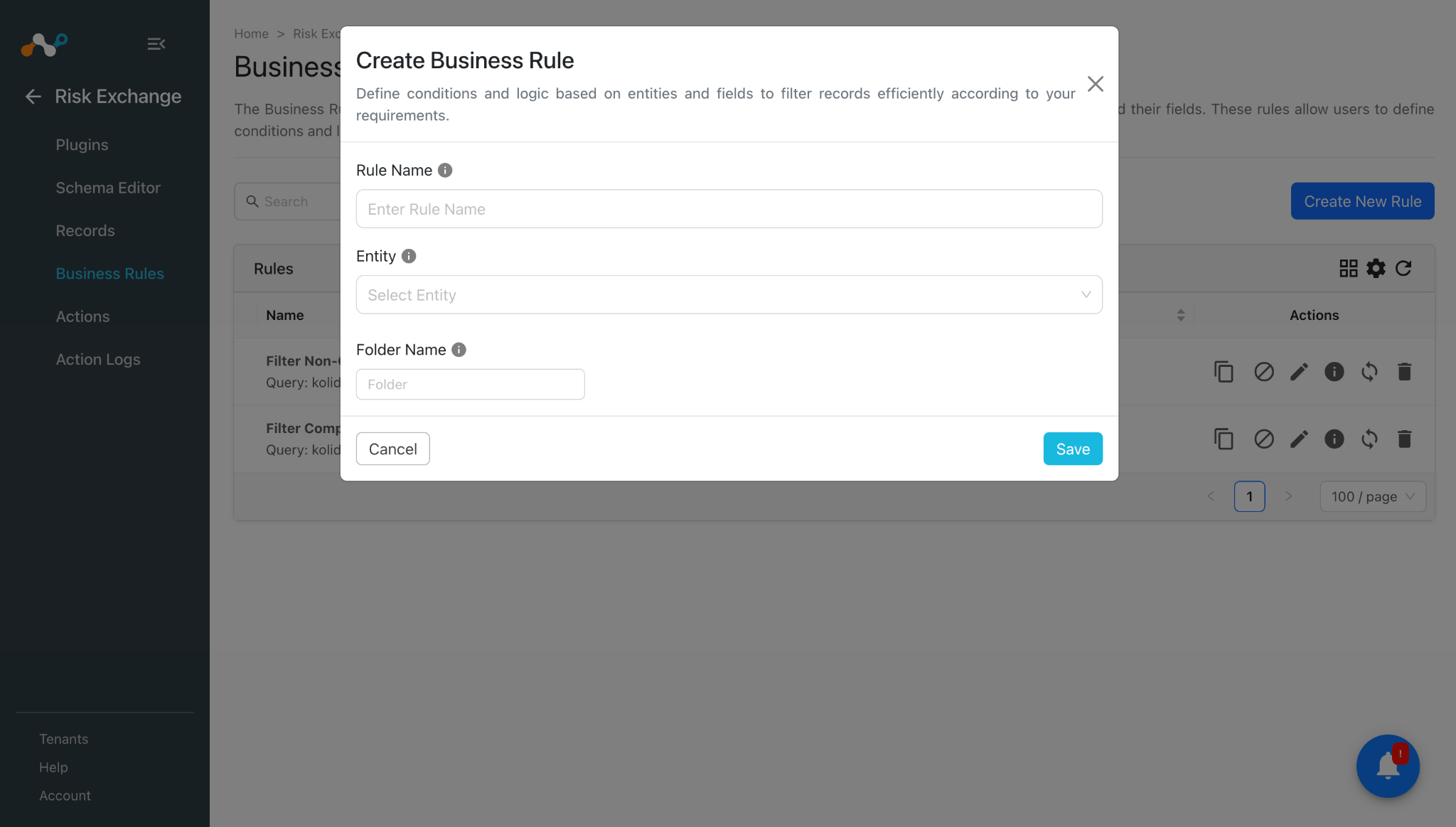
Click Create New Rule in the top right corner.
-
Enter a Rule Name. Select the Entity for the Fields you configured for the Forescout eyeFocus plugin, and configure the query based on your requirements.
-
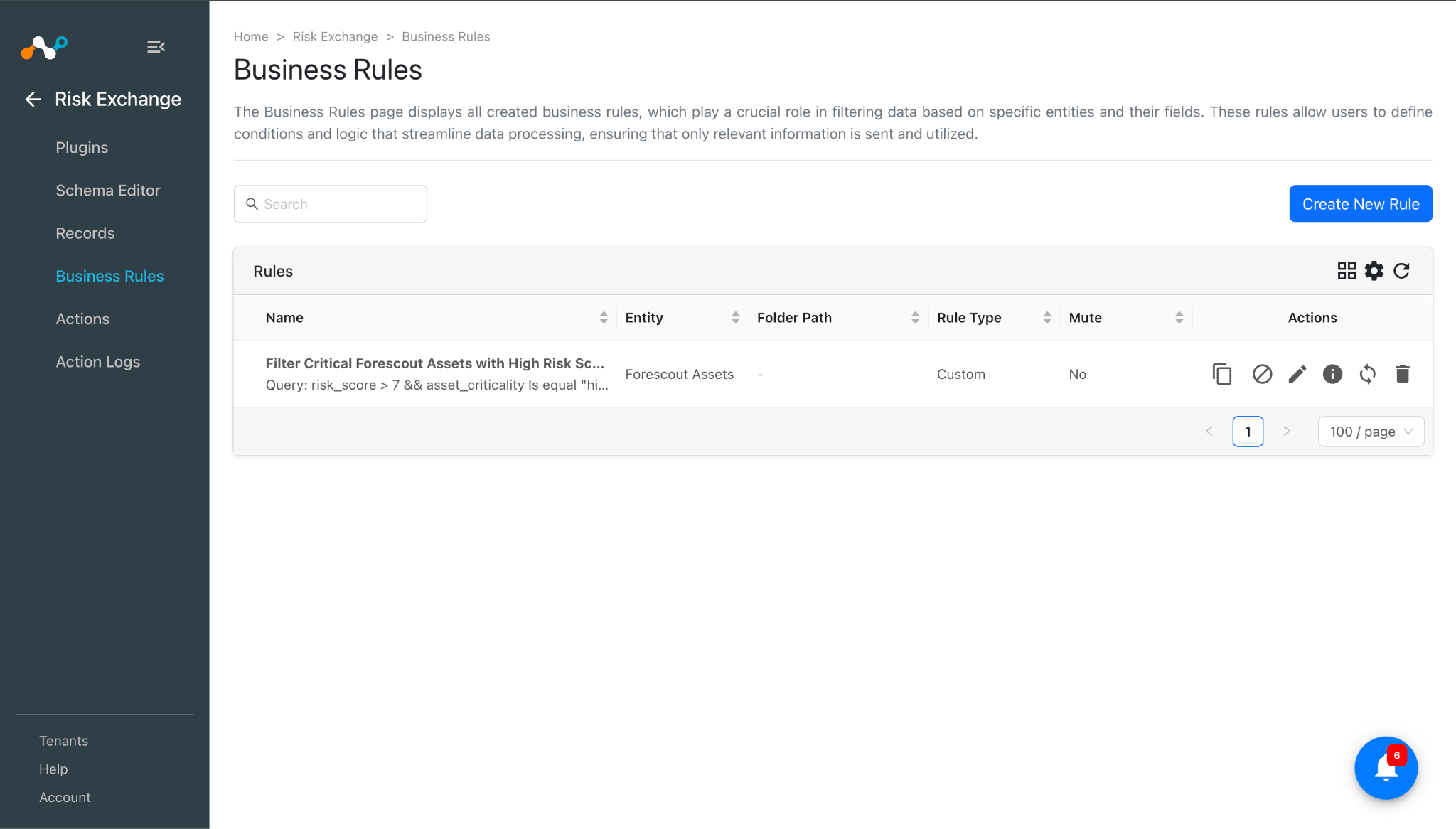
Click Save. This example filters the data fetched from the plugin.
Configure Risk Exchange Actions for the Forescout eyeFocus Plugin
CRE Forescout eyeFocus supports the following action type:
No Action: No action will be performed for this action. You can generate UBA alerts in Ticket Orchestrator by using this action and enabling the Generate Alerts toggle.
No Action
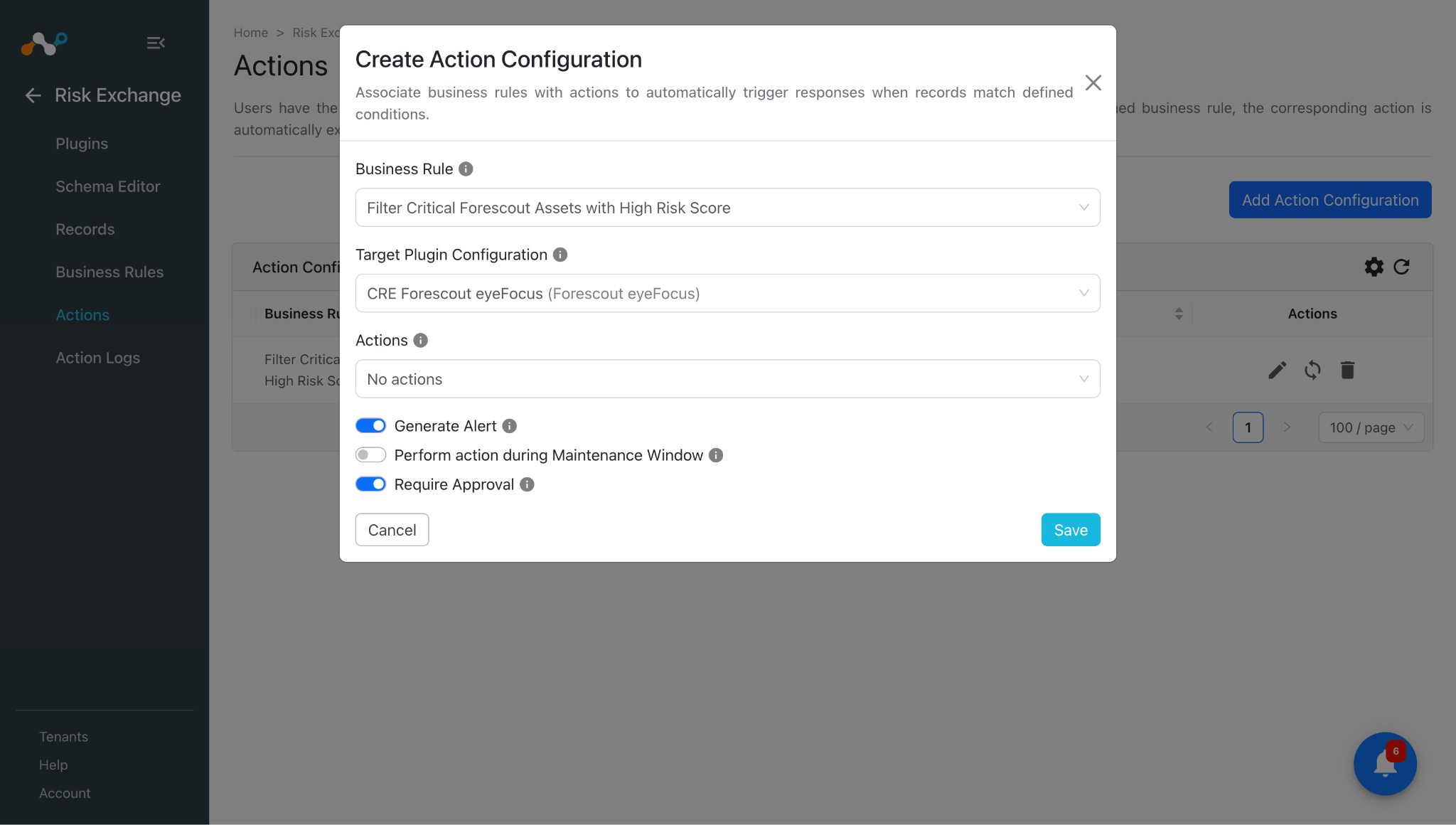
- In Risk Exchange, go to Actions and click Add Action Configuration.
- Select the required Business Rule, Configuration, and Action (No Action) from their respective dropdowns.
- Enable the Generate Alert toggle.
- Enable the Require Approval toggle if Approval is needed before performing action on the pulled records.
- Click Save.
Validate the Forescout eyeFocus Plugin
Validate in Cloud Exchange
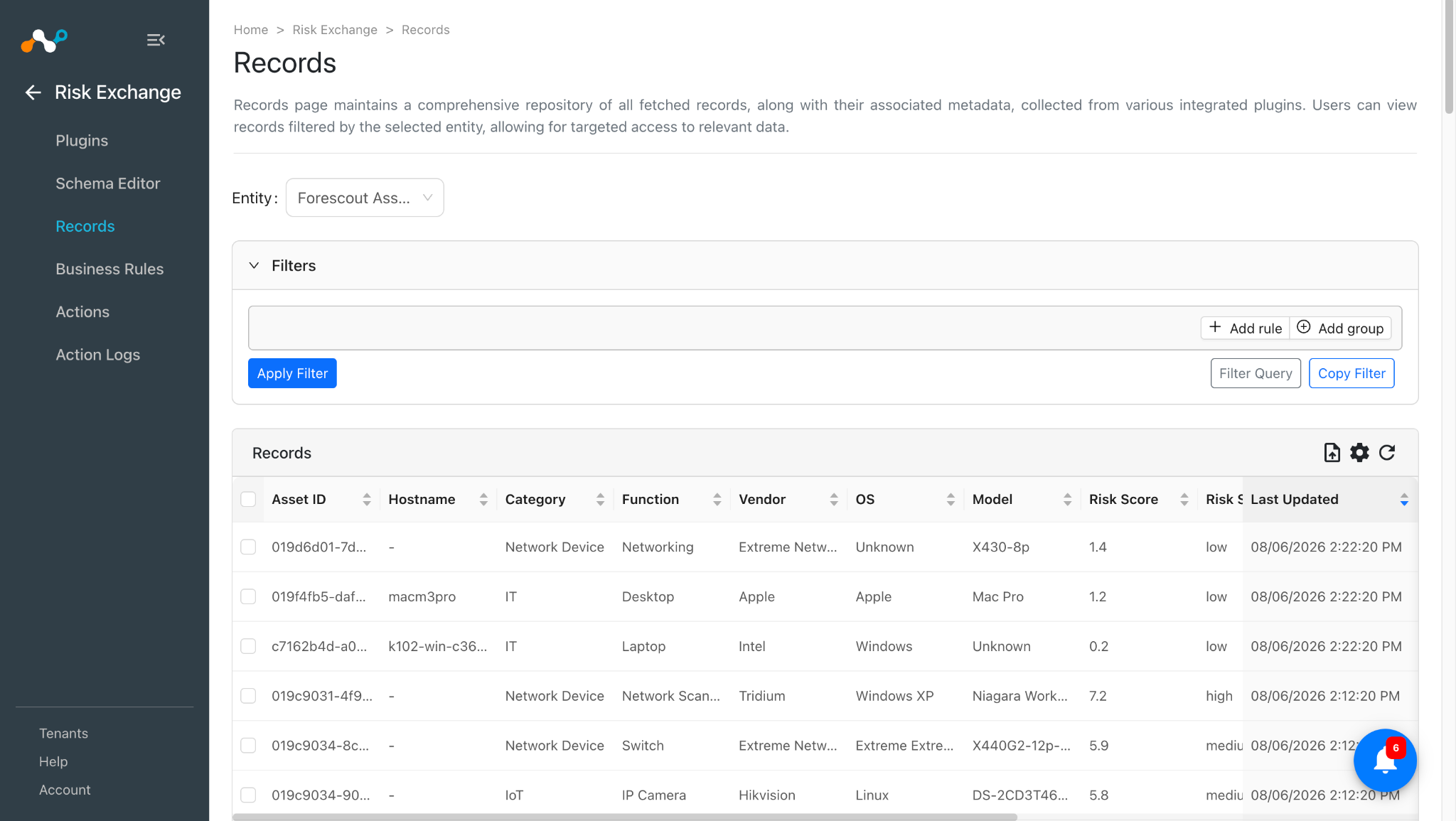
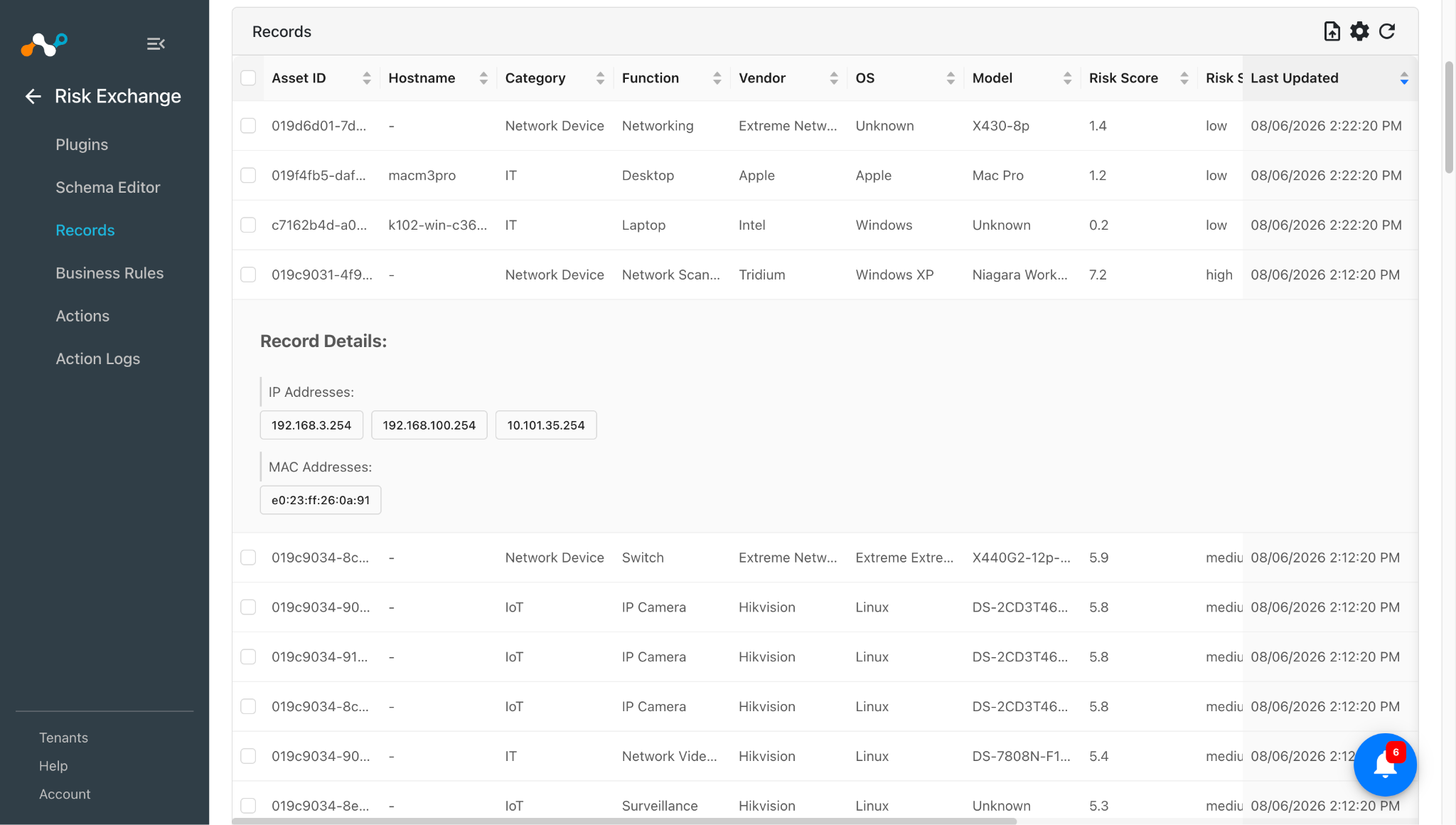
In Risk Exchange, go to Records. Select the Entity that was selected while configuring the field mapping to view the pulled records.
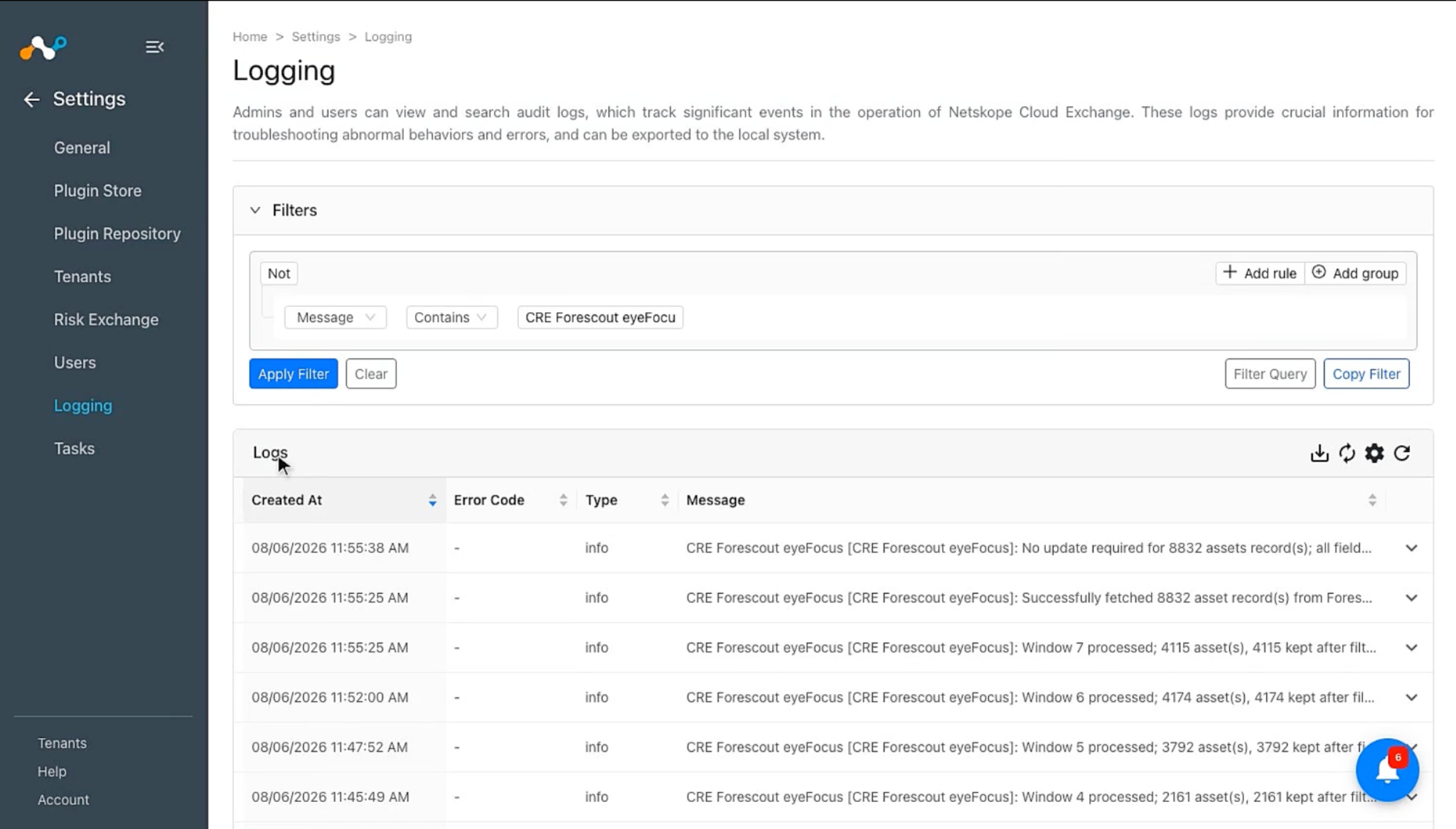
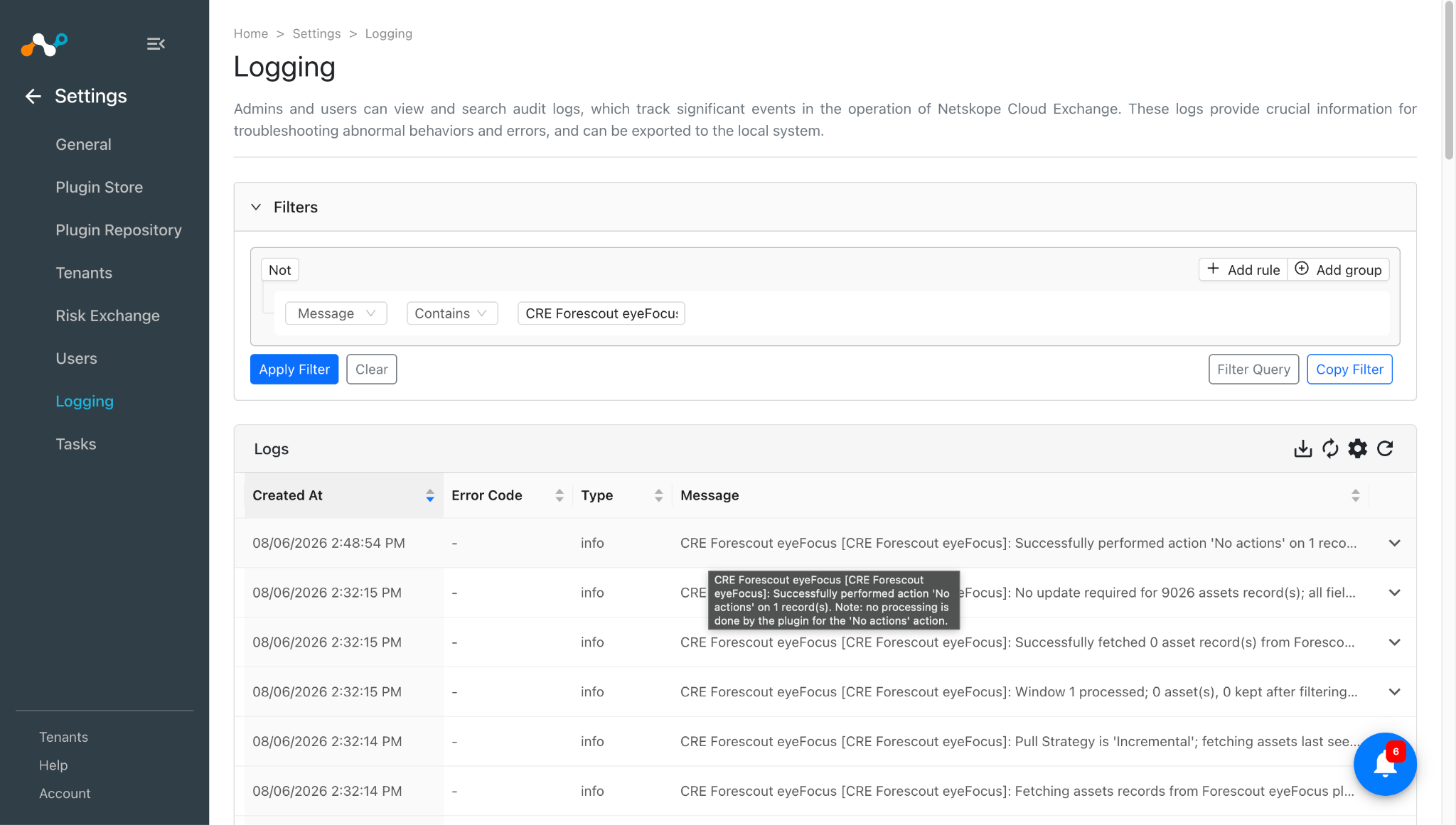
To verify the logs related to pulled records, go to the Settings > Logging and apply a filter with the plugin name or plugin configuration name.
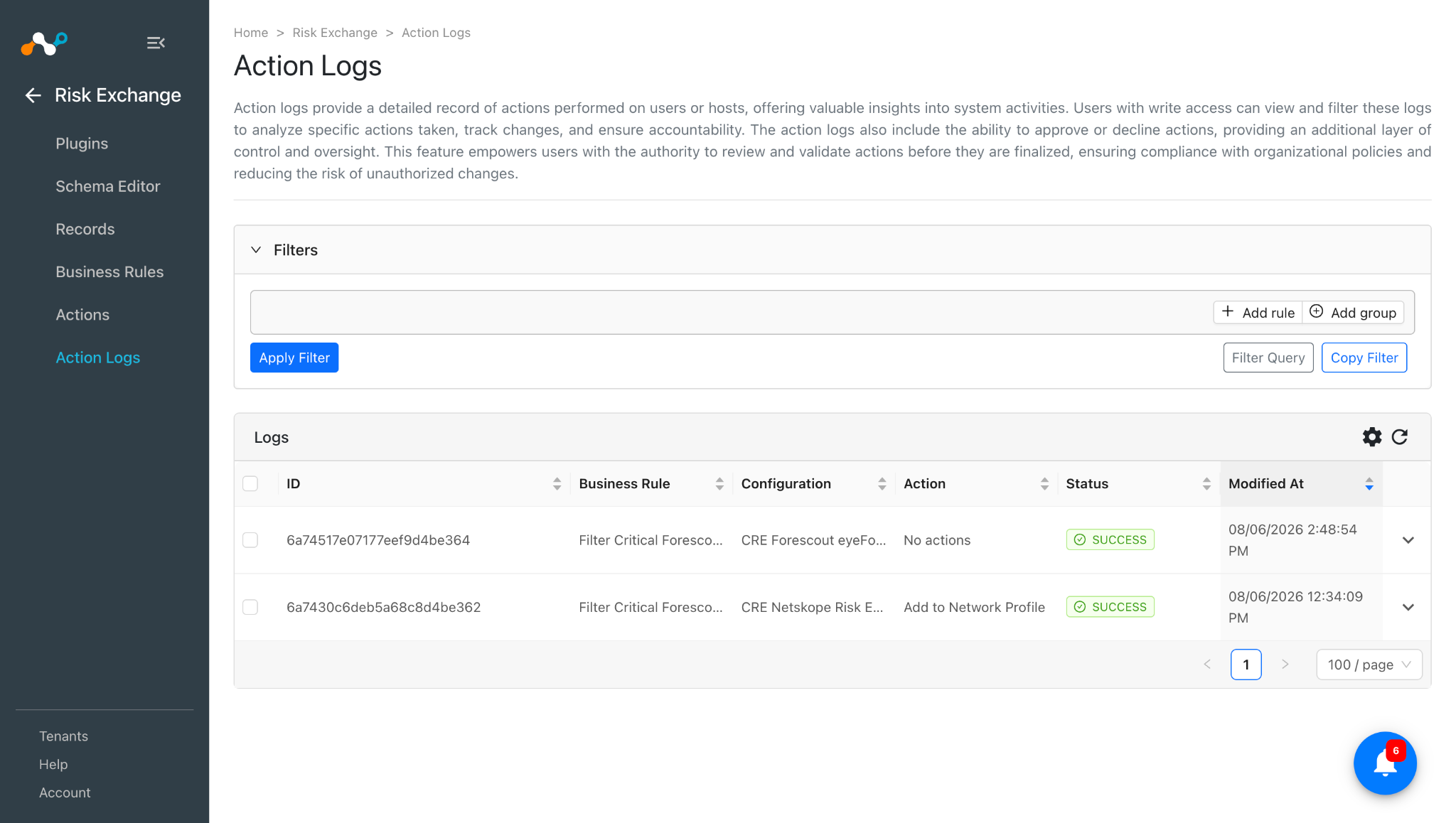
Logs for performed No action:
When a pulled record matches one of the configured business rules, the configured action will be performed on the record. This can be seen at Risk Exchange > Action Logs.
Validate in Forescout eyeFocus
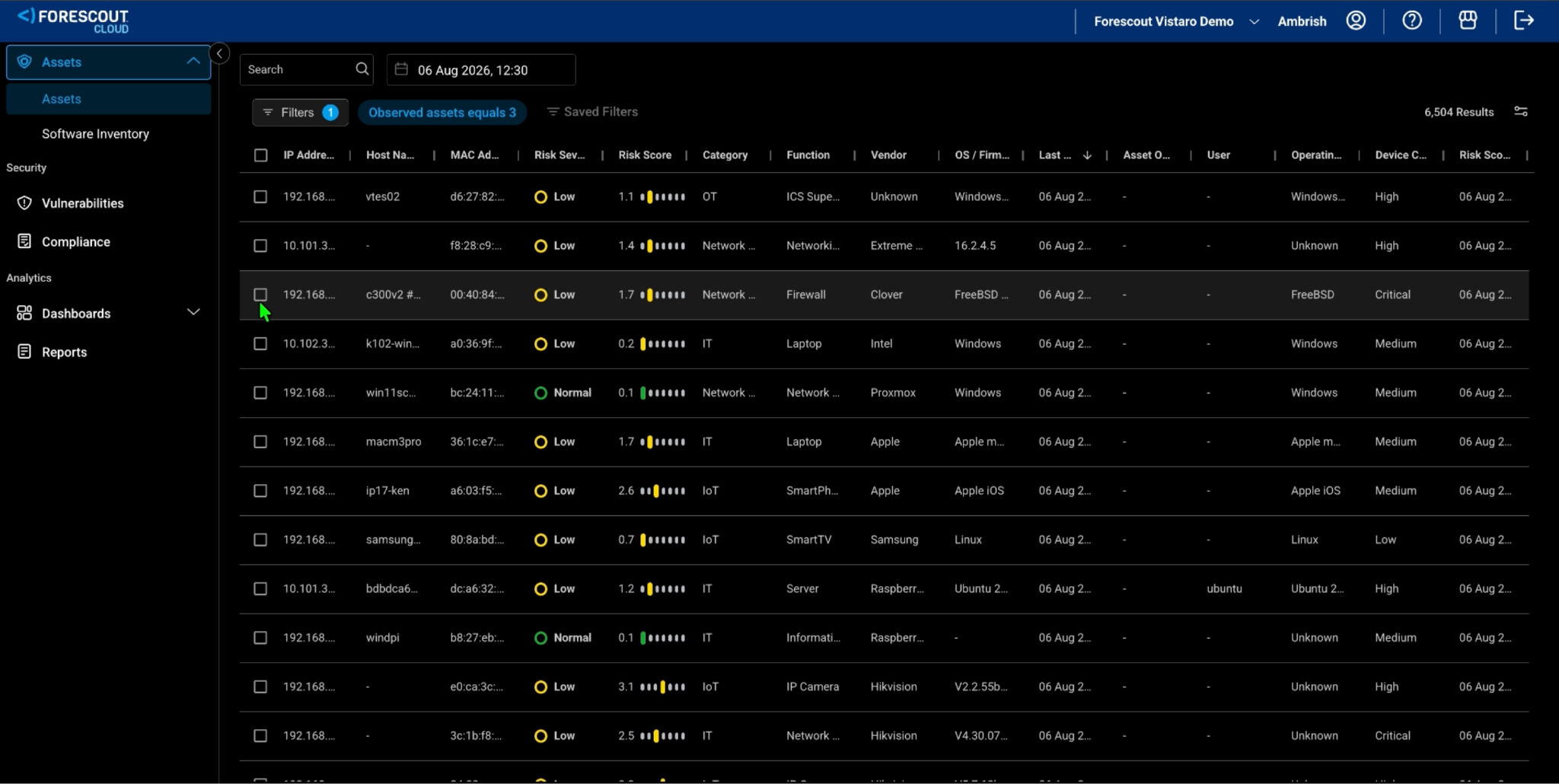
To view the available Assets on Forescout eyeFocus, log in to your Forescout eyeFocus instance.
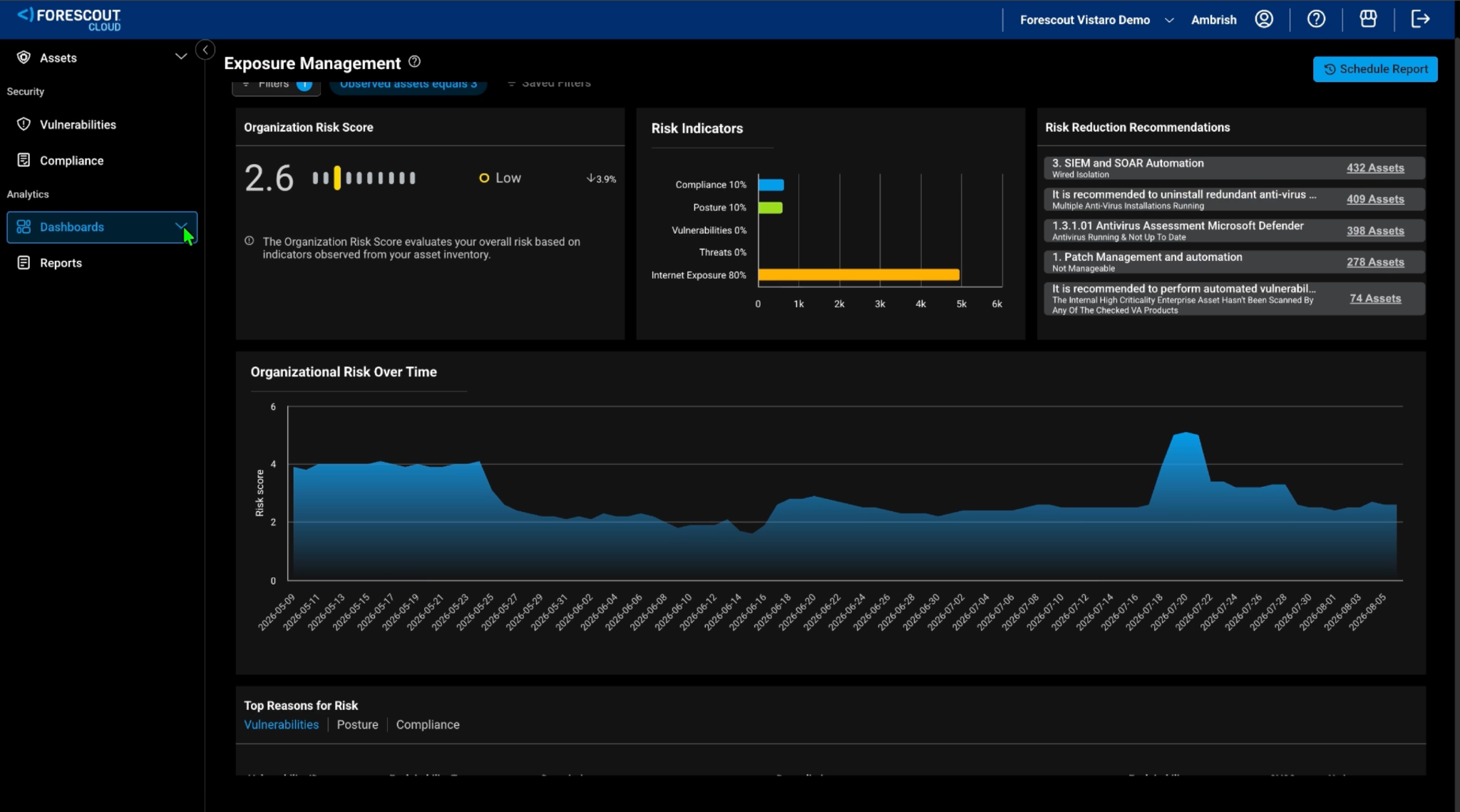
Go to Assets. This is the page from where the asset records will be pulled to Cloud Exchange.
Troubleshooting Forescout eyeFocus Plugin
Unable to configure the Forescout eyeFocus plugin
If the plugin fails to save with an error, it could be due to one of these reasons:
- The Base URL is incorrect, missing the URL scheme, or not reachable from the CE instance.
- The API Token is invalid or has expired or does not have sufficient permissions.
What to do:
- Verify that the Base URL is the correct Forescout eyeFocus Cloud instance URL, including the scheme (like
https://demo.cloud.forescout.com). - Contact the Forescout eyeFocus support team and regenerate the API Token from the Forescout eyeFocus Cloud console, and then update the plugin configuration.
Unable to pull assets from the Forescout eyeFocus plugin
If you are unable to pull asset records, it may be because the assets records are not available on Forescout eyeFocus platform.
What to do: Verify whether the asset records are present on the Forescout eyeFocus platform under the initial time range used in the plugin configuration. Refer to the Validate in Forescout eyeFocus section.
Known Behaviors
- The Forescout eyeFocus service can return a maximum of 1,000 assets in a single request. To retrieve all matching assets, the plugin automatically divides the request into smaller batches based on the time range and risk score. In rare cases, if more than 1,000 assets still match even the smallest possible batch, some assets may not be retrieved. Whenever this happens, a message is recorded in the CE logs.
- Sending either a Minimum Risk Score or Maximum Risk Score causes the Forescout API to silently exclude assets whose risk score is exactly 0. The plugin first checks all assets before applying the selected risk score range, ensuring that assets with a risk score of 0 are also included.