

This document explains how to configure the FortiSIEM v1.0.0 plugin with the Log Shipper module of the Netskope Cloud Exchange platform. This plugin supports ingestion of Alerts (Compromised Credential, Policy, Malsite, Malware, DLP, Security Assessment, Quarantine, Remediation, UBA, Watchlist, CTEP), Events (Page, Application, Audit, Infrastructure, Network, Incident, Endpoint), Web Transaction data, and CE logs (Debug, Information, Error, Warning) to FortiSIEM in JSON format.
Prerequisites
- A Netskope tenant (or multiple, for example, production and development/test instances).
- A Netskope Cloud Exchange tenant with the Tenant plugin and Log Shipper plugin already configured.
- A Netskope Cloud Exchange tenant with the AWS Netskope Log Streaming or Azure Netskope Log Streaming plugin already configured (for pulling WebTx from the Netskope Log Streaming plugins).
- A Netskope Cloud Exchange tenant with the Syslog for CE plugin already configured (for pulling CE Logs).
- Connectivity to the following host: FortiSIEM Server.
- Parser will be required for parsing the collected logs while ingesting in CEF format and it has to be created and managed by the user.
FortiSIEM Plugin Support
The FortiSIEM plugin is used to ingest all the Alert, Events, WebTx [via Netskope LogStreaming] and CE Logs in JSON format to the specified FortiSIEM server. Ingestion in CEF format is not supported.
| Data Type | Support |
|---|---|
| Events | Yes (Audit, Application, Infrastructure, Network, Incident, Page, Endpoint) |
| Alerts | Yes (DLP, Malware, Policy, Compromised Credential, Malsite, Quarantine, Remediation, Security Assessment, Watchlist, CTEP, UBA) |
| WebTx | Yes (via Netskope LogStreaming) |
| Syslog CE Log | Yes (Info, Debug, Warning, Error) |
Note
- CLS WebTX based on Google Pub Sub Lite is deprecated. Please refer to Netskope Product EOL/EOS Announcements – Netskope Knowledge Portal
- For ingesting WebTX logs to your Log delivery destinations like SIEM, SOAR, XDR, Data Lake, use the AWS Netskope Log Streaming or Azure Netskope Log Streaming plugin.
API Details
The plugin uses a logging third-party library to push the data to the FortiSIEM collector.
Library: logging
This module defines functions and classes which implement a flexible event-logging system for applications and libraries.
The key benefit of having the logging API provided by a standard library module is that all Python modules can participate in logging, so your application log can include your own messages integrated with messages from third-party modules.
Refer to the official documentation for more information on the logging library.
List of Methods Used
Method: logging.getLogger(name=None)
Return a logger with the specified name or, if the name is None, return a logger which is the root logger of the hierarchy
All calls to this function with a given name return the same logger instance. This means that logger instances never need to be passed between different parts of an application.
Method: setLevel(level)
Sets the threshold for this logger to level. Logging messages that are less severe than the level will be ignored; logging messages that have a severity level or higher will be emitted by whichever handler or handlers service this logger, unless a handler’s level has been set to a higher severity level than the level.
Method: handlers
The list of handlers is directly attached to this logger instance.
Note that this attribute should be treated as read-only; it is normally changed via the addHandler() and removeHandler() methods, which use locks to ensure thread-safe operation.
- Method: addHandler(hdlr)
- Adds the specified handler hdlr to this logger.
- Method: removeHandler(hdlr)
- Removes the specified handler hdlr from this logger.
Performance Matrix
This performance reading is conducted on a Large Cloud Exchange Stack with these VM specifications. These readings are added with the consideration that it will ingest around 10K events in 2 seconds to the FortiSIEM platform.
| Description | Specification |
|---|---|
| Stack details | Size: Large RAM: 32 GB CPU: 16 Cores |
| Alerts/Events ingested to SIEM | ~200K EPM |
Workflow
- Configure the FortiSIEM plugin.
- Configure a Log Shipper Business Rule for FortiSIEM.
- Configure Log Shipper Log Delivery for FortiSIEM.
- Validate the FortiSIEM plugin.
Watch a Video
Click play to watch a video.
Configure the FortiSIEM Plugin
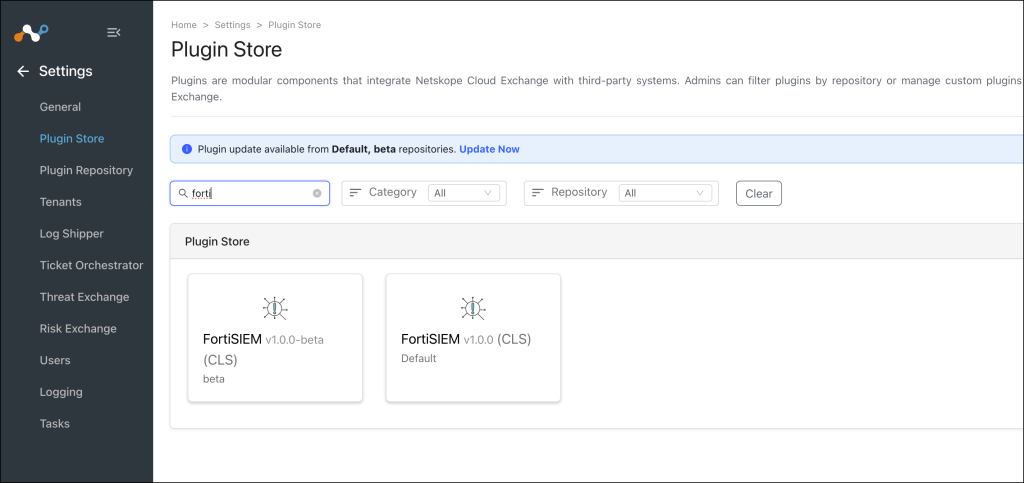
- In Cloud Exchange, go to Settings > Plugin Store. Search for and select the FortiSIEM v1.0.0 (CLS) plugin.

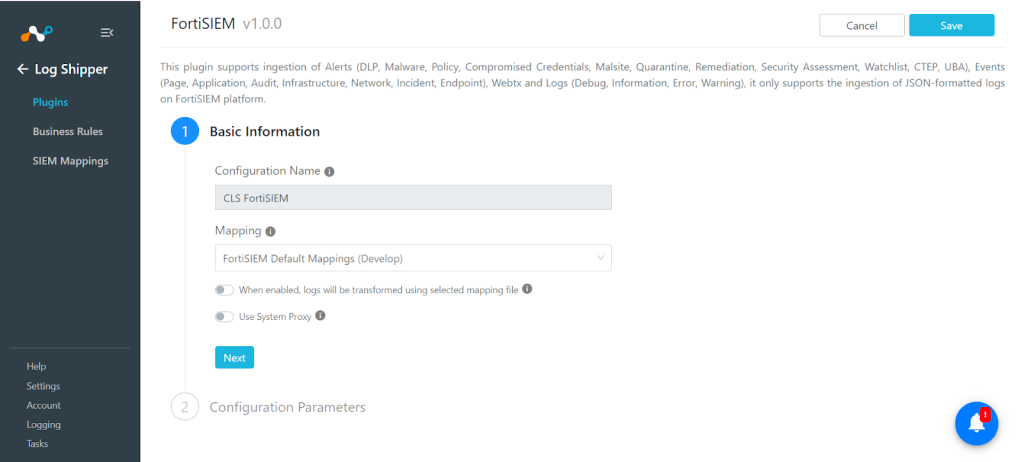
- Add a configuration name, and make sure you have the FortiSIEM Default Mapping file selected.
Note
Disable the toggle button to transform the logs in JSON, as the plugin only supports ingestion in JSON format. The ingestion of Endpoint event type is supported from CE version 5.1.0.

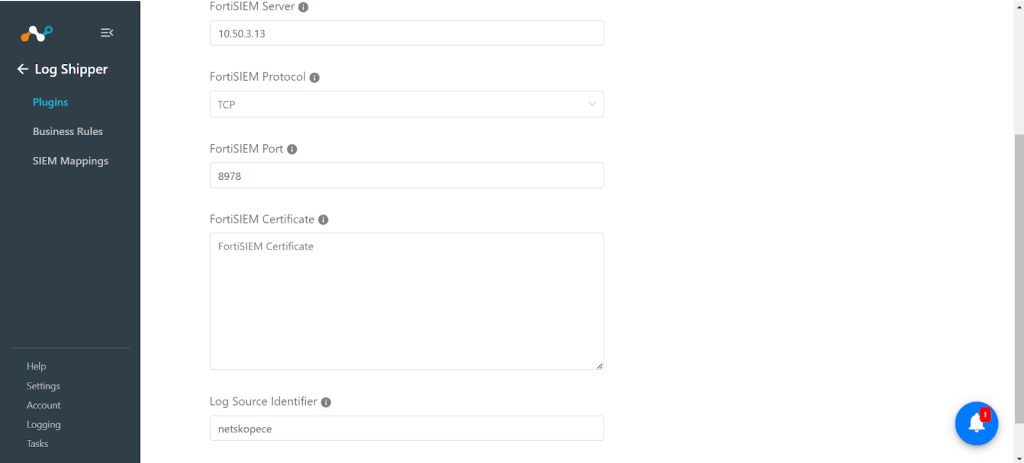
- Click Next and enter values for these parameters:
- FortiSIEM server: IP address/FQDN of FortiSIEM server in which data will be ingested.
- FortiSIEM Protocol: Protocol to be used while ingesting data.
- FortiSIEM Port: The port used while creating the Data input configuration.

- Click Save. Your new plugin will be available on the Log Shipper > Plugins page.
Configure a Log Shipper Business Rule for FortiSIEM
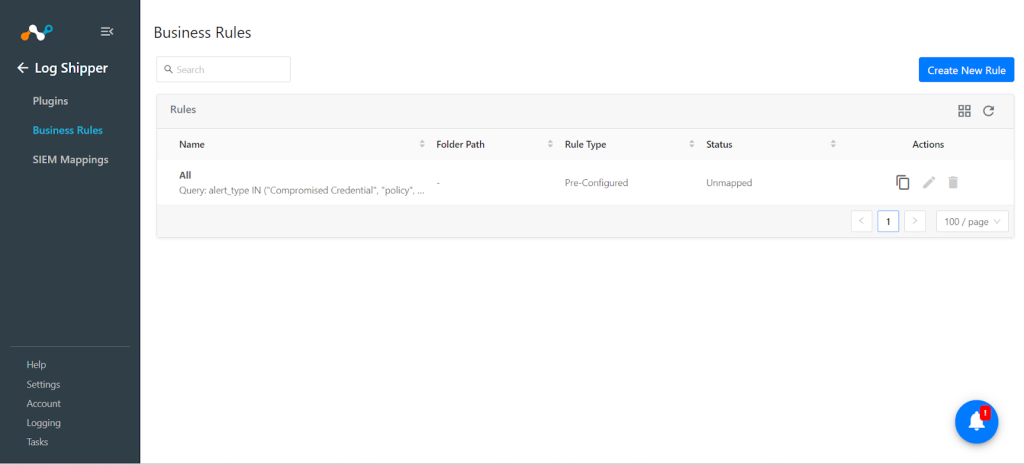
- In Log Shipper, go to Business Rules.
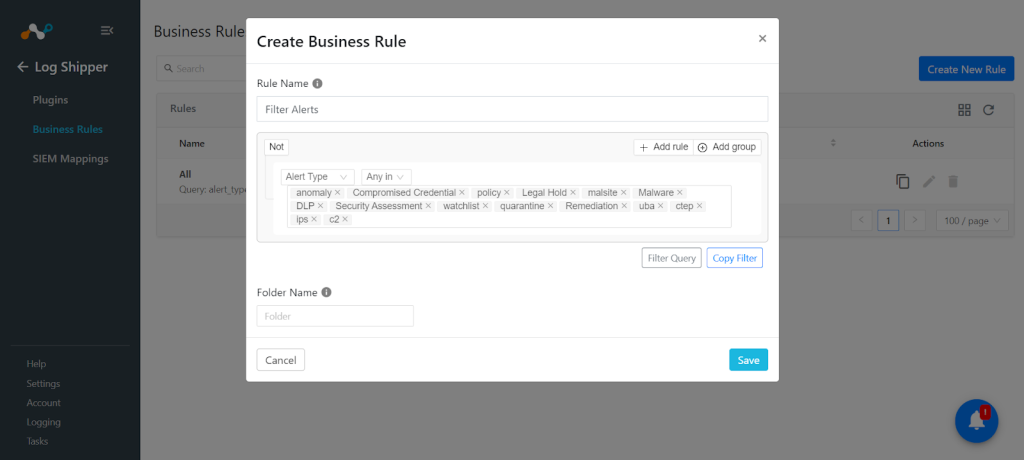
- By default, there’s a business rule that filters all alerts and events. If you want to filter out any specific type of alert or event, click Create New Rule and configure a new business rule by adding the rule name and filter.

- Click Save.

Configure Log Shipper Log Delivery for FortiSIEM
- In Log Shipper, go to Log Delivery and click Add Log Delivery Configuration.
- For alerts and events, select the Source plugin (CLS Netskope), Destination plugin (CLS FortiSIEM), and a business rule. Click Save.
- For WebTx, select AWS Netskope LogStreaming or Azure Netskope LogStreaming and Destination plugin (CLS FortiSIEM), and click Save.
- For Logs sharing, select the Source plugin (CLS Syslog for CE), Destination plugin (CLS FortiSIEM), and a business rule, and click Save.
- After the Log Delivery configuration is added, the data will start to be pulled from the Netskope tenant, transformed, and ingested into the FortiSIEM platform.
Validate the FortiSIEM Plugin
Validate the Pull
To validate the pulling of Events, Alerts, logs, and Webtx from the Netskope tenant.
Go to the Logging in Netskope Cloud Exchange. Search for the pulled logs.


Validate the Push
To validate the plugin workflow in Cloud Exchange:
Go to Logging and search for ingested Events, Alerts, WebTx, and Logs with the filter message contains ingested. The ingested logs will be filtered.


Troubleshooting the FortiSIEM Plugin
Error occurred while ingesting data from CE to FortiSIEM
If you are unable to push alerts/events/logs/webtx[via Netskope LogStreaming] data on the FortiSIEM platform, then it could be due to the Port being deleted/disabled on the FortiSIEM platform.
What to do:
Make sure the port is present and enabled, and if not, create a new port.
If ingested data is not reflected on the FortiSIEM Platform
If you are unable to view alerts/events/logs/webtx data on the FortiSIEM platform, it could be due to one of these reasons:
- The filter is not correct on the SIEM platform.
- There might be an error, but UDP was selected for the Port while configuring the FortiSIEM plugin. Hence, logs ingested are visible.
What to do:
- Make sure Data is searched using the correct filter.
- Make sure to select the TCP port to check if there is any issue.