

Classification labels allows you to create, modify, and delete security classification identifiers for content in your organization’s Google deployment. With classification labels, you can classify files based on their sensitivity and enforce access policies associated with that sensitivity level. Classification labels help you identify sensitive information and encourage smarter behavior when people handle that content.
Label Badges are for your organization’s most critical metadata, and visually emphasized on files they’re applied to. The label badge is listed next to the file name when users open a file in Google Docs, Sheets, or Slides on the web. For other file types, such as PDFs, the label badges is listed in the file’s Labels pane along with any other labels.
Labels can be applied to files in the following manner:
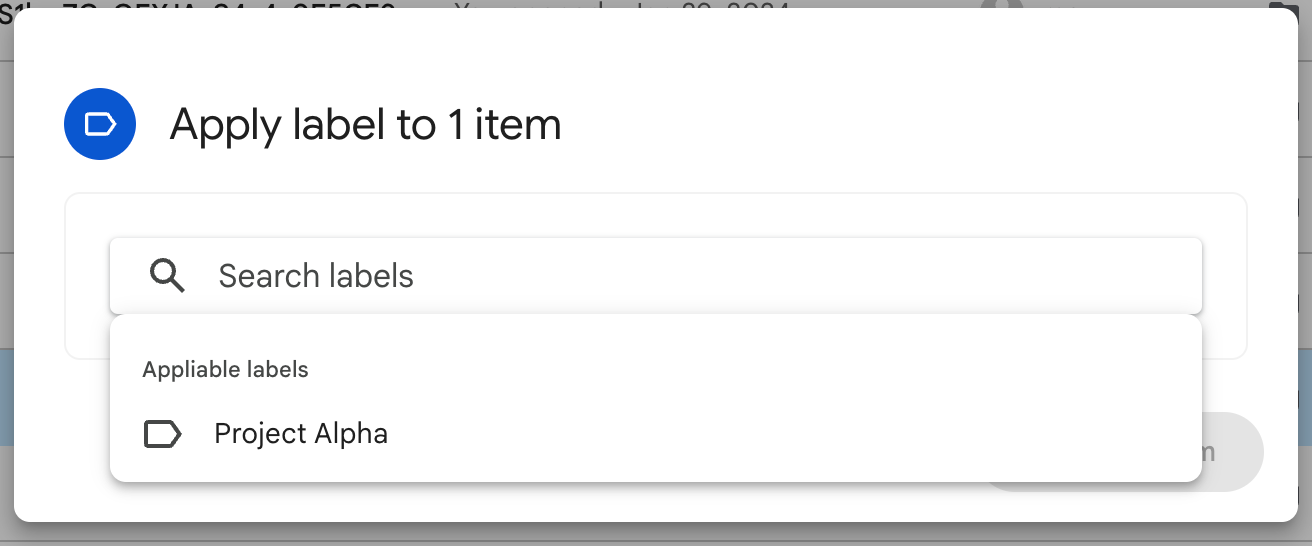
Creation of labels from the Google-side will look like the following (the number is the priority):

The classification label appears here, under Details in the right-hand sidebar, and also next to the file’s name in Preview when users select or preview content. The definition, under the label in the right-hand sidebar, is where you can include information describing the classification in further detail.
Prerequisite:
Configure Google Drive for the Next Generation API Data Protection
Please see the base configuration that must be done before proceeding further.
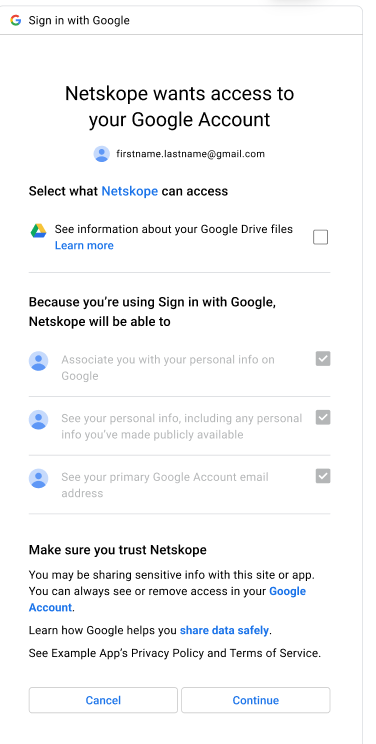
Netskope also requires the following scopes:
-
https://www.googleapis.com/auth/drive.admin.labels.readonly
-
https://www.googleapis.com/auth/drive.metadata
Setup
For more information, see Google’s documentation on Creating classification labels for your organization.
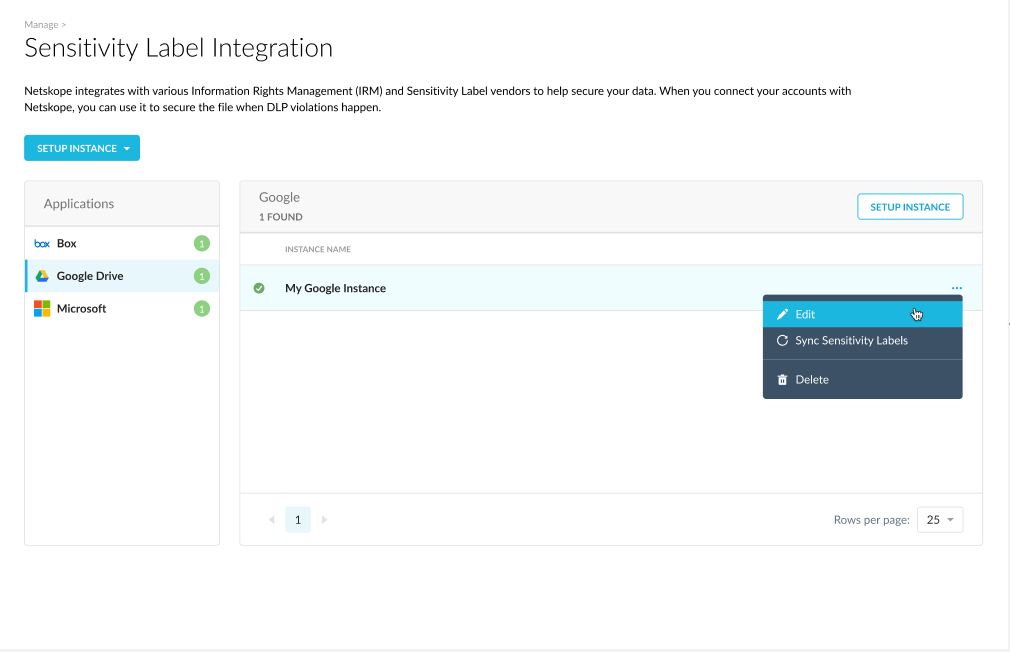
In addition, Sensitivity Labels must be synced manually with Sync Sensitivity Labels. Labels ARE NOT automatically synced.
-
Go to Settings > Manage > Sensitivity Label Integration

-
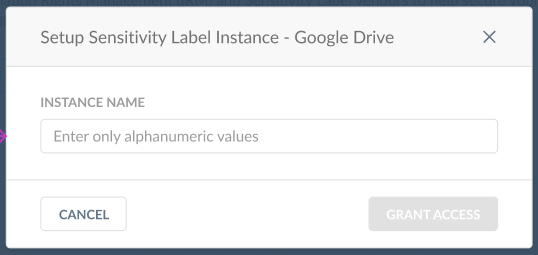
Click Setup Instance > Google Drive, enter the Instance Name, and click Grant Access.
-
Click … on the right-side of your newly setup instance and click View.
-
Order is a way for customers to configure and assign a priority to the classification labels. The lower the numerical value, the higher the Order and priority.
The associated number in the Order field shall be used for policy evaluation when applying the labels as a Policy Action.
Order is the priority order that is defined when the label fields are created. The same order will be considered for policy evaluation upon conflict.
For the CASB API, multiple policies can be triggered. If these have different policy actions, the priority determines which action will be applied. The highest (lowest number) Order will have the policy action applied.

Creating an API Data Protection Policy
Policy Creation
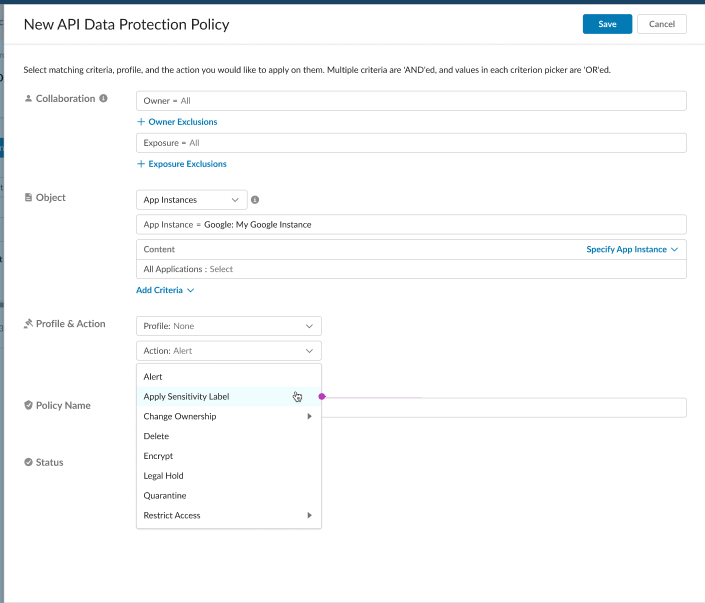
To create a policy:
-
Navigate to Policies -> API Data Protection -> Next-Gen -> New Policy.
-
For App Instances, select your Google instance.
-
Choose the label that should be applied