

Release Notes
2.0.0 (Required minimum CE version for this is 6.0.0)
Added
- Added support to pull IoC(s).
- Added support for pull and push retraction.
- Added support to bifurcate the URL by types (Domain, FQDN, Hostname and URL) and hashes by types (SHA256, MD5).
- Added handling of API rate limit.
Changed
- Improved error handling.
- Added resolution for error logs.
1.0.0
Added
- Initial Release.
This document explains how to configure the HarfangLab v2.0.0 plugin in the Cloud Exchange platform. This plugin pulls IoCs of type Domain, FQDN, Hostname, IPv4, IPv6, URL, SHA256 and MD5 from the Threat intelligence > IoC Sources page, and SHA256, MD5 from the Threat intelligence > Driver Block List page on the HarfangLab platform. This plugin also supports sharing IoCs of type Domain, FQDN, Hostname, IPv4, IPv6, URL, SHA256 and MD5 back to the HarfangLab Threat intelligence > IoC Sources page. This plugin supports pull and push retraction of IoCs from the Threat intelligence > IoC Sources page from HarfangLab.
Prerequisites
To complete this configuration, you need:
- Netskope Tenant (or multiple, for example, production and development/test instances)
- A Netskope Cloud Exchange instance with the Tenant plugin and Netskope Threat Exchange plugin already configured and the Threat Exchange module enabled.
- A URL List on your Netskope tenant.
- A Destination Profile on your Netskope tenant.
- A Private App on your Netskope tenant.
- A DNS Profile on your Netskope tenant.
- A File Profile on your Netskope tenant.
- Connectivity to the following host: HarfangLab Partner login URL.
Example: https://<id>.hurukai.io:8443/
HarfangLab Plugin Support
This plugin pulls IoCs of type Domain, FQDN, Hostname, IPv4, IPv6, URL, SHA256 and MD5 from the Threat intelligence > IoC Sources page, and SHA256, MD5 from the Threat intelligence > Driver Block List page on the HarfangLab platform. This plugin also supports sharing IoCs of type Domain, FQDN, Hostname, IPv4, IPv6, URL, SHA256 and MD5 back to the HarfangLab Threat intelligence > IoC Sources page. This plugin supports pull and push retraction of IoCs from the Threat intelligence > IoC Sources page from HarfangLab.
| Fetched indicator types | Shared indicator types |
|---|---|
| Domain, FQDN, Hostname, IPv4, IPv6, URL, SHA256 and MD5 | Domain, FQDN, Hostname, IPv4, IPv6, URL, SHA256 and MD5 |
IoC Retraction
IoC Retraction (Pull): IoCs that are deleted on the HarfangLab, or that are not under the selected Source Type or Type of Threat data to pull, and not under the retraction interval (only for source type IoC sources) in the plugin configuration, will be marked as retracted in Cloud Exchange.
IoC Retraction (Push): IoCs that were already shared to HarfangLab, and are marked as retracted Yes in Cloud Exchange, will be deleted from HarfangLab platform.
| Retraction Type | Supported Retraction Type |
|---|---|
| IoC Retraction (Pull) | Yes (IoC Sources, Driver block list) |
| IoC Retraction (Push) | Yes (IoC Sources) |
Mapping
Push Indicators Mappings
| HarfangLab Field | Netskope Indicator Field |
|---|---|
| value | indicator.value |
| type | indicator.type → HarfangLab type |
| source_id | Resolved from action ioc_list_name |
| global_state | Action param Action (global_state) |
| hl_status | Action param Maturity (hl_status) |
| description | Force-stamped CE prefix (not a raw param) |
| comment | Action param comment |
| name | Action param name |
| references | Action param references |
| rule_level_override | Derived from indicator.severity (not a param) |
| rule_confidence_override | Action param Confidence Override (rule_confidence_override) |
Severity Mappings
| Netskope Severity | HarfangLab Severity |
|---|---|
| unknown | informational |
| low | low |
| medium | medium |
| high | high |
| critical | critical |
Push Reputation Mappings
| CE Reputation | HarfangLab Confidence |
|---|---|
| 1-3 | weak |
| 4-7 | moderate |
| 8-10 | strong |
Push IoC Types Mappings
| Netskope CE Type | HarfangLab Type | Example Value |
|---|---|---|
| SHA256 | Hash | e3b0c44298fc1c149afbf4c8996fb92427ae41e4649b934ca495991b7852b855 |
| MD5 | Hash | d41d8cd98f00b204e9800998ecf8427e |
| URL | URL | https://malware.com/payload.exe |
| Hostname | URL | localhost, WIN-SERVER01 |
| Domain | Domain Name | example.com |
| FQDN | Domain name | sub.example.com |
| IPv4 | Dest. or Source IP | 8.8.8.8 |
| IPv6 | Dest. or Source IP | 2001:db8::1 |
| IPv4 + tag Harfanglab-Type:Source IP | Source IP | 8.8.8.8 |
| IPv4 + tag Harfanglab-Type:Destination IP | Destination IP | 8.8.8.8 |
| IPv6 + tag Harfanglab-Type:Source IP | Source IP | 2001:db8::1 |
| IPv6 + tag Harfanglab-Type:Destination IP | Destination IP | 2001:db8::1 |
Permissions
Here are the two permissions needed for the plugin to pull and share IoCs on the HarfangLab platform.
- View & edit Yara,Sigma, IOC & Driver block list engines
- View & manage rules at ‘Testing’ and ‘Experimental’ maturity level
API Details
List of APIs used
| API Detail | Method | API Endpoint |
|---|---|---|
| Create IOC List | POST | /api/data/threat_intelligence/IOCSource/ |
| Fetch Existing IOC List | GET | /api/data/threat_intelligence/IOCSource/?limit=500&offset=0 |
| Fetch IOC Rules (Pull Indicators) | GET | /api/data/threat_intelligence/IOCRule/ |
| Push Indicators | POST | /api/data/threat_intelligence/IOCRule/ |
| Delete IOC Rule (Push Retraction) | DELETE | /api/data/threat_intelligence/IOCRule/{id}/ |
| Fetch Driver Block List | GET | /api/data/threat_intelligence/DriverBlocklist/?limit=500&offset=0 |
Create IOC List
Parameters: None
API Request with Curl
curl --location 'https://b517af1bf2225fc3.hurukai.io:8443/api/data/threat_intelligence/IOCSource/' \ --header 'Authorization: Token 66752e19a9872d67e348e0e192a9bexxxxxxxxxx' \ --header 'Content-Type: application/json' \ --data '{ "name": "Test IOC List", "description": "IOC List created from Netskope CE" }'
Sample API Response
{
  "id": "7f3ceca9-33d4-4db7-bdd6-3e1dc63a7aa0",
  "ioc_count": 0,
  "ioc_testing_in_progress_count": 0,
  "ioc_testing_count": 0,
  "ioc_experimental_count": 0,
  "last_update": "2023-10-03T12:59:16.381480Z",
  "creation_date": "2023-10-03T12:59:16.381564Z",
  "name": "Test IOC List",
  "description": "IOC List created from Netskope CE",
  "enabled": true,
  "block_on_agent": true,
  "endpoint_detection": true,
  "last_modifier": null
}
Fetch Existing IOC List
Parameters
| Parameter | Value | Comments |
|---|---|---|
| limit | 500 | Limit for 1 page |
| offset | 0, 500, 1000… | Incremented by limit for each page until next is null |
API Request with Curl
curl --location 'https://b517af1bf2225fc3.hurukai.io:8443/api/data/threat_intelligence/IOCSource/?limit=500&offset=0' \
 --header 'Authorization: Token 66752e19a9872d67e348e0e192a9bexxxxxxxxxx'
Sample API Response
{
  "count": 8,
  "next": null,
  "previous": "/api/data/threat_intelligence/IOCSource/?limit=500",
  "results": [
    {
      "id": "f72c82c9-e136-43a5-8a37-4bd121af5464",
      "ioc_count": 370,
      "ioc_testing_in_progress_count": 0,
      "ioc_testing_count": 0,
      "ioc_experimental_count": 0,
      "last_update": "2023-09-29T06:02:41.011727Z",
      "creation_date": "2023-09-29T06:02:41.011770Z",
      "name": "test",
      "description": "IOC List created from Netskope CE",
      "enabled": false,
      "block_on_agent": false,
      "endpoint_detection": false,
      "last_modifier": null
    }
  ]
}
Push Indicators
Parameters: None
API Request with Curl
curl --location 'https://b517af1bf2225fc3.hurukai.io:8443/api/data/threat_intelligence/IOCRule/' \
--header 'Authorization: Token 66752e19a9872d67e348e0e192a9bexxxxxxxxxx' \
--header 'Content-Type: application/json' \
--data '{
    "value": "61.134.36.102",
    "source_id": "6345304d-2592-4286-9682-06a900d6ca96",
    "type": "url",
    "global_state": "alert",
    "hl_status": "stable",
    "description": "Netskope CE | <plugin_name>",
    "rule_level_override": "high",
    "rule_confidence_override": null
}'
Sample API Response
{
  "id": "19a89c4e-b58a-446a-b27a-6b55d4fb891e",
  "source_id": "6345304d-2592-4286-9682-06a900d6ca96",
  "last_modifier": {
    "id": 7,
    "username": "NetskopeCE"
  },
  "last_update": "2023-10-03T12:54:24.608988Z",
  "creation_date": "2023-10-03T12:54:24.609060Z",
  "hl_status": "stable",
  "hl_local_testing_status": null,
  "enabled": true,
  "type": "url",
  "value": "61.134.36.102",
  "comment": null,
  "info": null,
  "category": null,
  "description": "Netskope CE | <plugin_name>",
  "references": [

  ],
  "source": "6345304d-2592-4286-9682-06a900d6ca96"
}
Fetch IoC Rules(Pull Indicators)
Parameters
| Parameter | Value | Comments |
|---|---|---|
| source_id | Eg., 6345304d-2592-4286-9682-06a900d6ca96 | IOC Source list ID to pull from |
| last_update__gte | 2024-01-01 00:00:00 | Window start — space-separated datetime (no T/Z) |
| last_update__lte | 2024-01-02 00:00:00 | Window end (now) |
| limit | 500 | Limit for 1 page |
| offset | 0, 500, 1000… | Incremented by limit for each page until next is null |
API Request with Curl
curl --location 'https://b517af1bf2225fc3.hurukai.io:8443/api/data/threat_intelligence/IOCRule/?source_id=6345304d-2592-4286-9682-06a900d6ca96&last_update__gte=2024-01-01%2000:00:00&last_update__lte=2024-01-02%2000:00:00&limit=500&offset=0' \
--header 'Authorization: Token 66752e19a9872d67e348e0e192a9bexxxxxxxxxx'
Sample API Response
{
  "count": 1,
  "next": null,
  "previous": null,
  "results": [
    {
      "id": "19a89c4e-b58a-446a-b27a-6b55d4fb891e",
      "source_id": "6345304d-2592-4286-9682-06a900d6ca96",
      "last_modifier": {
        "id": 7,
        "username": "NetskopeCE"
      },
      "last_update": "2023-10-03T12:54:24.608988Z",
      "creation_date": "2023-10-03T12:54:24.609060Z",
      "hl_status": "stable",
      "hl_local_testing_status": null,
      "enabled": true,
      "type": "url",
      "value": "61.134.36.102",
      "comment": null,
      "info": null,
      "category": null,
      "description": null,
      "references": [

      ],
      "source": "6345304d-2592-4286-9682-06a900d6ca96"
    }
  ]
}
Fetch Driver Block List
Parameters
| Parameter | Value | Comments |
|---|---|---|
| limit | 500 | Limit for 1 page |
| offset | 0, 500, 1000… | Incremented by limit for each page until next is null |
API Request with Curl
curl --location 'https://b517af1bf2225fc3.hurukai.io:8443/api/data/threat_intelligence/DriverBlocklist/?limit=500&offset=0' \--header 'Authorization: Token 66752e19a9872d67e348e0e192a9bexxxxxxxxxx'
Sample API Response
{
  "count": 1,
  "next": null,
  "previous": null,
  "results": [
    {
      "id": "b2d4f8a1-1c3e-4f5a-9b7d-8e2c1a6f0d3b",
      "last_update": "2023-10-03T12:54:24.608988Z",
      "creation_date": "2023-10-03T12:54:24.609060Z",
      "enabled": true,
      "value": "e3b0c44298fc1c149afbf4c8996fb92427ae41e4649b934ca495991b7852b855",
      "comment": null,
      "description": null
    }
  ]
}
Delete IOC Rule for Push
API Request with Curl
curl --location --request DELETE 'https://b517af1bf2225fc3.hurukai.io:8443/api/data/threat_intelligence/IOCRule/19a89c4e-b58a-446a-b27a-6b55d4fb891e/' \--header 'Authorization: Token 66752e19a9872d67e348e0e192a9bexxxxxxxxxx'
Sample API Response
HTTP/1.1 204 No Content
Performance Matrix
Here is the performance reading conducted after pulling 100K IoCs and sharing 1K IoCs on a Large CE instance with these specifications.
| Description | Specification |
|---|---|
| Stack details | Size: Large RAM: 32 GB CPU: 16 Cores |
| Indicators pulled from HarfangLab | ~ 10K IoCs per minute |
| Indicators shared with HarfangLab | ~ 45 IoCs per minute |
User Agent
netskope-ce-6.1.0-cte-harfanglab-v2.0.0
Workflow
- Get your HarfangLab API token.
- Configure the HarfangLab plugin.
- Configure business rules for the HarfangLab plugin.
- Configure sharing for Netskope and HarfangLab.
- Validate the HarfangLab plugin.
Watch a Video
Click play to watch a video.
Get your HarfangLab API Token
Create a Role on Harfanglab
-
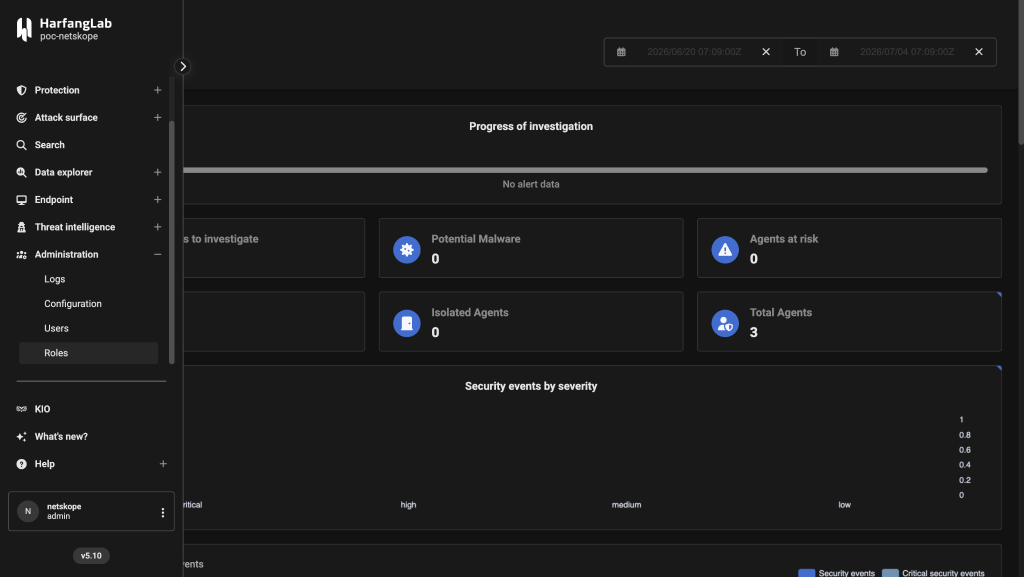
Log in to your HarfangLab instance and go to Administration > Roles.
-
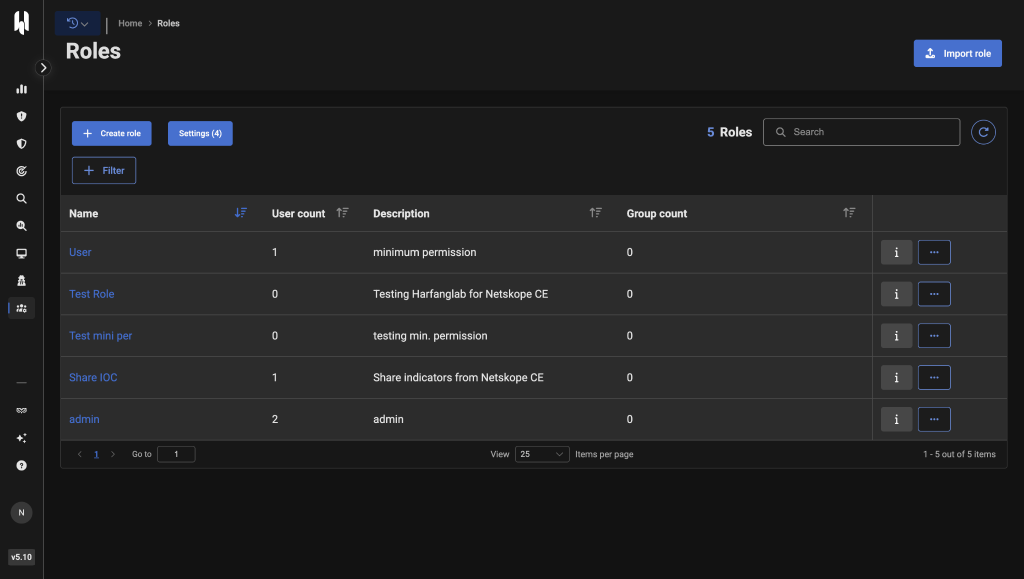
Click Roles and then click Create role.
-
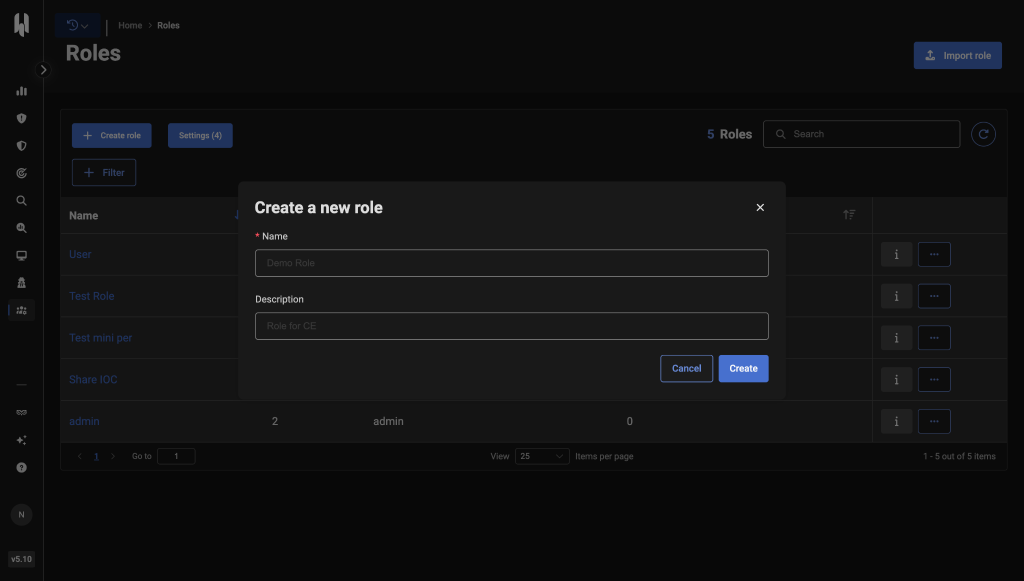
Enter a name and description for the new role, and then click Create.
-
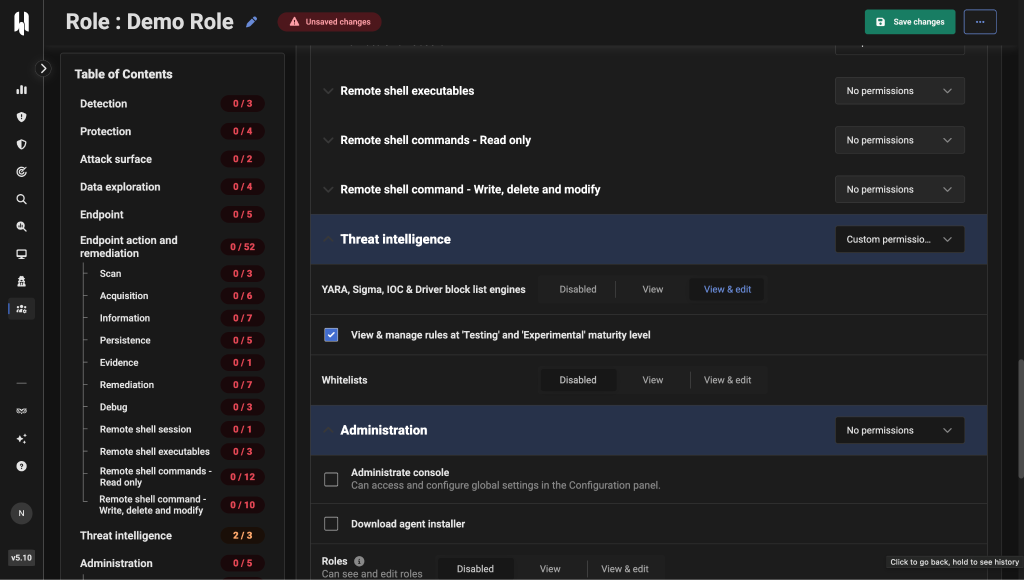
Click the i icon for that specific role name to edit it.
-
Only give permissions for YARA, Sigma, IOC & Driver block list engines to view and edit on the Threat Intelligence permission, and click the checkbox View & manage rules at ‘Testing’ and ‘Experimental’ maturity level.
-
Click Save.
-
Attach this role to a specific user.


Assign a Role to the User
-
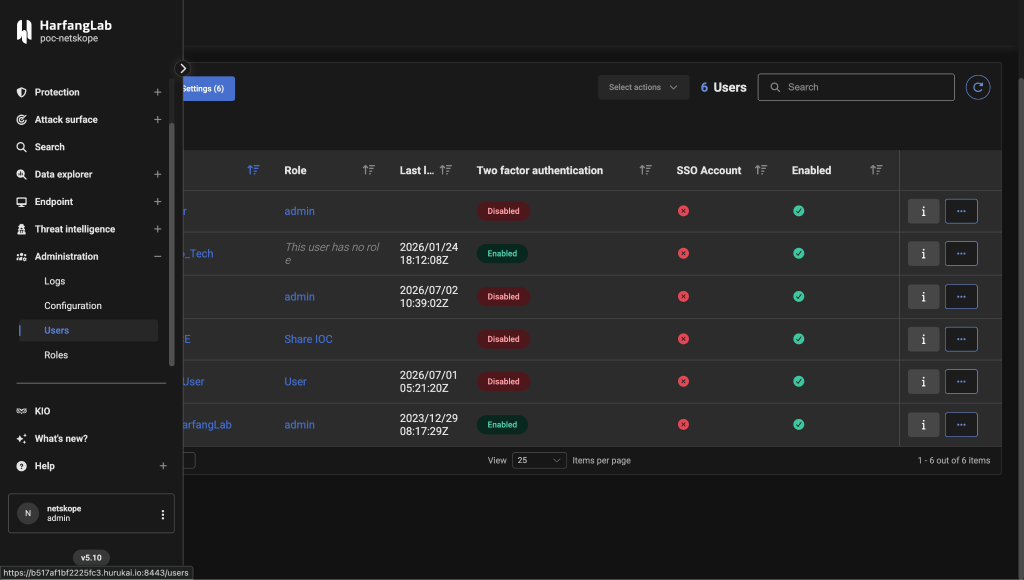
In the left panel, go to Administration > Users.
-
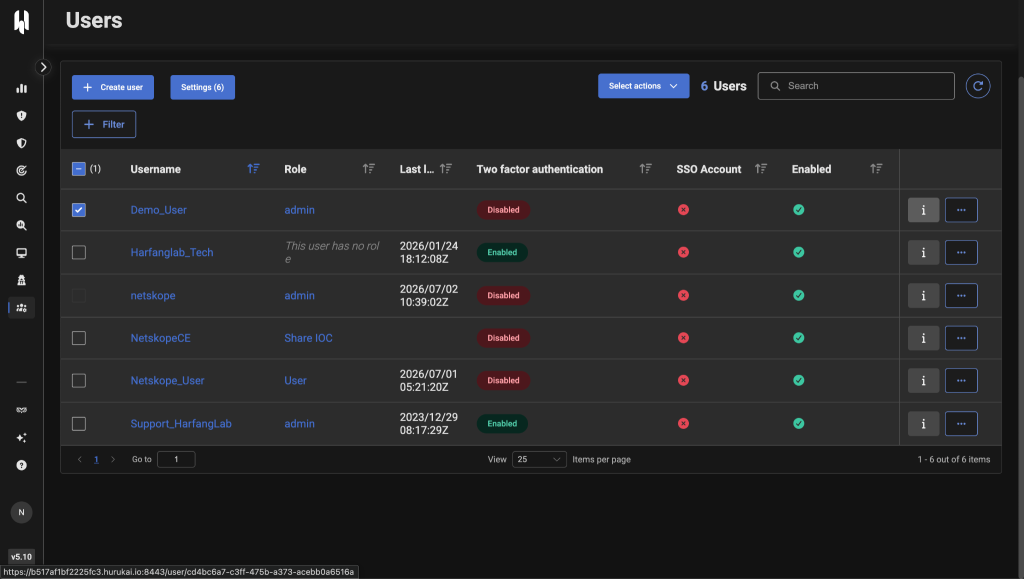
Select the user and click on i icon to edit its role. If you want to create a new user, then click Create new user.
-
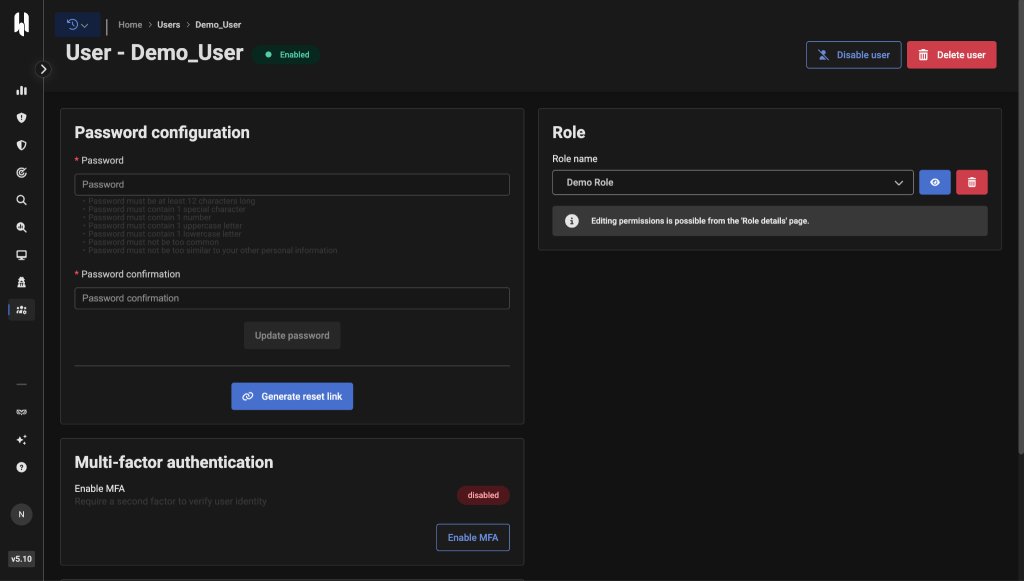
Update the role with the role that you created in the Create role section.


Get the API Token
-
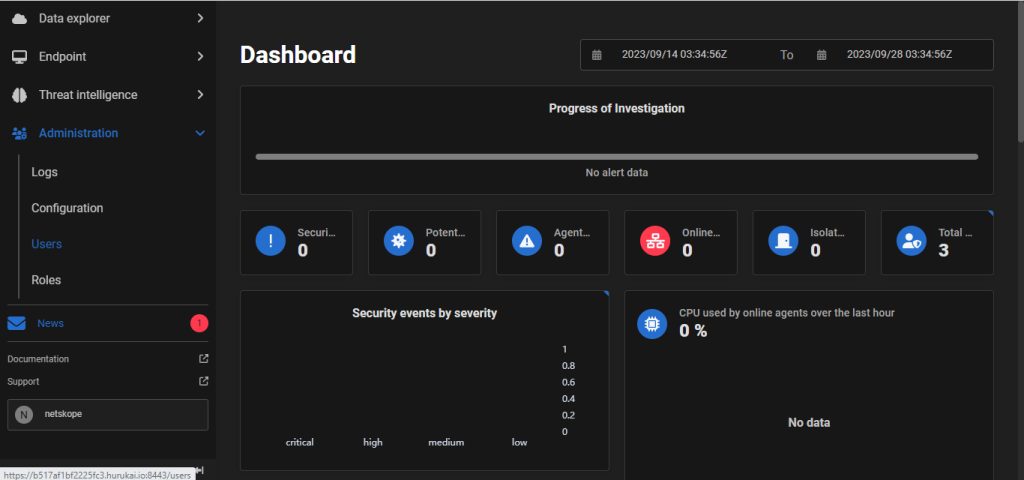
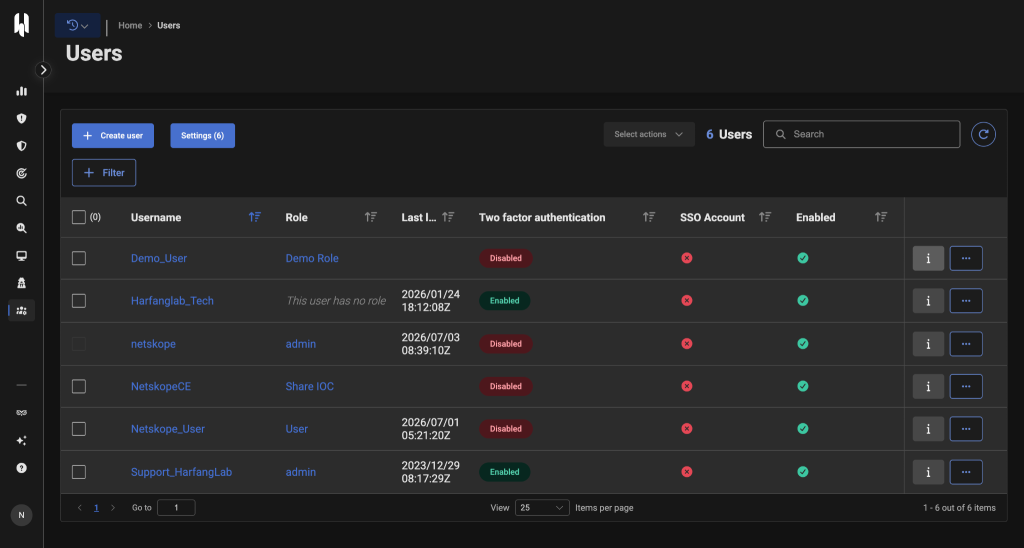
On the left panel, go to Administration > Users.
-
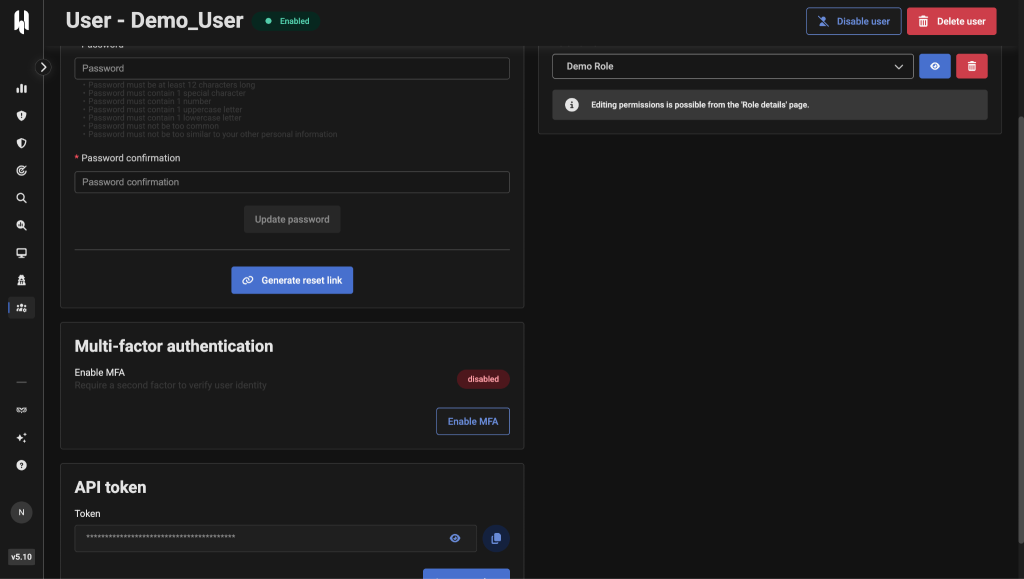
Click on your username and scroll down to API Token. Click Generate Token if the token hasn’t already been generated, and copy the API Token to use it when configuring in the plugin.


Configure the HarfangLab Plugin
-
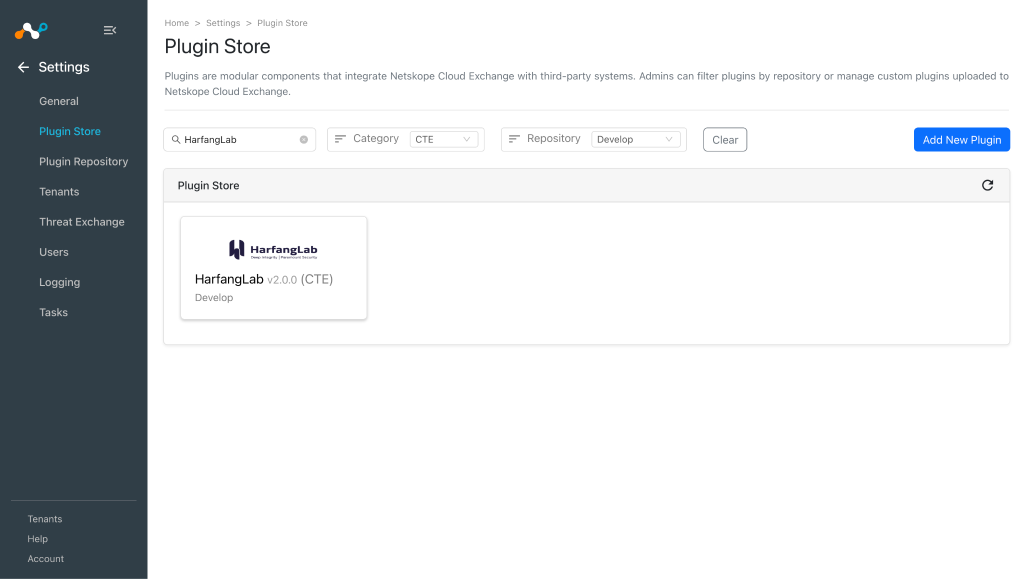
In Cloud Exchange, go to Settings > Plugin Store. Search for and select the HarfangLab v2.0.0 (CTE) plugin.
-
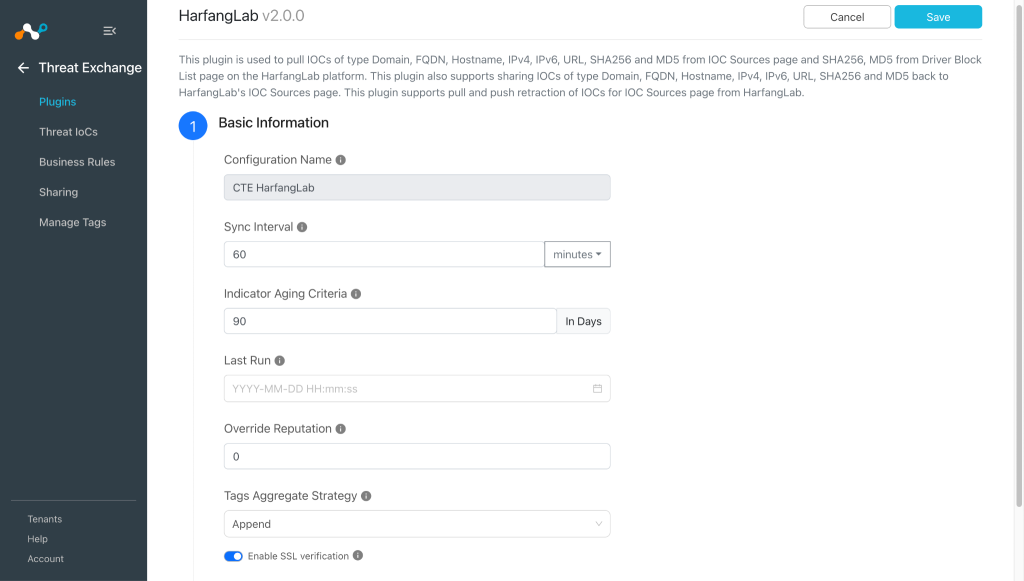
Enter the Basic Information:
- Configuration Name: Unique name for the configuration.
- Sync Interval: Interval to fetch data from this plugin and share data to this plugin from other sources.
- Indicator Aging Criteria: Define Expiry Time (In Days) for Threat Intel/Indicators. (Default: 90)
- Override Reputation: Set value to override the reputation of indicators received from this configuration. Use 0 to retain the default value, which will not override the indicator’s reputation.
- Tags Aggregate Strategy: Choose whether to append new tags to existing IoC(s) or overwrite them. This configuration parameter determines how tags are stored for indicators pulled for this configuration.
- Enable SSL Validation: Enable SSL Certificate validation.
-
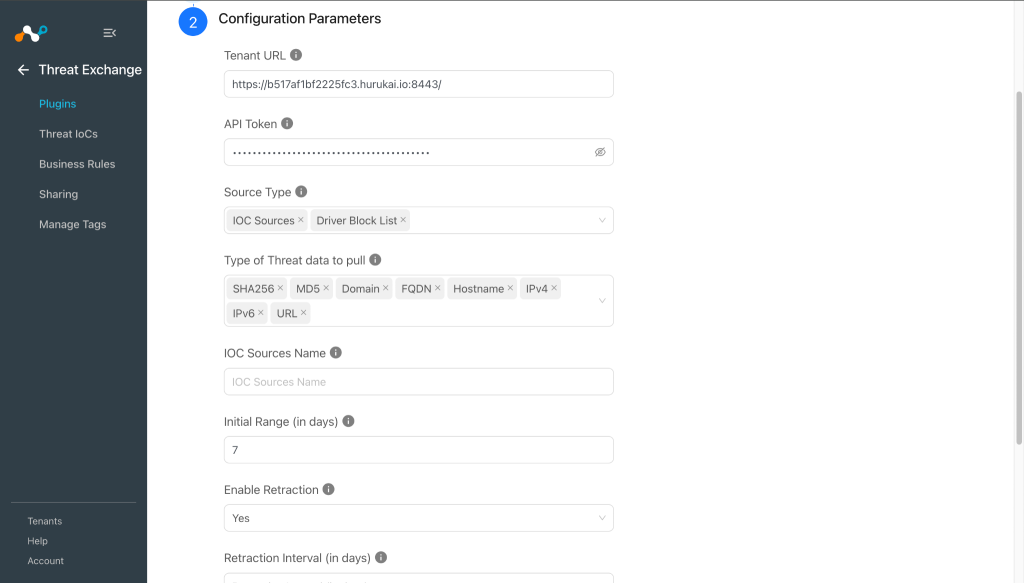
Click Next and enter the Configuration Parameters:
- Tenant URL: Base URL of HarfangLab instance. For example: https://<instance_id>.hurukai.io:<port>.
- API Token: API Token for authenticating to HarfangLab.
- Source Type: Select the source(s) to pull Threat IoCs from HarfangLab. At least one source must be selected.
- Type of Threat data to pull: Type of Threat IoCs to pull from HarfangLab. Allowed values are SHA256, MD5, Domain, FQDN, Hostname, IPv4, IPv6, URL. Driver Block List only supports SHA256 and MD5. Leave empty to pull all supported types.
- IOC Sources Name: Comma-separated names of IoC Sources to pull from HarfangLab. Leave this empty to pull from all available IoC Sources. Applicable only when IoC Sources is selected as the Source Type.
- Initial Range (in days): Number of days Threat IoCs to pull from IoC Sources in the initial run. Valid values are in range from 0 to 100000 days. Applicable only when IoC Sources is selected as the Source Type.
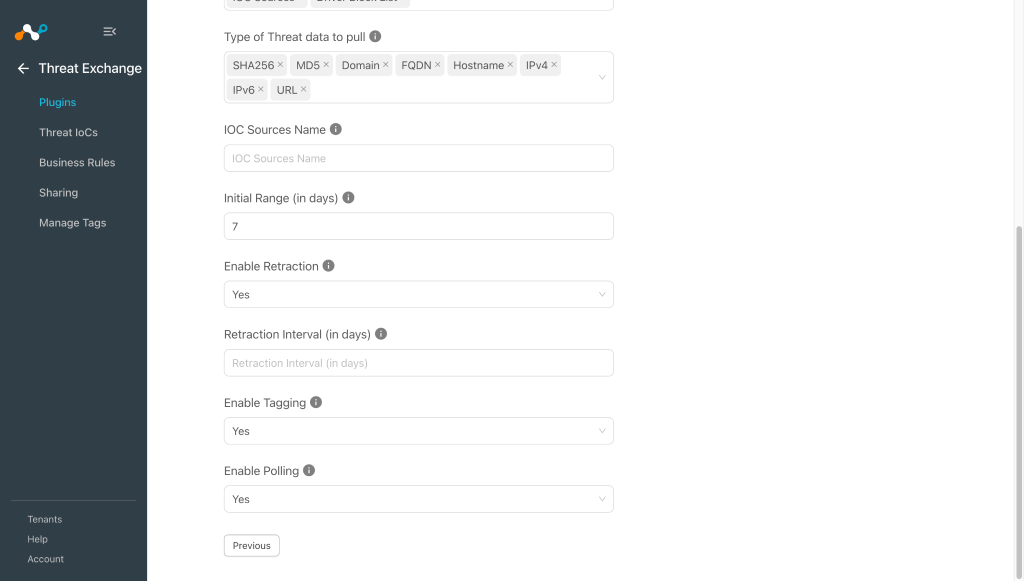
- Enable Retraction: Enable retraction for pulled indicators. When Yes, indicators no longer present on HarfangLab will be retracted in Cloud Exchange. For IoC Sources, a Retraction Interval must also be configured. This parameter is only considered if IoC(s) Retraction is enabled in the Threat Exchange settings.
- Retraction Interval (in days): Number of days to use as the retraction interval for IoC Sources retraction. Valid values are in the range from 1 to 100000 days. Required when Enable Retraction is Yes and IoC Sources is selected as the Source Type. This parameter will only be considered if IoC(s) Retraction is enabled in the Threat Exchange settings.
- Enable Tagging: Enable/Disable tagging of pulled indicators. When enabled, indicators pulled from IoC Sources are tagged with the IoC Source name, and indicators pulled from Driver Block List are tagged with HarfangLab-Driver-Block-List.
- Enable Polling: Enable/Disable polling Threat IoCs from HarfangLab. Disable if you only need to push Threat IoCs to HarfangLab.
-
Click Save.
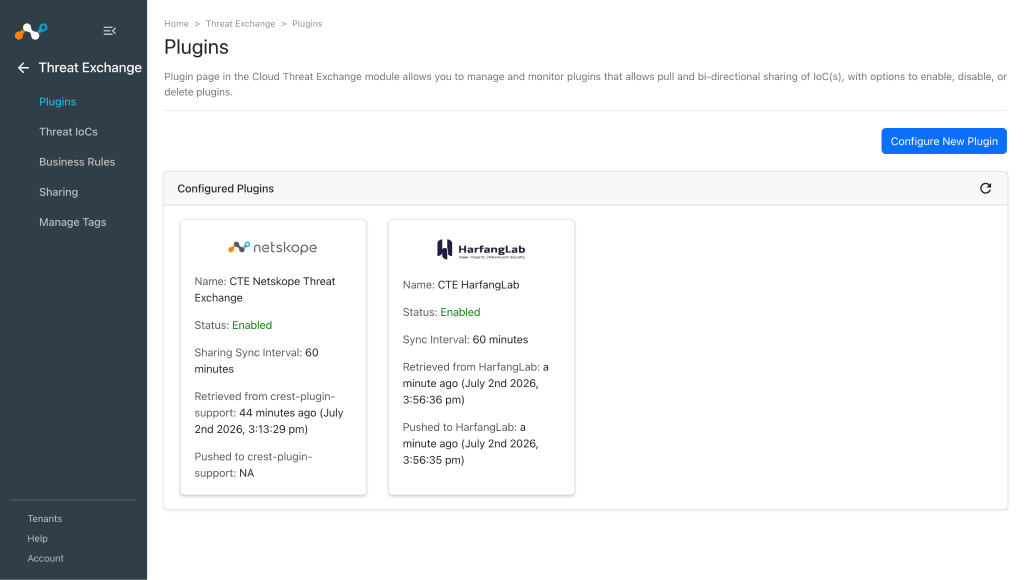


Configure a Threat Exchange Business Rule for the HarfangLab Plugin
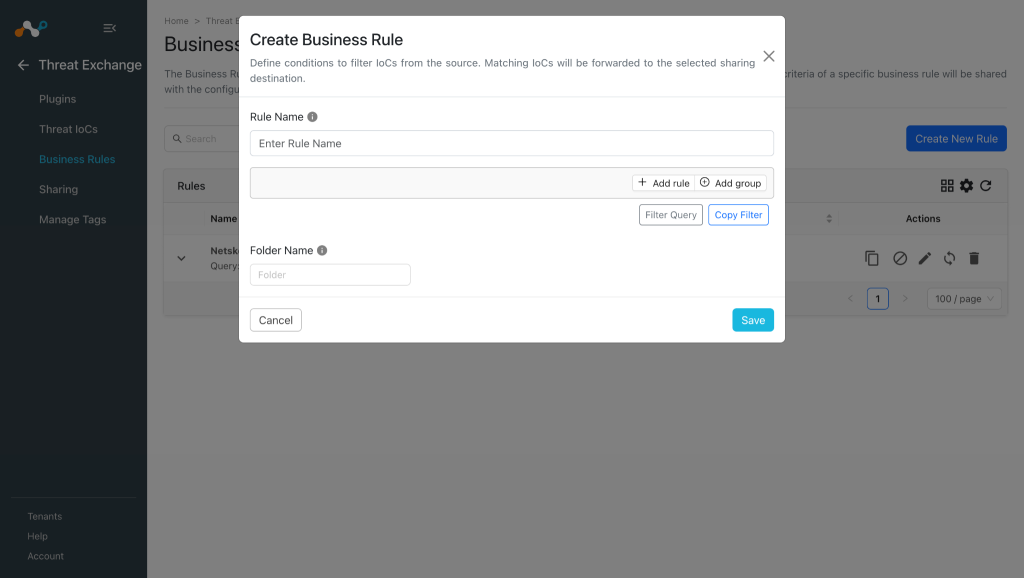
To share indicators from Netskope Cloud Exchange to HarfangLab, you need to have a business rule that will filter out the indicators that you want to share.
-
Go to Threat Exchange > Business Rules and click Create New Rule.
-
Enter a rule name and add a filter as per your requirement for the IoCs you want to share, and then click Save.

Configure Sharing for the HarfangLab Plugin
The HarfangLab plugin supports the sharing of URLs, MD5, and SHA256 types of IoCs.
-
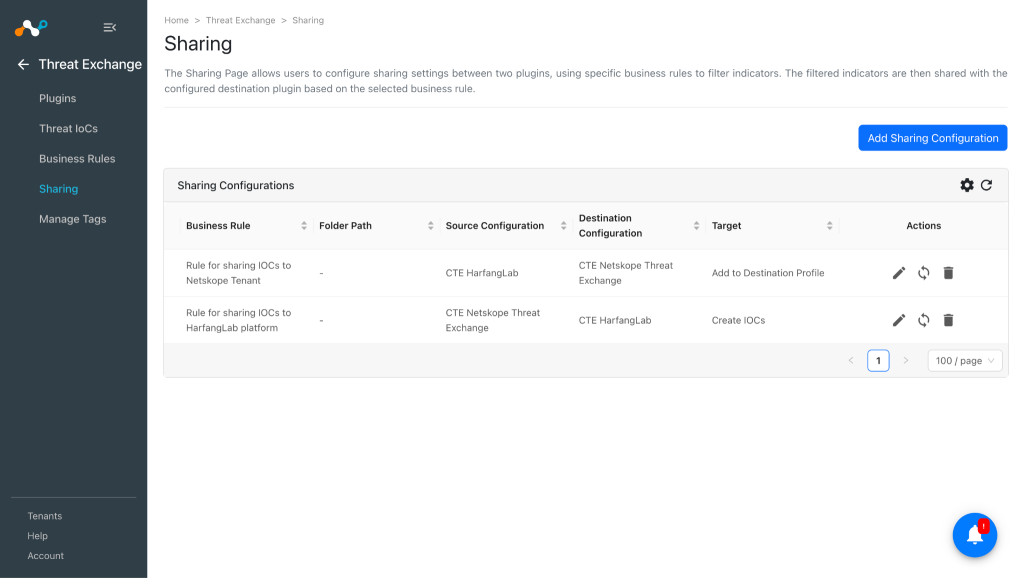
Go to Threat Exchange > Sharing and click Add Sharing Configuration.
-
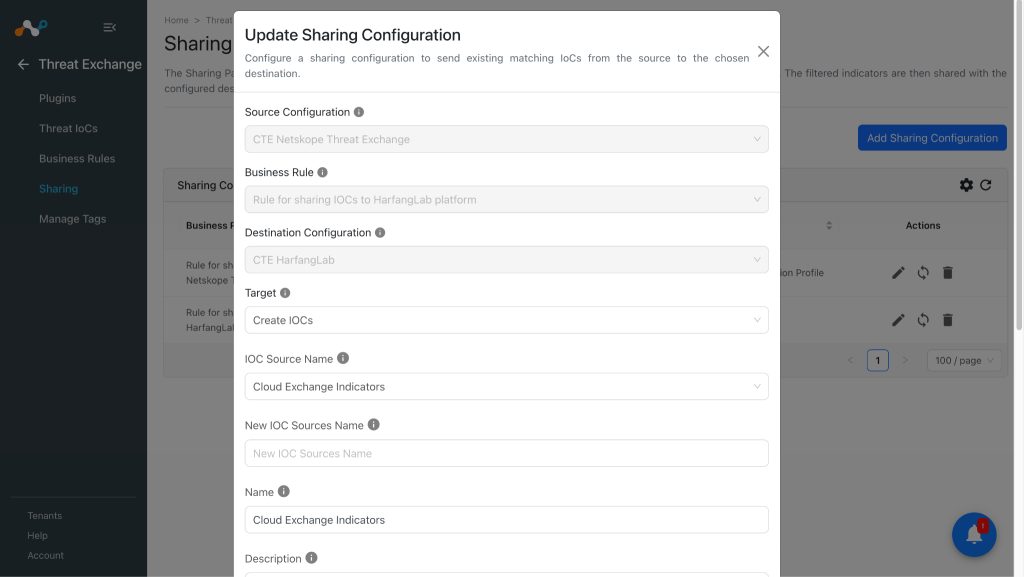
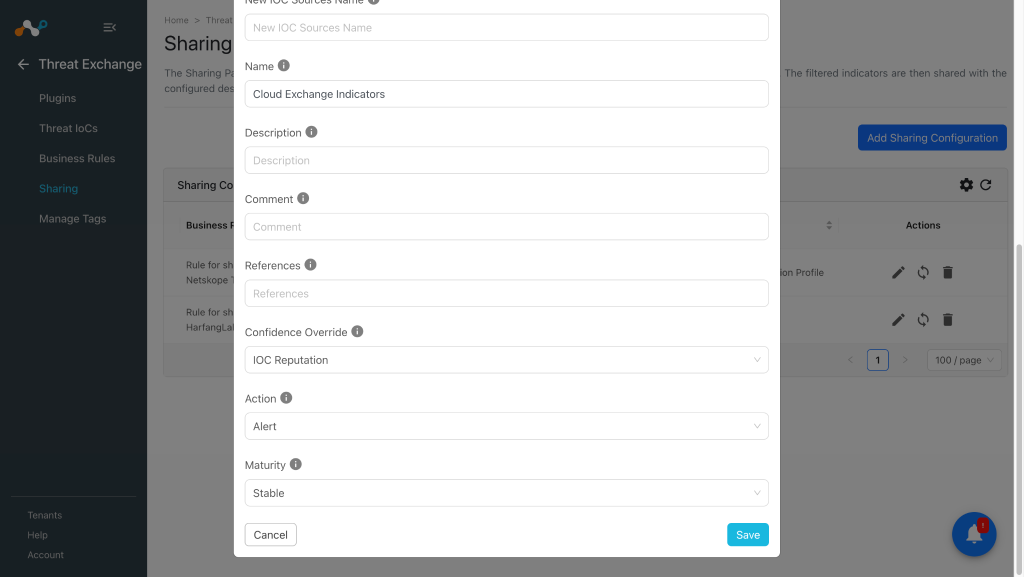
Select your Source Configuration (CTE Netskope Threat Exchange), Business Rule, and Destination Configuration (CTE HarfangLab), and Target, and then select the following parameters:
- IOC Source Name: Select an existing IoC Source list dropdown or select Create New IOC List.
- New IOC Sources Name: Name of the new IoC Sources to create on HarfangLab. Required when Create New IOC List is selected.
- Name: Optional display name for the IoC.
- Description: Optional description for the IoC.
- Comment: Optional comment for the IoC.
- References: Optional comma-separated list of reference URLs or identifiers. Each entry will be sent as a separate item.
- Confidence Override: Override the confidence for all pushed IoC(s). Select IoC Reputation to derive confidence from the indicator’s reputation score (1-3: weak, 4-7: moderate, 8-10: strong). For No override, it’s been observed that even if you create an IoC with Confidence as No override, the HarfangLab UI will show it as moderate.
- Action: Select the action for all pushed IoC(s). The default value is Alert.
- Maturity: Select the maturity status for all pushed IoC(s). The default value is Stable.
-
Click Save.
Note
Refer to the Netskope Threat Exchange plugin guide for more information related to sharing on the Netskope Tenant. As the HarfangLab plugin supports pulling URL, IPv4, IPv6,Hostname, Domain, FQDN, SHA256, and MD5, you can perform these actions on Netskope using these indicators:


Validate the HarfangLab Plugin
Validate the Pull
This plugin supports pulling IoCs of type Domain, FQDN, Hostname, IPv4, IPv6, URL, SHA256 and MD5 from the IoC Sources page, and SHA256, MD5 from the Driver Block List page.
To verify the available IoCs on HarfangLab, go to the Threat Intelligence > IoC page.

Go to the Driver Block List tab to see Hashes (SHA256 and MD5).

Go to the IoC Sources tab to see all the IoC sources.

Click on any of the source names to check the IoCs present under that IoC source.

To verify the pulling of IoCs on Cloud Exchange, go to Settings > Logging and apply the filter with the plugin configuration name. Example: message Like “CTE HarfangLab”.

Pulled IoCs will be visible on the Threat IoCs page in Cloud Exchange.


Validate the Push
To verify pushed IoCs on HarfangLab, go to Threat Intelligence > IoC Sources.

Click on the IoC List name that you used while configuring the plugin, and check the IoCs available in the list.

Click on the IoC to view its details. Note that IoCs having description like ‘Netskope CE | <plugin name>’ will not be pulled again back to Cloud Exchange.

To validate the pushed indicator in Cloud Exchange, go to Threat IoCs and search for IoCs that are shared with HarfangLab.

You can also verify the pushed IoCs from Logging in Cloud Exchange. Filter the logs available from the Harfanglab platform.

Validate the Retraction
For Pull Retraction
To verify the retracted IoCs, go to Threat IoCs and apply the filter shown here.

To verify the logs related to retraction, you can apply the filter shown here.

This is the Destination profile where the IoCs pulled from Harfanglab were shared.

As the IoCs pulled from HarfangLab was marked as Retracted yes, and it was already shared to the destination profile on the Netskope tenant, it will get deleted from that destination profile, and the status for it can be verified from retraction result. In this case the retraction result is CTE Netskope Threat Exchange: retracted, which means it was deleted from the destination profile.

Here you can see the retracted IoCs were deleted from this destination profile.

For Push Retraction
As the HarfangLab plugin supports push retraction, so the IoCs that were shared to HarfangLab platform and are marked as Retracted yes, it will be deleted from the HarfangLab platform at the next sync interval, and its result can be verified from retraction result field. Here the retraction result is CTE HarfangLab: retracted, which means this IoC is deleted from the IoC Sources on HarfangLab that was used in the sharing configuration.

To verify the logs related to retraction, you can apply the filter as shown here.

Here you can see the same IoC is deleted on HarfangLab.

Troubleshooting the HarfangLab Plugin
Unable to use the plugin after upgrading from older plugin version
It may be due to a change in format for API token. You may encounter this error.

What to do: Use the Skip button while upgrading the plugin, and then go to the plugins page and edit the HarfangLab plugin configuration. Update the API token with the format shown below, save the plugin, and then enable it.
Old API Token format: “Token 66752e19a9872d67e348e0e192a9besxxxxxxxxx”
New API Token format for HarfangLab v2.0.0: “66752e19a9872d67e348e0e192a9besxxxxxxxxx”
Unable to pull IoCs from HarfangLab
If you are not able to pull IoCs from HarfangLab, then this may be due to incorrect Source Name, or no IoCs present on the IoC Sources page or the Drivier block list page.
What to do: Make sure the IoCs are present on the Harfang Lab platform, and the Source Name in the plugin configuration is correct. Refer to the Validate the Pull section.
Receiving an invalid URL or invalid Token error while creating the plugin configuration.
This error might occur if the provided URL in the plugin configuration is invalid.
What to do: Make sure to give the correct URL that you use to access your HarfangLab platform. Make sure to only add the Tenant URL along with the port. Refer to the Configuration on HarfangLab section.
Receiving error for exit code 401, Unauthorization
If you are receiving the 401 error, it may be due to an incorrect API token.
What to do: Make sure that the Token provided exists on the HarfangLab platform. Or generate a new API Token. Refer to the Configuration on HarfangLab section.
Receiving error for exit code 403, Forbidden error
If you are receiving the 403 error, it may be due to the token with insufficient permissions.
What to do: If this error is received while configuring the plugin, or any time in the plugin lifecycle, check the API Tokens permission. Refer to the Configuration on HarfangLab section.
Known Behaviors
- It has been observed that even if you create an IoC with confidence as No override, the HarfangLab UI will show it as moderate.
- HarfangLab APIs do not support updating the IoCs, which means if you want to update any of the existing IoCs, then you need to either share that IoC to a New IoC Source, or delete that IoC from the current IoC Sources, and share it again.