

This document explains how to configure the Thales v1.0.0 plugin in the Cloud Exchange platform. This plugin is used to fetch the IoCs of type IPv4 from the Application > Attack Analytics > Incidents page on the Thales platform. This plugin does not support sharing of IoCs to the Thales platform. This plugin supports retraction of IoCs pulled from the Thales platform.
Prerequisites
To complete this configuration, you need:
- A Netskope tenant (or multiple, for example, production and development/test instances).
- A URL List on your Netskope tenant.
- A Netskope Cloud Exchange tenant with the Tenant plugin and Threat Exchange plugin already configured.
- Connectivity to the Thales platform.
- A subscription for Thales Threat Response Module services.
- Need a user with Manage API Key role to generate an API Key.
- Connectivity to the following host: https://api.thales.com
Thales Plugin Support
This plugin is used to fetch the IoCs of type IPv4 from the Application > Attack Analytics > Incidents page on the Thales platform. This plugin does not support sharing of IoCs to the Thales platform. This plugin supports retraction of IoCs pulled from the Thales platform.
| Fetched Indicator Types | Shared Indicator Types |
|---|---|
| IPv4 | NA |
IoC Retraction
IoC Retraction (Pull) Indicators will be fetched from Thales and in the subsequent pull cycles if some indicators are deleted on Thales then they will be marked as Retracted in Netskope Cloud Exchange.
| Retraction Type | Supported Retraction Type |
|---|---|
| IoC Retraction (Pull) | Yes |
| IoC Retraction (Push) | No |
Mappings
Pull Mappings
| Cloud Exchange Field | Thales API Field |
|---|---|
| IoC Value | dominant_attack_ip.ip |
| Type | IPv4 |
| Severity | severity |
| Firstseen | first_event_time |
| Lastseen | last_event_time |
| Extended string | https://<thales-instance-url>/attack-analytics/incident-details/<incident_id> |
| Tags | incident_type dominant_attack_violation dominant_attack_ip.reputation dominant_attack_ip. dominance severity_explanation |
Severity Mappings for Pull
| Netskope Severity | Thales Severity |
|---|---|
| LOW | MINOR |
| HIGH | MAJOR |
| CRITICAL | CRITICAL |
| UNKNOWN | CUSTOM |
Permissions
Users should have the Manage API Key Role to generate API Key.
API Details
List of APIs used
| API Endpoint | Method | Use Case |
|---|---|---|
| /analytics/v1/incidents | GET | Fetch IoCs from Incidents |
Fetch IoCs from Incidents
Endpoint: /analytics/v1/incidents
Method: GET
Headers
| Key | Value |
|---|---|
| User-Agent | netskope-ce-6.0.0-cte-thales-v1.0.0 |
| x-API-Id | <api_id> |
| x-API-Key | <api_key> |
| accept | application/json |
Query Parameters
| Key | Value |
|---|---|
| caid | <Account ID> |
| from_timestamp | <timestamp> |
| to_timestamp | <timestamp> |
Sample Response
[
    {
        "id": "db0cfbe0-d8ca-11f0-1f46-8bef9ba73c98",
        "main_sentence": "Illegal Resource Access attack by a single IP from Bulgaria using Go HTTP library HackingTool ",
        "secondary_sentence": "On host \"thales1.cdsys.io\" ",
        "false_positive": false,
        "events_count": 6,
        "events_blocked_percent": 0,
        "first_event_time": 1765702422735,
        "last_event_time": 1765702621854,
        "severity": "MINOR",
        "severity_explanation": "High risk, High confidence",
        "dominant_attack_country": {
            "country": "Bulgaria",
            "country_code": "BG",
            "dominance": "DOMINANT"
        },
        "dominant_attack_ip": {
            "ip": "195.178.110.158",
            "reputation": [
                "IP reputation Medium risk"
            ],
            "dominance": "STRONGLY_DOMINANT"
        },
        "dominant_attacked_host": {
            "value": "thales1.cdsys.io",
            "dominance": "STRONGLY_DOMINANT"
        },
        "dominant_attack_tool": {
            "name": "Go HTTP library",
            "type": "Suspicious",
            "dominance": "STRONGLY_DOMINANT"
        },
        "dominant_attack_violation": "Illegal Resource Access",
        "only_custom_rule_based": true,
        "how_common": "SPRAY_AND_PRAY",
        "incident_type": "REGULAR"
    }
]
Performance Matrix
This reading is conducted on a Large Cloud Exchange Stack with these specs by pulling 100k IoCs from Thales.
| Description | Specification |
|---|---|
| Stack Size | Large RAM: 32 GB Core: 16 |
| Indicators fetched from Thales | ~11k per min |
User Agent
netskope-ce-6.0.0-cte-thales-v1.0.0
Workflow
- Create an API Key on Thales.
- Configure the Thales Plugin.
- Add a Business Rule for Thales.
- Configure Sharing for Thales.
- Validate the Thales plugin.
Watch a Video
Click play to watch a video.
Create API Key on Thales
- Log in to Thales.
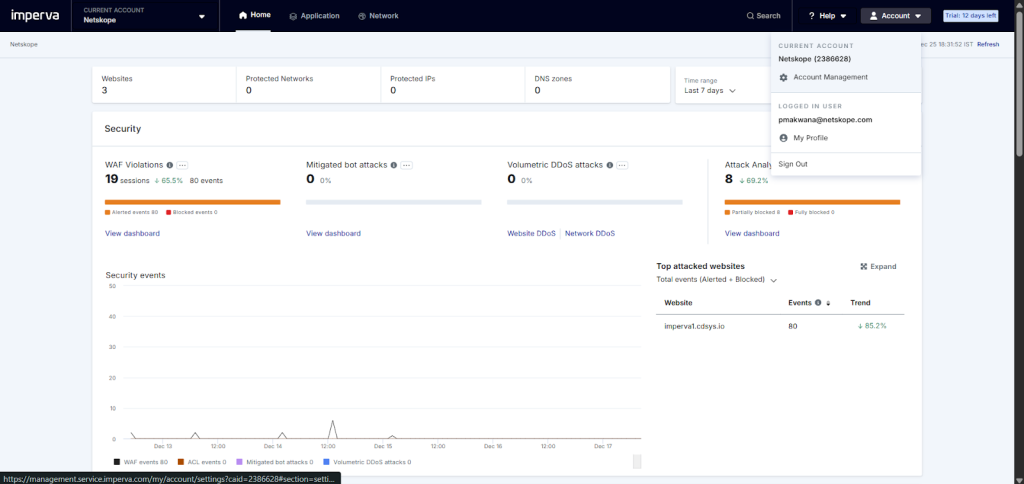
- Go to Account > Account Management from the top right corner.

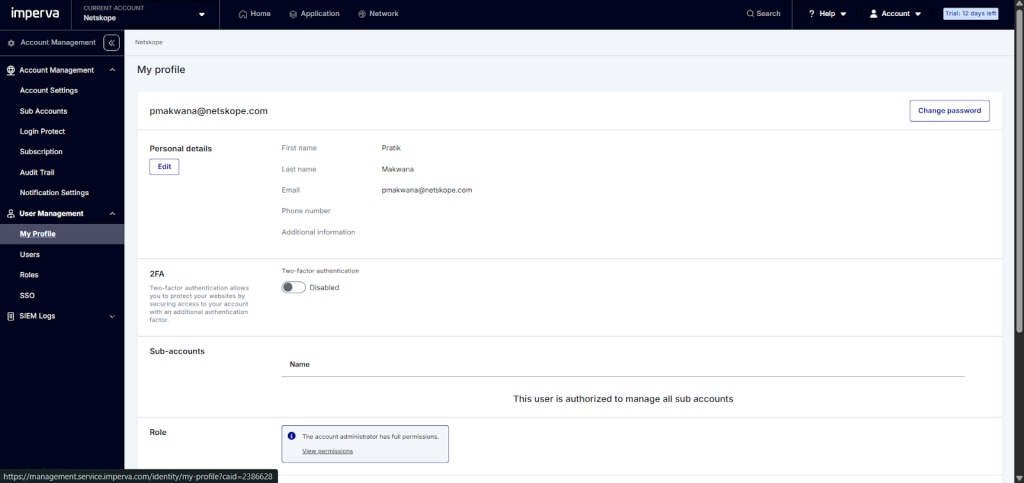
- Go to User Management > My Profile.

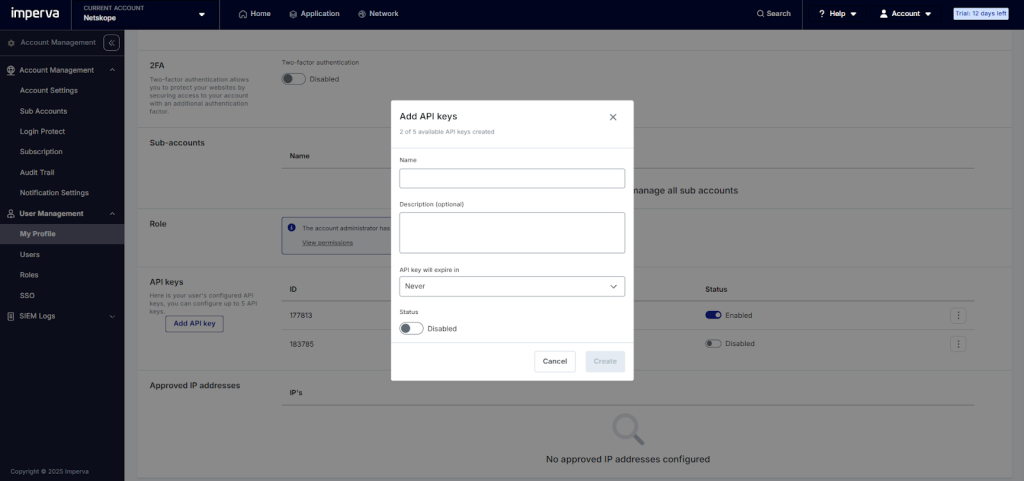
- Scroll down to API Keys and click Add API Key.

- Enter a Name and the API key will expire in time and enable the status. Click Create.
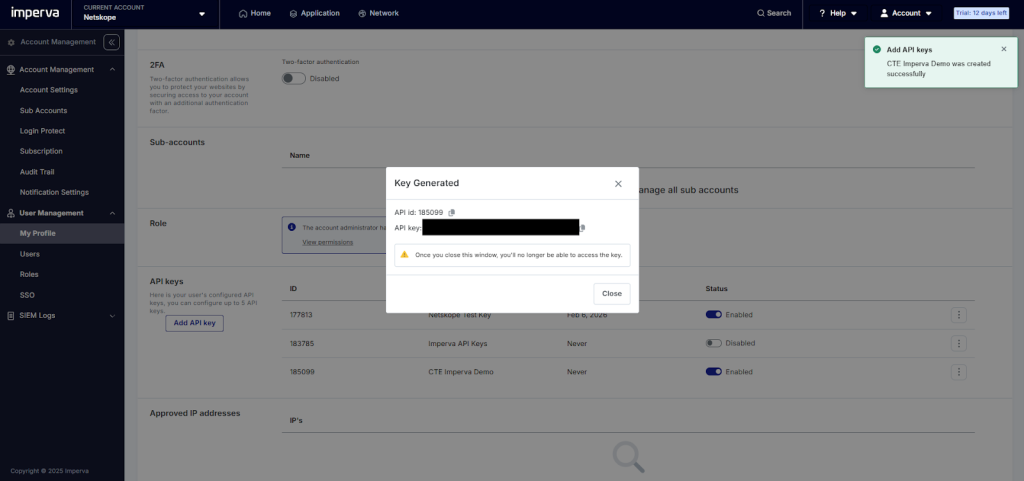

- Copy the API ID and API Key and then click Close.
Configure the Thales Plugin
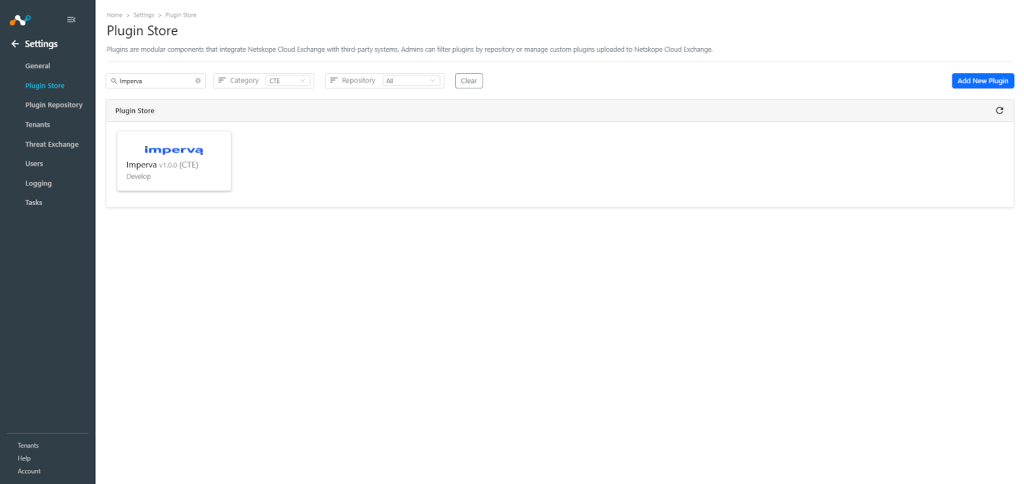
- In Cloud Exchange go to Settings > Plugin Store.
- Search for and select the Thales v1.0.0 (CTE) plugin box.

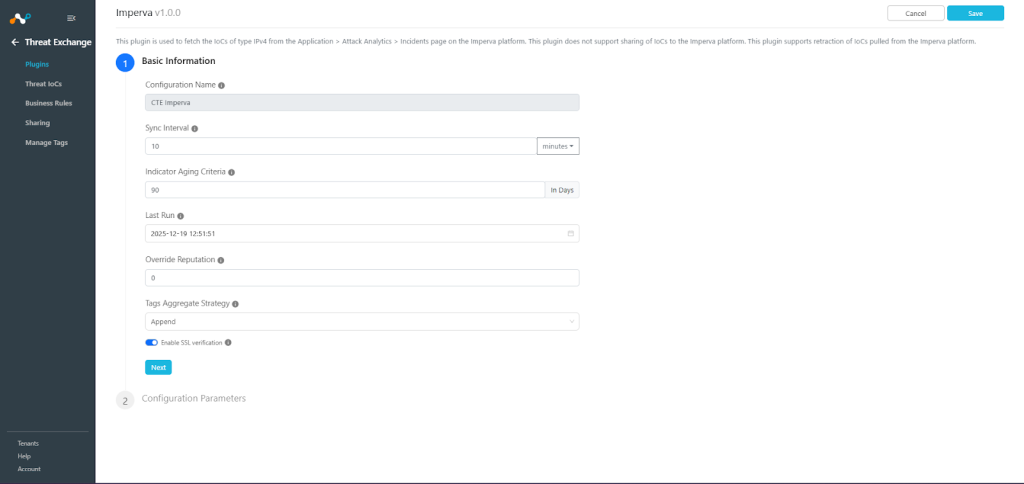
- Enter the Basic Information:
- Configuration Name: Unique name for the configuration.
- Sync Interval: Interval to fetch data from this plugin and share data to this plugin from other sources.
- Aging Criteria: Expiry time of the plugin in days (Default: 90).
- Override Reputation: Set a value to override the reputation of indicators received from this configuration.
- Enable SSL Validation: Enable SSL Certificate validation.
- Use System Proxy: Enable if the proxy is required for communication.
Note
It is better to have a larger value for Sync Interval if you want to pull IoCs in large numbers.

- Click Next and enter the Configuration Parameters:
- Account ID: Unique identifier of your account.
- API ID: API ID generated from your Thales instance.
- API Key: API Key generated from your Thales instance.
- Enable Tagging: Enable/Disable tagging functionality.
- Retraction Interval: Specify the number of days for which IoC retraction should be run for Thales IoCs. Note that this parameter is applicable only for Netskope CE version 5.1.0 or later, and if IoC(s) Retraction is enabled in your Threat Exchange Settings. Value must be between 1 and 1800.
- Initial Range: Number of days to pull the data for the initial run. Value must be between 1 and 1800.
- Click Save.
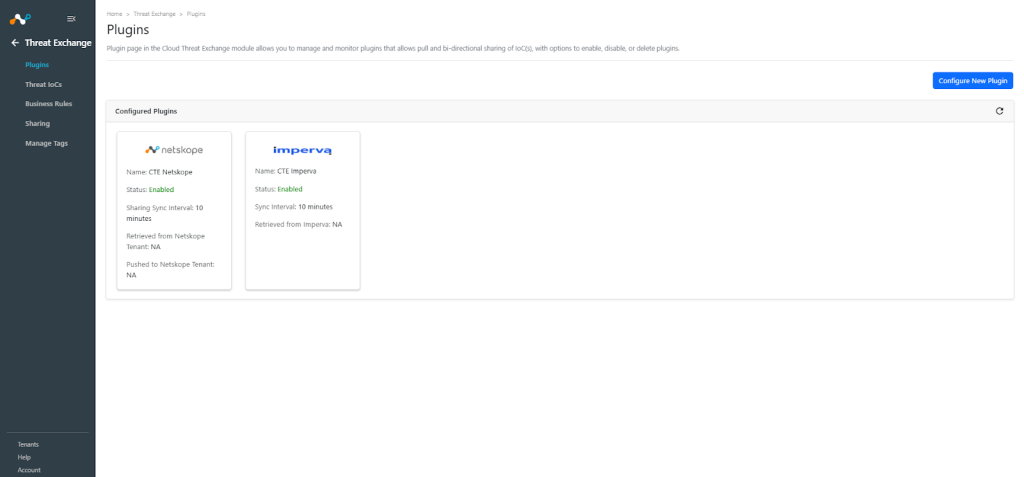

Add a Threat Exchange Business Rule for Thales Plugin
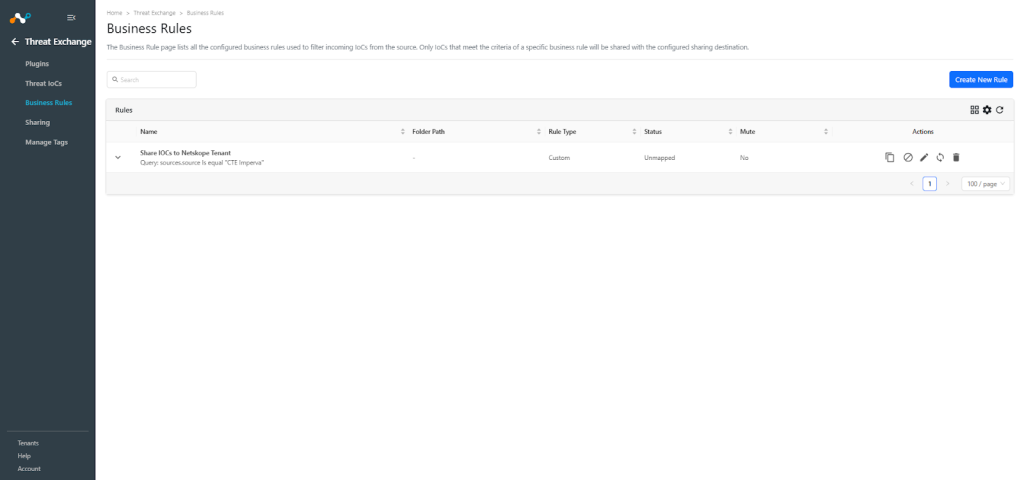
To share indicators fetched from the Thales to the Netskope CE, you will need to have a business rule that will filter out the indicators that you want to share. To configure a business rule, follow the below steps:
- In Threat Exchange go to Business Rules and click Create New Rule.
- Add the filter according to your requirement in the rule and click Save.

Configure Threat Exchange Sharing for Thales
The Thales plugin does not support sharing of IoCs, but the IoCs pulled from this plugin can be shared to the Netskope Tenant or other 3rd-party platforms.
To share IoCs from Thales to Cloud Exchange:
- In Threat Exchange go to Sharing and click Add Sharing Configuration.
- Select your Source Configuration (CTE Thales), a Business Rule, the Destination Configuration (CTE Netskope), and Target.
- Click Save.

Validate the Thales Plugin
Validate the Pull
Pulled data will be listed on the Threat IoCs page. You can filter the IoCs pulled from the platform using the filter: sources.source Like “<plugin configuration name>”.

To verify pulled logs on Cloud Exchange, go to Logging and search logs from the Thales plugin.
Filter: message Like “CTE Thales”

To verify the data available for pulling on the Thales platform, log in to Thales and go to Application > Attack Analytics > Incidents.

To verify the details of a particular incident, click More details.

To verify the Retracted IoCs, check the logs for IoC Retraction. Example: message Like [Retraction]:

You can filter the retracted IoCs from the platform using the filter: sources.source Is equal “<plugin configuration name>” && sources.retracted Is equal true

Note
The IoCs that fall under the Retraction Interval or marked as false-positive on the Thales platform will be marked as Retracted: Yes in Cloud Exchange.

Note
Sharing result will only be marked if the IoCs are pulled from source plugin after creating the sharing configuration.
Validate the Push
Here you can see IoCs were added to the URL list on your Netskope Tenant.

Some of the shared IoCs got marked as retracted, so it was deleted from the list.

Troubleshooting the Thales Plugin
Unable to pull IoCs from the Thales platform
After the plugin configuration, if the IoCs are not pulled from the platform, it might be due to one of these reasons:
- No IOCs are available on the platform to pull.
- IoCs are not available for the given configuration parameters (like Initial Range).
What to do: Identity your root cause from above and follow the appropriate steps to resolve the issue.
No IOCs are available on the platform to pull:
Check if the IoCs are available on the platform to pull. If available, check the resolution for the next point.
IoCs are not available for the given time range
If the IoCs are available on the platform to pull, but the plugin has not pulled the IoCs in Cloud Exchange, check the number of days mentioned in the initial range parameter of the plugin configuration. On the Thales platform, check if you have data for the given time range.
