

While creating or editing a policy, you can create several kinds of reference objects inline — without losing your place in the policy form.
Custom Category
-
Open the New Policy form.
-
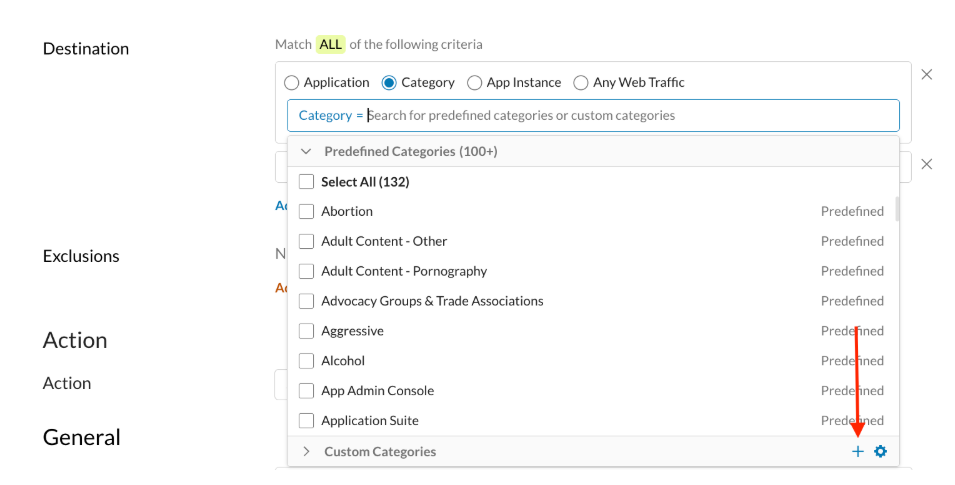
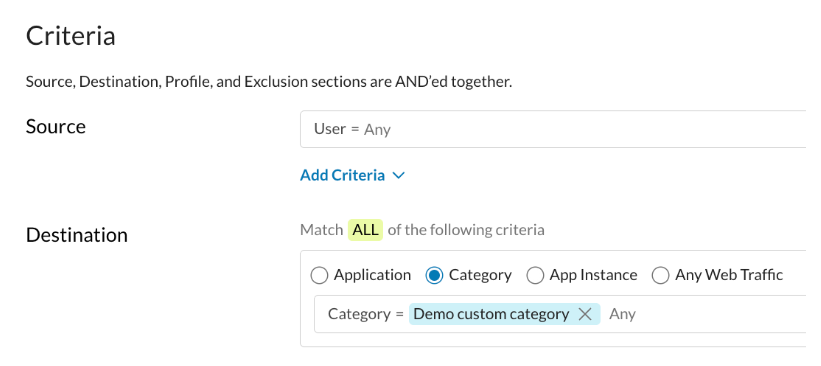
Select Category as the destination type.
-
Open the category picker and click the + button.
-
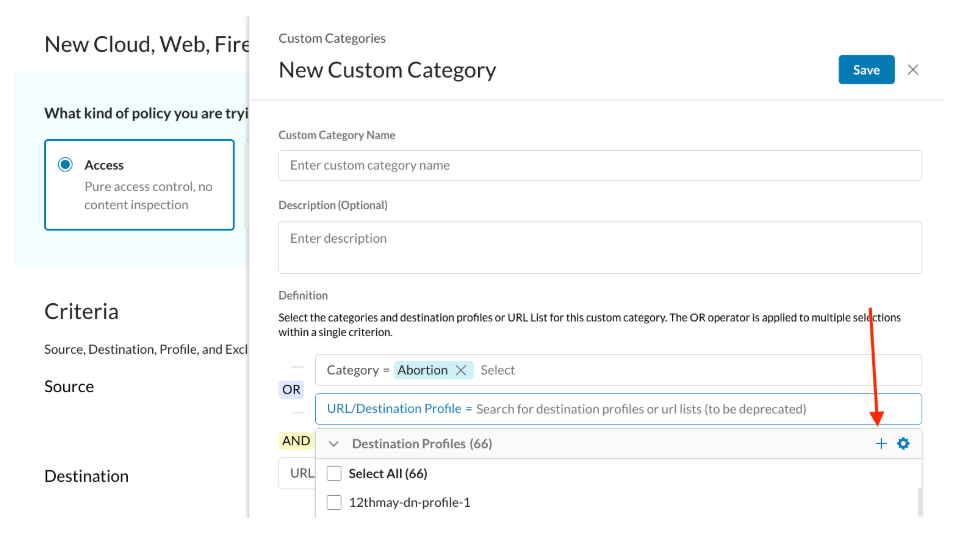
You can even create destination profile from this page by clicking the + button for destination profile.
-
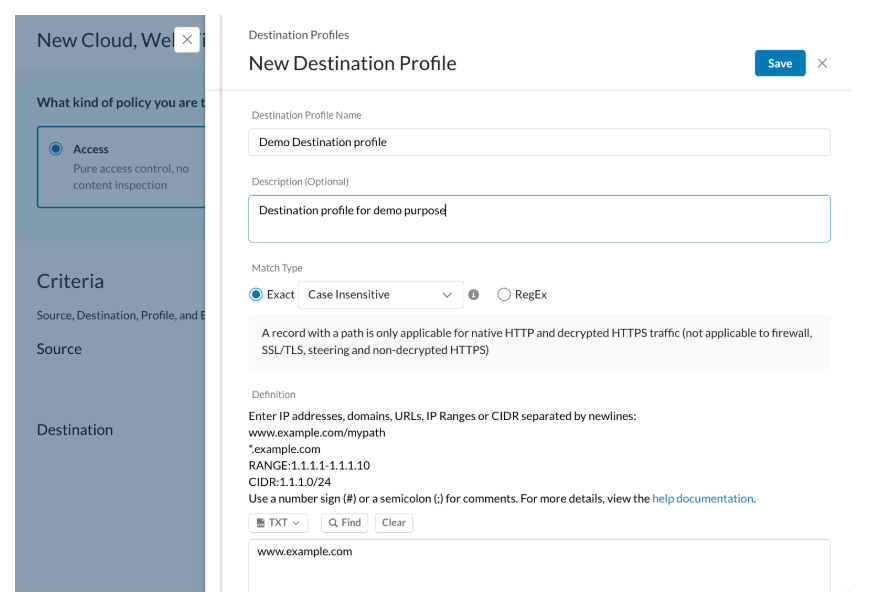
Fill in the category details and click Save.
-
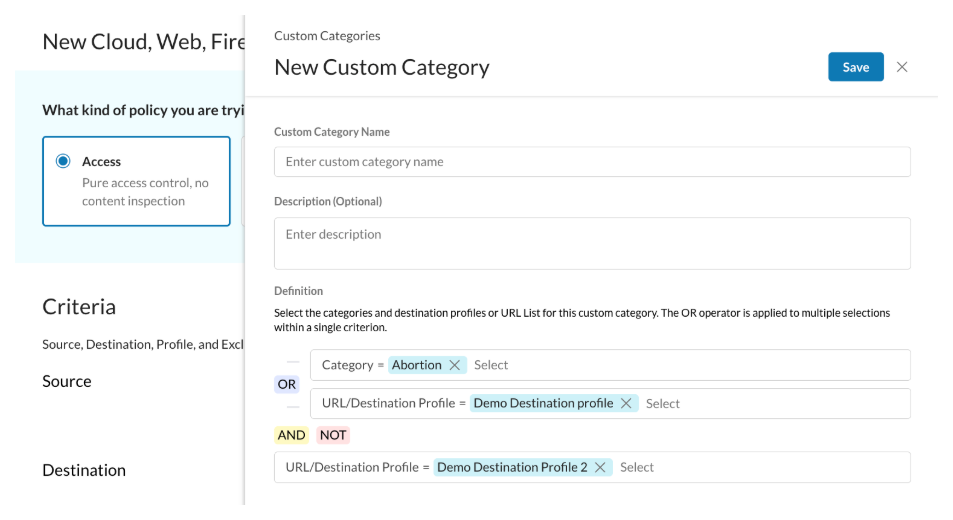
Select the values on the custom category page and click Save.
-
Select the newly created custom category on the policy page, then continue with the rest of policy creation.
Access Proxy profile
-
Open the New Policy form.
-
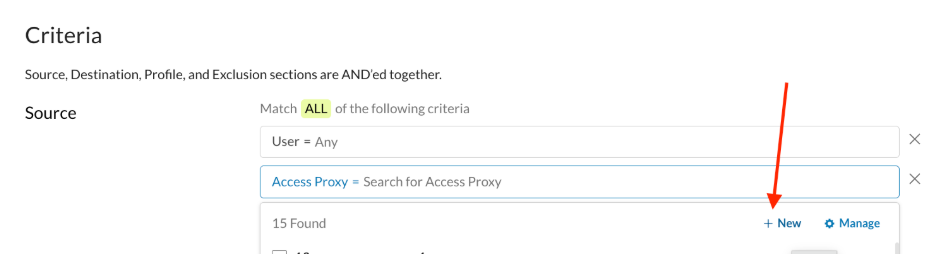
Click Source > Add Criteria > Access proxy to add Access proxy field.
-
Click Access Proxy to open the dropdown, then click the + element to open the new Access Proxy profile form.
-
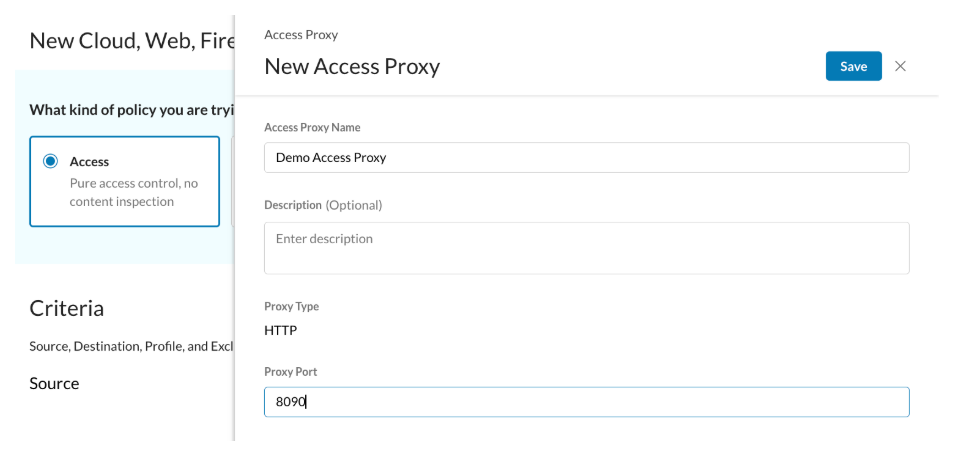
Enter the Access Proxy details and click Save.
-
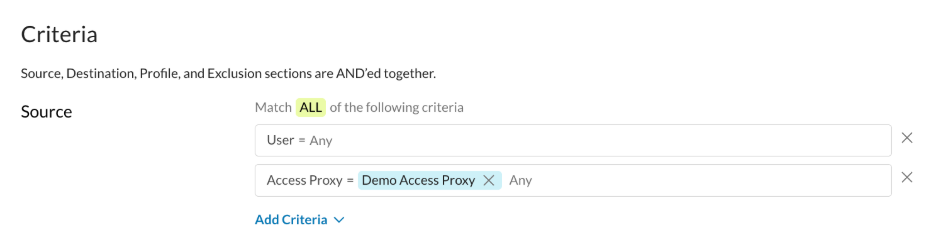
Select the newly created Access Proxy profile and continue with policy creation.
Destination Profile
-
Open the New Policy form.
-
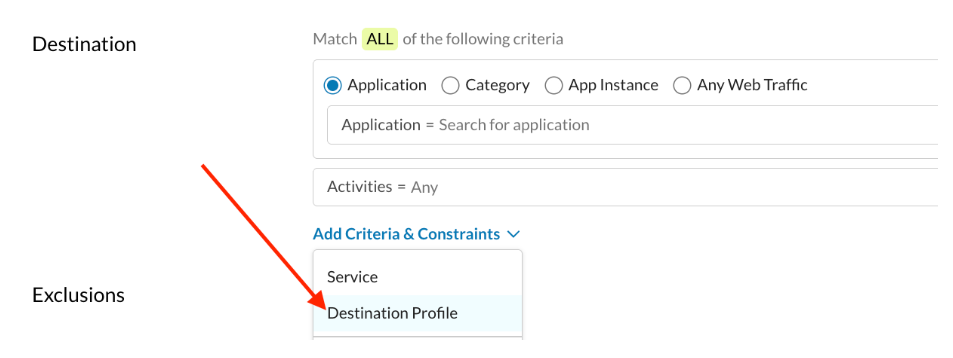
Select Destination > Add Criteria & Constraints > Destination Profile option.
-
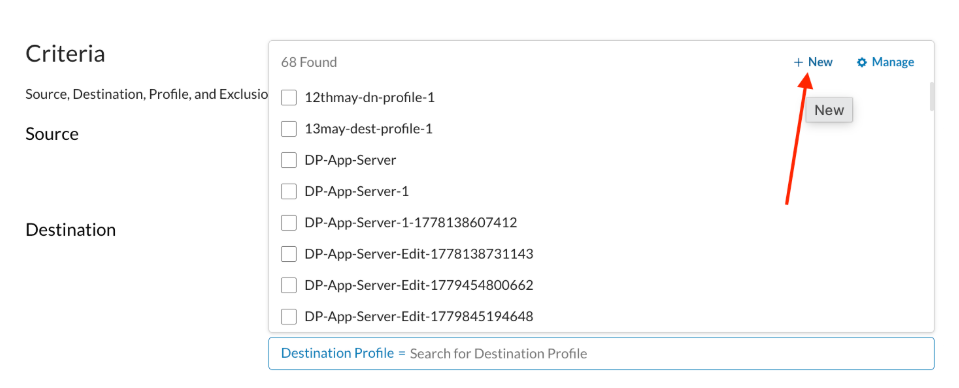
Open the destination profile picker and click + button to create new profile.
-
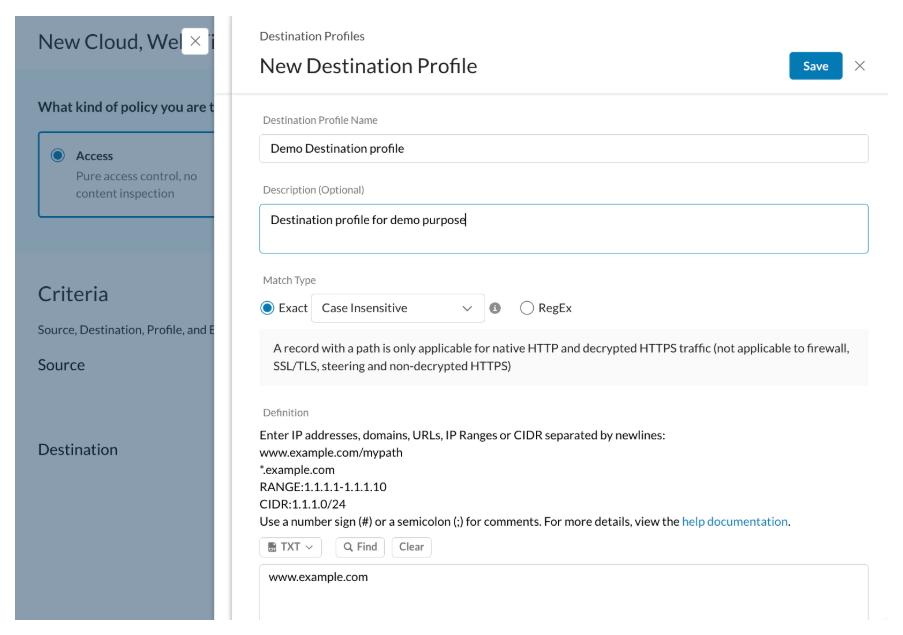
Fill in the profile details and click Save.
-
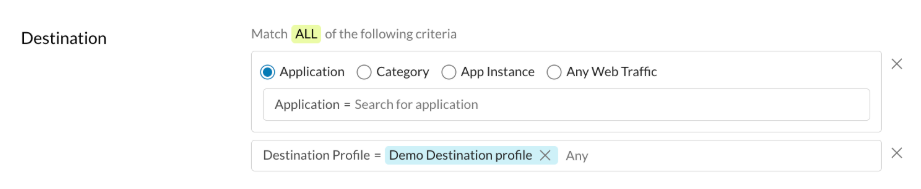
Select the destination profile and continue with policy creation.
Service object
-
Open the New Policy form.
-
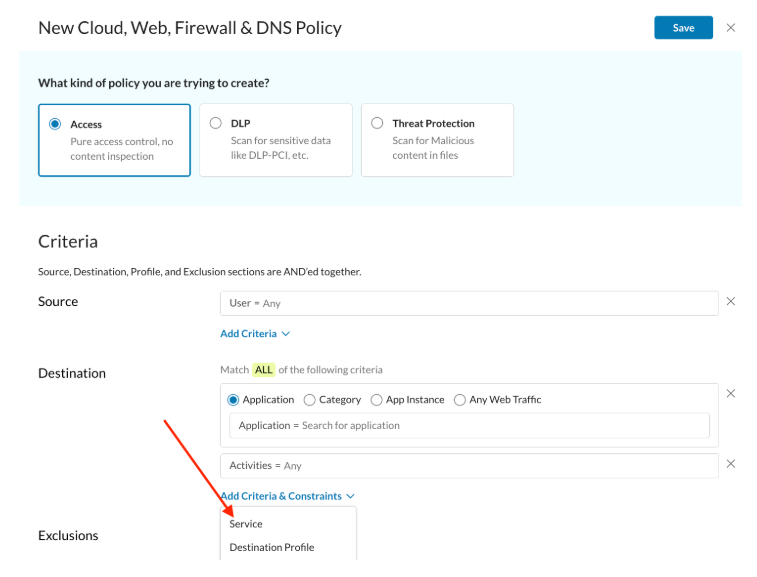
Select Destination > Add Criteria & Constraints > Service.
-
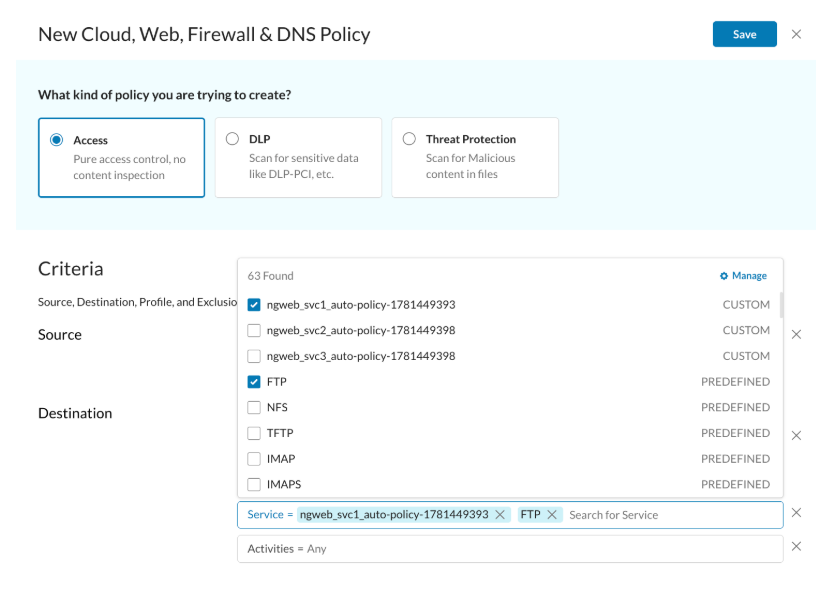
In the Service profile/object picker, select a custom or predefined service profile/object.
-
Continue with the rest of the policy configuration.