

Release Notes
2.0.0 (Requires minimum Cloud Exchange version 6.1.0)
Added
- Added new fields to the Users entity.
- Added support for Add User to Group, Remove User from Group, Enroll in Training, and Update Custom Field actions.
- Added support for pulling additional details which includes Pulling Past Due Training Details, Password IQ Detections, and Security Coach Risk Scores from KnowBe4.
- Added a Custom Region URL option in the configuration parameter where you can provide a custom KnowBe4 Base URL.
Updated
- Updated the older Reporting API with the newer GraphQL API for pulling data and performing the plugin actions.
1.0.0
Added
- Initial release.
This document explains how to configure the KnowBe4 v2.0.0 plugin with the Risk Exchange module of the Netskope Cloud Exchange platform. This plugin fetches Users from the Users > User Management page of the KnowBe4 console. This plugin supports the Add User to Group, Remove User from Group, Enroll in Training, and Update Custom Field actions on users in KnowBe4.
Netskope normalization score calculation for users > (1000 – (KnowBe4’s Current Risk Score) x 10).
Prerequisites
To complete this configuration, you need:
- A Netskope tenant (or multiple, for example, production and development/test instances).
- A Netskope Cloud Exchange tenant with the Tenant plugin and Risk Exchange plugin already configured.
- A KnowBe4 instance with a KSAT API token
- PasswordIQ and SecurityCoach tokens (optional)
- Connectivity to the following hosts:
- https://training.knowbe4.com (US),
- https://eu.knowbe4.com (EU),
- https://ca.knowbe4.com (CA),
- https://uk.knowbe4.com (UK),
- https://de.knowbe4.com (DE).
- For Secret Manager configuration, refer to this documentation. To set up Azure Key Vault Secrets Manager refer to this documentation.
KnowBe4 Plugin Support
This plugin fetches Users from the Users > User Management page of the KnowBe4 console. This plugin supports the Add User to Group, Remove User from Group, Enroll in Training, and Update Custom Field actions on users in KnowBe4.
| Types of Data Pulled | Actions Supported |
|---|---|
| Users | Add User to Group Remove User from Group Enroll in Training Update Custom Field No Action |
Mappings
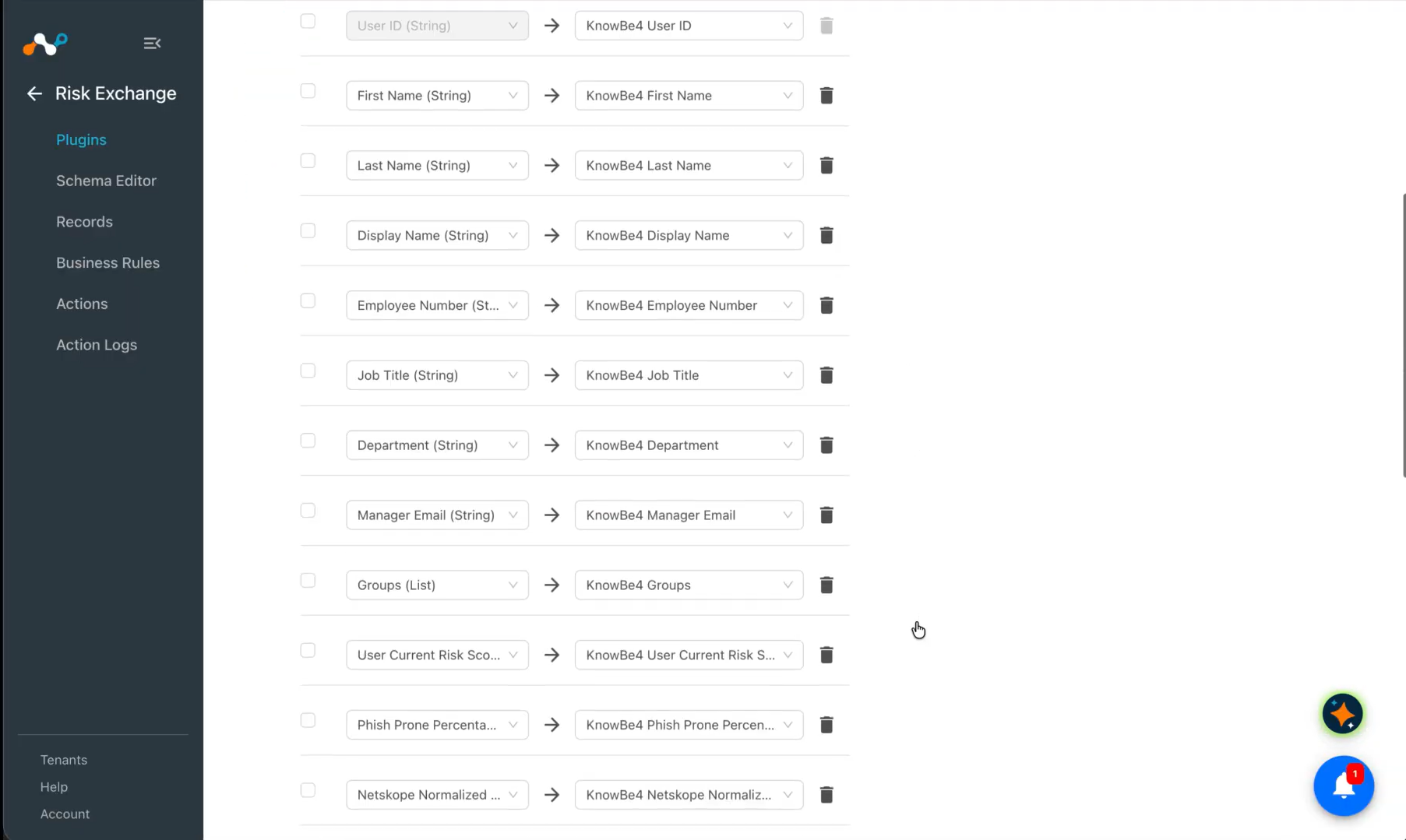
Mappings are used to view the pulled Users details. Fields mapped during the plugin configuration will be visible on the Records page after the data is pulled. Here are the suggested mapping to use while configuring the plugin.
Pull Mapping for Users
| Plugin Field Label | Expected Data Type | Suggested Field Label | Aggregate Strategy | Example |
|---|---|---|---|---|
| User Email | String | KnowBe4_User Email | Unique | jane.doe@example.com |
| User ID | String | KnowBe4_User ID | Overwrite | 5384681 |
| First Name | String | KnowBe4_First Name | Overwrite | Jane |
| Last Name | String | KnowBe4_Last Name | Overwrite | Doe |
| Display Name | String | KnowBe4_Display Name | Overwrite | Jane Doe |
| Employee Number | String | KnowBe4_Employee Number | Overwrite | EMP-1042 |
| Job Title | String | KnowBe4_Job Title | Overwrite | Security Analyst |
| Department | String | KnowBe4_Department | Overwrite | Security |
| Manager Email | String | KnowBe4_Manager Email | Overwrite | manager@example.com |
| User Status | String | KnowBe4_User Status | Overwrite | Active |
| Groups | List | KnowBe4_Groups | Overwrite | [“Sales”, “EMEA”] |
| User Current Risk Score | Number | KnowBe4_User Current Risk Score | Overwrite | 42.6695 |
| Phish Prone Percentage | Number | KnowBe4_Phish Prone Percentage | Overwrite | 12.5 |
| Netskope Normalized Score | Number | KnowBe4_Netskope Normalized Score | Overwrite | 573 |
| Past Due Training Count | Number | KnowBe4_Past Due Training Count | Overwrite | 2 |
| Past Due Training Names | List | KnowBe4_Past Due Training Names | Overwrite | [“Security Awareness Foundations”] |
| PIQ Detections | List | KnowBe4_PIQ Detections | Overwrite | [“Weak password”] |
| Awareness Score | Number | KnowBe4_Awareness Score | Overwrite | 78 |
| Anti Phishing Score | Number | KnowBe4_Anti Phishing Score | Overwrite | 81 |
| Phishing Report Score | Number | KnowBe4_Phishing Report Score | Overwrite | 65 |
| Training Score | Number | KnowBe4_Training Score | Overwrite | 90 |
| Custom Field 1 | String | KnowBe4_Custom Field 1 | Overwrite | Contractor |
| Custom Field 2 | String | KnowBe4_Custom Field 2 | Overwrite | Contractor |
| Custom Field 3 | String | KnowBe4_Custom Field 3 | Overwrite | Contractor |
| Custom Field 4 | String | KnowBe4_Custom Field 4 | Overwrite | Contractor |
| Custom Date 1 | DateTime | KnowBe4_Custom Date 1 | Overwrite | 2026-09-01 |
| Custom Date 2 | DateTime | KnowBe4_Custom Date 2 | Overwrite | 2026-09-01 |
Normalized Score Calculation
The expected score type on KnowBe4 is in the range 0 to 1000. Netskope normalization score calculation for users > (1000 – (KnowBe4’s Current Risk Score) x 10).
Note that for Risk Score values 0, 100, and string, it will skip the calculation of Netskope normalization score.
Permissions
Ensure the user, for which tokens will be created, has the necessary permissions to create an API token. Tokens have below permissions:
- KSAT API Token: Read/Write
- PasswordIQ API Token: Read Only
- SecurityCoach API Token: Read Only
API Details
List of APIs Used
| API Endpoint | Method | Use Case |
|---|---|---|
| /graphql — AuthCheck | POST | Connectivity and token validation in validate() |
| /graphql — Users | POST | Pull users details |
| /graphql — aliased enrollments | POST | Pull past due training details |
| /graphql — PiqUserStates | POST | Pull Password IQ detections |
| /graphql — CoachUsers | POST | Pull Security Coach details |
| /graphql — Groups | POST | List Group names |
| /graphql — TrainingCampaigns | POST | List Training Campaign names |
| /graphql — CreateGroup | POST | Create Group on KnowBe4 |
| /graphql — AddToGroups | POST | Bulk-adds users to a group |
| /graphql — RemoveFromGroup | POST | Bulk-removes users from a group |
| /graphql — EnrollUser | POST | Enroll User into training campaign |
| /graphql — EditUser | POST | Update user’s custom field value |
AuthCheck
Method: POST
Endpoint: /graphql
Headers
| Key | Value |
|---|---|
| Authorization | Bearer <api_token> |
| Content-Type | application/json |
| Accept | application/json |
| User-Agent | netskope-ce-7.0.0-cre-knowbe4-v2.0.0 |
Payload
| GraphQL Query | Variables |
|---|---|
| query AuthCheck($per: Int, $page: Int) { users(per: $per, page: $page) { nodes { id } pagination { totalCount } } } | { “per”: 1, “page”: 1 } |
Sample Response
{
  "data": {
    "users": {
      "nodes": [{ "id": 1234567 }],
      "pagination": { "totalCount": 250 }
    }
  }
}
List Users
Method: POST
Endpoint: /graphql
Headers
| Key | Value |
|---|---|
| Authorization | Bearer <api_token> |
| Content-Type | application/json |
| Accept | application/json |
| User-Agent | netskope-ce-7.0.0-cre-knowbe4-v2.0.0 |
Payload
| GraphQL Query | Variables |
|---|---|
| query Users($per: Int, $page: Int, $status: UserStatusFilters) { users(per: $per, page: $page, status: $status) { nodes { id email firstName lastName displayName employeeNumber jobTitle department managerEmail archived riskScore currentPpp customField1 customField2 customField3 customField4 customDate1 customDate2 groups { id name } } pagination { page pages per totalCount } } } | { “per”: 100, “page”: 1, “status”: “ACTIVE” } |
Sample Response
{
  "data": {
    "users": {
      "nodes": [
        {
          "id": 1234567,
          "email": "sample_user@netskope.com",
          "firstName": "Sample",
          "lastName": "User",
          "displayName": "Sample User",
          "employeeNumber": "E-00001",
          "jobTitle": "Analyst",
          "department": "Sample Department",
          "managerEmail": "sample_user@netskope.com",
          "archived": false,
          "riskScore": 42.7,
          "currentPpp": 12.5,
          "customField1": "Tier 2",
          "customField2": null,
          "customField3": null,
          "customField4": null,
          "customDate1": "2026-09-01",
          "customDate2": null,
          "groups": [{ "id": 5001, "name": "Finance" }]
        }
      ],
      "pagination": { "page": 1, "pages": 3, "per": 100, "totalCount": 250 }
    }
  }
}
Get Training Enrollments
Method: POST
Endpoint: /graphql
Headers
| Key | Value |
|---|---|
| Authorization | Bearer <api_token> |
| Content-Type | application/json |
| Accept | application/json |
| User-Agent | netskope-ce-7.0.0-cre-knowbe4-v2.0.0 |
Payload
| GraphQL Query | Variables |
|---|---|
| query { u0: enrollments(userId: 1234567, per: 100, page: 1) { nodes { status pastDue trainingCampaign { name } enrollmentItem { … on PurchasedCourse { title } … on Policy { title } … on KnowledgeRefresher { title } } } pagination { totalCount pages } } } | None |
Sample Response
{
  "data": {
    "u0": {
      "nodes": [
        {
          "status": "IN_PROGRESS",
          "pastDue": true,
          "trainingCampaign": { "name": "2026 Annual Security Awareness" },
          "enrollmentItem": { "title": "2026 Security Awareness Training" }
        }
      ],
      "pagination": { "totalCount": 2, "pages": 1 }
    }
  }
}
Get PasswordIQ User States
Method: POST
Endpoint: /graphql
Headers
| Key | Value |
|---|---|
| Authorization | Bearer <api_token> |
| Content-Type | application/json |
| Accept | application/json |
| User-Agent | netskope-ce-7.0.0-cre-knowbe4-v2.0.0 |
Payload
| GraphQL Query | Variables |
|---|---|
| query PiqUserStates( $detection: [DetectionTypes!] $userType: PiqUserTypes $pagination: PiqPaginationAttributes! ) { passwordIqUserStates( detection: $detection, userType: $userType, pagination: $pagination ) { users { id kmsatId events { detectionType { name } detected resolved } } pagination { page pages per totalCount } } } | { “detection”: [ “AD_PW_WEAK”, “AD_PW_SHARED”, “AD_PW_EMPTY”, “AD_PW_CLEAR_TEXT”, “AD_PW_NOT_REQD”, “AD_PW_NEVER_EXPIRES”, “AD_USER_USES_LM_HASH”, “AD_USER_AES_ENCRYPTION_NOT_SET”, “AD_USER_DES_ONLY_ENCRYPTION”, “AD_USER_HAS_PREAUTHENTICATION”, “AD_PW_FOUND_IN_BREACH” ], “userType”: “KMSAT”, “pagination”: { “per”: 100, “page”: 1 } } |
Sample Response
{
  "data": {
    "passwordIqUserStates": {
      "users": [
        {
          "id": 88120,
          "kmsatId": 1234567,
          "events": [
            { "detectionType": { "name": "AD_PW_FOUND_IN_BREACH" }, "detected": true, "resolved": false },
            { "detectionType": { "name": "AD_PW_NEVER_EXPIRES" }, "detected": true, "resolved": true }
          ]
        }
      ],
      "pagination": { "page": 1, "pages": 1, "per": 100, "totalCount": 1 }
    }
  }
}
List Security Coach Mapped Users
Method: POST
Endpoint: /graphql
Headers
| Key | Value |
|---|---|
| Authorization | Bearer <api_token> |
| Content-Type | application/json |
| Accept | application/json |
| User-Agent | netskope-ce-7.0.0-cre-knowbe4-v2.0.0 |
Payload
| GraphQL Query | Variables |
|---|---|
| query CoachUsers($search: String!, $draw: Int!, $start: Int!, $length: Int!) { securityCoachListMappedUsers( search: $search, draw: $draw, start: $start, length: $length ) { recordsTotal data { id email awarenessScore antiPhishingScore phishingReportScore trainingScore } } } | { “search”: “”, “draw”: 1, “start”: 0, “length”: 100 } |
Sample Response
{
  "data": {
    "securityCoachListMappedUsers": {
      "recordsTotal": 250,
      "data": [
        {
          "id": 1234567,
          "email": "sample_user@netskope.com",
          "awarenessScore": 78,
          "antiPhishingScore": 64,
          "phishingReportScore": 55,
          "trainingScore": 90
        }
      ]
    }
  }
}
List Groups
Method: POST
Endpoint: /graphql
Headers
| Key | Value |
|---|---|
| Authorization | Bearer <api_token> |
| Content-Type | application/json |
| Accept | application/json |
| User-Agent | netskope-ce-7.0.0-cre-knowbe4-v2.0.0 |
Payload
| GraphQL Query | Variables |
|---|---|
| query Groups($per: Int, $page: Int, $status: GroupStatuses, $type: GroupTypes) { groups(per: $per, page: $page, status: $status, type: $type) { nodes { id name } pagination { page pages totalCount } } } | { “per”: 100, “page”: 1, “status”: “ACTIVE”, “type”: “CONSOLE” } |
Sample Response
{
  "data": {
    "groups": {
      "nodes": [
        { "id": 5001, "name": "Finance" },
        { "id": 5002, "name": "Netskope High Risk" }
      ],
      "pagination": { "page": 1, "pages": 1, "totalCount": 2 }
    }
  }
}
List Training Campaigns
Method: POST
Endpoint: /graphql
Headers
| Key | Value |
|---|---|
| Authorization | Bearer <api_token> |
| Content-Type | application/json |
| Accept | application/json |
| User-Agent | netskope-ce-7.0.0-cre-knowbe4-v2.0.0 |
Payload
| GraphQL Query | Variables |
|---|---|
| query TrainingCampaigns($per: Int, $page: Int, $statuses: [TrainingCampaignStatuses!]) { trainingCampaigns(per: $per, page: $page, statuses: $statuses) { nodes { id name } pagination { page pages totalCount } } } | { “per”: 100, “page”: 1, “statuses”: [“CREATED”, “ENROLLING”, “IN_PROGRESS”] } |
Sample Response
{
  "data": {
    "trainingCampaigns": {
      "nodes": [{ "id": 7001, "name": "Remedial Phishing Training" }],
      "pagination": { "page": 1, "pages": 1, "totalCount": 1 }
    }
  }
}
Create Group
Method: POST
Endpoint: /graphql
Headers
| Key | Value |
|---|---|
| Authorization | Bearer <api_token> |
| Content-Type | application/json |
| Accept | application/json |
| User-Agent | netskope-ce-7.0.0-cre-knowbe4-v2.0.0 |
Payload
| GraphQL Query | Variables |
|---|---|
| mutation CreateGroup($attributes: GroupAttributes!) { groupCreate(attributes: $attributes) { errors { field reason } node { id name } } } | { “attributes”: { “name”: “Netskope High Risk” } } |
Sample Response
{
  "data": {
    "groupCreate": {
      "errors": [],
      "node": { "id": 5002, "name": "Netskope High Risk" }
    }
  }
}
Add Users to Group
Method: POST
Endpoint: /graphql
Headers
| Key | Value |
|---|---|
| Authorization | Bearer <api_token> |
| Content-Type | application/json |
| Accept | application/json |
| User-Agent | netskope-ce-7.0.0-cre-knowbe4-v2.0.0 |
Payload
| GraphQL Query | Variables |
|---|---|
| mutation AddToGroups($userIds: [Int!]!, $groupIds: [Int!]!) { userAddToGroups(userIds: $userIds, groupIds: $groupIds) { errors { field reason } node { id email } } } | { “userIds”: [1234567, 1234568], “groupIds”: [5002] } |
Sample Response
{
  "data": {
    "userAddToGroups": {
      "errors": [],
      "node": [
        { "id": 1234567, "email": "sample_user@netskope.com" },
        { "id": 1234568, "email": "sample_user@netskope.com" }
      ]
    }
  }
}
Remove Users from Group
Method: POST
Endpoint: /graphql
Headers
| Key | Value |
|---|---|
| Authorization | Bearer <api_token> |
| Content-Type | application/json |
| Accept | application/json |
| User-Agent | netskope-ce-7.0.0-cre-knowbe4-v2.0.0 |
Payload
| GraphQL Query | Variables |
|---|---|
| mutation RemoveFromGroup($userIds: [Int!]!, $groupId: Int!) { userDeleteMemberships(userIds: $userIds, groupId: $groupId) { errors { field reason } node { id email } } } | { “userIds”: [1234567], “groupId”: 5002 } |
Sample Response
{
  "data": {
    "userDeleteMemberships": {
      "errors": [],
      "node": [{ "id": 1234567, "email": "sample_user@netskope.com" }]
    }
  }
}
Enroll User in Training Campaign
Method: POST
Endpoint: /graphql
Headers
| Key | Value |
|---|---|
| Authorization | Bearer <api_token> |
| Content-Type | application/json |
| Accept | application/json |
| User-Agent | netskope-ce-7.0.0-cre-knowbe4-v2.0.0 |
Payload
| GraphQL Query | Variables |
|---|---|
| mutation EnrollUser($trainingCampaignId: Int!, $userId: Int!) { trainingCampaignAddUser( trainingCampaignId: $trainingCampaignId, userId: $userId ) { errors { field reason } node } } | { “trainingCampaignId”: 7001, “userId”: 1234567 } |
Sample Response
{
  "data": {
    "trainingCampaignAddUser": {
      "errors": [],
      "node": true
    }
  }
}
Update User
Method: POST
Endpoint: /graphql
Headers
| Key | Value |
|---|---|
| Authorization | Bearer <api_token> |
| Content-Type | application/json |
| Accept | application/json |
| User-Agent | netskope-ce-7.0.0-cre-knowbe4-v2.0.0 |
Payload
| GraphQL Query | Variables |
|---|---|
| mutation EditUser($userId: Int!, $attributes: UserAttributes!) { userEdit(userId: $userId, attributes: $attributes) { errors { field reason } node { id email } } } | { “userId”: 1234567, “attributes”: { “customField1”: “Netskope: high risk” } } |
Sample Response
{
  "data": {
    "userEdit": {
      "errors": [],
      "node": { "id": 1234567, "email": "sample_user@netskope.com" }
    }
  }
}
Performance Matrix
Here is the performance matrix conducted on a Large Cloud Exchange Stack with these specifications while pulling 500k users.
| Description | Specification |
|---|---|
| Stack Size | Size: Large, RAM: 32 GB, Core: 16 |
| Time taken to store the pulled and updated user records | ~15 mins |
User Agent
netskope-ce-7.0.0-cre-knowbe4-v2.0.0
Workflow
- Get your KnowBe4 API tokens.
- Configure the KnowBe4 plugin.
- Configure a Business Rule.
- Configure Risk Exchange Actions.
- Validate the KnowBe4 Plugin.
Watch a Video
Click play to watch a video.
Get your KnowBe4 API Tokens
-
Log in to the KnowBe4 console.
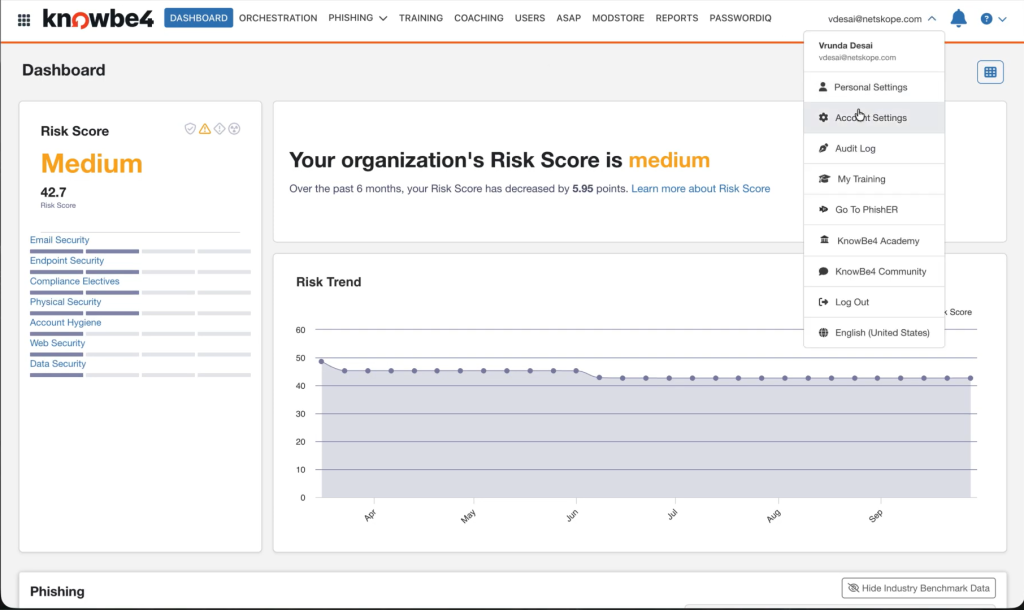
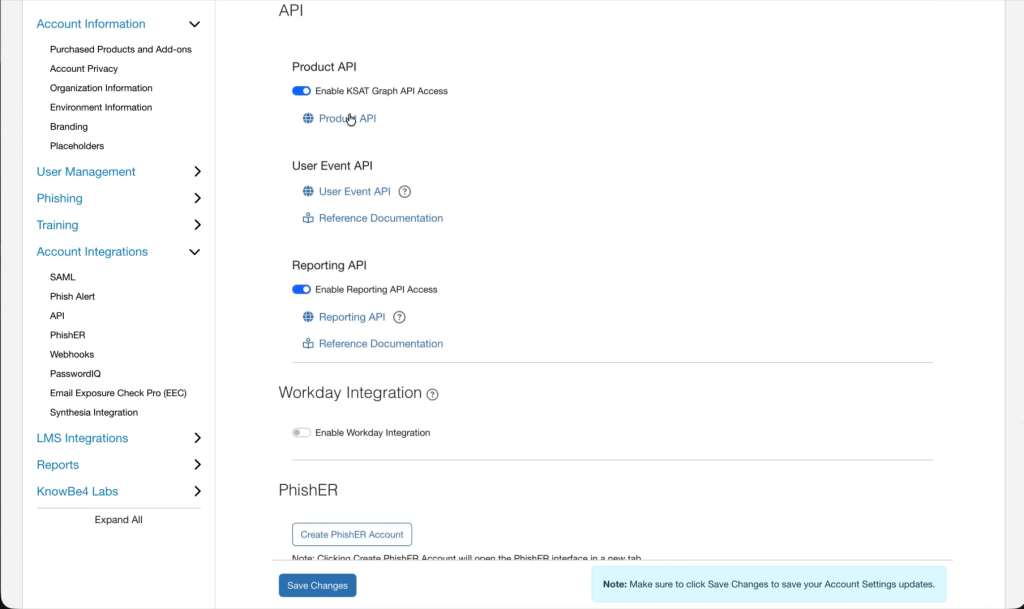
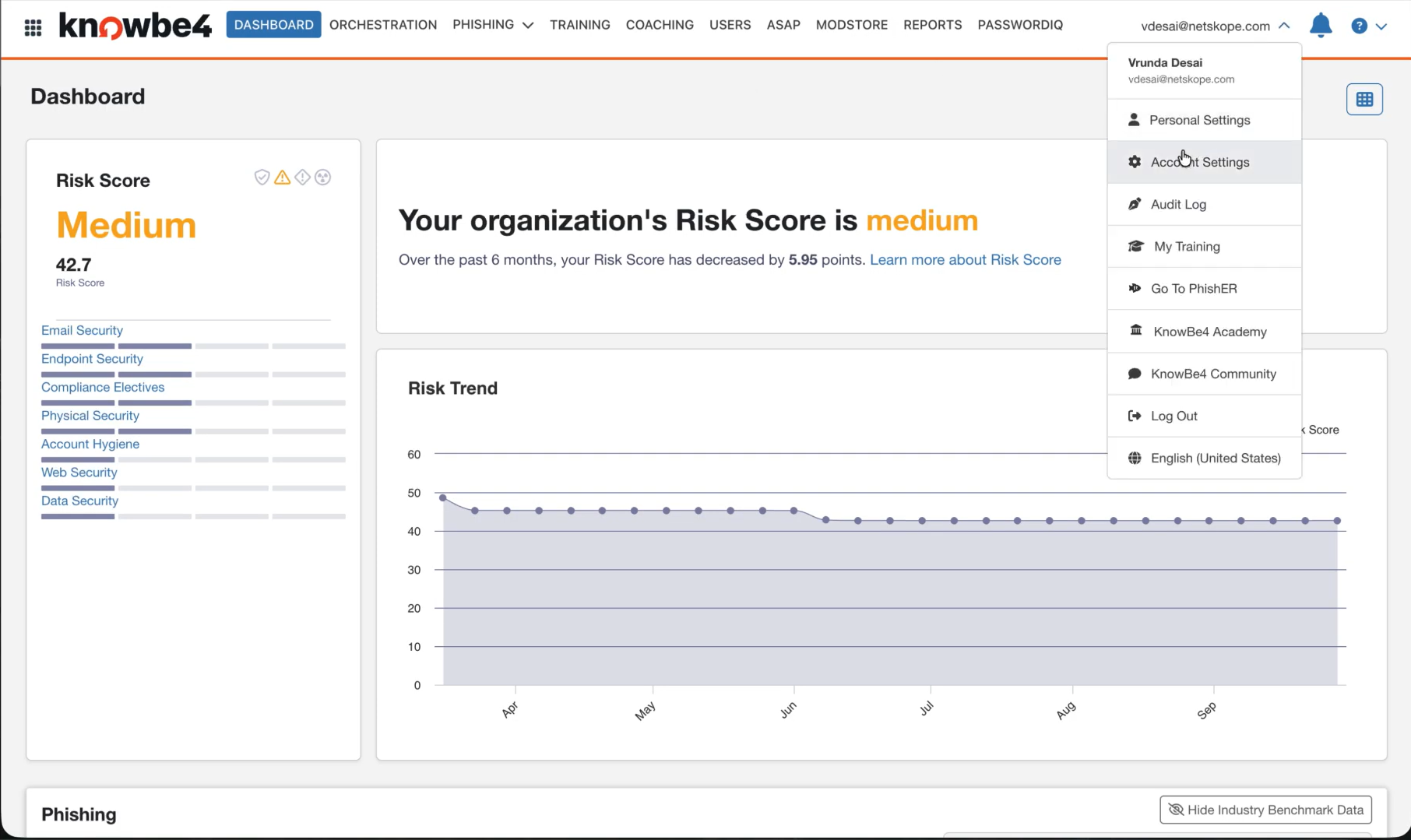
-
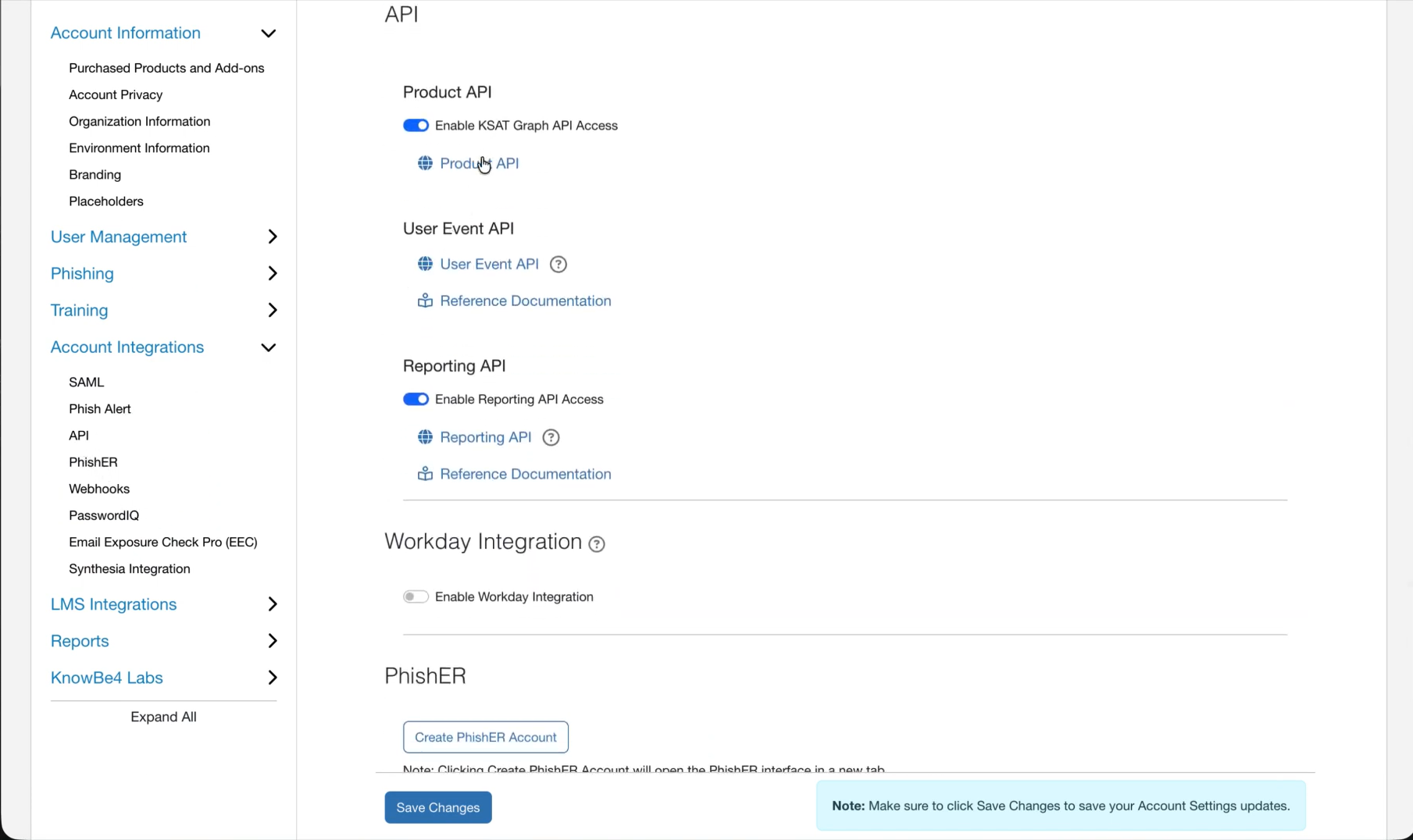
Go to Account Settings > Account Integrations > API > Product API.
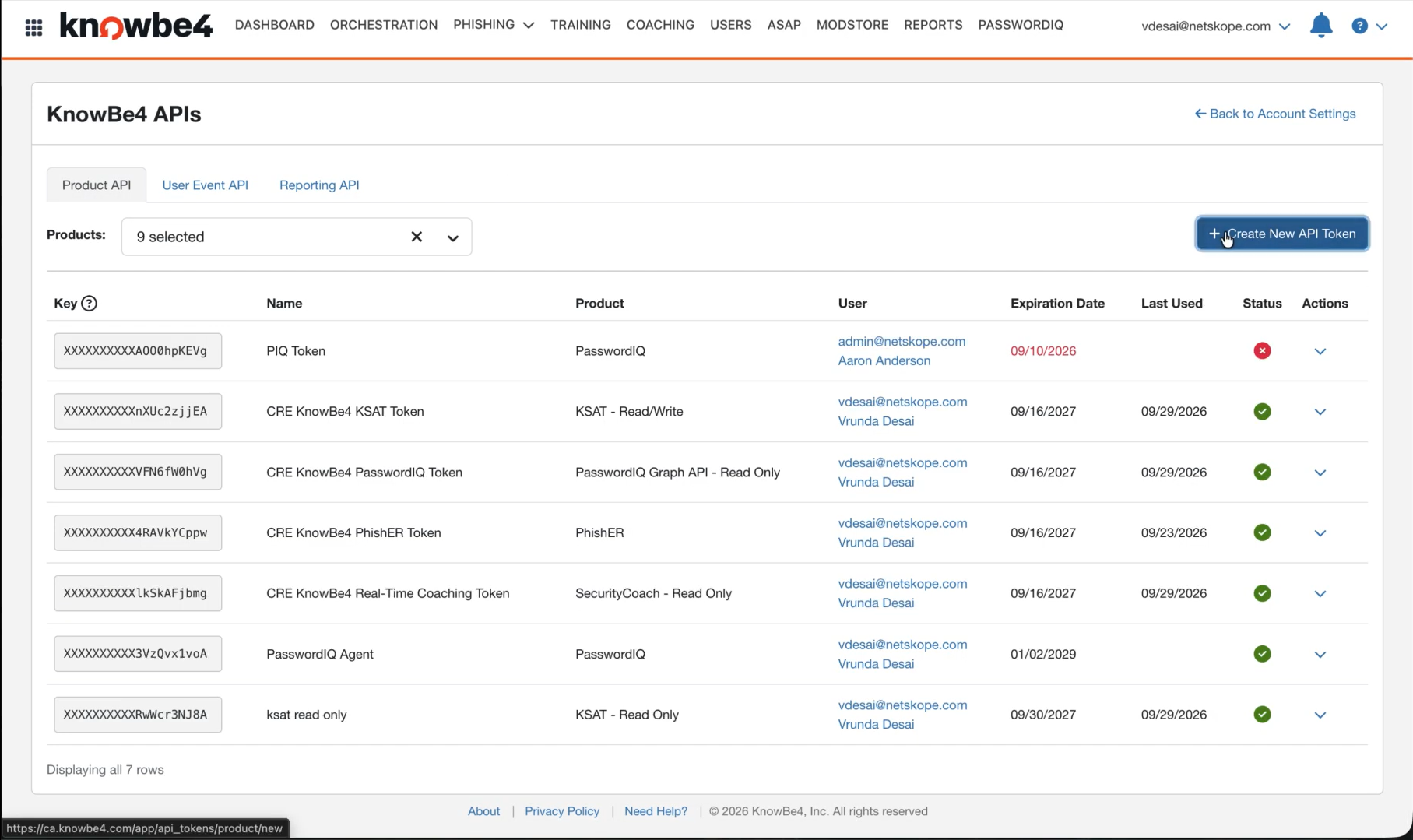
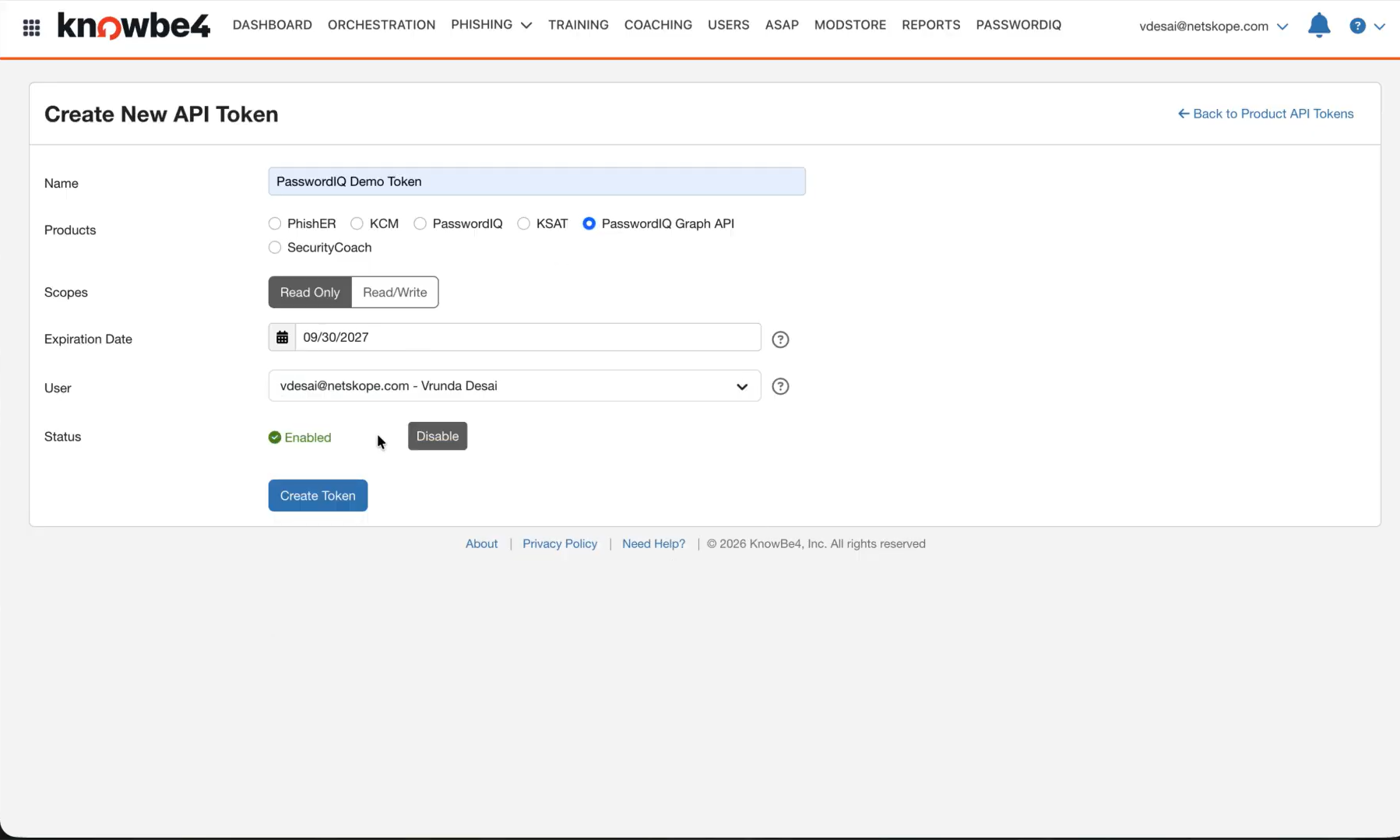
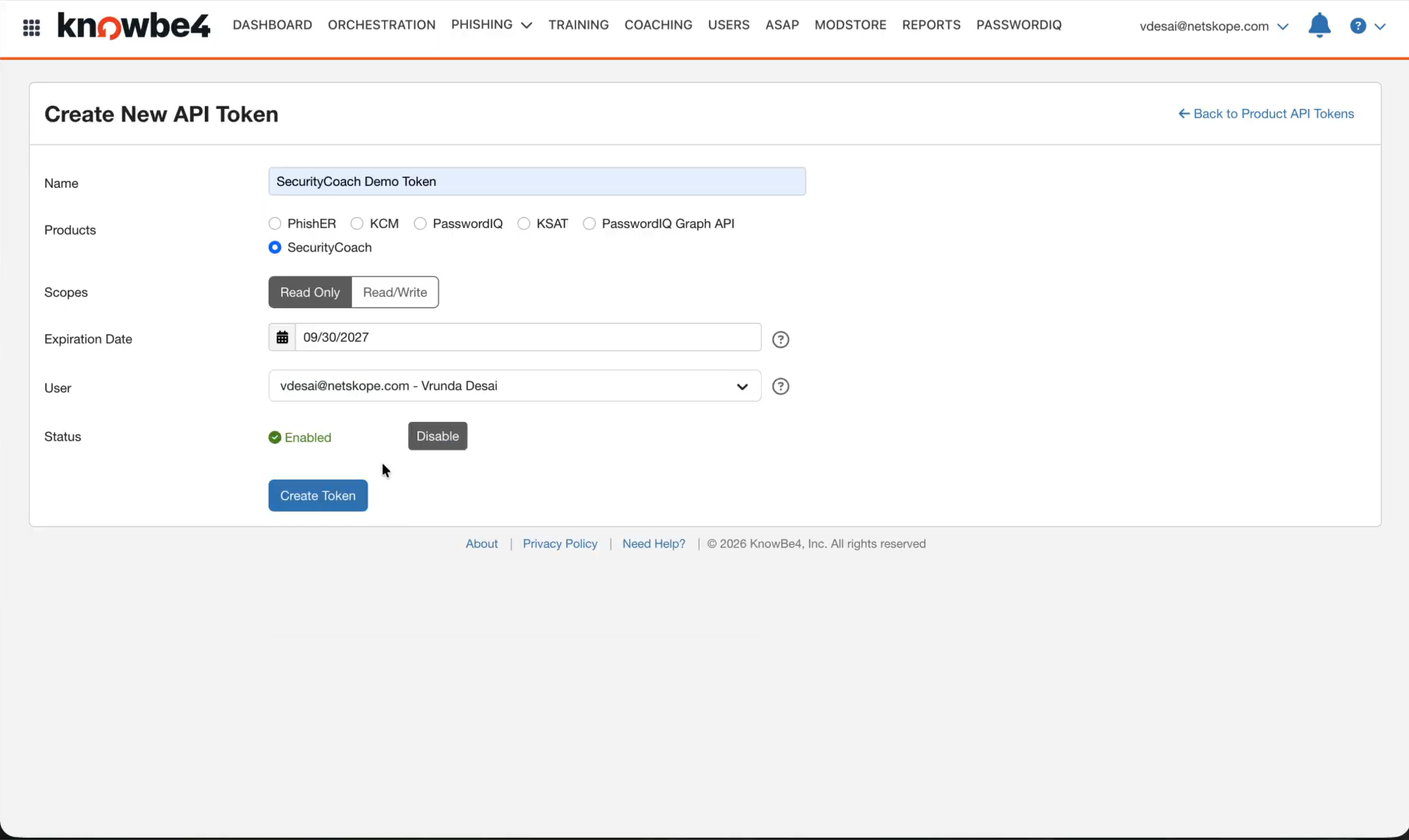
-
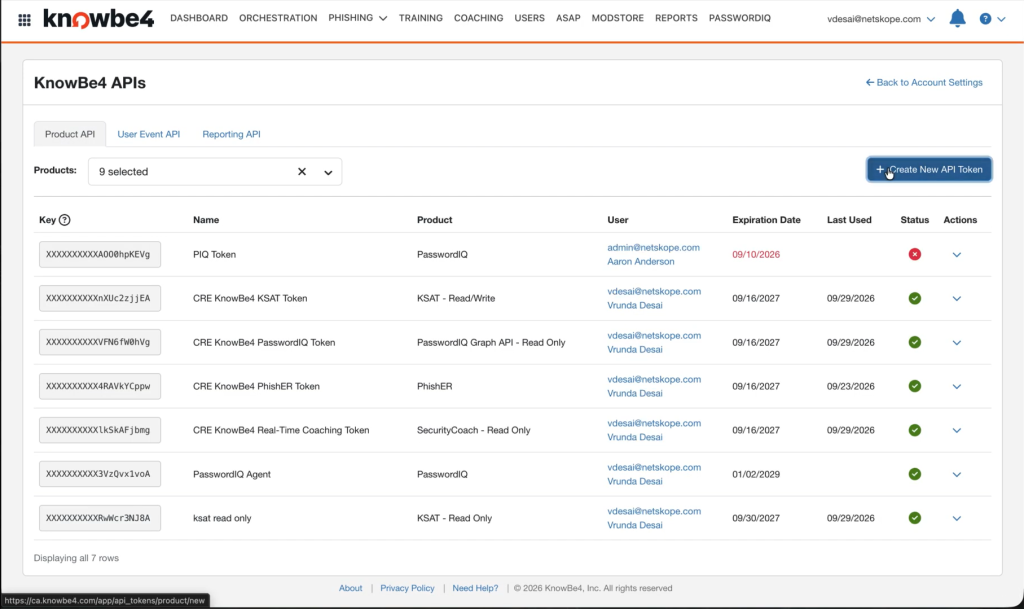
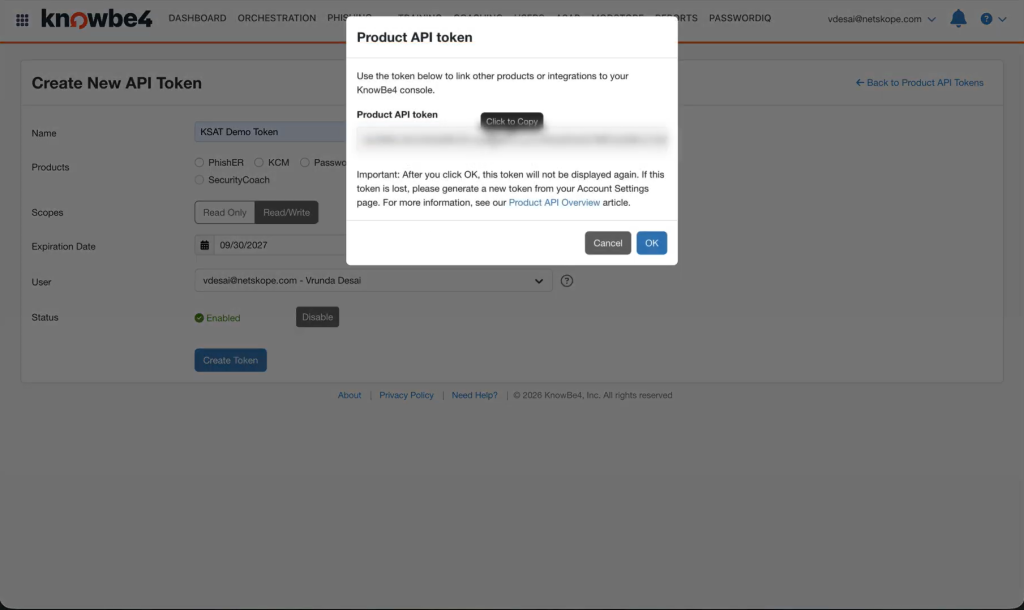
Click Create New API Token to generate a KSAT API token.
-
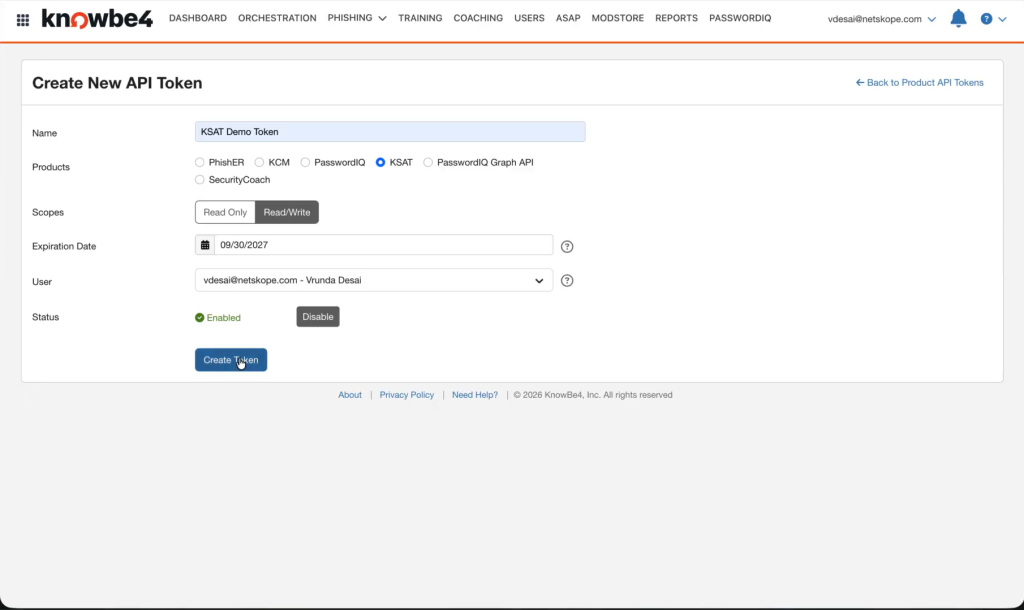
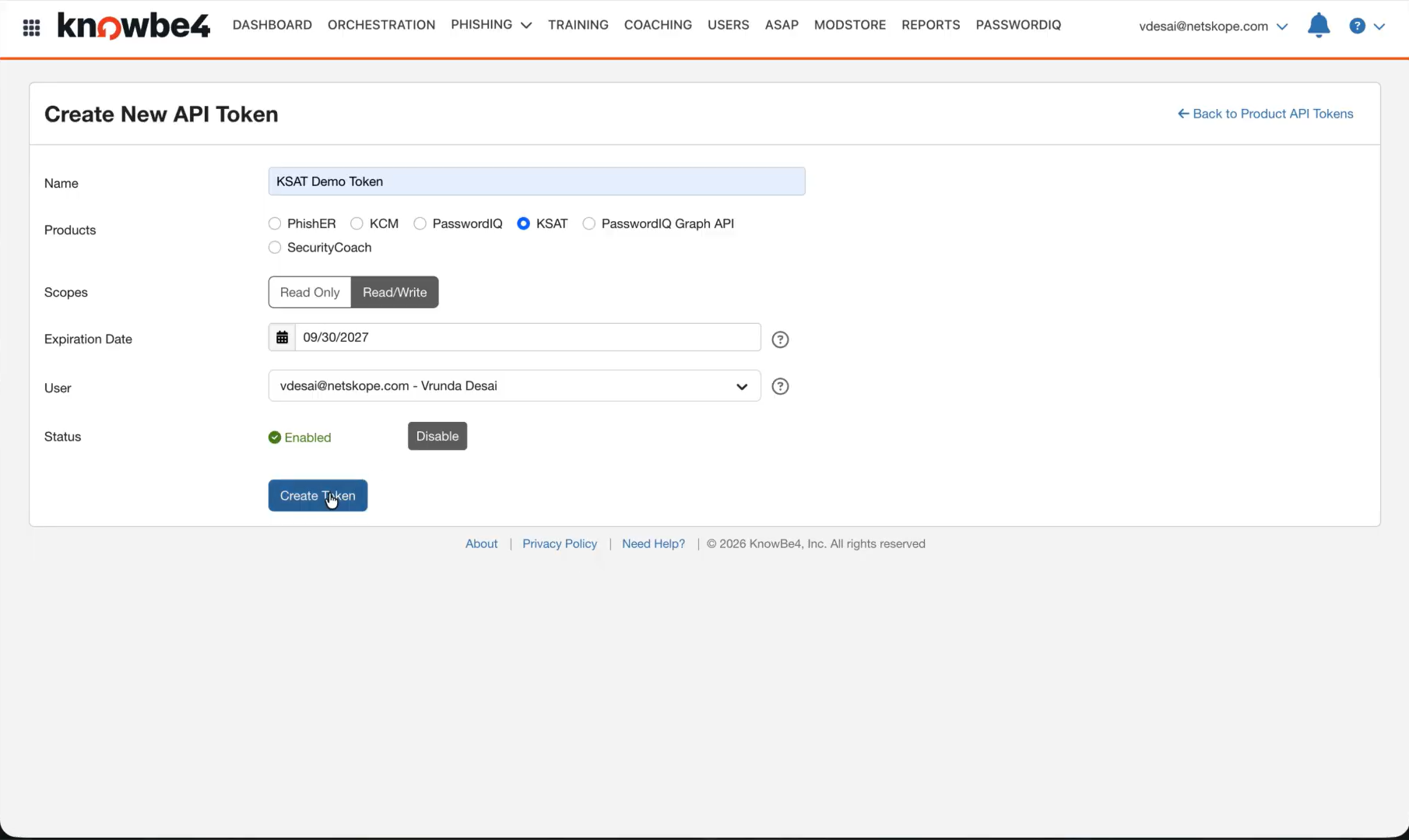
Enter a Name, select KSAT for Products and Read/Write for Scopes, select an Expiration Date and User, and then click Create Token.
-
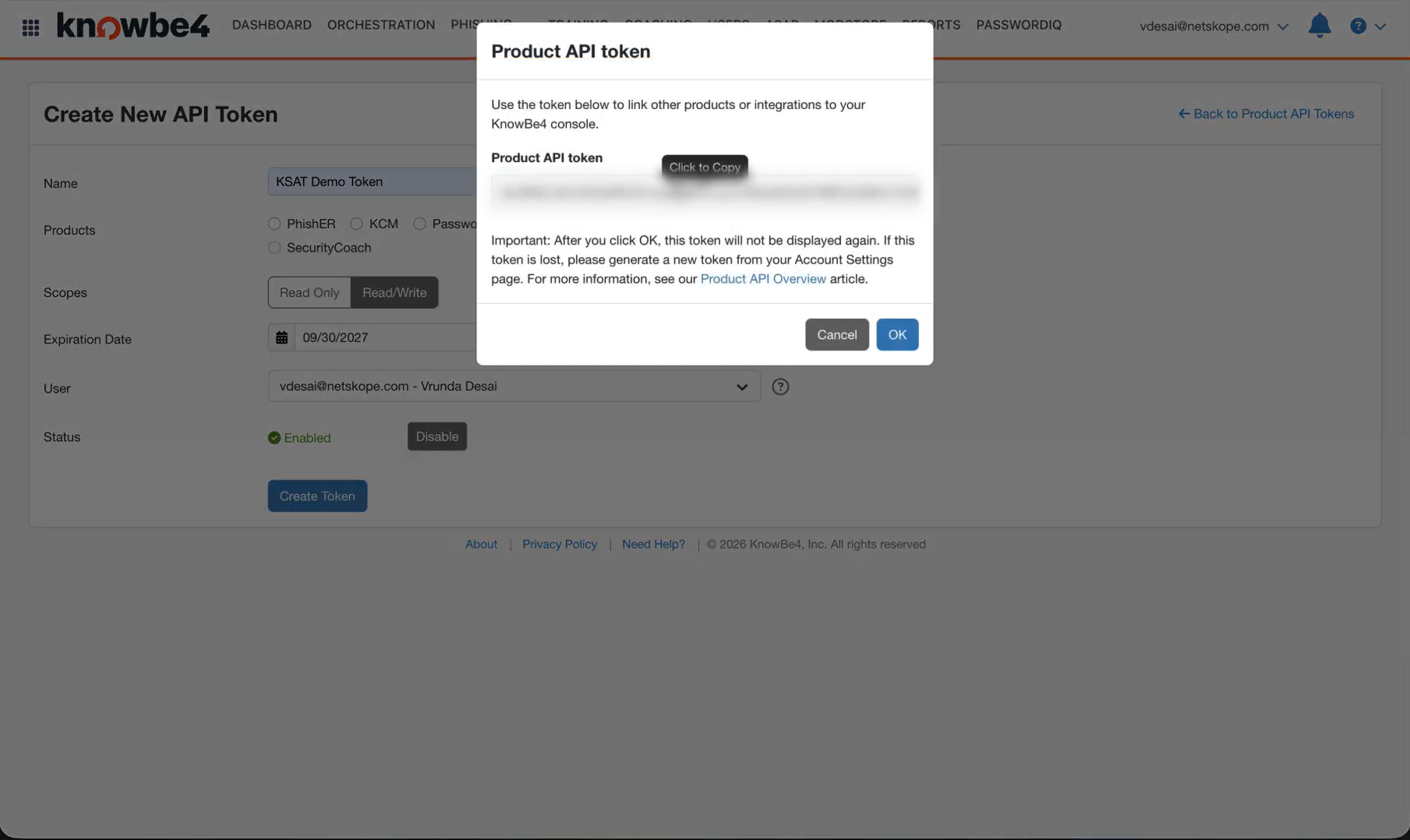
Copy the generated token and click OK.
-
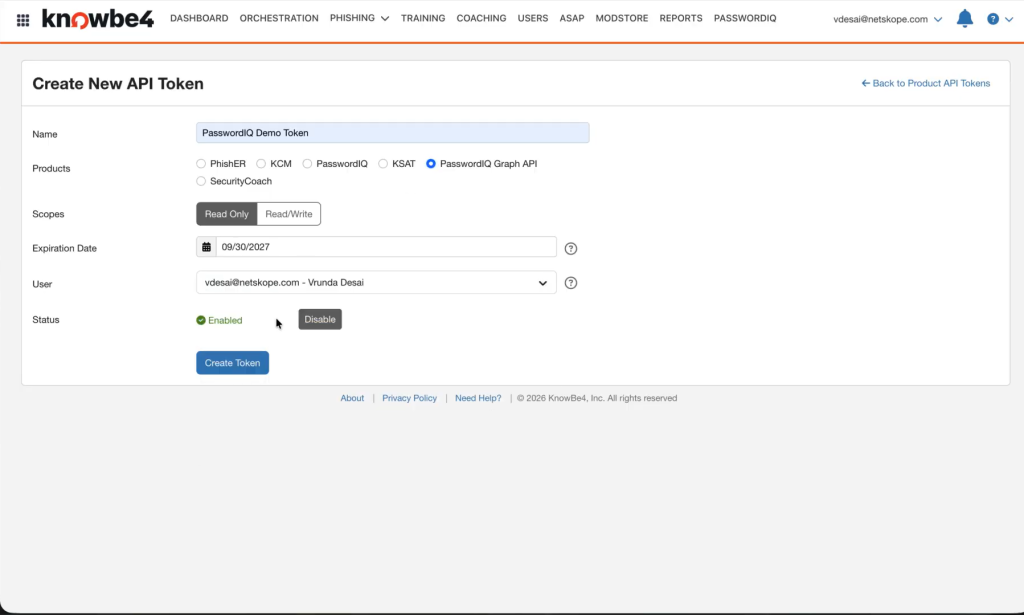
If PasswordIQ is selected for Products, repeat the process in the PasswordIQ product’s API section to generate a PasswordIQ API token.
-
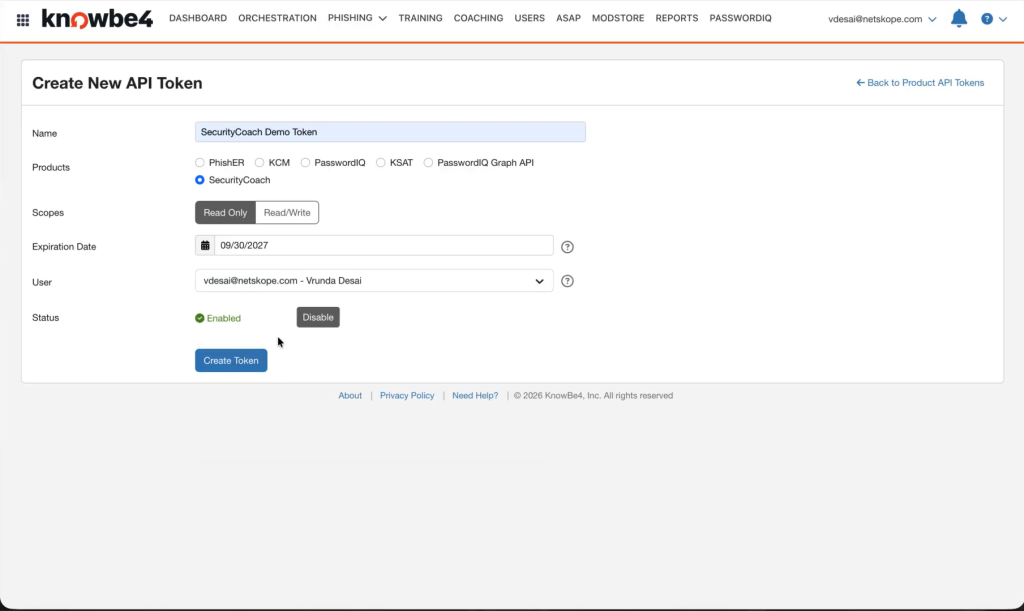
If SecurityCoach is selected for Products, repeat the process in the SecurityCoach product’s API section to generate a SecurityCoach API token.
Configure the KnowBe4 Plugin
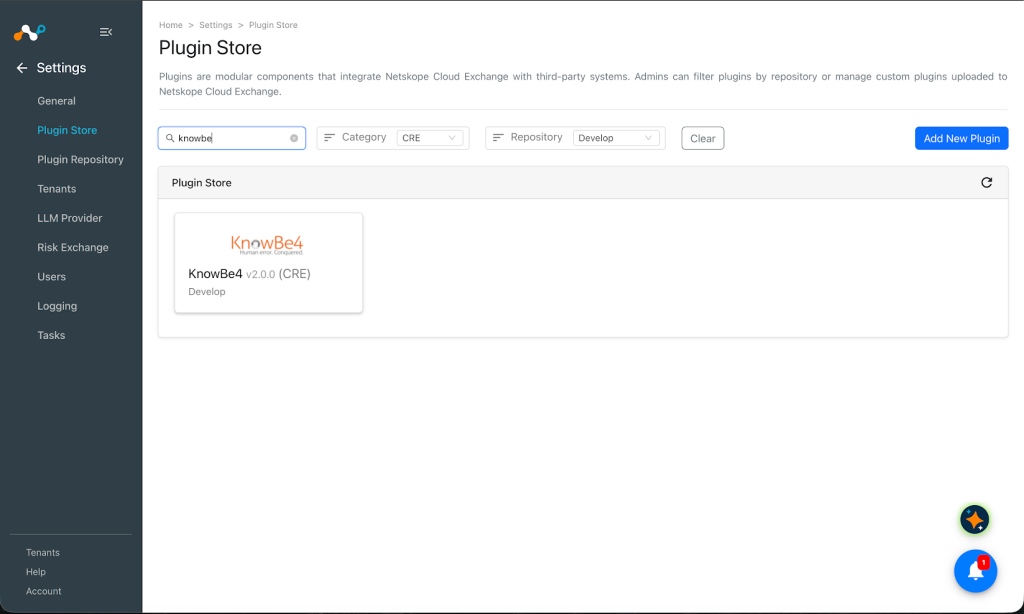
-
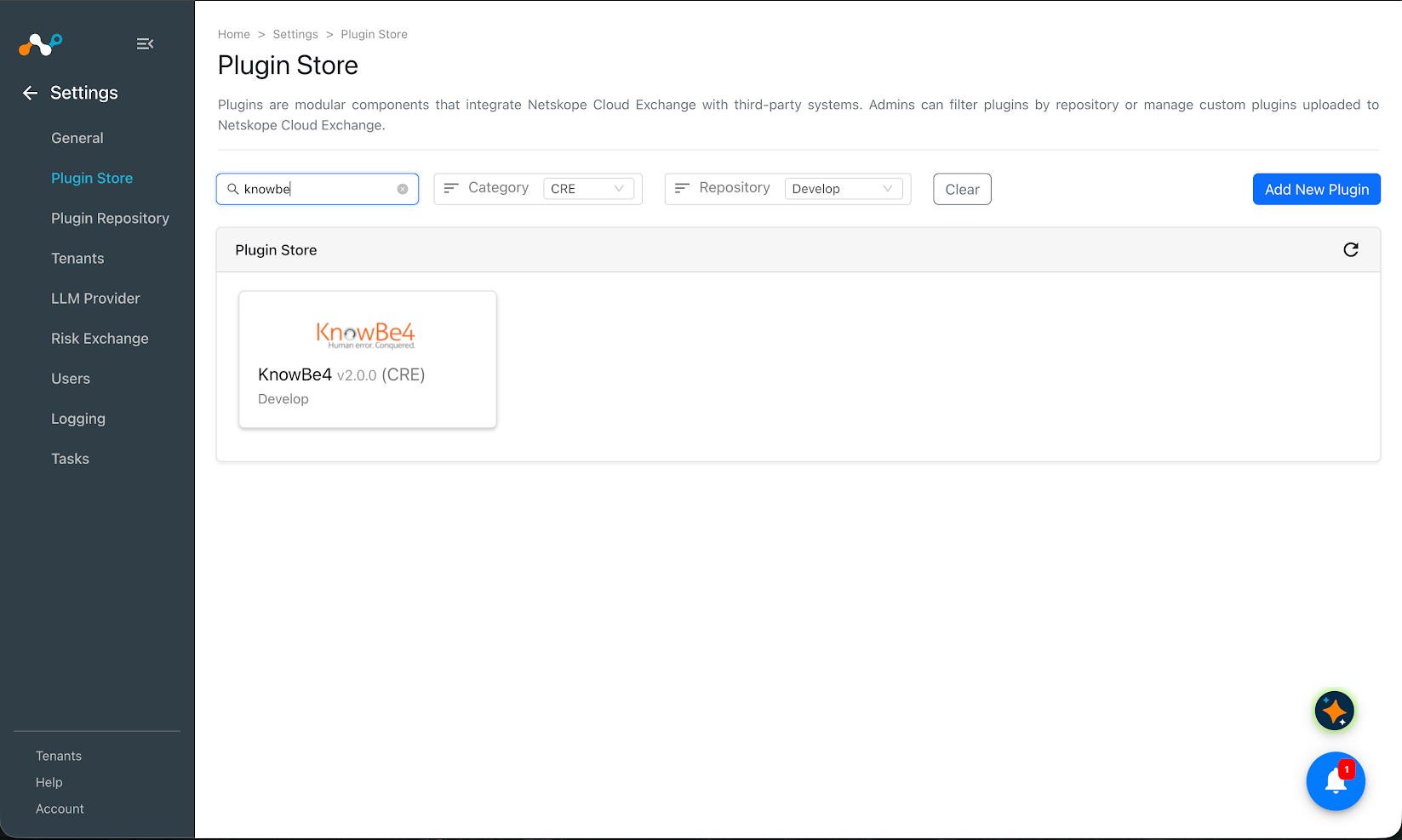
In Cloud Exchange, go to Settings > Plugin Store. Search for and select the KnowBe4 v2.0.0 (CRE) plugin.
-
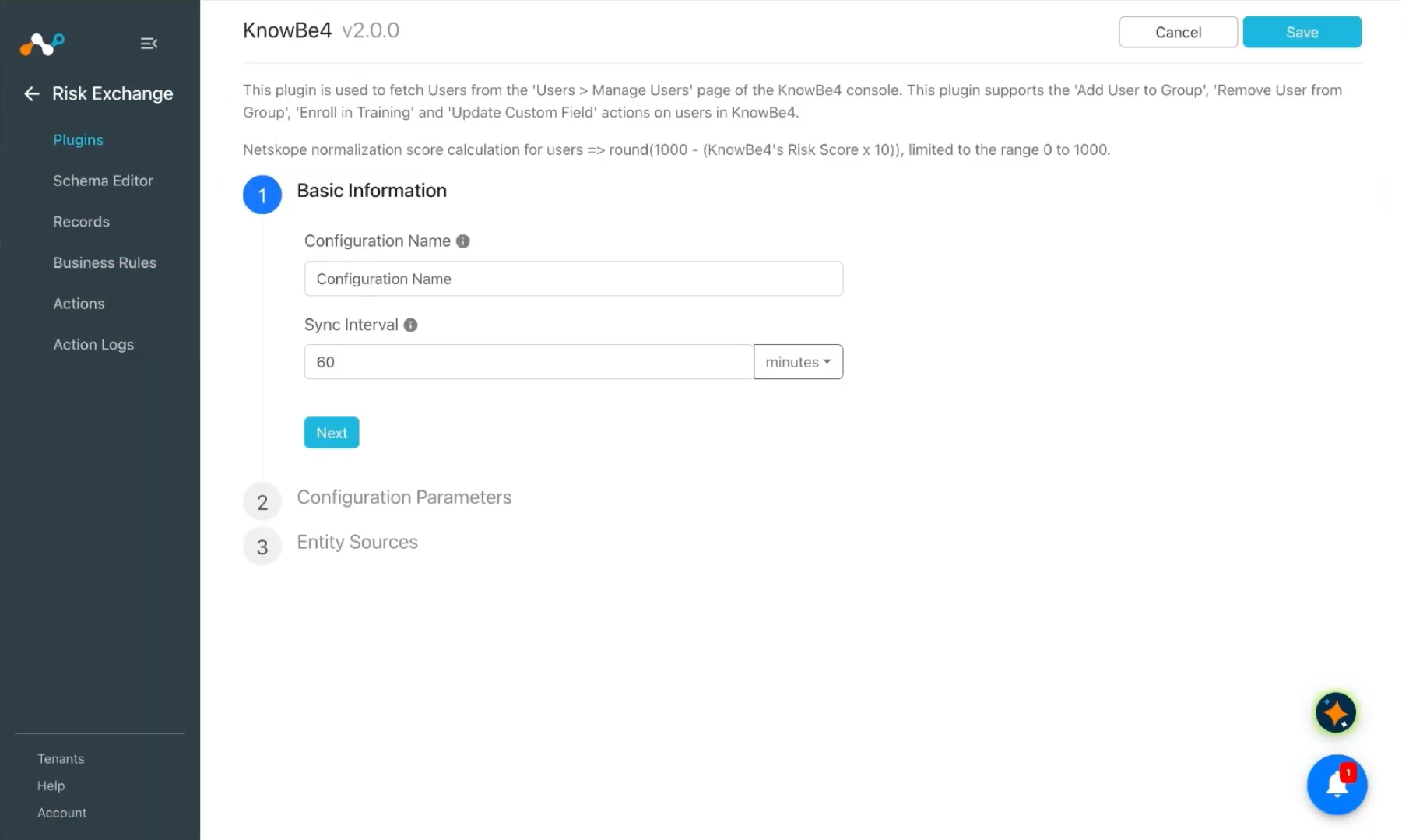
Enter a Configuration Name and change the Sync Interval if needed.
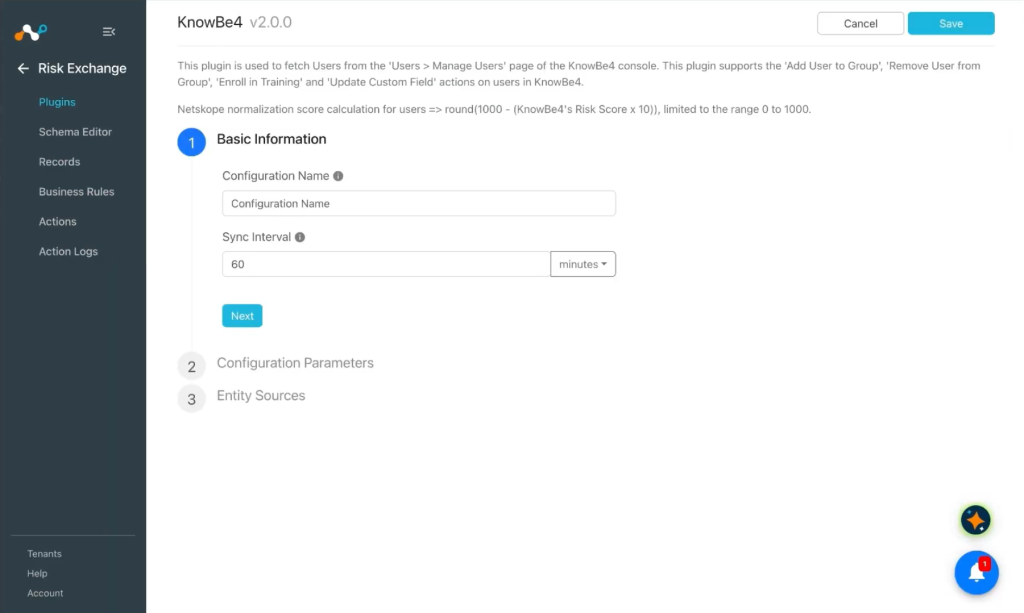
-
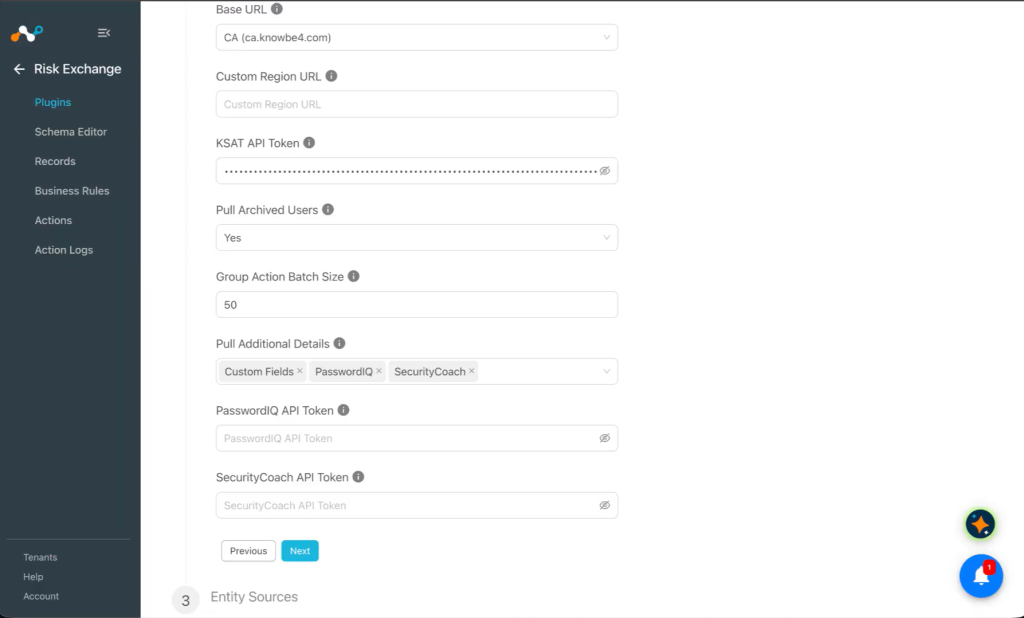
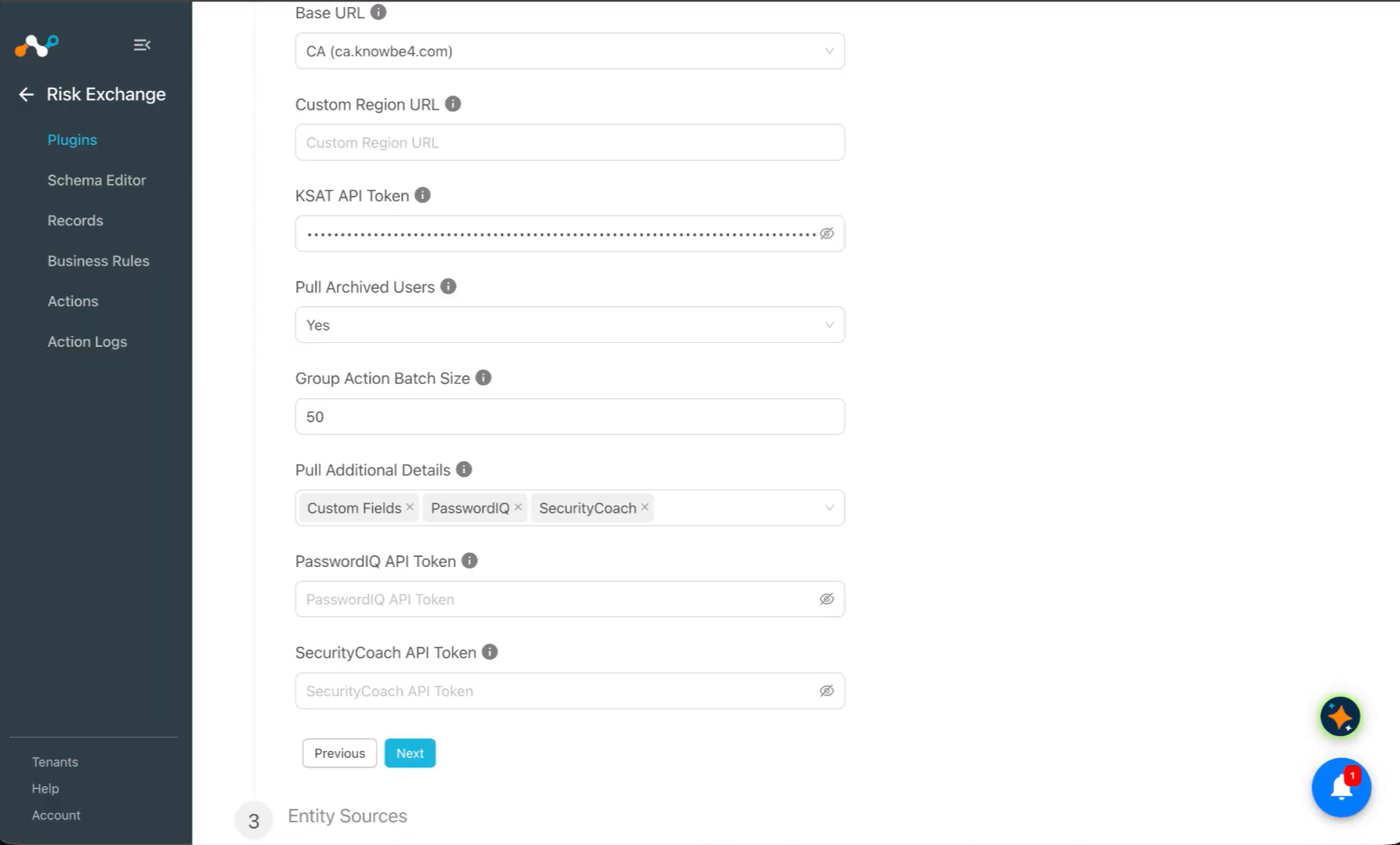
Click Next and enter the Configuration Parameters:
- Base URL: Base URL of the tenant’s KnowBe4 account, without a path.
- Custom Region URL: Base URL of the tenant’s KnowBe4 deployment, without a path. Required only when Base URL is set to Custom Region URL.
- KSAT API Token: API token of the KnowBe4 Security Awareness Training (KSAT) product.
- Pull Archived Users: Select Yes to also pull archived users in addition to active ones; select No to pull only active users.
- Group Action Batch Size: Number of users sent in a single Add User to Group or Remove User from Group API call. Valid range 1–100. Default is 50.
- Pull Additional Details: Select which additional details to pull for each user: Custom Fields, PasswordIQ, or SecurityCoach.
- PasswordIQ API Token: API token of the KnowBe4 PasswordIQ product. Shown and required only when PasswordIQ is selected in Pull Additional Details.
- SecurityCoach API Token: API token of the KnowBe4 SecurityCoach product. Shown and required only when SecurityCoach is selected in Pull Additional Details.
-
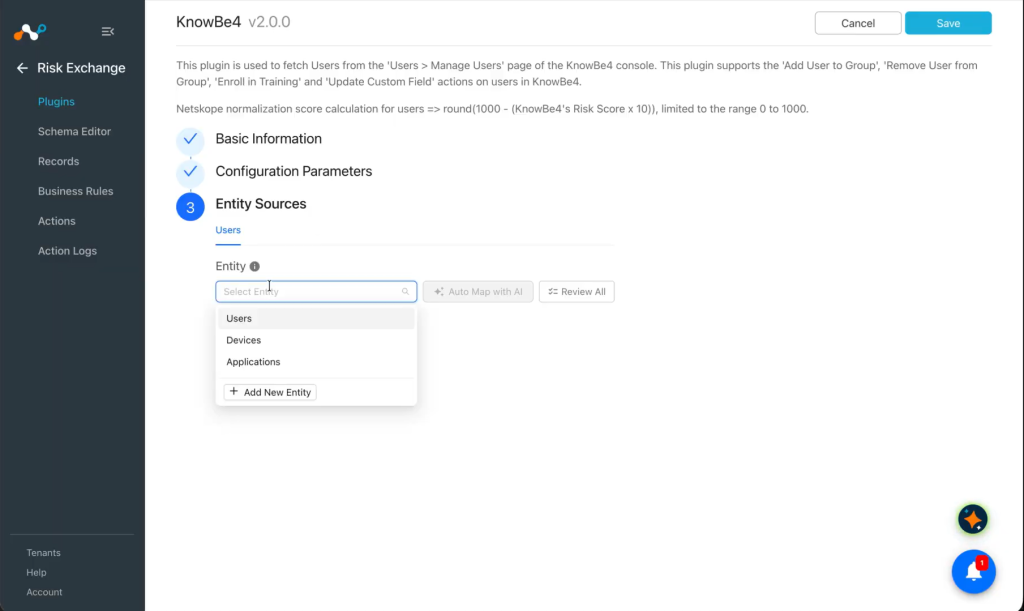
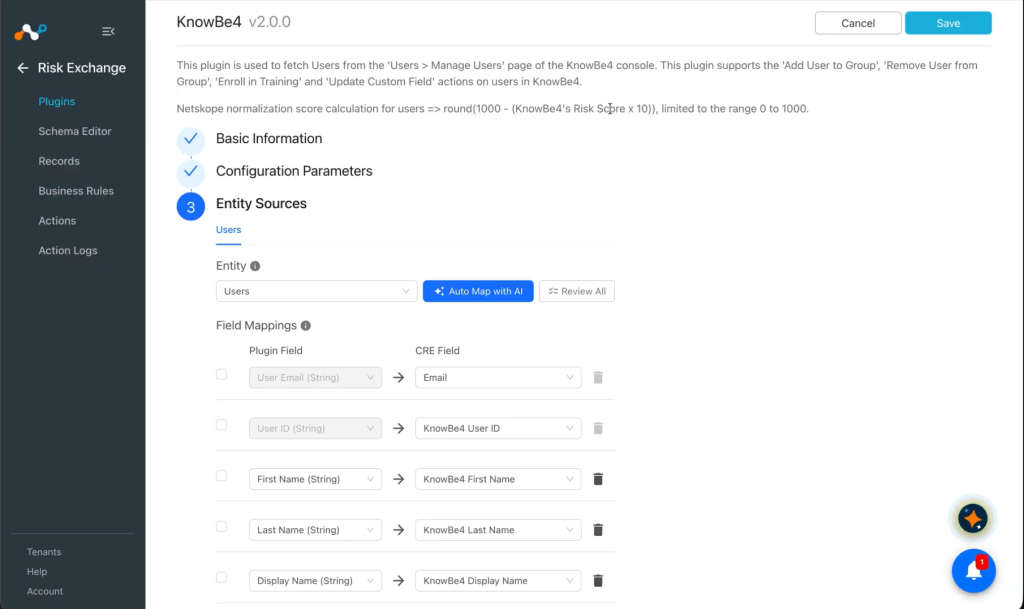
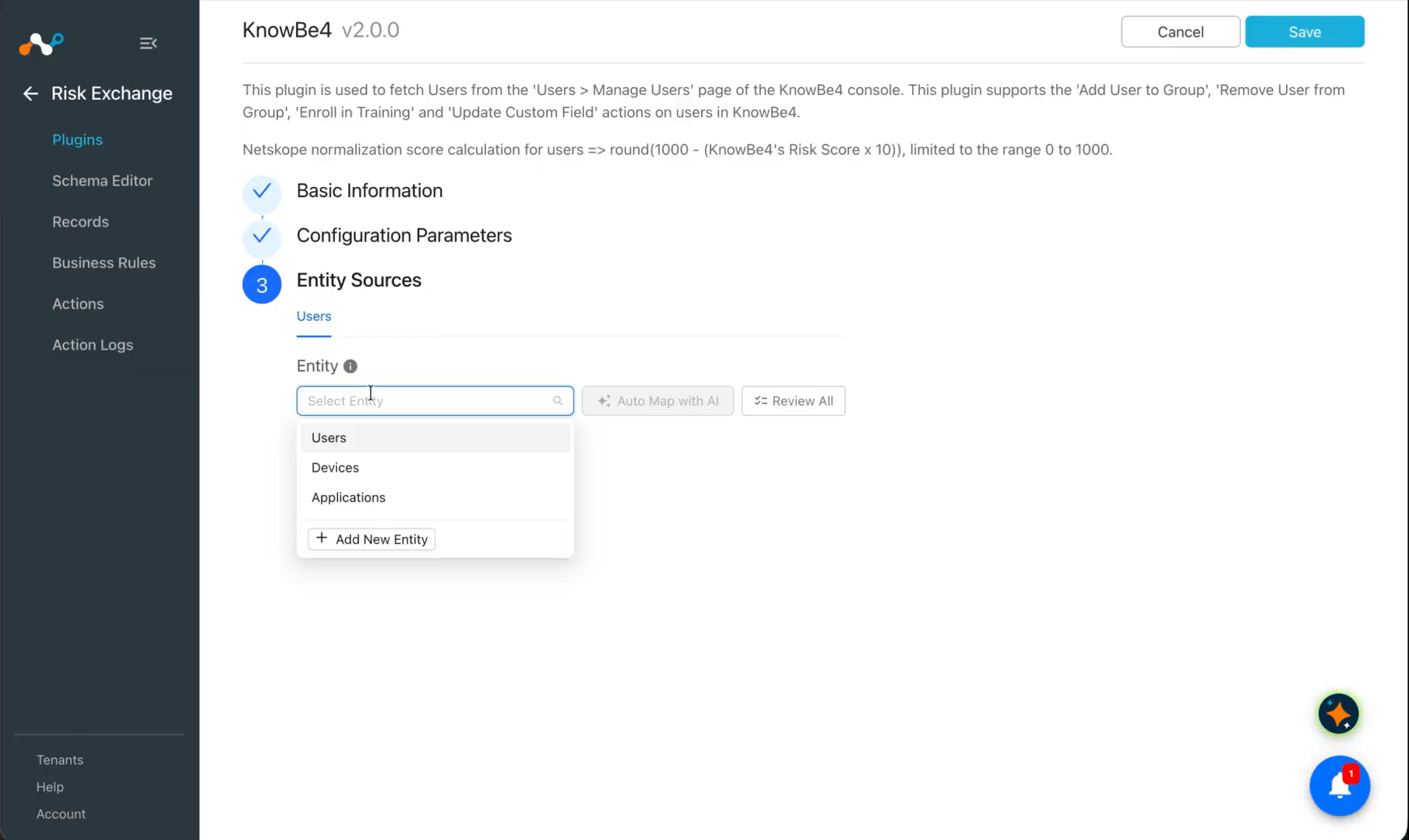
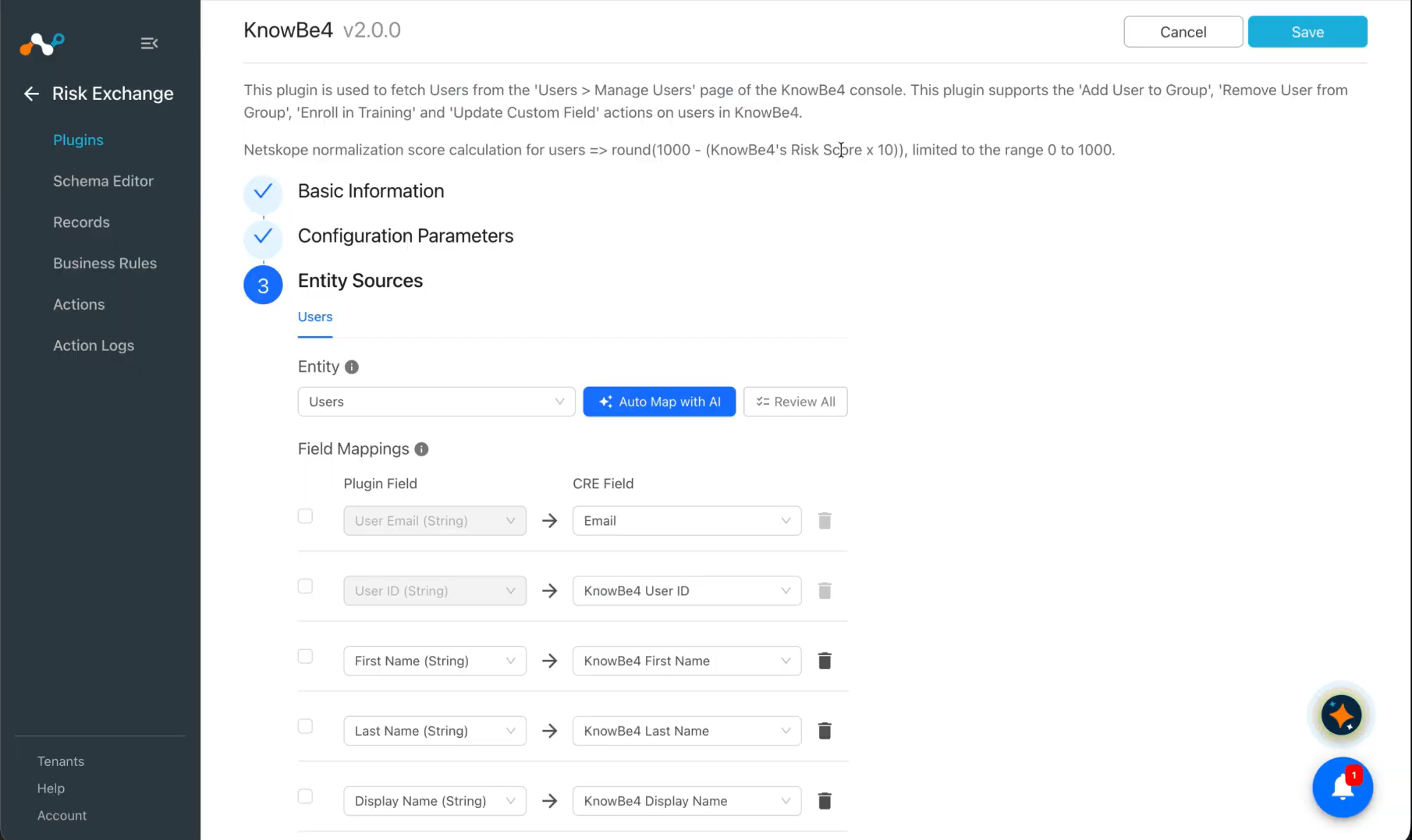
Click Next and configure the Entity source for Users. Select Users from the Entity dropdown, or click Add New Entity to create a new entity.
-
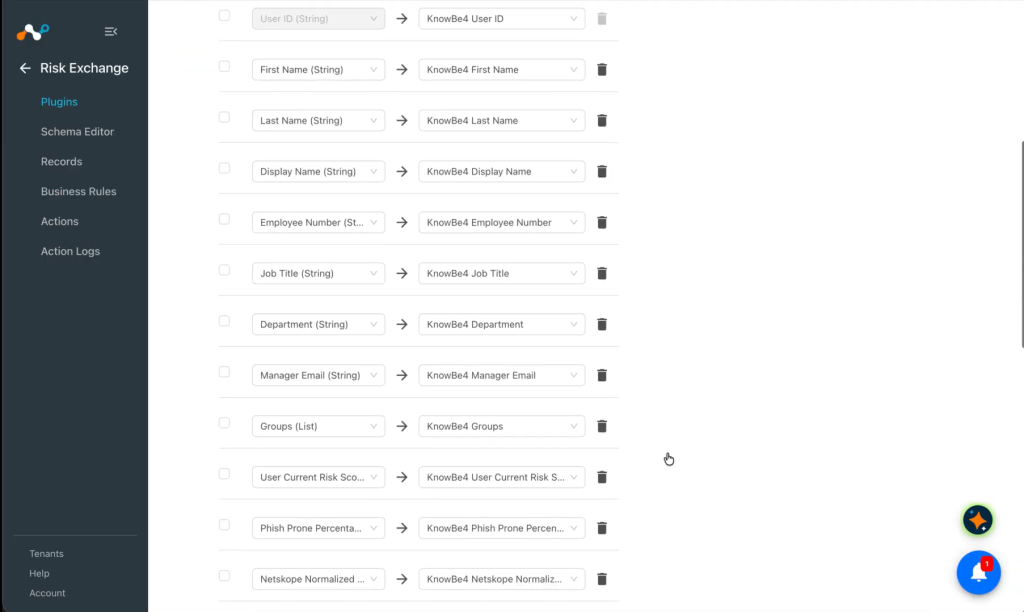
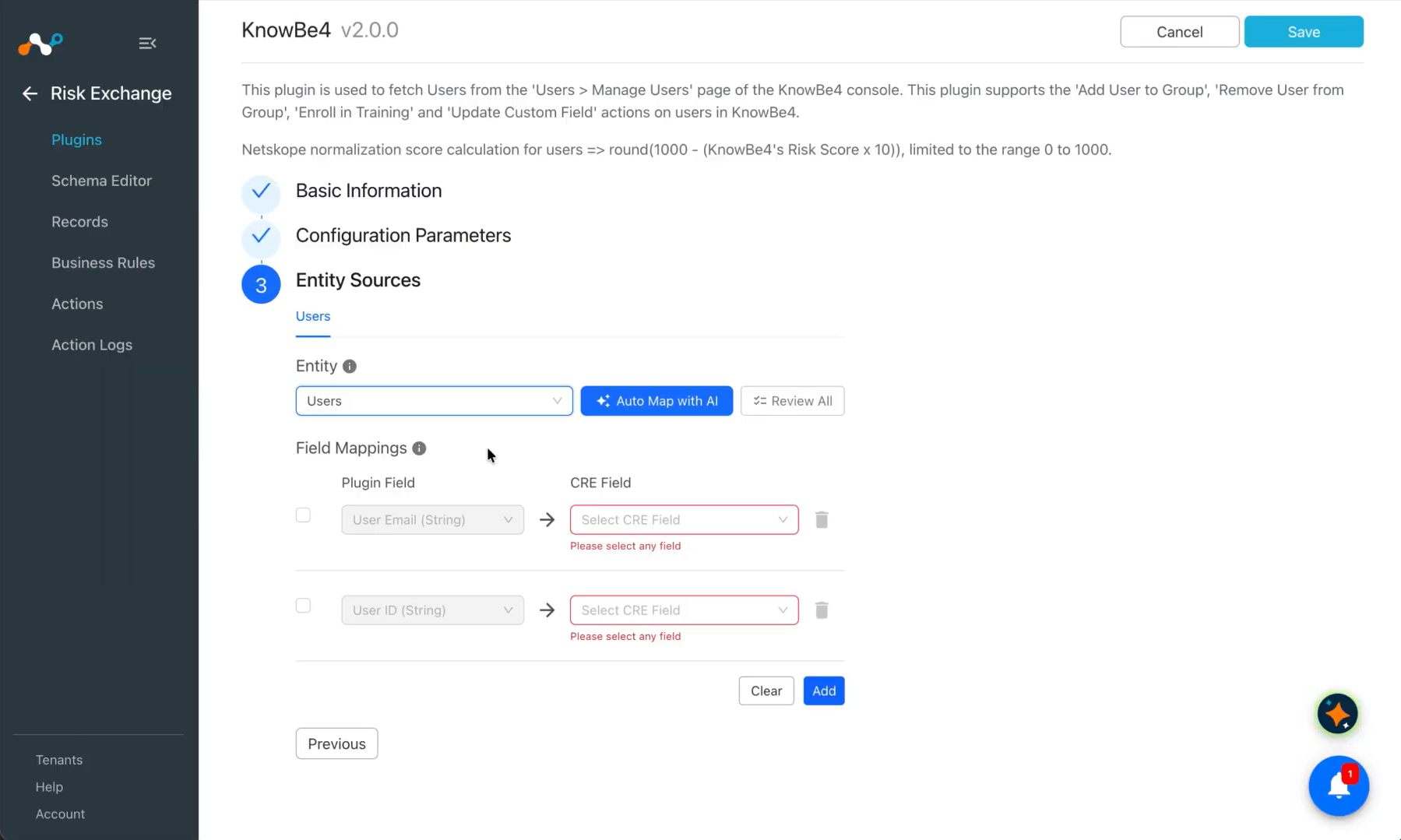
Map the plugin fields for the users entity with Risk Exchange fields (map the email string field of the plugin with the Email string field of the Users entity).
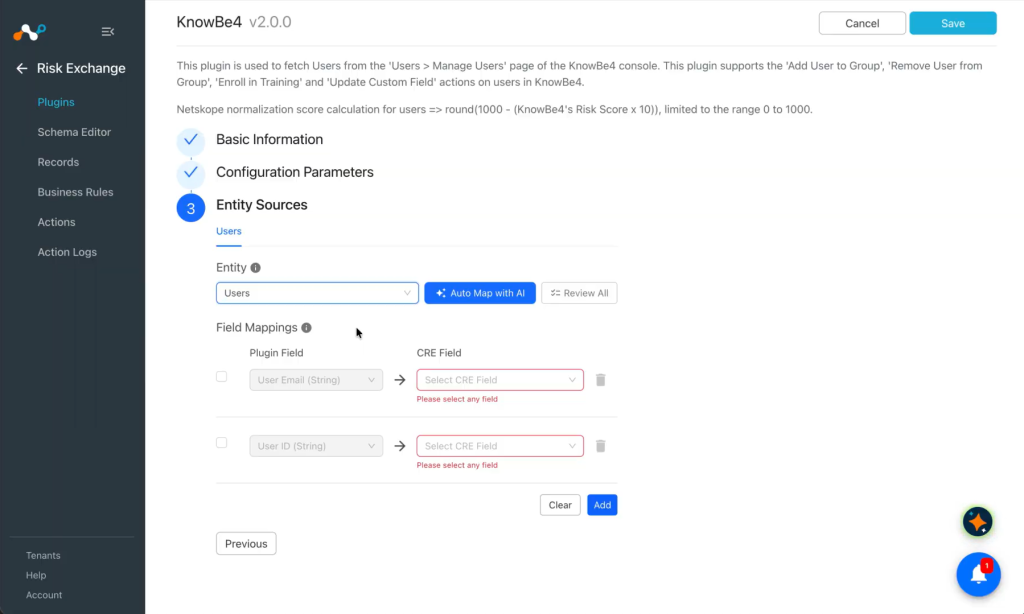 Data type of the field will be enclosed in “()”
 -
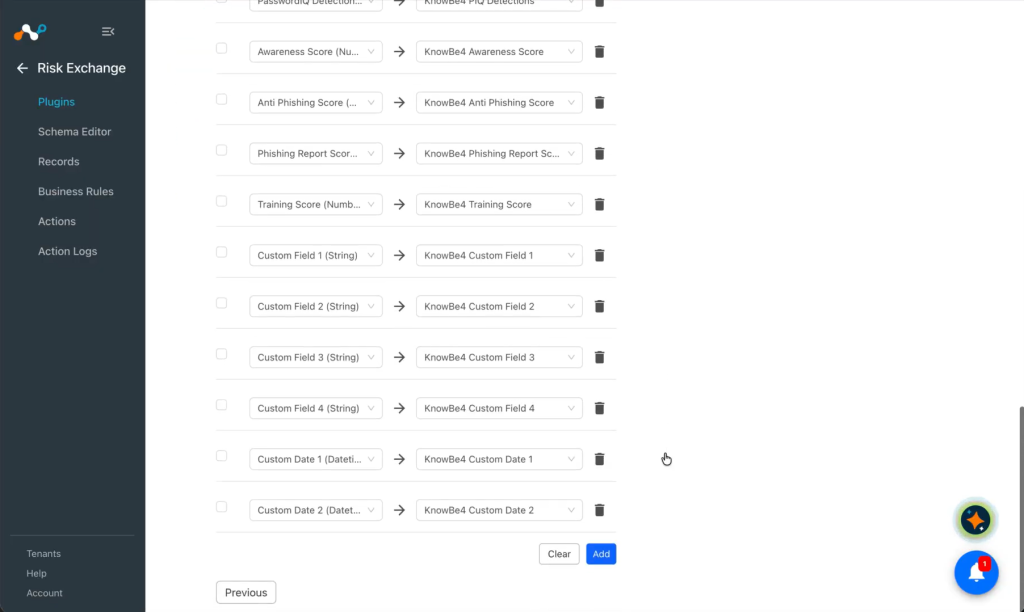
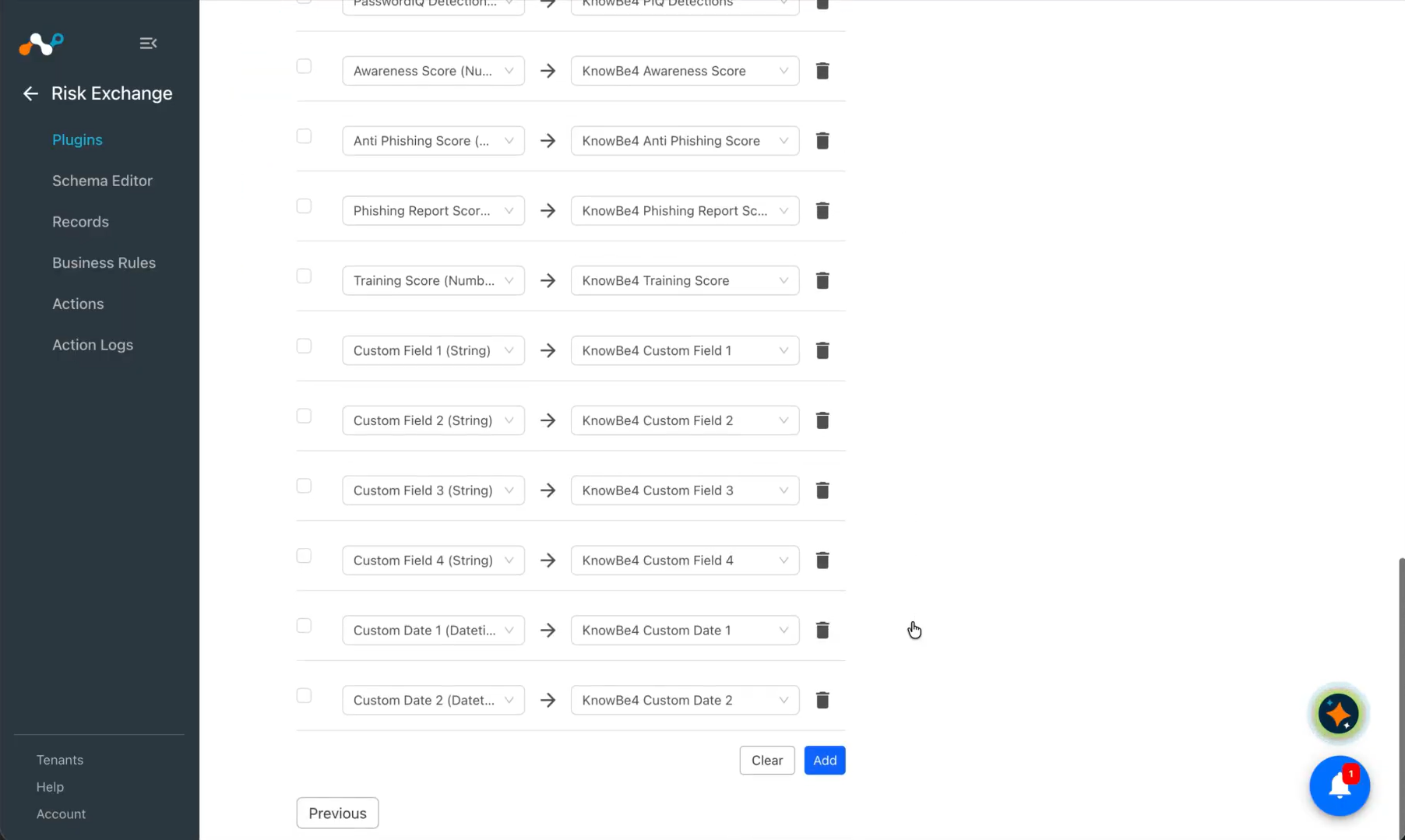
Click Add to map multiple fields.
-
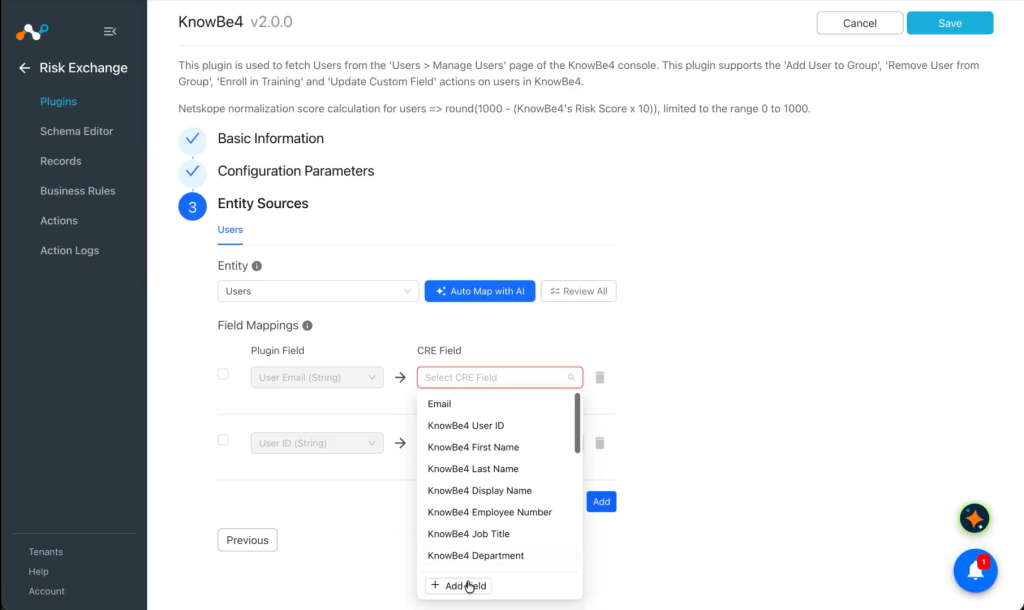
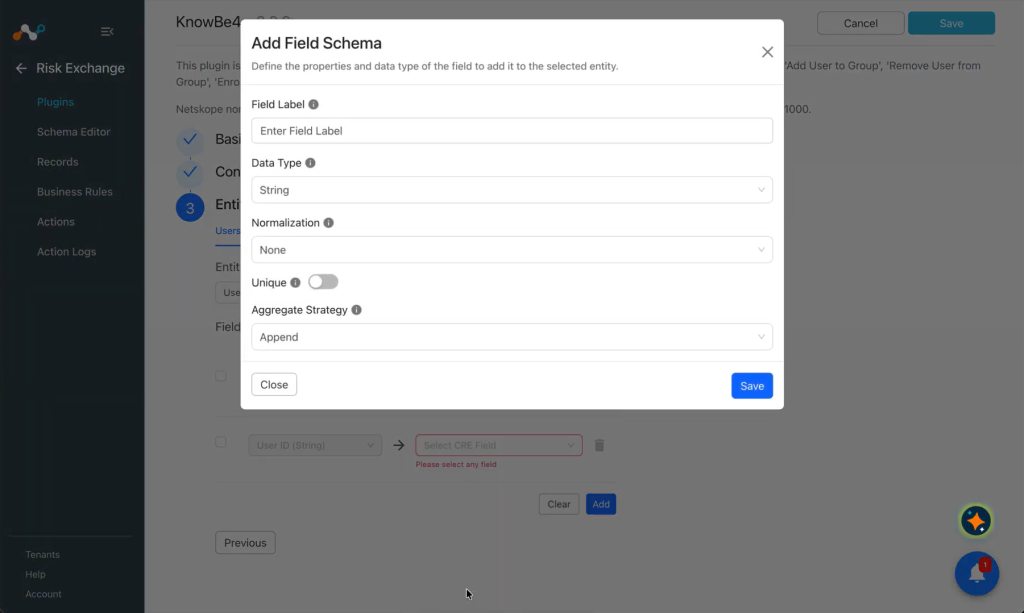
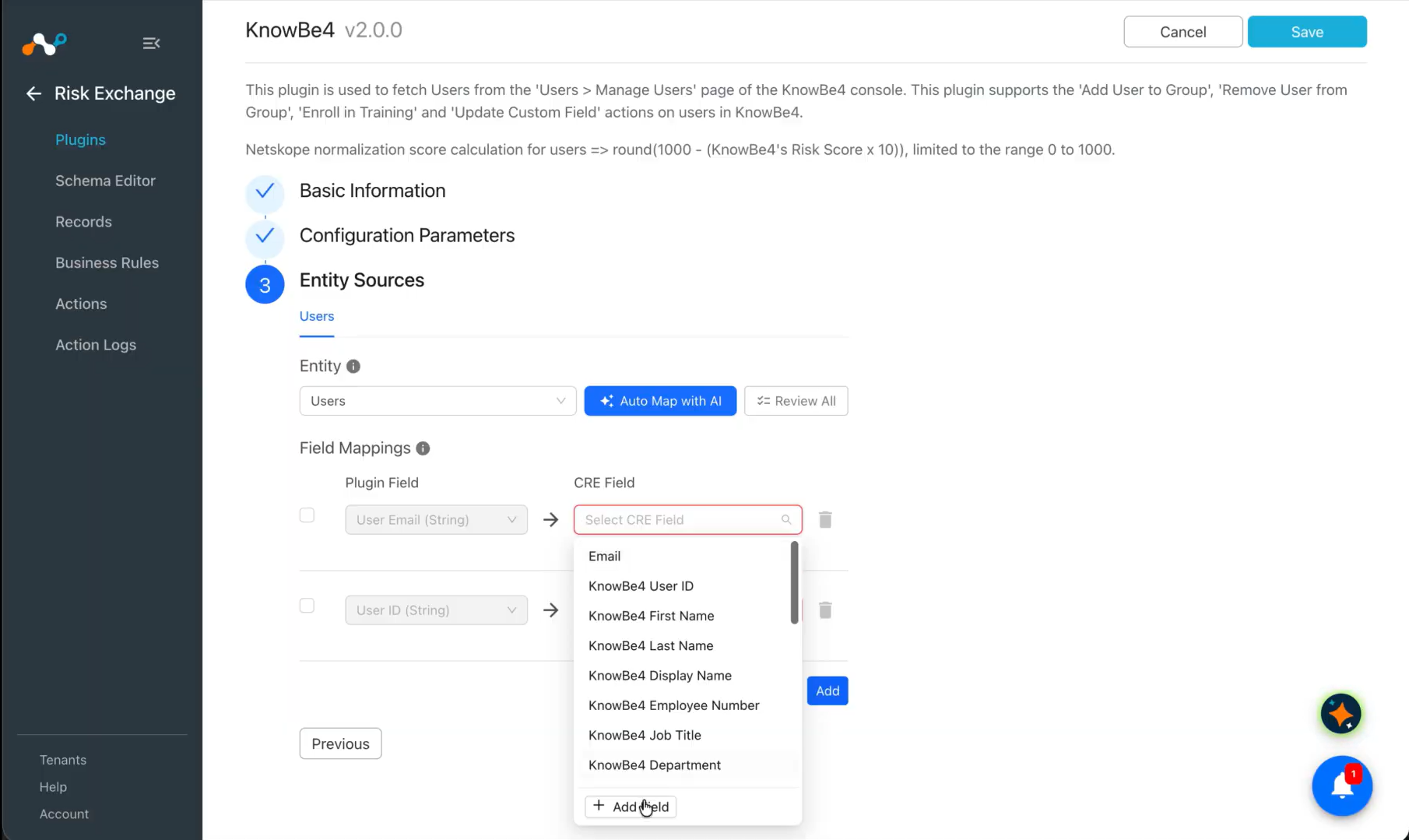
Click Add Field to add a field in the Users entity.
-
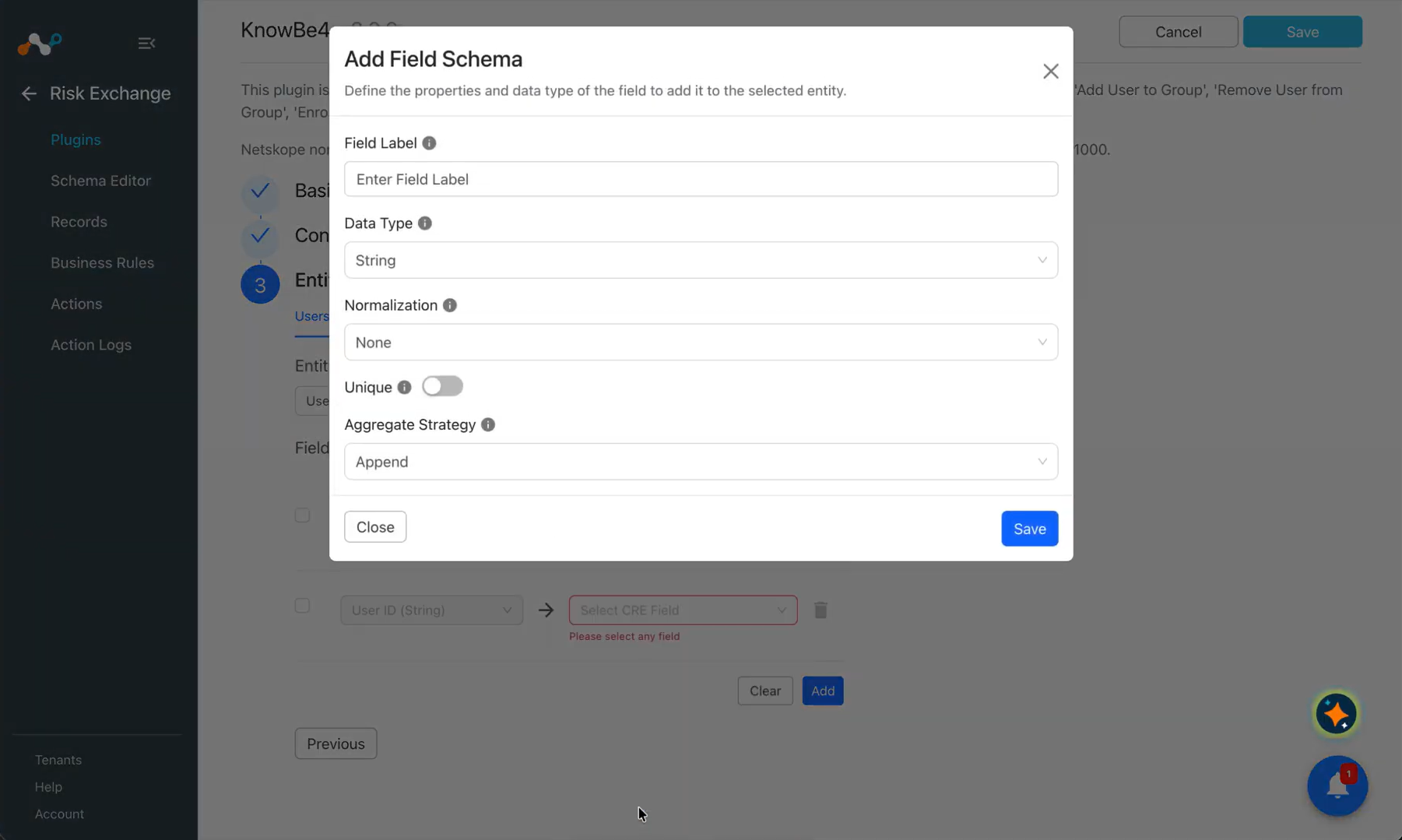
Add a Field Label, select a Data Type, Normalization, enable or disable the Unique restriction for the new field being added, and then select an Aggregate Strategy. When finished, click Save.
-
Map all the fields for Users Entity.
-
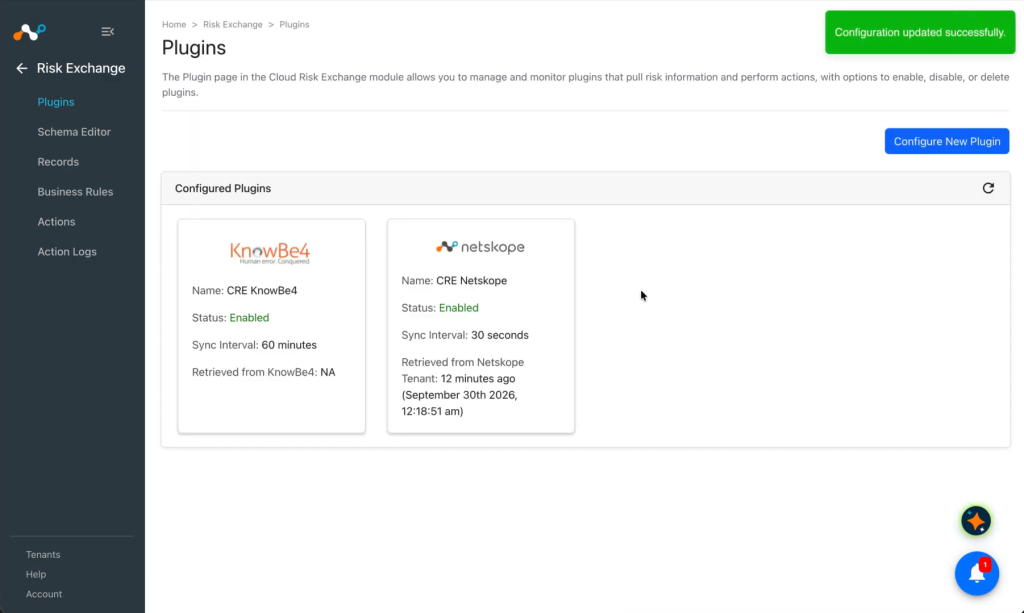
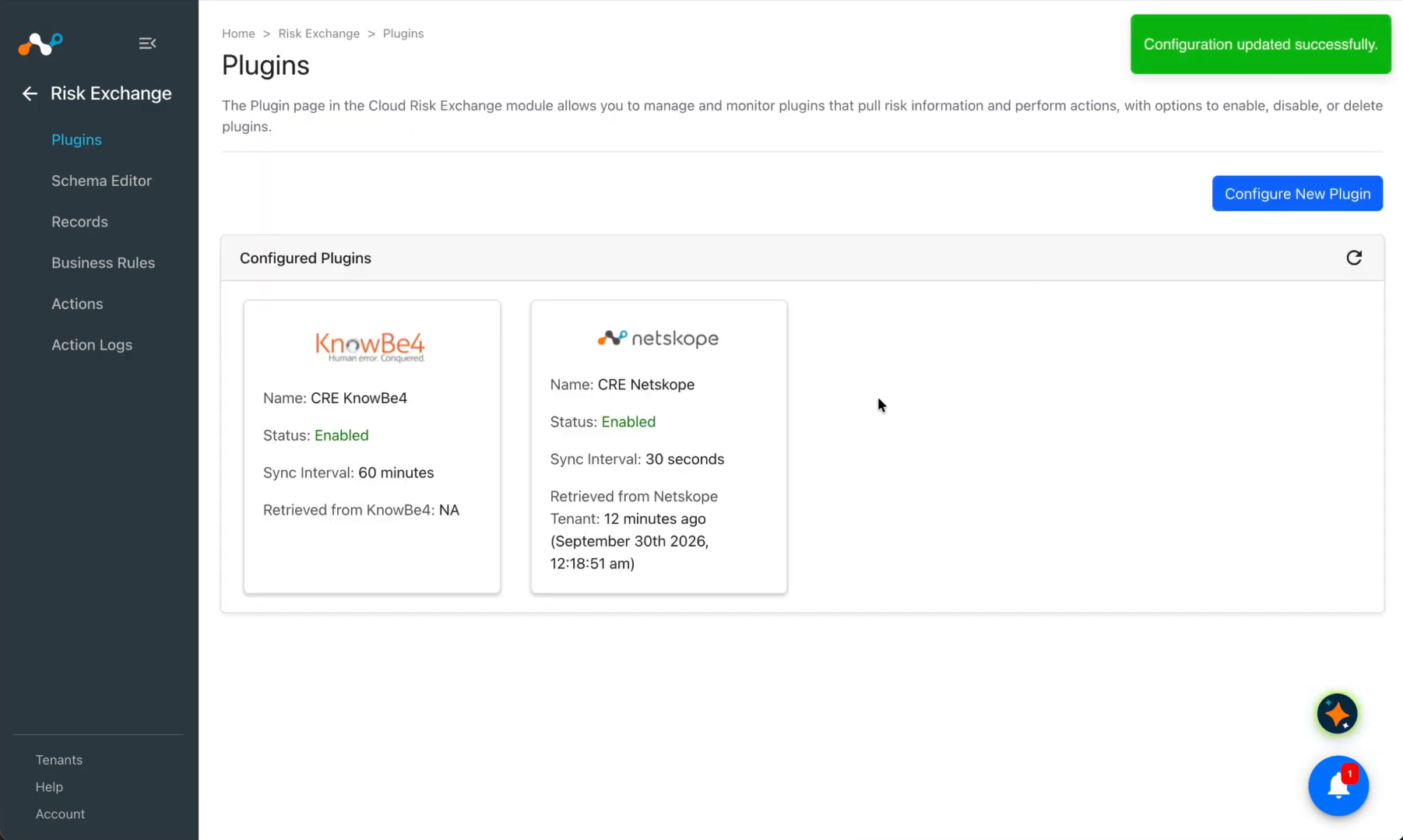
Click Save. Your plugin will appear on the Plugins page.
Configure a Risk Exchange Business Rule for KnowBe4
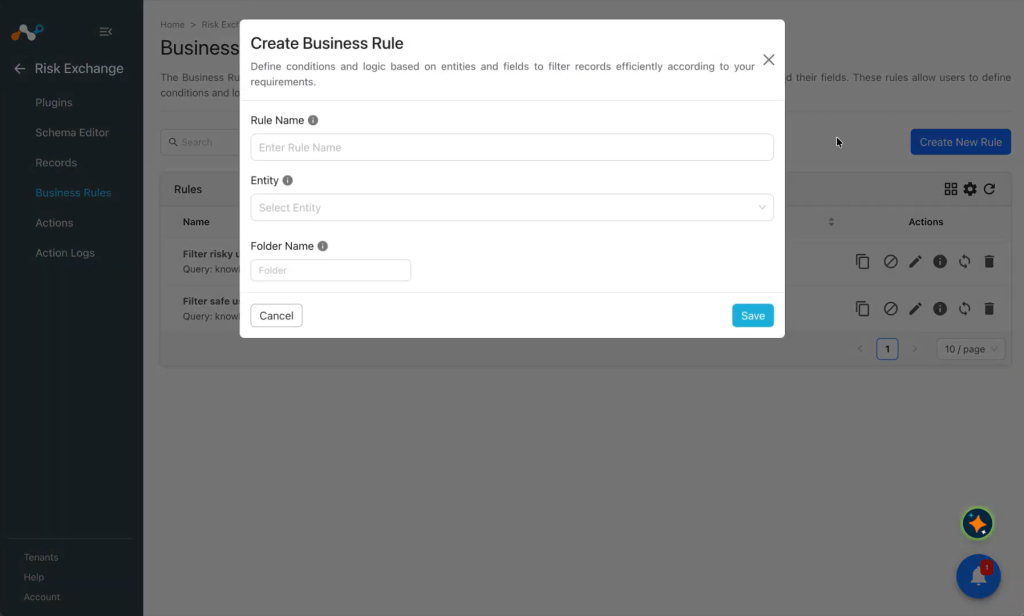
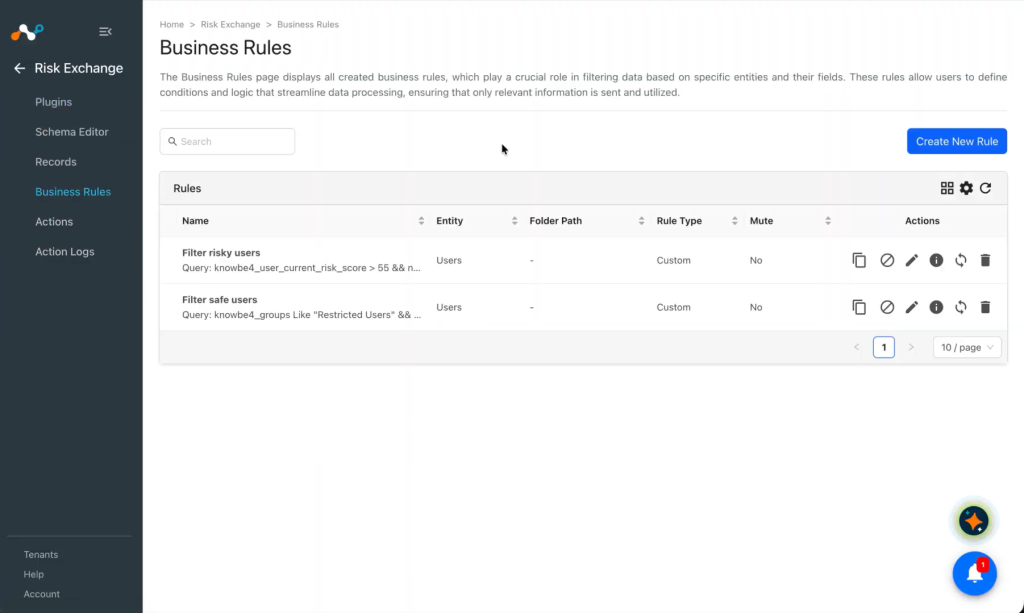
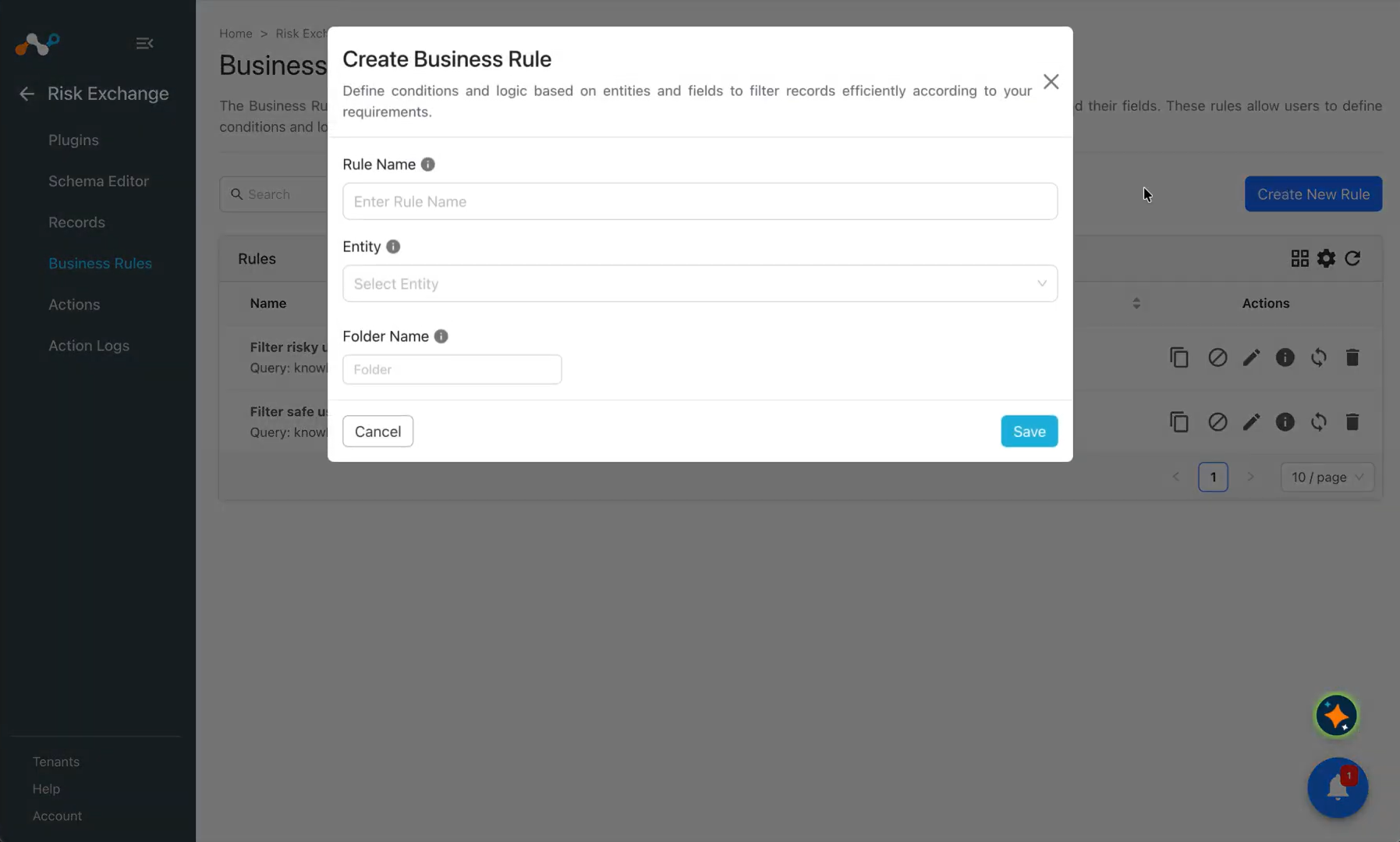
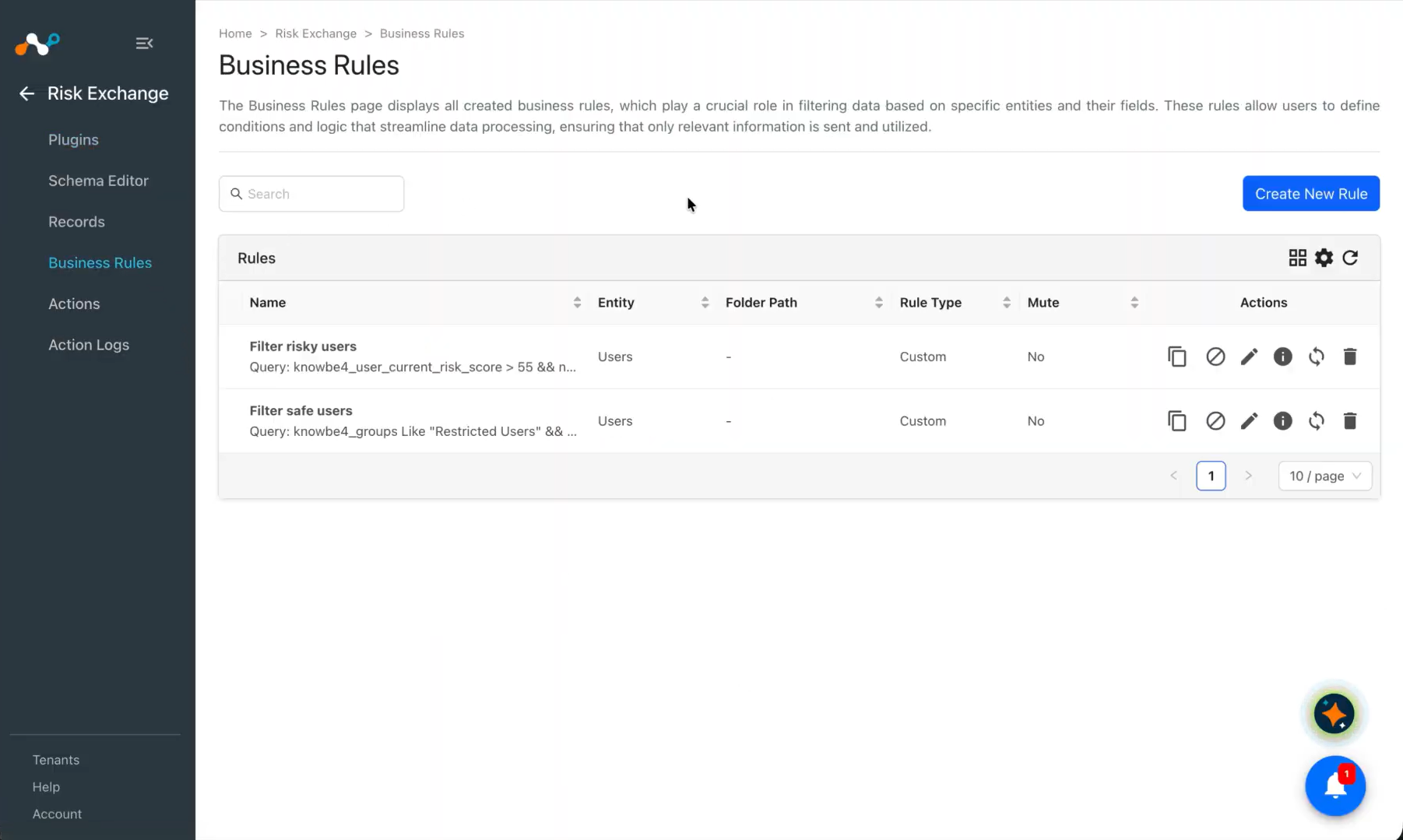
- In Risk Exchange, go to Business Rules and click Add Business Rule.
- Configure the source and filter conditions.
- Click Save.
Configure a Risk Exchange Action for KnowBe4
Note
All of the actions are one of two types:
- Source: This type represents the field of the Entity (like Users, Application, Devices Entity). This type can have dynamic values for each record of the entity.
- Static: This type represents the static value for a particular action.
To configure actions:
-
Go to Risk Exchange > Actions.
-
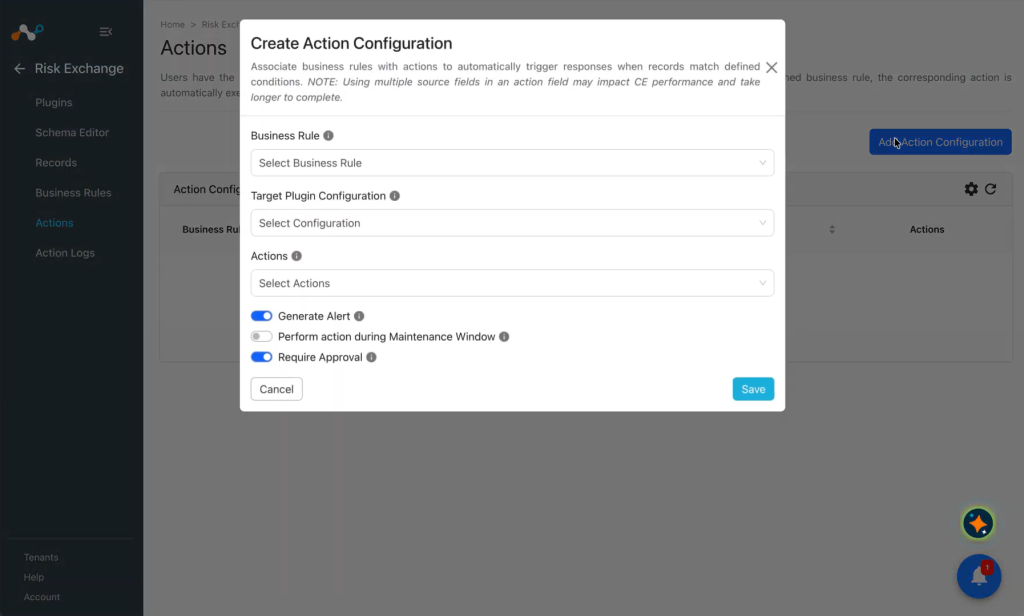
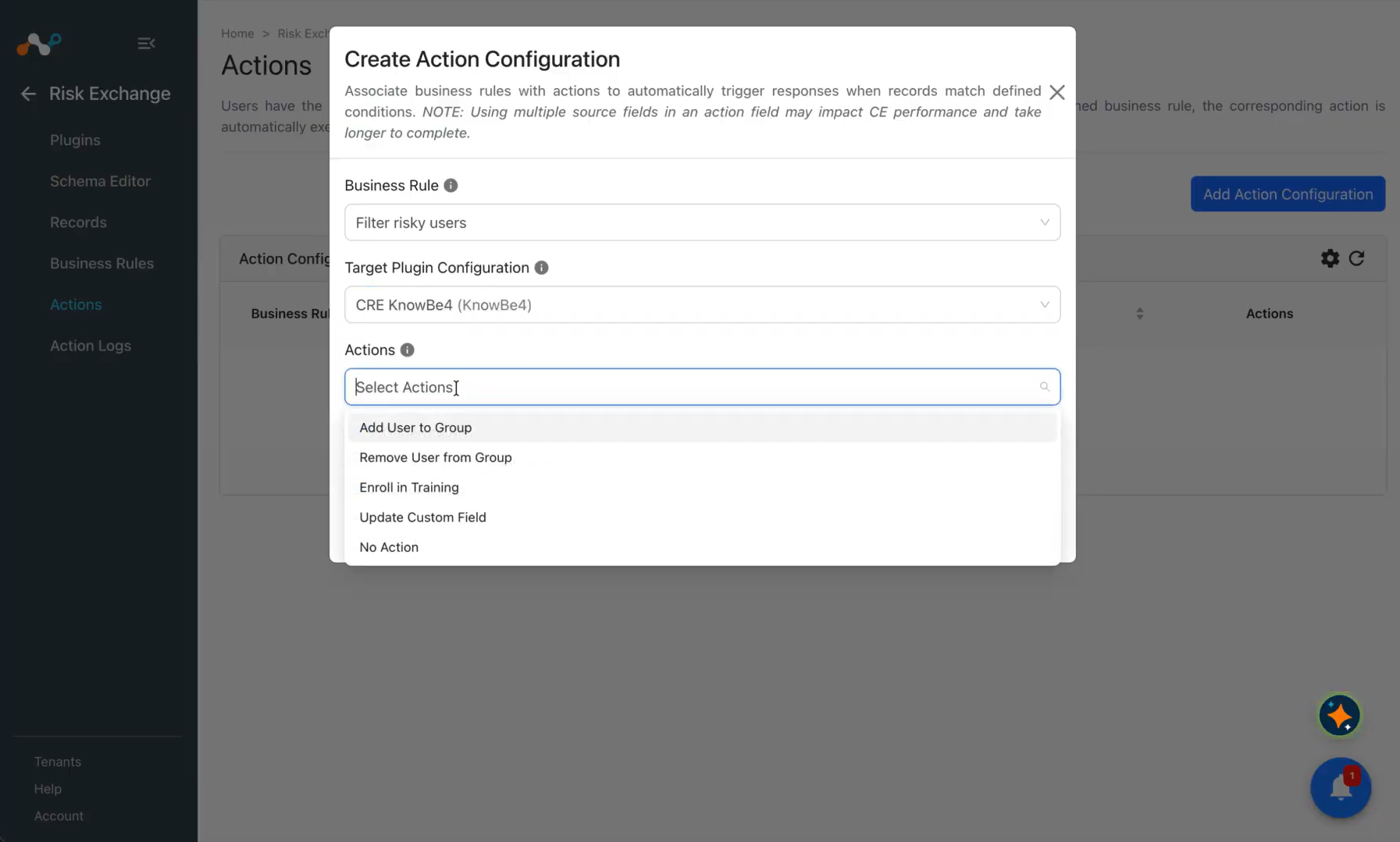
Click Add Action Configuration.
-
From the Business Rule dropdown, select the Business Rule you created.
-
From the Configuration dropdown, select your plugin.
-
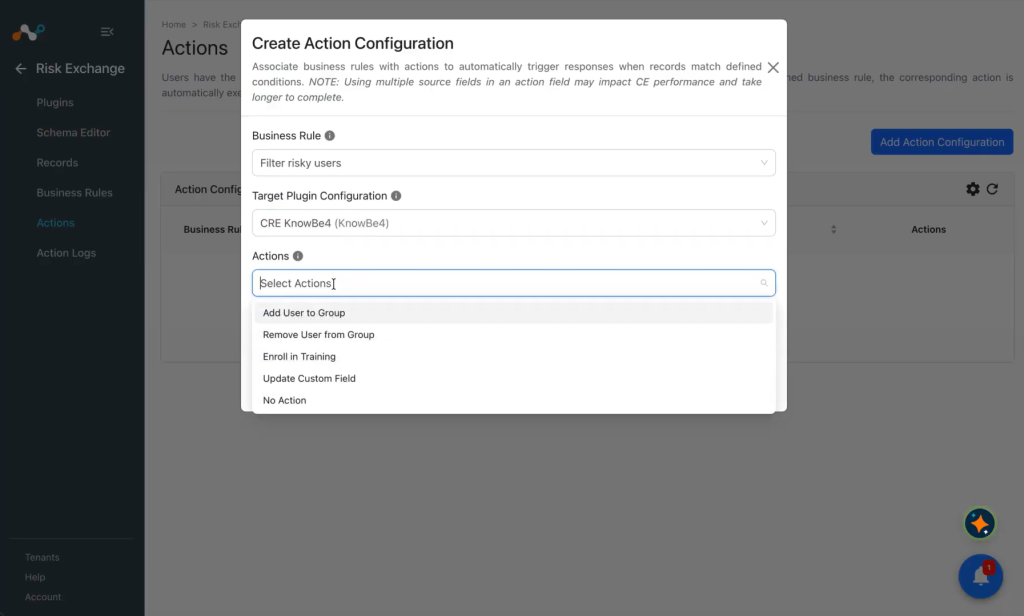
From the Actions dropdown, select one of these actions:
- Add User to Group: When triggered, it will add users to a group.
- Remove User from Group: When triggered, it will remove users from a group.
- Enroll in Training: When triggered, it will enroll users to training.
- Update Custom Field: When triggered, it will update any of the custom fields of the user.
- No action: This does not perform any actions on users. When No Action is selected, enable the Generate Alert toggle so that new alerts are added in the Ticket Orchestrator module.
Make sure to enable the CTO (Ticket Orchestrator) module at Settings > General.
-
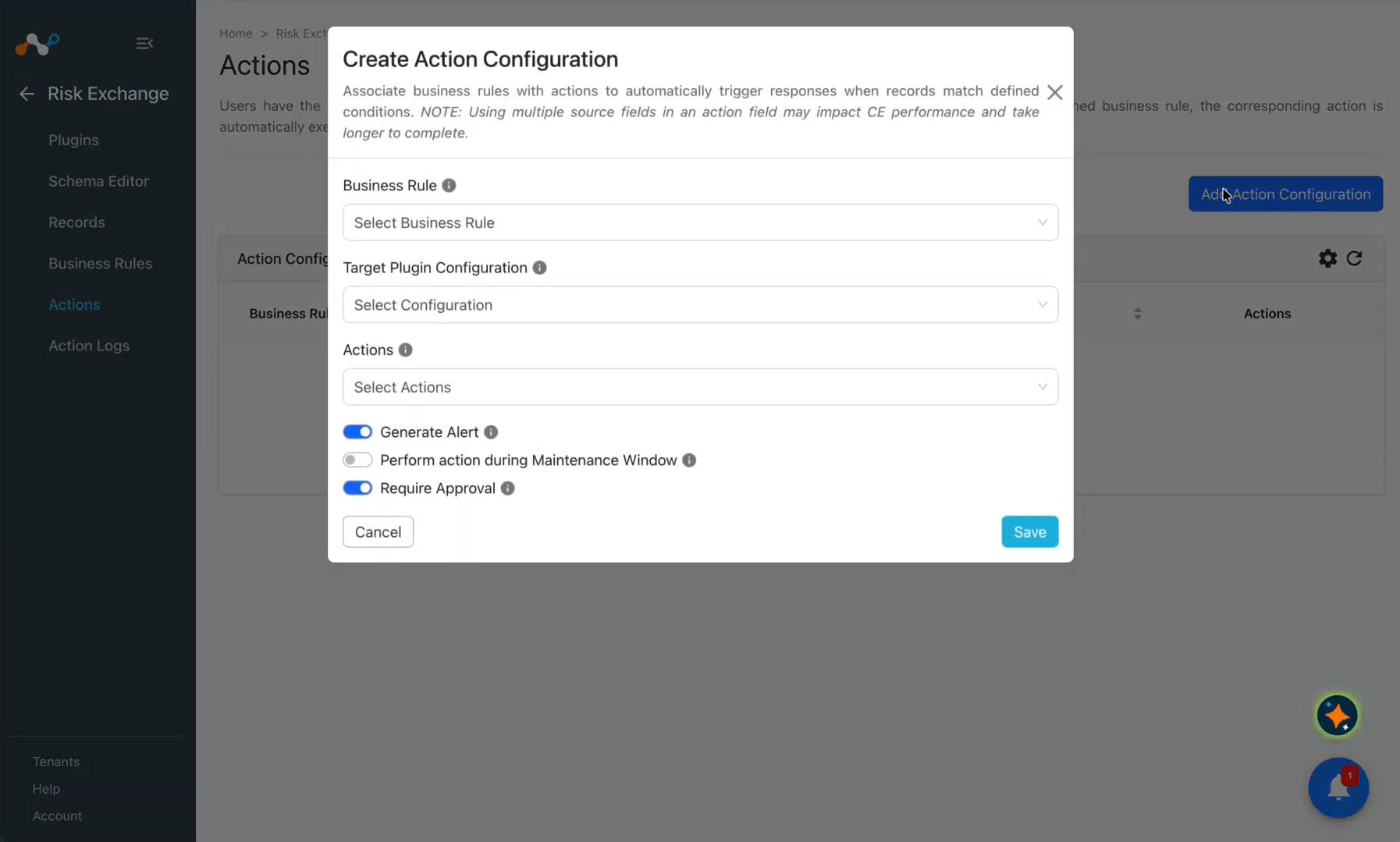
If you wish to perform an action during the Maintenance Window, enable the Perform action during Maintenance Window toggle. The Action will be performed during the Maintenance Window; otherwise, it will be performed instantly.
-
Disable the Require Approval toggle. Disabling this toggle will trigger the action automatically without any manual intervention. If the toggle is enabled, each action will require manual approval from the Cloud Exchange user.
-
Click Save.
-
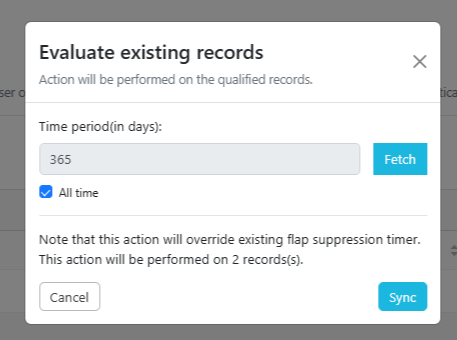
To perform the actions, click Sync, add a Time Period, and click Fetch. The number of records for the action will be taken when you click Sync again.
 You can perform any actions on the Users pulled from KnowBe4 on the Netskope Tenant or any 3rd-party platform or vice-versa. For performing the Users related actions on Netskope or any 3rd-party plugin, refer to the Netskope’s plugin guide or 3rd-party plugin guide.
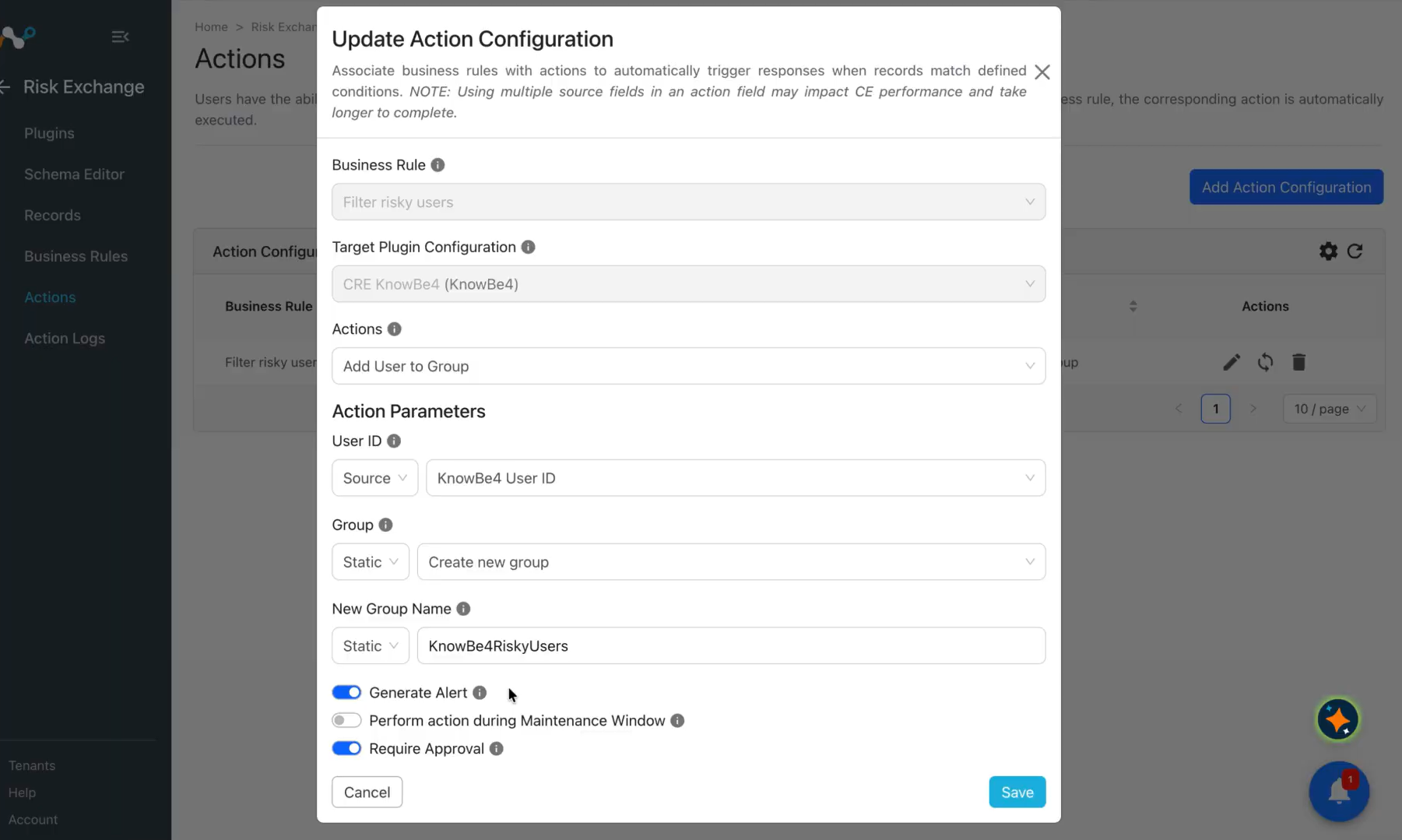
Add a User to a Group
- In Risk Exchange, go to Actions and click Add Action Configuration.
- Select a Business Rule and your plugin.
- For Actions, select Add user to group.
- For the Action Parameters, enter these details:
- User ID: ID of the user on which action is to be taken. Select from Source Field dropdown, or provide static comma-separated User IDs.
- Group: KnowBe4 group to add the user to. Only console groups are listed. Select the group from the Static Field dropdown only.
- New Group name: Name of the group to create. This is used only when Create new group is selected in the Group parameter. Maximum 128 characters are allowed.
- Enable the Require Approval toggle if Approval is needed before performing an action on the users.
- Click Save.
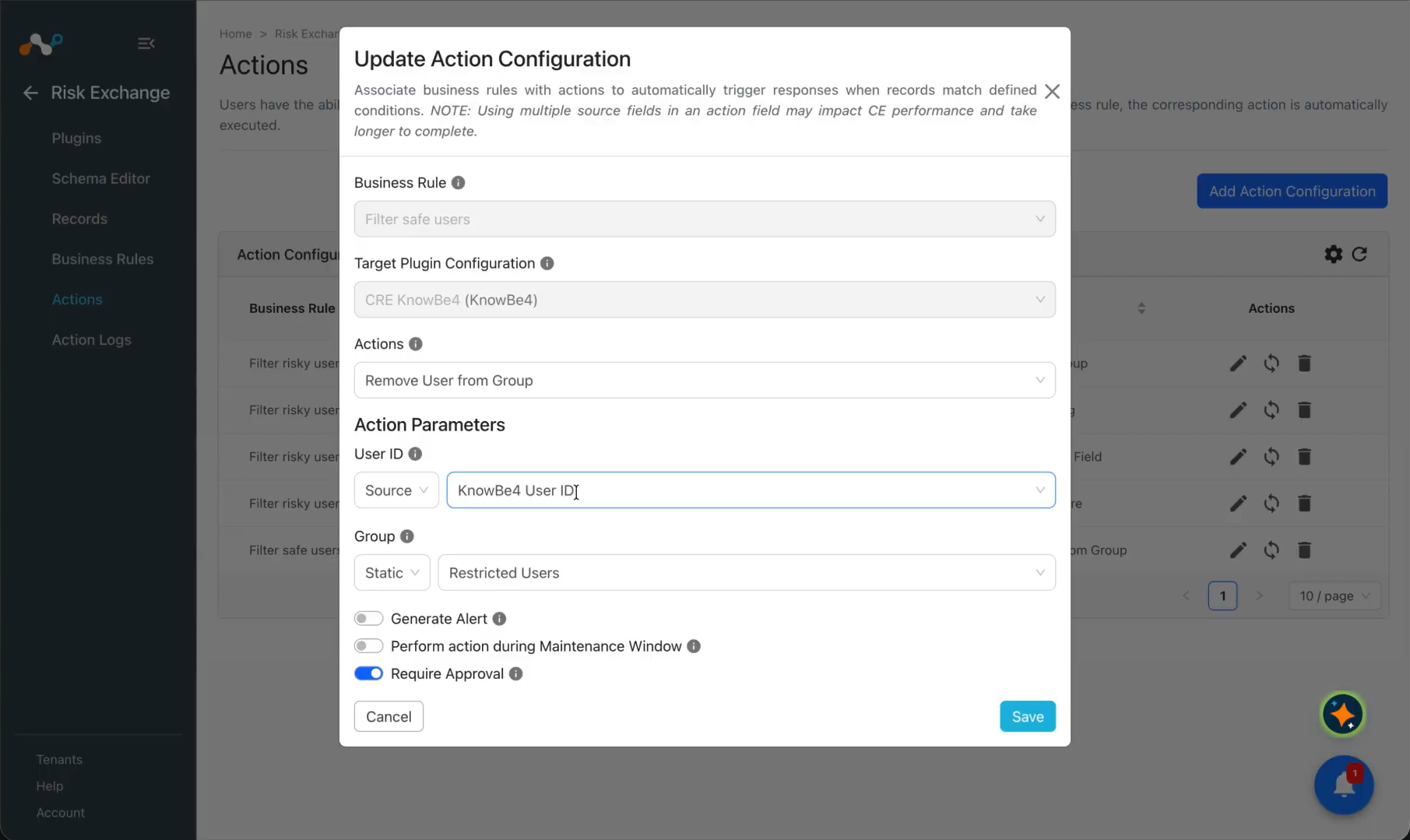
Remove a User from a Group
- In Risk Exchange, go to Actions and click Add Action Configuration.
- Select a Business Rule and your plugin.
- For Actions, select Remove user from group.
- In the Action Parameters, enter these details:
- User ID: ID of the user on which action is to be taken. Select from Source Field dropdown, or provide static comma-separated User IDs.
- Group: KnowBe4 group to remove the user from. Only console groups are listed. Select the group from the Static Field dropdown only.
- Enable the Require Approval toggle if Approval is needed before performing an action on the users.
- Click Save.
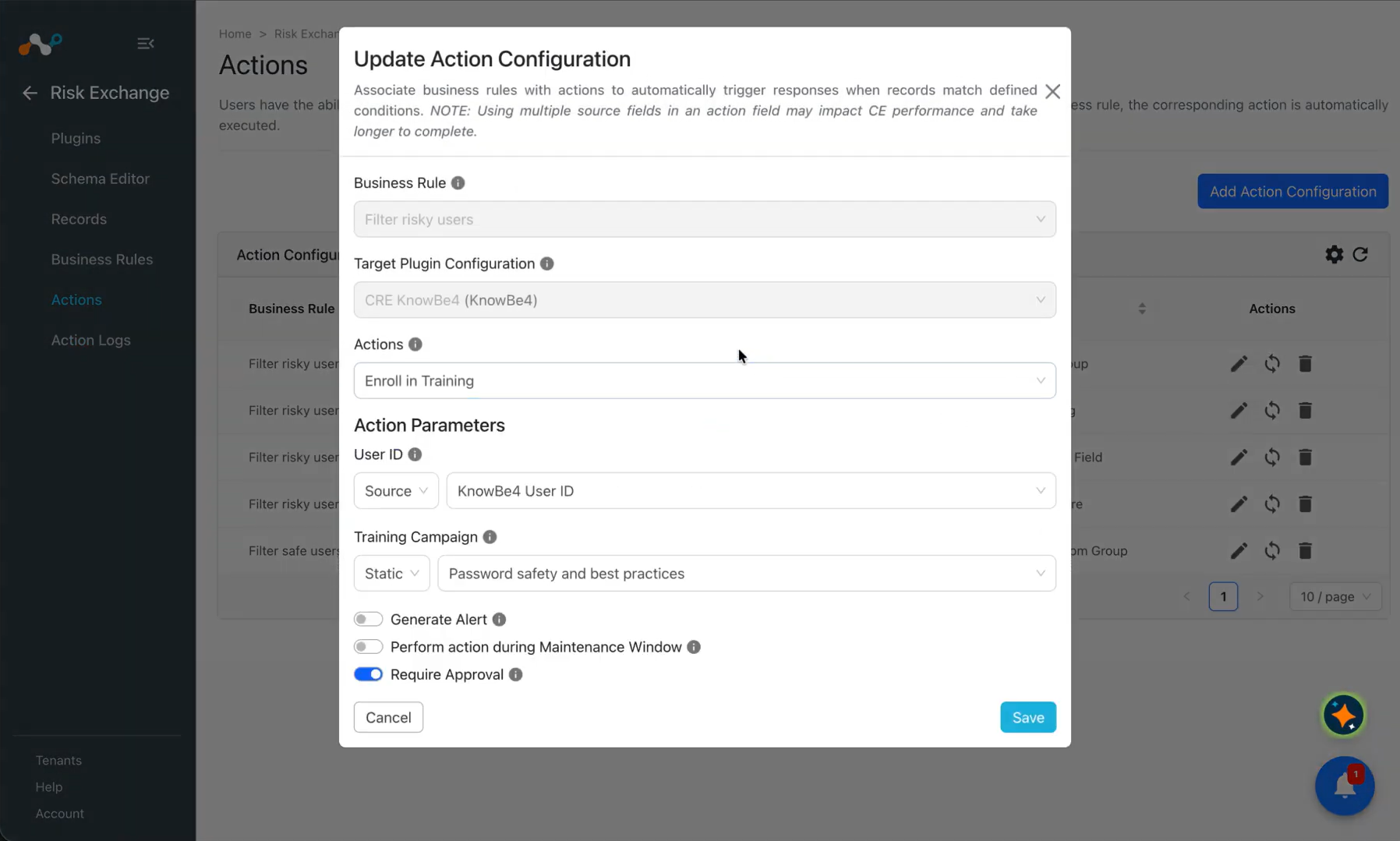
Enroll in Training
- In Risk Exchange, go to Actions and click Add Action Configuration.
- Select a Business Rule and your plugin.
- For Actions, select Enroll in Training.
- For the Action Parameters, enter these details:
- User ID: ID of the user on which action is to be taken. Select from Source Field dropdown, or provide static comma-separated User IDs.
- Training Campaign: KnowBe4 training campaign to enroll the user into. Only campaigns that accept new users are listed. Select the training campaign from the static dropdown only.
- Enable the Require Approval toggle if Approval is needed before performing an action on the users.
- Click Save.
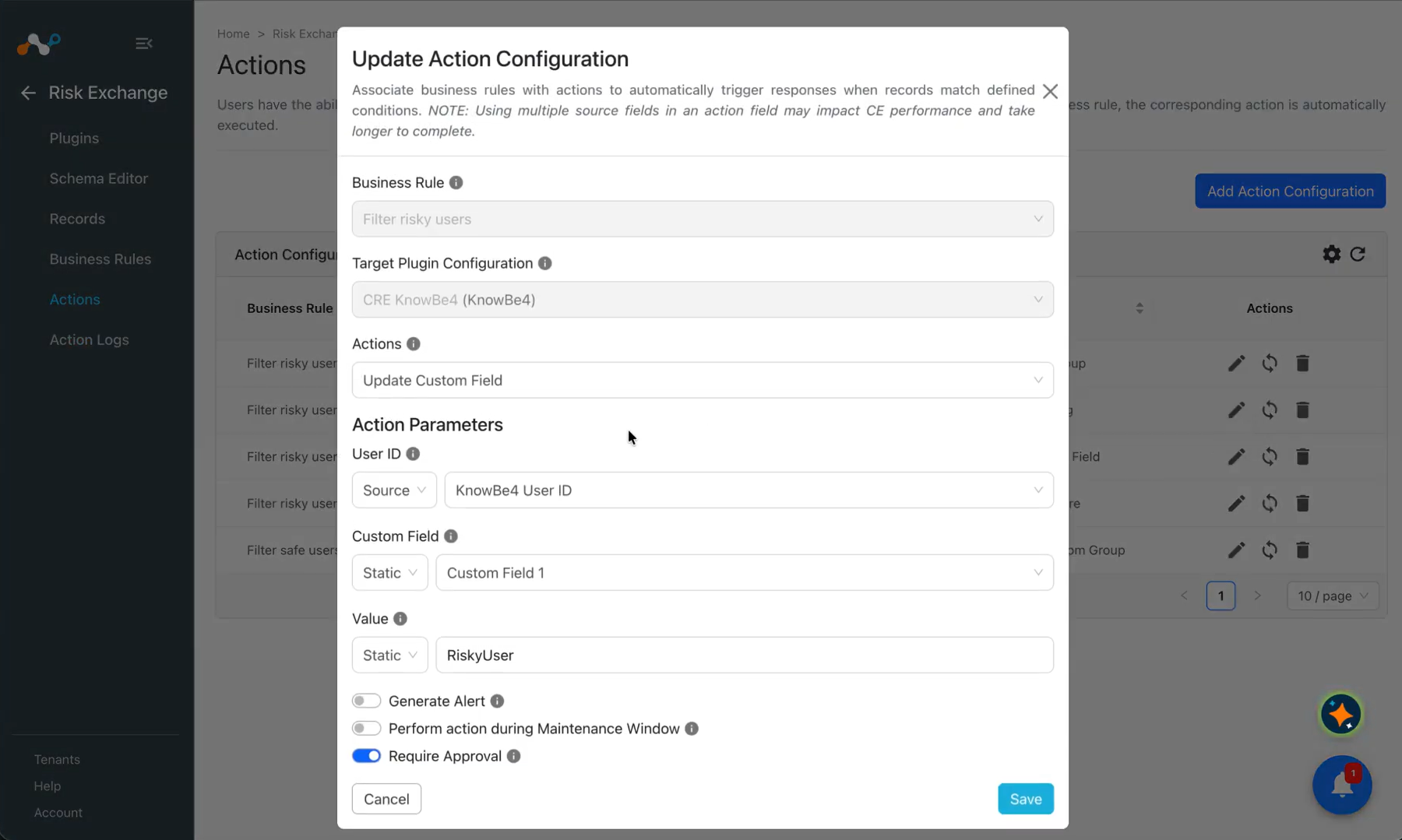
Update a Custom Field
- In Risk Exchange, go to Actions click Add Action Configuration.
- Select a Business Rule and your plugin.
- For Actions, select Update Custom Field.
- In the Action Parameters, enter these details:
- User ID: ID of the user on which action is to be taken. Select from Source Field Dropdown or provide static comma-separated User IDs.
- Custom Field: KnowBe4 custom field to write the value into. Select the custom field from the static dropdown only.
- Value: Value to write into the selected custom field. It can be up to 255 characters. Enter a static value only.
- Enable the Require Approval toggle if Approval is needed before performing an action on the users.
- Click Save.
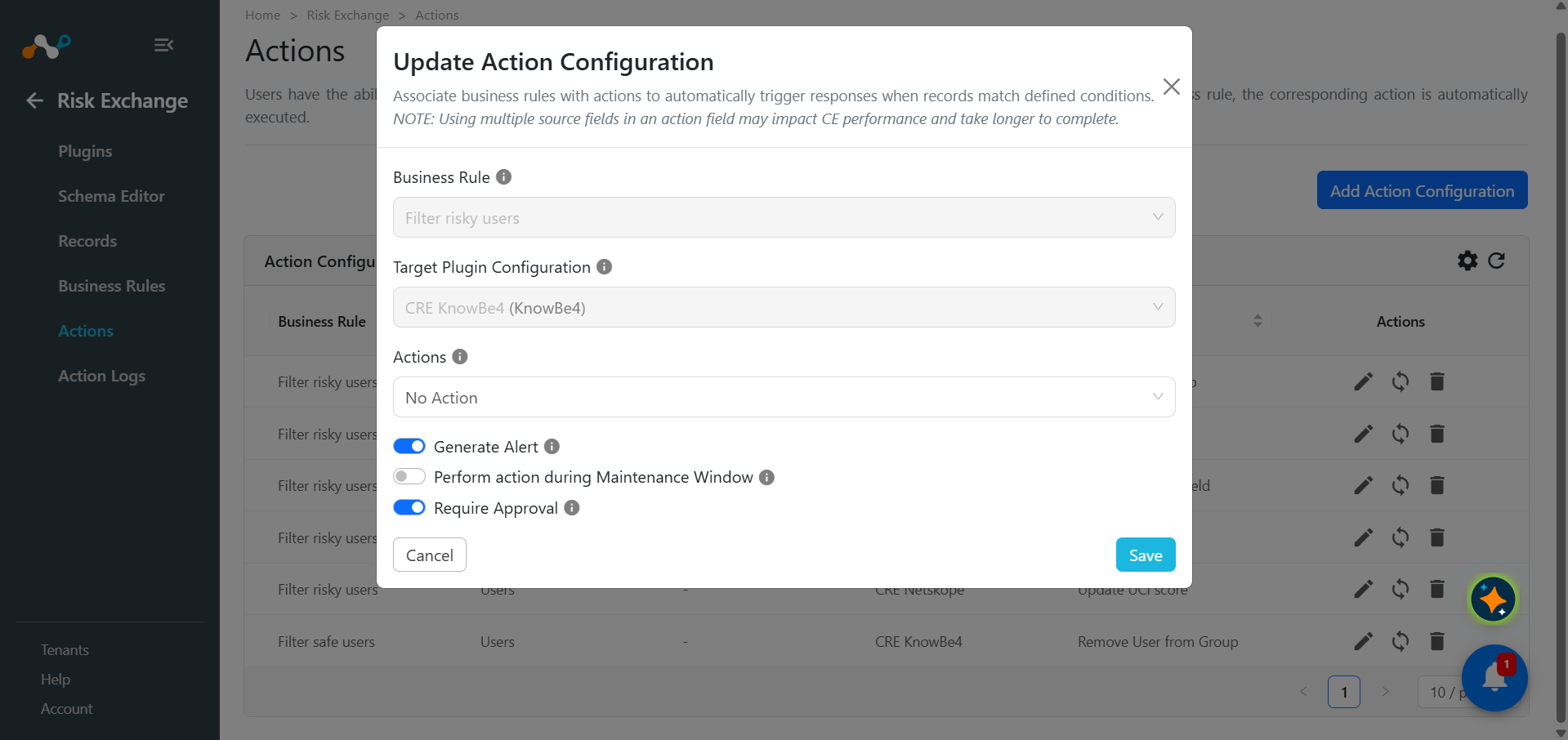
No Action
- In Risk Exchange, go to Actions and click Add Action Configuration.
- Select a Business Rule and your plugin.
- For Actions, select No action.
- Enable the Require Approval toggle if Approval is needed before performing an action on the users.
- Click Save.
Validate the KnowBe4 Plugin
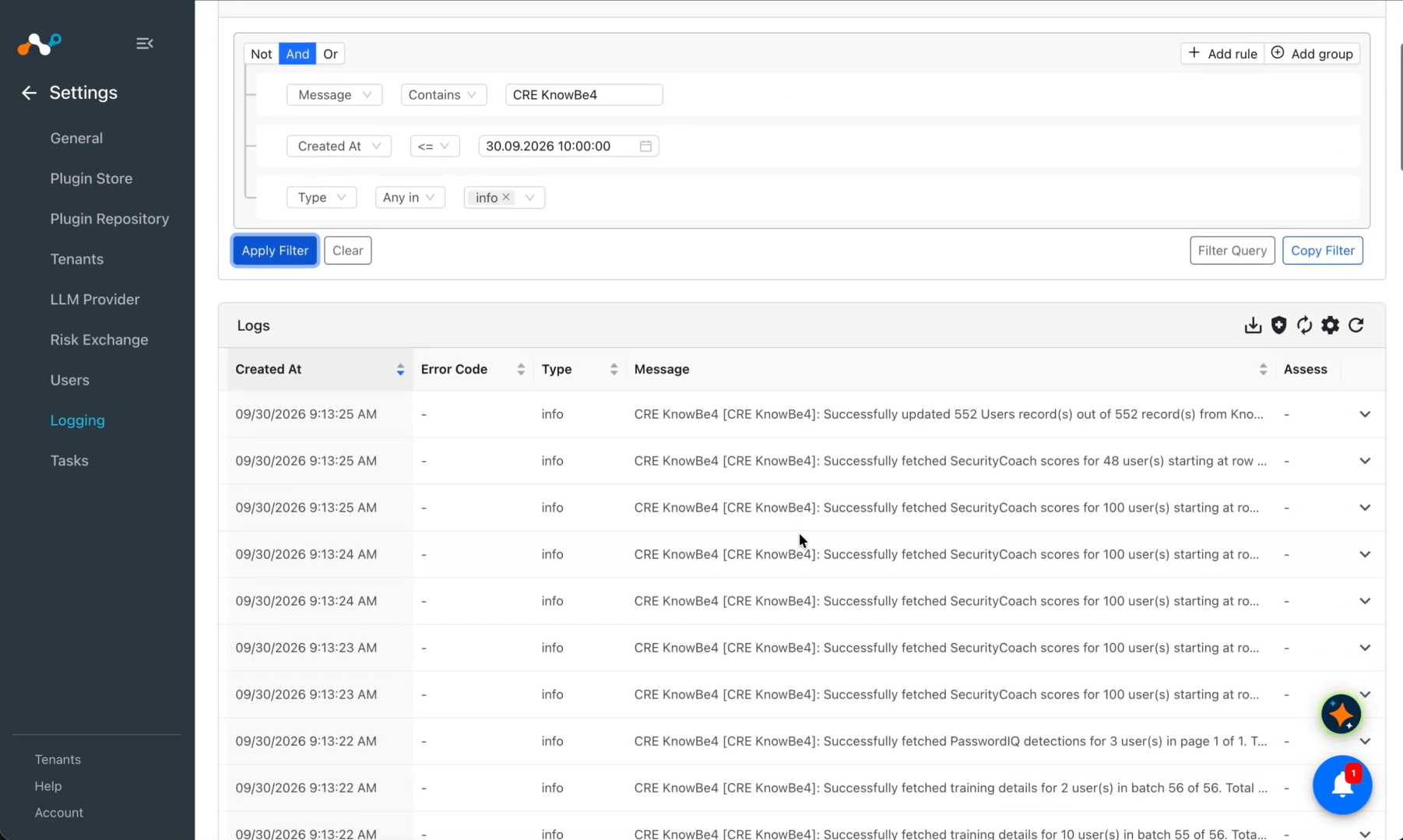
Validate in Cloud Exchange
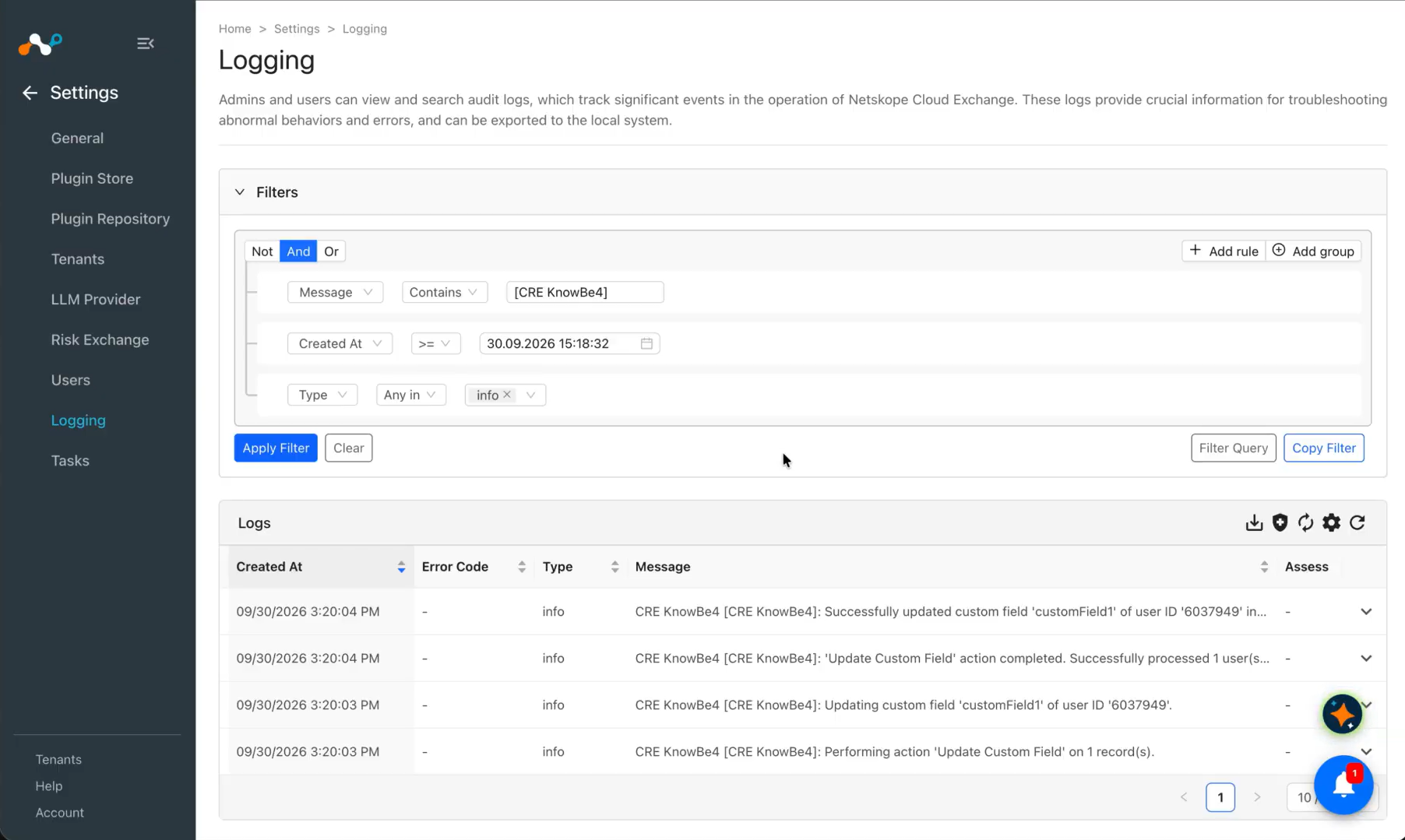
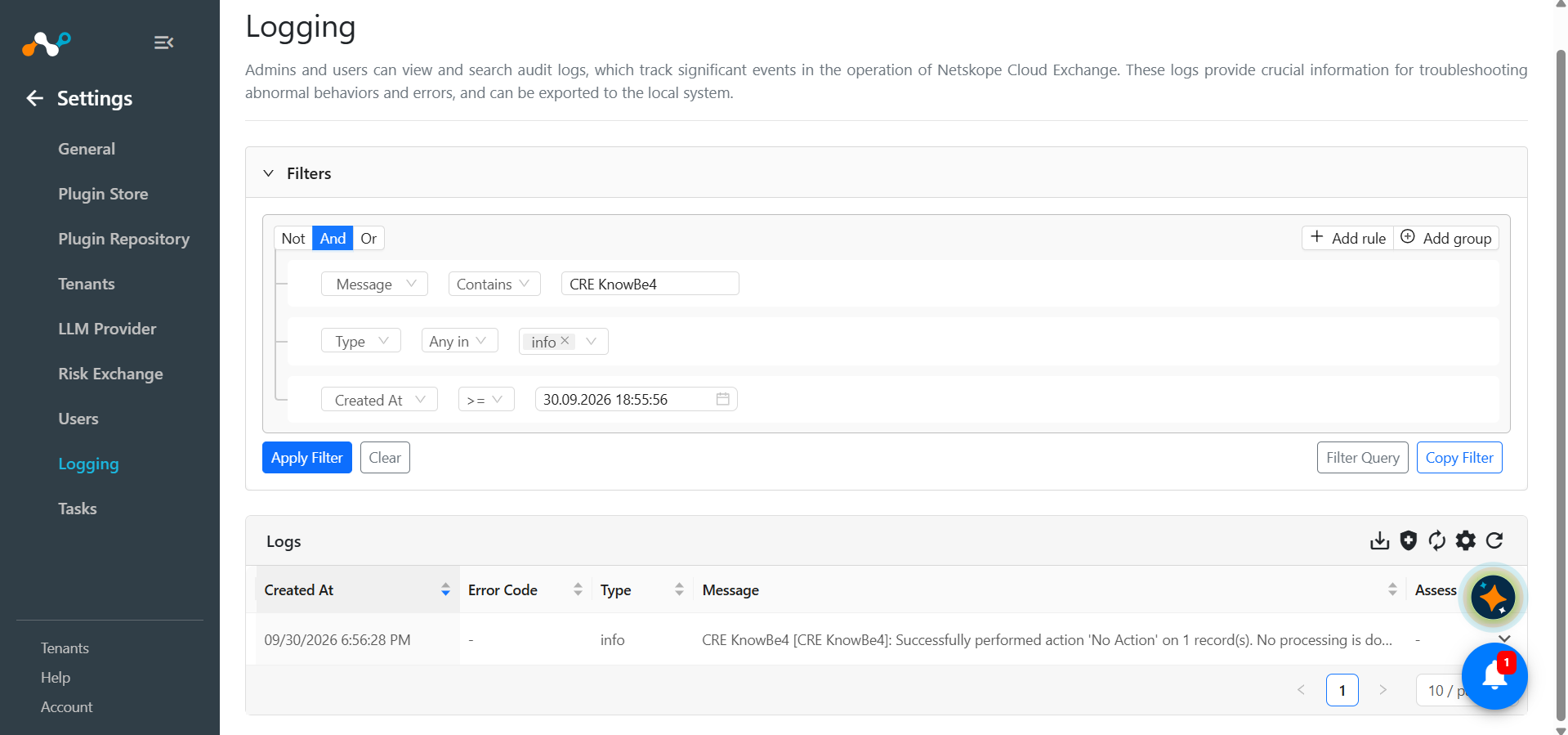
To verify the Users pulled from KnowBe4, go to Logging and search for the logs from the CRE KnowBe4 plugin.
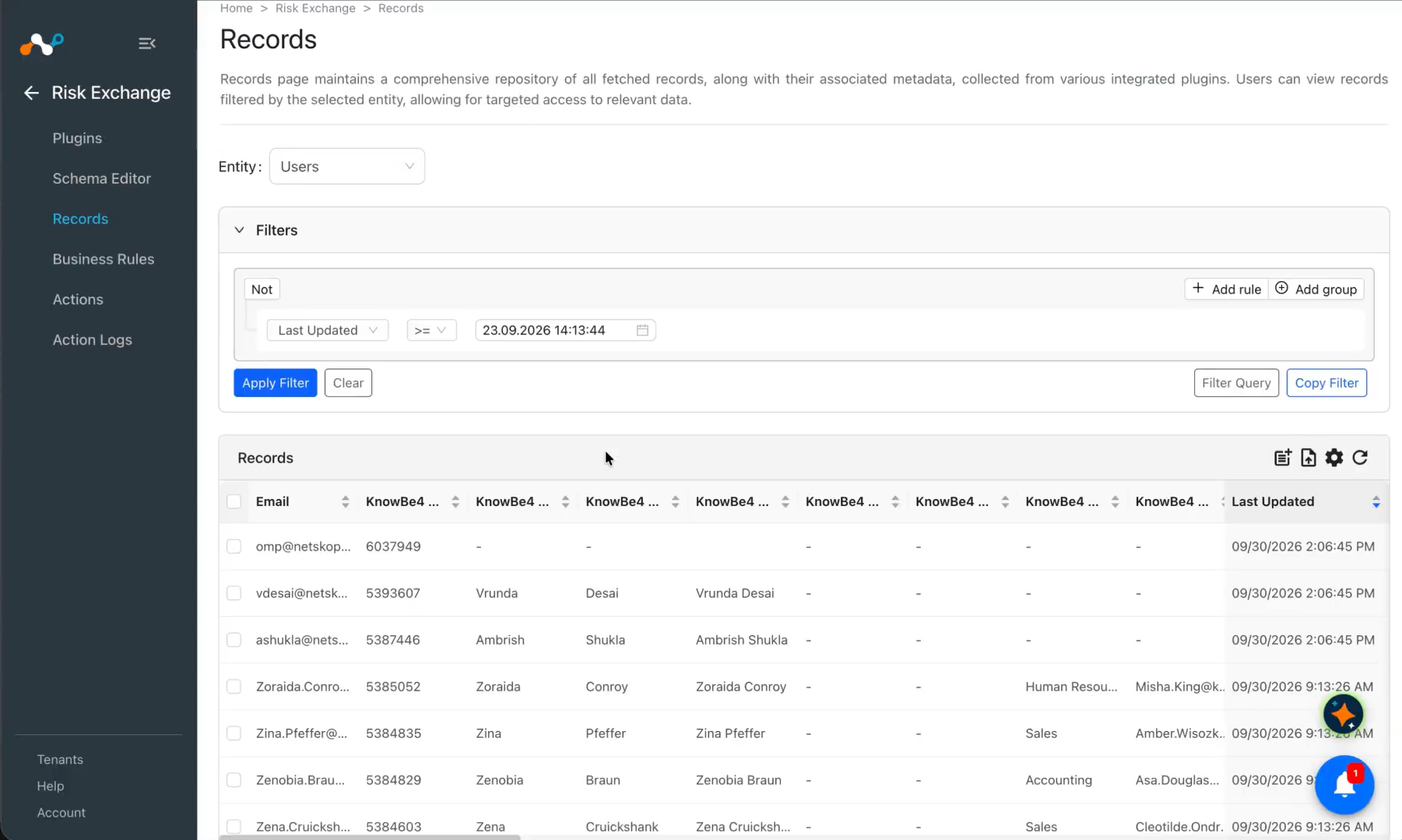
To check the records pulled and stored in Cloud Exchange, go to Records in Risk Exchange. Select the entity type used while adding the mapping in the plugin configuration.
Performed Actions
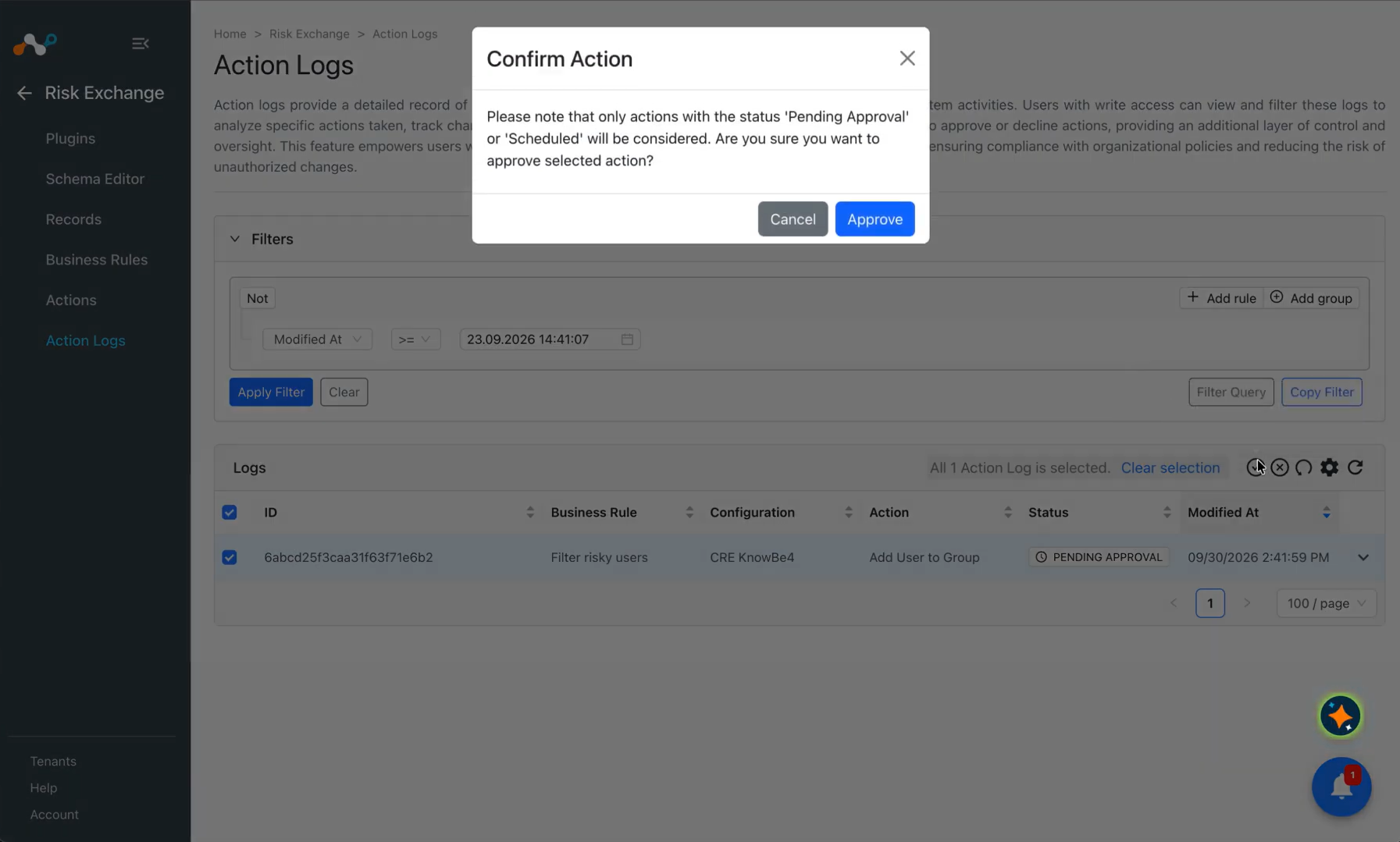
To verify the performed action, navigate to the Action Logs page and provide an approval to the action.
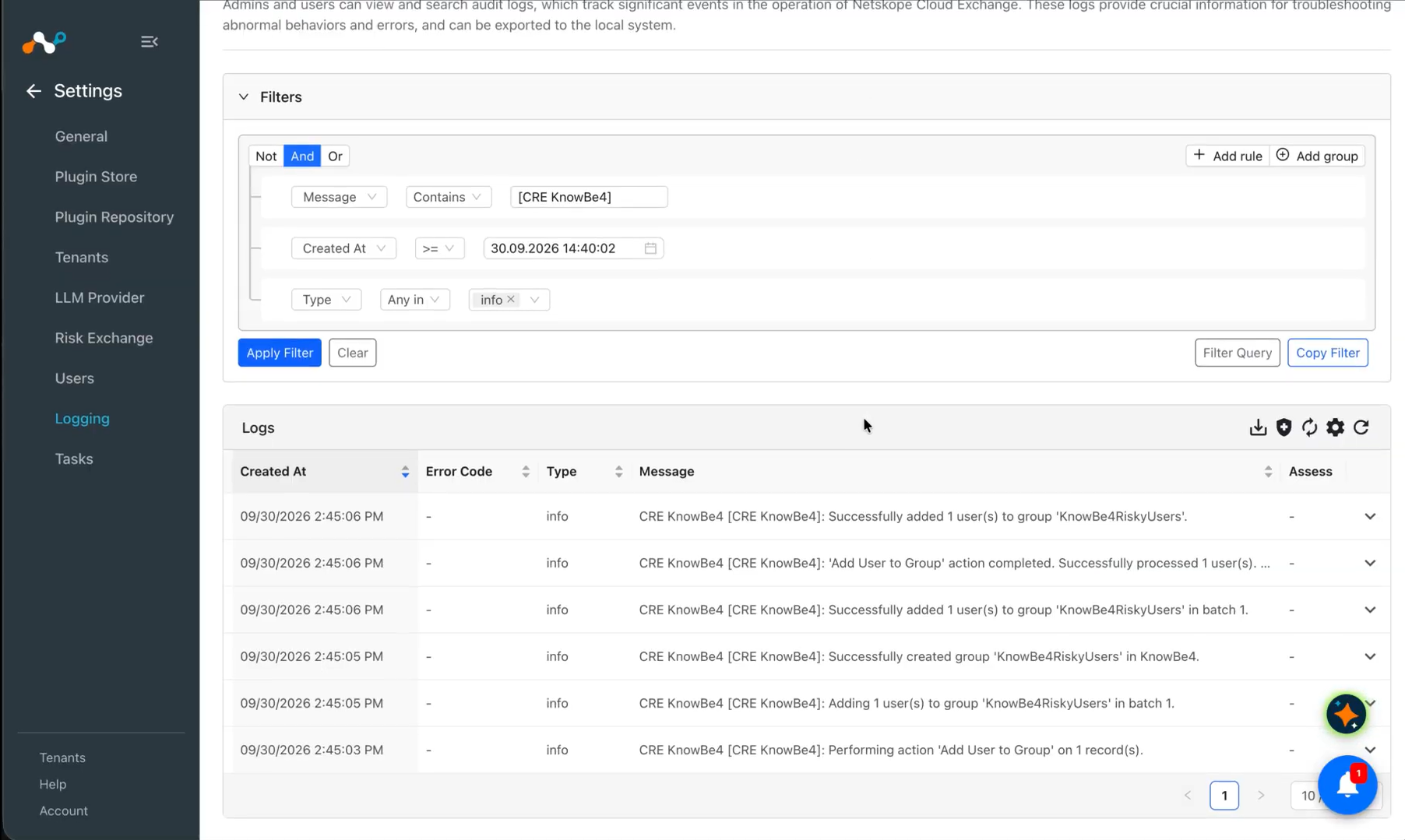
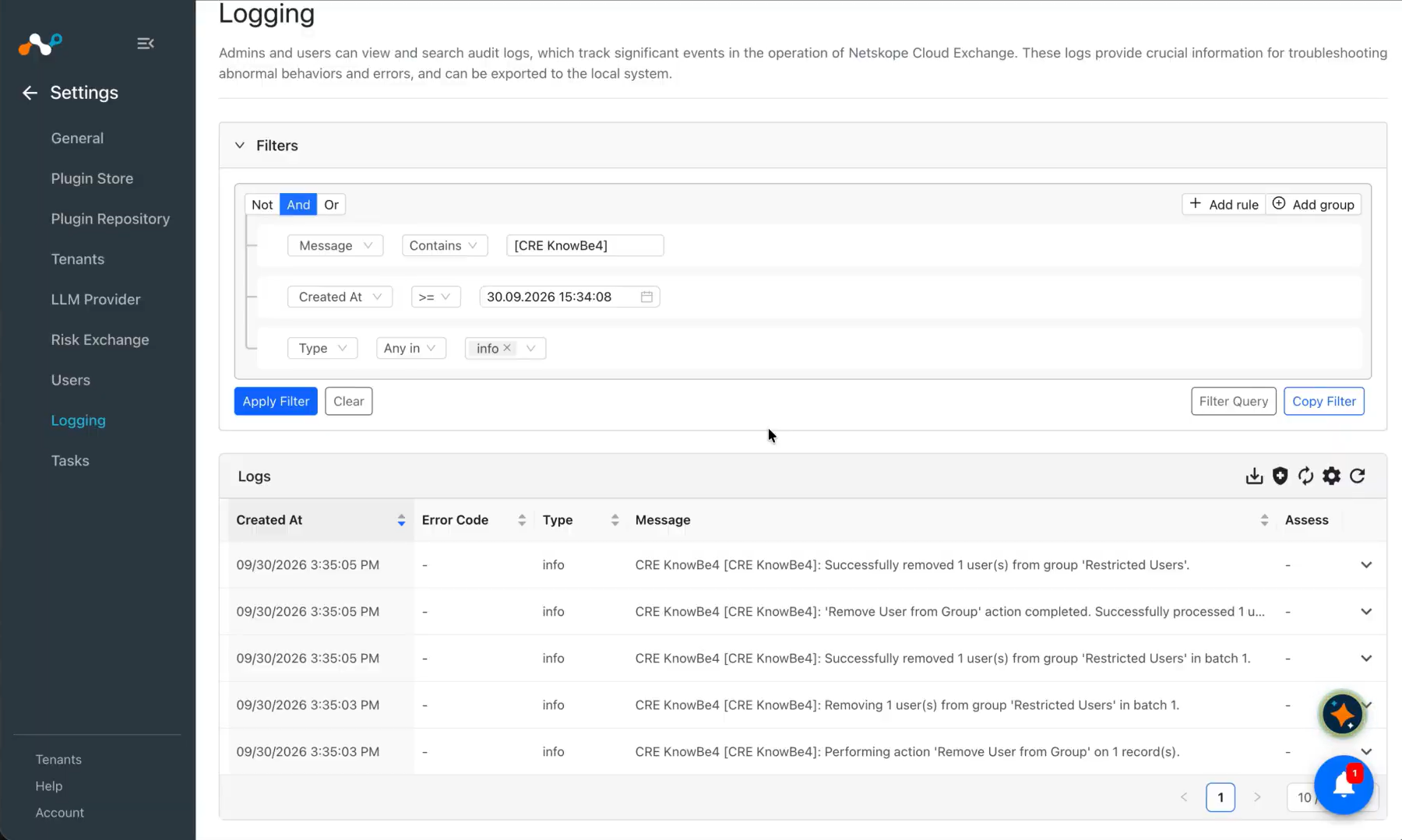
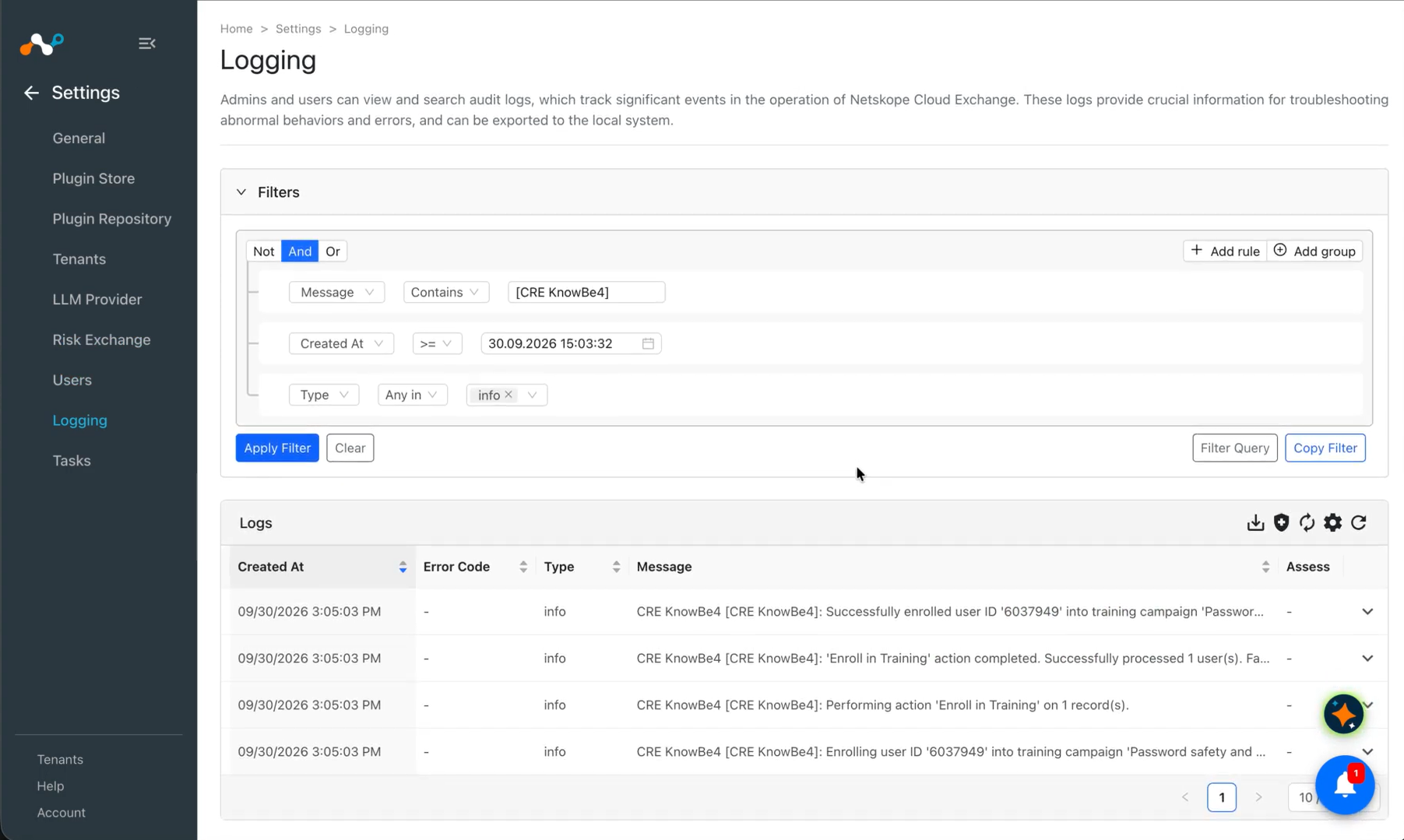
To verify the performed actions on Cloud Exchange, go to Logging and search for the logs from the CRE KnowBe4 plugin.
Add a User to a Group
Remove a User from a Group
Enroll in Training
Update a Custom Field
No Action
Validate on KnowBe4
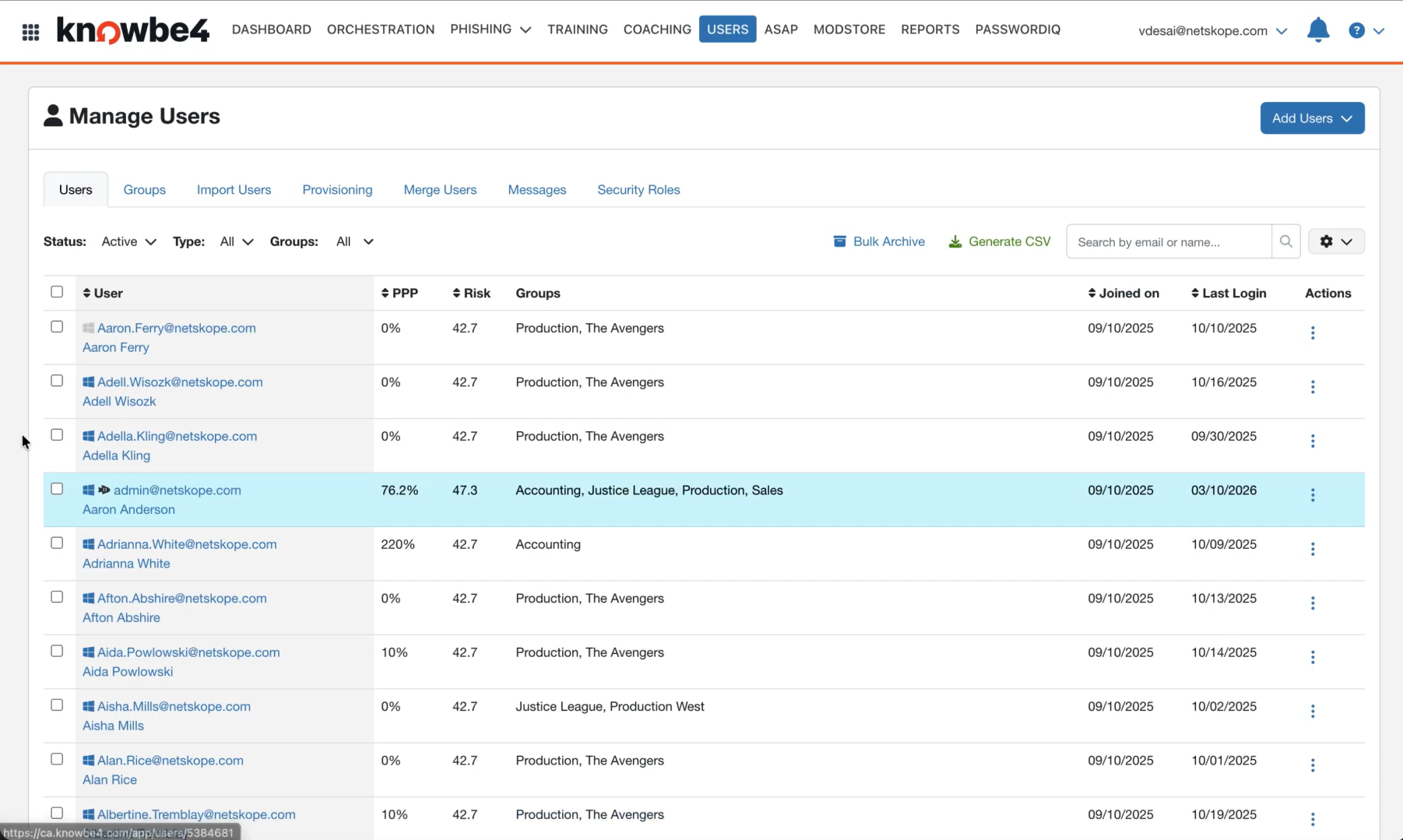
Log in to the KnowBe4 console and go to Users.
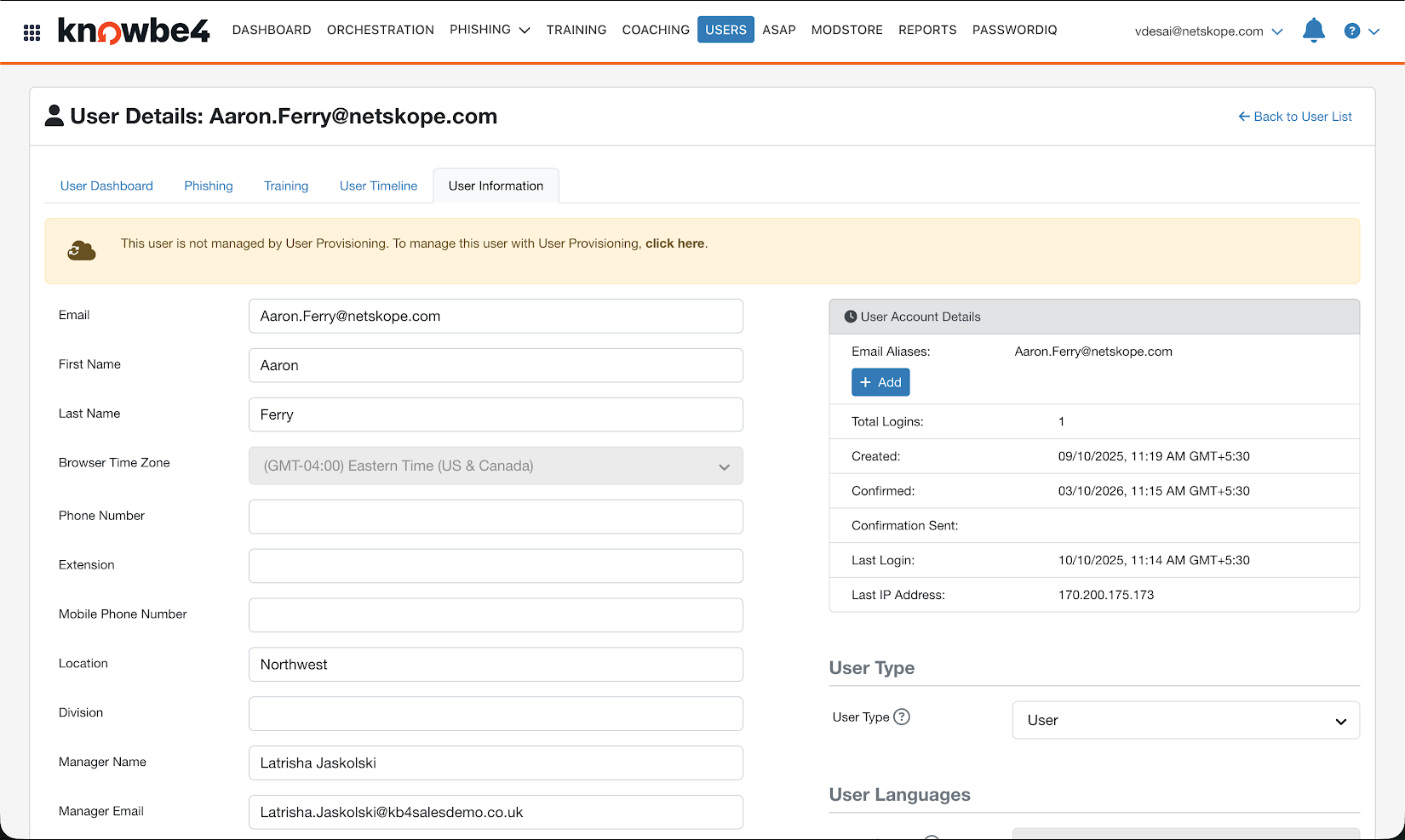
All the details of the user are pulled from the User Information page.
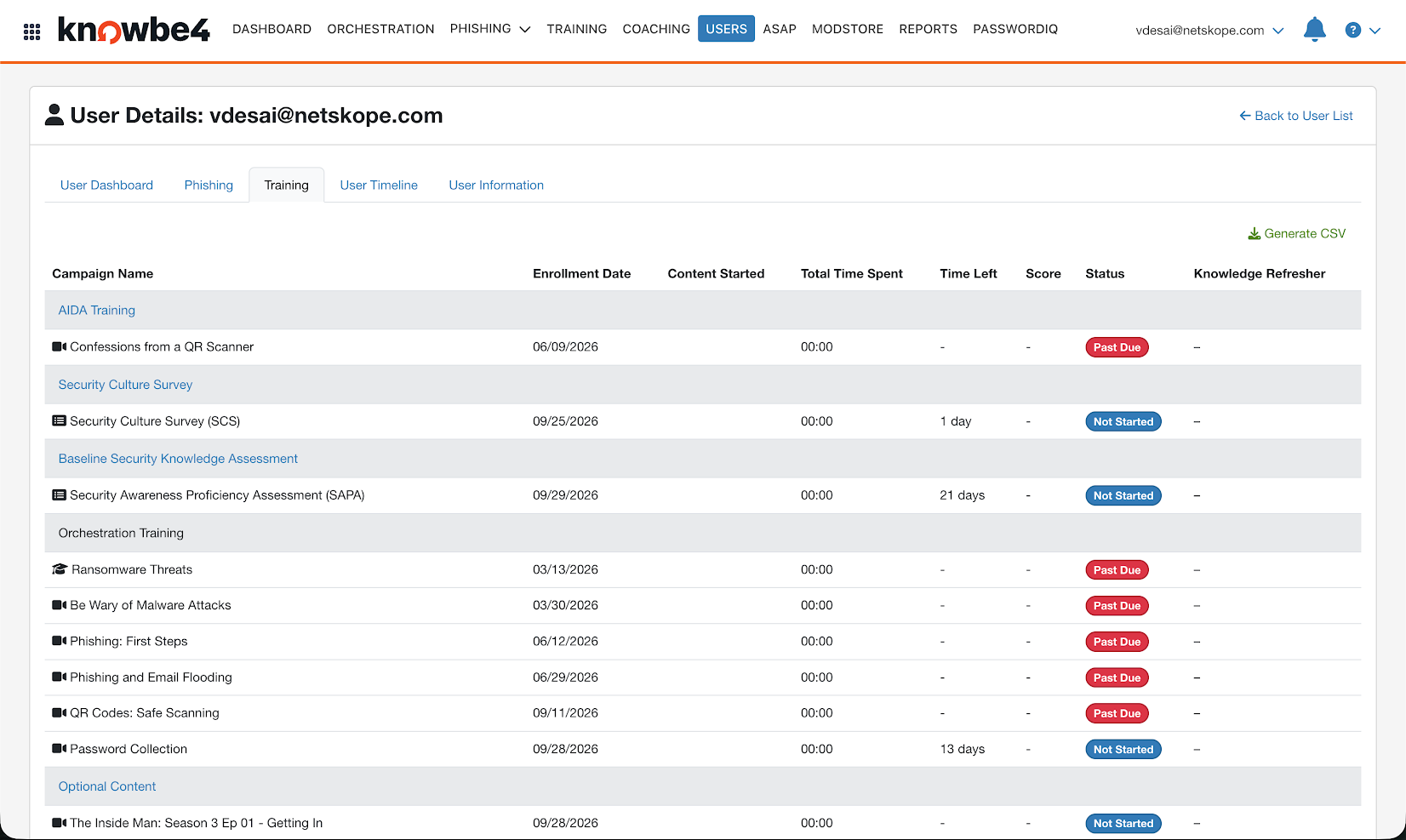
The passed due Training details of the user are pulled from the Training page:
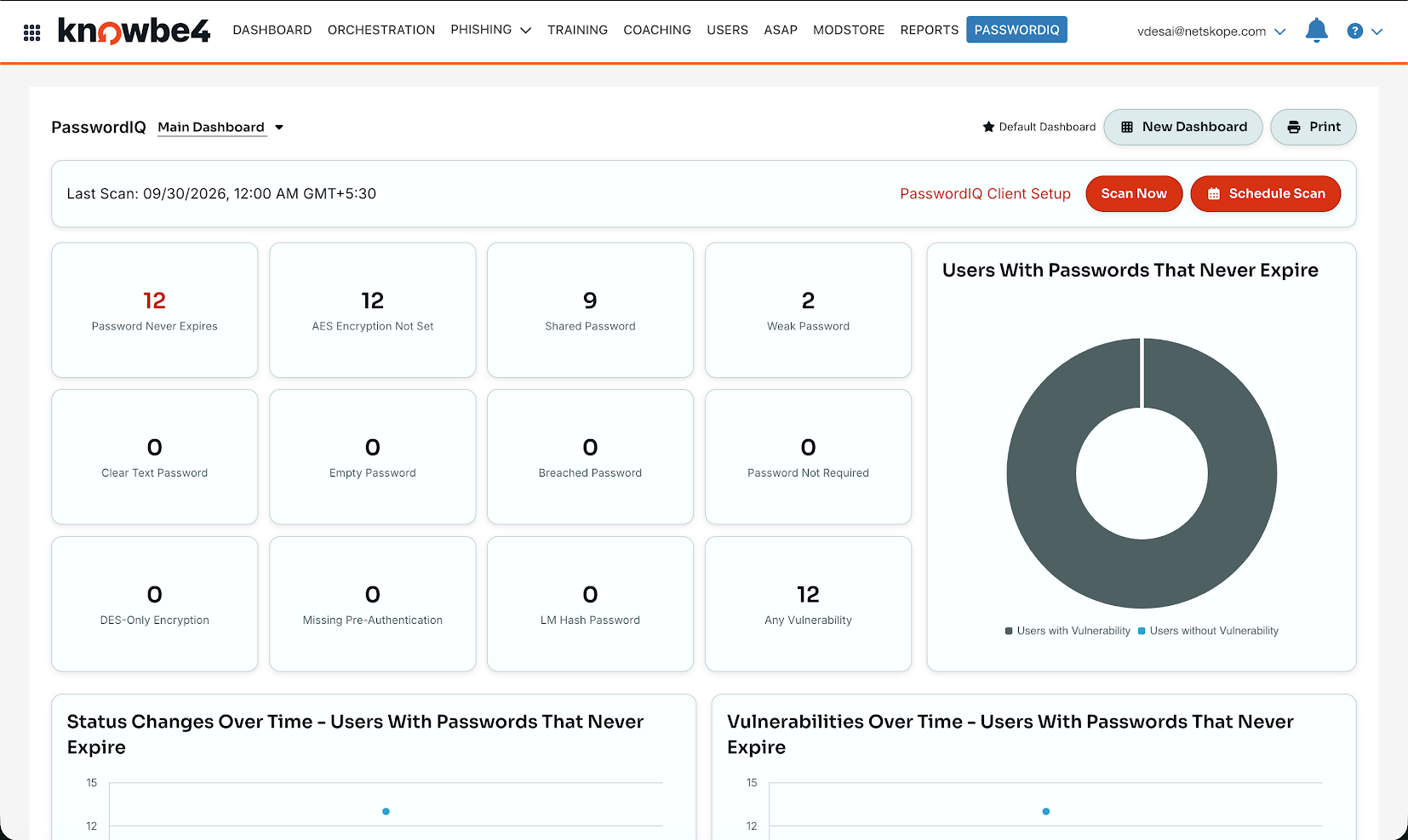
The PasswordIQ details are pulled from the PasswordIQ page:
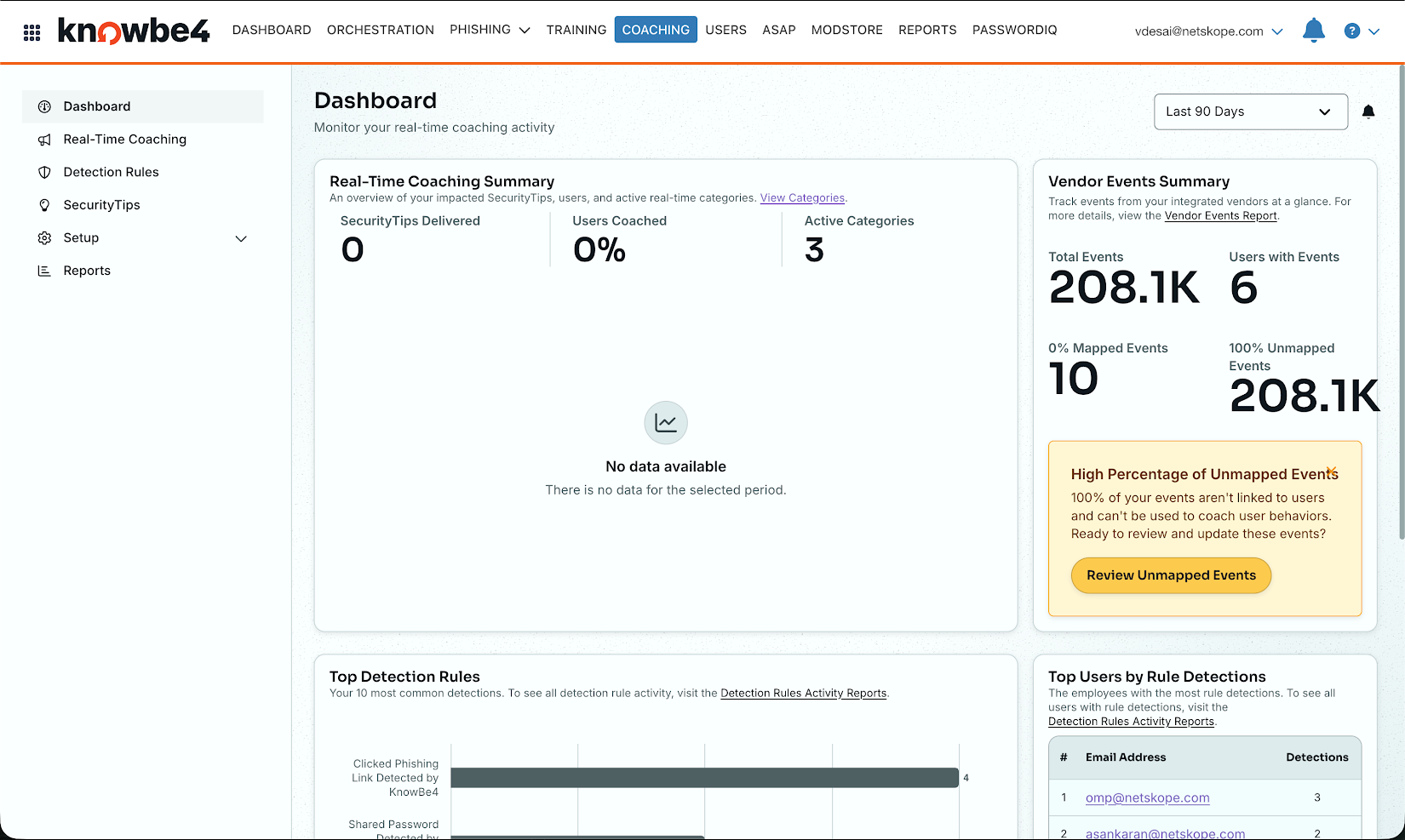
The SecurityCoach details are pulled from the Coaching page:
Performed Actions
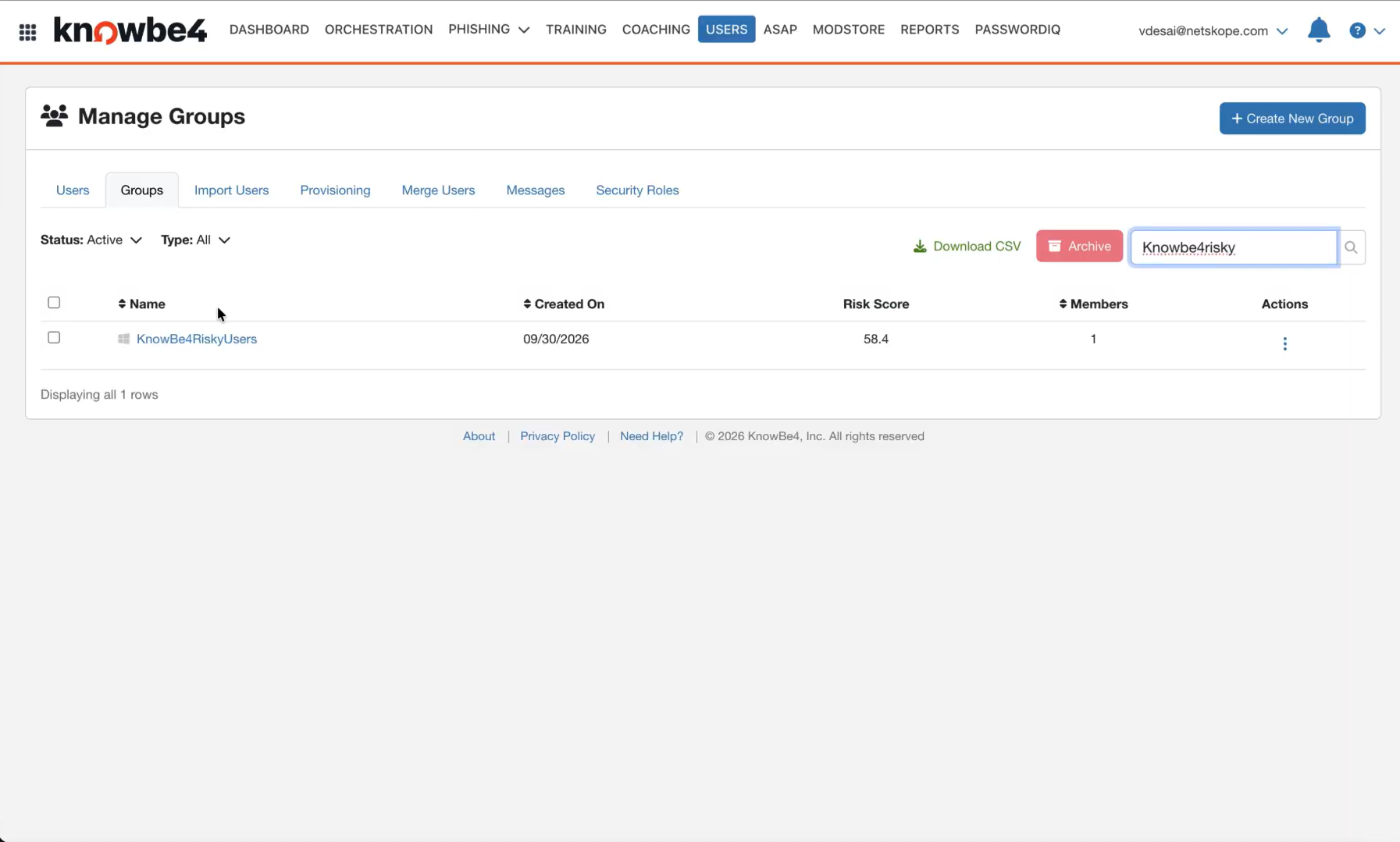
To validate the Add User to Group and Remove User from Group actions on KnowBe4, go to Users > Group, and click on the group where you have added or removed the user.
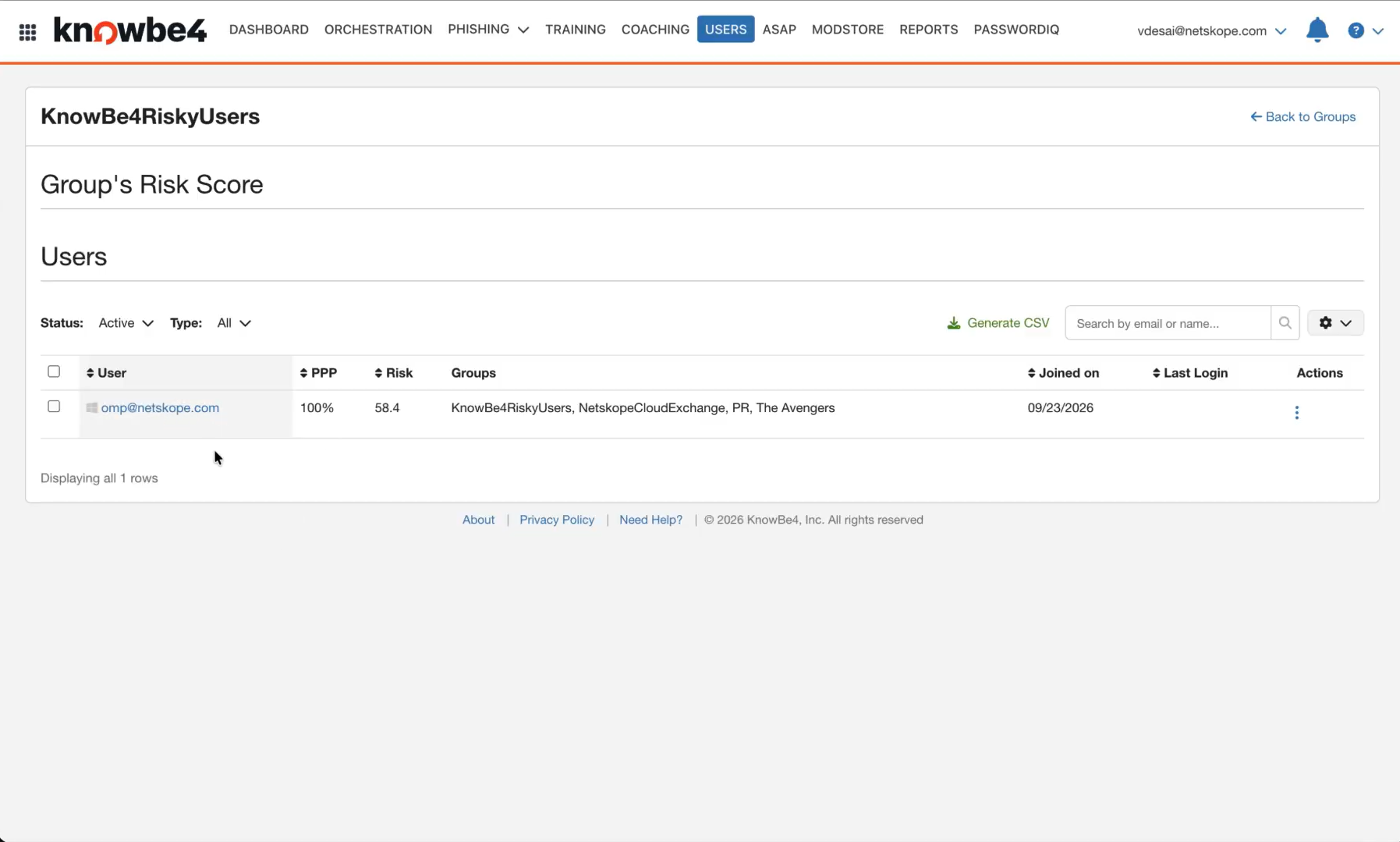
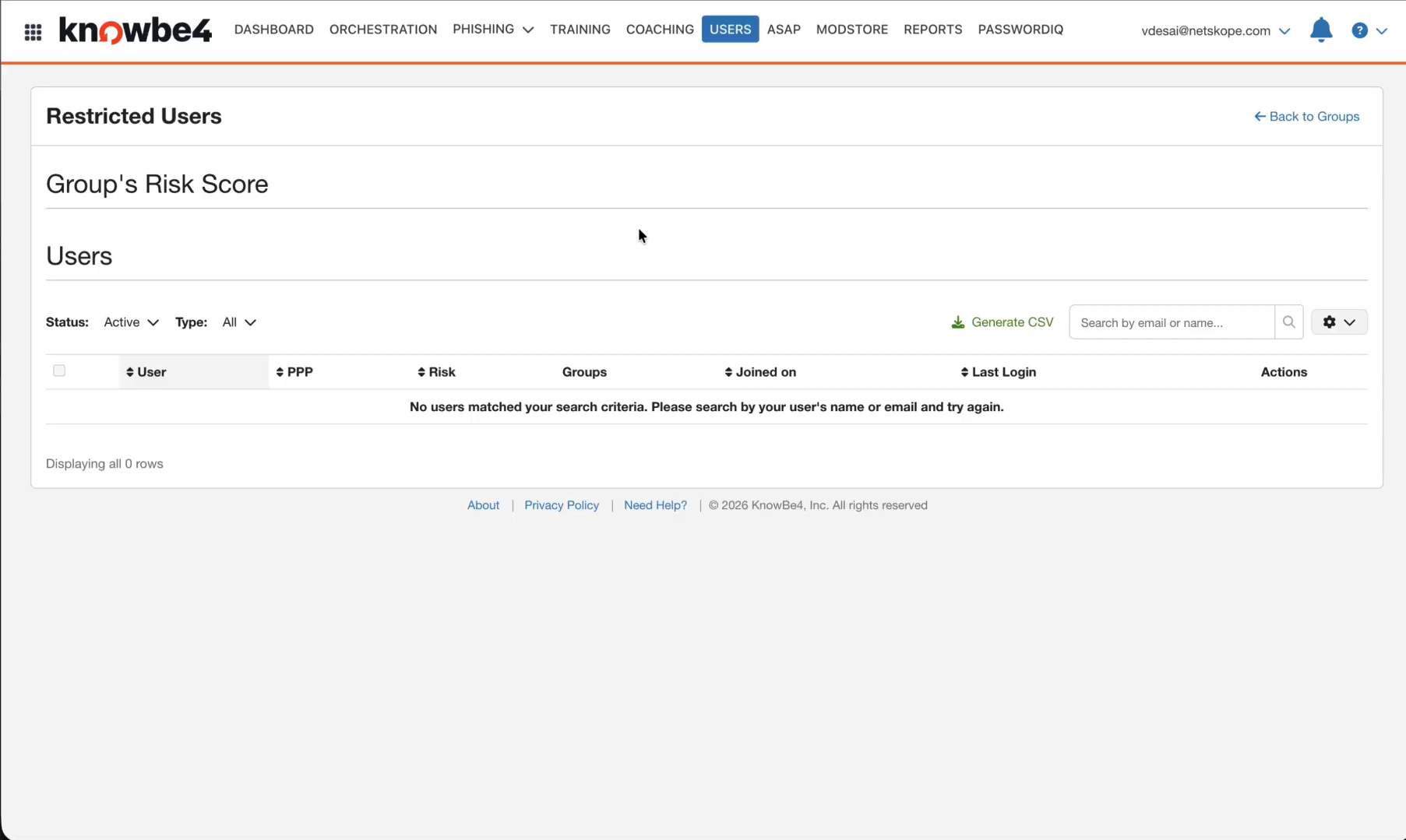
To validate the Enroll in Training, go to Training and click on the training you have performed an action on. Go to the Users section, and there you will see all the users that are currently enrolled in.
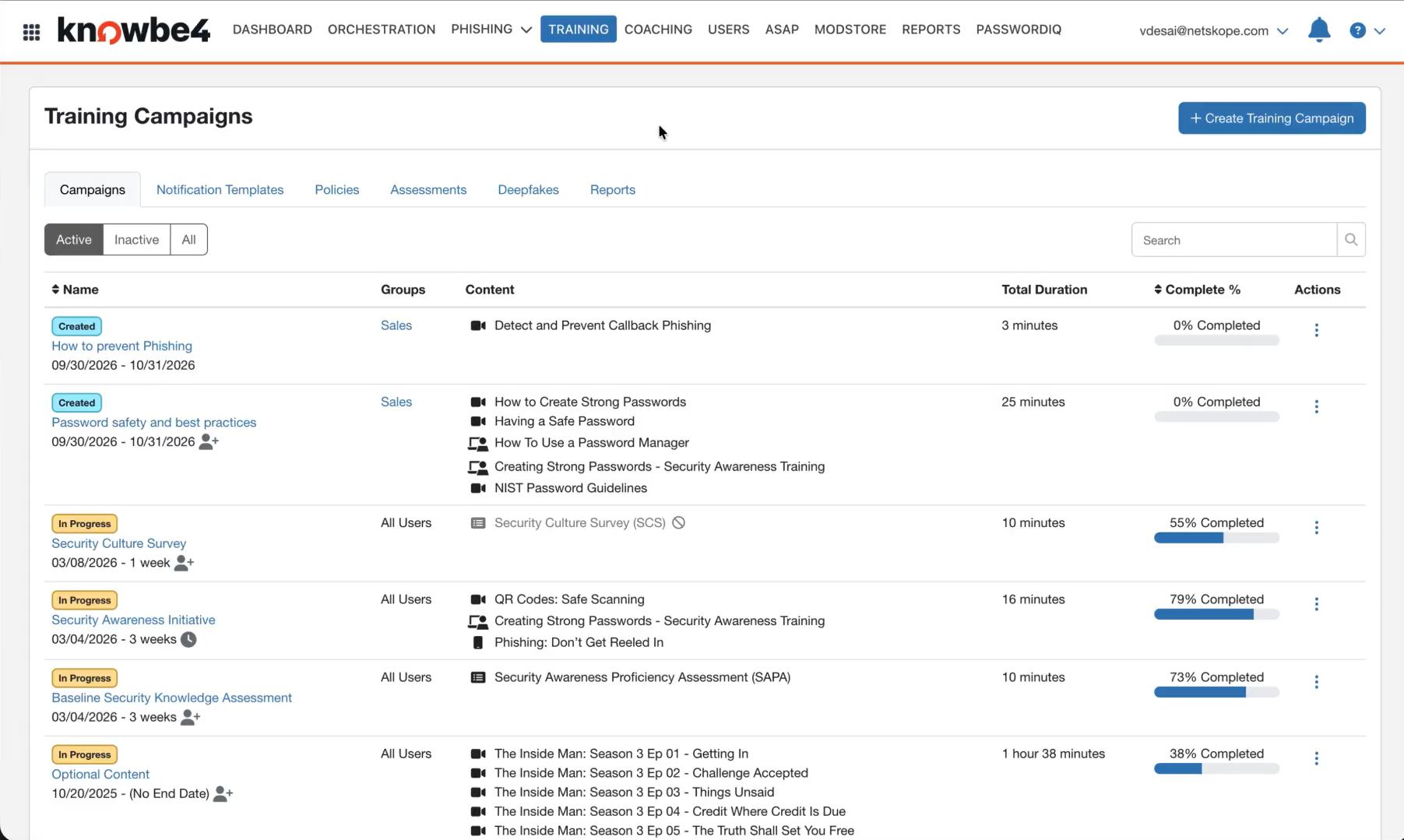
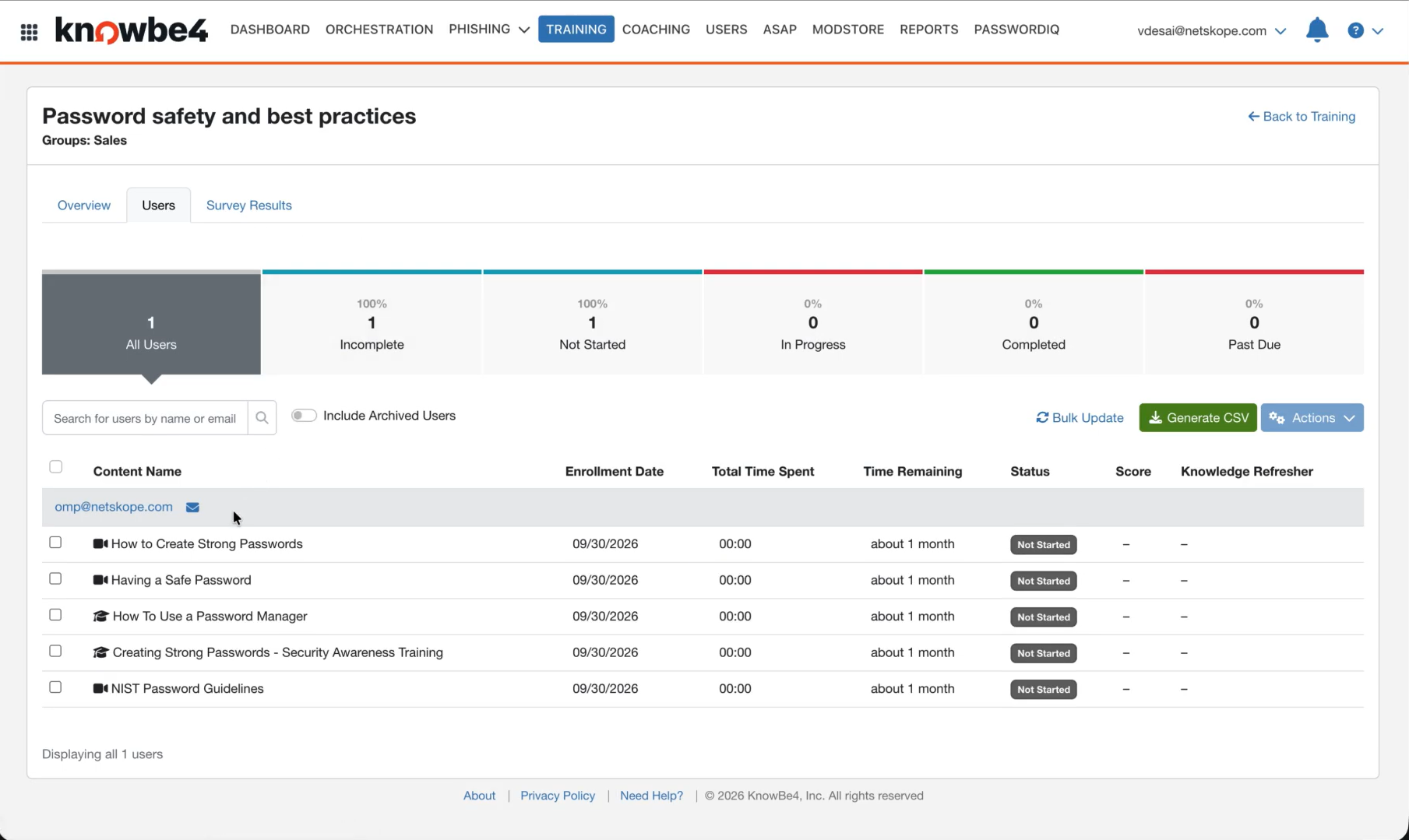
To validate the Update Custom Field, go to Users > User Management and click on the user you have performed an action on. Then go to the User Information section, and there you will see all the Custom Fields for the user.
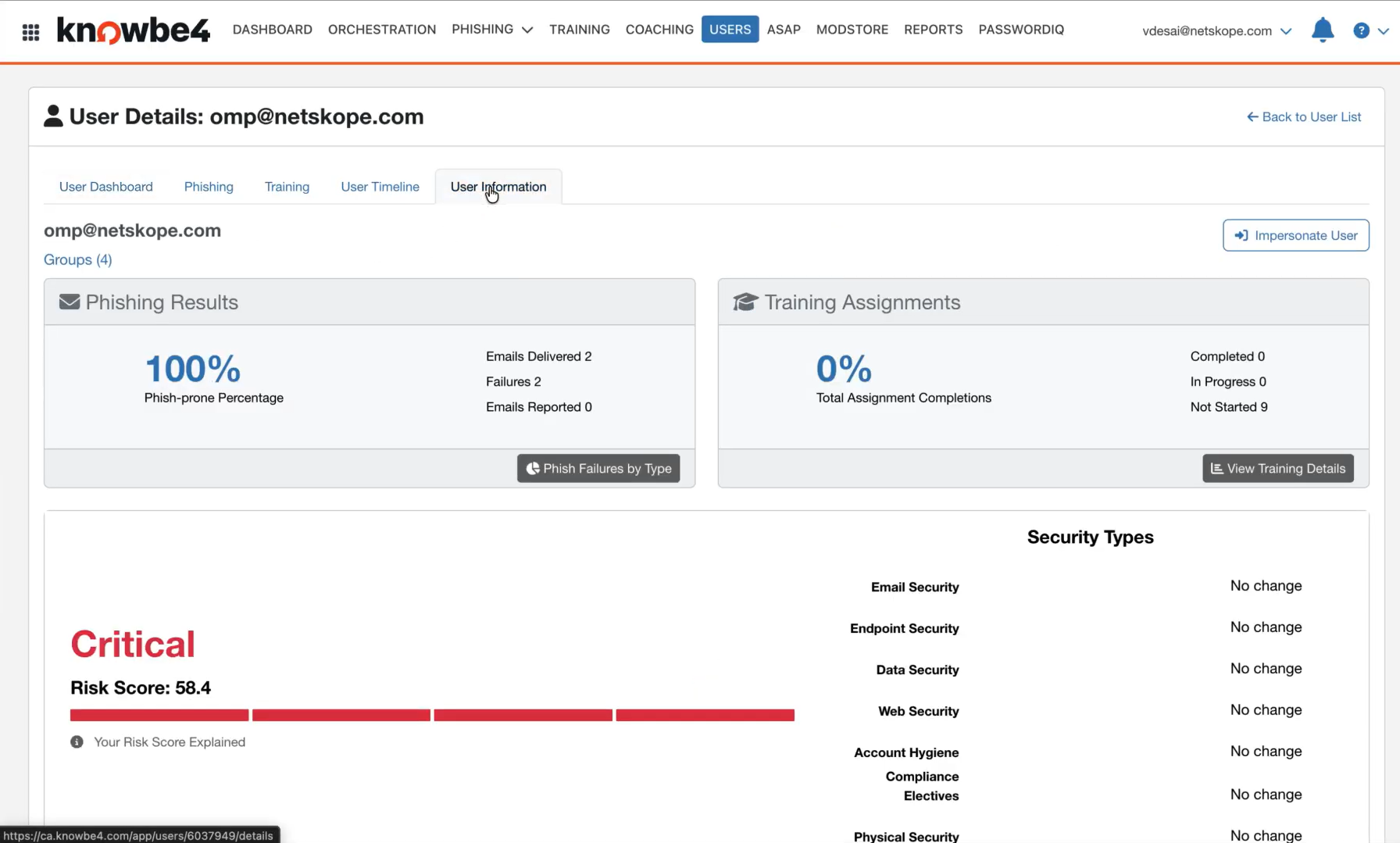
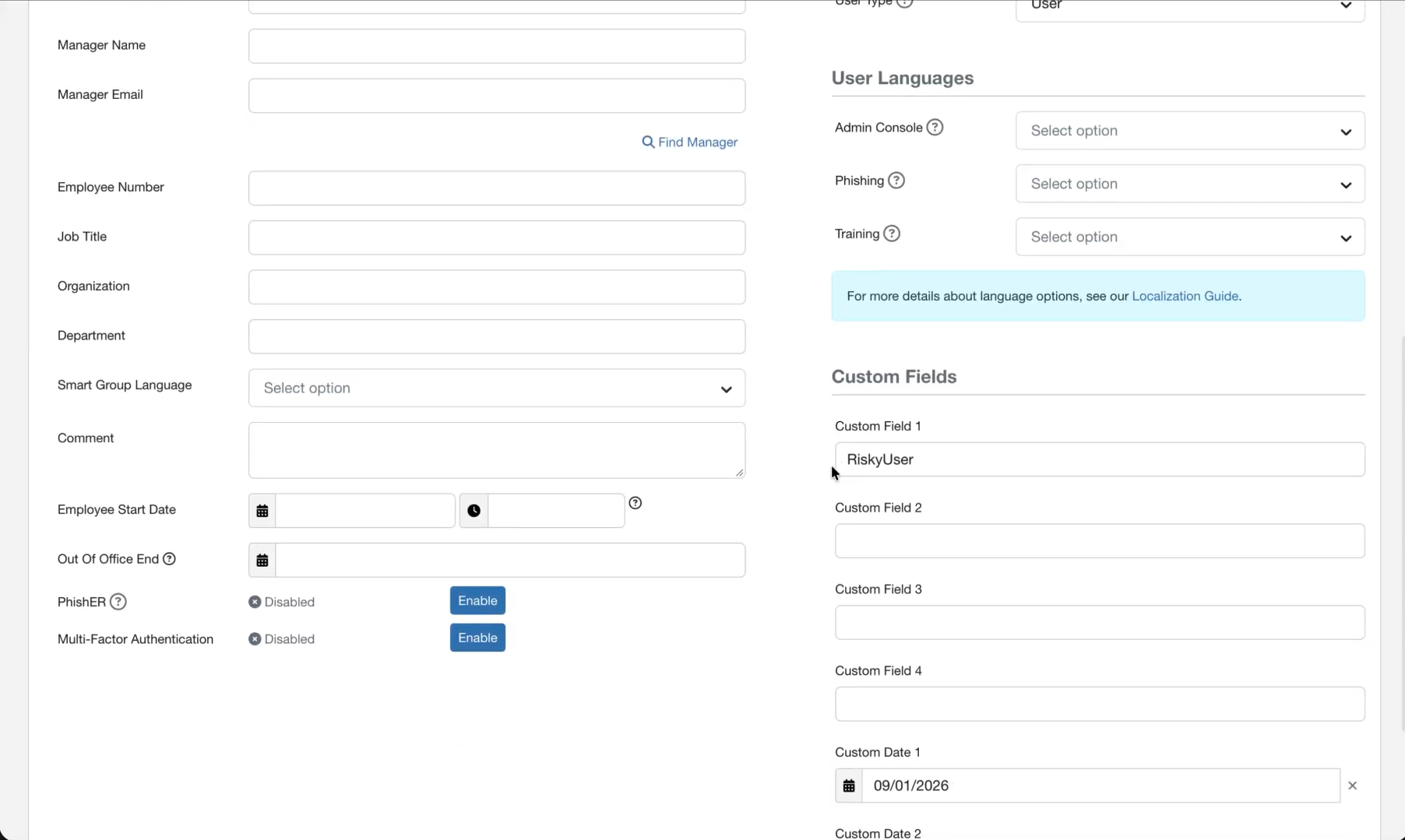
Troubleshooting the KnowBe4 Plugin
Receiving error in the plugin workflow
CRE KnowBe4 [CRE KnowBe4]: Validation error occurred, Received exit code 401, Unauthorized, Verify Base URL and API Token provided in the configuration parameters.
What to do:
- Verify the API Token for KnowBe4. Refer to Get your KnowBe4 API tokens.
- Verify the Base URL for KnowBe4 platform. Refer to prerequisites.
Users are not pulled from KnowBe4
If no data for the User is pulled, it could be due to one of these reasons:
- No User is available on the platform to pull.
- Mapping is not added in the plugin.
What to do:
- Go to KnowBe4 and check if the Users are available to pull from the Users > User Management page. Or follow the steps.
- Edit the plugin configuration and check the Entity Source page, there should be some fields mapped in order to pull the same.
Plugin fails to validate or shows an authentication error
If the plugin fails to validate or shows an authentication error, it could be due to one of these reasons:
- The KSAT API Token is invalid or has expired.
- The PasswordIQ or SecurityCoach API Token is invalid and the respective option is selected in Pull Additional Details.
- The Base URL or Custom Region URL does not match the tenant’s KnowBe4 region.
What to do:
- Verify that the KSAT API Token is valid and was generated from Users > Manage User in the KnowBe4 console. For that follow the steps.
- If PasswordIQ or SecurityCoach is selected in Pull Additional Details, ensure the corresponding API token was generated from the same section in the respective product’s API settings.
- Confirm that the Base URL matches the KnowBe4 region for your tenant (like
https://training.knowbe4.comfor US, orhttps://eu.knowbe4.comfor EU).
Group or training campaign actions fail partway through processing
If a group or training campaign action fails partway through processing, it could be due to one of the following reasons:
- An authentication failure (401/403) was encountered during action execution.
- The Group Action Batch Size is too large, causing a gateway timeout.
What to do:
- Check the Logging screen in Cloud Exchange for the specific error message to identify whether it is an authentication failure or a timeout.
- Regenerate the KSAT API Token if authentication failures are reported in the logs.
- Reduce the Group Action Batch Size configuration parameter (default 50, valid range 1–100) if gateway timeouts are observed for group membership actions.
Getting error while upgrading the plugin to latest version
If you are getting this error while upgrading the plugin to latest version,
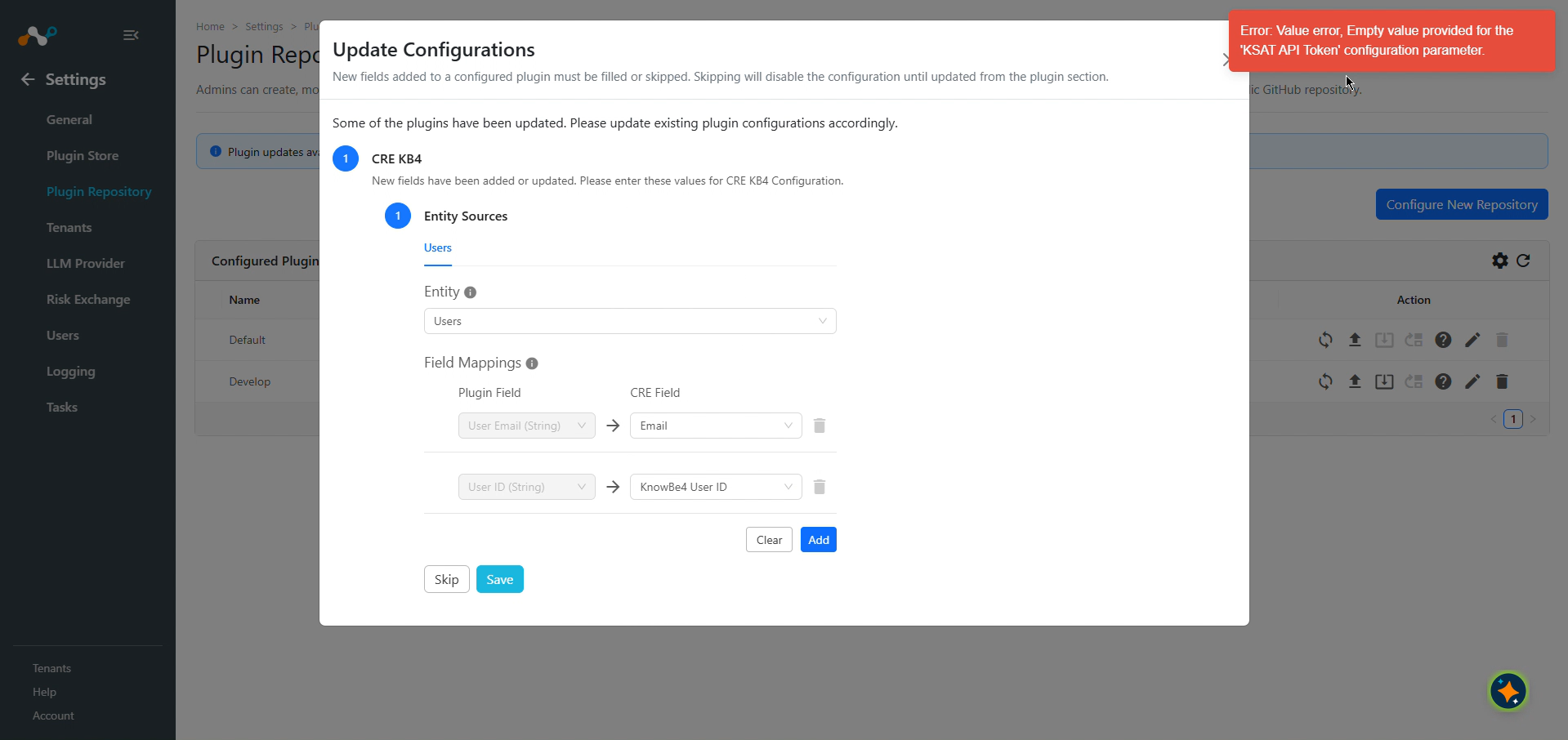
follow these steps to configure the plugin:
- Click Skip on the update screen.
- Go to the Risk Exchange > Plugins screen and edit the plugin.
- Provide the values for all Configuration Parameters, then click Next. Add the Mappings as per the requirement. (Note that the User ID field data type is changed from Number to String, so you need to update the CRE Field data type as well.)
- Click Save and then enable the plugin.
API calls intermittently hang for 5 minutes before resuming
If API calls such as validate or sync intermittently hang for about 5 minutes before resuming or failing, it could be due to one of these reasons:
- The KnowBe4 regional hostname resolves to multiple IP addresses behind a shared CDN.
- The network firewall silently drops traffic to one or more of the resolved IP addresses, causing the connection to hang until Cloud Exchange’s 5-minute internal timeout is reached.
What to do:
- Run
nslookup <region>.knowbe4.com(for example,nslookup ca.knowbe4.com) from the Cloud Exchange machine. - Share all the IP addresses returned by the command with your network/IT team.
- Ask the network/IT team to verify that all the returned IP addresses are unblocked for outbound access from the Cloud Exchange machine.
- Unblock any IP addresses that are being blocked by the firewall.
Update Custom Fields action does not update custom field values on the KnowBe4 UI
If the Update Custom Fields action shows as successful in Cloud Exchange but the custom field value is not updated on the KnowBe4 UI, it could be because the user is managed by user provisioning.
- Custom field values can be updated only for users who are not managed by user provisioning.
- For users managed by user provisioning, the KnowBe4 API may return a successful response, so Cloud Exchange shows the action as successful, but the updated value will not be visible on the KnowBe4 UI.
What to do:
- On the KnowBe4 UI, verify whether the user displays “This User is not managed by user provisioning…”.
- Run the Update Custom Fields action only for users who are not managed by user provisioning.
- If the user is managed by user provisioning, update the custom field through the user provisioning system instead.
Additional parameters not available during plugin upgrade
When upgrading the CRE KnowBe4 plugin from version 1.0.0 to 2.0.0 in Cloud Exchange v7.0.0, users can define only the required parameters during the upgrade.
What to do:
To configure additional parameters (like Custom Region URL), edit the plugin after the upgrade from the Risk Exchange > Plugin page.