Netskope AI Gateway is available as a virtual machine (VM) image for Microsoft Azure. This topic explains how to obtain the Azure image and deploy an AI Gateway instance on Azure during the beta period.
What to expect in the beta release
Before you deploy AI Gateway on Azure, review the following beta limitations:
- This beta provides the AI Gateway software image only. AI Guardrails (GPU-based content moderation) is unavailable on Azure and will be introduced at general availability (GA).
- Azure image is validated and ready for beta testing. Use it in test and development environments only while we complete comprehensive testing for production readiness.
Azure sizing guidelines
Use the following instance types when deploying AI Gateway on Azure:
| Size | Azure instance type |
|---|---|
| small | D16ls_v7 (16 cores/32GB) |
| medium | D32ls_v7 (32 cores/64GB) |
For sizing recommendations across all supported platforms, see AI Gateway Sizing Guidelines.
Get the Azure image
To get the AI Gateway image for Azure, follow these steps:
- Log in to your Netskope tenant UI.
- Go to Settings > Security Cloud Platform > AI Gateway > VM Onboarding.
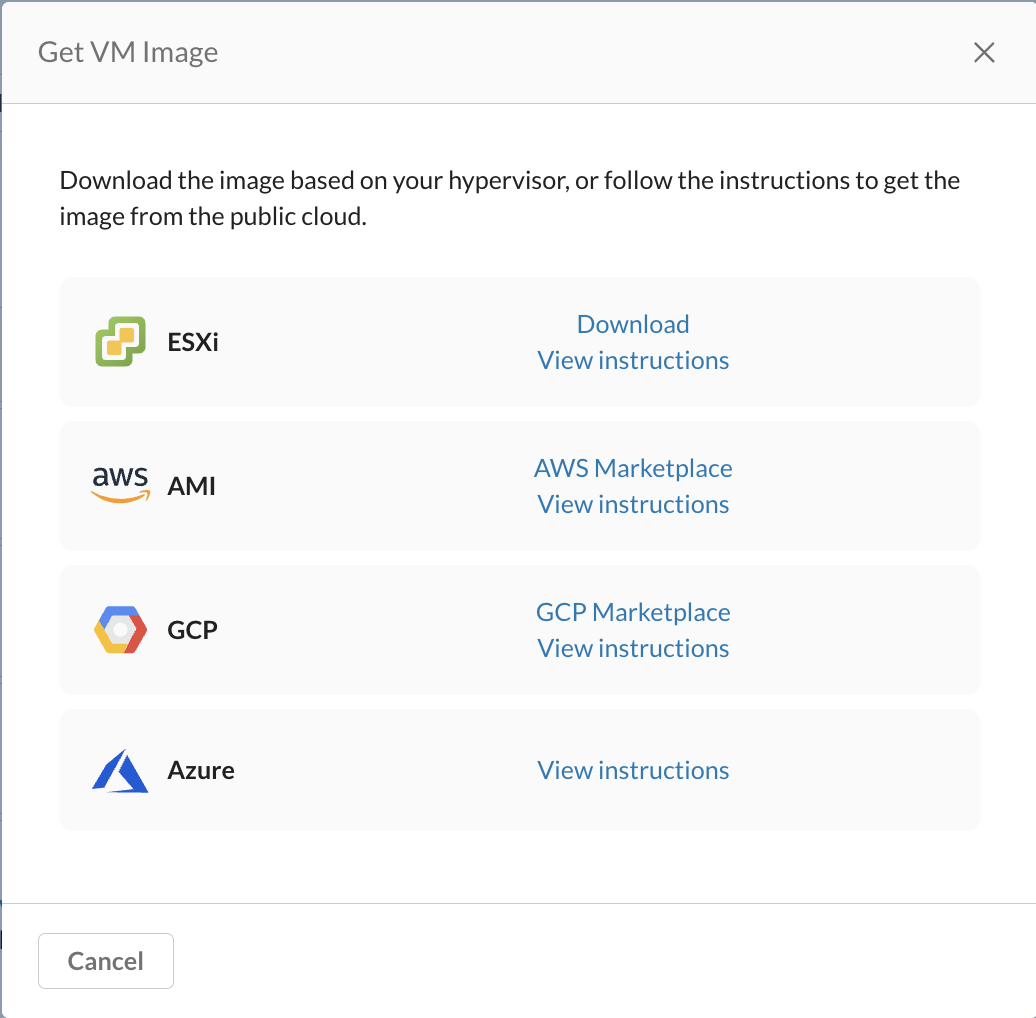
- On the VM Onboarding page, click Deploy VM > Get VM Image.
- Next to Azure, click View instruction.
The Azure image appears in your Azure tenant or subscription only after Netskope provisions it for your account. Netskope publishes the AI Gateway image as a private plan on Azure Marketplace and adds your subscription or tenant ID to the approved audience so you can deploy it directly from your own Marketplace account. If a Marketplace listing isn’t yet available for your account during the beta, contact your Netskope representative.
Deploy the Azure image
You can create a VM instance in Microsoft Azure using the Azure portal. Follow these steps to set up an AI Gateway instance on Azure:
-
In the Azure portal, go to Compute infrastructure > Virtual machines. Click the Images dropdown, and select All images.

-
Go to Marketplace > Private products and select Netskope One AI Gateway. If you don’t see the image, ask Netskope to share it with your Azure tenant or subscription.

-
Choose an image size. For minimum machine requirements by size, see AI Gateway Sizing Guidelines. The AI Gateway image supports Generation 2 (Gen2) virtual machines with Trusted Launch security (Secure Boot and virtual TPM enabled).
-
Set up an administrator account. AI Gateway supports both SSH public key and Password authentication on Azure. Configure both authentication types. The username is fixed as nsadmin. Allow inbound SSH (port 22). If you use password authentication, your password must be 12–72 characters long and include at least three of the following: a lowercase letter, an uppercase letter, a number, and a special character.