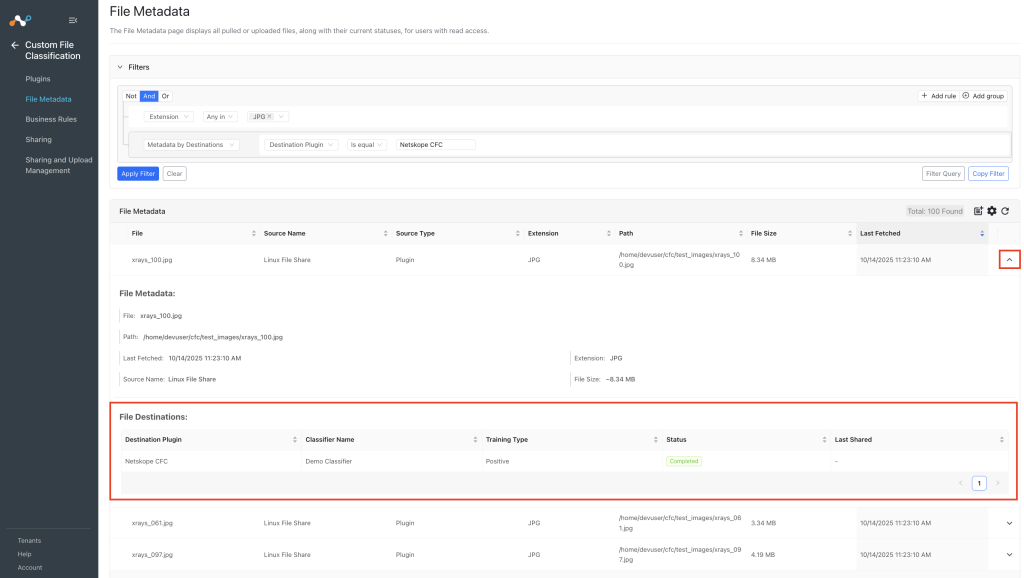
A read-access user can see the list of all pulled files with their current statuses from the 3rd-party plugins or manually uploaded files.
- Go to Custom File Classification > File Metadata.
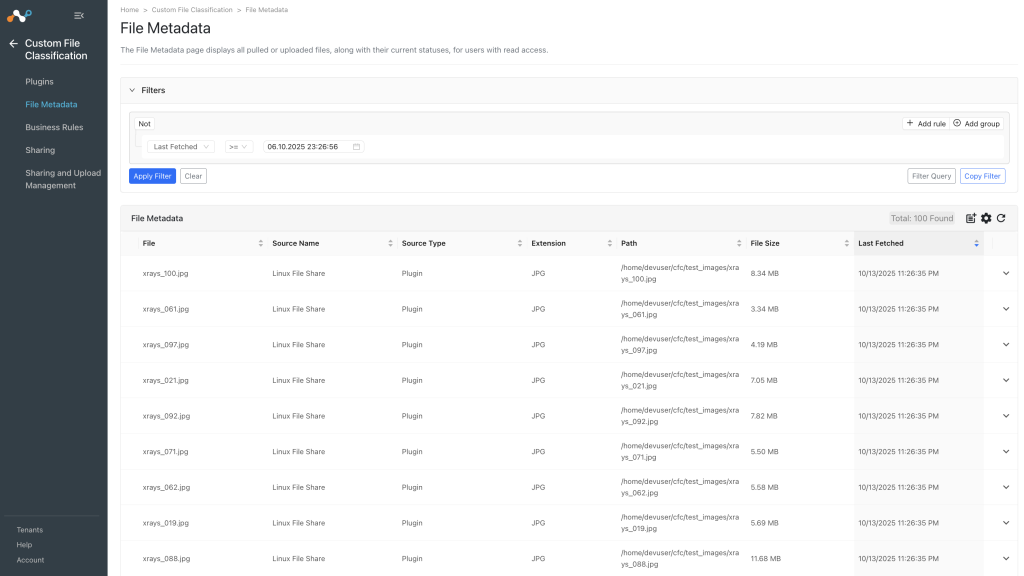

- The list of all Files are shown. The first time you see this screen, the default view will present Files added (via API) in the last 7 days. The File list is paginated with a default page size of 10 records that can be increased to show up to 100 records. By default, records are sorted in descending order of Last Seen.
- There are different filter options available based on the File metadata or Metadata by Destinations that are or can be associated with each File. You can add one or more filters and can add a group of filters to dive into a subset of all the Files. The detailed list of filter options and field meanings is shown below. You can also select Not for a negative filter criteria.
IoC MetadataField Field Sharing Variable Description Filter Operators File file Name of file is equal, contains and is empty (Regex also supported) Path path Remote file path from source is equal, contains and is empty (Regex also supported) Extension extension Extension of file. Supported extensions: .bmp, .dib, .jpeg, .jpg, .jpe, .jp2, .png, .webp, .avif, .pbm, .pgm, .ppm, .pxm, .pnm, .pfm, .sr, .ras, .tiff, .tif, .exr, .hdr, .pic, .zip, .tgz any in, not in operator (Multi-select) Source Name sourcePlugin Name of source plugin that images are fetched from is equal, contains and is empty (Regex also supported) Source Type sourceType Type of the source:
Plugin – Fetched by a plugin,
Manual – Uploaded manuallyany in, not in operator (Multi-select) Outdated outdated Indicated if an image data entry is outdated or not is equal and != Last Fetched lastFetched Last time image was fetched from source !=, <, >, >=, <=, Between File Size fileSize Size of file is equal, is empty, !=, <, >, >=, <= Metadata by Destinations
Field Field Sharing Variable Description Filter Operators Destination Plugin destinationPlugin Destination configuration where files are shared is equal, contains and is empty (Regex also supported) Classifier Name classifierName Name of the classifier associated with the destination configuration is equal, contains and is empty (Regex also supported) Training Type trainingType Type of training performed any in, not in operator (Multi-select) Status status Sharing status of the image for the current destination configuration. Available status: any in, not in operator (Multi-select) Last Shared lastShared Last time image was shared with configuration !=, <, >, >=, <=, Between Available Status
Status Description Scheduled This represents that the sharing is configured but it is still in the queue and waiting to run for the first time. Completed This represents that the generated hash is successfully shared with the destination configuration. Failed This represents that the process failed in either pulling data, hashing data or uploading hash. Generating Hash This represents that the process of generating a hash is in progress. Uploading Hash This represents that the hash is generated successfully and the process of sharing it to the configured destination is in progress.
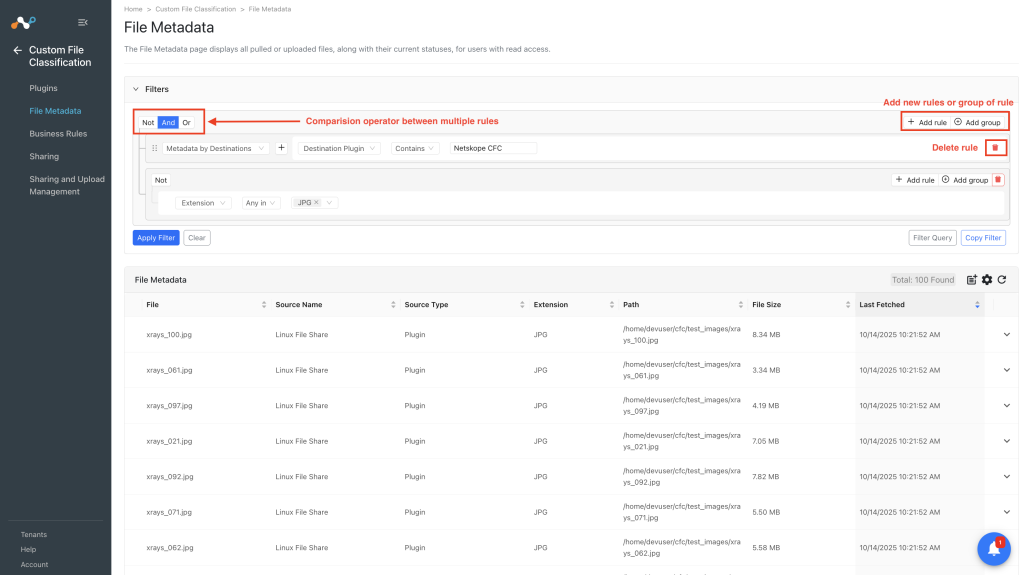
- For more than one filter criteria, move the mouse to the upper right of the filter box to see and select Add Rule. Select the appropriate comparison operator, like And or Or or Not by moving the mouse over the upper left. The other options will then be shown.
- For alternative multi-data criteria, select Add Group. Rules will be processed from top to bottom. Move the mouse to the upper right of the filter box to see the Add Group option.
- After selecting the desired filter, click Apply Filter. Files matching the filtering criteria will be listed in the UI.
- To remove an applied filter, click the Clear option. The UI will fall back to the default filter and Files matching the default filter will be listed as the screen refreshes.
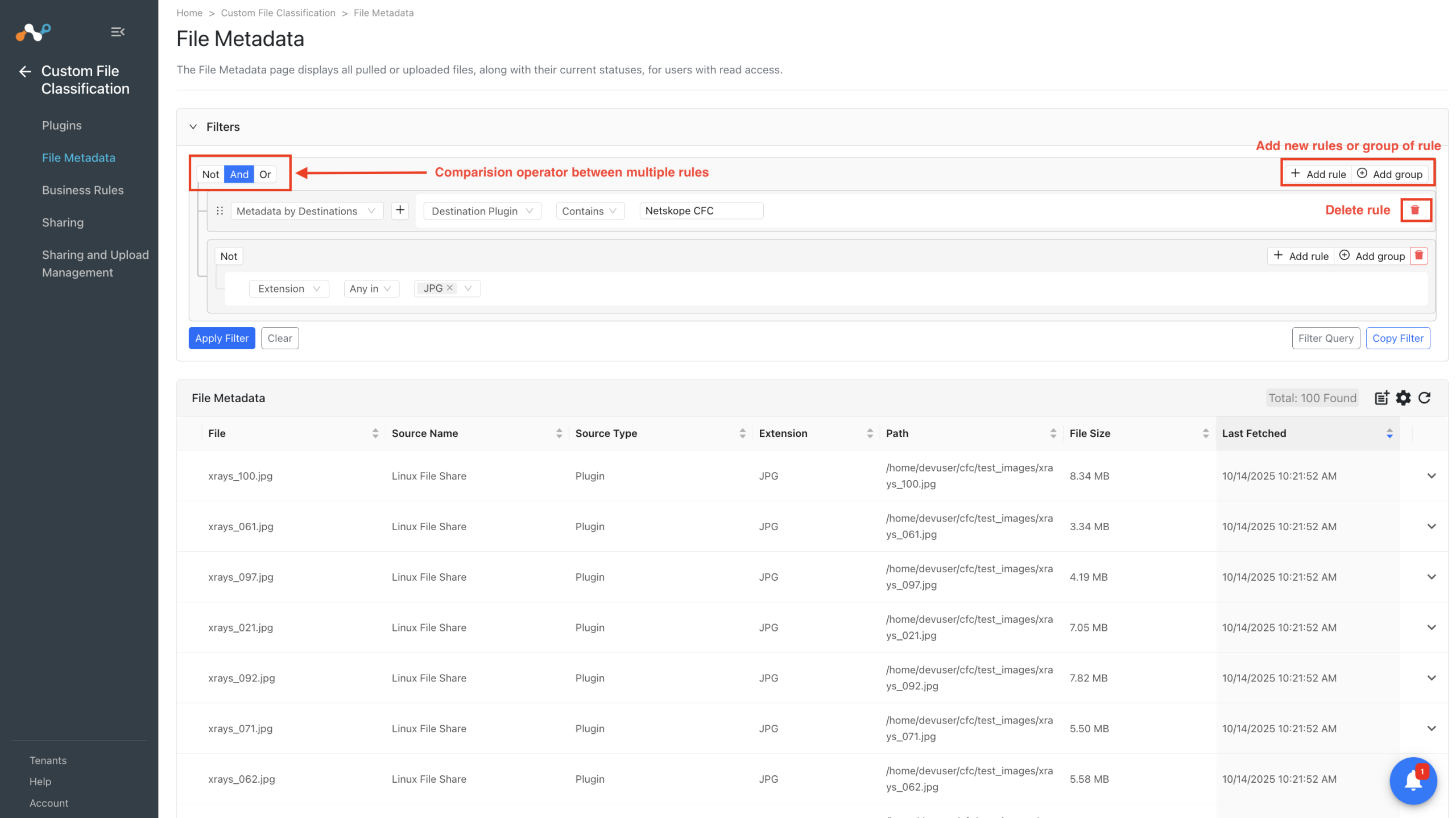
- You can also copy the filter string created in the rules engine after applying the filter. Click Copy Filter button to copy the actual search string. The copied string can be used as a filter in any plugin configuration to limit the data.
- Another option is to enter the filter query manually, and then load the filters according to the query.
- Total count of files will be mentioned at the top right of the files metadata table.
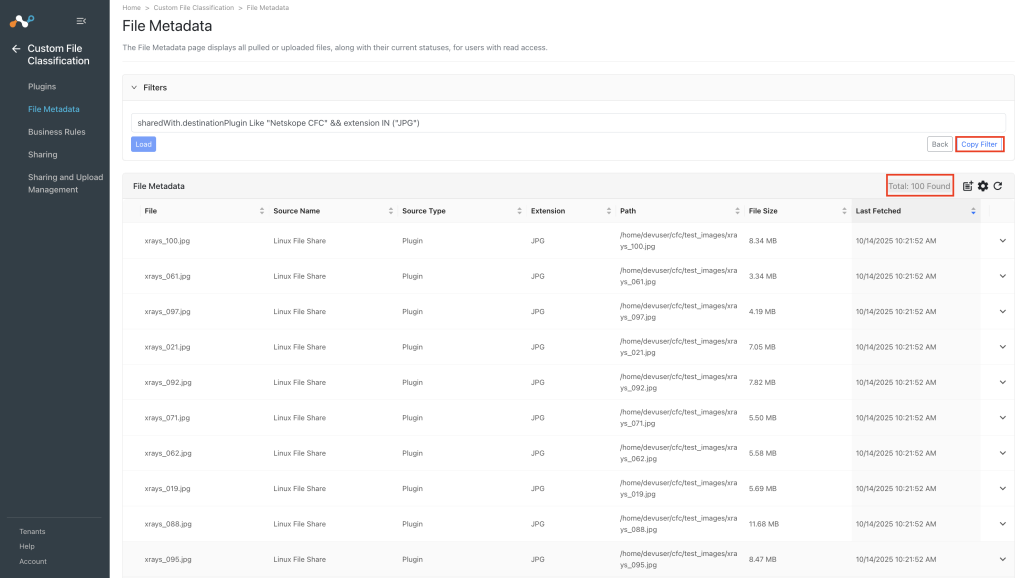

- When you expand the File Metadata, you can check all the other details of the File, along with the status.